MAX, MIN and MEDIAN in Google Sheets: formulas and examples
MAX returns the largest number in a range, MIN the smallest, MEDIAN the middle one. This guide covers the versions with conditions (MAXIFS, MINIFS), MAXA and MINA, dates and negative values, how to find the row that holds the largest value, how to calculate a median with a condition, and what each function does with text and empty cells.
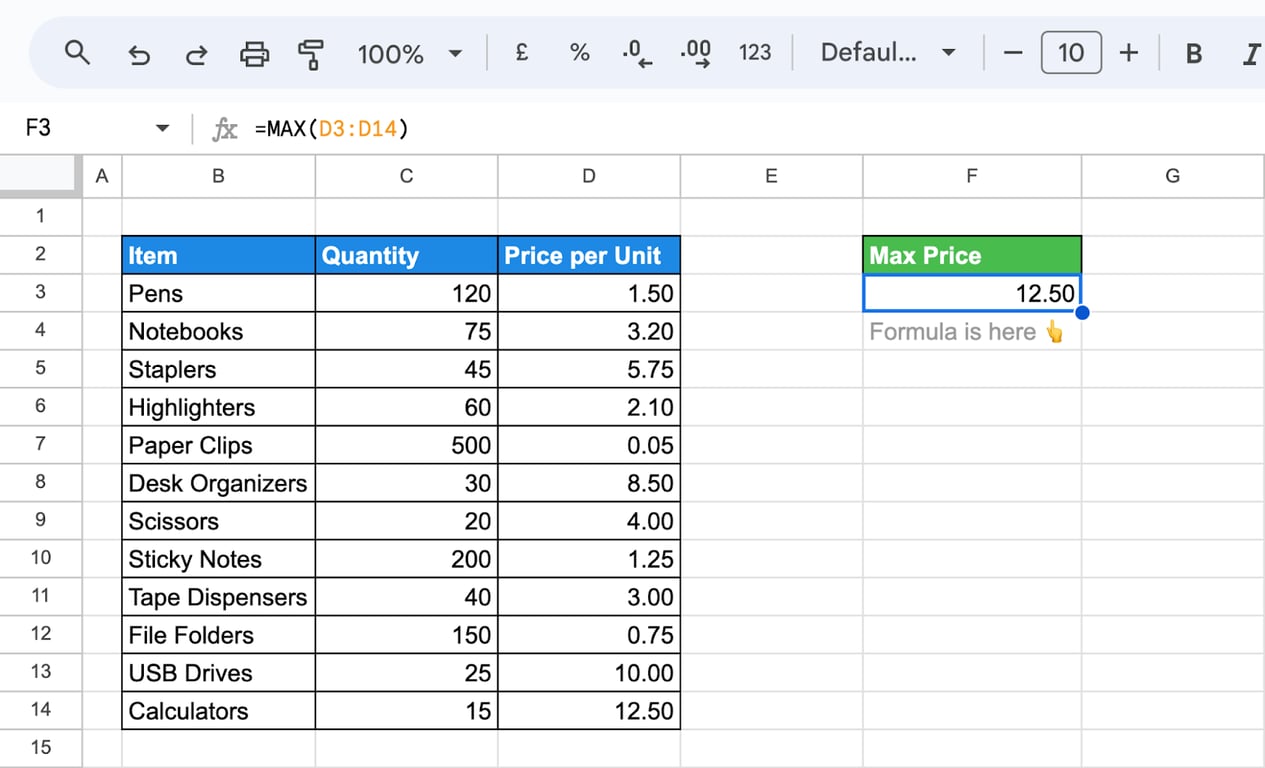
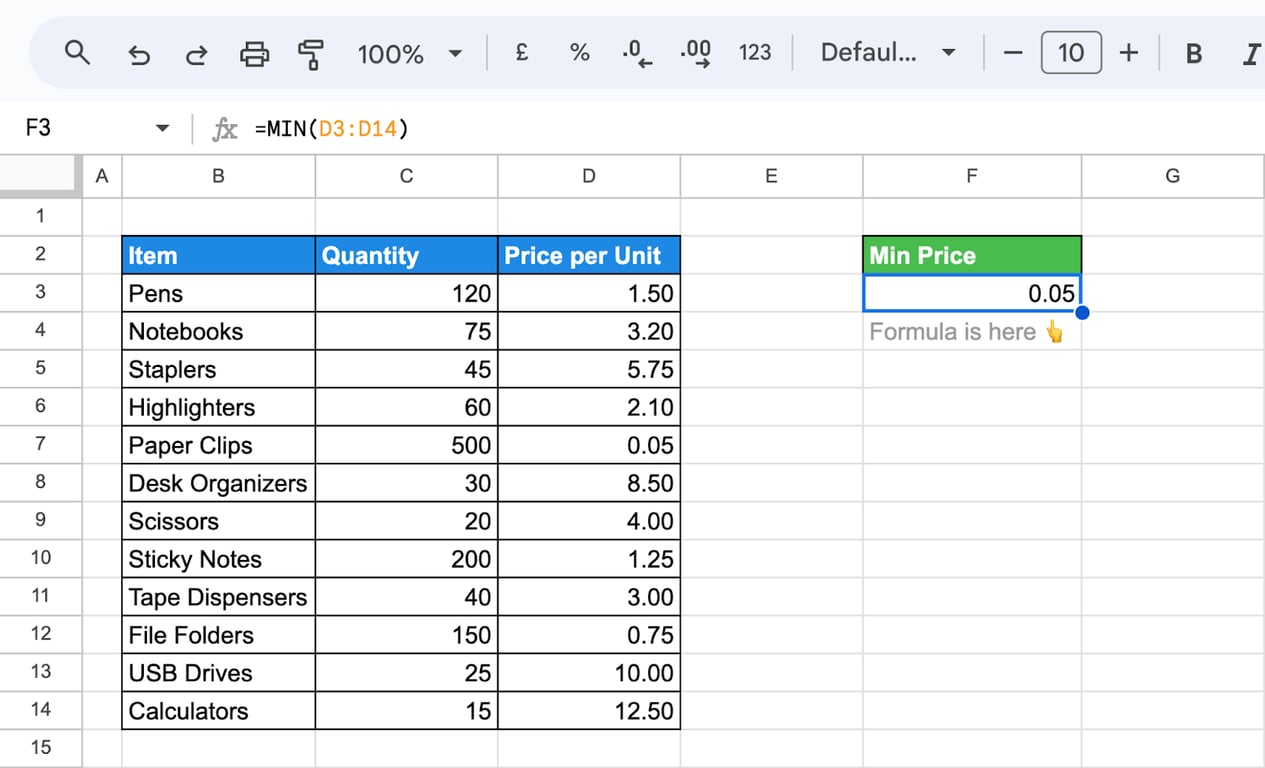
MAX returns the largest number in a range, MIN the smallest, and MEDIAN the middle value:
=MAX(D3:D14)
=MIN(D3:D14)
=MEDIAN(D3:D14)
All three ignore text and empty cells. The rest of the family adds conditions or changes how text is treated:
| Function | Returns | Text in the range |
|---|---|---|
MAX(range) |
The largest number | Ignored |
MIN(range) |
The smallest number | Ignored |
MEDIAN(range) |
The middle number; with an even count, the average of the two middle ones | Ignored |
MAXIFS(range, criteria_range, criterion, ...) |
The largest number among the rows that meet the conditions | Ignored |
MINIFS(range, criteria_range, criterion, ...) |
The smallest number among the rows that meet the conditions | Ignored |
MAXA(range) |
The largest value | Counted as 0 |
MINA(range) |
The smallest value | Counted as 0 |
LARGE(range, n) |
The n-th largest number | Ignored |
SMALL(range, n) |
The n-th smallest number | Ignored |
There is no MEDIANIFS. A median with a condition is built with FILTER, as shown in the MEDIAN section of this guide.
MAX and MIN
=MAX(value1, [value2, ...])
=MIN(value1, [value2, ...])
Each argument is a number, a cell or a range. Several ranges and single values can be mixed in one formula.
Text in the range
Cells with text, such as “N/A”, are skipped. The result is the largest or smallest of the numbers that remain:
=MAX(C3:C14)
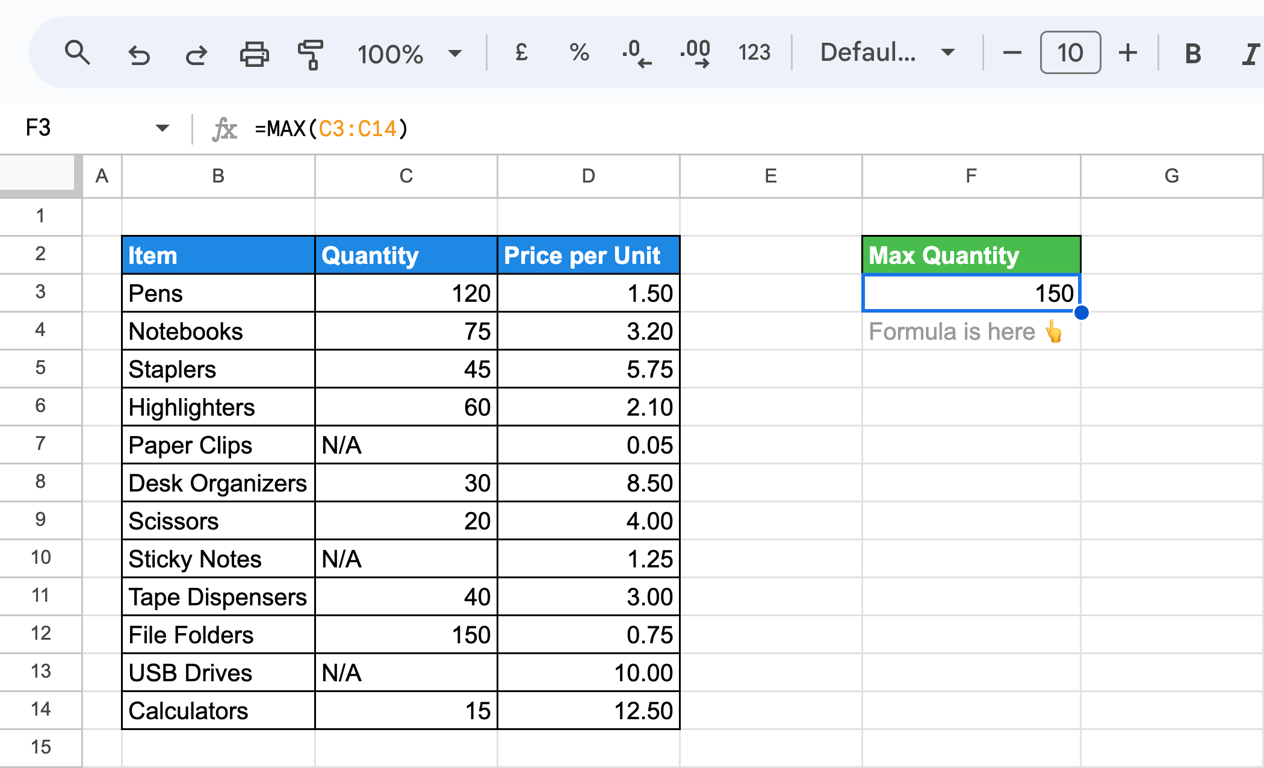
=MIN(C3:C14)
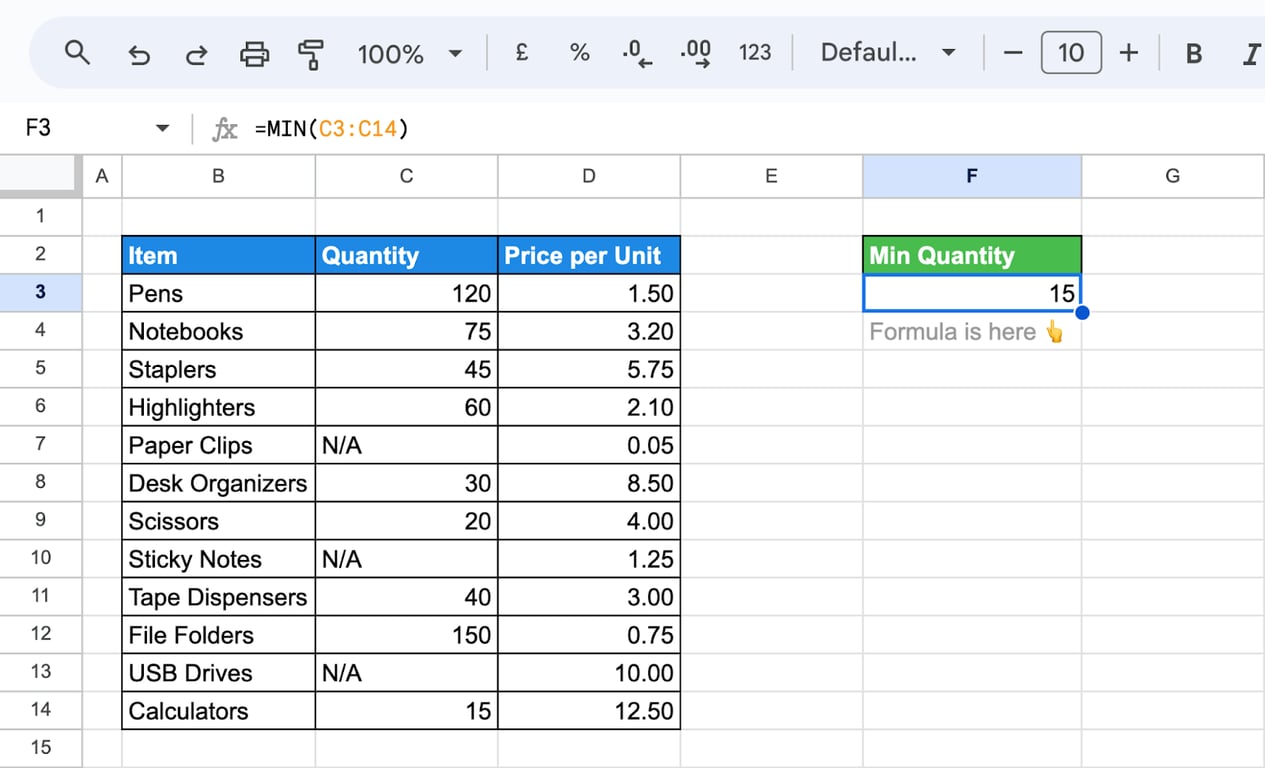
Two consequences are worth knowing. A range that holds only text returns 0, not an error. And numbers stored as text are skipped too, so a column imported as text gives 0 or a wrong maximum; convert it with VALUE first.
Dates
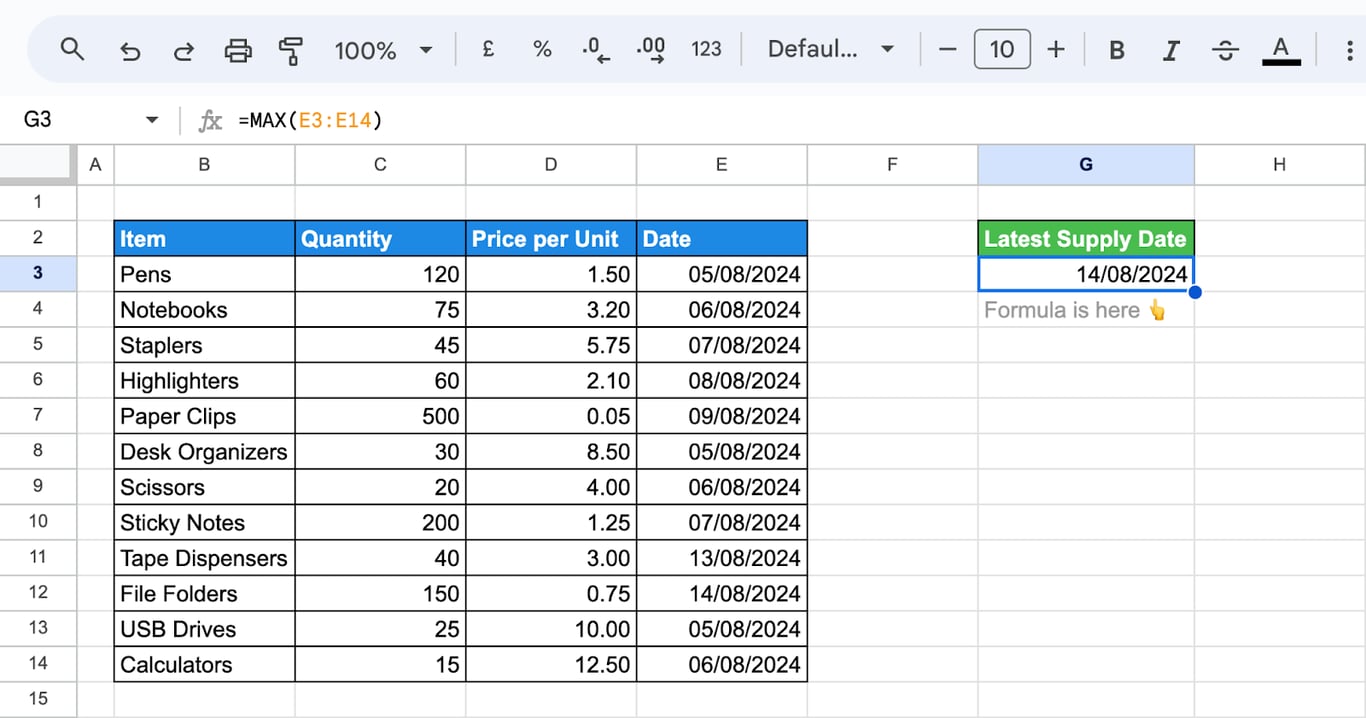
Dates are numbers, so MAX returns the latest date and MIN the earliest:
=MAX(E3:E14)
=MIN(E3:E14)
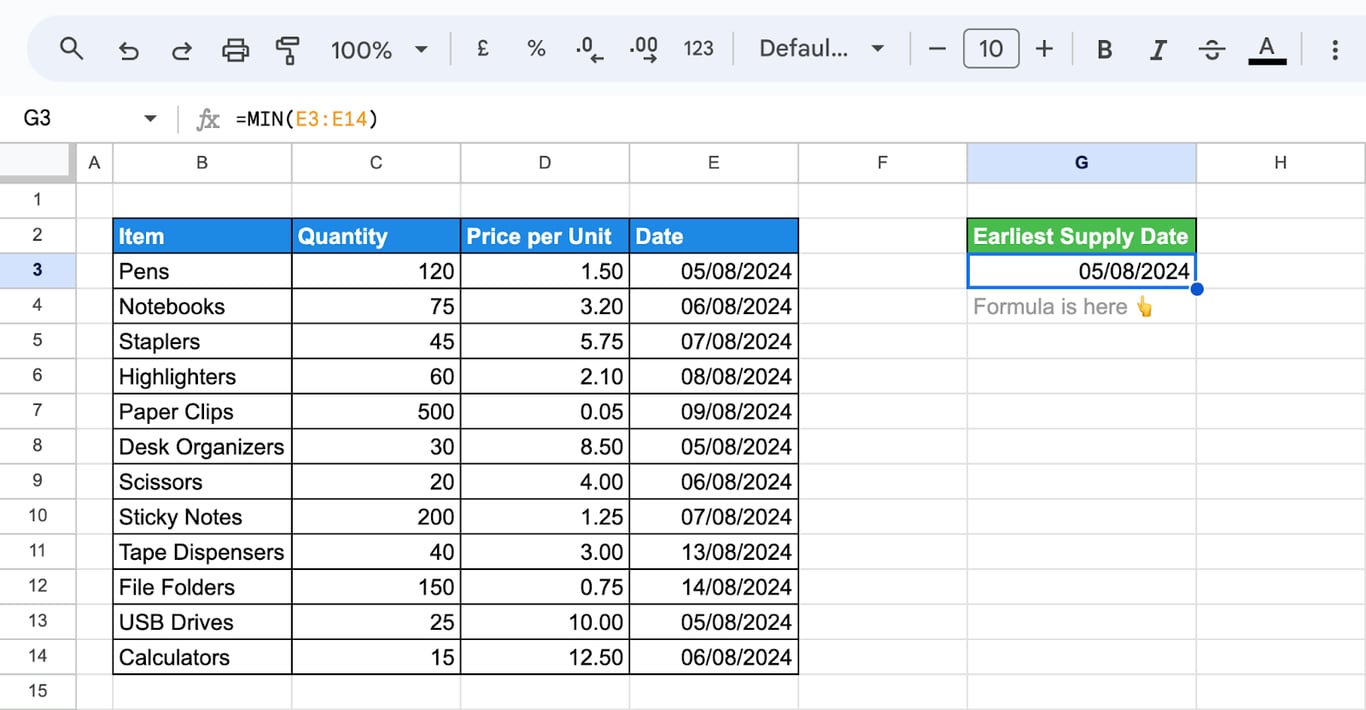
If the result shows as a number such as 45518, apply a date format to the cell. More in the guide to dates and times.
Negative numbers
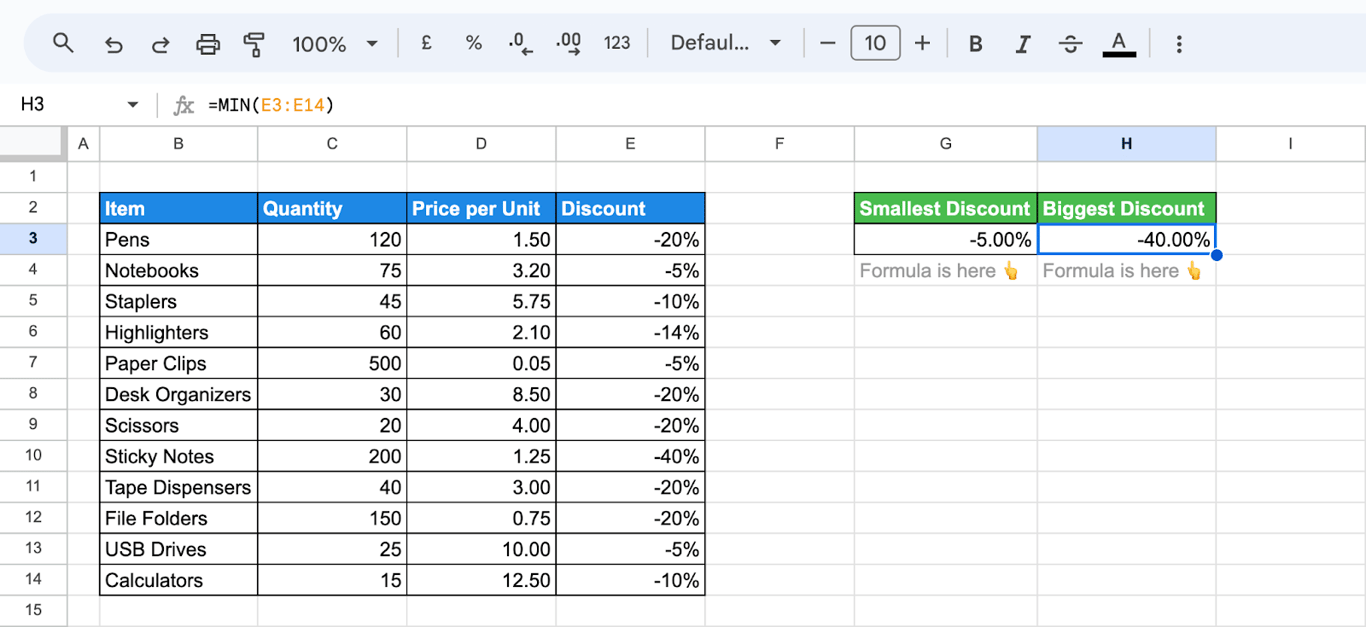
With negative values, “largest” means closest to the top of the number line. In a column of discounts written as negative percentages, MAX returns the smallest discount and MIN the biggest:
=MAX(E3:E14)
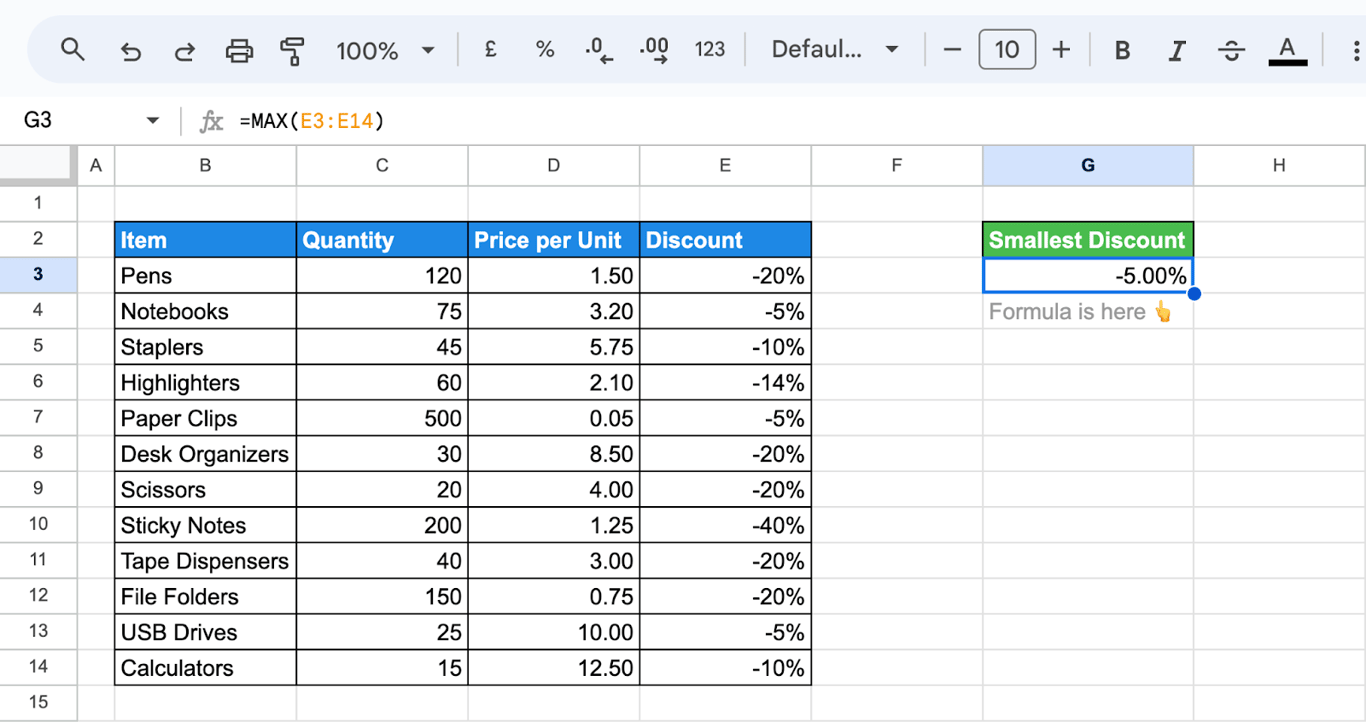
=MIN(E3:E14)
Limit a result with MAX or MIN
With two arguments, MAX and MIN set a floor or a ceiling. =MAX(0, B2-C2) never goes below zero, and =MIN(100, B2) never goes above 100.
The second largest value
=LARGE(D3:D14, 2)
LARGE returns the n-th largest number and SMALL the n-th smallest. The guide to RANK covers ranking a whole column.
MAXIFS and MINIFS: the largest and smallest with conditions
MAXIFS and MINIFS: the largest and smallest with conditions
=MAXIFS(range, criteria_range1, criterion1, [criteria_range2, criterion2, ...])
- range: the numbers to take the maximum from.
- criteria_range1, criterion1: the range to test and the condition. More pairs can follow; a row has to meet all of them.
MINIFS has the same arguments. The criteria are written as in COUNTIF and COUNTIFS: ">50", "Pens", "<>0", ">="&DATE(2024,8,1).
=MAXIFS(D3:D14, C3:C14, ">50")
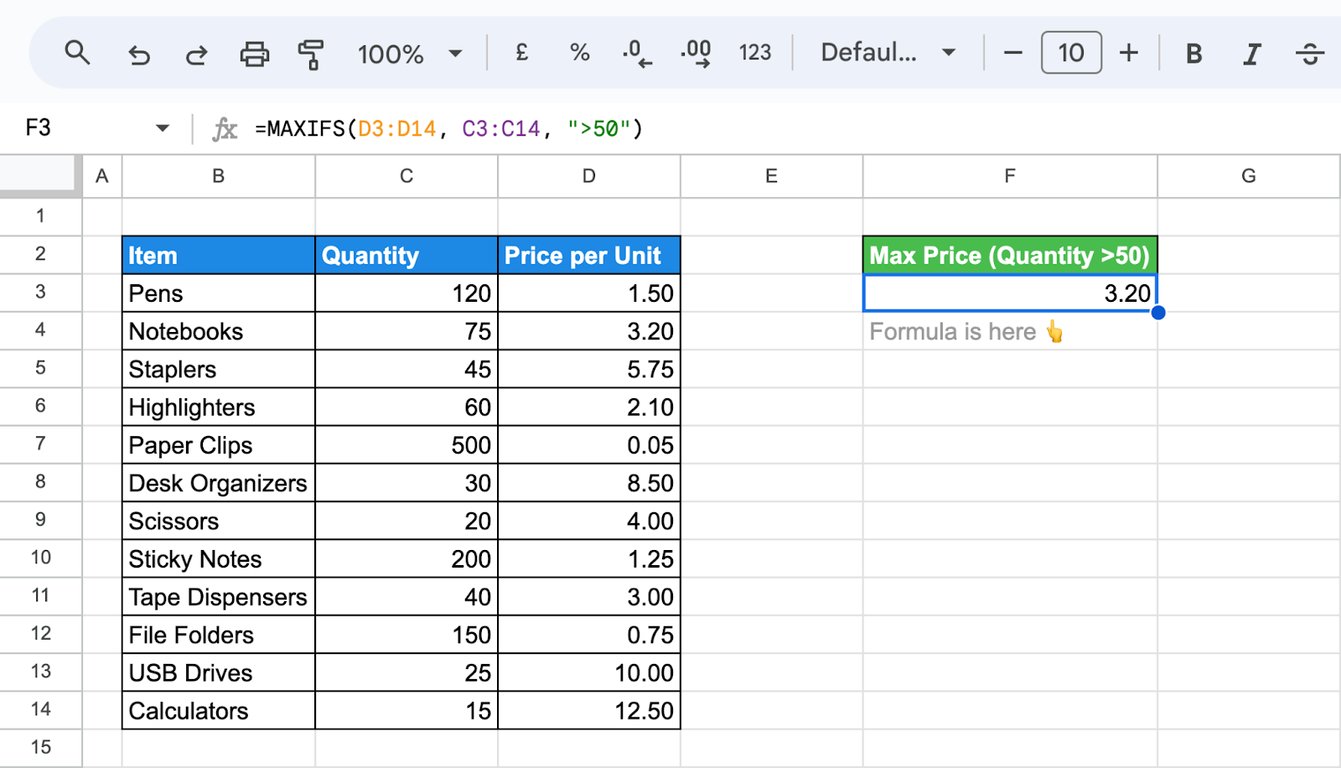
The highest price among the items with a quantity above 50 is 3.20.
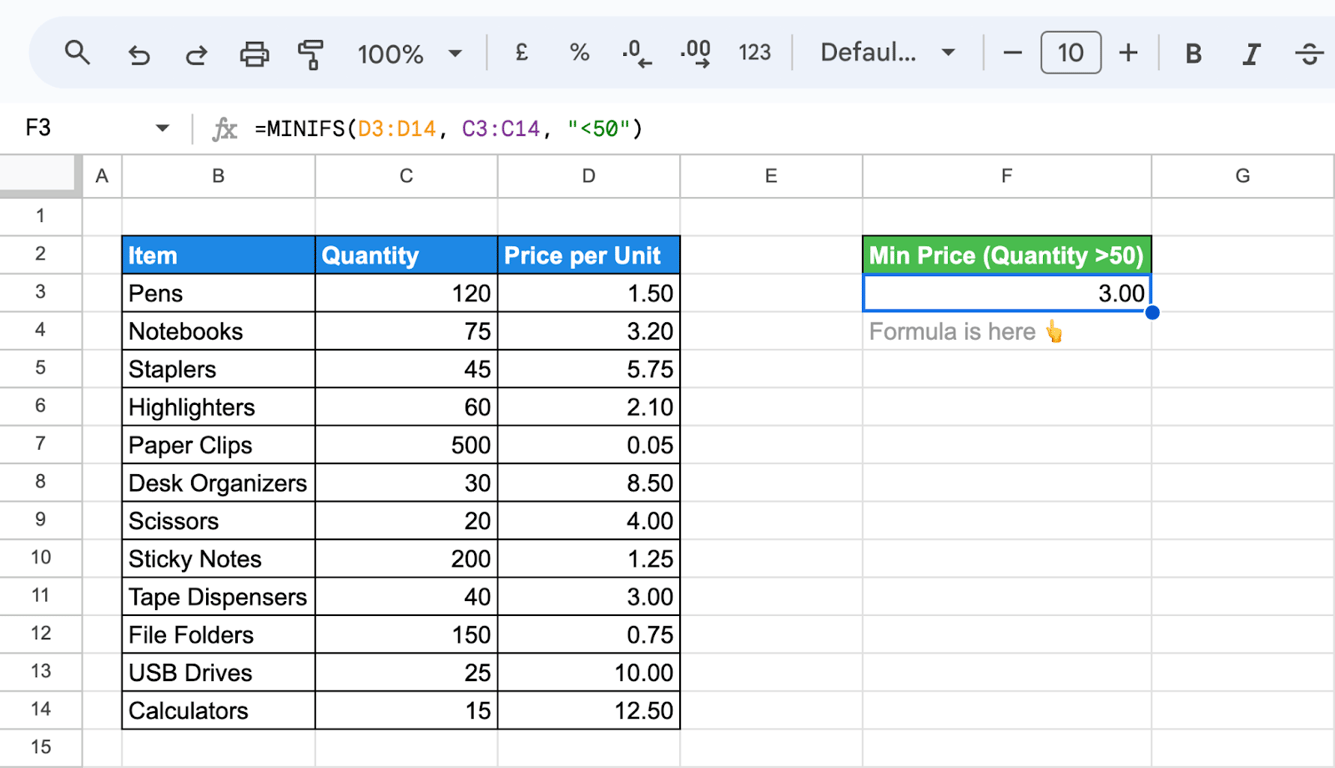
=MINIFS(D3:D14, C3:C14, "<50")
Several conditions
=MAXIFS(D3:D14, E3:E14, "<=-10%", C3:C14, ">30")
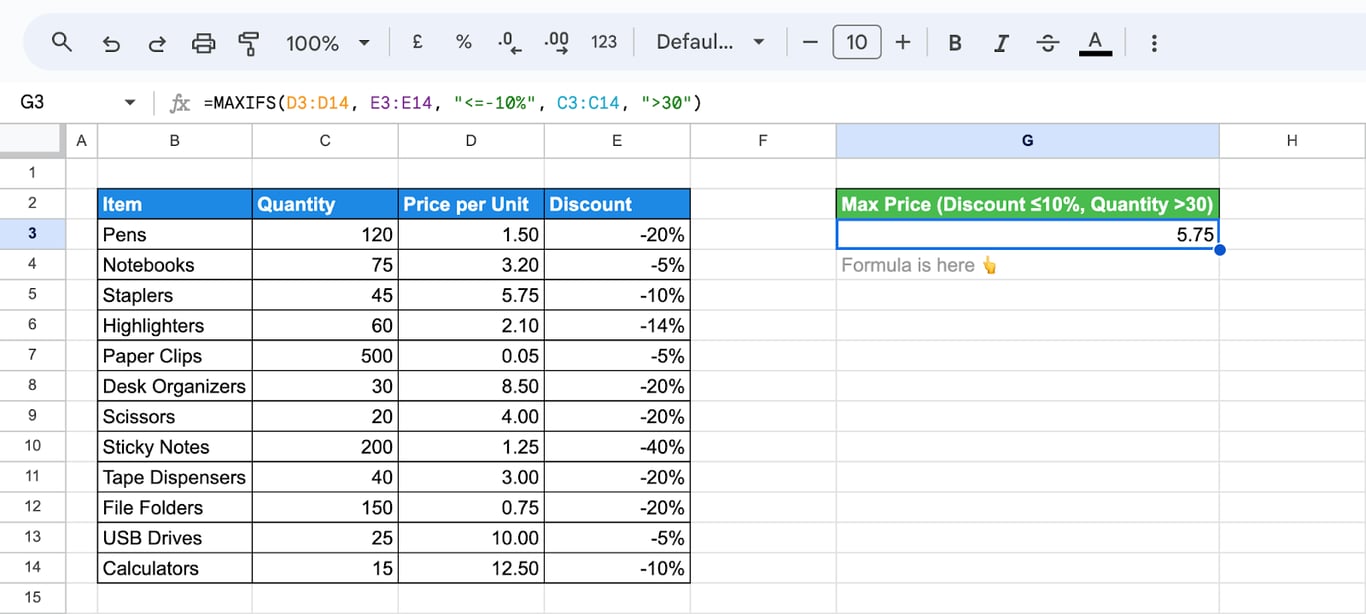
The highest price among items with a discount of 10% or more and a quantity above 30 is 5.75.
=MINIFS(D3:D14, E3:E14, "<=-10%", C3:C14, ">30")
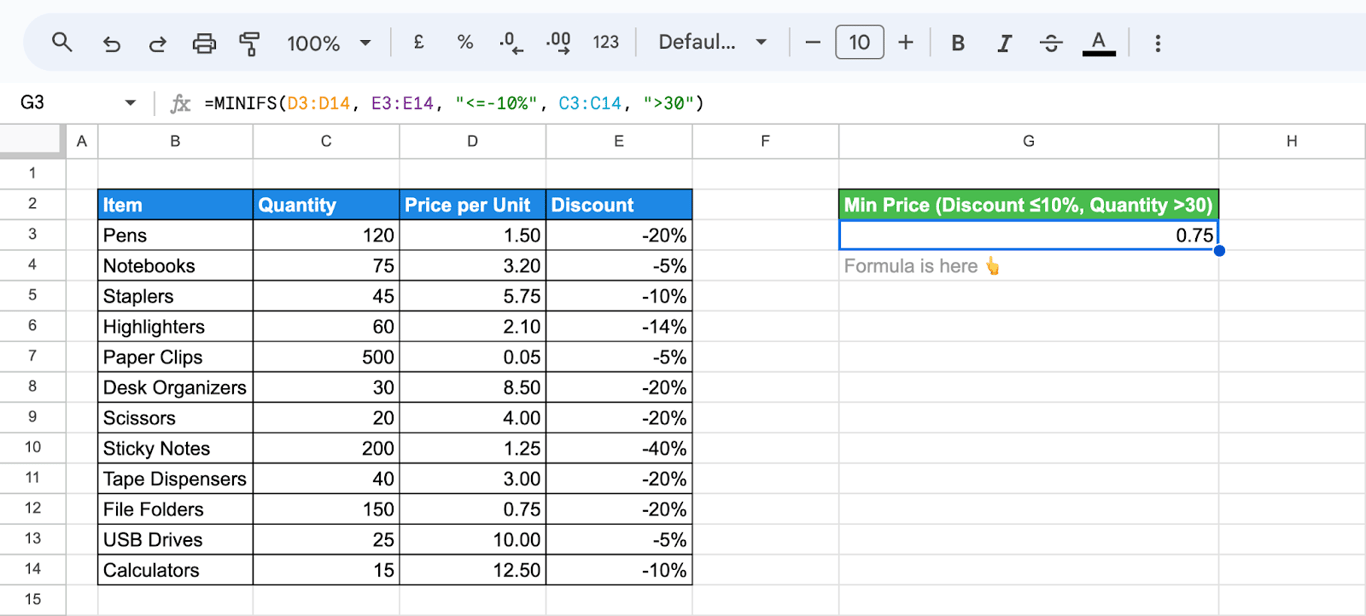
The smallest value that is not zero
=MINIFS(D3:D14, D3:D14, ">0")
The range and the criteria range can be the same column. The older form with FILTER gives the same result:
=MIN(FILTER(D3:D14, D3:D14 > 0))
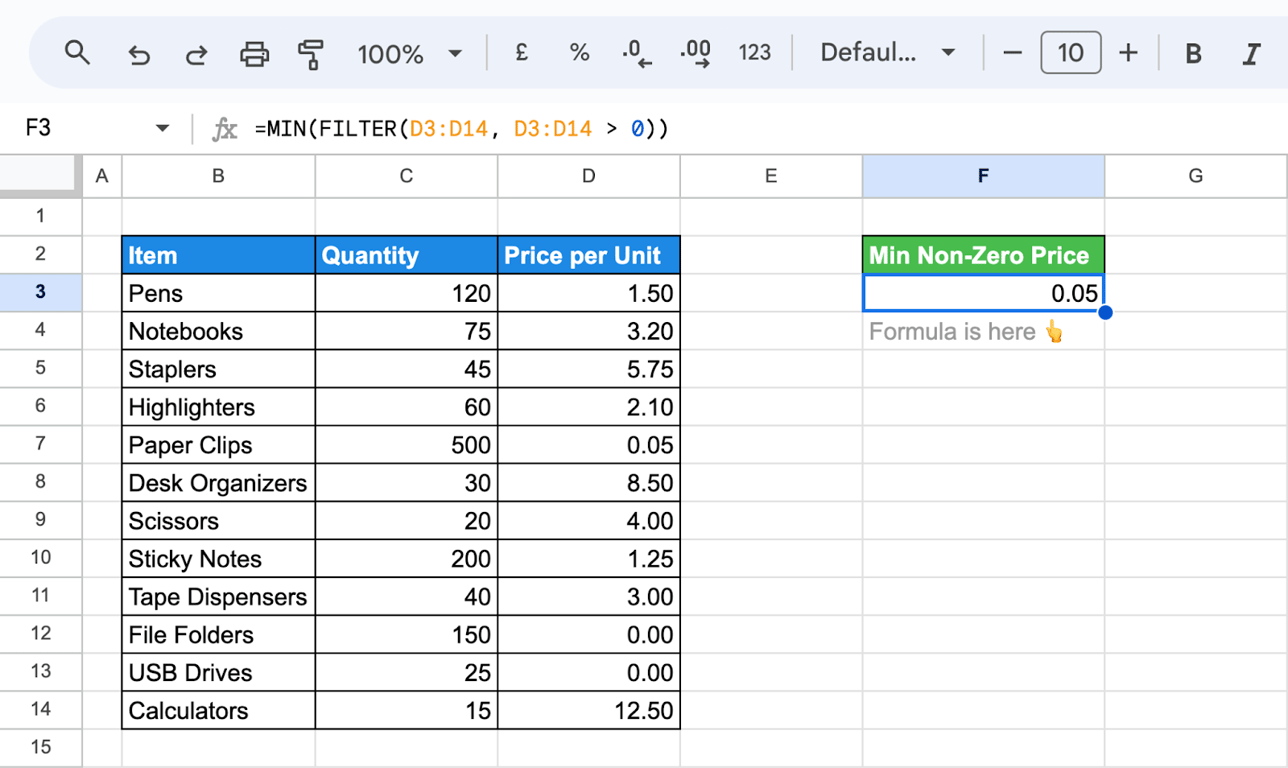
The two differ when nothing matches: MINIFS and MAXIFS return 0, MIN with FILTER returns #N/A. A 0 that means “no rows” is easy to mistake for a real value, so check the count when the result is zero.
OWOX Data Marts
See your first report built in real time. 15 minutes.
- Connect your data warehouse
- Pick your metrics
- Get a live Google Sheets report
In the time it takes to write a ticket. Then imagine never writing that ticket again.
Book a DemoWe'll use your actual use case
MAXA and MINA
MAXA and MINA do not skip text: every text cell counts as 0.
=MINA(C3:C14)
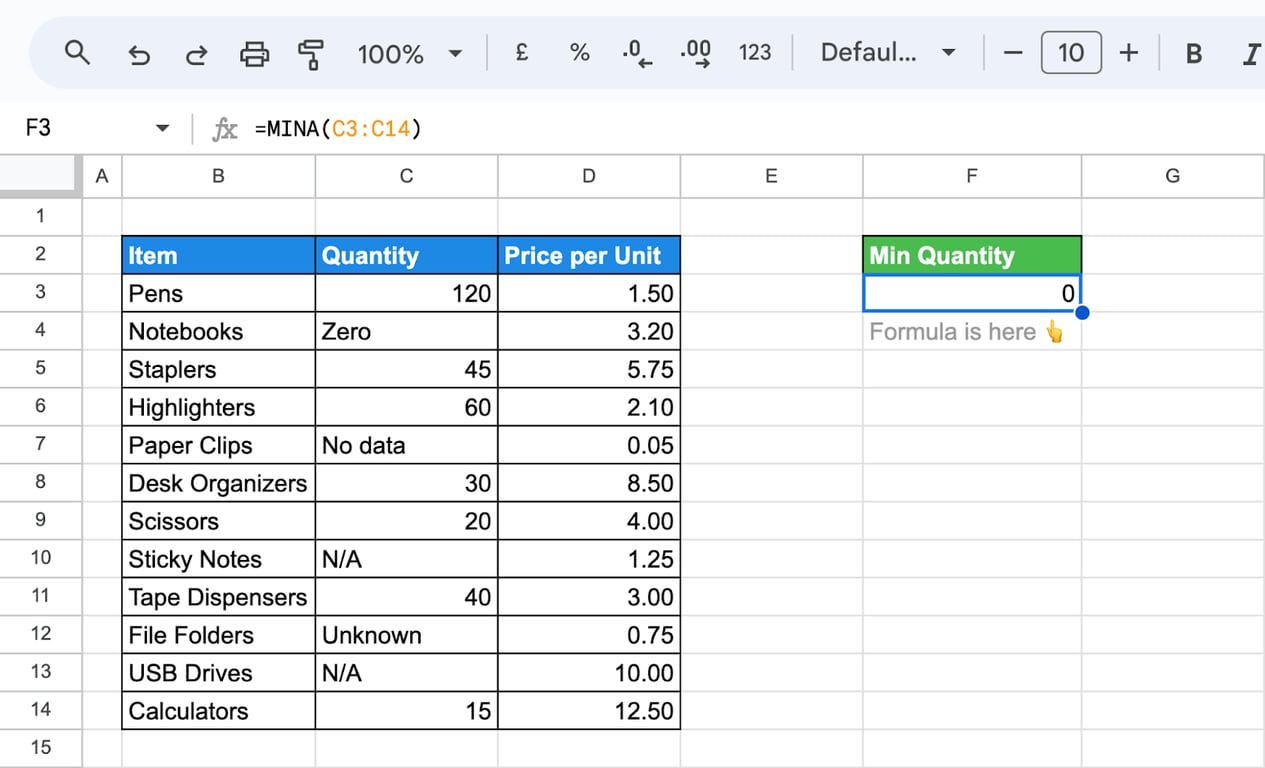
The smallest quantity in the column is 15, but MINA returns 0 because of the text cells. This is rarely what a report needs. Use MINA only when a text entry really stands for zero, and MIN otherwise.
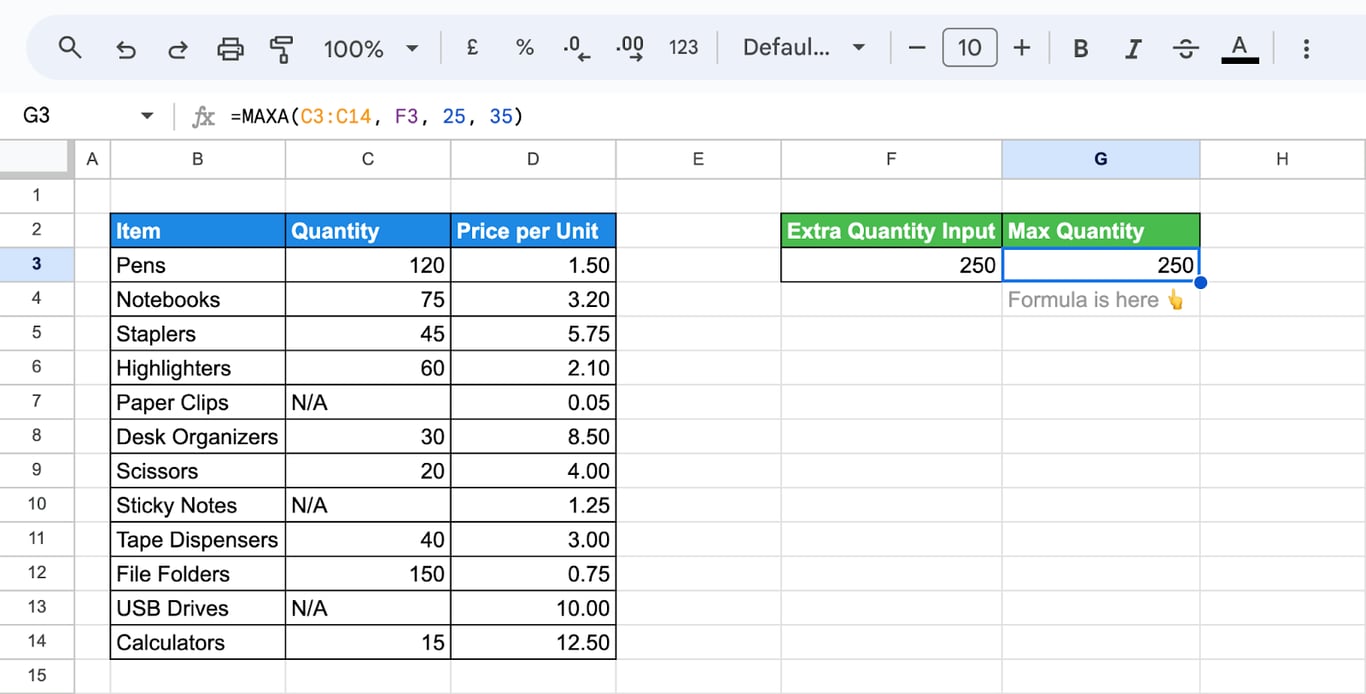
=MAXA(C3:C14)
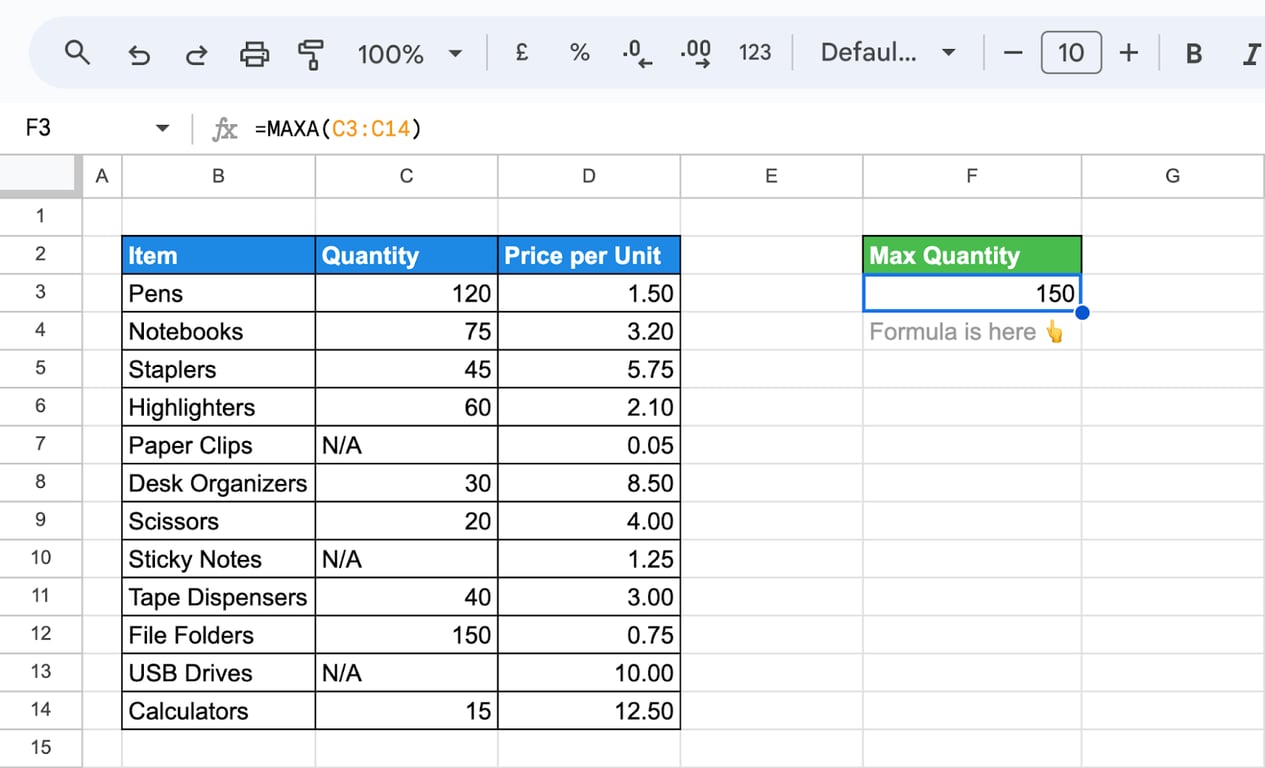
With positive numbers MAXA gives the same result as MAX, since a text counted as 0 is never the largest. Extra values and cells can be added to the list:
=MAXA(C3:C14, F3, 25, 35)
Find the row that holds the largest or smallest value
Find the row that holds the largest or smallest value
MAX returns the number, not the row it sits in. To get another column of that row, look the number up:
=XLOOKUP(MIN(D3:D14), D3:D14, B3:B14)
or with INDEX and MATCH:
=INDEX(B3:B14, MATCH(MIN(D3:D14), D3:D14, 0))
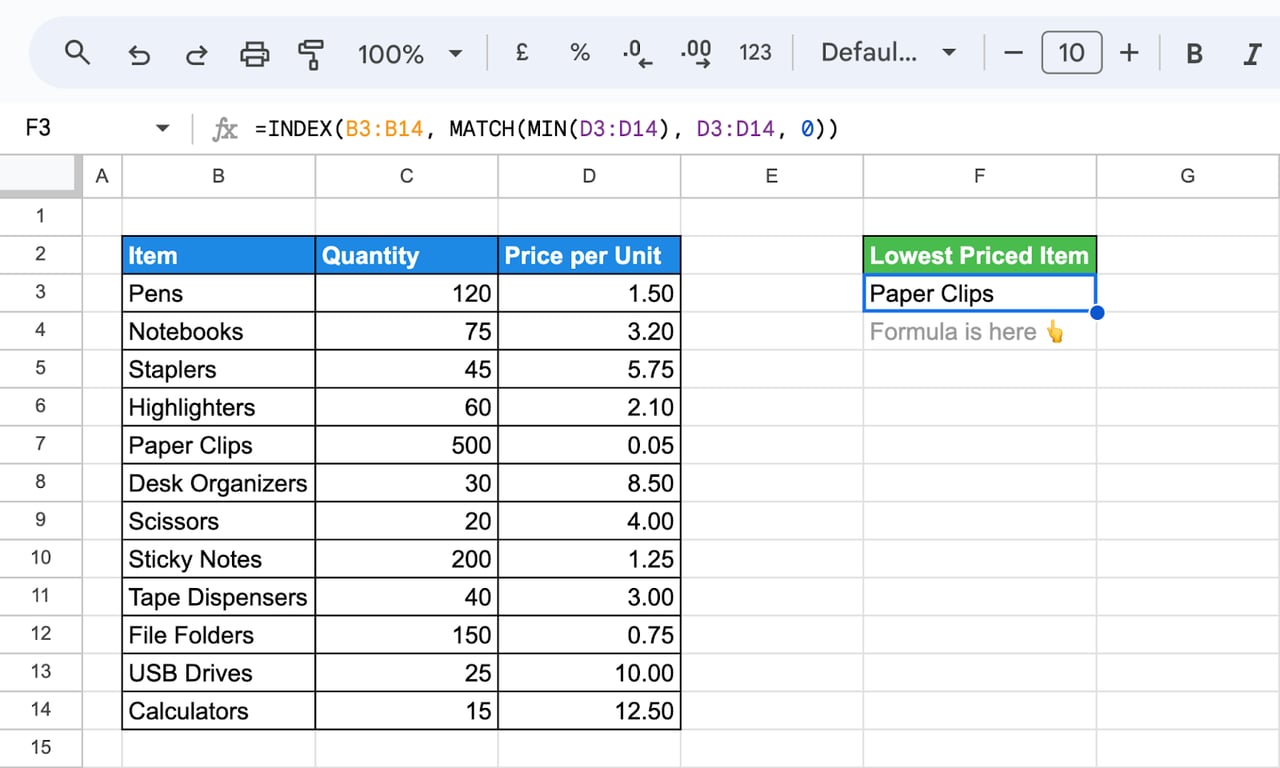
MATCH finds the position of the lowest price in column D and INDEX returns the item from the same position in column B. When two rows share the value, both formulas return the first one. See the guides to XLOOKUP and MATCH.
MAX on a calculated column
To take the maximum of a calculation that is not in the sheet, for example the price after the discount, wrap the calculation in ARRAYFORMULA:
=MAX(ARRAYFORMULA(D3:D14 * (1 + E3:E14)))
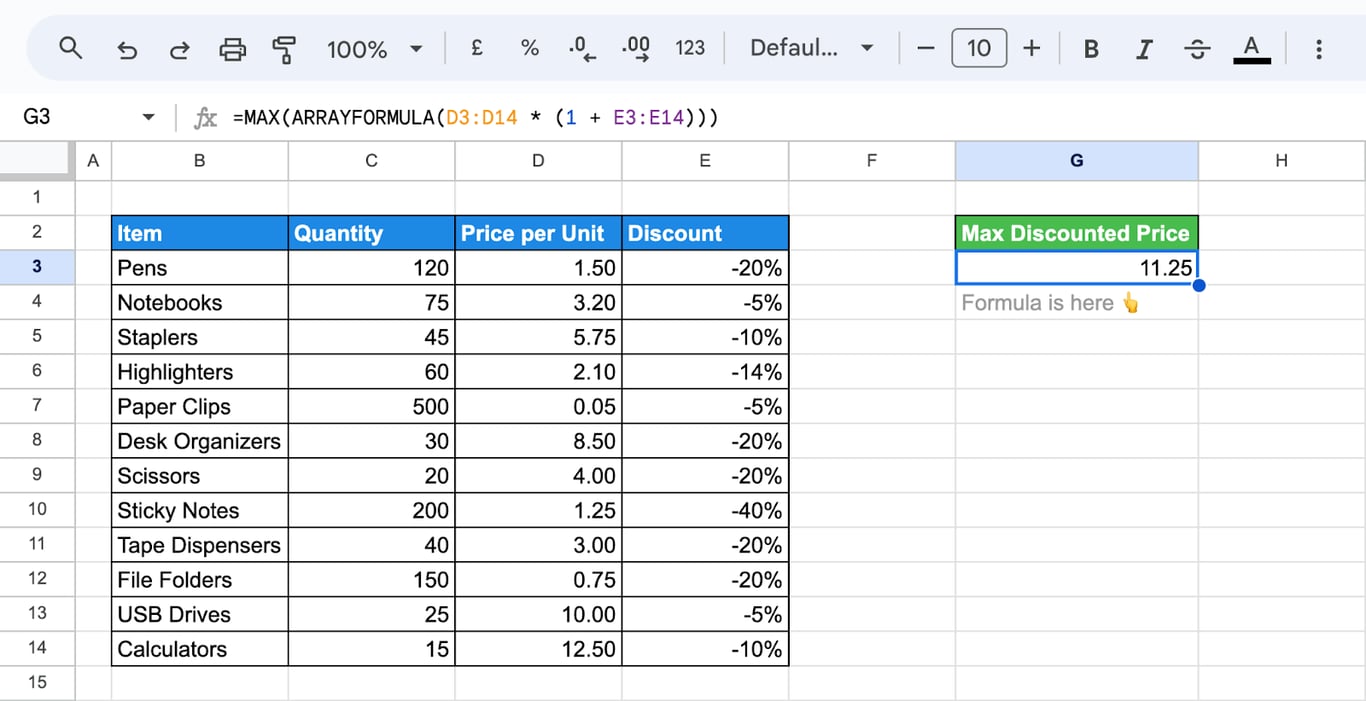
Each price is multiplied by one plus its (negative) discount, and MAX takes the largest result: 12.50 less 10% is 11.25.
The largest value for every group
The largest value for every group
MAXIFS answers for one group at a time. For all groups at once, use QUERY:
=QUERY(B2:D14, "select B, max(D) group by B", 1)
With a category in column B, the result is a table with one row per category and its maximum. A pivot table with MAX, MIN or MEDIAN as the summary does the same without a formula.
MEDIAN
=MEDIAN(value1, [value2, ...])
MEDIAN sorts the numbers and returns the one in the middle. With an even count it returns the average of the two middle numbers. The data does not have to be sorted in the sheet.
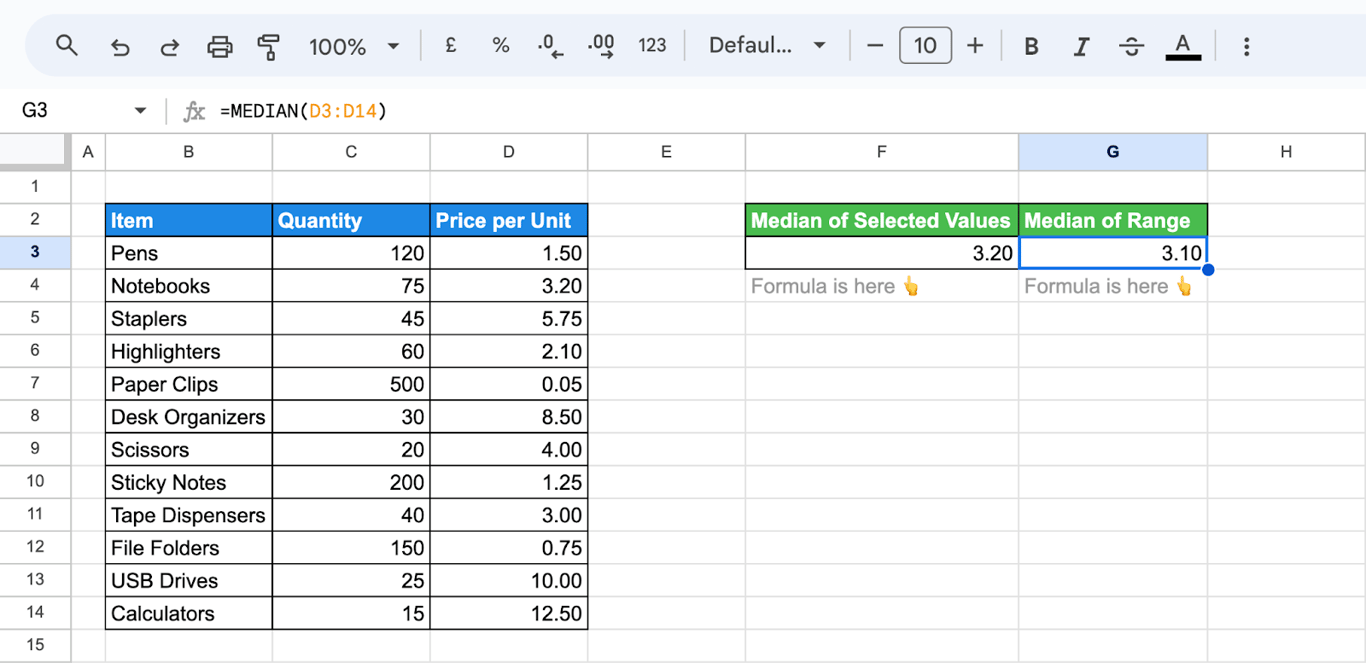
There are twelve prices, so the median is the average of the sixth and seventh, 3.00 and 3.20.
The median is the better “typical value” when a few numbers are far from the rest. In this table the average price is 4.38, pulled up by two items above 10, while half of the items cost 3.10 or less.
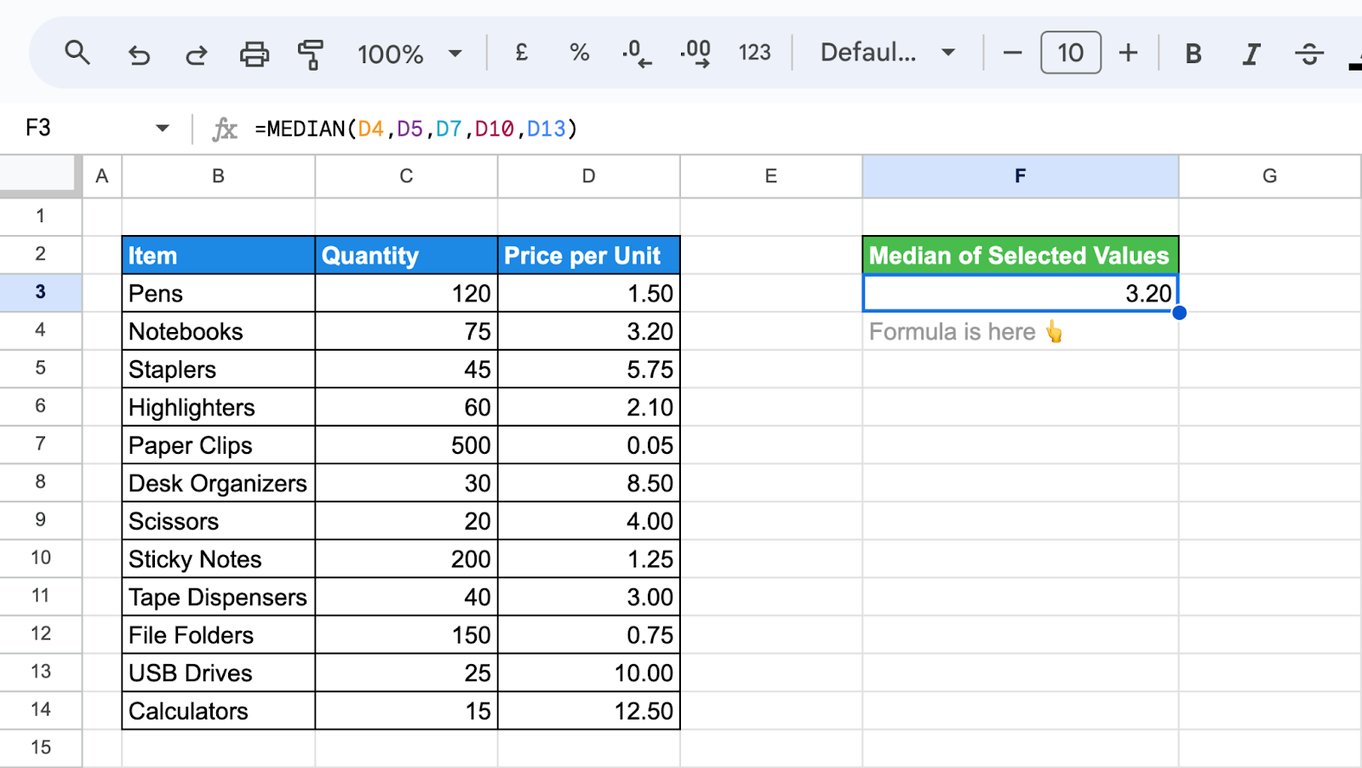
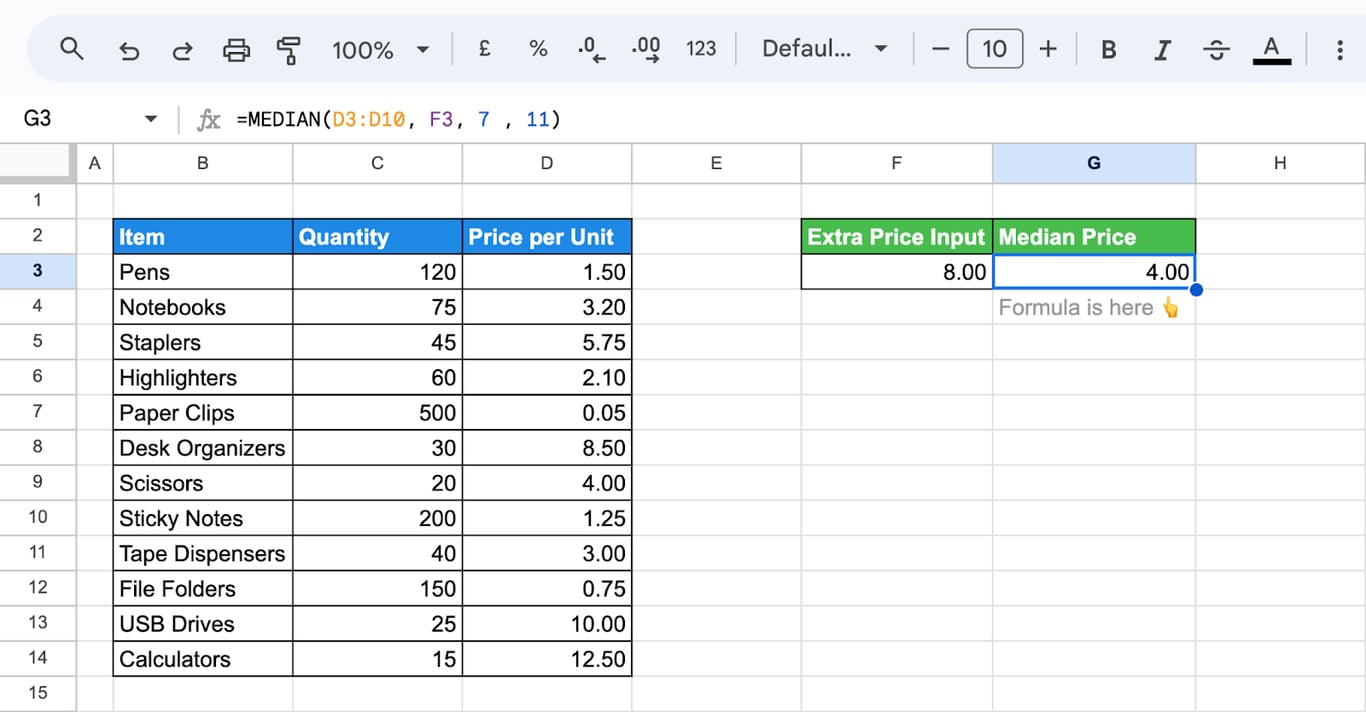
MEDIAN accepts single cells and extra values:
=MEDIAN(D4,D5,D7,D10,D13)
=MEDIAN(D3:D10, F3, 7, 11)
Median with a condition
FILTER keeps the rows that meet the condition and MEDIAN works on what is left:
=MEDIAN(FILTER(D3:D14, C3:C14 > 20))
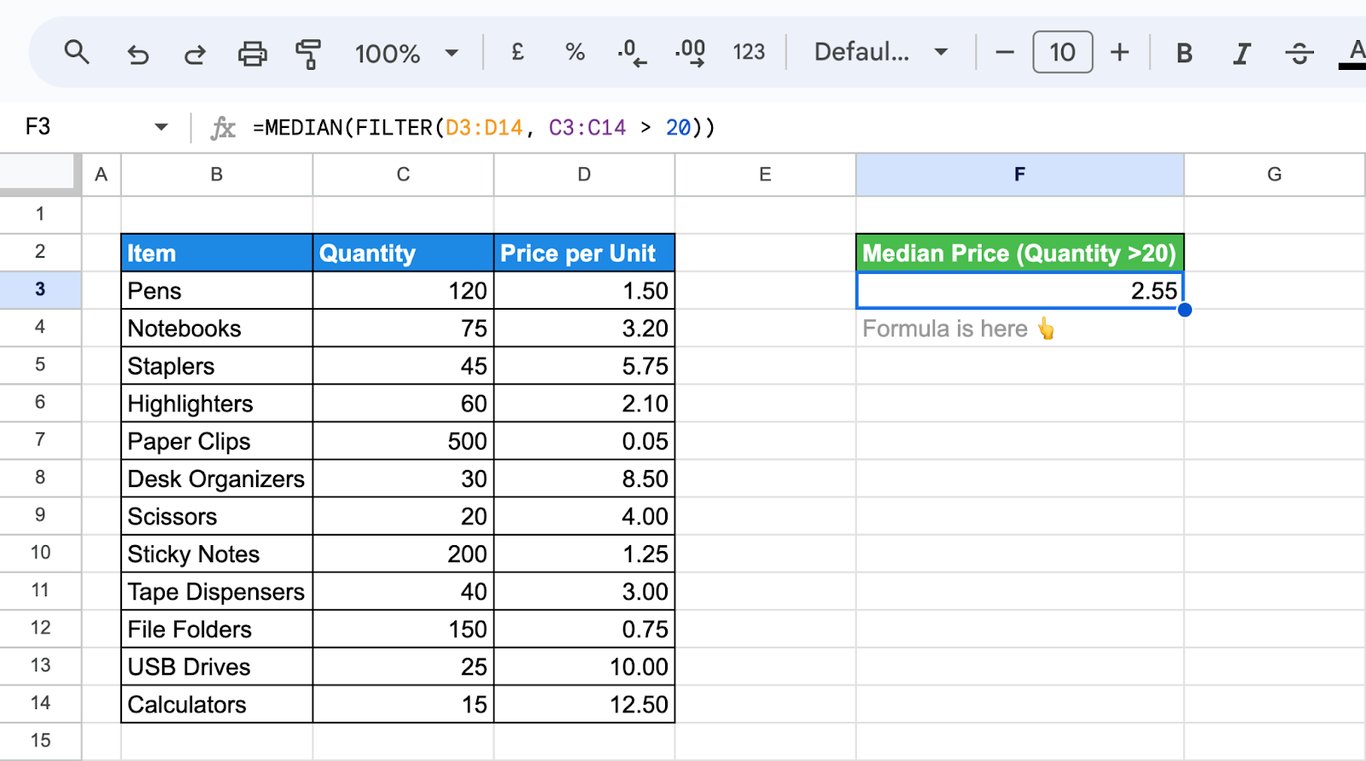
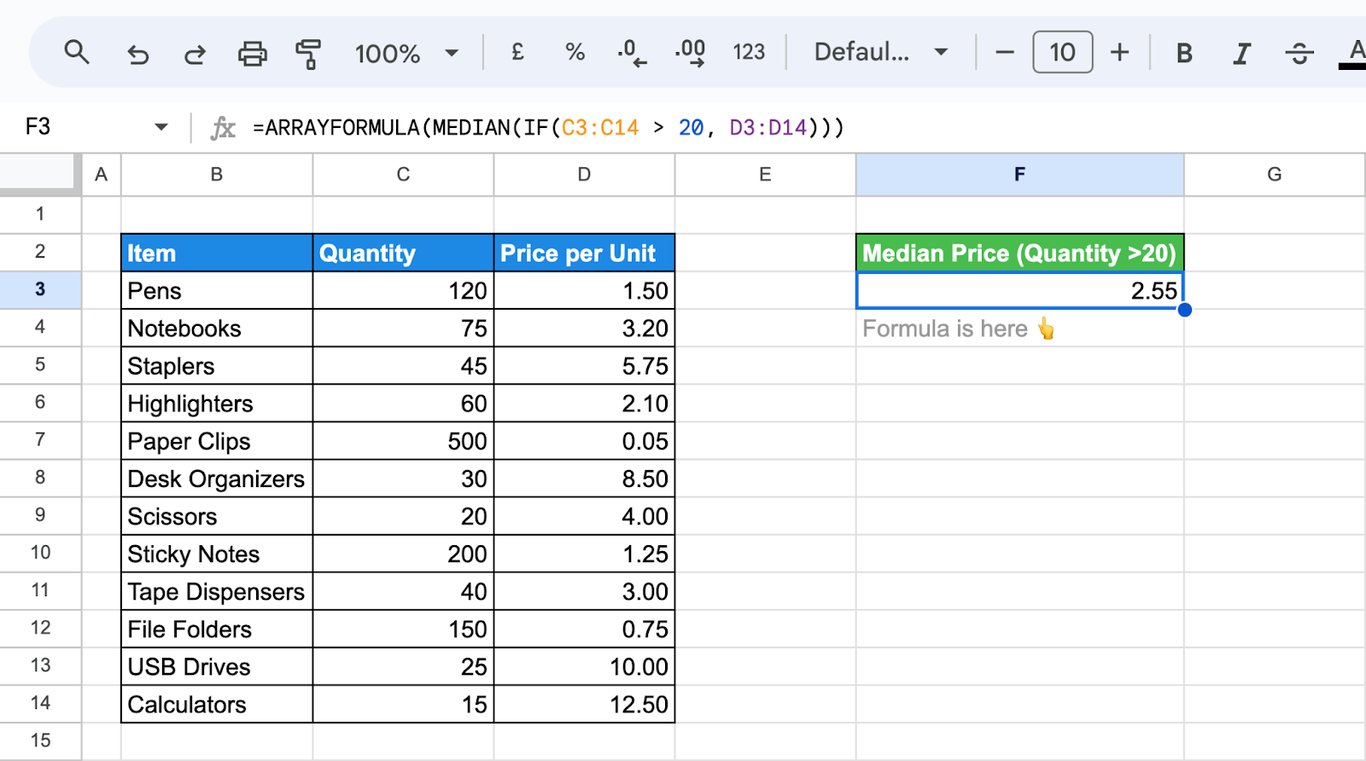
Several conditions go into FILTER one after another: FILTER(D3:D14, C3:C14 > 20, E3:E14 <= -10%). An older form with IF gives the same number:
=ARRAYFORMULA(MEDIAN(IF(C3:C14 > 20, D3:D14)))
For other cut points of the distribution, see QUARTILE and PERCENTILE.
Errors and wrong results
⚠️ Error: The result is 0.
✅ Solution: Three causes. The range holds no numbers (only text, or numbers stored as text). MAXIFS or MINIFS found no row that meets the conditions. Or MINA or MAXA counted a text cell as 0.
⚠️ Error: #VALUE! in MAXIFS or MINIFS.
✅ Solution: The ranges have different sizes, for example D3:D14 and C3:C13. Make them the same height.
⚠️ Error: #N/A in MIN, MAX or MEDIAN with FILTER.
✅ Solution: No row meets the FILTER condition. Wrap the formula in IFERROR to show a text of your choice: =IFERROR(MEDIAN(FILTER(D3:D14, C3:C14 > 500)), "no rows").
⚠️ Error: The formula returns an error that is in the data.
✅ Solution: One error cell in the range, such as #DIV/0!, makes MAX, MIN and MEDIAN return that error. Fix the cell, or wrap the calculation that produces it in IFERROR.
⚠️ Error: MIN returns 0 although every visible number is larger.
✅ Solution: There is a real zero in the range, often from a formula in an unfinished row. Exclude zeros with =MINIFS(D3:D14, D3:D14, ">0").
⚠️ Error: MAX of a date column shows a five-digit number.
✅ Solution: The result is a date serial number. Apply Format > Number > Date.
Related Google Sheets functions
Related Google Sheets functions
- AVERAGE functions: The mean, with and without conditions.
- COUNTIF and COUNTIFS: The same criteria, used for counting.
- SUM functions: SUM, SUMIF and SUMIFS.
- RANK: The position of each value in a list.
- QUARTILE and PERCENTILE: Other cut points of a distribution.
- FILTER: Keep the rows that meet a condition.
- How to sort data: See the largest and smallest rows at the top.
- Exploratory data analysis: MIN, MAX and MEDIAN as the first look at a dataset.
The highest number in a stale table is still stale
The highest number in a stale table is still stale
MAX, MIN and MEDIAN describe the rows they are given. If those rows are an export from last week, the “latest date” is last week and the “highest order” may no longer be the highest. Nothing in the formula shows this: the result looks the same whether the data under it is current or not.
The OWOX Data Marts extension for Google Sheets covers that half. A data analyst publishes a data mart (a table or an SQL query in your data warehouse) and makes it available for reports. In Sheets you open the extension, pick the data mart, tick the columns you want and run it. The rows land in a tab, ready for your formulas.
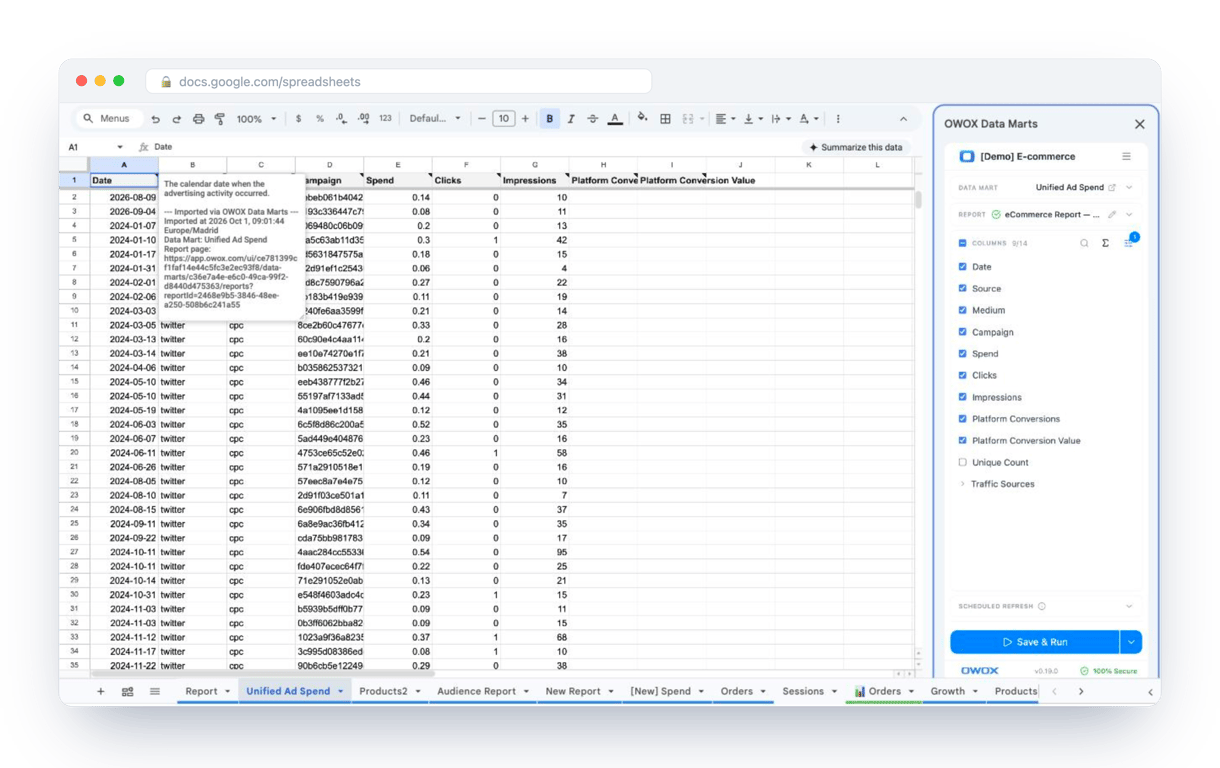
What changes for the person who maintains the sheet:
- Refresh replaces re-export. Refresh current report in the extension menu re-runs the same pull, and a scheduled refresh keeps the tab current without anyone touching it.
- The source is written on the sheet. The header cell of an imported tab carries a note with the data mart it came from, the time of the import and a link to the report.
- No SQL and no warehouse access needed. The analyst decides which data marts and columns are available. You choose from that list.
The extension does not write or change the analyst’s SQL. MAX, MIN and MEDIAN then describe the current rows, and the same ones for every reader of the report. The extension comes with the OWOX Cloud plans of OWOX Data Marts; spreadsheet reporting describes both ways data reaches a sheet.
Turn your data into decisions.
Governed data marts give you the clean foundation ML needs to actually work.
- No AI hallucinations
- Analyst-governed definitions
- Every number traces to SQL
Frequently Asked Questions
How can I use the MEDIAN function to analyze data with multiple criteria in Google Sheets?
You can use the MEDIAN function with multiple criteria in Google Sheets by combining it with the IF and ARRAYFORMULA functions. This allows you to filter your data based on specific conditions and then calculate the median value for the subset that meets these criteria, enabling targeted analysis within your dataset.
What is the difference between the MIN and MINA functions in Google Sheets?
MIN ignores text and returns the smallest number in the range. MINA counts every text cell as 0, so a column with entries such as N/A returns 0 even when all its numbers are larger. Use MINA only when a text entry really stands for zero.
How can I combine the MAX, MIN, and MEDIAN functions with other Google Sheets functions for advanced analysis?
Combining MAX, MIN, and MEDIAN functions with other Google Sheets functions, like IF, ARRAYFORMULA, or QUERY, allows for more advanced analysis. This approach enables you to apply these functions conditionally, dynamically analyze large datasets, and integrate them into more complex formulas, enhancing your data analysis capabilities.
Can I use the MAX function with filtered data in Google Sheets?
MAX does not look at filters: it takes the largest number in the whole range, including rows hidden by a filter. To get the maximum of the visible rows only, use SUBTOTAL(104, range). To take the maximum of rows that meet a condition without filtering the sheet, use MAXIFS or MAX with FILTER.
How do I handle non-numeric values when using the MAX function in Google Sheets?
To handle non-numeric values when using the MAX function in Google Sheets, consider using the FILTER function to exclude text or blanks from the range. Alternatively, clean your data by removing or converting non-numeric values to avoid errors and ensure accurate calculations when applying the MAX function.
What are the benefits of using the MAX, MIN, and MEDIAN functions in Google Sheets?
The MAX, MIN, and MEDIAN functions in Google Sheets are essential for data analysis. They allow you to quickly identify the highest, lowest, and central values within a dataset, enabling you to make informed decisions, spot trends, and summarize data efficiently, whether you're dealing with numbers, dates, or other data types.