SUBSTITUTE function in Google Sheets: replace text, the nth occurrence and multiple values
SUBSTITUTE replaces every occurrence of a text inside a cell with another text, or only the occurrence you number. This guide covers the syntax, removing characters, substituting multiple values with nested formulas or a lookup table, counting occurrences, the difference from REPLACE and REGEXREPLACE, and the behaviours that surprise: it is case-sensitive, has no wildcards and always returns text.
SUBSTITUTE replaces a text inside a cell with another text:
=SUBSTITUTE(C3, "/", " ")
Every slash in C3 becomes a space. A fourth argument limits the replacement to one occurrence: =SUBSTITUTE(C3, "/", " ", 1) changes only the first slash.
SUBSTITUTE syntax
=SUBSTITUTE(text_to_search, search_for, replace_with, [occurrence_number])
- text_to_search: the text, or the cell that holds it.
- search_for: the text to find. It is matched exactly, with its case.
- replace_with: the text to put in its place. An empty text,
"", removes what was found. - occurrence_number: optional. Which occurrence to replace: 1 for the first, 2 for the second. Without it, all are replaced.
=SUBSTITUTE("James Carter", "Carter", "Johnson")

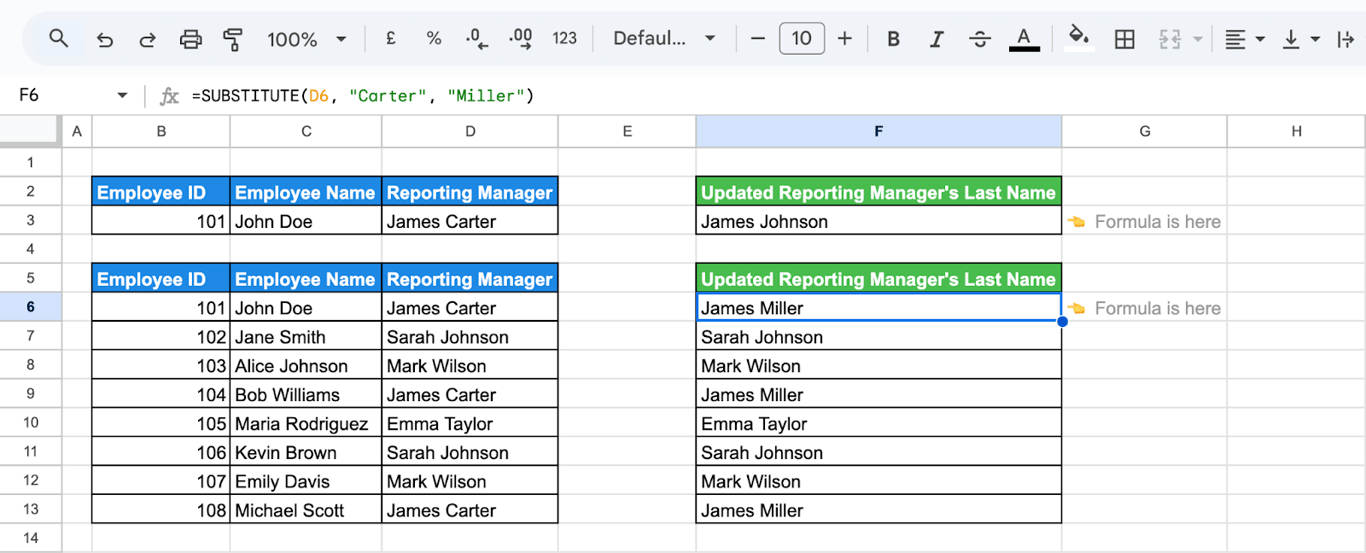
With a cell reference, the formula can be filled down a column. Rows that do not contain the text come back unchanged:
=SUBSTITUTE(D6, "Carter", "Miller")
What SUBSTITUTE does and does not do
What SUBSTITUTE does and does not do
All of the following comes from our test sheet.
- It is case-sensitive.
=SUBSTITUTE("Apple apple", "apple", "x")returns “Apple x”. - It has no wildcards and no regular expressions. An asterisk, a question mark and a dot are ordinary characters:
=SUBSTITUTE("a*b", "*", "-")returns “a-b”. Nothing needs escaping. - A text that is not found is not an error. The original comes back unchanged. The same happens when the occurrence number is larger than the number of occurrences.
- It always returns text.
=SUBSTITUTE(1500, "5", "9")returns “1900” as a text, which SUM ignores. Wrap the result in VALUE to calculate with it. - On a date it works on what the cell displays. With 1/5/2023 in B3,
=SUBSTITUTE(B3, "2023", "24")returned the text “1/5/24”. - Matches do not overlap.
=SUBSTITUTE("aaa", "aa", "b")returns “ba”.
OWOX Data Marts
See your first report built in real time. 15 minutes.
- Connect your data warehouse
- Pick your metrics
- Get a live Google Sheets report
In the time it takes to write a ticket. Then imagine never writing that ticket again.
Book a DemoWe'll use your actual use case
Replace or remove text
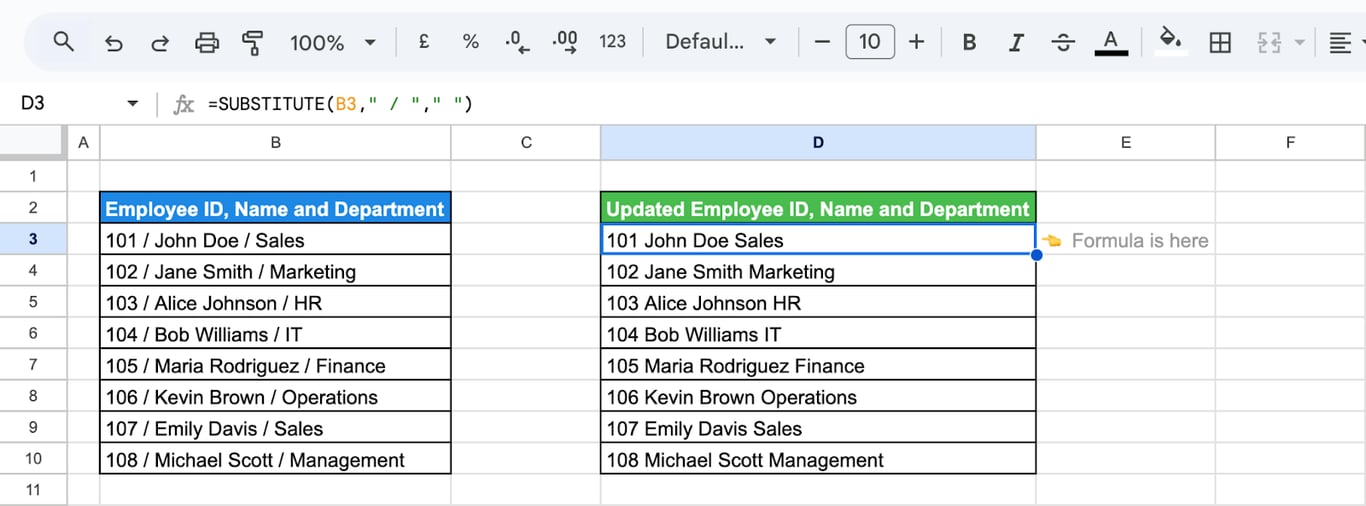
Replace every occurrence
=SUBSTITUTE(B3, " / ", " ")
The text to find here is the slash with the spaces around it, so that one space remains where there were three characters.
Replace only the first occurrence
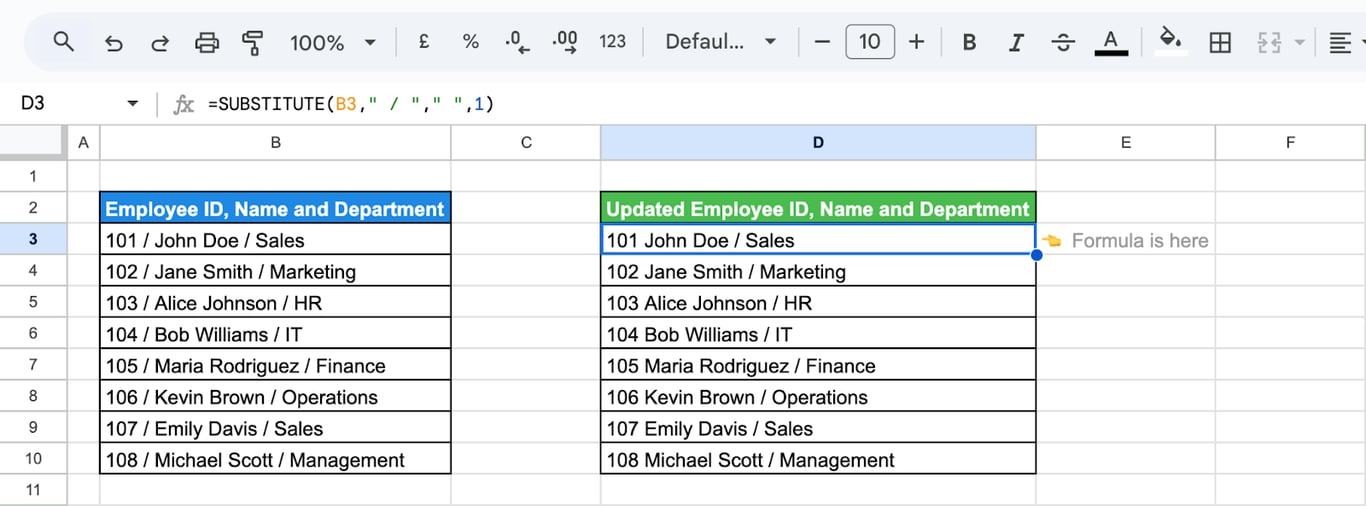
=SUBSTITUTE(B3, " / ", " ", 1)
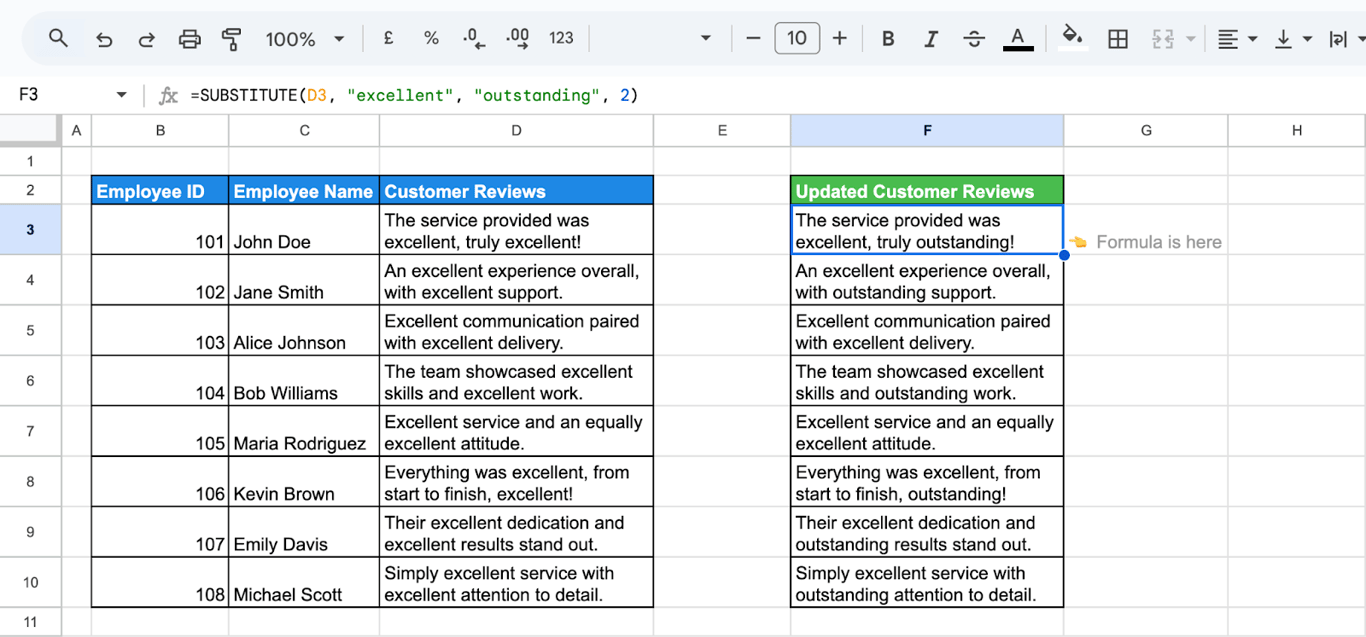
Replace the second occurrence
=SUBSTITUTE(D3, "excellent", "outstanding", 2)
Replace a phrase
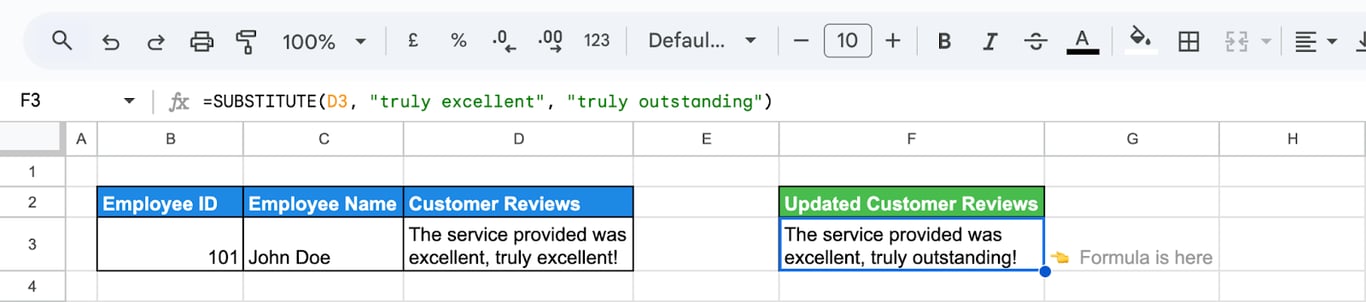
The text to find can be several words. Including a neighbouring word is a way to hit one occurrence without counting:
=SUBSTITUTE(D3, "truly excellent", "truly outstanding")
Remove characters
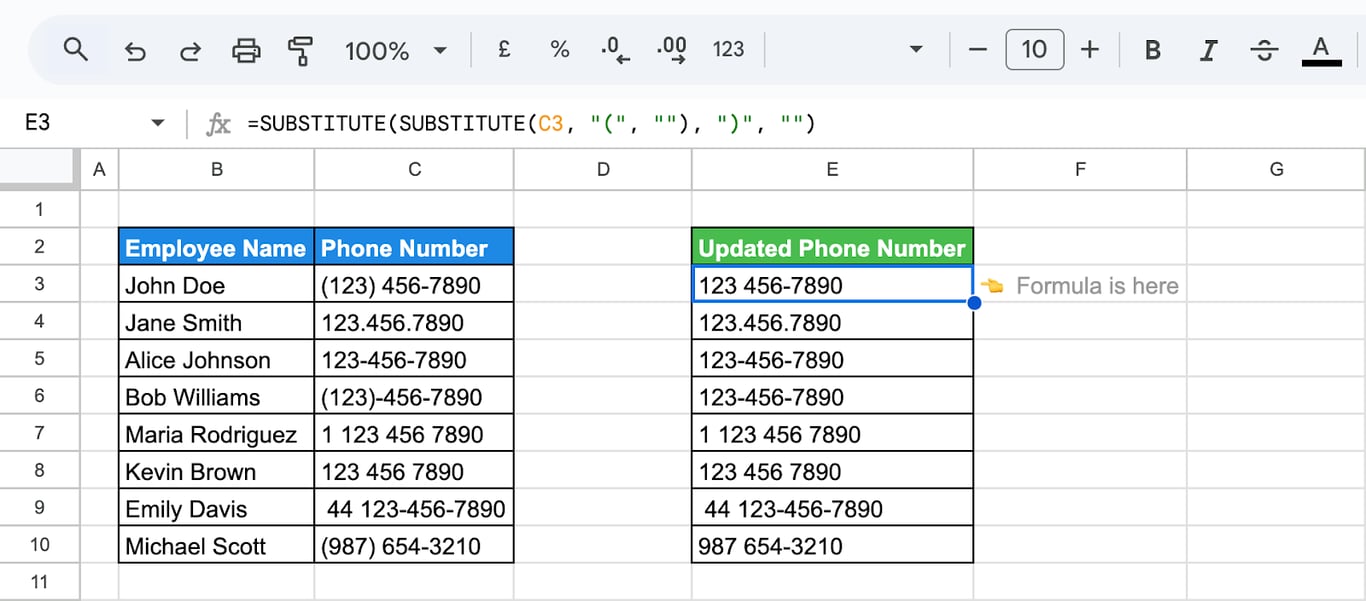
Replace with an empty text. Each SUBSTITUTE removes one character, so several are nested:
=SUBSTITUTE(SUBSTITUTE(C3, "(", ""), ")", "")
To remove any character of a set in one step, REGEXREPLACE is shorter: =REGEXREPLACE(C3, "[()\- .]", "") removes parentheses, hyphens, spaces and dots at once.
To turn a text such as “1,500 USD” into a number, remove the unit and convert: =VALUE(SUBSTITUTE(C3, " USD", "")).
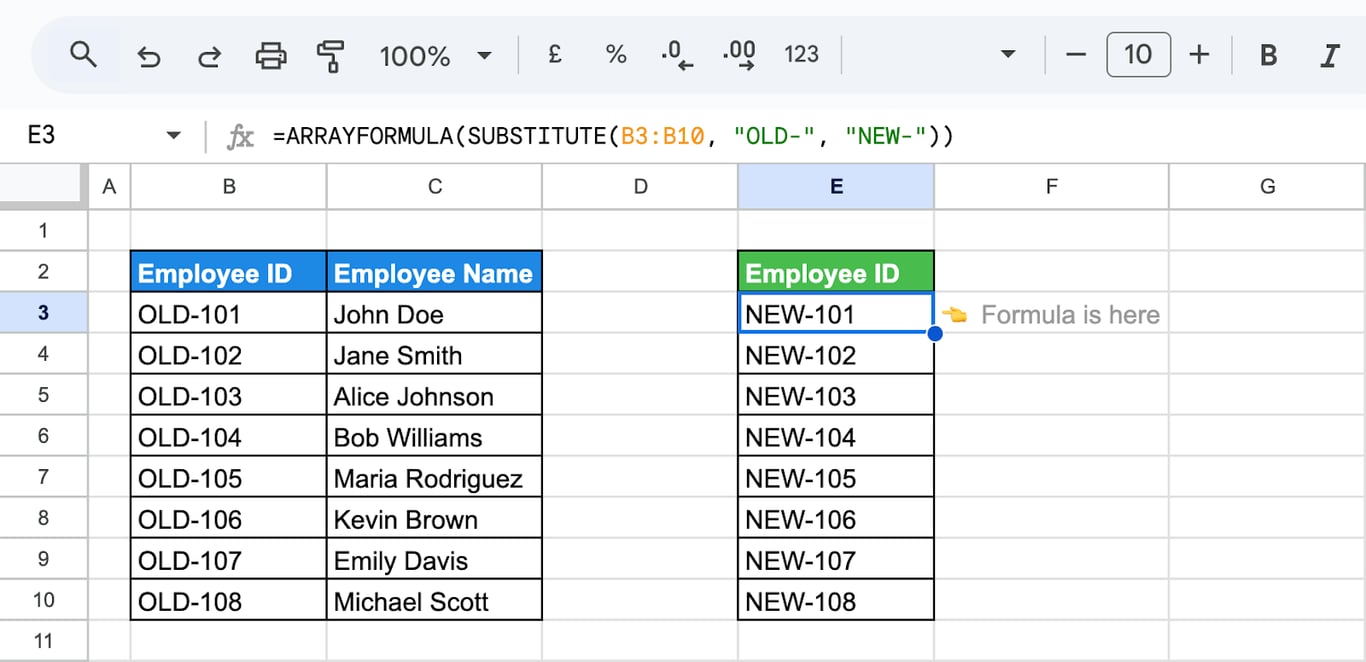
A whole column from one formula
=ARRAYFORMULA(SUBSTITUTE(B3:B10, "OLD-", "NEW-"))
See array formulas.
Substitute multiple values
A few values: nest the formulas
Each SUBSTITUTE works on the result of the one inside it:
=SUBSTITUTE(SUBSTITUTE(C3, "John", "J."), "Sarah", "S.")
The order matters when one replacement produces a text that the next one looks for.
Many values: a table of pairs
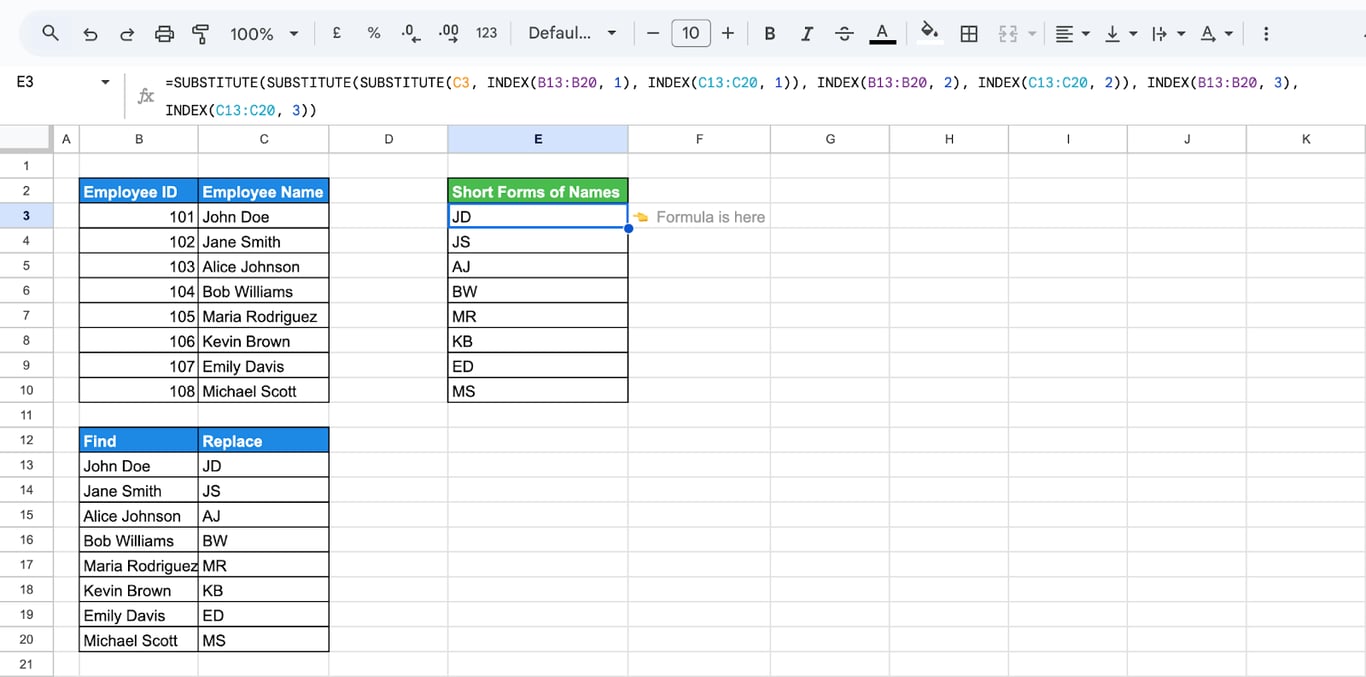
Keep the pairs in a table, what to find in one column and the replacement in the next, and let REDUCE apply them one after another:
=REDUCE(C3, SEQUENCE(ROWS(B13:B20)), LAMBDA(acc, i, SUBSTITUTE(acc, INDEX(B13:B20, i), INDEX(C13:C20, i))))
REDUCE starts with the text in C3 and runs SUBSTITUTE once for every row of the table, each time on the result of the previous step. In our test the same construction turned “John Doe and Jane Smith” into “JD and JS”. A new pair is a new row in the table; the formula stays as it is.
The article’s original example writes the same chain out by hand, one nested SUBSTITUTE with INDEX for each row of the table:
When the whole cell is the value
If the cell contains nothing but the value to translate, “John Doe” to “JD”, this is a lookup, not a substitution: =VLOOKUP(C3, B13:C20, 2, FALSE). See VLOOKUP.
SUBSTITUTE with other functions
SUBSTITUTE with other functions
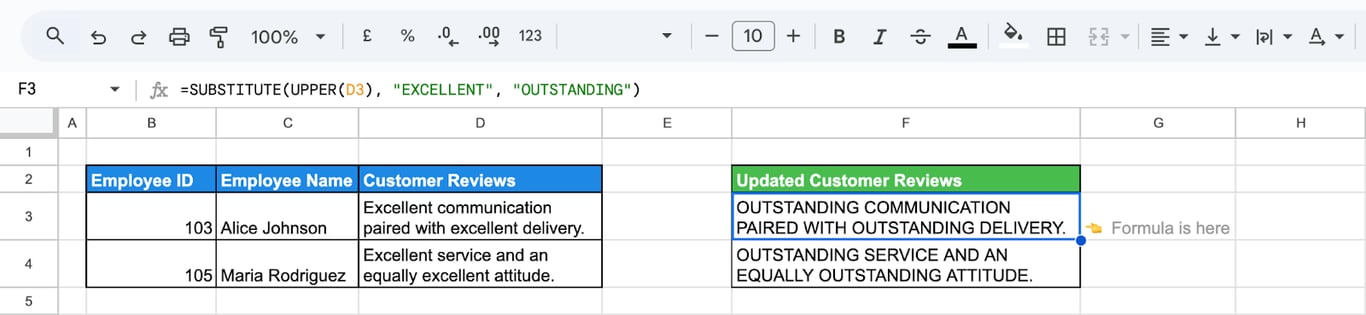
Ignore the case
Change the case of the text first, if the result may be all upper or lower case:
=SUBSTITUTE(UPPER(D3), "EXCELLENT", "OUTSTANDING")
To keep the rest of the text as it was, use REGEXREPLACE with the case-insensitive flag: =REGEXREPLACE("Apple apple", "(?i)apple", "x") returns “x x”.
Count how many times a text occurs
Remove the text and compare the lengths:
=(LEN(C3) - LEN(SUBSTITUTE(C3, "/", ""))) / LEN("/")
For “a/b/c” the formula returns 2. See LEN.
Line breaks and invisible spaces
Characters that cannot be typed are given by their code with CHAR: =SUBSTITUTE(C3, CHAR(10), " ") turns line breaks into spaces, and =SUBSTITUTE(C3, CHAR(160), " ") turns non-breaking spaces into ordinary ones, which TRIM can then remove.
SUBSTITUTE, REPLACE or REGEXREPLACE
SUBSTITUTE, REPLACE or REGEXREPLACE
| Finds the text by | Use it when | |
|---|---|---|
| SUBSTITUTE | What it is | You know the text to replace |
| REPLACE | Position and length | You know where it is: characters 4 to 6 |
| REGEXREPLACE | A pattern | You know its shape: any digits, anything in brackets |
To change the values in place, without a formula column, use Find and replace.
Problems and fixes
⚠️ Problem: Nothing is replaced.
✅ Solution: The text was not found. Check the case, and check for a space or an invisible character inside the cell; a non-breaking space looks like a space and does not match one.
⚠️ Problem: Numbers no longer add up.
✅ Solution: The result is text. Wrap it in VALUE.
⚠️ Problem: #VALUE!
✅ Solution: The occurrence number is negative. Use 1 or more, or leave it out.
⚠️ Problem: Too much is replaced: “cat” also changes “category”.
✅ Solution: SUBSTITUTE has no notion of a word. Include the spaces around the word in both texts, or use REGEXREPLACE with a word boundary, "\bcat\b".
⚠️ Problem: #REF! from an ARRAYFORMULA.
✅ Solution: The result has no room to expand. Clear the cells below the formula.
⚠️ Problem: #ERROR! after pasting a formula.
✅ Solution: The quotation marks are curly. Retype them as straight quotes.
Related Google Sheets functions
Related Google Sheets functions
- REPLACE: Replace by position.
- REGEX functions: Replace by pattern.
- Find and replace: The dialog, with no formulas.
- TRIM, CLEAN and T: Remove spaces and hidden characters.
- UPPER, LOWER and PROPER: Change the case.
- LEFT, RIGHT and MID: Take a part of a text.
A replacement table in a sheet is a mapping that belongs to the data
A replacement table in a sheet is a mapping that belongs to the data
Old IDs to new ones, campaign names to channels, long names to short ones: a table of replacements applied by formulas is a business rule kept in one spreadsheet. The next report needs the same rule and gets a copy of it, and the copies drift apart as soon as one of them gets a new row.
The OWOX Data Marts extension for Google Sheets covers that half. A data analyst publishes a data mart (a table or an SQL query in your data warehouse) and makes it available for reports. In Sheets you open the extension, pick the data mart, tick the columns you want and run it. The rows land in a tab, ready for your formulas.
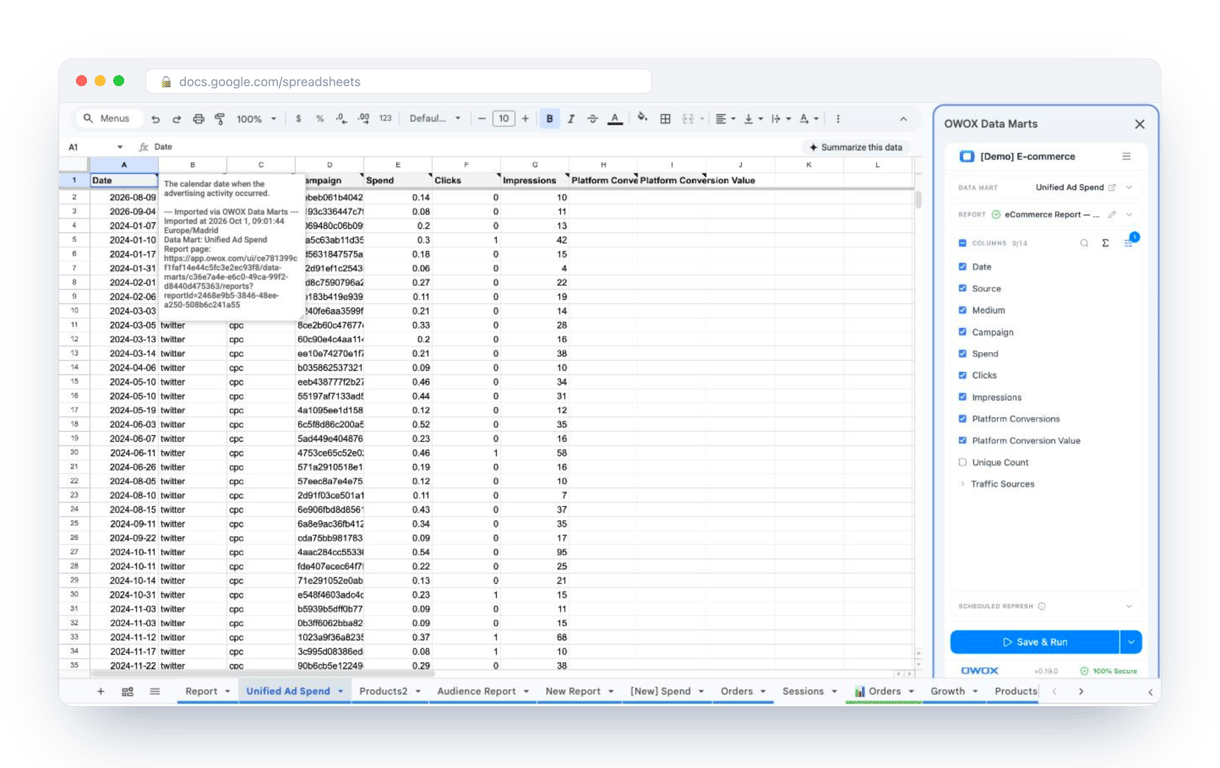
What changes for the person who maintains the sheet:
- Refresh replaces re-export. Refresh current report in the extension menu re-runs the same pull, and a scheduled refresh keeps the tab current without anyone touching it.
- The source is written on the sheet. The header cell of an imported tab carries a note with the data mart it came from, the time of the import and a link to the report.
- No SQL and no warehouse access needed. The analyst decides which data marts and columns are available. You choose from that list.
The extension does not write or change the analyst’s SQL. When the mapping is applied once in that SQL, every report built on the data mart shows the same names, and SUBSTITUTE is left for one-off fixes in a sheet. The extension comes with the OWOX Cloud plans of OWOX Data Marts; spreadsheet reporting describes both ways data reaches a sheet.
Turn your data into decisions.
Governed data marts give you the clean foundation ML needs to actually work.
- No AI hallucinations
- Analyst-governed definitions
- Every number traces to SQL
Frequently Asked Questions
Can I use SUBSTITUTE and REPLACE together in the same formula?
Yes, SUBSTITUTE and REPLACE can be combined for advanced text manipulations, such as modifying specific positions and replacing targeted strings within a single formula.
Can I use SUBSTITUTE to remove text in Google Sheets?
Yes, SUBSTITUTE can remove text by replacing it with an empty string (""). This is useful for eliminating unwanted characters or words from cells.
What’s the difference between REPLACE and SUBSTITUTE in Google Sheets?
REPLACE modifies text based on its position in the cell, while SUBSTITUTE identifies and replaces specific text strings within a cell. Both are useful for different needs.
Is SUBSTITUTE case-sensitive?
Yes. SUBSTITUTE matches the text with its case: =SUBSTITUTE("Apple apple", "apple", "x") returns Apple x. To replace regardless of case, use REGEXREPLACE with the (?i) flag, or change the case of the text first with LOWER or UPPER.
Can SUBSTITUTE be used to replace only specific occurrences of text?
Yes, SUBSTITUTE allows you to specify which occurrence of the text to replace using the optional occurrence number parameter in the formula.
How do I use the SUBSTITUTE function in Google Sheets?
Give it the text or cell, the text to find and the replacement: =SUBSTITUTE(C3, "/", " ") replaces every slash with a space. A fourth argument, the occurrence number, replaces only that occurrence. The result is always text.
What is the SUBSTITUTE function in Google Sheets?
The SUBSTITUTE function replaces specific text within a string with another text. It’s ideal for cleaning or standardizing data by dynamically updating text without manual changes.