

Collect Facebook Ads Data into Snowflake with OWOX Data Marts Step by Step
Discover how to automate Facebook Ads data loading into Snowflake and create governed data marts for consistent, AI-ready analytics.

Modern paid-social analytics demand governed, reusable, and always-fresh data – not spreadsheets, not ad-hoc exports, and not brittle API scripts. This guide shows how to move from Facebook’s UI-level reporting to a reliable, Snowflake-powered analytics environment using OWOX Data Marts.
Before jumping into configuration steps, it’s crucial to understand the workflow, required access, and how data flows through the system. This section provides the full setup context in a concise, implementation-ready format.
What You Will Build
By the end of this guide, you will have:
- Automated ingestion of Facebook Ads data into Snowflake.
- Granular, governed tables across accounts, campaigns, ad sets, ads, and creatives.
- Reusable data marts with consistent metric definitions (CTR, CPC, CPM, ROAS, conversions).
- A single source of truth for dashboards, spreadsheets, and AI-driven insights.
- A maintainable architecture that eliminates fragile connectors, scripts, and manual exports.
The high-level flow is:
- Authorize Facebook Ads access.
- Configure how and when data is loaded.
- Land raw data into Snowflake.
- Re-use the same data marts to enable Facebook Ads data to stakeholders
- Enable AI insights on top of those data marts
Throughout this process, you won’t have to write or maintain custom connectors, cron jobs, or ETL scripts.
.png)
OWOX handles connectors, scheduling, schema changes – so you focus on analysis, not maintenance.
Why Not DIY ETL or Native Meta Reporting?
Native Facebook reporting and simple BI connectors work for quick checks, but not for scalable analytics. Challenges include:
- Conflicting numbers across dashboards and export
- No incremental refresh or late-conversion handling
- Limited historical windows and API-driven schema changes
- Fragile in-house scripts that break on every API update
- Opaque transformations in third-party connectors
As the number of accounts, breakdowns, and stakeholders grows, ETL debt grows exponentially.
Why a Data Mart–First Approach Works Better
A curated data mart gives you:
- Standardized metrics used consistently across teams
- Centralized business logic (e.g., ROAS, attribution, breakdown rules)
- Reusable models across BI, spreadsheets, and AI agents
- No maintenance overhead when the API or schema changes
OWOX Data Marts is designed around this philosophy: data ingestion is only the first step; the end goal is governed, analytics-ready tables your teams can actually use.
Overview of the Facebook Ads to Snowflake Workflow
This is the conceptual pipeline you will configure.
Extraction
- OWOX connects to the Facebook Marketing API
- Pulls metadata (accounts, campaigns, ad sets, ads)
- Pulls daily metrics and breakdowns
- Supports backfill + incremental updates with a configurable lookback window
Loading
- Raw tables are written directly into your Snowflake account
- OWOX automatically creates staging tables
- Incremental loads fetch only new/updated rows
- Optional re-query of recent days to capture late-reported conversions
Re-using
- Enable Facebook Ads data marts by turning data marts into business-ready reports (e.g., daily performance by campaign, ad set, and ad).
- Metrics and dimensions are standardized
- Daily-grain tables enable reliable cross-channel analysis
- Same DMart feeds BI tools, and AI workflows
Once configured, this pipeline becomes a low-maintenance, scalable ingestion layer.
What You Need Before You Start
Before configuring the pipeline, you need to understand both the required access and how data moves from Facebook to Snowflake. This section summarizes the prerequisites and provides a concise architecture overview for a Facebook Ads → Snowflake ETL setup powered by OWOX Data Marts.
1. Snowflake Access
You need a Snowflake user/role with permissions to:
- Use/create a database and schema for marketing data
- Create/modify tables & views
- Run SELECT, INSERT, UPDATE, DELETE
- Use an existing Warehouse for loading & transforming
Many teams create a dedicated database (e.g., MARKETING) and schema (e.g., FACEBOOK_ADS) to keep assets organized.
2. Facebook Ads (Meta Business Manager) Access
You need a Facebook account with:
- Access to the relevant ad accounts
- Permissions to read campaigns, ad sets, ads, and creatives
- Permissions for insights: impressions, clicks, spend, conversions, etc.
The authorizing user must have visibility into all required accounts.
What Data Lands in Snowflake
Once the connector runs, Snowflake will contain:
Raw Tables
- Daily metrics & breakdowns in the Facebook Ads Insights table.
- Accounts
- Campaigns
- Ad sets
- Ads
- Creatives
These mirror API structure closely and are useful for validation or edge cases.
Data Marts (Analytics Layer)
A curated hand-off layer with reporting-ready:
- Daily grain
- Metrics: impressions, clicks, spend, reach, conversions, conversion_value
- Derived metrics: CTR, CPC, CPM, ROAS
- Joins across accounts/campaigns/ad sets/ads and creatives
- Optional breakdowns (device, placement, geo)
This layer becomes the standard input for dashboards, reports, and AI Insights.
Why Move Facebook Ads Data Into Snowflake?
A warehouse-centric architecture solves problems that native tools cannot:
- Long-term storage without sampling
- Cross-source blending with Google Ads, TikTok, CRM, and product data
- Consistent business logic for reporting, forecasting, experimentation
- AI-ready time series tables for anomaly detection, optimization, and budget shifts
Facebook Ads becomes a structured dataset, not a black-box dashboard.
OWOX’s job is to remove the engineering burden from creating and maintaining that pipeline.
Step 1: Connect Snowflake as Your Storage in OWOX Data Marts
The first step in any Facebook ads pipeline to Snowflake is to establish Snowflake as the primary storage. In OWOX Data Marts, this is done once and reused across all your future pipelines, including the one that will ingest Facebook Ads to Snowflake.
Creating a Snowflake connection in OWOX Data Marts
First, you’ll tell OWOX how to reach your Snowflake account and which credentials to use.
1. Log in to OWOX Data Marts
- Go to https://www.owox.com/app-signup if you don’t have a project yet.
2. Navigate to data storages
- In the OWOX interface, open the section for Storages
- Click “+ new storage”.
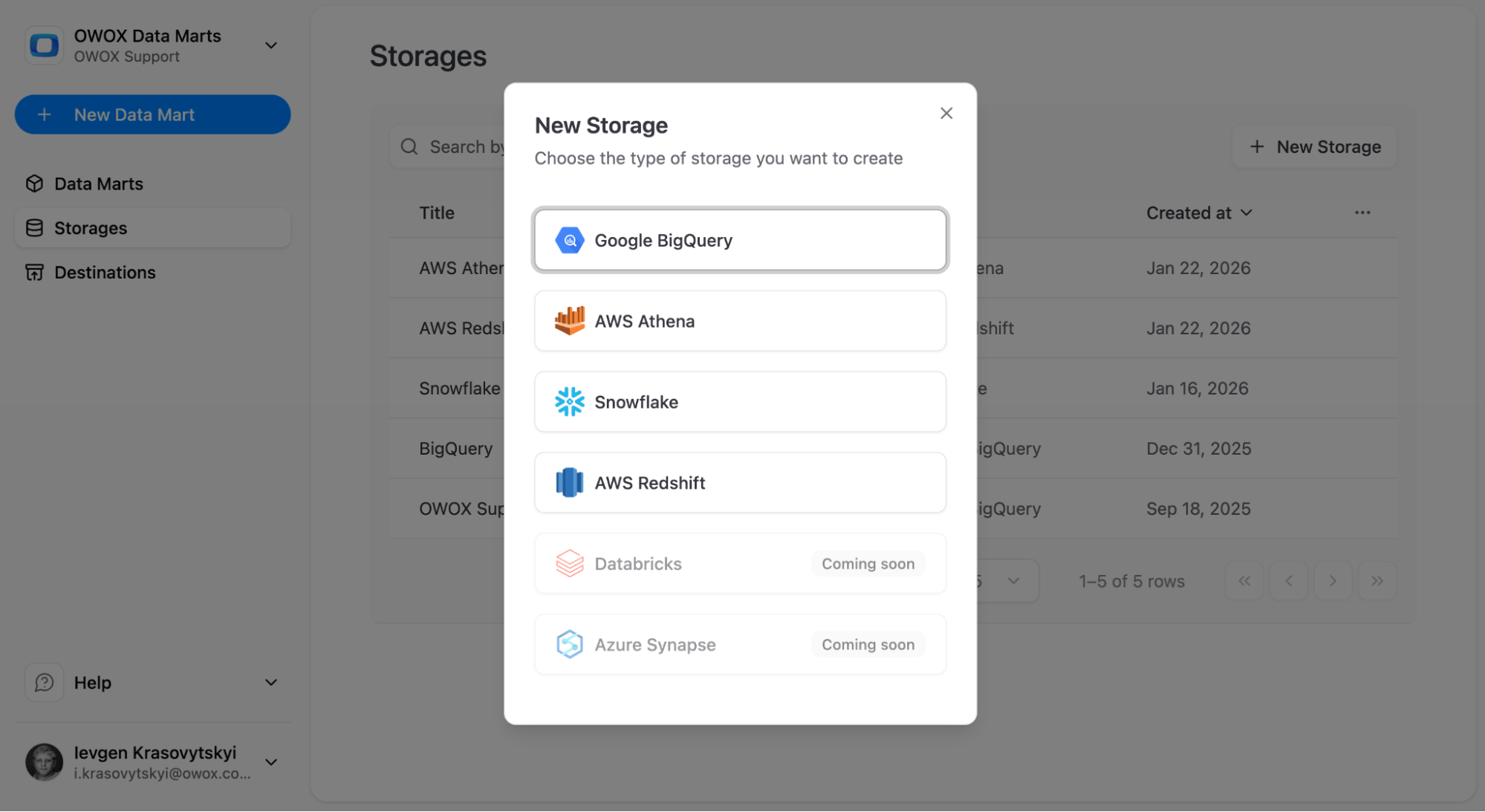
3. Choose Snowflake as the storage type
- From the list of supported destinations, select Snowflake.
- This opens a configuration form where you’ll enter connection parameters.
4. Enter Snowflake connection details
You’ll need to provide:
- Account Locator and Account Identifier Region (e.g., xy12345.eu-central-1 or full host if requested).
- Warehouse name
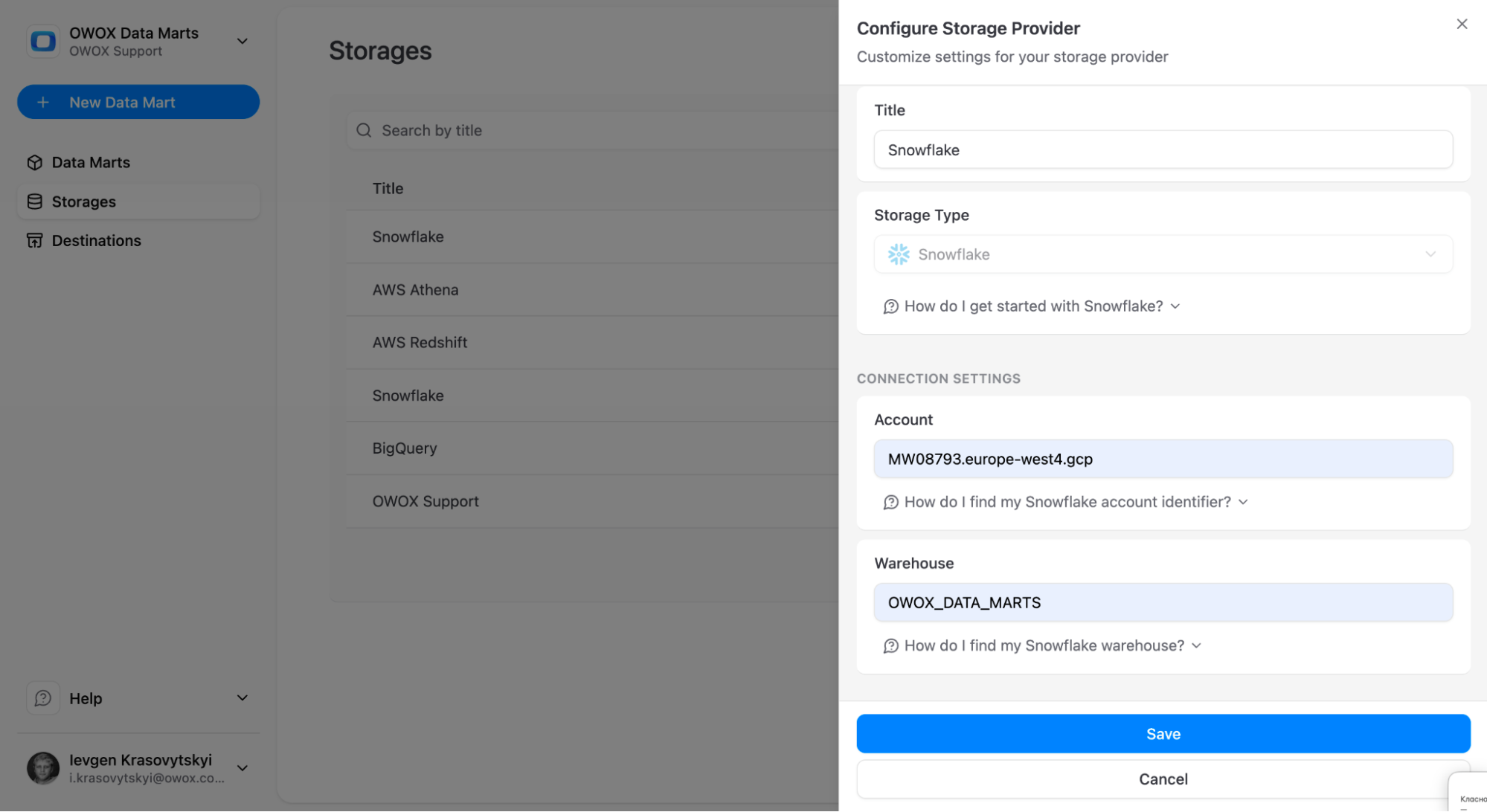
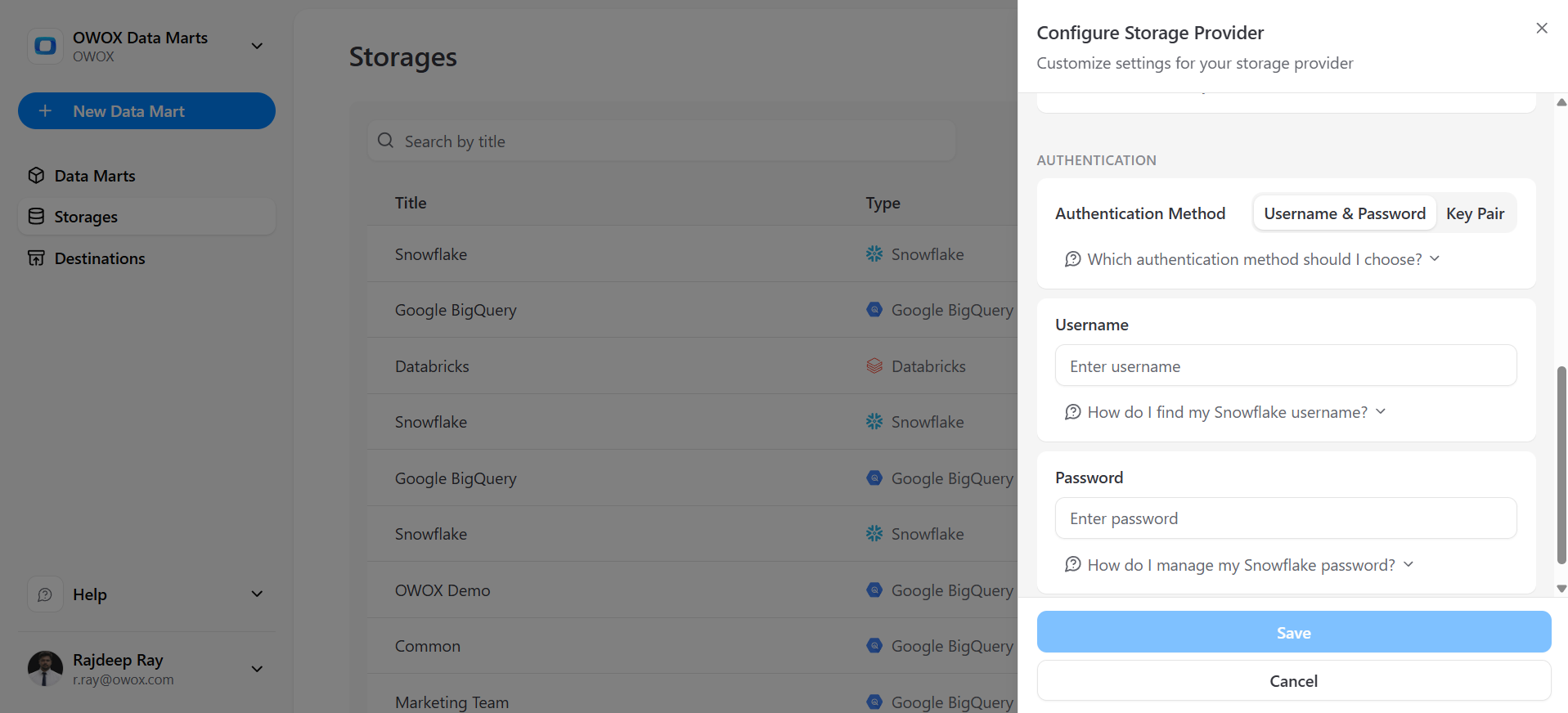
- User name (a dedicated technical user is recommended).
- Two authentication methods are available:
- Password-based (username + password), or
- Key-based (requires admin permissions).
- Click ‘Save’
Step 2: Create Facebook Ads Insights Data Mart
With Snowflake connected, the next step is to plug in Facebook Ads so OWOX can start pulling data and writing it to your warehouse. This is where you define what gets ingested (accounts, objects, fields) and how often.
Authorizing Facebook Ads and choosing ad accounts
OWOX uses Facebook’s OAuth flow to connect securely to your ad accounts. You’ll need a Facebook user with access to all relevant ad accounts in Business Manager.
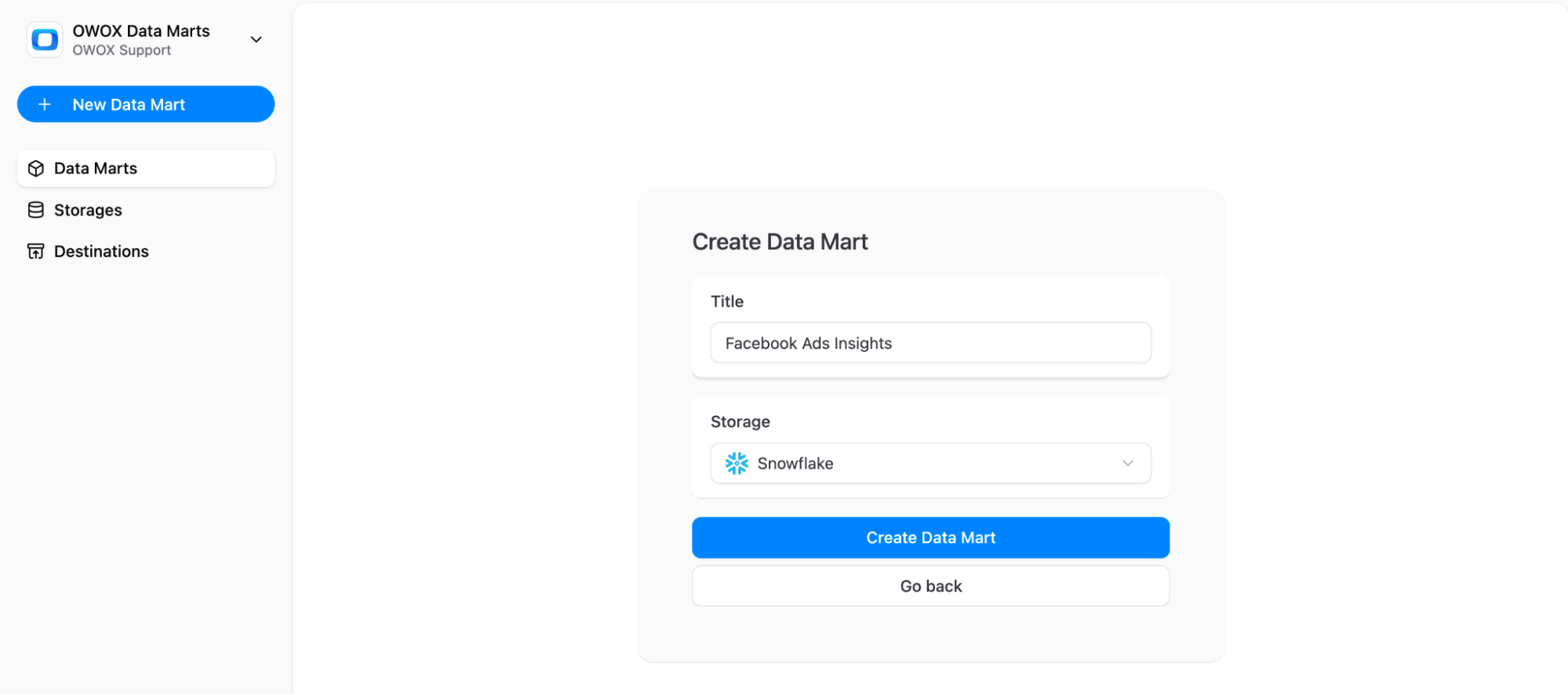
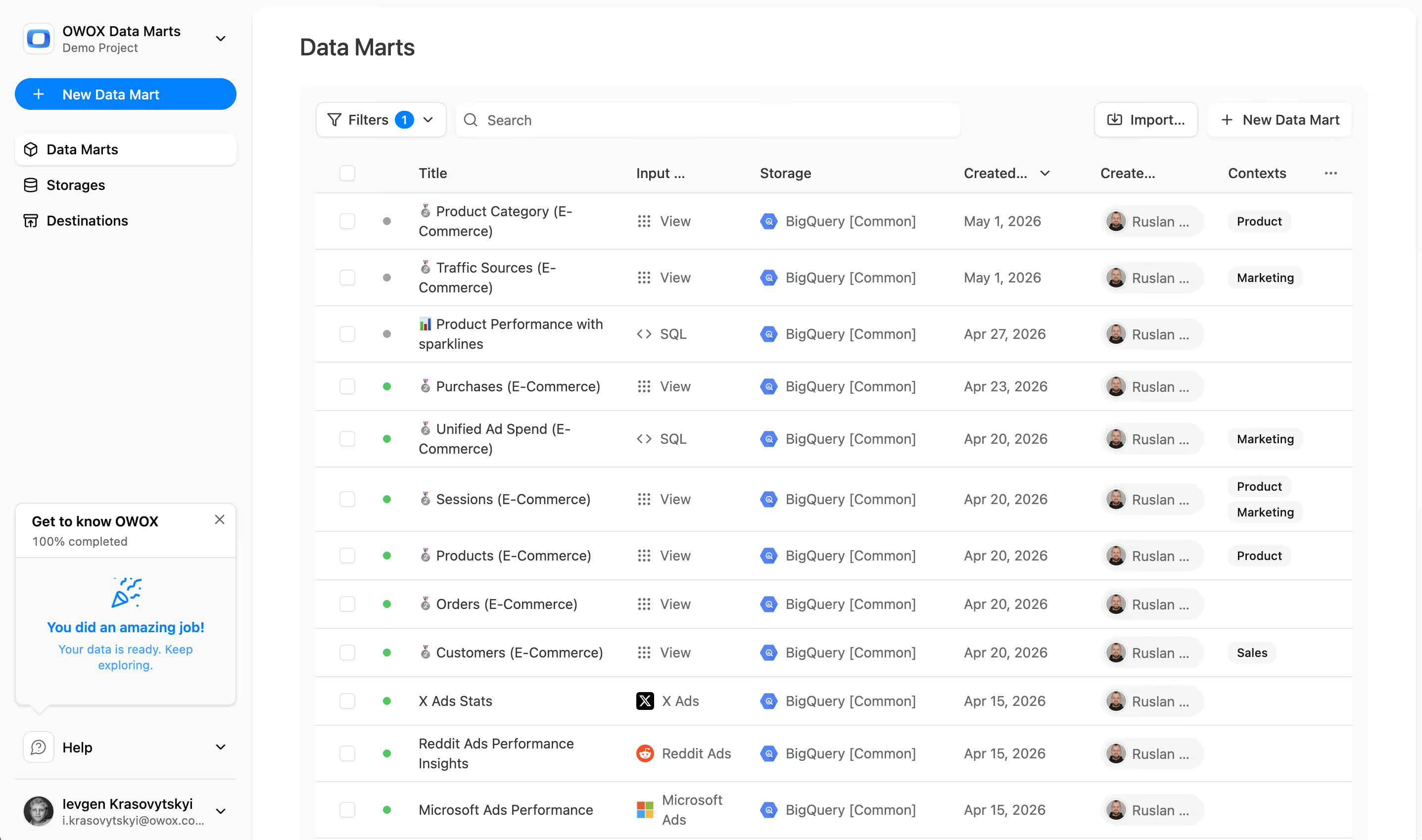
Click Create a New Data Mart
- In the OWOX UI, go to ‘+ New Data Mart’.
- Give the data mart a title, something like ‘Facebook Ads Insights’.
- Pick up Snowflake as a Data Storage.
- Click ‘Create Data Mart’.
Configure Data Mart
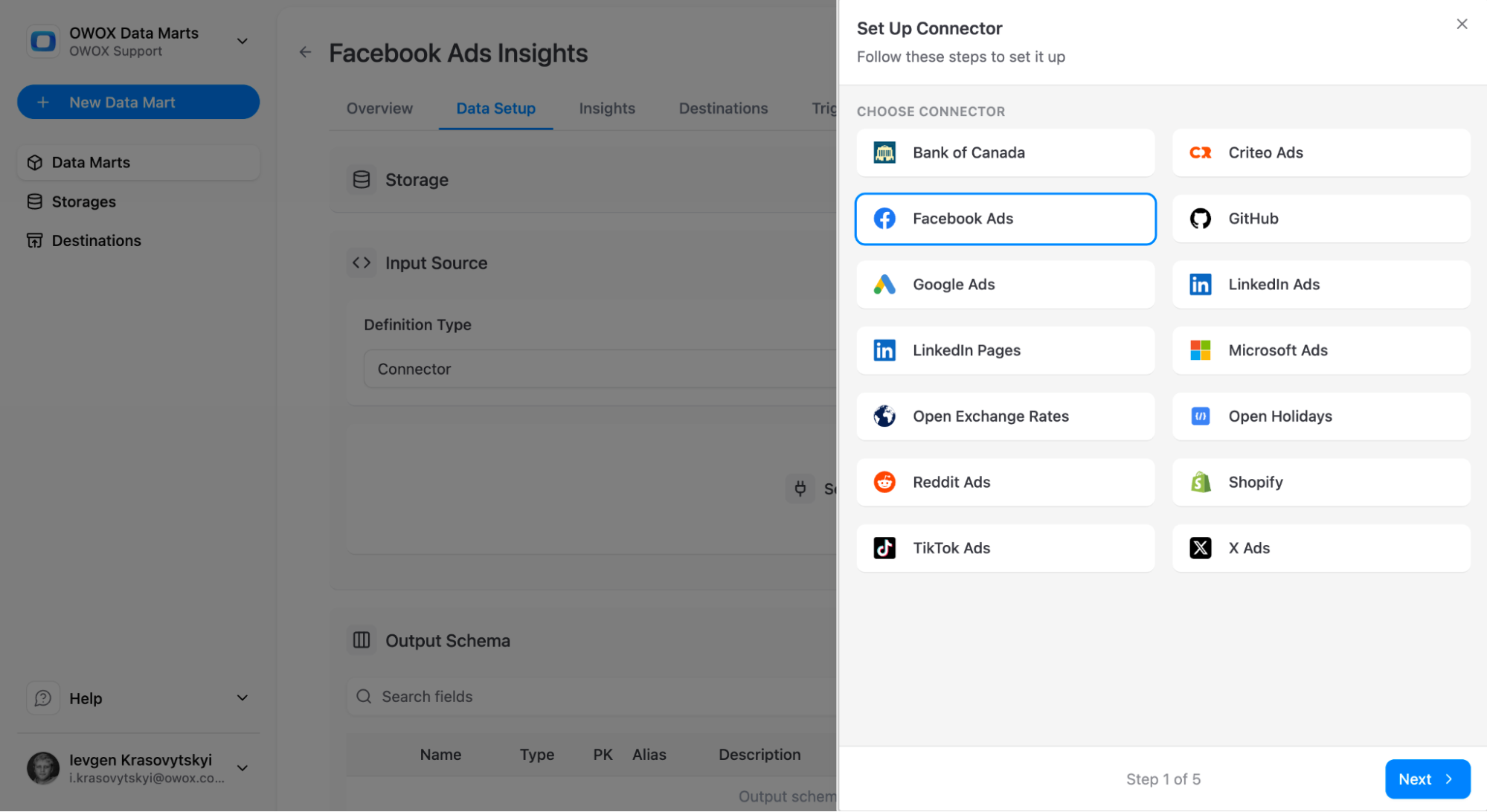
- Select ‘Connector’ as an ‘Input Source’
- Choose ‘Facebook Ads’ as the ‘Connector’
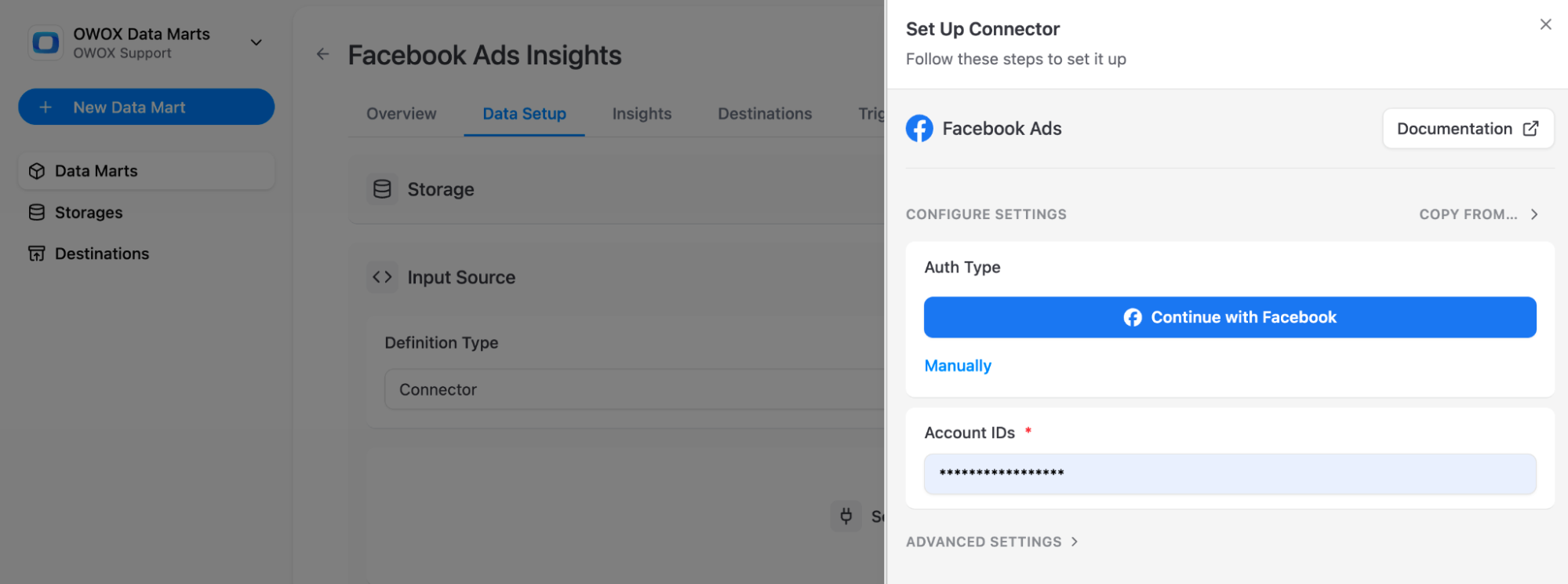
- Authorize using OAuth (you’ll be redirected to Facebook’s login and permissions screen)
- Log in with a user that:
- Has access to all ad accounts you want to ingest.
- Has at least ads_read and read_insights permissions on campaigns and insights.
- Add your Ad Account ID(s) and click next.
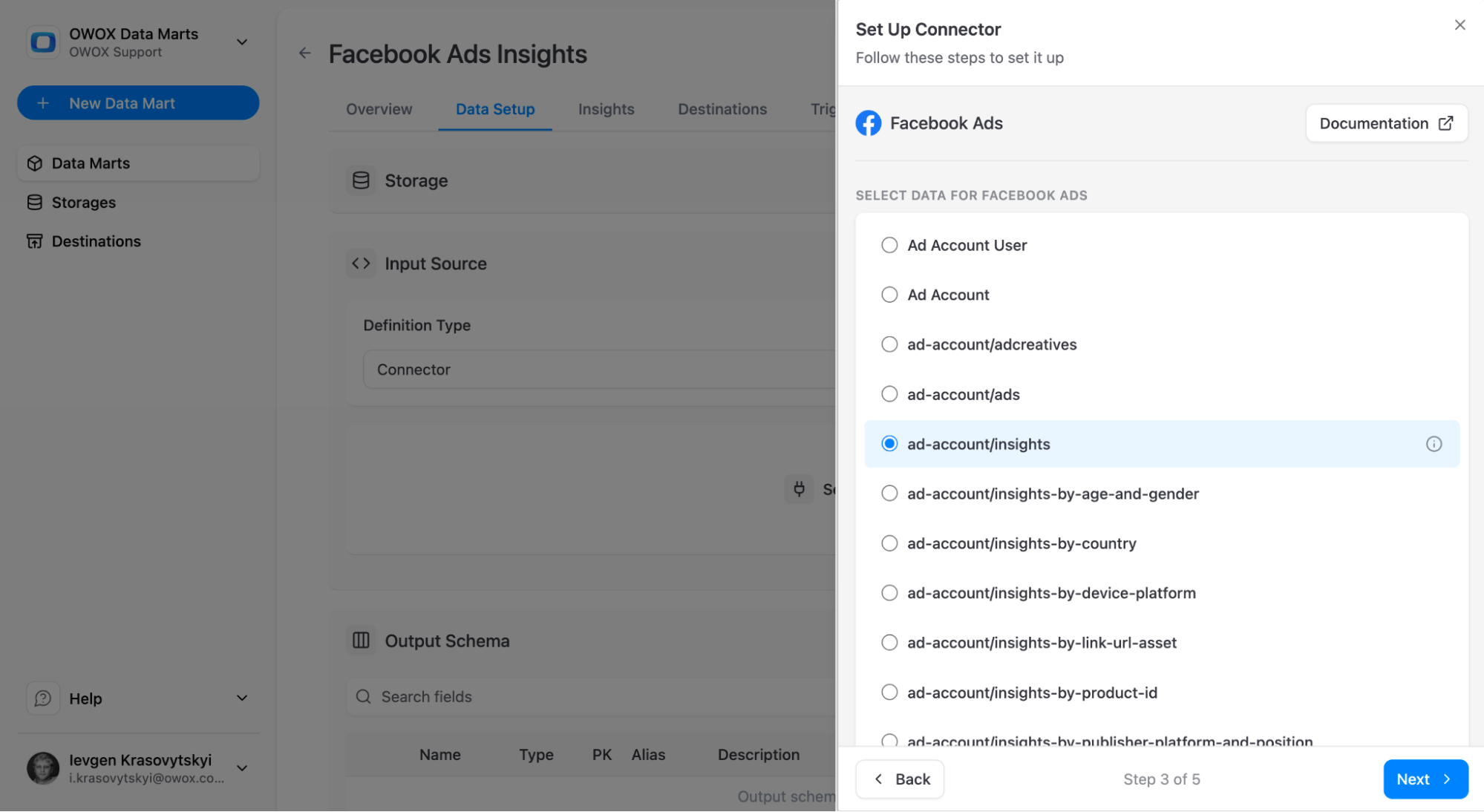
- Select the ad-account/insights API endpoint with the performance ads data.
- Click ‘Next’
- Select the fields you want to collect. Things like clicks, impressions, spend, etc. You can select as many fields as you want.
- Click ‘Next’
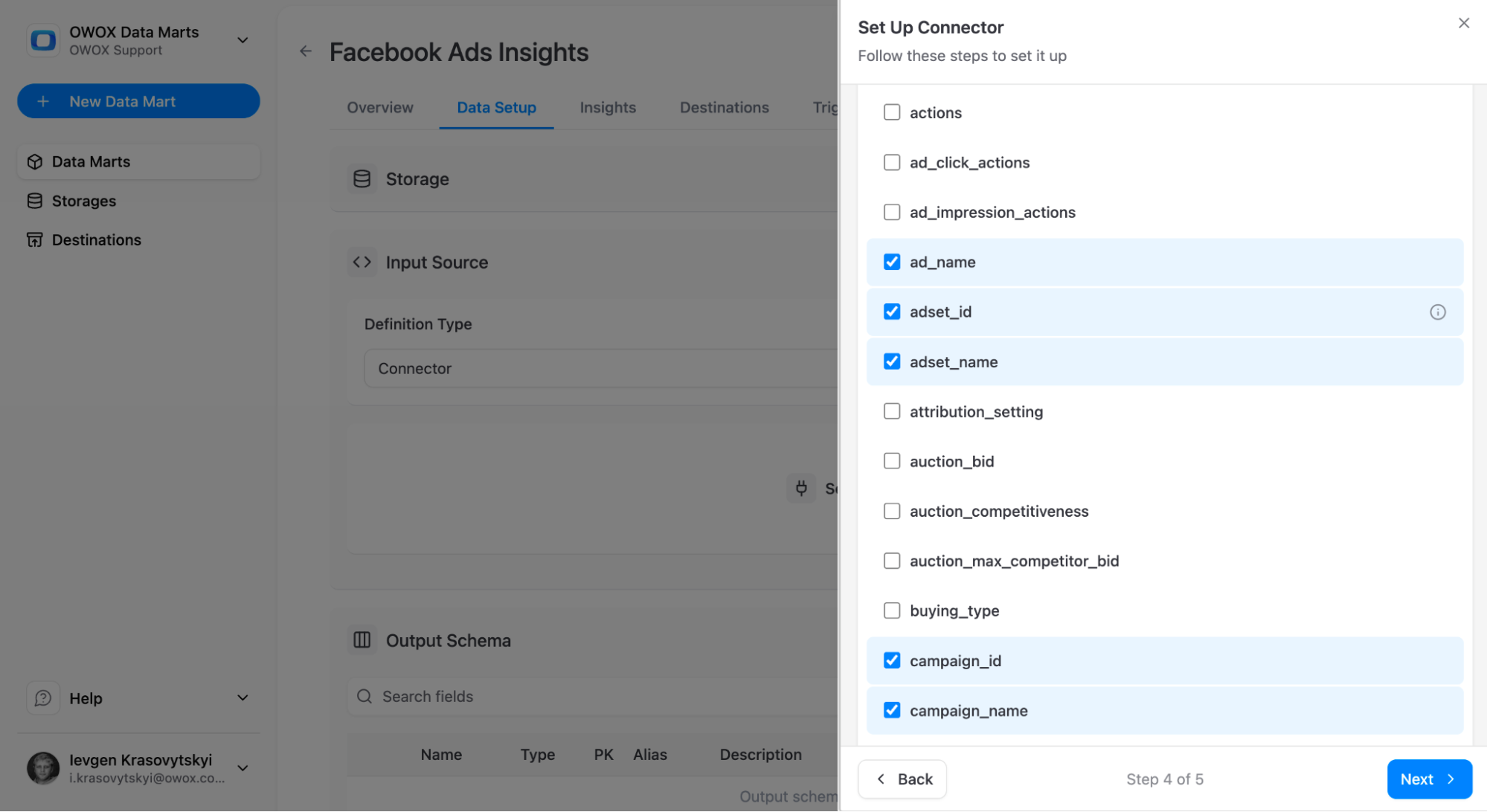
- Select your storage details like Database, Schema and the Table. You can continue with the default ones. The table is going to be created automatically.
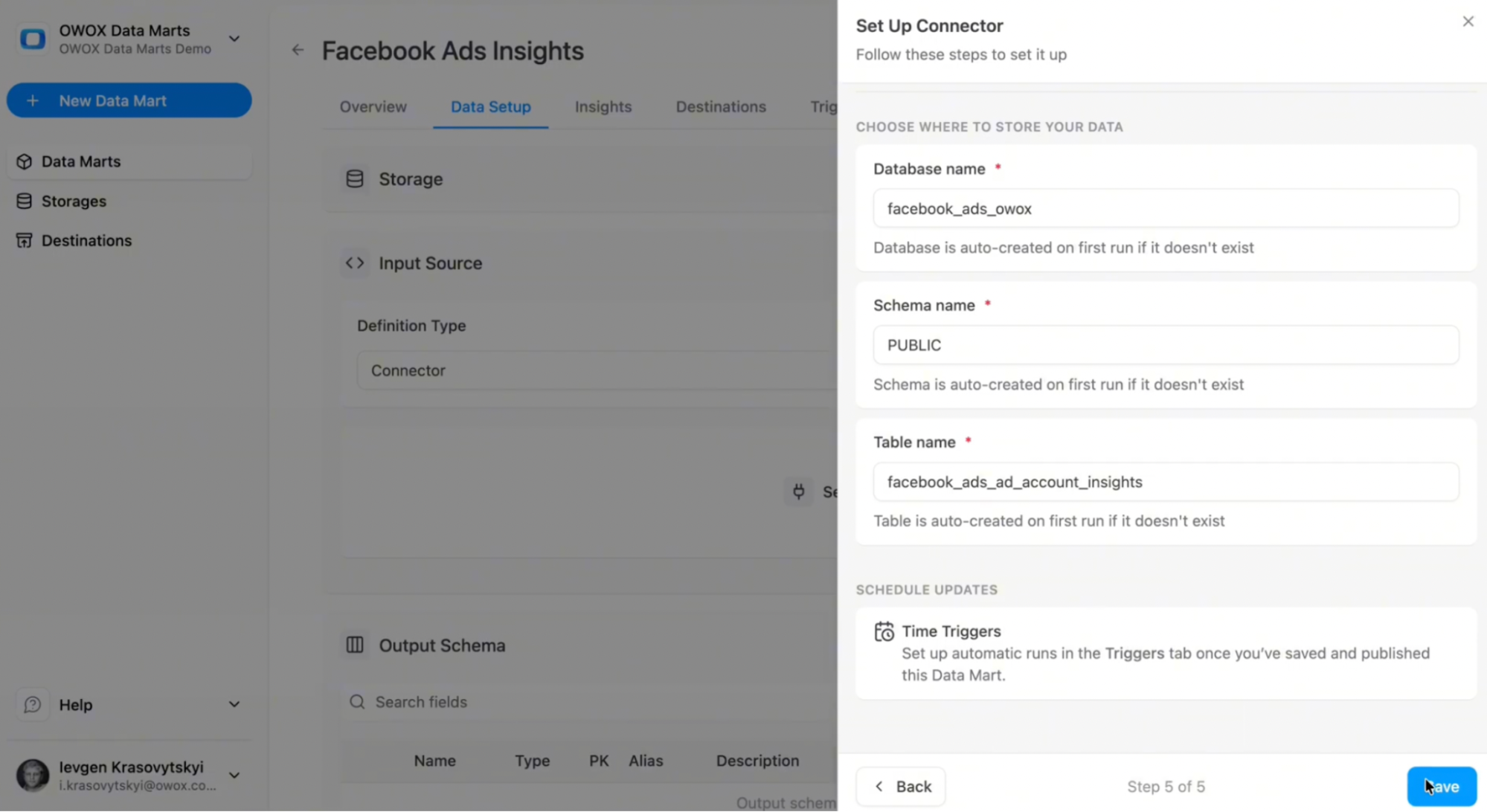
- Click ‘Save’
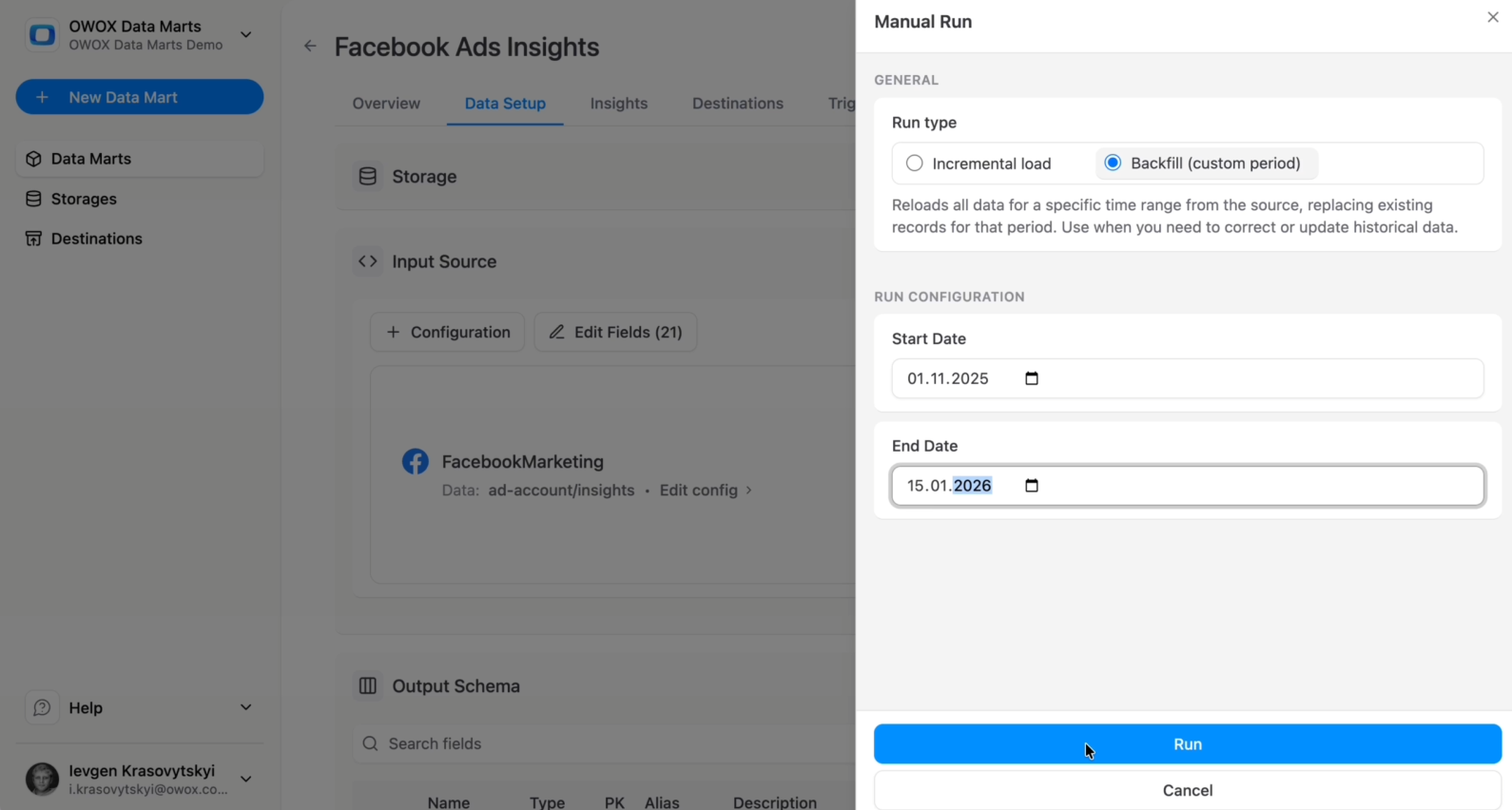
- Click ‘Publish’ the Data Mart
Run Your Connector
It’s time to do the first pull for the data to see if the data is flowing correctly. OWOX connects to the Facebook Marketing API and lets you control what is pulled.
- Just click on the ‘Manual Run’ button.
- You’ll see two options: Incremental or Backfill.
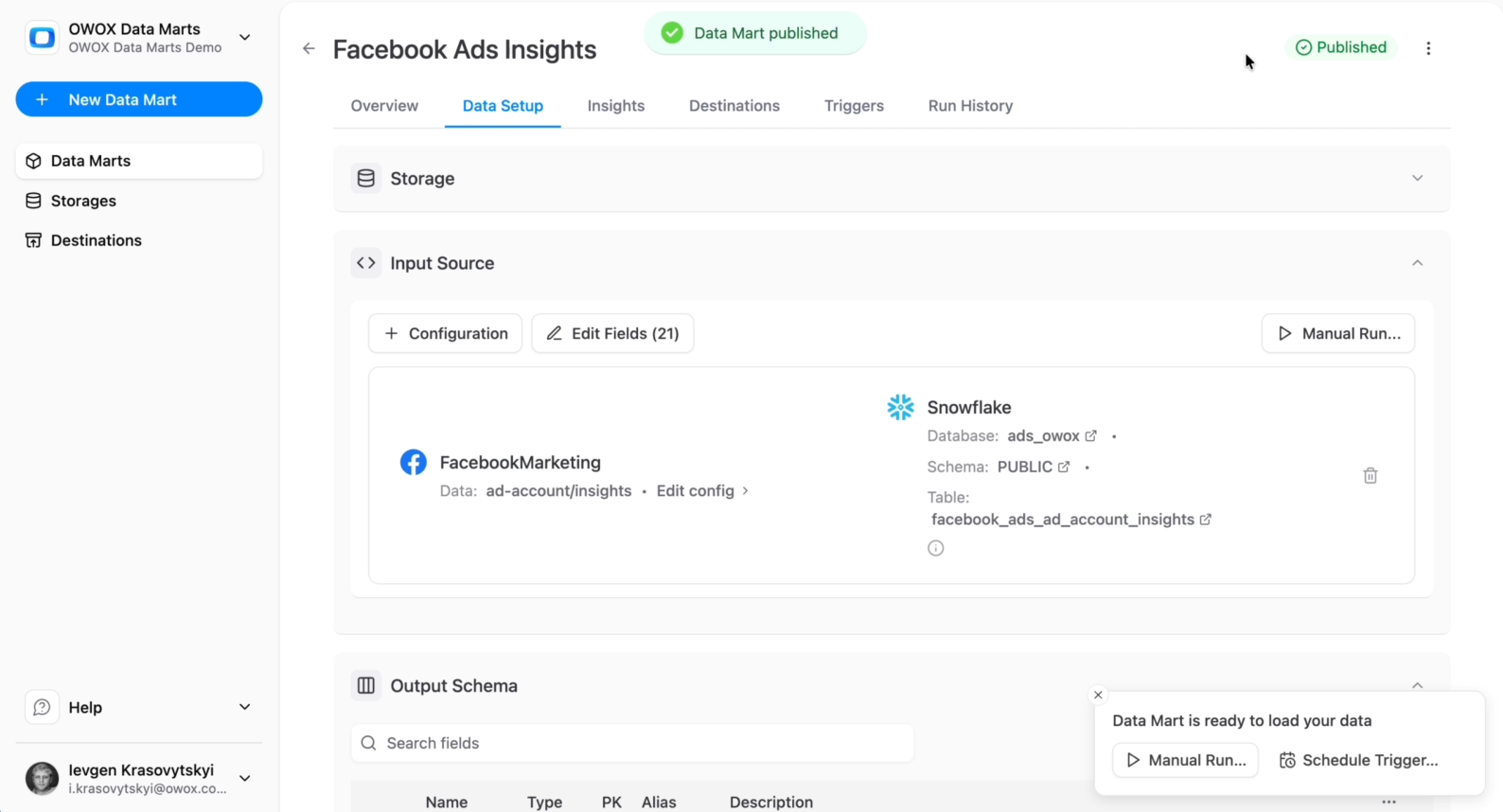
Historical backfill
You decide how far back to pull data. Use Backfill if you’re doing this for the first time and select as long as you need.
You can do 3 days, 7 days, 365 days, 10 years, it’s all up to you.
Recommendations for backfill:
- For an initial build, 90 days is often a good balance between history and load time.
- For mature teams migrating from another system, consider a full fiscal year backfill if you’ll rely on Snowflake for year-over-year analysis.
- Be mindful of API rate limits and data volume if you manage many large accounts; if needed, start with a shorter window and extend later.
Incremental updates
To handle late conversions and data corrections, OWOX supports a lookback window for each connector. Example configuration:
- Every run:
- Pull data for today + last 2 days.
- Overwrite those days in Snowflake
- This ensures:
- Your recent data stays accurate.
- You don’t reprocess the entire history each time
Scheduling
Your Facebook Ads data changes every day - and sometimes retroactively as conversions are attributed. You’ll now set the schedule for ongoing updates and configure monitoring.
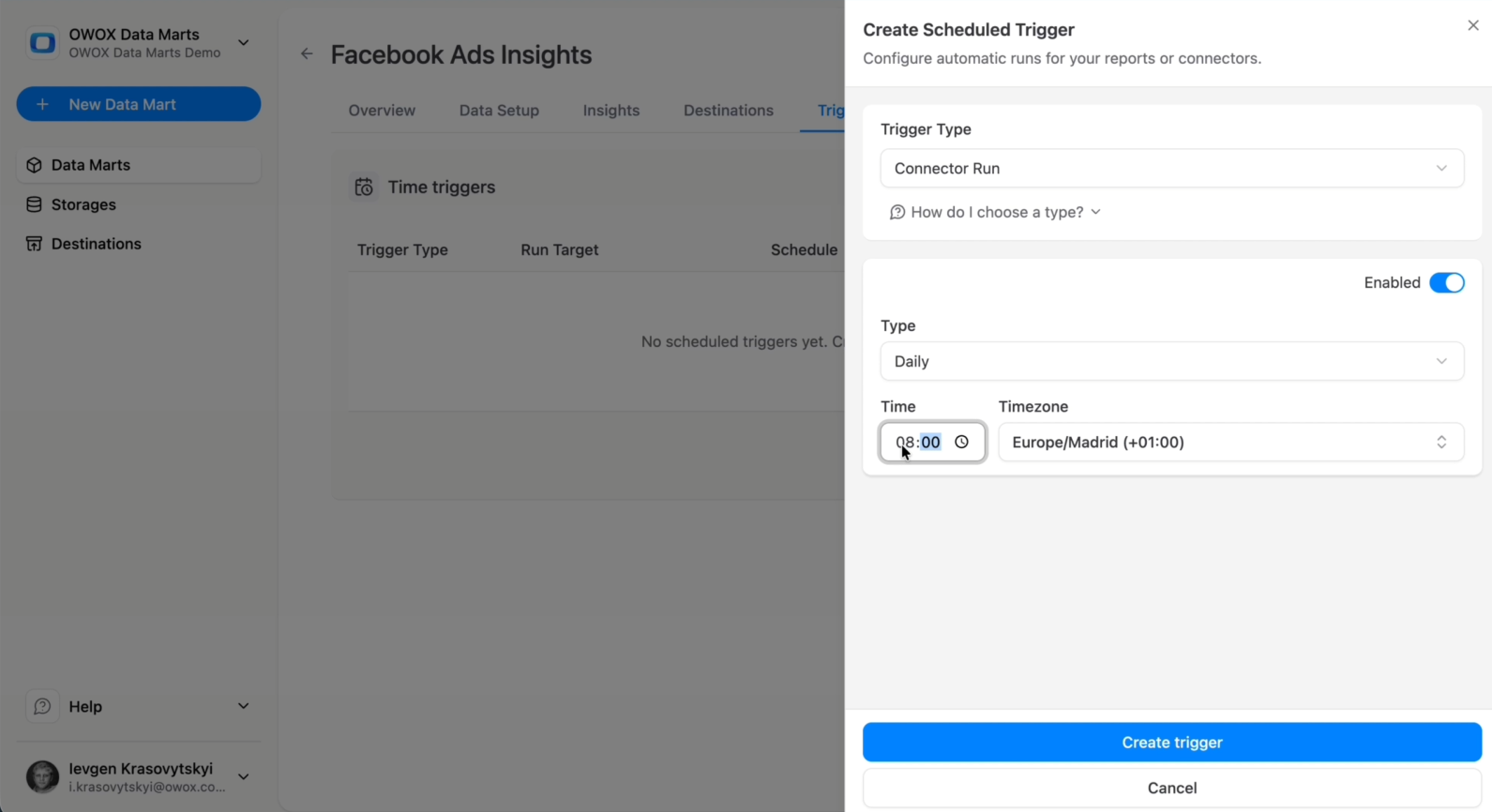
Go to the Triggers tab:
- Select Connector Run as a Trigger Type.
- Then, configure Frequency:
- Daily (e.g., every night at 02:00) for most reporting needs.
- Intra-day (e.g., every 4 hours or every 15 minutes) if you need near-real-time data collection & monitoring.
- And the time zone: Align with your business reporting timezone (e.g., account’s time zone or company default).
- Finally, click Create Trigger to run it on a schedule
Connector Meta Data
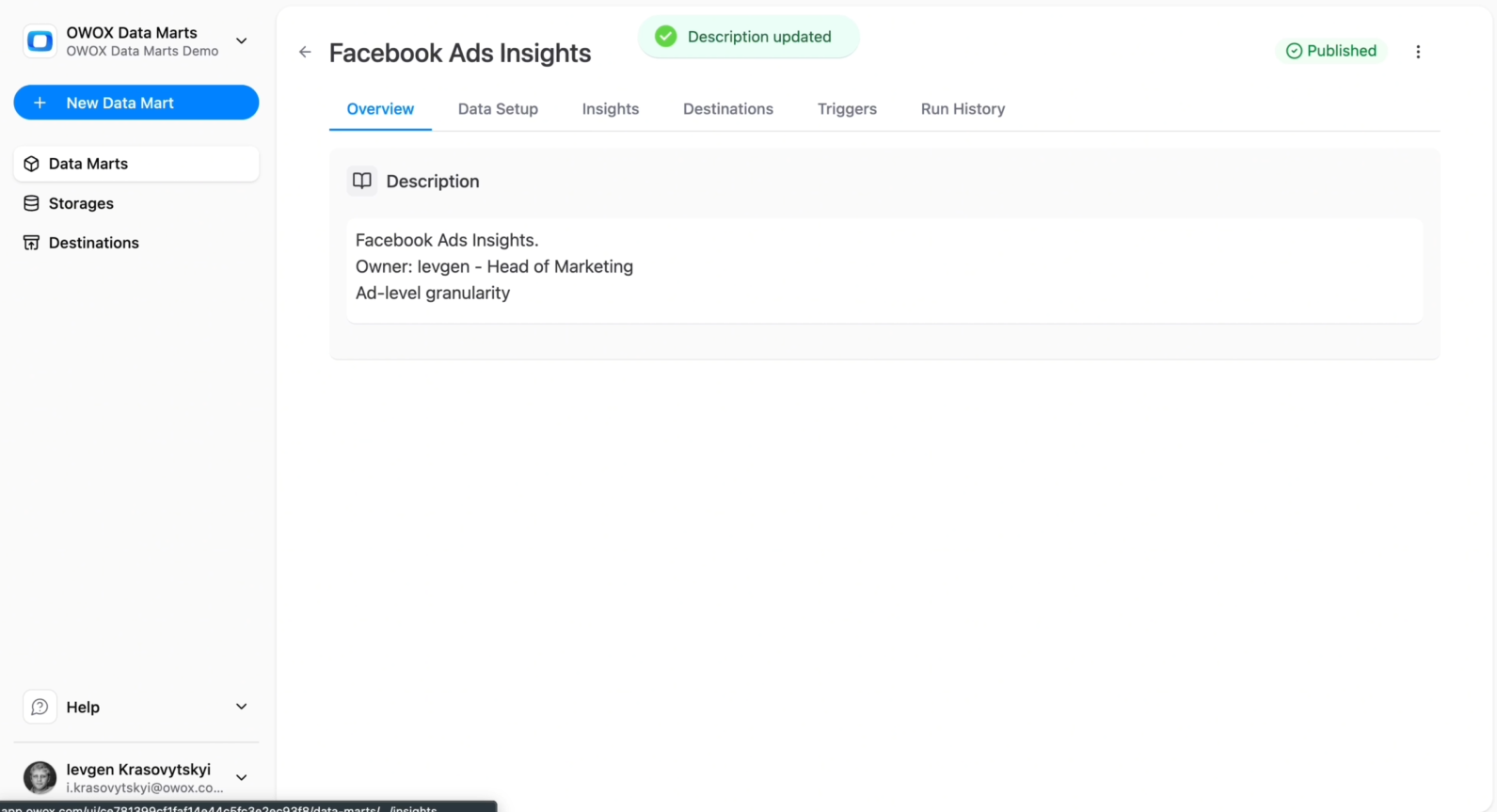
With OWOX Data Marts, you can document all your assets. Go to the Overview tab to see the Description.
It’s not necessary, but it keeps things organized, so your team and your future self would thank you for that.
Control
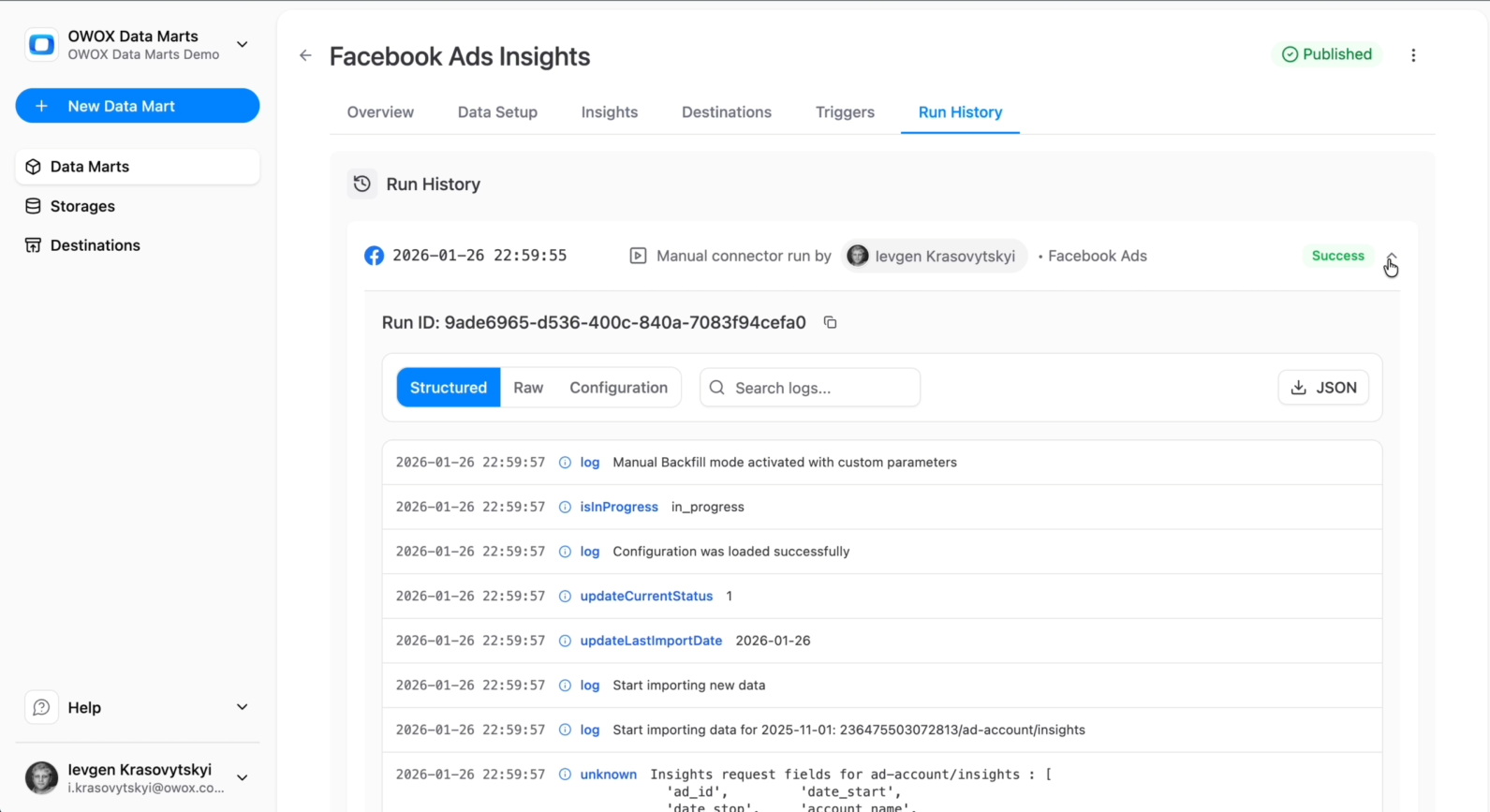
Go to the ‘Run History’ to keep track of the runs for each data mart (both connectivity & data enablement):
- Status (success, running, failed).
- Start/end time and duration.
- Number of rows processed.
- Drill into failed runs to see error messages (e.g., expired tokens, permission issues, API limits).
Data Marts Best Practices
When setting up a new data mart, we recommend you follow these simple rules:
- Start with a smaller subset (e.g., 1 ad account) and a smaller number of fields to validate schemas and data completeness.
- Include all active advertising accounts (click ‘add new configuration’) once you’re confident in the setup.
- Add more fields (click ‘+Fields’) - the schema in your data warehouse will be updated automatically.
- Document the data mart when you’ve completed the setup.
Step 3: Re-Use Facebook Ads Data Mart for Real Reporting
With a governed Facebook Ads data mart in Snowflake, you can finally move beyond exports and one-off dashboards. The data mart becomes a stable, queryable layer that any BI tool, spreadsheet, or AI workflow can connect to. From now on, you can:
- Connect tools like Google Sheets and Looker Studio directly to this Facebook Ads Data Mart.
- Blend Facebook Ads with other marketing and internal datasets using SQL.
- Use the blended data for real-world analyses: ROAS, funnels, multi-touch attribution, and cohorts.
The goal is to make the Facebook Ads data mart the default source of truth for performance reporting and decision-making across the business.
Connecting Google Sheets and Looker Studio to your data mart
You don’t have to change your reporting tools to benefit from OWOX Data Marts. As long as they can connect to Snowflake, they can query the Facebook Ads data mart in real time.
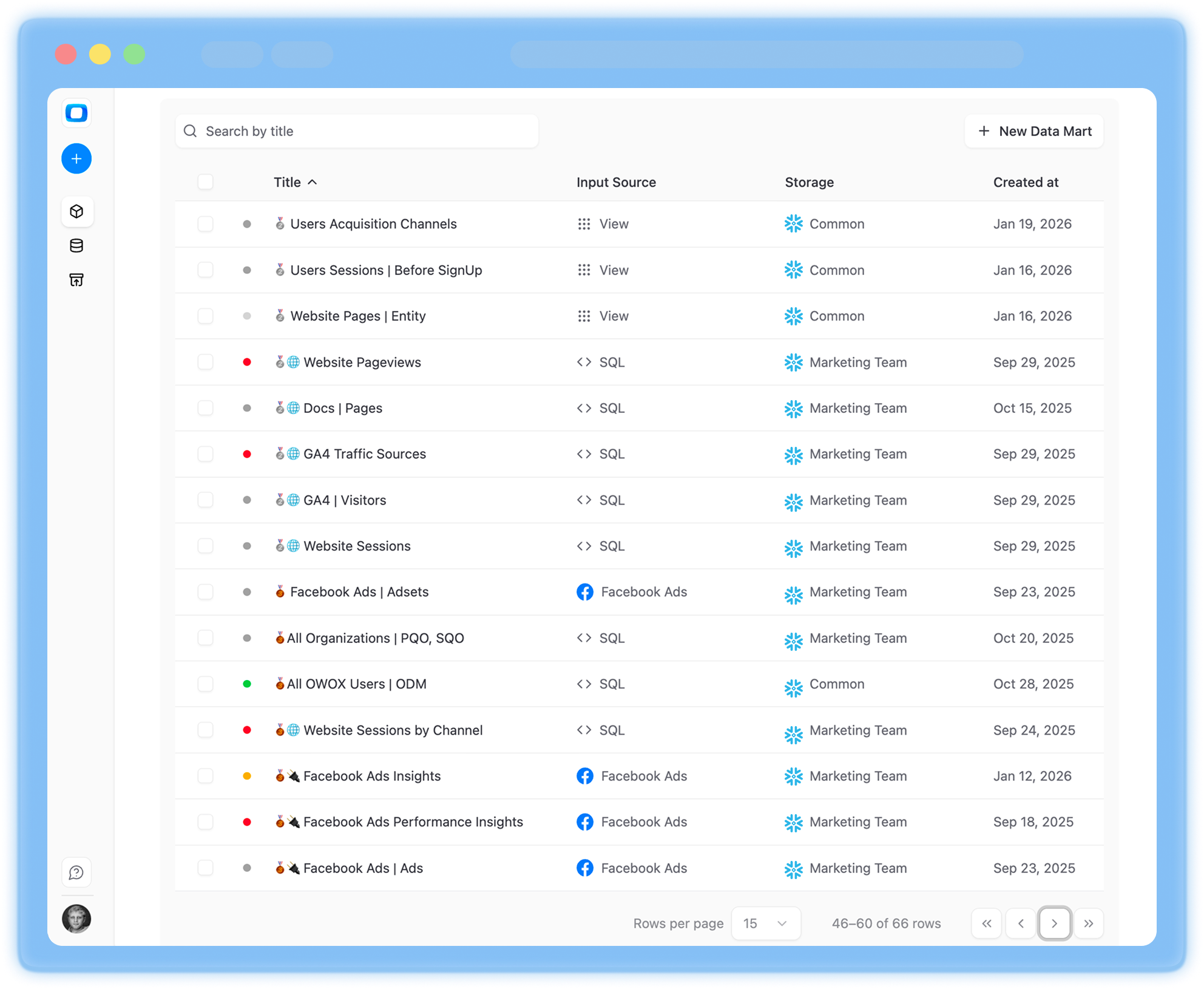
Add Google Sheets as a Destination
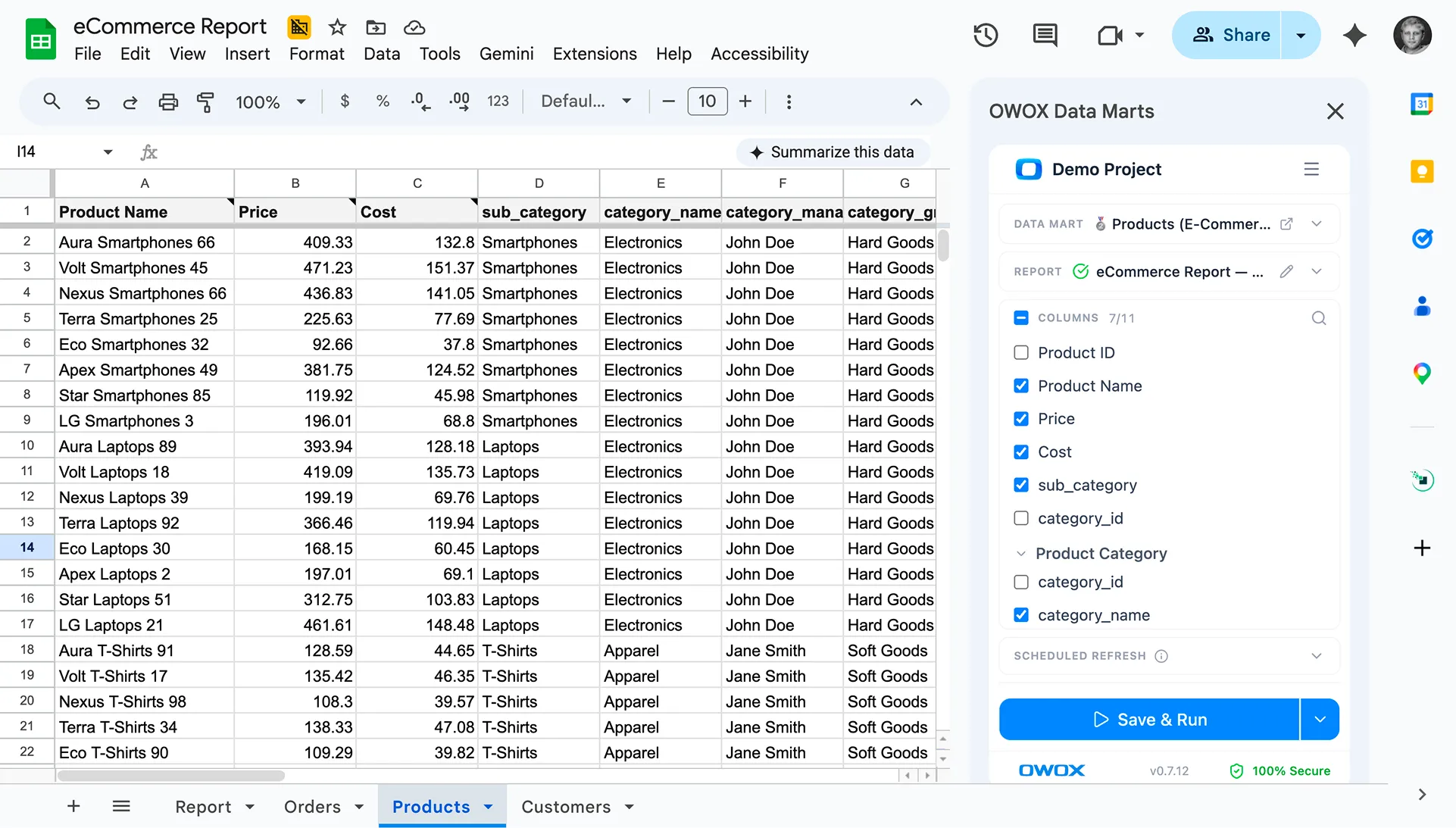
Go to the Destinations tab and connect Google Sheets to use it for reporting.
Then, create a new report, and schedule reports by entering the sheet URL & choosing the refresh time.
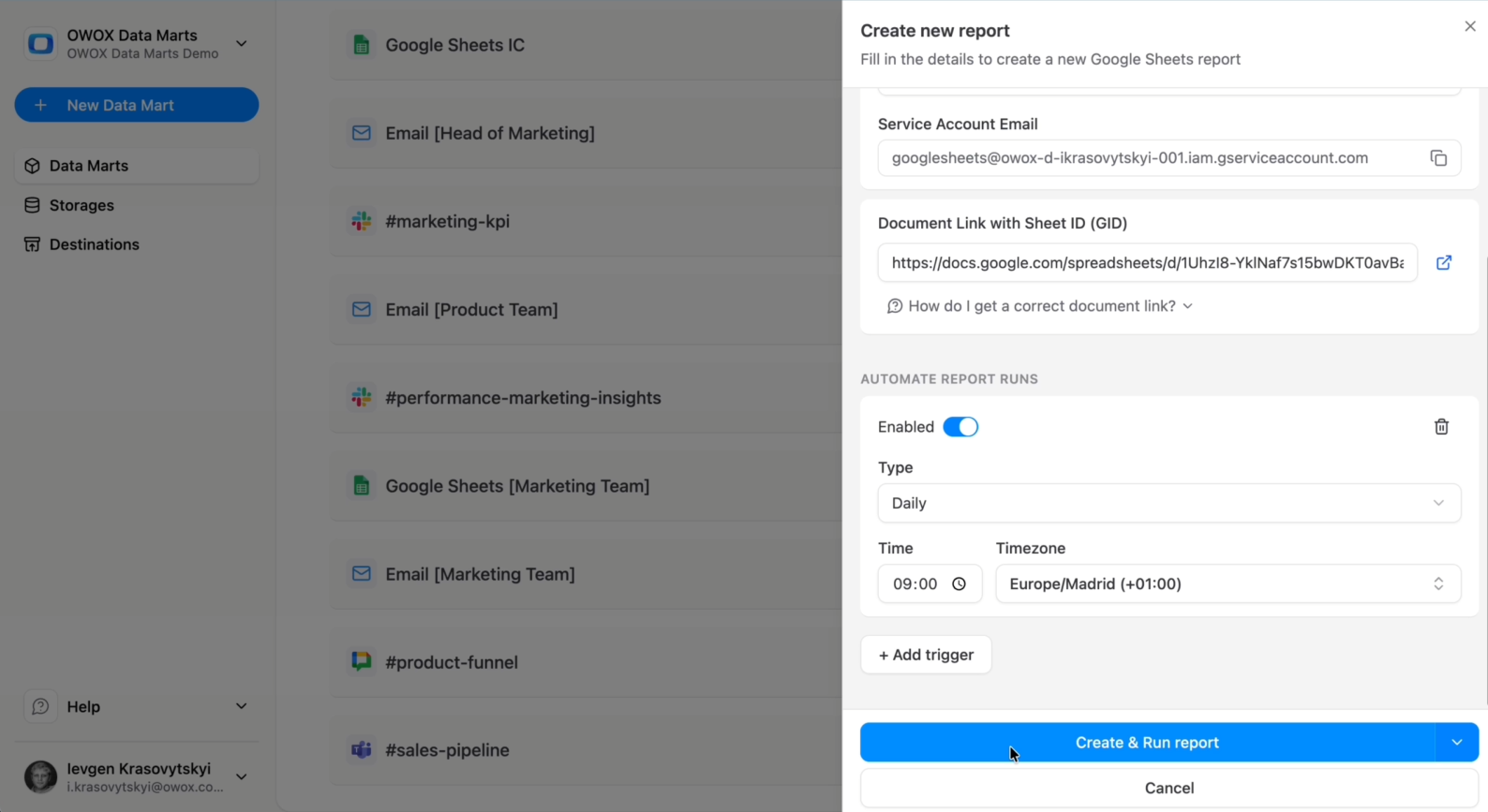
This gives marketers spreadsheet-level access to live data updated on your schedule without manual CSV exports.
Connecting Looker Studio
To connect Looker Studio to OWOX Data Marts, it’s damn simple. In the OWOX Data Marts UI, navigate to Destinations from the main navigation pane and click + New Destination.
- Select Looker Studio from the Destination Type dropdown.
- Provide a Title — a unique name for this Destination (e.g., “Looker Studio Access (Marketing Team)”).
- Click Save.
- Then open it again and follow the instructions from Looker Studio.
Blending Facebook Ads with other channels and internal data in Snowflake
The real power of having Facebook Ads in Snowflake is blending it with other data in the same environment. Because the data mart has a clear grain and IDs, joining it to other tables becomes straightforward. The Common blending patterns are
Cross-channel spend and performance
- Join the Facebook Ads data mart with similar data marts for Google Ads, Bing, TikTok, etc.
- Use a shared dimension table (DIM_MARKETING_CHANNEL) to normalize naming and groupings.
Attribution to web sessions and purchases
- Join the Facebook Ads data mart with:
- Web analytics (e.g., GA4 events landed in Snowflake).
- CRM or orders table (FACT_ORDERS).
- Use click IDs, UTM parameters, or custom attribution keys defined in OWOX Data Marts.
Link to user and cohort data
- Map ad-driven sessions to user IDs or hashed emails.
- Join with lifecycle data (sign-ups, activations, churn, LTV).
By moving blending logic into Snowflake, you avoid per-tool data wrangling and keep business rules consistent across all reports.
Example analytics use cases: ROAS, funnel performance, and cohorts
Once your Facebook Ads data mart is live and blended with other data, you can unlock richer analytics that go far beyond basic campaign dashboards.
Here are practical examples:
True ROAS and profitability
Instead of relying on Facebook’s reported conversions, join the Facebook Ads data mart with your orders table:
SELECT
  f.report_date,
  f.campaign_name,
  SUM(f.spend)                           AS spend,
  SUM(o.revenue)                         AS revenue,
  SUM(o.revenue) / NULLIF(SUM(f.spend), 0) AS true_roas
FROM FB_ADS_DAILY_MART f
JOIN FACT_ORDERS o
  ON f.click_id = o.attributed_click_id
GROUP BY 1, 2;
That will allow you to compare Facebook-reported ROAS vs actual ROAS from your backend and also pptimize budgets using the more reliable backend view.
2. Funnel performance analysis
Blend Facebook Ads with site/app behavioral data:
- Top of funnel: impressions, clicks (from the data mart).
- Mid funnel: sessions, add-to-carts, sign-ups (from web analytics).
- Bottom funnel: purchases, revenue (from orders).
Use this to:
- Identify campaigns with strong click-through but weak on-site engagement.
- Optimize landing pages and experiences per audience or creative.
- Attribute drop-offs to specific steps in the funnel.
3. Cohort and LTV analysis
If you have user-level or cohort tables:
- Assign each new user a first-touch or last-touch channel/campaign based on Facebook Ads data mart + other channel data.
- Track:
- Retention (D30, D60, D90).
- Revenue and margin over time.
- Payback period vs. CAC from Facebook.
This allows you to:
- Measure long-term value by campaign instead of just short-term ROAS.
- Make better scaling decisions on which campaigns to invest in.
The key is that all of this runs directly on top of Snowflake and the OWOX-managed data mart. You define the rules once, and every dashboard, SQL query, or AI model built on top benefits from the same, trusted Facebook Ads data.
Step 4: Turn Facebook Ads Data in Snowflake into Proactive AI Insights
Once your Facebook Ads data mart is live in Snowflake and used across reports, the next step is making the data work for you. Instead of logging into dashboards and hunting for issues, your team can get proactive, AI-generated insights pushed directly to where they work: Slack, Teams, or email.
With OWOX, you can:
- Connect AI Insights to your curated Facebook Ads data mart.
- Encode your business logic and KPIs into prompts and rules.
- Schedule recurring analyses and alerts.
- Iterate on prompts and configurations as the business evolves.
The result is an always-on analyst that continuously monitors your Facebook performance and surfaces what matters, instead of waiting for someone to notice a problem in a dashboard.
Configuring AI Insights on top of your Facebook Ads data mart
AI Insights in OWOX operates on top of the modeled tables you’ve already built. That’s why the data mart is so important: it provides a clean, stable schema and definitions that AI can reliably query and reason about.
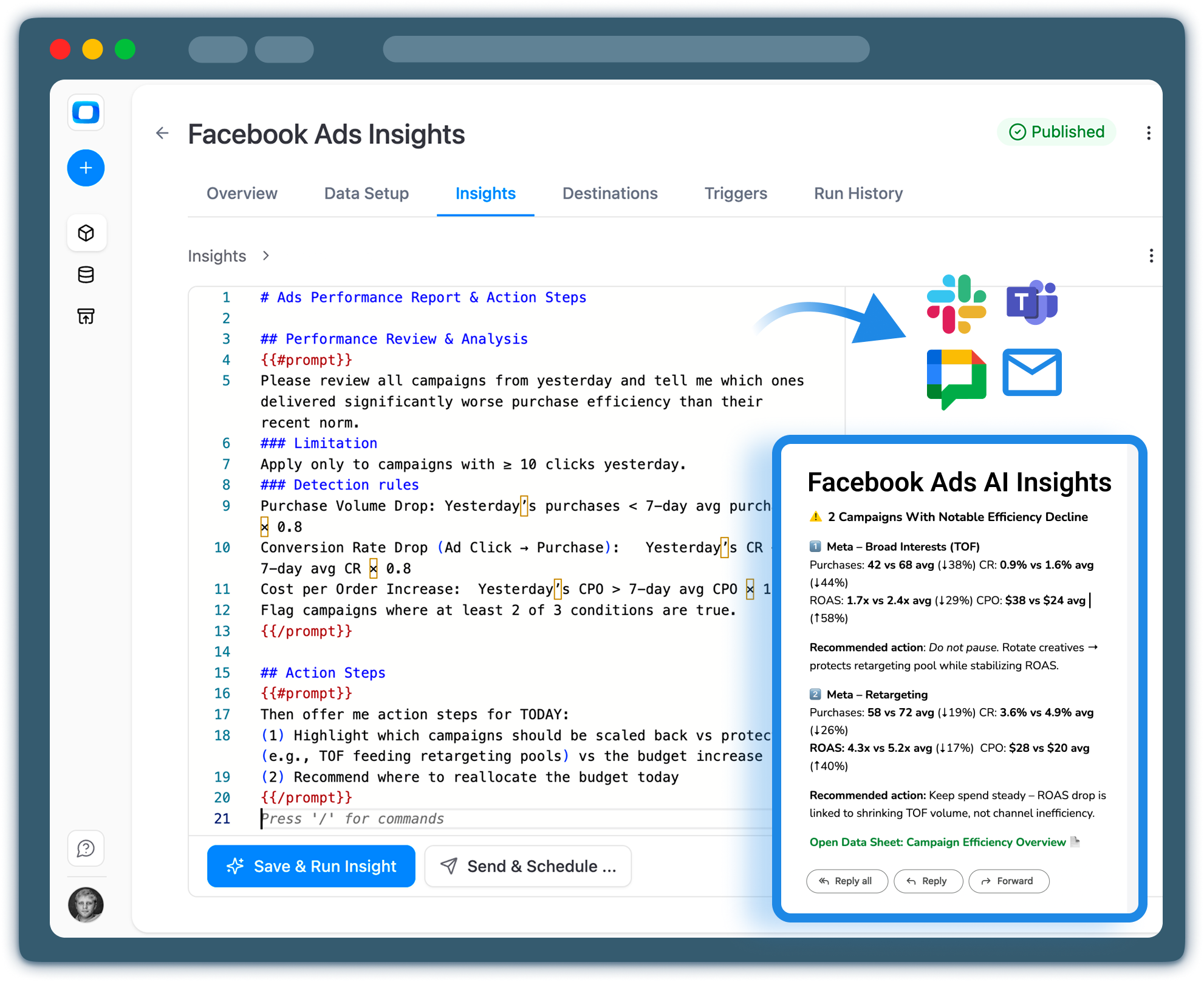
- Just navigate to the Insights tab. Use OWOX-generated Prompt or add your own.
- Click Create insight
- Click run and see how it goes.
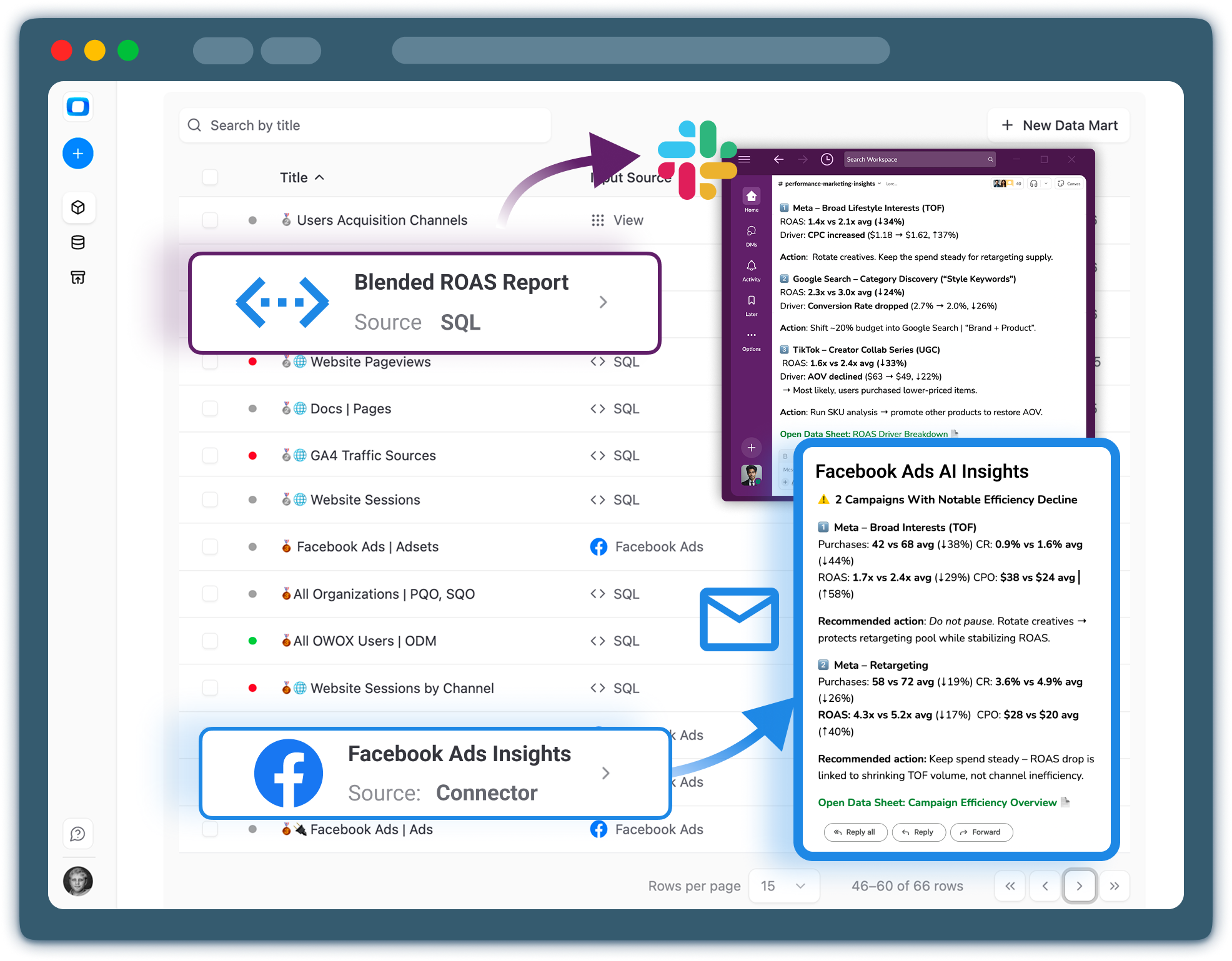
- Add a destination like Google Chat, MS Teams, Slack or Email & schedule AI Analysis delivery to stakeholders right away.
Once the AI configuration is linked to the data mart, you no longer need to embed SQL logic into prompts. The curated schema and metrics definitions provide the context the AI needs.
Designing prompts and business context for marketing teams
The quality of AI insights depends heavily on the context and instructions you give it. With OWOX, you can craft prompts that reflect your marketing strategy, thresholds, and language.
Consider these practices:
1. Frame the AI’s role
Describe what the AI is supposed to do, for example: “You are a performance marketing analyst reviewing Facebook Ads results for the last 7 days versus the previous 7 days.”
2. Specify focus metrics and thresholds
Tell the AI what matters:
- Top KPIs: spend, revenue, ROAS, CAC, impressions, clicks, CTR.
- Business rules, such as:
- “Flag any campaign where ROAS drops more than 20% week-over-week while spend is above $1,000.”
- “Highlight ad sets where spend increased >30% but conversions did not grow accordingly.”
You can include this in the prompt or configure thresholds in the UI, depending on the OWOX version.
3. Provide business context
Include details like:
- Your target ROAS or CAC ranges by business line
- Which markets or product lines are strategic priorities
- Naming conventions (e.g., campaigns starting with BRAND_ are awareness; PERF_ are performance).
Example prompt snippet:
“Focus on performance campaigns with names starting with ‘PERF_’. Our primary KPI is ROAS, and we consider ROAS below 2.0 problematic for these campaigns. Summarize key changes by campaign and suggest concrete budget or bid adjustments.”
4. Make outputs marketing-friendly
Ask the AI to:
- Use clear language, avoid SQL/technical jargon.
- Structure output as:
- Key highlights (bulleted).
- Risks and anomalies.
- Recommended actions.
This turns raw numbers into narratives and recommendations that marketing stakeholders can act on directly.
Delivering scheduled insights into Slack, Teams, and email
Once you have AI Insights configured and prompts tuned, the final step is to push those insights where your teams already collaborate.
1. Configure delivery destinations
2. Tailor frequency and stakeholders
Avoid alert fatigue:
- Daily: High-level performance summary and anomalies only.
- Weekly: Deeper analysis, trends, creative insights.
- Monthly: Strategic recap across channels (Facebook plus others) using blended data marts.
You can create multiple insights for the same data mart, each focused on a specific audience:
- Channel owners: Detailed campaign-level insights.
- CMO/marketing leadership: High-level KPIs and risks.
- Analytics team: Data quality and anomaly checks.
3. Continuous improvement and scaling
To scale AI Insights effectively:
Iterate on prompts
- Review a few weeks of AI messages with stakeholders.
- Adjust thresholds, language, and focus areas.
- Add or remove metrics as your strategy evolves.
Expand coverage
- Link AI Insights to other data marts (Google Ads, TikTok, organic, CRM).
- Create cross-channel and full-funnel insights that include Facebook as one component.
By combining OWOX Data Marts, your Snowflake warehouse, and AI-powered monitoring, you move from reactive reporting to an intelligent system that continuously watches your Facebook Ads performance and proactively recommends where to dig deeper or take action. To start experimenting with AI Insights on your own Facebook Ads data, you can sign up and connect Snowflake and Facebook here.
Frequently asked questions


"AI by its nature will hallucinate. You need guardrails so you can trust your data."
"We had six or seven different channels and no single source of truth. It was almost impossible"
"We regained time. And time is the one resource that never comes back."