Insights with AI assistance
Scheduled write-ups where every number comes from SQL
A weekly report typed by hand gets skipped, and one written by an LLM carries figures nobody checked. An Insight is a Markdown template filled from named SQL queries over your Data Mart, sent on schedule to Email, Slack, Microsoft Teams or Google Chat. Documentation
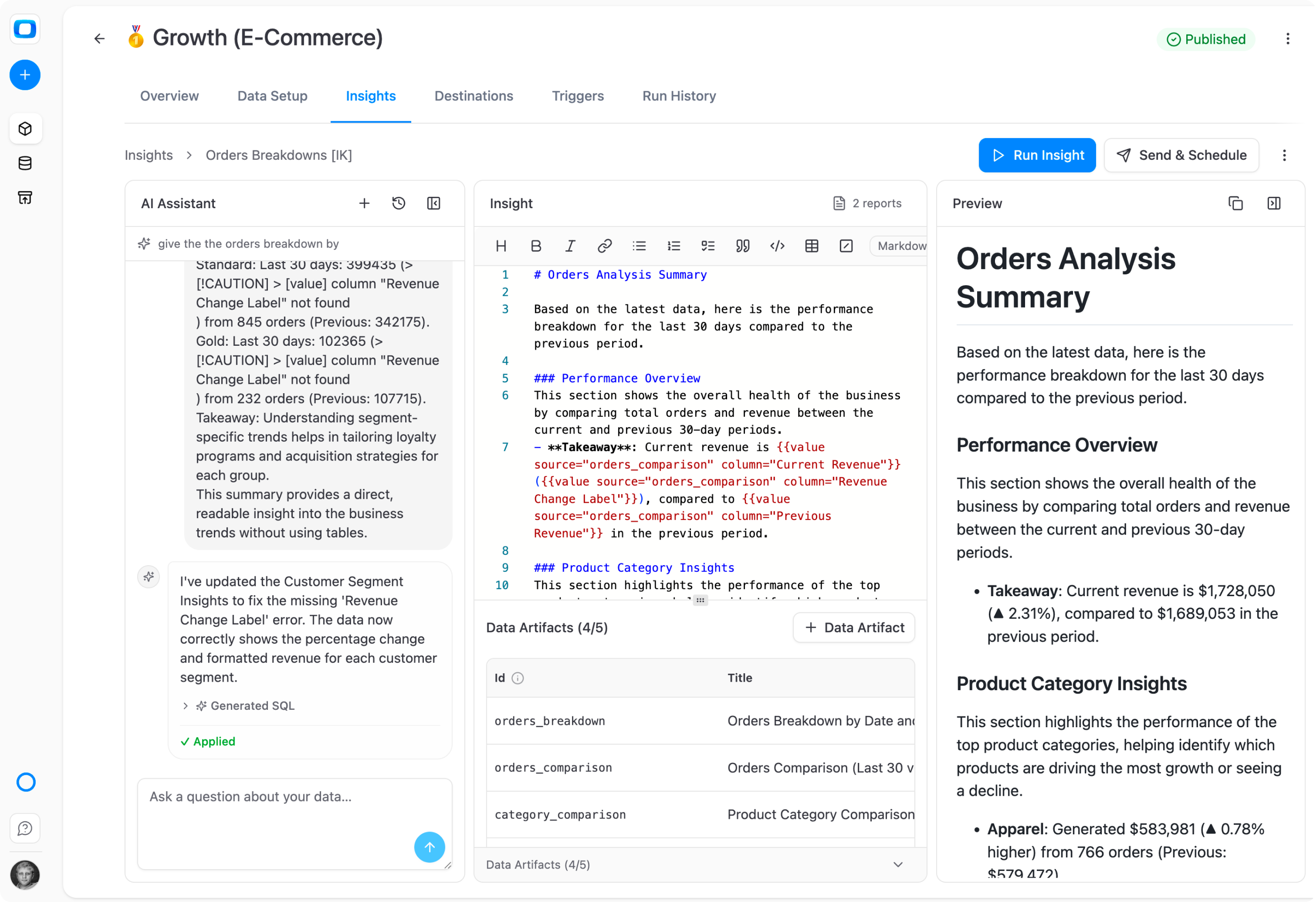
Why OWOX
A stakeholder wants the numbers every Monday as a short write-up, and it is either typed by hand again or written by an LLM with figures nobody checked. Insights sends a Markdown template you wrote, filled with the results of your saved SQL, on a schedule.
- Every figure is a {{value}} or {{table}} filled from a named SQL query over your Data Mart, not from the model.
- The AI Assistant drafts the template and the SQL as suggested actions; nothing is saved until you press Apply.
- One template feeds every report built on it: Email, Slack, Microsoft Teams or Google Chat, each on its own schedule.
The weekly write-up is either late or unchecked
A stakeholder wants the same numbers every Monday as a short write-up. Typed by hand, it is skipped under load. Written by an LLM, it puts an unchecked number in front of leadership, under the Data Owner's name.
THE DATA OWNER
Write it once, then schedule it
Write a Markdown template, add up to 5 named SQL queries as Data Artifacts, and place their results with {{value}} and {{table}}. Send & Schedule sets the channel and the time: daily, weekly, monthly or on an interval.
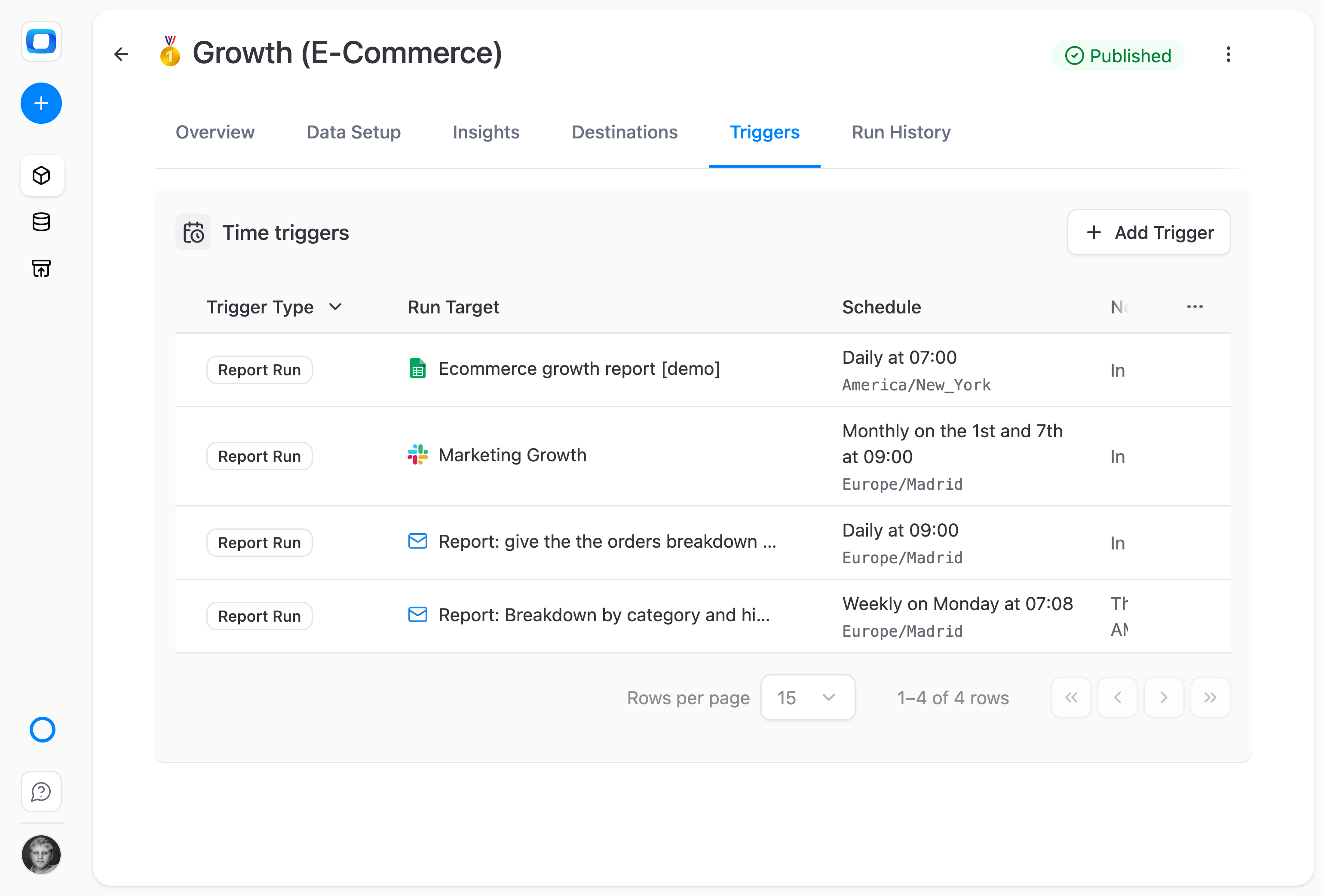
Every send runs the same saved queries.
THE BUSINESS USER
The numbers arrive with the words around them
The rendered Insight lands in the inbox or channel you already read, on the schedule you asked for: headings, a short write-up and current figures. There is no dashboard to open and nothing to learn.
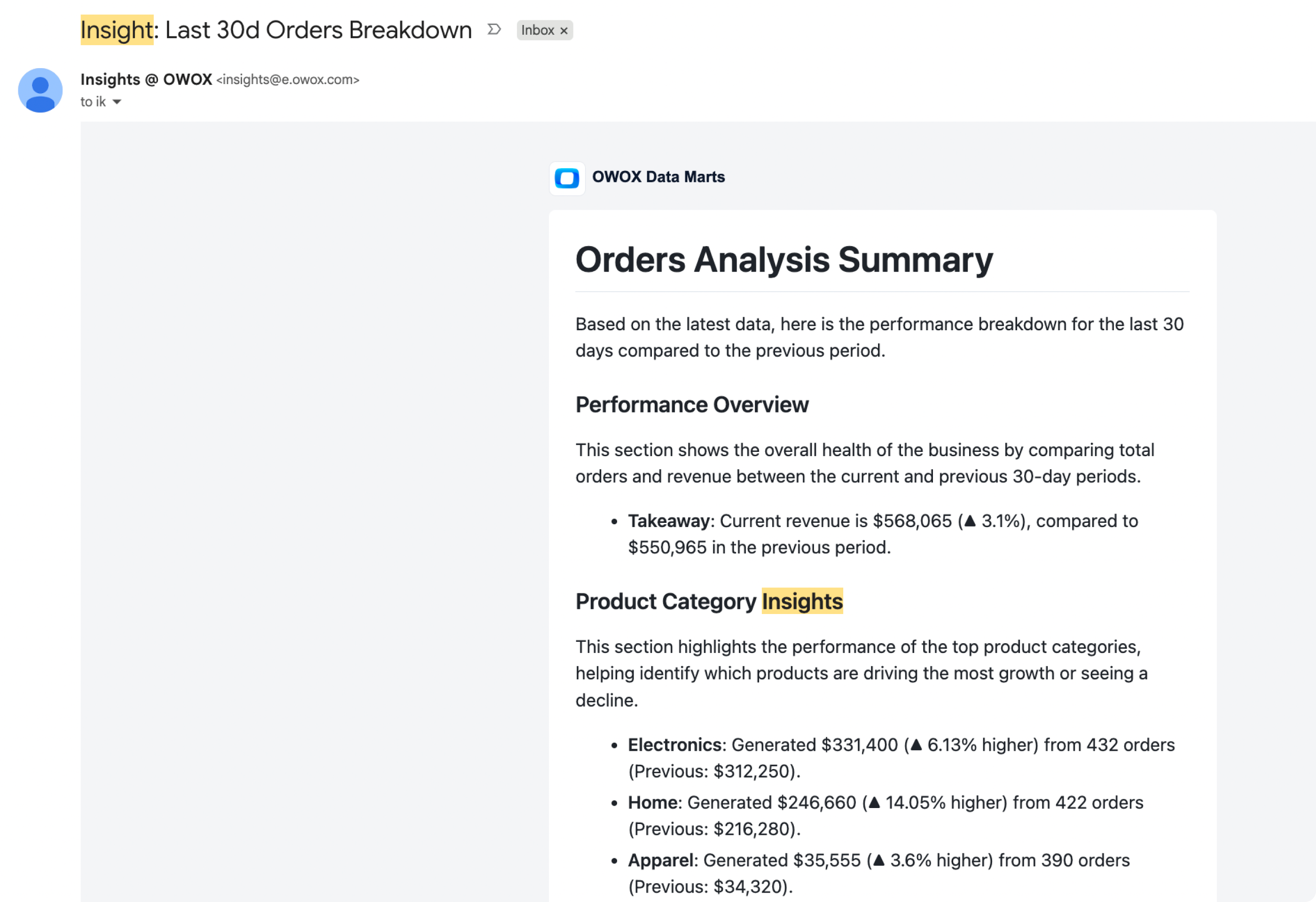
Same shape every send, with fresh numbers.
Not an AI summary of your data — An LLM asked to summarise data writes the figures too, so you check each one before it goes out. Here every figure is a saved query result, and the text is the template you applied.
For Data Owners
The report is Markdown and SQL you can read
Every part of an Insight is open in the editor: the template, each query behind it and a preview of what will be sent.
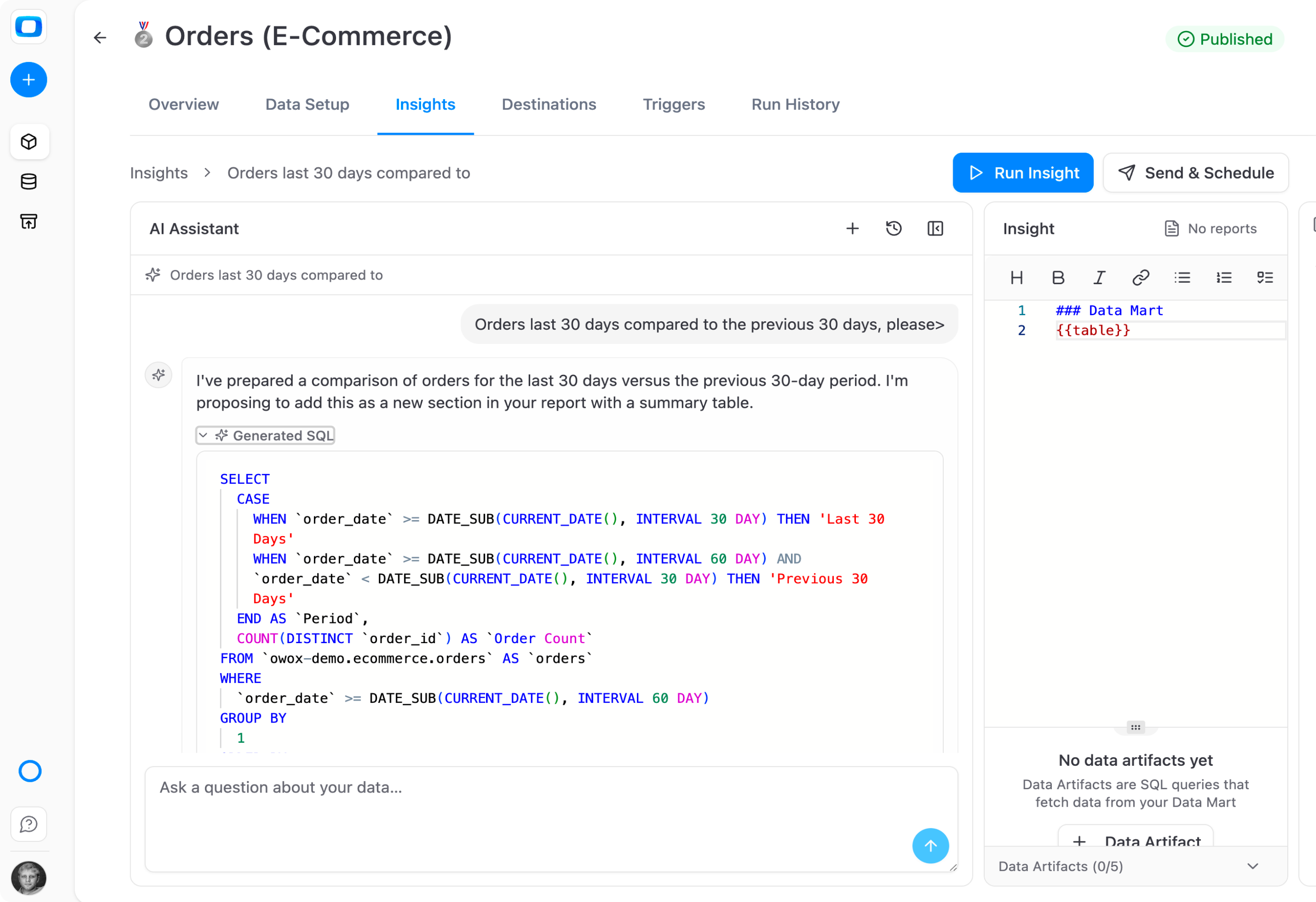
The AI Assistant drafts, you apply
Ask in the chat panel, for example for orders in the last 30 days against the previous 30. The assistant proposes the SQL and the template change as suggested actions. Nothing is saved until you press Apply.
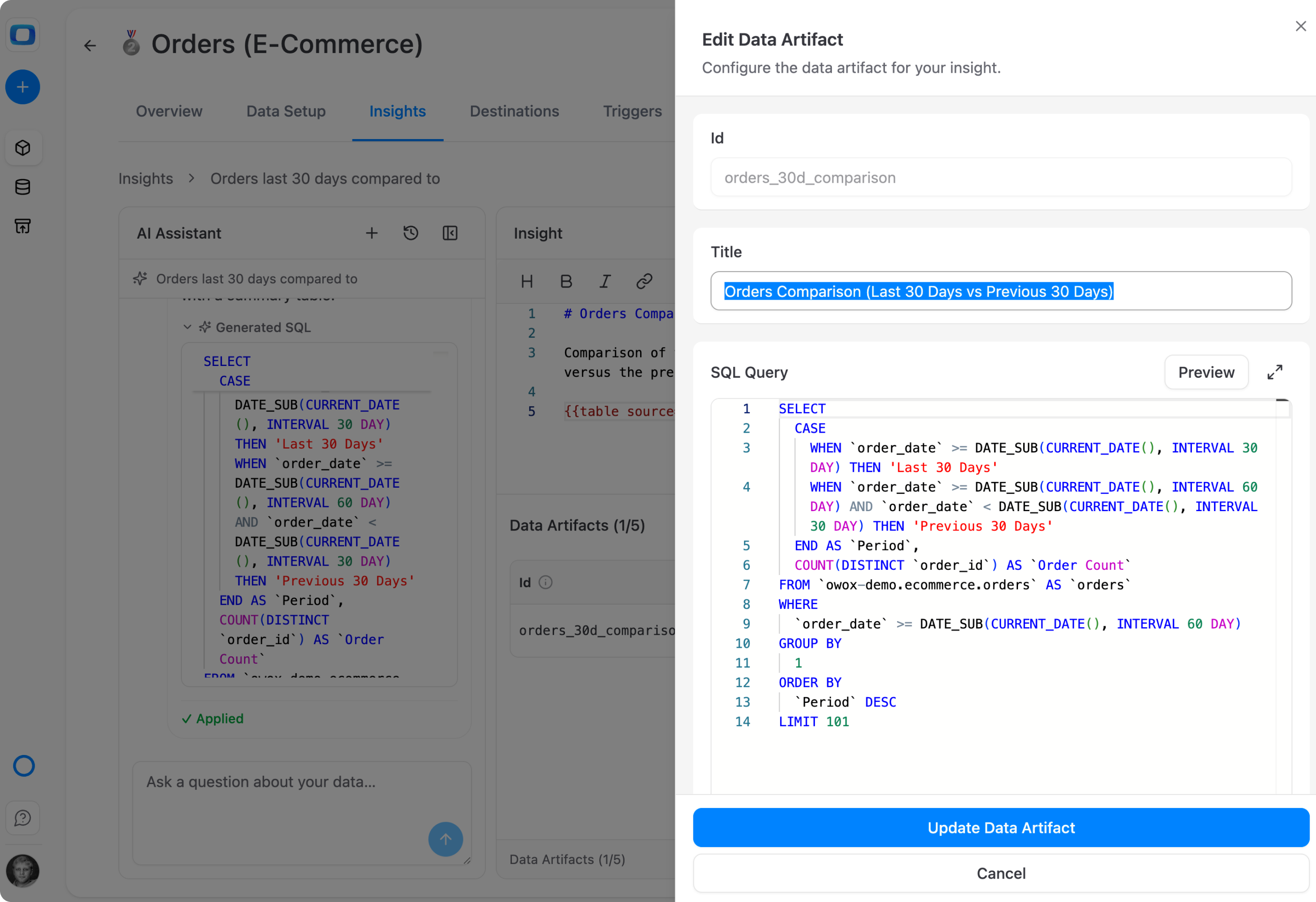
Every figure is a named query
A Data Artifact is a SQL query with a key, such as orders_30d_comparison. Preview it, save it, then place it with {{table source="orders_30d_comparison"}}, or one cell of it with {{value}}.
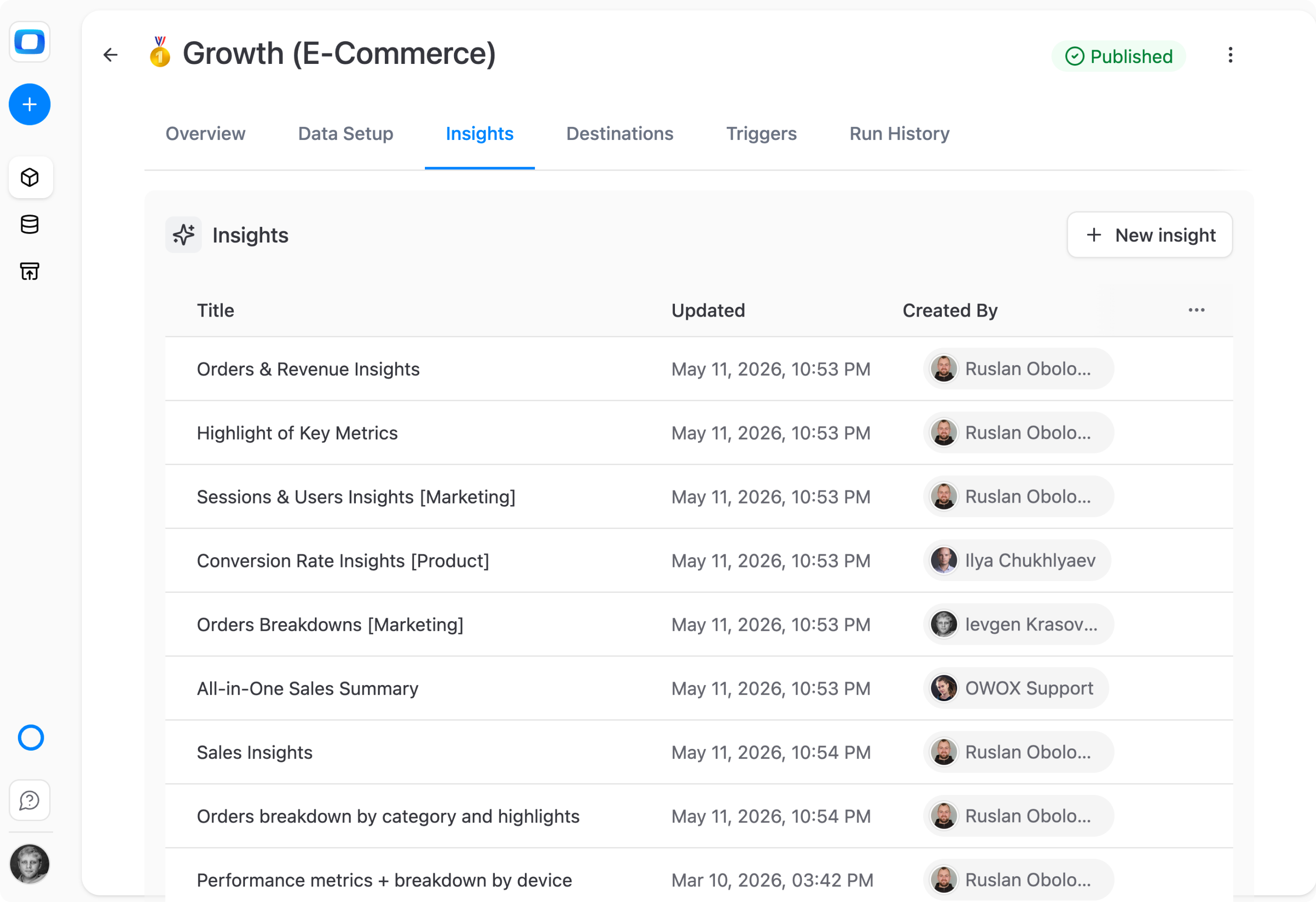
One Data Mart, an Insight per audience
Write separate Insights on the same Data Mart: an orders breakdown for marketing, a sales summary, a set of key metrics. Each has its own template and reports, and all read the same Data Mart.
For Business Users
Read the numbers where you already work
You ask for a regular update; the Data Owner sends it to your inbox or team channel.
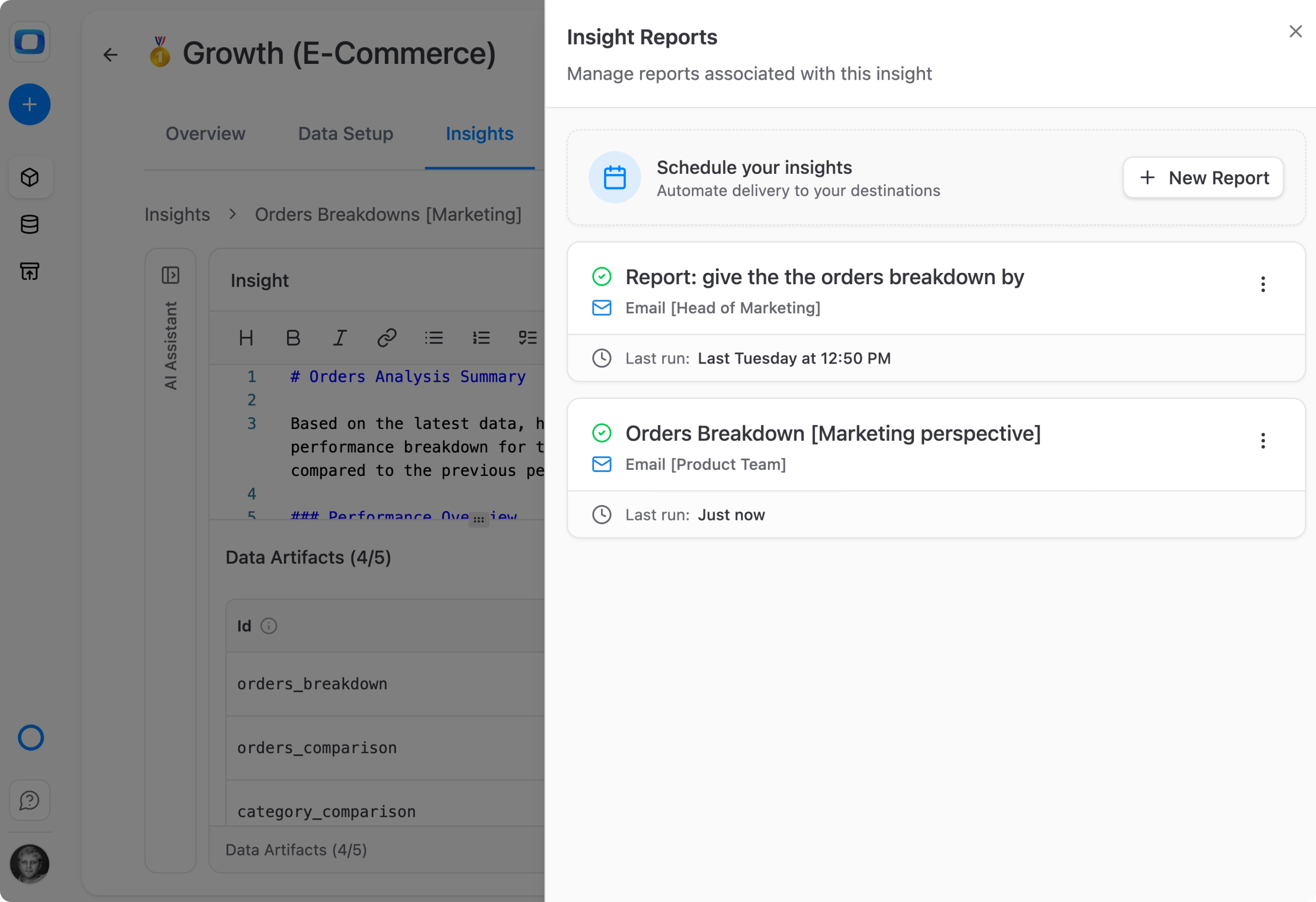
A report per team, on its own schedule
One Insight can feed several reports, such as one to the Head of Marketing and one to the product team. Each has its own destination and schedule, and all of them use the same template.
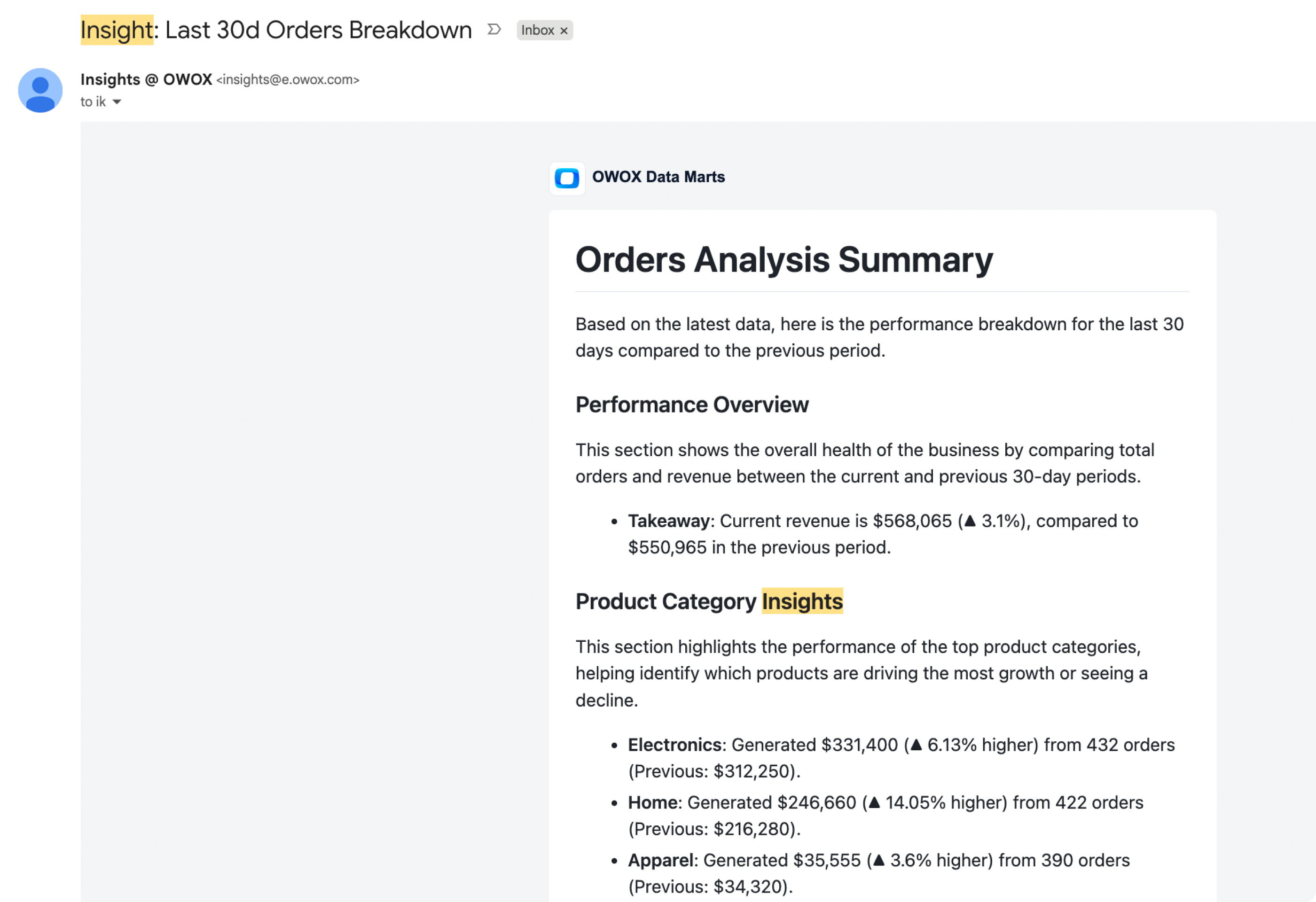
A write-up, not a link to a dashboard
The Insight arrives as a message from insights@e.owox.com, or in Slack, Microsoft Teams or Google Chat: headings, text and figures in one place, readable without opening OWOX.
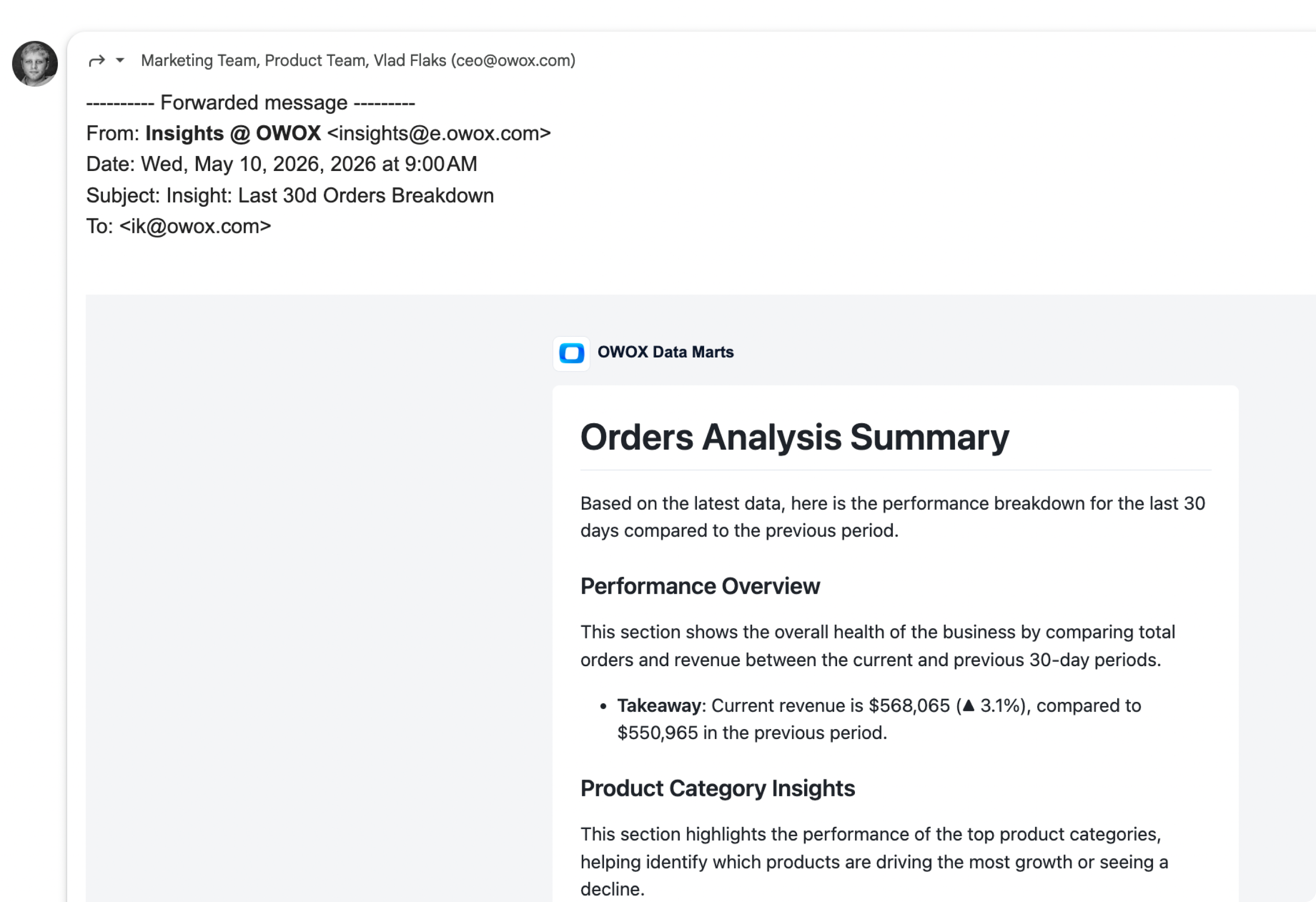
Forward it as it is
An emailed Insight is an ordinary message. Forward it to your manager or your team, and the figures travel with the text that explains them.
Supported Insights Destinations
Supported Insights Destinations
We deliver scheduled results of AI-powered analysis into corporate messengers or by email


Compare plans
Everything business needs

Every figure from a query
Each number in the message is a {{value}} or {{table}} filled from a named SQL query, run against the Data Mart's data storage.

The text is the template
What is sent is the Markdown you applied. Every send has the same shape, with the figures refreshed from SQL.

AI drafts, you apply
The AI Assistant proposes template and SQL changes as suggested actions. Nothing is saved until you press Apply.

One template, four channels
Email, Slack, Microsoft Teams and Google Chat. Edit the template once and every report built on the Insight sends the new version.

Sent only when it matters
Choose per report: send always, only when the result is empty, or only when it is not. With the last, an empty result sends nothing.

Runs only on published Data Marts
A draft Data Mart cannot run an Insight, so stakeholders get figures only from a Data Mart the Data Owner published, with an output schema.

Every Insight in one list
The project-wide Insights page lists the Insights of every Data Mart in the project, so you find one without opening each Data Mart.

Limits stated, not hidden
Up to 5 Data Artifacts per Insight and 100 rows each on a run. A rendered table says so when rows were cut.
Frequently asked questions
Does the AI write the numbers in an Insight?
No. Each figure is a {{value}} or {{table}} placeholder filled from a Data Artifact: a named SQL query you can open and read. The AI Assistant helps you write the template and the SQL while you build the Insight. What is sent is the template you applied, with the query results in it.
How is this different from asking an AI chat to summarise the data?
An LLM asked for a summary writes the text and the figures itself, so you check every figure before it reaches leadership. An Insight is a fixed template plus saved queries: every send has the same shape with refreshed data, and every number traces to SQL.
What happens to scheduled reports when I edit the template?
Every report built on the Insight sends the new version from its next run. One Insight feeds all the reports that reference it, so you edit one template, not a copy per channel.
What do I need before I create an Insight?
A published Data Mart with an output schema; a draft Data Mart cannot run one. You need the Data Owner or Project Admin role. Open the Data Mart's Insights tab and press + New Insight, or start from the AI Assistant chat.
What are the limits of an Insight?
Up to 5 Data Artifacts per Insight, each returning up to 100 rows on a run. A rendered table shows the first 100 rows and says so when there are more. Data Artifact keys use letters, digits and underscores, up to 64 characters.
Can an Insight be sent only when there is something to report?
Yes. Each report has a sending condition: send always, only when the result is empty, or only when it is not empty. With the last option, an empty result sends no message.
Every claim has a receipt.
Real things real customers said — each quote pinned to a specific claim, straight from the quotes database.
 Nodari RizunFounder & CEO, Pürblack®
“AI, by the nature of the models, will hallucinate. And because of that, you need something which will create guardrails to ensure that there are no hallucinations, that you can trust your data.”
 Mark SimmonsCMO, Pürblack®
“We had six or seven different channels and no single source of truth — it was almost impossible, a lot of guesswork.”
Nodari RizunFounder & CEO, Pürblack®“We regained time. And time is the one resource that never comes back.”
Schedule your first Insight
Open a published Data Mart, go to Insights, press + New Insight and add a Data Artifact. Then press Send & Schedule.
- Internal OWOX data as of 2026-10-02
- G2 reviews of OWOX
- npm installs stat
You are booked. The invitation is on its way to , with the calendar invite and the meeting link.
Schedule a meeting
You are booked. The invitation is on its way to , with the calendar invite and the meeting link.