Turn Google BigQuery into a Live Reporting System for Google Sheets

OWOX Data Marts lets you manage, schedule, and reuse reporting-ready data marts built on Google BigQuery — and deliver them as live, governed reports in Google Sheets. This is not Connected Sheets. It’s a full reporting system.
Turn Google BigQuery into a Live Reporting System for Google Sheets

Turn Google BigQuery into a Live Reporting System for Google Sheets

Define reporting logic once in BigQuery and deliver business-ready, scheduled data marts to Google Sheets — with governance, reuse, and orchestration built in.

Step 1: Connect Your Google BigQuery Data Storage

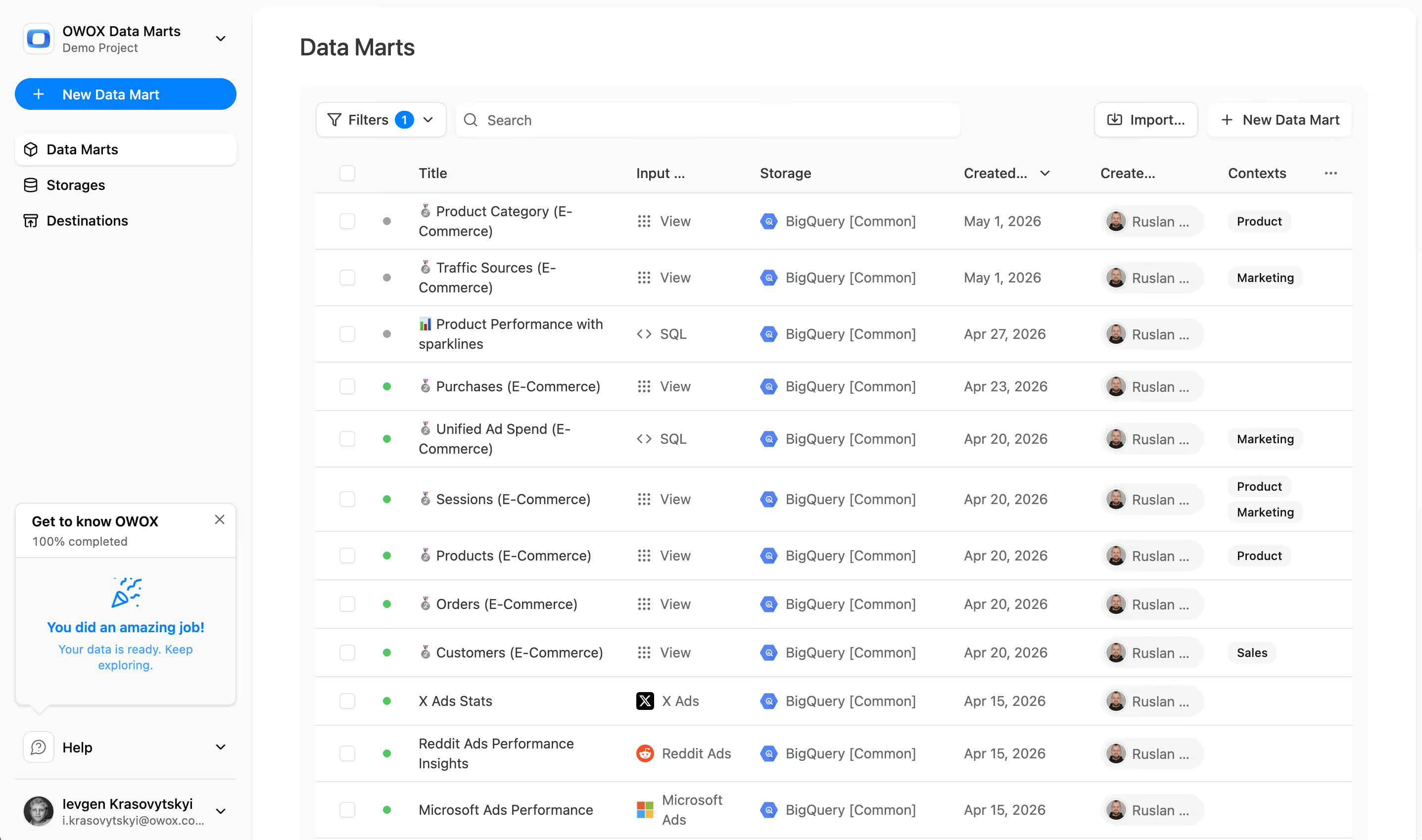
Start by using Google BigQuery as the single foundation for business reporting.

  • All reporting data lives inside your BigQuery project
  • No direct source-to-spreadsheet connectors that fragment logic
  • Business logic stays centralized, queryable, and reusable

When reporting is built on BigQuery, insights stay connected to real business logic — not scattered across spreadsheets.

Step 1: Connect Your Google BigQuery Data Storage
Connect BigQuery
Step 1: Connect Your Google BigQuery Data Storage
Step 2: Create a Data Mart in Google BigQuery

Step 2: Create a Data Mart in Google BigQuery

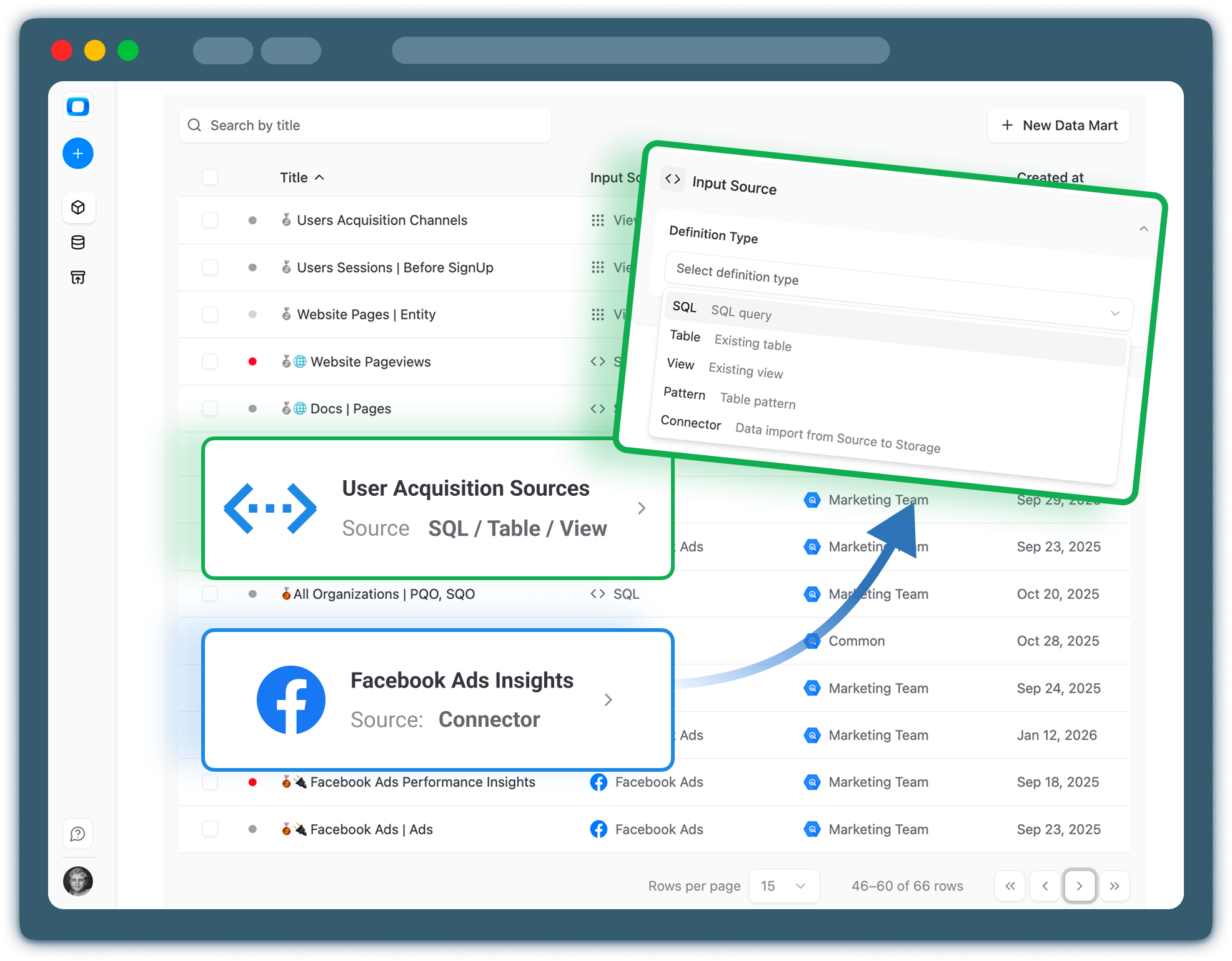
Create reporting-ready data marts directly on top of Google BigQuery.

  • Define data marts using SQL queries
  • Reuse existing BigQuery tables or views
  • Include connector-based datasets already stored in BigQuery

This is where analysts define joins, metrics, filters, and calculations once — instead of rebuilding logic in every report.

Step 2: Create a Data Mart in Google BigQuery
Create Data Mart
Request a demo

Step 3: Prepare Business-Friendly Data for Google Sheets

Make your BigQuery data marts easy for business users to work with.

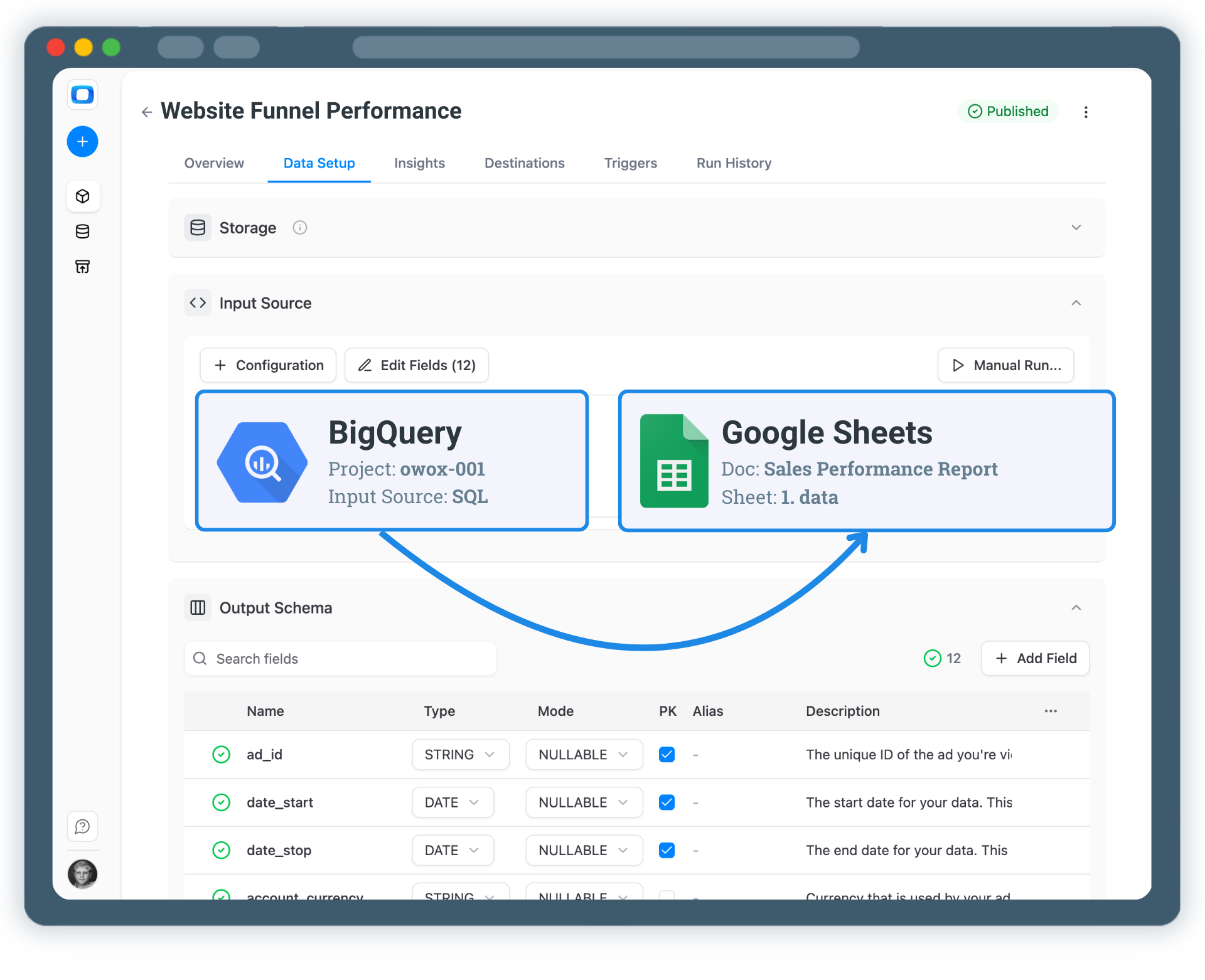
  • Rename fields using business-friendly aliases
  • Add clear descriptions to explain metrics and dimensions
  • Control which fields are exposed to stakeholders

You don’t need to rewrite SQL to make data understandable — schema, naming, and descriptions are managed at the data mart level.

Step 3: Prepare Business-Friendly Data for Google Sheets
Tweak Output Schema
Step 3: Prepare Business-Friendly Data for Google Sheets
Step 4: Send & Schedule BigQuery Data to Google Sheets

Step 4: Send & Schedule BigQuery Data to Google Sheets

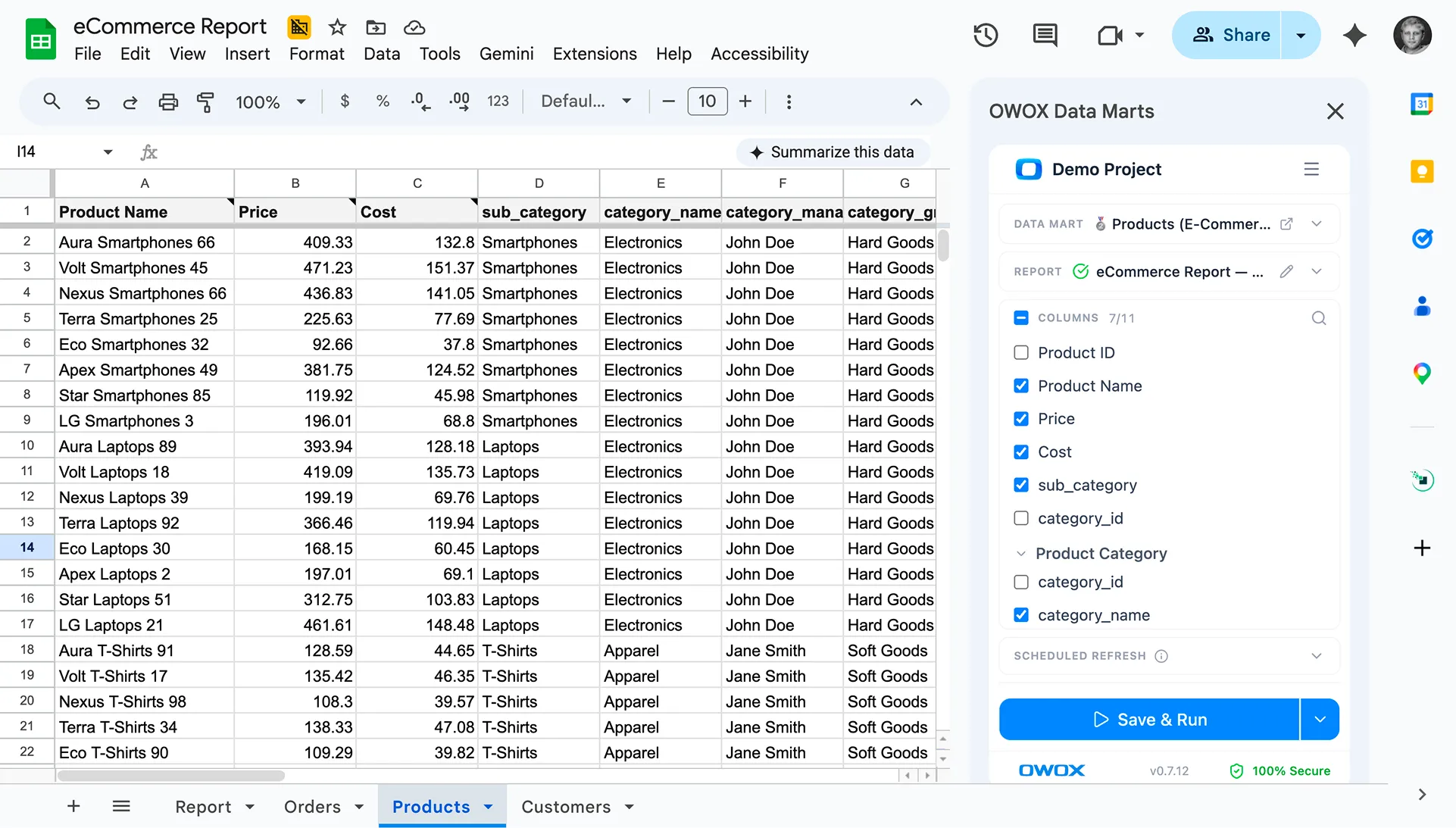
Deliver Gold-layer, business-ready data from BigQuery directly into Google Sheets.

  • Keep Sheets connected to governed BigQuery data marts
  • Schedule automatic refreshes with full orchestration
  • Share spreadsheets with stakeholders without duplicating logic

Unlike Connected Sheets, this approach separates modeling from reporting: BigQuery handles logic and scale, while Google Sheets is used purely as a business-friendly interface.

Step 4: Send & Schedule BigQuery Data to Google Sheets
Send to Google Sheets
Request a demo

Step 5: Reuse BigQuery Data Beyond Sheets

Your BigQuery data marts are not limited to spreadsheets.

  • Enable AI Insights generated from BigQuery data marts
  • Deliver insights to Email first (and add Slack, Microsoft Teams, or Google Chat if your team uses them)
  • Reuse the same data marts in Looker Studio dashboards

One BigQuery-based reporting system — multiple delivery channels.

Step 5: Reuse BigQuery Data Beyond Sheets
Reuse Data Marts
Step 5: Reuse BigQuery Data Beyond Sheets

Build a Reporting System on Top of Google BigQuery

Schedule a quick walkthrough to see how OWOX Data Marts helps you:

  • Turn Google BigQuery into a Live Reporting System for Google Sheets
  • Deliver trusted insights to business teams
  • Reduce reporting chaos & manual work
  • Scale analytics without adding complexity
Also, on this call, you’ll learn how data teams utilize AI Insights to always deliver what matters the most
Build a Reporting System on Top of Google BigQuery