Connect Google Ads Data to Google Sheets
Use Google Sheets as a reporting destination for Google Ads data collected with OWOX Data Marts. Collect Google Ads Data into any data warehouse, then reuse it in Sheets (or Data Studio) for reporting. Or enable AI Insights and deliver ads performance & alerts into chat tools or by email.
Google Ads Endpoints
9 Google Ads endpoints you can import. Each lands in its own table in your warehouse.
Ad Group Ads Stats
Daily performance for individual ads — impressions, clicks, cost, and conversions.
26 fieldsTime seriesAd Groups
Your ad group settings — type, status, and bid configuration within each campaign.
9 fieldsAd Groups Stats
Daily ad group performance — impressions, clicks, cost, and conversions.
24 fieldsTime seriesCampaigns
Your campaign settings — channel type, bidding strategy, budget, and scheduling.
11 fieldsCampaigns Stats
Daily campaign performance — impressions, clicks, cost, and conversions.
28 fieldsTime seriesCriterion
Ad group targeting criteria — keywords, placements, and negative exclusions with bid settings.
17 fieldsGeo Stats
Daily performance by country and targeting type — impressions, clicks, cost, and conversions.
18 fieldsTime seriesGeo Target Constants
Reference table of geographic targets — join with geo_stats on country_criterion_id to resolve country names.
7 fieldsKeywords Stats
Daily keyword performance — impressions, clicks, cost, conversions, and quality score.
26 fieldsTime series
Step 1: Select a data storage
All data should have it’s home. Start by connecting a storage where your Google Ads data will be stored & processed.
- Choose a supported data warehouse such as BigQuery, Snowflake or Redshift.
- Store raw Google Ads data in one central place so you can blend them later on
- Keep full ownership and control over your data
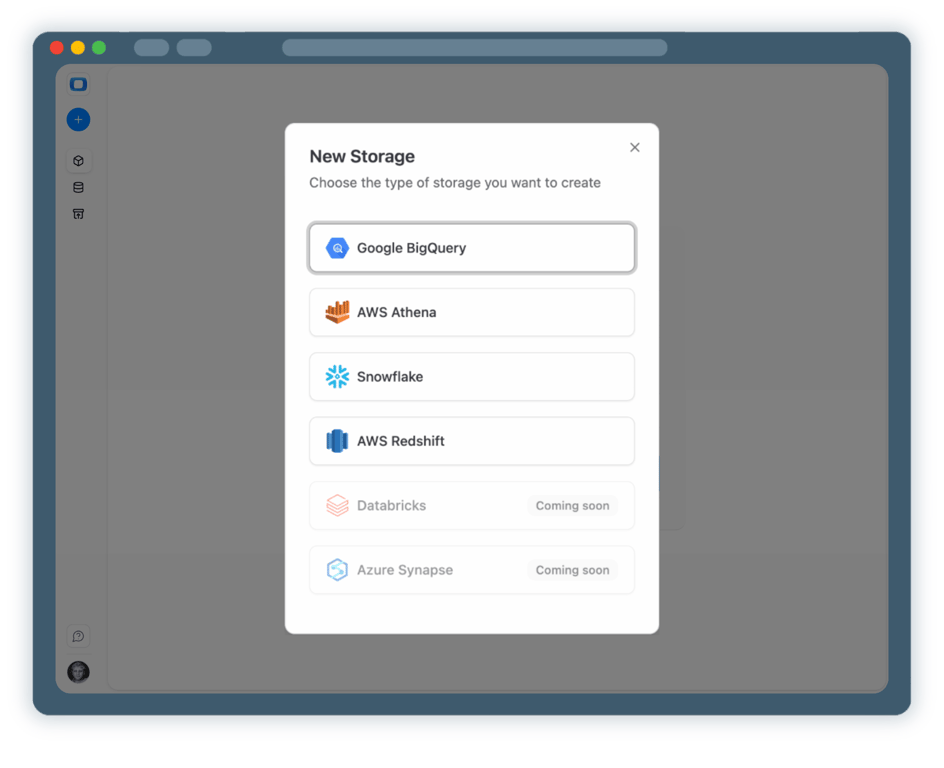
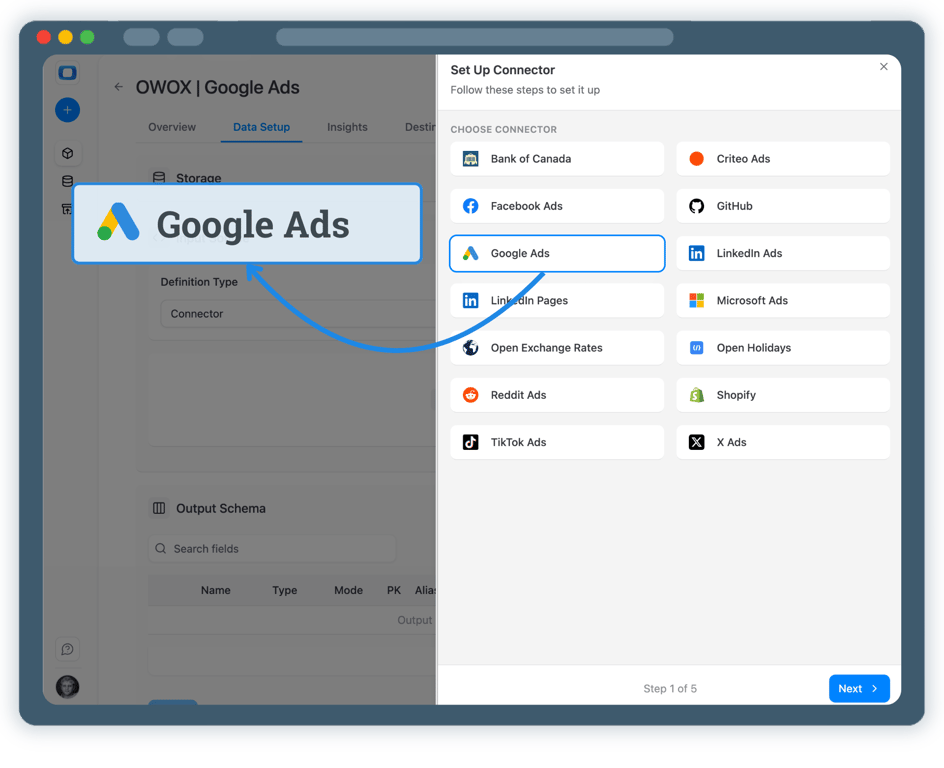
Step 2: Create an Google Ads Data Mart
Click on + New Data Mart , choose Connector as the definition type.
- Select Google Ads as the data source
- Specify the ad account that you want to collect data from
- Authorize access to your Google Ads account
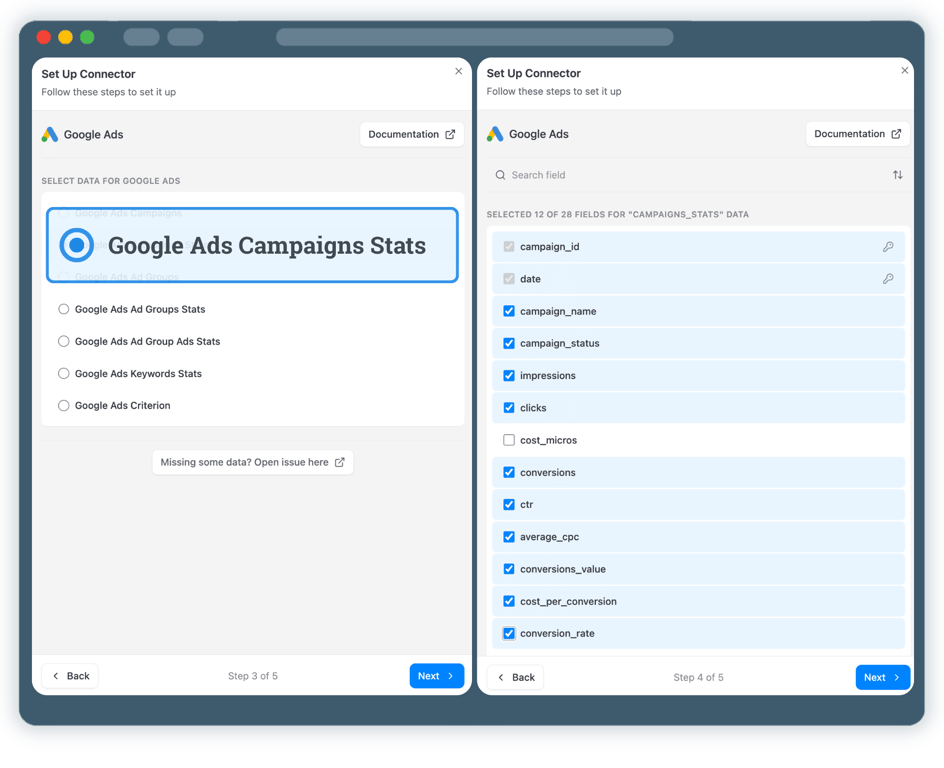
Step 3: Select API endpoint & fields
Choose exactly which Google Ads data should be collected.
- Select the appropriate API endpoint (for example, ad_account_insights)
- Choose metrics such as spend, impressions, clicks, and conversions
- Define the dataset and table where data will be stored
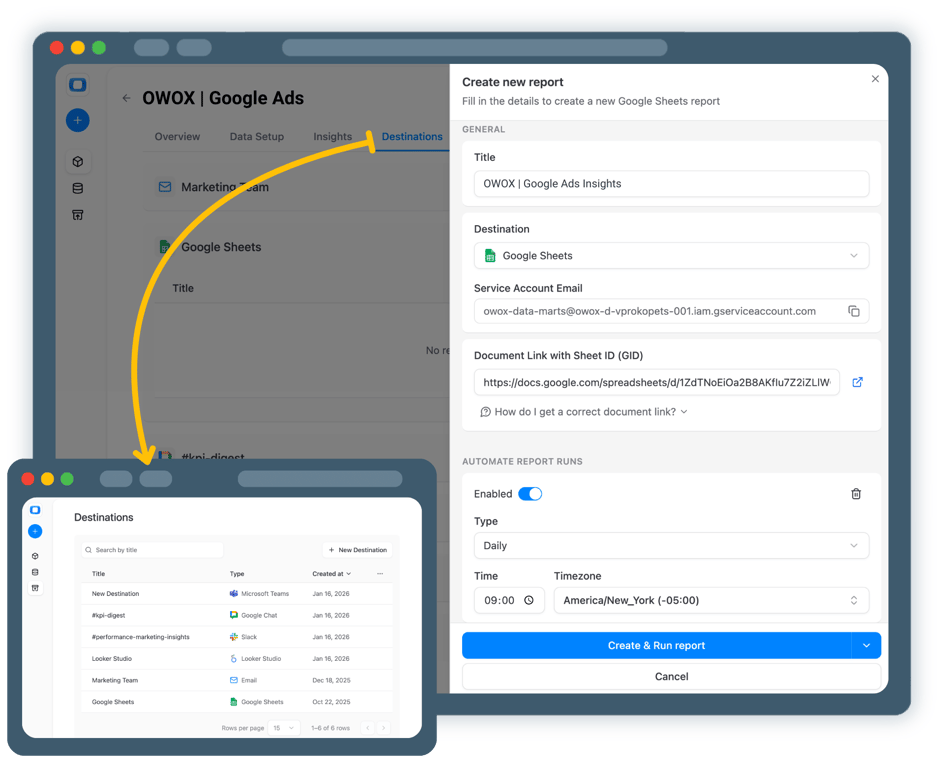
Step 4: Create Google Ads report in Google Sheets
Now it’s time to enable your Google Ads data in Google Sheets
- Add Google Sheets as a Destination
- Create a new Google Sheets Document, share it, then Create & Run your report
- Check the box for regular updates to keep data fresh
Step 5: Get more from your Google Ads data
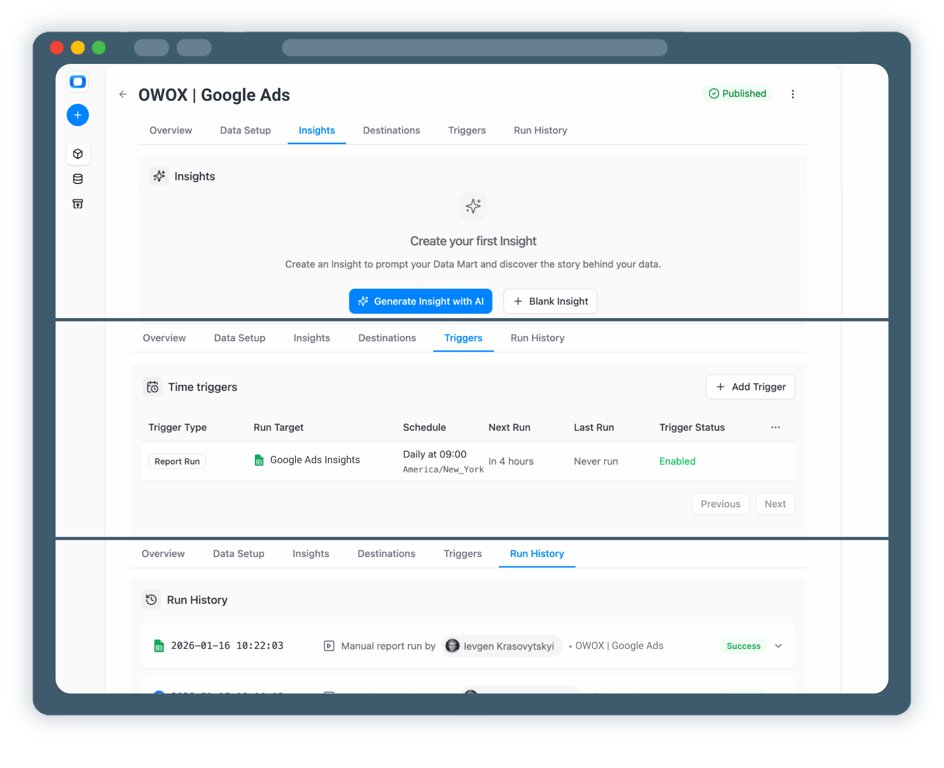
Your Google Ads data is now available for analysis in Google Sheets. But why stop at just this? You can reuse the same Google Ads Data Mart to:
- Enable Google Ads AI Insights delivered on a schedule to Slack, MS Teams or by Email
- Visualize Google Ads Data in Data Studio. Just tik the box on the destinations tab
- Blend Google Ads data with GA4, CRM, or other ad platforms




Every claim has a receipt.
Real things real customers said — each quote pinned to a specific claim, straight from the quotes database.
 Nodari RizunFounder & CEO, Pürblack®
“AI, by the nature of the models, will hallucinate. And because of that, you need something which will create guardrails to ensure that there are no hallucinations, that you can trust your data.”
 Mark SimmonsCMO, Pürblack®
“We had six or seven different channels and no single source of truth — it was almost impossible, a lot of guesswork.”
Nodari RizunFounder & CEO, Pürblack®“We regained time. And time is the one resource that never comes back.”
- 0.39.0Backfill any past period
- 0.39.0Facebook Ads imports now retry a corrupted response instead of failing
- 0.38.0Google Sheets errors in Run History explain the cause and the fix
- 0.38.0Shopify connector: more orders fields, including line-item discounts
- 0.37.0Short links resolve only on known short link services and domains you allow
Turn Google Ads Data into Actionable AI Insights
See how OWOX Data Marts helps you analyze Google Ads data in Google Sheets, blend it with other sources, and scale reporting without rebuilding logic.
Get Started FreeYou are booked. The invitation is on its way to , with the calendar invite and the meeting link.
Schedule in person meeting at Tip Top Toronto
You are booked. The invitation is on its way to , with the calendar invite and the meeting link.