Visualize & Analyze Shopify Data in Looker Studio
Use Data Studio as a reporting destination for Shopify data collected with OWOX Data Marts. Store raw e-commerce data in a data warehouse, then reuse it in Looker for analysis, reporting, and forecasting.
Shopify Endpoints
25 Shopify endpoints you can import. Each lands in its own table in your warehouse.
Abandoned Checkouts
Checkout sessions that did not complete — customer info, items, and pricing for recovery campaigns.
20 fieldsTime seriesArticle Metafields
Custom metadata attached to articles — namespace, key, value, and type.
9 fieldsArticles
Blog articles — title, author, publication status, and timestamps.
15 fieldsBlog Metafields
Custom metadata attached to blogs — namespace, key, value, and type.
9 fieldsBlogs
Blogs in the store — title, handle, and template settings.
6 fieldsCollection Metafields
Custom metadata attached to collections — namespace, key, value, and type.
9 fieldsCollections
Product collections — title, sort order, product count, and last updated.
10 fieldsCustomer Metafields
Custom metadata attached to customers — namespace, key, value, and type.
9 fieldsCustomers
Customer accounts — contact info, marketing consent, order history, and lifetime spend.
22 fieldsTime seriesDiscount Codes
Discount codes — type, status, usage limits, and validity window.
12 fieldsFulfillment Orders
Fulfillment orders — items to ship, assigned location, delivery method, and status.
11 fieldsInventory Items
Inventory items (SKUs) — tracking status, shipping requirements, and country of origin.
9 fieldsLocation Metafields
Custom metadata attached to locations — namespace, key, value, and type.
9 fieldsLocations
Physical and virtual store locations — activity status, fulfillment capabilities, and address.
19 fieldsOrder Metafields
Custom metadata attached to orders — namespace, key, value, and type.
9 fieldsOrders
Orders placed in the store — financial and fulfillment status, customer info, totals, and timestamps.
47 fieldsTime seriesPage Metafields
Custom metadata attached to pages — namespace, key, value, and type.
9 fieldsPages
Static store pages — title, handle, publication status, and timestamps.
10 fieldsProduct Metafields
Custom metadata attached to products — namespace, key, value, and type.
9 fieldsProduct Variant Metafields
Custom metadata attached to product variants — namespace, key, value, and type.
9 fieldsProduct Variants
Product variants — SKU, price, inventory quantity, and availability.
18 fieldsProducts
Products in the store catalog — vendor, type, status, inventory, and price range.
21 fieldsTime seriesShop
Store settings — domain, currency, timezone, and plan details.
20 fieldsShop Metafields
Custom metadata attached to the shop — namespace, key, value, and type.
9 fieldsTender Transactions
Payment tender transactions — amount, currency, order reference, and processing time.
7 fields
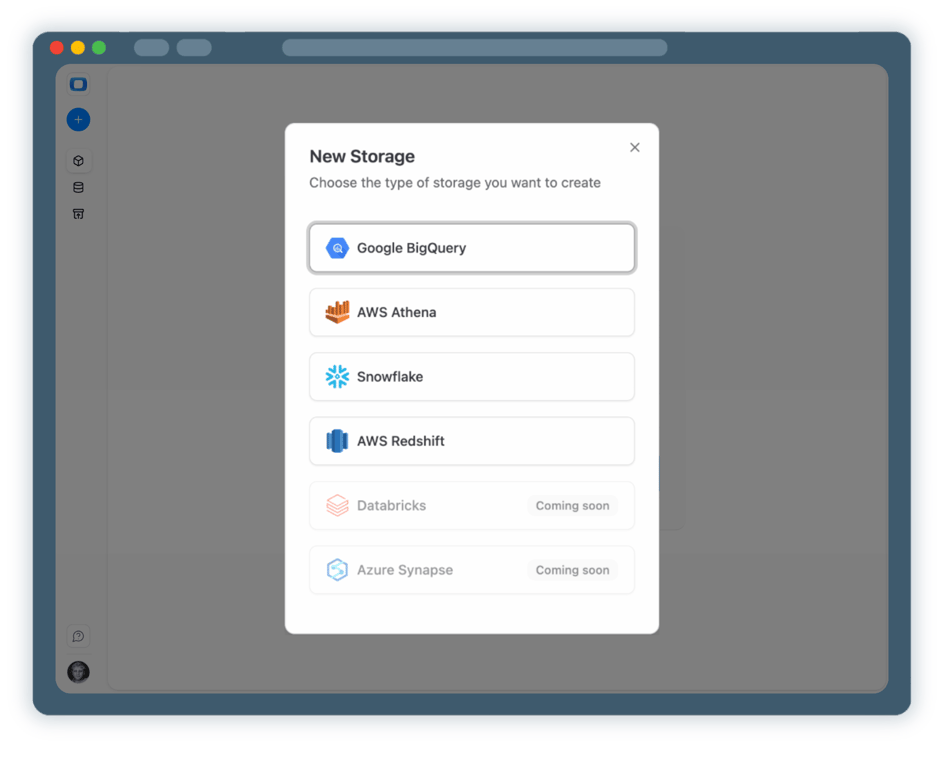
Step 1: Select a data storage
Start by connecting a storage where your Shopify data will be collected.
- Choose a data warehouse such as BigQuery or Snowflake
- Store raw orders, products, customers, and transactions
- Keep full ownership and control over your e-commerce data
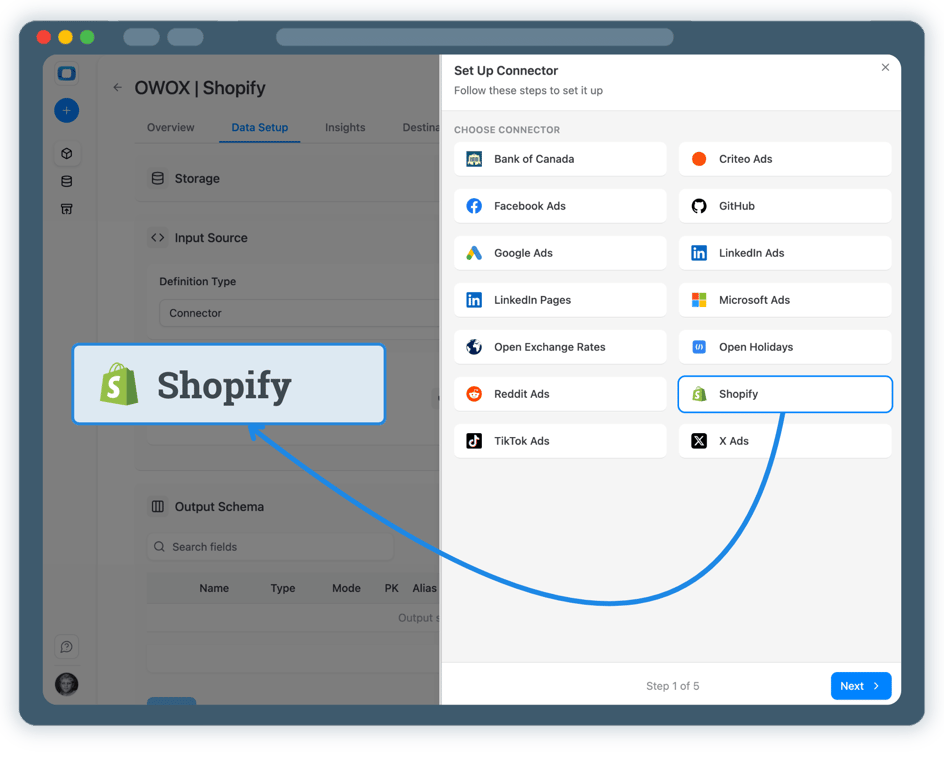
Step 2: Create Shopify Data Mart(s)
Create a new Data Mart and choose Connector as the definition type.
- Select Shopify as the data source
- Authorize access to your Shopify store by adding a Shop Domain and the Admin API Access Token
- Define which e-commerce entities you want to collect
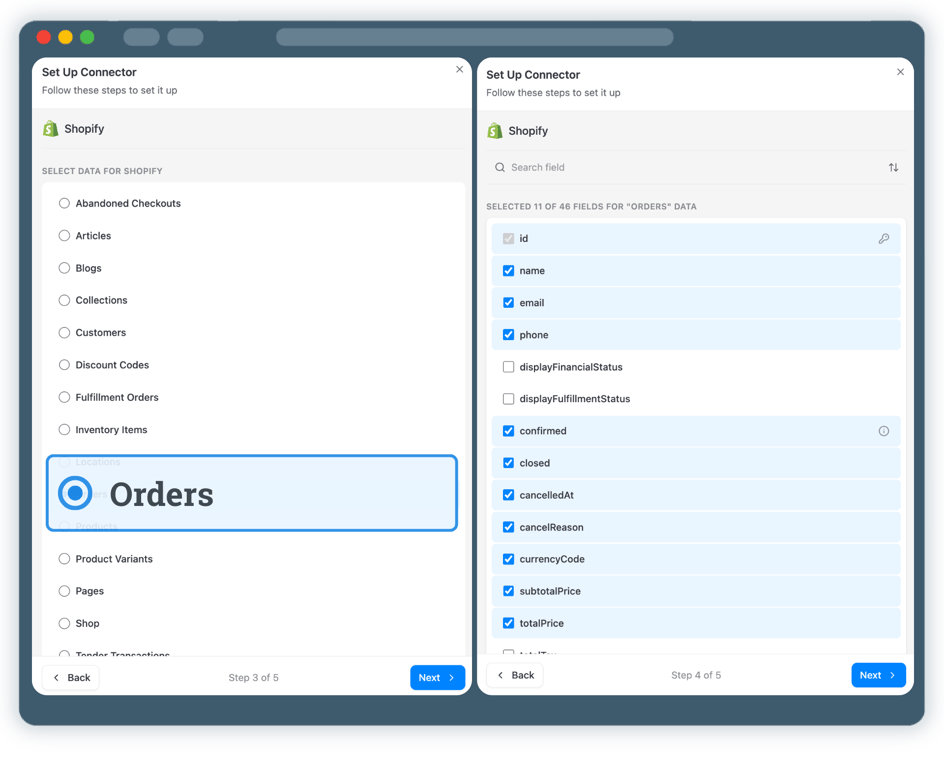
Step 3: Select Shopify database & fields
Choose exactly which Shopify data should be collected.
- Select entities such as orders, order items, products, customers, and refunds
- Define the dataset and table where data will be stored
- Publish Shopify Data Mart once configuration is complete
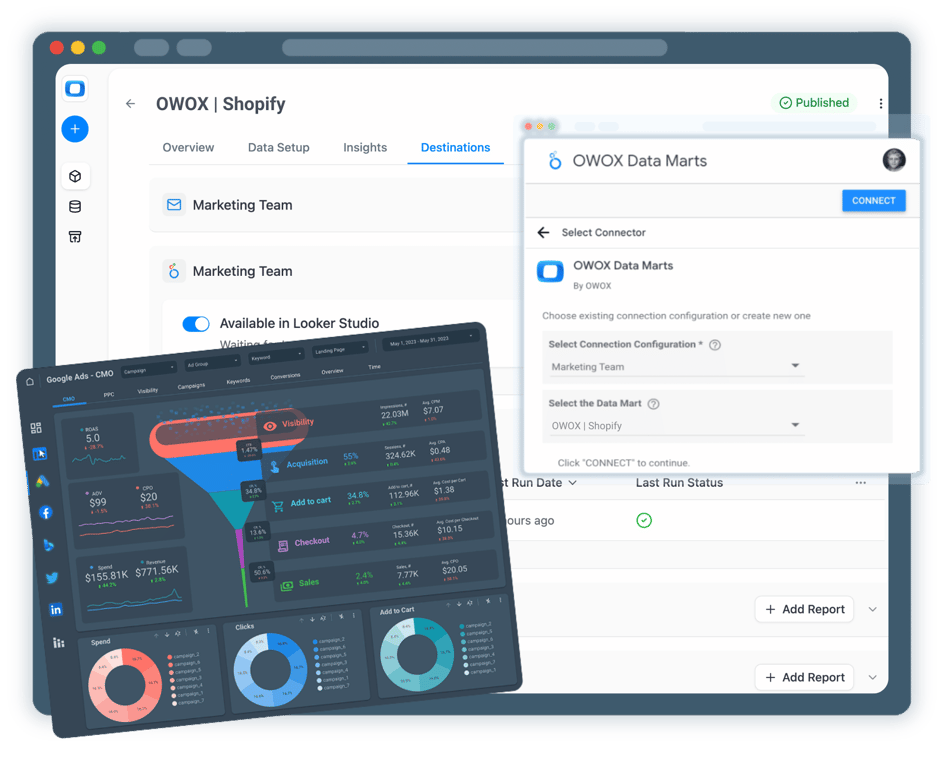
Step 4: Run & schedule Shopify data collection
Now it’s time to enable your Shopify data in Data Studio.
- Add Data Studio as a Destination and paste the JSON into Data Studio
- Then just tick the box in the Destinations section of a data mart
- From now on, your Shopify Data Mart is available from Data Studio as a configuration
Step 5: Get more from your Shopify Analytics
Your Shopify data is now available for analysis in Data Studio. But why stop at just this?
- Build revenue, orders, and product performance reports
- Blend Shopify data with ad platforms, GA4, or CRM data
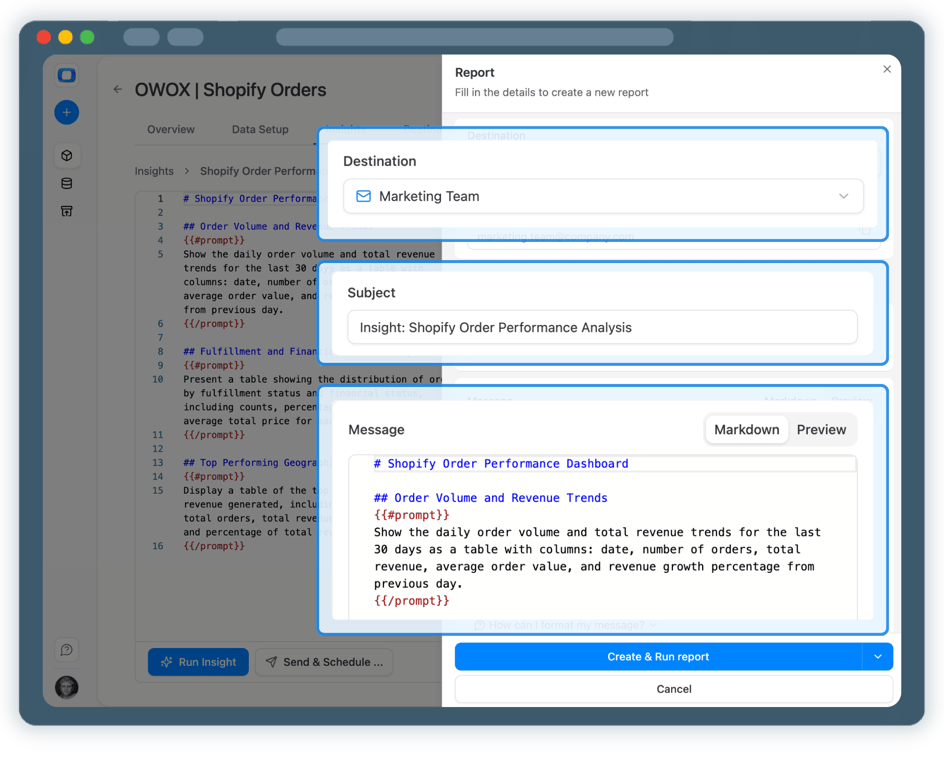
- Enable Shopify Analytics AI Insights delivered on a schedule to Slack, MS Teams or by Email




Every claim has a receipt.
Real things real customers said — each quote pinned to a specific claim, straight from the quotes database.
 Nodari RizunFounder & CEO, Pürblack®
“AI, by the nature of the models, will hallucinate. And because of that, you need something which will create guardrails to ensure that there are no hallucinations, that you can trust your data.”
 Mark SimmonsCMO, Pürblack®
“We had six or seven different channels and no single source of truth — it was almost impossible, a lot of guesswork.”
Nodari RizunFounder & CEO, Pürblack®“We regained time. And time is the one resource that never comes back.”
- 0.39.0Backfill any past period
- 0.39.0Facebook Ads imports now retry a corrupted response instead of failing
- 0.38.0Shopify connector: more orders fields, including line-item discounts
- 0.37.0Short links resolve only on known short link services and domains you allow
- 0.37.0Clearer connector errors, and custom connectors that handle more APIs
Turn Shopify Data into Better Business Decisions
See how OWOX Data Marts helps you analyze Shopify data in Looker Studio, blend it with marketing and analytics data, and scale reporting without rebuilding logic.
Get Started FreeYou are booked. The invitation is on its way to , with the calendar invite and the meeting link.
Schedule in person meeting at Tip Top Toronto
You are booked. The invitation is on its way to , with the calendar invite and the meeting link.