Data Studio Connector
One Data Mart behind the dashboard and the spreadsheet
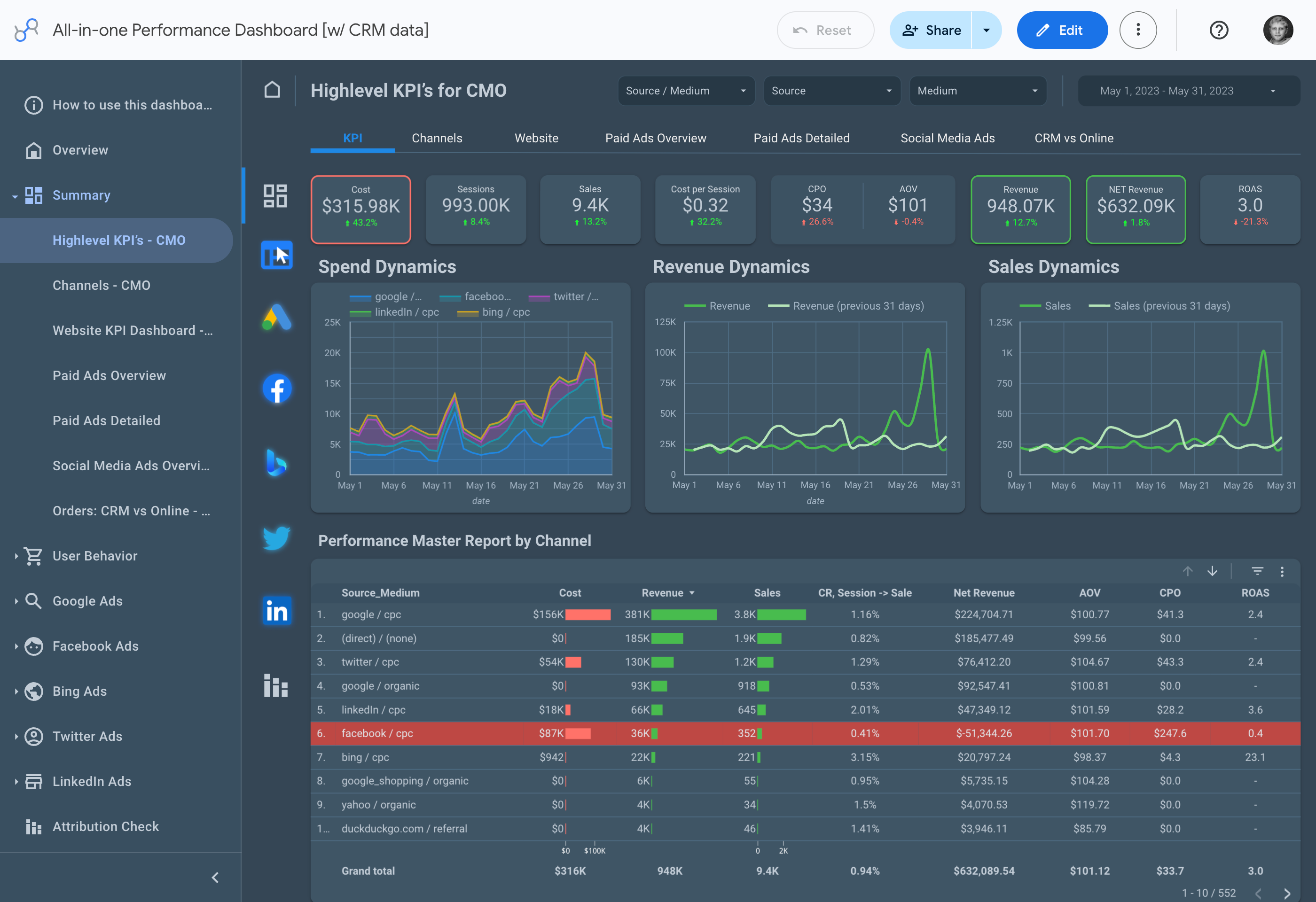
A dashboard wired straight to the warehouse keeps its own copy of the query and drifts from the spreadsheet. The Data Studio Connector pulls a published Data Mart through OWOX instead: the logic you own, a Cache Lifetime you set, each fetch recorded in Run History. Documentation
Why OWOX
When the team wants its numbers in a Data Studio dashboard, a direct warehouse connection means one more copy of the query to keep in step with the spreadsheet, and warehouse access for whoever builds it. The Data Studio Connector serves a published Data Mart to Data Studio through OWOX instead.
- The dashboard, the Google Sheets report and the answer in Claude or ChatGPT through OWOX MCP read one published Data Mart, and each Data Studio report shows the SQL behind its numbers.
- Data Studio sees only the Data Marts you switch on, holds a secret key instead of warehouse credentials, and loses access when you rotate it.
- You set how long results are cached, from 5 minutes to 12 hours, and see when Data Studio last fetched.
When the dashboard and the sheet disagree, you get asked why
A Data Studio data source wired straight to the warehouse keeps its own query or calculated fields. When a definition changes in one place, the dashboard and the spreadsheet show different numbers, and the Data Owner reconciles them by hand.
THE DATA OWNER
Hand Data Studio a key, not the warehouse
Create a Data Studio Destination in OWOX, copy the connection settings it shows and paste them into the OWOX Data Marts connector in Data Studio. The connector lists only Data Marts that are Published and have Available in Data Studio turned on.
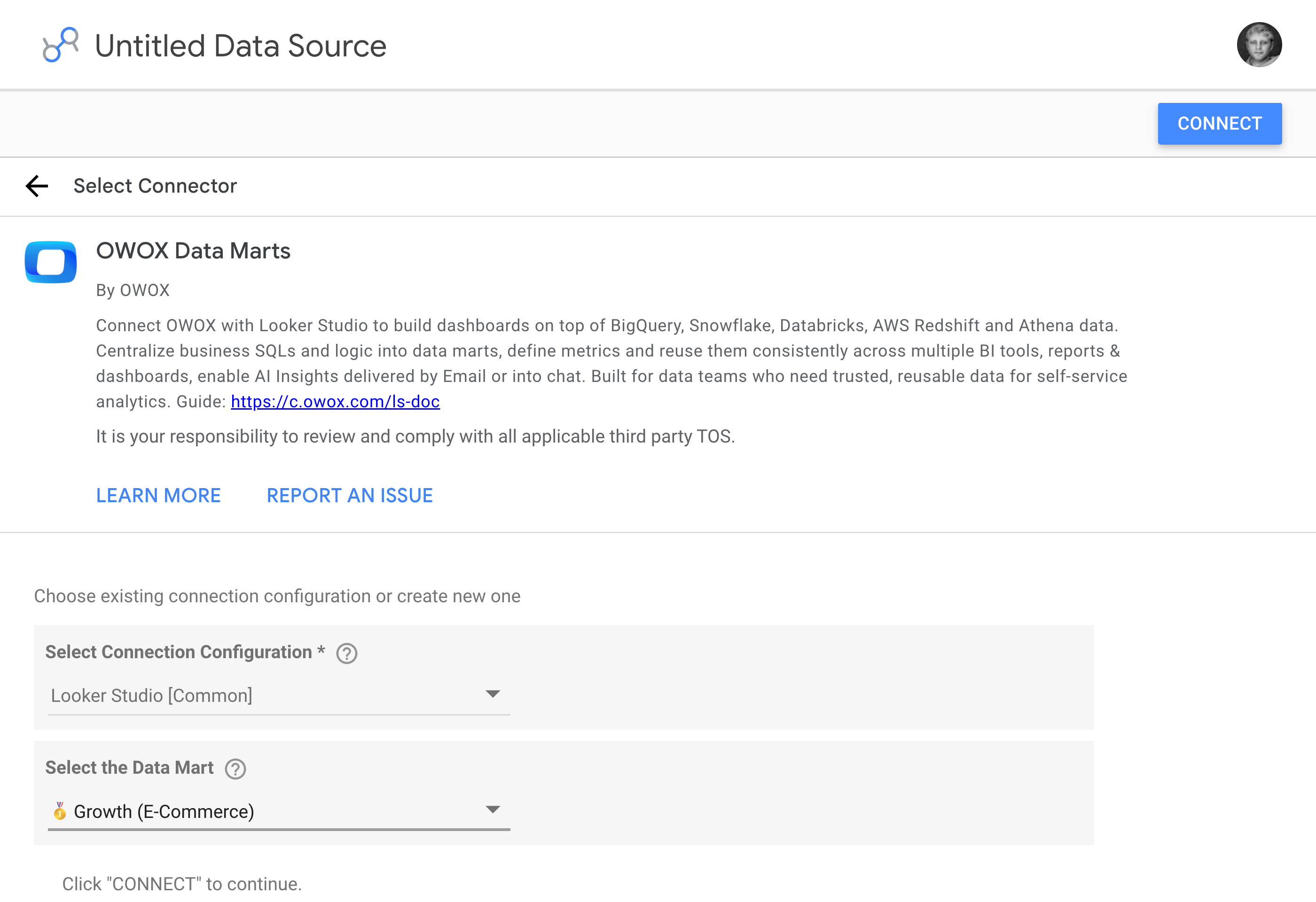
Rotate the secret key and every connection using it stops.
THE BUSINESS USER
The dashboard and the sheet read one Data Mart
The marketing lead opens a Data Studio dashboard, the finance lead opens a Google Sheets report. Both read the same published Data Mart, with the field names the Data Owner set.
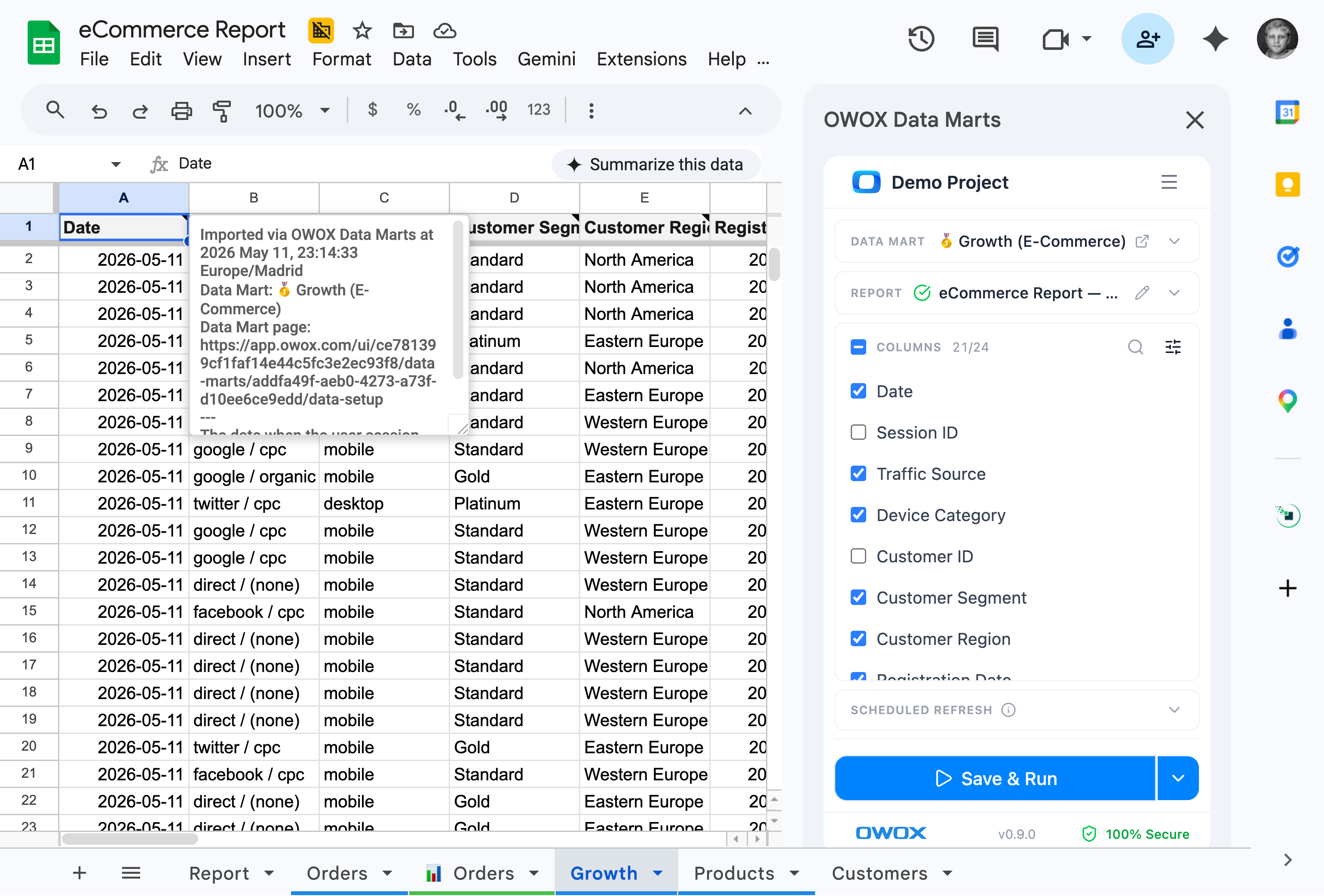
One definition behind both, not two versions to reconcile.
One definition behind the dashboard, the sheet and the AI answer — Data Studio's own warehouse connector keeps the query, or the calculated fields, inside each data source. Here it stays in one published Data Mart, so Data Studio, Google Sheets and Claude or ChatGPT through OWOX MCP read the same definition.
For Data Owners
Expose it once, decide what Data Studio reads
You choose which Data Marts, which fields and how fresh. Data Studio requests data through OWOX; your warehouse credentials stay in OWOX.
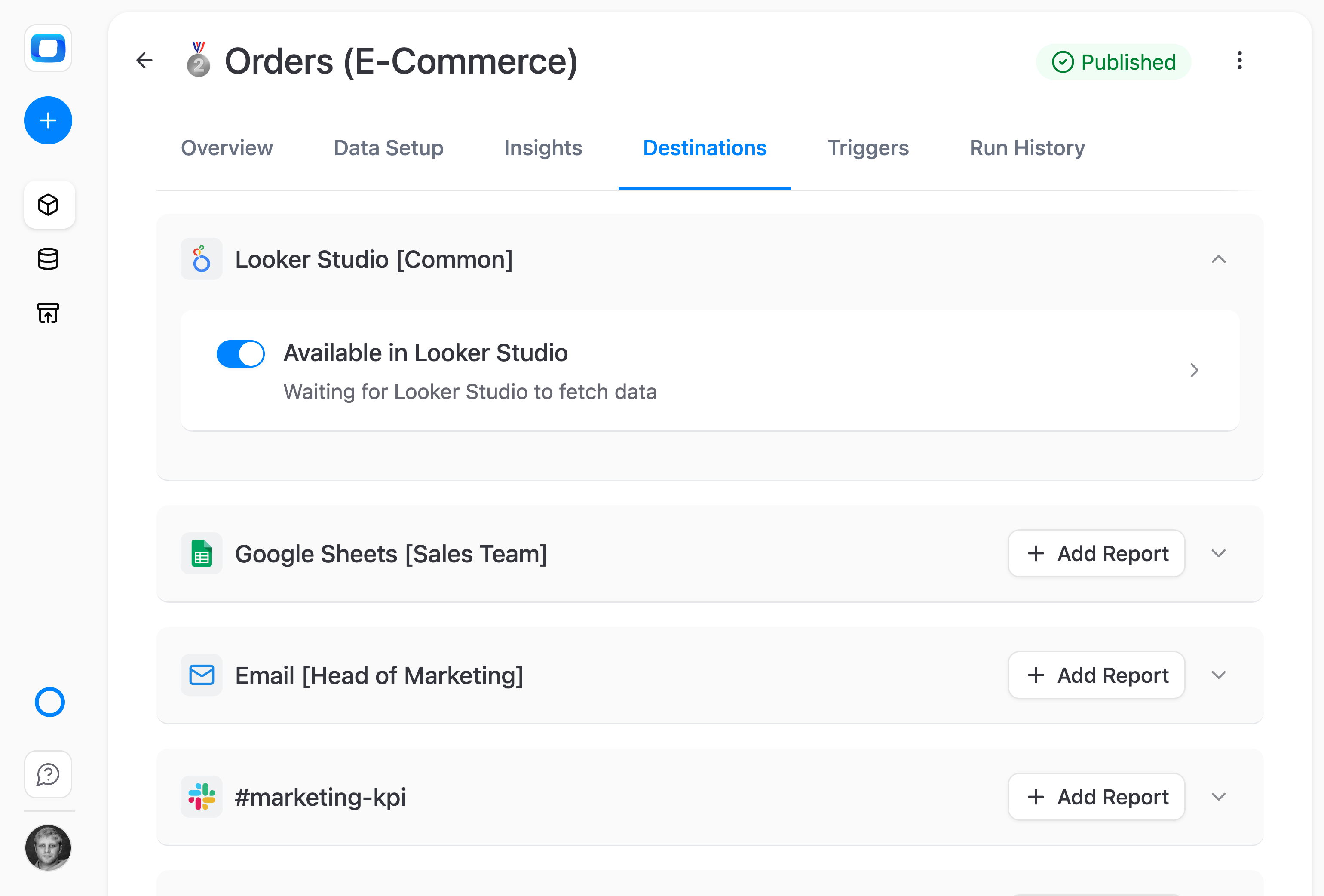
Turn on Available in Data Studio
In the Data Mart's Destinations tab, switch on the Data Studio row and set the Cache Lifetime: 5 minutes by default, up to 12 hours. Until a dashboard asks for data, the row reads Waiting for Data Studio to fetch data.
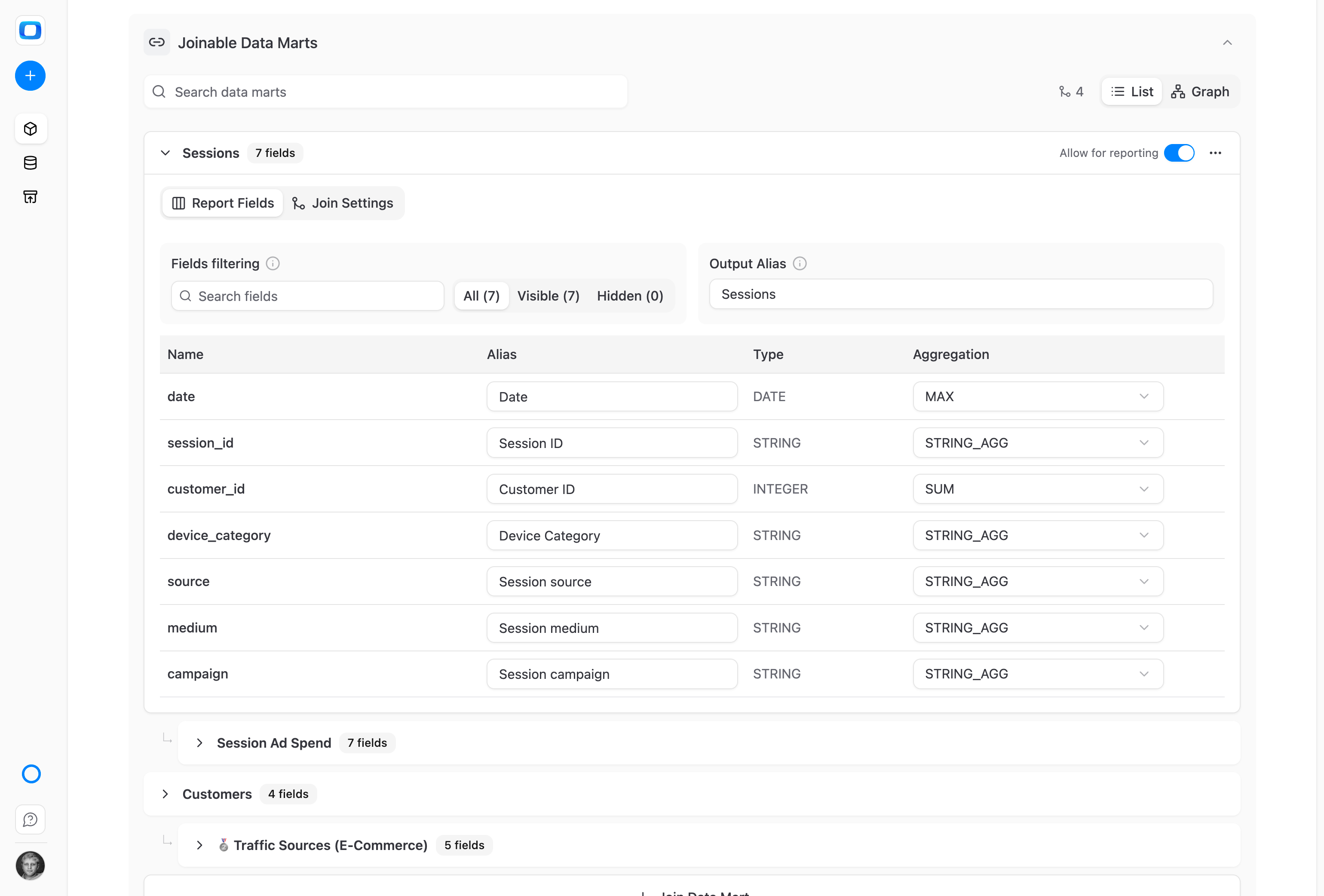
Joined fields, picked in Report Columns
Report Columns list the Data Mart's own fields and the fields of the Data Marts joined to it. Pick what Data Studio receives; the join is the one the Data Owner defined, not a blend rebuilt in Data Studio.
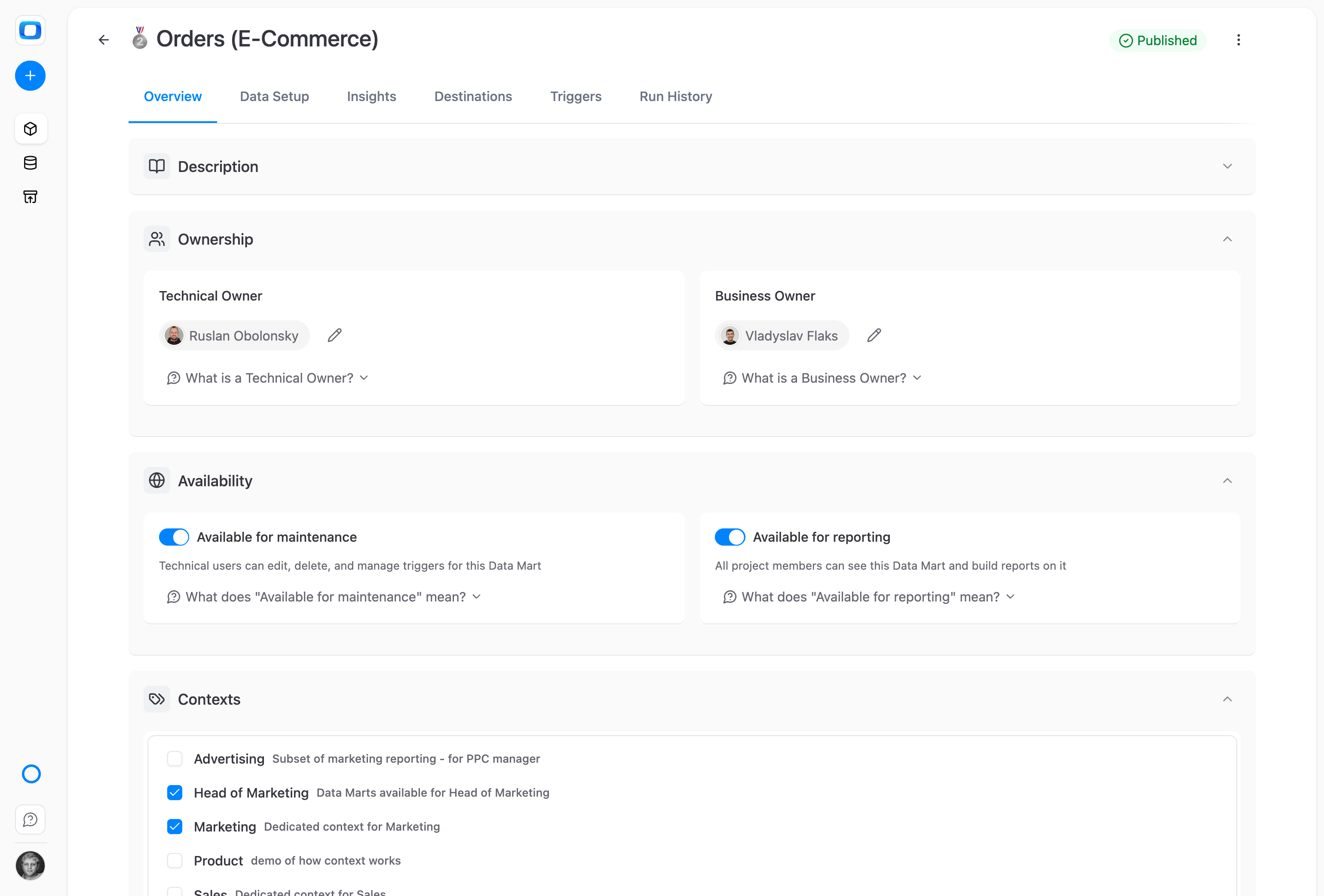
Only Data Marts you publish, revoked in one step
Data Studio sees a Data Mart only once it is Published and switched on for Data Studio. To cut every connection at once, rotate the Destination's secret key or delete the Destination.
For Business Users
The dashboard agrees with the spreadsheet
Data Studio for the people who watch a dashboard, Google Sheets for the people who work in one, both on the Data Mart the Data Owner published.
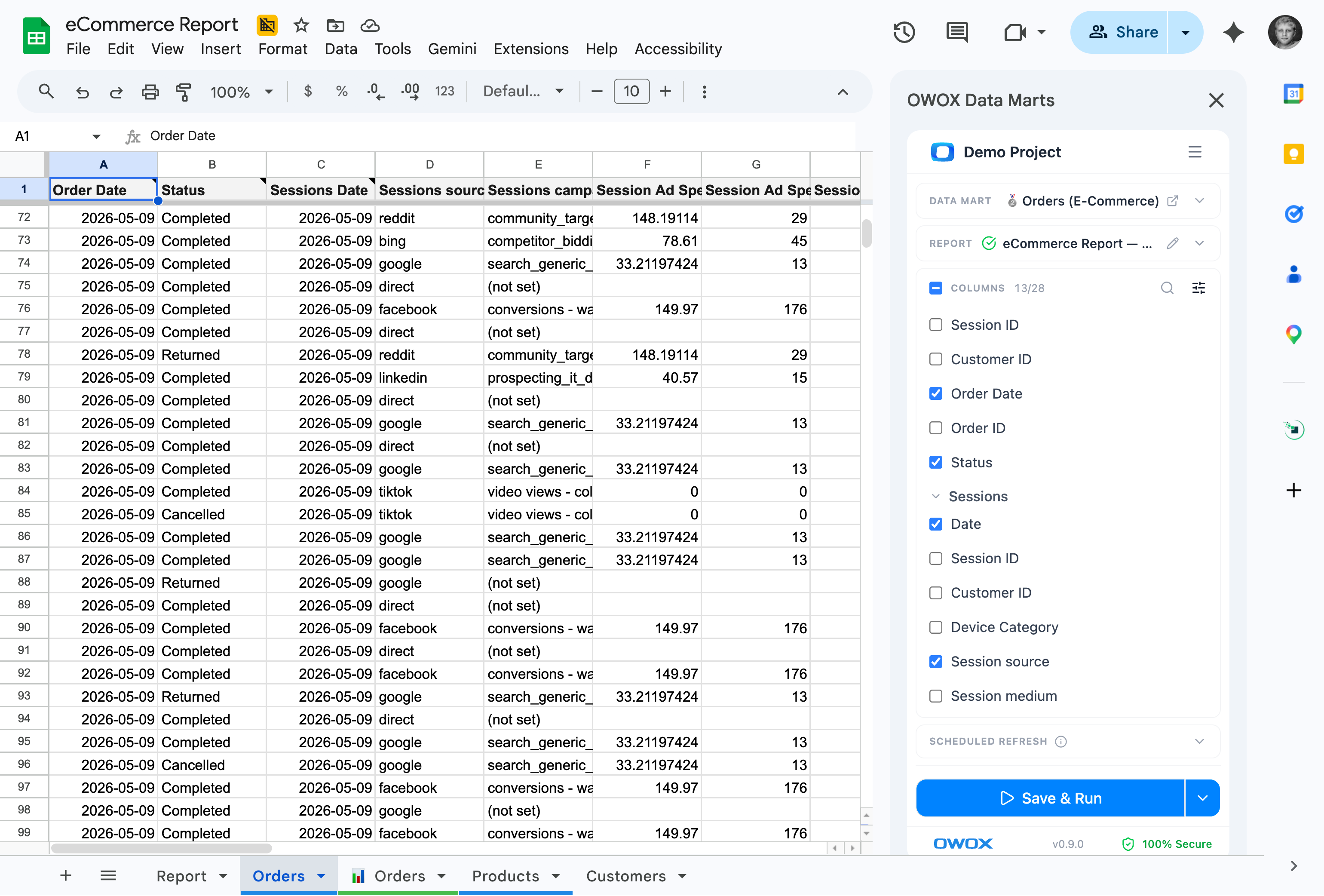
Same Data Mart in Google Sheets and Data Studio
The Orders Data Mart that fills a Google Sheets report also feeds the Data Studio data source, joined Sessions fields included. Both read one definition, so nobody reconciles two versions of the logic before the meeting.
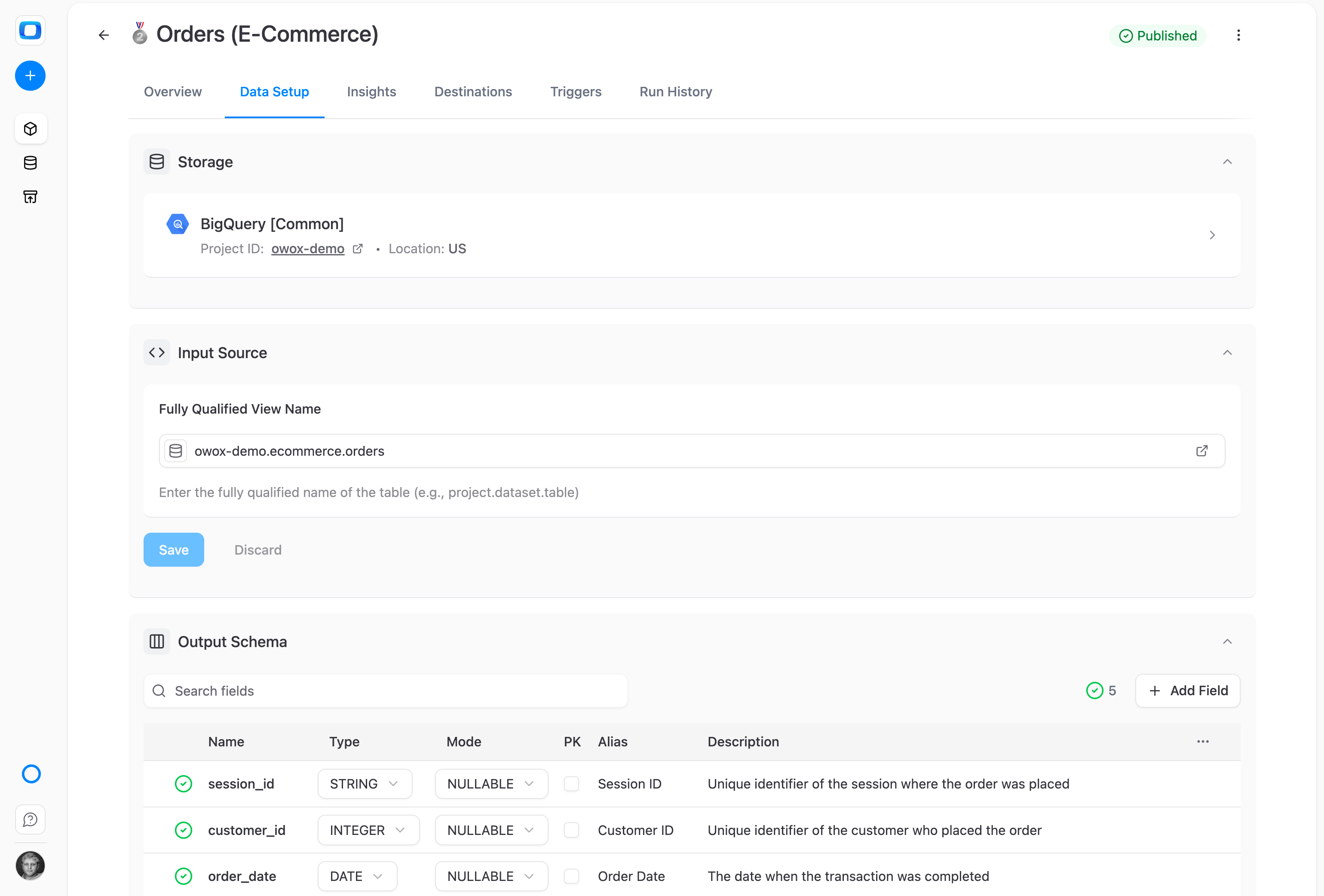
Field names set once, in the Data Mart
The field names and descriptions the Data Owner writes in the Data Mart are what you see in Data Studio's field list. After they change, Refresh fields in the data source editor picks them up.
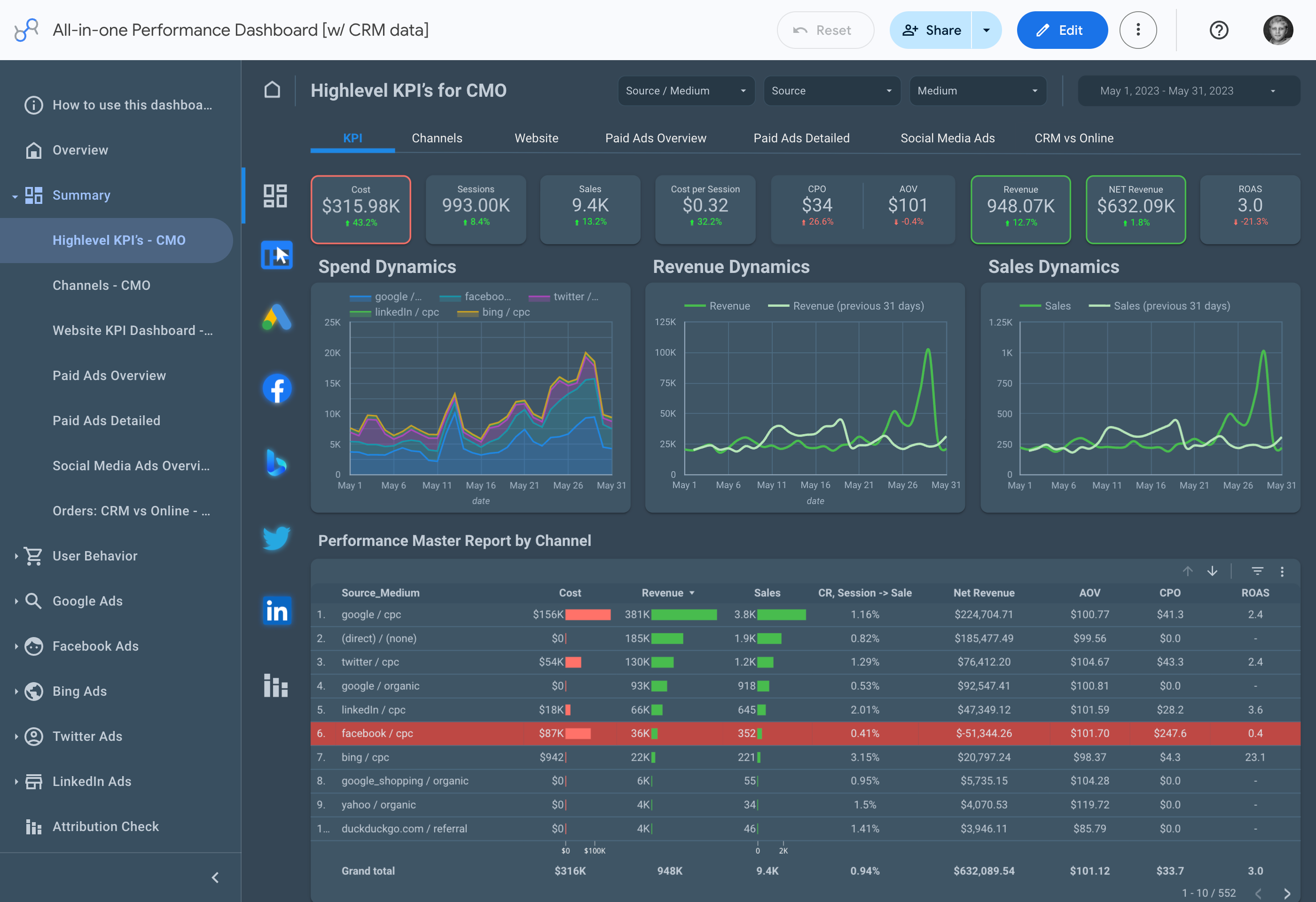
Build the dashboard in Data Studio as usual
Add the OWOX data source to a report and pick the fields you want. Charts, filters and date ranges are Data Studio's own; the numbers under them come from the Data Mart.
Compare plans
Everything business needs

SQL behind every report
Each Data Studio report has a SQL preview in OWOX: the exact query that reproduces its data, ready to re-run in your own warehouse.

No warehouse credentials in Data Studio
Data Studio holds connection settings with a secret key from OWOX. Rotate the key or delete the Destination, and every connection using it stops working.

Freshness you set
A Cache Lifetime from 5 minutes to 12 hours on each Data Mart. The Destination row and Run History show when Data Studio last fetched.

One definition, every surface
The Data Mart behind the dashboard is the one Google Sheets, Microsoft Excel and Claude or ChatGPT through OWOX MCP read, so every surface shows the same definition.
Frequently asked questions
How is this different from connecting Data Studio to the warehouse directly?
A direct connection keeps the query, or the calculated fields, inside each Data Studio data source and needs warehouse access for whoever owns it. Through OWOX, Data Studio reads a Data Mart the Data Owner defined and published, the same one Google Sheets, Microsoft Excel and AI assistants use, with a revocable secret key instead of warehouse credentials.
Which Google product does the connector work with?
Data Studio (formerly Looker Studio), Google's dashboard tool. The OWOX Data Marts connector is in Data Studio's connector gallery. Data Studio is a destination for your Data Marts: you build the dashboard there, and OWOX supplies the governed data underneath.
How do I keep the dashboard working when the Data Mart changes?
Change the definition in the Data Mart, not in Data Studio. After you add or rename fields, click Refresh fields in Data Studio's data source editor. If you rotate the secret key, paste the new connection settings into the connector. If a dashboard stops loading, check the Data Mart's Run History for a failed run and its details.
Do I need to write code to set it up?
No. Setup is three steps. Create a Data Studio Destination in OWOX and copy the connection settings it shows. On a published Data Mart, turn on Available in Data Studio and pick the columns Data Studio receives. In Data Studio, add the OWOX Data Marts connector, sign in with your Google account, paste the settings and choose the Data Mart.
How fresh is the data?
As fresh as the Cache Lifetime you set on the Data Mart, from 5 minutes to 12 hours. Within it, OWOX serves the cached result without re-running the query; after it expires, OWOX reads the source again. Refresh data in Data Studio can still return the cached result until then. Data Studio caps how much one request can return, so send it only the columns and rows the dashboard needs.
How do I check what Data Studio received?
Open the Data Mart in OWOX. Its Data Studio Destination row shows the last fetch, Run History lists each run with its status, and the report's SQL preview shows the exact query behind the data, ready to re-run in your own warehouse.
Every claim has a receipt.
Real things real customers said — each quote pinned to a specific claim, straight from the quotes database.
 Nodari RizunFounder & CEO, Pürblack®
“AI, by the nature of the models, will hallucinate. And because of that, you need something which will create guardrails to ensure that there are no hallucinations, that you can trust your data.”
 Mark SimmonsCMO, Pürblack®
“We had six or seven different channels and no single source of truth — it was almost impossible, a lot of guesswork.”
Nodari RizunFounder & CEO, Pürblack®“We regained time. And time is the one resource that never comes back.”
Put your Data Mart behind the dashboard
Create a Data Studio Destination, turn on Available in Data Studio and connect from the gallery.
You are booked. The invitation is on its way to , with the calendar invite and the meeting link.
Schedule in person meeting at Data Outpost San Francisco
You are booked. The invitation is on its way to , with the calendar invite and the meeting link.