Spreadsheet Reporting
Stop being the courier between your warehouse and spreadsheets
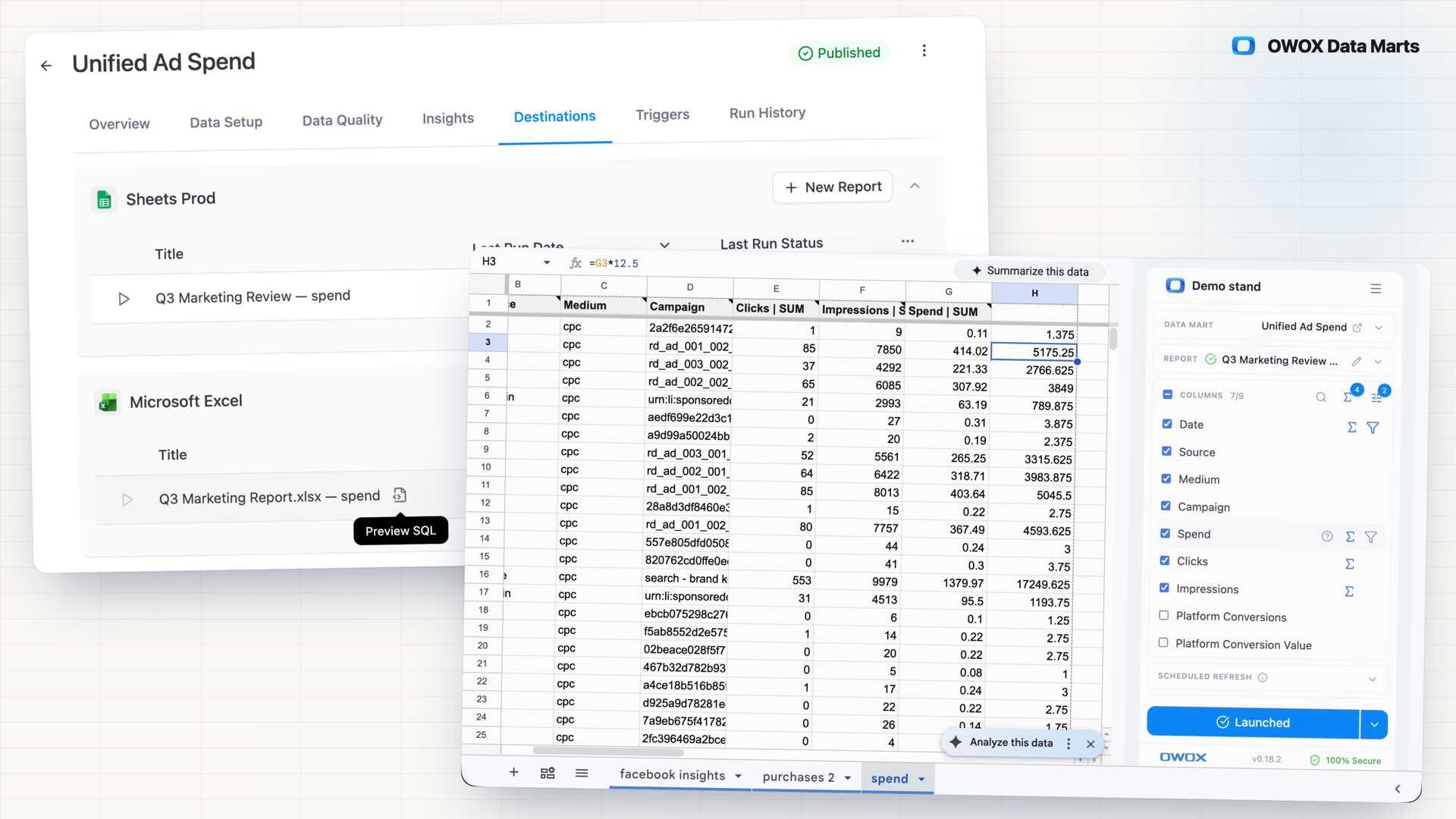
A hand-made export is a copy that goes stale with your name on it. Spreadsheet Reporting puts a published Data Mart into Google Sheets or Microsoft Excel, where business users build reports and refresh them, on a schedule in Google Sheets. The SQL behind every report is one click away. Documentation
Why OWOX
When the business asks for last quarter's numbers again, the Data Owner re-runs an export, and weeks later that file is still presented as current, with their name on it. Spreadsheet Reporting puts a published Data Mart into Google Sheets or Microsoft Excel, where business users pull and refresh it themselves.
- Every report sits on its Data Mart's Destinations tab with Preview SQL, so you can read the query behind any sheet or workbook.
- Business users pick columns, filters and fields from joined Data Marts; the definitions and the joins stay yours.
- A refresh rewrites only the imported range, so your formulas, columns to the right and column order survive, in Google Sheets and Microsoft Excel alike; Google Sheets reports also run on a schedule.
The export you sent last month is still someone's current number
When business users work in spreadsheets, the Data Owner is the delivery mechanism. Every cut comes back as a request and leaves as a file. Nobody records who took which file or when, and the copy is still presented as current weeks later.
THE DATA OWNER
One Data Mart behind every sheet and workbook
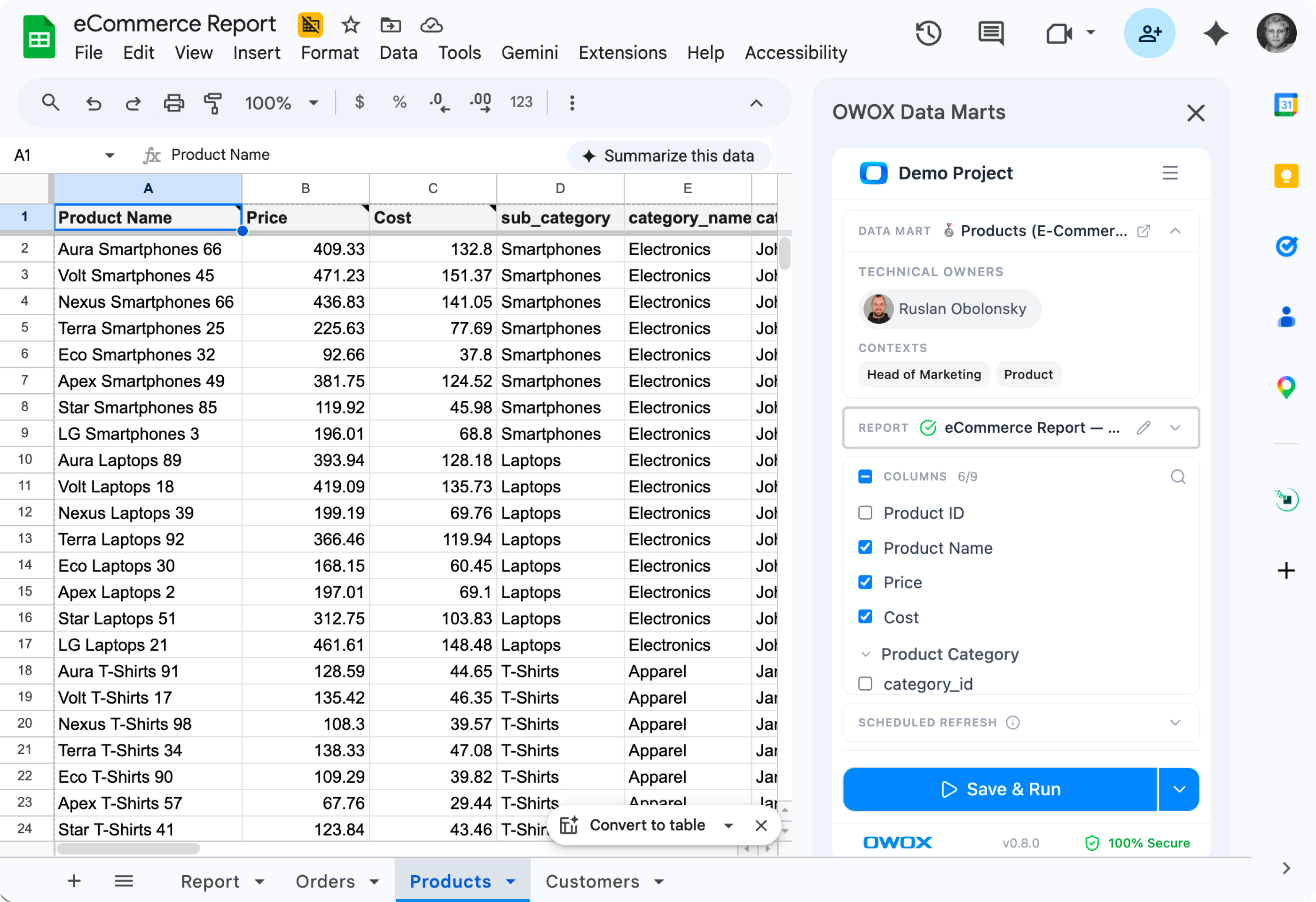
Create a Google Sheets report from the Data Mart's Destinations tab: pick columns, including fields from joined Data Marts, add filters, sort and a row limit, and press Create & Run report. Business users' reports from either spreadsheet land there too, with Preview SQL.
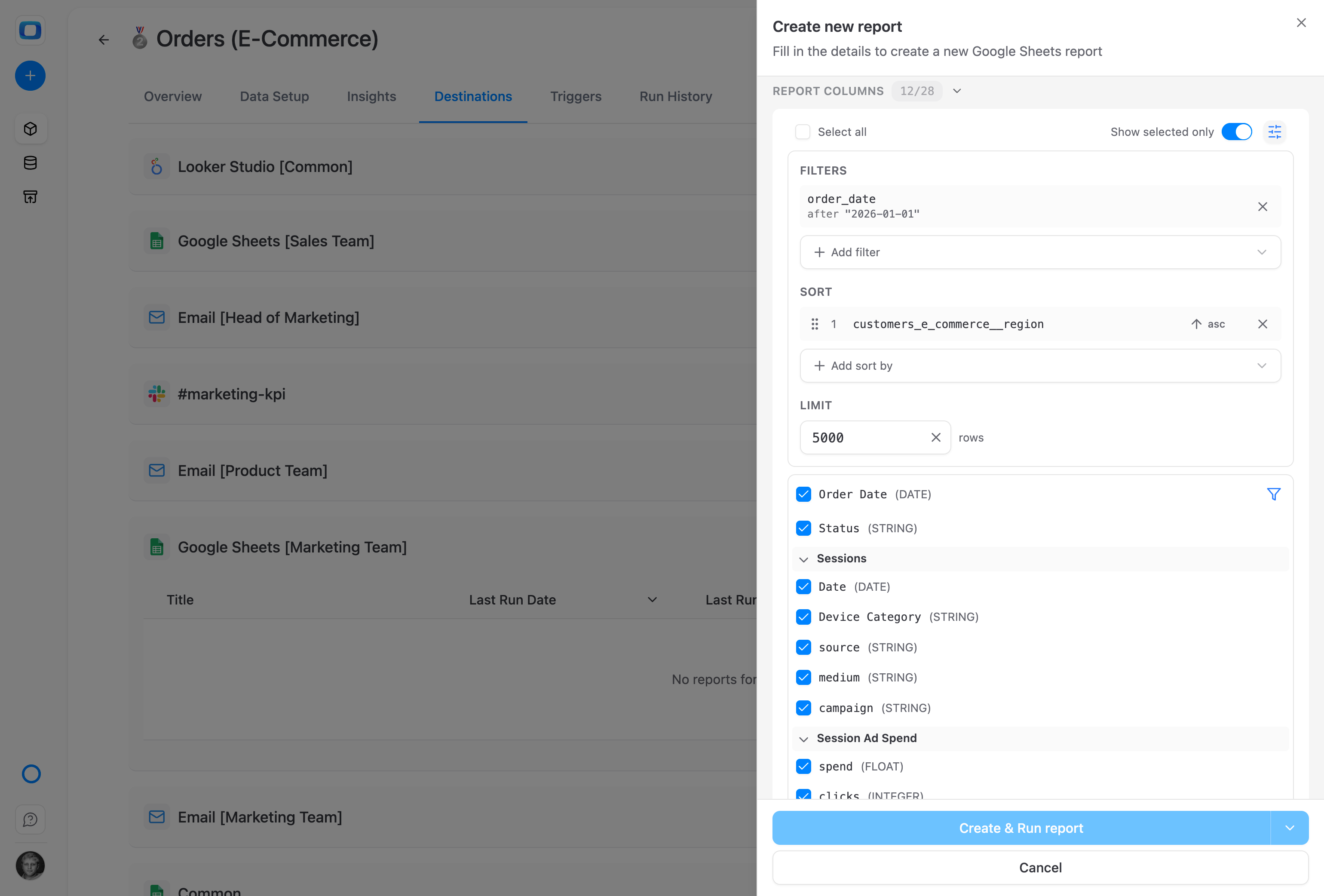
You see every report built on your Data Mart.
THE BUSINESS USER
Pull the cut you need into the sheet you have open
In the OWOX Extension for Google Sheets or the Microsoft Excel add-in, pick a Data Mart you have access to, tick columns, including fields from joined Data Marts, and run it into the sheet. Each header carries its field description as a note.
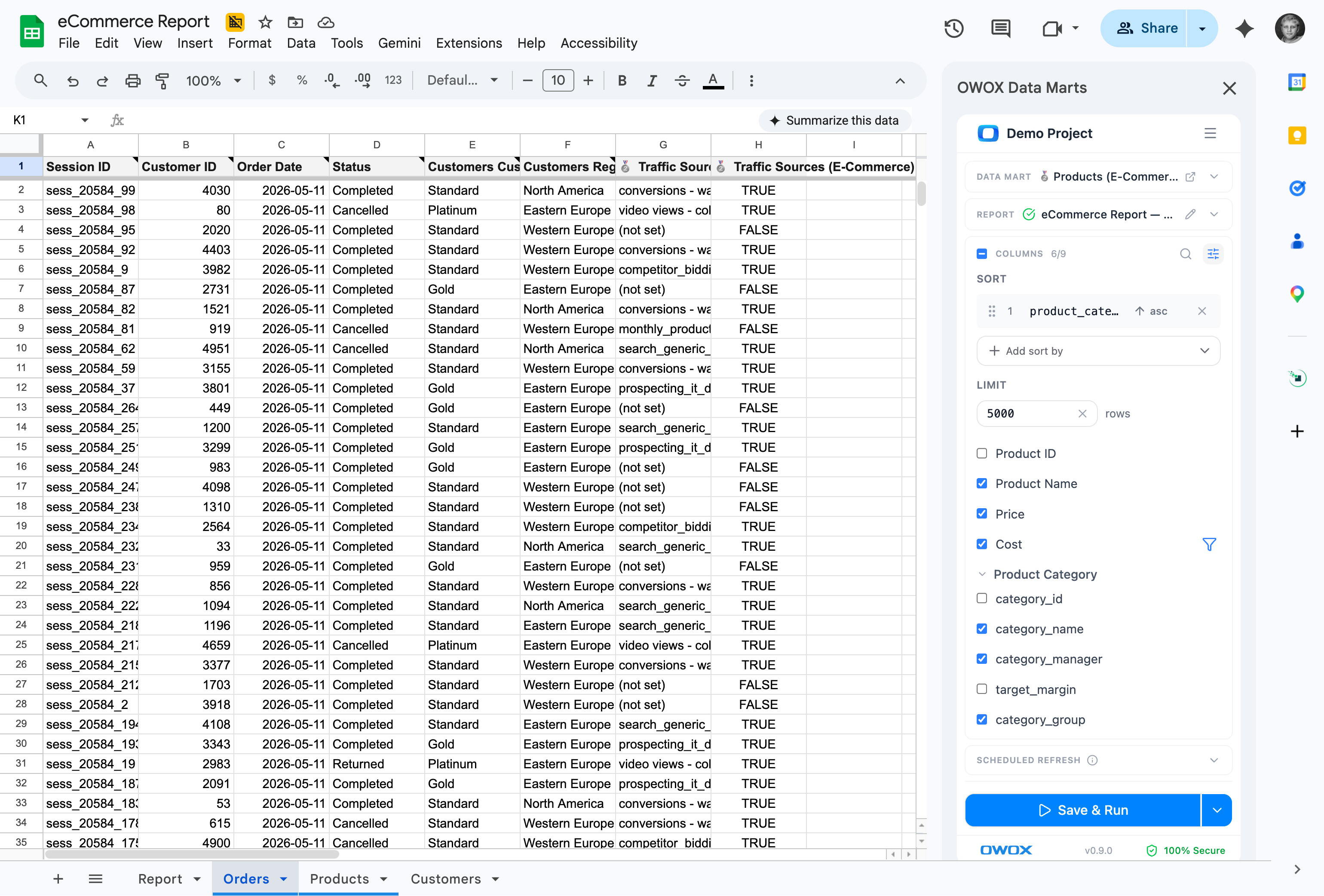
The column arrives with its definition attached.
One definition for Google Sheets and Microsoft Excel — an export or a script that writes .xlsx gives each spreadsheet its own copy of the logic and no record of who has it. Here both spreadsheets read the same Data Mart, and every Excel run is logged in Run History by user, workbook and sheet.
For Data Owners
Deliver once, and see every copy
You define the Data Mart and its field descriptions once. Every report built on it, in either spreadsheet, stays visible to you and traceable to your SQL.
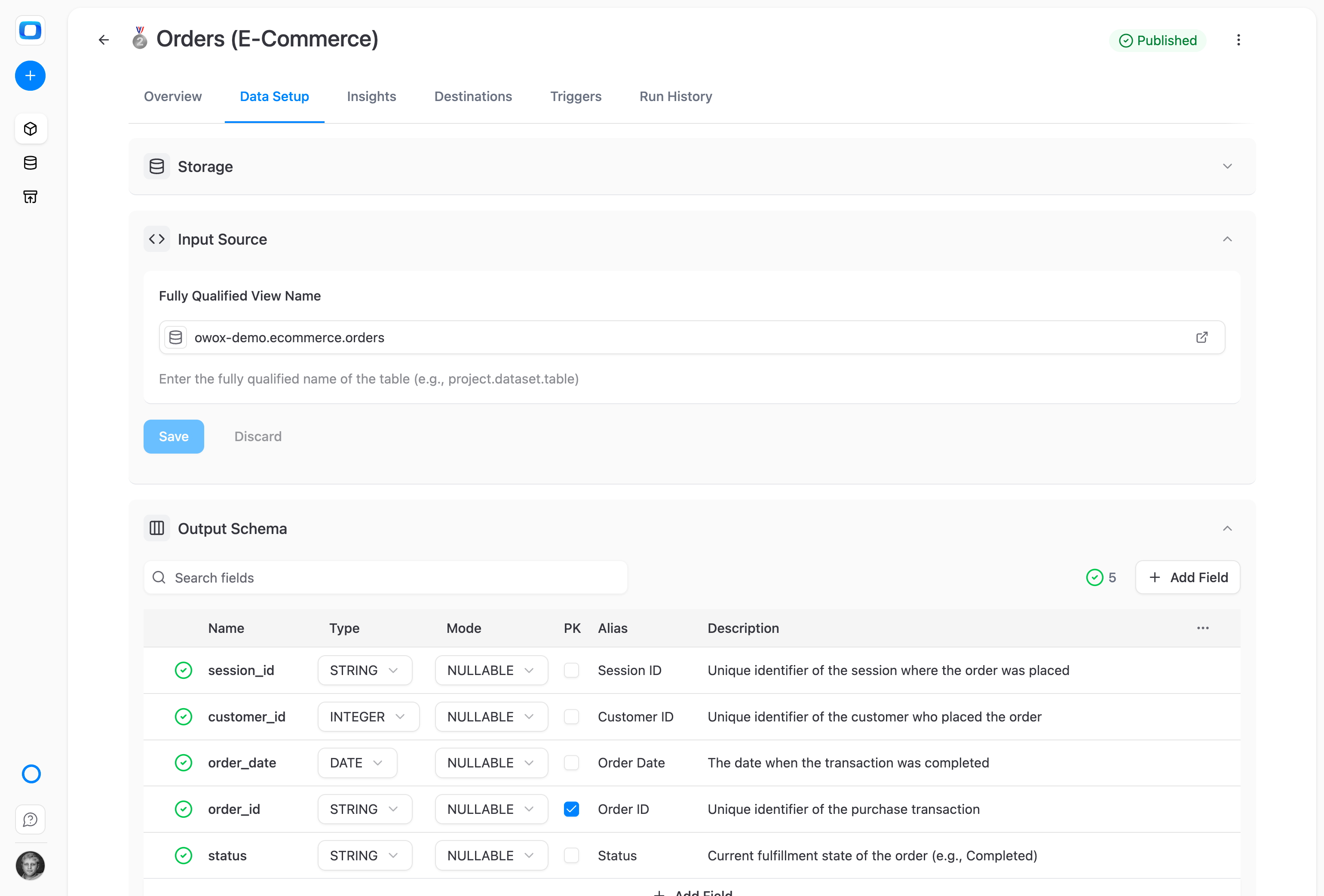
Descriptions written once, read on every header
Write an alias and a description for each of the Data Mart's fields. The alias names the column in the picker; the description becomes a note on the header cell once the report runs, in Google Sheets and Microsoft Excel alike.
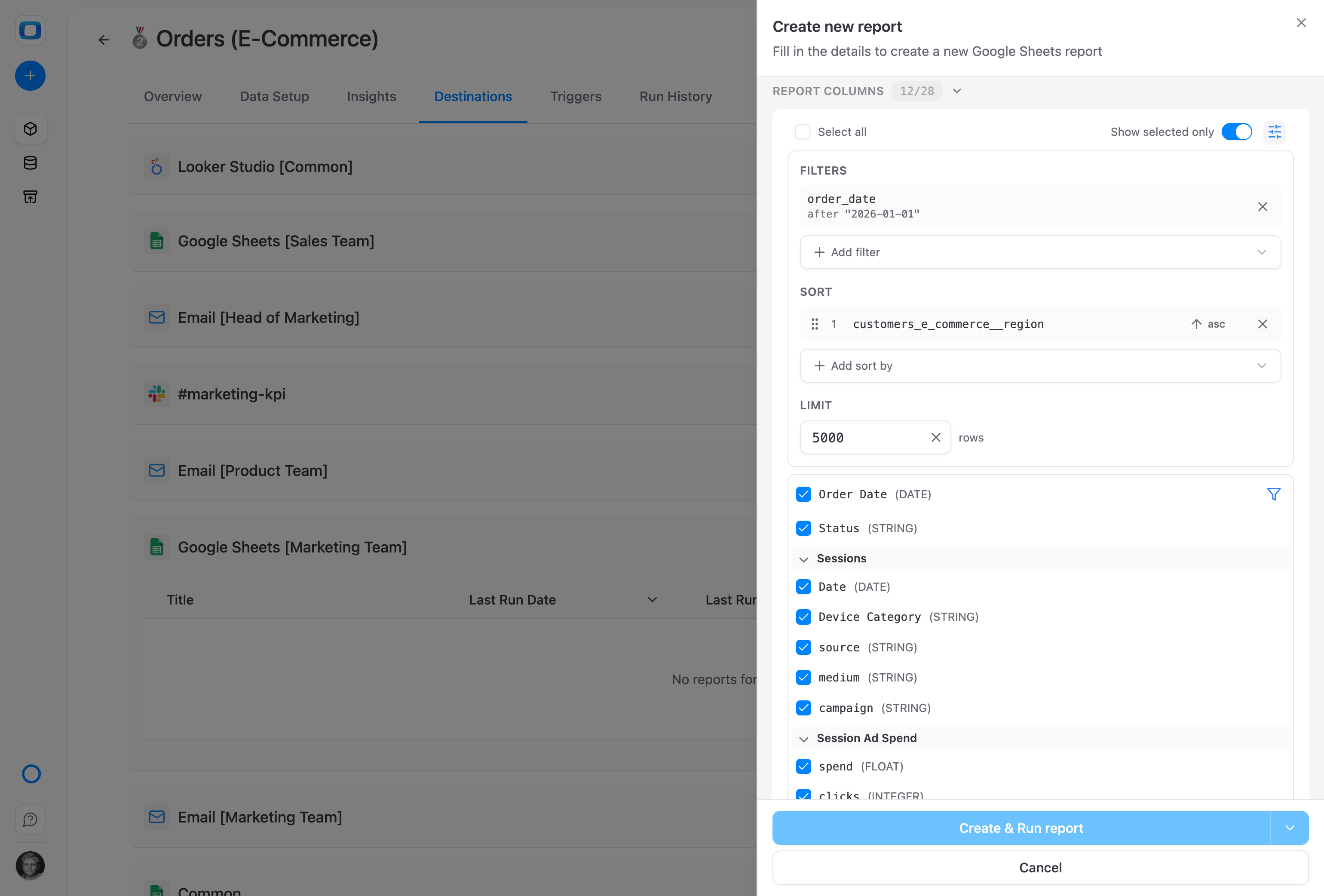
A Google Sheets report, configured in one panel
On the Orders Data Mart's Destinations tab, Create new report: 12 of 28 columns, including fields from the joined Sessions and Session Ad Spend Data Marts, a filter on order_date, a sort by region, 5,000 rows. Create & Run report writes it to the sheet.
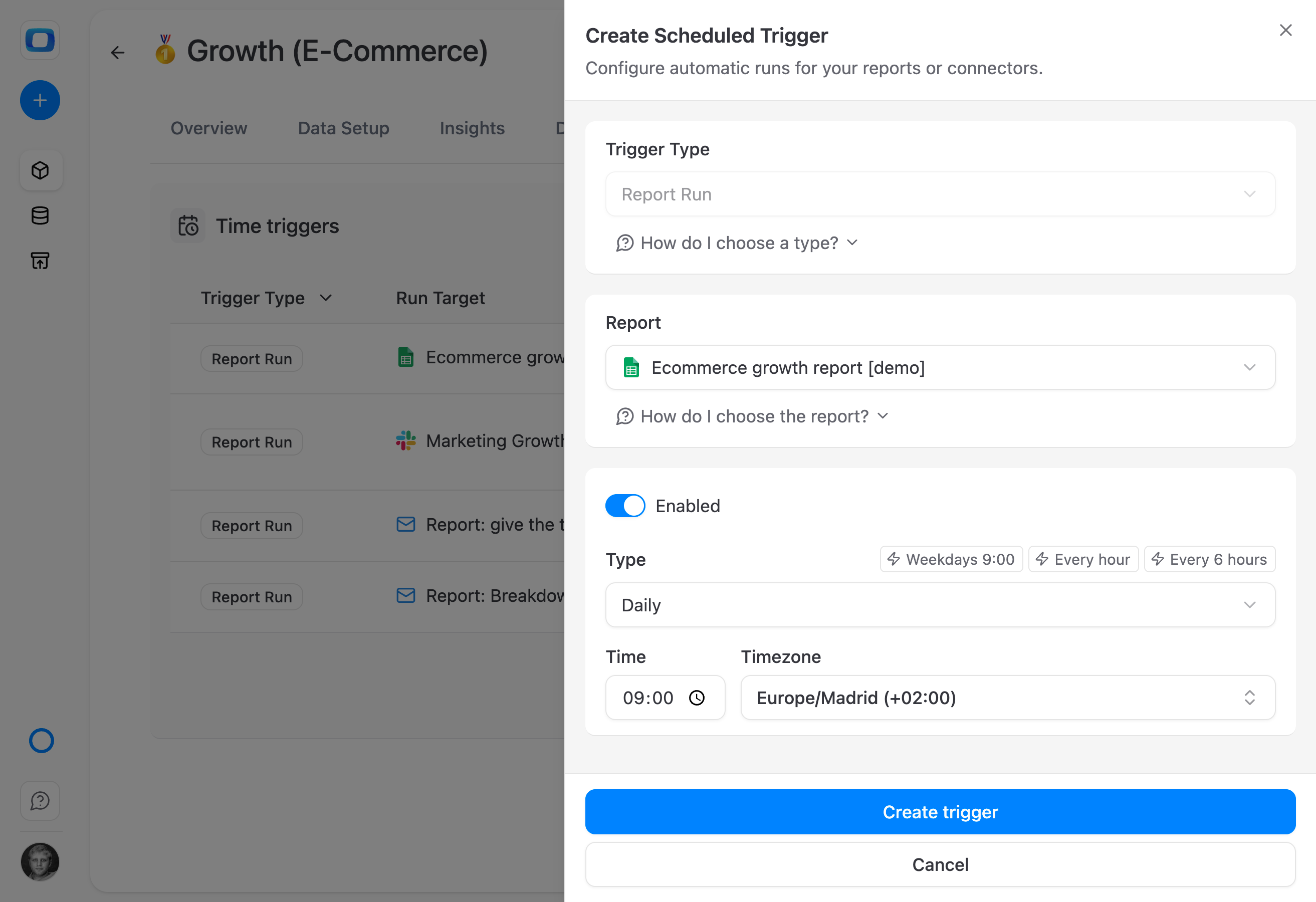
Schedule it, and the sheet updates without you
A Report Run trigger refreshes a Google Sheets report daily, weekly, monthly or on an interval, in the timezone you set; presets cover weekdays at 9:00, every hour and every 6 hours. Excel has no schedule: business users refresh from the ribbon.
For Business Users
Your numbers, in the spreadsheet you already use
Pick a Data Mart, choose columns and run it, in Google Sheets or Microsoft Excel. No SQL to write and no request to wait on.
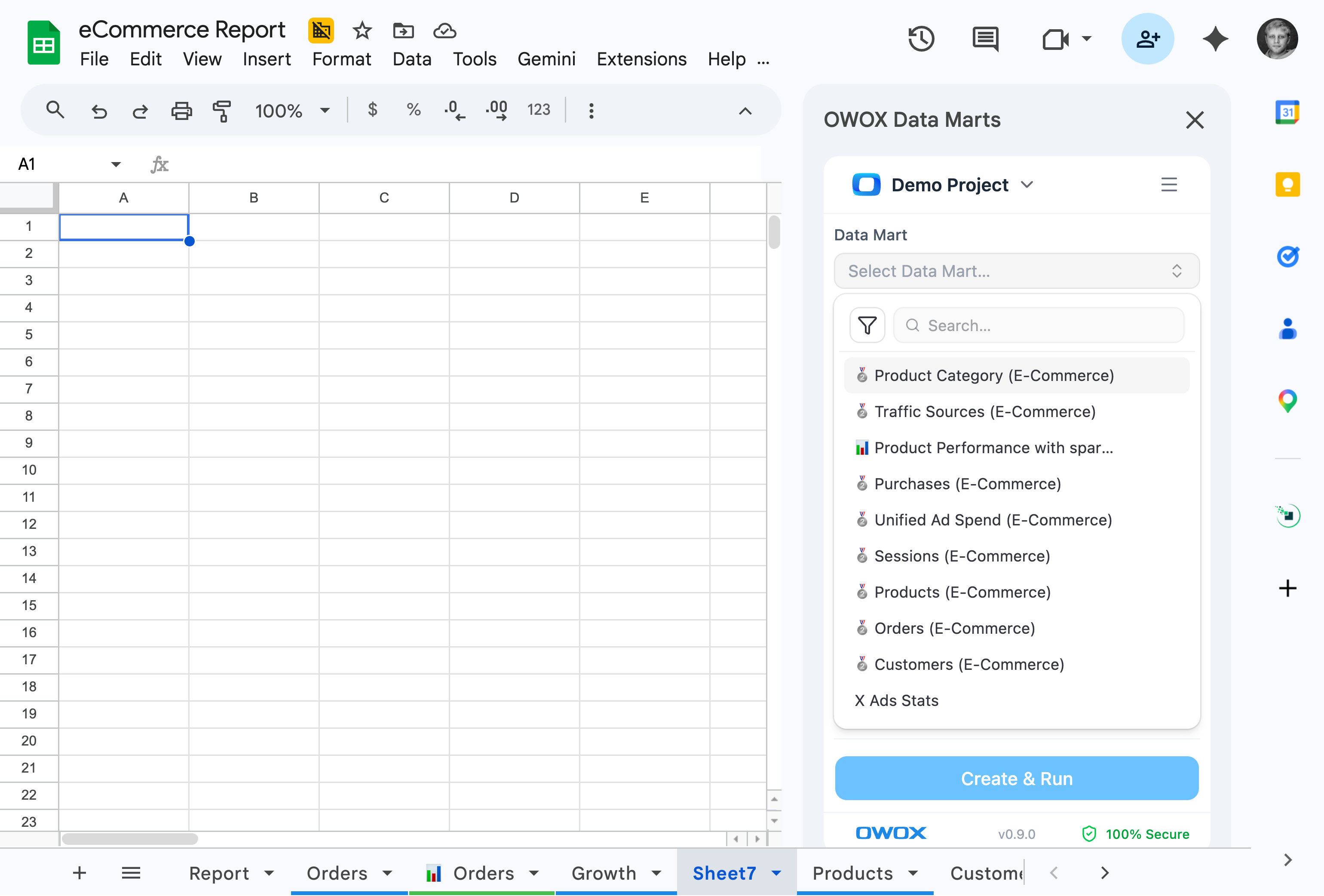
Published Data Marts, inside Google Sheets
Open the OWOX Data Marts sidebar and search the Data Marts you have access to, and nothing else. In Microsoft Excel the same list opens from the OWOX Data Marts ribbon tab, signed in with the Microsoft account Excel already uses.
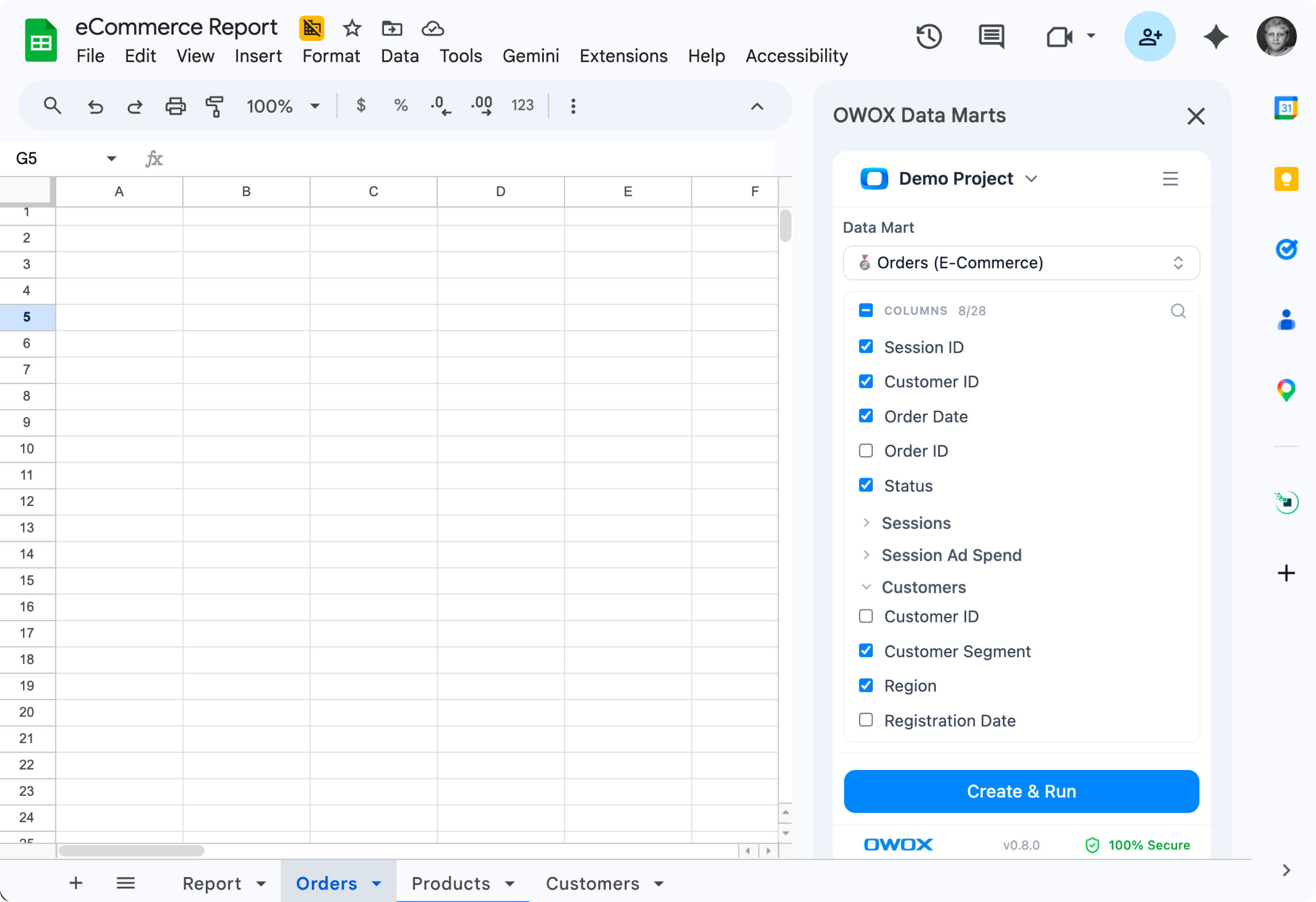
Fields from joined Data Marts, one tick away
Fields from other Data Marts sit in groups under the Data Mart's own: Customer Segment and Region from Customers, next to Order Date and Status from Orders. The Data Owner defined the join; you tick the field.
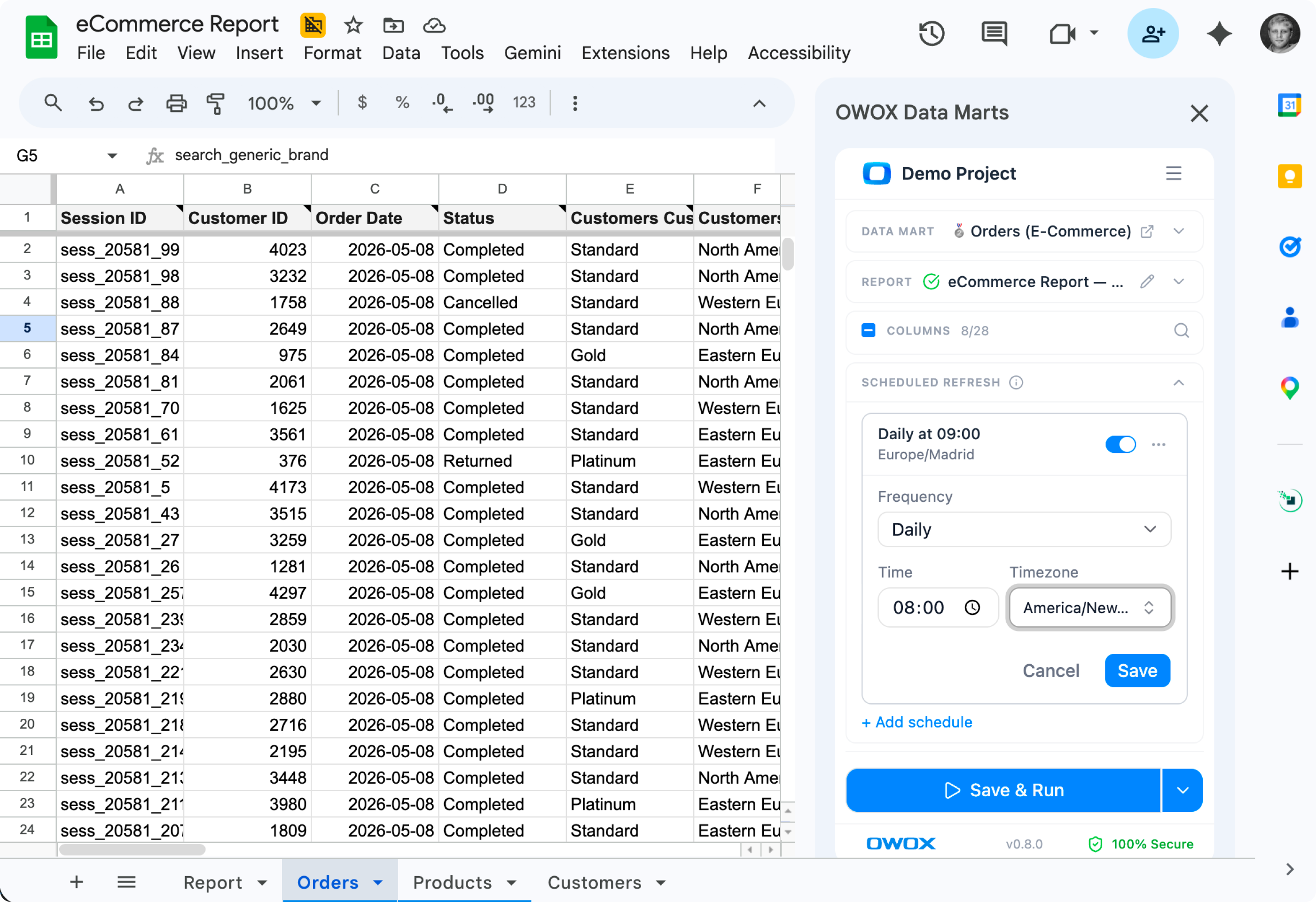
Set the refresh from the sidebar
In Google Sheets, add a schedule under Scheduled refresh, daily at 09:00 in your timezone. Each refresh rewrites only the imported range, so your columns and formulas to the right survive.
Compare plans
Pay as you go
Top up only when you have a decision to make. No subscription loop.
$0.30 / run
Start freeEverything business needs

Refresh keeps their work
A refresh rewrites only the imported range. In Google Sheets and Microsoft Excel, columns and formulas to the right survive, and so does the column order you set.

The SQL behind every report
Each report sits on its Data Mart's Destinations tab with Preview SQL, so a number in a sheet traces back to your query.

One Data Mart, both spreadsheets
Google Sheets and Microsoft Excel read the same Data Mart, so one definition serves both teams instead of two delivery paths.

Every Excel run on record
Run History logs each Excel refresh by user, workbook and sheet, so you can read which Data Marts are actually pulled.
Frequently asked questions
How is this different from exporting a CSV or scripting an .xlsx file?
An export is a copy: it carries no definition, goes stale, and leaves no record of who has it. Here every report reads a published Data Mart, its SQL is one click away on the Destinations tab, each header carries your field description, and Excel runs are logged in Run History.
What survives a refresh?
Cells and formulas to the right of the imported range survive a refresh, and so does your column order, in Google Sheets and Microsoft Excel alike. OWOX rewrites only the imported range: headers, data cells and any leftover rows from the last run. Edits inside the range are overwritten.
What happens when the Data Mart's columns change?
A new column is appended at the right edge of the imported range. A removed column is deleted, and formulas that referenced it show #REF! instead of a wrong number. A renamed column counts as removed and added, so formulas pointing at it break too.
How does Microsoft Excel differ from Google Sheets?
Excel has no scheduled refresh: business users refresh from the ribbon while the workbook is open, one report per worksheet. Your formulas and column order survive a refresh. Sign-in uses the Microsoft account Excel is signed in with, and the destination creates itself on the first run.
What does the Data Owner set up?
The Data Owner sets up one Google Sheets destination, connected to Google once, plus a shared Google Drive folder if OWOX should create the Sheets itself. Microsoft Excel needs nothing: the add-in creates its destination on the first run. Business users see only the published Data Marts they have access to.
Where do business users get the Extension and the add-in?
The OWOX Extension for Google Sheets installs from the Google Workspace Marketplace. The Microsoft Excel add-in installs from Microsoft Marketplace, or a Microsoft 365 admin adds it for the whole organization from Integrated apps. Store installs update automatically.
Every claim has a receipt.
Real things real customers said — each quote pinned to a specific claim, straight from the quotes database.
 Nodari RizunFounder & CEO, Pürblack®
“AI, by the nature of the models, will hallucinate. And because of that, you need something which will create guardrails to ensure that there are no hallucinations, that you can trust your data.”
 Mark SimmonsCMO, Pürblack®
“We had six or seven different channels and no single source of truth — it was almost impossible, a lot of guesswork.”
Nodari RizunFounder & CEO, Pürblack®“We regained time. And time is the one resource that never comes back.”
- 0.37.0Unchecking a column in the OWOX Extension no longer fails Save & Run
- 0.36.0Upload a Google Sheet to your storage from the OWOX Extension
- 0.34.0Destinations tab now promotes Google Sheets, Excel, and MCP together
- 0.34.0Open the OWOX add-in for Excel straight from the Destinations tab
- 0.33.0Send Reports to Microsoft Excel Destination
Publish the Data Mart once, then stop sending exports
Open a published Data Mart's Destinations tab and create its first Google Sheets report.
You are booked. The invitation is on its way to , with the calendar invite and the meeting link.