Field Selection & Aliases
Choose The Fields That Land. Name Them For Business.
When a new ad channel joins the report, its endpoint can offer a hundred fields under API names. In a Connector Data Mart, the Data Owner ticks only the fields to store, the merge keys stay selected, and each field gets a business-friendly alias without renaming the stored column.
Get started freeRead the docs →
Does this fit your stack?
Why OWOX
Marketing wants a new ad channel in next week's cross-channel report, and its endpoint can offer a hundred fields under API names like date_start. Store them all, and business users wade through unused columns and ask you what each one means. In a Connector Data Mart, you pick the fields that land and name each one for business.
- The unique-key fields the connector merges rows on stay selected, however few fields you tick.
- Only the fields you tick are stored in your warehouse; the alias lives in the Output Schema, so the stored column keeps its name.
- Google Sheets headers and Data Studio's field list show the alias, not the API field name.
- Ask Claude or ChatGPT about spend through OWOX MCP, and it receives each field's alias and description, not just an API name like date_start to guess at.
An API returns every field. Your reports need a few.
Store everything an endpoint returns and you keep and query columns nobody uses. Ship them under API names like date_start and ad_id, and business users guess what a column means or ask you. Either way, the question comes back to the Data Owner.
THE DATA OWNER
Tick the fields, keep the keys
In the connector setup, pick the endpoint, then Select all or tick only the fields to store. The unique-key fields the connector merges rows on stay selected. After the first run, give each field in the Output Schema a business-friendly alias.
You decide which columns reach your warehouse.
THE BUSINESS USER
Columns named the way the business talks
Reports carry only the fields the Data Owner imported, under the aliases the Data Owner gave them. In Google Sheets the alias is the column header, Data Studio shows it in the field list, and AI assistants connected through OWOX MCP read it too.
The warehouse keeps API names. The report shows business ones.
A field list, not a pipeline to maintain — In a hand-built pipeline, the field list and the column names live in code you maintain. Here the Data Owner ticks fields in the setup, the data is stored only in your warehouse, and the alias lives in the Output Schema, so the stored column keeps its name.
For Data Owners
Decide what lands before the first run
Fields are chosen in the connector setup, before anything is written to your warehouse. Aliases come after the first run, in the Output Schema the run generates.
Worked example: Facebook Ads Ad Account Insights
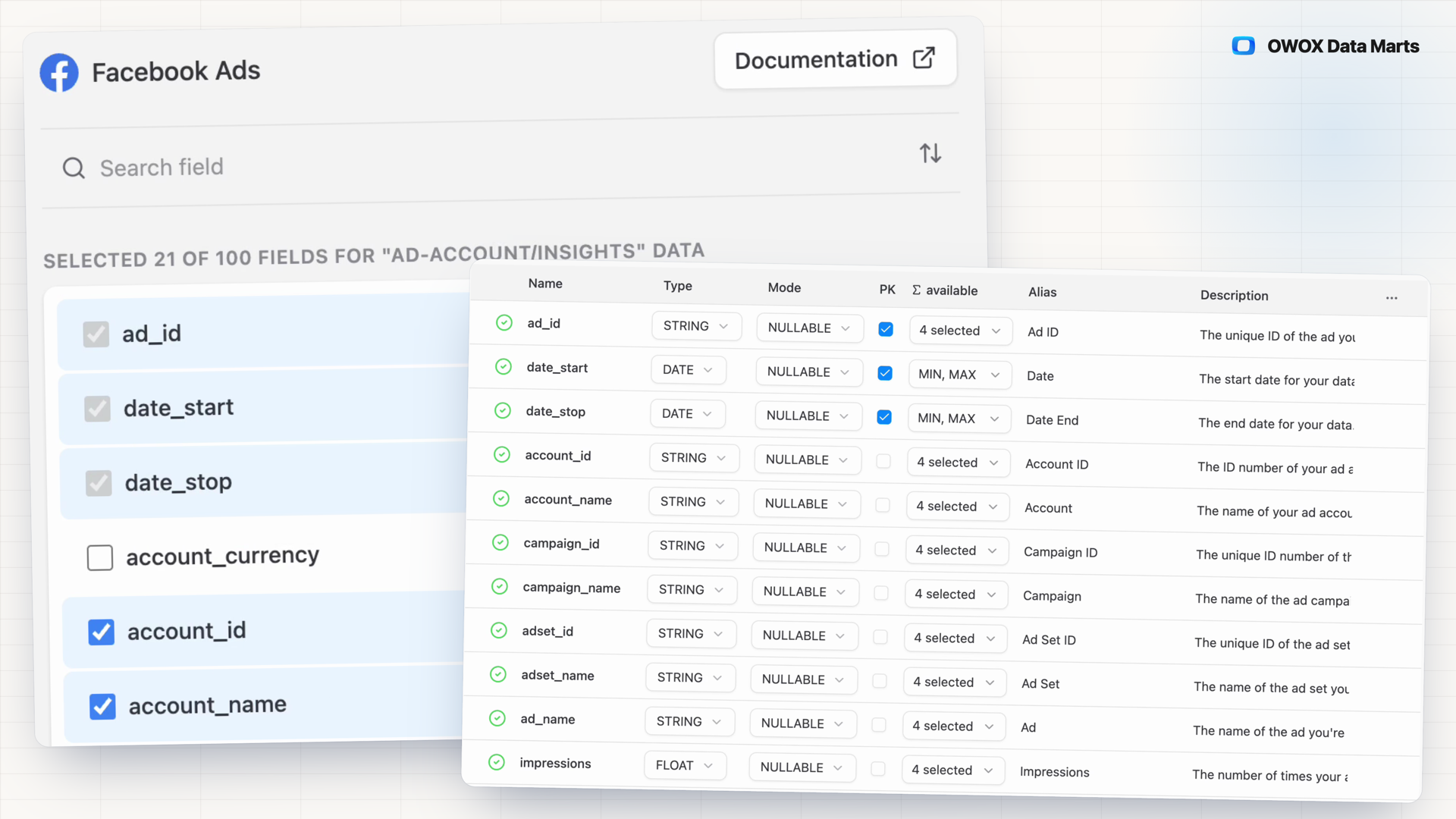
The endpoint offers 100 fields. Tick campaign_name, spend, impressions and clicks; ad_id, date_start and date_stop stay selected as its unique keys. Publish & Run writes the table facebook_ads_ad_account_insights to the dataset you entered.
The keys the connector needs stay selected
The connector matches rows on its unique keys during loading and adds them to every request, so they stay in however few fields you tick. Some connectors change the required fields with a parameter, such as TikTok Ads Data Level.
An Output Schema ready for aliases
After the first run, the Output Schema lists every field with its name, data type, join key metadata and description. Add a business-friendly alias to each one, or let Metadata Autofill draft them for you to review.
For Business Users
Pick from columns that make sense
You see the fields the Data Owner chose to import, under the names the Data Owner gave them, not a raw API export.
The alias is the header
In a Google Sheets report, the column header shows the field's alias. If the Data Owner removes the alias, the header goes back to the field name.
Same names in Data Studio
The aliases and descriptions in the Output Schema are what Data Studio's field list shows, so a dashboard and a spreadsheet built on the same Data Mart use the same column names.
Same names for AI assistants
Claude or ChatGPT connected through OWOX MCP read aliases and descriptions as business meaning, so a field the Data Owner has named is one they are less likely to misread.
Compare plans
Everything business needs
Only the columns you chose
The connector stores the fields you ticked, so your warehouse holds and queries those columns, not everything the API returns.
Merge keys stay selected
The unique-key fields the connector matches rows on stay selected, however few fields you pick.
Aliases without renaming storage
The alias sits in the Output Schema. The stored column keeps its field name, and reports show the business one.
Described after the first run
The first run generates the Output Schema: name, data type, join key metadata and description for every field you imported.
Frequently asked questions
What is Field Selection & Aliases?
It is how a Connector Data Mart decides what it stores and what each column is called. The Data Owner picks the fields a connector imports, then gives each field a business-friendly alias in the Output Schema.
Which fields always stay selected?
The endpoint's unique keys. The connector uses them to match rows during loading, so they stay selected. For Facebook Ads Ad Account Insights they are ad_id, date_start and date_stop. Some connectors adjust the required fields to a parameter you set earlier, such as TikTok Ads Data Level.
Does an alias rename the column in my warehouse?
No. The table in your warehouse keeps the connector's field names. The alias lives in the Data Mart's Output Schema and is what reports show.
Where do business users see the alias?
As the column header in a Google Sheets report and in Data Studio's field list. AI assistants connected through OWOX MCP read aliases and descriptions too.
How is this different from writing my own import script?
In a script, the field list and the column names live in code you maintain. Here the Data Owner ticks fields in the connector setup, the keys the connector merges on stay in, and the alias is set in the Output Schema while the stored column keeps its name. The connector itself is maintained as a product.
Can one Data Mart import several endpoints?
No. Each Data Mart imports one endpoint, with its own field list and its own table, named after the endpoint. Create another Data Mart for each additional endpoint.
Every claim has a receipt.
Real things real customers said — each quote pinned to a specific claim, straight from the quotes database.
 Nodari RizunFounder & CEO, Pürblack®
“AI, by the nature of the models, will hallucinate. And because of that, you need something which will create guardrails to ensure that there are no hallucinations, that you can trust your data.”
 Mark SimmonsCMO, Pürblack®
“We had six or seven different channels and no single source of truth — it was almost impossible, a lot of guesswork.”
Nodari RizunFounder & CEO, Pürblack®“We regained time. And time is the one resource that never comes back.”
- 0.36.0Hiding a calculated metric no longer fails the save on a Data Mart with a joined formula
- 0.36.0Long field descriptions wrap in the Output Schema
- 0.35.0A hidden column no longer reads as a broken schema
- 0.34.0Configure disconnected joined fields
- 0.30.0Output schema edits no longer get silently reverted
Import only the fields your reports use
Create a Connector Data Mart, tick the fields, publish and run, then add aliases in the Output Schema.
- Internal OWOX data as of 2026-10-02
- G2 reviews of OWOX
- npm installs stat
You are booked. The invitation is on its way to , with the calendar invite and the meeting link.