Feature

Scheduling

Reports refresh on schedule, with no manual rework

A report nobody re-ran still looks current. Triggers on the Data Mart import the source into your warehouse and deliver each report to Google Sheets, Data Studio, Slack or email — daily, weekly, monthly or on an interval — and every run is logged in Run History. Documentation

Get started free

Scheduling

Why OWOX

A report people open every morning is only as fresh as its last run, and a stale one looks exactly like a current one. Triggers import the source and deliver the report on a schedule you set on the Data Mart.

  • Run it every working day, on a set date each month, at set times on chosen days of the week, or on an interval, each trigger in its own timezone.
  • A failed run emails Project Admins and Data Owners, or calls a webhook URL you set, on by default; Run History shows the error and every run's status.
  • You set the order: the connector imports into your warehouse first, then each report delivers.

Trust

The Data Partner You Can Trust

users

176K Source: Internal OWOX data as of 2026-10-02

Executives and data analysts across 20+ industries

G2 rating

4.9★2

“A trusted data analytics partner” — verified review

npm installs

165K3

In Open Source We Trust

Customers

Orchestration

Stale numbers don't announce themselves

Without a schedule, someone imports the source and re-runs the report by hand, every week. Miss one morning and the Sheet still shows numbers, last week's, looking exactly like this week's. The Data Owner is the one asked why.

THE DATA OWNER

Import first, deliver after, from one tab

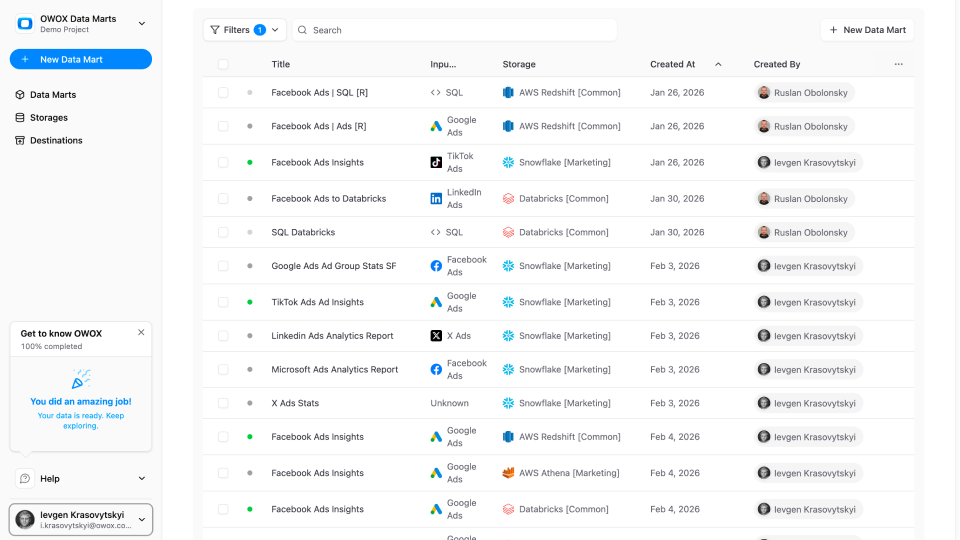
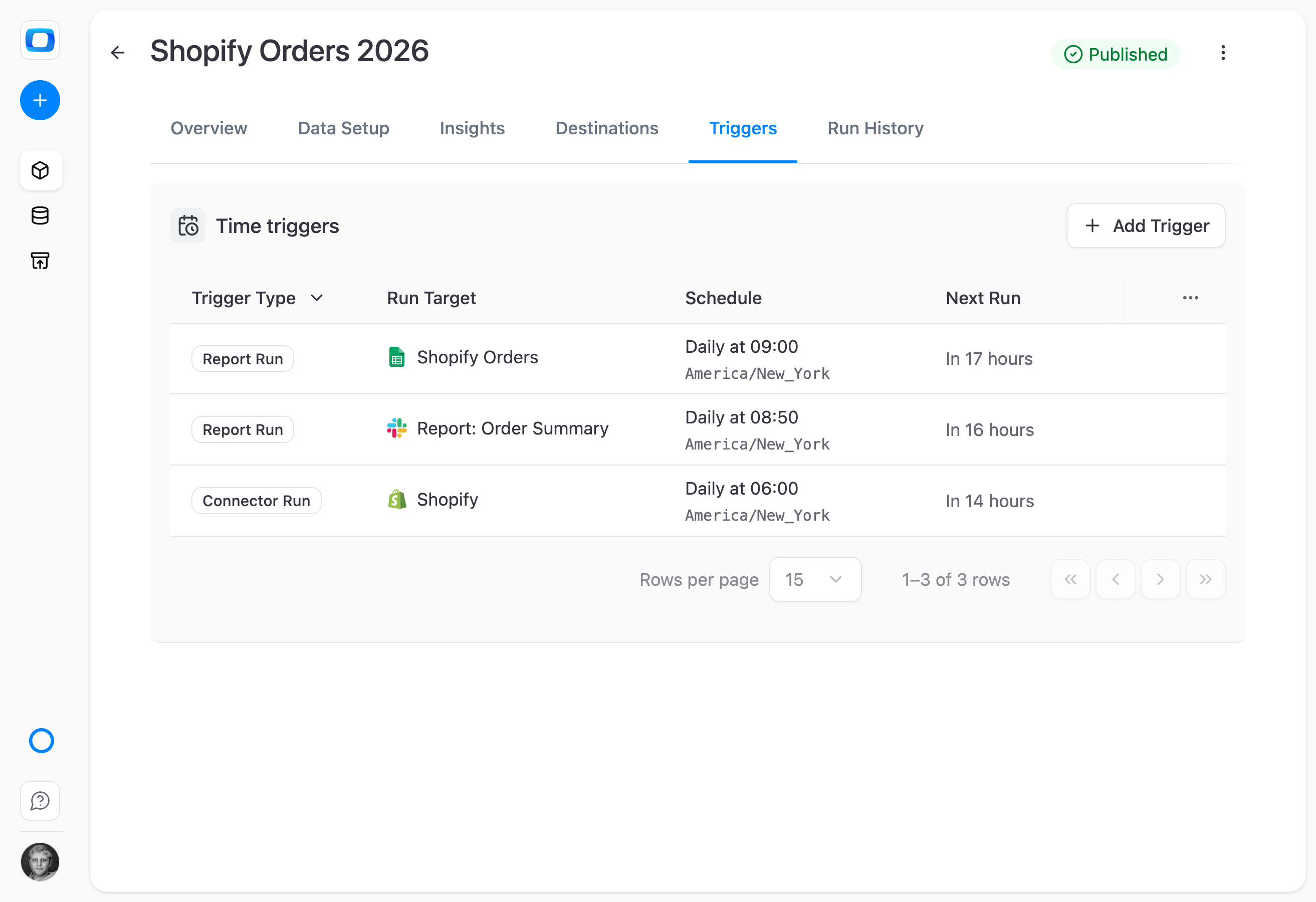
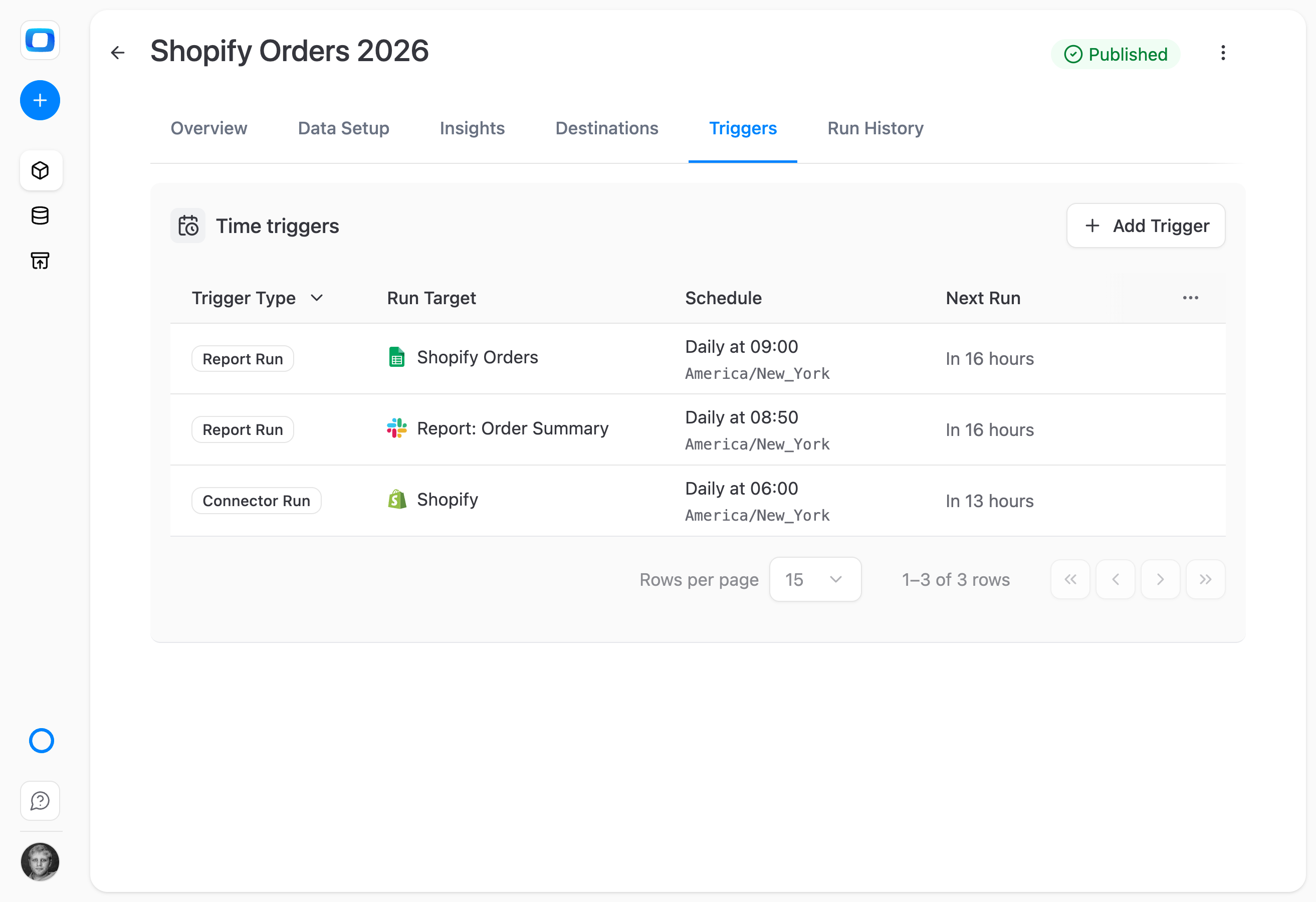
On the Data Mart's Triggers tab, add a Connector Run to import from the source into your warehouse, then a Report Run for each delivery. Each trigger gets its own schedule and timezone. Here: Shopify at 06:00, Slack at 08:50, Google Sheets at 09:00.

Import first, deliver after, from one tab

The Next Run column shows when each trigger fires.

THE BUSINESS USER

Set the refresh from the Sheet itself

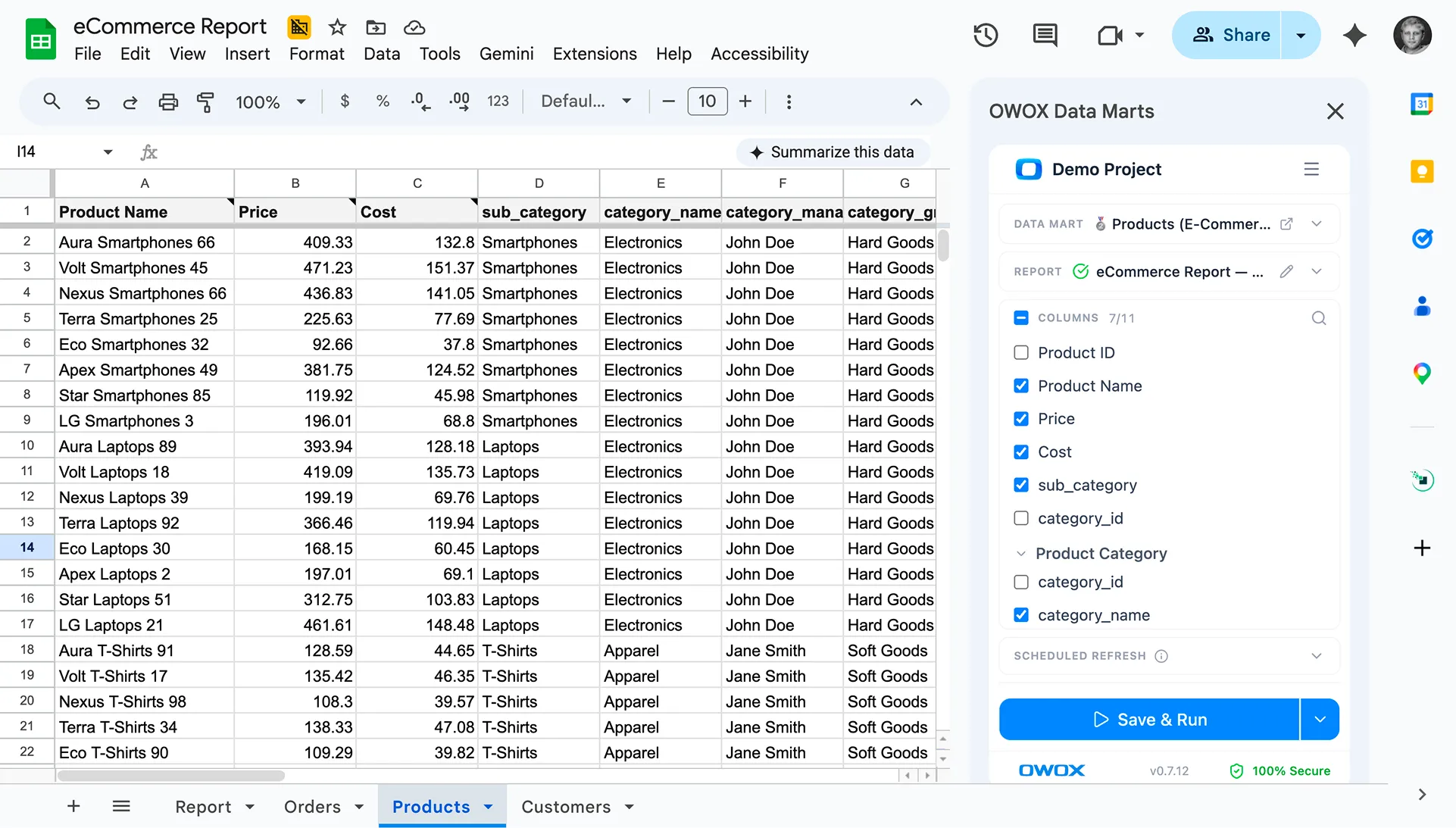
A business user who owns a report in Google Sheets schedules it in the OWOX Extension: Scheduled refresh, Daily, 09:00, a timezone, Save & Run. The run happens on OWOX's scheduler, so nobody has to open the Sheet first.

Set the refresh from the Sheet itself

Their own refresh time, without a request to the Data Owner.

Unlike a cron job or a script timer — the schedule lives on the Data Mart it runs, and every run, scheduled or manual, is logged in Run History with its status.

For Data Owners

For Data Owners

Set the schedule once, on the Data Mart

Source imports and report deliveries run on their own, so the weekly re-run stops being your job.

Schedule a report from the Triggers tab

Schedule a report from the Triggers tab

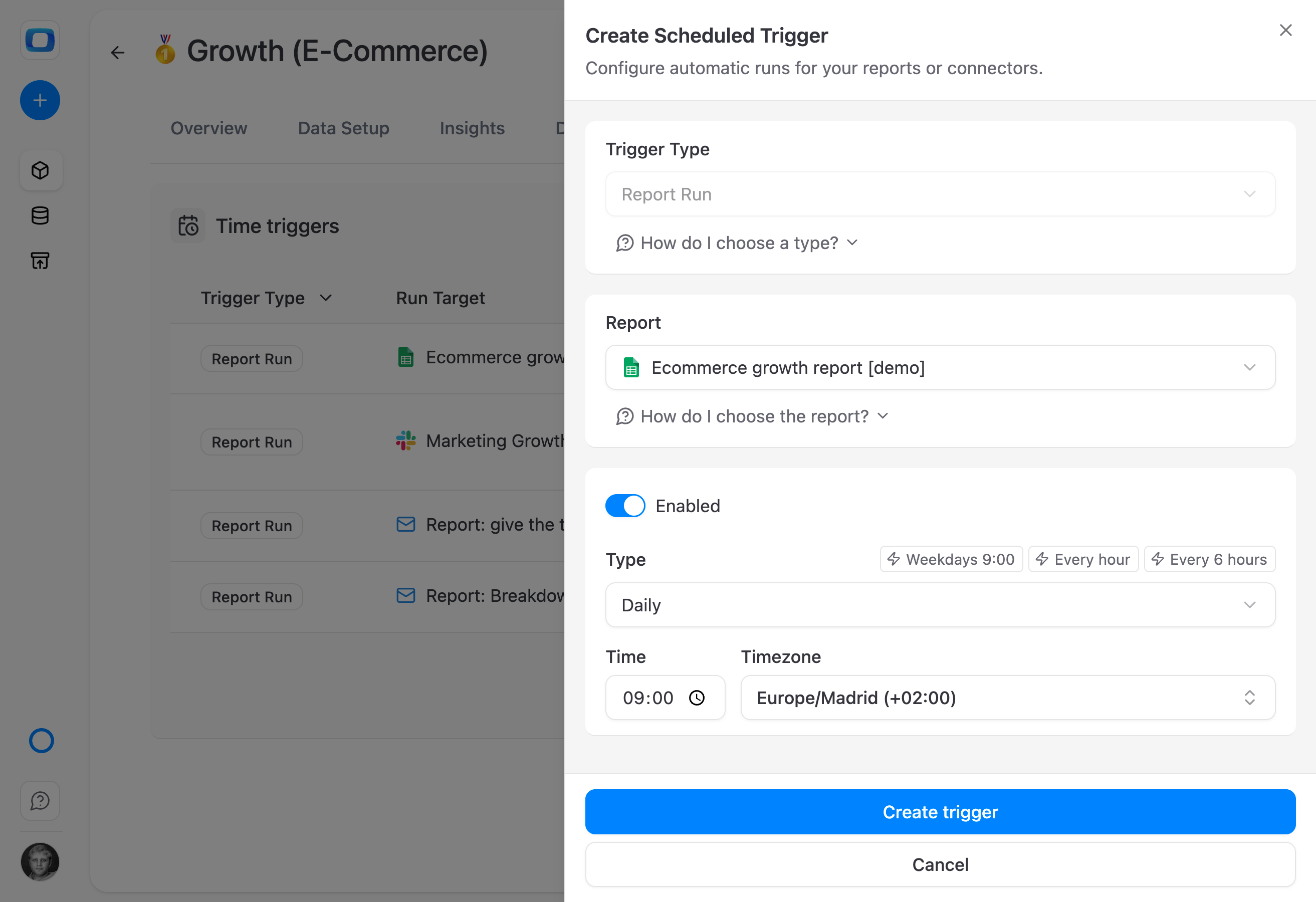
On the Triggers tab, press + Add Trigger, pick Report Run, choose the report, then Daily at 09:00, Europe/Madrid, and Create trigger. Weekly, Monthly and Interval work the same way.

Import the source before anyone reads it

Import the source before anyone reads it

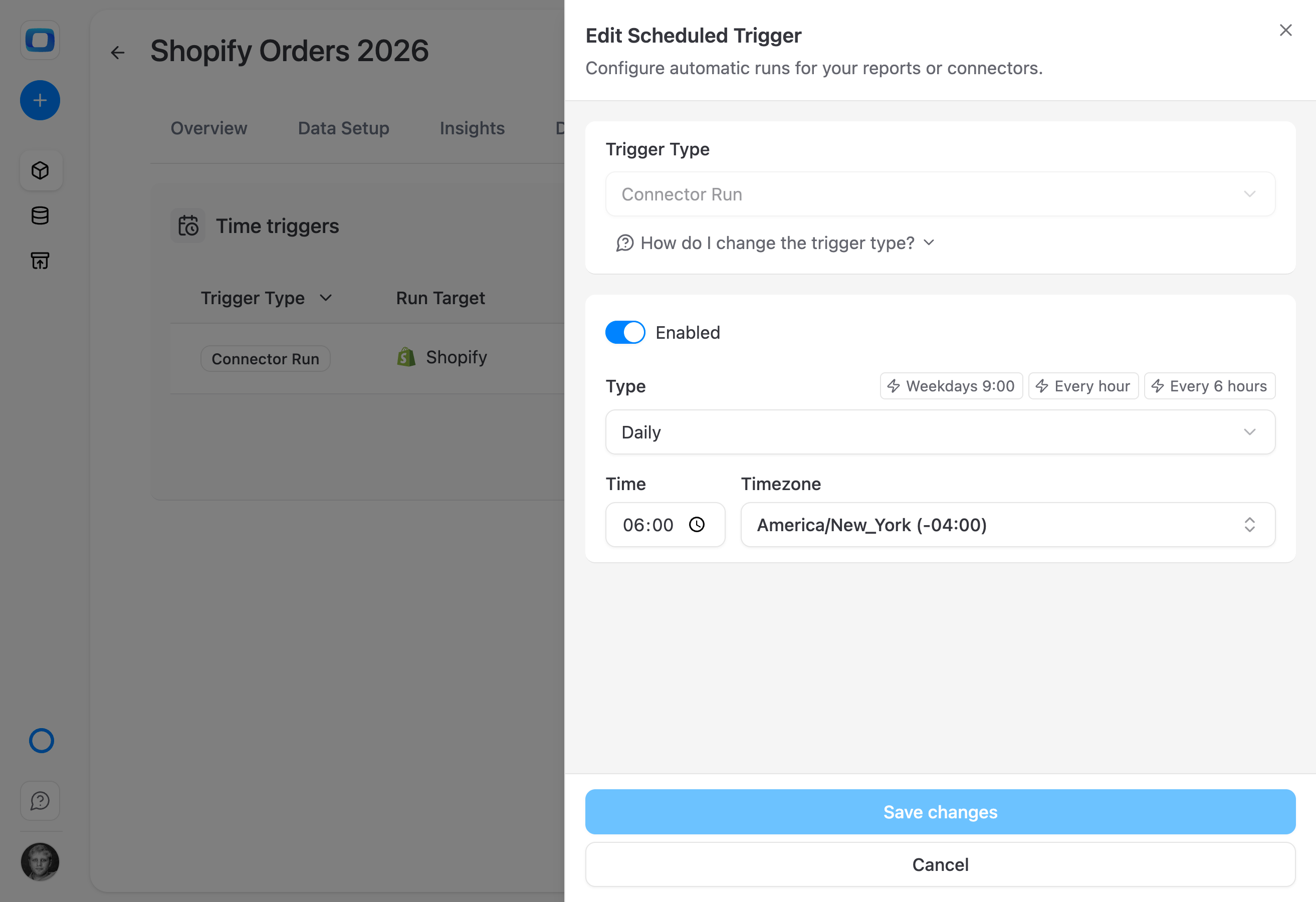
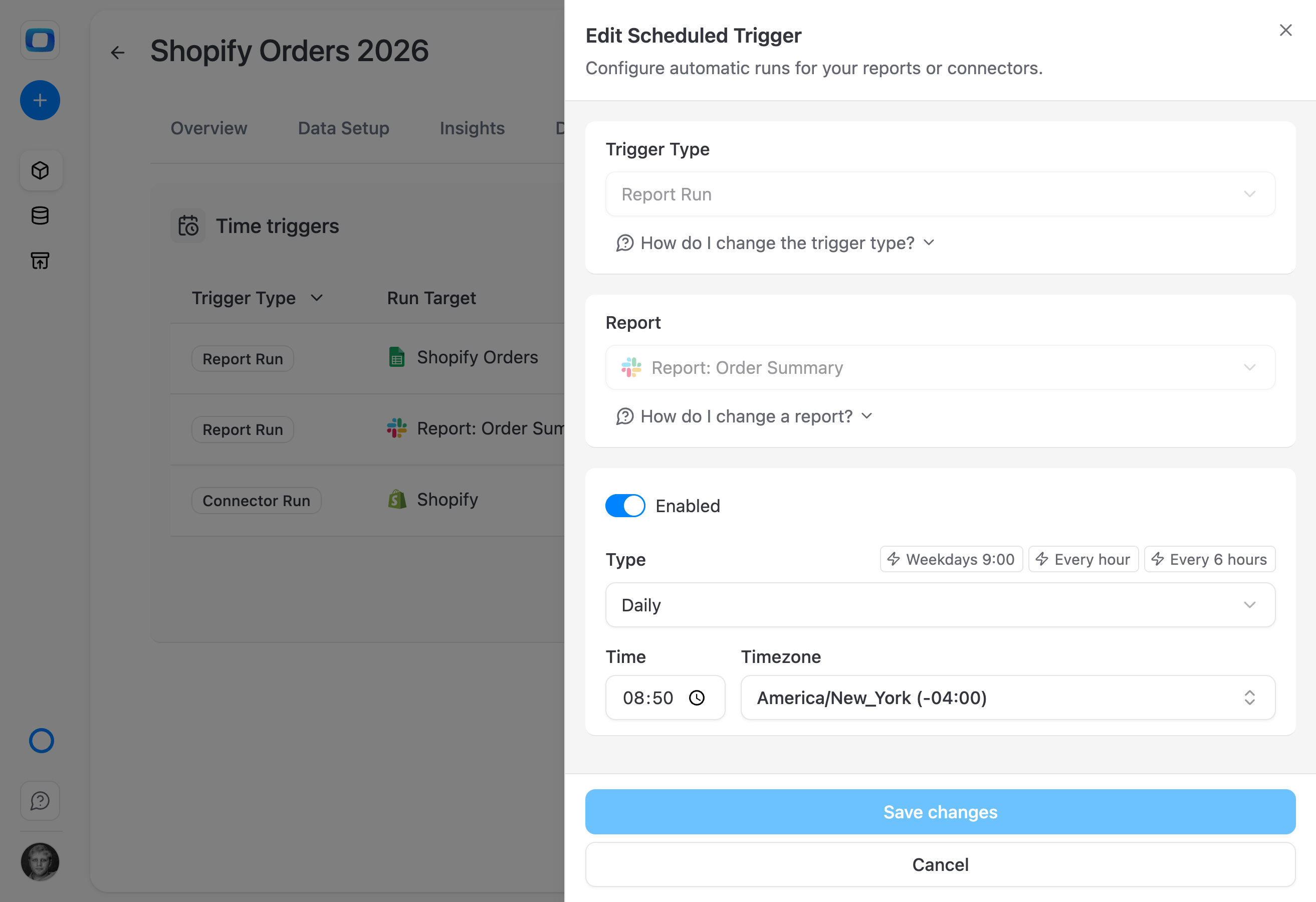
A Connector Run trigger imports from the source into your warehouse on its own schedule: here Shopify, daily at 06:00 New York time. Presets fill Weekdays 9:00, Every hour or Every 6 hours.

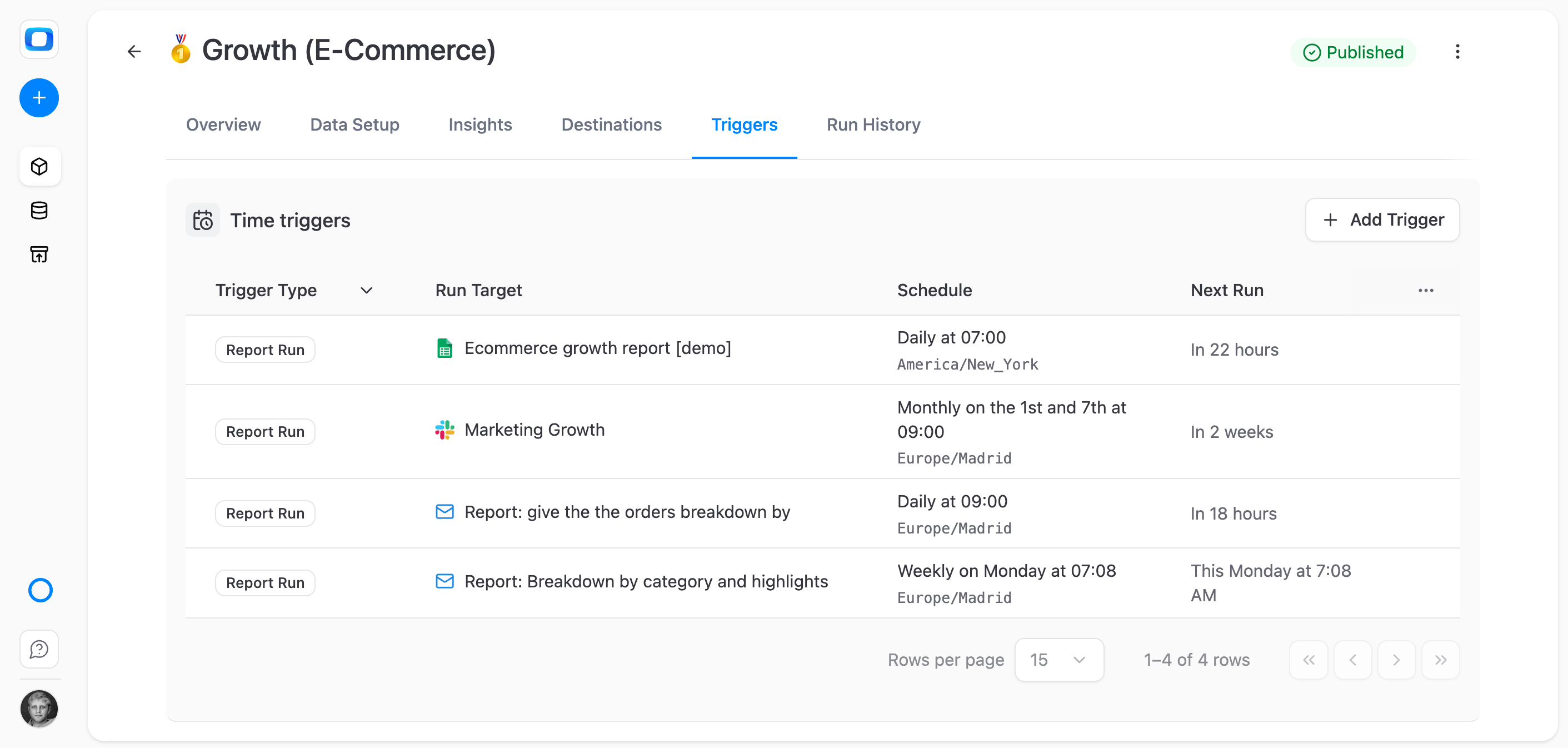
See what runs next, and what already ran

See what runs next, and what already ran

The Triggers tab lists each trigger with its run target, schedule and next run. Every run, scheduled or manual, lands in Run History with its status, start and finish time, duration and who started it.

For Business Users

For Business Users

Current data where you already work

Scheduled reports land in Google Sheets, Slack or email at the time set, and the Sheet says when its data was imported.

See when the numbers were imported

See when the numbers were imported

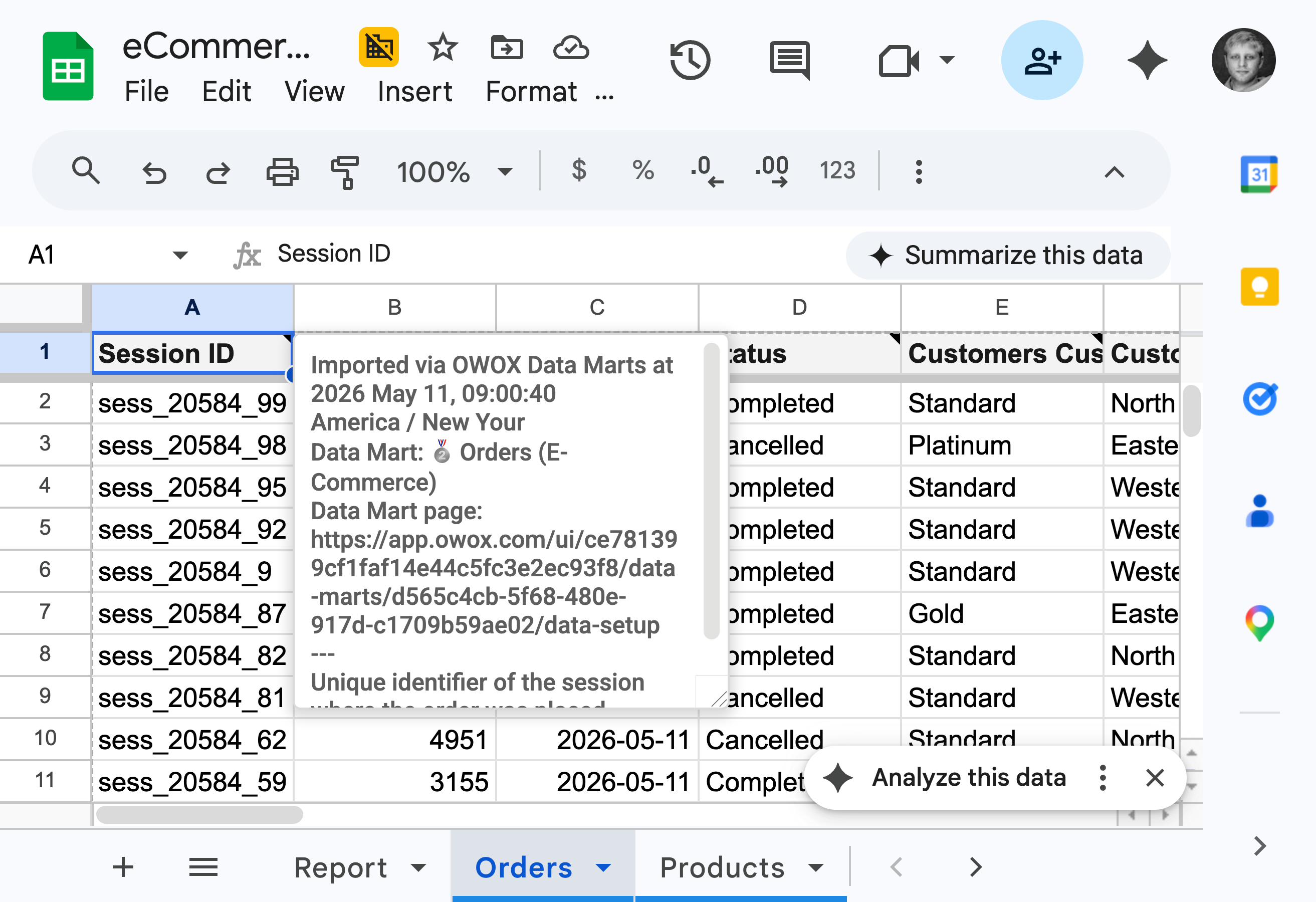
After a run, each header cell in the Sheet carries a note: imported via OWOX Data Marts, the date, time and timezone of the import, the Data Mart and a link to it. Hover a header to check.

The summary is in Slack before the day starts

The summary is in Slack before the day starts

A Report Run trigger sends a report to Slack at a set time, here 08:50 New York time. The same works for email, Microsoft Teams and Google Chat.

Delivered after the source is imported

Delivered after the source is imported

The Data Owner sets the import before the deliveries: Shopify at 06:00, Slack at 08:50, Google Sheets at 09:00. The report you open reads data imported that morning.

Editions

Compare plans

Individual

Your analyst, just for you.

$295 / month

Try free

Team

Your analyst for your leadership team.

$790 / month

Book a demo

Scale

Your analyst for the whole company.

Let's talk

Book a demo

See full pricing & comparison →

Why teams pick OWOX

Everything business needs

Every run on the record

Scheduled and manual runs land in Run History with status, start and finish time, duration and who started them, per Data Mart and across the project.

One page for every trigger

The project-level Triggers page lists every connector and report trigger in the project, with filtering, instead of a tour of each Data Mart's tabs.

Any rhythm the business keeps

Every working day at 9:00, a set date each month, chosen days of the week, or an interval. Each trigger keeps its own time and timezone.

Told when a run fails

A failed Data Mart run emails Project Admins and Data Owners, or calls a webhook URL you set, with the Data Mart, the run time and the error. On by default.

FAQ

Frequently asked questions

How is this different from a cron job or an Apps Script timer?

The schedule sits on the Data Mart it runs, next to its reports, not in a script someone has to maintain. Every run is logged in Run History with its status. A scheduled Google Sheets refresh runs in OWOX, not in Apps Script, so nobody has to open the Sheet first.

What does scheduling orchestrate?

Three things. A Connector Run imports from a source into your warehouse. A Report Run delivers a Data Mart's report to its destination: Google Sheets, Data Studio, email, Slack, Microsoft Teams or Google Chat. A Data Quality Run runs the Data Mart's checks.

What happens if a scheduled run fails?

Project Admins and Data Owners hear about it by email, by a call to a webhook URL you set, or both, and this notification is on by default. The email names the Data Mart, the run time and the error. Run History keeps the detail, and when a refresh fails before any data is written, the Sheet keeps its previous data. Data Quality check results send no notification, so check the Data Quality tab after a scheduled run.

How often can a trigger run?

Daily at a set time; Weekly on the days you choose, such as every working day; Monthly on the dates you pick; or on an Interval, for example every 15 minutes. Each trigger has its own time and timezone. Presets fill Weekdays 9:00, Every hour and Every 6 hours, and a Data Mart can carry several triggers.

What does a scheduled run cost?

The same as a manual run. Each successful run is 0.1 credit, whatever the data volume, and failed runs are not counted. Frequency is what adds up: an hourly trigger runs 24 times a day, a daily one once.

Who can create and change triggers?

A Project Admin manages any trigger. A Data Owner manages triggers on the Data Marts they maintain. Anyone who can view a Data Mart can manage its report runs and report triggers; connector triggers stay with Data Owners and admins.

What users are saying

Every claim has a receipt.

Real things real customers said — each quote pinned to a specific claim, straight from the quotes database.

A3re: trusting AI
Nodari RizunNodari RizunFounder & CEO, Pürblack®
“AI, by the nature of the models, will hallucinate. And because of that, you need something which will create guardrails to ensure that there are no hallucinations, that you can trust your data.”
C9re: one source of truth
Mark SimmonsMark SimmonsCMO, Pürblack®
“We had six or seven different channels and no single source of truth — it was almost impossible, a lot of guesswork.”
E7re: getting time back
Nodari RizunNodari RizunFounder & CEO, Pürblack®
“We regained time. And time is the one resource that never comes back.”

Recent updates

Schedule your first report

Open a Data Mart's Triggers tab, press + Add Trigger, pick Report Run and set the time.

Get started free

Scheduling