Collect Open Exchange Rates Data into Snowflake
Own your Open Exchange Rates data in Snowflake with OWOX Data Marts. Collect up-to-date and historical currency exchange rates directly into Snowflake, control schema and refresh logic, and reuse the data across BI tools and AI Insights.
Open Exchange Rates Endpoints
1 Open Exchange Rates endpoints you can import. Each lands in its own table in your warehouse.
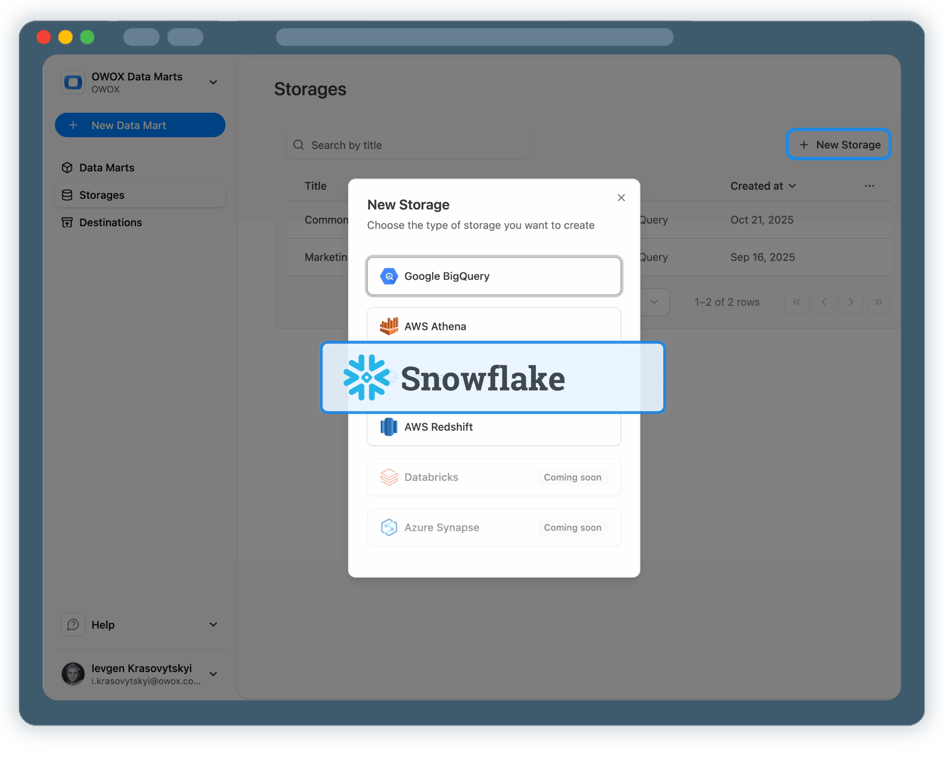
Step 1: Create a Snowflake Data Storage
Start by connecting your own Snowflake account as a storage.
- Use your Snowflake account, database, and schema
- Select a dedicated Snowflake warehouse to control cost and performance
- Keep full ownership of exchange rate data
Step 2: Create an Open Exchange Rates Data Mart
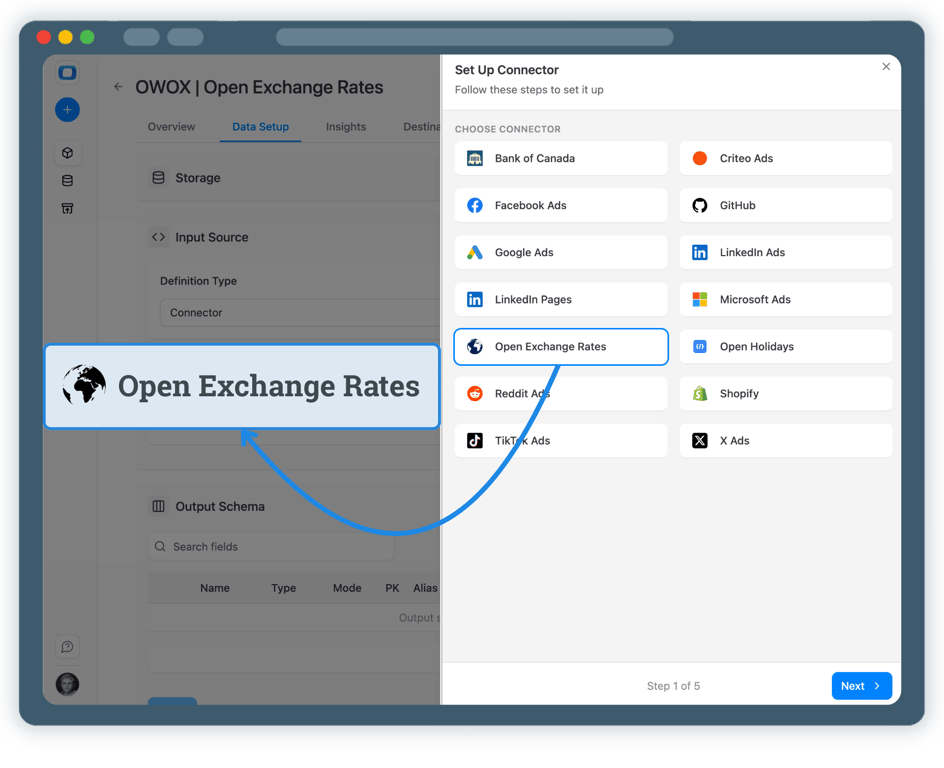
Create a new Data Mart and choose Connector as the definition type.
- Select Open Exchange Rates as the data source
- Provide the required API access details
- No API coding or engineering required
Step 3: Select Fields & Configure Data Import
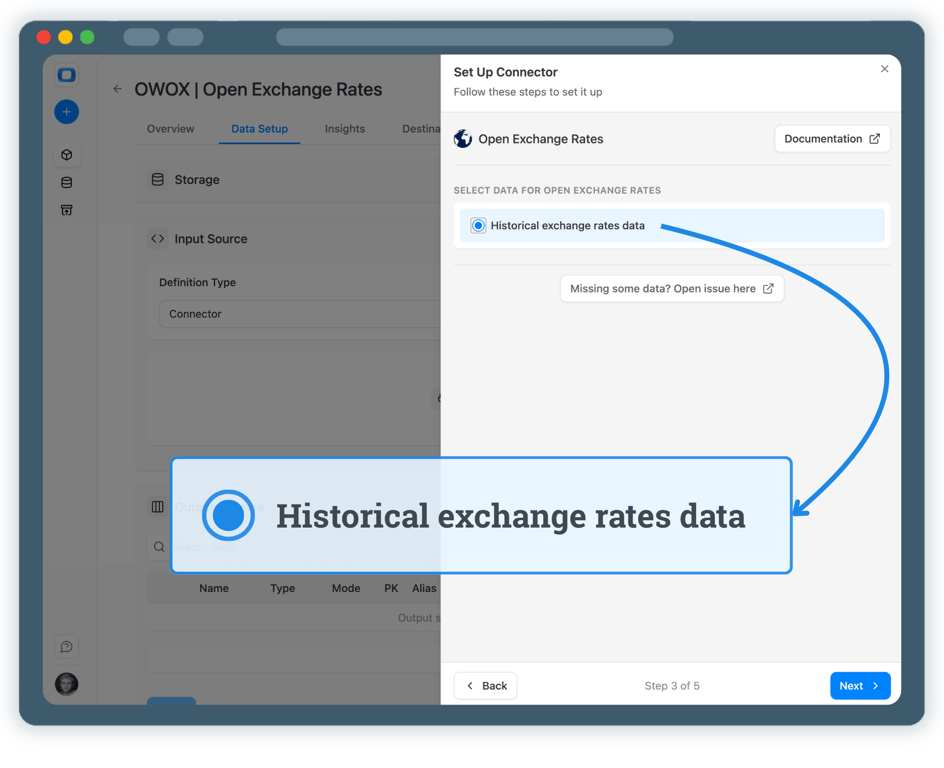
Choose exactly which exchange rate data you want to store in Snowflake.
- Select the appropriate Open Exchange Rates API endpoint
- Choose base currency, target currencies, and rate fields
- Define the destination database, schema, and table in Snowflake
Step 4: Run & Schedule Exchange Rates Data Collection
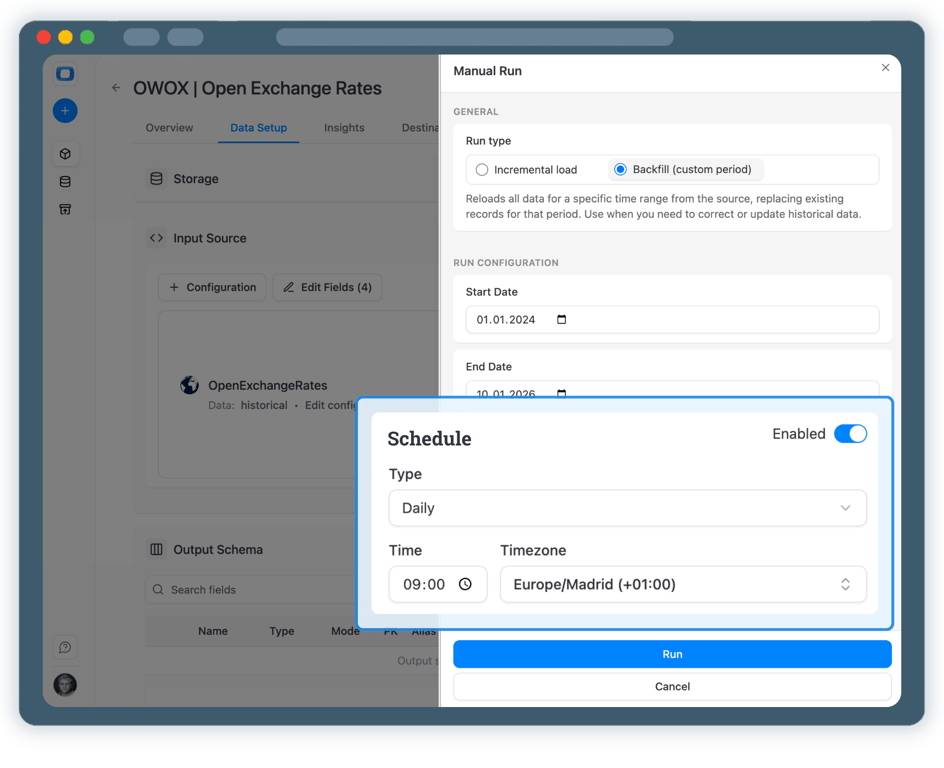
Once published, control how and when exchange rate data is imported.
- Incremental load to import the latest rates
- Backfill (custom period) to load historical FX data
- All runs are logged and visible in Run History
Step 5: Use Exchange Rates Data Across BI Tools & AI Insights
Your Open Exchange Rates data is now available in Snowflake.
- Convert revenue, costs, or ad spend using trusted FX rates
- Analyze data in Google Sheets or Data Studio
- Join currency data with marketing, sales, or finance datasets



Every claim has a receipt.
Real things real customers said — each quote pinned to a specific claim, straight from the quotes database.
 Nodari RizunFounder & CEO, Pürblack®
“AI, by the nature of the models, will hallucinate. And because of that, you need something which will create guardrails to ensure that there are no hallucinations, that you can trust your data.”
 Mark SimmonsCMO, Pürblack®
“We had six or seven different channels and no single source of truth — it was almost impossible, a lot of guesswork.”
Nodari RizunFounder & CEO, Pürblack®“We regained time. And time is the one resource that never comes back.”
Turn Exchange Rate Data into Business Decisions
Schedule a quick walkthrough to see how OWOX Data Marts helps you collect Open Exchange Rates data in Snowflake and build consistent, currency-aware analytics at scale.
Get Started Free- Internal OWOX data as of 2026-10-02
- G2 reviews of OWOX
- npm installs stat
You are booked. The invitation is on its way to , with the calendar invite and the meeting link.