Collect Shopify Data into Databricks

Own your Shopify data in Databricks with OWOX Data Marts. Collect orders, customers, products, and transactions into Databricks, control schema and refresh logic, and reuse the data across BI tools and AI Insights.
Collect Shopify Data into Databricks
Own Your Shopify Data

Own Your Shopify Data

Load Shopify data directly into Databricks and keep full control over structure, access, and updates.

Step 1: Create a Databricks Data Storage

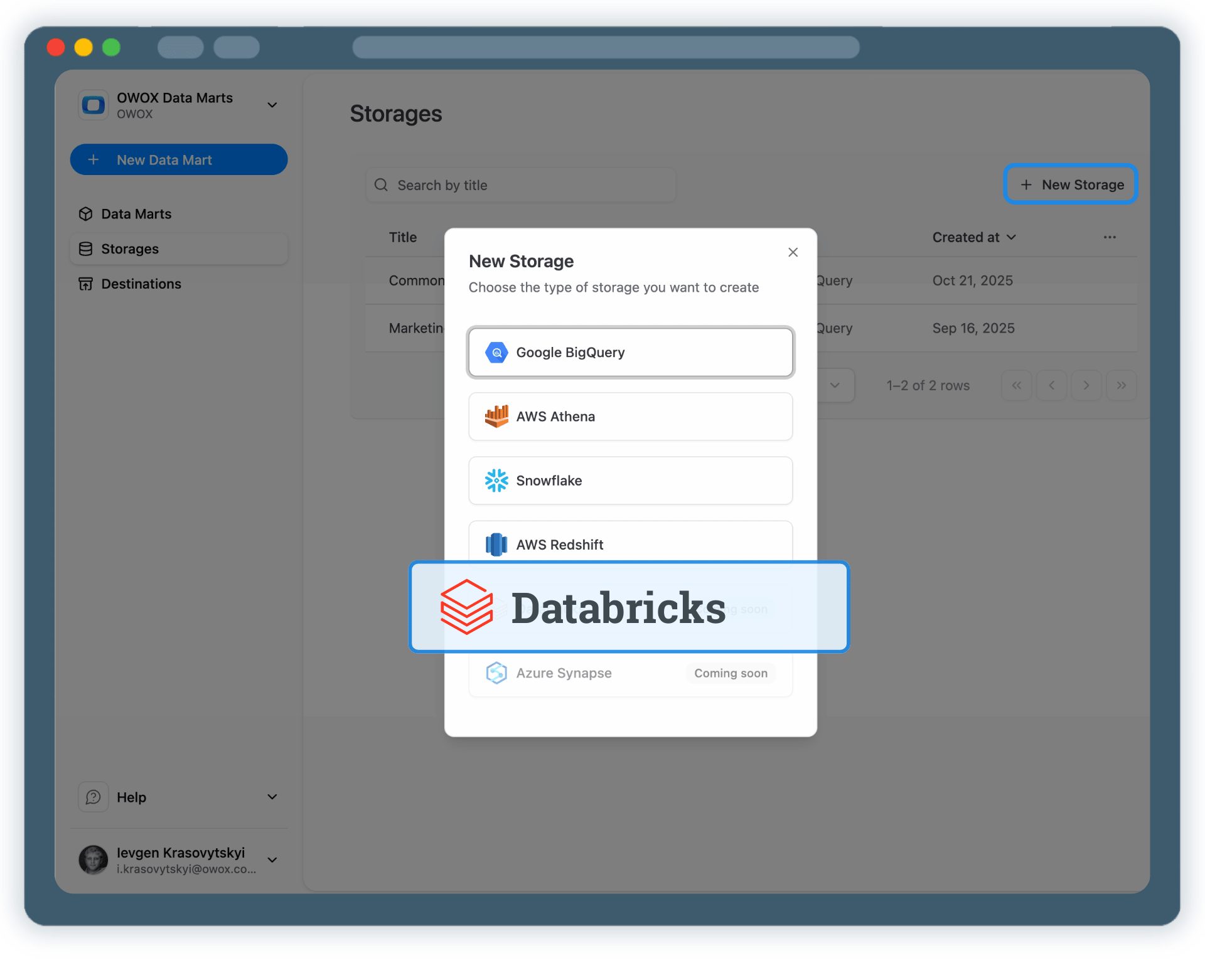
Start by connecting Databricks as your data storage in OWOX Data Marts.

  • Provide the Databricks Workspace URL
  • Specify the HTTP Path for your SQL Warehouse
  • Add a Personal Access Token for Databricks authentication

Databricks becomes your scalable analytics layer for Shopify data.

Step 1: Create a Databricks Data Storage
Connect Databricks
Step 1: Create a Databricks Data Storage
Step 2: Create a Shopify Data Mart

Step 2: Create a Shopify Data Mart

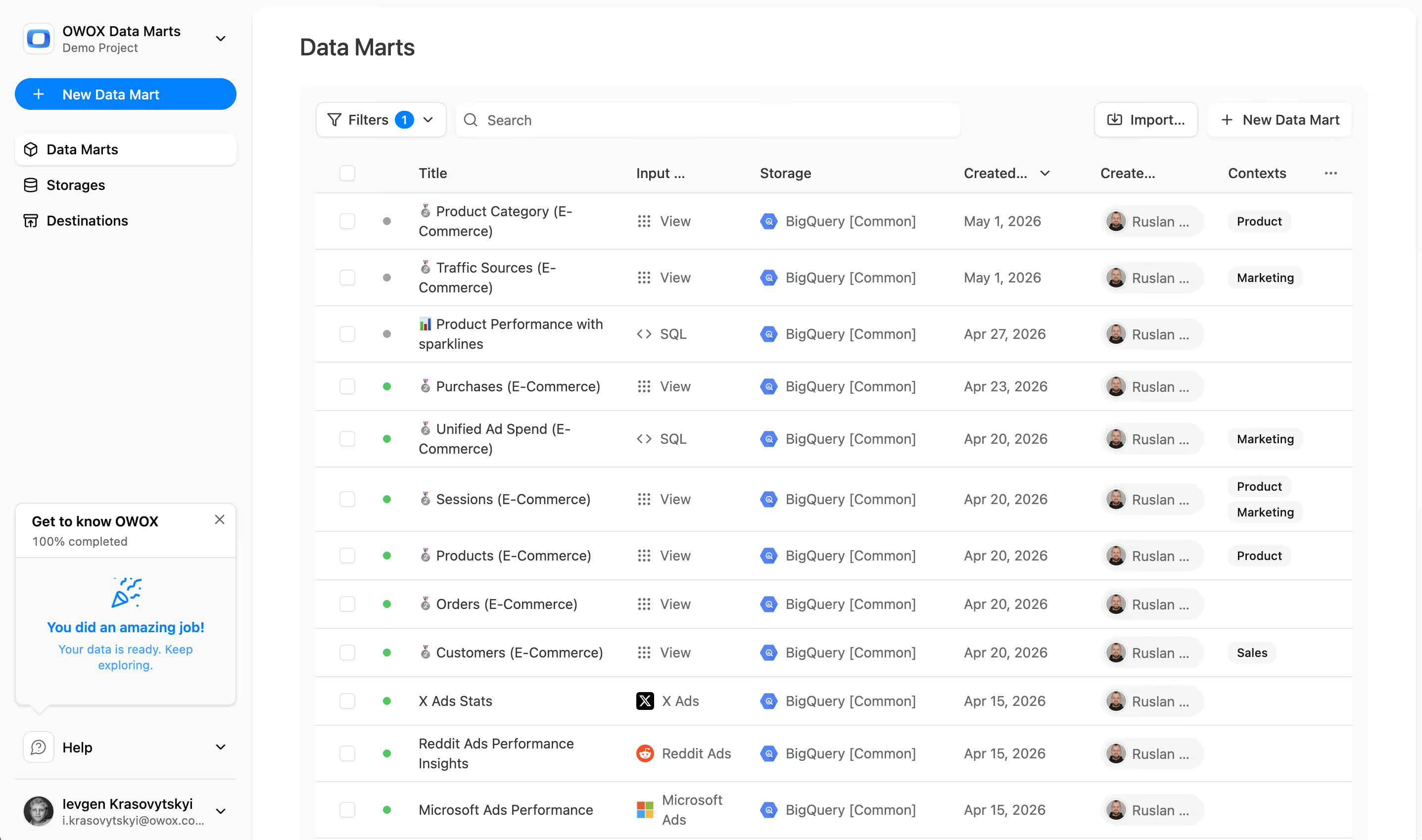
Create a new Data Mart and choose Connector as the definition type.

  • Select Shopify as the data source
  • Connect your Shopify store
  • No API coding or engineering required

This defines what Shopify data you collect.

Step 2: Create a Shopify Data Mart
Add Shopify
Request a demo

Step 3: Select Fields & Configure Data Import

Choose exactly which Shopify data you want to land in Databricks.

  • Select the required Shopify API endpoint
  • Choose fields such as orders, customers, products, line items, refunds, and transactions
  • Define destination schema and table settings, or keep defaults

Finish configuration and Publish Data Mart.

Step 3: Select Fields & Configure Data Import
Choose Fields
Step 3: Select Fields & Configure Data Import
Step 4: Run & Schedule Shopify Data Collection

Step 4: Run & Schedule Shopify Data Collection

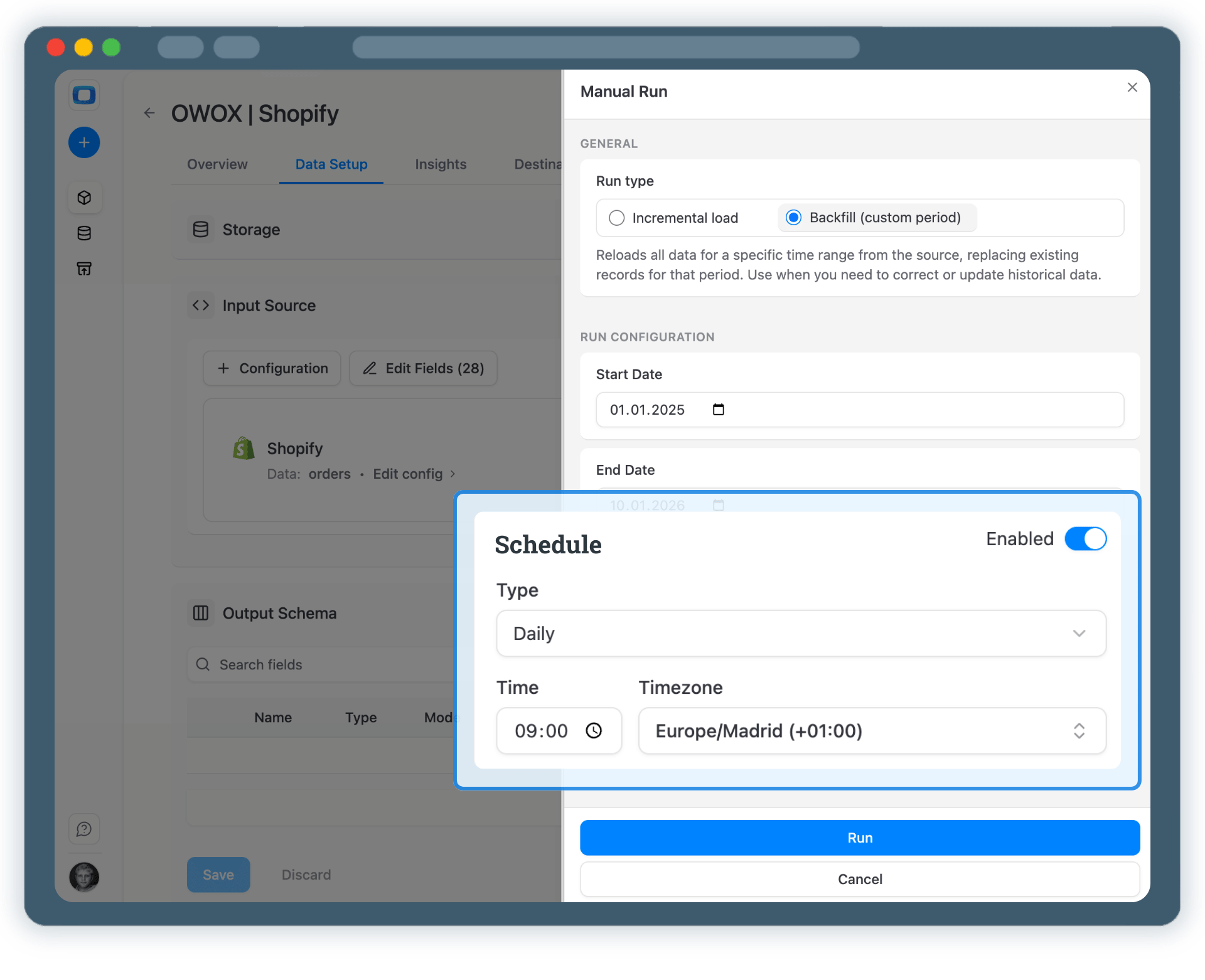
Once published, control how Shopify data is imported.

  • Incremental load for the latest store activity
  • Backfill (custom period) for historical Shopify data
  • Monitor execution in Run History

Schedule runs to keep Databricks tables up to date.

Step 4: Run & Schedule Shopify Data Collection
Run First Import
Request a demo

Step 5: Use Shopify Data Across BI Tools & AI Insights

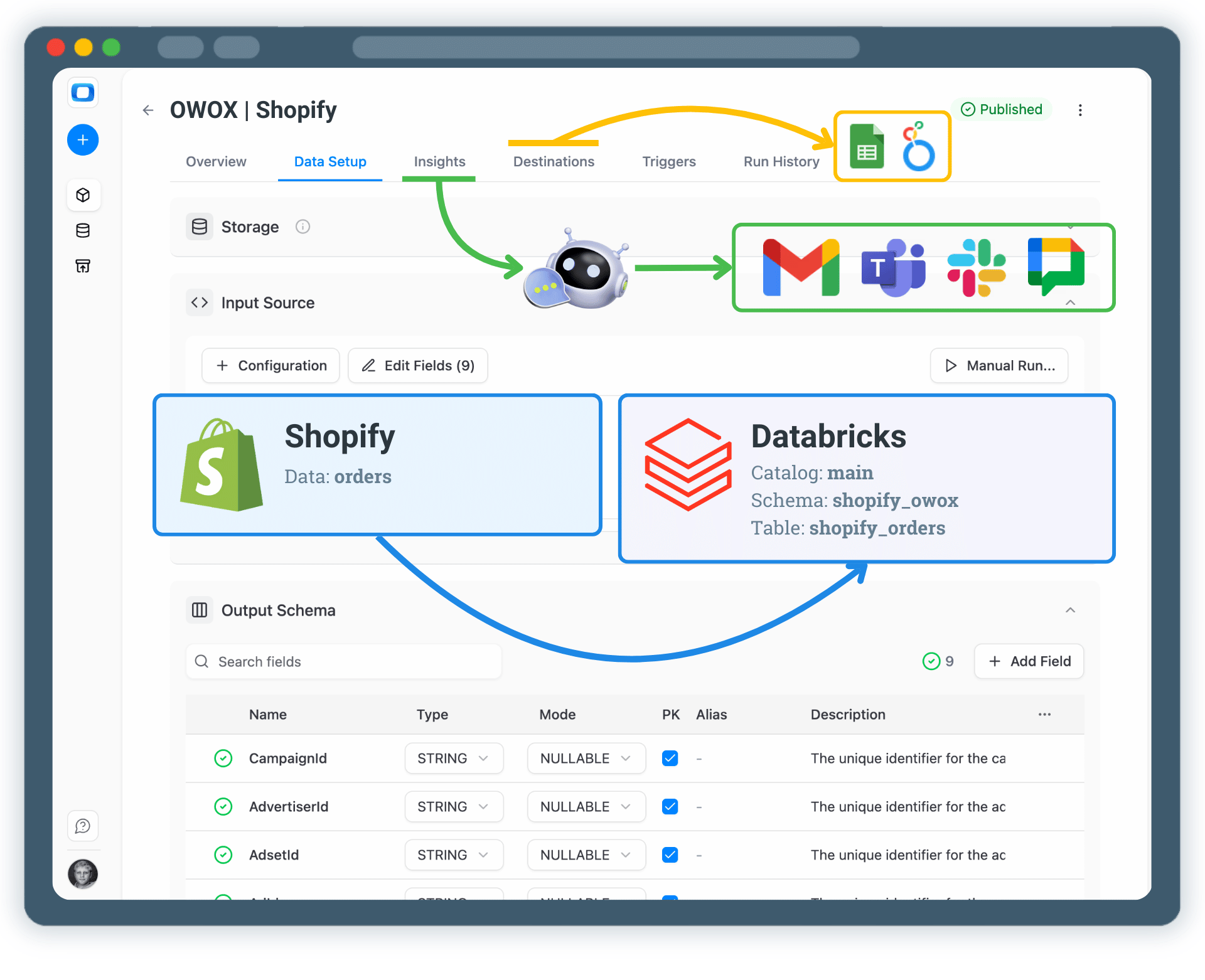
Your Shopify data is now available through Databricks.

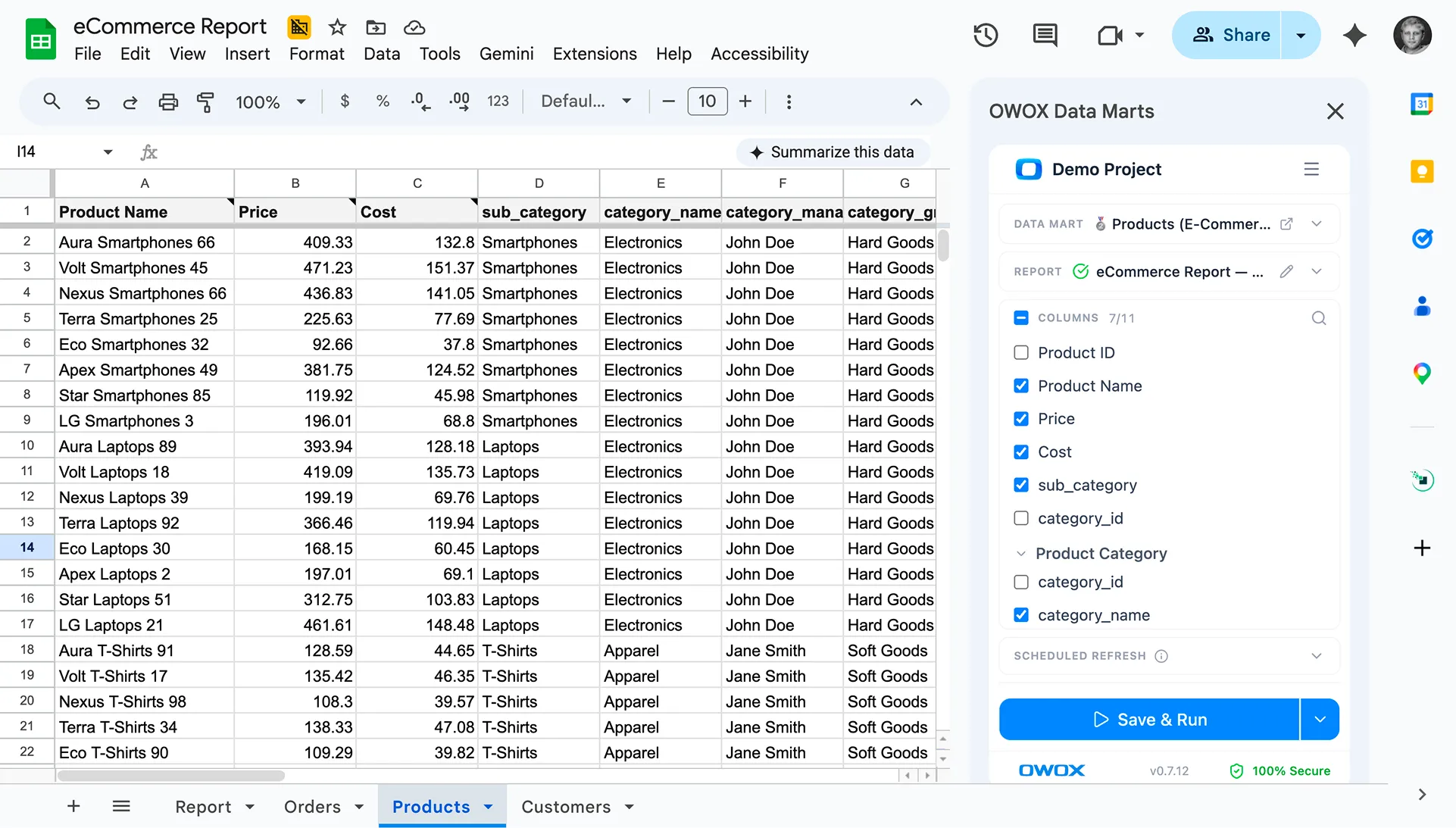
  • Analyze revenue, orders, and customer metrics in Google Sheets or Looker Studio
  • Join Shopify data with ads, GA4, or CRM datasets
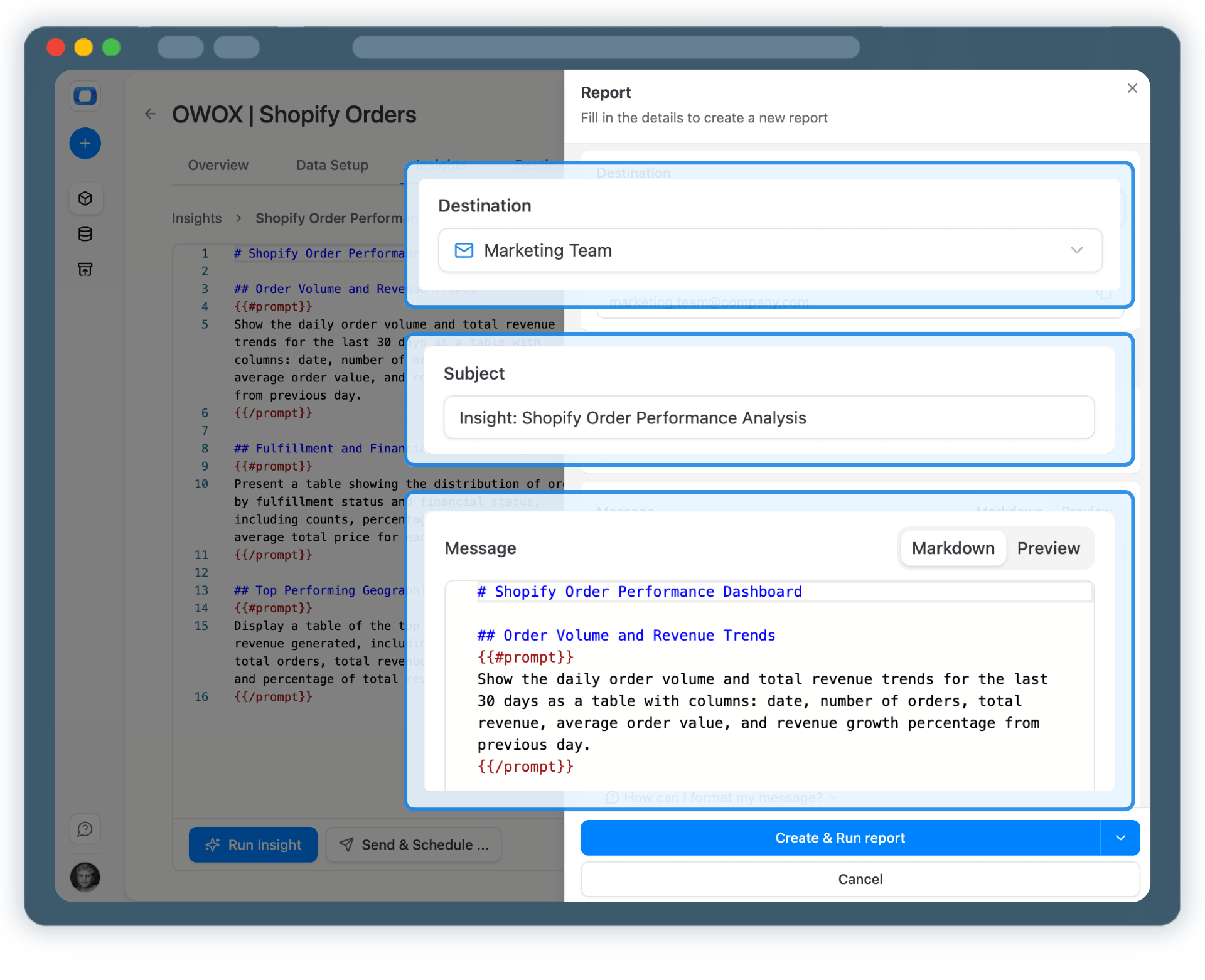
  • Enable AI Insights for sales summaries and anomaly alerts
  • Deliver insights to Slack, Teams, Google Chat, or email

One dataset. Multiple activation paths.

Step 5: Use Shopify Data Across BI Tools & AI Insights
Activate Reporting
Step 5: Use Shopify Data Across BI Tools & AI Insights

Turn Shopify Data into Business Decisions

Schedule a quick walkthrough to see how OWOX Data Marts helps you:

  • Collect Shopify Data into Databricks
  • Deliver trusted insights to business teams
  • Reduce reporting chaos & manual work
  • Scale analytics without adding complexity
Also, on this call, you’ll learn how data teams utilize AI Insights to always deliver what matters the most
Turn Shopify Data into Business Decisions