Metadata Autofill
Stop typing metadata. Start approving it.
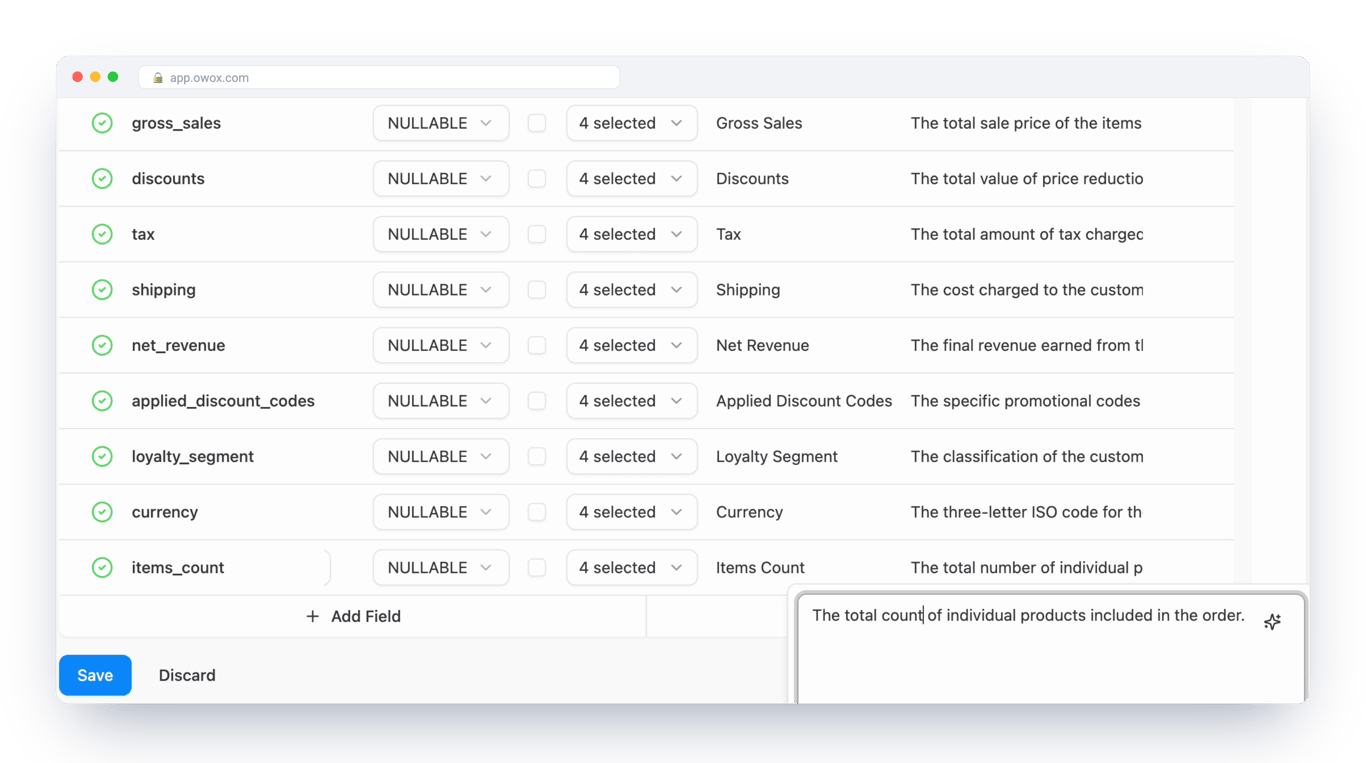
Metadata Autofill drafts aliases and descriptions for every field, plus the Data Mart's own title and description, from its schema and up to 30 real rows. The analyst reviews and saves; Google Sheets and AI assistants read what the analyst approved.
Data Partner You Can Trust
users
175K
Executives and data analysts across 20+ industries
G2 rating
4.9★
“A trusted data analytics partner” — verified review
Customers
Written once by the analyst, read wherever the data goes
A schema says what shape the data has, not what it means. Metadata Autofill fills that gap with a draft the analyst corrects, so the meaning ships with the Data Mart instead of living in someone's head.
THE ANALYST
Review a draft instead of a blank column
Open the Output Schema and press Sparkles in the Description column: every field gets an alias and a description drafted from the schema and a sample of real rows. The Data Mart's title and description have their own button. Correct what is off, then save.
The model drafts. The analyst decides what ships.
THE BUSINESS USER
Know what a column means before you use it
Hover a field in the Google Sheets column picker to read its description. After the report runs, the same text sits on each header cell as a note, so it is there even with the sidebar closed.
Gross sales or net revenue? The header says.
Better metadata, better AI answers — AI assistants connected through OWOX MCP read aliases and descriptions as business meaning, so every field the analyst documents is one they are less likely to misread.
For Data Teams
Documentation becomes a review step
The part every analyst defers, naming and describing fields, arrives as a draft to edit rather than a blank to fill.
Every field in one pass
One Sparkles button in the Output Schema's Description column drafts aliases and descriptions for every field at once, instead of one field at a time by hand.
Grounded in real rows, not guessed from names
Autofill runs the Data Mart and gives the model up to 30 sample rows alongside the schema, so a draft describes what the values hold, not only what the column is called.
The analyst stays the author
The draft lands in the editor for you to review, edit and save. Correct one description, keep the rest, and publish the Data Mart when it is ready.
For Business Teams
Pick the right column the first time
Descriptions travel with the data into the spreadsheet, so "what is this column?" is answered where it is asked.
Descriptions in the column picker
Hover a field in the OWOX Extension for Google Sheets to read the analyst's description before you pull it. No guessing which of three cost fields you need.
A note on every header cell
Once a report runs, each header cell carries its field description as a Google Sheets note. Anyone who opens the sheet reads the definition without opening OWOX.
Fewer questions back to the analyst
When the definition sits next to the number, you stop asking the data team what a field means, and the analyst stops answering the same question twice.
Included in the Cloud edition
Everything business needs
Data Marts ship described
The documentation step every analyst defers becomes a draft to review, so a Data Mart goes out with aliases and descriptions instead of bare column names.
Grounded in your data
Drafts come from the schema and up to 30 real rows of the Data Mart, not from column names alone.
Reviewed before anyone reads it
The analyst edits and saves every draft, and nothing reaches a report until the Data Mart is published.
One definition, every surface
The same description shows in the Google Sheets column picker, on header-cell notes and in what AI assistants read through OWOX MCP.
Frequently asked questions
What is Metadata Autofill?
Metadata Autofill drafts a Data Mart's metadata for the analyst to review: an alias and a description for every field, plus the Data Mart's own title and description. It is the Sparkles button in the Data Mart editor.
What does the model read?
The Data Mart's schema and a sample of up to 30 real rows. Autofill runs the Data Mart to get them, so the drafts describe what the data contains rather than only what the columns are called.
Who has the final word on a description?
The analyst. Autofill fills the fields in the editor; you edit what is wrong, keep what is right and save. Descriptions are what AI answers are grounded in, so they stay analyst-approved.
Where do business users see the descriptions?
In the OWOX Extension for Google Sheets: next to each field in the column picker, and as a note on each header cell once the report runs. AI assistants connected through OWOX MCP read them too.
Is Metadata Autofill part of AI Insights?
No. It is a standalone part of the Data Mart editor. It improves what AI Insights and OWOX MCP read, and you can use it without either.
Which editions include Metadata Autofill?
Metadata Autofill is included in the Cloud edition. On a self-managed deployment, the Sparkles buttons appear once an AI model is configured.
Every claim has a receipt.
Real things real customers said — each quote pinned to a specific claim, straight from the quotes database.
 Nodari RizunFounder & CEO, Pürblack®
“AI, by the nature of the models, will hallucinate. And because of that, you need something which will create guardrails to ensure that there are no hallucinations, that you can trust your data.”
 Mark SimmonsCMO, Pürblack®
“We had six or seven different channels and no single source of truth — it was almost impossible, a lot of guesswork.”
Nodari RizunFounder & CEO, Pürblack®“We regained time. And time is the one resource that never comes back.”
Document your next Data Mart in one click
Open the Output Schema, press Sparkles, review the draft and publish.