How to Connect AWS Athena to Google Sheets Without CSV Exports
The way to get Amazon Athena data into Google Sheets without a CSV is to write the query once, publish it as a Data Mart on an Athena storage, and attach a Google Sheets report with a Report Run trigger. The sheet refreshes itself, readers need no AWS access, and each run is one Athena query billed per terabyte scanned.
Someone asks for last week’s numbers in a Sheet. You run the query in Athena, download the CSV, paste it in, fix the date format and share the link. On Thursday they ask for a refresh. By the end of the month it is a standing job with your name on it.
Athena’s work ends when the result lands in S3. Everything after that, the scheduling, the delivery, the question of which version of the number is in the Sheet, is yours. This guide replaces that routine with one query, published once, delivered to a Sheet on a schedule. The steps use OWOX Data Marts on top of your Athena storage, and every OWOX claim comes from the OWOX docs.
Why the CSV round trip breaks
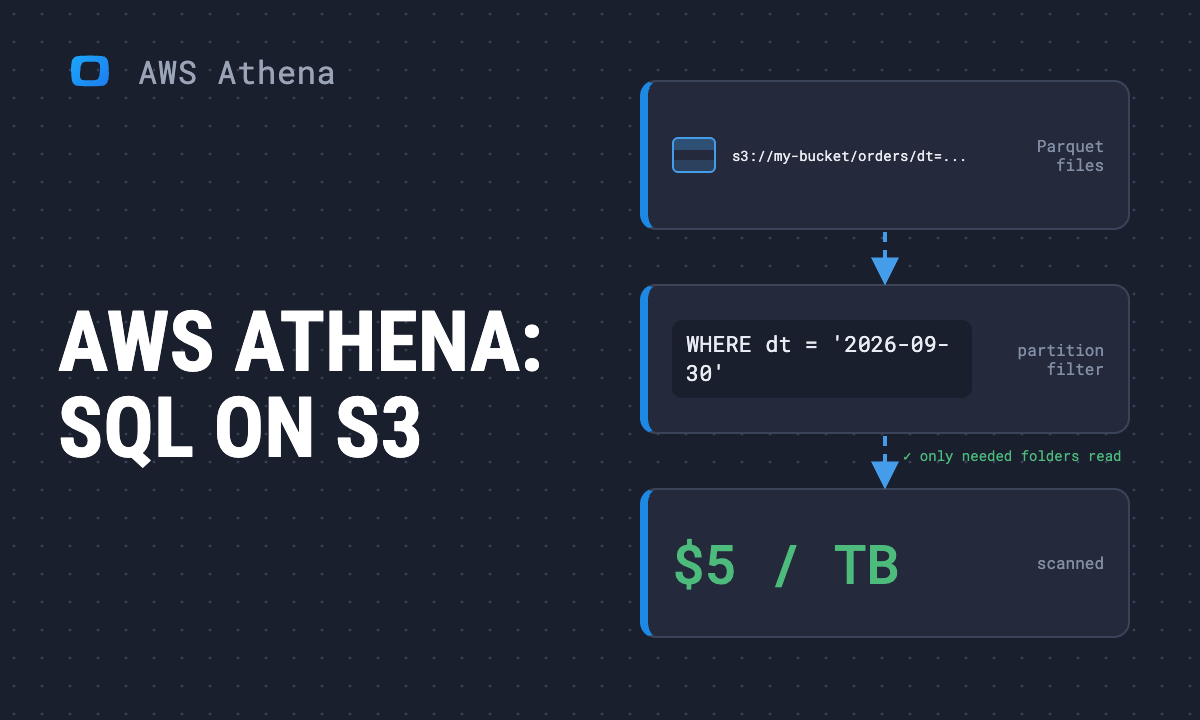
The export is stale when it is made, and the query lives in one person’s editor, so a second analyst’s version of the same KPI sends a second number into a second Sheet. The part that is specific to Athena is the bill. Athena charges per terabyte of data scanned, $5 per TB on the AWS pricing page (checked October 2026), and a rerun scans the same data again unless the query opts into Athena’s result reuse, which serves a stored result up to a maximum age you set and can return a result that is stale until that age runs out.
How much a scan costs depends on how the data is stored. AWS’s own example is a 3 TB uncompressed text table: a query on one column scans all of it and costs $15. The same data compressed and converted to Parquet, a columnar format, costs $1.25 for that query, because Athena reads only the column the query names.
Which route fits: download, pull, sync or script
Which route fits: download, pull, sync or script
Every route that reads Athena runs a query, and Athena bills the scan. So the route does not change the price of one run. It changes how many runs you get and who decides when they happen. The vendors below describe their own products on their own pages (checked October 2026).
| Route | What starts a refresh | What it needs |
|---|---|---|
| Download a CSV | A person at the Athena console | An analyst, every time |
| Add-on that pulls live, such as CData Connect Spreadsheets | A person, from inside the Sheet, or the add-on’s automatic refresh (hourly, daily, weekly or monthly, per CData’s add-on page) | A Connect Spreadsheets account and its Google Sheets add-on, plus an access key, region and S3 staging directory |
| Reverse ETL sync, such as Hightouch | A schedule: an interval or custom recurrence, as often as once a minute | A Hightouch workspace with Athena as the source and Google Sheets as the destination |
| A script you own | Whatever scheduler you attach | Code, credentials and a scheduler that someone maintains |
| Data Mart push, built in this guide | A Report Run trigger: daily, weekly, monthly or an interval | An Athena storage, a Sheets destination and a license key |
The runs a route produces cost real money. A Data Mart that scans 50 GB reads 0.0488 TB (at 1,024 GB to the TB), which at $5 per TB is $0.244 a run. Over a day, rounded:
| Refresh rate | Runs a day | About, per day |
|---|---|---|
| Daily | 1 | $0.24 |
| Hourly | 24 | $5.90 |
| Every 15 minutes | 96 | $23 |
| Every minute | 1,440 | $350 |
These are scan charges only, and the 50 GB is an example. The rule that follows is short: let the load schedule of the table set the refresh schedule, not the other way round. A table that loads once a day needs one run a day, whichever route you pick, and anything faster pays for the same data again. Pull only when someone needs a number between loads, and point that pull at a small summary table so each click scans little.
The rest of this guide builds the push route: one query, published once, delivered on a schedule. Your data stays in S3 and Athena stays the query engine. OWOX Data Marts sends the SQL to Athena, reads the result and writes it into the Sheet. It does not transform the data: the SQL is the analyst’s.
OWOX Data Marts
See your first report built in real time. 15 minutes.
- Connect your data warehouse
- Pick your metrics
- Get a live Google Sheets report
In the time it takes to write a ticket. Then imagine never writing that ticket again.
Book a DemoWe'll use your actual use case
What you need
- An AWS account with Athena enabled, a Glue database or tables to query, and an S3 bucket or folder for query results.
- An IAM user with an access key.
- A Google account, or a Google Cloud service account, for the Sheets destination.
- An OWOX Data Marts project. Reports and report triggers also need a license key, created in an OWOX Data Marts Cloud project: without a valid one, the docs say every report run finishes as Restricted.
Step 1: connect Athena as a storage
Step 1: connect Athena as a storage
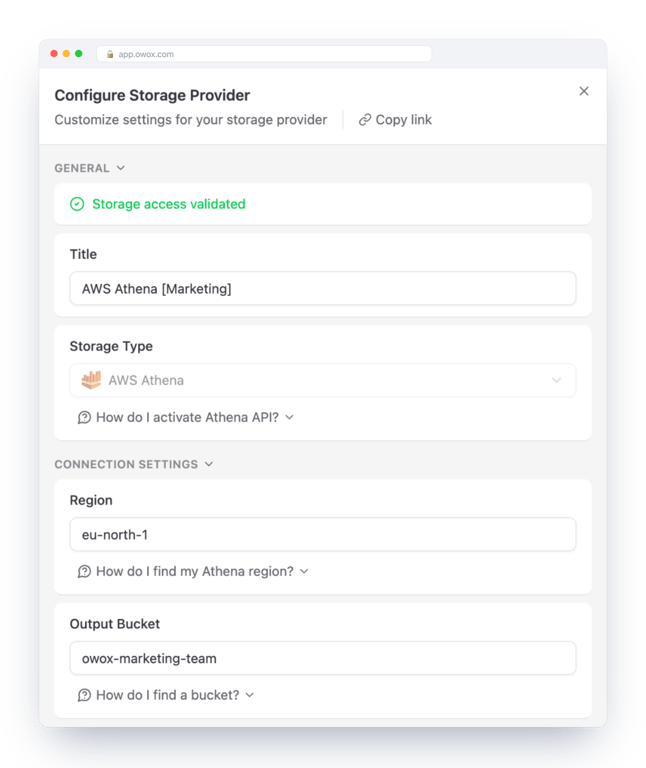
In OWOX Data Marts, open Storages, click + New Storage and pick AWS Athena. The form asks for five things, all described in the storage guide:
- Title: any name your team will recognise.
- Region: for example
us-east-1. - Output Bucket: the S3 bucket for query results, or a folder in it such as
my-athena-results/owox/. - Access Key ID and Secret Access Key of an IAM user.
The IAM policy in the guide has three parts: Athena actions to list catalogs and databases and to start, stop and read query executions; Glue actions on databases and tables; and S3 actions to list, read, write and delete in the buckets. The published policy applies them to all resources, so scope it down to your own buckets and databases before it goes to production, and give the key to a dedicated user.
One behaviour is worth knowing before the first run. OWOX Data Marts deletes the results of the queries that read your data once it has read them. The small results of its access checks, SQL validation and last-updated lookups stay in the bucket under athena-check-access/, athena-dry-run/ and athena-data-last-updated/, and an S3 lifecycle rule can clear them.
A Data Mart cannot be validated or published until the storage is fully configured, so finish this step first.
Step 2: publish the query as a Data Mart
Step 2: publish the query as a Data Mart
Click + New Data Mart, name it, pick the Athena storage and open Data Setup. Set Definition Type to SQL, write the query, wait for the validation and click Save, then publish. The SQL below is the one behind the demo Data Mart in the screenshot, running on a synthetic e-commerce dataset:
SELECT s.date,
    s.session_id,
    s.source_medium,
    s.device_category,
    c.customer_id,
    c.customer_segment,
    c.region AS customer_region,
    c.registration_date,
    date_diff('day', c.registration_date, s.date) AS days_since_customer_registration,
    o.order_id,
    p.product_name,
    p.category AS product_category,
    o.quantity,
    COALESCE(p.price * o.quantity, 0) AS revenue,
    COALESCE((p.price - p.cost) * o.quantity, 0) AS gross_profit,
    IF(o.order_id IS NOT NULL, 1, 0) AS is_purchase
FROM ecommerce_demo.sessions s
    LEFT JOIN ecommerce_demo.orders o ON s.session_id = o.session_id
    LEFT JOIN ecommerce_demo.customers c ON s.customer_id = c.customer_id
    LEFT JOIN ecommerce_demo.products p ON o.product_id = p.product_id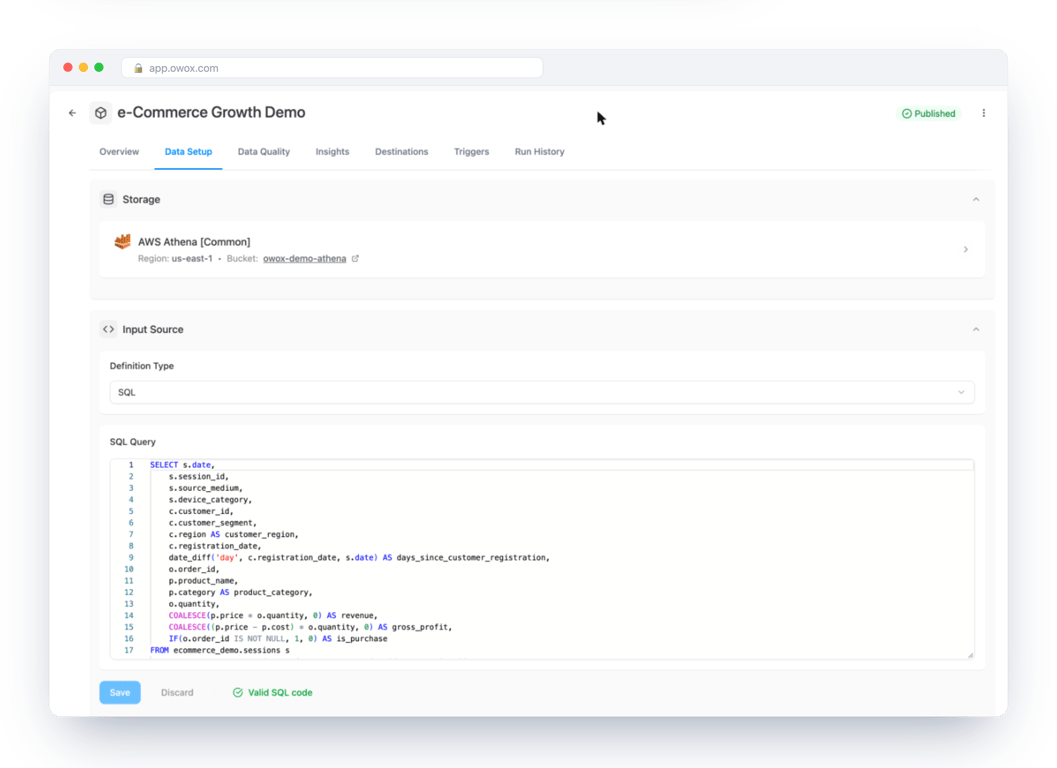
This is the step that stops two Sheets disagreeing. The query has an owner and one place it lives. A Data Mart can also be a table or a view that already exists in your storage: use those when the logic is heavy and build it in Athena on a schedule, so reports read a small finished result.
Step 3: describe the output
Once the query is saved, the Output Schema is generated: column names and the types Athena returns. You can mark primary keys and add an alias (a business-friendly name) and a description for each field.
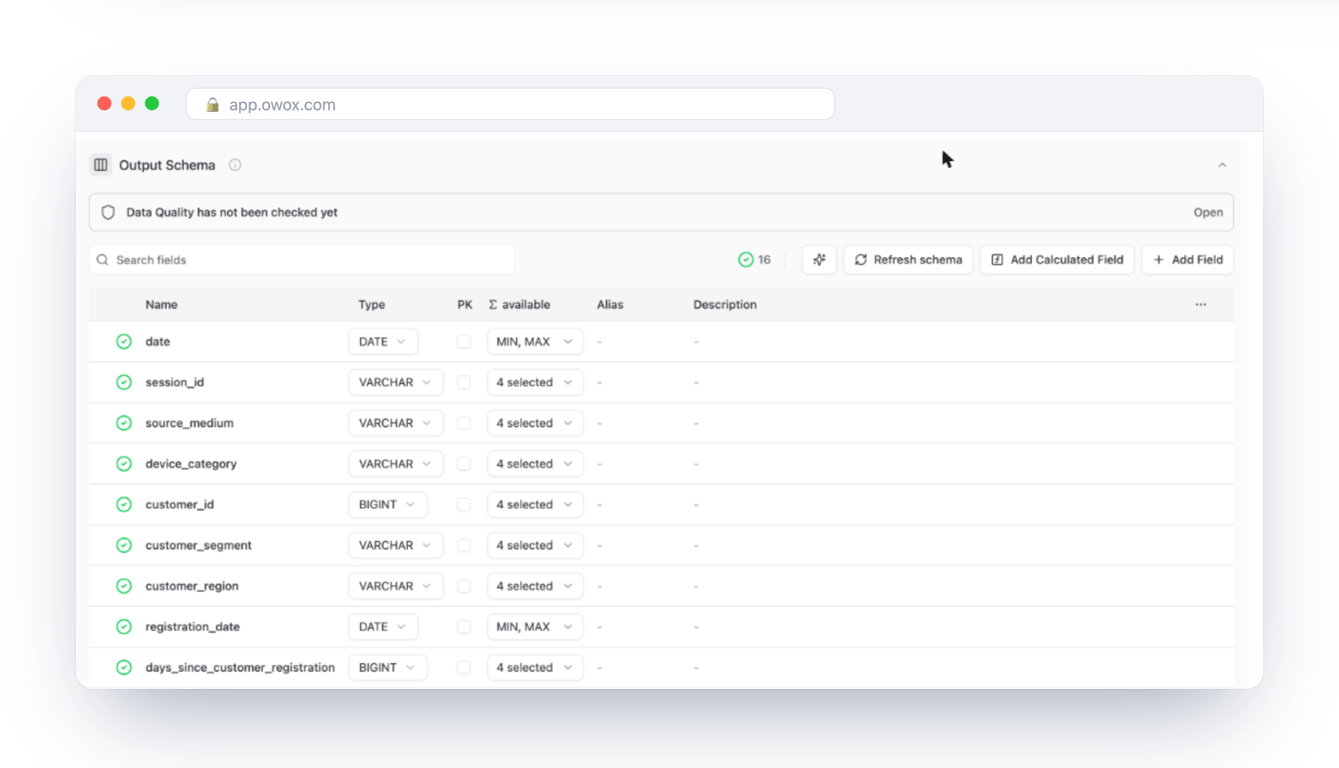
The fields in the screenshot have none yet, which is the common state of a first Data Mart. Fill them in before you share the Sheet: the next person should not have to read the SQL to learn what revenue includes. The Data Mart management page covers ownership and access.
Step 4: connect Google Sheets as a destination
Step 4: connect Google Sheets as a destination
A destination is set up once and reused by every report. In Destinations, click + New Destination, choose Google Sheets and pick how to authenticate, as described in the Google Sheets destination guide:
- Google OAuth: connect a Google account and OWOX refreshes the tokens automatically.
- Service account: paste the JSON key of a Google Cloud service account. The guide recommends this for automated, unattended workflows.
Enable the Google Sheets API in the Cloud project for the service account route. If you want OWOX to create new spreadsheets inside a Drive folder, enable the Google Drive API too: the Sheets API cannot place a file in a folder.
Step 5: create the report
Open the Data Mart’s Destinations tab. Each destination has its own block with a + New Report button.
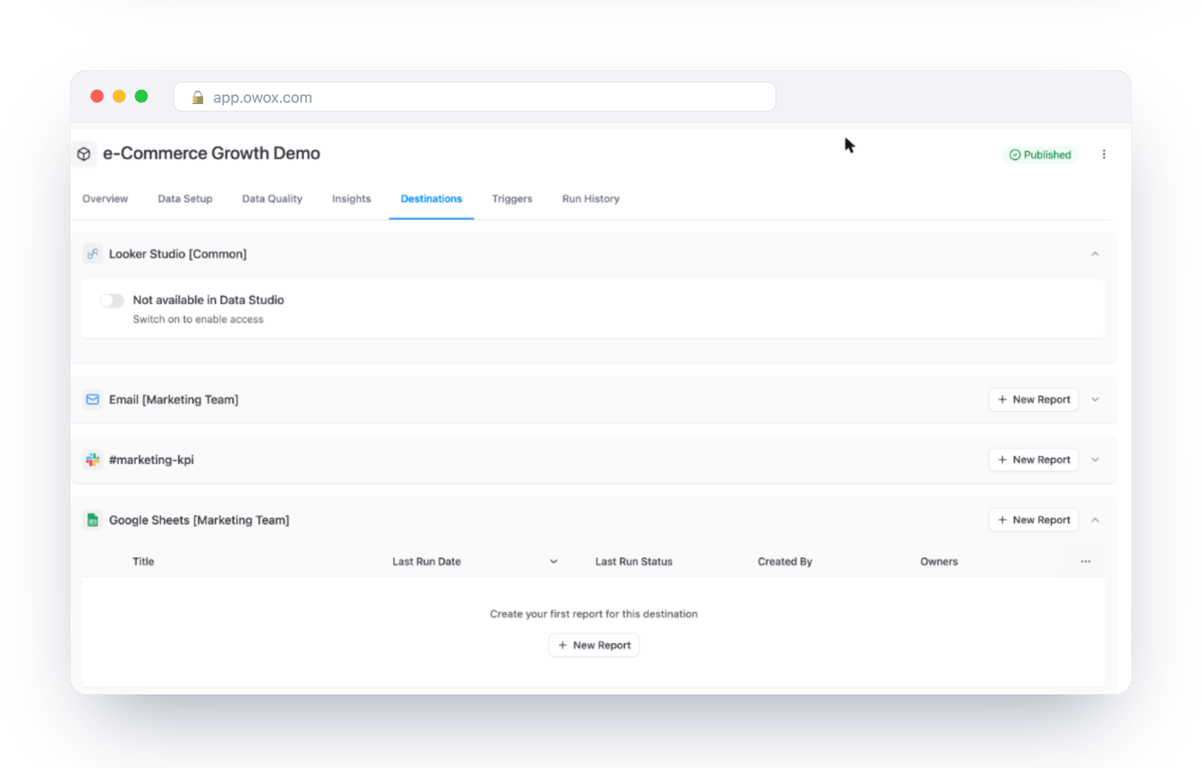
In the form, name the report and paste the link to the spreadsheet tab, with its gid in the URL, or click + New Sheet to have one created. For an existing spreadsheet, share it with the email shown under Share document with and give it Editor access. With OAuth you can skip that if your Google account can already edit the Sheet. Choose the columns the reader needs, not all of them, and click Create & Run report.
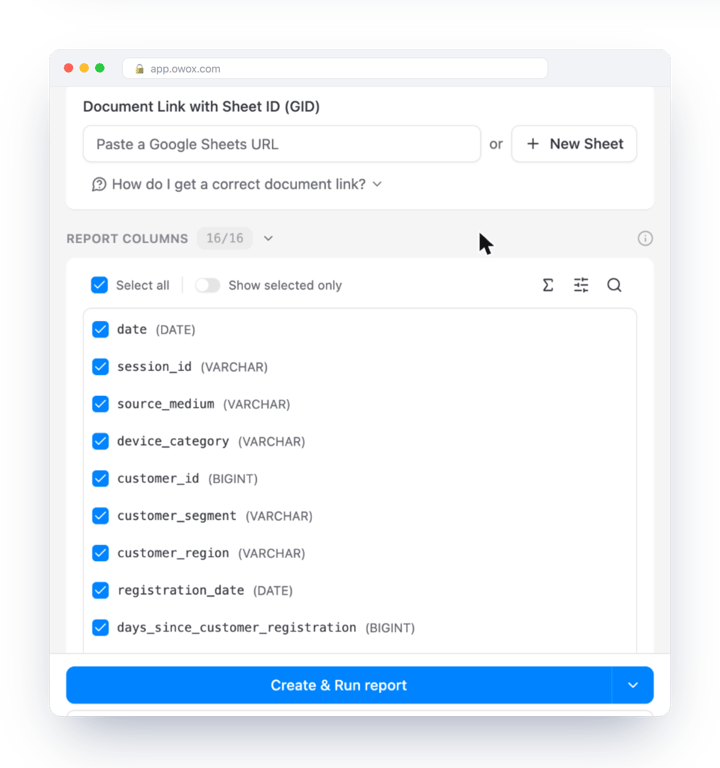
A report can also narrow what it delivers without touching the SQL. Output controls let you filter rows, sort and cap the row count per report.
Step 6: put it on a schedule
A report you run by hand is still an export. On the Data Mart’s Triggers tab, click New Trigger, choose Report Run, pick the report and set the schedule: daily, weekly, monthly or an interval, with a time zone. The form offers presets such as every hour and every 6 hours.
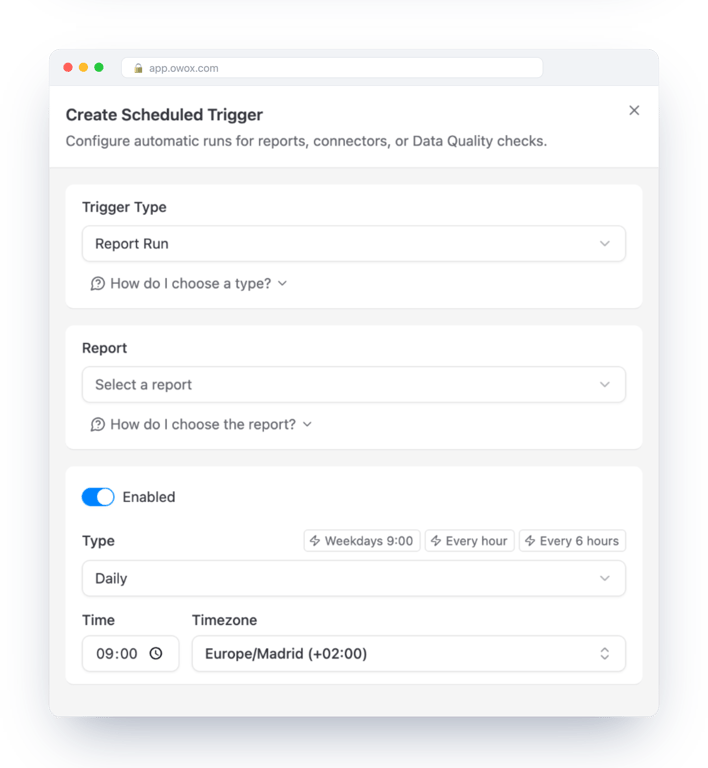
A report trigger does not wait for a connector import. If a connector loads the data the report reads, schedule the report after the import usually finishes. Every run, scheduled or manual, is listed in Run History, so a failure is visible without opening the Sheet.
Keeping the push cheap
Google Sheets is a push destination: OWOX Data Marts sends the data on each run, and the Sheet stays static between runs. A report is therefore one Athena query per run, however many people open the Sheet afterwards. If readers need fresher data than a daily run gives, build a smaller summary table in Athena and point the Data Mart at it, so each run scans less. S3 storage and requests for the query results are billed separately by AWS.
For a deeper read on how Athena works and what else it bills, see AWS Athena 101.
Let people pull their own slice
Let people pull their own slice
A scheduled report fits a fixed deliverable. Some people want to choose their own columns and filters. For them there is the OWOX Data Marts extension for Google Sheets: business users open it inside the Sheet, pick a published Data Mart, filter, schedule and refresh the data themselves, without an AWS login. The analyst still decides what is published.
If a question needs fields from two Data Marts, joinable Data Marts let you declare the relationship once, on shared keys, instead of writing one large query. Both Data Marts must sit on the same storage, and Athena is a supported one. Spreadsheet reporting shows what the business user’s side looks like.
Turn your data into decisions.
Governed data marts give you the clean foundation ML needs to actually work.
- No AI hallucinations
- Analyst-governed definitions
- Every number traces to SQL
Frequently Asked Questions
Can a Google Sheets report from Athena refresh on a schedule?
Yes. Add a Report Run trigger on the Data Mart's Triggers tab and pick the report. The schedule can be daily, weekly, monthly or an interval, with a time zone. A report trigger does not wait for connector imports, so schedule it after any import that feeds the Data Mart. Report runs need a license key from an OWOX Data Marts Cloud project: without one, a run finishes as Restricted.
Should the Google Sheets destination use OAuth or a service account?
OAuth connects a Google account, and OWOX Data Marts refreshes its tokens automatically. A service account uses a JSON key from your Google Cloud project, and the destination guide recommends it for automated, unattended workflows. With a service account, enable the Google Sheets API, plus the Google Drive API if OWOX Data Marts should create spreadsheets in a folder. Either way, share the spreadsheet with the account that writes to it and give it Editor access.
What does OWOX Data Marts need to connect to AWS Athena?
OWOX Data Marts needs a title, the AWS region, an output bucket (or a folder in it) for query results, and the Access Key ID and Secret Access Key of an IAM user. The storage guide publishes the IAM policy: Athena actions to list catalogs and databases and to start, stop and read queries, Glue actions on databases and tables, and S3 actions on the buckets. The policy applies to all resources, so scope it to your own buckets and databases before it goes to production.
Does OWOX Data Marts copy my data out of S3?
No. OWOX Data Marts sends the SQL to Athena, reads the result and writes it into the Google Sheet. Your data stays in S3 and Athena stays the query engine. Once it has read the result of a query that reads your data, OWOX Data Marts deletes that result from the output bucket. Only the small results of its access checks, SQL validation and last-updated lookups remain, and an S3 lifecycle rule can clear them.
How do I keep Athena costs down when reports refresh automatically?
A scheduled Google Sheets report is one Athena query per run, however many people open the Sheet afterwards, because the Sheet is static between runs. Athena bills $5 per terabyte scanned (AWS pricing, checked October 2026), so run the report as rarely as the data needs: a Data Mart that scans 50 GB costs about $0.24 a run, or about $5.90 a day if it runs hourly. To scan less, store the data in a columnar format such as Parquet and point the Data Mart at a small summary table.