Report Delivery
The Weekly Numbers, Delivered Where The Team Already Reads
A screenshot pasted into Slack is stale by morning and matches no spreadsheet. Report Delivery sends a message to Email, Slack, Microsoft Teams or Google Chat from the same published Data Mart as your Google Sheets report, its {{table}} and {{value}} filled by a run just before each send.
Get started freeRead the docs →
Does this fit your stack?
Why OWOX
The CMO asks why this week's figure in the Slack message doesn't match the spreadsheet, and the Data Owner ends up tracing a screenshot someone pasted by hand. Report Delivery builds the message from the same published Data Mart as your Google Sheets report, its figures filled by a run just before each send.
- The message reads the same published Data Mart as your Google Sheets report and Data Studio dashboard, and Preview SQL on the report shows the query behind each figure.
- You set the send condition: always, only when the result is empty, or only when it is not. Pick the last one, and an empty report never reaches the channel.
- One Data Mart feeds Email, Slack, Microsoft Teams and Google Chat, and every figure is a {{table}} or {{value}} tag, so nobody retypes a number.
Why doesn't the Slack number match the spreadsheet?
The CMO wants this week's numbers in Slack or the inbox, not in a dashboard. So someone pastes a screenshot or assembles the email by hand. By morning it is stale, it matches no report, and the Data Owner is the one asked why.
THE DATA OWNER
Write the message once, on the Data Mart
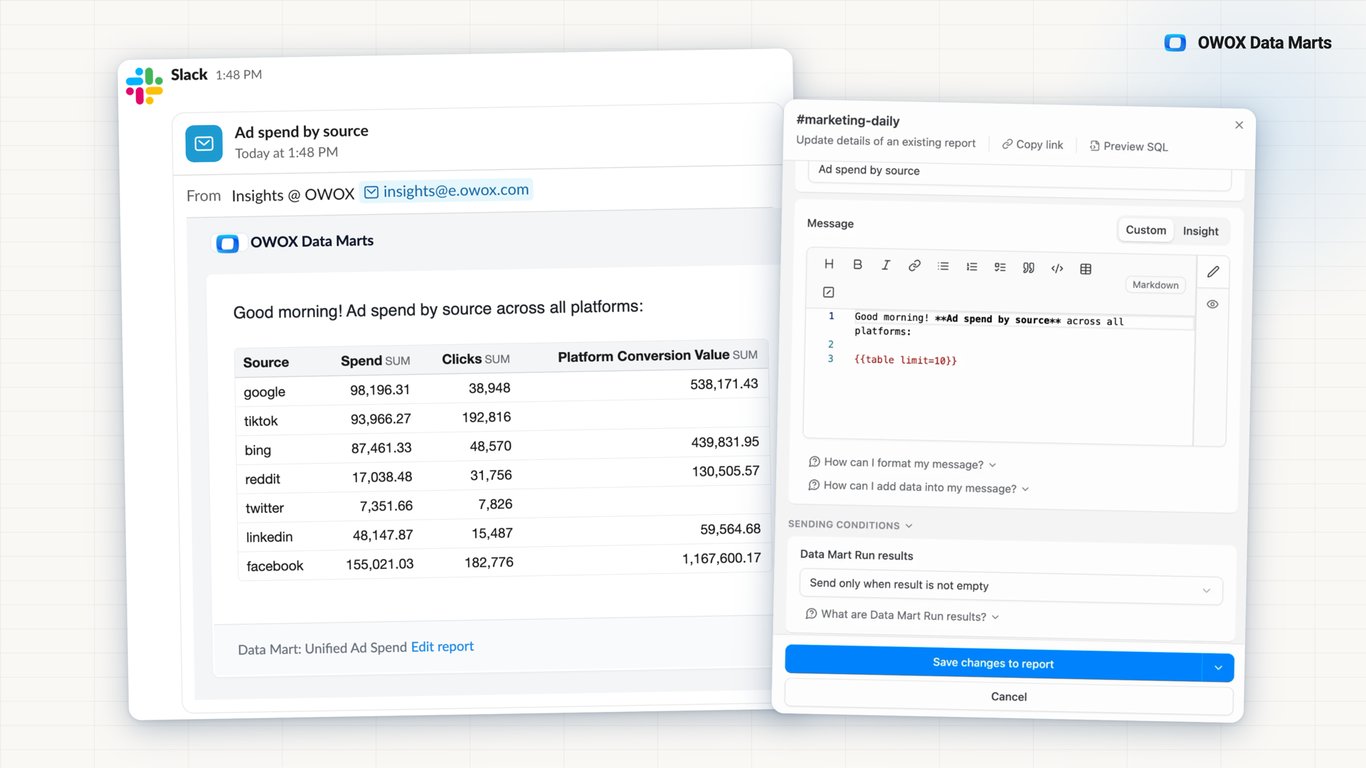
Create a Destination: a list of email addresses, a Slack or Microsoft Teams channel email, or a Google Chat webhook. On the Data Mart's Destinations tab, add a report: a Markdown message with {{table}} and {{value}} tags, and a send condition.
OWOX runs the Data Mart before every send.
THE BUSINESS USER
The numbers arrive where you already read
The report lands in your inbox from insights@e.owox.com, or in the Slack, Microsoft Teams or Google Chat channel your team already uses: a message with a table of current figures. There is no dashboard to open and nothing to install.
The table is in the message, not behind a link.
Not a screenshot pasted into the channel — A screenshot is a copy of one moment. Each message here is a fresh result of the same published Data Mart every other report reads, and Preview SQL on the report shows the query behind it.
For Data Owners
Set the message up once, not every week
A report is a Data Mart, a Destination and a template. Every send runs the Data Mart and fills the template from the result, so nobody retypes a figure.
Worked example: a revenue table by email
Under your Email destination on the Data Mart's Destinations tab, click New Report. Add a Subject and a Markdown Message with {{table limit=20 columns="id, revenue"}}: 20 rows, two columns. Pick Send only when result is not empty, then Create & Run.
No empty reports in the channel
Each report has a send condition: send always, only when the result is empty, or only when it is not. OWOX runs the Data Mart and checks the result first, so a Data Mart listing yesterday's errors posts only when there are some.
One Data Mart, four channels
Email takes a list of addresses, Slack and Microsoft Teams a channel's email address, Google Chat an incoming webhook. Each Destination carries as many reports as you need, each with its own schedule, all reading the same published Data Mart.
For Business Users
Read the numbers without opening another tool
You ask for the weekly numbers in your channel or inbox; the report arrives there, built on a Data Mart your Data Owner published.
A table inside the email
The email comes from insights@e.owox.com with the Data Mart's rows as a table in the body, up to 100 of them. Keep that address off your block list so the report does not land in spam.
A card in your Google Chat space
Through an incoming webhook, the report arrives as a card: the subject, the Data Mart's name, the message and a link back to the report. Tables show as monospace blocks, and a long report is split into numbered parts.
The same definitions as your spreadsheet
The message reads the same published Data Mart as your Google Sheets report or Data Studio dashboard. When a figure is questioned, the Data Owner opens Preview SQL on the report and reads the query behind it.
Compare plans
Everything business needs
Filled by a fresh run
OWOX runs the Data Mart before each send and fills {{table}} and {{value}} from that result. No figure is typed into the message.
Empty reports stay out
Choose per report: send always, only when the result is empty, or only when it is not. The channel gets a message only when the condition is met.
The query one click away
Preview SQL on an Email, Slack, Microsoft Teams or Google Chat report shows the exact query behind the message.
Four channels, one Data Mart
Email, Slack, Microsoft Teams and Google Chat, each a Destination with as many reports as you need, all reading the same published Data Mart.
Frequently asked questions
How is this different from a screenshot or an email assembled by hand?
A screenshot or a hand-built email is a copy of one moment, and someone has to redo it next week. A report runs the Data Mart before each send and fills the message from that result, so the figures are current and come from the same SQL as every other destination.
What does the Data Owner set up?
A published Data Mart, a Destination and a report. The Destination holds the recipients: email addresses, a Slack or Microsoft Teams channel email, or a Google Chat incoming webhook. The report holds the subject, the Markdown message and the send condition. Preview shows the message before it goes out; Create & Run sends the first one.
What are the limits?
A {{table}} shows up to 100 rows; set limit and columns to show fewer. Google Chat renders a subset of Markdown: headings become bold lines, tables become monospace blocks, and a message over its size limit is split into up to 20 parts. Slack and Microsoft Teams receive the report through the channel's email address.
How does this relate to Scheduling and Insights?
Report Delivery is the channel and the message. Scheduling decides when a report runs, through a Report Run trigger on the Data Mart. An Insight is a reusable template with its own SQL queries that a report can send instead of a plain message.
Who can create a report?
A Data Owner creates Reports on the Data Marts and Destinations they have access to, and can edit, run and delete them. A Business User can create Reports on Data Marts shared for reporting, with Destinations they have access to, and edits, runs or deletes only the Reports they own. Project Admins can do all of this on any Report.
What does a delivery cost?
Each successful send is one Report Run: 0.1 credit, whatever the data volume. A scheduled send costs the same as a manual one.
Every claim has a receipt.
Real things real customers said — each quote pinned to a specific claim, straight from the quotes database.
 Nodari RizunFounder & CEO, Pürblack®
“AI, by the nature of the models, will hallucinate. And because of that, you need something which will create guardrails to ensure that there are no hallucinations, that you can trust your data.”
 Mark SimmonsCMO, Pürblack®
“We had six or seven different channels and no single source of truth — it was almost impossible, a lot of guesswork.”
Nodari RizunFounder & CEO, Pürblack®“We regained time. And time is the one resource that never comes back.”
Send your first report to the channel
Add a Destination, open a published Data Mart's Destinations tab, click New Report, write the message and press Create & Run.
- Internal OWOX data as of 2026-10-02
- G2 reviews of OWOX
- npm installs stat
You are booked. The invitation is on its way to , with the calendar invite and the meeting link.