PERCENTRANK function in Google Sheets: the percentile rank of a value
PERCENTRANK returns the percentile rank of a value: the share of the dataset that lies below it, as a number from 0 to 1. This guide covers the syntax, how PERCENTRANK.INC and PERCENTRANK.EXC differ, what happens with values that are not in the data or outside its range, how to rank a whole column with one formula, and how the function relates to PERCENTILE and RANK.
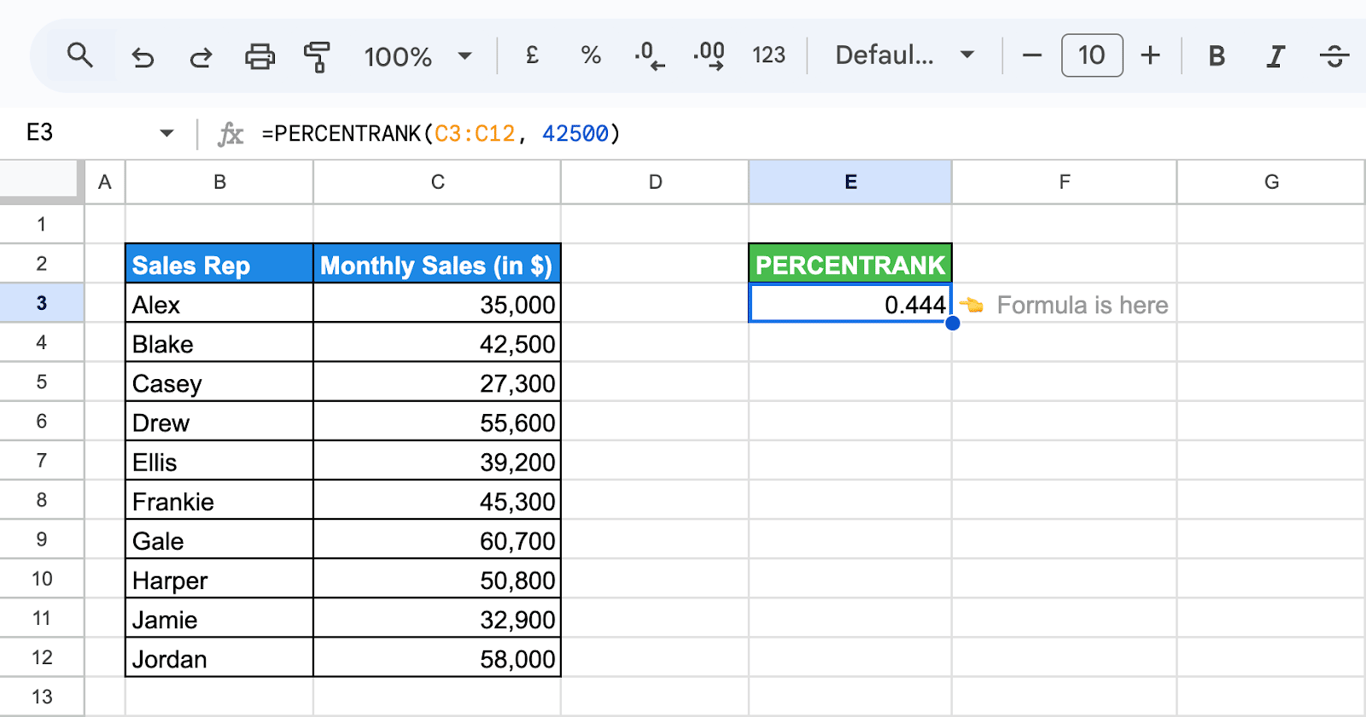
PERCENTRANK returns where a value stands in a dataset, as a number from 0 to 1:
=PERCENTRANK(C3:C12, 42500)
On ten sales figures the formula returns 0.444: four of the nine other values are below 42,500. Format the cell as a percentage to read it as 44.4%.
PERCENTRANK syntax
=PERCENTRANK(data, value, [significant_digits])
- data: the range or array of numbers.
- value: the value whose rank you want. A cell reference or a number.
- significant_digits: optional, 3 by default. The number of digits in the result.
Three functions share this syntax:
- PERCENTRANK and PERCENTRANK.INC are the same calculation: the number of values below, divided by the number of values minus one. The smallest value gets 0 and the largest gets 1.
- PERCENTRANK.EXC divides the position of the value by the number of values plus one, so the result is never 0 or 1.
How the rank is calculated
For a value that is in the data, with n values in total:
- INC: values below it ÷ (n − 1)
- EXC: (values below it + 1) ÷ (n + 1)
On the ten sales figures of the screenshots:
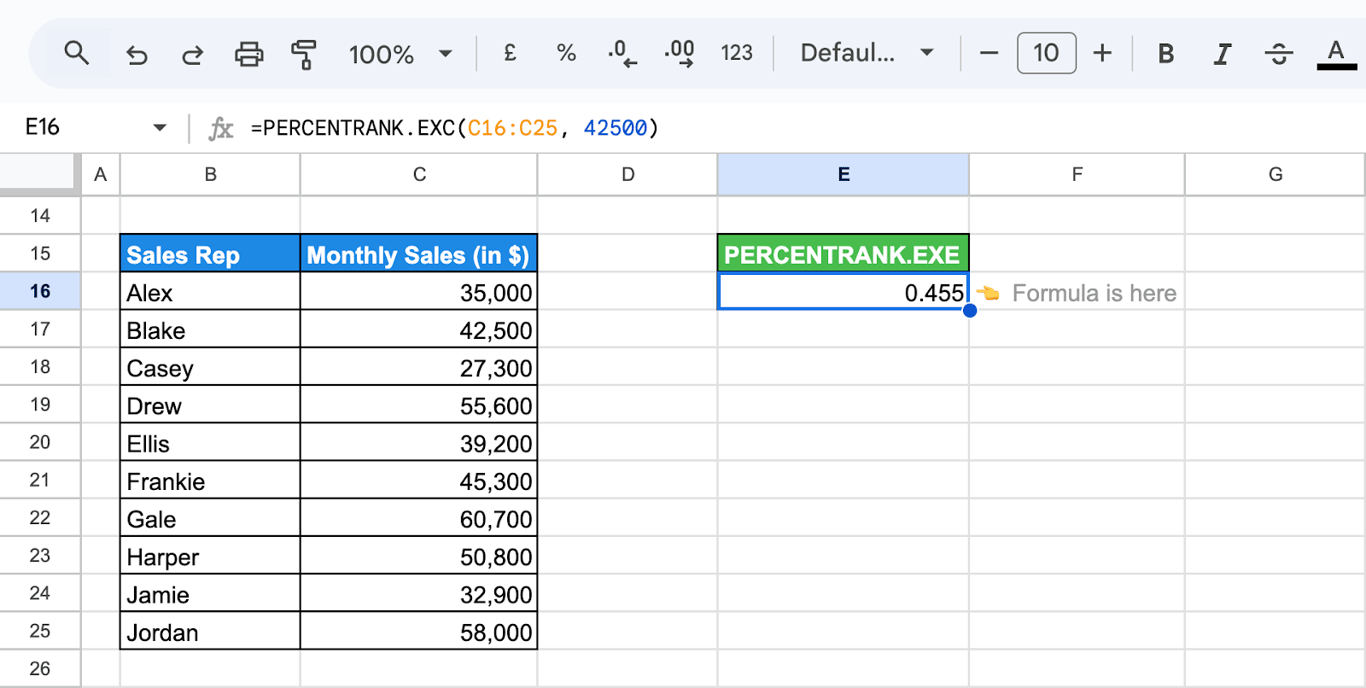
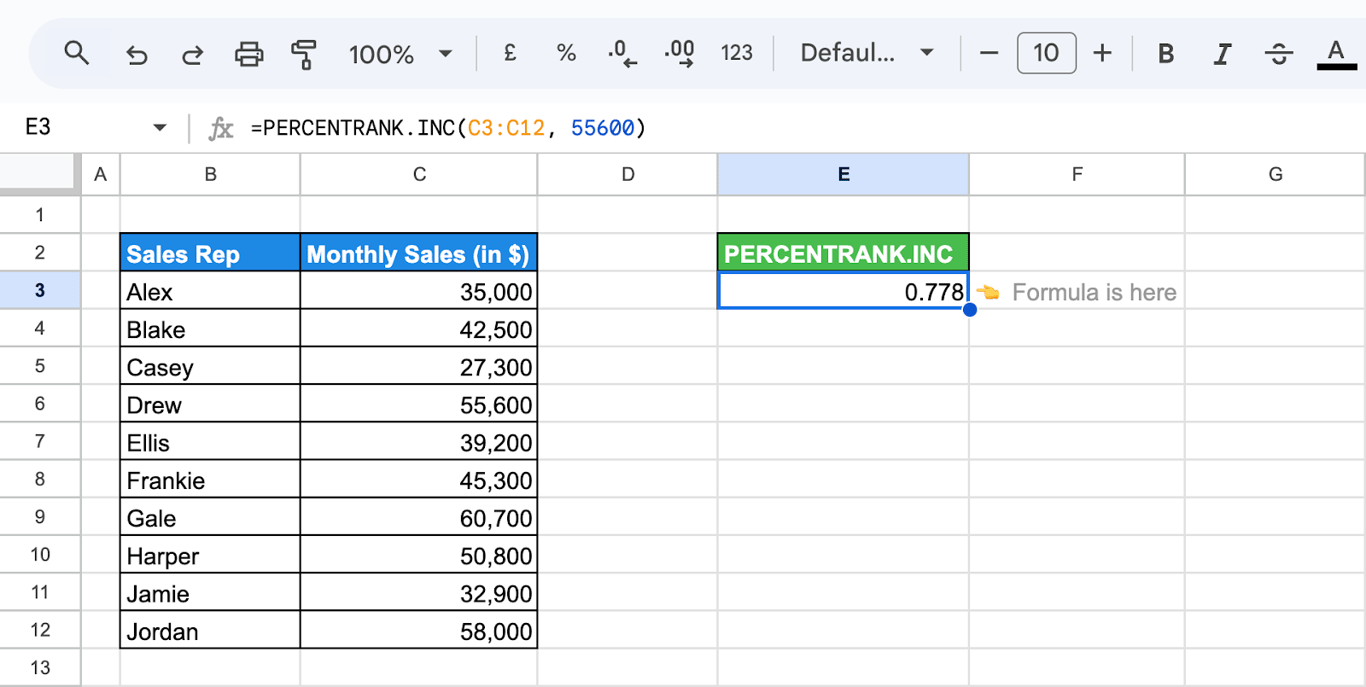
| Value | Values below | PERCENTRANK.INC | PERCENTRANK.EXC |
|---|---|---|---|
| 32,900 | 1 | 0.111 | 0.182 |
| 42,500 | 4 | 0.444 | 0.455 |
| 55,600 | 7 | 0.778 | 0.727 |
=PERCENTRANK.EXC(C16:C25, 42500)
=PERCENTRANK.INC(C3:C12, 55600)
=PERCENTRANK.EXC(C16:C25, 55600)
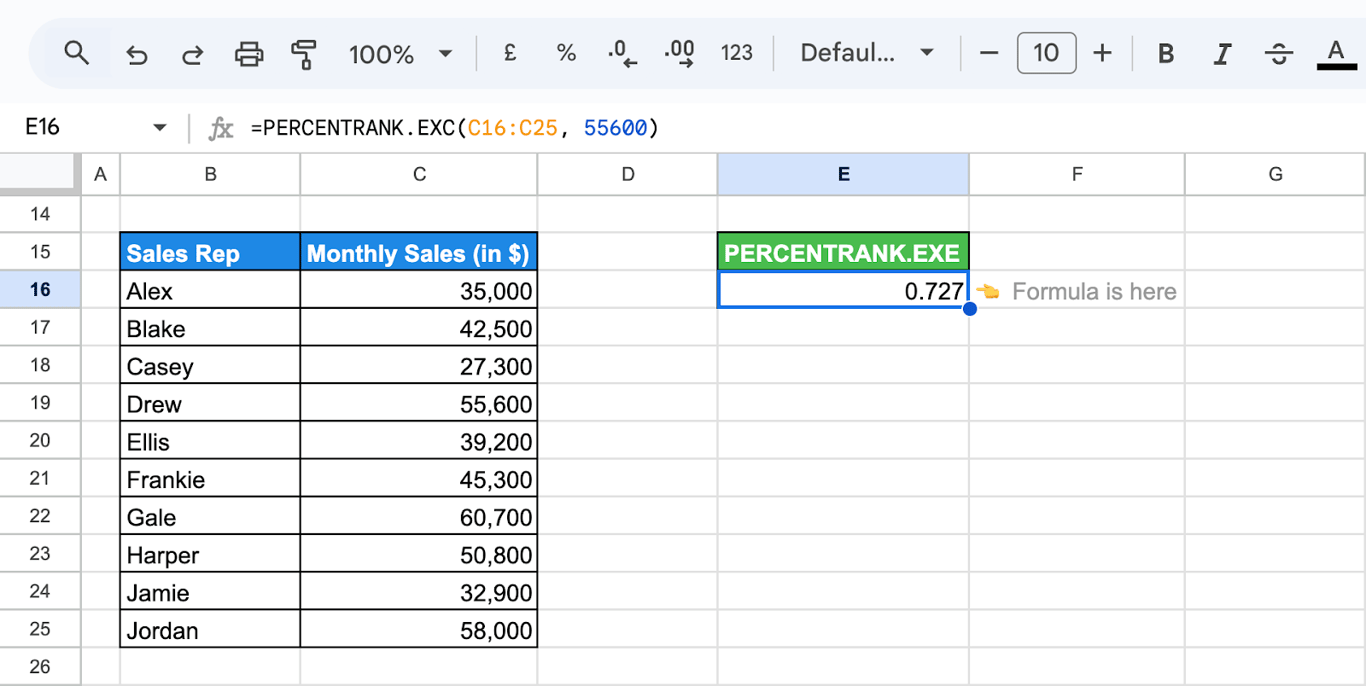
=PERCENTRANK(C3:C12, 32900)
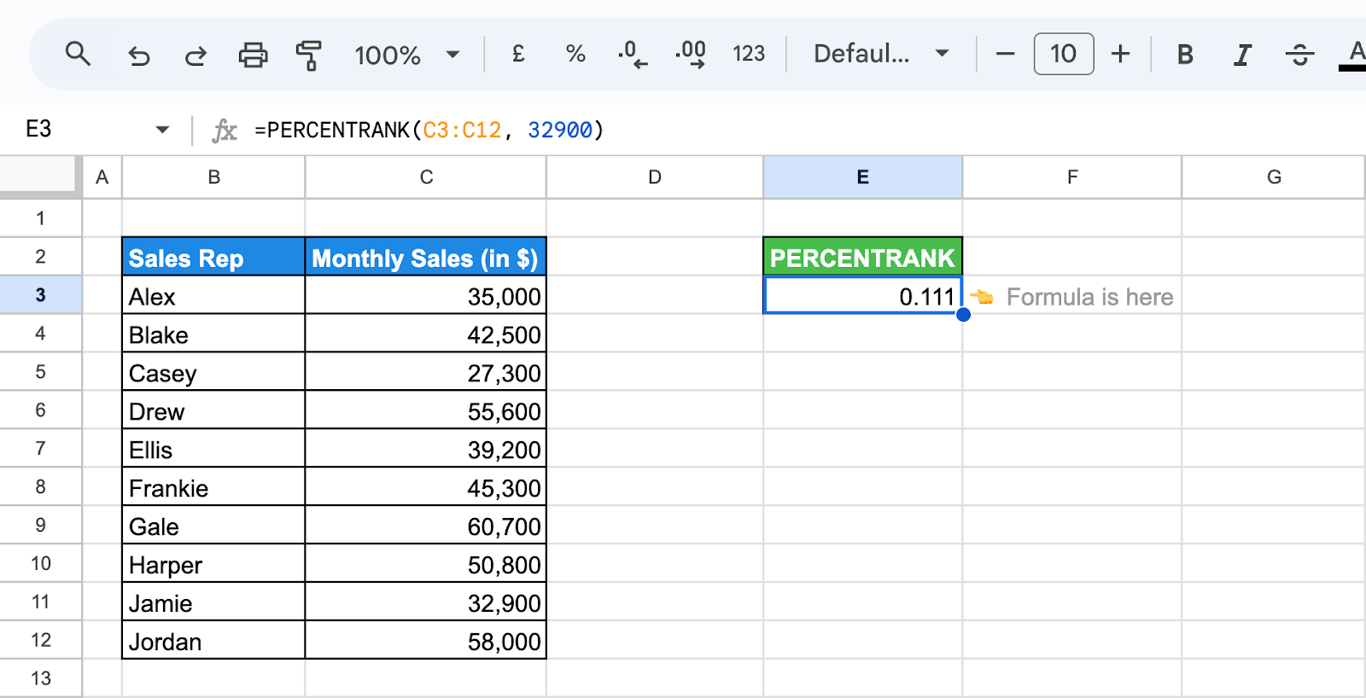
EXC pulls the results towards the middle: low ranks come out higher and high ranks lower. Use PERCENTRANK by default, and the EXC version when a method you follow asks for it. Do not compare a rank from one with a rank from the other.
OWOX Data Marts
See your first report built in real time. 15 minutes.
- Connect your data warehouse
- Pick your metrics
- Get a live Google Sheets report
In the time it takes to write a ticket. Then imagine never writing that ticket again.
Book a DemoWe'll use your actual use case
Values at the edges and outside the data
Values at the edges and outside the data
From our test sheet, on ten amounts from 1,500 to 4,500:
| Value | PERCENTRANK | Why |
|---|---|---|
| The minimum, 1,500 | 0 | Nothing is below it |
| The maximum, 4,500 | 1 | Everything else is below it |
| 2,400, not in the data | 0.58 | Interpolated between its neighbours, 2,300 (0.556) and 2,750 (0.667) |
| 2,750, which occurs twice | 0.667 | Both occurrences get the same rank |
| 5,000, above the maximum | #N/A | Outside the range of the data |
| 1,000, below the minimum | #N/A | Outside the range of the data |
With PERCENTRANK.EXC the minimum returned 0.091 and the maximum 0.909, which is 1/11 and 10/11.
So the value does not have to be one of the data points, but it has to lie between the smallest and the largest of them.
The number of digits
The third argument sets how many significant digits the result has:
=PERCENTRANK.INC(C3:C12, C4, 2)
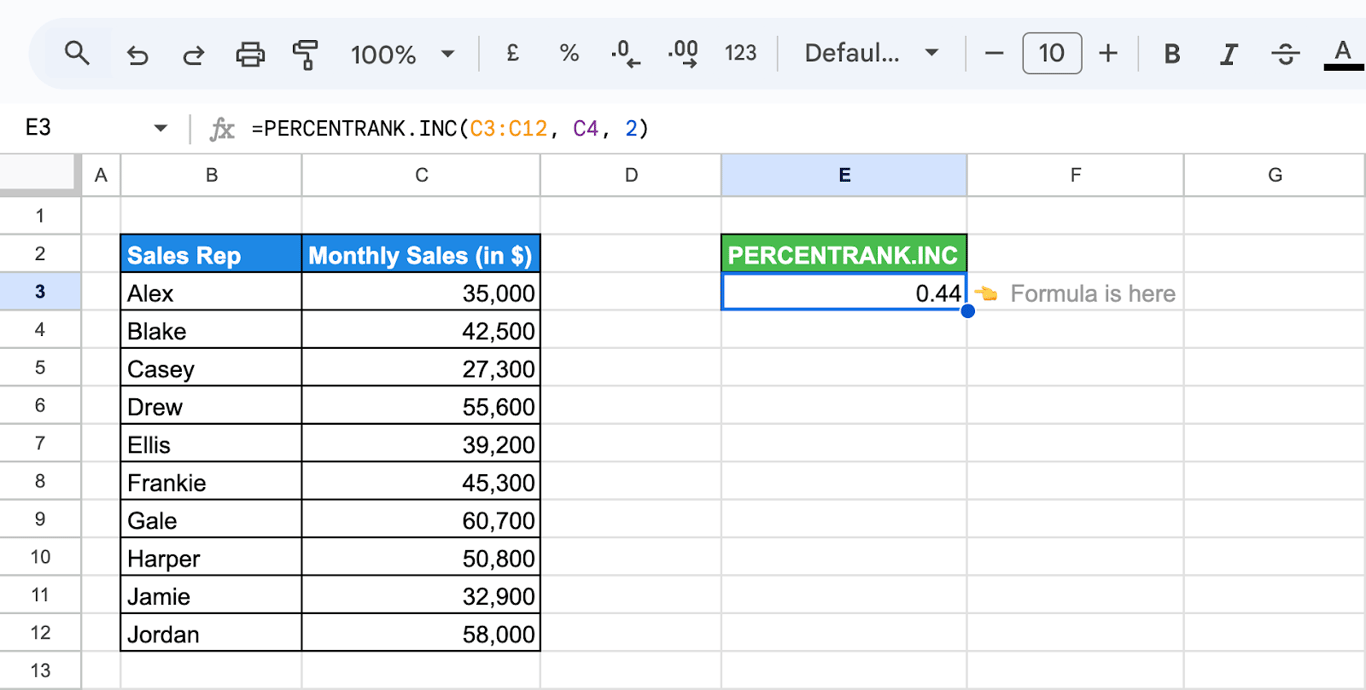
In our test the same rank came out as 0.6 with one digit, 0.556 with the default three and 0.55556 with five. For percentages with one decimal, the default is enough.
Rank a whole column
Give the column as both arguments inside ARRAYFORMULA:
=ARRAYFORMULA(PERCENTRANK(D3:D12, D3:D12))
One formula returns the percentile rank of every row. From there:
- Flag the top 10%:
=PERCENTRANK($D$3:$D$12, D3) >= 0.9, as a formula in a column or as a custom formula in conditional formatting. - Split into groups:
=IFS(E3 >= 0.75, "Top quarter", E3 >= 0.25, "Middle", TRUE, "Bottom quarter")with the rank in E3. See IFS. - Rank inside a group: filter the data first,
=PERCENTRANK(FILTER(D3:D12, C3:C12 = "Sarah"), D4). The value has to belong to the filtered group, or to lie within its range.
PERCENTRANK, PERCENTILE and RANK
PERCENTRANK, PERCENTILE and RANK
- PERCENTILE goes the other way: from a share to a value.
=PERCENTILE(data, 0.9)is the value with a percentile rank of 0.9. Because PERCENTRANK rounds to three digits, a round trip returns almost, not exactly, the original: in our test 2,300 came back as 2,301.8. - RANK returns the position, 1 for the largest. It answers “which place”; PERCENTRANK answers “ahead of what share”, which stays comparable between lists of different length.
- QUARTILE gives the values at ranks 0.25, 0.5 and 0.75.
What the function accepts
In our test, a range that included a column of text returned the same result as the numbers alone, so text in the data is ignored. A value given as the text “2300” was read as the number. A range with no numbers returned #N/A.
Dates are numbers in Sheets, so PERCENTRANK works on a column of dates as well: the rank then says how late a date is among the others.
Errors in PERCENTRANK
⚠️ Error: #N/A
✅ Solution: The value is below the minimum or above the maximum of the data, or the range holds no numbers. Check the value, and check that the numbers are not stored as text.
⚠️ Error: The rank of the largest value is 1, where “100% are below” cannot be true.
✅ Solution: That is how the inclusive version is defined. PERCENTRANK.EXC never returns 0 or 1.
⚠️ Error: Two tools give different ranks for the same value.
✅ Solution: One uses the inclusive method and the other the exclusive, or the ranges differ. Compare the formulas.
⚠️ Error: The result has fewer decimals than expected.
✅ Solution: The default is three significant digits. Raise the third argument.
⚠️ Error: The ranks change when rows are added.
✅ Solution: A percentile rank is relative to the dataset. With other rows in the range, the same value has another rank.
Related Google Sheets functions
Related Google Sheets functions
- PERCENTILE: The value at a given share.
- QUARTILE: The quarter boundaries.
- RANK: The position of a value in order.
- MAX, MIN and MEDIAN: The ends and the middle of the data.
- AVERAGE functions: The mean of the data.
- Exploratory data analysis: Ranks and percentiles in a first look at data.
A rank is relative to the rows it was computed on
A rank is relative to the rows it was computed on
A percentile rank compares one value with all the others in the range. If the range is a partial export or last month’s copy, the rank is a rank among those rows: a campaign in the top 10% of a stale list may be average in the current one, and the cell shows the number with the same confidence.
The OWOX Data Marts extension for Google Sheets covers that half. A data analyst publishes a data mart (a table or an SQL query in your data warehouse) and makes it available for reports. In Sheets you open the extension, pick the data mart, tick the columns you want and run it. The rows land in a tab, ready for your formulas.
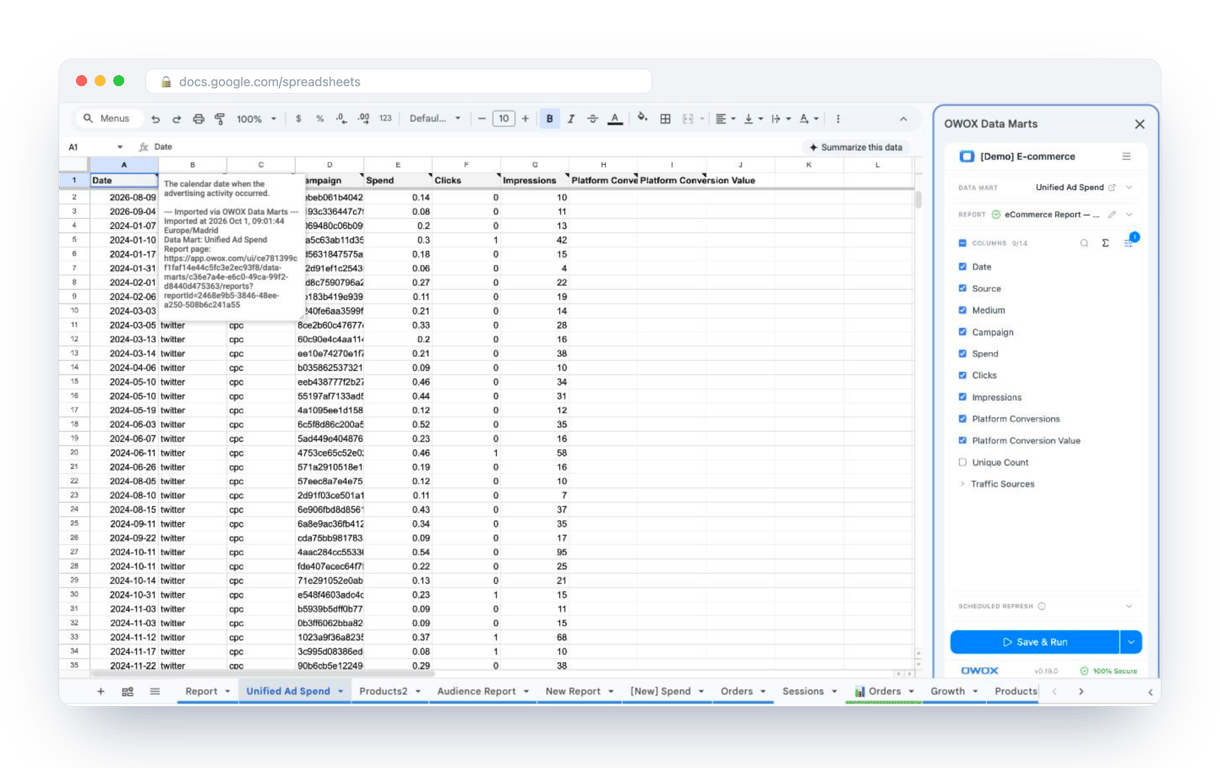
What changes for the person who maintains the sheet:
- Refresh replaces re-export. Refresh current report in the extension menu re-runs the same pull, and a scheduled refresh keeps the tab current without anyone touching it.
- The source is written on the sheet. The header cell of an imported tab carries a note with the data mart it came from, the time of the import and a link to the report.
- No SQL and no warehouse access needed. The analyst decides which data marts and columns are available. You choose from that list.
The extension does not write or change the analyst’s SQL. PERCENTRANK in the sheet then compares each value with the complete, current rows the query returns. The extension comes with the OWOX Cloud plans of OWOX Data Marts; spreadsheet reporting describes both ways data reaches a sheet.
Turn your data into decisions.
Governed data marts give you the clean foundation ML needs to actually work.
- No AI hallucinations
- Analyst-governed definitions
- Every number traces to SQL
Frequently Asked Questions
What are common errors in PERCENTRANK, and how can I fix them?
#N/A appears when the value is below the minimum or above the maximum of the data, or when the range contains no numbers. A value that lies between two data points is not an error: its rank is interpolated. Check that the numbers in the range are not stored as text.
How do I combine PERCENTRANK with other functions for advanced analysis?
You can combine PERCENTRANK with IF, FILTER, and ARRAYFORMULA to create dynamic percentile-based reports or analyze subsets of your data.
Can I use PERCENTRANK with text data or dates?
Text in the range is ignored. Dates are stored as numbers in Google Sheets, so PERCENTRANK works on a column of dates directly: the result says how late a date is among the others.
How do I interpret the result of the PERCENTRANK function?
A result of 0.75 means that three quarters of the other values in the dataset are below this value. Format the cell as a percentage to show it as 75%.
What is the difference between PERCENTRANK.INC and PERCENTRANK.EXC?
PERCENTRANK.INC divides the number of values below by the number of values minus one, so the smallest value gets 0 and the largest gets 1. PERCENTRANK.EXC divides the position of the value by the number of values plus one, so the result is never 0 or 1. PERCENTRANK is the same as PERCENTRANK.INC.
How does PERCENTRANK differ from the RANK function?
While the RANK function assigns an ordinal rank to values, the PERCENTRANK function provides the percentile rank, showing the relative position of a value as a percentage.
What is the purpose of the PERCENTRANK function in Google Sheets?
The PERCENTRANK function calculates the relative rank of a value within a dataset, expressed as a percentage between 0 and 1.