Automating AWS Redshift Reporting to Google Sheets, Without CSVs
The reliable way to get Redshift data into Google Sheets is not an export. Write the query once, publish it as a Data Mart, and attach a Google Sheets report that runs on a schedule. The sheet refreshes itself, the readers need no Redshift access, and every run is on the record.
Someone in marketing or finance needs a number that lives in Amazon Redshift, and they need it in Google Sheets. The usual answer is an analyst running a query, exporting a CSV and pasting it into a tab. It works once. By the third week it is a recurring task, the file is out of date by lunchtime, and nobody is sure which version is in the board deck.
This guide shows the route that removes the export: one query, published once, delivered to a sheet on a schedule. The steps use OWOX Data Marts on top of Redshift, and the SQL was validated on Redshift Serverless.
Why CSV exports stop working
A manual export has three problems that grow with use.
- It is stale the moment it is made. The sheet shows the data as of the last time somebody remembered.
- The logic is not written down anywhere useful. The query lives in one analyst’s editor. A second analyst writes a slightly different one, and now there are two revenue figures.
- It does not scale past one report. Ten stakeholders with ten weekly requests is a job, not a favour.
Scripts that pull from Redshift over JDBC on a timer solve the first problem and keep the other two, and add a credential stored in a spreadsheet and code that somebody has to maintain.
The route: Data Mart, destination, report
The route: Data Mart, destination, report
Three objects replace the export, and each has one job.
- A Data Mart is the query, table or view an analyst publishes under a business name. It is the single definition every report reads.
- A destination is where results go. Here it is Google Sheets, connected once for the team.
- A report joins the two: this Data Mart, these columns, into this sheet, on this schedule.
Redshift stays the only place the data lives. Nothing is copied into another platform’s storage on the way to the spreadsheet.
OWOX Data Marts
See your first report built in real time. 15 minutes.
- Connect your data warehouse
- Pick your metrics
- Get a live Google Sheets report
In the time it takes to write a ticket. Then imagine never writing that ticket again.
Book a DemoWe'll use your actual use case
What you need
- An Amazon Redshift Serverless workgroup or provisioned cluster, and the database that holds your reporting tables.
- An IAM access key for a user who is allowed to run queries through the Redshift Data API.
- A Google account, or a Google Cloud service account, for the Sheets destination.
- An OWOX Data Marts project, on OWOX Cloud or self-managed.
Step 1: connect Redshift as a storage
Step 1: connect Redshift as a storage
In OWOX Data Marts, add a storage of type AWS Redshift. The setup guide lists the fields:
- AWS Region
- Connection type: a Serverless workgroup name or a provisioned cluster identifier
- Database name
- Access Key ID and Secret Access Key
The IAM policy needs permission to execute statements and read results through the Redshift Data API, plus permission to get credentials for the workgroup or cluster. The guide recommends a custom policy with only those permissions instead of a broad managed one.
Step 2: publish the query as a Data Mart
Step 2: publish the query as a Data Mart
Create a Data Mart on that storage and choose how it is defined: a SQL query, an existing table or an existing view. For a report by channel and day, the SQL might be:
SELECT
  s.date,
  s.source_medium,
  COUNT(DISTINCT s.session_id) AS sessions,
  COUNT(DISTINCT o.order_id) AS orders,
  SUM(p.price * o.quantity) AS revenue
FROM dev.public.sessions s
LEFT JOIN dev.public.orders o
  ON s.session_id = o.session_id
LEFT JOIN dev.public.products p
  ON o.product_id = p.product_id
WHERE s.date >=
  DATEADD(day, -90, CURRENT_DATE)
GROUP BY s.date, s.source_medium;
The query is validated against Redshift before it is saved, and the output schema is read from the result: column names, types, and a place to add a description for each.
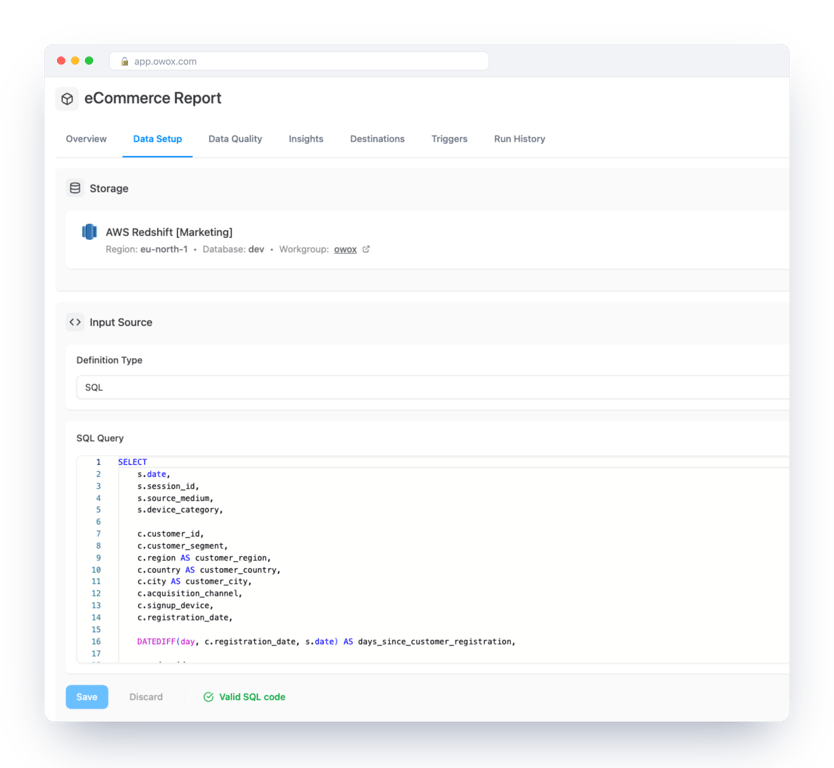
This is the step that fixes the “two revenue figures” problem. The SQL is the analyst’s, and OWOX Data Marts does not change or transform it. What it adds is that there is now one published definition with an owner, instead of a query in someone’s editor.
If the logic is heavy, build the table in Redshift on a schedule and point the Data Mart at the table. Reports then read a small, finished result instead of recomputing joins.
Step 3: add Google Sheets as a destination
Step 3: add Google Sheets as a destination
A destination is set up once and reused by every report. Add one of type Google Sheets and connect it in one of two ways, both described in the destination guide:
- Google OAuth: connect a Google account, and tokens are refreshed automatically.
- Service account: paste the JSON key of a Google Cloud service account.
Whichever you choose, the spreadsheet a report writes to has to be shared with that account, the same way you would share it with a colleague.
Step 4: create the report
Open the Data Mart’s Destinations tab, find the Google Sheets destination and create a report. The form asks for three things: a title, the link to the document and tab, and which columns to include.
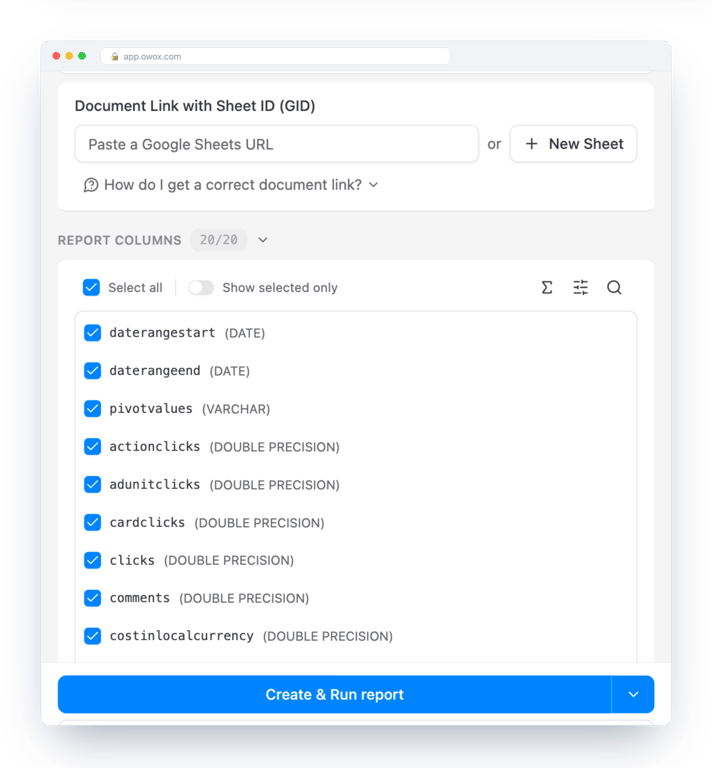
Paste the URL of the tab you want filled, or create a new sheet from the form. Choose the columns the reader needs, not all of them. Then run it.
On each run OWOX Data Marts queries Redshift and writes the result into the sheet. It owns only the columns it writes. Headers and data in that range are replaced on every refresh, and anything you add to the right of it, formulas, notes, a chart, is left alone. That is what makes the sheet usable as a working document and not just a dump.
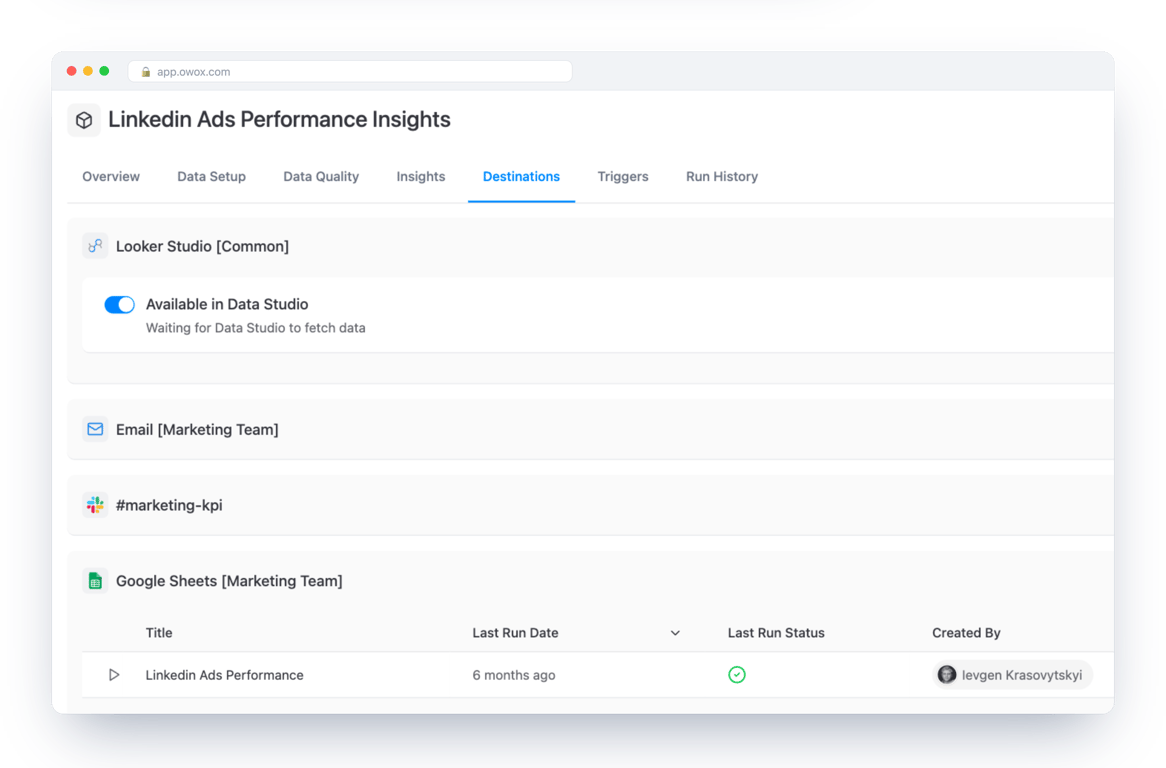
Step 5: put it on a schedule
A report that has to be run by hand is still an export. On the Data Mart’s Triggers tab, add a report run trigger: daily at a set time, or whatever cadence the data deserves. From then on the sheet is current when people open it.
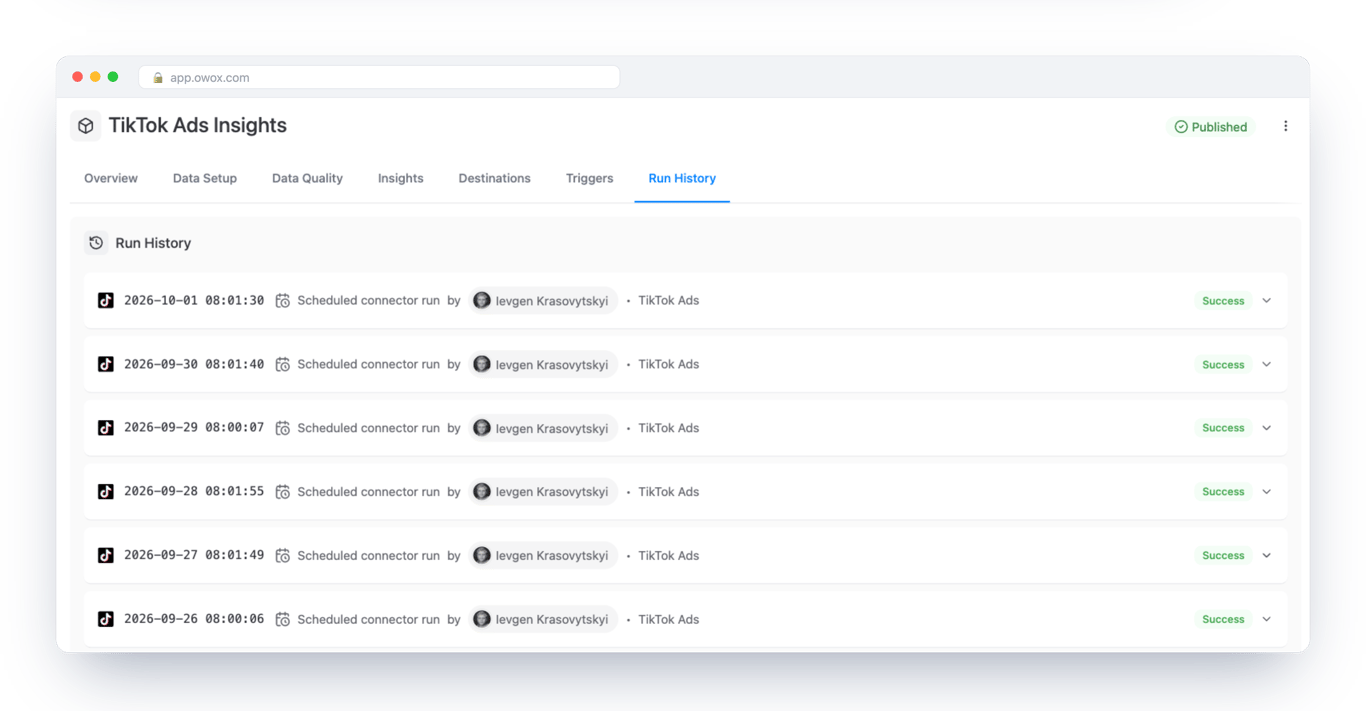
Every run, scheduled or manual, is listed in Run History with its time, who or what started it, and whether it succeeded.
The other route: let people pull it themselves
The other route: let people pull it themselves
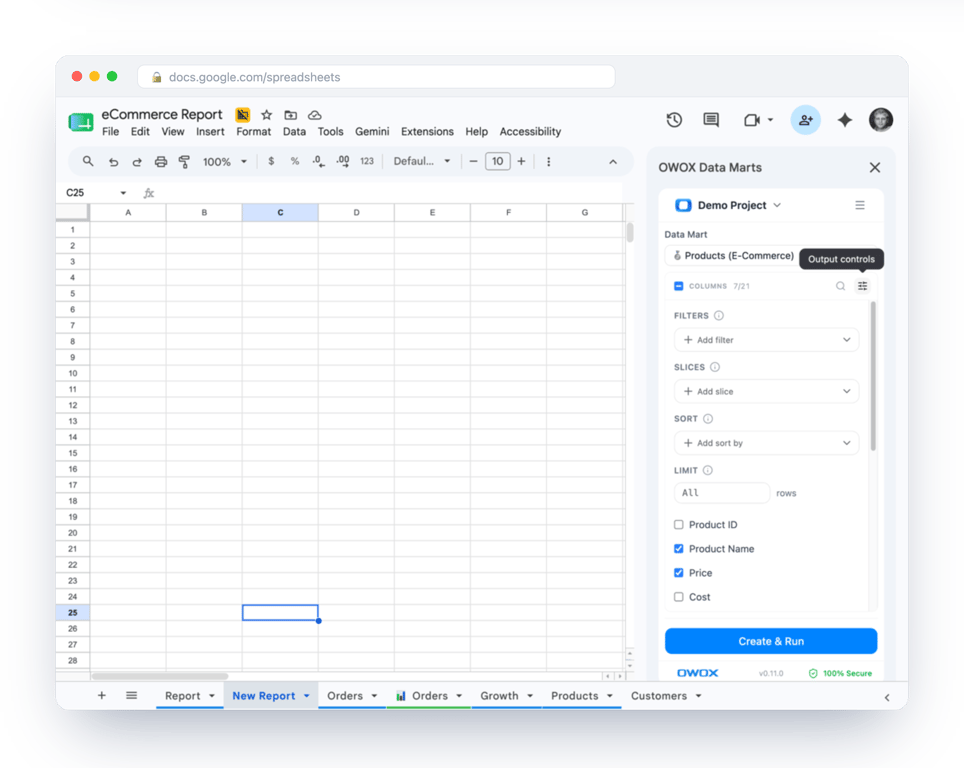
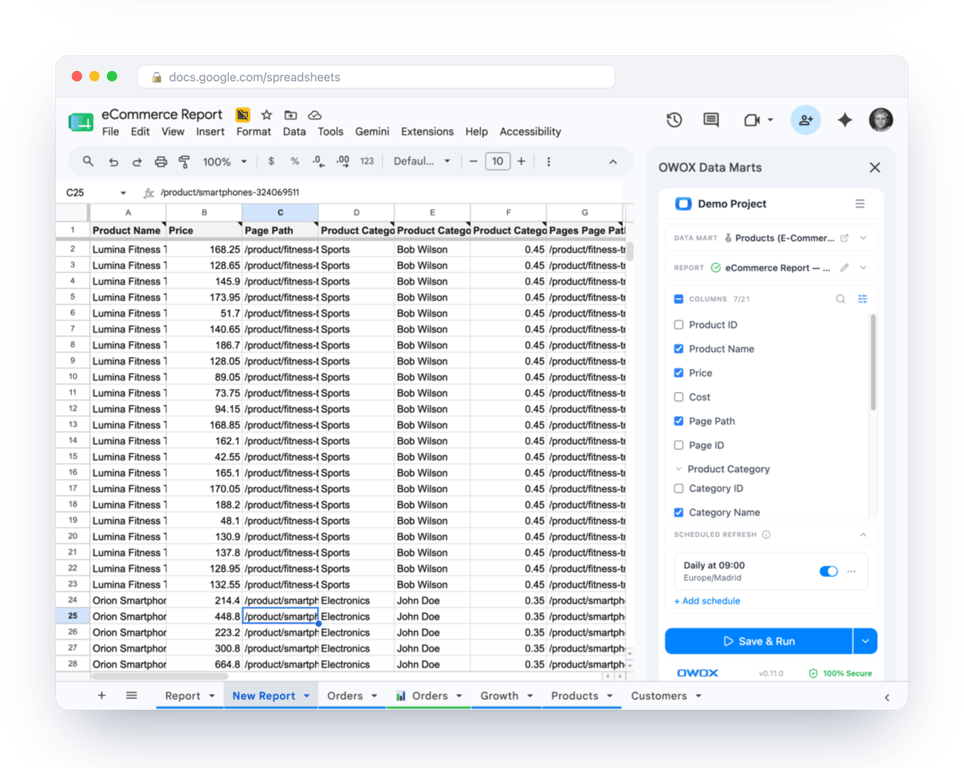
A scheduled report suits a fixed deliverable. Some people want to choose their own slice. For them there is the OWOX Data Marts extension in the Google Workspace Marketplace: they open it inside Google Sheets and pull a published Data Mart into the sheet themselves, without a Redshift login. An Excel add-in does the same for Excel.
The pull can stay on a schedule as well, so a sheet someone built for themselves is current when they open it.
Both routes read the same Data Marts. The analyst decides what is published; the business user decides when to look.
What this costs on Redshift
The cost of reporting on Redshift is compute time, and compute time follows how often queries arrive.
A scheduled Sheets report is one query per run. Twenty people opening the sheet afterwards are reading a spreadsheet, and Redshift does no work. On Redshift Serverless, AWS bills compute in RPU-hours per second, with a 60-second minimum charge (its pricing page, October 2026), so a daily report that takes under a minute is roughly a minute of compute a day.
Compare that with twenty people each refreshing a live-connected dashboard through the morning. The data is the same and the bill is not. This is the practical argument for scheduled delivery. The same pattern is described for Snowflake and Databricks, where compute is billed differently.
Checks before you hand it over
Checks before you hand it over
- The numbers match a query you trust. Run the Data Mart’s SQL directly in Redshift once and compare.
- The sheet is shared correctly. The destination’s account needs edit access; readers need only view access.
- The schedule fits the data. A daily load does not need an hourly report.
- The Data Mart has a description and an owner. The next person should not have to read the SQL to know what “revenue” means here.
Spreadsheet reporting shows what the business user’s side of this looks like, and Data Mart management covers ownership and access.
Turn your data into decisions.
Governed data marts give you the clean foundation ML needs to actually work.
- No AI hallucinations
- Analyst-governed definitions
- Every number traces to SQL
Frequently Asked Questions
How do I connect Amazon Redshift to Google Sheets?
Connect Redshift as a storage in OWOX Data Marts, publish the query, table or view you want as a Data Mart, add Google Sheets as a destination, and create a report that writes the Data Mart into a chosen tab. Add a trigger to run it on a schedule. The sheet then refreshes itself with no CSV export.
Can I schedule Redshift data to refresh in Google Sheets automatically?
Yes. A report on a Data Mart can be run by a time trigger, for example daily at a set hour. Each run queries Redshift once and rewrites the imported range in the sheet, and every run is listed in Run History with its status.
Do Google Sheets users need access to Redshift?
No. The storage connection holds the Redshift credentials, and the report writes results into the sheet. Readers only need access to the spreadsheet. With the OWOX Data Marts extension they can also pull published Data Marts into a sheet themselves without a Redshift login.
What happens to my formulas when the Redshift report refreshes?
The report owns only the columns it writes. Headers and data in that imported range are replaced on each refresh. Content in columns to the right of it, such as your own formulas, notes and charts, is preserved.
Does a scheduled Google Sheets report increase Redshift costs?
Each run is one query, so a daily report is one short query a day however many people open the sheet. That is usually far less compute than a live-connected dashboard that queries Redshift every time someone opens or filters it.