Automate Snowflake reports in Google Sheets with OWOX Data Marts
To report from Snowflake in Google Sheets, publish the query once as a Data Mart and attach a Google Sheets report that runs on a schedule. Readers open a sheet that is already current, they need no Snowflake login, and each refresh is one short run on a warehouse you chose.
Most Snowflake data ends its journey in a . The marketing lead wants spend and revenue by channel in the sheet she already uses, finance wants the same numbers in theirs, and neither is going to log in to Snowflake to get them.
The question is how the numbers get there. A CSV export is out of date by the afternoon. A spreadsheet connected live to Snowflake runs a query every time someone touches it. The route in this guide is neither: one query, published once, written into the sheet on a schedule. It uses OWOX Data Marts on top of Snowflake, and the SQL was validated on Snowflake.
What goes wrong without a shared definition
What goes wrong without a shared definition
The spreadsheet is rarely the problem. The path into it is.
- Exports drift. Each one is a snapshot, and nobody can say which snapshot a chart was built from.
- Logic forks. One analyst counts refunded orders, another does not. Both sheets say “revenue”.
- Every question is a ticket. The analyst becomes the refresh button.
- Live connections are paid for by the query. In Snowflake a warehouse bills for every second it is awake, so a sheet that re-queries on open keeps it awake.
All four have the same fix: put the definition in one place, and deliver from there.
How the pieces fit
Three objects do the work.
A Data Mart is a SQL query, a table or a view that an analyst publishes under a business name, with documented fields. It lives on your Snowflake storage; nothing is copied elsewhere.
A destination is where results are delivered. Google Sheets here, though the same Data Mart can also go to Data Studio, Slack or email.
A report connects them: this Data Mart, these columns, that tab, on this schedule.
The split matters because it separates two kinds of change. The analyst changes the logic in the Data Mart. The reader changes what they do with the numbers in the sheet. Neither can break the other’s work.
OWOX Data Marts
See your first report built in real time. 15 minutes.
- Connect your data warehouse
- Pick your metrics
- Get a live Google Sheets report
In the time it takes to write a ticket. Then imagine never writing that ticket again.
Book a DemoWe'll use your actual use case
Step 1: connect Snowflake, on its own warehouse
Step 1: connect Snowflake, on its own warehouse
Add a storage of type Snowflake. The setup guide asks for an account identifier, a warehouse name and one of two authentication methods: a key pair, which it recommends, or a username with a programmatic access token.
The guide also recommends a dedicated warehouse for OWOX Data Marts, and for a reporting workload that is worth doing properly:
CREATE WAREHOUSE reporting_wh
  WAREHOUSE_SIZE = 'XSMALL'
  AUTO_SUSPEND = 60
  AUTO_RESUME = TRUE;
An X-Small warehouse uses 1 credit per hour and bills per second with a 60-second minimum. With auto-suspend at a minute, a report that runs once a day costs about a minute of X-Small time a day, and it has its own line when you look at credits by warehouse. Snowflake pricing explained has the rates and the query for that.
Step 2: publish the query as a Data Mart
Step 2: publish the query as a Data Mart
Create a Data Mart on the Snowflake storage and choose its input: SQL, an existing table or an existing view. A report of sessions, orders and revenue by channel and day looks like this:
SELECT
  s.date,
  s.source_medium,
  COUNT(DISTINCT s.session_id) AS sessions,
  COUNT(DISTINCT o.order_id) AS orders,
  SUM(p.price * o.quantity) AS revenue
FROM ecommerce.public.sessions s
LEFT JOIN ecommerce.public.orders o
  ON s.session_id = o.session_id
LEFT JOIN ecommerce.public.products p
  ON o.product_id = p.product_id
WHERE s.date >=
  DATEADD(day, -90, CURRENT_DATE())
GROUP BY s.date, s.source_medium;
The query is checked against Snowflake before it is saved, and the output schema is read from it. That schema is where you make the Data Mart usable by someone who has never seen the tables: an alias and a one-line description for each field, so “revenue” says what it includes.
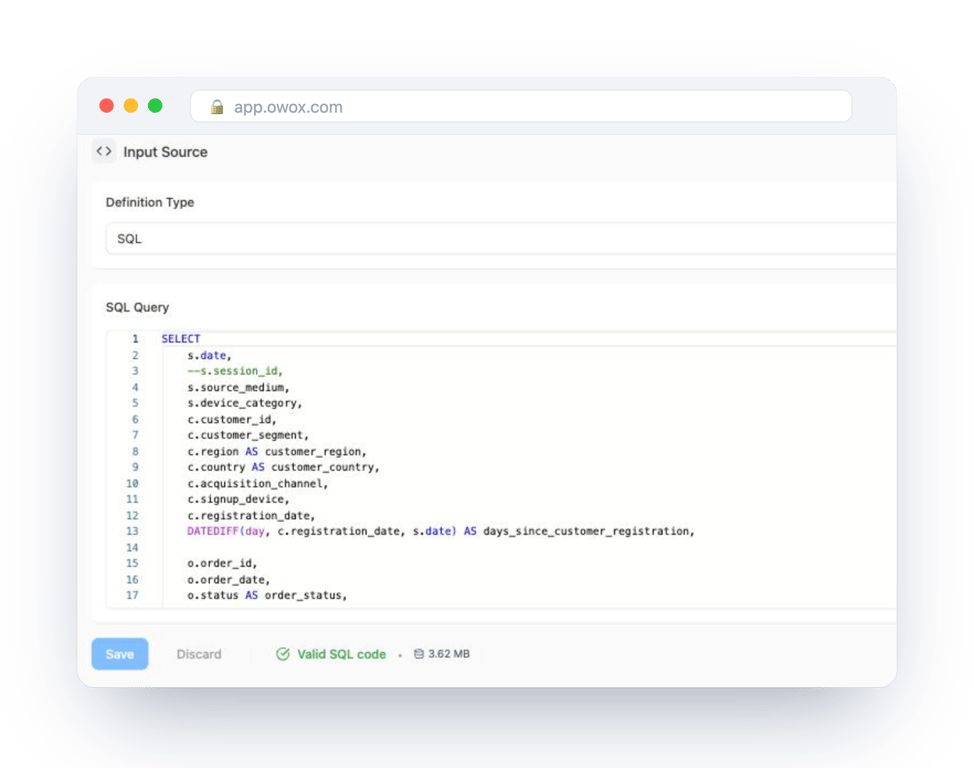
OWOX Data Marts does not transform the data or rewrite the SQL. If the joins are heavy, build the result as a table in Snowflake on a schedule and publish that table, so each report reads a finished result.
Ad platform data follows the same pattern. If campaigns are loaded into Snowflake by a connector, as in Facebook Ads to Snowflake, the connector’s table is already a Data Mart and can be reported from directly.
Step 3: add Google Sheets as a destination
Step 3: add Google Sheets as a destination
Create a destination of type Google Sheets once for the team. The destination guide gives two ways to connect it: Google OAuth with your own account, or the JSON key of a Google Cloud service account. The spreadsheets that reports write to are then shared with that account.
Step 4: create the report and choose its columns
Step 4: create the report and choose its columns
On the Data Mart’s Destinations tab, create a report under the Google Sheets destination. Give it a title, paste the link to the tab it should fill, or create a new sheet from the form, and pick the columns.
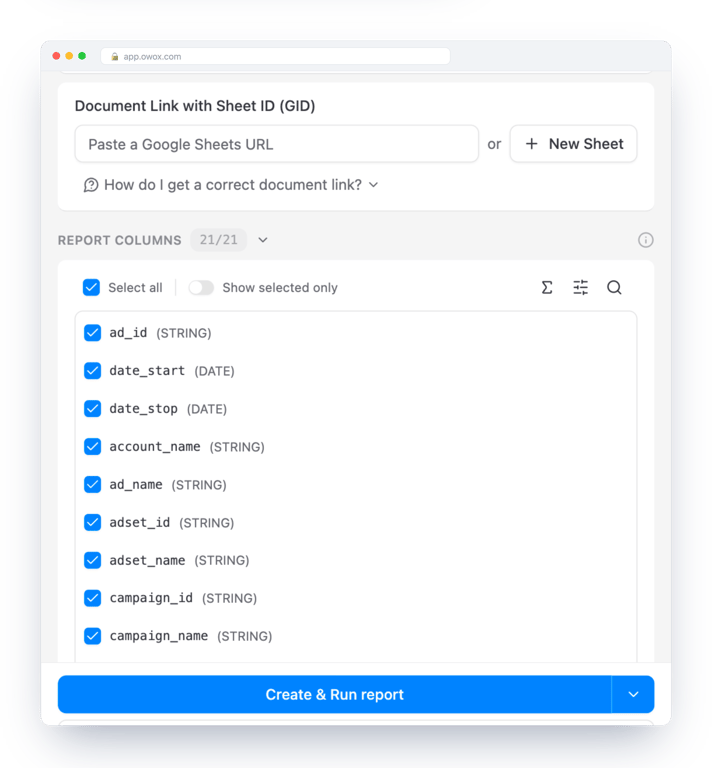
Choosing columns per report is how one Data Mart serves several audiences. The performance team takes campaign and ad set detail. The leadership summary takes five fields. Both read the same definition.
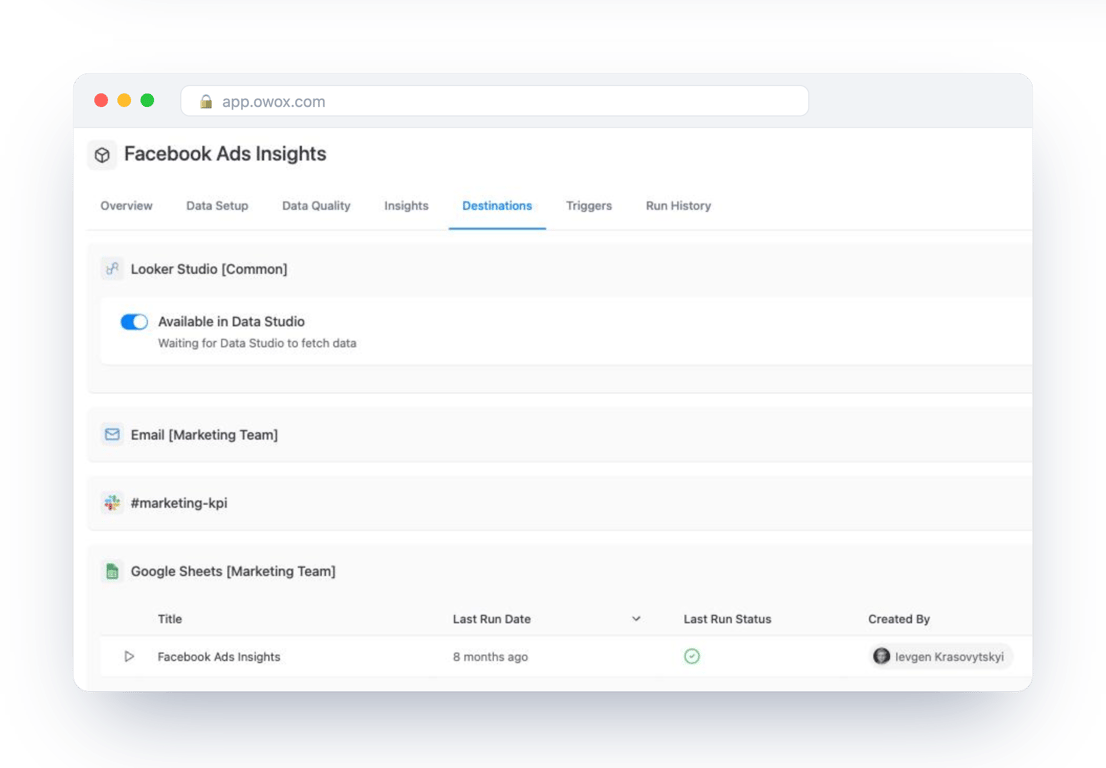
When the report runs, the rows are written into the sheet. The report owns only the columns it writes: headers and data in that range are replaced on each refresh, and whatever sits to the right of it, formulas, comments, a pivot, is preserved.
Step 5: schedule it
On the Triggers tab, add a report run trigger with the cadence the data deserves: daily before the team starts, weekly on Monday, or more often if the source really changes that fast. Run History then lists each run with its time and status, which is where you look first if someone says the sheet looks old.
Letting people pull the data themselves
Letting people pull the data themselves
Scheduled reports cover fixed deliverables. For everything else there is the OWOX Data Marts extension for Google Sheets. A business user opens it in a spreadsheet, picks a published Data Mart, chooses columns, adds filters and sorting, and runs it.
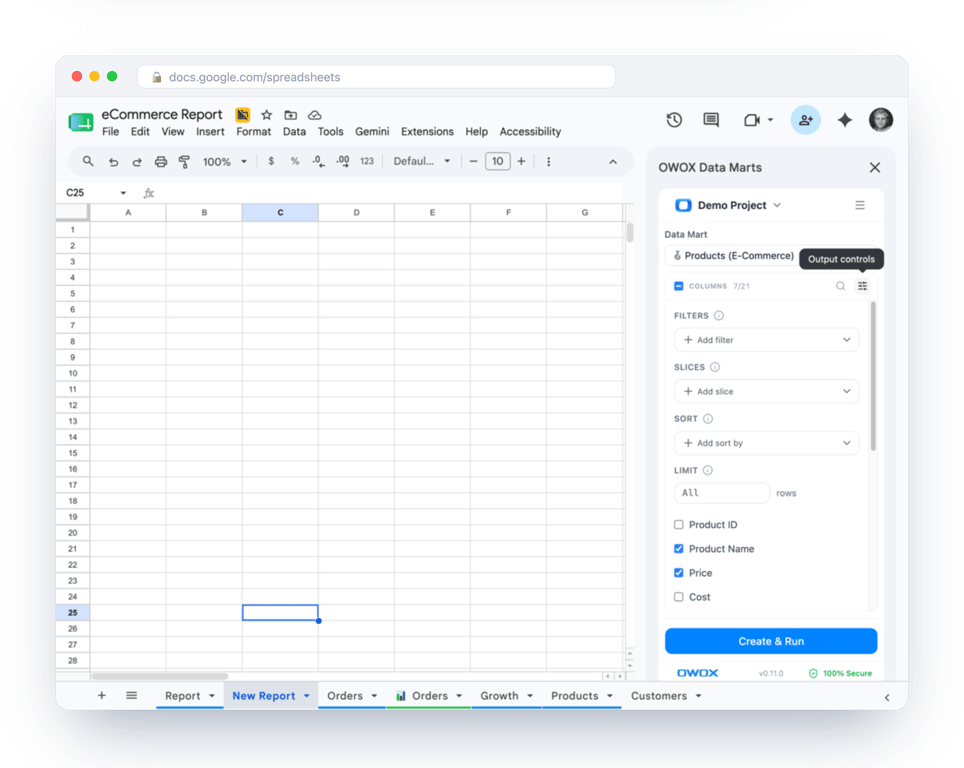
The extension can keep that pull on a schedule too, so the sheet a person built for themselves stays current.
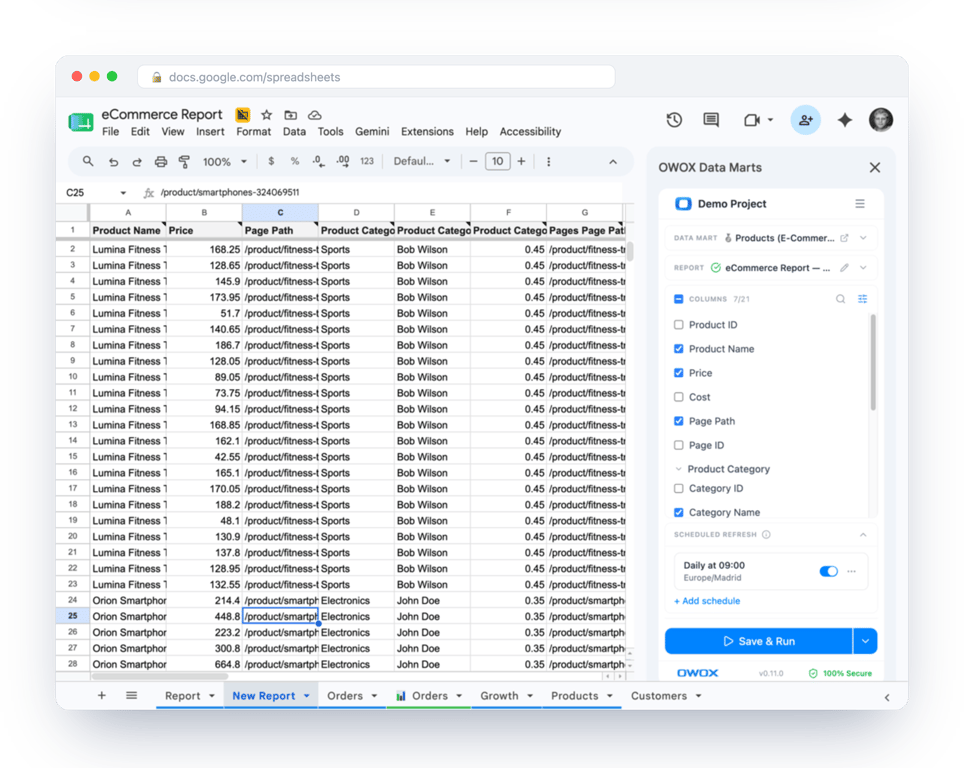
They never see the SQL and never need a Snowflake login. They can only reach what an analyst has published, which is the control that makes self-service safe. There is an Excel add-in for teams that work there.
Structuring the sheet for the people who read it
Structuring the sheet for the people who read it
A few habits keep a reporting spreadsheet usable after the third month.
- One imported tab per report, untouched. Build charts and summaries on separate tabs that reference it.
- Put your own columns to the right. They survive every refresh.
- Name tabs for the reader. “Channels, daily” beats “Sheet7”.
- Say where it comes from. A line with the Data Mart’s name and refresh time saves the question.
For the wider picture of where this layer sits, Snowflake as a reusable reporting layer covers the analyst’s side and self-service marketing analytics on Snowflake covers the marketing team’s. The same route on Databricks is described in Databricks to Google Sheets.
Turn your data into decisions.
Governed data marts give you the clean foundation ML needs to actually work.
- No AI hallucinations
- Analyst-governed definitions
- Every number traces to SQL
Frequently Asked Questions
Why keep the query in Snowflake and only the result in Google Sheets?
Because the two change for different reasons. The analyst changes the logic in one place, the Data Mart, and every sheet that reads it follows. The reader works with rows in a spreadsheet, adds their own columns to the right, and cannot alter the definition. Nobody needs a Snowflake login to read the numbers, and no copy of the SQL lives in a spreadsheet.
What are the steps to deliver Snowflake data to Google Sheets on a schedule?
Connect Snowflake as a storage in OWOX Data Marts, ideally on its own small warehouse. Publish a SQL query, table or view as a Data Mart and describe its fields. Add Google Sheets as a destination, create a report that names the tab to fill and the columns to include, then add a report run trigger. Run History shows each run with its time and status.
How do readers know what a column in the sheet means?
Each Data Mart has an output schema where the analyst gives every field an alias in business language and a description. Those definitions belong to the Data Mart, so every report built on it uses the same names, and the reader does not have to open the SQL to learn what a number includes.
Why write the rows into the sheet and not connect the sheet live to Snowflake?
A live connection runs a query whenever someone opens or refreshes the sheet, and in Snowflake a warehouse bills for every second it is awake. A scheduled report runs once, writes the rows, and lets the warehouse suspend. Twenty readers of that sheet cost one run. The data is as fresh as the schedule you chose.
How can I schedule automatic data refreshes from Snowflake Data Marts to Google Sheets with OWOX?
On the Data Mart's Triggers tab, add a report run trigger and choose the cadence: daily, weekly or at an interval, in the time zone you pick. Each run executes the query on Snowflake and rewrites the report's range in the sheet. Columns you added to the right are left in place.
What does OWOX Data Marts do in a Snowflake to Google Sheets setup?
It publishes and delivers. An analyst's SQL query, table or view becomes a named Data Mart on your Snowflake storage; a report writes its rows into a Google Sheets tab on a schedule; and business users can pull a published Data Mart themselves with the Sheets extension. It does not transform the data or rewrite the SQL.
How does a published Data Mart improve Snowflake reporting in Google Sheets?
It gives every sheet the same source. The definition of a metric is written once, in the Data Mart, with a description for each field. Each report takes the columns its reader needs from that definition, so the marketing sheet and the finance sheet agree, and a change to the logic is made in one place.
What are the drawbacks of exporting CSV files from Snowflake to Google Sheets?
A CSV export is a snapshot: it is out of date as soon as the data changes, and nobody can tell which snapshot a chart was built from. Each export is made by hand, so the logic can differ from one analyst to the next, and several versions of the file circulate at once. A scheduled report replaces the export with one definition and a known refresh time.