[GA4] BigQuery Export: Events Table Schema and Managing Dates
Learn the GA4 BigQuery export events table schema, how to navigate date partitions, query nested fields, and manage date dimensions with SQL.
![[GA4] BigQuery Export: Events Table Schema and Managing Dates](https://cdn.owox.ai/www/webflow/6a0deda21a276262059447d8_-GA4-BIGQUERY-EXPORT.png/public)
In digital marketing and analytics, understanding how to navigate and utilize the Google Analytics 4 (GA4) data export to BigQuery is essential.
This guide provides detailed insights into the structure and querying of GA4 event data in BigQuery, with a focus on date management techniques.

The process involves understanding the structural nuances of GA4 data, effectively managing dates, and performing complex queries to extract valuable information.
GA4 data export to BigQuery is particularly useful for digital marketers who want to optimize marketing campaigns and website performance through more advanced reports that are not available in the Google Analytics 4 interface.
Digital analysts can easily manipulate GA4 data in BigQuery to meet business needs.
This article is Part 2 in our series, “[GA4] BigQuery Export.”
If you’re following along, check out the previous articles in the series:
• Part 1: How to Connect GA4 to BigQuery Step-by-Step****Continue your journey with the next parts:
• Part 3: How to Query GA4 Event Data• Part 4: How to UNNEST GA4 Event Parameters• Part 5: How to Extract GA4 User Properties and Metrics• Part 6: BigQuery Mistakes and How to Prevent Them• Part 7: How to Build Your First Dashboard Using Looker Studio
What is GA4 to BigQuery Export?
What is GA4 to BigQuery Export?
The GA4 to BigQuery export allows users to collect their event data from GA4 in Google BigQuery, enabling advanced SQL querying and deeper analysis.
Integrating GA4 with BigQuery is important for businesses, as it allows way more in-depth reporting, and therefore data-driven decision-making.
By leveraging BigQuery’s capabilities, businesses can gain deeper insights into their user interactions and website and marketing performance, leading to more informed strategies and improved outcomes.
If you haven’t set up [GA4] BigQuery Export yet, here is a guide on how to do it.
Free guide: How to Set up [GA4] to BigQuery Export →
Overview of the GA4 data structure in BigQuery
Overview of the GA4 data structure in BigQuery
When you start collecting Google Analytics 4 (GA4) website tracking data directly in BigQuery, you can perform complex calculations using SQL for better and more in-depth analysis.
Understanding the data structure is essential before you start navigating it and building reports.
To find your GA4 Export data in BigQuery, follow these steps:
1. Access Google Cloud Platform (GCP): Log in to your Google Cloud Platform account and navigate to the BigQuery console.
2. Select your project: In the BigQuery console, select your project from the project list on the left-hand side. Your GA4 data will be stored under the project associated with your GA4 property.
3. Navigate to the dataset: Within your selected project, locate the dataset corresponding to your GA4 property. The dataset is usually named after your GA4 property ID, followed by analytics, such as dataset_id.
4. Explore the tables: Within the dataset, you’ll locate several tables, each representing different types of GA4 data.
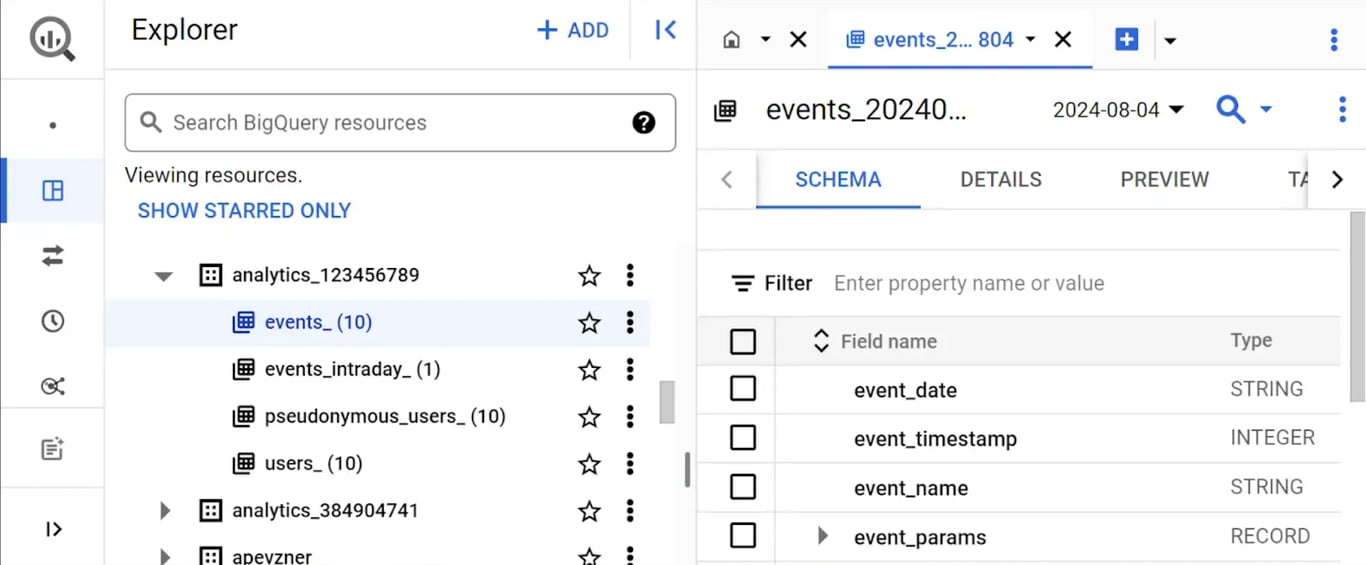
The key tables include events_YYYYMMDD (daily events).
If you have enabled the streaming option, you’ll also see the events_intraday_YYYYMMDD (real-time data from GA4) tables.
You might also find the pseudonymous_users_YYYYMMDD (users without a user_id) and users_YYYYMMDD (user details with user_id) tables.
On the screenshot below, you can see how it might look in your BigQuery interface.
5. Understanding the table structure: Each table in the dataset follows a schema that defines the structure of the data.
For example, the events table includes fields like event_name, event_timestamp, event_params, and others, while user tables include fields like user_pseudo_id, user_properties, and user_first_touch_timestamp.
6. Accessing and querying data: You can click on any table to view its schema and preview the data.
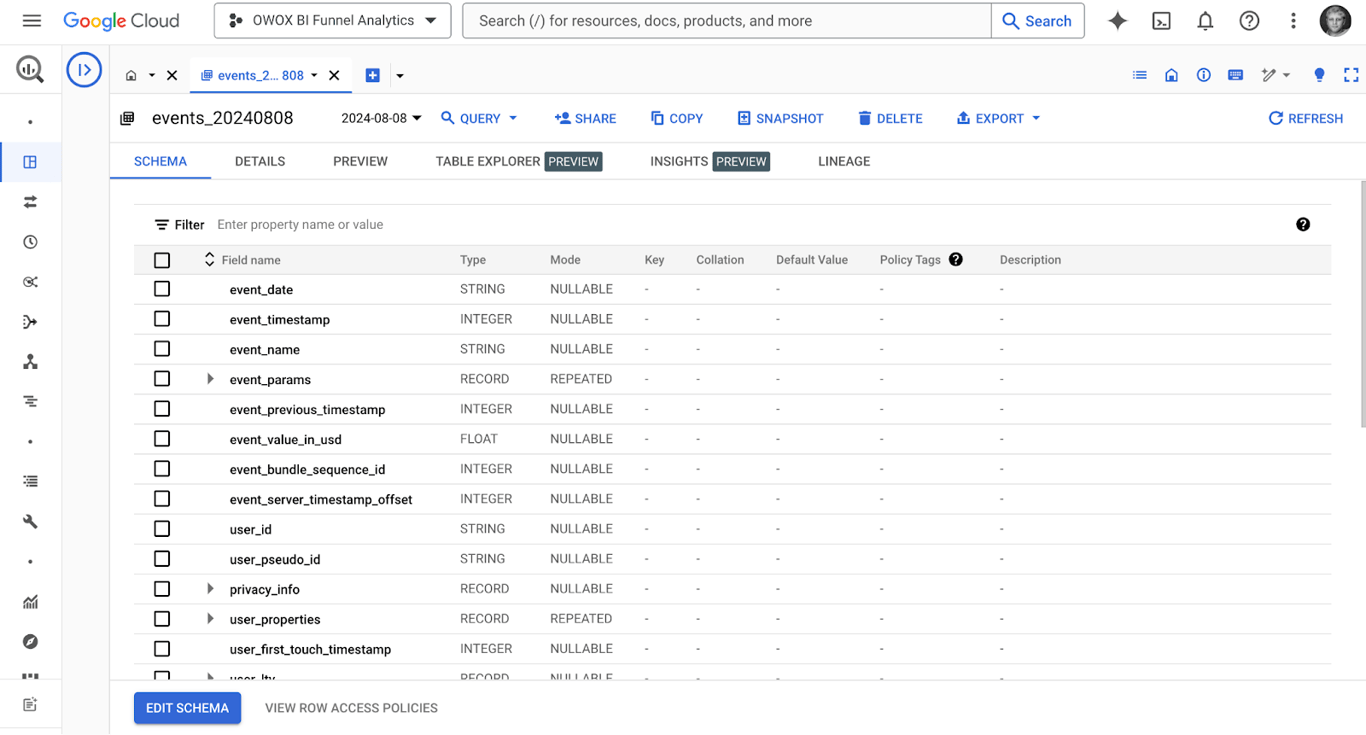
From here, you can run SQL queries to analyze the data, extract insights, and generate reports.
GA4’s structure is optimized for BigQuery capabilities, with nested and repeated fields capturing complex data relationships. This setup enhances querying speed, performance, and cost efficiency, enabling detailed and scalable data manipulations for valuable insights.
OWOX Data Marts
See your first report built in real time. 15 minutes.
- Connect your data warehouse
- Pick your metrics
- Get a live Google Sheets report
In the time it takes to write a ticket. Then imagine never writing that ticket again.
Book a DemoWe'll use your actual use case
Event tables in BigQuery
Event tables in BigQuery capture detailed recordings about all user interactions with the website or app, such as page views and transactions, focusing on granular event details like event_date and event_params.
These tables are essential for analyzing user behavior, identifying trends, and optimizing marketing strategies, providing detailed insights and enabling data-driven decisions for improved user engagement and conversions.
Daily Export Tables: events_YYYYMMDD
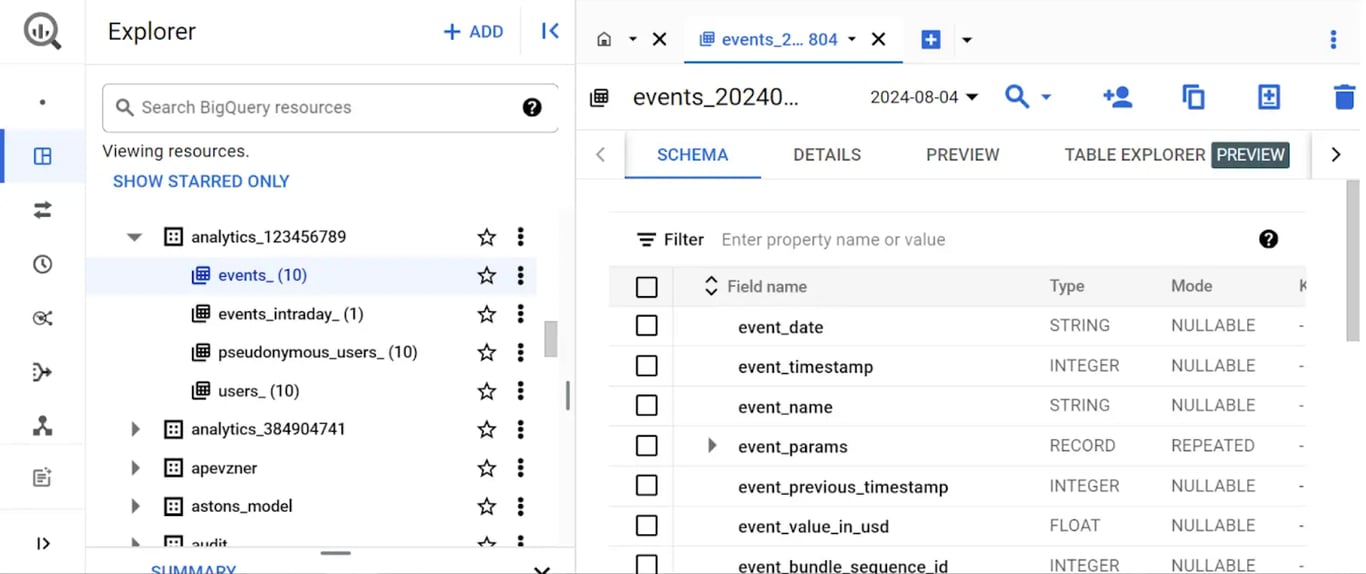
The events_YYYYMMDD table is the daily events table in BigQuery that stores all selected events from GA4 with details such as event_date, event_name, and event_params.
Streaming tables: events_intraday_YYYYMMDD
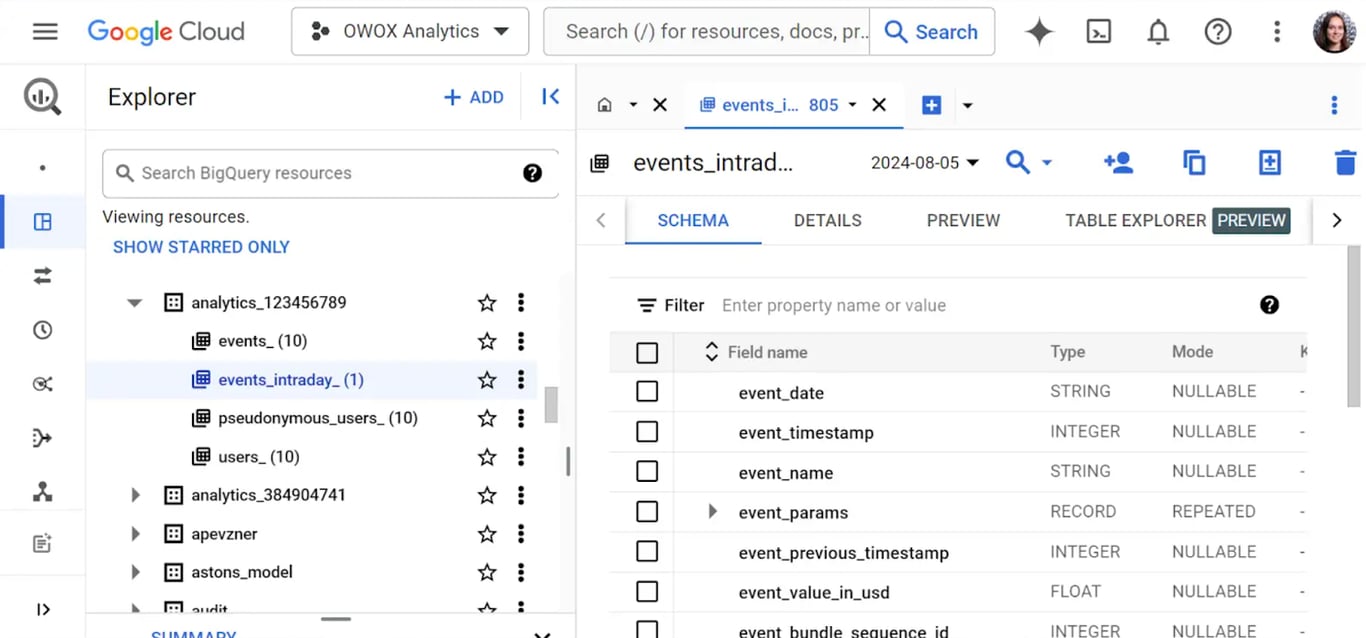
The events_intraday table is a live-streaming table in BigQuery that contains real-time data from GA4. It is used extensively for creating real-time reports and conducting GA4 setup audits.
However, you might encounter some nuances with this table:
1. What to do if you see more than one events_intraday table? This can happen due to multiple uploads of intraday data on the same day, often caused by data processing interruptions or delays. Verify both tables for completeness and consider combining them to get a full picture of the day’s events.
2. Why you might not see events_intraday tables? If the intraday table is missing, it could be due to no events being logged during that time frame or because of data processing issues. Check your GA4 settings and ensure there are no disruptions in the data pipeline.
3. What happens to data in events_intraday tables? Data in events_intraday tables is temporary, providing a real-time snapshot. At the end of the day, this data is merged into the daily events_YYYYMMDD table, and the intraday tables are typically deleted. Use these tables for real-time analysis but rely on the daily table for final data.
4. What’s missing from events_intraday tables? The events_intraday tables may lack complete data about traffic sources, such as traffic_source.source and traffic_source.medium, as they are designed for immediate, real-time data capture. For a complete analysis, refer to the daily events_YYYYMMDD table after all data has been processed.
User tables in BigQuery
User tables in BigQuery focus on user attributes and profiles, storing data such as user demographics, properties, and identifiers.
These tables differ from event tables in that they provide a snapshot of user information rather than granular event details.
User tables are important for understanding user characteristics, segmenting audiences, and tracking user journeys. This data supports personalized marketing efforts and enhances user behavior and engagement analysis.
pseudonymous_users_YYYYMMDD
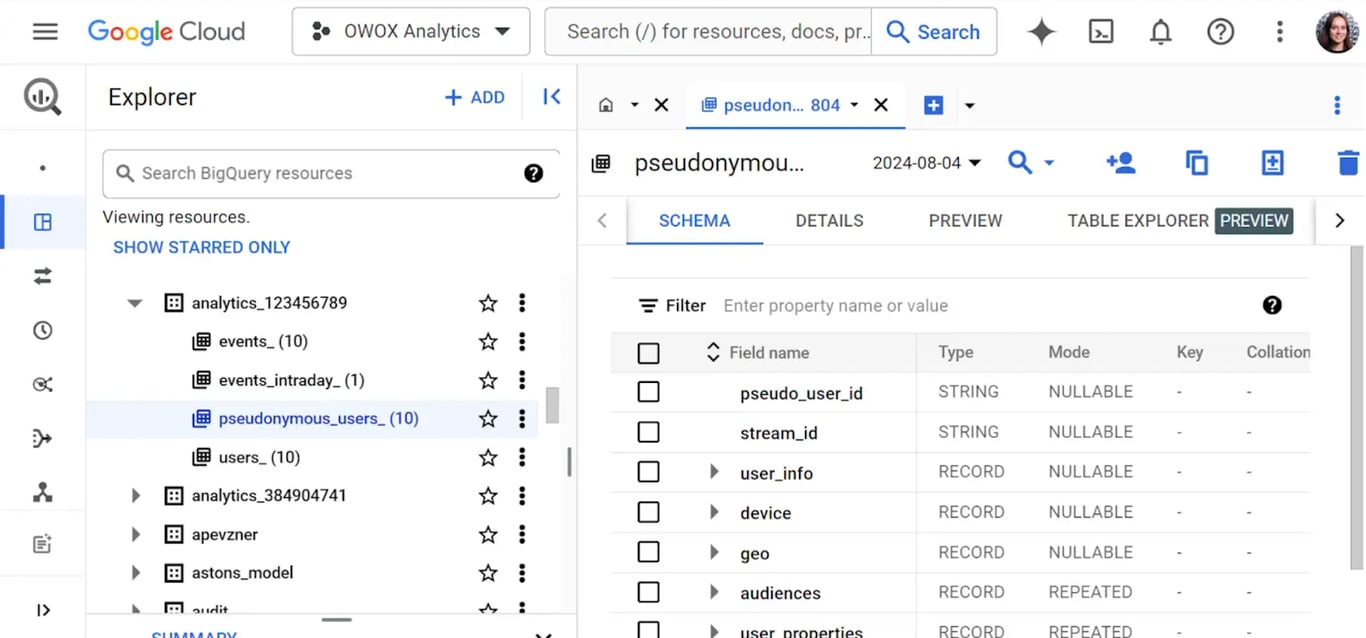
The pseudonymous_users_YYYYMMDD table contains details about users without a user_id, identified by the user_pseudo_id in GA4. This ID, assigned by GA4, tracks users via device or client ID.
The table includes fields like user_pseudo_id, device, and user_properties, capturing user details for analysis without revealing personal information. This structure allows for detailed user behavior analysis while maintaining user privacy.
users_YYYYMMDD
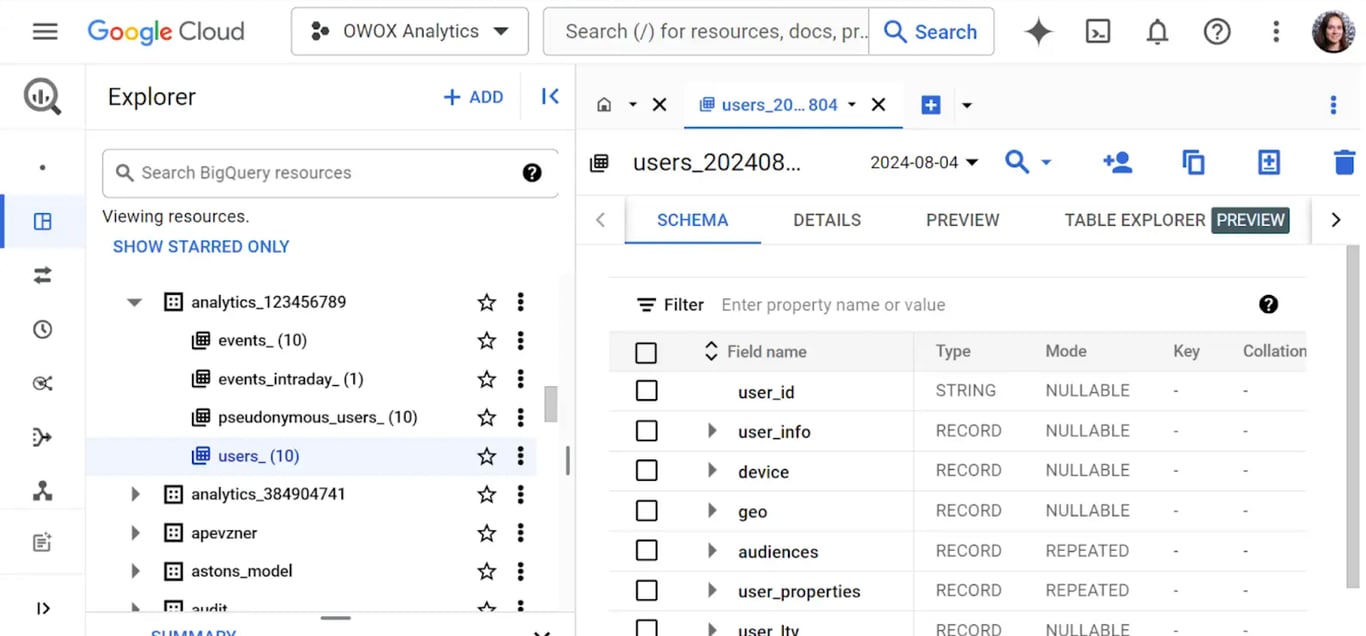
The users_YYYYMMDD table in BigQuery stores detailed user information for specific days, identified by a unique user_id. It includes fields such as user_id, user_properties, user_first_touch_timestamp, and traffic_source.
This table provides a comprehensive view of user attributes and behaviors, enabling in-depth analysis and personalized marketing strategies based on user data.
Navigating the schemas in event table
Navigating the schemas in event table
In GA4 BigQuery, schemas are essentially the structure that defines how data is organized within a table. A schema specifies the names, data types, and organization of fields (or columns) within the table.
For example, in an events table, the schema defines what fields are available, such as:
- event_name: (STRING) – The name of the event, like page_view or purchase.
- event_params: (RECORD) – A nested field that includes key-value pairs representing various parameters related to the event.
- user_pseudo_id: (STRING) – A pseudonymous ID assigned to each user for tracking purposes.
- event_timestamp: (INTEGER) – The timestamp when the event was recorded.
- geo: (RECORD) – Contains geographical information like the user’s country or region.
Schemas are crucial because they dictate how data can be queried, stored, and analyzed. The events table is central to all tables and contains every event sent to BigQuery. It captures all chosen events, but keep in mind the 1 million event daily limit when planning your data exports.
Details tab of the event table
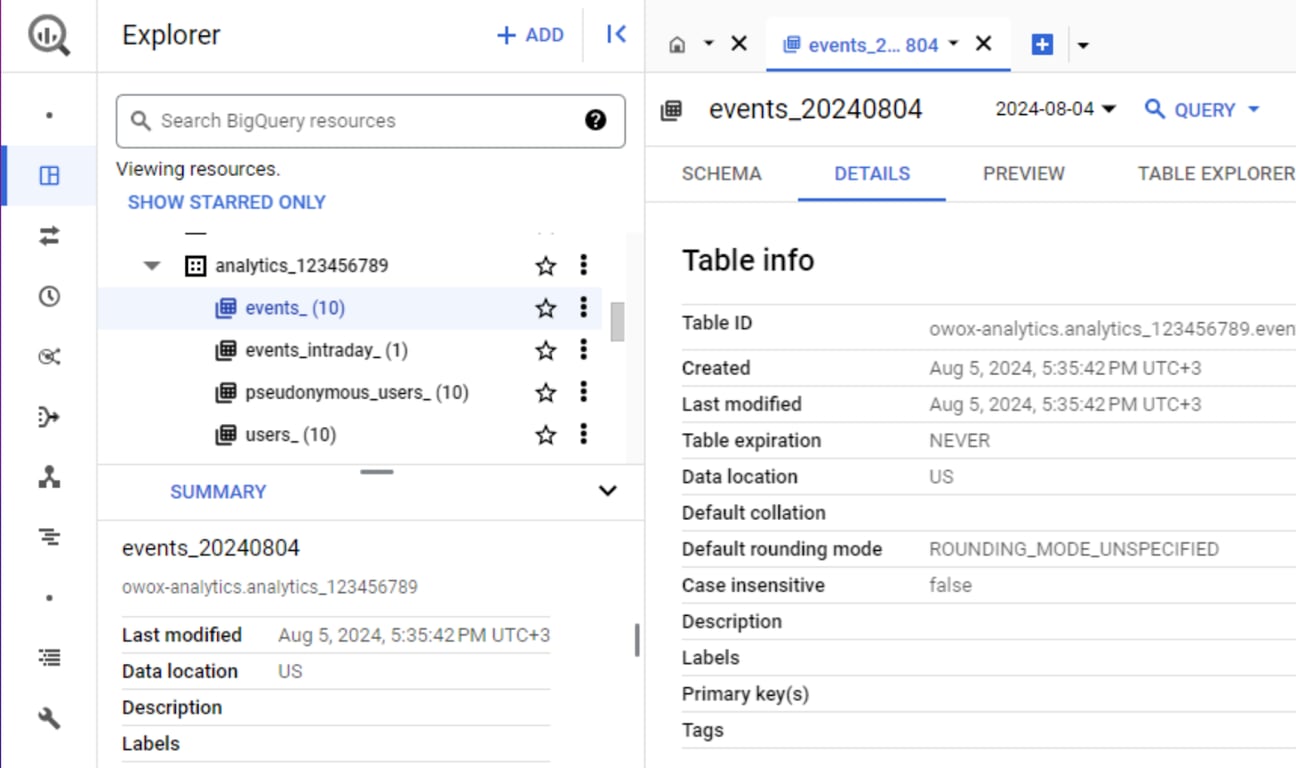
The Details tab contains vital information such as table info, table ID, creation date, last modified date, location, and default rounding mode. It also includes storage details like the number of rows and logical bytes.
Checking these details is crucial for understanding the table’s metadata.
The table ID is required when querying the GA4 data. This tab also monitors data storage to determine the size of the data table, ensure data accuracy, and manage table usage effectively.
Preview tab of the event table
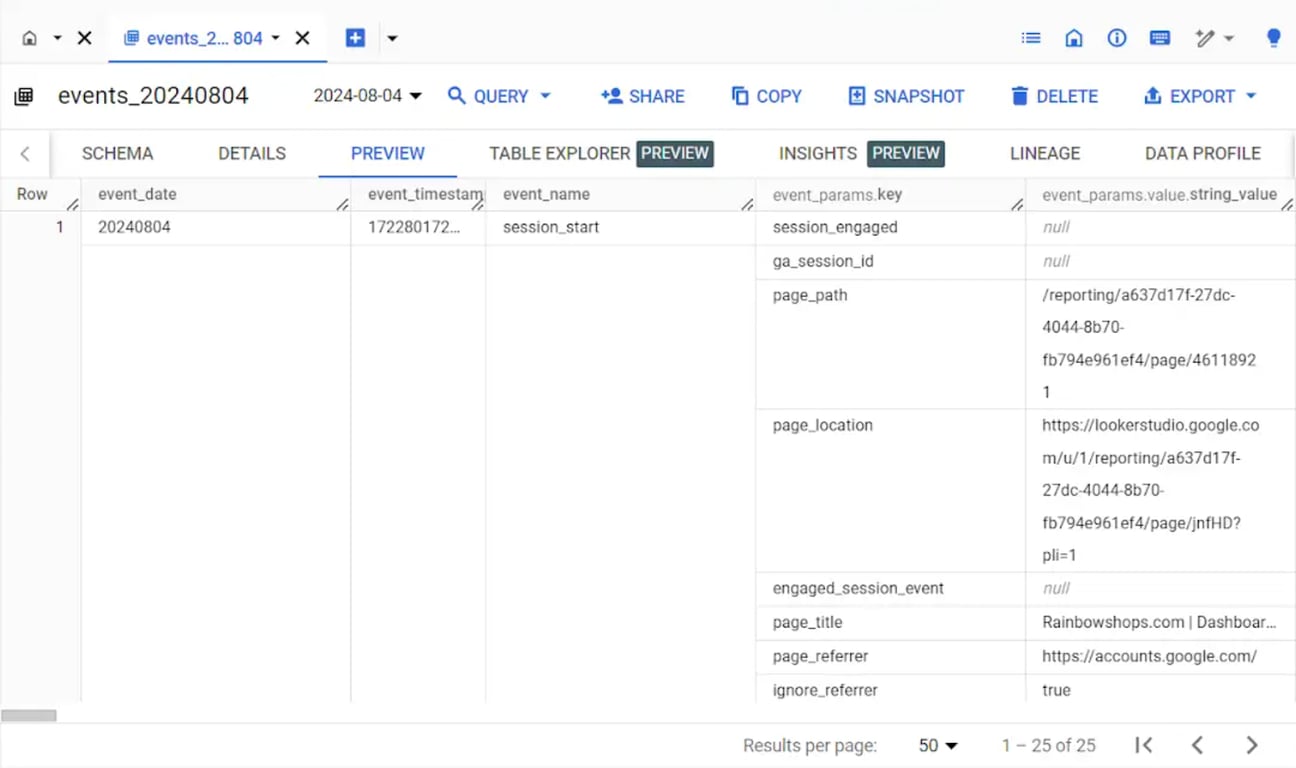
The Preview tab in BigQuery’s event table allows you to view a sample of the event data without incurring any costs.
It includes columns such as event_date, event_timestamp, event_params_key, and more. This tab provides an idea of the data types and structure available in the table without needing to access it via query. Checking these details helps verify data accuracy and understand the data content, ensuring the events recorded align with your expectations.
Table Explorer [Preview] overview
The Table Explorer in BigQuery is a feature in Preview mode, which provides an interactive way to explore table data and build queries directly from the Google Cloud console.
This feature is particularly useful for quickly viewing table schemas, selecting specific fields, and previewing data without writing SQL queries manually. For those working with GA4 data exported to BigQuery, the Table Explorer offers significant advantages.
The Table Explorer allows you to:
View table schema: Quickly see the structure of your GA4 tables, including event-related fields like event_name, event_timestamp, and user-related fields like user_pseudo_id. You can easily access field names, types, and descriptions.
To access Table Explorer and view table schema:
- Open your Google Cloud Console and navigate to BigQuery.
- In the BigQuery project, locate the dataset where your GA4 data is stored.
- Click on the dataset to expand it and view the tables within it.
- Click on the GA4 table you want to explore (e.g., events_YYYYMMDD).
- Click on the “Table Explorer” tab.
- Click on “Select fields” to choose fields you want to analyze and click “Save.”
Here, you’ll see the structure of your GA4 table, including fields like event_name, event_timestamp, and user_pseudo_id.
Select fields for querying: You can choose which fields to include in your query by simply clicking on them. For GA4 data, this means you can quickly include event parameters, user properties, and traffic source information without manually typing each field.
Preview data: Before running a full query, you can preview the data by clicking on the “Preview” tab to ensure it contains the information you need.
Run the query: After selecting your fields and previewing the data, copy the generated query and run it. Review the results to ensure they align with your analysis goals.
After you have your query finalized, it’s time to use a visualization tool. You can connect your query to Looker Studio or use Google Sheets.
If you want a better way to build your queries, use our FREE SQL Copilot. This AI-powered tool connects to your BigQuery via OAuth and translates natural language descriptions into SQL in seconds. Every query it generates is grounded in your actual schema – no hallucinations, no invented table names, and a full audit trail so your analyst can verify each result before it goes into a report.
Types of fields in GA4 event table structure in BigQuery
Types of fields in GA4 event table structure in BigQuery
Understanding the types of fields in the GA4 event table structure in BigQuery is crucial for efficient data analysis. The table is organized into rows and columns, where rows represent individual events and columns represent different attributes of these events.
Primary fields in GA4 event tables
Primary fields in GA4 event tables include essential attributes for each event.
Key fields are:
- event_date
- event_timestamp
- event_name
- user_pseudo_id
These fields provide the basic information needed to identify and analyze each event, such as the date and time it occurred, the type of event, and the user involved. They serve as the foundational elements for querying and filtering event data, enabling accurate and efficient data retrieval.
Repeated fields in GA4 event tables
Repeated fields in GA4 event tables are used to capture multiple corresponding values within a single event.
Key fields include:
- geo: Includes sub-fields like country, city, etc., that are repeated for different locations.
- device: Contains sub-fields like device_category, operating_system, etc., repeated for different devices.
- traffic_source: Contains sub-fields that repeat information about different traffic sources, such as source, medium, etc.
The repeated structure allows for deeper insights into user behavior and interaction patterns, supporting advanced analytics and reporting by including multiple entries within a single event.
Nested fields in GA4 event tables
Nested fields in GA4 event tables contain complex data structures within a single field.
Key nested fields are:
- event_params: Contains parameters related to the event, such as event_name, event_value, etc.
- items: Can store information about multiple items associated with a single event, such as products in a transaction.
These fields enable the detailed and granular analysis of complex events, helping to understand the full context of user interactions by accommodating multiple values.
Overview of key data fields in the events table in BigQuery
Overview of key data fields in the events table in BigQuery
The events table in BigQuery includes various fields that capture comprehensive details about user interactions, facilitating detailed analysis and reporting.
The data fields in this table can be categorized into several key groups:
- Events
- User
- Device
- Geo
- App Info
- Collected Traffic Source
- Traffic Source
- Stream and Platform Info
- Ecommerce
- Items
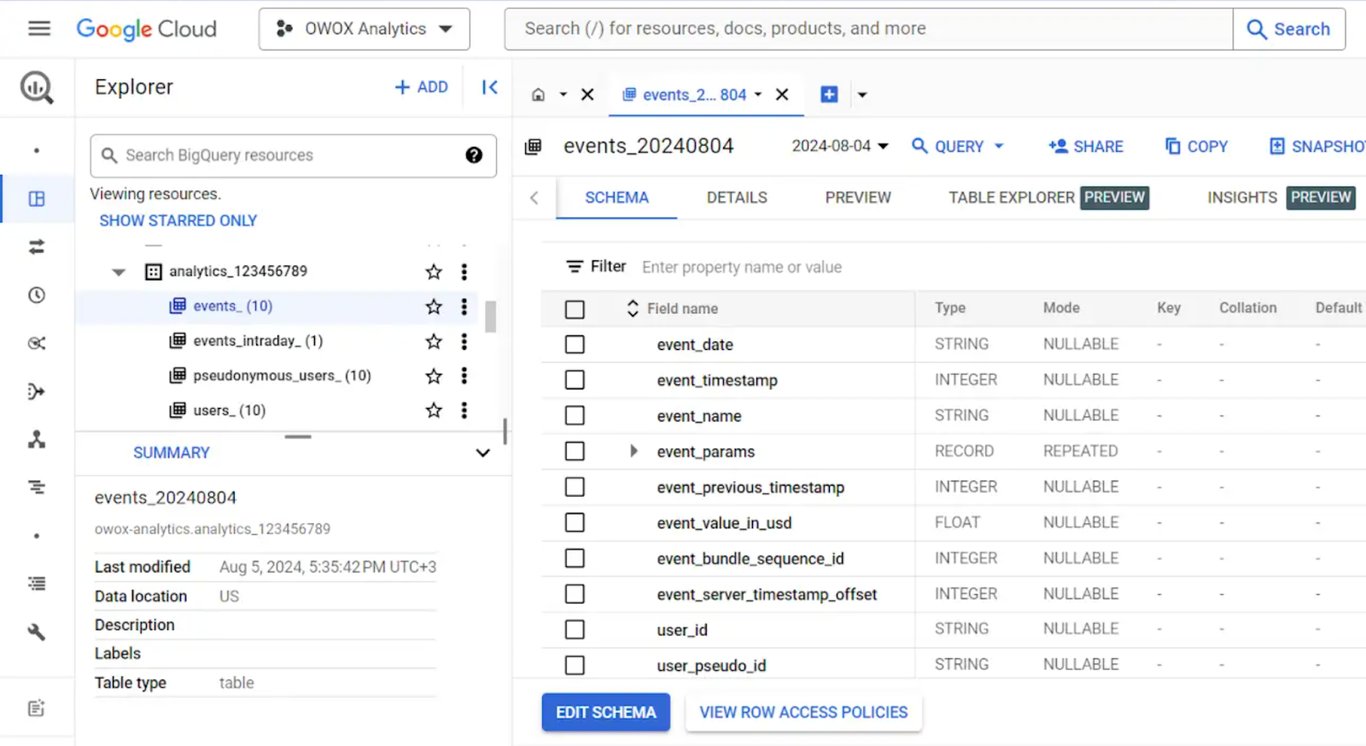
Each type of field can be queried to extract specific insights:
1️⃣ Events fields help identify when events occurred and their types.
2️⃣ User fields track behavior and preferences.
3️⃣ Device and Geo fields analyze interactions across devices and locations.
4️⃣ App Info monitors app usage and performance.
5️⃣ Traffic Source fields assess the effectiveness of marketing campaigns.
6️⃣ Stream and Platform Info differentiate data sources.
7️⃣ Ecommerce and Items fields analyze sales performance and product trends.
This comprehensive structure supports multifaceted data analysis and informed decision-making.
event_date
The event_date field is a STRING that records the date an event was logged. It follows the format YYYYMMDD and aligns with the time zone of your GA4 property.
This field is crucial for time-based analyses, allowing you to filter and aggregate events by specific dates.
event_timestamp
The event_timestamp field is an INTEGER representing the time when the event was logged on the client, formatted in UTC.
This field is essential for understanding the exact timing of user interactions, enabling precise analysis of user behavior and event sequences.
event_name
The event_name field is a STRING that captures the name of the event.
This field is vital for categorizing and identifying different types of user interactions, such as page views, clicks, or transactions, facilitating targeted analysis and reporting.
event_params
The event_params field is a RECORD that includes all parameters associated with an event.
This field allows for detailed contextual data to be attached to events, enriching the analysis by providing additional dimensions and metrics related to each event.
Key
Within the event_params RECORD, the Key represents the parameter name.
This allows you to identify specific parameters relevant to your analysis, such as ‘product_id’ or ‘page_title’, providing a detailed understanding of the event context.
Values
The Values within the event_params RECORD represent the parameter values associated with each key.
These fields hold different values depending on the tracked data: String Value, Int Value, Float Value, and Double Value. Each provides specific details that can be analyzed to gain insights into user actions and preferences, such as the value of a transaction or the name of a clicked button.
event_bundle_sequence_id
The event_bundle_sequence_id field is an INTEGER that indicates the sequential ID of the bundle in which events were uploaded.
This field is useful for tracking the order and grouping of events, helping to understand the flow and sequence of user interactions.
event_server_timestamp_offset
The event_server_timestamp_offset field is an INTEGER representing the offset between the collection time and upload time in microseconds.
This field is important for understanding potential delays in data processing and ensuring the accuracy of event timing.
user_pseudo_id
The user_pseudo_id field is a STRING that provides a pseudonymous identifier for the user, such as an app instance ID. This was earlier known as Client ID in Google Universal Analytics.
This field is essential for tracking user behavior across sessions without revealing personal information, supporting privacy-compliant user analysis.

privacy_info
The privacy_info field contains various STRING sub-fields indicating user consent and privacy settings. These include ads_storage, analytics_storage, and uses_transient_token.
This field is responsible for ensuring compliance with privacy regulations and understanding user consent statuses.
user_properties
The user_properties field is a RECORD containing key-value pairs of user properties.
This field captures attributes and behaviors specific to users, such as demographics or preferences, enabling personalized marketing and targeted analysis.
user_first_touch_timestamp
The user_first_touch_timestamp field is an INTEGER that records the time when a user first opened the app or visited the site, in microseconds.
This field is vital for understanding the user lifecycle and the timing of initial interactions.
traffic_source
The traffic_source field is a RECORD that includes details about where the user came from, such as source, medium, and campaign.
This field is essential for analyzing the effectiveness of marketing channels and campaigns.
device
The device field is a RECORD containing details about the user’s device, including category, operating_system, and brand.
This field helps analyze how users interact with your site or app across different devices, informing optimization strategies.
geo
The geo field is a RECORD that captures geographical information such as country, city, and region.
This field is crucial for understanding regional engagement and tailoring marketing strategies to specific locations.
app_info
The app_info field is a RECORD containing details about the app, such as app_id and app_version.
This field is important for monitoring app usage and performance and for segmenting data by app versions.
web_info
The web_info field includes data about the web environment from which events were logged, such as browser, page_location, and page_referrer.
This field helps in analyzing web traffic and user interactions on your website.
ecommerce
The ecommerce field is a RECORD that captures e-commerce-related data, including transaction_id, value, and currency.
This field is essential for tracking sales performance, analyzing revenue, and understanding purchase behaviors.
items
The items field is a RECORD that details individual items in e-commerce transactions, including item_id, item_name, and price.
This field allows for granular analysis of product performance and customer purchasing patterns.
Free guide: [GA4] BigQuery Export SQL Queries Library →
SQL query example for retrieving data from events tables and users tables
SQL query example for retrieving data from events tables and users tables
When working with GA4 data in BigQuery, you may want to retrieve specific information from both the event table and the users table to analyze user behavior and event interactions.
Understanding nested fields like event_params and user_properties is essential for querying complex data structures. Unique events and parameters capture details such as product details, page titles, and engagement metrics, requiring specific SQL techniques to extract and analyze event data alongside user attributes.
Nested fields in GA4 BigQuery
In GA4 BigQuery, nested fields like event_params and user_properties are used to capture complex data structures within each event.
These fields can store multiple key-value pairs or lists of values, allowing you to capture detailed user interactions.
However, querying these nested fields requires specific SQL techniques, such as using the UNNEST function.
Example: Analyzing marketing campaign data with nested fields
Suppose you want to explore the first few events in your GA4 data to understand the structure of nested fields like event_params and user_properties.
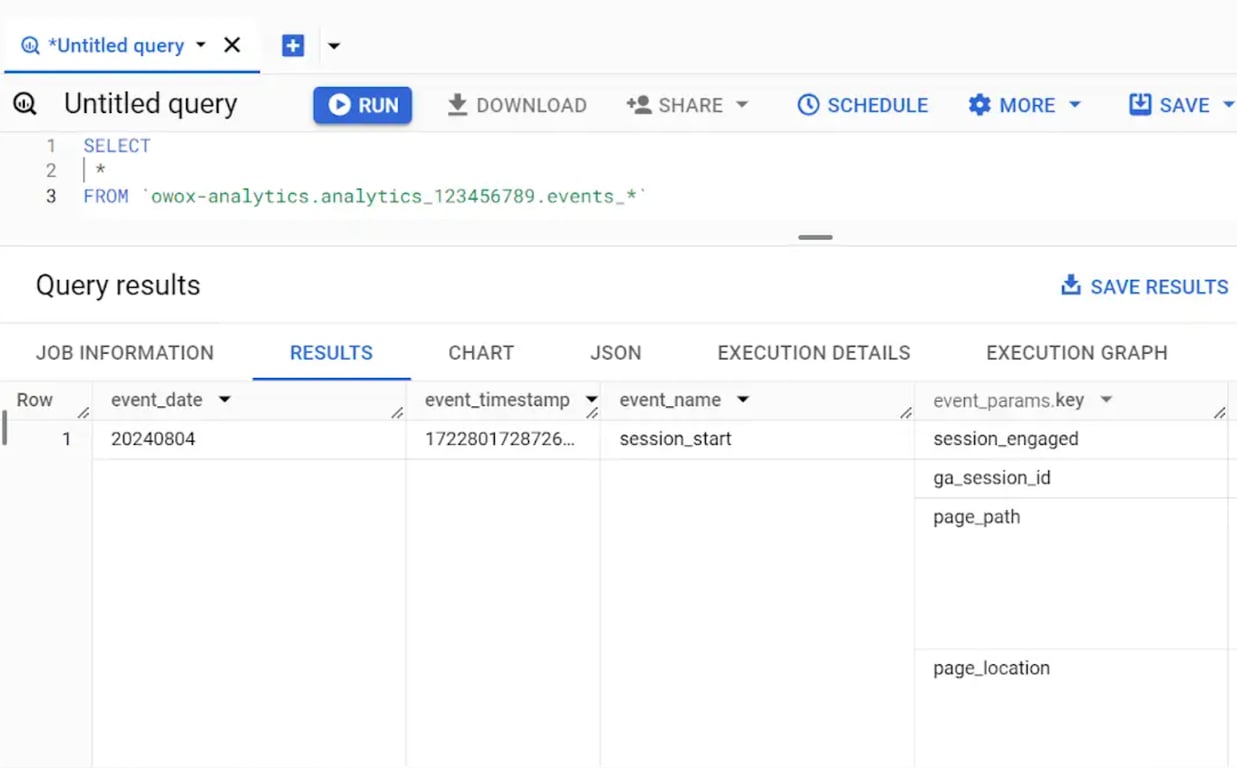
Here:
- SELECT clause: Selects all columns and nested fields from the dataset.
- FROM clause: Specifies the event table (events_*), where the GA4 event data is stored. The wildcard (*) in the table name indicates that data from multiple tables (e.g., for different dates) can be queried.
- LIMIT clause: Limits the query results to the first three rows, allowing you to inspect a small sample quickly.
Identifying and analyzing unique events and parameters
In GA4 BigQuery, datasets can contain a wide variety of events, each with its own set of parameters and data types.
Since each dataset may have different events and parameters, it’s crucial to query the actual tables to understand what data is being collected.
Example: Analyzing marketing campaign data
Suppose you want to analyze the unique events and parameters related to marketing campaigns, such as campaign, source, and medium. This query helps you identify all unique event names and associated parameters, including their data types.
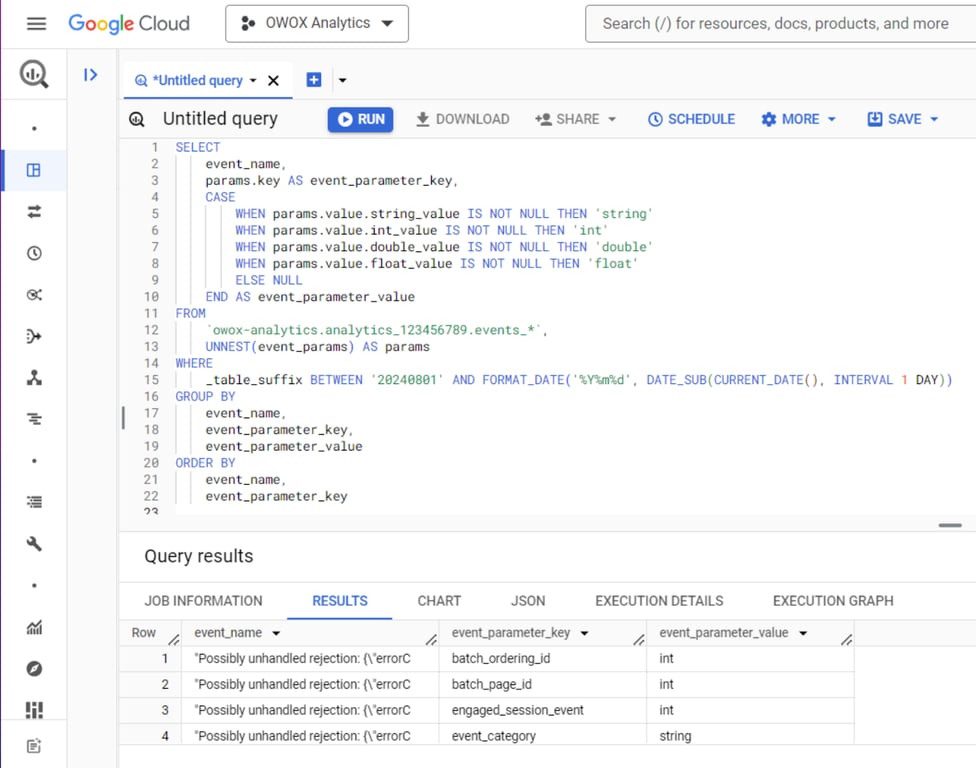
Here:
- event_name: Retrieves the name of each event, such as page_view, purchase, or session_start.
- params.key AS event_parameter_key: Extracts the key (name) of the parameter from the event_params nested field.
- CASE…END AS event_parameter_value: Checks the type of the parameter value (string, int, double, float) and labels it accordingly.
- FROM clause: Specifies the event table (events_*) where the GA4 event data is stored.
- WHERE clause: Filters the data to include only the events within the specified date range.
- GROUP BY clause: Groups the results by event_name, event_parameter_key, and event_parameter_value to ensure each unique combination is listed once.
- ORDER BY clause: Orders the results by event_name and event_parameter_key for organized output.
SELECT tables from GA4 BigQuery Export data based on date
SELECT tables from GA4 BigQuery Export data based on date
As each table in a GA4 dataset within BigQuery stores event data for a specific date, it’s often necessary to query tables for multiple days to analyze events over time.
SQL allows you to select and filter data from more than one table, enabling you to focus on particular days or date ranges – both static (e.g., January 1 to January 10) and dynamic (e.g., last 30 days).
SELECT dates via suffix from wildcard table
When querying GA4 data in BigQuery, you can use wildcards in the table names to select data from specific date ranges. This technique allows you to efficiently retrieve data across multiple tables without specifying each table individually.
By using the wildcard symbol (*), you can specify a range of dates in your query:
All tables in the dataset:
This retrieves data from all tables in the dataset, regardless of the date.
Full year data:
This retrieves data from all tables in the dataset for the entire year of 2021.
Specific month data:
This retrieves data for all days in January 2021.
Specific days data:
This retrieves data for the first 9 days of January 2021.
Using wildcards in this way streamlines your queries, making it easier to analyze data across different periods without listing each table manually.
Default date and time dimensions
In GA4 BigQuery exports, several default date and time dimensions are available to help analyze when events occurred, track user behavior over time, and understand the timing of user interactions.
These dimensions include:
1. event_date: The event_date dimension represents the date on which an event was logged, formatted as YYYYMMDD in the registered timezone of your GA4 property.
Here is a quick example:
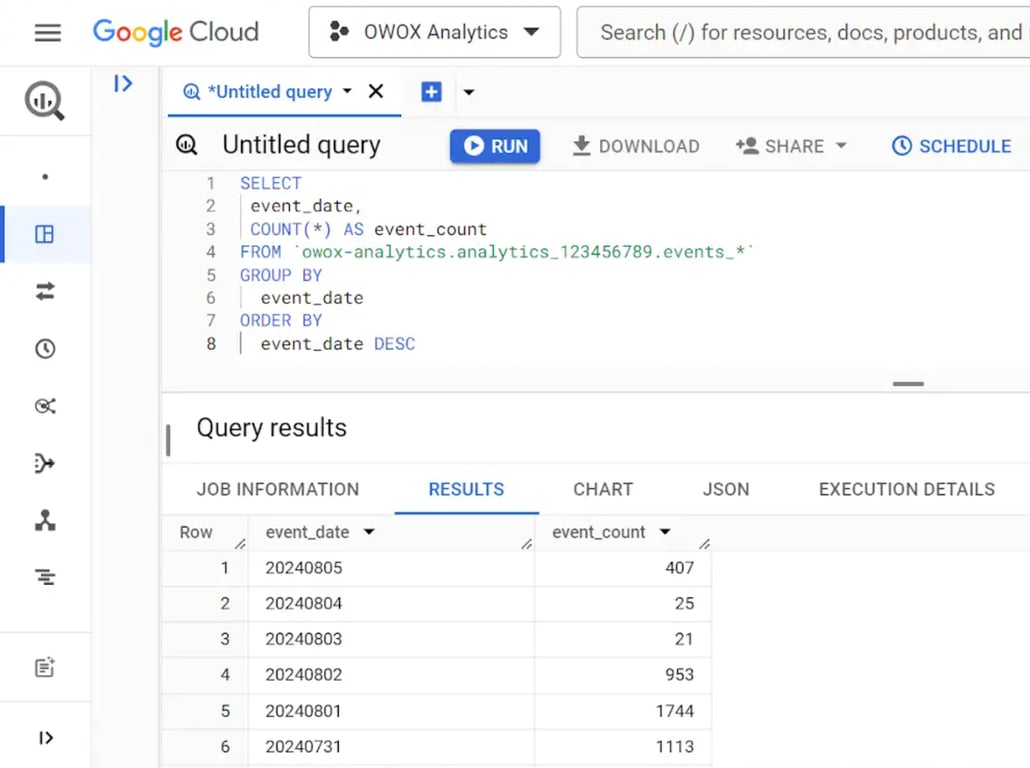
This query retrieves the number of events logged for each date, helping you understand the daily event activity.
2. event_timestamp: The event_timestamp dimension records the exact time when the event was logged on the client, measured in microseconds in UTC.
Here is a quick example query – replace project_id and dataset_id with your values:
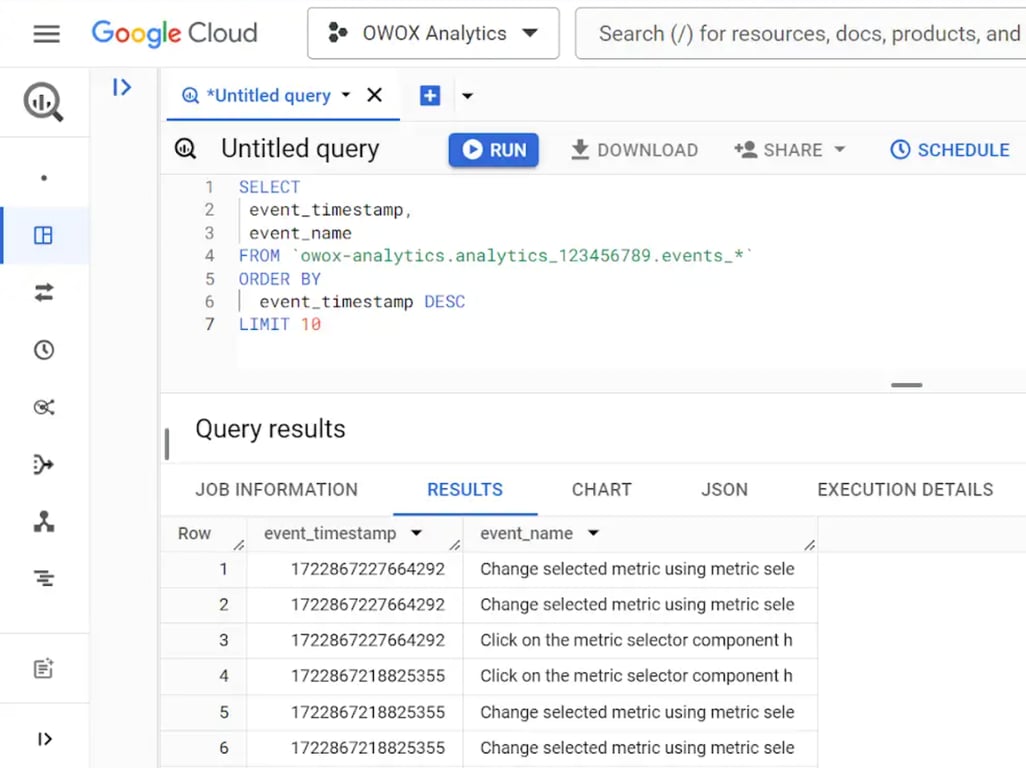
This query fetches the most recent 10 events based on their timestamps, allowing you to analyze the timing of events.
3. event_previous_timestamp: The event_previous_timestamp dimension indicates the previous time an event was logged on the client, also in microseconds in UTC.
Here is an example:
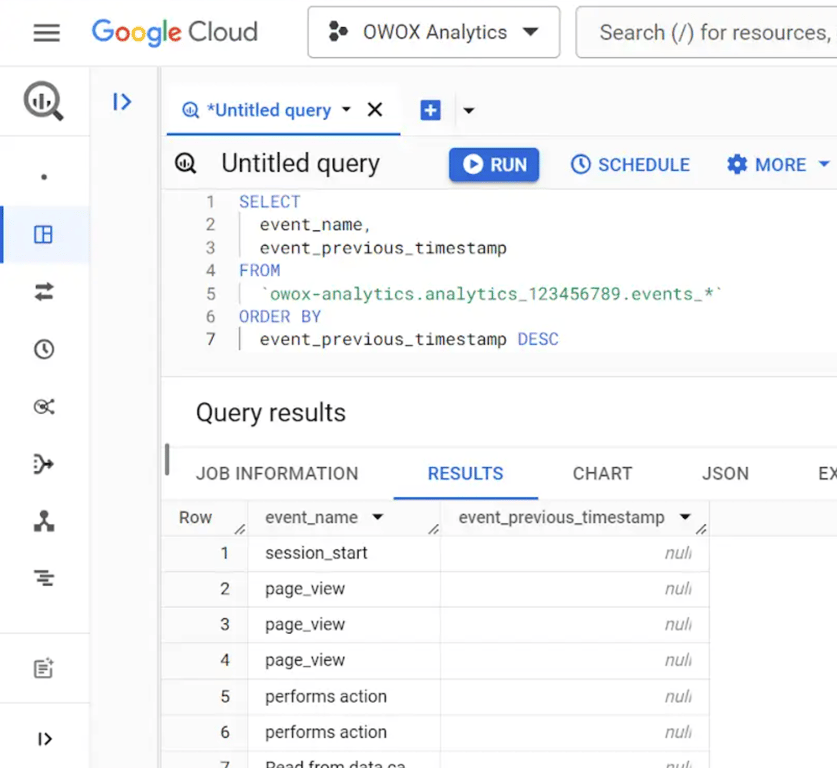
This query retrieves events where a previous timestamp exists, helping you track events that occur in sequences.
4. event_server_timestamp_offset: The event_server_timestamp_offset dimension represents the time difference (in microseconds) between when the event was collected and when it was uploaded to the server.
Here is an example query:
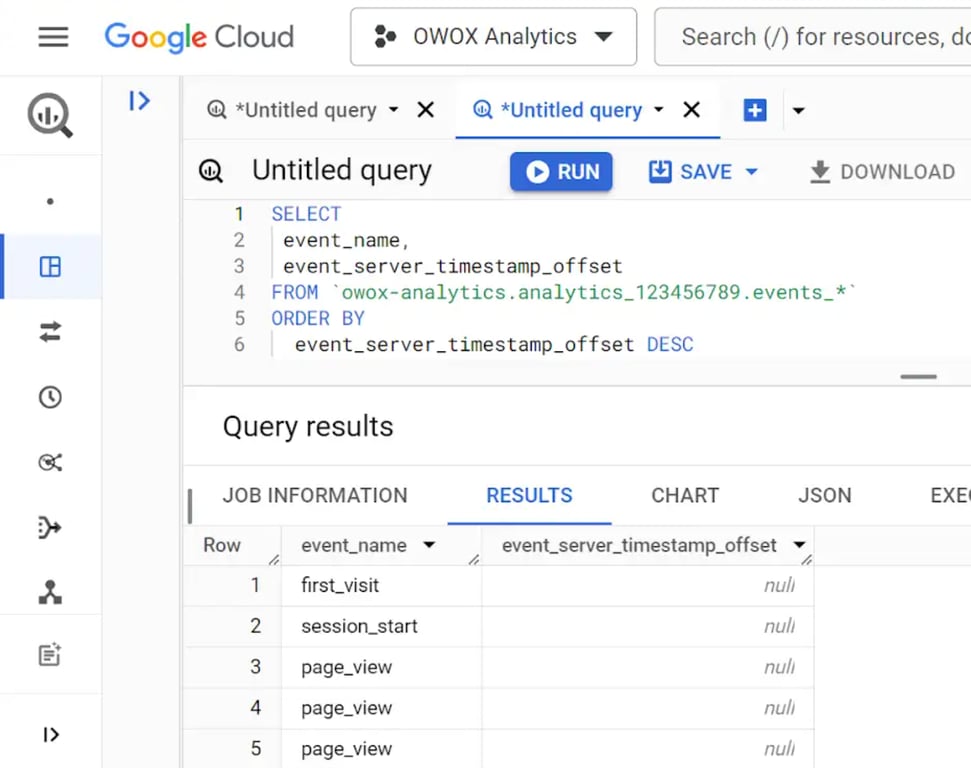
This query identifies events with the largest delays between collection and upload, useful for diagnosing potential issues in data processing.
5. user_first_touch_timestamp: The user_first_touch_timestamp dimension records the first time a user opened the app or visited the site, in microseconds. Below you can find an example:
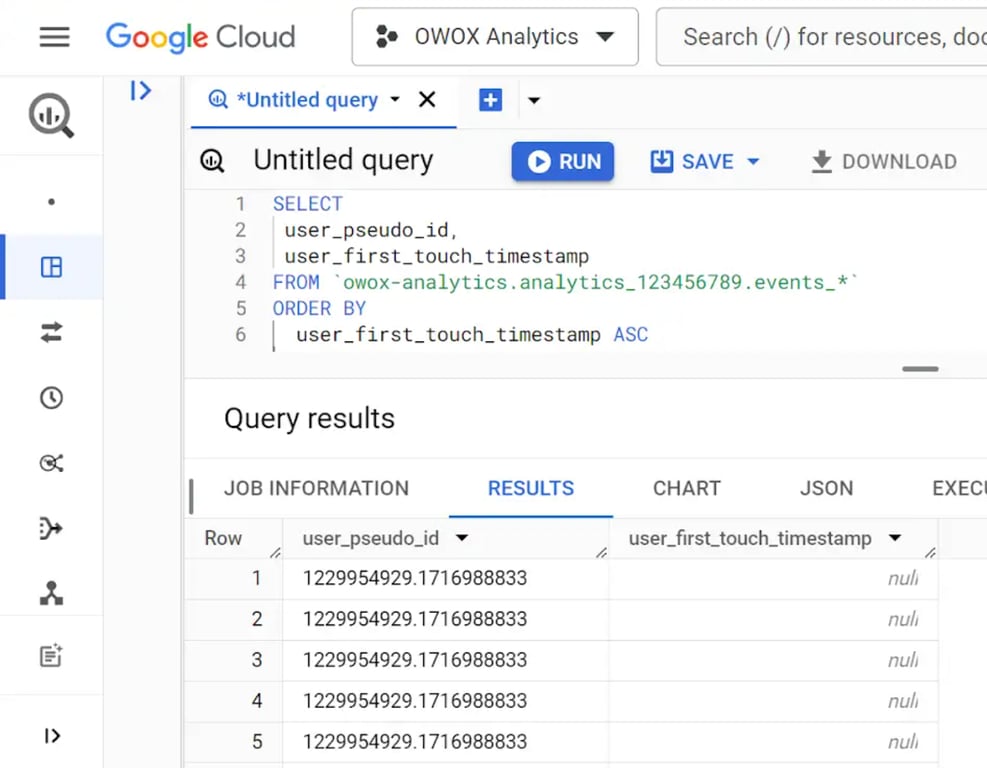
This query retrieves the earliest interactions by users, helping you understand when users first engaged with your site or app.
6. user_set_timestamp_micros: The user_set_timestamp_micros dimension indicates the time when a user property was last set, also in microseconds.
Example:
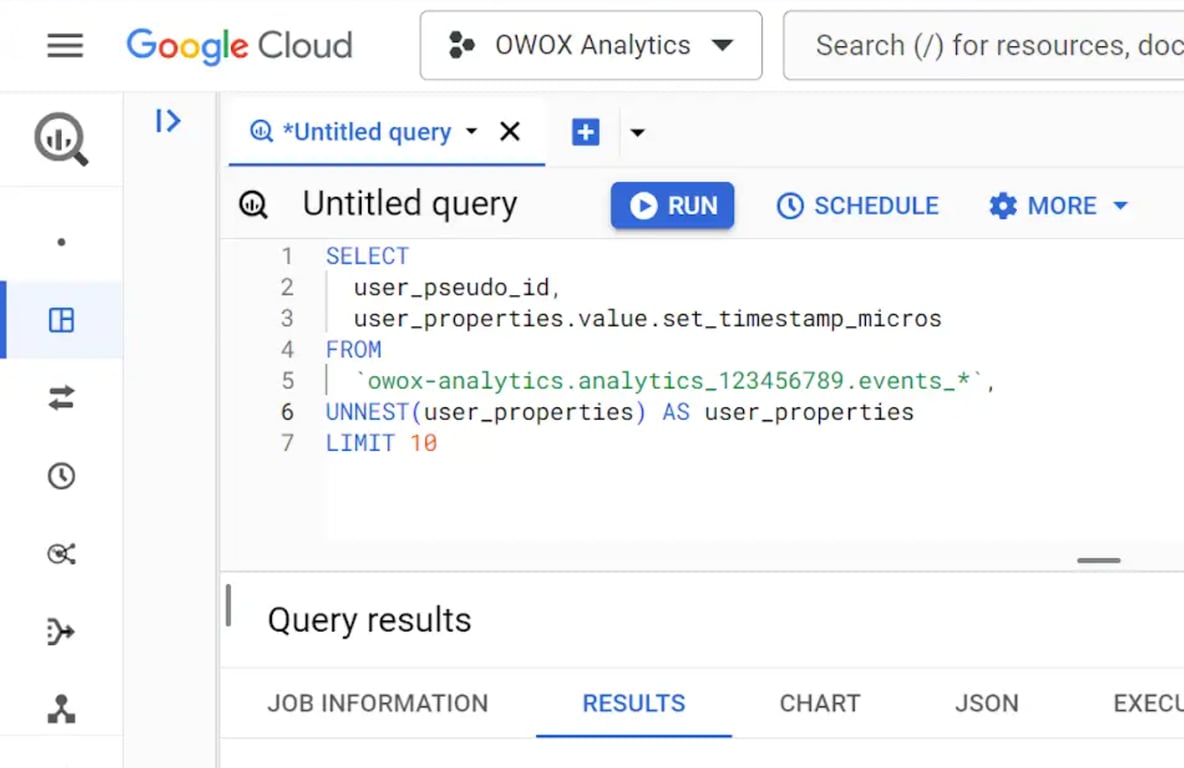
This query shows the most recent updates to specific user properties, allowing you to track changes in user attributes.
Calculated date and time dimensions
In GA4 BigQuery exports, calculated date and time dimensions allow you to derive specific time-based insights from your event data. These dimensions can help you analyze patterns over different periods, from years down to hours and minutes.
Below are examples of how to calculate and query each dimension using SQL in BigQuery.
1. Year (YYYY): This dimension extracts the year from the event_date.
Example:
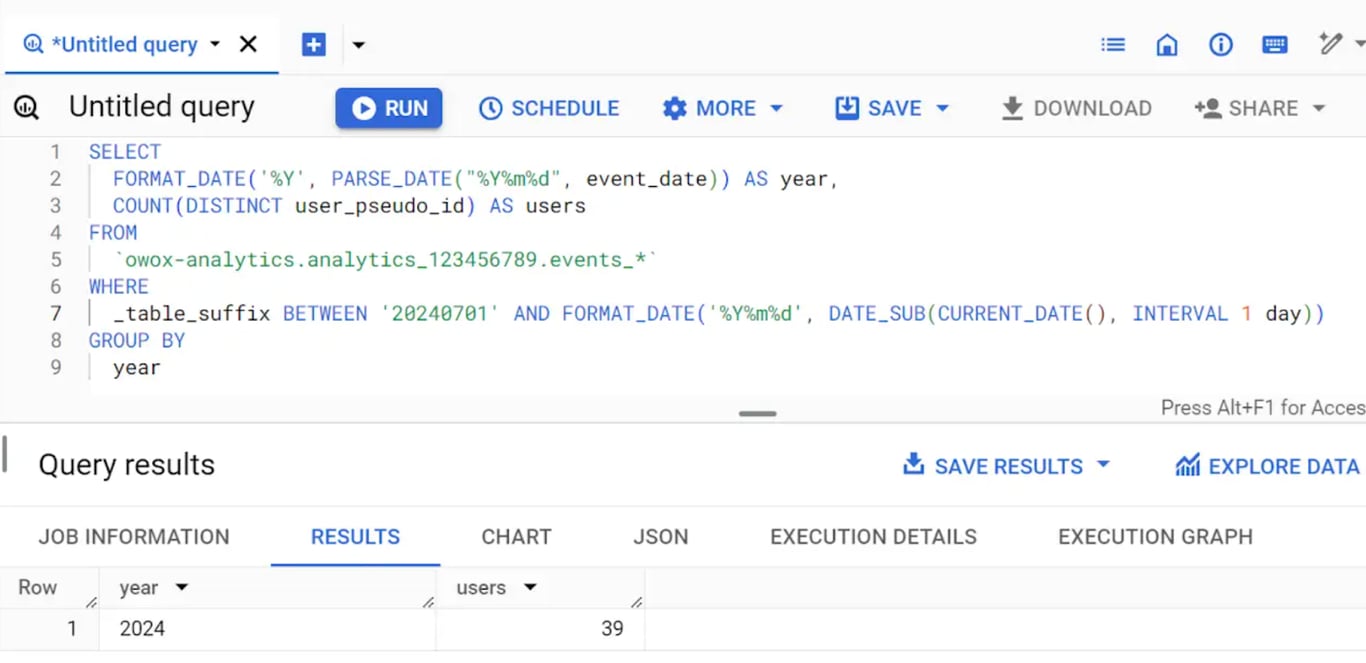
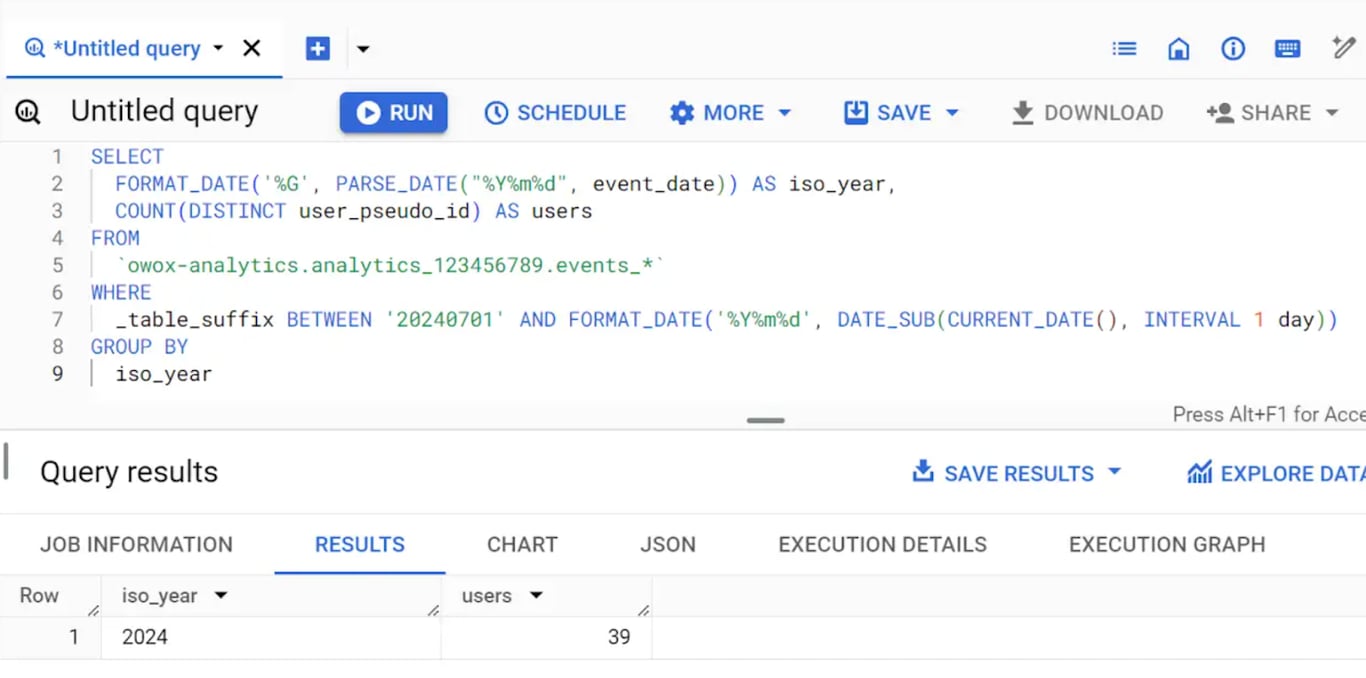
2. ISO Year (YYYY): This dimension calculates the ISO year, which might differ from the calendar year depending on the start of the week.
3. Month of Year (YYYYMM): This dimension extracts the year and month from the event_date.
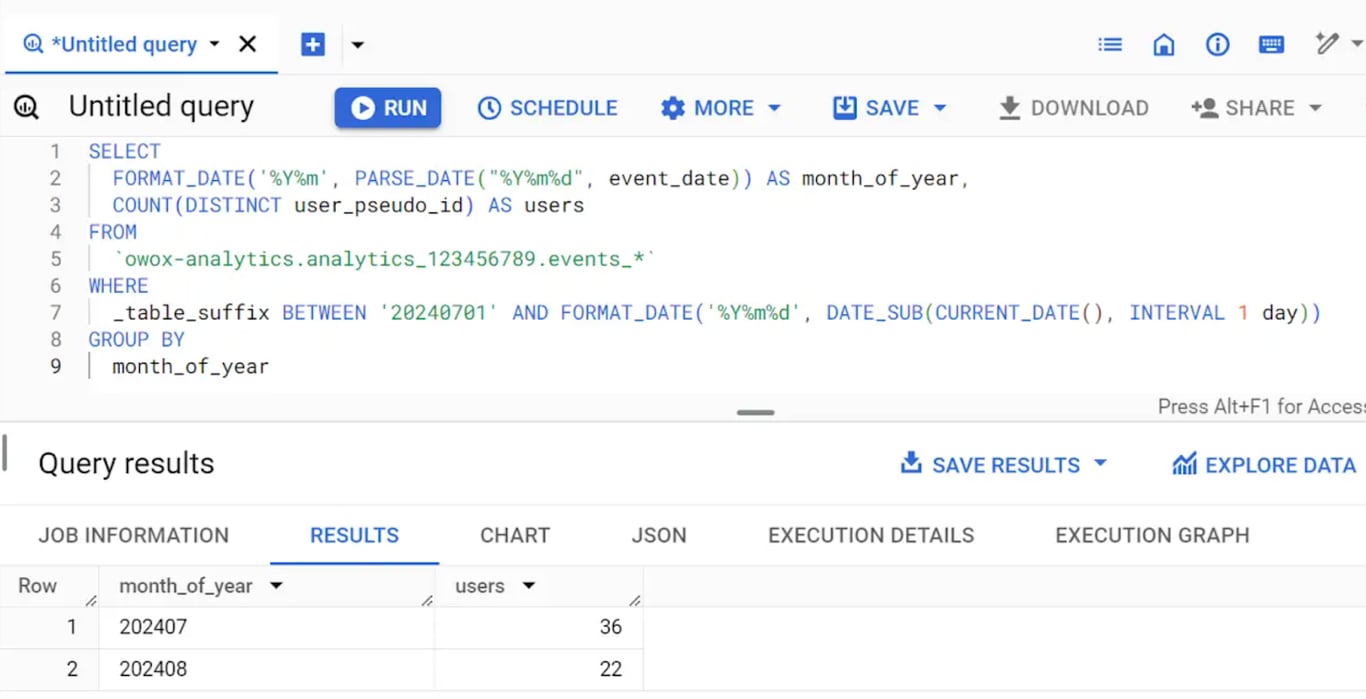
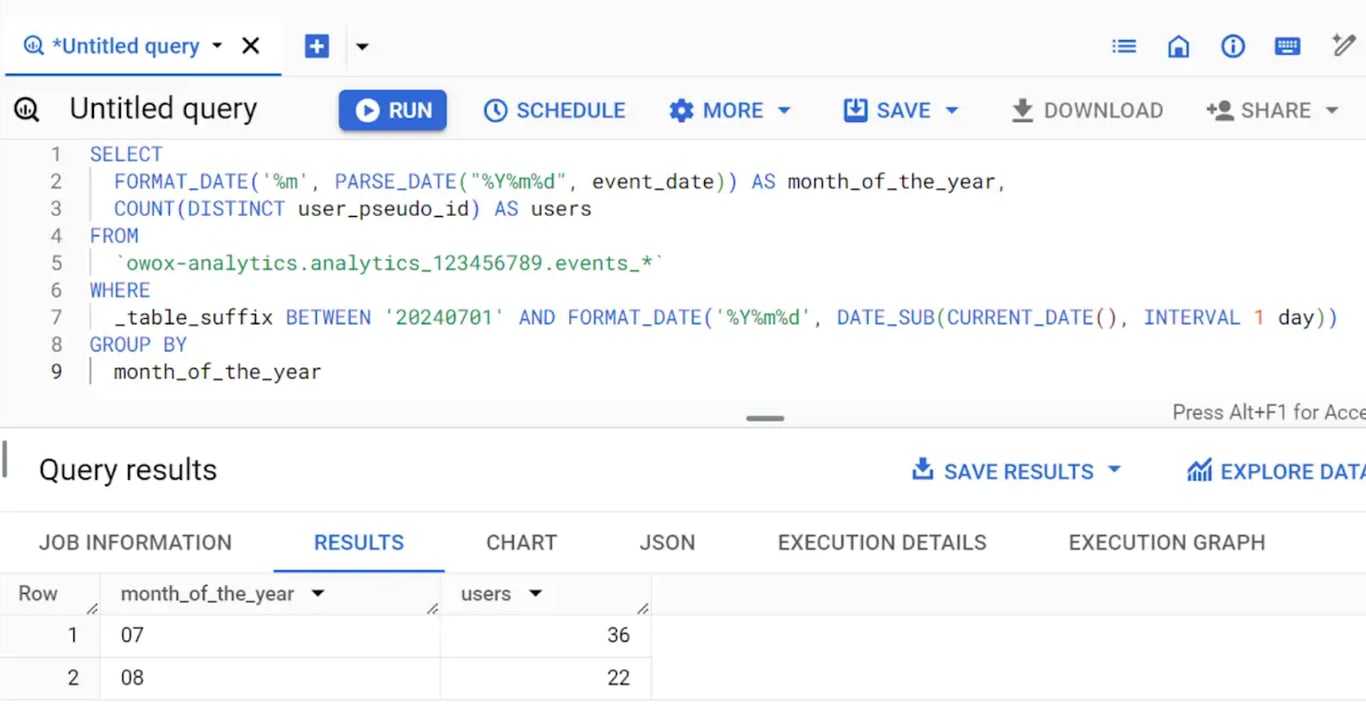
4. Month of the Year (MM): This dimension extracts only the month from the event_date.
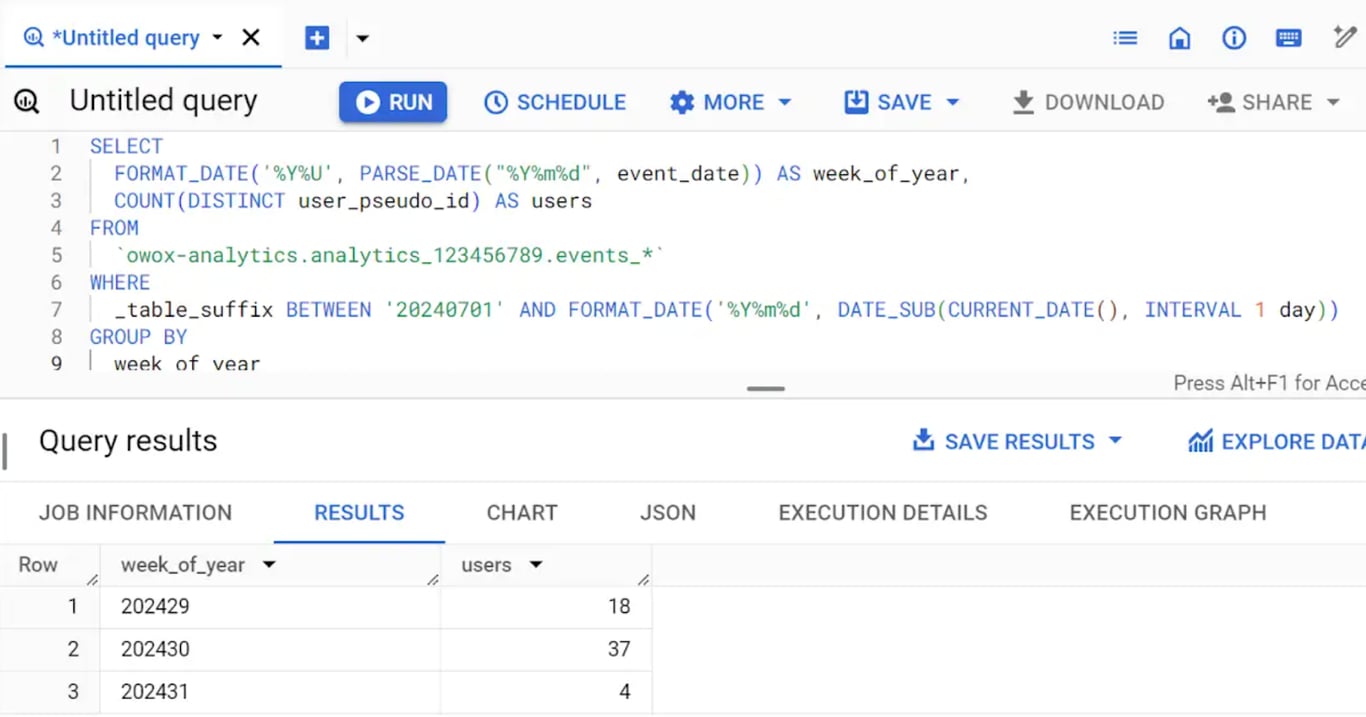
5. Week of Year (YYYYWW): This dimension calculates the year and week number.
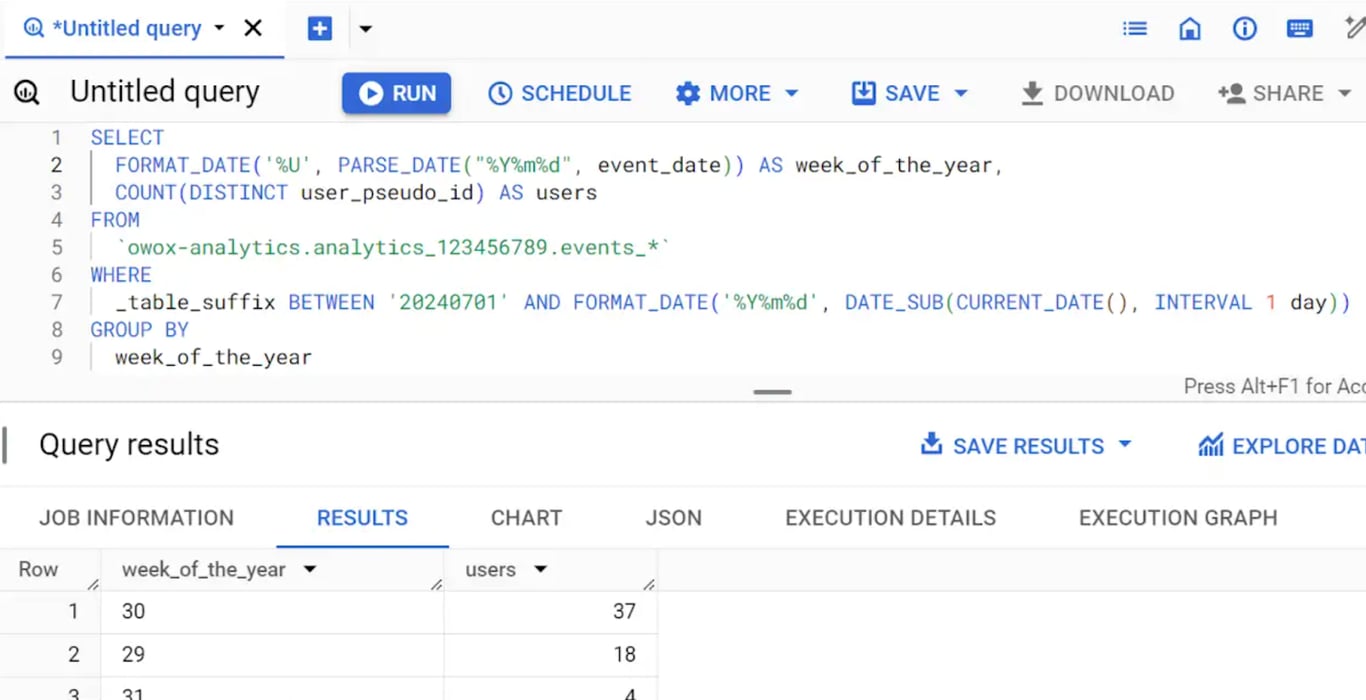
6. Week of the Year (WW): This dimension extracts the week number from the event_date.
7. ISO Week of the Year (WW): This dimension calculates the ISO week of the year.
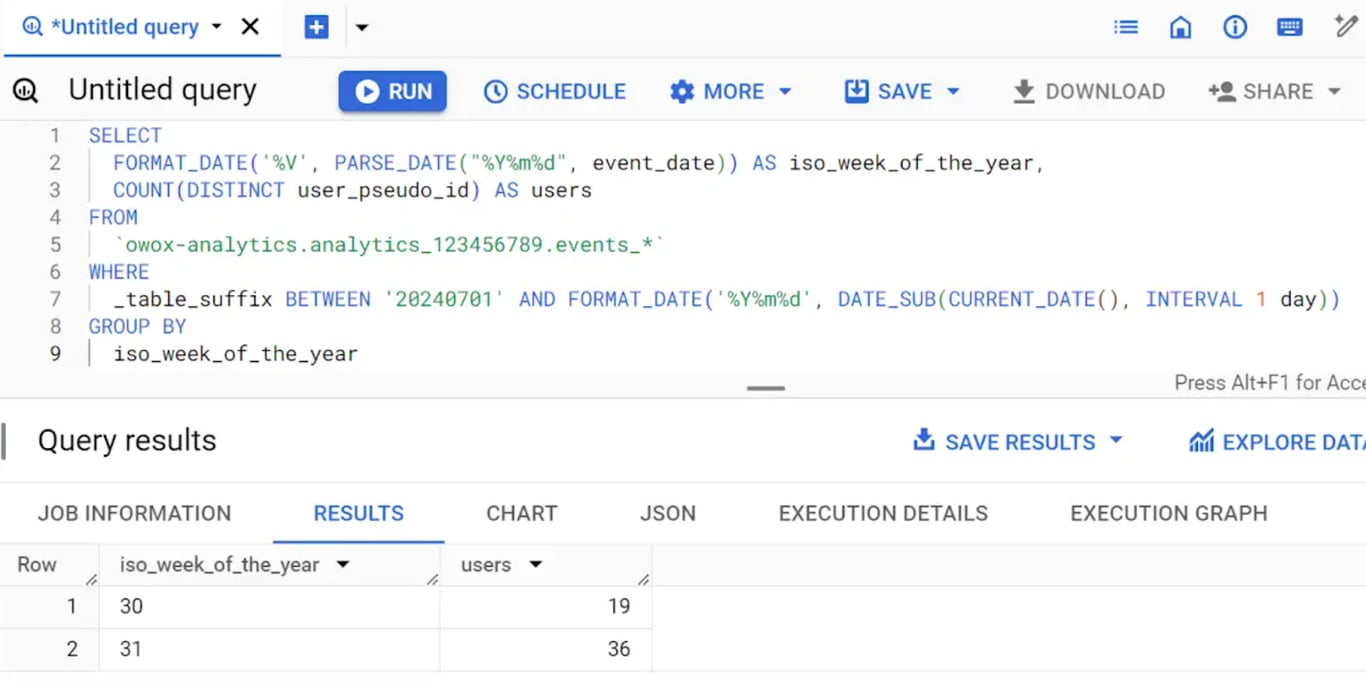
8. ISO Week of ISO Year (YYYYWW): This dimension calculates the ISO week and year together.
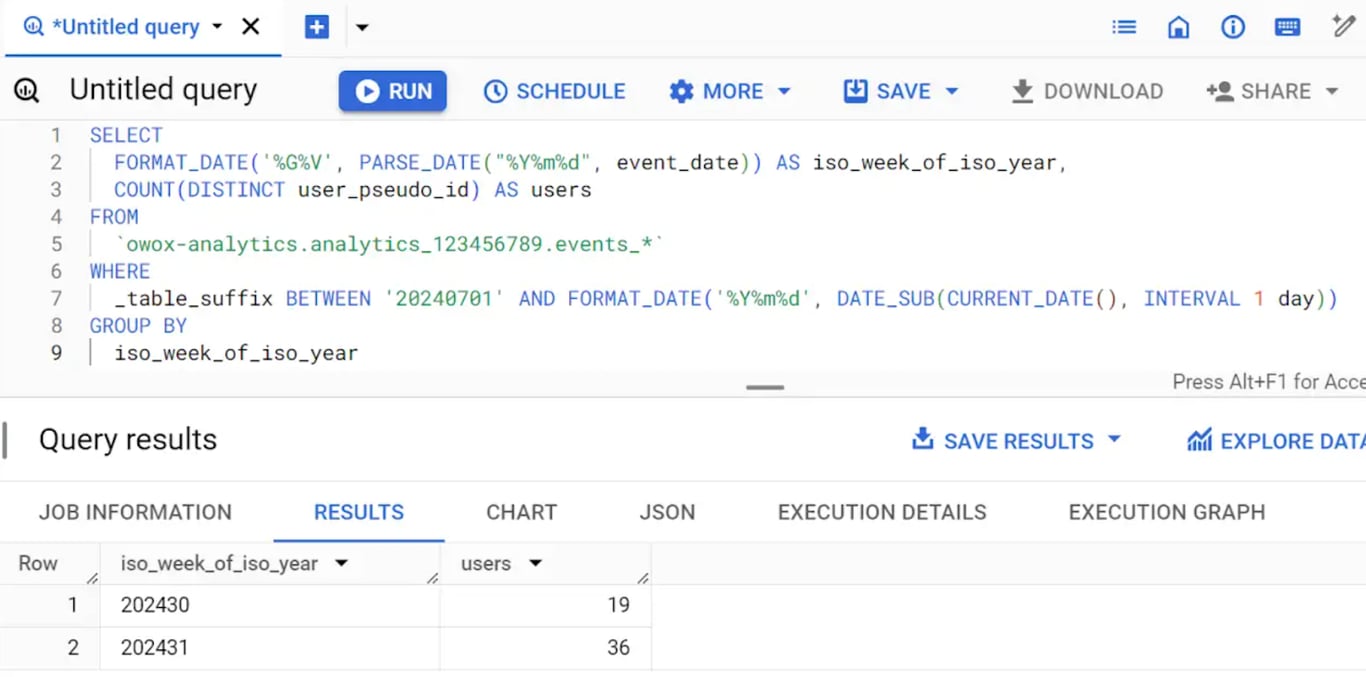
9. Day of the Month (DD): This dimension extracts the day from the event_date.
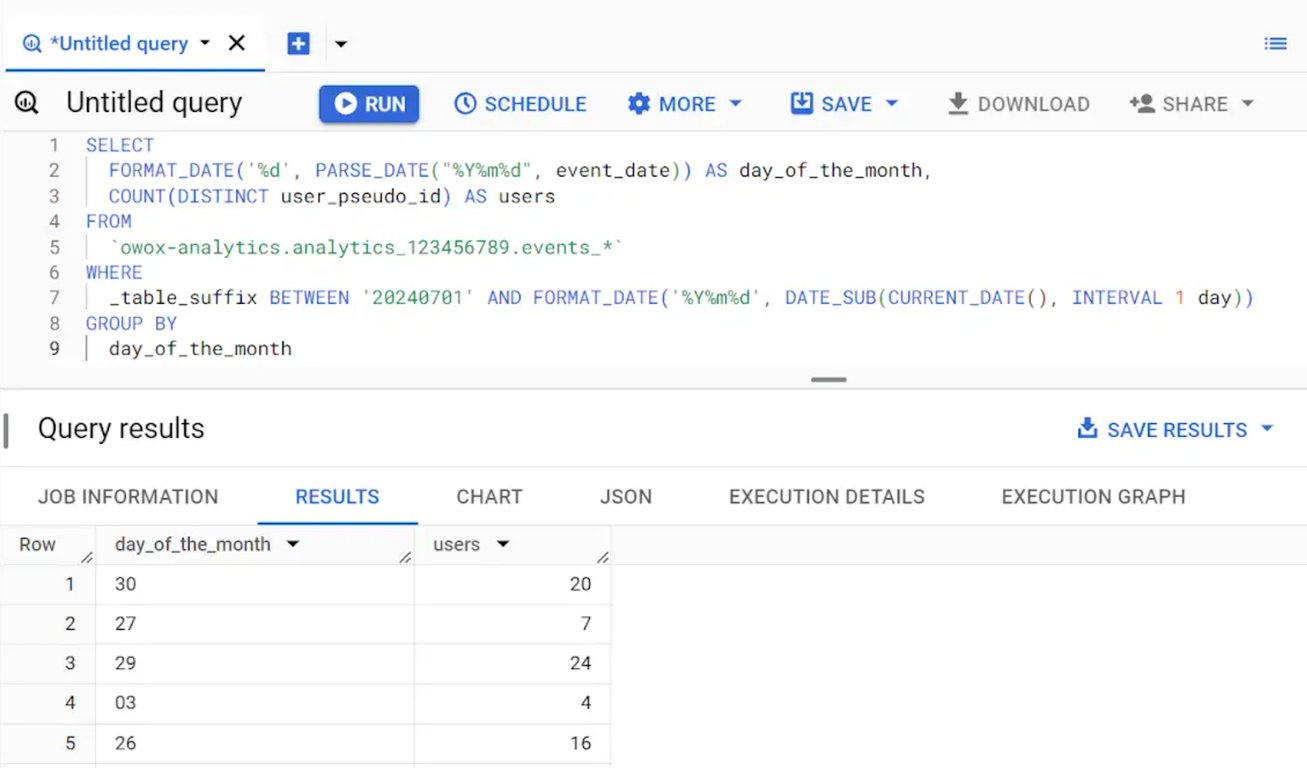
10. Day of Week (0–6): This dimension extracts the day of the week from the event_date, where Sunday is 0.
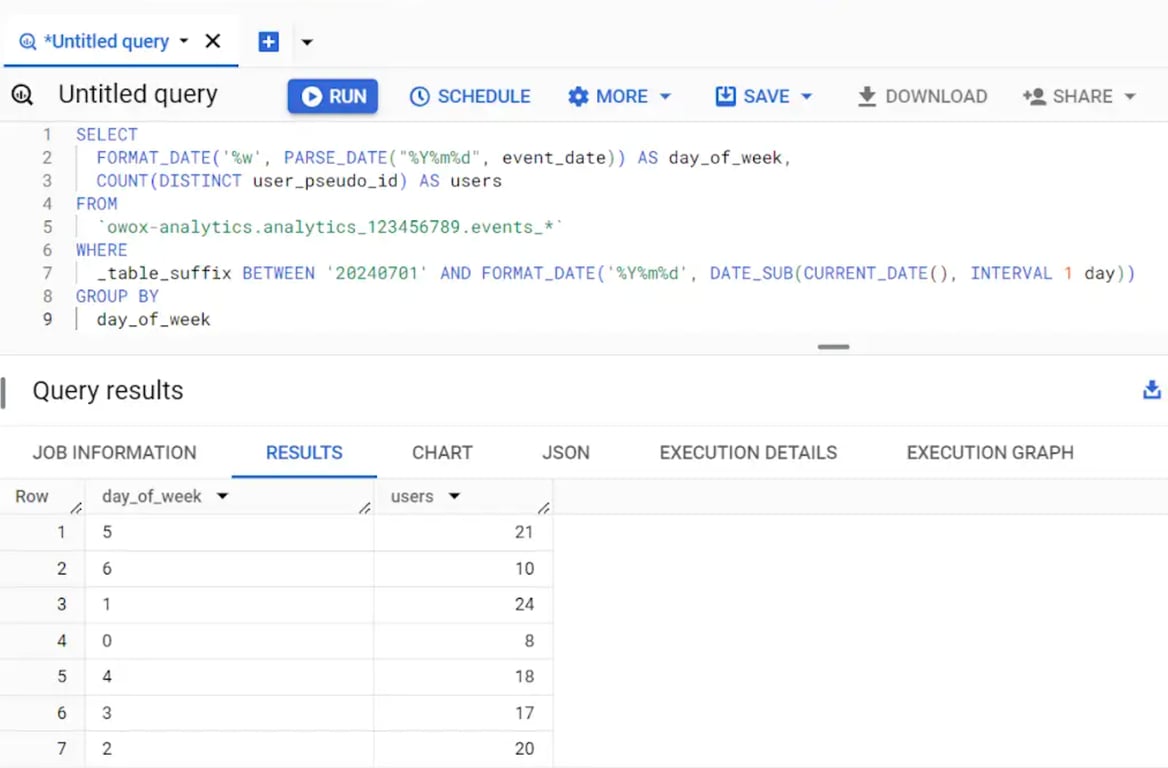
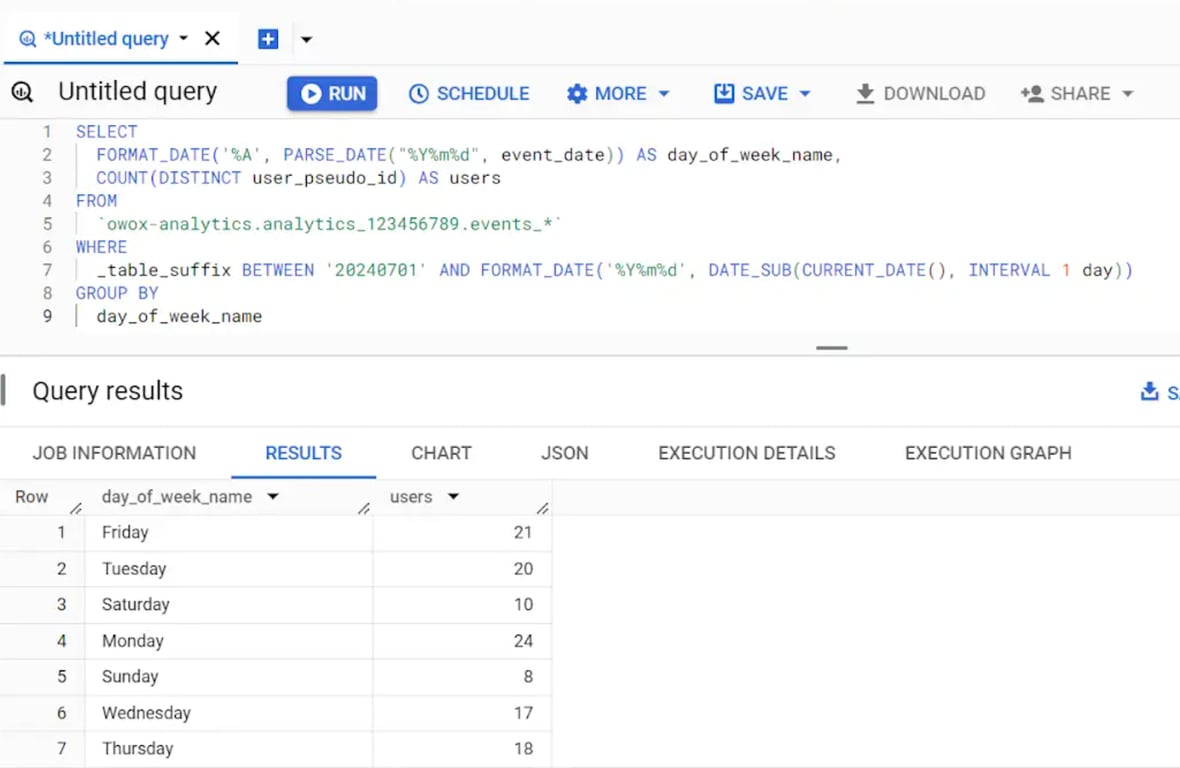
11. Day of Week Name (Sunday – Saturday): This dimension extracts the name of the day from the event_date.
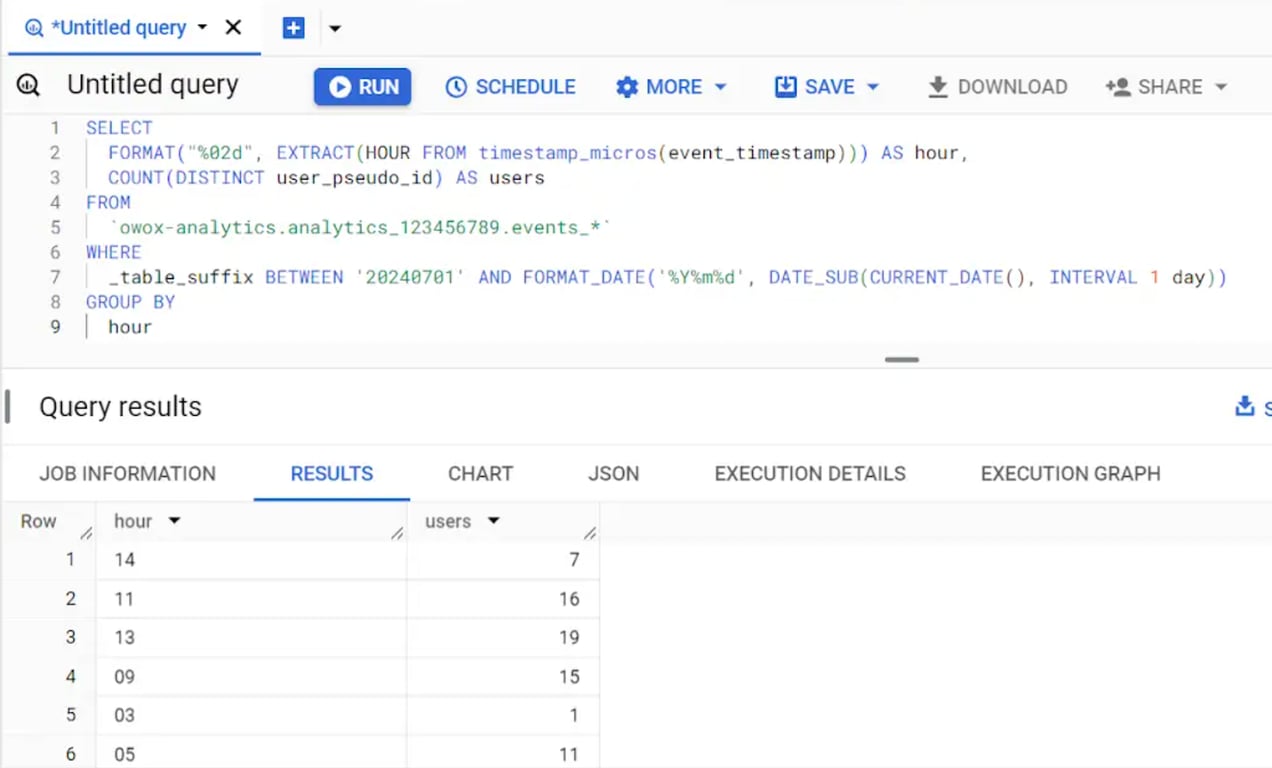
12. Hour (HH): This dimension extracts the hour from the event_timestamp.
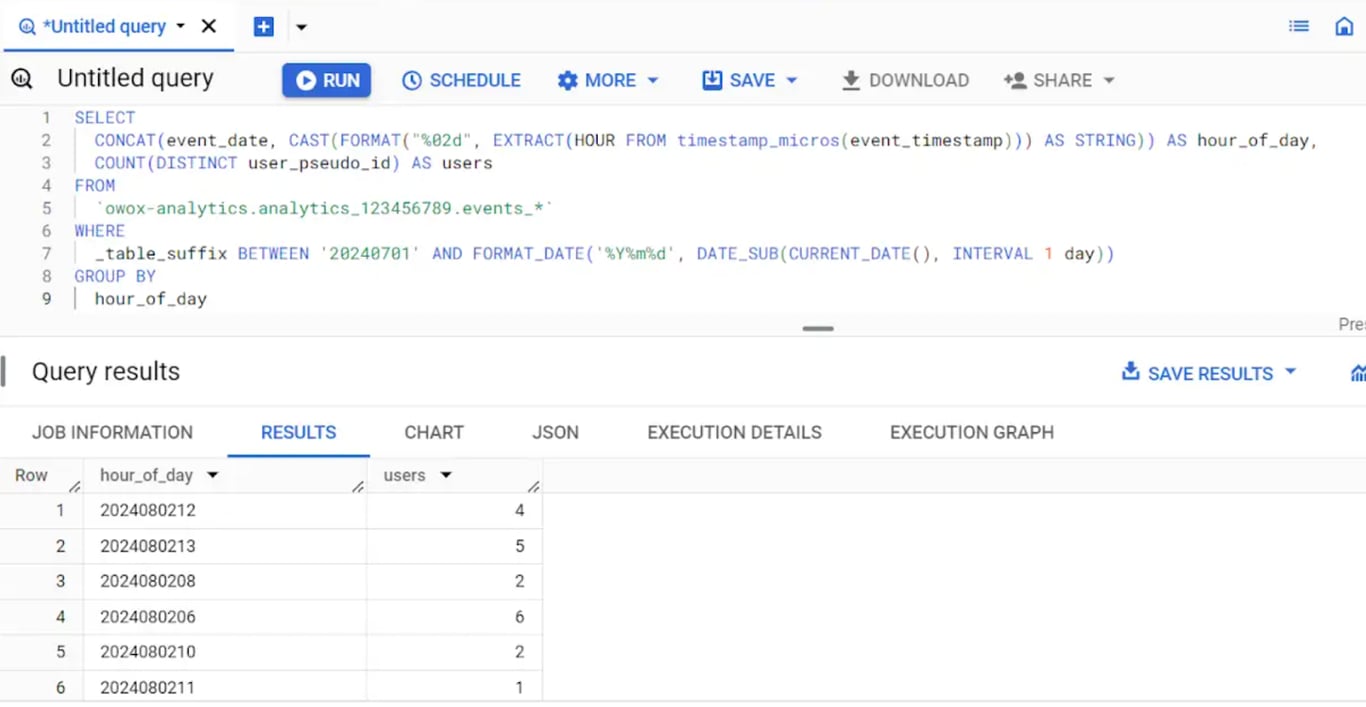
13. Hour of Day (YYYYMMDDHH): This dimension combines the event date and hour to create a unique hour of the day.
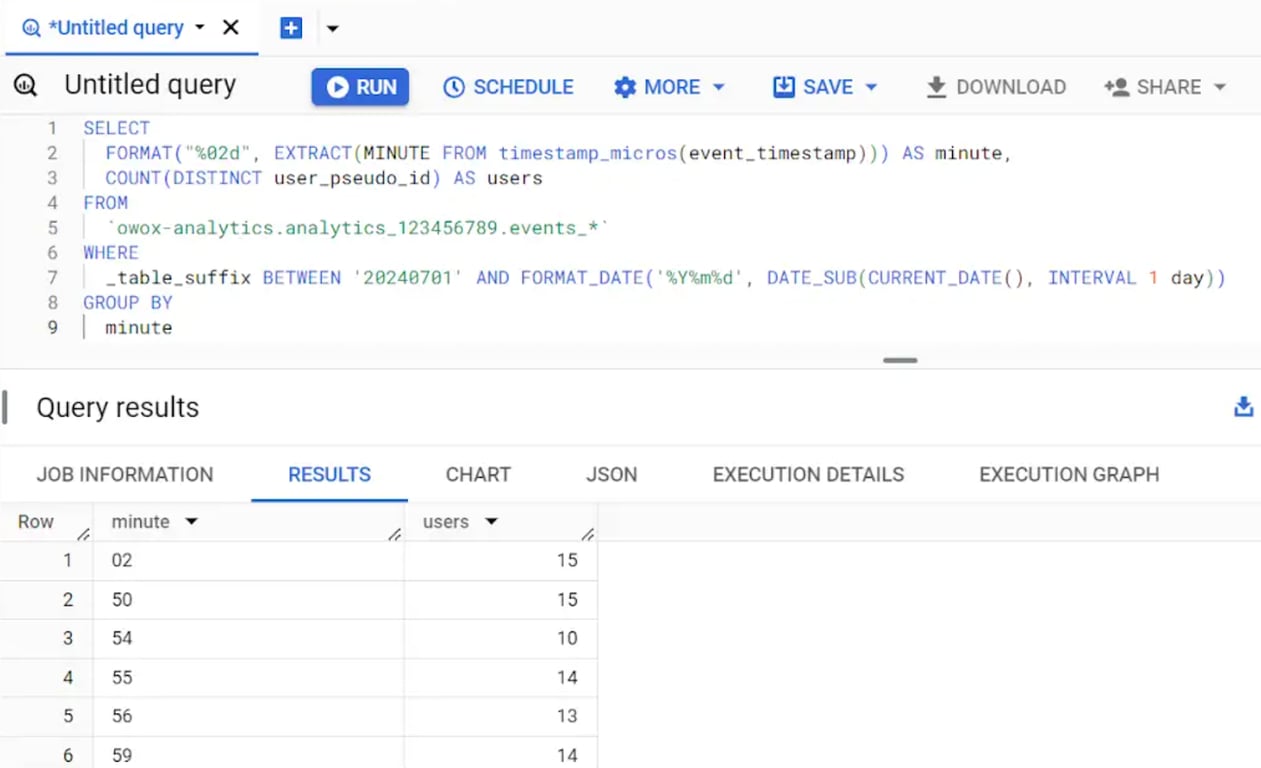
14. Minute (MM): This dimension extracts the minute from the event_timestamp.
15. Date Hour and Minute (YYYYMMDDHHMM): This dimension combines the event date, hour, and minute for precise time analysis.
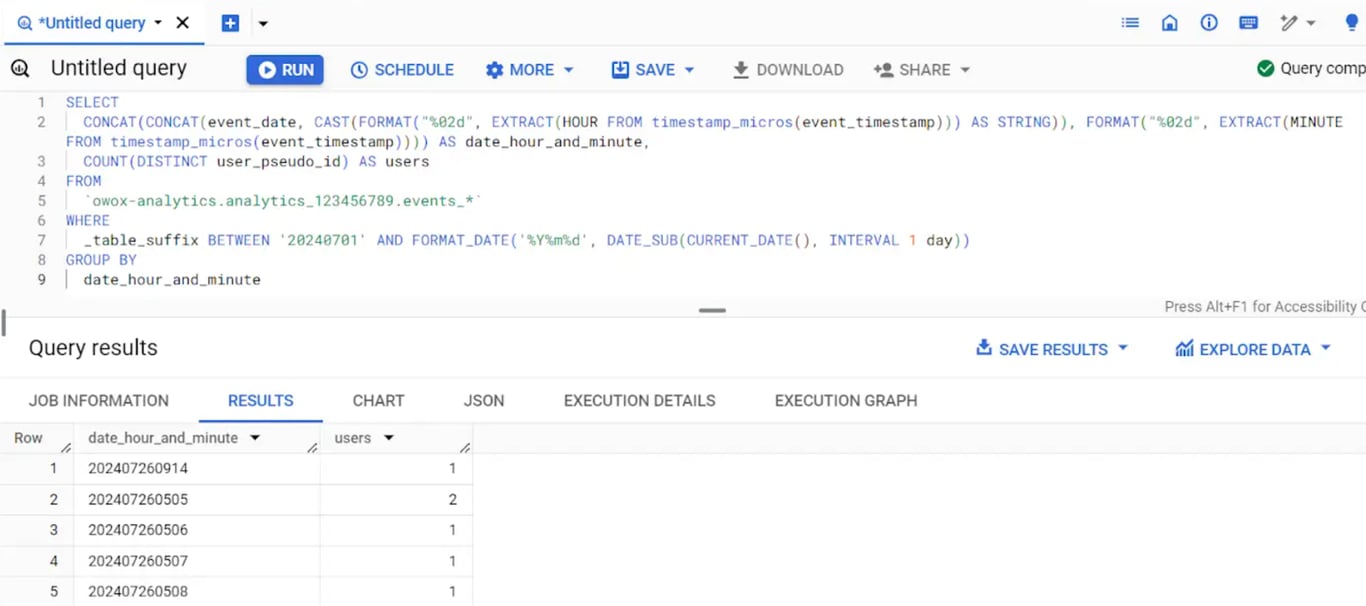
By leveraging these dimensions, you can analyze user behavior across different periods and time frames, helping you make data-driven decisions.
Simplify BigQuery GA4 analysis with OWOX Data Marts
Simplify BigQuery GA4 analysis with OWOX Data Marts
Managing GA4 event tables in BigQuery can quickly turn into hours of manual SQL, especially when dealing with daily partitions, nested fields, and complex date logic. OWOX Data Marts gives your team a better way to work with this data – without giving up the SQL control or data sovereignty your analysts need.
Here’s how it works in practice:
- Your analyst writes the SQL that defines how GA4 export tables should be structured and joined – session logic, parameter unnesting, date filtering, whatever the business needs.
- That SQL is published as a governed Data Mart inside your BigQuery environment. Your data never leaves your warehouse.
- Business users browse the Data Mart library in the OWOX Sheets Extension, pick the mart they need, and refresh reports in Google Sheets – no SQL required on their end.
- When GA4 schema changes or new event parameters are added, the analyst updates the mart once. Every connected report refreshes automatically.
The result: analysts spend less time fixing one-off queries and more time finding insights. Business users get accurate, up-to-date numbers they can trust – because every figure traces back to analyst-approved SQL, with a full audit trail and no risk of AI-generated hallucinations.
Turn your data into decisions.
Governed data marts give you the clean foundation ML needs to actually work.
- No AI hallucinations
- Analyst-governed definitions
- Every number traces to SQL
Frequently Asked Questions
What is the User_pseudo_id?
The user_pseudo_id is a pseudonymous identifier in GA4 that uniquely represents users across sessions without revealing personal information. It helps track user interactions consistently unless cookies are cleared or the identifier is reset, ensuring privacy while enabling detailed user behavior analysis.
How do we overcome the 1 Million events per day export limit from GA4 to BigQuery a day?
Upgrading to GA4 360 increases the limit. Optimizing event collection by prioritizing essential events can reduce data volume. Using sampling techniques and partitioning data in BigQuery helps manage large datasets. Setting up streaming exports allows access to all current-day data via the intraday table.
How to check the events_YYYYMMDD table creation log?
To check the creation log for the events_YYYYMMDD table, go to the BigQuery Console, select the dataset containing your GA4 tables, and view the Activity or Logs section for table creation activities. You can also query the INFORMATION_SCHEMA.TABLES for metadata about table creation.
What datasets are created in BigQuery when exporting GA4 data?
When exporting GA4 data to BigQuery, datasets typically created include the Events Dataset, containing tables like events_YYYYMMDD and events_intraday_YYYYMMDD for event data, and the Users Dataset, containing tables like pseudonymous_users_YYYYMMDD and users_YYYYMMDD for user data.
How can I retrieve data from the data table using SQL queries?
To retrieve data from the GA4 BigQuery tables, you can use SQL queries. For example, a query can select event data such as event_date, event_name, user_pseudo_id, device category, and user country from the events table, filtering by specific event names and date ranges.
How is GA4 data structured in BigQuery?
GA4 data exported to BigQuery is structured in several tables within a dataset, including events_YYYYMMDD for daily event data, events_intraday_YYYYMMDD for near real-time event data, pseudonymous_users_YYYYMMDD for pseudonymous user data, and users_YYYYMMDD for detailed user data.
What are the key data fields in the GA4 BigQuery schema?
Key data fields in the GA4 BigQuery schema include event_date, event_timestamp, event_name, event_params, user_pseudo_id, user_properties, device, geo, traffic_source, privacy_info, user_first_touch_timestamp, app_info, web_info, and ecommerce.
What data types are used in the GA4 BigQuery schema?
The GA4 BigQuery schema uses various data types, including STRING for text fields, INTEGER for numeric values, FLOAT for floating-point numbers, TIMESTAMP for date and time values, BOOLEAN for true/false values, and RECORD for nested fields containing sub-fields, ensuring flexible and detailed data representation.
How do I export data from Google Analytics to BigQuery?
Exporting data from Google Analytics to BigQuery involves linking your GA4 property to BigQuery, configuring export settings, and starting the export process. This allows for advanced data querying and analysis by moving your GA4 data into BigQuery, where you can set up daily or streaming exports based on your preferences.