What is BigQuery Studio?
BigQuery Studio is a unified workspace inside Google BigQuery that lets data and BI teams explore data, write SQL, build pipelines, work with notebooks, and collaborate in one place. Instead of jumping between multiple tools, analysts can prepare, analyze, and share data products directly in the BigQuery environment.
BigQuery Studio is a unified workspace inside Google BigQuery where analysts can explore data, write SQL, build pipelines, use notebooks, and collaborate—without bouncing between a dozen separate tools.
What is BigQuery Studio?
Short definition in plain language
BigQuery Studio is the “do-it-all” working area inside BigQuery. It’s where you go from “What happened?” to “Here’s the dataset, the query logic, and the output everyone can use” in one environment.
Instead of treating BigQuery as only a place to run SQL, Studio frames it as a workspace: you can inspect tables, draft and refine queries, save reusable assets (like views), and keep your analysis organized alongside the data it depends on. For a deeper walkthrough of how collaboration comes together, see BigQuery Studio overview for collaborative data work.
How it fits into the Google Cloud and BigQuery ecosystem
BigQuery Studio lives inside the BigQuery experience in Google Cloud. Think of it as the “front room” for interacting with BigQuery objects: projects, datasets, tables, views, routines, and jobs.
In practice, it sits between raw storage/compute (BigQuery itself) and the wider analytics stack (dashboards, ETL/ELT, activation). You’re still querying BigQuery, still using BigQuery permissions and billing, and still producing BigQuery-native outputs—Studio just makes the workflow feel less like scattered tabs and more like a coherent workspace.
Key components and features of BigQuery Studio
Key components and features of BigQuery Studio
SQL workspace and query management
The SQL workspace is where most analysts will live. You write queries, run them, review results, and iterate fast. The key upgrade is how the “querying” part connects to the “production” part: you can more easily turn a one-off query into something saved and reusable.
Query management typically means you can keep track of what you ran, refine logic over time, and avoid the classic “final_v7_really_final.sql” chaos. The Studio approach nudges you toward repeatability: saved queries, shared assets, and a clearer path from exploration to a maintained data product.
Notebooks and code-centric workflows
Studio also supports notebook-style work so you can mix code, results, and narrative in one place. That’s useful when your analysis isn’t just SQL output, but also methodology: assumptions, definitions, and intermediate checks that someone else can review later.
Notebooks are especially handy for investigative work: validating an event schema change, comparing two attribution approaches, or documenting why a metric definition changed. The big win is keeping the story next to the data it references, rather than in a separate doc that inevitably drifts out of date.
Data exploration, previews, and schema navigation
Exploration is the underrated superpower of a modern warehouse UI. BigQuery Studio makes it easier to browse datasets, preview tables, and understand schemas without running heavy queries just to “see what’s in there.”
This matters because most analytics time is spent not on writing fancy SQL—but on figuring out what fields mean, what’s null, what’s duplicated, and which tables are safe to join. Good schema navigation reduces mistakes like:
- Joining on the wrong user identifier (and silently double-counting).
- Mixing event-time and processing-time fields.
- Pulling from a staging table when a curated view already exists.
Collaboration, comments, and versioning basics
Analytics is a team sport, and Studio pushes the workflow closer to shared, reviewable assets. Instead of each analyst keeping logic in their local notes, you can collaborate around queries and outputs that live where the data lives.
Collaboration features vary by setup, but the “basics” typically mean: sharing work, leaving context, and keeping a lightweight history of changes so a teammate can understand what changed and why. Even minimal versioning beats tribal knowledge—especially when a dashboard breaks the day after a “small” metric tweak.
OWOX Data Marts
See your first report built in real time. 15 minutes.
- Connect your data warehouse
- Pick your metrics
- Get a live Google Sheets report
In the time it takes to write a ticket. Then imagine never writing that ticket again.
Book a DemoWe'll use your actual use case
How BigQuery Studio changes daily work for analysts
How BigQuery Studio changes daily work for analysts
From ad-hoc queries to reusable assets
The biggest mindset shift: Studio makes it easier to stop treating SQL as disposable. When your logic is constantly reused (weekly reporting, KPI monitoring, campaign performance), you want it to become an asset—like a view, a scheduled transformation, or a documented notebook.
That’s where good SQL habits pay off: clear naming, explicit filters, consistent date logic, and reusable components. If you want a practical refresher on writing warehouse-ready queries, the BigQuery SQL guide for data professionals is a solid companion.
Managing datasets, views, and transformations in one interface
Studio helps you manage the full lifecycle of analytics building blocks in one place: inspect a source table, write transformation logic, materialize results, and keep the output discoverable to others.
Instead of copying query results into spreadsheets or rebuilding the same logic in multiple dashboards, you can standardize a metric once and expose it as a view or table. That reduces “metric drift,” where different teams unknowingly compute the same KPI in different ways.
It also encourages a cleaner layout in BigQuery: raw/staging datasets for ingestion, modeled datasets for transformations, and curated datasets for reporting. When the workspace makes these layers easier to navigate, teams are more likely to follow the structure.
Working with marketing and product data end-to-end
Marketing and product analytics often start messy: campaign parameters, attribution fields, event payloads, multiple IDs, and late-arriving data. Studio’s unified workflow helps because you can explore and validate each step before you “publish” it into a reporting-ready output.
A practical end-to-end day might look like:
- Preview yesterday’s event table to confirm new fields arrived.
- Write SQL to normalize traffic sources and map campaigns.
- Create a view that standardizes session-level metrics.
- Share the view with the BI/reporting layer so everyone uses the same definition.
The result is less time debugging dashboards and more time challenging assumptions (the fun part).
BigQuery Studio vs. the classic BigQuery UI
BigQuery Studio vs. the classic BigQuery UI
What’s new compared to the traditional console
The classic BigQuery UI was great at running queries and managing objects, but it often felt like “a console” rather than “a workspace.” BigQuery Studio leans into workflow: exploration, analysis, and collaboration are treated as connected steps rather than separate modes.
If you’re trying to orient yourself in the interface and features, a guide to the BigQuery user interface can help you map what you used to do to what you do now. And if you’re tracking what’s evolving in the platform overall, new BigQuery capabilities is useful context.
When to use BigQuery Studio vs. external tools (BI, notebooks, etc.)
Use BigQuery Studio when your work is tightly coupled to BigQuery objects: exploring schemas, iterating on SQL transformations, creating views/tables for others, or documenting logic close to the source. It’s ideal for building “warehouse-native” assets that multiple downstream tools can trust.
External tools still make sense when you need specialized experiences, like highly formatted executive dashboards, advanced visualization workflows, or organization-wide semantic layers. The key is division of labor: Studio for building and maintaining the data outputs; BI tools for consuming them and telling the story.
In other words: Studio is where you forge the metric. BI is where you show it off.
Example: Building a simple analytics workflow in BigQuery Studio
Example: Building a simple analytics workflow in BigQuery Studio
Loading or connecting a dataset
Scenario: you want a clean daily performance table for a marketing channel report. Your raw data already lands in BigQuery (for example, an events table and an orders table), so the “connect” step is really about locating the correct project/dataset and confirming the schema.
In Studio, you’d navigate to the dataset, preview the tables, and check key fields (like event_date, source/medium fields, order_id, revenue). This prevents the classic mistake of building a report on a table that looks right but has incomplete history.
Exploring tables and writing a first query
Next, you draft a query that produces daily KPIs by source/medium. Here’s a simplified example that aggregates revenue and orders by day and traffic source:
SQL example
SELECT
    DATE(order_timestamp) AS order_date,
    traffic_source,
    traffic_medium,
    COUNT(DISTINCT order_id) AS orders,
    SUM(order_revenue) AS revenue
FROM `project.analytics.orders`
WHERE order_timestamp >= TIMESTAMP_SUB(
    CURRENT_TIMESTAMP(),
    INTERVAL 30 DAY
)
GROUP BY
    1,
    2,
    3;
In Studio, you’d run it, sanity-check totals, and validate edge cases (null source/medium, unexpected spikes, duplicated orders). If the output is going to power reporting, you’d also decide on consistent naming and how to handle “(not set)” traffic.
Saving results as a view or table for reporting
Once the query is stable, you promote it from a one-off result to a reusable asset. A common pattern is to save it as a view in a curated reporting dataset (or materialize it as a table if needed for performance or snapshotting).
The win: dashboards and stakeholders point to a single trusted object. When business logic changes (say, you reclassify certain campaign tags), you update the view once—rather than patching five dashboards and hoping nobody is still using an old spreadsheet export.
BigQuery Studio in the context of Data Marts and reporting
BigQuery Studio in the context of Data Marts and reporting
Using BigQuery Studio to design and maintain Data Marts
Data Marts are curated, subject-oriented datasets built for analysis and reporting: marketing performance, product engagement, finance KPIs, and so on. BigQuery Studio supports the lifecycle of a Data Mart because it brings together exploration, transformation, and asset management in one place.
In practice, Studio helps you:
- Audit source tables and schemas before modeling.
- Build transformation logic as views/tables with clear naming.
- Iterate safely: test outputs, validate totals, and refine definitions.
- Maintain reporting readiness (consistent grain, keys, and date logic).
When you move from “querying data” to “maintaining a Data Mart,” the small workflow conveniences add up fast.
OWOX Data Marts note: where this fits in real reporting setups
In real reporting setups, BigQuery Studio is often the workbench where you design, validate, and maintain the BigQuery objects that downstream reports consume. That pairs naturally with the discipline of building Data Marts that are stable, documented, and reusable.
If you’re building reporting on top of BigQuery, it helps to think in terms of publishable datasets and repeatable transformations. For more on the reporting angle, see creating reports on BigQuery data, and if your tables are growing fast, partitioned tables in BigQuery is essential reading for keeping workflows efficient.
Want to turn your BigQuery work into clean, report-ready outputs faster? Try building a repeatable pipeline with OWOX Data Marts so your team can focus on analysis, not rebuilds.

Learn how teams ship analytics faster
Organizations that scaled analytics without scaling headcount
 "For 10 years I was blind." The day Pürblack® founder stopped guessingSecondsto get reports across six channelsRead the story
 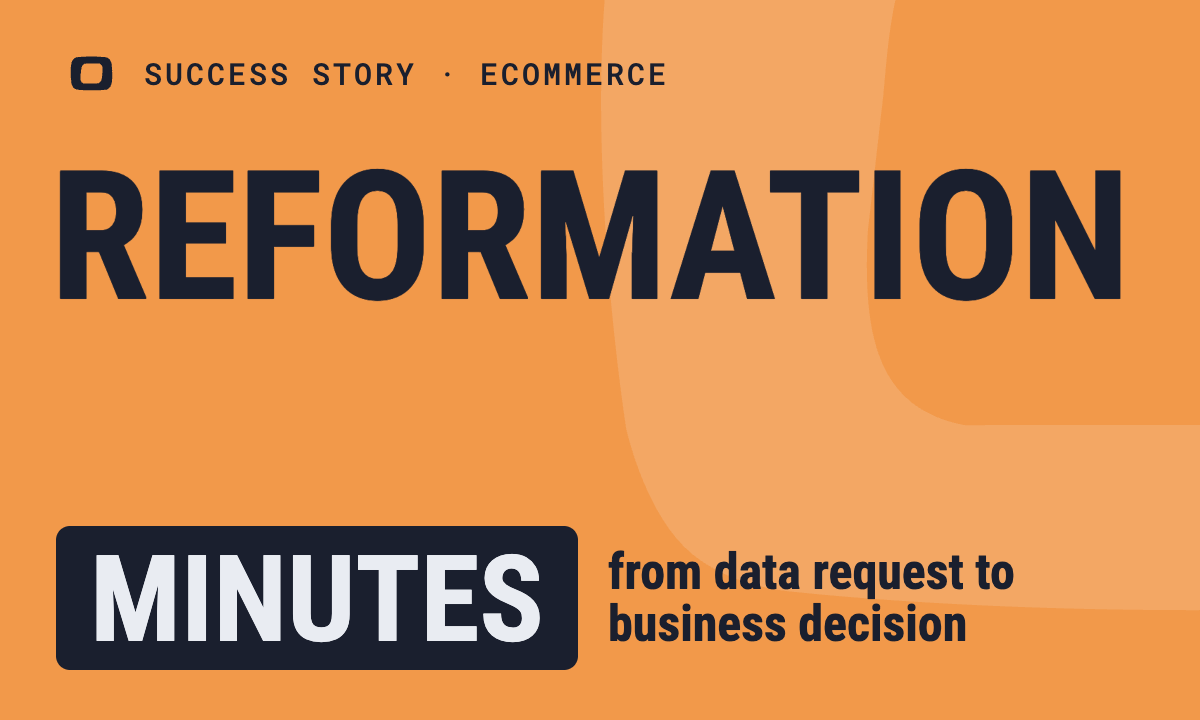 How OWOX Reports Helped Reformation Make Data-Backed DecisionsMinutesfrom data request to business decisionRead the story
 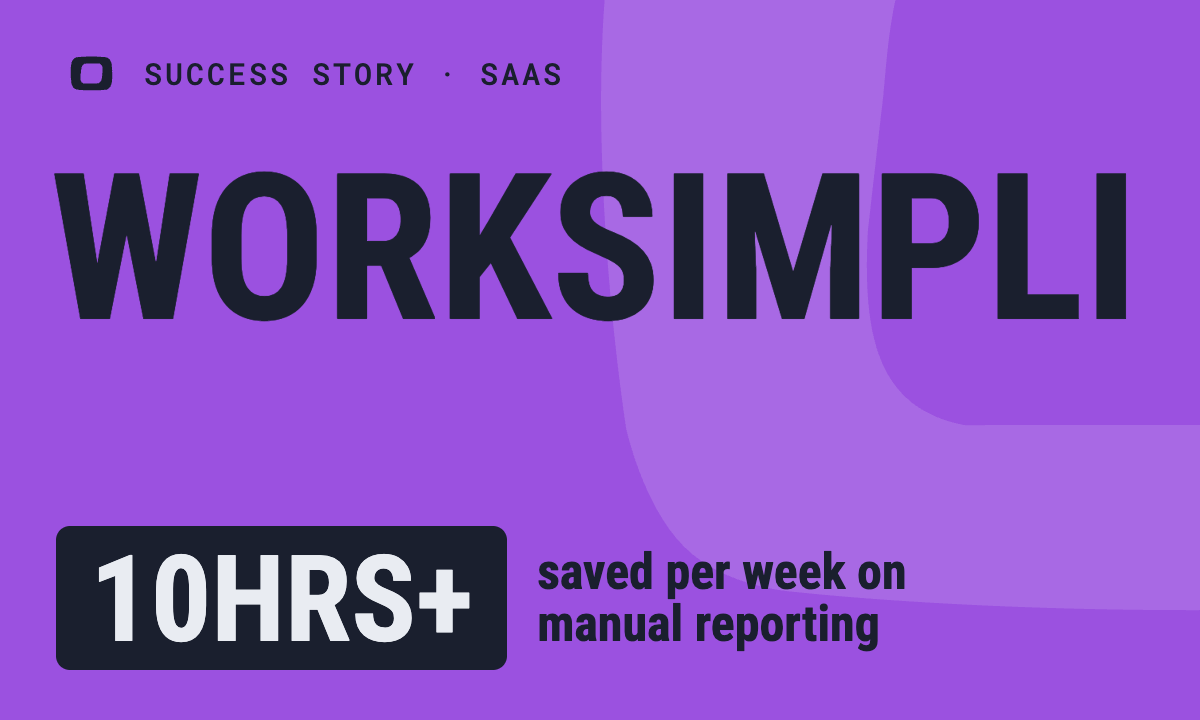 How OWOX Reports Streamlined Operations for WorkSimpli, Saving Over 10 Hours Weekly10hrs+saved per week on manual reportingRead the story
 Not testimonials. Comment threads.
Real things real customers said — each quote pinned to a specific claim, straight from the quotes database.
 Nodari RizunFounder & CEO, Pürblack®
“AI, by the nature of the models, will hallucinate. And because of that, you need something which will create guardrails to ensure that there are no hallucinations, that you can trust your data.”
Nodari RizunFounder & CEO, Pürblack®“I was blind, now I can see. OWOX opened our eyes.”
“We are extremely satisfied with the results achieved through our partnership with OWOX. I'm also impressed by quick and effective support we get from OWOX”
Turn your data into decisions.
Governed data marts give you the clean foundation ML needs to actually work.
- No AI hallucinations
- Analyst-governed definitions
- Every number traces to SQL