

Understanding the Google BigQuery Interface: A Guide
Enhance your BigQuery skills with our detailed guide. Improve data management, optimize performance, and navigate the console efficiently.


Big data can seem intimidating, but with the BigQuery Console, it doesn’t have to be. In this overview, we’ll show you how this powerful tool makes querying and analyzing data simple, so you can focus on what really matters: turning data into insights.
Loading data to BigQuery is recommended for optimal data processing at scale, ensuring efficiency and performance for large datasets. Additionally, BigQuery offers various additional resources such as partner services and settings, that enhance the user experience.
By understanding how to navigate the interface and optimize your data management, you’ll be able to generate insights and reports for business users with ease, streamlining your workflow and making daily tasks more efficient.
Overview Of BigQuery
BigQuery helps you work with and analyze data using built-in tools like machine learning and geospatial analysis. By separating storage and computing, it ensures quick, efficient querying without slowing down. It supports structured and unstructured data, open table formats, and continuous data ingestion.
You can interact with BigQuery through the Google Cloud console, command-line tools, or client libraries for Python and Java. The Google Cloud console provides a graphical interface that you can use to create and manage BigQuery resources and run SQL queries. This eliminates the hassle of managing infrastructure, allowing you to focus on uncovering insights from your data.
Steps To Getting Started With Navigating The BigQuery Interface
The interface of BigQuery may seem unfamiliar initially, but it quickly becomes an essential tool for managing projects, datasets, and data structures. Following a few simple steps, you can begin using BigQuery efficiently to organize and process your data for various tasks.
Access Google Cloud Console And Sign In
Go to Google Cloud Console at https://console.cloud.google.com/ or click the ‘Google Cloud' icon to access the platform.

Sign in with your Google account, or create one if needed, to start using BigQuery's features.
Select Project
Google Cloud Platform (GCP) can have one or more organizations, each containing multiple projects. In the Google Cloud console, you can select an existing project from previously created projects within your organization or create a new Google Cloud project before using BigQuery.

Create a new one by selecting the appropriate option.

Access BigQuery
After selecting your project, open BigQuery by clicking the ‘BigQuery’ button under ‘Quick Access’ in the Google Cloud console. BigQuery opens in your most recently accessed project when you navigate to it in the Google Cloud console.

Overview of the BigQuery Studio Interface
The BigQuery Studio Interface is designed to streamline your workflow by providing easy access to essential tools. It offers key areas that allow you to manage projects, datasets, and queries more efficiently, making your data tasks smoother and quicker to navigate.

Navigation Menu
The BigQuery navigation menu provides access to key options:
- BigQuery Studio: Manage datasets, and tables, run, save, and share queries.
- Data Transfers: Opens the Data Transfer API page.
- Scheduled Queries: Displays your scheduled queries.
- Analytics Hub: Access data exchanges in your project.
- SQL Translation: Convert Teradata SQL to BigQuery SQL.
- Capacity Management: Manage slot commitments and reservations.
- BI Engine: Opens the BI Engine page.
- Monitoring Settings: Configure monitoring settings as a vital component of project API management.
The BigQuery navigation menu allows you to select options such as Studio, Data transfers, Administration, and Settings.
You can collapse or expand the navigation menu for easier visibility.
Explorer Pane
The Explorer pane in BigQuery Studio displays Google Cloud and starred projects.
- Expand a project to view accessible datasets.
- Expand a dataset to see tables, views, and functions.
- Use the search box to find resources by name or label.
- Click "Show more" to view all matching resources.
Collapse or expand the Explorer pane using the provided icons.

Details Pane
The ‘Details’ pane in BigQuery provides information about selected datasets, tables, or views.
- Selecting a resource in the Explorer pane opens a new tab where you can view, modify, or export data. It is important to note the Dataset ID for future queries and accessing detailed dataset information, such as creation and modification dates.
- Tabs can be dragged to the edge for comparison or rearranged in adjacent columns (preview feature).
- The Query Editor allows running interactive queries, with results shown in the Query Results pane.
- Tabs automatically highlight the corresponding resource in the Explorer pane.
- The search bar helps find resources, documentation, and products across Google Cloud. Permissions may be needed for other Google Cloud products.
Query History and Saved Queries
BigQuery’s Query History automatically saves the text of all queries you’ve run. You can view, modify, and rerun past queries. The history stores up to 1,000 queries for six months.

You can proactively name and save queries in BigQuery by entering them in the editor and clicking Save Query next to the Run button.
Name the query and click Save.

Access both Query History and Saved Queries from the left-hand navigation.
Customization and Settings
In BigQuery, Customization and Settings allow you to personalize your workspace for better efficiency. You can resize and rearrange panels within the BigQuery Studio interface to suit your workflow, making it easier to navigate between different datasets and queries.
Additionally, you can customize your query editor settings for a more streamlined experience, such as toggling full-screen mode for complex queries.

Navigating Organizations and Projects in BigQuery
In BigQuery, your data is organized within projects, and these projects are grouped under organizations.
Google Cloud Platform (GCP) can include one or more organizations.

Each organization may contain multiple projects, with each project having a project name, number, and ID. A project consists of a set of users, a set of APIs, billing, authentication and monitoring settings for those APIs.
An API enables communication between different software systems, such as BigQuery and GA4.

How To View And Navigate Datasets And Tables In BigQuery
In BigQuery, you can easily navigate and explore datasets and tables to manage and analyze your data effectively.
Viewing Available Datasets Within A Project
To view datasets in a project, go to the Explorer pane and select the project. Click the arrow next to the project name to expand and see available datasets. You can browse datasets, including public and starred datasets, and view detailed information about them.
Exploring Tables Within A Dataset
Once you expand a dataset in the Explorer pane, click on it to reveal its contents, including tables, views, and functions. By selecting a table and entering its name, you can explore its metadata, view structure, or perform actions like querying or exporting the data directly from the interface.
Viewing Table Schema And Structure
Select the table from the Explorer pane to view a table's schema and structure. The 'Details' pane will display the table's schema, listing columns, data types, and other relevant information, such as partitioning and clustering details, if applicable.
Previewing Data In Tables
You can quickly preview a table's data by selecting the table and clicking the Preview tab in the Details pane. This allows you to view a sample of the data without running a full query, making it easier to inspect the content of large datasets.
Navigating Between Tables
To navigate between tables, use the tabs at the top of the Details pane. You can open multiple tables in tabs and split the view to compare them. This helps you quickly switch between different resources or datasets within the same project.
Example Overview Of GA4 Export Data In BigQuery Console
Google Analytics 4 (GA4) export data in BigQuery is critical for understanding user behavior across digital platforms. Here's how to locate and explore GA4 data. To compare user metrics from BigQuery with GA4 UI, users need to filter for active users in BigQuery, ensuring consistency in the analysis.
How To Find Google Analytics 4 Tables In BigQuery
GA4 exports data into specific tables within your dataset. Use the Explorer Pane to locate the Google Analytics 4 dataset.
The dataset formatted as “analytics_< property_id>” is specifically designated for GA4. Google Analytics 4 (GA4) exports data into BigQuery datasets formatted as 'analytics_<property_id>'.

Types Of Google Analytics 4 Data Tables
Click on the ‘analytics_' dataset to view three to four data tables. Each dataset consists of one or more data tables.
The ‘analytics_207472454' dataset contains four tables:
- events_(<number of days>)
- events_intraday_<number of days>
- pseudonymous_users_<number of days>
- users_<number of days>
Here:
- The ‘events_' data table stores all GA4 event data from previous days, with a new table created for each day of export.
Note: The 'events_' data table contains event-based data exported from GA4 to BigQuery.
However, BigQuery export data does not include modeled data from GA4, resulting in differences from standard reports. Data collection delays can affect data synchronization between GA4 and BigQuery, leading to discrepancies in reporting.
When Consent mode is applied, modeled data is unavailable in BigQuery, impacting apparent user activity. GA4 uses HyperLogLog++ to estimate unique users, which can result in slight discrepancies with counts in BigQuery.

- The ‘events_intraday_’ data table contains event data from the current day and is updated throughout the day. This table is not commonly used for querying, as its data is continually refreshed.

- The ‘pseudonymous_users_’ and ‘users_’ tables offer more detailed user data compared to the event tables.
Active Users in GA4 is the primary user metric, while Total Users is counted from events in BigQuery, highlighting a key difference in user data representation. Due to deduplication across devices, Google Signals can cause discrepancies in user counts between GA4 reports and BigQuery export data.

- The ‘users_’ data table holds data for pseudonymous identifiers that are user IDs. This table updates whenever there’s a change in a user’s data.

GA4 Events Table Schema
Clicking on the ‘events_’ data table will display its structure, also known as the Schema, which outlines how the table is organized and the types of values it accepts. The 'key field' represents the name of the event parameter stored in a key-value format. The 'value field' is an object that holds the event parameter's value in various formats.
Take note of the various fields under the SCHEMA tab, as these will be referenced when querying GA4 data.

The ‘events_’ data tables follow the format "events_YYYYMMDD," where YYYY is the year, MM is the month, and DD is the day. For example, a table imported on November 11, 2024, would be named events_20241103, containing data for that date.
The first 10 GB of active storage in BigQuery is free monthly, making it cost-effective for smaller-scale data analysis. Daily export tables in BigQuery can include updates for up to 72 hours after collecting the events.

To view data from another date, simply use the date drop-down menu to select a different day.
Details Tab
Click on the ‘DETAILS’ tab to view key information about the data table. Make sure to note the Table ID, as this will be used later when querying GA4 data.

Previewing Data Tables
Click on the ‘Preview' tab to view the data in the ‘events_' table. It's a best practice to preview data before running queries, as querying large amounts of data, like gigabytes or terabytes, can be costly.
The Preview tab allows you to see the data at no cost. In the Google Cloud console, you can preview a table's data without running a full query by selecting the Preview tab in the Details pane.

The table preview shows rows and columns of data, allowing you to understand its structure. You can use the horizontal slider to view more columns, and the vertical slider for additional rows. The ‘Results per page’ drop-down menu lets you increase the rows displayed, up to 200 per page.

Each row represents a single GA4 event. For example, the first row might represent a ‘first_visit’ event, while the second could be a ‘session_start’ event.
Each event has information on event-specific parameters

GA4 event parameters are stored in key-value format. The key field (e.g., event_params.key) holds the event parameter name (e.g., ‘page_title’), and the value field contains its data in one of four formats: string_value, int_value, float_value, or double_value.

Understanding how GA4 data is structured in tables makes it easier to query the information effectively.
Using the SQL Query Editor in BigQuery
The SQL Query Editor in BigQuery provides an interface for writing, editing, and executing SQL queries on your datasets. This tool allows you to analyze your data efficiently by running complex queries and viewing results directly within the BigQuery console.
Composing a New SQL Query
To start a new query, click the ‘Query’ drop-down and select ‘In new tab’.

This opens the SQL Query Editor, where you can enter your SQL commands. If you need to retrieve all columns from a table, simply type * next to the SELECT keyword.

Understanding Pre-populated Queries and Syntax Errors
BigQuery may populate the editor with example queries that might have syntax errors. These errors will be indicated in the top-right corner. For example, a missing column specification could trigger an error. Addressing such issues will allow the query to run successfully.

Estimating Data Processing Costs Before Running Queries
Before running a BigQuery SQL query, check the data processing estimate at the top-right of the editor. If it processes only a small amount (KB or MB), there's little concern. However, if the query involves large volumes of data (GB or TB), be cautious, as this can significantly increase costs. Query cost in BigQuery depends on the number and size of returned columns, not the rows, so optimizing column selection can help manage expenses.
In the Storage Info section, check the size of the data table. It's a good practice to always review the table size before running a query. If the size is only a few kilobytes (KB) or megabytes (MB), there's no need for concern. However, if the table size is in gigabytes (GB), terabytes (TB), or petabytes (PB), query carefully.
Formatting SQL Queries For Readability
To improve the readability of your SQL query, click on the ‘Format Query' button in the ‘More' drop-down menu.
This feature automatically structures your query, making it easier to read and understand, especially for complex queries. Using the 'Format Query' button improves the readability of SQL queries in BigQuery.

This feature automatically structures your query, making it easier to read and understand, especially for complex queries.
Running SQL Queries
After composing or formatting your query, click the ‘Run’ button to execute it.

The query results will appear in a window below the editor. You can expand this window by dragging it upward to view more of the results at once.
Expanding and Navigating Query Results
Navigate through the query results using the bottom-right navigation bar.

You can also expand the results window to see more rows and columns. If the default view is limited, adjust the ‘Results per page’ option to display up to 200 rows at a time.
Exporting Query Results
To save query results in BigQuery using the Google Cloud console, follow these steps:
- Once results are displayed from your query, click Save Results.
- Choose either CSV (Google Drive) or JSON (Google Drive). The file will be saved to the root “My Drive” folder.
- After saving, you’ll receive a message with the filename:
1bq-results-[TIMESTAMP]-[RANDOM_CHARACTERS].[CSV or JSON]You can open the file directly or access it via Google Drive.

Saving and Downloading Query Results
To save your SQL query for future use, click on the ‘Save query’ option from the ‘SAVE’ drop-down menu. Provide a name for your query (e.g., ‘My First Saved Query’) and click ‘SAVE’. Your saved query will now appear under the ‘Queries’ section.

This feature allows you to quickly reuse the query without having to rewrite or rebuild it, which is particularly useful for complex or frequently used queries. It saves time and ensures consistency in your data analysis.
Scheduling SQL Queries
To automate query execution, click on the ‘SCHEDULE’ button. Provide a name, set the execution frequency (hourly, daily, etc.), and choose a destination table for the results. This scheduling feature is useful for recurring updates, saving time, and ensuring data stays up-to-date without manual intervention.

Best Practices To Follow While Navigating And Querying In BigQuery
When navigating and querying in BigQuery, following a few best practices can help optimize performance and control costs. By previewing data, validating queries, monitoring processing costs, and focusing queries on specific columns and rows, you can streamline your workflow and make data analysis more efficient.
Customize The Interface
Adjust your workspace in BigQuery by dragging and resizing panels within the Studio interface. This allows you to optimize panel sizes and layout for better navigation and analysis, helping to streamline your workflow and improve efficiency.
Use Full-Screen Mode For The SQL Query Editor
Click the full-screen button to expand the SQL Query Editor across your entire screen. This creates a focused workspace, ideal for working on complex queries with improved readability and attention.
Use The Explorer Pane To Browse
The Explorer Pane in BigQuery Studio, located on the left-hand side, allows easy navigation of projects, datasets, and tables. You can expand and collapse projects to view datasets and their corresponding tables, making resource management quicker and more efficient.
Bookmark Frequently Used Tables
Consider bookmarking frequently used datasets and tables in BigQuery Studio. This helps you quickly access them in future sessions, streamlining your workflow and making data analysis more efficient.
Preview Data Before Querying
Many users, particularly beginners, often run queries just to preview data in a table, leading to high costs if large amounts of data (gigabytes or terabytes) are processed. To avoid this, click the ‘Preview’ tab to view the BigQuery data without incurring costs. It is always best practice to preview the table before you query the data from a table.
Additionally, refreshing the displayed query results ensures that any changes in the underlying data are accurately reflected, which is crucial for managing dynamic or frequently changing datasets.
Check The Estimated Query Costs
Always check the estimated data processing cost before running a query, especially for large datasets. Optimize your query to minimize the processed data and reduce potential costs.
Review SQL Keywords And Commands To Avoid Errors
Ensure that SQL keywords are correctly spelled and ordered in your queries. Common syntax errors, such as missing commas, unmatched parentheses, or improper use of SQL functions, can cause execution issues. Double-check your syntax to avoid these errors and save time on troubleshooting.
Check Error Messages Carefully To Resolve Issues Quicker
When a syntax error occurs in BigQuery, an error message is displayed in the SQL Query Editor, typically in the top-right corner. Carefully read the message to understand the specific issue, as it can help identify and resolve the problem quickly.
Access Additional Help And Resources For Troubleshooting
Use the available resources within Google Cloud Console, including help documentation, forums, and support options, to troubleshoot issues, especially when working with DML operations. These tools provide valuable insights and guidance for resolving problems related to data manipulation tasks and improving your skills with BigQuery.
Learn BigQuery Functions
BigQuery provides various powerful functions that enable users to efficiently manage, analyze, and manipulate large datasets.
- Conditional Expressions: Evaluate conditions in SQL queries using functions like IF, CASE, and COALESCE to perform actions based on specific criteria.
- String Functions: Manipulate text data with functions like CONCAT, SUBSTR, and REPLACE to format or extract parts of strings.
- Conversion Functions: Convert data types using CAST and SAFE_CAST, ensuring compatibility between strings, numbers, and dates.
- Navigation Functions: Access previous or next rows with LEAD, LAG, FIRST_VALUE, and LAST_VALUE for ordered data analysis.
- Statistical Aggregate Functions: Summarize data using AVG, SUM, COUNT, and MAX to calculate statistics across multiple rows.
- Date Functions: Work with dates using DATE_DIFF, EXTRACT, and FORMAT_DATE for date-related operations.
- Window Functions: Perform row-level calculations with ROW_NUMBER, RANK, and NTILE without collapsing results.
By understanding and using these BigQuery functions, you can enhance your ability to work with complex data and generate meaningful insights for your business needs.
Streamline Your Analytics Workflow with OWOX Reports Extension in Google Sheets
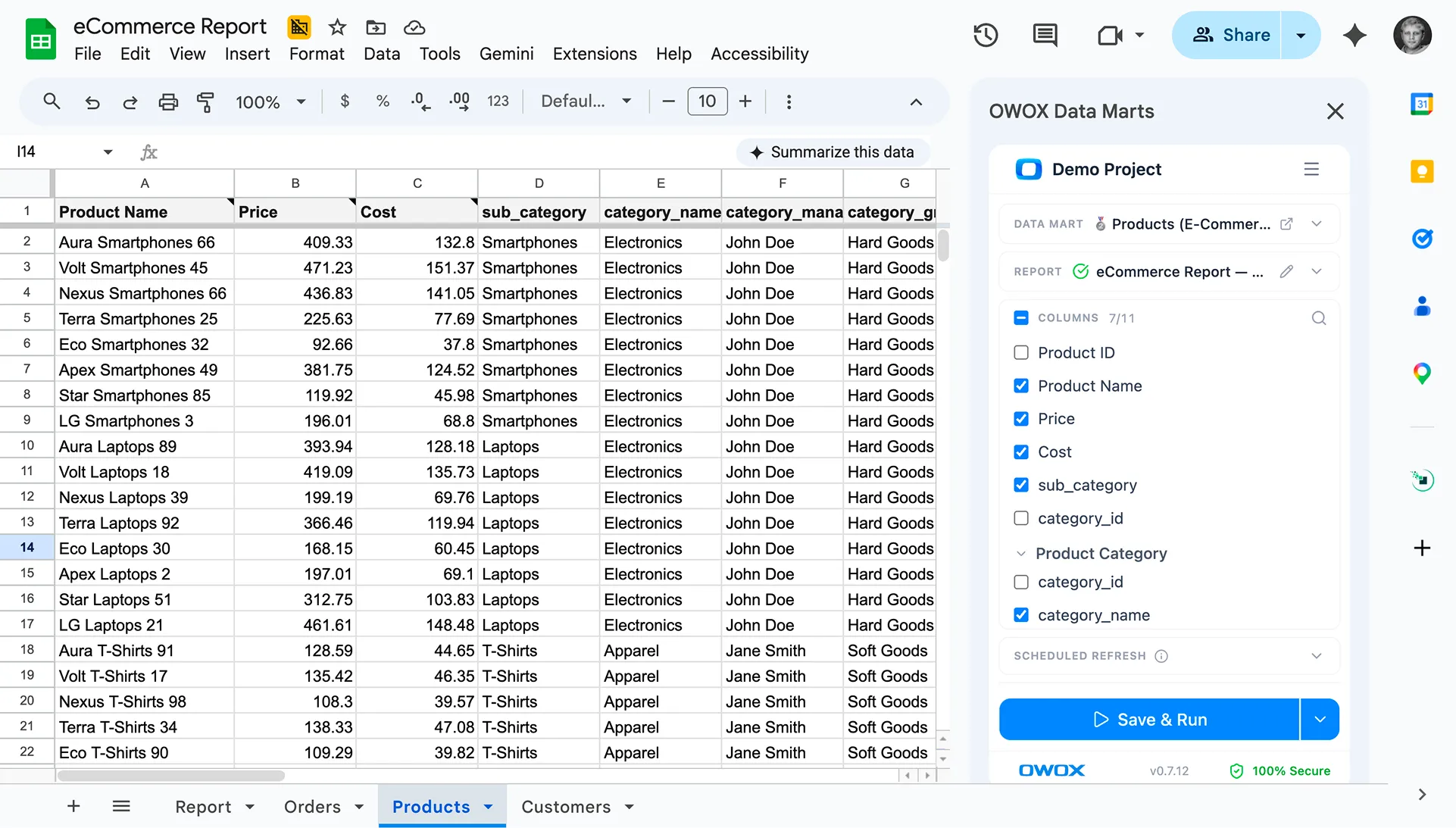
OWOX Reports connects Google BigQuery to Google Sheets, simplifying how teams access and analyze data. Without complex SQL or manual exports, you can pull live data, create reports, and track business metrics in one place. This speeds up analysis, reduces errors, and empowers non-technical users to work with trusted data.
Frequently asked questions





"AI by its nature will hallucinate. You need guardrails so you can trust your data."
"We had six or seven different channels and no single source of truth. It was almost impossible"
"We regained time. And time is the one resource that never comes back."