Partitioned Tables in BigQuery
What are partitioned tables in BigQuery?
Partitioned tables in BigQuery are large tables divided into smaller, manageable segments called partitions based on a column such as date, timestamp, or integer range.
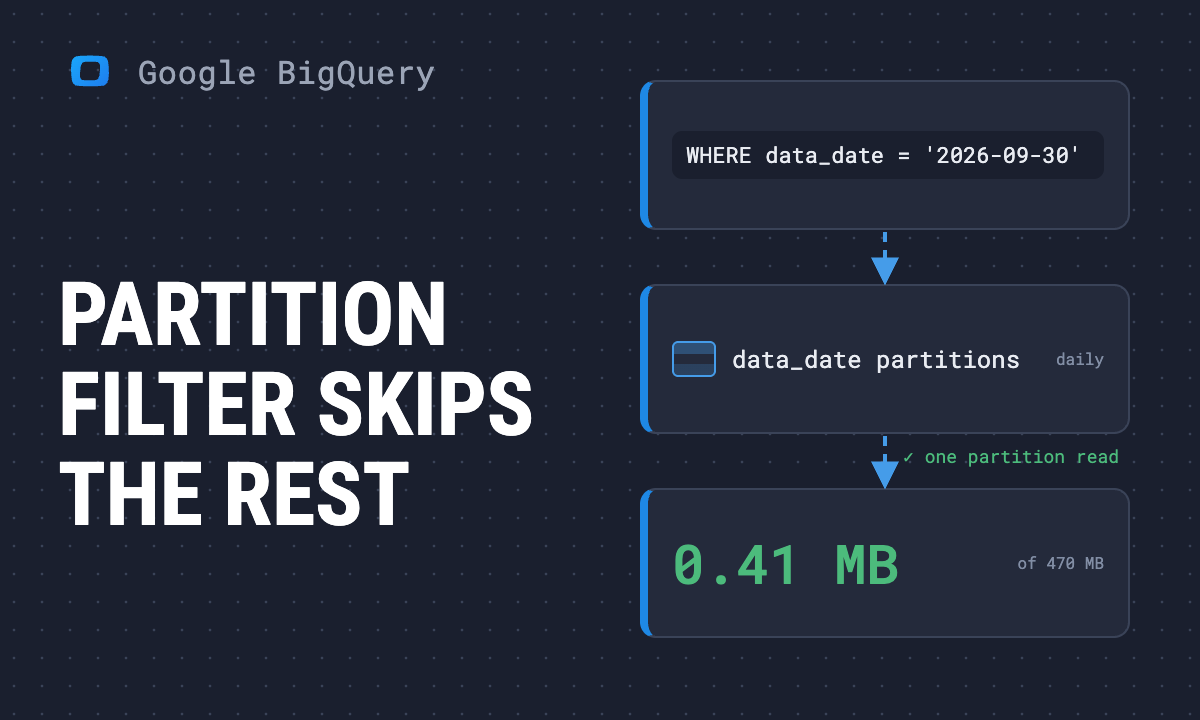
Partitioned tables in BigQuery reduce the amount of data scanned during queries, lowering costs and improving performance. They are especially useful when working with time-series or event-based data, allowing analysts and decision-makers to focus on relevant slices of information while keeping storage and processing efficient.
Why partitioned tables are important in BigQuery
Why partitioned tables are important in BigQuery
Partitioned tables in BigQuery organize large datasets into manageable segments, such as days, months, or years, making queries more efficient and cost-effective.
Key points include:
- Efficient data analysis: By scanning only relevant partitions instead of the full table, queries return faster results and lower processing costs.
- Support for large datasets: Partitioning is ideal for time-series or frequently updated data, where filtering by date or identifier is common.
- Faster access to insights: Limiting queries to specific partitions accelerates reporting, dashboards, and recurring analyses.
- Simplified lifecycle management: Expiration settings on partitions automatically remove outdated data, reducing manual maintenance.
- Scalable reporting: As data grows, partitioned tables ensure dashboards and reports remain responsive without performance degradation.
Types of partitioned tables in BigQuery
Types of partitioned tables in BigQuery
BigQuery supports several partitioning methods, each designed to optimize queries and storage for different kinds of datasets.
Key types include:
- Ingestion-time partitioned tables: Data is automatically divided into partitions based on when rows are ingested into BigQuery, ideal for logs and streaming data.
- Column-based partitioned tables: Partitioning is applied on a DATE, TIMESTAMP, or DATETIME column, allowing queries to focus on specific time ranges.
- Integer range partitioned tables: Tables are divided by ranges of integer values, useful for datasets grouped by numeric fields like IDs or categories.
- Custom partition strategies: Choosing the right partition type depends on query patterns, ensuring a balance between cost savings and performance.
OWOX Data Marts
See your first report built in real time. 15 minutes.
- Connect your data warehouse
- Pick your metrics
- Get a live Google Sheets report
In the time it takes to write a ticket. Then imagine never writing that ticket again.
Book a DemoWe'll use your actual use case
How to create partitioned tables in BigQuery
How to create partitioned tables in BigQuery
Partitioned tables in BigQuery can be created through the Console or SQL, with the chosen partitioning method directly affecting how data is stored, queried, and optimized for performance and cost.
Key steps include:
- Access the BigQuery Console: Open the Google Cloud Console and navigate to BigQuery, which provides the interface for creating and managing datasets and tables.
- Choose a Dataset: Select the dataset where you want to create the new table, ensuring that its permissions and storage policies align with project requirements.
- Start Table Creation: Click Create Table to begin, which opens the configuration panel where schema, partitioning, and clustering can be defined.
- Add Table Details: Enter a clear table name and define schema fields such as customer_id, first_name, last_name, and date_registered, making sure field types are accurate.
- Configure Partitioning Settings: Select a partitioning method such as ingestion time, integer range, or date fields like date_registered, then choose granularity (daily, monthly, or yearly) and optionally add clustering.
- Create the Table: Finalize the process by clicking Create Table, which applies your partition configuration and generates the table ready for queries.
- Using SQL (optional): Define partitions programmatically with the PARTITION BY clause, making automation easier in pipelines.
Limitations of partitioned tables in BigQuery
Limitations of partitioned tables in BigQuery
Partitioned tables are powerful, but they come with restrictions that teams must understand to avoid performance issues or governance challenges.
Key limitations include:
- Maximum partitions per table: Limited to 10,000 partitions. For example, daily partitions over 27 years exceed this limit, so monthly partitions are recommended.
- Partitions modified per job: A query or load job can affect only 4,000 partitions. Large imports should be split into smaller batches.
- Daily modifications for ingestion-time tables: Capped at 5,000 per day for appends, updates, or truncations, excluding DML operations like INSERT or DELETE.
- Daily modifications for column-partitioned tables: Up to 30,000 per day, excluding DML and streaming writes, making batch updates more reliable.
- Range partitioning limits: Tables can support up to 10,000 ranges, requiring careful planning for long time spans or wide numeric ranges.
- Metadata update rate limits: A maximum of 50 metadata changes per table is allowed every 10 seconds, with retries recommended in the event of errors.
Best practices for using partitioned tables in BigQuery
Best practices for using partitioned tables in BigQuery
When implementing partitioned tables in BigQuery, following best practices ensures queries are efficient, costs stay controlled, and datasets remain scalable.
Key practices include:
- Use constant filter expressions: Always filter partitions with constant values instead of dynamic subqueries, so BigQuery can prune irrelevant partitions and reduce scanned data.
- Isolate the partition column in filters: Keep filters on the partition column free from computations or joins with other fields, ensuring partition pruning is applied effectively.
- Require partition filters in queries: Activate the “Require partition filter” option to enforce WHERE clauses on the partition column, preventing queries that would otherwise scan the entire table.
- Choose the right partitioning column: Select a column that matches frequent query filters, such as transaction_date for financial data, to optimize performance and minimize costs.
- Avoid over-partitioning: Do not create overly granular partitions (e.g., hourly across years) since this increases storage costs and slows queries with too many small partitions.
- Cluster data within partitions: Use clustering on secondary columns like customer_id inside partitions to improve efficiency when queries filter by both partition and clustered fields.
Send recurring numbers as Insights
Send recurring numbers as Insights
Insights with AI Assistance turn saved SQL queries over a Data Mart into a scheduled write-up. Write the text once, add the queries (your own, or drafted by the AI Assistant and applied by you), and OWOX sends the result to Email, Slack, Microsoft Teams or Google Chat on the schedule you set. Every figure comes from a saved query, so you can check it.
Learn how teams ship analytics faster
Organizations that scaled analytics without scaling headcount
 "For 10 years I was blind." The day Pürblack® founder stopped guessingSecondsto get reports across six channelsRead the story
  How OWOX Reports Helped Reformation Make Data-Backed DecisionsMinutesfrom data request to business decisionRead the story
  How OWOX Reports Streamlined Operations for WorkSimpli, Saving Over 10 Hours Weekly10hrs+saved per week on manual reportingRead the story
 Not testimonials. Comment threads.
Real things real customers said — each quote pinned to a specific claim, straight from the quotes database.
 Nodari RizunFounder & CEO, Pürblack®
“AI, by the nature of the models, will hallucinate. And because of that, you need something which will create guardrails to ensure that there are no hallucinations, that you can trust your data.”
Nodari RizunFounder & CEO, Pürblack®“I was blind, now I can see. OWOX opened our eyes.”
“We are extremely satisfied with the results achieved through our partnership with OWOX. I'm also impressed by quick and effective support we get from OWOX”
Turn your data into decisions.
Governed data marts give you the clean foundation ML needs to actually work.
- No AI hallucinations
- Analyst-governed definitions
- Every number traces to SQL