How to Upload Google Ads BigQuery Raw Data in 2025
Learn 3 ways to upload Google Ads raw data to BigQuery. Follow these steps to empower your analytics with fresh and accurate data

.png)
When analyzing the effectiveness of Google advertising campaigns in the Google Ads platform interface, you might feel the pain of not being able to compare the performance with other advertising services.
If you decide to analyze advertising performance in Google Analytics 4, most likely, you’ll get the data sampling, aggregation, or other GA4 interface restrictions.
Fortunately, this problem can be solved easily by uploading raw data from your advertising service to BigQuery and visualizing and analyzing reports in Google Sheets or Looker Studio.
In one of the previous articles, we’ve covered the 5 most common reasons for implementing a data warehouse for marketing reporting and start using BigQuery for storing and preparing the data for analysis.
To set up these data transfers, you must use the Google Cloud Console to create a new Google Cloud service account, enable APIs and services, and create credentials. When setting up the data transfer, choose Google Ads as the source and enter your Google Ads customer ID for authentication.
In this article, you will learn 2 methods to upload raw data from your Google Ads account to BigQuery and what you can do further to boost analytics capabilities.
Note: This post was originally published in December 2019, when GA Universal was live, and we completely updated it in November 2025 for accuracy and comprehensiveness on Google Ads and the state of GA4 and BigQuery.
What Is Raw Data in Google Ads?
Raw data from Google Ads represents the detailed, unprocessed information generated by your advertising campaigns on the platform.
This includes metrics like clicks, impressions, cost-per-click, click-through rates, conversion data, and other performance indicators over dimensions like campaign, ad group, keyword, or date.
It also covers more granular details such as the time of clicks, geographical location of users, types of devices used, and specific keywords or ad placements that triggered the ad display.
This raw data, potentially, provides a comprehensive view of campaign performance, user interactions, and the overall effectiveness of your advertising efforts on Google Ads if you prepare and visualize it correctly.
What Is Google BigQuery Used for?
Google BigQuery is a powerful, fully managed data warehouse designed for large-scale data analysis.
It allows businesses to store and query vast amounts of data quickly and efficiently using SQL. BigQuery is used for real-time analytics, machine learning model training, and generating business insights from complex datasets.
Its serverless architecture eliminates the need to manage infrastructure, enabling users to focus on extracting valuable insights from their data, optimizing performance, and making informed, data-driven decisions.
Why Do You Need Raw Google Ads Data?
Raw data from Google Ads will allow you to analyze advertising campaigns with accuracy down to any dimension - keyword, for example. Using the Google Ads API, you can retrieve raw data for more detailed analysis, giving you direct control over data retrieval and the ability to manage concurrent requests, backfill data, set precise schedules, and target specific data points and reports.
By uploading raw Google Ads data to BigQuery, you can:
- Build detailed reports without being limited by GA4 or any other restrictions;
- Evaluate ad campaign effectiveness at the session or user levels;
- Build cross-channel reports for better visibility;
- Analyze KPIs that matter for you: ROAS, ROI, LTV, CAC, and CRR by region, user type (new or returned), device, and any other parameter you wish;
- Manage your bids effectively;
- Create custom remarketing audiences for more revenue;
- Apply machine learning for more accurate attribution modeling that suits your business goals.
- Evaluate the advertising performance based on the sales from the CRM system, not just based on online data from GA4;
Why Connect Google Ads to BigQuery
Keeping ad data only in Google Ads limits how deeply you can analyze campaigns. Connecting it to BigQuery gives you the flexibility to run detailed queries, blend multiple channels, and build custom reports.
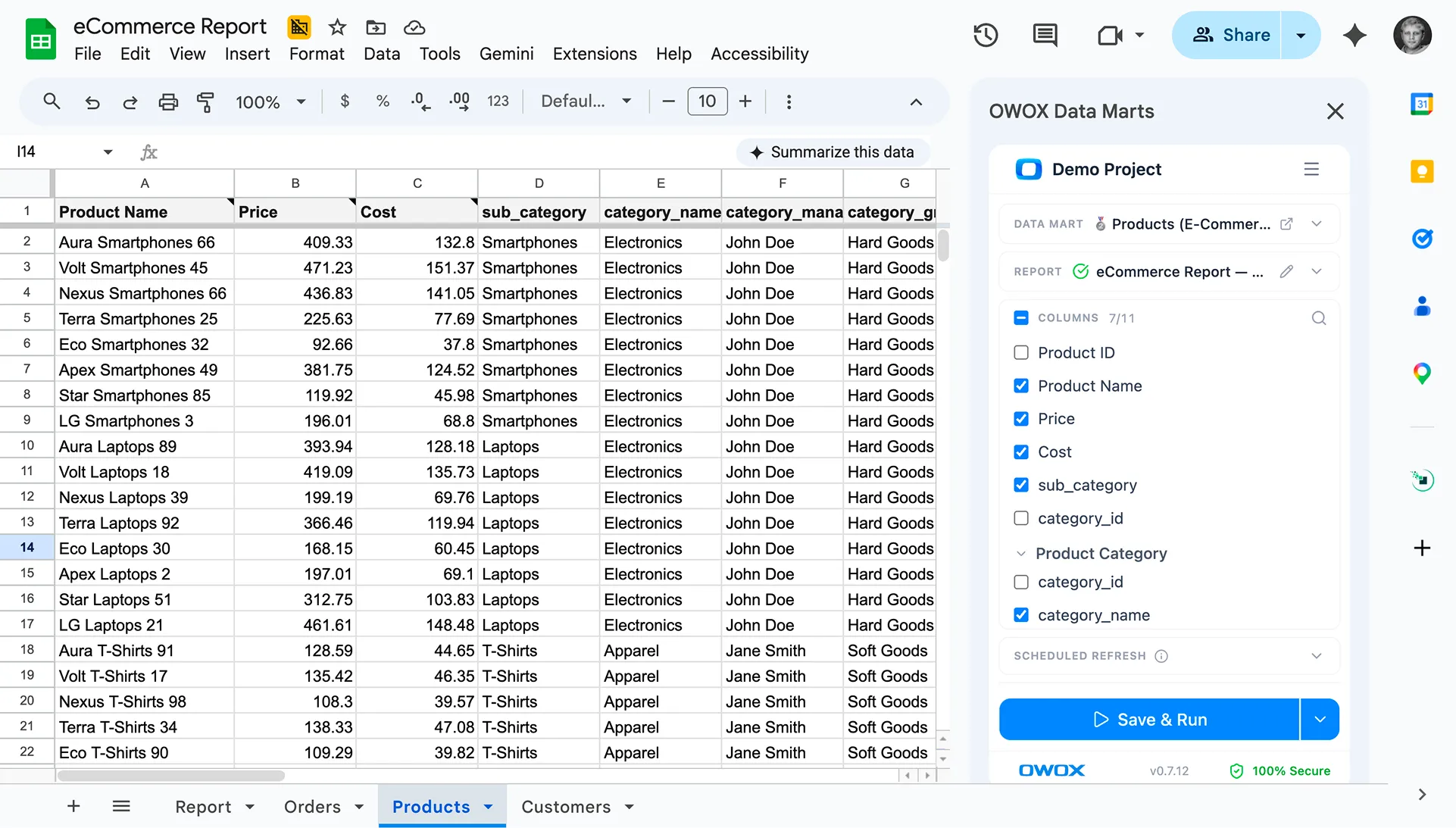
With OWOX Data Marts, this connection becomes effortless. You can set up a Connector-Based Data Mart to automatically import Google Ads data into BigQuery, without scripts, ETL tools, or added costs.
Key benefits include:
- Automatic Google Ads data import with full schema control
- Access to impressions, clicks, costs, conversions, ROAS, and more
- Scheduled refreshes using triggers
- Combine Ads, GA4, and CRM data for unified reporting
You can also connect other ad platforms like Facebook, LinkedIn, or TikTok Ads, all through free, open-source connectors. With OWOX Data Marts, analysts keep control while business users get accurate, ready-to-use data for every report.
2 Ways to Upload Google Ads Data into BigQuery
There are 2 methods to upload raw data from Google Ads: BigQuery Data Transfer and Ads Script.
Which way you choose depends on your budget, level of technical expertise, required accuracy, data quality, and data freshness for marketing analytics.
Option #1: Google Ads Data Upload with BigQuery Data Transfer
The Google Ads Customer ID is crucial for setting up data transfers, as it identifies the specific account for which data will be transferred.
Before we begin, let’s talk about the accounts and access rights you need to have. The Google Ads data transfer process involves selecting Google Ads as the source, entering the Customer ID, and configuring the transfer settings, which ensures seamless data integration and reporting.
To create authentication credentials for accessing data from Google's BigQuery and Google Analytics APIs, you will need a service account JSON file. This file contains the necessary credentials for the application or service to communicate with the respective APIs.
To set up the data collection using any of the options, your Google account must be granted both the BigQuery Data Editor and BigQuery User roles for the destination project.
Otherwise, BigQuery won’t let you upload the data. To check/grant the BigQuery permissions, open the GCP console and select IAM and admin — Manage Resource from the side menu. Then select the project and click Add Principals.

Enter the user’s email, select the BigQuery Admin role, and save your changes.
Also, please ensure your Google account has one of these access levels: ‘Read-only, ‘‘Standard, ‘or ‘Admin.‘ If you don’t have specified access permissions, then contact the administrator of your Google Ads account.
Why BigQuery Data Transfer?
Google BigQuery Data Transfer Service automates data movement from Google Ads (and other sources) into BigQuery, making it easier to analyze advertising data alongside other business data.
Here are the pros and cons of using the BigQuery Data Transfer Service for loading Google Ads data into BigQuery:
Pros of BigQuery Data Transfer
- Native integration with Google Ads;
- Google Cloud's strict security protocols ensure that data is transferred according to privacy regulations.
- Data Transfer is 100% free; you only pay for data processing in BigQuery.
Limitations of BigQuery Data Transfer
- The initial setup is complex and might require a learning curve, especially for users who are not familiar with Google Cloud Platform services.
- Responsibility: You will need to handle data import configuration, connection setup, and status monitoring.
- Independent Troubleshooting: Any data-related issues must be addressed on your own.
- Import Limits: Data Transfer allows importing up to 300 days of data simultaneously, with each day imported in 30-minute intervals. Importing a year’s worth of data can take about 7 days.
- Scalability Issues: This can be problematic for many accounts with extensive dates to backfill or multiple reports needed.
- Data latency: There can be a delay between the time data is generated in Google Ads and when it becomes available in BigQuery, which might not be suitable for real-time analysis needs.
- No customization options: The automatic transfer offers limited options for customization. Users might need to perform additional steps for specific data requirements or formats.
- The data is transferred in a format not compatible with other advertising services, so you might need additional transformations in BigQuery to be suitable for specific analysis purposes.
How to set up Google Ads BigQuery Data Transfer
If you already have a project in GCP, just skip the first step.
Step 1. Create a project in the Google Cloud Platform
If not, open the GCP console and select IAM and Admin — Manage Resource from the side menu. Click the Create Project button. Then enter the project name, specify the organization, and click Create:

Be sure to enable billing. To do this, open the Billing in the side menu, select the project, and link Billing Account:

Next, complete all the fields by entering your contact information and payment card details. If this is your first project in GCP, you will receive $300 that can be used for 90 days. When you exhaust this limit, you don't need to return the money. For further use, you just refill the balance on the card that you linked to the project.
Step 2. Turn on BigQuery API
After you create a project, you must activate the BigQuery API. To do this, go to APIs & Services — Dashboard from the GCP side menu, select the project, and click Enable APIs and Services.

In the API library, search for "BigQuery API" and click Enable:

To use the API, click Create Credentials:

From the drop-down list, choose the BigQuery API and click User data/Application data according to your need.

Create the name of the service account and specify the service description. Click Create and Continue:

Grant the service account access to the project, choose the appropriate role, and proceed by clicking Continue.

Provide users with access to the service account, specify the email ID associated with the service account for role assignment, and then click "Done."

Step 3. Activate Data Transfer
Next, you need to activate the data service in BigQuery. To do this, open GBQ and select Data Transfers from the side menu on the left. Then, enable the BigQuery Data Transfer API:

Step 4. Prepare the data set in GBQ
In the BigQuery, select the project and click the Create Dataset button on the left. Complete all required fields for the new dataset (name, location, retention):

Step 5. Set up data transfer from Google Ads
Click the Transfers tab on the side menu, and then click Create Data Transfer. Then select Google Ads (formerly AdWords) for the source and enter the name of the upload, for example, Data Transfer.
Under Schedule options, you can leave the default set to Start Now or set the date and time you want to start downloading and it repeats every 24 hours.

Then, you have to specify the GBQ dataset to load reports from Google Ads into. Enter your Customer ID (this is the ID of your Google Ads account or MCC ID) and click Add. You can view the Customer ID in your Google Ads account in the upper right corner, next to your email. Then specify table filters for loading, and set the conversion date for AdWords to Google Ads transition.

Various types of Google Ads reports can be transferred to BigQuery, including campaign performance, keyword performance, and conversion reports. These reports can be exported using CSV files, Google Ads Scripts, or the BigQuery Data Transfer Service for Google Ads.
Then give the refresh window duration along with the relevant service account. And then, you need to authorize the Gmail account you are using. Toggle on Pub/Sub notifications and either select an existing Cloud Pub/Sub topic or create a new one to configure run notifications for your transfer. The following day, the information will appear in the dataset you specified when you set up the transfer.

As a result, you will receive a large amount of raw data in GBQ that you can work with: tables by campaigns, audiences, common (custom) tables, keywords, and conversions. For example, if you want to build a custom dashboard, you can pull non-aggregated data from these tables.
Option #2: Setting Up Google Ads Data Upload with Ads Script
There is basically one benefit here - It's totally free.
However, here is why it might not be the best option for you:
- You cannot upload historical data. You can only get the information from the previous day.
- The most complex from the technical point of view and requires a lot of manual work.
- It might be time-consuming if you want to set up uploads for a large number of ad accounts.
- You will need to make script changes manually for each account. At the same time, there is a high risk of making a mistake.
Here is how you can collect Google Ads data into BigQuery using Ads Script (by Apps Script).
Open your Google Ads account, navigate to the left sidebar, select "Tools," then choose "Bulk Action," go to "Scripts," and click the plus symbol to add a new script.

Then, in the upper-right corner, click the Advanced APIs button, select BigQuery, and save your changes:

Be sure to sign up with the account you signed in to Google Ads with:

Copy the script below. In the BIGQUERY_PROJECT_ID, BIGQUERY_DATASET_ID, and Your email lines, replace the values with your own information: project name, GBQ dataset, and email. Paste the script text into the text editor.
/**
 * @name Export Data to BigQuery
 *
 * @overview The Export Data to BigQuery script sets up a BigQuery
 * dataset and tables, download a report from AdWords and then
 * loads the report to BigQuery.
 *
 * @author AdWords Scripts Team [adwords-scripts@googlegroups.com]
 *
 * @version 1.3
 */

var CONFIG = {
 BIGQUERY_PROJECT_ID: 'BQ project name',
 BIGQUERY_DATASET_ID: AdWordsApp.currentAccount().getCustomerId().replace(/-/g, '_'),

 // Truncate existing data, otherwise will append.
 TRUNCATE_EXISTING_DATASET: false,
 TRUNCATE_EXISTING_TABLES: true,

 // Lists of reports and fields to retrieve from AdWords.
 REPORTS: [],

 RECIPIENT_EMAILS: [
 'Your email'
 ]
};

var report = {
 NAME: 'CLICK_PERFORMANCE_REPORT', //https://developers.google.com/adwords/api/docs/appendix/reports/click-performance-report
 CONDITIONS: '',
 FIELDS: {'AccountDescriptiveName': 'STRING',
 'AdFormat': 'STRING',
 'AdGroupId': 'STRING',
 'AdGroupName': 'STRING',
 'AoiCountryCriteriaId': 'STRING',
 'CampaignId': 'STRING',
 'CampaignLocationTargetId': 'STRING',
 'CampaignName': 'STRING',
 'CampaignStatus': 'STRING',
 'Clicks': 'INTEGER',
 'ClickType': 'STRING',
 'CreativeId': 'STRING',
 'CriteriaId': 'STRING',
 'CriteriaParameters': 'STRING',
 'Date': 'DATE',
 'Device': 'STRING',
 'ExternalCustomerId': 'STRING',
 'GclId': 'STRING',
 'KeywordMatchType': 'STRING',
 'LopCountryCriteriaId': 'STRING',
 'Page': 'INTEGER'
 },
 DATE_RANGE: new Date(new Date().setDate(new Date().getDate()-1)).toISOString().slice(0, 10).replace(/-/g, "")+','+new Date(new Date().setDate(new Date().getDate()-1)).toISOString().slice(0, 10).replace(/-/g, ""),
 DATE: new Date(new Date().setDate(new Date().getDate()-1)).toISOString().slice(0, 10).replace(/-/g, "")
};

//Regular export
CONFIG.REPORTS.push(JSON.parse(JSON.stringify(report)));

//One-time historical export
//for(var i=2;i<91;i++){
// report.DATE_RANGE = new Date(new Date().setDate(new Date().getDate()-i)).toISOString().slice(0, 10).replace(/-/g, "")+','+new Date(new Date().setDate(new Date().getDate()-i)).toISOString().slice(0, 10).replace(/-/g, "");
// report.DATE = new Date(new Date().setDate(new Date().getDate()-i)).toISOString().slice(0, 10).replace(/-/g, "");
// CONFIG.REPORTS.push(JSON.parse(JSON.stringify(report)));
//}

/**
 * Main method
 */
function main() {
 createDataset();
 for (var i = 0; i < CONFIG.REPORTS.length; i++) {
 var reportConfig = CONFIG.REPORTS[i];
 createTable(reportConfig);
 }

 var jobIds = processReports();
 waitTillJobsComplete(jobIds);
 sendEmail(jobIds);
}


/**
 * Creates a new dataset.
 *
 * If a dataset with the same id already exists and the truncate flag
 * is set, will truncate the old dataset. If the truncate flag is not
 * set, then will not create a new dataset.
 */
function createDataset() {
 if (datasetExists()) {
 if (CONFIG.TRUNCATE_EXISTING_DATASET) {
 BigQuery.Datasets.remove(CONFIG.BIGQUERY_PROJECT_ID,
 CONFIG.BIGQUERY_DATASET_ID, {'deleteContents' : true});
 Logger.log('Truncated dataset.');
 } else {
 Logger.log('Dataset %s already exists. Will not recreate.',
 CONFIG.BIGQUERY_DATASET_ID);
 return;
 }
 }

 // Create new dataset.
 var dataSet = BigQuery.newDataset();
 dataSet.friendlyName = CONFIG.BIGQUERY_DATASET_ID;
 dataSet.datasetReference = BigQuery.newDatasetReference();
 dataSet.datasetReference.projectId = CONFIG.BIGQUERY_PROJECT_ID;
 dataSet.datasetReference.datasetId = CONFIG.BIGQUERY_DATASET_ID;

 dataSet = BigQuery.Datasets.insert(dataSet, CONFIG.BIGQUERY_PROJECT_ID);
 Logger.log('Created dataset with id %s.', dataSet.id);
}

/**
 * Checks if dataset already exists in project.
 *
 * @return {boolean} Returns true if dataset already exists.
 */
function datasetExists() {
 // Get a list of all datasets in project.
 var datasets = BigQuery.Datasets.list(CONFIG.BIGQUERY_PROJECT_ID);
 var datasetExists = false;
 // Iterate through each dataset and check for an id match.
 if (datasets.datasets != null) {
 for (var i = 0; i < datasets.datasets.length; i++) {
 var dataset = datasets.datasets[i];
 if (dataset.datasetReference.datasetId == CONFIG.BIGQUERY_DATASET_ID) {
 datasetExists = true;
 break;
 }
 }
 }
 return datasetExists;
}

/**
 * Creates a new table.
 *
 * If a table with the same id already exists and the truncate flag
 * is set, will truncate the old table. If the truncate flag is not
 * set, then will not create a new table.
 *
 * @param {Object} reportConfig Report configuration including report name,
 * conditions, and fields.
 */
function createTable(reportConfig) {
 var tableName = reportConfig.NAME+reportConfig.DATE;
 if (tableExists(tableName)) {
 if (CONFIG.TRUNCATE_EXISTING_TABLES) {
 BigQuery.Tables.remove(CONFIG.BIGQUERY_PROJECT_ID,
 CONFIG.BIGQUERY_DATASET_ID, tableName);
 Logger.log('Truncated table %s.', tableName);
 } else {
 Logger.log('Table %s already exists. Will not recreate.',
 tableName);
 return;
 }
 }

 // Create new table.
 var table = BigQuery.newTable();
 var schema = BigQuery.newTableSchema();
 var bigQueryFields = [];

 // Add each field to table schema.
 var fieldNames = Object.keys(reportConfig.FIELDS);
 for (var i = 0; i < fieldNames.length; i++) {
 var fieldName = fieldNames[i];
 var bigQueryFieldSchema = BigQuery.newTableFieldSchema();
 bigQueryFieldSchema.description = fieldName;
 bigQueryFieldSchema.name = fieldName;
 bigQueryFieldSchema.type = reportConfig.FIELDS[fieldName];

 bigQueryFields.push(bigQueryFieldSchema);
 }

 schema.fields = bigQueryFields;
 table.schema = schema;
 table.friendlyName = tableName;

 table.tableReference = BigQuery.newTableReference();
 table.tableReference.datasetId = CONFIG.BIGQUERY_DATASET_ID;
 table.tableReference.projectId = CONFIG.BIGQUERY_PROJECT_ID;
 table.tableReference.tableId = tableName;

 table = BigQuery.Tables.insert(table, CONFIG.BIGQUERY_PROJECT_ID,
 CONFIG.BIGQUERY_DATASET_ID);

 Logger.log('Created table with id %s.', table.id);
}

/**
 * Checks if table already exists in dataset.
 *
 * @param {string} tableId The table id to check existence.
 *
 * @return {boolean} Returns true if table already exists.
 */
function tableExists(tableId) {
 // Get a list of all tables in the dataset.
 var tables = BigQuery.Tables.list(CONFIG.BIGQUERY_PROJECT_ID,
 CONFIG.BIGQUERY_DATASET_ID);
 var tableExists = false;
 // Iterate through each table and check for an id match.
 if (tables.tables != null) {
 for (var i = 0; i < tables.tables.length; i++) {
 var table = tables.tables[i];
 if (table.tableReference.tableId == tableId) {
 tableExists = true;
 break;
 }
 }
 }
 return tableExists;
}

/**
 * Process all configured reports
 *
 * Iterates through each report to: retrieve AdWords data,
 * backup data to Drive (if configured), load data to BigQuery.
 *
 * @return {Array.} jobIds The list of all job ids.
 */
function processReports() {
 var jobIds = [];

 // Iterate over each report type.
 for (var i = 0; i < CONFIG.REPORTS.length; i++) {
 var reportConfig = CONFIG.REPORTS[i];
 Logger.log('Running report %s', reportConfig.NAME);
 // Get data as csv
 var csvData = retrieveAdwordsReport(reportConfig);
 //Logger.log(csvData);
 // Convert to Blob format.
 var blobData = Utilities.newBlob(csvData, 'application/octet-stream');
 // Load data
 var jobId = loadDataToBigquery(reportConfig, blobData);
 jobIds.push(jobId);
 }
 return jobIds;
}

/**
 * Retrieves AdWords data as csv and formats any fields
 * to BigQuery expected format.
 *
 * @param {Object} reportConfig Report configuration including report name,
 * conditions, and fields.
 *
 * @return {string} csvData Report in csv format.
 */
function retrieveAdwordsReport(reportConfig) {
 var fieldNames = Object.keys(reportConfig.FIELDS);
 var query = 'SELECT ' + fieldNames.join(', ') +
 ' FROM ' + reportConfig.NAME + '' + reportConfig.CONDITIONS +
 ' DURING ' + reportConfig.DATE_RANGE;
 Logger.log(query);
 var report = AdWordsApp.report(query);
 var rows = report.rows();
 var csvRows = [];
 // Header row
 csvRows.push(fieldNames.join(','));

 // Iterate over each row.
 while (rows.hasNext()) {
 var row = rows.next();
 var csvRow = [];
 for (var i = 0; i < fieldNames.length; i++) {
 var fieldName = fieldNames[i];
 var fieldValue = row[fieldName].toString();
 var fieldType = reportConfig.FIELDS[fieldName];
 // Strip off % and perform any other formatting here.
 if (fieldType == 'FLOAT' || fieldType == 'INTEGER') {
 if (fieldValue.charAt(fieldValue.length - 1) == '%') {
 fieldValue = fieldValue.substring(0, fieldValue.length - 1);
 }
 fieldValue = fieldValue.replace(/,/g,'');

 if (fieldValue == '--' || fieldValue == 'Unspecified') {
 fieldValue = ''
 }
 }
 // Add double quotes to any string values.
 if (fieldType == 'STRING') {
 if (fieldValue == '--') {
 fieldValue = ''
 }
 fieldValue = fieldValue.replace(/"/g, '""');
 fieldValue = '"' + fieldValue + '"'
 }
 csvRow.push(fieldValue);
 }
 csvRows.push(csvRow.join(','));
 }
 Logger.log('Downloaded ' + reportConfig.NAME + ' with ' + csvRows.length +
 ' rows.');
 return csvRows.join('\n');
}

/**
 * Creates a BigQuery insertJob to load csv data.
 *
 * @param {Object} reportConfig Report configuration including report name,
 * conditions, and fields.
 * @param {Blob} data Csv report data as an 'application/octet-stream' blob.
 *
 * @return {string} jobId The job id for upload.
 */
function loadDataToBigquery(reportConfig, data) {
 // Create the data upload job.
 var job = {
 configuration: {
 load: {
 destinationTable: {
 projectId: CONFIG.BIGQUERY_PROJECT_ID,
 datasetId: CONFIG.BIGQUERY_DATASET_ID,
 tableId: reportConfig.NAME + reportConfig.DATE
 },
 skipLeadingRows: 1
 }
 }
 };

 var insertJob = BigQuery.Jobs.insert(job, CONFIG.BIGQUERY_PROJECT_ID, data);
 Logger.log('Load job started for %s. Check on the status of it here: ' +
 'https://bigquery.cloud.google.com/jobs/%s', reportConfig.NAME,
 CONFIG.BIGQUERY_PROJECT_ID);
 return insertJob.jobReference.jobId;
}

/**
 * Polls until all jobs are 'DONE'.
 *
 * @param {Array.} jobIds The list of all job ids.
 */
function waitTillJobsComplete(jobIds) {
 var complete = false;
 var remainingJobs = jobIds;
 while (!complete) {
 if (AdWordsApp.getExecutionInfo().getRemainingTime() < 5){
 Logger.log('Script is about to timeout, jobs ' + remainingJobs.join(',') +
 ' are still incomplete.');
 }
 remainingJobs = getIncompleteJobs(remainingJobs);
 if (remainingJobs.length == 0) {
 complete = true;
 }
 if (!complete) {
 Logger.log(remainingJobs.length + ' jobs still being processed.');
 // Wait 5 seconds before checking status again.
 Utilities.sleep(5000);
 }
 }
 Logger.log('All jobs processed.');
}

/**
 * Iterates through jobs and returns the ids for those jobs
 * that are not 'DONE'.
 *
 * @param {Array.} jobIds The list of job ids.
 *
 * @return {Array.} remainingJobIds The list of remaining job ids.
 */
function getIncompleteJobs(jobIds) {
 var remainingJobIds = [];
 for (var i = 0; i < jobIds.length; i++) {
 var jobId = jobIds[i];
 var getJob = BigQuery.Jobs.get(CONFIG.BIGQUERY_PROJECT_ID, jobId);
 if (getJob.status.state != 'DONE') {
 remainingJobIds.push(jobId);
 }
 }
 return remainingJobIds;
}


/**
 * Sends a notification email that jobs have completed loading.
 *
 * @param {Array.} jobIds The list of all job ids.
 */
function sendEmail(jobIds) {
 var html = [];
 html.push(
 '',
 '',
 '',
 '',
 '',
 '',
 "",
 '',
 '',
 '
',
 "
" +
 'Powered by AdWords Scripts
',
 '
',
 "
Adwords data load to " +
 "Bigquery report
",
 '	',
 "
",
 AdWordsApp.currentAccount().getCustomerId(),
 '
',
 '',
 "",
 "",
 "",
 "",
 "",
 "",
 '',
 createTableRows(jobIds),
 '
Report	JobId	Rows	State	ErrorResult
',
 '',
 '');

 MailApp.sendEmail(CONFIG.RECIPIENT_EMAILS.join(','),
 'Adwords data load to Bigquery Complete', '',
 {htmlBody: html.join('\n')});
}

/**
 * Creates table rows for email report.
 *
 * @param {Array.} jobIds The list of all job ids.
 */
function createTableRows(jobIds) {
 var html = [];
 for (var i = 0; i < jobIds.length; i++) {
 var jobId = jobIds[i];
 var job = BigQuery.Jobs.get(CONFIG.BIGQUERY_PROJECT_ID, jobId);
 var errorResult = ''
 if (job.status.errorResult) {
 errorResult = job.status.errorResult;
 }

 html.push('',
 "" +
 job.configuration.load.destinationTable.tableId + '',
 "" + jobId + '',
 "" + job.statistics.load?job.statistics.load.outputRows:0 + '',
 "" + job.status.state + '',
 "" + errorResult + '',
 '');
 }
return html.join('\n');
Before running the script, please make sure to click the Preview button in the lower right corner to check the result.
If there are errors in it, the system will caution you and indicate in which line it occurred, as in this screenshot:

If there are no errors, click the Run button:

As a result, you will receive a new CLICK_PERFORMANCE_REPORT report in your GBQ that will be available the next day:

Recall that when you use Data Transfer, you get a large amount of raw, non-aggregated data. With the Ads Script, you will only have information about certain fields.
How to Use Advertising Data in Google BigQuery?
Now you need to combine the data from Google Ads with the data from other advertising sources, as well as with online user behavior data, in order to understand which campaigns were the most profitable and which ones require tweaking.
Please note that the tables you get in BigQuery, for example via Data Transfer, don't include a Client ID parameter.
Whether you are using GA4 Export to BigQuery or OWOX BI Streaming for web analytics tracking, we are here to help you with the set of no-code customizable templates to build advanced analytics for your business in just 1 day.
Useful tips
Tip 1. With Data Transfer, you can upload historical data from Google Ads to BigQuery. At the same time, there are no restrictions on the total period of loading (either for a year or for three), but with data for only 180 days at a time.
You can activate the upload and specify the period using the Schedule Backfill button on the Transfers tab by selecting the transfer you want:

Tip 2. If you want to check the number of Google Ads accounts for which GCP will charge, you need to determine the number of ExternalCustomerID in the Customer table using this query.
SELECT
ExternalCustomerId
FROM `project_name.dataset_name.Customer_*`
WHERE _PARTITIONTIME >= "2020-01-01 00:00:00"
AND _PARTITIONTIME < "2020-07-10 00:00:00"
group by 1
You can edit the dates in the query.
Tip 3. You can access the uploaded data yourself using SQL queries. Here, for example, is a query to determine the effectiveness of campaigns from the Data Transfer-derived "Campaign" and "CampaignBasicStats" tables.
SELECT
{source language="sql"}
  c.ExternalCustomerId,
  c.CampaignName,
  c.CampaignStatus,
  SUM(cs.Impressions) AS Impressions,
  SUM(cs.Interactions) AS Interactions,
{/source}
  (SUM(cs.Cost) / 1000000) AS Cost
FROM
  `[DATASET].Campaign_[CUSTOMER_ID]` c
LEFT JOIN
{source language="sql"}
{source language="sql"}
  `[DATASET].CampaignBasicStats_[CUSTOMER_ID]` cs
ON
  (c.CampaignId = cs.CampaignId
   AND cs._DATA_DATE BETWEEN
   DATE_ADD(CURRENT_DATE(), INTERVAL -31 DAY)
AND DATE_ADD(CURRENT_DATE(), INTERVAL -1 DAY))
WHERE
  c._DATA_DATE = c._LATEST_DATE
GROUP BY
  1, 2, 3
ORDER BY
  Impressions DESC
Boost Your Google Ads Analytics with OWOX Data Marts
Managing raw data uploads manually can get complex fast. With OWOX Data Marts, you can automate Google Ads to BigQuery imports, standardize metrics with governed output schemas, and share ready-to-use reports in Google Sheets, no SQL or maintenance required.
Analysts stay in control of data accuracy and refresh schedules, while business users explore, filter, and update reports confidently across every campaign and channel.
Frequently asked questions
.png)
.png)

.png)