

What Is the FORMAT_TIME Function in SQL?
FORMAT_TIME is a SQL function that turns a TIME value into a readable text string using a format pattern, so analysts can show times clearly in reports, labels, and dashboards without changing the original time field.
What is FORMAT_TIME in SQL?
Quick explanation in plain language
Think of FORMAT_TIME as a presentation tool for time-only values. It takes something like 14:35:07 and converts it into the exact text format you want, such as 14:35, 02:35 PM, or 14:35:07.
That matters because raw time values are great for calculations, but not always ideal for business-facing output. Analysts often need clean labels for charts, exports, and stakeholder reports. FORMAT_TIME handles that final polish fast.
Where you’ll see it used (e.g., BigQuery Standard SQL)
FORMAT_TIME is commonly used in BigQuery Standard SQL when you are working with the TIME data type. It is especially useful in reporting queries, semantic layers, and BI-ready views where the goal is to display time in a consistent and human-friendly way.
You’ll usually see it in queries that prepare dashboard fields, produce CSV exports, or transform operational event times into readable dimensions. It shows up near the end of analysis pipelines, where presentation starts to matter just as much as correctness.
FORMAT_TIME syntax and parameters
Basic syntax with examples
The standard idea is simple: pass in a format string and a TIME value. In BigQuery, that looks like FORMAT_TIME(format_string, time_expression).
For example, a query might format a click_time field into hour-and-minute text for a dashboard label, or convert a TIME literal into a compact display field for a report.
- FORMAT_TIME('%H:%M', TIME '09:07:00') returns 09:07
- FORMAT_TIME('%I:%M %p', TIME '21:07:00') returns 09:07 PM
- FORMAT_TIME('%H:%M:%S', TIME '21:07:45') returns 21:07:45
The result is always a string. That is the key move: the time value stays a time in your source logic, but the output becomes display-ready text.
Common format patterns (HH, mm, ss, 12h vs 24h)
Analysts usually care about a few core patterns. A 24-hour format is great for precision and sorting, while a 12-hour format is often easier for non-technical users to scan in business reports.
- %H = hour in 24-hour format
- %I = hour in 12-hour format
- %M = minutes
- %S = seconds
- %p = AM or PM marker
So if you want 16:45, use a 24-hour pattern like %H:%M. If you want 04:45 PM, use %I:%M %p. Seconds are useful for operational monitoring, but many dashboards are cleaner without them.
The big practical tip: choose one display standard and stick with it across reports. Mixed formatting creates confusion fast, especially when multiple teams consume the same metrics.
Supported data types and typical errors
FORMAT_TIME is built for TIME values. If your source column is actually a TIMESTAMP or DATETIME, you typically need a different formatting function, or you need to convert the value first.
Common issues include passing the wrong data type, using an invalid format pattern, or expecting the formatted output to behave like a native time field. Once formatted, the value is text. That means text sorting and grouping rules can apply unless you design carefully.
Another easy mistake is formatting too early in the query. If you still need time-based calculations, comparisons, or joins, keep the field as TIME until the final output step.
Practical use cases for analysts
Formatting time labels in dashboards and reports
This is the classic use case. You have a dashboard with sessions by hour, call-center volume by time of day, or ad clicks by minute. The underlying TIME value is analytically correct, but the chart label needs to be easy to read.
FORMAT_TIME helps turn raw values into polished labels that look intentional, not accidental. It is a small function, but it can make reporting output feel dramatically more usable.
Preparing time strings for exports and stakeholder-friendly views
Exports often land in spreadsheets, slide decks, or downstream tools that do not preserve SQL data types cleanly. A formatted time string avoids confusion and gives stakeholders exactly what they expect to see.
This is also helpful when teams generate and optimize SQL queries faster and want to standardize presentation fields without manually cleaning output every time.
In some workflows, formatted time output is also paired with privacy rules, especially when you are masking sensitive time-based data or simplifying detailed event timing for broader audiences.
Grouping or bucketing by formatted time (with caveats)
Yes, you can group by formatted time strings, but do it with your eyes open. Grouping by a string like 09:00 AM may work for simple summaries, yet text-based grouping can become messy if formatting is inconsistent.
For analysis, it is usually safer to group by the real TIME value or by a derived numeric or truncated time expression, then apply FORMAT_TIME only for display. That keeps logic stable and results easier to validate.
A great pattern is: compute with raw types, present with formatted strings. That separation saves headaches when your dashboard grows from one chart into a full reporting layer.
FORMAT_TIME vs related SQL functions
FORMAT_TIME vs FORMAT_TIMESTAMP / FORMAT_DATETIME
These functions are closely related, but they are not interchangeable. FORMAT_TIME is for TIME values only. FORMAT_TIMESTAMP is for full timestamp values that include date and time context. FORMAT_DATETIME is for DATETIME values, which combine date and time without timezone semantics.
If your field contains only a clock time, use FORMAT_TIME. If it contains a full event moment, such as an ad click with date and time attached, FORMAT_TIMESTAMP or FORMAT_DATETIME is usually the better fit.
Using the correct function keeps transformations predictable and aligns with broader SQL best practices for data integrity. Small typing decisions can ripple through pipelines, especially when marts and dashboards depend on consistent field definitions.
When to use formatting vs real time types in analysis
Use real time types when you are filtering, comparing, joining, bucketing, or calculating. Use formatting when you are presenting. That is the clean rule.
If you format too early, you lose the strengths of structured time data and end up handling strings instead. Strings are great for labels, but weak for real analysis logic. Keep the raw time field available as long as possible, then create a formatted companion field for reporting output.
Example: using FORMAT_TIME in a marketing analytics query
Sample query with session time or ad click time
Imagine a marketing analyst wants to see how many ad clicks happen by time of day and also display a clean label in the BI tool. A query could aggregate on the hour and format the hour bucket for presentation.
Example query:
1SELECT
2click_time AS raw_click_time,
3FORMAT_TIME('%H:00', click_time) AS click_hour_label,
4COUNT(*) AS clicks
5FROM campaign_clicks
6GROUP BY raw_click_time, click_hour_label
7ORDER BY raw_click_time;
In a more production-ready setup, you might first bucket times to the hour and then format that bucket, instead of grouping by every unique click_time value. The point is the same: preserve the raw time logic, then expose a readable label.
Interpreting the result in BI tools
In a BI tool, click_hour_label can be used as the visible chart dimension, while raw_click_time or a proper hour bucket can remain the hidden sort field. That prevents labels like 10:00, 11:00, and 2:00 from appearing in the wrong order if the tool sorts alphabetically.
This setup is powerful because business users get clear labels, while analysts keep control over the underlying logic. Clean output on the surface, strong data types underneath. That is the sweet spot.
How FORMAT_TIME fits into Data Marts and reporting
Using formatted time in semantic layers and mart views
In data marts, FORMAT_TIME is often used to expose business-friendly fields in reporting views. A mart may keep raw TIME columns for calculations and also include formatted versions for dashboards, exports, or semantic layer dimensions.
This works especially well when teams want to standardize display logic once instead of repeating it in every downstream report. In larger environments, you can even wrap formatting logic into stored procedures or reusable view patterns to keep outputs consistent.
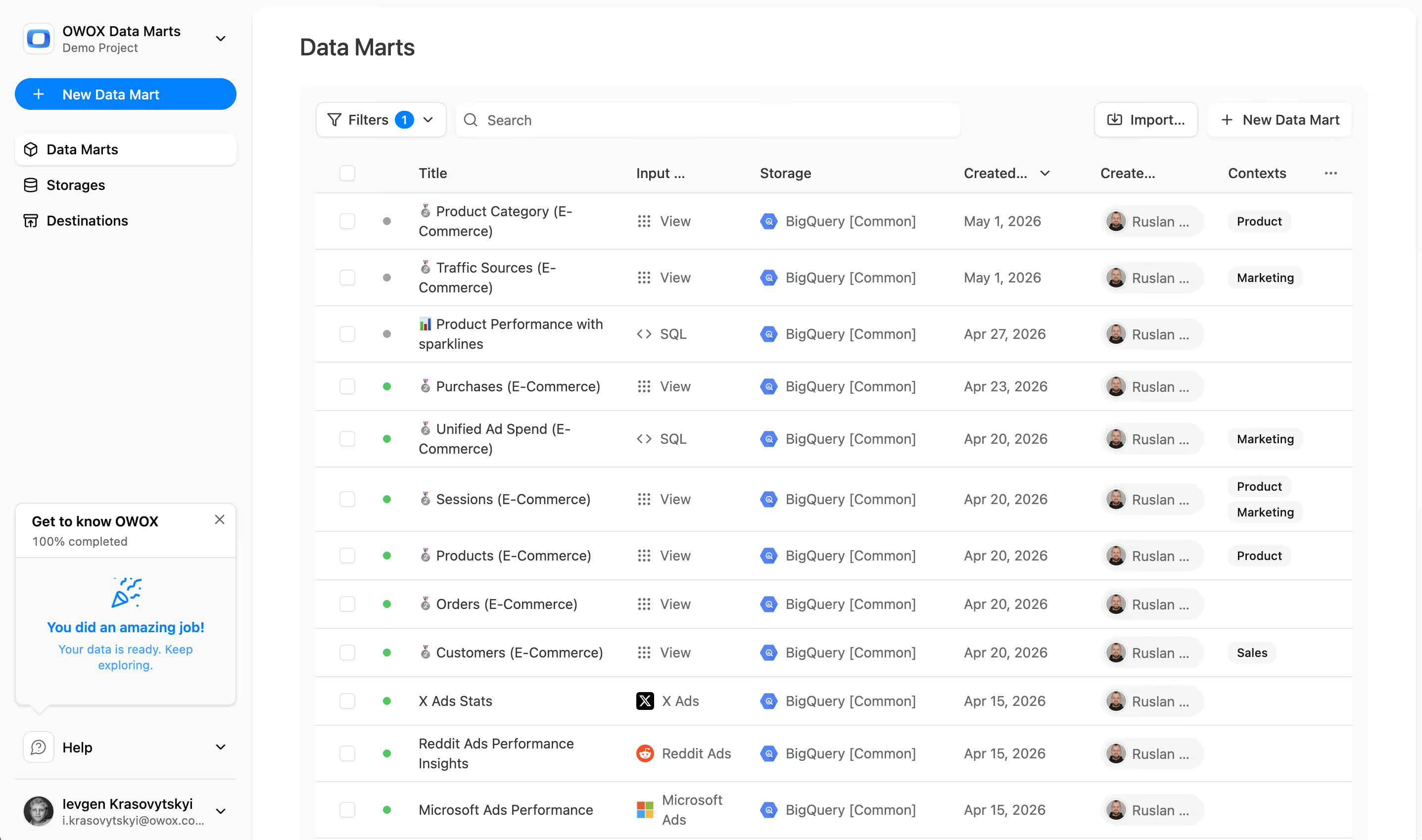
OWOX Data Marts note: keeping raw time fields but exposing human-friendly formats
A strong mart design keeps both versions: the original time field for analysis and a formatted string field for presentation. That gives BI tools flexibility without sacrificing correctness.
This also fits neatly with well-structured schemas where relationships are clear and dependable, including the use of primary and foreign keys in your analytical schema. The result is a reporting layer that feels easy for users and stays trustworthy for analysts.
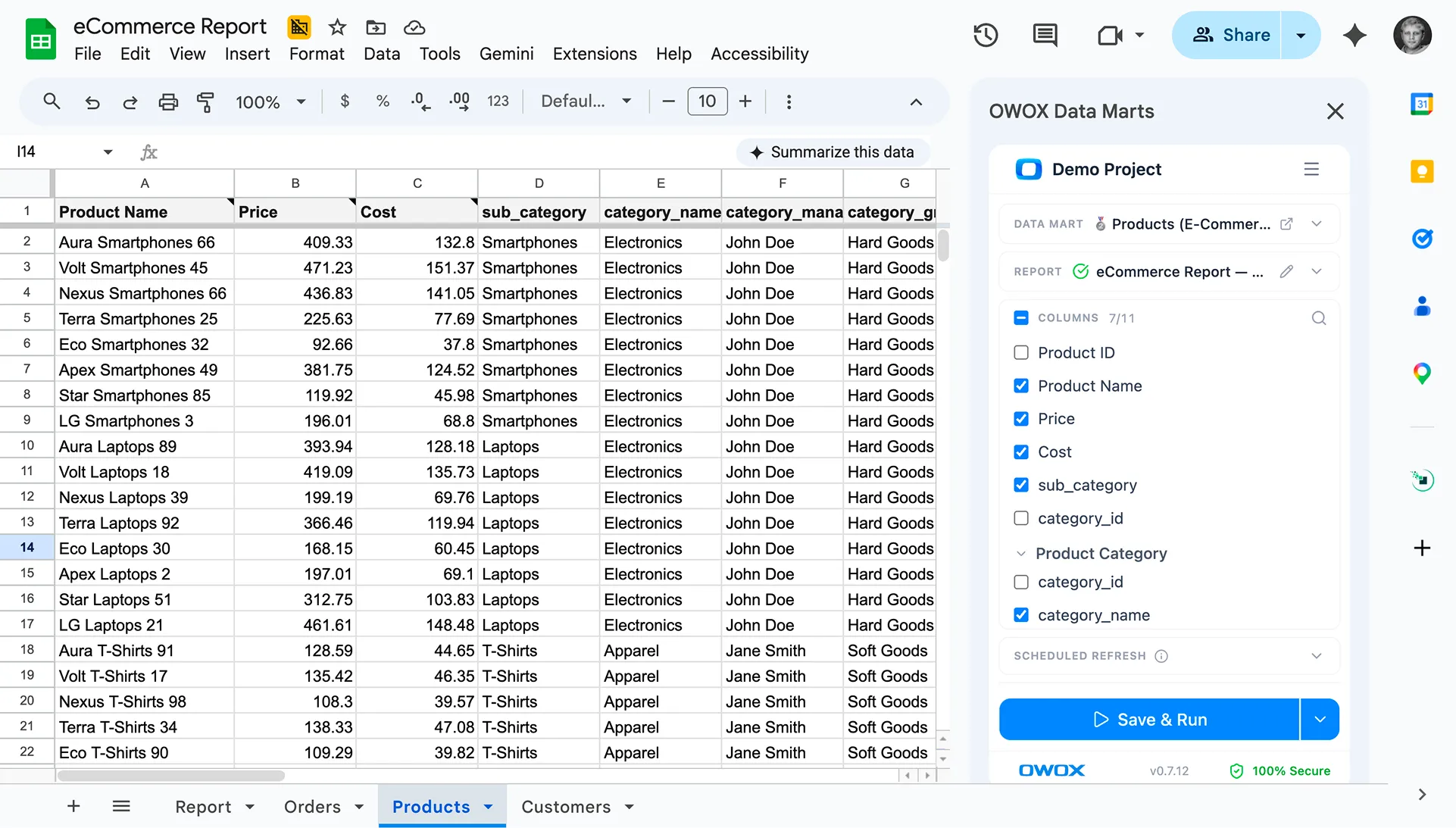
Want cleaner reporting fields without cluttering your raw models? Build human-friendly time dimensions and mart-ready views with OWOX Data Marts. It’s a smart way to keep raw time fields intact while exposing polished formats for reporting.
%202.png)



"AI by its nature will hallucinate. You need guardrails so you can trust your data."
"We had six or seven different channels and no single source of truth. It was almost impossible"
"We regained time. And time is the one resource that never comes back."