

What Is Google Analytics Debugger?
Google Analytics Debugger is a browser-based debugging tool that lets you see the tracking data your site sends to Google Analytics in real time, helping you verify events, parameters, and errors before they distort your reports.
What Is Google Analytics Debugger?
Google Analytics Debugger is used to inspect analytics hits directly in your browser console. Instead of guessing whether a page_view, purchase, or lead event fired correctly, you can open the console and check what was actually sent.
That makes it especially useful for analysts, marketers, and BI teams who need confidence in tracking. If a conversion disappears, a custom dimension looks blank, or a report suddenly spikes, the debugger helps you move from assumptions to evidence fast.
Think of it as a truth-checking layer between website behavior and reporting output. Before data lands in dashboards, attribution models, or warehouse tables, the debugger shows the payload behind the scenes.
Why Google Analytics Debugger Matters for Analysts
Analytics is only as good as the collection layer. If tracking breaks upstream, every KPI downstream becomes suspicious.
Common tracking issues it helps uncover
Google Analytics Debugger helps uncover the messy issues that often hide in plain sight. These are the kinds of problems that create reporting confusion, stakeholder panic, and painful backtracking.
- Events firing twice because of duplicate tags
- Missing conversions caused by trigger misconfiguration
- Wrong event names or parameter keys
- Pageviews not sending on virtual page changes
- Custom dimensions or user properties arriving empty
- Hits blocked by consent settings, browser issues, or JavaScript errors
These are classic examples of common data analytics challenges and data quality issues. The debugger gives analysts a practical way to spot them before they get normalized in reports and treated like business truth.
How it fits into your data quality workflow
A strong data quality workflow starts before data reaches GA reports, BI tools, or a warehouse. The debugger belongs in QA, release checks, tag validation, and ongoing monitoring after site updates.
It is also useful for defining ownership. Tracking quality is rarely the job of one person alone. Analysts, marketers, developers, and GTM specialists all influence collection quality, which is why discussions about responsibility for data quality in analytics teams matter so much.
In practice, the debugger acts like an early warning system. It helps teams validate tracking at the source, reduce cleanup later, and avoid wasting hours explaining numbers that were wrong from the start.
How Google Analytics Debugger Works
The tool works by exposing detailed information about Google Analytics requests in your browser’s developer console. Once enabled, it logs the parameters associated with hits sent from the page.
Enabling the extension and reading console logs
The usual flow is simple: enable the debugger, open your browser console, load the page, and interact with your site. When hits fire, the debugger prints useful diagnostics into the console output.
You will typically see event names, measurement IDs or property information, parameter values, and sometimes warnings about malformed or missing fields. That gives you a live view of collection behavior while clicking buttons, submitting forms, or moving through checkout.
This kind of direct inspection is one of the fastest ways to understand tracking behavior and supports teams learning how to overcome data quality issues before they spread.
Key parameters to check (events, pageviews, user properties)
When reviewing debugger output, focus on the fields that affect analysis most. For GA4, that often means checking the event name and attached parameters. For older setups, pageview and event category structures may be part of the review.
- Event name: Is it spelled exactly as expected?
- Page location or page path: Does it match the real URL or virtual route?
- Conversion-related parameters: Are value, currency, item details, or lead identifiers present?
- User properties: Are attributes populated and formatted properly?
- Custom dimensions or custom parameters: Are they sent at all, and under the correct keys?
One wrong parameter name can break a metric without any obvious front-end issue. That is why debugger review should be specific, not just “the event fired.”
Limitations and what it does not show
Google Analytics Debugger is powerful, but it is not a complete observability tool. It shows what the browser attempts to send, not every transformation that may happen afterward.
It will not replace report validation, tag manager preview, network inspection, or warehouse-side checks. It also cannot guarantee that a hit was processed exactly as expected inside Google Analytics, only that the request and its payload looked a certain way in the browser.
So use it as a source-level validator, not the only source of truth. Great debugging combines browser evidence, configuration review, and downstream reconciliation.
How to Use Google Analytics Debugger Step by Step
The best way to use the debugger is with a repeatable QA process. Random clicking is not enough. You need expected outcomes and a checklist.
Setting up your environment (browser, GA, GTM)
Start in a browser where the debugger is enabled and the console is open. Then load the website version you want to test, ideally a staging environment or a controlled production session.
Have your expected tracking plan nearby. Know which GA property or GA4 stream should receive the hit, which GTM container controls the tags, and which actions should trigger events. This keeps testing tied to the data collection stage of the analytics process instead of turning into vague spot checks.
It also helps to test with a clean browser session so cookies, prior state, or extensions do not confuse the outcome.
Validating events, conversions, and custom dimensions
Next, perform one action at a time and compare the debugger output with your implementation plan. Click the CTA. Submit the form. Complete the purchase step. Then inspect the console carefully.
Ask a few sharp questions:
- Did the intended event fire once?
- Did the right parameters arrive with the event?
- Did custom dimensions or user properties populate correctly?
- Did the conversion step trigger too early, too late, or not at all?
This step is where many “tracking works” assumptions collapse. A tag may fire, but with the wrong event name. Or a conversion may appear, but with no revenue value. The debugger helps expose those hidden failures.
Debugging GA4 vs. Universal Analytics setups
GA4 and Universal Analytics differ in structure, so your debugging mindset should adapt. GA4 is event-based, which means names and parameters matter constantly. Universal Analytics relies more on pageviews, categories, actions, labels, and hit types.
If you support older implementations, be careful not to mix concepts. A team may think they are checking a “conversion event,” but the setup might still depend on legacy patterns. The debugger helps identify what is actually being sent, which is critical during migrations, dual tagging, or partial rebuilds.
For analysts, this is huge. It prevents false comparisons between systems that collect similar actions in very different ways.
Example: Debugging a Broken Conversion Event
Here is a realistic scenario where the debugger saves the day.
Symptoms in your dashboards and Data Marts
Your marketing dashboard shows a sudden drop in trial signups after a landing page redesign. Traffic is stable. Ad spend is stable. But conversions are down hard.
In your warehouse and marts, the lead event table also shows fewer records. Since analysts often rely on raw analytics data before it reaches reports, the issue appears to start upstream rather than in reporting logic.
That is your signal: don’t blame attribution yet. Check collection.
Using Debugger output to find the root cause
You enable the debugger, open the console, and submit the signup form on the redesigned page. The expected event is generate_lead. But the console shows an event named form_submit with no conversion-specific parameter mapping.
You also notice that a custom parameter for plan_type is missing, even though the form clearly includes a selected plan. In GTM, the trigger still fires, but the updated front-end changed the data layer keys.
So the event is not exactly broken. It is worse: it fires in a way that no longer matches your analytics design, conversion logic, or warehouse transformations.
Fixing tags and confirming clean data
You update the tag configuration to send the correct event name and map the new data layer variable to the expected parameter key. Then you test again.
This time the debugger shows generate_lead with the needed fields. You repeat the action once more to confirm there is no duplicate hit. Then you validate that the event appears properly in downstream checks.
That sequence matters: identify the symptom, inspect the payload, fix the tag, and confirm the repaired version. Fast, surgical, and far better than trying to explain away broken numbers in a meeting.
Google Analytics Debugger in a Data Marts–First Workflow
For teams building analytics from warehouse-ready data, tracking validation is not optional. It is foundational.
Catching bad hits before they poison warehouse data
When bad hits enter your pipeline, they do not stay small. They get joined, aggregated, modeled, and visualized. One naming error can split metrics across tables. One missing parameter can break segmentation. One duplicate event can inflate performance and trigger the wrong business decision.
That is why upstream validation matters so much in environments focused on reliable data products. The debugger helps stop bad events before they become expensive cleanup work. It also supports better data lineage and tracking data flows because you can connect what happened in the browser to what later appears in your models.
OWOX Data Marts context: why upstream debugging matters
In a data marts–first workflow, the value of analytics depends on confidence in source events. If collection is wrong, every transformed table inherits the problem. Debugging at the browser level helps protect metric definitions, preserve trust, and reduce investigation time later.
That is the real win. Google Analytics Debugger is not just a tool for fixing tags. It is a frontline defense for data quality across the whole analytics stack.
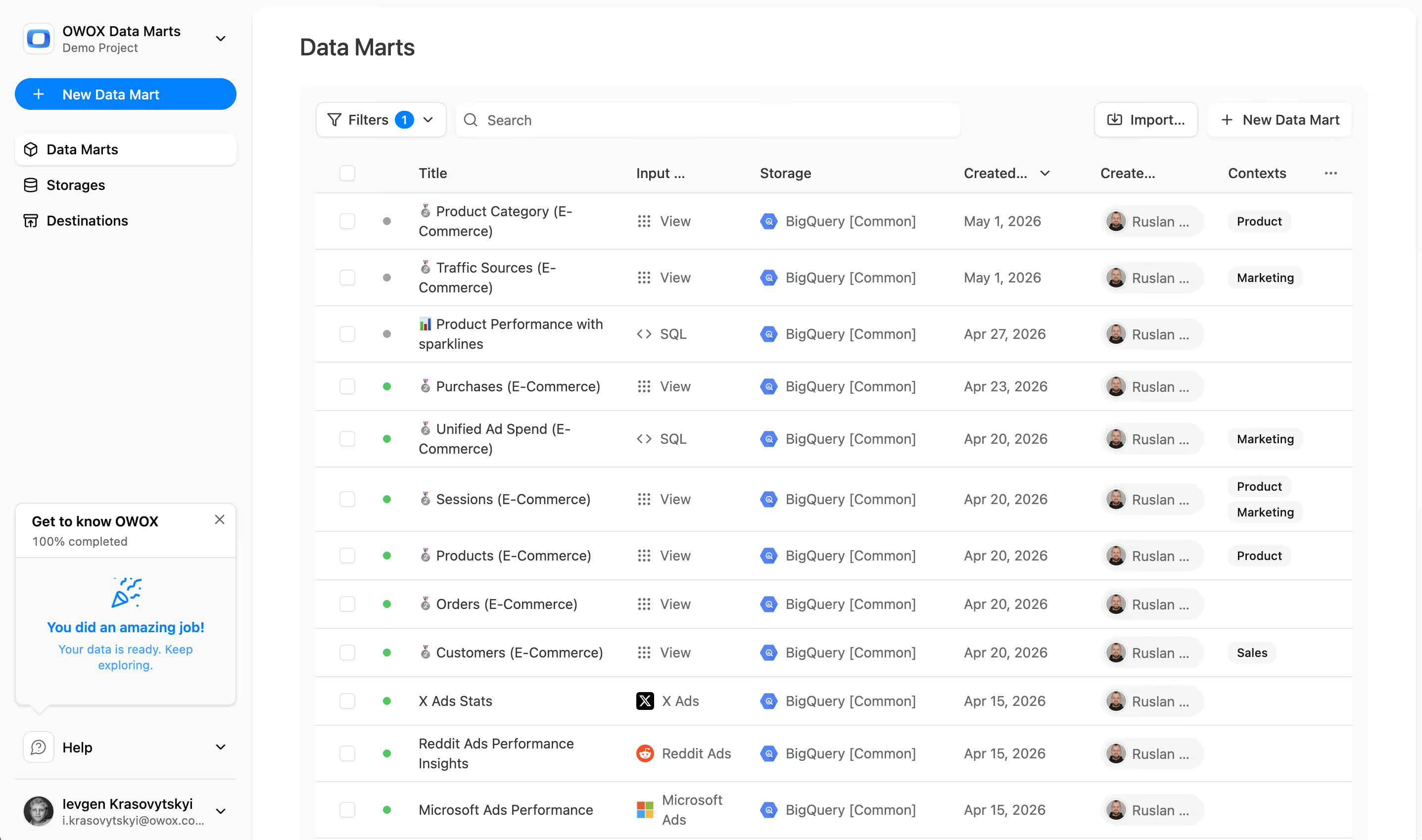
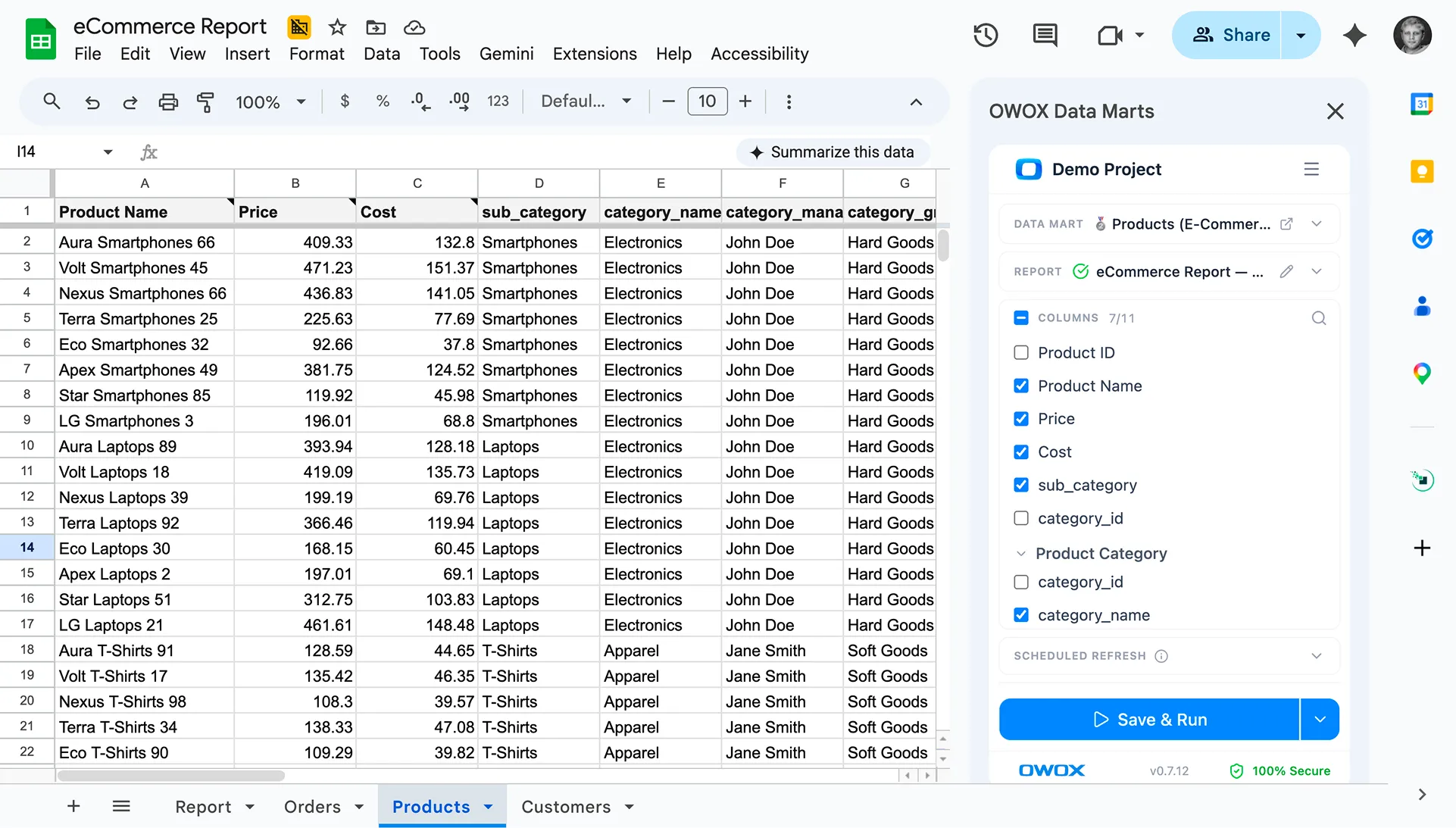
If you want cleaner data marts, more trustworthy analytics workflows, and fewer surprises in reporting, start by validating tracking upstream. Explore OWOX Data Marts to build on data you can actually trust.
%202.png)



"AI by its nature will hallucinate. You need guardrails so you can trust your data."
"We had six or seven different channels and no single source of truth. It was almost impossible"
"We regained time. And time is the one resource that never comes back."