How to connect Google Ads to BigQuery with OWOX Data Marts
Running Google Ads is one thing. Reporting on them at scale? Reporting on them at scale with a Google Ads to BigQuery solution? That’s a whole different beast**.** Exporting Google Ads data into BigQuery often means expensive ETL tools, complex scripts, or constant dependency on engineers, barriers that delay insights and increase costs.
Analysts deserve direct, transparent control over their own campaign performance data without waiting on a data pipeline. That’s why we built this free, no-code Google Ads to BigQuery connector as part of OWOX Data Marts. It enables you to load, refresh, and manage Google Ads data directly in BigQuery, with full visibility and zero vendor lock-in.
No limits, no hidden layers. Just your Google Ads data in BigQuery, exactly where you need it.
Why we built the free Google Ads to BigQuery connector
Why we built the free Google Ads to BigQuery connector
Most Google Ads connectors are either costly, limited in flexibility, or completely opaque about what happens under the hood. We wanted to change that. Analysts and marketers should own their ad data pipelines, not rent them from closed, third-party vendors.
Our goal is to help data and marketing teams take full control of their reporting workflows – without relying on slow, third-party tools. With this connector, you get the transparency, flexibility, and ownership to analyze your Google Ads data directly in BigQuery.
Whether you’re monitoring budgets, tracking campaign performance, or fueling advanced reporting pipelines, this connector, built on OWOX Data Marts, gives you unrestricted access to the metrics that matter, with zero compromise.
Join the Open-source movement
We’re not just releasing a free connector – we’re inviting you to help shape the future of data and marketing analytics tools.
At OWOX, we believe that data access and transparency should be a right, not a luxury. That’s why this connector is 100% open-source – giving you full control over how it works, what it does, and how far it can go.
If you like what we do, please ⭐ star our GitHub repo to show your support – it helps us reach more analysts and grow the number of available connectors.
Also, feel free to:
- Explore the code and customize it to fit your needs.
- Contribute to this data connectivity ecosystem: suggest new connectors, pull new connectors, and/or documentation to support the wider community.
- Join our community and share your feedback.
We’ve built the core, the foundation – now it’s your turn to take it further.
Why choose the OWOX free connector for Google Ads to BigQuery
Why choose the OWOX free connector for Google Ads to BigQuery
There’s no shortage of tools that send Google Ads data into BigQuery. But most come with trade-offs - restrictive pricing models, rigid pipelines, or zero visibility into what’s actually happening behind the scenes.
The OWOX connector was built to remove those barriers:
- 100% free and open-source – no usage fees, hidden limits, or tiered pricing. Available on GitHub as part of OWOX Data Marts.
- Direct Google Ads → BigQuery flow – skips CSVs, staging layers, and third-party intermediaries.
- Full API coverage – Access to all key metrics, segments, and dimensions available in the Google Ads API.
- Own your schema – define your target table structure, assign aliases, and tailor fields for your reporting needs.
- Complete transparency – inspect, modify, or extend every pipeline component using open configurations and SQL directly in your warehouse.
You don’t have to rely on opaque ETL tools or worry about data volume pricing. If you want complete control over how Google Ads data lands in your BigQuery project, with zero vendor lock-in, the OWOX connector is built for you.
OWOX Data Marts
See your first report built in real time. 15 minutes.
- Connect your data warehouse
- Pick your metrics
- Get a live Google Sheets report
In the time it takes to write a ticket. Then imagine never writing that ticket again.
Book a DemoWe'll use your actual use case
Why bring Google Ads data into BigQuery?
Why bring Google Ads data into BigQuery?
When it comes to large-scale marketing analytics, BigQuery is unmatched in power and speed. But getting raw Google Ads data into it? That’s where most teams struggle.
- Complex ETL pipelines that demand engineering support
- Limited control over metrics and conversion data
- Costly third-party tools that restrict schema access
That’s exactly why we built the Google Ads to BigQuery connector – to give analysts a better, simpler, and fully transparent way to own their ad data.
Here’s why it’s a must-have for data teams:
✅ Automatically load Google Ads data to BigQuery – no manual scripts or ETL tools needed
✅ No-code setup: choose the connector, connect your account and pick the fields
✅ Access to all key metrics – impressions, clicks, cost, conversions, ROAS, and more
✅ Schedule recurring imports and incremental updates seamlessly
✅ Pull granular data across campaigns, ad groups, ads, and keywords
This connector gives you the control, flexibility, and visibility to analyze marketing performance your way, at any scale. And the best part? You don’t need to pay a cent or write a single line of backend code to get started.
Want even more control over your ad data?
If you’re moving Google Ads data into BigQuery, you’ll love what else you can connect – completely free and code-free:
Unify all your ad data, customize your analysis, and scale your reporting exactly how you want, across every platform and channel.
How the connector works
We built this connector to work out of the box for data analysts, marketers, and technical teams, as part of OWOX Data Marts, with no middleware, scripts, or ETL platforms required.
Here’s what’s under the hood:
- Runs on an open-source framework you can host and operate yourself, no need for extra software, paid ETL tools, or manual CSV uploads.
- Connects directly to the Google Ads API to fetch campaign, ad group, keyword, and performance metrics data.
- Loads your Google Ads data straight into BigQuery tables, ready for querying, modeling, or dashboarding.
- And yes, it starts 100% free and open, with no usage limits or hidden restrictions.
You can use it to:
- Replace costly ETL tools with a fully owned, transparent solution built on OWOX Data Marts
- Schedule recurring imports to keep your BigQuery tables always up to date
- Feed Looker Studio and advanced marketing models using clean, structured ad data
It’s the simplest, fastest way to start running Google Ads analysis in BigQuery, no waiting, no black boxes, and no engineering overhead.
Step-by-step guide: Import Google Ads data to BigQuery with OWOX Data Marts
Step-by-step guide: Import Google Ads data to BigQuery with OWOX Data Marts
Set up a fully self-managed, SaaS-free pipeline to import Google Ads data directly into BigQuery using OWOX Data Marts and a local server.
Step 1: Create your free OWOX Data Marts account (~1 min )
To start importing Google Ads data into BigQuery, first create your OWOX Data Marts account. This gives you access to the managed connector environment – no local setup, CLI tools, or infrastructure required.
Simply sign up for OWOX Data Marts for free, and you’ll be ready to configure your Google Ads → BigQuery data pipeline in just a few clicks.
To run OWOX Data Mart locally, you’ll need to install Node.js and the OWOX CLI. This setup allows you to start a local server and work with OWOX Data Marts effectively.
💡 For detailed setup instructions and troubleshooting, check the official documentation.
Step 2: Connect Google BigQuery as your storage (~1 min)
Set up BigQuery as your destination in OWOX Data Marts.
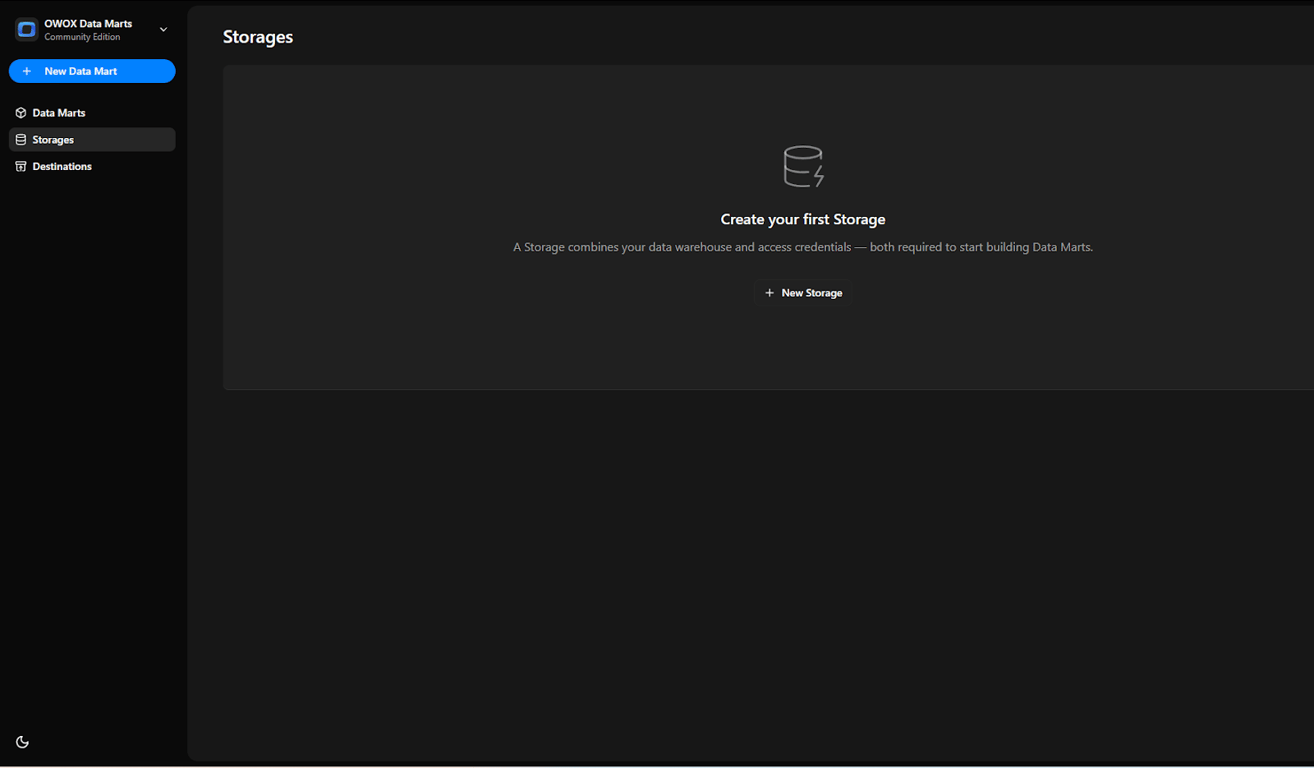
💡 Follow our guide, where you’ll find easy-to-follow instructions on how to configure your storage in OWOX Data Marts.
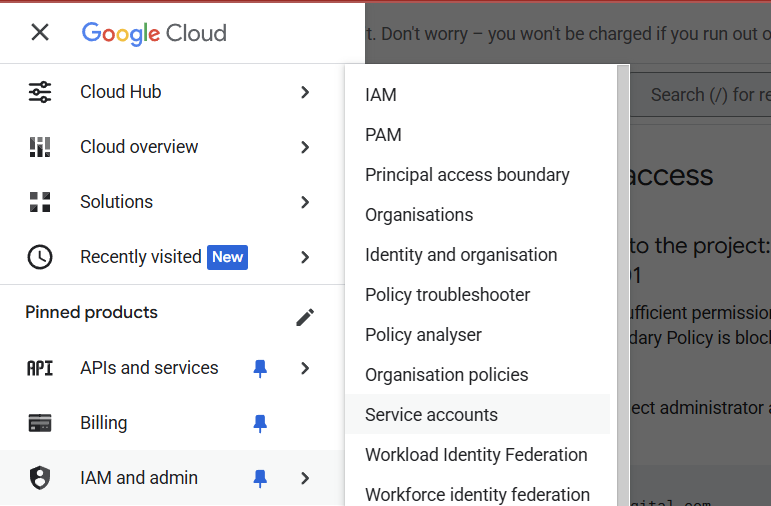
1. Create your Service Account JSON Key.
- Follow our guide to create your service account JSON Key.
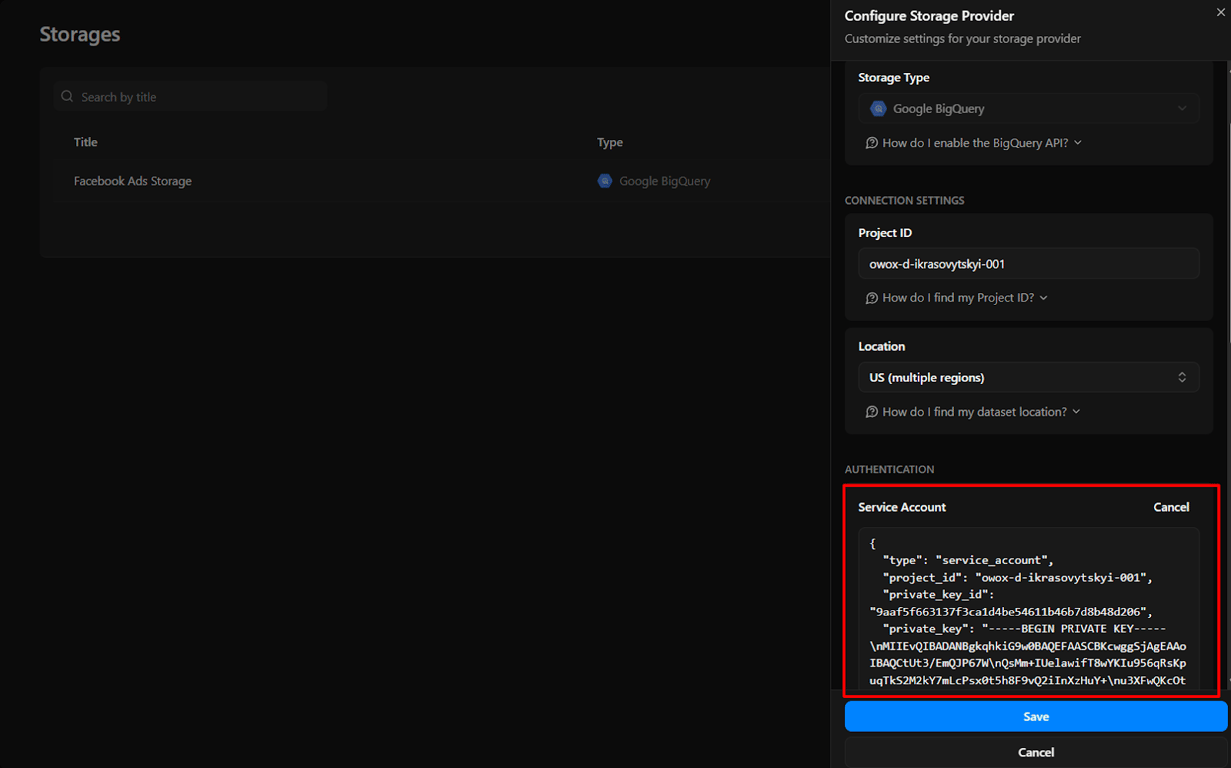
2. Paste it into the ‘OWOX Service Account JSON Field’
- Don’t forget to click ‘Save’.
Step 3: Create and set up your first data mart (~2 min)
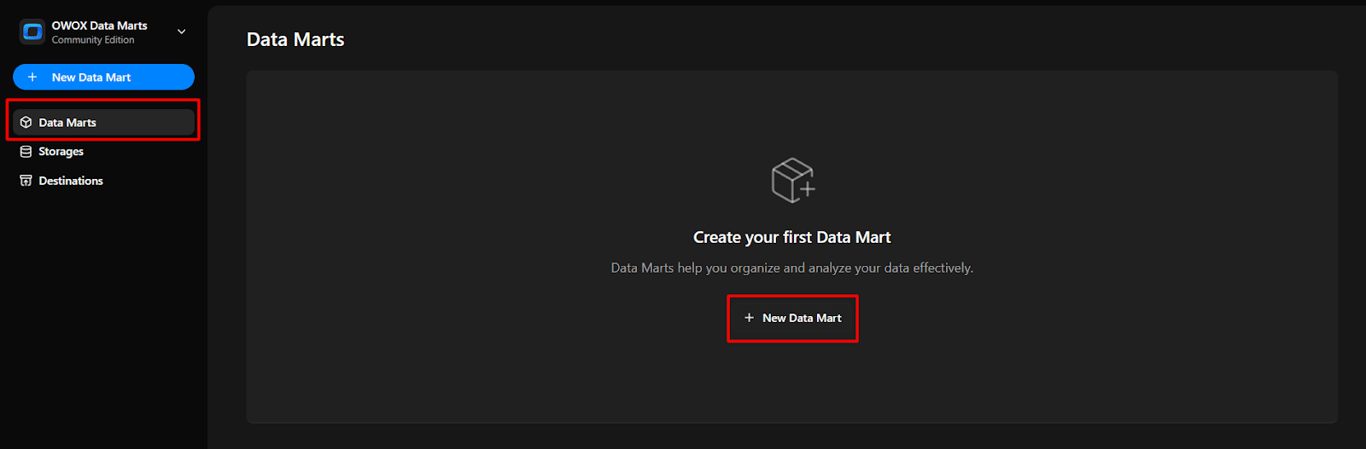
1. Once storage is added, click on the Data Mart Tab, then select ‘New Data Mart’.
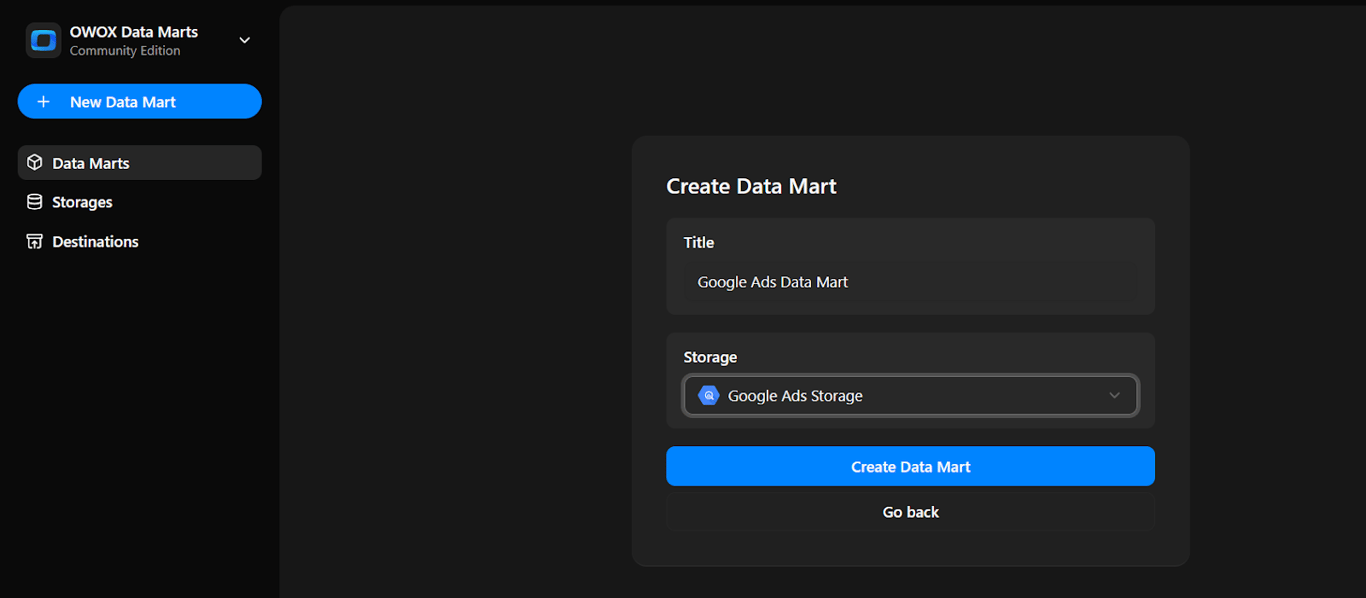
- Now, name the data mart as ‘Google Ads Data Mart’, as the data source
- Select the storage named ‘Google Ads Storage’ you just created
- Click ‘Create Data Mart’.
Now we will do the Data Setup
2. Set up your Data Mart****
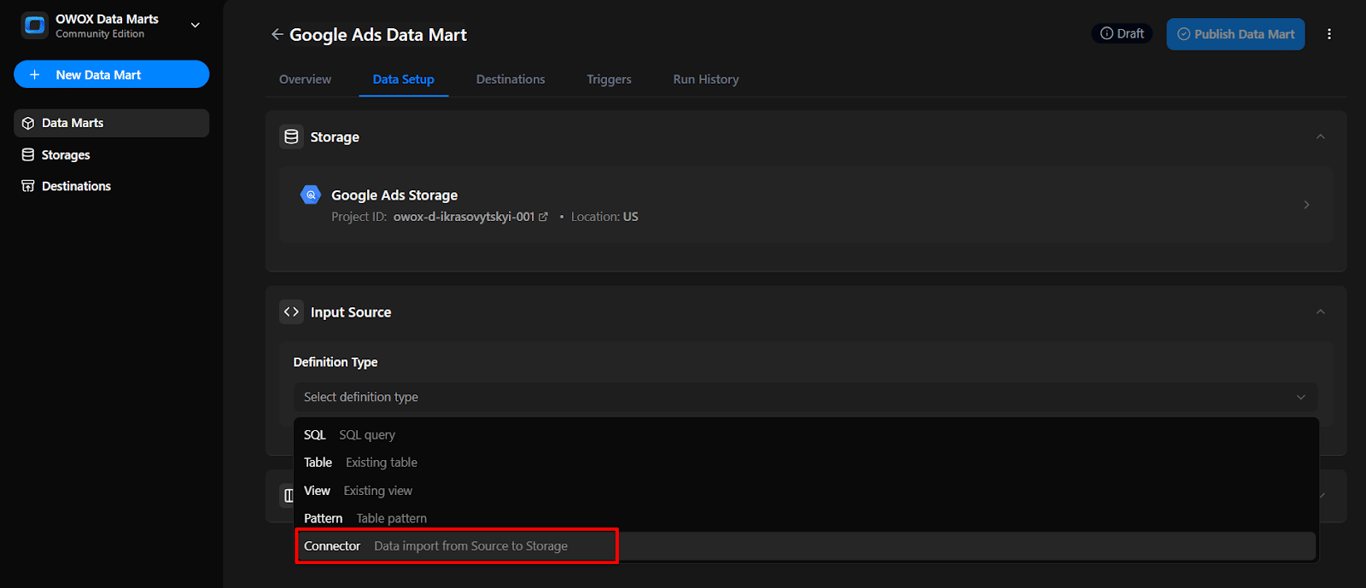
- Go to the Data Setup Tab and then select Connector
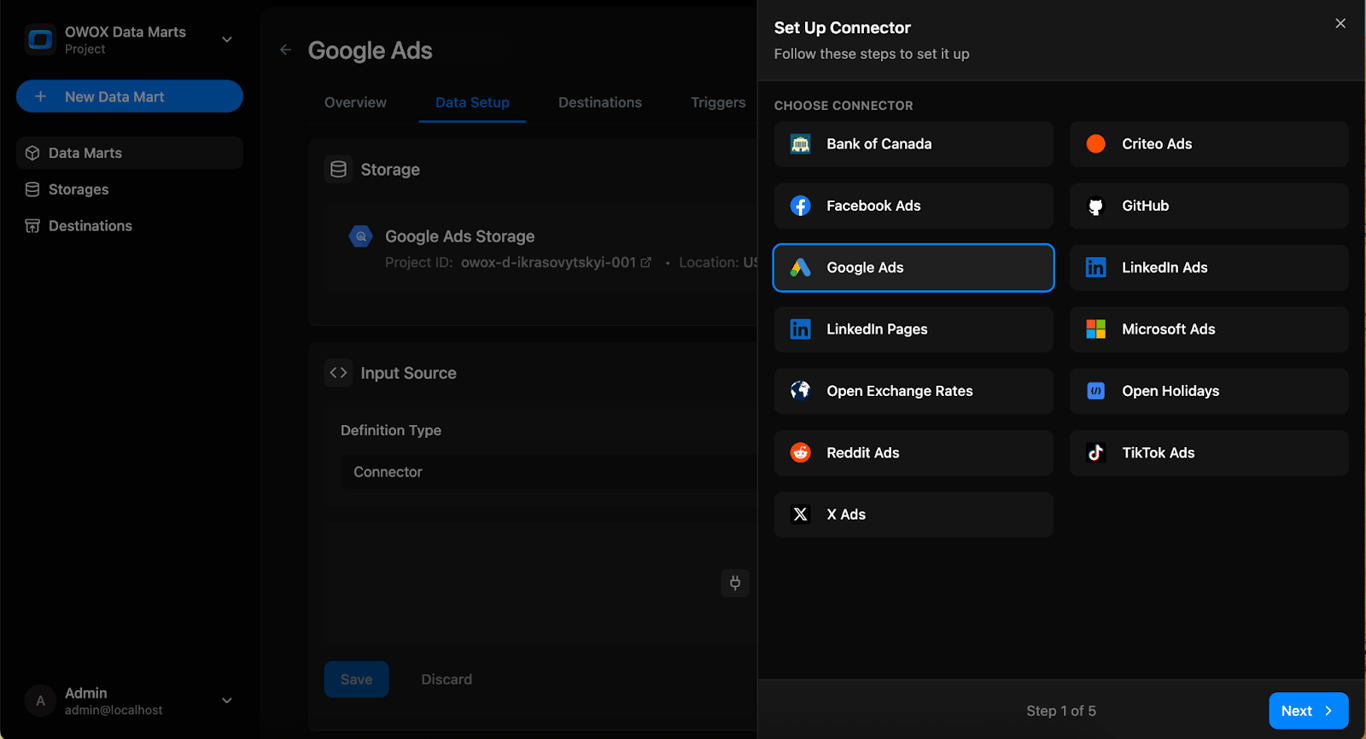
- Click on Setup Connector and Choose Google Ads Connector
Step 4: Get your Google Ads credentials (~1 min)
To connect to the Google Ads API and start importing data with OWOX Data Marts, follow the steps below.
Prerequisites
- You must have a Manager (MCC) account in Google Ads.
- If you don’t have one yet, follow Google’s instructions to create it:
Create a Manager Account
Steps to obtain credentials
Here are the steps:
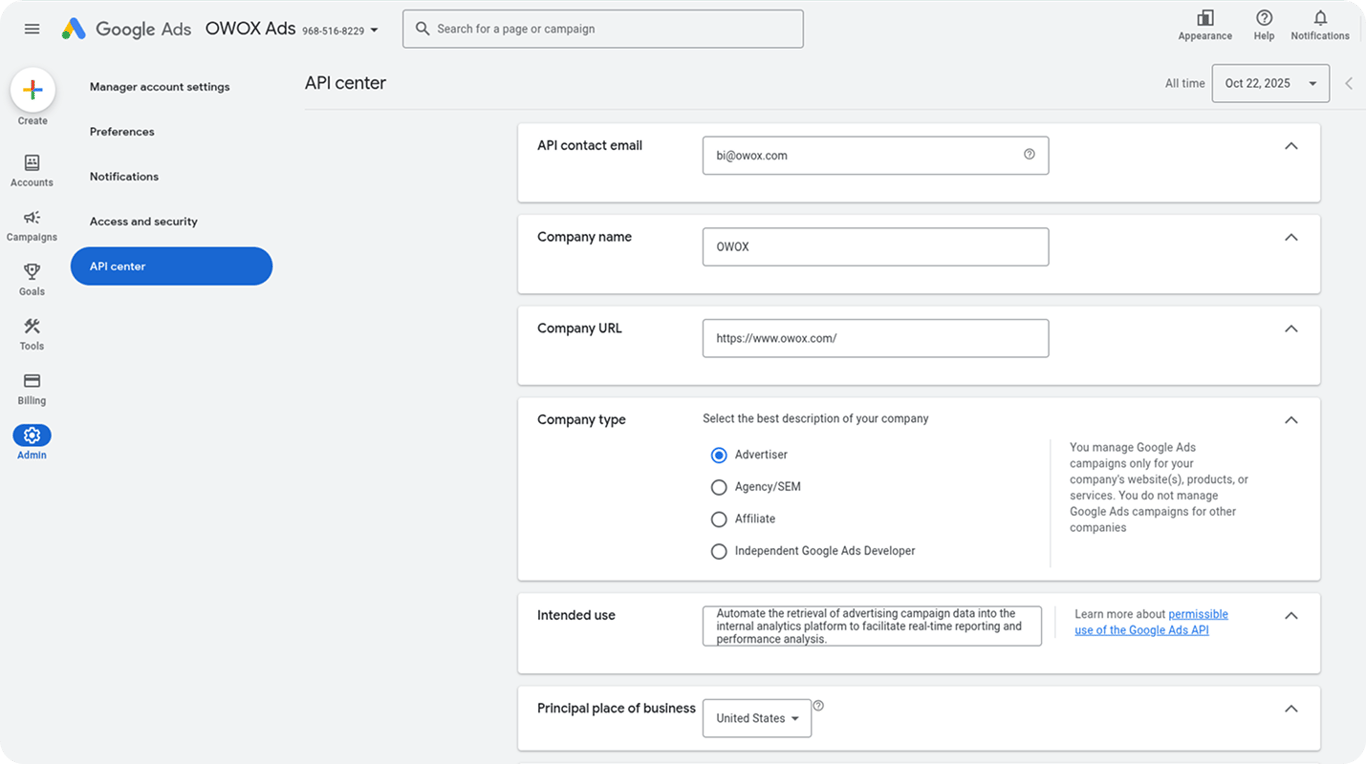
- Register in the API Center
- In your Manager (MCC) account, open Admin → API Center.
- Fill out the registration form with the following details:
-
API Contact Email
-
Company Name
-
Company URL
-
Company Type
-
Intended Use – for example:
“For in-house marketing analytics and retrieving ad data for reporting.” -
**Principal Place of Business
**
-
- Check the box to accept the Terms and Conditions, then click Create Token.
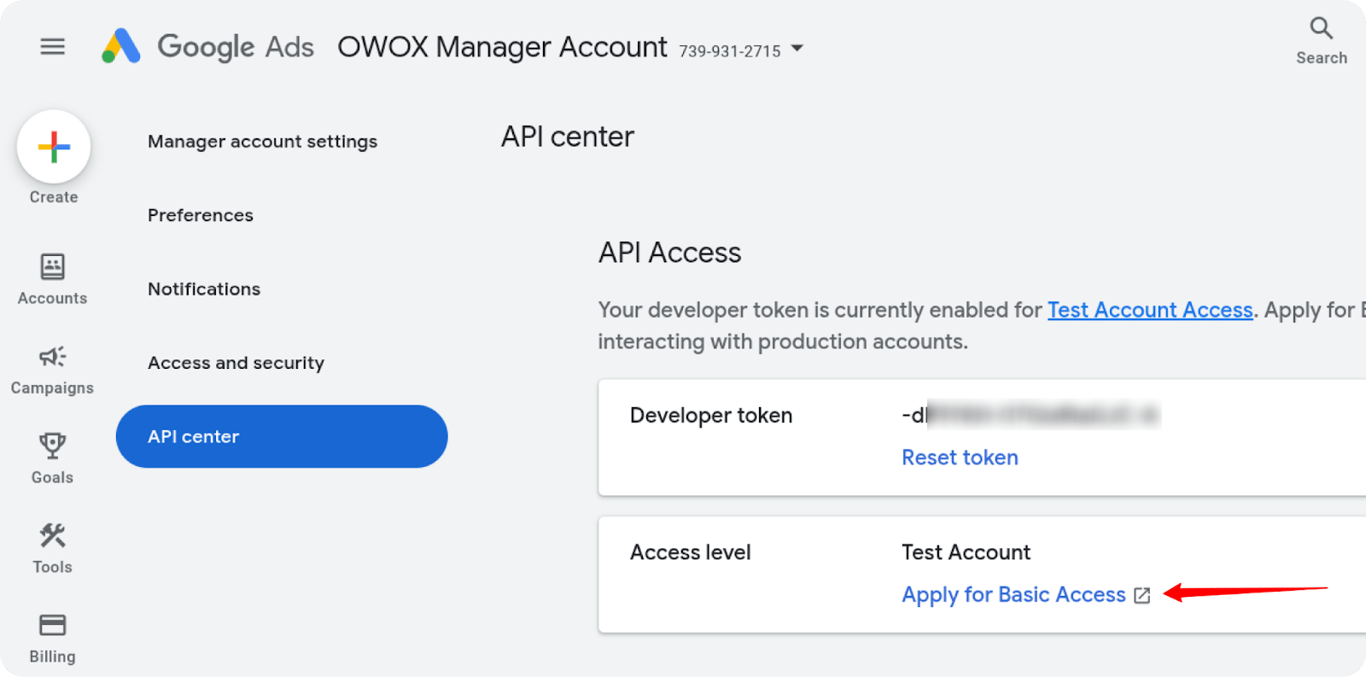
- Request Basic Access for the Developer Token
- By default, new developer tokens can only access test accounts.
- To retrieve data from active Google Ads accounts, you must apply for Basic Access.
- In the Basic Access application form:
-
In the Basic Access application form:
- Fill in your company details.
- Describe your company’s business model and how you use Google Ads.
Example:
“We leverage Google Ads to execute targeted campaigns that increase customer acquisition and brand awareness.” - Attach a document or PDF with a sample of your planned report design.
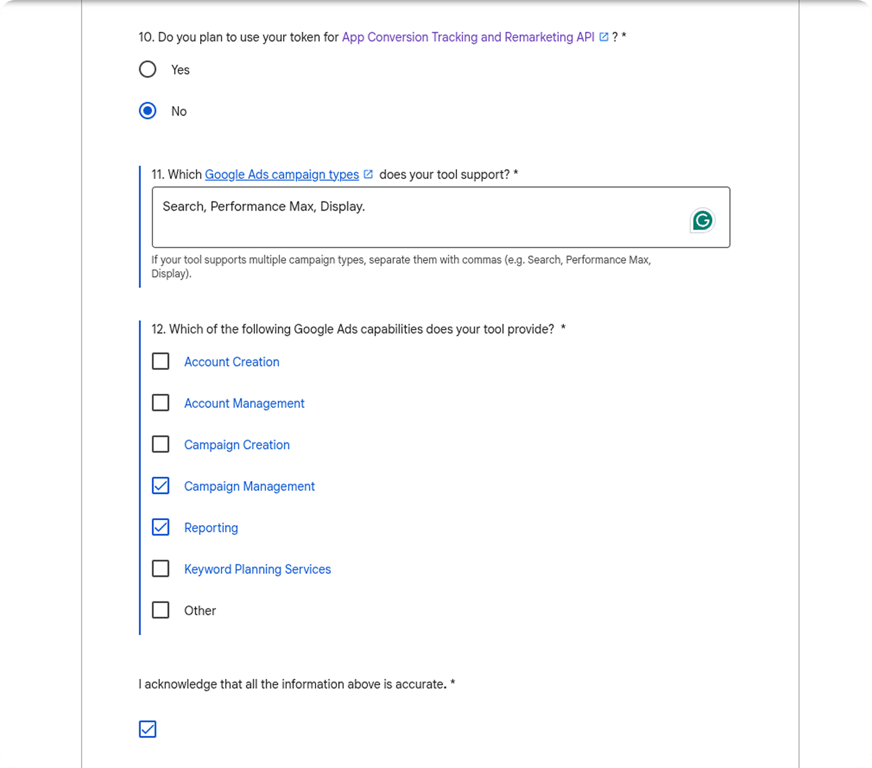
- For the question “Do you plan to use your Google Ads API token with a tool developed by someone else?”, select Yes and include the OWOX Data Marts URL:
https://github.com/OWOX/owox-data-marts - For “Do you plan to use your token for App Conversion Tracking and Remarketing API?”, select No.
- Under “Which of the following Google Ads capabilities does your tool provide?”, check at least Campaign Management and Reporting.
-
Click Submit.
- Within approximately three business days, the Google Ads team will respond to your registered email address.
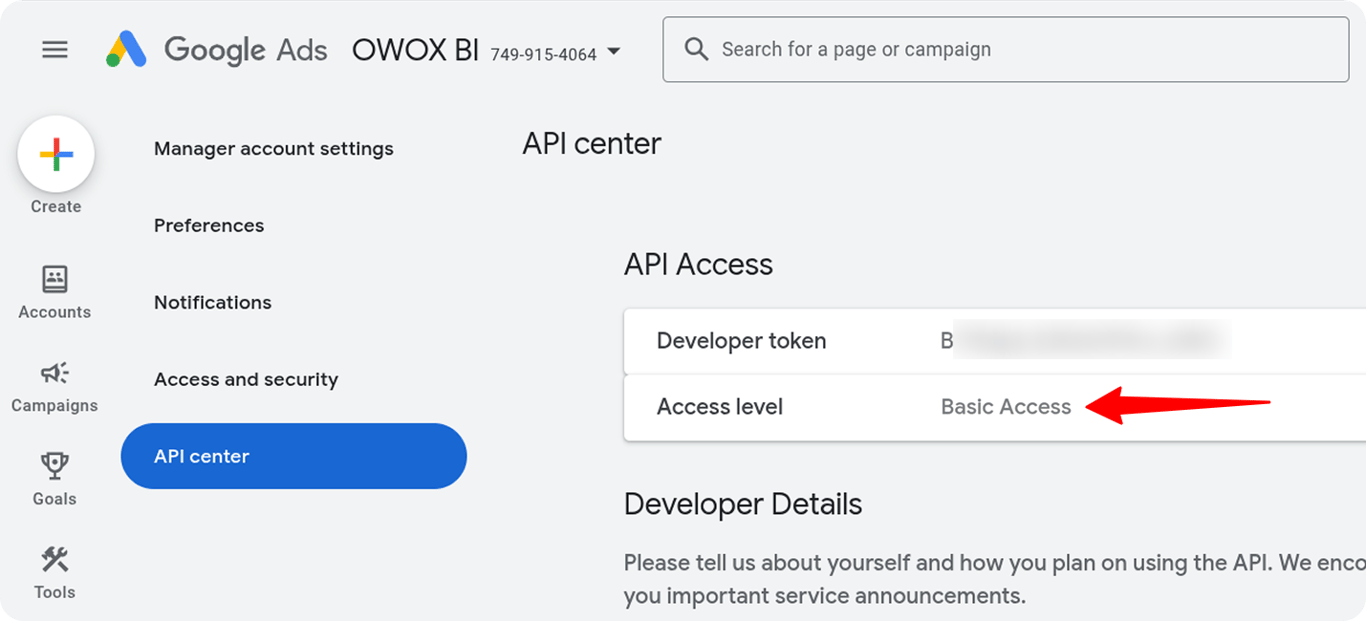
- If approved, you’ll see your access level updated in the API Center.
Service account authentication
- Create a Service Account in Google Cloud Platform (GCP)
- Open your GCP project and navigate to
IAM & Admin → Service Accounts → Create Service Account. - Enter a name and description, then click Create and Continue.
- Assign the following roles:
- BigQuery User
- BigQuery Data Editor
- Click Continue, then Done.
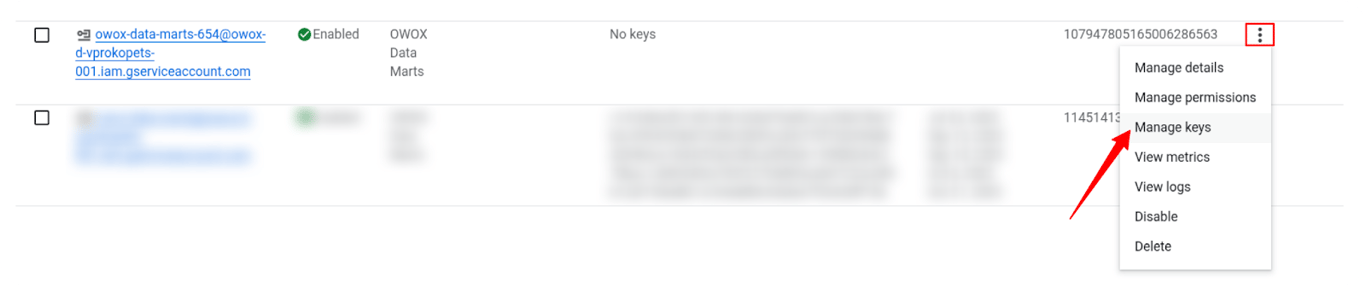
- Locate the newly created service account, click the three dots (⋮), and select Manage Keys.
- In the Keys tab, click **Add Key → Create New Key → JSON.**The JSON key file will be downloaded automatically – store it securely.
2. Set Up Access in Google Ads
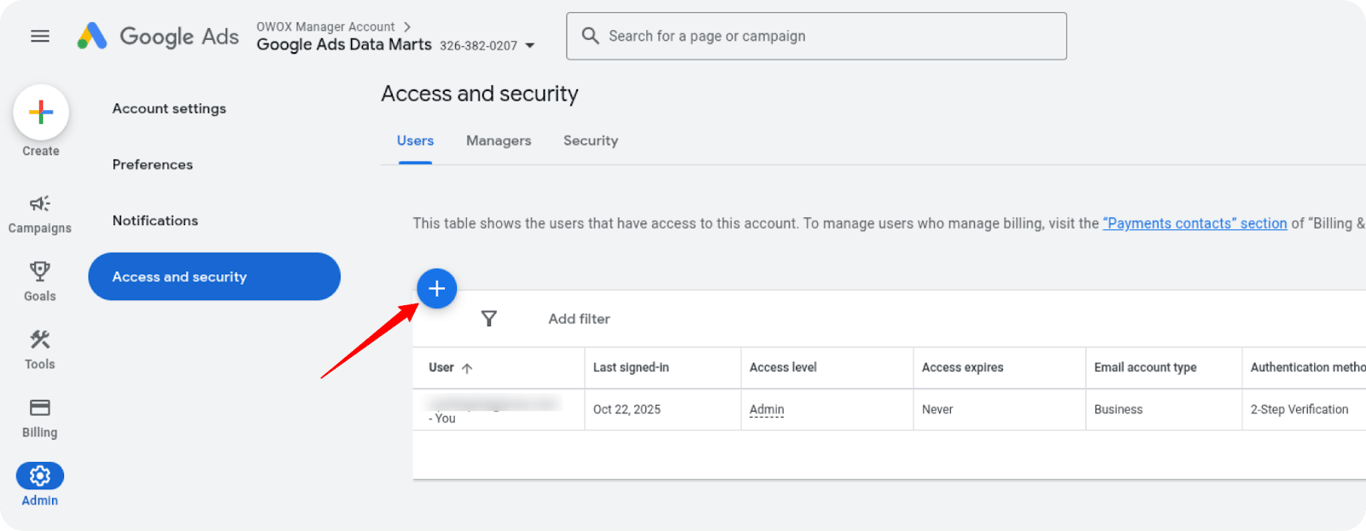
- Open your Google Ads account, go to Admin → Access and Security.
- Click the + (plus) icon to add a new user.
- Paste your service account email address.
- Assign Read-only permissions.
- Click Add Account.
- Repeat the same steps for your Manager (MCC) account.
3. Save Your Developer Token and Customer ID
After completing setup, collect and securely store the following:
- Developer Token – copy it from the API Center in your MCC account.
- Customer ID – copy it from the top-right corner of your ad account (the one you want to pull data from).
- Login Customer ID – copy the Manager (MCC) account ID.
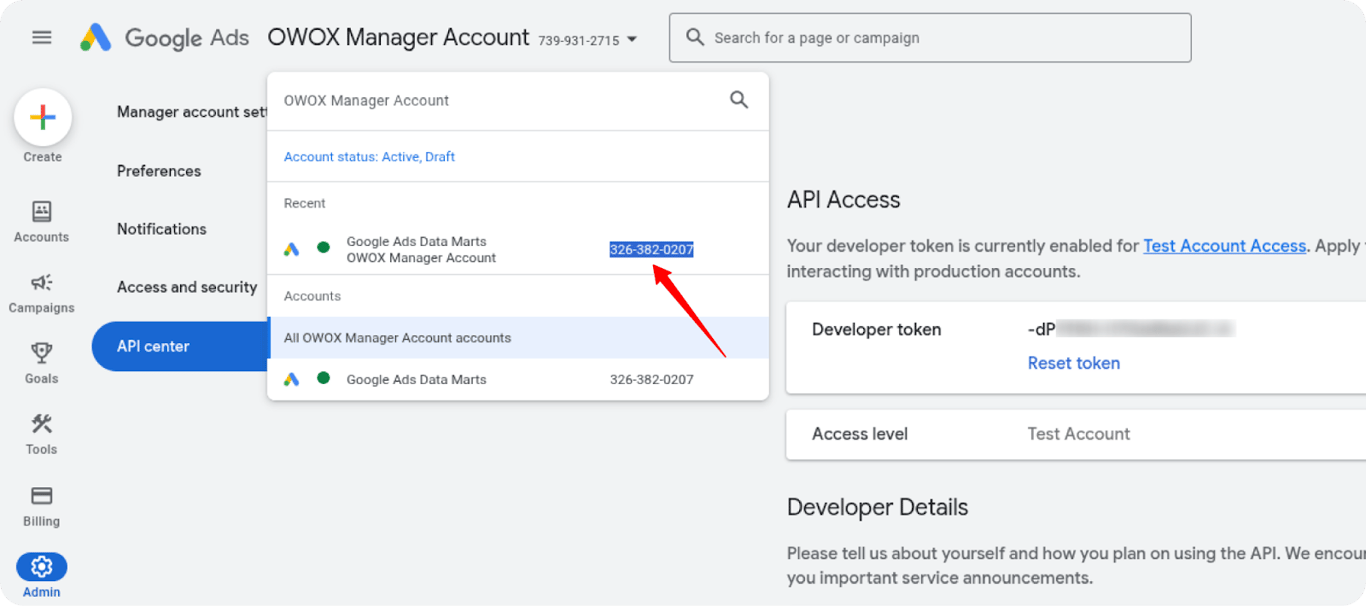
At this point, you should have the following credentials:
- Service Account Key (JSON): Used for authentication from your GCP project.
- Developer Token: Authorizes access to the Google Ads API.
- Customer ID: Identifies the ad account you’re retrieving data from.
- Login Customer ID: Identifies your Manager (MCC) account used for authentication.
Security notes
- Keep your Service Account Key (JSON), Developer Token, and other credentials secure and private.
- Never share your Google Ads API credentials publicly or include them in shared documents.
- Store the JSON key file and Developer Token in a safe location with restricted access.
- If credentials are ever exposed, revoke and regenerate them immediately through the Google Cloud Console or Google Ads API Center.
- Follow your organization’s security policies for managing API keys and service account access.
Note: OWOX Data Marts supports two ways to connect to the Google Ads API: OAuth2 and a service account. On OWOX Cloud you can sign in with Google through OAuth. If you connect with your own OAuth2 credentials, you need a Client ID, a Client Secret and a Refresh Token; the credentials guide walks through generating them. The steps above cover the service account method.
Step 5: Configure Google Ads connector and run your first import (~2 min)
Now that you’ve retrieved your Google Ads credentials, it’s time to configure the connector in OWOX Data Marts.
- Enter your Customer ID and Tokens
- Input your Google Ads Customer ID in the format 12345678 (without dashes).
Note: Use the ad account Customer ID, not the MCC (manager) account ID. This is the ID of the specific account from which you want to retrieve campaign and performance data.
- Fill in the required fields, depending on your chosen authentication type:
- For OAuth2 Authentication (without service account):
-
Refresh Token: Paste the refresh token you obtained in the CREDENTIALS guide.
-
Client ID: Enter the Client ID from your Google Ads app.
-
Client Secret: Enter the corresponding Client Secret.
-
Developer Token: Paste the Developer Token from the CREDENTIALS guide.
-
For Service Account Authentication:
- Service Account Key: Paste the contents of the JSON key you generated in the CREDENTIALS guide.
- Developer Token: Paste the Developer Token from the CREDENTIALS guide.
- Login Customer ID: Enter your MCC (manager) account ID in the format 12345678 (without dashes).
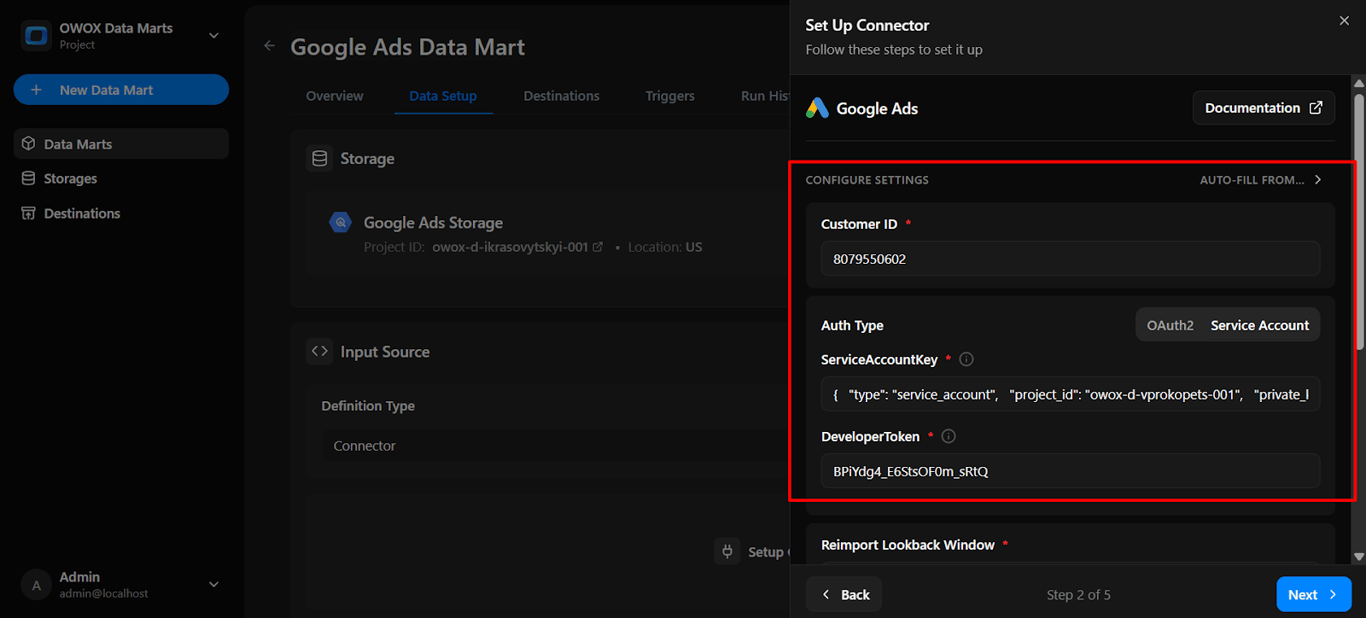
-
When you scroll down, you’ll see some more fields with parameters. For your first run, they are optional, and you can always come back and adjust them later.
-
Click **Next
**
-
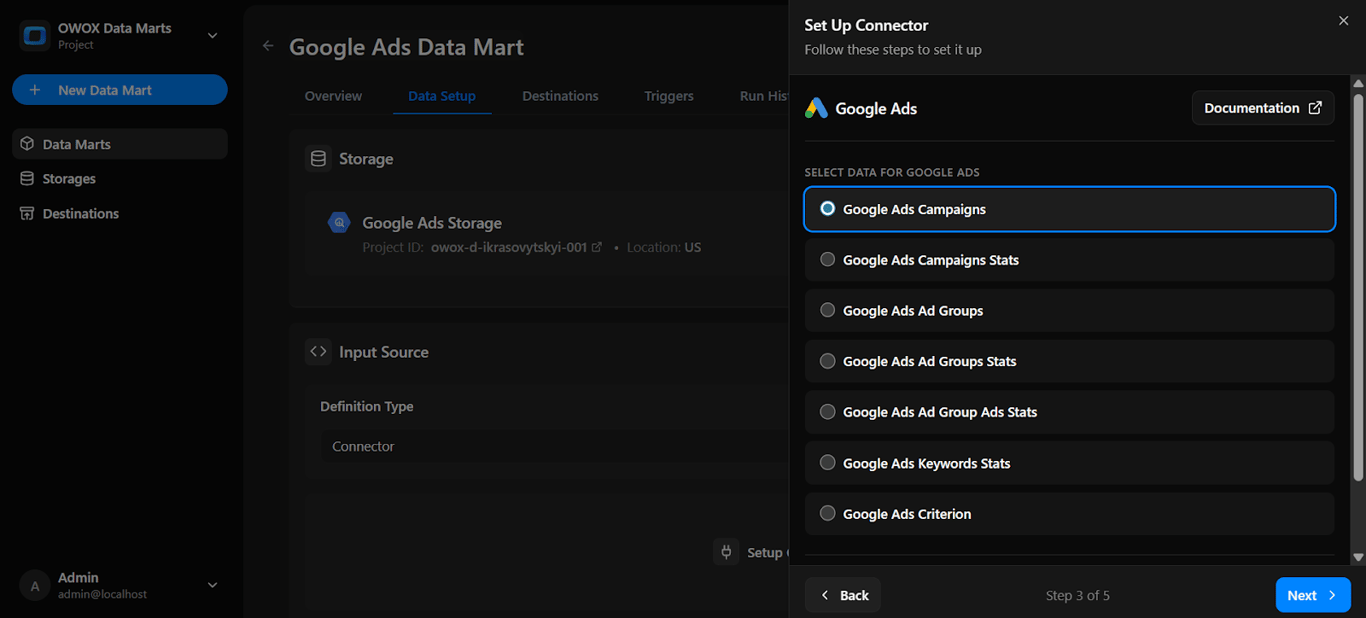
Endpoint: Choose the following valid endpoint nodes:
- Google Ads Campaigns – Fetches campaign details such as ID, name, status, start and end dates, and serving channel.
- Google Ads Campaigns Stats – Returns key performance metrics like impressions, clicks, cost, and conversions.
- Google Ads Ad Groups – Lists ad groups under each campaign with their IDs, names, and statuses.
- Google Ads Ad Groups Stats – Provides ad group performance metrics, including CTR, CPC, and conversions.
- Google Ads Ad Group Ads Stats – Shows ad-level stats such as impressions, clicks, and spend.
- Google Ads Keywords Stats – Retrieves keyword metrics like impressions, clicks, conversions, and cost.
- Google Ads Criterion – Displays targeting details such as location, audience, and device settings.
👉 Tip for first-time setup: If you’re just getting started, begin with Google Ads Campaigns. It provides essential campaign-level details that serve as the foundation for your reports. Once your setup is working, add Google Ads Campaigns Stats for performance metrics and Google Ads Keywords Stats to expand into keyword-level insights.
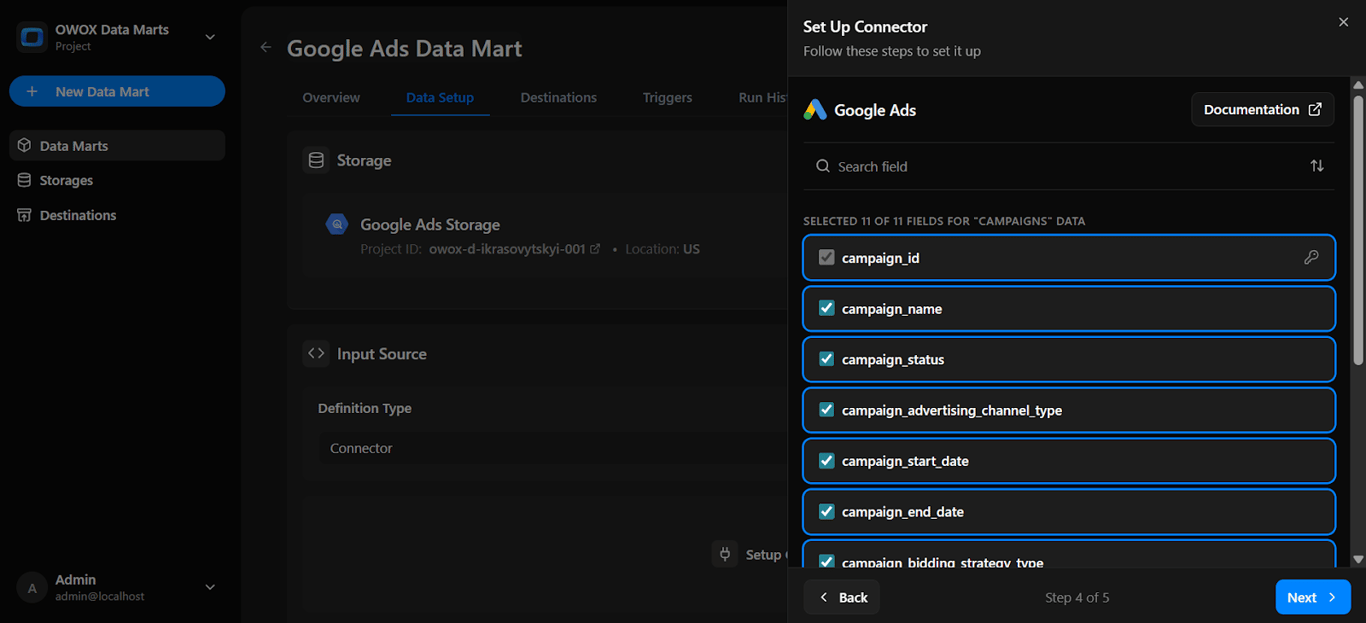
- Select Fields for the chosen endpoint.
- Select all available fields or choose specific metrics like campaign_id, campaign_name based on your reporting needs.
- Dataset Name:
- Enter the BigQuery dataset name where the imported data should be stored.
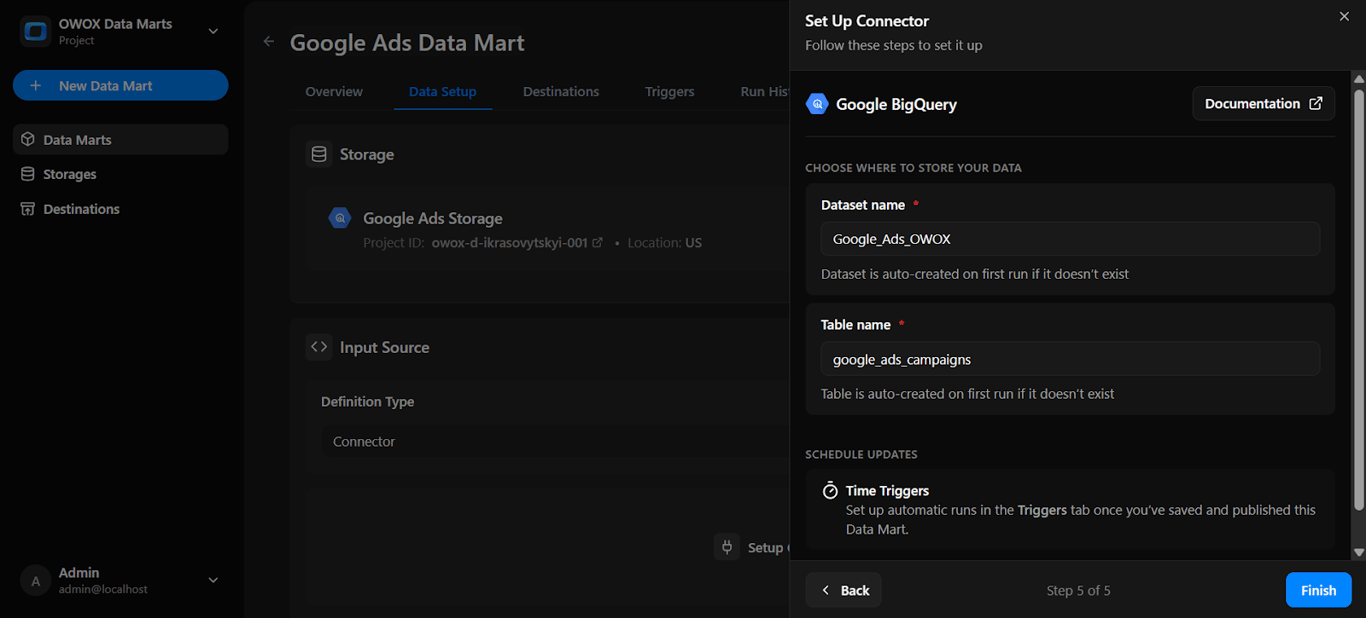
Note: If the dataset doesn’t exist, OWOX will create it automatically in the storage during the import process.
- Click Finish
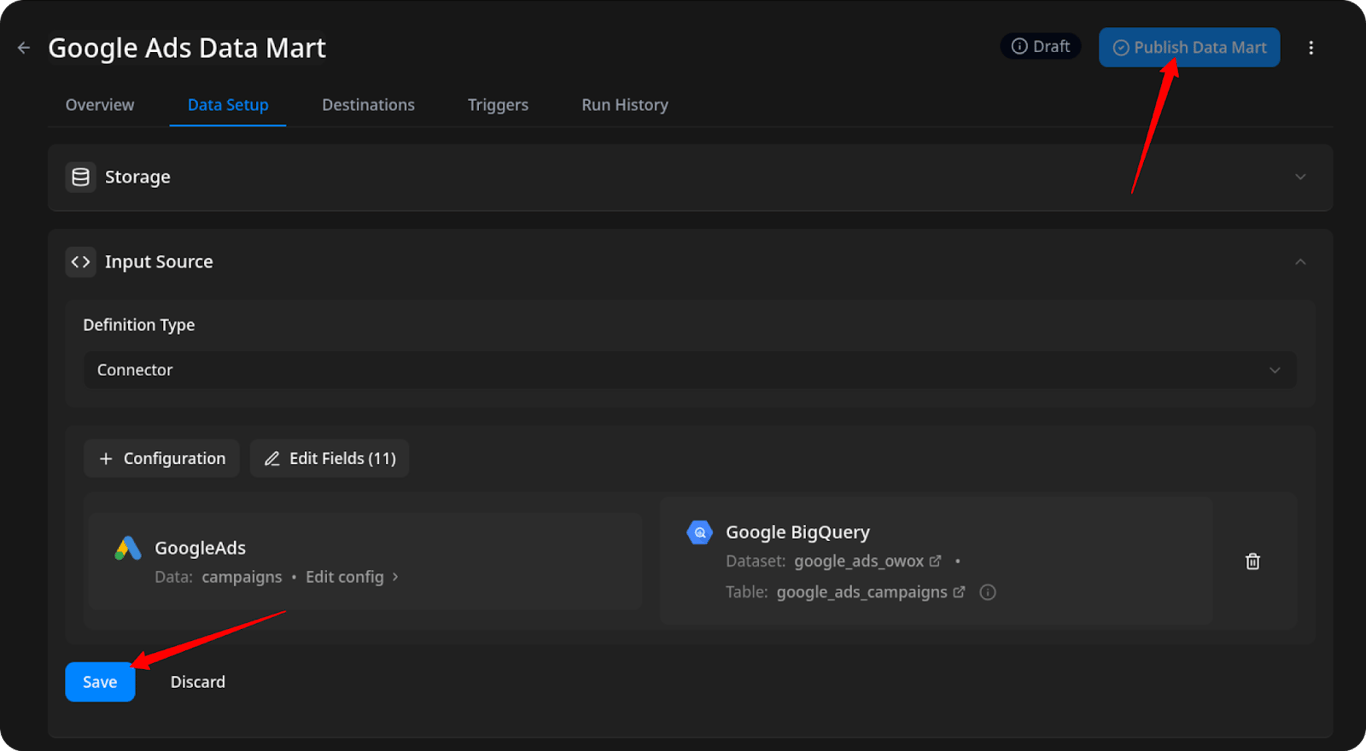
10. In the Data Setup Tab, click ‘Save’ at the bottom left and then click on ‘Publish Data Mart’ in the top right corner.
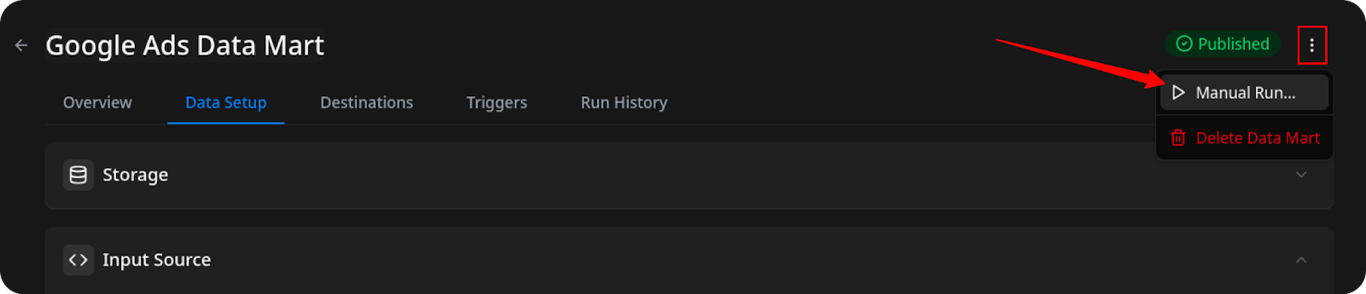
11. Click the ‘Manual Run’ button or use the 3-dot menu.
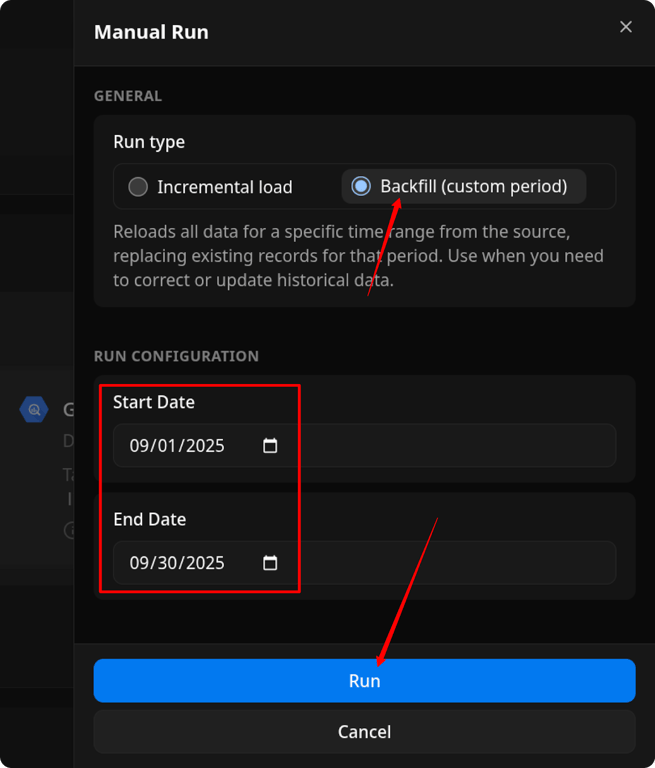
12. A configuration panel will appear to choose a Run Type. Select Backfill or Incremental Load. Then add the required start and end dates, then click Run to load the data.
Please Note: If you are setting up this connector for the first time, you need to go with the Backfill Run Type.
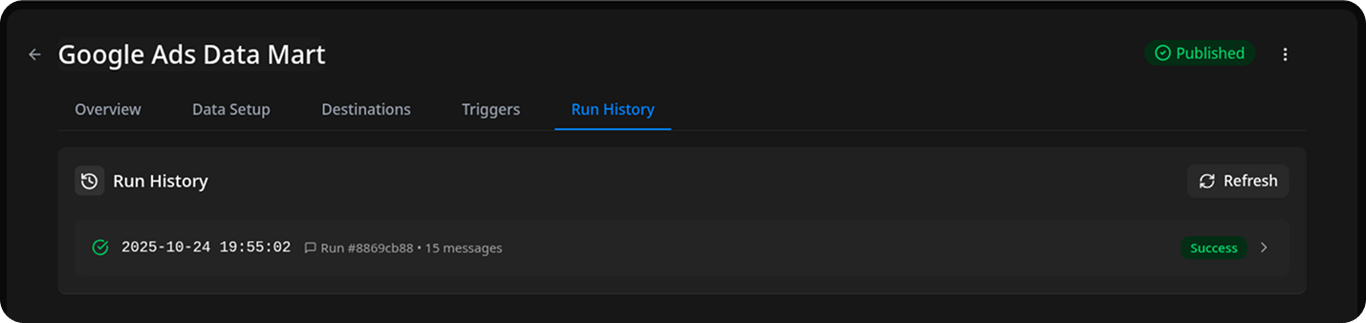
13. Go to ‘Run History’ and see the message: ‘Success’.
Step 6: Schedule automated imports (~1 min)
Set up a trigger to pull data on a recurring schedule.
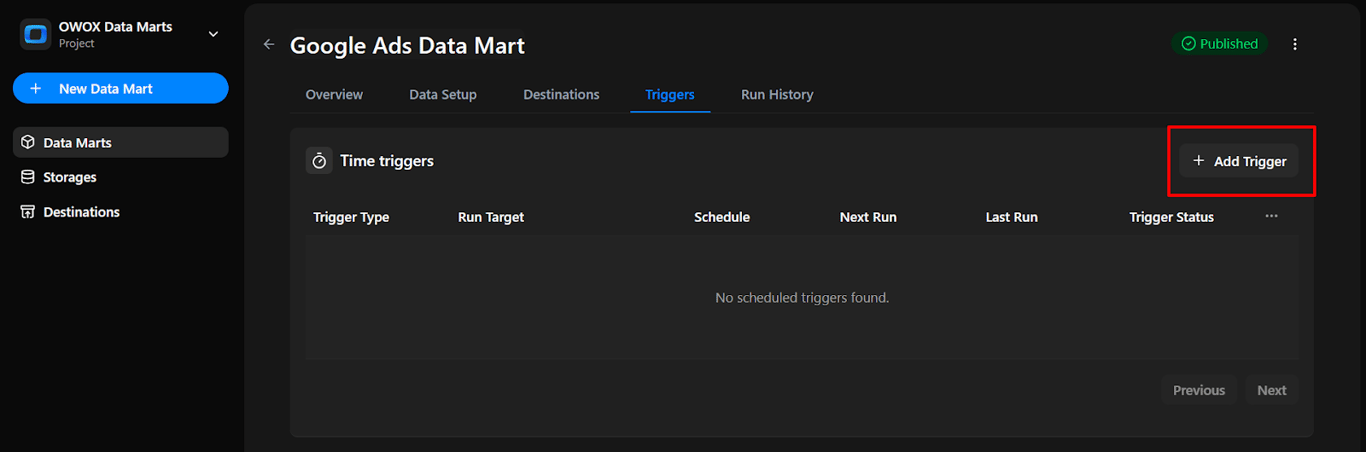
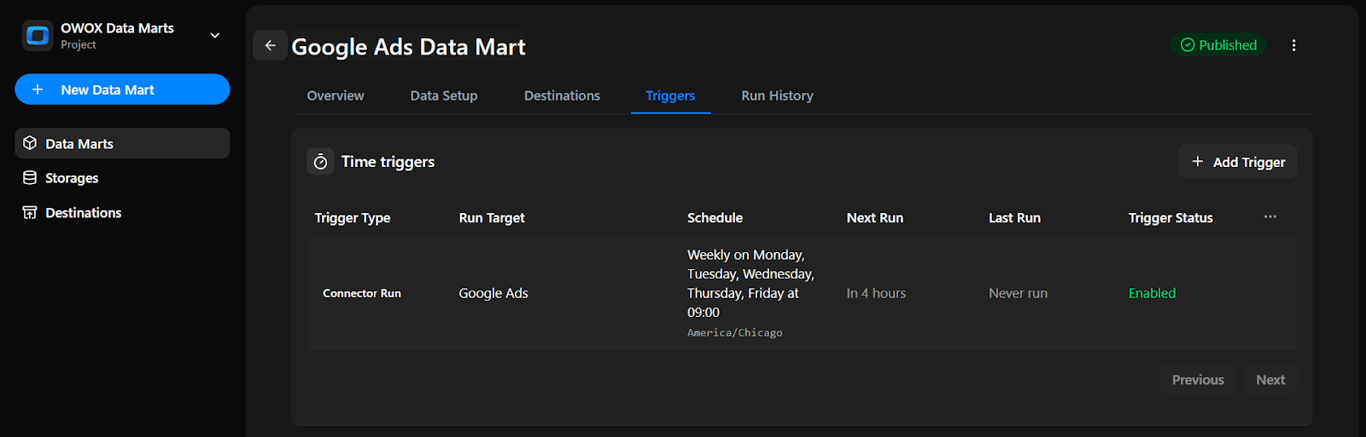
- Go to the ‘Triggers’ tab in the new Data Mart
- Click ‘Add Trigger’.
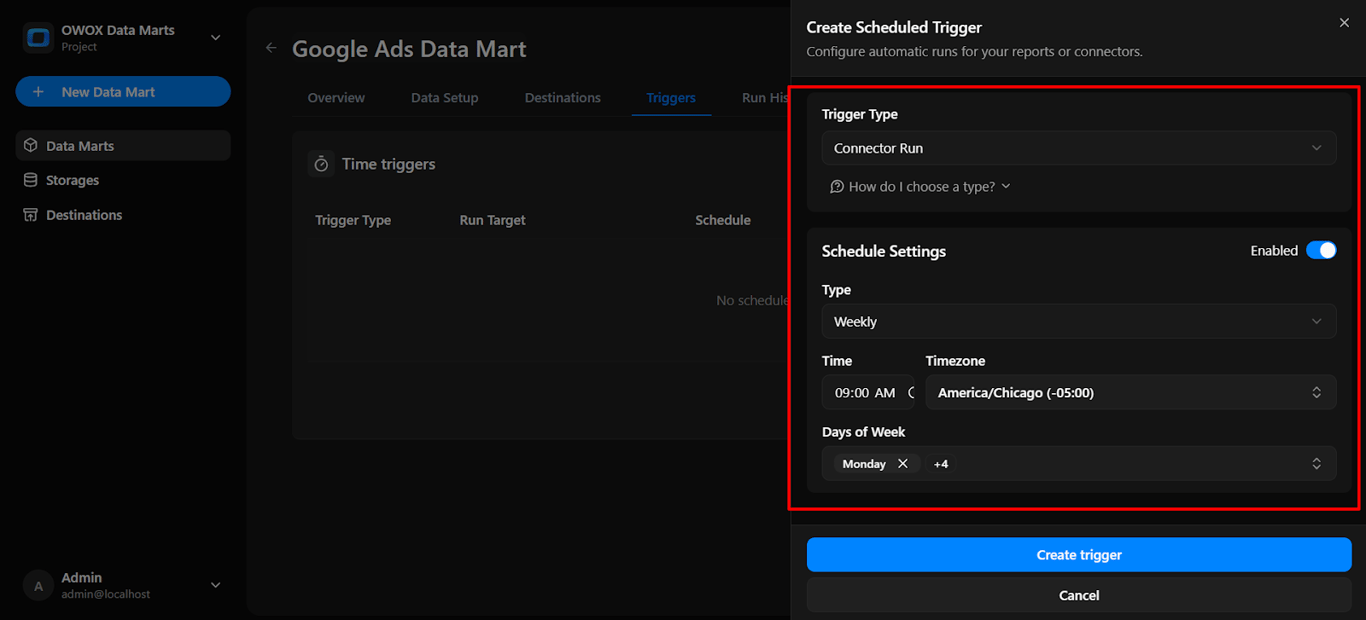
2. Configure:
- Trigger Type: Connector Run
- Schedule Settings: Daily / Weekly / Monthly / Interval
- Time Settings: hour, minute, second
- Days of the week
- Time zone
3. Click ‘Create Trigger’.
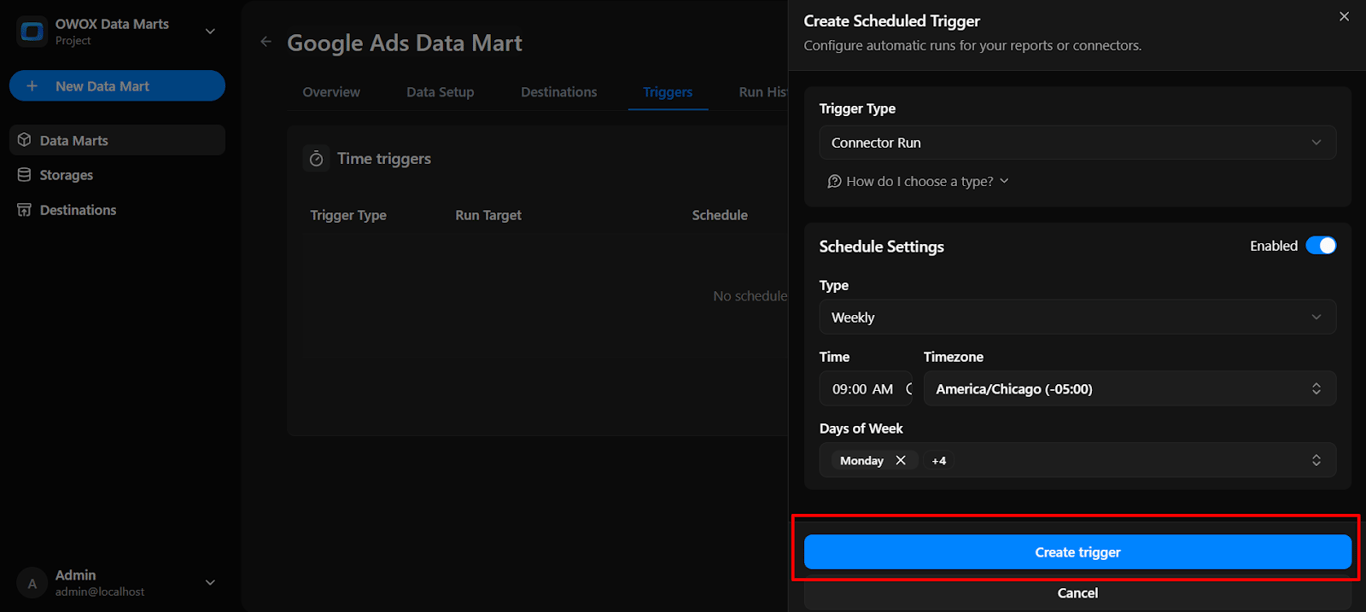
4. The trigger is now active and scheduled to run automatically on the defined days and at the defined time.
What’s next?
The free Google Ads to BigQuery connector from OWOX Data Marts reinforces our goal of making data ownership effortless, transparent, and accessible for every team.
Here are more resources to explore:
🔗 More free connectors – including LinkedIn Ads and Microsoft Ads Connectors for BigQuery.
🎥 Step-by-step video tutorials – so you can follow along and set everything up with ease.
Check out our GitHub repo, leave us a ⭐ star, and let’s build better tools together.
Turn your data into decisions.
Governed data marts give you the clean foundation ML needs to actually work.
- No AI hallucinations
- Analyst-governed definitions
- Every number traces to SQL
Frequently Asked Questions
Do I need a Google Ads developer token?
No. On OWOX Cloud you click Sign in with Google and enter the Customer ID. A developer token, an OAuth client and a refresh token are only needed if you choose to connect manually, for example on a self-managed install.
Which Google Ads data can I load into BigQuery?
Each Data Mart loads one kind of data: campaigns, ad groups, or stats for campaigns, ad groups, ads and keywords with impressions, clicks, cost and conversions. Stats need the Customer ID of an ad account, not of a manager account. You keep the default fields or choose your own.
Is the Google Ads to BigQuery connector free?
The connector is open source and free to run yourself with the open-source edition of OWOX Data Marts. You pay Google for BigQuery storage and queries. The same connector is available on OWOX Cloud, where there is no server to maintain.