Free Microsoft Ads to BigQuery Connector by OWOX: Centralize, Scale, and Own Your Search Data
Advertising on Microsoft Ads (Bing Ads) is easy. But accessing and using that data in BigQuery? That’s where things get complicated.
If you’ve ever tried exporting Microsoft Ads data manually, you’ve felt the frustration. Manual exports slow you down - with outdated numbers, messy formatting, and no control over field selection or refresh cycles.
That changes now.
With this free, no-code connector from OWOX built on OWOX Data Marts, you can seamlessly import, refresh, and manage Microsoft Ads data in BigQuery in just a few clicks.
Best of all, you maintain full control over your Bing Ads to BigQuery flow: performance metrics, spend, and structure - all right inside BigQuery.
Why we made this free connector
Why we made this free connector
At OWOX, we believe analysts shouldn’t have to rent access to their own Microsoft Ads (Bing Ads) data or waste time wrestling with manual exports and rigid dashboards just to run performance analysis.
That’s why we built this connector and made it completely free. No subscriptions, no feature restrictions, and no hidden limits on what you can do when sending data from Bing Ads to BigQuery.
Our goal is to help data and marketing teams take full control of their reporting workflows - without relying on slow, third-party tools. With this connector, you get the transparency, flexibility, and ownership to analyze your Microsoft Ads data directly in BigQuery.
Whether you’re monitoring budgets, tracking campaign performance, or fueling advanced reporting pipelines, this connector, built on OWOX Data Marts, gives you unrestricted access to the metrics that matter, with zero compromise.
Join the Open-source movement
We’re not just releasing a free connector – we’re inviting you to help shape the future of marketing analytics tools.
At OWOX, we believe that data access and transparency should be a right, not a luxury. That’s why this connector is 100% open-source – giving you full control over how it works, what it does, and how far it can go.
If you like what we do, please ⭐ star our GitHub repo to show your support – it helps us reach more analysts and grow the number of available connectors.
Also, feel free to:
- Explore the code and customize it to fit your needs.
- Contribute to this data connectivity ecosystem by suggesting new connectors, pulling new connectors, and/or providing documentation to support the wider community.
- Join our community & share your feedback.
Why choose OWOX free connector for Microsoft Ads to BigQuery
Why choose OWOX free connector for Microsoft Ads to BigQuery
Most data tools claim to simplify Microsoft Ads integrations, but under the surface, they often restrict access, obscure processes, or rely on closed systems you can’t fully trust or modify.
The OWOX connector is different.
It’s built for data analysts, digital marketers, and reporting teams who need clarity, precision, and autonomy over how Microsoft Ads data lands in BigQuery.
- Direct Microsoft Ads → BigQuery flow – skips CSVs, staging layers, and 3rd-party services in between.
- Transparent by design – inspect the open-source code to understand and adapt every step of your data flow
- Customizable logic – adjust filters, field mappings, or workflows to fit your specific reporting requirements
- Completely free and open-source – no fees, limits, or pricing tiers. This connector is available on GitHub as part of OWOX Data Marts.
- Schema control – Define your destination table, assign clear field aliases, and adjust the structure to align with your reporting requirements.
Whether you’re troubleshooting performance issues, feeding BI pipelines, or fueling multi-source attribution, this connector gives you more than access; it gives you ownership.
Microsoft Ads Connector to Google BigQuery
OWOX Data Marts
See your first report built in real time. 15 minutes.
- Connect your data warehouse
- Pick your metrics
- Get a live Google Sheets report
In the time it takes to write a ticket. Then imagine never writing that ticket again.
Book a DemoWe'll use your actual use case
Why bring Microsoft Ads data into BigQuery?
Why bring Microsoft Ads data into BigQuery?
If you’ve ever tried digging into Microsoft Ads performance beyond native dashboards, you know the struggle:
❌ Rigid reporting formats with limited customization
❌ No simple way to merge Microsoft Ads data with, CRM, or other platforms
❌ Expensive ETL tools that increase your costs as you scale
That’s where BigQuery becomes a game-changer – and this free connector makes the integration seamless:
✅ Send raw Microsoft Ads data directly into BigQuery for **flexible, SQL-powered analysis
**✅ Join it with data from Salesforce, internal tools, or offline conversions
✅ Build refreshable dashboards and pipelines without manual exports or third-party tools
Connecting Bing Ads to BigQuery gives you full ownership – scalable, transparent, and built for custom reporting.
And with the OWOX connector, it’s 100% free and requires zero coding.
**Check out our other free connectors:
**Already loving the freedom of custom reports? Don’t stop here. You can also connect:Microsoft Ads → SheetsFacebook Ads → BigQuery
LinkedIn Ads → BigQuery
Twitter Ads → BigQueryNo fees, no code–only faster, smarter reporting across every ad channel.
How the connector works
This Microsoft Ads to BigQuery connector delivers what most tools leave out – full flexibility without the overhead.
It runs entirely in your own environment with OWOX Data Marts, built on open-source code, with no third-party services or platforms involved.
Here’s how it works:
- Connects directly to the Microsoft Ads API to fetch campaign, ad group, keyword, and performance data.
- Sends that data straight into your BigQuery tables – no CSV downloads, manual uploads, or data wrangling in between.
- Gives you full transparency and control – define your schema, configure settings, and manage refresh schedules on your terms.
Completely free, no hidden fees, no locked features, and no usage restrictions.
If you want to bypass costly ETL tools and take control of your Microsoft Ads reporting in BigQuery, this connector is built for you.
💡Check out this video for a clear, step-by-step walkthrough of the free Microsoft Ads to BigQuery connector. It shows how to automate your ad data setup quickly and effortlessly.
Step-by-step: Import Microsoft Ads data to BigQuery with OWOX Data Marts
Step-by-step: Import Microsoft Ads data to BigQuery with OWOX Data Marts
Set up a self-managed pipeline that imports Microsoft Ads data directly into BigQuery, using OWOX Data Marts on a local server. On OWOX Cloud the same steps apply without the local install, and you can sign in with your Microsoft account through OAuth instead of creating an Azure app.
Step 1: Install Node.js and OWOX CLI (~2 min)
To run OWOX Data Marts locally, you’ll need to install Node.js and the OWOX CLI. This starts a local server you work with in the browser.
To get started, install the LTS version of Node.js from nodejs.org and use a version manager like nvm or nvm-windows to avoid permission issues. Once Node.js is set up, you can install the OWOX CLI globally and run ‘owox serve’ to launch the local server.
For detailed setup instructions and troubleshooting, check the official documentation.
Step 2: Connect Google BigQuery and set up your data mart (~3 min)
Set up BigQuery as your destination and link it to a new Microsoft Ads data mart in OWOX.
- Open your browser and go to http://localhost:3000.
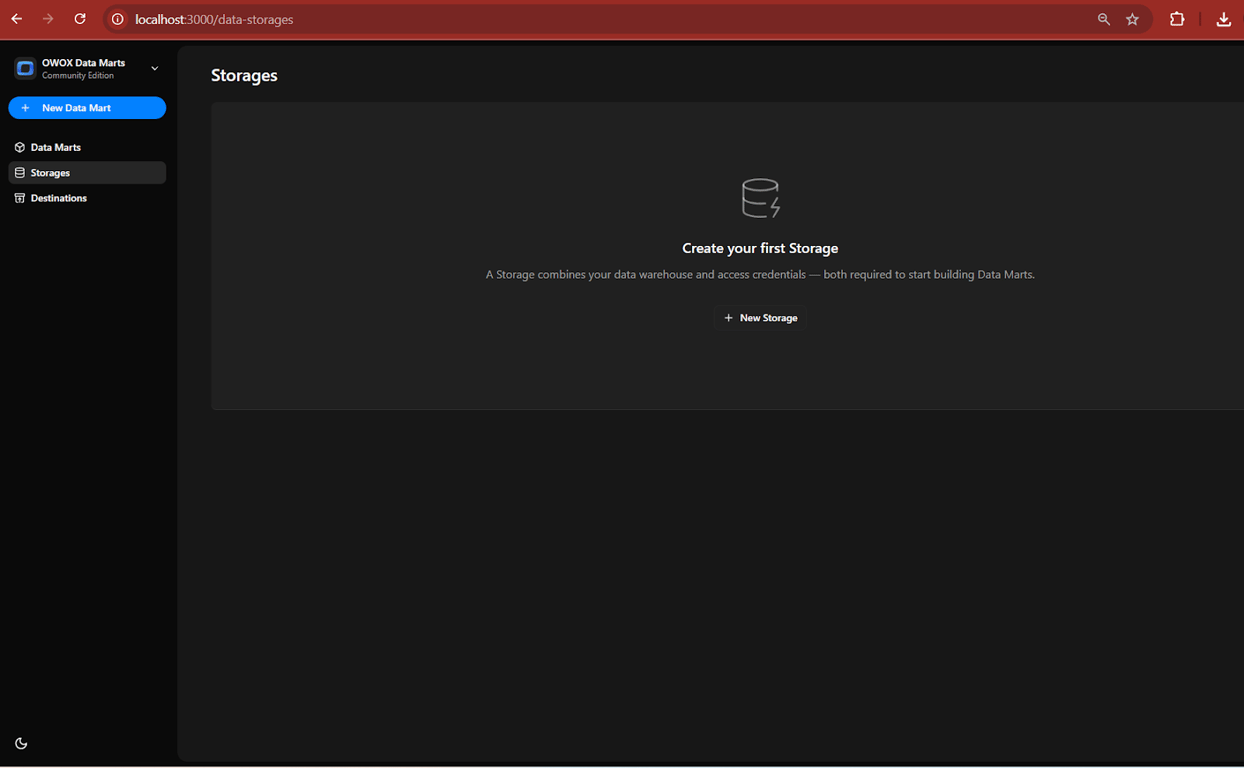
💡 Follow our guide, where you’ll find easy-to-follow instructions on how to configure your storage in OWOX Data Marts.
- Create and paste your Service Account JSON Key.
- Follow our guide to create your service account JSON Key.
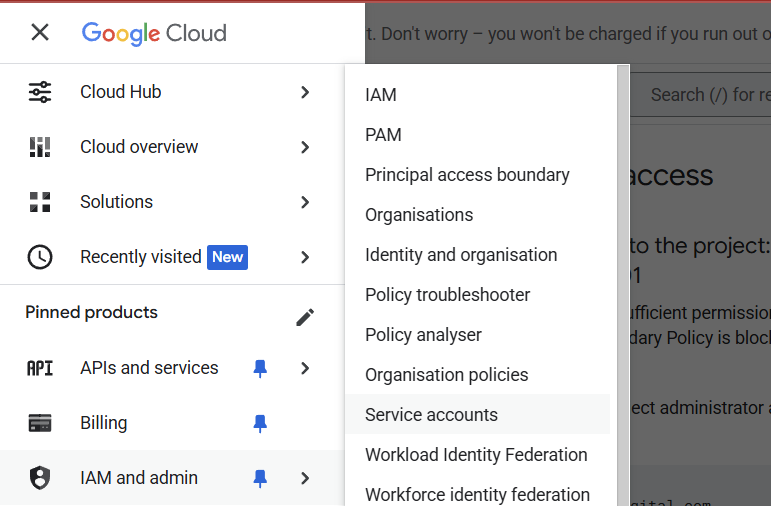
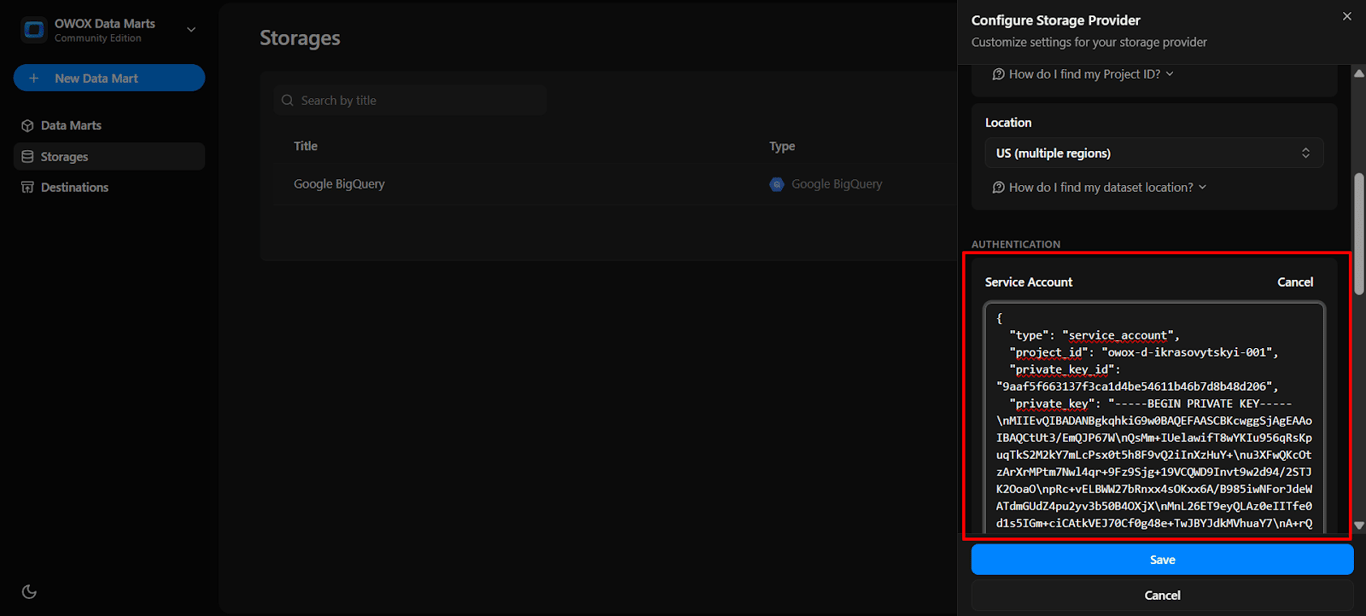
- Paste the JSON file content into the ‘Service Account Field’ under Authentication.
- Don’t forget to click Save
- Create your first Data Mart
- Once storage is added, click on the Data Mart Tab, then on ‘New Data Mart’
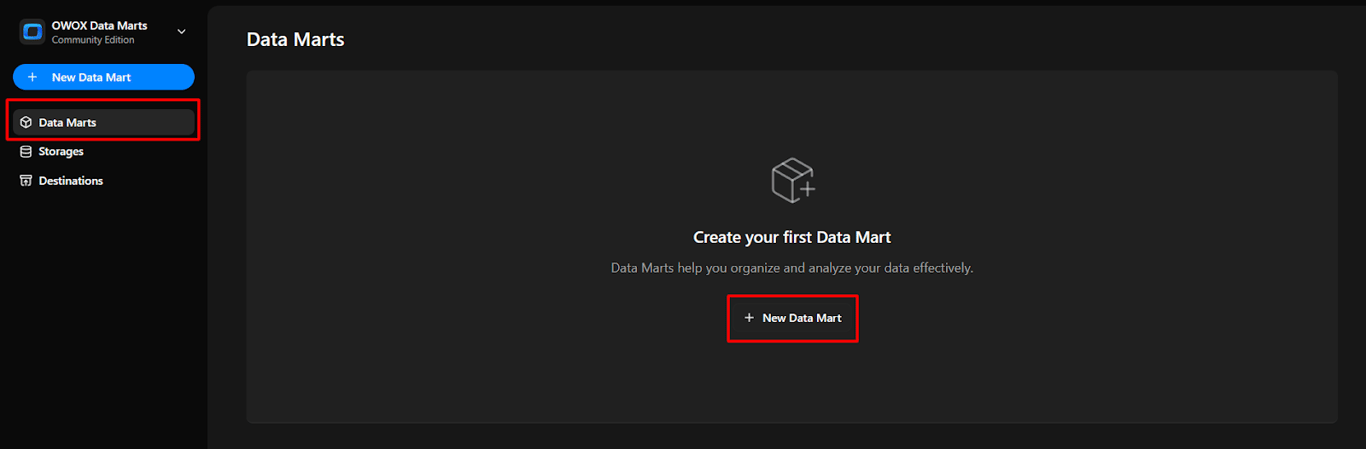
- Now create the Data Mart, name the title as ‘Microsoft Data’, as the data source
- Choose the storage named ‘Microsoft Ads Storage’ you just created
- Click ‘Create Data Mart’.
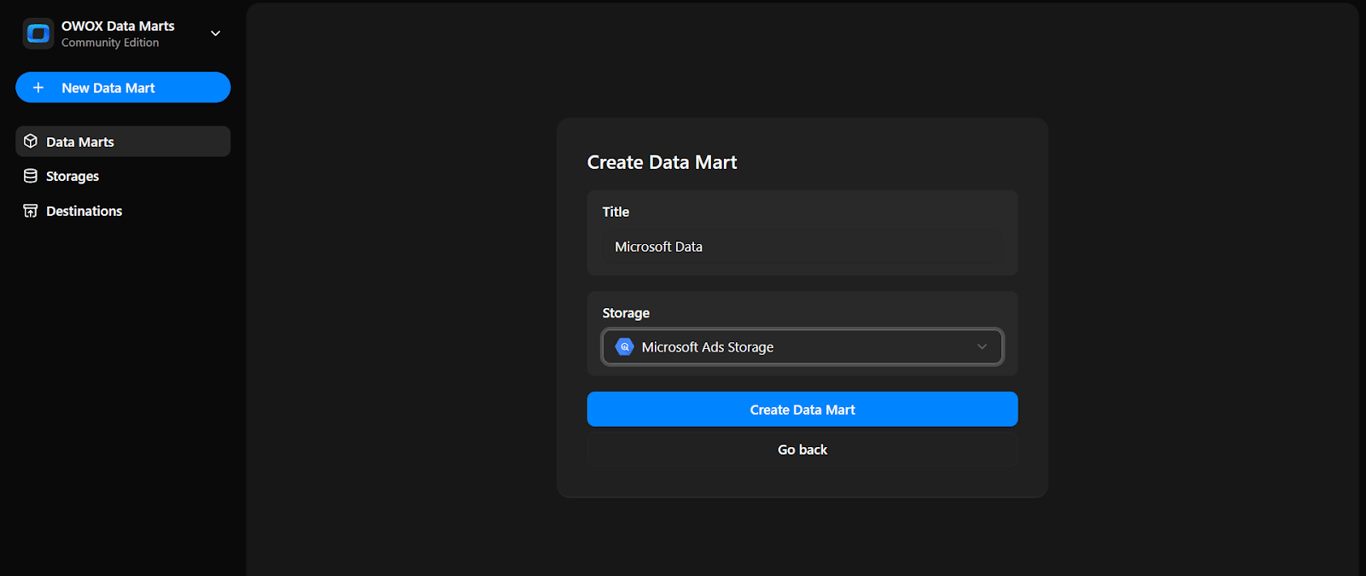
Now we will do the Data Setup.
- Setup your Data Mart
- Go to Data Setup Tab and then select Connector
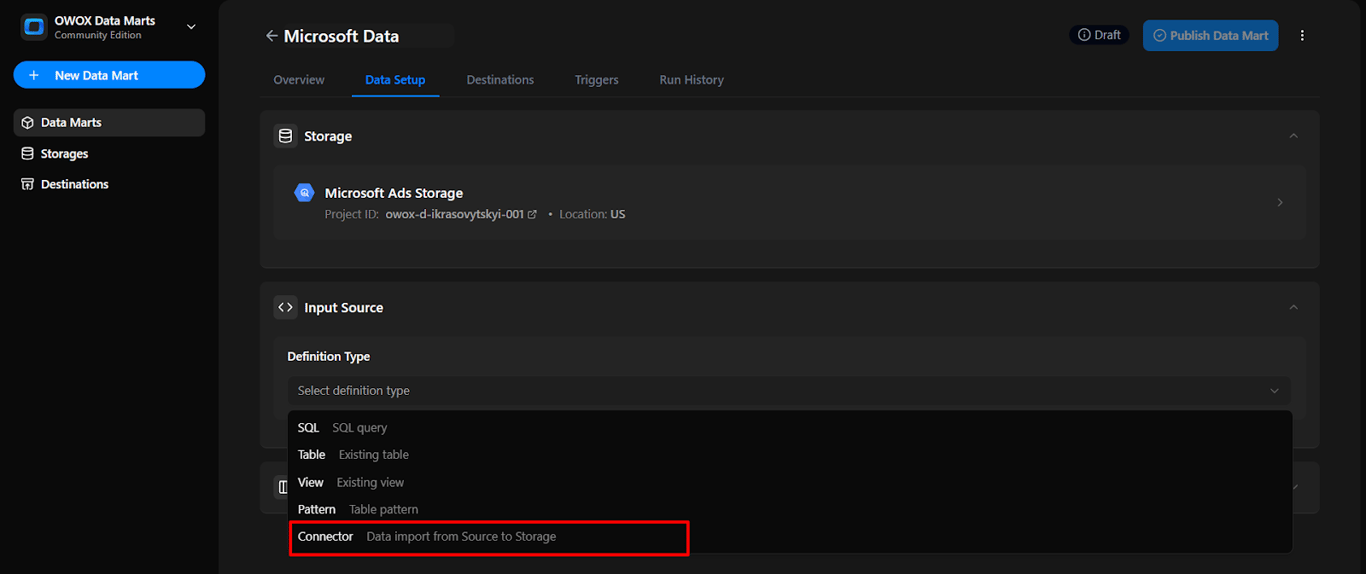
- Click on Setup Connector and Choose Microsoft Ads Connector
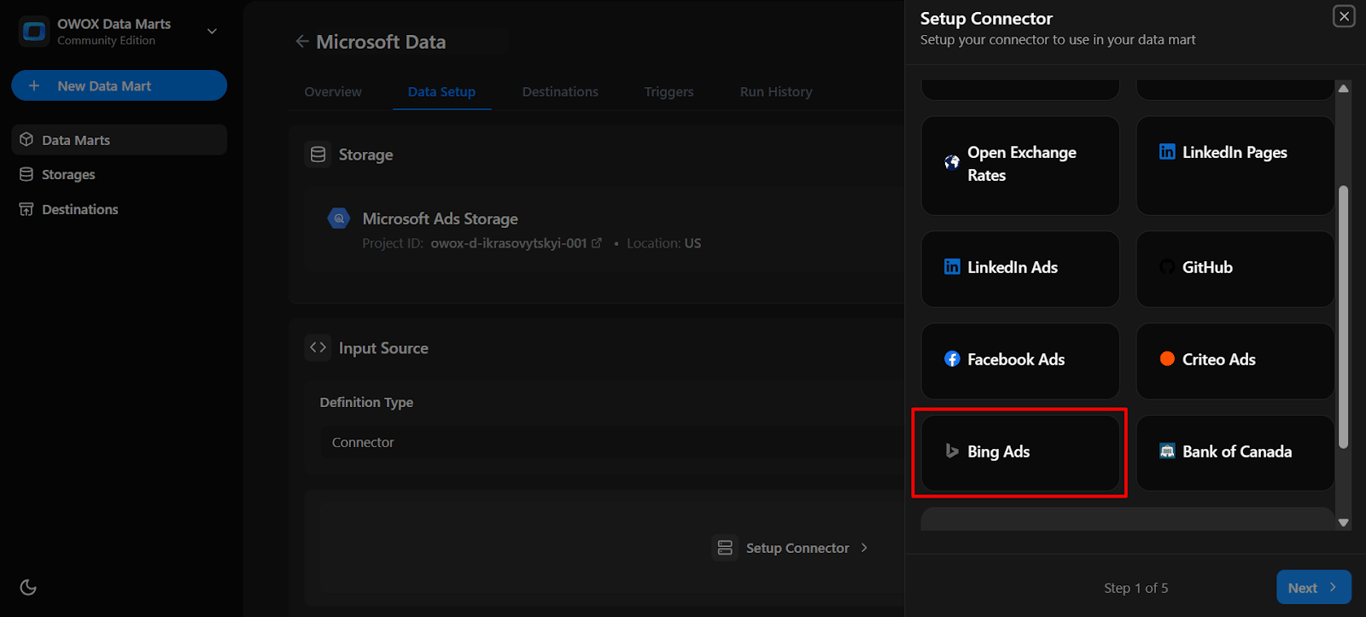
Step 3: Get your Microsoft Ads credentials (~5 min)
If you connect with your own credentials, the connector needs a Developer Token, a Client ID, a Client Secret and a Refresh Token, plus your Account ID and Customer ID. On OWOX Cloud you can sign in with Microsoft through OAuth and skip the Azure steps.
Prerequisites
- A Microsoft Ads account with access to the campaigns you want to pull data from.
- A Microsoft Azure account to register an application for API access.
- Ability to generate:
- Account ID and Customer ID (from the Microsoft Ads dashboard).
- Developer Token (via Developer Settings).
- Client ID and Client Secret (from your Azure App).
- Refresh Token (exchanged from the Authorization Code).
Steps to obtain credentials
To authorize the connector, you’ll need to generate the following Microsoft Ads credentials:
- Account ID
- Customer ID
- Developer Token
- Client ID
- Client Secret
- Refresh Token
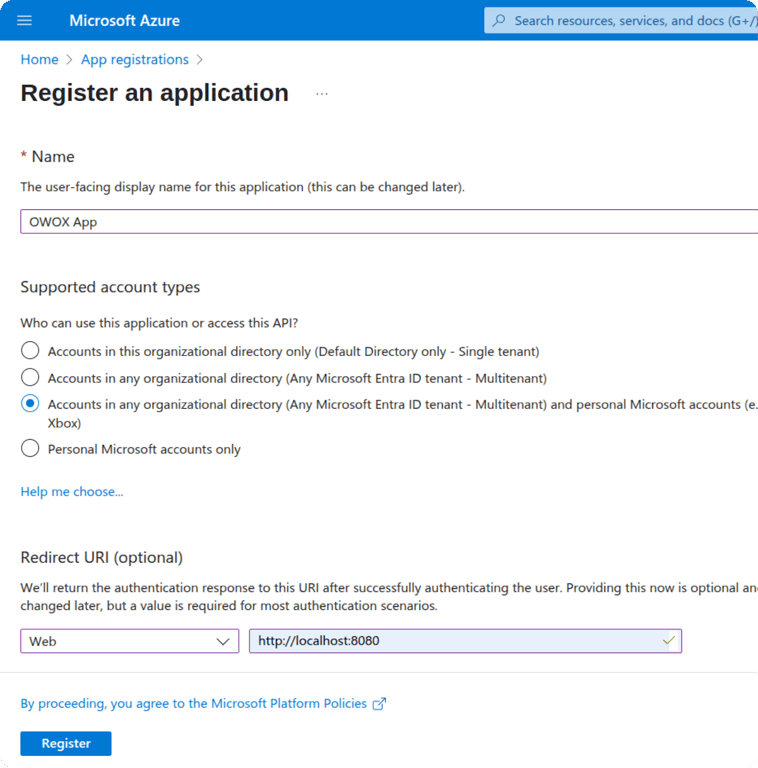
- Register an App in Microsoft AzureIf you haven’t already, sign up and log in to the Microsoft Azure Portal.
- In the search bar, type and select App registrations.
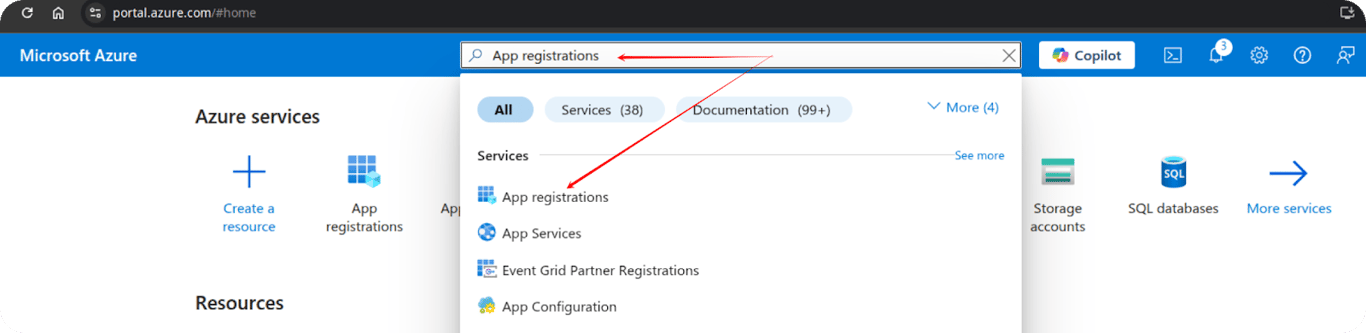
- Click New registration and fill out the form:
- Name – Choose any name for your app (e.g., OWOX Connector)
- Supported account types – Select: Accounts in any organizational directory (Any Microsoft Entra ID tenant - Multitenant) and personal Microsoft accounts
- Redirect URI:
- Platform: Web
- URI: http://localhost:8080
- Click Register.
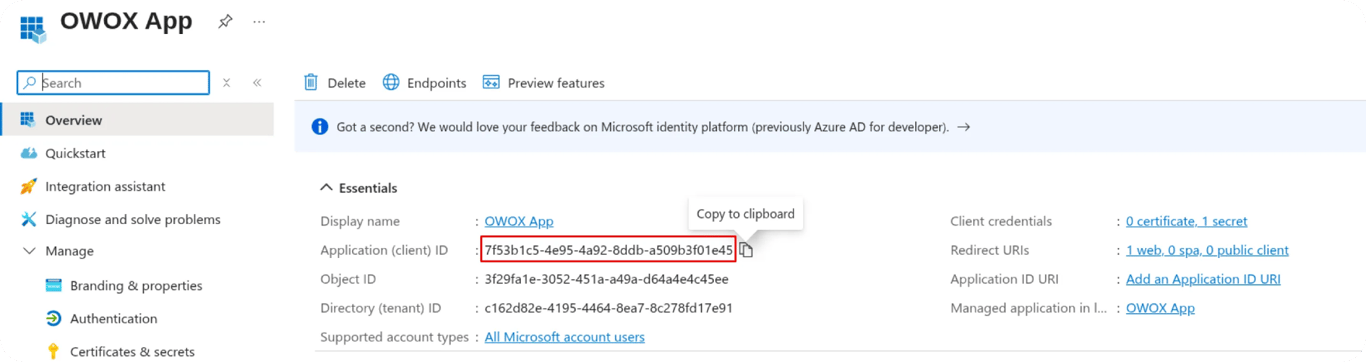
- Save your Client ID
- Copy and save your Client ID
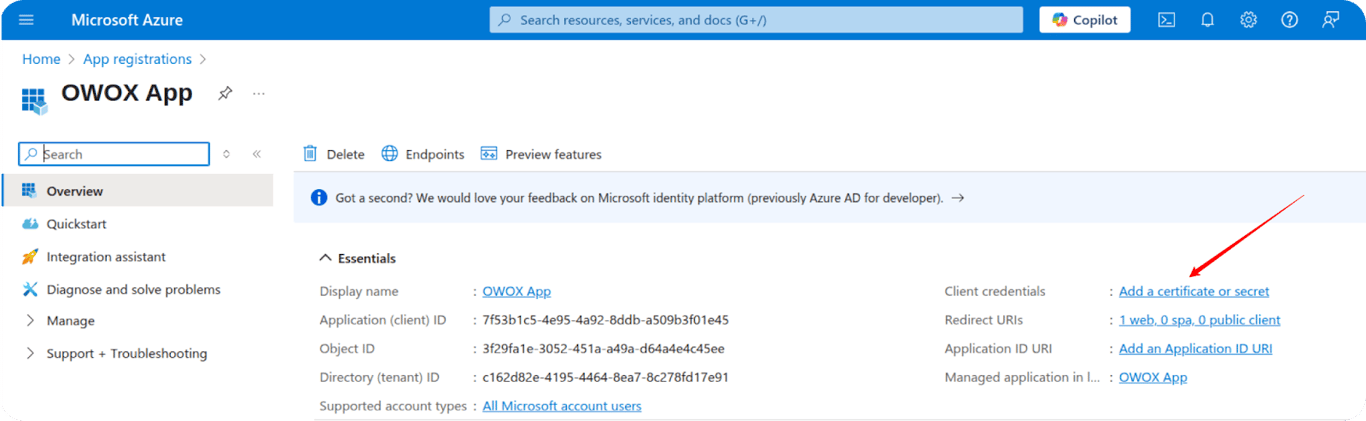
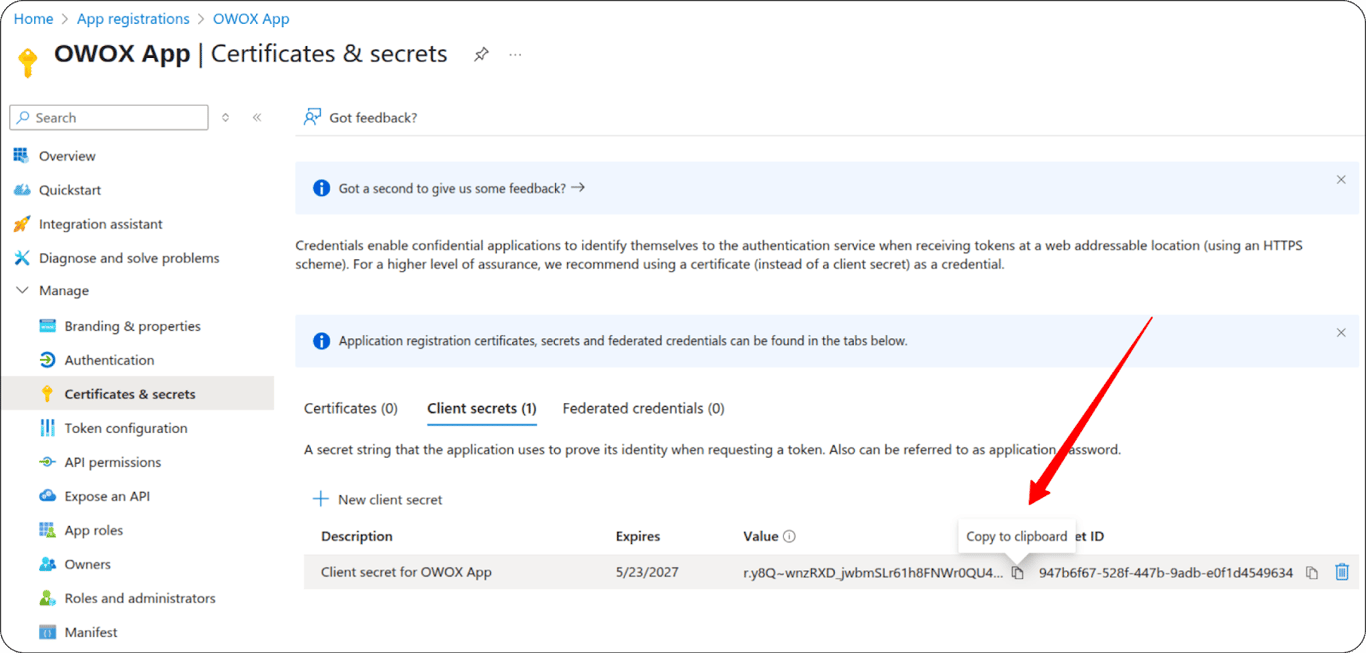
- Generate a Client Secret
- In your registered app, go to:
Client credentials → Add a Certificate & secrets - Click on New client secret
- In your registered app, go to:
- Description: e.g., “Client secret for OWOX App”
- Expiration: Choose the maximum allowed (e.g., 730 days)
- Click Add
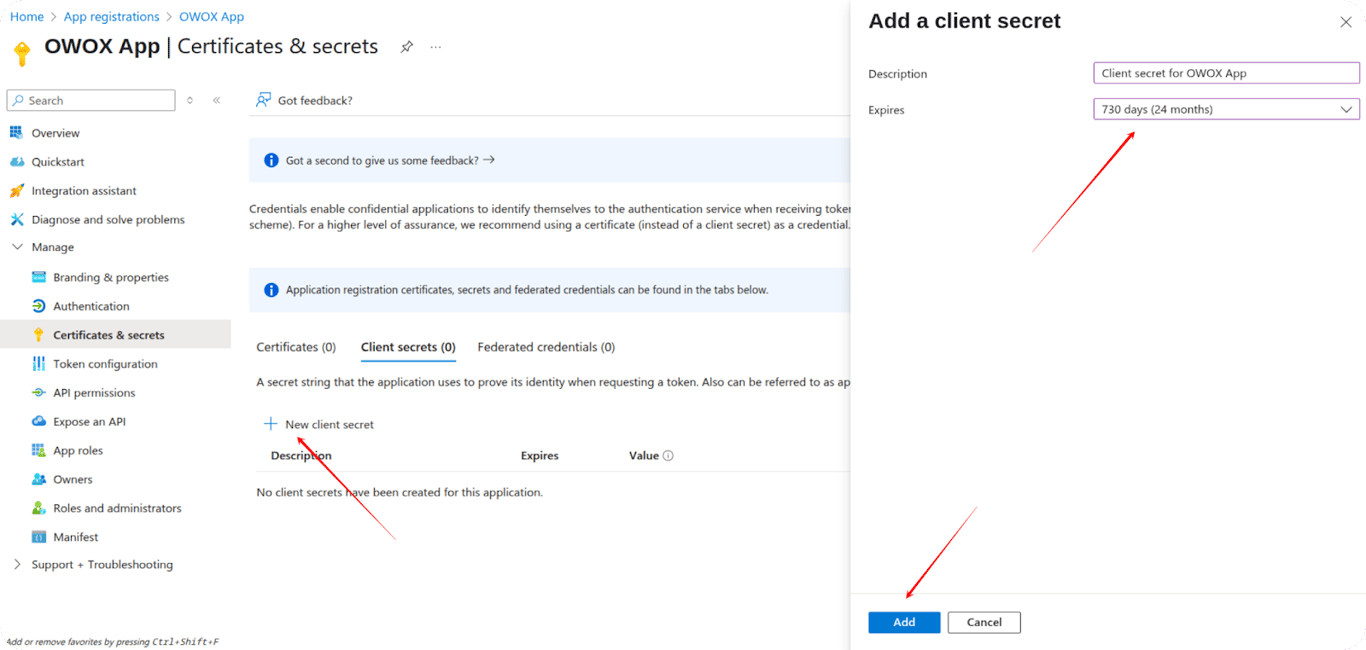
⚠️ Important: Copy and save the secret now. You won’t be able to retrieve it later.
- At this point, you have:
- Client ID
- Client Secret
- Redirect URI: http://localhost:8080
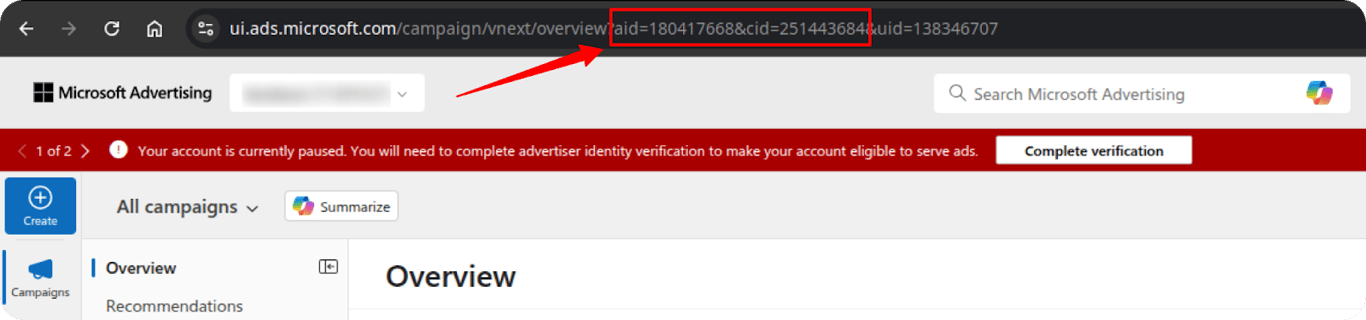
- Retrieve Account ID and Customer ID
- Visit ads.microsoft.com and log in.
- Your Account ID and Customer ID are located in the URL after login.
- Generate a Developer Token
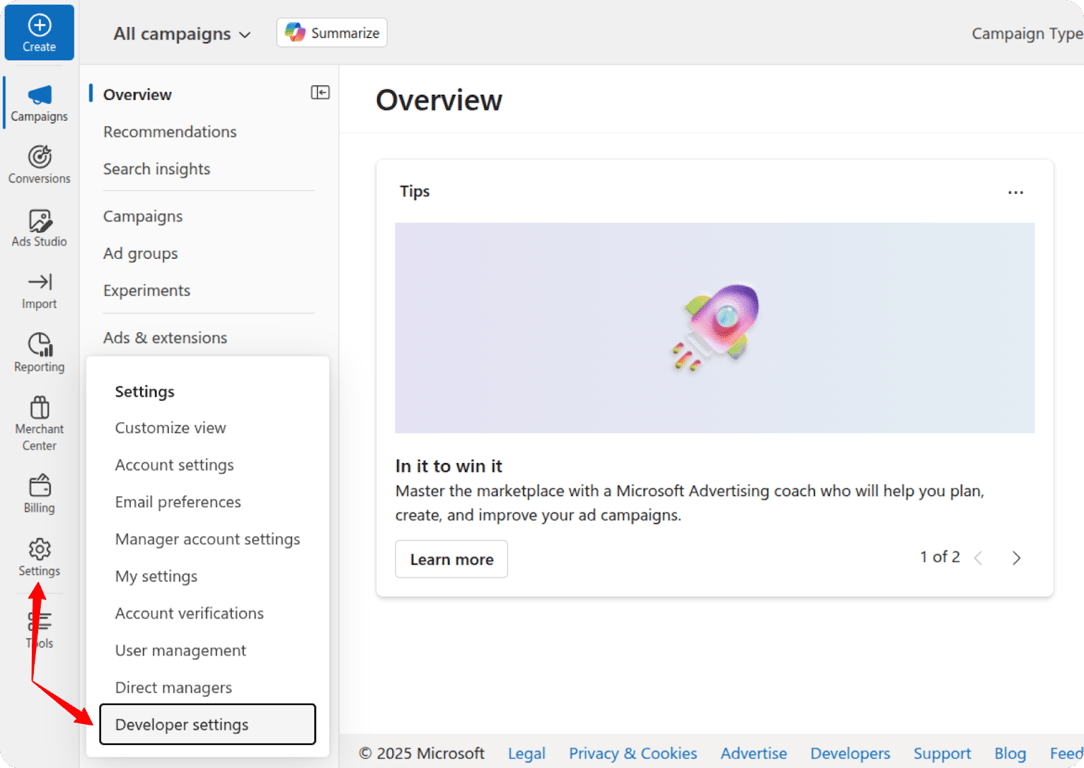
- In the Bing Ads interface, go to:
Settings → Developer Settings
- In the Bing Ads interface, go to:
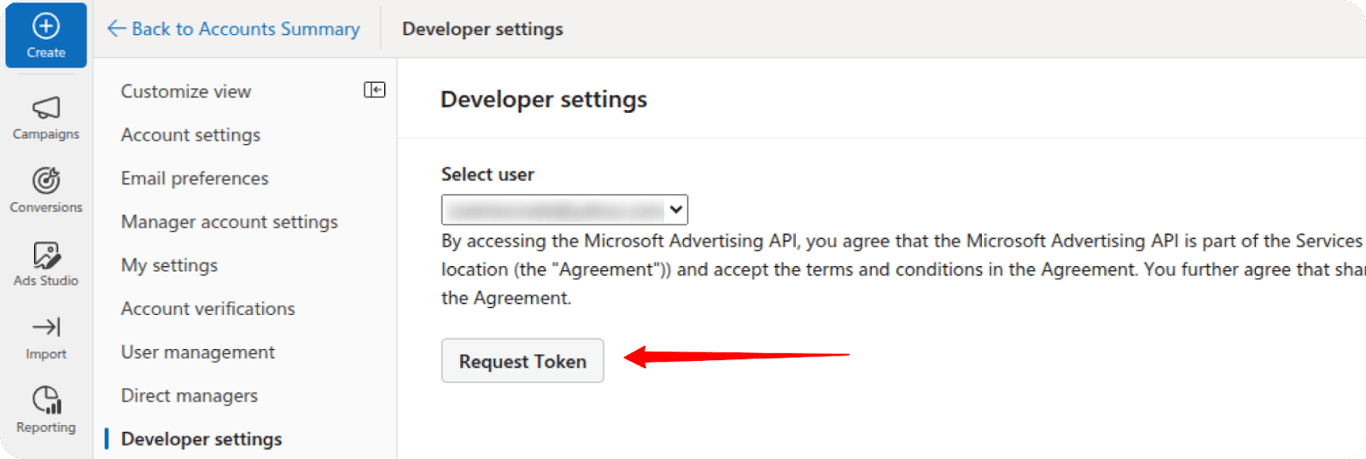
- Now, click on Request Token, and copy the generated Developer Token.
- Generate Authorization Code
- Replace CLIENTID in the following URL with your actual Client ID:
It is one URL, shown here on several lines: join the lines with no spaces, keeping the single space before offline_access.
https://login.microsoftonline.com
/common/oauth2/v2.0/authorize
?client_id=CLIENTID
&response_type=code
&redirect_uri=http://localhost:8080
&scope=https://ads.microsoft.com
/msads.manage offline_access- Open the link in your browser, log in, and click Accept.
- After accepting, you’ll be redirected to a page like:
http://localhost:8080/?code=YOUR_CODE - Copy the code parameter from the URL.
- The value after
code=in that URL is your authorization code. It is short-lived, so use it within a few minutes.
-
Exchange Authorization Code for Refresh Token
- Use ReqBin or Postman to exchange this code for a refresh token by making a POST request to this endpoint (one URL, joined with no spaces):
https://login.microsoftonline.com
/common/oauth2/v2.0/token
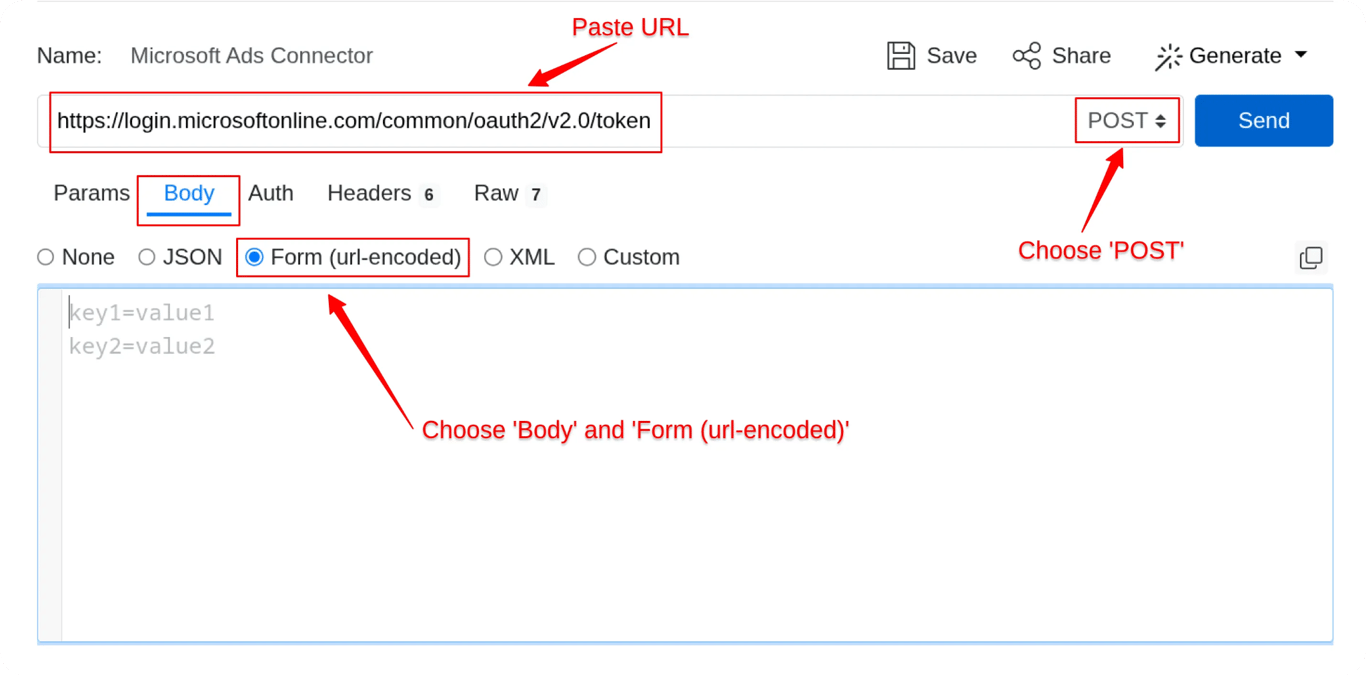
- Use the following parameters in the body:
- client_id = YOUR_CLIENT_ID
- client_secret = YOUR_CLIENT_SECRET
- grant_type = authorization_code
- code = YOUR_AUTHORIZATION_CODE
- redirect_uri =
http://localhost:8080 - scope = the same scope value as in the URL above
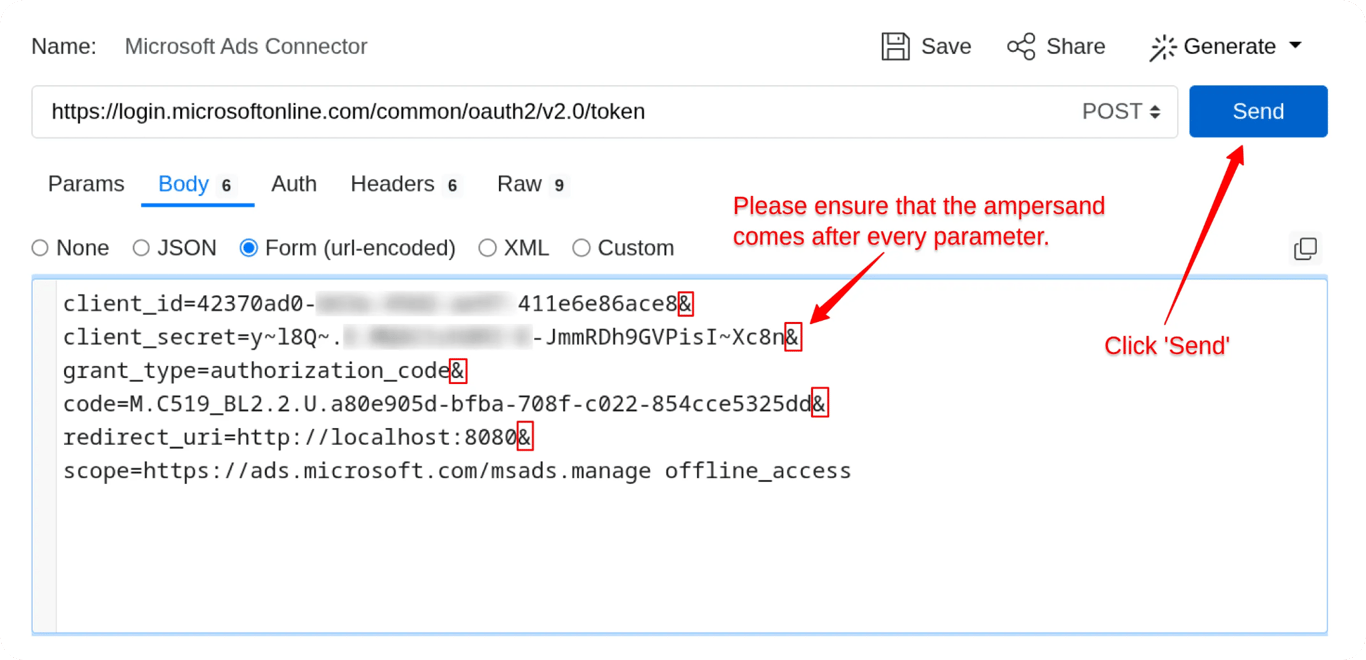
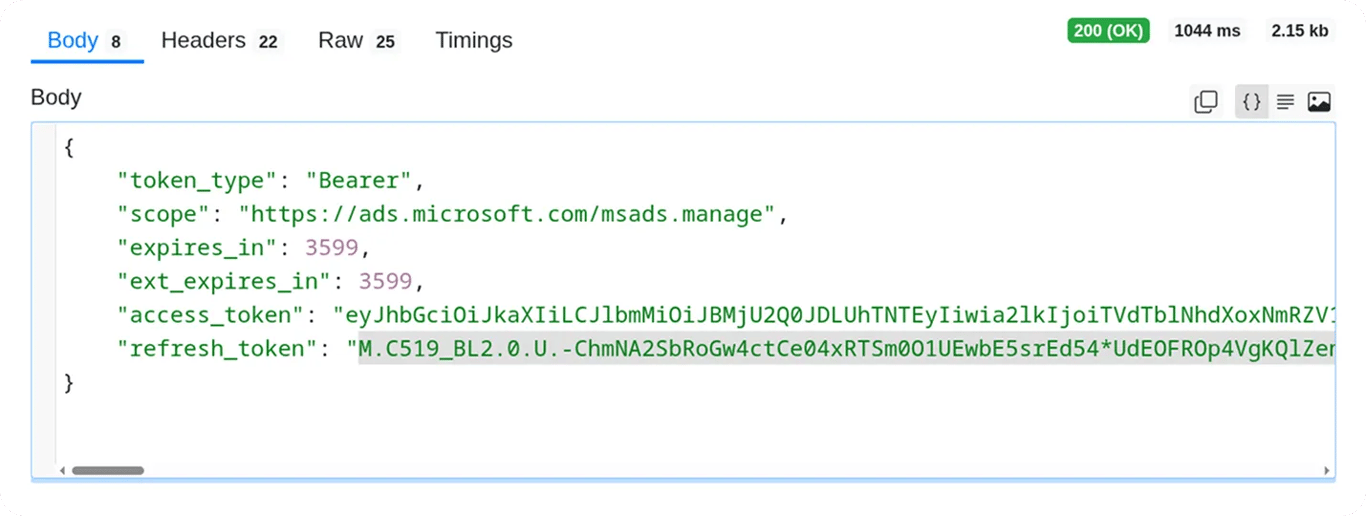
- Save the Refresh Token
- If successful, the response will include a Refresh Token.
- Save it securely. This token will be used to authenticate API requests going forward.
Troubleshooting refresh token errors
If you face issues while obtaining the refresh token, review the following common errors, causes, and solutions:
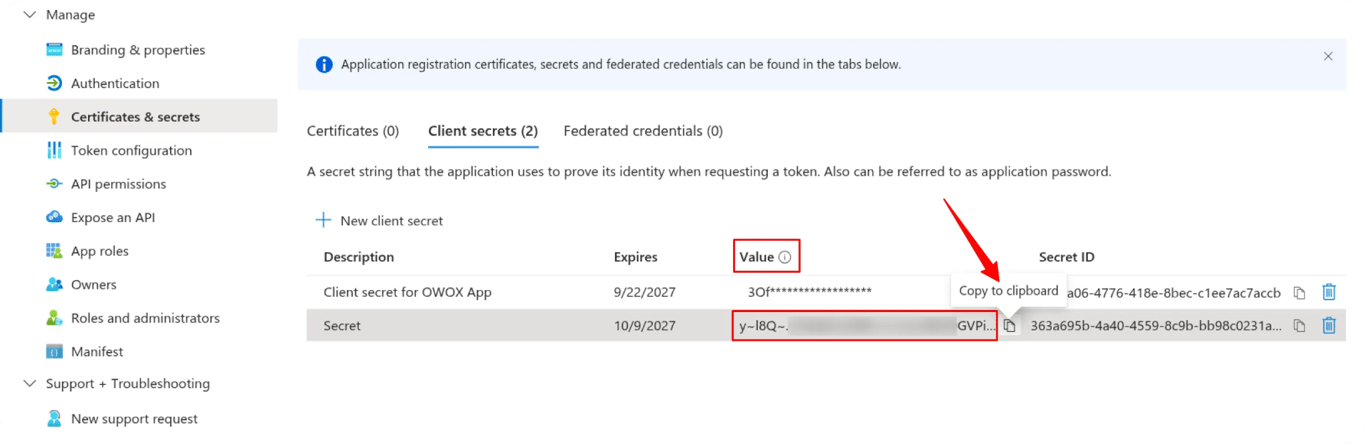
- Error: Invalid client secret provided
- Cause: You’re using the Secret ID instead of the Secret Value. Only the Secret Value can authenticate your app – the Secret ID will not work.
- Solution: Go back to Step 2 and ensure you copied the Secret Value, not the ID. If the Secret Value is no longer visible, create a new Client Secret and copy the value immediately.
- Error: The provided value for the ‘code’ parameter is not valid. The code has expired.
- Cause: The temporary authorization code has expired. Microsoft and similar platforms issue short-lived codes that must be exchanged for tokens within a few minutes.
- Solution:
- Repeat Step 5 to obtain a new authorization code.
- Retry the request immediately after receiving it.
✅ Tip: Always use the authorization code right after generating it to avoid expiration issues.
Security notes
- Keep your Client Secret, Developer Token, and Refresh Token private, never share them publicly.
- Store tokens securely using environment variables or a secrets manager.
- Refresh tokens periodically to prevent expired credentials from interrupting pipelines.
- Always request the minimum scope required (msads.manage offline_access) for better security.
Step 4: Configure Microsoft Ads connector and run your first import (~2 min)
Now that you’ve retrieved your Microsoft Ads developer token, it’s time to configure the connector in OWOX.
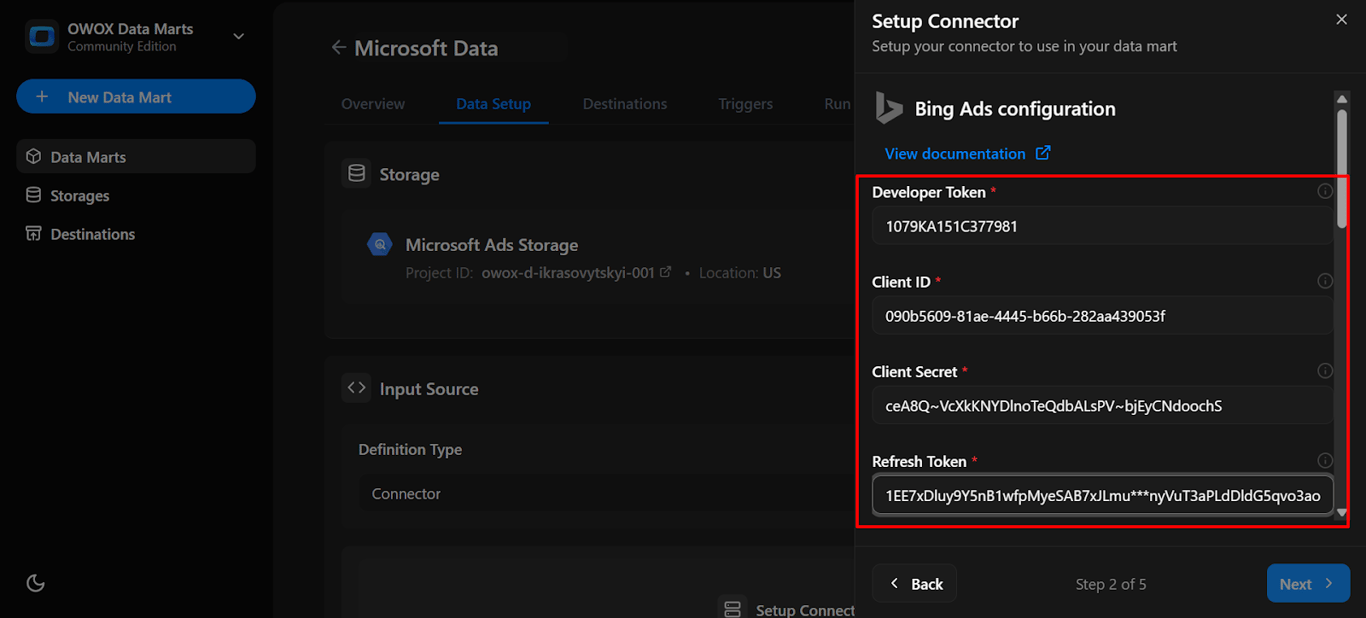
- Paste the Developer Token, Client ID, Client Secret, and Refresh Token
- Find your Account ID:
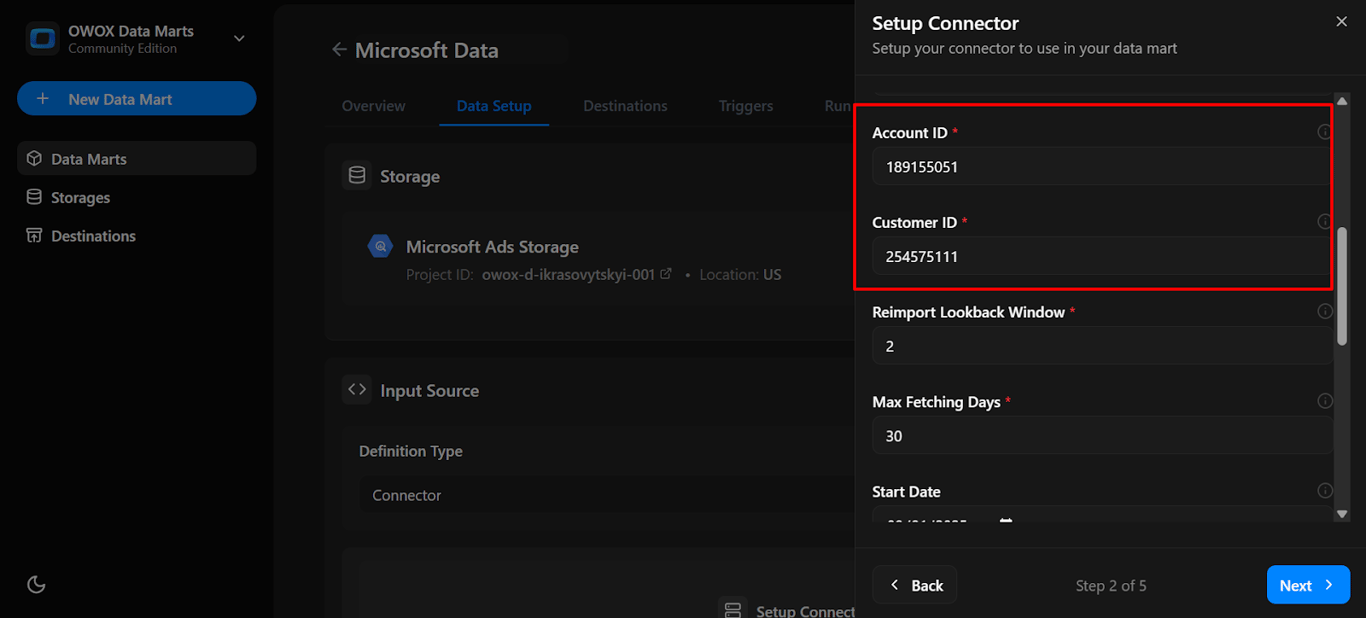
- Log in to ads.microsoft.com, and you’ll find your Account ID and Customer ID in the URL after login.
- Paste the Account ID and Customer ID
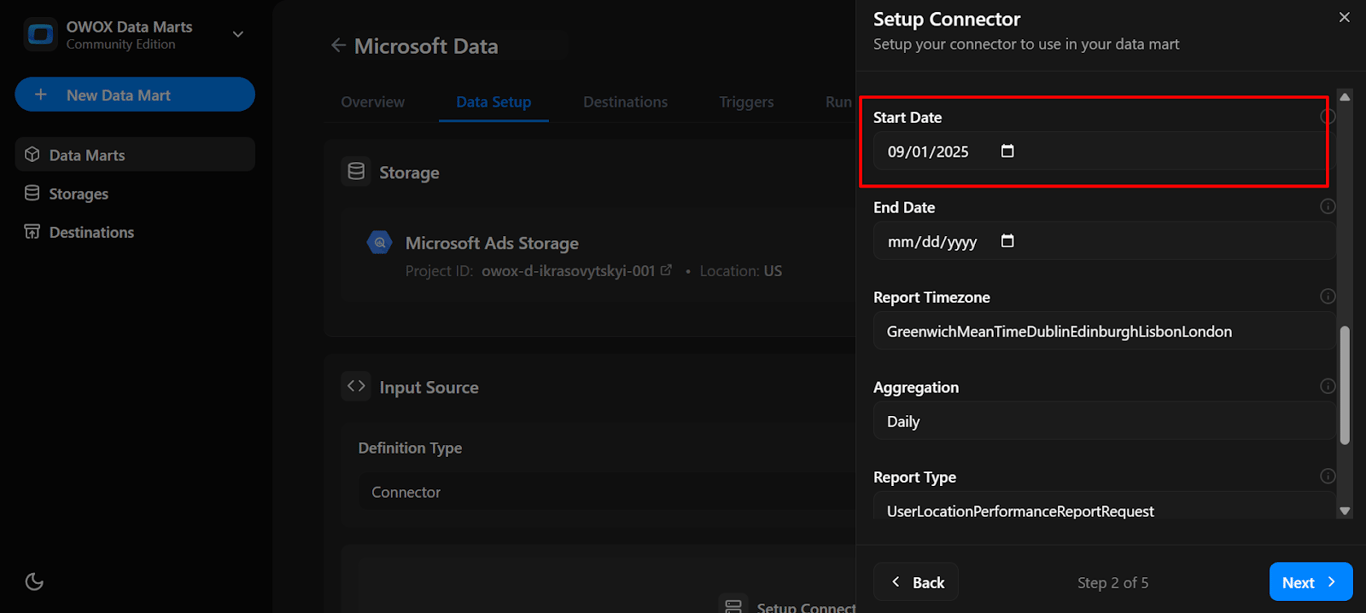
- Start Date:
- Set the reporting start date (e.g., 2025-09-01). This determines how far back data will be fetched.
-
As you scroll further, you’ll find extra parameter fields. They’re optional for the first run and can be updated later if required.
-
Click Next
-
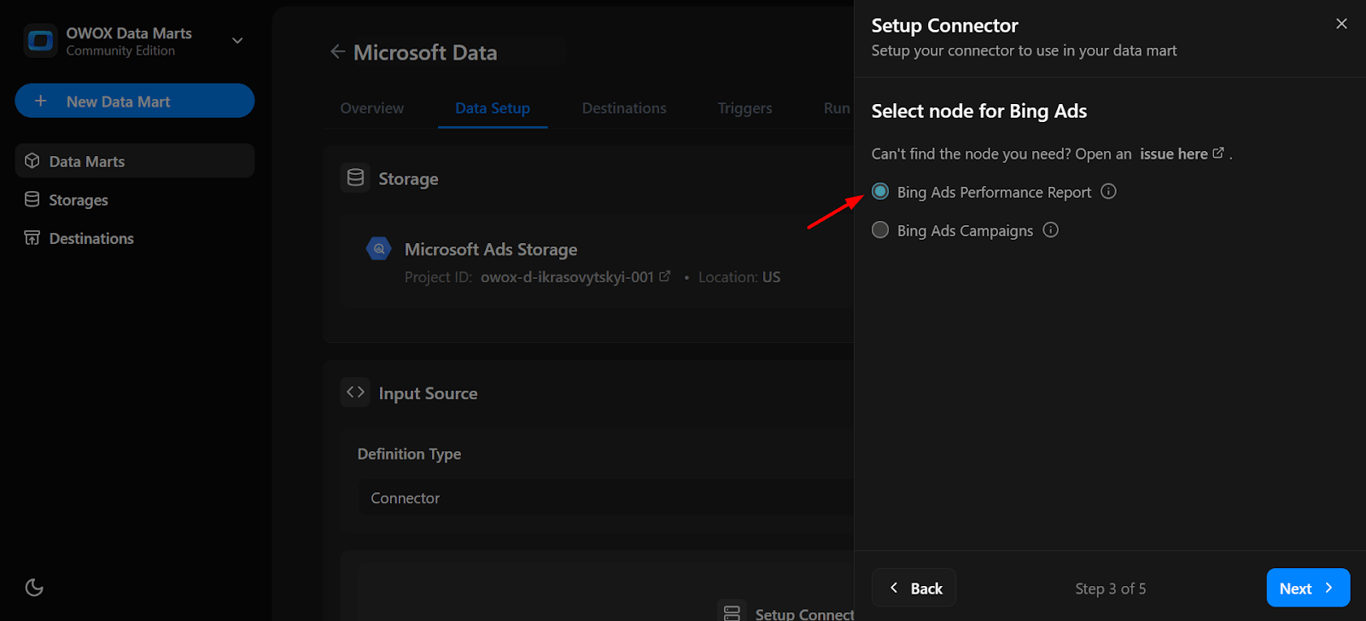
Endpoint: Choose the following valid endpoints:
- Bing Ads performance report: Provides aggregated insights into campaign performance metrics, including impressions, clicks, conversions, spend, and average CPC.
- Bing Ads Campaigns: Delivers structural and configuration data for each campaign, such as campaign name, ID, status, budget, targeting settings, and scheduling.
👉 Tip for first-time setup: If you’re new to Bing Ads integration, start with the Bing Ads Performance Report endpoint. It offers a comprehensive yet manageable view of your advertising data, covering spend, clicks, conversions, targeting, and delivery performance.
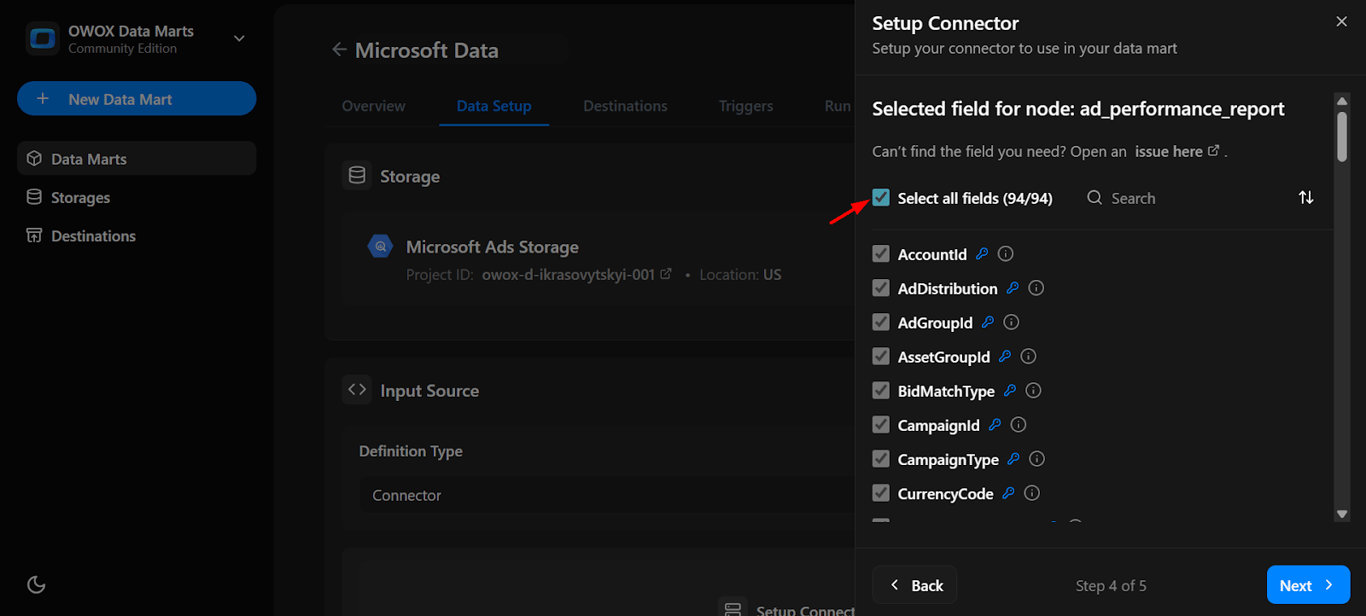
- Select Fields for chosen node.
- Select all available fields or choose specific metrics like account id**, bidmatch type , and campaign type** based on your reporting needs.
- Name the Dataset
- Enter the BigQuery dataset name where the imported data should be stored.
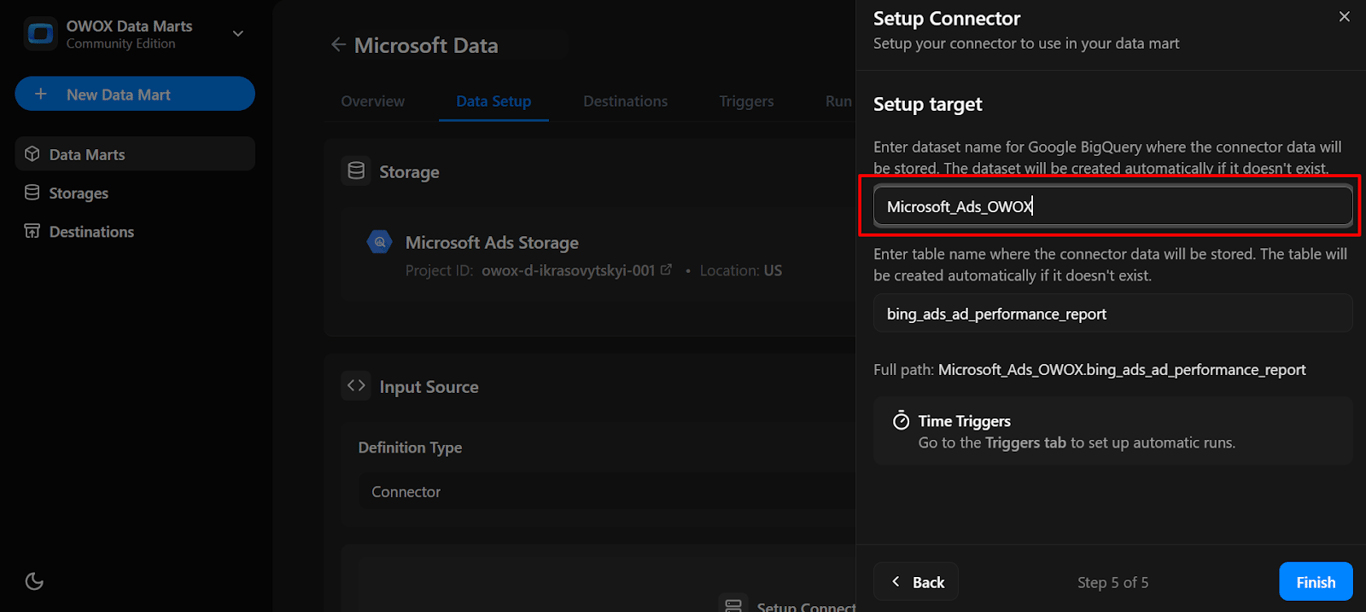
Note: If the dataset doesn’t exist, OWOX will create it automatically during the import process.
- Click Finish
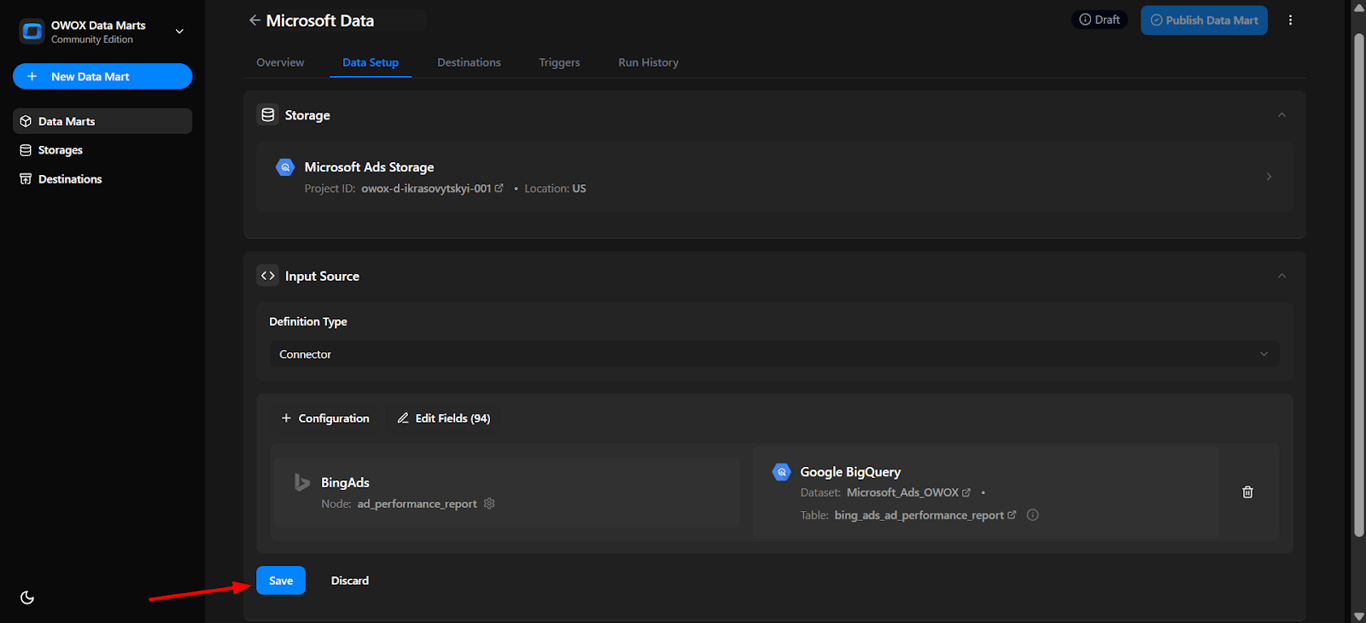
10. In the Data Setup Tab, Click ‘Save’.
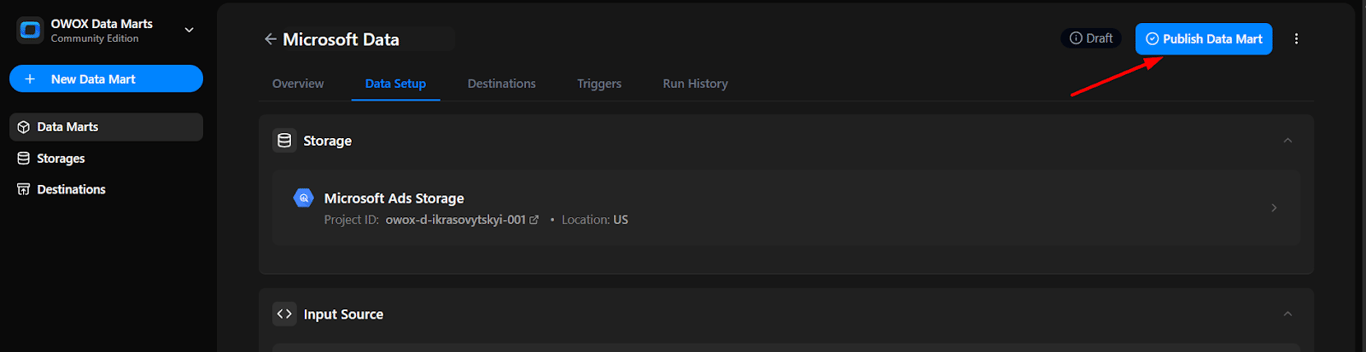
11. Click ‘Publish Data Mart’.
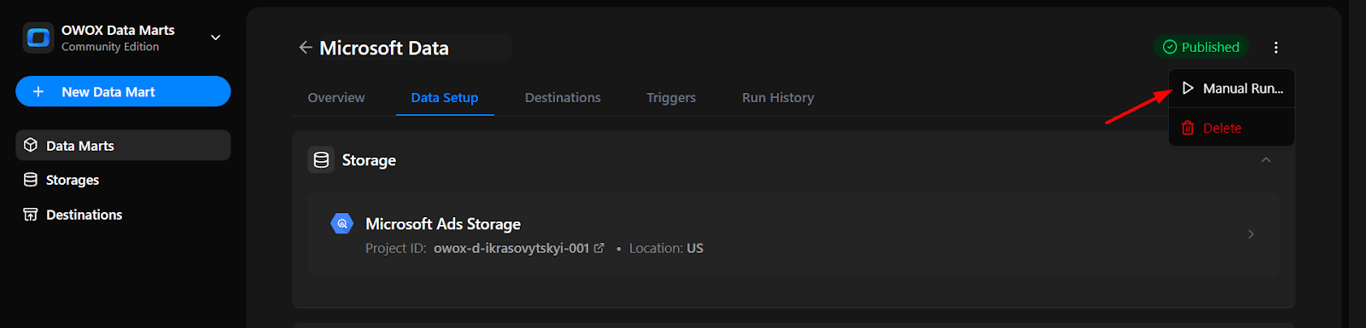
12. Click ‘Manual Run’ or use the 3-dot menu.
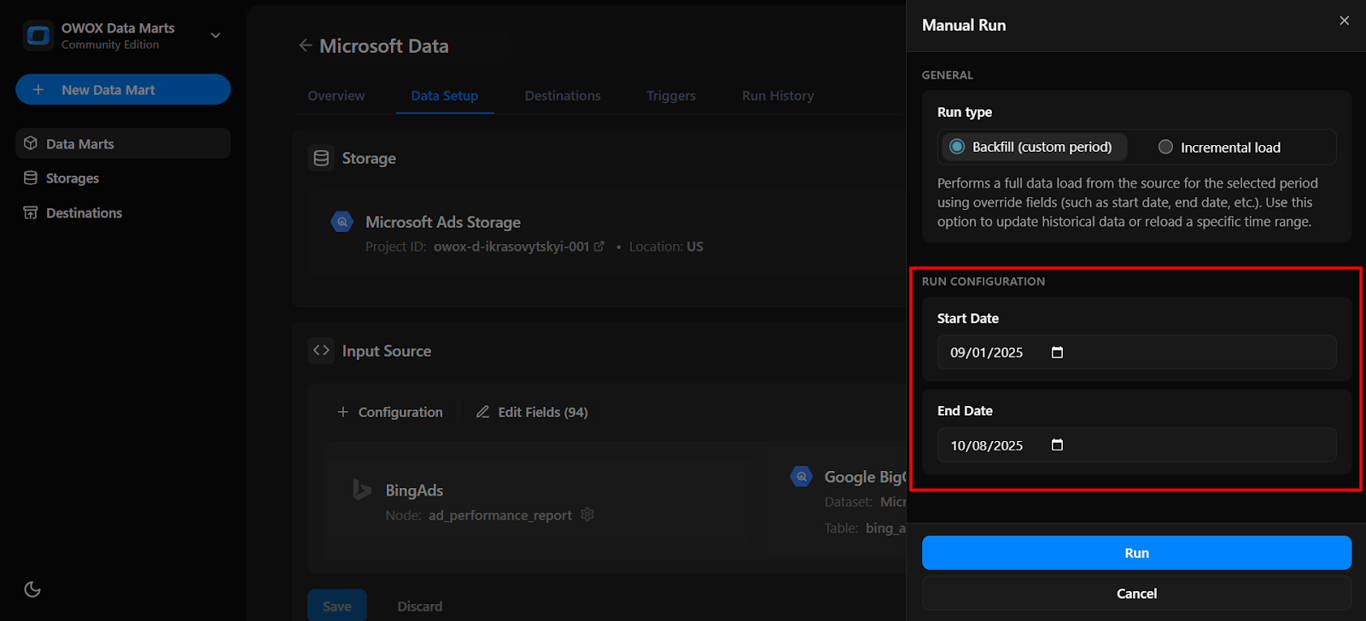
13. A configuration panel will appear to choose a Run Type. Select Backfill or Incremental Load. Then add the required start and end dates, then click Run to load the data.
Please Note: If you are setting up this connector for the first time, you need to go with the Backfill Run Type.
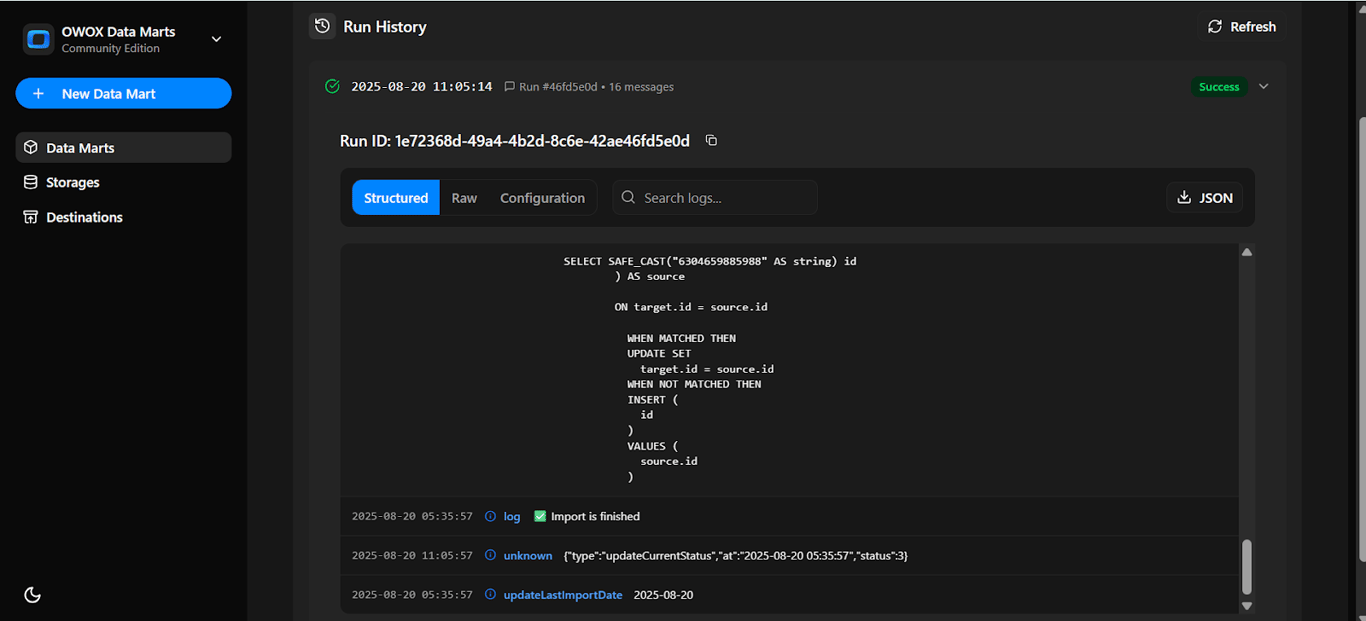
14. Go to ‘Run History’ and confirm the message: ‘Success’.
Step 5: Schedule automated imports (~1 min)
Set up a trigger to pull data on a recurring schedule.
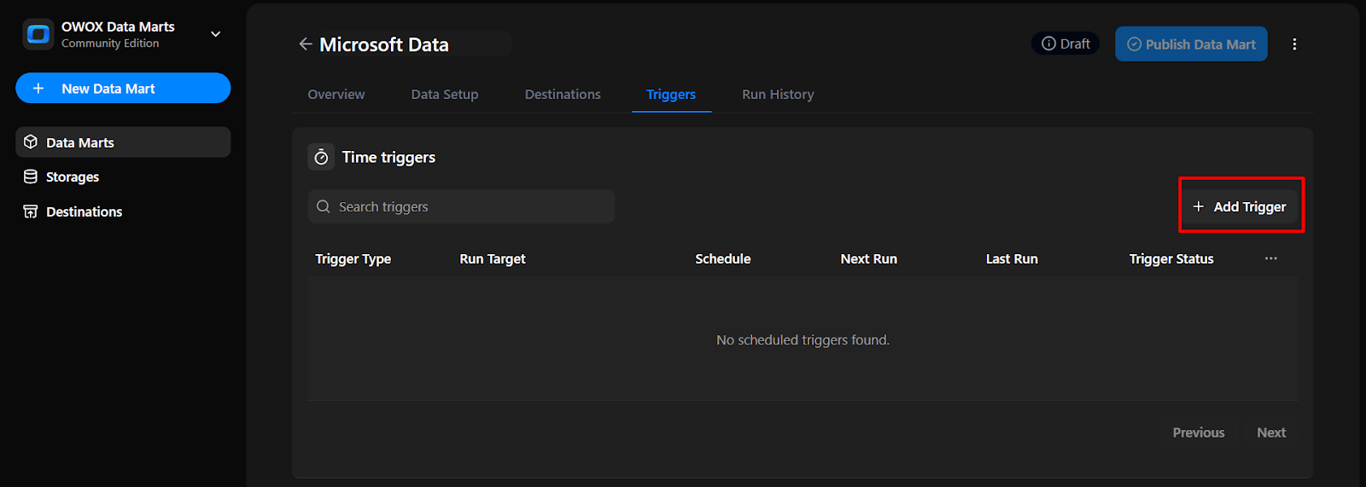
- Go to the ‘Triggers’ tab in the new Data Mart
- Click ‘Add Trigger’.
- Configure:
- Choose the Trigger Type as Connector Run and the Schedule Settings: Daily / Weekly / Monthly / Interval.
- Set the Time (hour, minute, or second), days of the week, and choose your time zone.
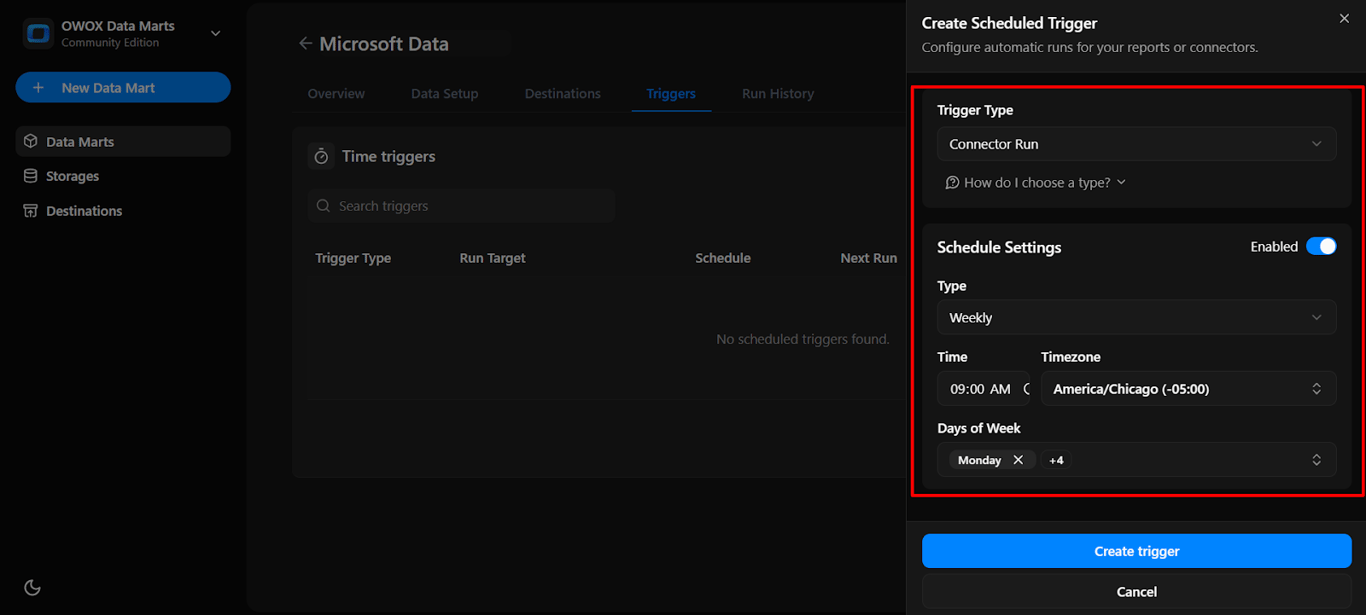
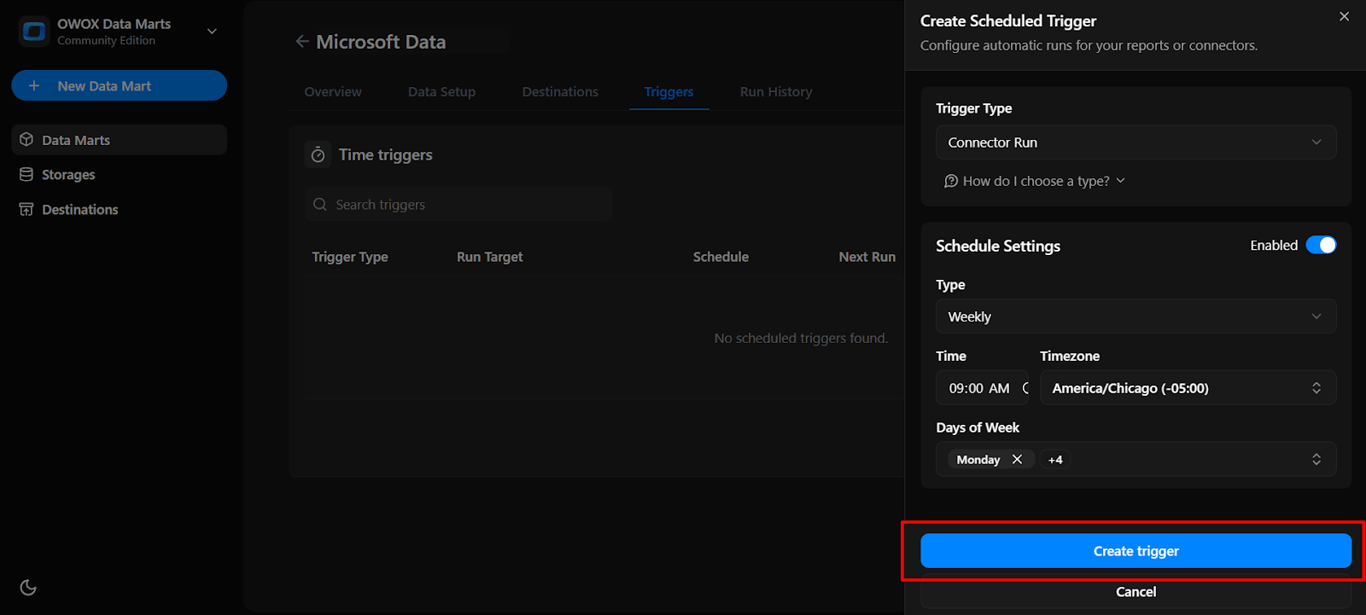
- Click ‘Create Trigger’. Your data will now refresh automatically.
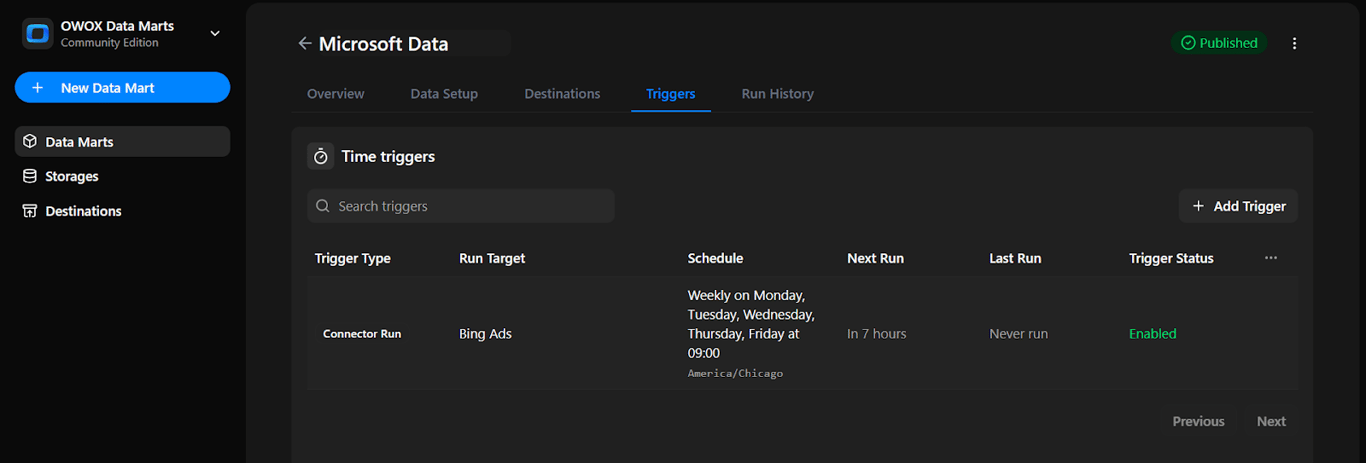
- The trigger is now active and scheduled to run automatically on the defined days and at the defined time.
What’s next?
The free Microsoft Ads to BigQuery connector in OWOX Data Marts continues our mission to make data ownership simple, transparent, and accessible to everyone.
Here are more resources to explore:
🔗 Additional free connectors – including Criteo Ads, TikTok Ads Connector to BigQuery, and other top platforms
🎥 Easy-to-follow video tutorials – to guide you through every setup step
📊 Reports where your team reads them – publish the data mart to Google Sheets or Looker Studio as a destination, on a schedule.
Explore our GitHub repo, drop us a ⭐ star, and help us shape the future of open marketing analytics.
Turn your data into decisions.
Governed data marts give you the clean foundation ML needs to actually work.
- No AI hallucinations
- Analyst-governed definitions
- Every number traces to SQL
Frequently Asked Questions
How do I set up access to pull data from Microsoft (Bing) Ads?
To enable data imports, you’ll need to register an app in Microsoft Azure and generate the following credentials: Client ID, Client Secret, Developer Token, Refresh Token, Account ID, and Customer ID. Our step-by-step guide walks you through generating and entering these credentials in the required fields, no technical background required.
How often can I refresh the Microsoft Ads data?
With Community Edition, you can refresh Microsoft Ads data automatically using triggers. Schedule updates daily, weekly, monthly, or at custom intervals, ensuring your BigQuery dataset always stays accurate and up to date.
Can I combine Microsoft Ads data with GA4, CRM, or other sources in BigQuery?
Yes. Once your Microsoft Ads data is in BigQuery, you can join it with other datasets like GA4 exports, CRM systems (e.g., Salesforce), or offline conversions using SQL. The connector helps unify your marketing data stack for advanced reporting.
What Microsoft (Bing) Ads data can I import with the OWOX connector?
You can import both catalog data (e.g., advertisers, campaigns, ad groups, ads) and time series performance data (e.g., impressions, clicks, cost). The connector allows flexible field selection and supports different levels of aggregation (daily, weekly, etc.).
Is the Microsoft (Bing) Ads to BigQuery connector really free to use?
Yes. The connector is 100% free and open-source. There are no subscription fees, usage limits, or hidden restrictions. You can import, refresh, and analyze Microsoft (Bing) Ads data in BigQuery at no cost.