How to Cut BigQuery and Snowflake Costs After the Basics
Once partitioning, clustering and auto-suspend are in place, the next saving is rarely a setting. It is a pattern in the spend: a few query shapes that carry a third of the bytes, slot-time that spikes on two days a month, storage that is billed physically, a warehouse that idles, a result nobody caches. Measure the pattern first, then pull the one lever that fits.
Someone asks why the warehouse bill went up, and the analyst is the one who has to answer, with a number that carries their name. The basics are done. Tables are partitioned, big ones are clustered, warehouses suspend when idle, and somebody set a budget alert. The checklist that got you here has nothing left on it, and “it was the dashboards” is a guess, not an answer.
This is where cost work changes shape, from tuning to explaining. The first round of savings comes from settings that apply to everything. The second round comes from a pattern in your own spend: a handful of queries, a few expensive days, a storage line nobody looked at. A setting will not find those. A measurement will.
This guide goes in that order. It covers BigQuery and Snowflake in depth and Databricks in one short section. Every number is either the output of a query we ran or a mechanism taken from the vendors’ own documentation, and the end says which SQL we could not run.
Start from the spend pattern, not from the checklist
Start from the spend pattern, not from the checklist
A generic checklist gives every team the same twelve tips. The useful question is narrower: which kind of spend is yours? Seven patterns cover most of what is left after the basics, and each one has a view that measures it and a lever that moves it.
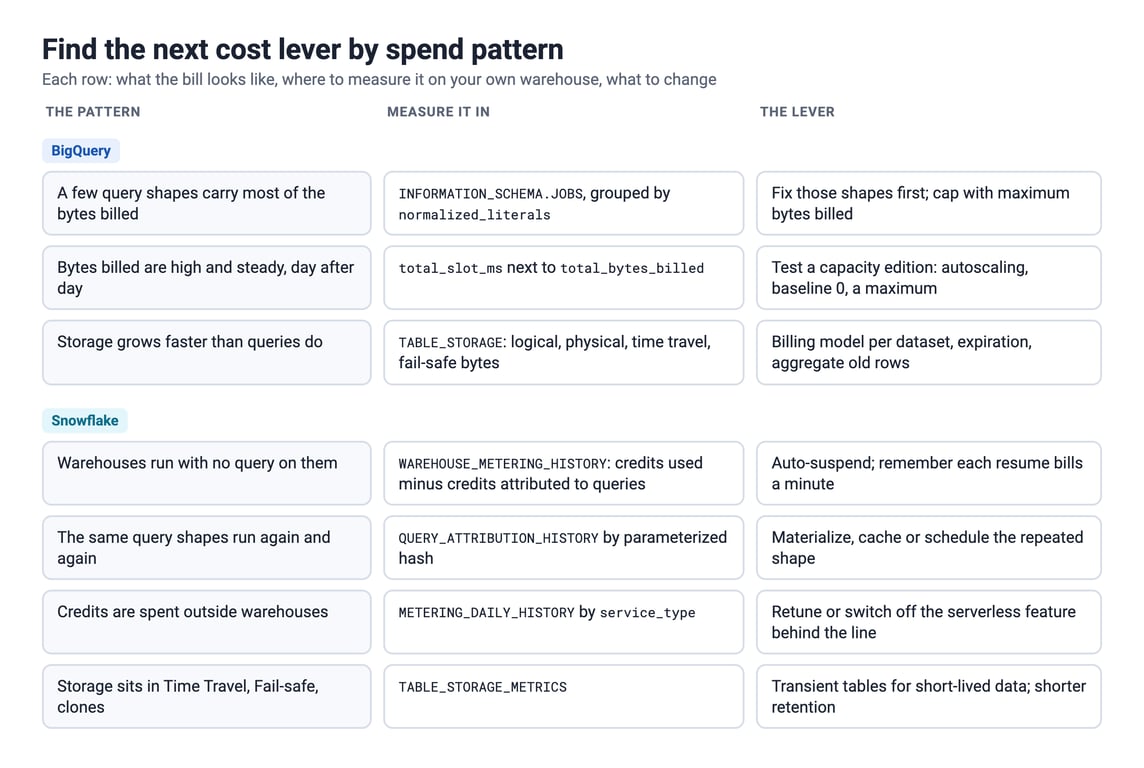
Read the table as a diagnostic. Run the measuring view for each row, see which one is large, and spend your time there. Pulling a lever on a pattern that is small in your account is how a week of tuning saves two percent.
BigQuery: find the query shapes
BigQuery: find the query shapes
On on-demand pricing BigQuery bills the bytes a query scans, so the cost of a workload is the sum of its queries. That sum is rarely spread evenly. Group the job history by query shape, which means the same query with the literals stripped out, and a few shapes tend to dominate.
SELECT
  query_info.query_hashes.normalized_literals AS query_shape,
  COUNT(*) AS runs,
  ROUND(SUM(total_bytes_billed) / POW(1024, 3), 1) AS gib_billed
FROM `region-us`.INFORMATION_SCHEMA.JOBS_BY_PROJECT
WHERE creation_time >= TIMESTAMP_SUB(CURRENT_TIMESTAMP(), INTERVAL 30 DAY)
  AND job_type = 'QUERY'
  AND state = 'DONE'
GROUP BY query_shape
ORDER BY gib_billed DESC
LIMIT 20;
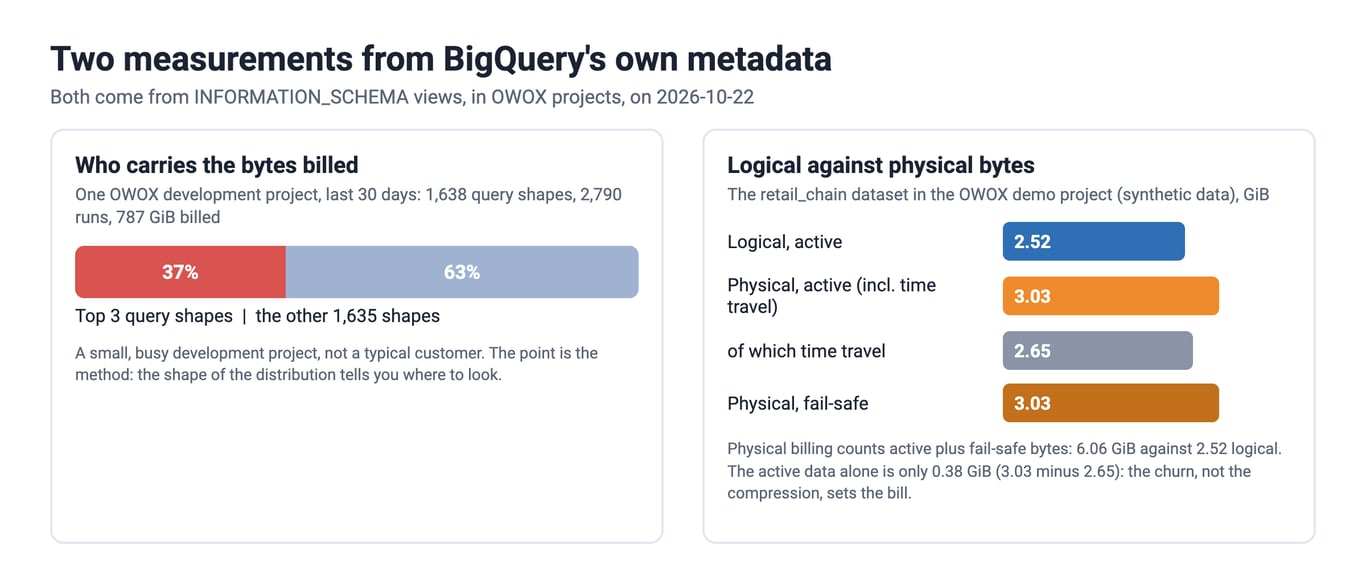
Replace region-us with the region of your datasets. We ran it on one OWOX development project over 30 days: 1,638 query shapes, 787.4 GiB billed, and the top three shapes carried 37.4 percent of it, about 295 GiB. That is one project and a development one, so treat the split as an illustration and not a benchmark. The point is the method. If three of 1,638 shapes carry over a third of the bill, tuning those three beats any account-wide change.
Once you have the shapes, the levers are specific:
- Read less. Select the columns you need, filter on the partition column, and add
require_partition_filterto large tables so nobody can scan all of history by accident. - Cap the damage. Set
maximum_bytes_billedon scheduled jobs. A query that would scan more than the cap fails instead of billing. - Stop recomputing. If one shape runs hundreds of times with a heavy join, materialize the join into a table on a schedule and point the repeats at the result.
The last one is also the case for a published definition. When ten dashboards each carry their own copy of the same join, you pay for it ten times. A Data Mart is one query run once, and every report reads the result.
OWOX Data Marts
See your first report built in real time. 15 minutes.
- Connect your data warehouse
- Pick your metrics
- Get a live Google Sheets report
In the time it takes to write a ticket. Then imagine never writing that ticket again.
Book a DemoWe'll use your actual use case
BigQuery: on-demand or slots
Bytes scanned is one billing model. BigQuery also sells capacity: slots, billed by the slot-hour under the Standard, Enterprise and Enterprise Plus editions, with autoscaling. Which model is cheaper depends on how your usage is shaped, and the same job history shows it.
SELECT
  DATE(creation_time) AS day,
  ROUND(SUM(total_bytes_billed) / POW(1024, 4), 3) AS tib_billed,
  ROUND(SUM(total_slot_ms) / (1000 * 60 * 60), 1) AS slot_hours
FROM `region-us`.INFORMATION_SCHEMA.JOBS_BY_PROJECT
WHERE creation_time >= TIMESTAMP_SUB(CURRENT_TIMESTAMP(), INTERVAL 30 DAY)
  AND job_type = 'QUERY'
  AND state = 'DONE'
GROUP BY day
ORDER BY day;
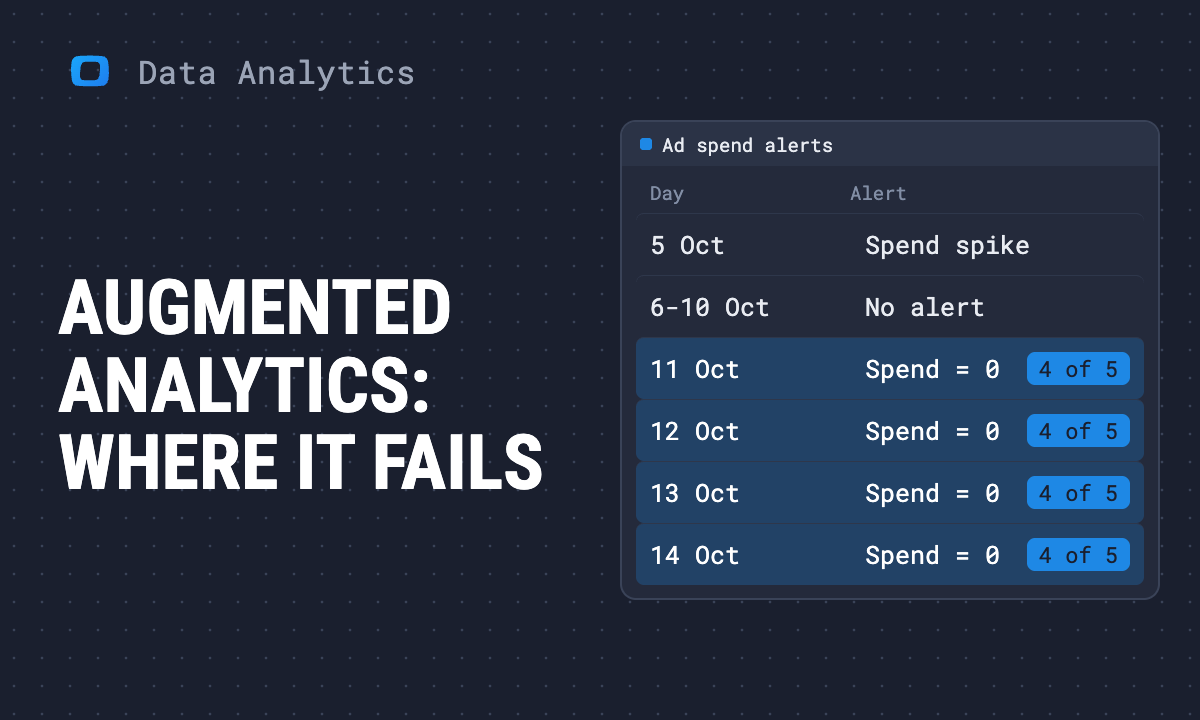
On the same project the bytes billed per day stayed small, between 0.005 and 0.09 TiB. Slot-time did not. A typical day used 0.1 to 0.3 slot-hours, and two days ran past 130 slot-hours, 136 on 11 October and 147 on 14 October. Compute that spiky and a bill that tracks bytes tell different stories, and which one you pay depends on the model you chose.
Read the output with two questions:
- Is the load flat or spiky? A flat, high load fits reserved or baseline capacity. A spiky one fits on-demand, or autoscaling with a low baseline, because you do not pay for idle slots between the spikes.
- Do bytes and slot-time move together? When they diverge, a few compute-heavy queries are scanning little and burning a lot, and on-demand pricing hides them.
Do not switch models on one month of data from one project. Run the query over a quarter, compare the totals with the BigQuery pricing rates for your edition, and decide on the quarter.
BigQuery: storage is billed two ways
BigQuery: storage is billed two ways
Storage is the line teams stop looking at, because it is small until it is not. BigQuery can bill a dataset on logical bytes, the size of the data as the user sees it, or on physical bytes, the compressed size on disk including the history BigQuery keeps. Physical bytes are priced higher per byte than logical ones, and they include the time travel and fail-safe copies, so physical billing only wins when your data compresses well and does not change much.
The comparison is one query against TABLE_STORAGE:
SELECT
  table_schema AS dataset,
  ROUND(SUM(total_logical_bytes) / POW(1024, 3), 2) AS logical_gib,
  ROUND(SUM(active_physical_bytes + long_term_physical_bytes
            + time_travel_physical_bytes + fail_safe_physical_bytes)
        / POW(1024, 3), 2) AS physical_gib
FROM `region-us`.INFORMATION_SCHEMA.TABLE_STORAGE
GROUP BY dataset
ORDER BY logical_gib DESC;
On the retail_chain dataset in our demo project, logical size was 2.52 GiB and the physical bytes that would be billed were 6.06 GiB. Physical is larger there, and the reason is in the columns: time travel and fail-safe copies of recently rewritten tables are a big share of it. With the physical count already more than double the logical one, physical billing cannot win for that dataset.
Put the numbers through the per-byte prices on the vendor’s page for your region before you switch, since the right answer is the product of bytes and price and not the bytes alone. Two cheaper levers sit next to it: shorten the time travel window on datasets where you can rebuild from source, and set a table expiration on the scratch and staging tables that were never cleaned up.
Snowflake: where the credits go
Snowflake: where the credits go
Snowflake bills compute in credits, and a warehouse consumes them while it runs, per second after a 60-second minimum each time it resumes. Idle time is therefore the first thing to measure, and the metering view shows it.
SELECT
  warehouse_name,
  ROUND(SUM(credits_used_compute), 1) AS compute_credits,
  ROUND(SUM(credits_used_cloud_services), 1) AS cloud_services_credits
FROM snowflake.account_usage.warehouse_metering_history
WHERE start_time >= DATEADD(day, -30, CURRENT_TIMESTAMP())
GROUP BY warehouse_name
ORDER BY compute_credits DESC;
Take the warehouse at the top and compare its credits with the query time it served. A warehouse that burns many credits while QUERY_HISTORY shows little execution time is paying for idleness. The levers, in order:
- Lower
AUTO_SUSPEND. Sixty seconds is a common setting for warehouses that serve scheduled work. Interactive BI warehouses want a longer one, because each resume pays the 60-second minimum again and drops the local cache. - Right-size, then split. Each size up doubles the credits per hour. If a nightly job on a Large finishes in the time a Medium would need plus a few minutes, the Medium is cheaper. Put loads, BI and ad-hoc work on separate warehouses so one noisy workload does not set the size for the rest.
- Put a resource monitor on every warehouse. It does not lower the bill by itself. It caps how far one bad query or one forgotten loop can take it.
The pricing mechanics, credit rates by edition and a worked monthly bill are in Snowflake pricing and cost control. Use it to turn credits into money once you know which warehouse matters.
Snowflake: repeated queries and serverless credits
Snowflake: repeated queries and serverless credits
Two Snowflake patterns do not show up in the warehouse view.
Repeated queries. A dashboard that runs the same statement every few minutes is cheap per run and expensive in total. Snowflake gives each statement a parameterized hash, so you can group like BigQuery’s query shapes:
SELECT
  query_parameterized_hash,
  COUNT(*) AS runs,
  ROUND(SUM(total_elapsed_time) / 3600000, 1) AS elapsed_hours
FROM snowflake.account_usage.query_history
WHERE start_time >= DATEADD(day, -30, CURRENT_TIMESTAMP())
GROUP BY query_parameterized_hash
ORDER BY elapsed_hours DESC
LIMIT 20;
A shape with thousands of runs and the same result is a candidate for the result cache, which serves an identical query from the previous result for 24 hours when the underlying data has not changed, or for a table built once on a schedule.
Serverless credits. Automatic clustering, materialized view refresh and search optimization run on Snowflake-managed compute and bill credits without a warehouse in sight. Each has its own history view, for example AUTOMATIC_CLUSTERING_HISTORY. A clustering key on a table that is rewritten all day can cost more to maintain than it saves on reads.
Retained storage. TABLE_STORAGE_METRICS splits bytes into active, time travel, fail-safe and retained-for-clone. Scratch and staging tables that do not need recovery are the usual waste. A transient table has no fail-safe period, and a lower DATA_RETENTION_TIME_IN_DAYS shortens time travel.
Databricks in one section
The same method applies. Databricks bills compute in DBUs, and the billing system table holds the usage:
SELECT
  usage_date,
  sku_name,
  SUM(usage_quantity) AS dbus
FROM system.billing.usage
WHERE usage_date >= date_sub(current_date(), 30)
GROUP BY usage_date, sku_name
ORDER BY usage_date, dbus DESC;
Find the SKU that dominates, then look for its idle time. The usual levers are auto-termination on interactive clusters, auto stop on SQL warehouses, compute policies that cap cluster size and force the setting, and moving short scheduled jobs from always-on clusters to job compute. Rates and the DBU model are on the Databricks pricing page.
When the lever is the number of queries
When the lever is the number of queries
All three warehouses charge for work done, so one more lever sits outside the warehouse: how many times the same answer is computed. Twenty people refreshing a live dashboard compute it twenty times, and every new question becomes one more SQL request for the analyst to rebuild by hand. One scheduled query that writes the result to a sheet or a report computes it once, and readers open a file.
That is the pattern behind reusable Data Marts: define the query once, run it on a schedule, deliver the result. It does not make a bad query cheap. It stops a good one from running more often than the data changes, and it is the one lever that works the same on BigQuery, Snowflake and Databricks.
What we did not run
The BigQuery queries above ran against OWOX projects: the job-history queries on one development project over the 30 days to 22 October 2026, and the storage query on the retail_chain demo dataset. The numbers in the text are their output.
We could not run the Snowflake and Databricks SQL. We have no Snowflake or Databricks warehouse with real workload history to measure. The Snowflake and Databricks statements follow the column names in each vendor’s documentation and are shown as a starting point, not as validated output. Check them against your account: Snowflake’s ACCOUNT_USAGE views lag real time by up to a few hours, and access to them needs a role that has been granted the SNOWFLAKE database privileges.
Two limits apply to the BigQuery figures as well. They come from a single project, so the split between top query shapes and the rest will differ in yours. And they use bytes and slot-hours, not dollars: multiply by the rates on your own contract.
To compare the three warehouses before cost is the question, how to choose a data warehouse compares what each one is built for.
Turn your data into decisions.
Governed data marts give you the clean foundation ML needs to actually work.
- No AI hallucinations
- Analyst-governed definitions
- Every number traces to SQL
Frequently Asked Questions
How do I find a Snowflake warehouse that burns credits while idle?
Sum `credits_used_compute` per warehouse from `snowflake.account_usage.warehouse_metering_history` over 30 days and take the top warehouse. If it burns many credits while `QUERY_HISTORY` shows little execution time for it, it is paying for idleness. Then lower `AUTO_SUSPEND`, keeping in mind that each resume pays a 60-second minimum, and put a resource monitor on it. We did not run this SQL on a Snowflake account; it follows the column names in Snowflake's documentation, and the `ACCOUNT_USAGE` views can lag by hours.
Where do I see Databricks spend broken down by SKU?
In the `system.billing.usage` system table. Group `usage_quantity` by `usage_date` and `sku_name` over the last 30 days, find the SKU that dominates, then look at its idle time. Auto-termination, compute policies and moving short scheduled jobs to job compute are the usual levers. We did not run this SQL on a Databricks workspace; it follows the column names in Databricks documentation.
Should I move BigQuery from on-demand pricing to slots?
Only if your usage shape says so, and not on one month of data. Compare bytes billed with slot-hours per day from `INFORMATION_SCHEMA.JOBS_BY_PROJECT`. A flat, high load fits reserved or baseline capacity; a spiky one fits on-demand or autoscaling with a low baseline. In one OWOX development project a typical day used 0.1 to 0.3 slot-hours while two days passed 130, so the answer depended on the spikes. Run the query over a quarter and compare the totals with the rates for your edition.
Is BigQuery physical storage billing cheaper than logical billing?
Not automatically. Physical billing counts compressed bytes including time travel and fail-safe copies, and physical bytes are priced higher per byte than logical ones. On the `retail_chain` demo dataset logical size was 2.52 GiB and the physical bytes that would be billed were 6.06 GiB, so logical billing wins there. Compare `total_logical_bytes` with the physical columns in `INFORMATION_SCHEMA.TABLE_STORAGE` for your own datasets, then apply the per-byte prices from Google's pricing page for your region.
Where should I start when partitioning and auto-suspend are already done?
Start with a measurement, not a setting. Group your job history by query shape in BigQuery, or by `query_parameterized_hash` in Snowflake, and see how much of the bill the top few shapes carry. In one OWOX development project the top 3 of 1,638 query shapes carried 37.4 percent of 787.4 GiB billed over 30 days, so tuning those three beat any account-wide change. Then check warehouse idle time, storage billing and repeated queries, and pull the one lever that matches the largest pattern.