Solving the GDPR problem with GTM server-side tagging

Server-side tagging moves data collection from the visitor’s browser to a server you control, so you decide what is forwarded to Google Analytics and what is not. This guide shows a setup with server-side Google Tag Manager that writes raw event data to BigQuery.
The background is a legal question that has changed twice. In January 2022 the Austrian data protection authority decided that a website’s use of Google Analytics violated the GDPR’s rules on transfers of personal data to the United States (decision published by noyb, the complainant), and other European authorities followed. In July 2023 the European Commission adopted an adequacy decision for the EU-US Data Privacy Framework, which permits such transfers to certified US companies, and in September 2025 the EU General Court dismissed an action to annul it (press release 106/25).
So using Google Analytics in the EU is not unlawful as such today. Consent, data minimisation and the rest of the GDPR still apply, and some organisations decide, on legal advice or by policy, that event data should not reach Google’s servers at all. This article is for that case. It is not legal advice.
If you like the Google Analytics 4 data structure, you do not have to give it up. You can run Google Tag Manager on the server side, map a custom domain to the server container, and use a tag published by OWOX to write events from your website straight to Google BigQuery without sending them to Google Analytics.
What is GDPR?
The General Data Protection Regulation (GDPR) is a landmark privacy law from the European Union that became enforceable on May 25, 2018. It’s designed to empower individuals with greater control over their personal data while streamlining the international business regulatory environment by standardizing data protection laws across the EU.
GDPR introduces stringent data handling requirements for organizations, mandates clear consent for data processing, and offers individuals extensive rights, including access to, correction, and deletion of their data. Non-compliance can result in significant fines, making GDPR a critical consideration for businesses worldwide.
GDPR and Website Tracking: What You Need to Know?
GDPR and Website Tracking: What You Need to Know?
GDPR significantly impacts website tracking by emphasizing the protection of personal data, including names, addresses, and even cookies, which could be considered PII (personally identifiable information). This regulation affects how websites collect, store, and transfer user data, aiming to protect privacy and limit data profiling by large ad companies.
To comply with GDPR, websites now use consent management platforms (CMPs) alongside tools like Google Tag Manager’s consent mode. This setup ensures that cookies and trackers are only activated with user consent, respecting individual privacy preferences and legal requirements for cookie banners.
Furthermore, GDPR mandates explicit consent for promotional emails, distinguishing between essential communications and marketing messages. Compliance can be managed through backend processes for new users, highlighting the need for clear consent mechanisms in digital marketing practices.
OWOX Data Marts
See your first report built in real time. 15 minutes.
- Connect your data warehouse
- Pick your metrics
- Get a live Google Sheets report
In the time it takes to write a ticket. Then imagine never writing that ticket again.
Book a DemoWe'll use your actual use case
Google Analytics and the GDPR – What’s the Problem?
Google Analytics and the GDPR – What’s the Problem?
In 2020, the non-profit organization NOYB filed 101 complaints against websites operating in the European Economic Area (EEA) that applied Google Analytics or Facebook Connect. After this, EEA data protection authorities started issuing rulings forcing EEA website operators to stop using these services on the grounds that they do not comply with the General Data Protection Regulation (GDPR).
The problem those rulings named was the transfer of personal data to the United States. At the time there was no valid transfer framework, and the authorities found that the safeguards Google described were not enough to prevent access by US intelligence services.
Two things have changed since. Google states that Analytics no longer logs or stores IP addresses of EU users and collects EU data through servers in the EU before processing (EU-focused data and privacy, checked October 2026). And since July 2023 the EU-US Data Privacy Framework gives transfers to certified US companies a legal basis, which the EU General Court upheld in September 2025. The rulings of 2022 were made under the earlier situation.
What Is Server-side Tracking?
Server-side tagging involves managing and executing tags (snippets of code for tracking and analytics) on a server rather than directly on a user’s browser. This approach enhances website performance, improves data privacy by controlling data sent to third-party vendors, and reduces the risk of ad-blocking software interfering with data collection. Setting up a server container in a Google Cloud environment creates a server-side tagging environment, which acts as a proxy between hits sent from browsers and devices and the actual endpoints where the hits are collected. It provides a safer and more effective approach to managing data and tracking user activity.
The ‘Event Data’ tab is crucial for debugging and understanding the behavior of tags and triggers, as it provides detailed information about the values parsed from incoming HTTP requests into an event data object.
How to Solve the Problem with GTM Server-Side Tracking and Google BigQuery
How to Solve the Problem with GTM Server-Side Tracking and Google BigQuery
GTM server-side tracking is an alternative to the traditional client-side tracking method that addresses sensitive data transmission and page loading speed. Creating and connecting to a Google Tag Manager container for server-side tracking is essential for efficient data handling.
Configuring the server container URL is crucial for handling click events and forwarding requests to the server-side container.
To process data collected on the server side (server-side tracking), an intermediate destination is added (in the case of Google Tag Manager, this is a cloud server). From the client side, the request first goes to the cloud server, and then the cloud server processes this request and sends it to a third-party system. That is, instead of the client browser requesting the third-party system, that request is made by a cloud server.
Configuring the client-side GTM container to send data to a server-side container involves using the tagging server URL to ensure proper data routing.
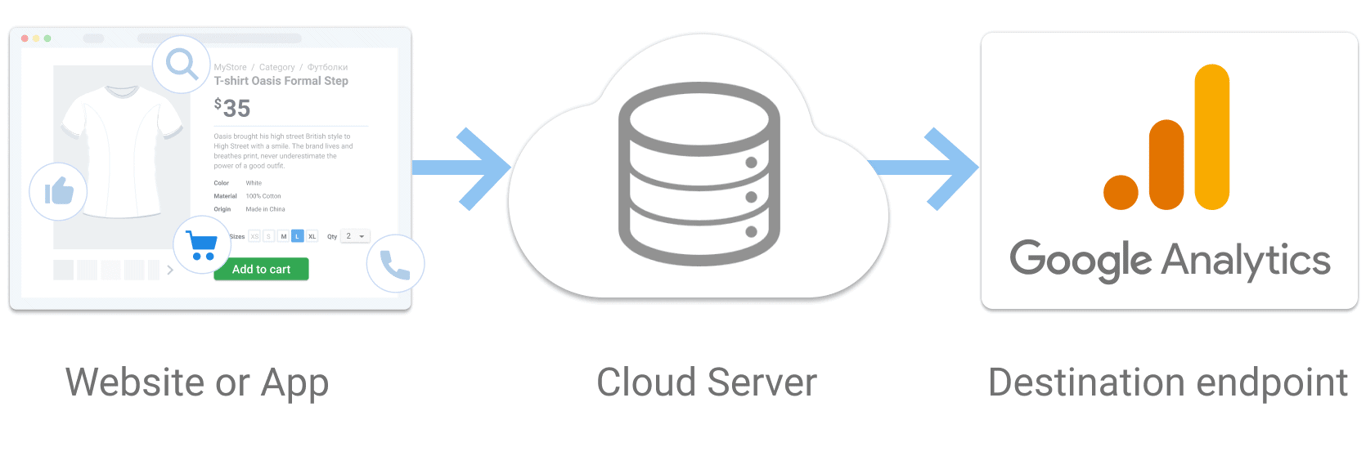
Advantages of GTM Server-side Tracking
- Business Logic Concealment: Server-side tracking allows you to hide the business logic of how your site interacts with third-party applications by moving it to the back end. That is, the data you transfer and the logic you use to transfer it will not be available to the user.
- Enhanced Privacy and Security: Sending data to third-party systems does not depend on the user’s browser since requests to those systems are made from your server, where you decide what is sent.
- Secure Data Transmission: This tracking method is more secure, which means you can supplement user data collected on the client side with the necessary information without the risk of disclosure.
- Compliance with Data Protection Regulations: You have full control over the data that will be sent to third-party systems, enabling you to comply with existing GDPR, CCPA, and CSP requirements.
- Importance of Custom Subdomain Setup: Setting up a custom subdomain for GTM server-side tagging is crucial. It helps mitigate cookie restrictions like ITP by ensuring cookies are set on your own domain. This setup involves technical steps such as adding and verifying custom subdomains for GTM server containers, often using services like Stape.
To avoid sending data to Google Analytics, you can use Google Analytics 4 RawData to BigQuery Tag, which forwards Google Analytics 4 events to a Google BigQuery table. The tag is in Google’s Community Template Gallery, published by OWOX and last updated on February 12, 2025 (checked October 2026).
When you do not need it. If sending events to Google Analytics is acceptable for your organisation, GA4’s own BigQuery export is the simpler route: it needs no server container, and it is covered in connecting GA4 to BigQuery. Use the server-side tag when the requirement is that events do not go to Google Analytics.
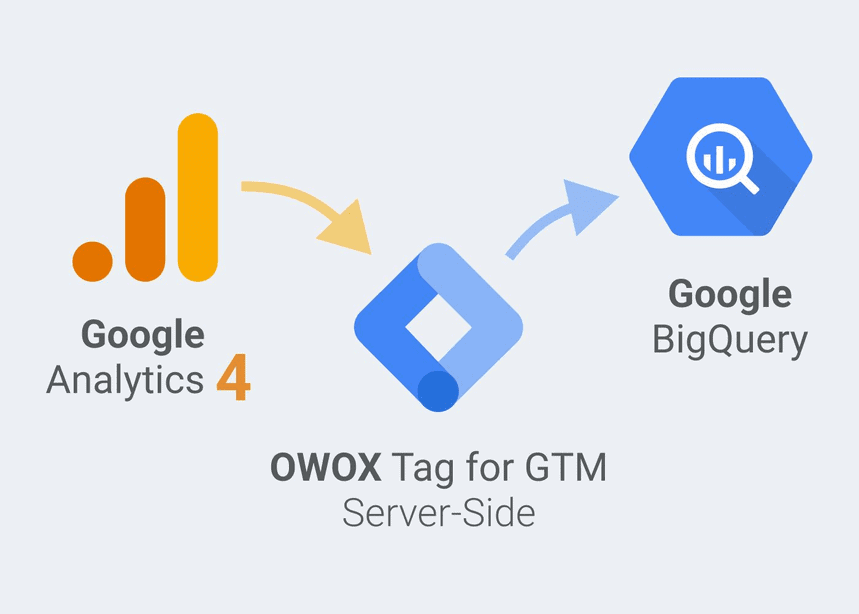
Advantages of the OWOX Tag for Server-side GTM
Google Analytics 4 RawData to BigQuery Tag is free. Anyone who uses server-side GTM can install it and get the following benefits of server-side tagging:
- Control over where the data goes. With this tag you can configure server-side GTM so that events are not sent to Google Analytics at all and are written directly to a BigQuery dataset in the location you choose. Whether that setup meets your obligations under the GDPR depends on the rest of your processing, and is a question for your data protection officer.
- One-time setup. The tag only needs to be configured once. No need to go to settings and change the table structure in GBQ every time you add new GA4 events/parameters in site markup.
- Real-time data. Data is sent to GBQ in real time – no need to wait for a scheduled export.
- No restrictions. For example, you won’t run into the known 1 million hits per day limit that applies to native uploads from the free version of GA 4 to GBQ.
- The tag is free and available to anyone using GTM server-side tracking.
- Measurement Protocol. The measurement protocol can be used to handle measurement data from different devices and prevent spam, ensuring accurate and reliable data collection.
How to Set Up the Collection of Raw Data from Google Analytics 4 to BigQuery with the Google Analytics 4 RawData to BigQuery Tag
How to Set Up the Collection of Raw Data from Google Analytics 4 to BigQuery with the Google Analytics 4 RawData to BigQuery Tag
You can use Google Analytics 4 RawData to BigQuery Tag if you have enabled Google Analytics 4 and configured GTM as the server-side tag manager for GA4 events. By utilizing the web container, you can configure tags, triggers, and variables for tracking with GTM. With this tag, you will get raw Google Analytics 4 data after each addition of a new event in the site markup, without first setting up a schema in BigQuery.
How to Add the Google Analytics 4 RawData to BigQuery Tag
Let’s explore the initial steps to integrating Google Analytics 4 with Google BigQuery. Follow these steps to lay the groundwork for detailed analytics and deeper insights from your GA4 data.
Step 1: Create an appropriate table in your Google BigQuery
a) Create a dataset in a GBQ project:
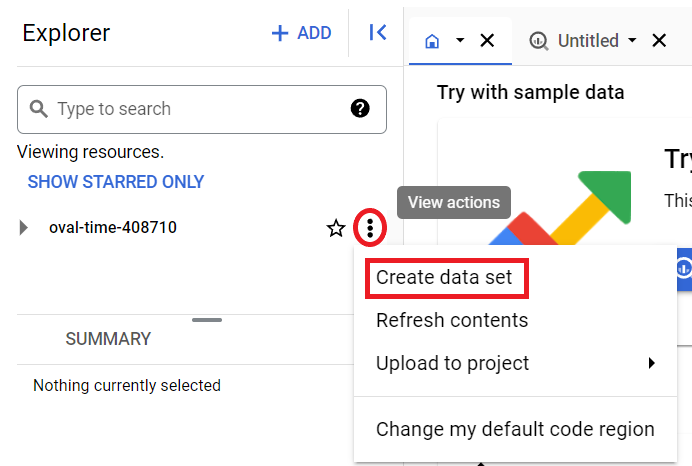
b) Choose a location Type:
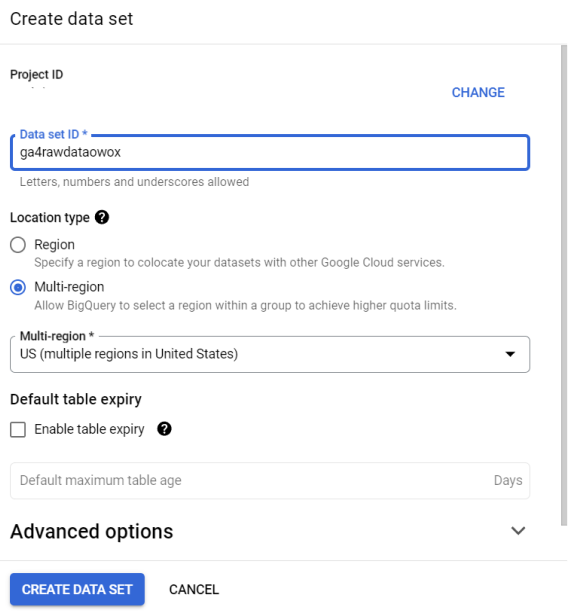
c) Create a table with the following schema:
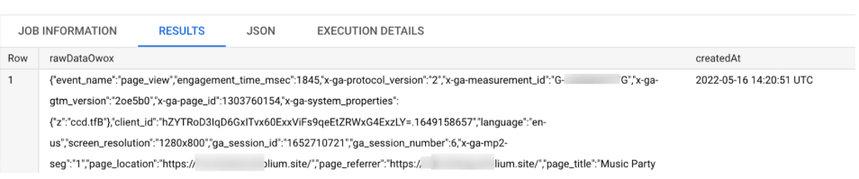
rawDataOwox
- Type: STRING
- Mode: REQUIRED
createdAt
- Type: TIMESTAMP
- Mode: REQUIRED
The fastest way is to run the SQL code below in GBQ:
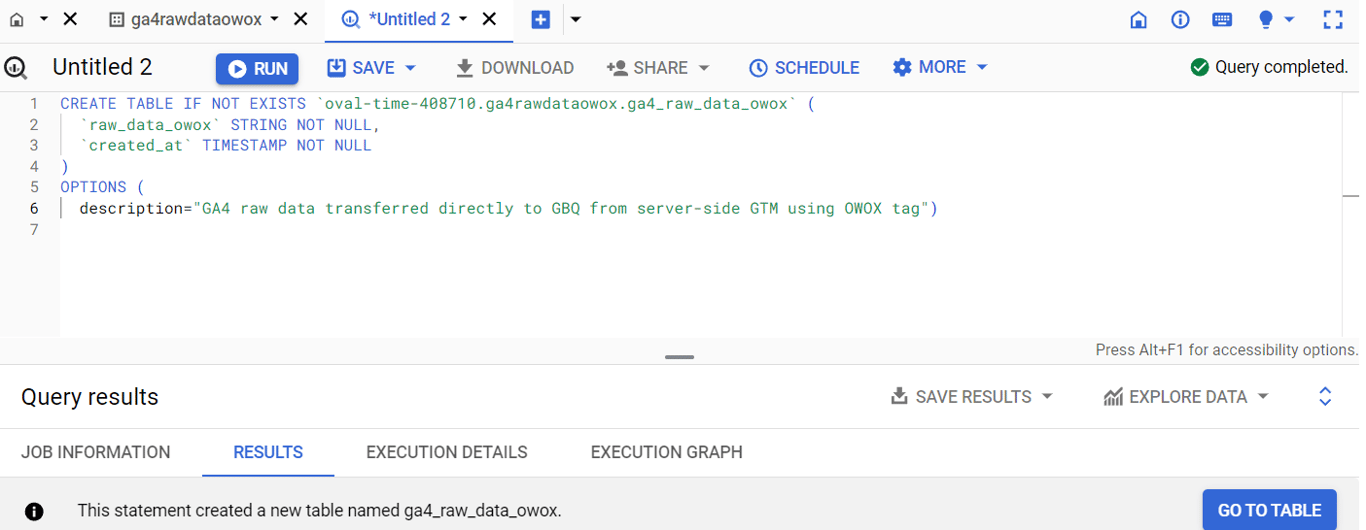
Note: In this SQL code example, you need to replace [project_name].[dataset_name] with the actual project and dataset names.
Step 2: Add the tag from the templates to your workspace
We’ve added the OWOX Tag to our Templates Gallery. You can now easily find it and add it to your Workspace with just a few steps.
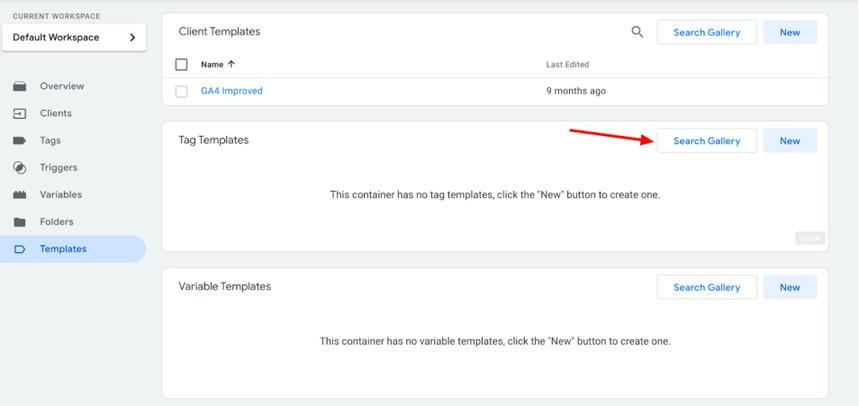
a) Go to Templates → Tag Templates → Search Gallery in your server-side GTM container:
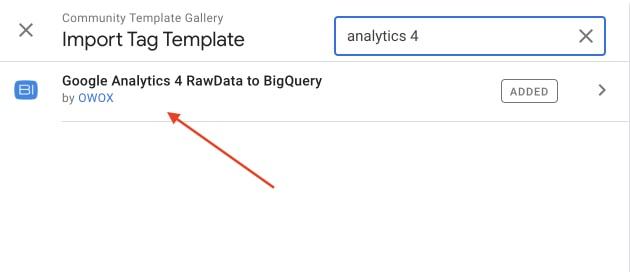
b) Find and choose the tag:
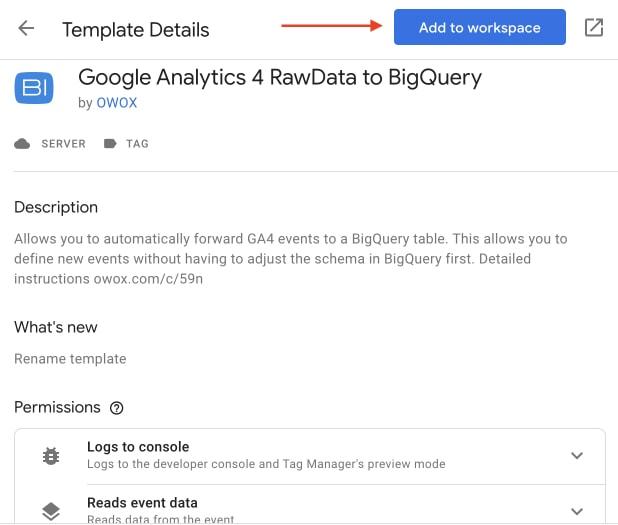
3. Add it to your workspace:
Step 3. Add the tag
Go to Tags and add this tag. Choose a trigger and set the path to your table in GBQ.
Note: Check the checkbox “Enable logging” only for debugging.
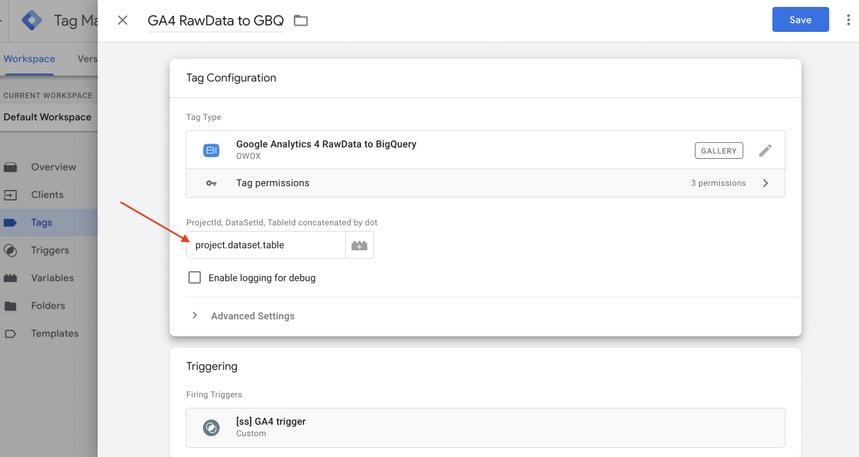
As long as your server container runs in the same GCP project with the BigQuery table, you’re all set. You don’t need to do anything in terms of authentication, as the default service account of App Engine has complete access to any BigQuery tables added to the project.
Step 4. Publish the container with a new tag
Submit and Publish the changes, then test the flow in Preview mode. If everything is correct, you’ll see Google Analytics 4 RawData to BigQuery Tag under Tags Fired:
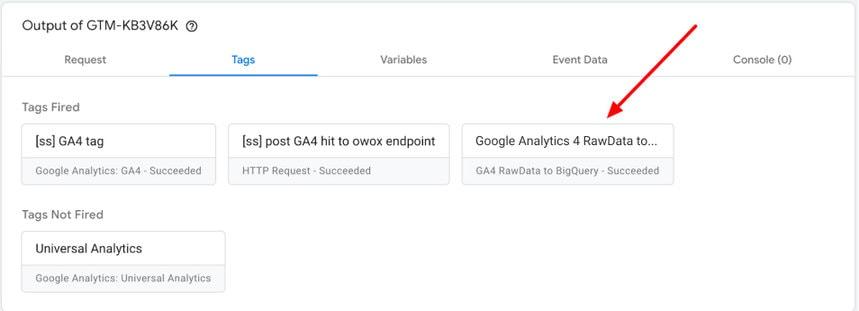
And you will see the data in the Google BigQuery table:
How to Use This Data
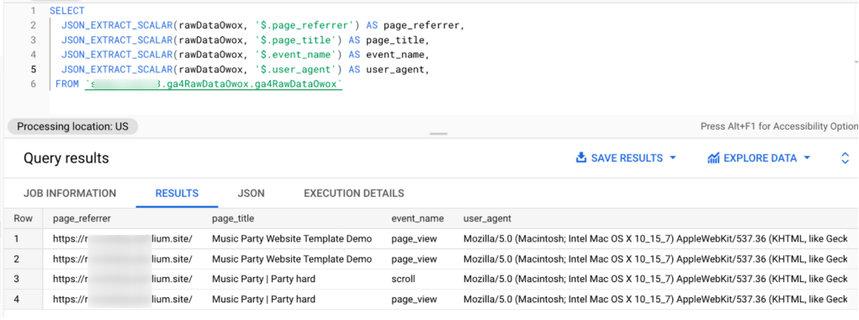
Write SQL code to use this data in a convenient structure for your reports.
Example:
Turn your data into decisions.
Governed data marts give you the clean foundation ML needs to actually work.
- No AI hallucinations
- Analyst-governed definitions
- Every number traces to SQL