All resources

How to Load Microsoft Ads Data into Snowflake with OWOX Data Marts

Microsoft Ads reporting supports campaign optimization inside the platform, but it becomes restrictive when teams need cross-channel analysis, revenue alignment, or long-term performance visibility. Native dashboards and manual exports make it difficult to standardize definitions, reconcile spend across channels, or connect paid search activity to downstream business outcomes.

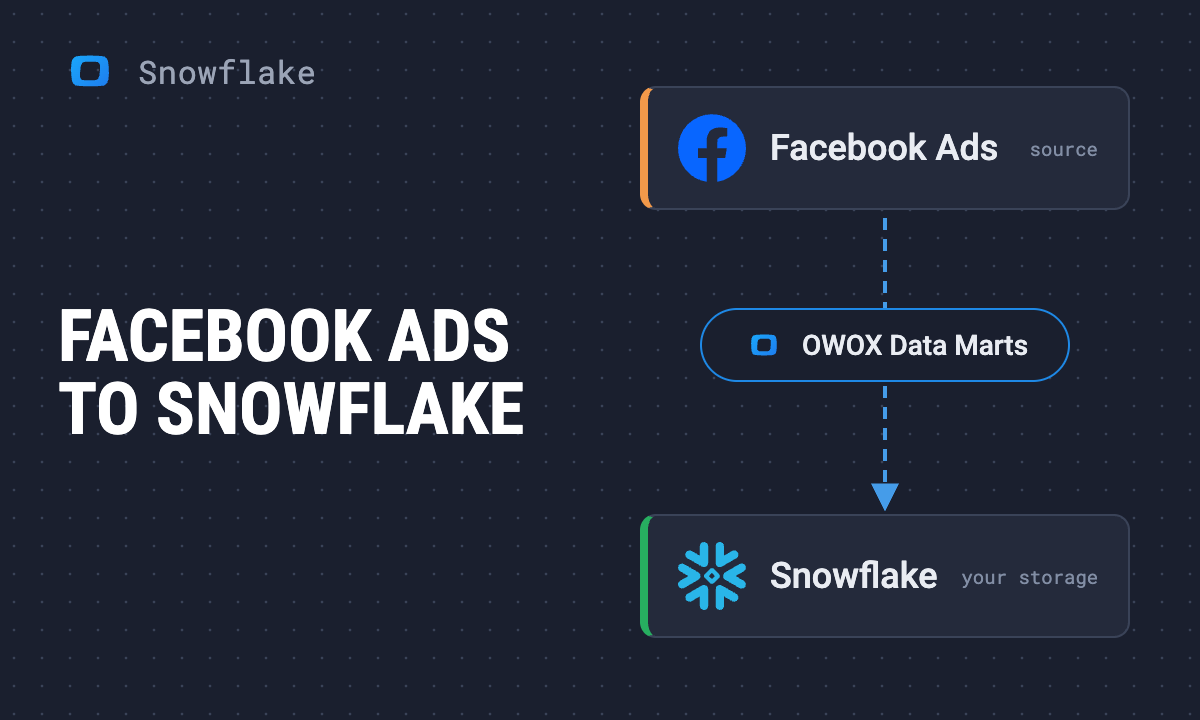
OWOX Data Marts allows you to collect Microsoft Ads data into Snowflake Data Warehouse. i-radius

By centralizing Microsoft Ads data inside Snowflake and modeling it into a standardized data mart, teams can eliminate repeated spreadsheet logic, align KPI definitions across stakeholders, and build reporting that scales with complexity. Instead of rebuilding transformations in every dashboard, the warehouse becomes the single source of truth for paid search analytics. Try OWOX Data Marts now.

What You’ll Build in This Guide

By the end of this guide, you will have:

  • Automated Microsoft Ads → Snowflake Ingestion – A scheduled pipeline that continuously syncs Microsoft Ads performance data into your Snowflake environment.
  • A Standardized Microsoft Ads Data Mart – A modeled, governed reporting layer with consistent metrics, dimensions, and business logic reusable across dashboards and teams.
  • Unified Paid Search Reporting Across Channels – Blended views that align Microsoft Ads with other paid platforms inside Snowflake for cross-channel performance analysis.
  • Attribution-Ready and ROAS-Ready Datasets – Structured tables that support segmented ROAS, CPA, funnel analysis, and region-level performance reporting.
  • Revenue and Profitability-Linked Performance Views – Data models that connect Microsoft Ads spend to CRM, billing, or backend revenue tables for deeper ROI evaluation.
  • A Governed Reporting Layer Ready for BI and AI Tools – Curated Snowflake data marts that Google Sheets, Looker Studio, dashboards, and AI workflows can query safely and consistently.

Throughout this tutorial, you’ll see how a Microsoft Ads data mart inside Snowflake standardizes transformations, centralizes governance, and simplifies downstream reporting.

The high-level flow is:

  1. Authorize Microsoft Ads access through OWOX Data Marts.
  2. Configure Snowflake as your governed storage layer.
  3. Create and publish a standardized Microsoft Ads data mart.
  4. Run and schedule incremental or historical loads into Snowflake.
  5. Re-use the modeled data mart for reporting, cross-channel analysis, and AI-driven insights.
OWOX Data Marts interface showing an Activation Report built on top of Microsoft Ads data in Snowflake, with governed data marts feeding dashboards, spreadsheets, and AI-driven insights across multiple destinations.

Why Move Microsoft Ads Data into Snowflake?

Microsoft Ads reporting is effective for platform-level analysis, but limitations appear when analytics expands beyond individual accounts.

Common challenges include:

  • Limited historical depth inside the UI
  • Manual reconciliation across paid channels
  • Inconsistent metric definitions between tools
  • Difficulty tying spend to CRM or product revenue
  • Repeated transformation logic across dashboards

Moving Microsoft Ads data into Snowflake enables:

  • Centralized warehouse storage
  • Flexible SQL-based modeling
  • Consistent KPI definitions
  • Integration with BI tools, Google Sheets, and AI workflows

This approach shifts reporting from isolated platform dashboards to governed warehouse-driven analytics.

Why Not DIY ETL or Native Microsoft Ads Reporting?

Microsoft Ads reporting works for platform-level optimization, but limitations appear once analytics expands beyond individual accounts.

Common challenges include:

  • Limited historical depth inside the UI
  • Manual reconciliation across paid channels
  • Inconsistent metric definitions between tools
  • Difficulty tying spend to CRM or product revenue
  • Repeated transformation logic across dashboards

Basic ingestion scripts or one-off connectors may move Microsoft Ads data into Snowflake, but raw tables alone do not create trusted reporting. The real challenge is transforming campaign, keyword, and conversion data into standardized datasets that teams can rely on.

Why a Data Mart–First Approach Works Better

A structured Microsoft Ads data mart inside Snowflake ensures:

  • Standardized definitions of spend, clicks, conversions, and ROAS
  • Consistent campaign and keyword hierarchies across accounts
  • Clear separation between raw ingestion tables and reporting-ready views
  • Normalized dimensions for device, region, and account structure
  • Reusable reporting views for dashboards, Google Sheets, Looker Studio, and AI workflows

Instead of embedding KPI logic across multiple dashboards, the Microsoft Ads data mart centralizes definitions inside Snowflake. Dashboards, spreadsheets, and AI systems all query the same modeled layer, reducing discrepancies and duplicated logic.

Microsoft Ads Connector to Snowflake

Architecture Overview: Microsoft Ads to Snowflake

The Microsoft Ads to Snowflake flow follows three distinct stages.

Extraction

Microsoft Ads campaign, ad group, keyword, and conversion data are retrieved through the official API on a scheduled basis.

Loading

Raw Microsoft Ads data lands in Snowflake tables that reflect the source structure, preserving full granularity for validation and troubleshooting.

Re-Using

On top of raw tables, a structured Microsoft Ads data mart is built to:

  • Standardize spend, impressions, clicks, and conversions
  • Align campaign and keyword hierarchies
  • Publish reporting-ready views for BI and AI tools

This layered architecture separates ingestion from modeling and modeling from consumption.

What You Need Before You Start

Before connecting Microsoft Ads to Snowflake, confirm that the required access and infrastructure are prepared.

Snowflake Access

You should have:

  • A Snowflake warehouse for marketing workloads
  • A database and schema for Microsoft Ads ingestion
  • A technical user with appropriate privileges
  • Role-based access control is configured

Microsoft Ads Account Access

You will need:

  • Access to Microsoft Advertising accounts
  • Permission to relevant ad accounts
  • API authorization capability
  • Ability to authenticate and refresh credentials

Once these prerequisites are confirmed, you are ready to proceed.

What Data Lands in Snowflake

After the Microsoft Ads connector runs, data lands in Snowflake in two structured layers: a raw ingestion layer that mirrors the Microsoft Advertising API structure, and a modeled Microsoft Ads data mart layer designed for reporting and analysis.

Understanding this separation is critical. Raw tables preserve full campaign, ad group, and keyword granularity. At the same time, the Microsoft Ads data mart standardizes metrics and prepares the data for reuse across dashboards, SQL queries, Google Sheets, Looker Studio, and AI workflows.

Raw Tables

These tables mirror the Microsoft Advertising API structure and typically include:

  • Campaign metadata
  • Ad group configuration
  • Keyword-level data
  • Device and network dimensions
  • Performance metrics such as impressions, clicks, cost, conversions, and revenue

They preserve source-level granularity and are primarily used for validation, reconciliation, and transformation logic.

Data Marts (Analytics Layer)

On top of raw tables, the Microsoft Ads data mart provides:

  • Daily reporting grain
  • Standardized metrics such as impressions, clicks, cost, conversions, CPC, CPA, CTR, and ROAS
  • Normalized campaign, ad group, and keyword hierarchies
  • Reporting-ready views aligned with cross-channel paid search models

This analytics layer becomes the stable foundation for dashboards, cross-engine search reporting, attribution analysis, and AI-driven insights.

Step 1: Connect Snowflake as Your Storage in OWOX Data Marts

The first step in your Microsoft Ads → Snowflake pipeline is to configure Snowflake as your primary storage inside OWOX Data Marts. This connection is created once and reused across all data marts, including the one that will ingest Microsoft Ads data.

Creating a Snowflake connection in OWOX Data Marts

First, you’ll tell OWOX how to reach your Snowflake account and which credentials to use.

1. Log in to OWOX Data Marts

2. Go to the data storages

  • In the OWOX Data Marts interface, open the Storages section
  • Then click “+ new storage”.
OWOX Data Marts interface showing the Storages section with the “New Storage” button selected to add a Snowflake warehouse connection for Microsoft Ads data ingestion. i-shadow

3. Select Snowflake as the storage type

  • From the list of available destinations, choose Snowflake.
  • This opens the Snowflake configuration form, where you’ll enter connection parameters.

4. Enter Snowflake connection details

Provide the required connection parameters:

  • Account Locator and Account Identifier (for example, mycompany-xy12345.eu-central-1)
  • Warehouse Name (for example, WH_MARKETING_ANALYTICS)

These define where Microsoft Ads raw data and data marts will be created.

 Snowflake connection configuration form inside OWOX Data Marts showing fields for account locator, identifier, and warehouse used for loading Microsoft Ads data into Snowflake. i-shadow

5. Choose an authentication method

OWOX supports two authentication approaches:

  • Password-based (username + password)
  • Key-based (requires admin permissions)

Enter:

  • A Snowflake username (a dedicated technical user is recommended)
  • The corresponding password or private key credentials
  • Click ‘Save’

Using a dedicated technical user ensures controlled permissions and easier auditing.

Authentication settings panel in OWOX Data Marts showing Snowflake username and password or key-based authentication options for secure Microsoft Ads data loading. i-shadow

Step 2: Create Microsoft Ads Data Mart

With Snowflake connected, the next step is to create a Microsoft Ads data mart inside OWOX Data Marts. This is where you authorize access, choose what accounts and fields to ingest, and publish a governed dataset in Snowflake that’s ready for reporting, blending, and automation.

Authorizing  Ads and Choosing Accounts

OWOX uses Microsoft’s authorization flow to securely connect to your ad accounts. You’ll need access to the relevant Microsoft Business Center or ad accounts.

  • In the OWOX UI, go to '+ New Data Mart'.
  • Give the data mart a clear title, for example, 'Microsoft Ads Analytics Report'.
  • Select Snowflake as the Data Storage.
  • Click 'Create Data Mart'.

OWOX Data Marts interface showing the Create Data Mart form with Snowflake selected as storage for Microsoft Ads data.  i-shadow

Configure Data Mart

  • Select 'Connector' as an 'Input Source'
  • Choose 'Microsoft Ads' as the 'Connector'
OWOX Data Marts connector selection screen showing Microsoft Ads chosen as the input source for a Snowflake data mart. i-shadow  i-radius
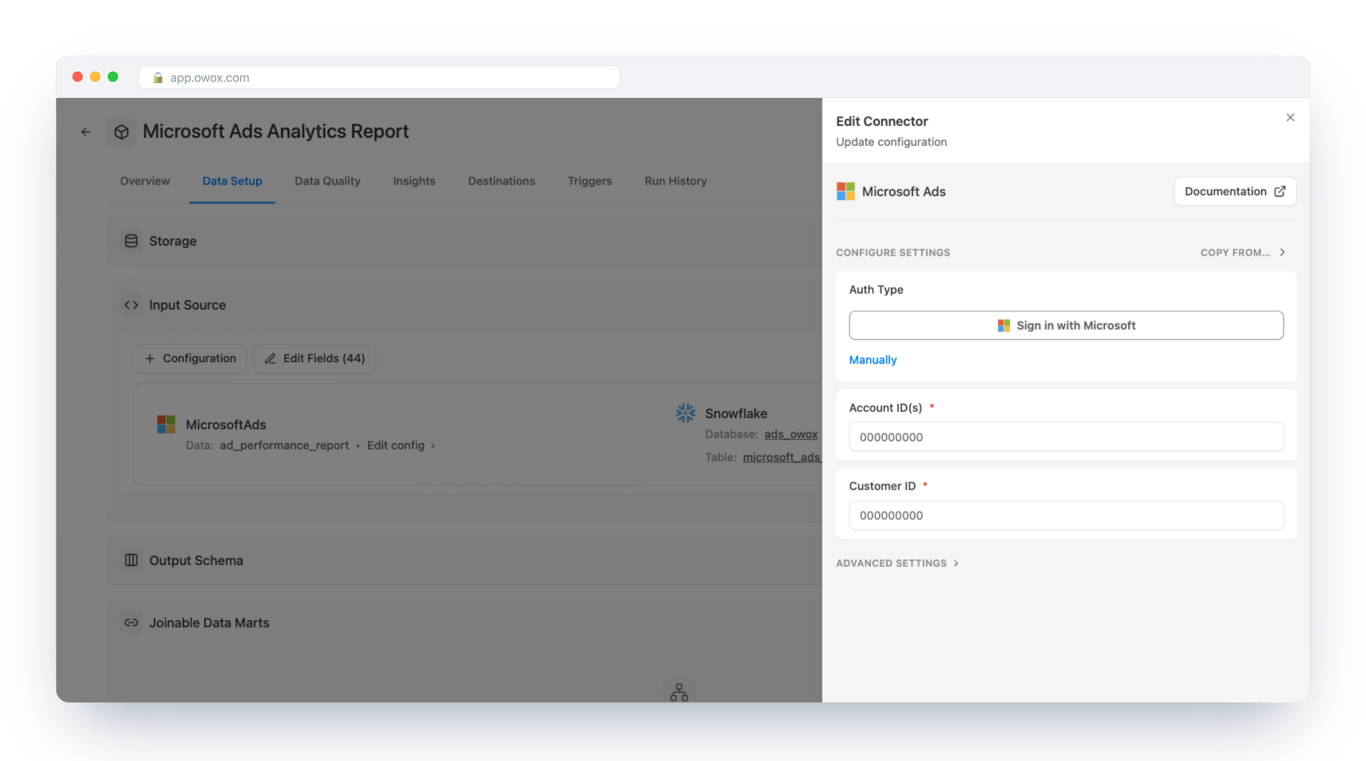
  • Authorize using OAuth (you'll be redirected to Microsoft's login and permissions screen)
  • Log in with a user that:
  1. Has access to all Microsoft Ads accounts you want to ingest.
  2. Has read access to campaign and performance data.
  • Add your Microsoft Ads Account ID(s) and click Next.
Microsoft OAuth authorization screen in OWOX Data Marts, prompting the user to grant access to Microsoft Ads accounts. i-shadow  i-radius
  • Select the performance API endpoint with the campaign, ad group, keyword, or ad-level data
  • Click 'Next'
Microsoft Ads account selection and reporting endpoint configuration inside OWOX Data Marts. i-shadow  i-radius
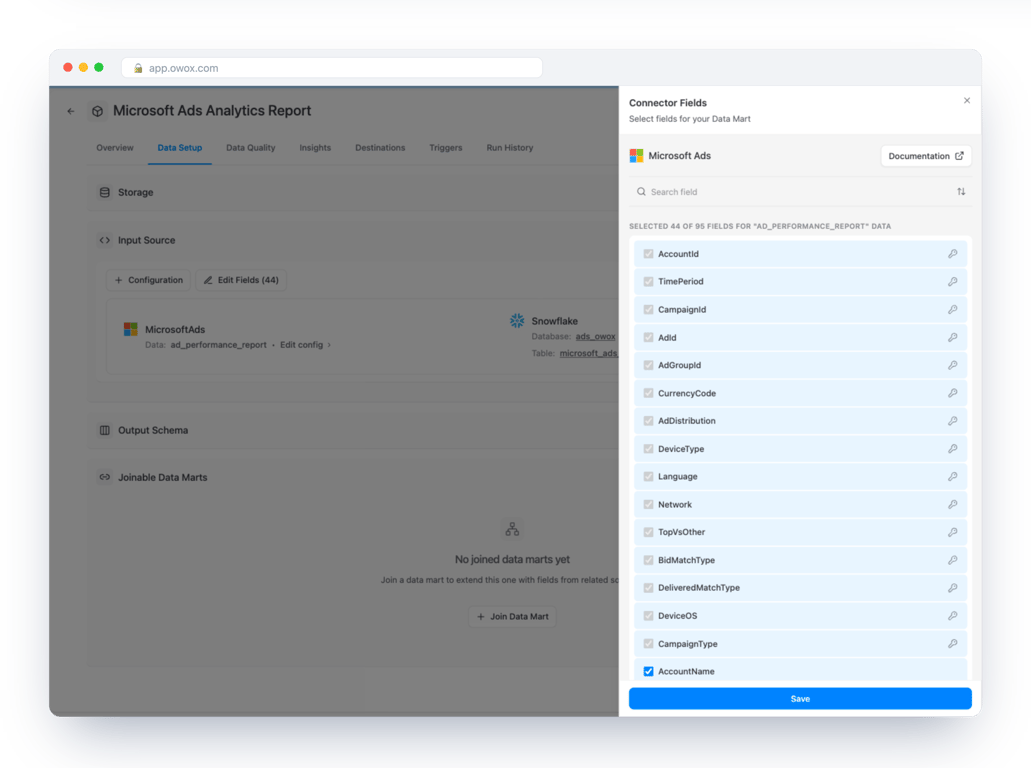
  • Select the fields you want to collect – metrics such as impressions, clicks, cost, conversions, and conversion value.
  • Click 'Next'
Field selection screen in OWOX Data Marts showing Microsoft Ads metrics like impressions, clicks, cost, and conversions selected for ingestion. i-shadow i-radius
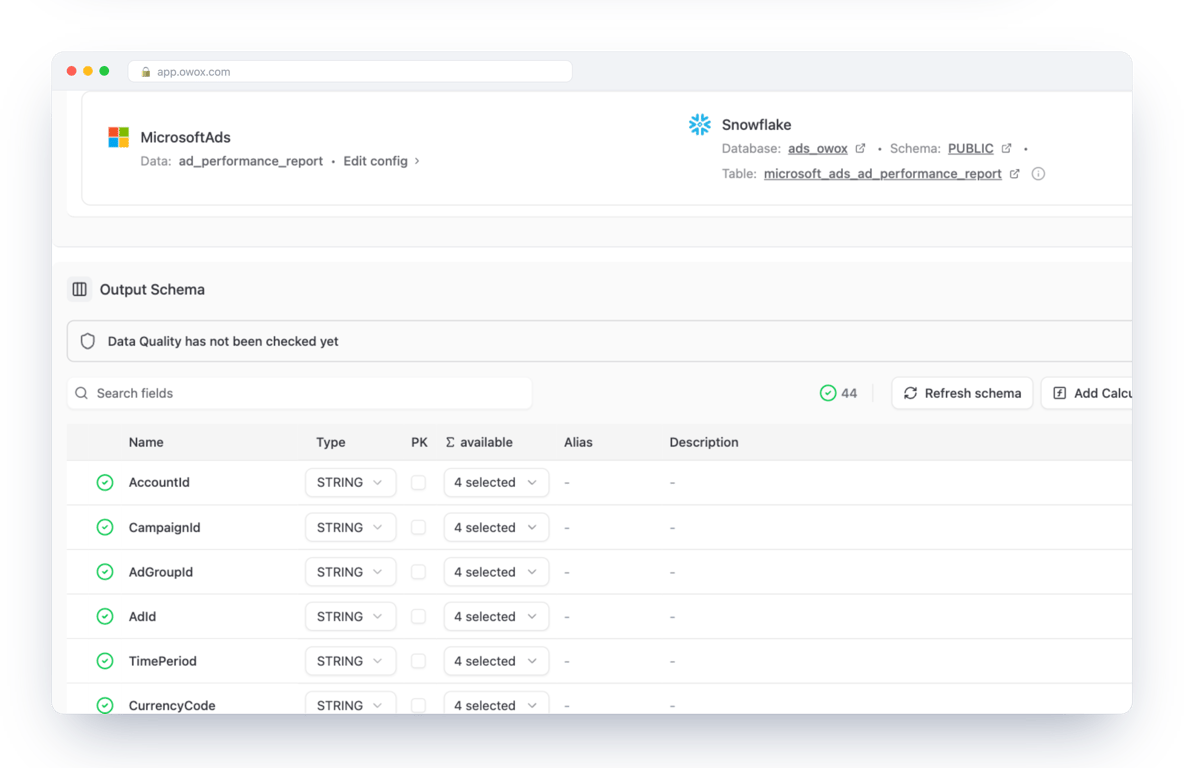
  • Select your storage details like Database, Schema, and Table.
  • You can keep the defaults – the table will be created automatically.
  • Click 'Save'
  • Then click 'Publish the Data Mart’
Snowflake destination configuration in OWOX Data Marts showing database, schema, and table setup for Microsoft Ads data loading. i-shadow i-radius

Common Pitfalls & Tips

  • Ensure the Microsoft Advertising account has proper access permissions for all accounts you plan to ingest.
  • Confirm API authorization is granted for each required account before configuring the data mart.
  • If account access changes or credentials are updated, re-authentication may be required in OWOX.
  • Verify that the Snowflake technical user has sufficient privileges to create tables and views.

Addressing these items early prevents ingestion errors and avoids failed connector runs later in the setup process.

Run Your Connector

It’s time to do the first pull to confirm that data is flowing correctly. OWOX connects to the Microsoft Ads API and lets you control what gets loaded into Snowflake.

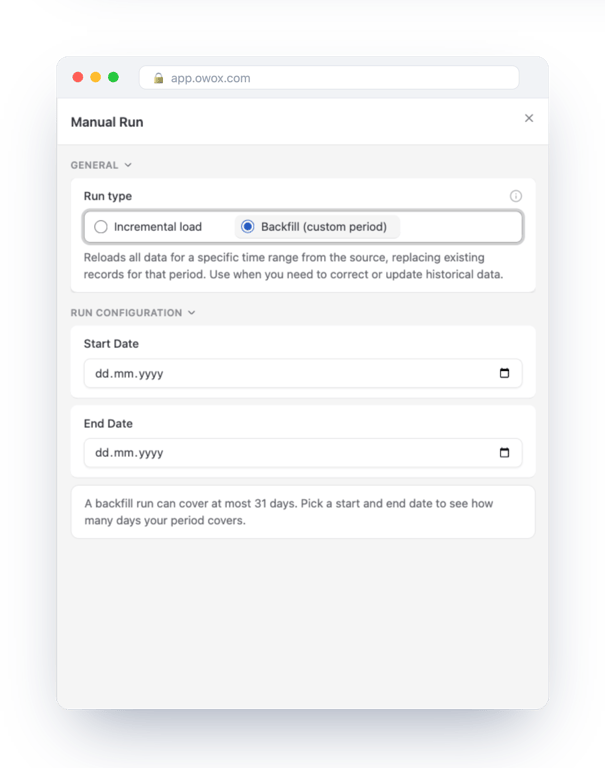
  • Click on the 'Manual Run' button
  • You'll see two options: Incremental or Backfill
OWOX Data Marts interface showing Manual Run option for a Microsoft Ads data mart connected to Snowflake. i-shadow i-radius

Historical backfill

You decide how far back to load data. Use Backfill if this is your first run, and select the historical window you need.

You can choose 3 days, 7 days, 365 days, or multiple years.

Recommendations:

  • For an initial setup, 90 days is often a practical balance between historical context and load time.
  • If migrating from another system, consider a full fiscal year if you rely on year-over-year comparisons.
  • Be mindful of API rate limits and data volume, especially for large or MCC-managed accounts.
Manual run configuration panel in OWOX Data Marts showing backfill option for Microsoft Ads data loading.  i-shadow

Incremental load

To handle late conversions and attribution updates, OWOX supports a rolling lookback window.

Example configuration:

  • On every run:
  1. Pull data for today + last 2 days.
  2. Overwrite those days in Snowflake.

This ensures:

  • Recent performance data remains accurate.
  • You avoid reprocessing the entire historical dataset each time.
Manual run configuration panel in OWOX Data Marts showing incremental option for Microsoft Ads data loading. i-shadow

Scheduling

Microsoft Ads data updates daily – and sometimes retroactively as conversions are attributed or adjusted. You’ll want to configure a schedule for ongoing updates and monitoring.

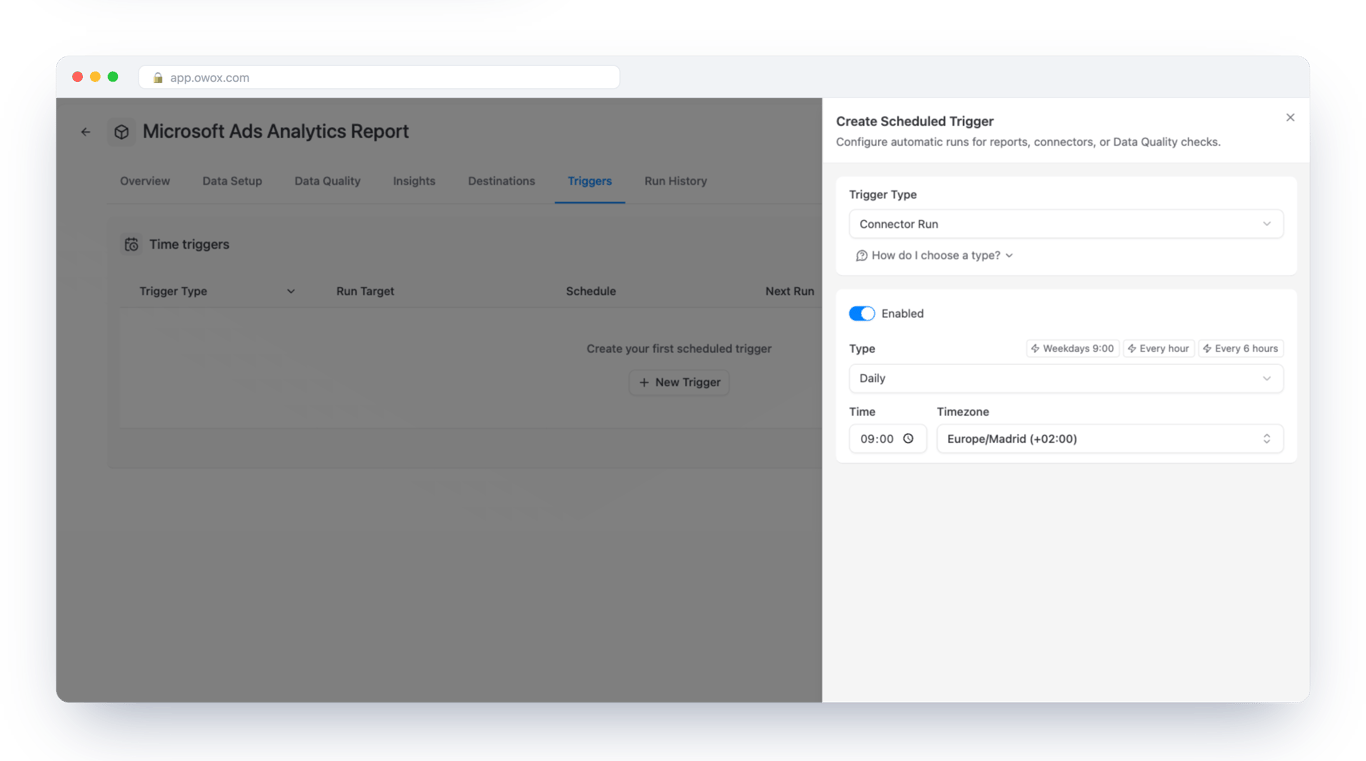
Go to the Triggers tab:

  • Select Connector Run as a Trigger Type.
  • Then configure Frequency:
    1. Daily (e.g., every night at 02:00) for most reporting needs.
    2. Intra-day (e.g., every 4 hours or every 15 minutes) if you need near-real-time visibility.
  • Align the time zone with your business reporting timezone (for example, the Microsoft Ads account timezone).
  • Click ‘Create Trigger’ to activate the schedule.
Scheduled trigger configuration in OWOX Data Marts showing Connector Run frequency and timezone setup for automated Microsoft Ads data refresh in Snowflake. i-shadow i-radius

Connector Meta Data

With OWOX Data Marts, you can document your Microsoft Ads data mart to keep it organized and easier to manage over time.

Go to the Overview tab and add a clear Description that explains:

  • What the Microsoft Ads data mart contains (e.g., campaign, ad group, and keyword performance data)
  • The reporting grain (daily reporting level across campaigns and keywords)
  • Who owns or maintains the Microsoft Ads reporting layer
  • Any important modeling notes, such as KPI definitions or cross-channel alignment logic

This step is optional – but documenting your Microsoft Ads data marts improves collaboration and makes long-term maintenance significantly easier.

Overview tab in OWOX Data Marts showing the Description field used to document a Microsoft Ads data mart configuration and ownership details. i-shadow i-radius

Control

Go to the Run History tab to monitor every execution of your Microsoft Ads data mart, covering both connectivity and data processing.

You can review:

  • Run status (success, running, failed)
  • Start and end time
  • Execution duration
  • Number of rows processed
  • Error details (e.g., expired credentials, permission issues, API limits)

If a run fails, open the logs to identify the issue and re-run the connector after resolving it.

Run History tab in OWOX Data Marts showing execution status, row counts, timestamps, and detailed logs for a Microsoft Ads data mart run.  i-shadow

Data Marts Best Practices

When setting up a new Microsoft Ads data mart, follow these simple rules:

  • Start with a smaller subset (for example, one account or campaign) and a limited set of fields to validate structure and completeness.
  • Add all active Microsoft Ads accounts only after you confirm the configuration works as expected.
  • Expand fields gradually using ’+ Fields’ so your Snowflake schema updates cleanly.
  • Add a clear description once setup is complete to document ownership and reporting scope

Step 3: Re-Use Microsoft Ads Data Mart for Reporting

With a governed Microsoft Ads data mart live in Snowflake, you can move beyond platform dashboards and manual exports. The data mart becomes a stable, reusable reporting layer for spreadsheets, BI tools, and cross-channel analysis. Instead of rebuilding logic in every dashboard, you centralize definitions once and reuse them everywhere.

Now, you can:

  • Connect Google Sheets and Looker Studio directly to your Microsoft Ads data mart
  • Blend Microsoft Ads with other paid search platforms inside Snowflake
  • Run attribution, ROAS, and profitability analysis using consistent KPI logic

The goal is to make the Microsoft Ads data mart the default source of truth for paid search performance.

Connecting Google Sheets and Looker Studio to Your Data Mart

You don’t need to change reporting tools to benefit from Snowflake modeling. As long as a tool can connect to Snowflake, it can query the Microsoft Ads data mart in real time, using standardized metrics and dimensions.

Microsoft Ads Report in Google Sheets

To use Google Sheets for reporting:

  • Go to the Destinations tab in OWOX Data Marts
  • Connect Google Sheets as a destination
  • Create a new report and provide the sheet URL
  • Configure the refresh schedule
Google Sheets automatically refreshed from Snowflake using a Microsoft Ads data mart as the reporting source. i-shadow i-radius

This allows marketers to access live Microsoft Ads performance data in spreadsheets without manual CSV exports.

Best practices:

  • Use read-only data tabs for synced output
  • Separate reporting logic into additional tabs
  • Document that the Microsoft Ads data mart powers the sheet

Connecting Looker Studio

Connecting Looker Studio to OWOX Data Marts is pretty simple. In the OWOX Data Marts UI, navigate to Destinations in the main navigation pane, then click + New Destination.

  • Select Looker Studio from the Destination Type dropdown.
  • Provide a Title – a unique name for this Destination (e.g., “Looker Studio Access (Marketing Team)”).
  • Click Save.
  • Then open it again and follow the instructions from Looker Studio.
 Looker Studio dashboard connected to Snowflake Microsoft Ads data mart showing standardized cost, ROAS, and CPA metrics. i-shadow

Example Analytics Use Cases for Microsoft Ads Data

Once your Microsoft Ads data mart is live in Snowflake, the real value comes from combining it with other warehouse data, such as CRM records, backend revenue, and additional paid search platforms.

Because everything is modeled inside Snowflake, you can:

  • Build cross-channel reporting without duplicating data
  • Apply consistent metric definitions across search engines
  • Align Microsoft Ads spend directly with revenue and profitability

Below are practical analysis patterns you can implement using the Microsoft Ads data mart built into OWOX Data Marts.

1. Cross-Channel Paid Search and Performance Reporting

Microsoft Ads rarely operate in isolation. Most teams compare it with Google Ads and other paid channels to understand performance differences across campaigns and markets.

Inside Snowflake, you can:

  • Align Microsoft Ads campaign and keyword structures with other platforms
  • Normalize channel definitions and naming conventions
  • Build unified paid search views with shared dimensions such as report_date, channel, campaign_name, and device

This enables consistent comparison of impressions, clicks, cost, conversions, CPA, and ROAS across paid channels using a single reporting layer.

Unifying Microsoft Ads and Google Ads for Paid Search Reporting

To compare performance across search engines, you can harmonize Microsoft Ads and Google Ads data marts into a shared schema. By aligning dimensions and metric columns, Snowflake becomes a single reporting layer for all paid search activity.

Unify Microsoft Ads and Google Ads into a shared schema:

1SELECT 
2date3'microsoft_ads' AS search_engine, 
4account_id, 
5campaign_id, 
6campaign_name, 
7ad_group_id,
8ad_group_name,
9keyword_text,
10device, 
11country,
12impressions,
13clicks, 
14cost, 
15conversions, 
16revenue
17FROM MART_MICROSOFT_ADS_DAILY
18UNION ALL
19SELECT 
20date21'google_ads' AS search_engine, 
22account_id,  
23campaign_id, 
24campaign_name,  
25ad_group_id, 
26ad_group_name, 
27keyword_text, 
28device, 
29country,
30impressions,  
31clicks, 
32cost, 
33conversions, 
34revenue
35FROM MART_GOOGLE_ADS_DAILY;

Creating a Unified Paid Search Reporting View

Once Microsoft Ads and Google Ads data marts are harmonized, you can create a final paid search reporting view that aggregates performance across engines and standardizes derived KPIs at the blended layer.

Derived KPIs are calculated at the blended view level, so definitions stay consistent across both search engines:

CREATE OR REPLACE VIEW MART_PAID_SEARCH_DAILY AS

1SELECT 
2date3search_engine, 
4account_name,  
5campaign_name, 
6ad_group_name, 
7keyword_text,  
8device, 
9country, 
10SUM(impressions) AS impressions, 
11SUM(clicks)      AS clicks, 
12SUM(cost)  AS cost, 
13SUM(conversions) AS conversions, 
14SUM(revenue)     AS revenue,  
15SUM(cost) / NULLIF(SUM(clicks), 0)        AS cpc, 
16SUM(cost) / NULLIF(SUM(conversions), 0)   AS cpa, 
17SUM(clicks) / NULLIF(SUM(impressions), 0) AS ctr, 
18SUM(revenue) / NULLIF(SUM(cost), 0)       AS roas
19FROM MART_PAID_SEARCH_UNIONED
20ROUP BY ALL;

This view becomes the default reporting layer for paid search dashboards, engine-level ROAS comparisons, and budget reallocation decisions across Microsoft Ads and Google Ads.

2. Attribution and ROAS Analysis by Campaign, Keyword, and Region

Platform-reported ROAS often reflects default attribution models. With Microsoft Ads data in Snowflake, you can apply consistent attribution logic across channels.

You can:

  • Define attribution windows centrally in SQL
  • Maintain multiple attribution models if needed
  • Segment performance by campaign, keyword, audience, or region

Using standardized metrics from the Microsoft Ads data mart, you can calculate:

  • ROAS = attributed_revenue / cost
  • CPA = cost / attributed_conversions

These views support optimization decisions at the campaign and keyword level while preserving consistent definitions across reports.

OWOX Data Marts interface showing a Snowflake SQL view calculating standardized ROAS, CAC, and CTR metrics for Microsoft Ads alongside other paid channels.

3. Revenue and Profitability Analysis from CRM or Backend Data

The most advanced use case connects Microsoft Ads spend to real business outcomes such as revenue, margin, or long-term customer value.

In Snowflake, you can:

  • Join Microsoft Ads performance data with CRM or billing tables
  • Map identifiers such as email, user ID, or transaction IDs
  • Attribute revenue back to campaigns and keywords

This allows you to calculate metrics such as:

  • Paid customer count
  • Revenue per customer
  • LTV to CAC ratio

By linking paid search spend to downstream revenue, you move from surface-level performance metrics to profitability-driven budgeting decisions.

Step 4: Turn Microsoft Ads Data in Snowflake into Proactive AI Insights

Once your Microsoft Ads data mart is live in Snowflake and powering reports, the next step is to make the data work for you. Instead of manually checking dashboards or waiting for performance reviews, you can configure AI-driven insights that continuously monitor performance, detect anomalies, and deliver structured summaries directly to your team.

With a governed Microsoft Ads data mart in place, Snowflake becomes not just a storage layer, but an active performance monitoring system for paid search operations.

Configuring AI Insights on Top of Your Microsoft Ads Data Mart

OWOX Data Marts allows you to build AI Insights on top of modeled Microsoft Ads data that already contains standardized metrics, aligned dimensions, and documented business logic. Because the Microsoft Ads data mart is structured and consistent, AI can reliably query it without additional transformation logic.

To configure AI Insights:

  • Navigate to the Insights tab inside OWOX Data Marts.
  • Use a pre-generated prompt or create a custom prompt aligned with your paid search goals.
  • Click ‘Create Insight’.
  • Run and test the configuration.
  • Attach a delivery destination such as Slack, Microsoft Teams, or Email.

Since the business logic lives inside the Microsoft Ads data mart, prompts do not need embedded SQL complexity. The structured schema provides the necessary analytical context.

OWOX Data Marts interface showing AI insights configured on top of a Microsoft Ads data mart with ROAS and CPA performance summaries. i-shadow

Designing Prompts and Business Context for Paid Search Teams

The quality of AI insights depends on how clearly you define the analytical role, focus metrics, and business rules. For Microsoft Ads specifically, prompts should reflect paid search KPIs, budget pacing, keyword behavior, and regional targeting logic.

1. Frame the AI’s Role

Describe what the AI should analyze. For example:

“You are a paid search analyst reviewing Microsoft Ads performance for the last 7 days compared to the previous 7 days.”

Clearly defining the analytical lens ensures consistent interpretation of metrics such as spend, clicks, CPA, ROAS, and conversion volume.

2. Specify Focus Metrics and Thresholds

Tell the AI what matters for Microsoft Ads performance.

Common focus areas:

  • ROAS
  • CPA
  • Spend pacing
  • Click-through rate
  • Conversion rate
  • Spend spikes by campaign or audience

You can define triggers such as:

  • Flag campaigns where ROAS drops more than 20% week-over-week.
  • Highlight ad groups where CPA exceeds the target by 30%.
  • Identify sudden spend increases without a proportional lift in conversions.

These rules should reference standardized fields in the Microsoft Ads data mart.

3. Provide Business Context

AI insights are only as good as the business rules behind them.

When working with Microsoft Ads data in Snowflake, define a clear context, such as:

  • Target CPA or ROAS thresholds for campaigns and regions.
  • Priority markets or geographic groupings are used in reporting.
  • Campaign and keyword hierarchies are aligned with your paid search structure.
  • Budget allocation rules across accounts or campaign types.
  • Revenue validation logic when aligning Microsoft Ads data with backend systems.

Providing this context ensures AI-generated insights reflect your actual performance model, not just raw spend and conversion metrics.

4. Make Outputs Marketing-Friendly

Insights should be clear, concise, and immediately usable by paid search teams.

Ask the AI to:

  • Use plain, non-technical language.
  • Highlight significant performance changes across campaigns, ad groups, and keywords.

Separate the output into:

  1. Key performance shifts
  2. Risks or anomalies in spend, CPC, CPA, or ROAS
  3. Recommended bid, budget, or structural adjustments

Instead of raw tables or SQL outputs, the result becomes a structured performance summary that Microsoft Ads managers can review and act on quickly.

Delivering Scheduled Insights into Slack, Teams, and Email

Once Microsoft Ads insights are configured and validated in Snowflake, the final step is controlled delivery. The goal is to push governed performance summaries from your Microsoft Ads data mart into the collaboration tools your team already uses.

1. Configure Delivery Destinations

Choose where Microsoft Ads insights should appear:

  • Slack channel
  • Microsoft Teams channel
  • Email distribution list

Keep destinations aligned with how your paid search team reviews performance and escalates issues.

2. Tailor Frequency and Stakeholders

Avoid alert fatigue by defining clear cadences for Microsoft Ads monitoring.

Typical patterns:

  • Daily: High-level spend, conversions, CPA, and anomaly detection.
  • Weekly: Campaign and keyword trend shifts across accounts and devices.
  • Monthly: Strategic review of ROAS, cost efficiency, and cross-channel search performance.

You can also tailor insights by audience:

  • Paid Search Managers: Campaign and keyword-level breakdowns.
  • Marketing Leadership: Account-level KPIs, ROAS, and budget efficiency.
  • Analytics Teams: Data consistency checks and performance validation.

3. Continuous Improvement and Scaling

Microsoft Ads performance logic evolves as campaigns scale, budgets shift, and regions expand. AI-driven insights should evolve as well.

Best practices:

  • Review generated summaries with stakeholders regularly.
  • Adjust KPI thresholds for CPA, ROAS, and spend pacing.
  • Add or remove monitored metrics as objectives change.
  • Expand coverage to cross-channel paid search views once unified models are ready.

Because your Microsoft Ads data mart is governed inside Snowflake, updates to metric definitions or business logic propagate consistently across dashboards, Sheets, and AI workflows.

OWOX Data Marts interface showing scheduled Snowflake SQL queries delivering AI-generated performance insights to Slack, Microsoft Teams, Google Chat, Google Sheets, Looker Studio, and email. i-shadow

Start Centralizing Your Microsoft Ads Data in Snowflake

You now have a complete blueprint to move from manual exports and fragmented reporting to a governed, scalable Microsoft Ads analytics workflow.

By connecting Microsoft Ads to Snowflake through OWOX Data Marts, you can:

  • Automate Microsoft Ads → Snowflake ingestion
  • Build a reusable Microsoft Ads data mart with standardized metrics and dimensions
  • Blend paid search data with other marketing, CRM, and product datasets
  • Deliver consistent reports to Google Sheets, Looker Studio, Slack, or Microsoft Teams
  • Enable AI-driven performance monitoring and alerts

Instead of rebuilding dashboards or revalidating metrics every week, you invest once in a structured Microsoft Ads data mart and reuse it across reporting, forecasting, attribution, and profitability analysis.

With Snowflake as your warehouse and OWOX Data Marts managing the modeling layer, performance data becomes transparent, governed, and immediately accessible to both marketing and data teams.

If you are ready to centralize your Microsoft Ads data in Snowflake and turn it into trusted, self-service analytics, you can start using OWOX Data Marts today.

Let your team focus on optimizing bids, improving quality score, and scaling profitable campaigns, not exporting CSV files or reconciling conflicting metrics.

Microsoft Ads Connector to Snowflake

FAQ

What prerequisites and permissions are required before connecting Microsoft Ads to Snowflake with OWOX?
How do OWOX Data Marts help build reusable and governed Microsoft Ads data marts in Snowflake?
Can Microsoft Ads data be blended with Google Ads and other paid channels in Snowflake?
How do I schedule data loads and monitor freshness for Microsoft Ads in Snowflake?
What challenges arise when using manual exports or custom ETL pipelines for Microsoft Ads?
How can I deliver Microsoft Ads insights to stakeholders without duplicating data?
How can I automatically load Microsoft Ads data into Snowflake?
Why should I centralize Microsoft Ads data in Snowflake for marketing analytics?

You might also like

2,000 companies rely on us

Oops! Something went wrong while submitting the form...