XLOOKUP vs VLOOKUP in Google Sheets: the key differences
XLOOKUP is the newer lookup function of Google Sheets. Compared with VLOOKUP it matches exactly by default, takes the search column and the result column as two separate ranges, can look to the left, returns a value of your choice when nothing is found, and can return several columns or the last match. This guide compares the two with the same lookups written both ways.
XLOOKUP and VLOOKUP both find a key in one column and return a value from the same row. The same lookup written with each:
=VLOOKUP(G2, B3:D8, 3, FALSE)
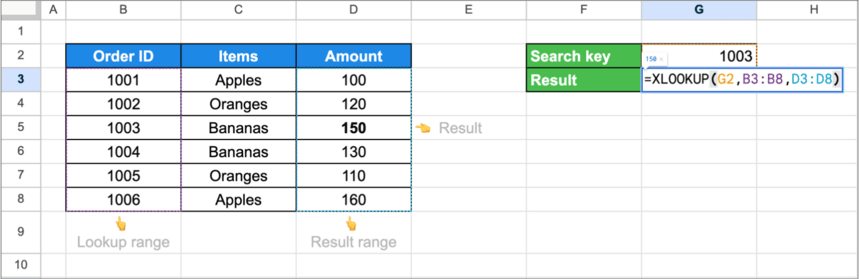
=XLOOKUP(G2, B3:B8, D3:D8)
VLOOKUP takes a table and the number of the column to return. XLOOKUP takes two ranges: where to search and what to return. Most of the differences follow from that.
| VLOOKUP | XLOOKUP | |
|---|---|---|
| Default match | Approximate, unless the last argument is FALSE | Exact |
| Search column | Must be the first column of the range | Any column or row |
| Result | A column picked by its number | A range of its own, which can be to the left |
| Nothing found | #N/A | #N/A, or the text you put in the fourth argument |
| Several columns at once | One per formula | Yes, a result range of several columns |
| First or last match | First | First, or last with search mode -1 |
| Wildcards | Work with an exact match | Only with match mode 2 |
| Approximate match | Needs a sorted first column | Next smaller or next larger, no sorting needed |
| Horizontal lookups | No, that is HLOOKUP | Yes, with rows as the two ranges |
| Text match | Not case-sensitive | Not case-sensitive |
VLOOKUP in short
=VLOOKUP(search_key, range, index, [is_sorted])
The key is searched in the first column of the range, and the value comes from the column with the given number.
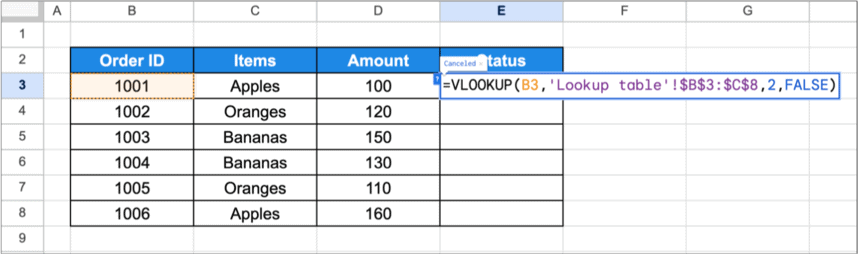
=VLOOKUP(B3, 'Lookup table'!$B$3:$C$8, 2, FALSE)
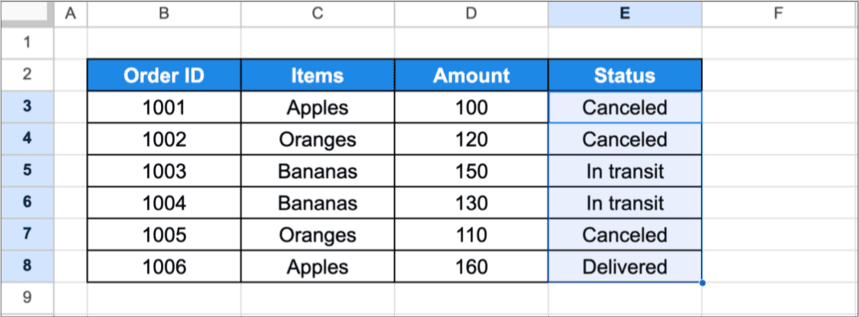
Its limits are well known: the key has to be in the first column, the column number has to be counted and breaks when a column is inserted, and the fourth argument must not be forgotten. The full guide is VLOOKUP in Google Sheets.
XLOOKUP syntax
=XLOOKUP(search_key, lookup_range, result_range, [missing_value], [match_mode], [search_mode])
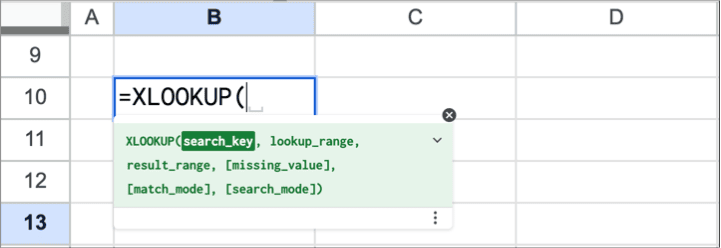
- search_key: the value to look for.
- lookup_range: the single column or row to search.
- result_range: the column or row to return from. It has to be as long as the lookup range.
- missing_value: optional. What to return when the key is not found.
- match_mode: optional. 0 exact (default), 1 exact or the next larger value, -1 exact or the next smaller value, 2 wildcard match.
- search_mode: optional. 1 from the first entry (default), -1 from the last, 2 and -2 a binary search on data sorted in ascending or descending order.
=XLOOKUP(G2, B3:B8, D3:D8)
OWOX Data Marts
See your first report built in real time. 15 minutes.
- Connect your data warehouse
- Pick your metrics
- Get a live Google Sheets report
In the time it takes to write a ticket. Then imagine never writing that ticket again.
Book a DemoWe'll use your actual use case
The differences, one by one
1. Exact match is the default
VLOOKUP without its fourth argument does an approximate match. On data that is not sorted, that returns a wrong value with no error: in our test, =VLOOKUP("Sarah", C3:D12, 2) returned 2750 where the exact match is 2300. XLOOKUP matches exactly unless told otherwise, so the short form is the safe one.
2. Look to the left
VLOOKUP returns only columns to the right of the key. XLOOKUP does not care where the result range is:
=XLOOKUP(4500, D3:D12, C3:C12)
The formula searches the amounts in column D and returns the name from column C.
3. No column number
The result is a range, not a number. Insert a column between the key and the result, and the XLOOKUP ranges shift with it, while a VLOOKUP index of 3 keeps pointing at the third column, now the wrong one.
4. A value for “not found”
=XLOOKUP(G2, B3:B8, D3:D8, "No such order")
With VLOOKUP the same needs a wrapper: =IFNA(VLOOKUP(G2, B3:D8, 3, FALSE), "No such order").
5. Several columns from one formula
Give XLOOKUP a result range of several columns and it returns the whole row:
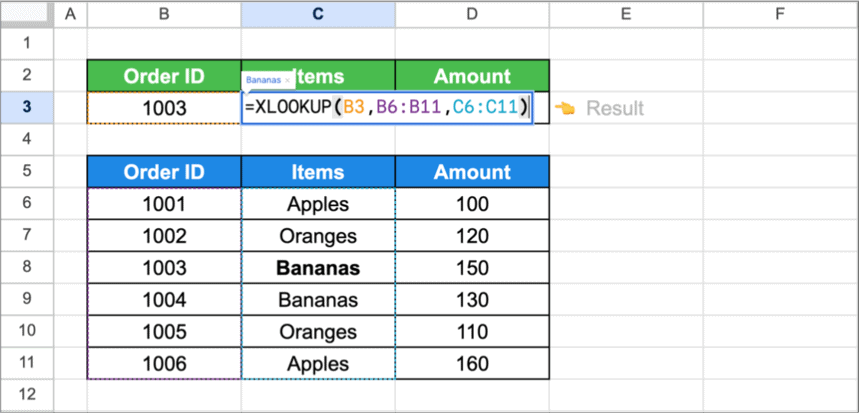
=XLOOKUP(B3, B6:B11, C6:D11)
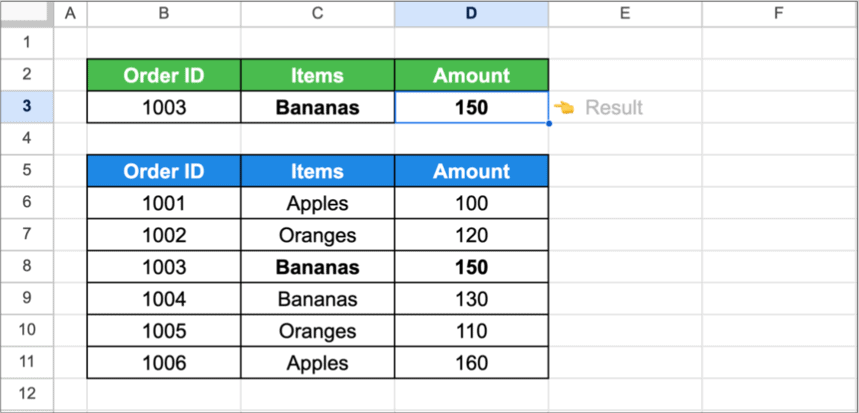
With one column as the result range, it returns one value:
6. The last match
When a key occurs several times, both functions return the first match. XLOOKUP can search from the bottom:
=XLOOKUP("Sarah", C3:C12, D3:D12, , 0, -1)
This returns the value of the last row for Sarah, which is the latest one in a table sorted by date.
7. Approximate match without sorting
Match mode -1 returns the exact match or the next smaller value, 1 the next larger, and the lookup range does not have to be sorted:
=XLOOKUP(2400, D3:D12, C3:C12, , -1)
In a column that holds 2300 and 2750 among other values, the formula returns the row of 2300. VLOOKUP and LOOKUP give reliable approximate matches only on sorted data.
8. Wildcards are switched on
In VLOOKUP, "Sa*" with an exact match finds “Sarah”. In XLOOKUP the same key returns #N/A unless the match mode is 2:
=XLOOKUP("Sa*", C3:C12, D3:D12, , 2)
This is the one place where a formula converted from VLOOKUP stops working without an obvious reason.
9. Rows as well as columns
XLOOKUP searches a row just as it searches a column, which replaces HLOOKUP:
=XLOOKUP("A003", C2:G2, C4:G4)
When VLOOKUP is still the better choice
When VLOOKUP is still the better choice
- Files that leave Google Sheets. If the file will be opened in a spreadsheet program or version that has no XLOOKUP, the formula shows an error there. VLOOKUP works everywhere.
- Existing sheets. A working VLOOKUP with FALSE does not become better by being rewritten.
- Readers who know only VLOOKUP. A formula that the team can read is worth more than a newer function.
For new formulas, XLOOKUP is the safer default: fewer arguments to get wrong, and the defaults are the ones people expect.
Many keys at once
Both functions cover a column of keys from one formula inside ARRAYFORMULA:
=ARRAYFORMULA(XLOOKUP(F3:F20, B3:B8, D3:D8, ""))
=ARRAYFORMULA(IFNA(VLOOKUP(F3:F20, B3:D8, 3, FALSE), ""))
See array formulas.
Errors in XLOOKUP
⚠️ Error: #N/A
✅ Solution: The key was not found: check for spaces and for numbers stored as text. A wildcard key needs match mode 2. The error also appears when the lookup range and the result range have a different number of rows.
⚠️ Error: #REF!
✅ Solution: A result with several columns has no room to expand. Clear the cells to the right of the formula.
⚠️ Error: A wrong value from an approximate match.
✅ Solution: Check the match mode: -1 returns the next smaller value and 1 the next larger. With search mode 2 or -2 the data has to be sorted.
⚠️ Error: The first match is returned, not the latest.
✅ Solution: Set the search mode to -1.
Related guides
- VLOOKUP: Syntax, exact and approximate match, errors.
- HLOOKUP: The horizontal lookup.
- LOOKUP: Approximate lookups on sorted data.
- VLOOKUP with multiple criteria: Lookups by two keys, with XLOOKUP too.
- VLOOKUP with IF: Conditions around a lookup.
- QUERY and VLOOKUP: One value or a table of rows.
- MATCH: The position of a value in a range.
The better lookup is the one you do not need
The better lookup is the one you do not need
Whichever function wins, a lookup is a repair: the table in the sheet lacks a column, and a formula fetches it from another table, row by row. It has to be rebuilt when either table changes shape, and it fails quietly when a key is missing on one side.
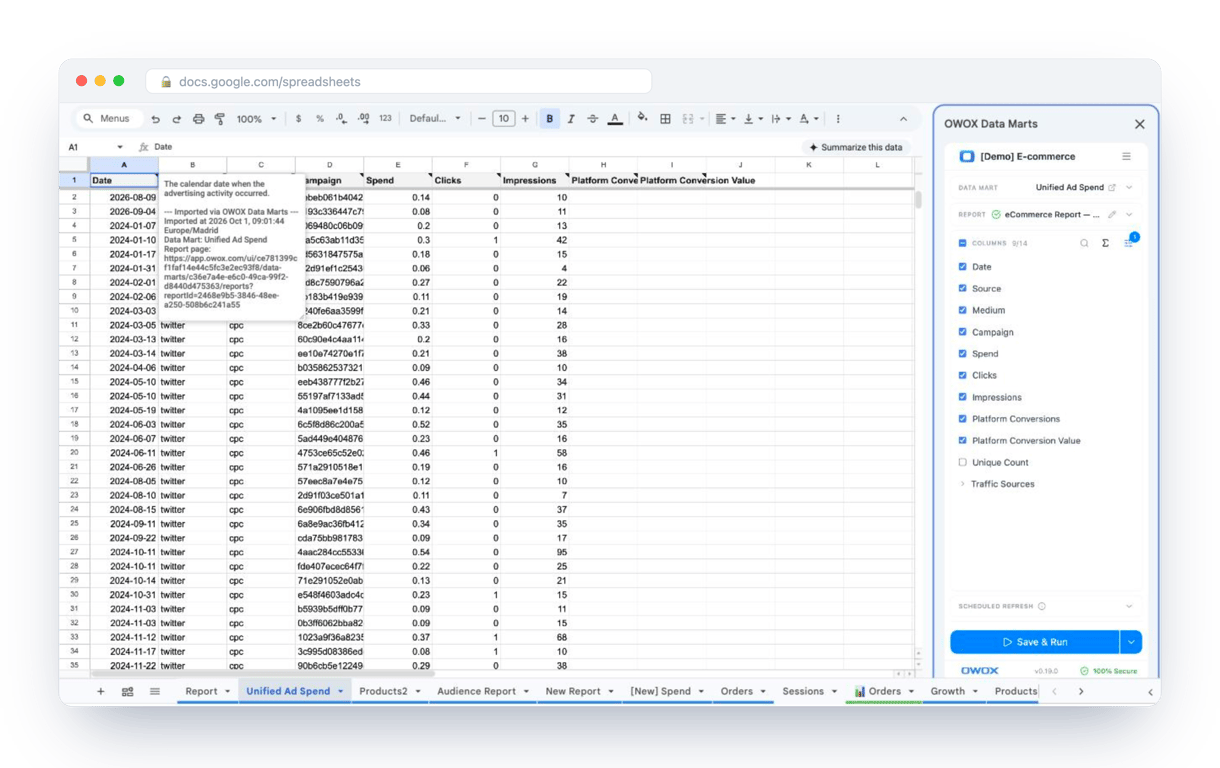
The OWOX Data Marts extension for Google Sheets covers that half. A data analyst publishes a data mart (a table or an SQL query in your data warehouse) and makes it available for reports. In Sheets you open the extension, pick the data mart, tick the columns you want and run it. The rows land in a tab, ready for your formulas.
What changes for the person who maintains the sheet:
- Refresh replaces re-export. Refresh current report in the extension menu re-runs the same pull, and a scheduled refresh keeps the tab current without anyone touching it.
- The source is written on the sheet. The header cell of an imported tab carries a note with the data mart it came from, the time of the import and a link to the report.
- No SQL and no warehouse access needed. The analyst decides which data marts and columns are available. You choose from that list.
The extension does not write or change the analyst’s SQL. When the two tables are joined once in that SQL, the sheet receives the complete rows, and XLOOKUP and VLOOKUP are left for small reference tables kept by hand. The extension comes with the OWOX Cloud plans of OWOX Data Marts; spreadsheet reporting describes both ways data reaches a sheet.
Turn your data into decisions.
Governed data marts give you the clean foundation ML needs to actually work.
- No AI hallucinations
- Analyst-governed definitions
- Every number traces to SQL
Frequently Asked Questions
Is it possible to substitute all of my VLOOKUP formulas with XLOOKUP?
In most cases, yes: VLOOKUP(key, B3:D8, 3, FALSE) becomes XLOOKUP(key, B3:B8, D3:D8). Check two things when converting. A key with wildcards such as "Sa*" needs match mode 2 in XLOOKUP, or it returns #N/A. And a VLOOKUP that relied on the approximate match needs match mode -1. Formulas that work do not have to be rewritten.
Why would you use a VLOOKUP over XLOOKUP?
If you're used to VLOOKUP or need to keep things simple, VLOOKUP might still be a good choice for basic searches
Is XLOOKUP better than VLOOKUP?
In many cases, XLOOKUP is better as it's more flexible and has more features than VLOOKUP
When is XLOOKUP good for?
XLOOKUP is the better choice when the value to return is to the left of the key, when you want a text of your own instead of #N/A, when one formula should return several columns, when you need the last match instead of the first, or when the lookup runs across a row.
What are the benefits of XLOOKUP?
XLOOKUP matches exactly by default, takes the search range and the result range separately so there is no column number to count, can return a value of your choice when nothing is found, can return several columns at once, and can search from the last row or along a row.