SPARKLINE in Google Sheets: chart types, options and examples
SPARKLINE draws a miniature chart inside one cell: a line by default, or columns, a bar or a win/loss chart. This guide lists the options of each chart type, shows them on real data, and covers progress bars, a common scale for rows that are compared, ranges that grow with the data, and the mistakes that leave the cell empty or show an error.
The SPARKLINE function draws a small chart inside one cell:
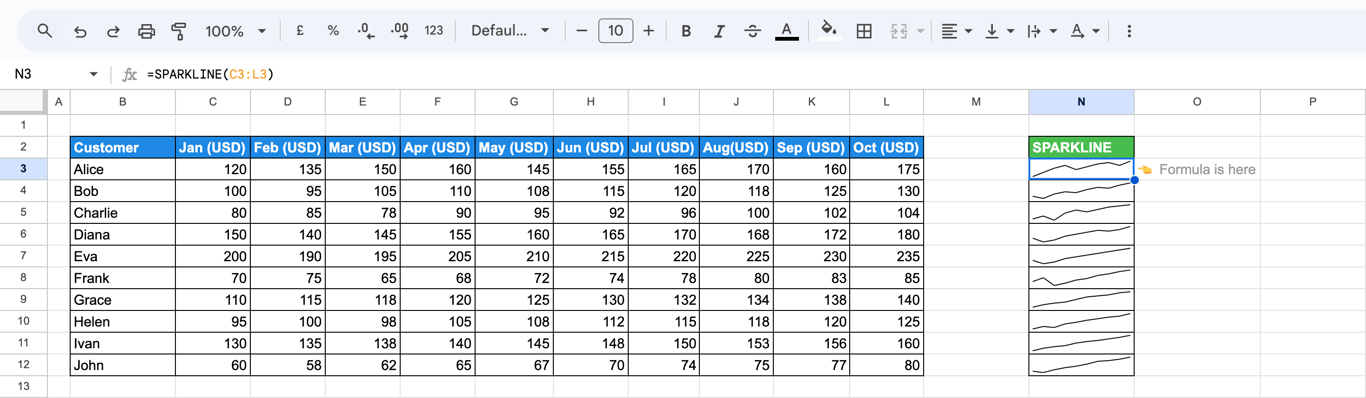
=SPARKLINE(C3:L3)
With no options it draws a line through the values of the range. Fill the formula down and every row of a table gets its own trend line next to the numbers.

Syntax
=SPARKLINE(data, [options])
- data: the range or array to plot.
- options: optional settings, written as pairs of name and value in curly braces:
{"charttype", "column"; "color", "green"}. The name and the value are separated by a comma, the pairs by a semicolon.
The option charttype sets one of four chart types:
| charttype | Draws | Typical use |
|---|---|---|
"line" (default) |
A line through the values | A trend over time |
"column" |
One column per value | Values of a period compared |
"bar" |
One stacked horizontal bar | Progress towards a target, shares of a total |
"winloss" |
Equal blocks above or below a line | Positive or negative, with no size |
The options of each type, from Google’s reference for SPARKLINE (checked in October 2026):
| Option | Line | Column and winloss | Bar | What it sets |
|---|---|---|---|---|
color |
yes | yes | The color of the line or the columns | |
color1, color2 |
yes | The colors of the bar segments | ||
linewidth |
yes | The thickness of the line | ||
xmin, xmax |
yes | The ends of the horizontal axis | ||
ymin, ymax |
yes | yes (not winloss) | The ends of the vertical scale | |
max |
yes | The value of a full-width bar | ||
lowcolor, highcolor |
yes | The color of the lowest and highest column | ||
firstcolor, lastcolor |
yes | The color of the first and last column | ||
negcolor |
yes | The color of negative columns | ||
axis, axiscolor |
yes | A line at zero, and its color | ||
empty |
yes | yes | yes | Empty cells: "zero" or "ignore" |
nan |
yes | yes | yes | Text cells: "convert" or "ignore" |
rtl |
yes | yes | yes | Draw from right to left: true or false |
Colors are written as names (“green”) or hex codes (“#009b3b”).
Line sparklines
=SPARKLINE(C3:L3)
Color and line width
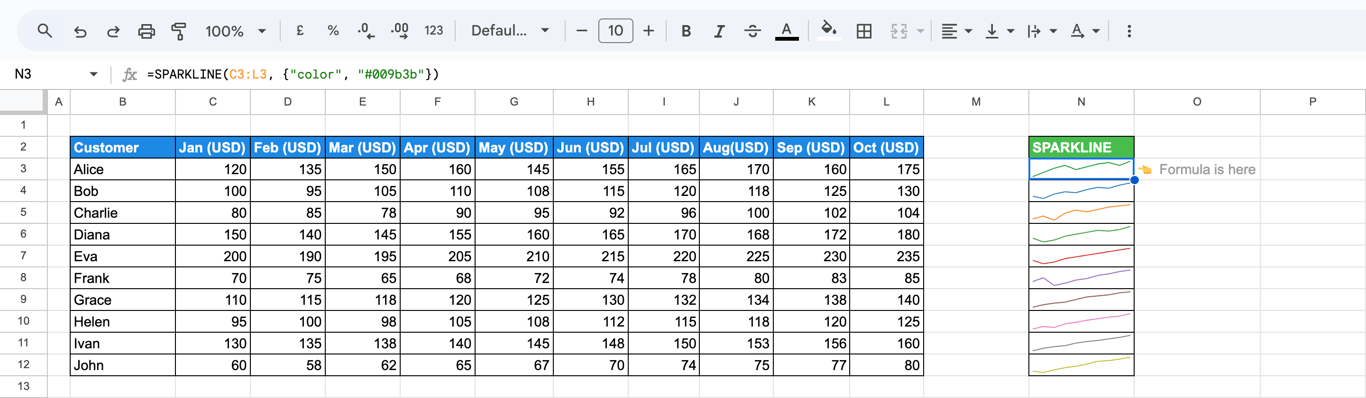
=SPARKLINE(C3:L3, {"color", "#009b3b"})
=SPARKLINE(C3:L3, {"linewidth", 5})
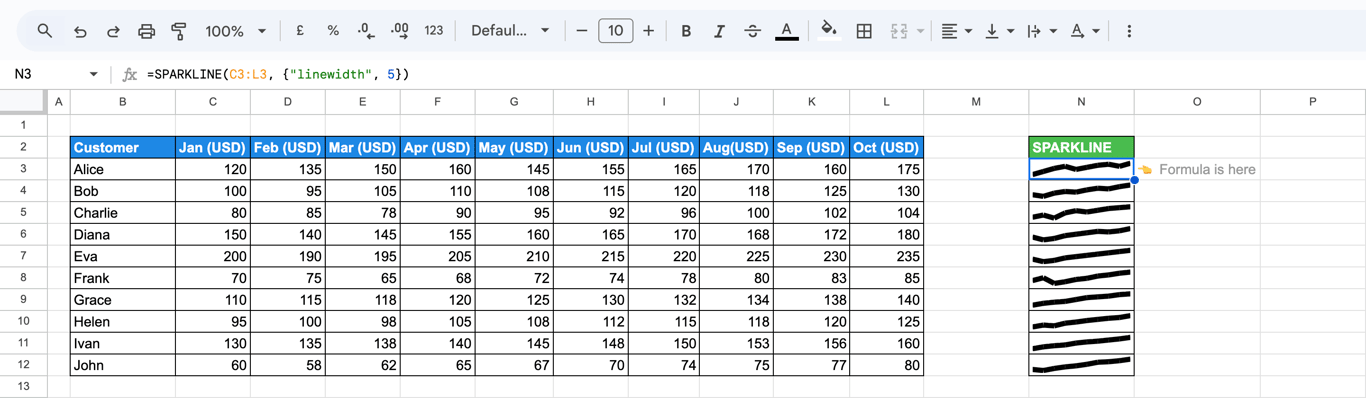
The color of a line sparkline also follows the font color of the cell, so it can be set from the toolbar or by conditional formatting.
A common scale
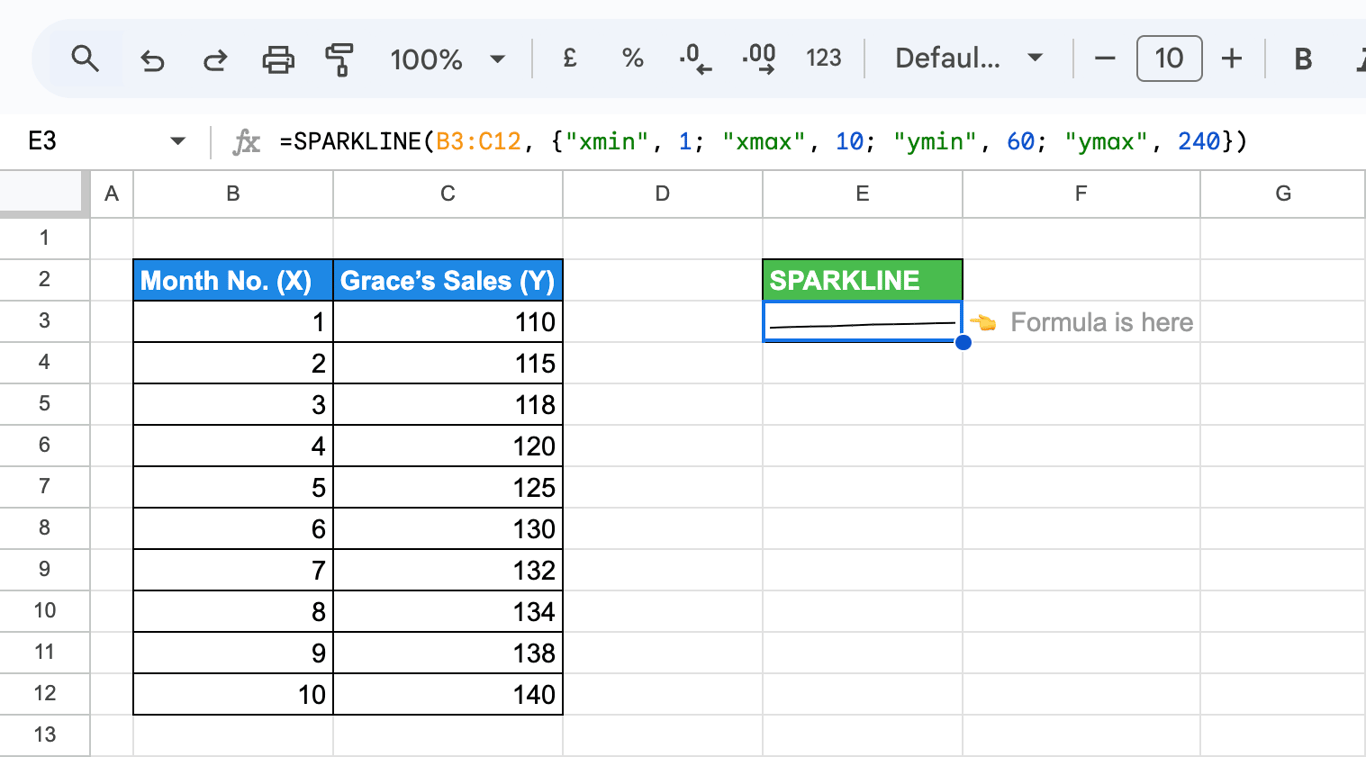
By default every sparkline is scaled to its own lowest and highest value, so a customer who went from 60 to 80 and one who went from 150 to 240 draw the same rising line. To compare rows, give them the same scale:
=SPARKLINE(C3:L3, {"ymin", 60; "ymax", 240})
With two columns of data, the first is the horizontal position and the second the value, and all four limits can be set:
=SPARKLINE(B3:C12, {"xmin", 1; "xmax", 10; "ymin", 60; "ymax", 240})
Empty cells and text
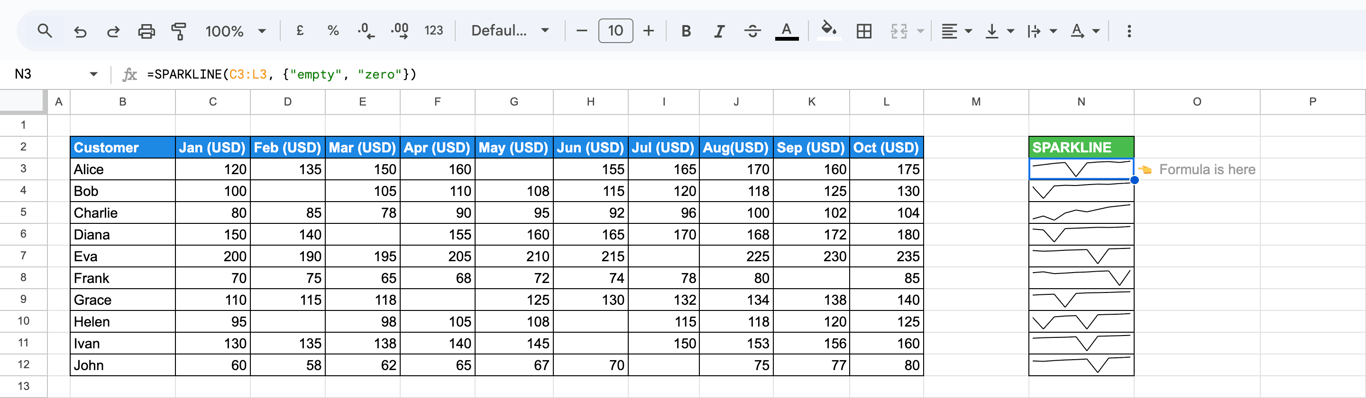
By default empty cells are skipped and the line connects the neighbours. With “empty” set to “zero” they are drawn as zero:
=SPARKLINE(C3:L3, {"empty", "zero"})
Cells with text such as “N/A” are skipped too; “nan” set to “convert” draws them as zero:
=SPARKLINE(C3:L3, {"nan", "convert"})
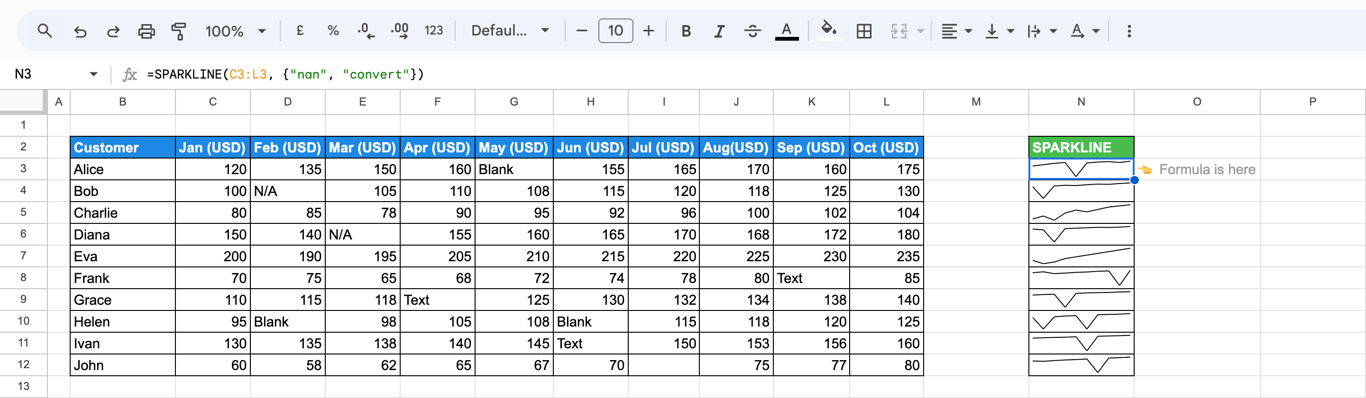
A dip to zero reads as “no sales”. If the value is unknown, not zero, leave the default.
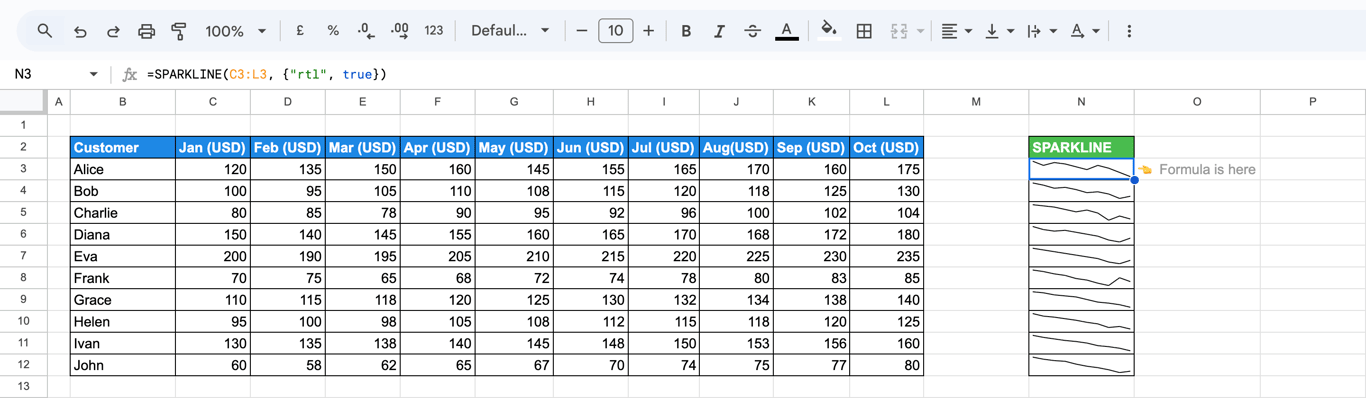
Right to left
=SPARKLINE(C3:L3, {"rtl", true})
OWOX Data Marts
See your first report built in real time. 15 minutes.
- Connect your data warehouse
- Pick your metrics
- Get a live Google Sheets report
In the time it takes to write a ticket. Then imagine never writing that ticket again.
Book a DemoWe'll use your actual use case
Column sparklines
=SPARKLINE(C3:L3, {"charttype", "column"})
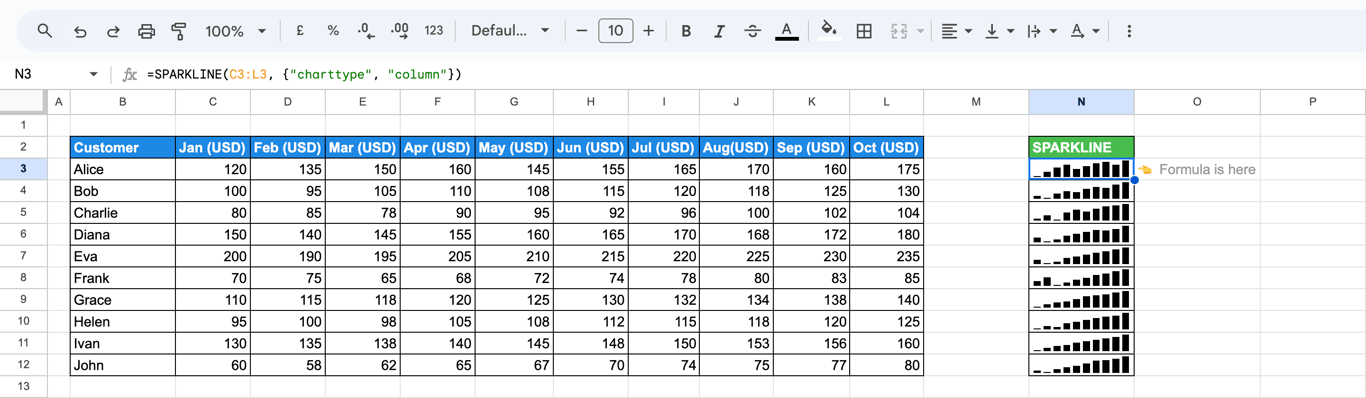
The scale of a column sparkline starts at the lowest value of its range, so the smallest column is almost invisible and small differences look large. Set "ymin", 0 for columns in proportion to the values:
=SPARKLINE(C3:L3, {"charttype", "column"; "ymin", 0})
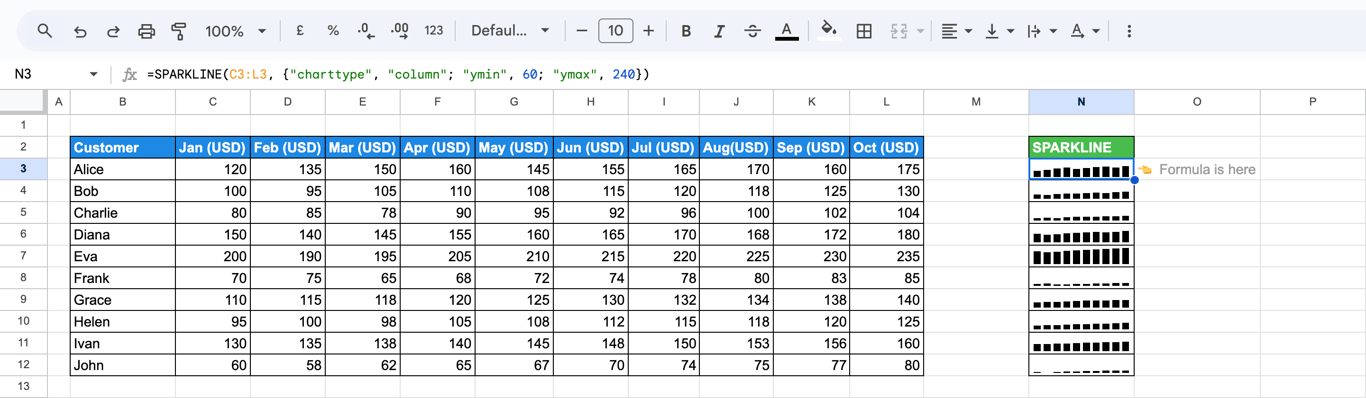
A fixed range for all rows makes them comparable:
=SPARKLINE(C3:L3, {"charttype", "column"; "ymin", 60; "ymax", 240})
Highlight single columns
=SPARKLINE(C3:L3, {"charttype", "column"; "highcolor", "green"; "lowcolor", "yellow"; "lastcolor", "blue"; "negcolor", "red"})
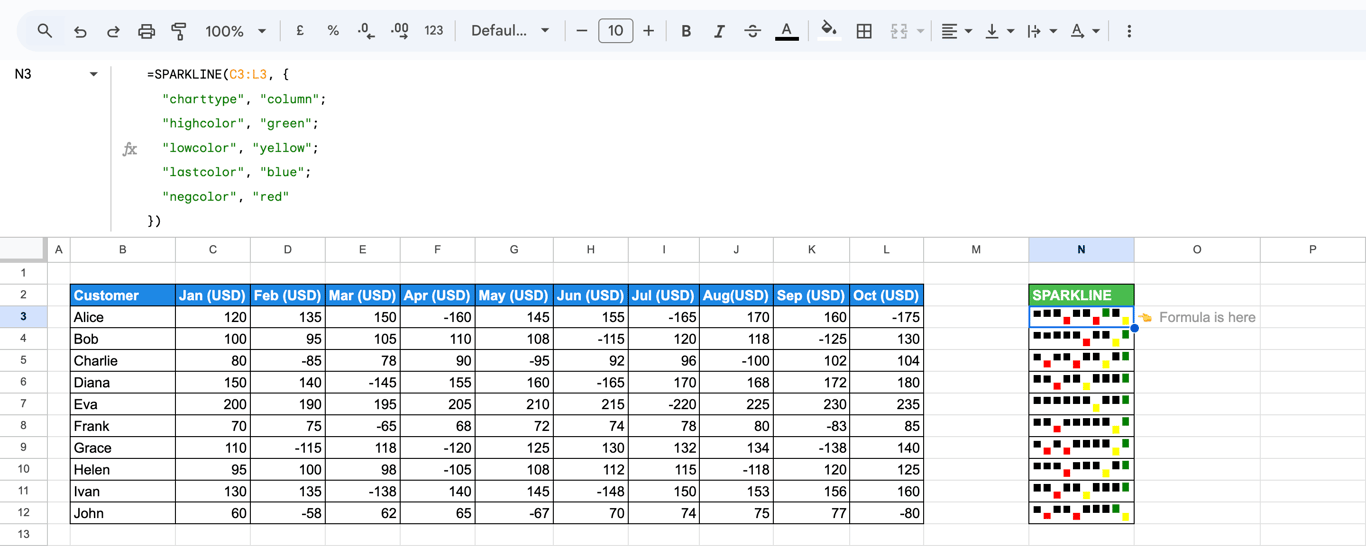
One highlighted column is usually enough: a neutral color for all, and lastcolor for the current period.
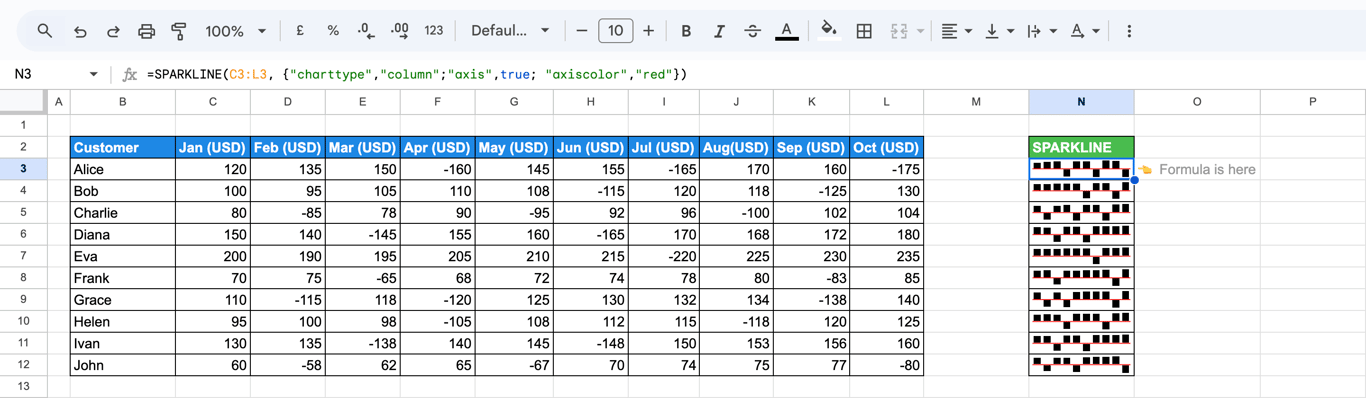
An axis for negative values
=SPARKLINE(C3:L3, {"charttype", "column"; "axis", true; "axiscolor", "red"})
Bar sparklines
A bar sparkline is one horizontal bar. Each value of the data is a segment, and “max” is the value at which the bar fills the cell.
A progress bar
=SPARKLINE(C3, {"charttype", "bar"; "max", MAX($C$3:$C$12)})
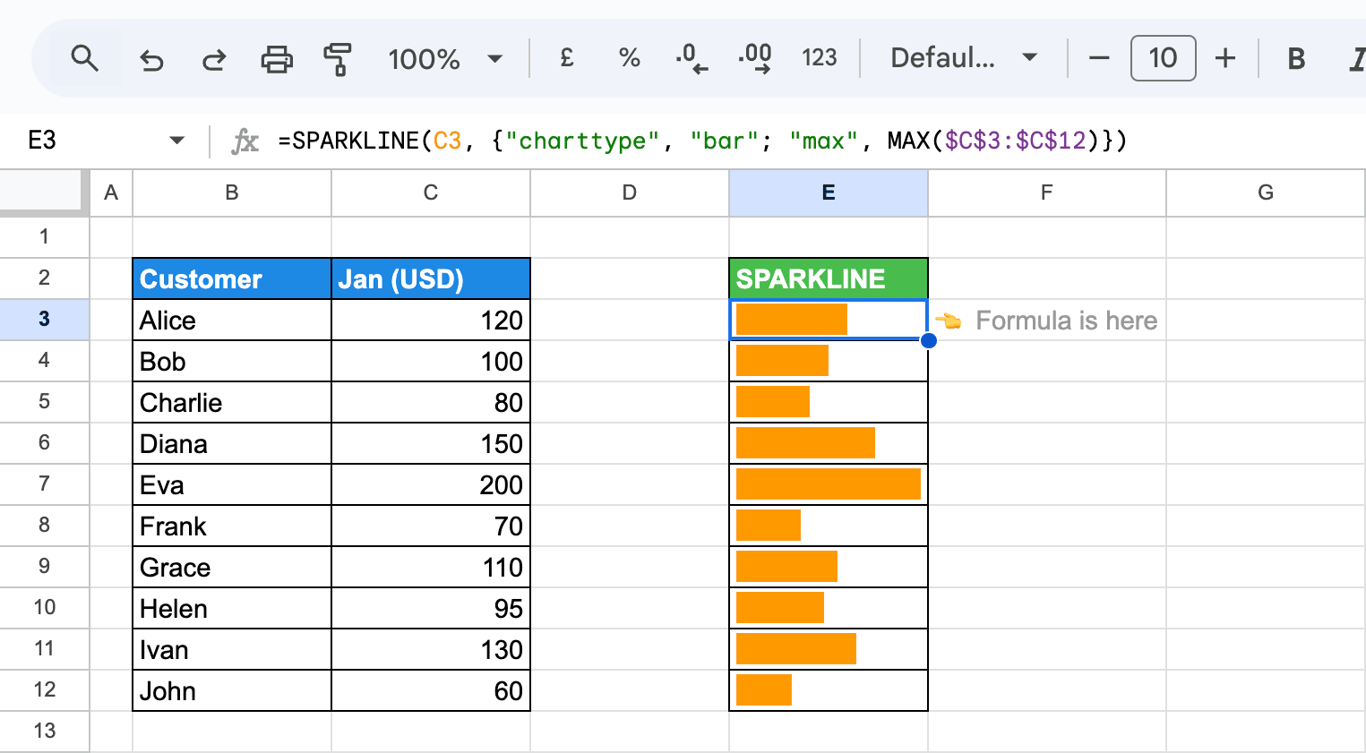
With the same “max” in every row, the bars can be compared down the column. For progress towards a target, use the target: =SPARKLINE(B2, {"charttype", "bar"; "max", C2}), or "max", 1 for a share between 0 and 1.
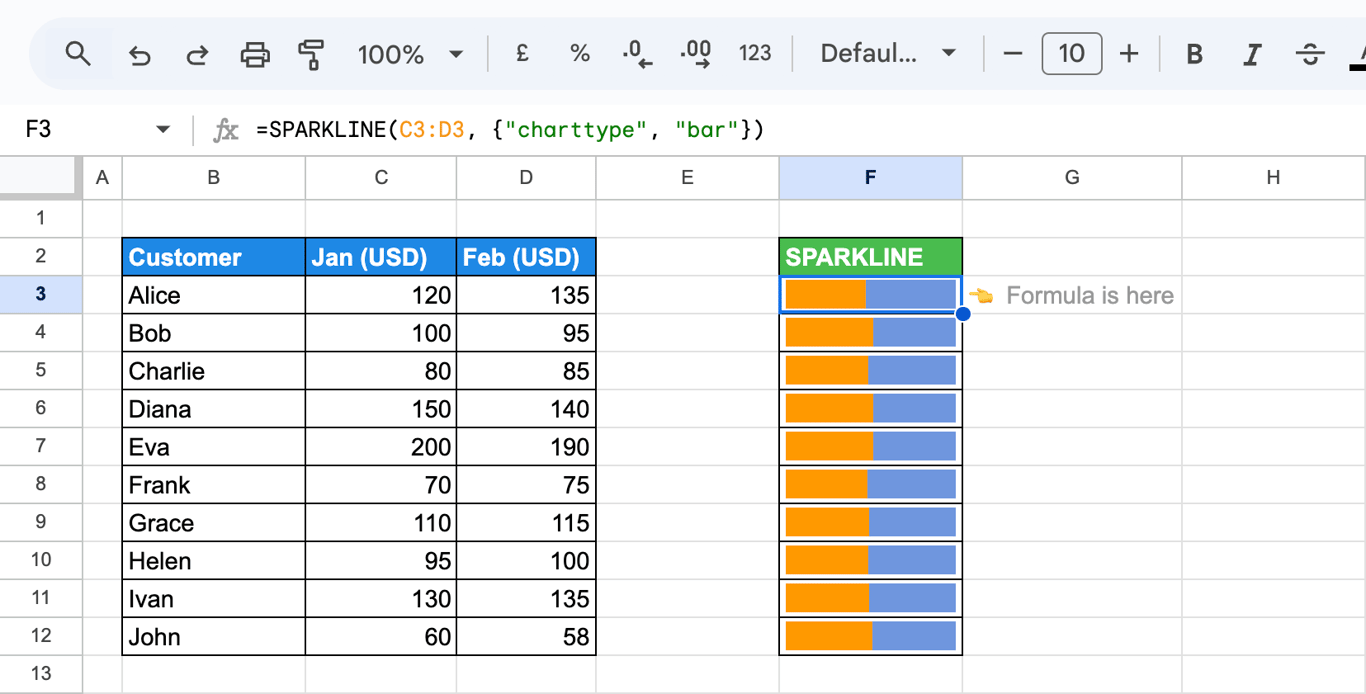
Two segments
=SPARKLINE(C3:D3, {"charttype", "bar"})
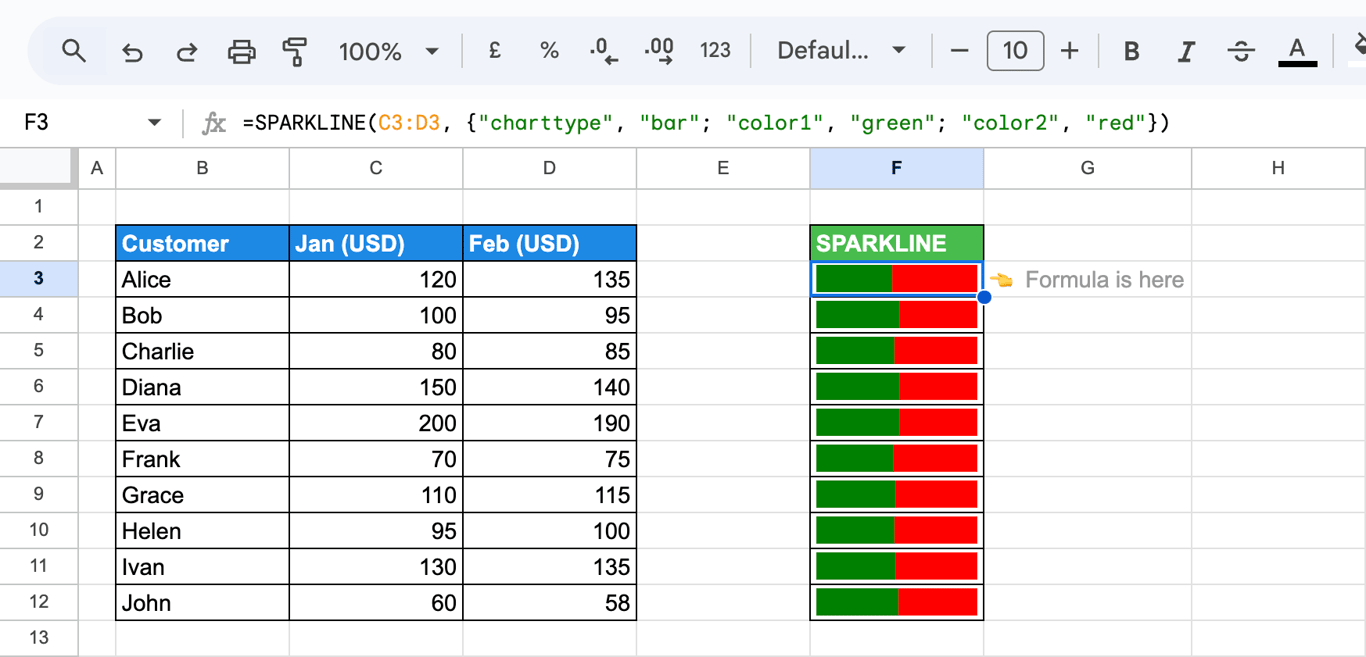
=SPARKLINE(C3:D3, {"charttype", "bar"; "color1", "green"; "color2", "red"})
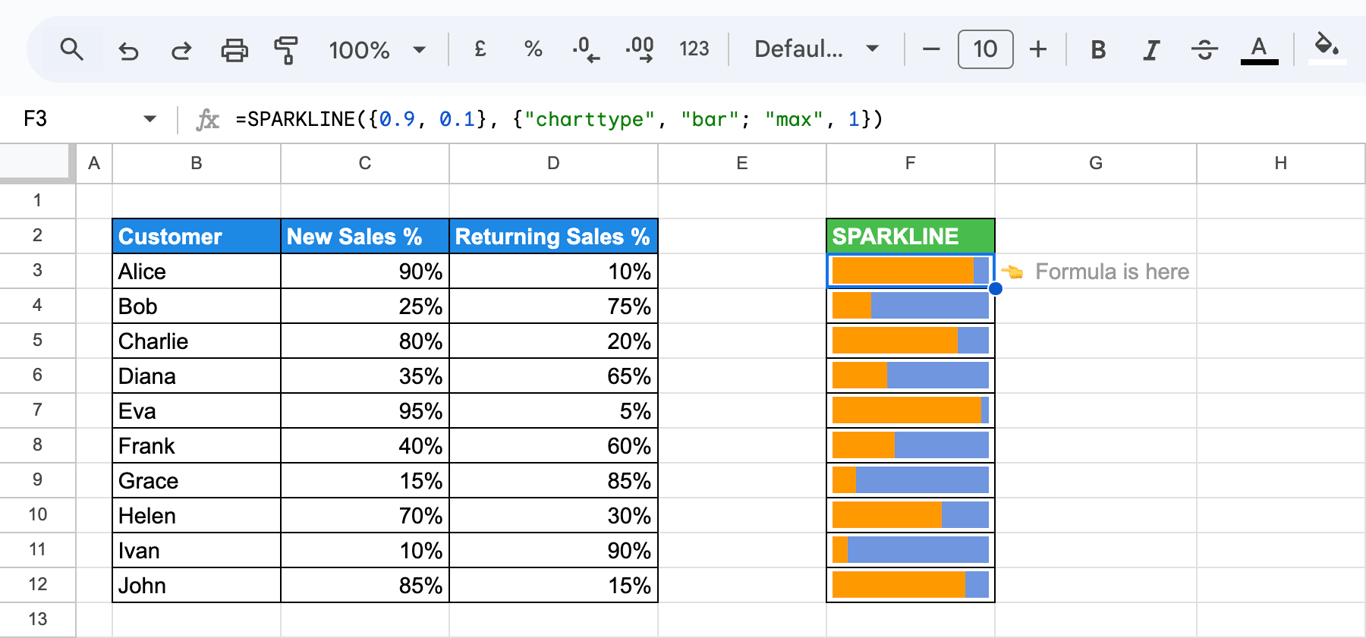
Shares of a total
When the two values add up to 1, the bar shows their split:
=SPARKLINE(C3:D3, {"charttype", "bar"; "max", 1})
Win/loss sparklines
A win/loss chart draws one block per value, above the line for positive numbers and below it for negative ones. The size of the number is ignored.
=SPARKLINE(C3:L3, {"charttype", "winloss"})
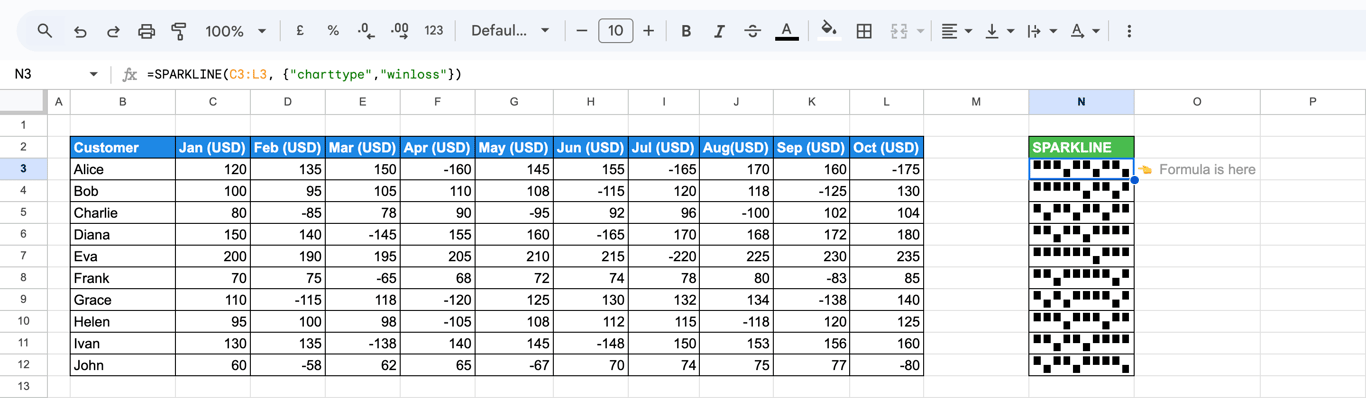
The chart type is written “winloss”, in one word. With a hyphen, “win-loss”, the formula returns #VALUE!.
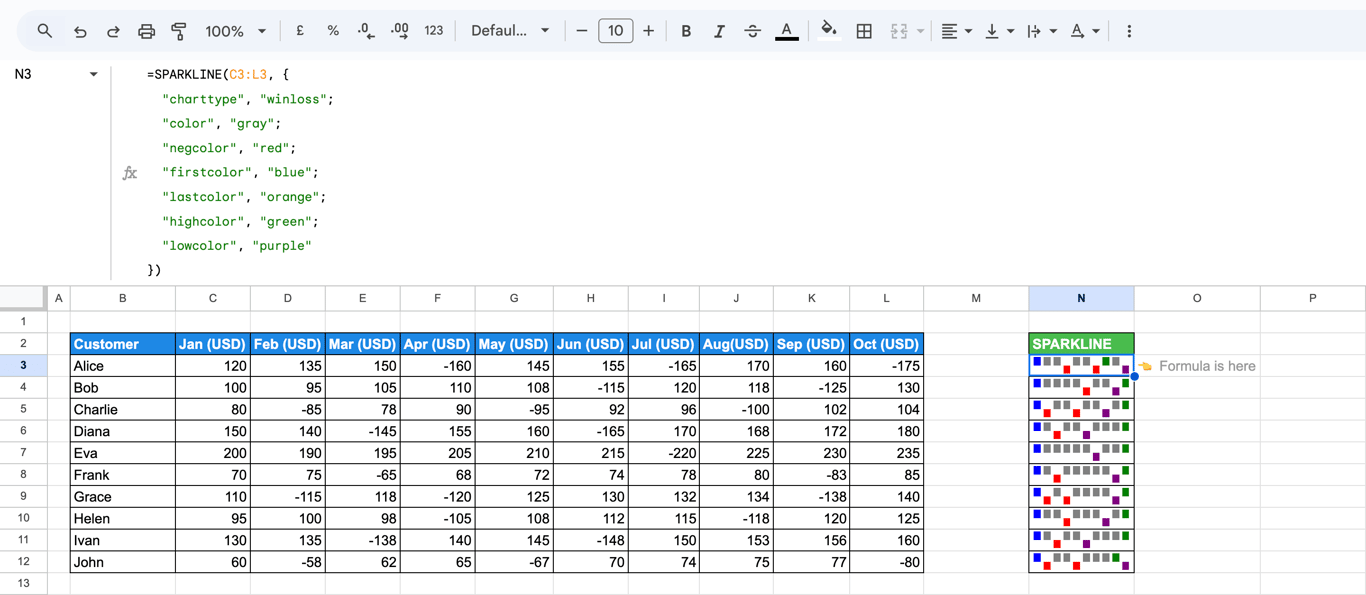
The color options of column sparklines apply here as well:
=SPARKLINE(C3:L3, {"charttype", "winloss"; "color", "gray"; "negcolor", "red"; "firstcolor", "blue"; "lastcolor", "orange"})
Advanced examples
Options from cells
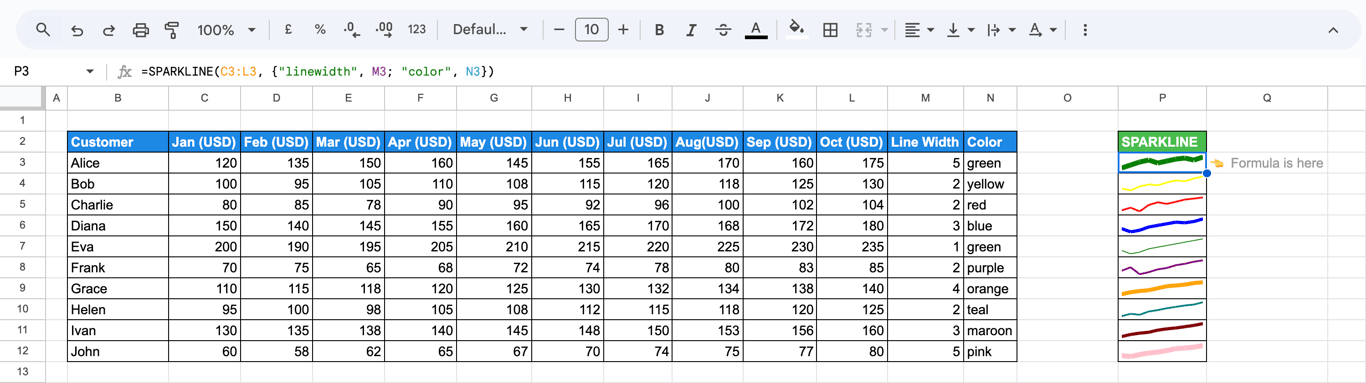
Any option value can be a cell reference, which lets each row have its own setting without a different formula:
=SPARKLINE(C3:L3, {"linewidth", M3; "color", N3})
Only some columns of a row
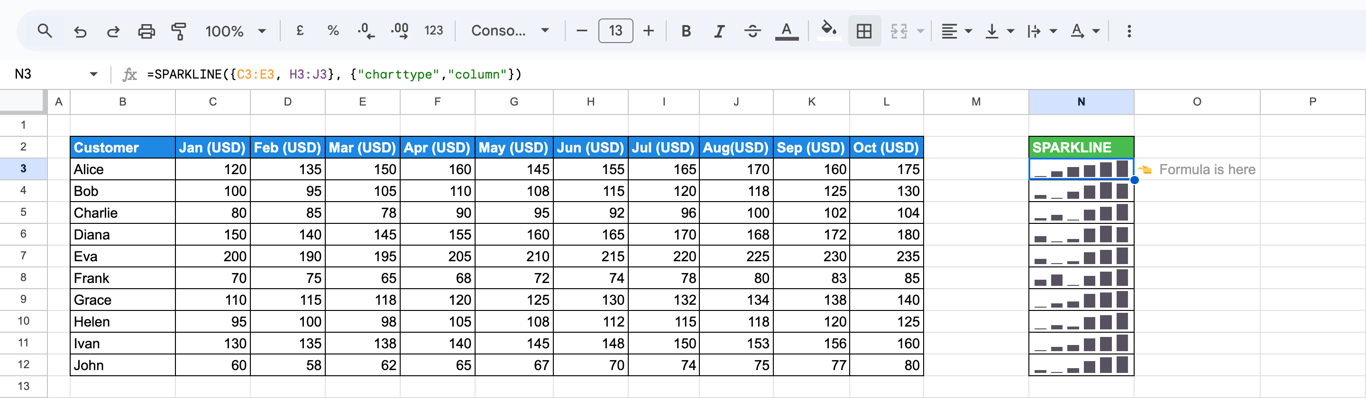
Join parts of a row in curly braces:
=SPARKLINE({C3:E3, H3:J3}, {"charttype", "column"})
A range that grows
A range without an end row includes values added later:
=SPARKLINE(C3:C)
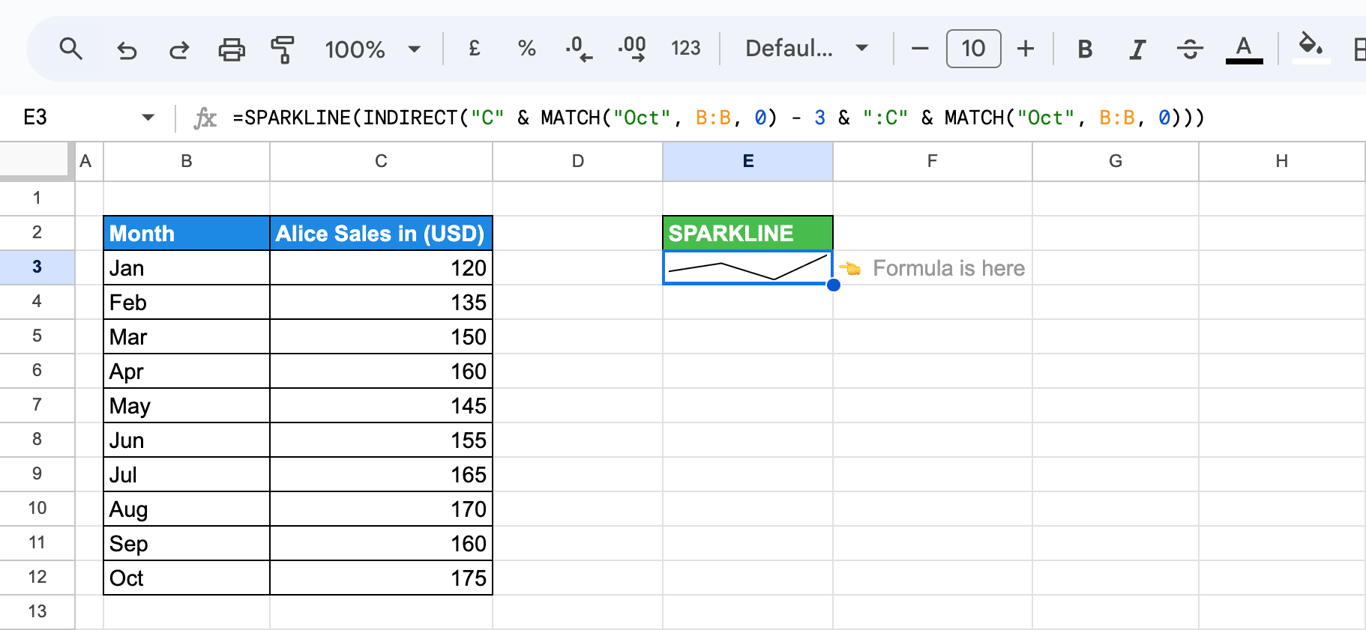
For the last four values of a growing column:
=SPARKLINE(CHOOSEROWS(FILTER(C3:C, C3:C <> ""), -4, -3, -2, -1))
FILTER removes the empty cells and CHOOSEROWS takes the last four rows of what is left. The screenshot gets the same four months with INDIRECT and MATCH on the name of the last month; the formula above needs no month name.
Stock prices
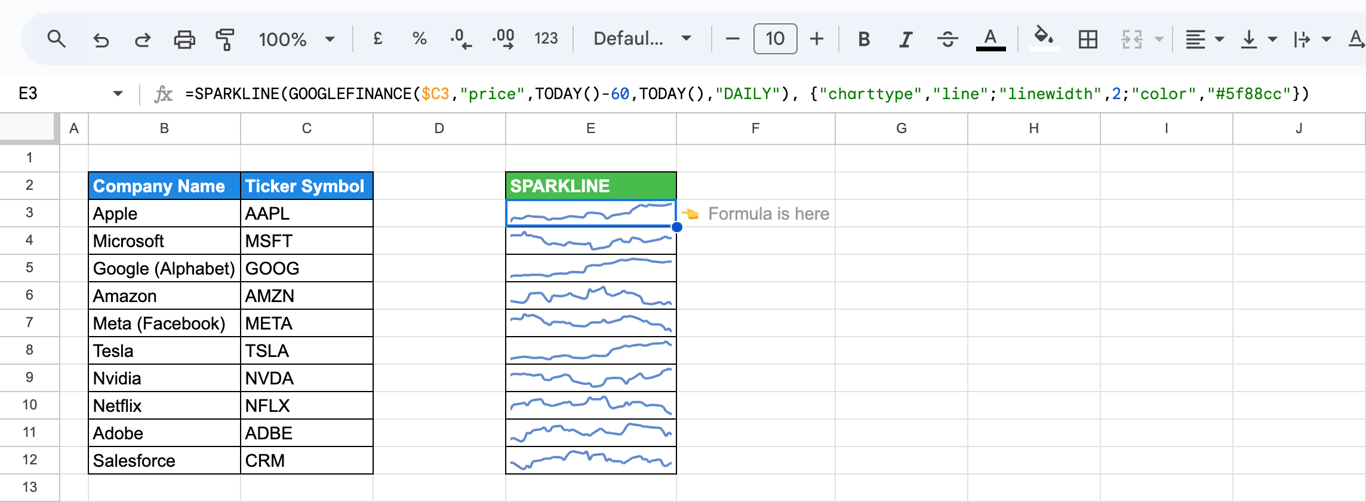
GOOGLEFINANCE returns a table of dates and prices, which SPARKLINE plots directly:
=SPARKLINE(GOOGLEFINANCE($C3, "price", TODAY()-60, TODAY(), "DAILY"), {"linewidth", 2; "color", "#5f88cc"})
Errors and empty cells
⚠️ Error: #VALUE!
✅ Solution: An option value is not valid, most often “win-loss” for “winloss”.
⚠️ Error: #N/A
✅ Solution: The data holds no numbers. Check that the range is the right one and that the numbers are not stored as text.
⚠️ Error: An option has no effect and there is no error.
✅ Solution: A misspelled option name is ignored silently. Check the spelling against the table above: “colour” does nothing, “color” works. Also check that the option belongs to the chart type: “max” is for bars, “ymax” for lines and columns.
⚠️ Error: The cell looks empty.
✅ Solution: There is one value only (a line needs two points), the line is the same color as the background, or the row is too low to show the chart. Make the row taller or the column wider.
⚠️ Error: Rows cannot be compared: every line fills its cell.
✅ Solution: Each sparkline has its own scale. Set the same “ymin” and “ymax”, or the same “max” for bars, in every row.
⚠️ Error: A formula parse error in a locale with decimal commas.
✅ Solution: Inside the option braces, such locales use a backslash between name and value: {"charttype"\"column"}.
Related guides
- Charts in Google Sheets: Full-size charts and their settings.
- Bar graphs: Bar and column charts with labels.
- GOOGLEFINANCE: Prices and rates to plot.
- CHAR and REPT: Symbols and text bars in a cell.
- Array formulas: Curly braces and their separators.
- FILTER: Choose the rows a sparkline plots.
A trend line needs every period in the row
A trend line needs every period in the row
A sparkline is useful because it sits next to the number it explains. It is only as good as the row behind it: twelve months in twelve cells, the same metric in each. When those cells are filled by hand from exports, a missing month is a gap that the default settings quietly skip, and the line looks smoother than the business was.
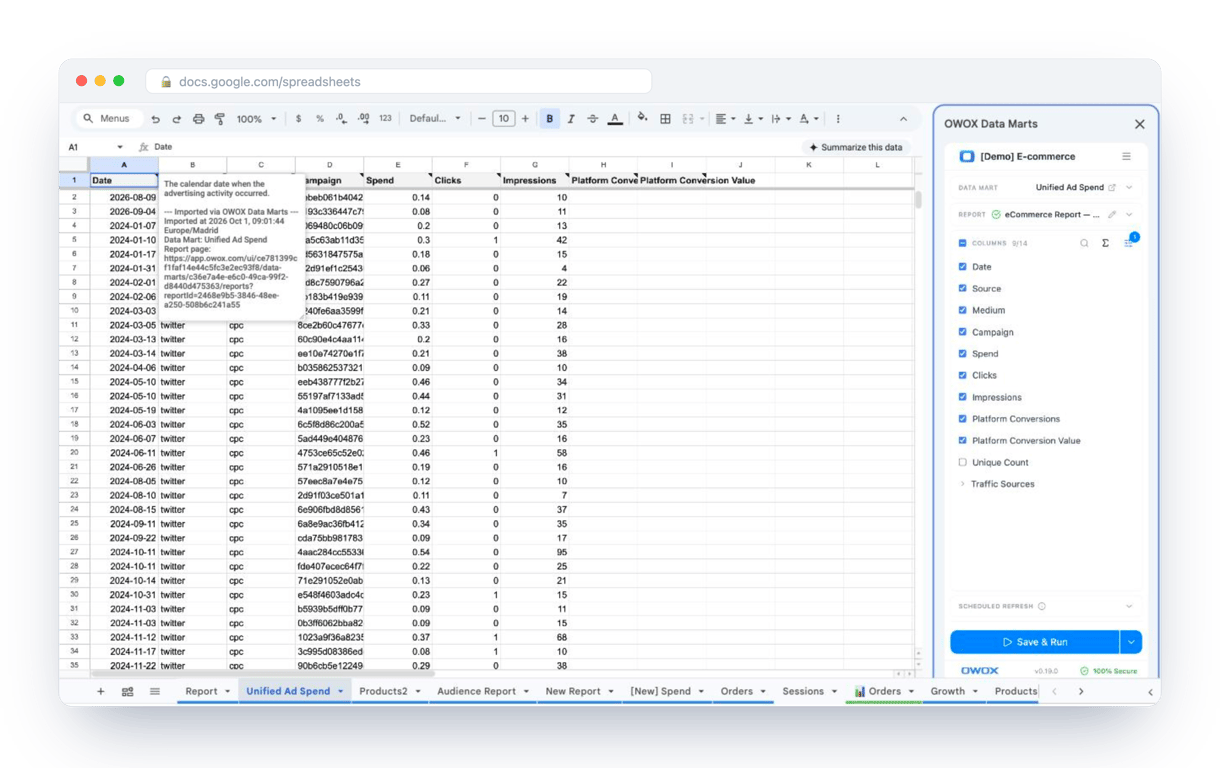
The OWOX Data Marts extension for Google Sheets covers that half. A data analyst publishes a data mart (a table or an SQL query in your data warehouse) and makes it available for reports. In Sheets you open the extension, pick the data mart, tick the columns you want and run it. The rows land in a tab, ready for your formulas.
What changes for the person who maintains the sheet:
- Refresh replaces re-export. Refresh current report in the extension menu re-runs the same pull, and a scheduled refresh keeps the tab current without anyone touching it.
- The source is written on the sheet. The header cell of an imported tab carries a note with the data mart it came from, the time of the import and a link to the report.
- No SQL and no warehouse access needed. The analyst decides which data marts and columns are available. You choose from that list.
The extension does not write or change the analyst’s SQL. Each refresh fills the same columns with the current periods, and the sparklines next to them redraw on their own. The extension comes with the OWOX Cloud plans of OWOX Data Marts; spreadsheet reporting describes both ways data reaches a sheet.
Turn your data into decisions.
Governed data marts give you the clean foundation ML needs to actually work.
- No AI hallucinations
- Analyst-governed definitions
- Every number traces to SQL
Frequently Asked Questions
How do I compare multiple SPARKLINES on the same scale?
To ensure fair comparison, use the "min" and "max" options in each SPARKLINE formula to standardize Y-axis values across rows or columns.
Can I use SPARKLINE with dynamic data?
Yes, SPARKLINE works with dynamic ranges, helper formulas like INDIRECT or QUERY, and real-time sources like GOOGLEFINANCE.
Why is my SPARKLINE not displaying?
Check four things. An invalid option value returns #VALUE!: the win/loss chart type is written "winloss", in one word. Data without numbers returns #N/A. A misspelled option name is ignored without an error, so the chart keeps its default look. And a cell that seems empty may hold a line in the background color, a single value, or a row too low to show the chart.
How do I change the color of a SPARKLINE?
Use the "color" option inside the SPARKLINE formula to define custom colors, either by name (e.g., "green") or by hex code.
What types of charts can SPARKLINE create?
Google Sheets SPARKLINE supports line, bar, column, and win/loss charts directly inside cells, based on structured numeric data ranges.
What is the SPARKLINE function in Google Sheets?
SPARKLINE creates mini inline charts inside a single cell to visualize trends, performance, or patterns using formula-based configurations.