How to connect Microsoft Ads (Bing Ads) to Google Sheets with OWOX Data Marts
There is no direct Microsoft Ads (Bing Ads) to Google Sheets connector any more. The route that holds up is Microsoft Ads, then a data warehouse, then Sheets – and OWOX Data Marts runs all of it, starting with a Microsoft sign-in on OWOX Cloud.
If you’ve tried to export Microsoft Ads (Bing Ads) data to Google Sheets by hand, you know the pain: outdated CSVs, clunky dashboards and little control over what gets pulled.
The route that holds up is not a direct pipe from Microsoft Ads into a sheet. It is Microsoft Ads, then a data warehouse, then Google Sheets. OWOX Data Marts runs that whole path: a Microsoft Ads data mart loads your ad data into your data warehouse, and Google Sheets reads it from there – through a report, or through the OWOX Data Marts extension. The quickest start is OWOX Cloud, where you sign in with your Microsoft account, but you can also run OWOX Data Marts yourself as free open source.
Why we made this free connector
Why we made this free connector
At OWOX, we’ve always believed that businesses shouldn’t have to rent their own data. So the Microsoft Ads connector is free and open source: run OWOX Data Marts yourself and there is no paid tier and no hidden features. The longer story is in why we built free data connectors for analysts.
Join the open-source movement
We’re not just releasing a free connector – we’re inviting you to help shape the future of open marketing analytics tools.
At OWOX, we believe that data access and transparency should be a right, not a luxury. That’s why this connector is 100% open-source – giving you full control over how it works, what it does, and how far it can go.
If you like what we do, please ⭐ star our GitHub repo to show your support – it helps us reach more analysts and grow the number of available connectors.
Also, feel free to:
- Explore the code and customize it to fit your needs.
- Contribute to this data connectivity ecosystem: suggest new connectors, pull new connectors, and/or provide documentation to support the wider community.
- Join our community and share your feedback.
We’ve built the core, the foundation – now it’s your turn to take it further.
Why bring Microsoft Ads data into Google Sheets?
Why bring Microsoft Ads data into Google Sheets?
Microsoft Advertising, which many teams still call Bing Ads, is usually the second search channel next to Google Ads, and its built-in reports are hard to bend to your needs:
- Custom reports your way: reshape Microsoft Ads data to fit your reporting, not the platform’s.
- Side-by-side with Google Ads: blend performance data with CRM, GA4 or offline conversions.
- Automated dashboards and live insights your team can share, instead of manual exports.
Sheets is where marketers want to work, and that part is right. The open question is where the data should live while they do.
OWOX Data Marts
See your first report built in real time. 15 minutes.
- Connect your data warehouse
- Pick your metrics
- Get a live Google Sheets report
In the time it takes to write a ticket. Then imagine never writing that ticket again.
Book a DemoWe'll use your actual use case
Why the data goes through a data warehouse
Why the data goes through a data warehouse
A sheet is where people read data, not where it should live. That is why OWOX Data Marts puts a data warehouse in the middle, and why there is no direct Microsoft Ads-to-sheet connector. Four things follow.
The sheet has a ceiling
A Google Sheets file holds at most 10 million cells. Ad data eats cells quietly: every ad, every day and every breakdown is a row, and every field you pull is a column, so a wide import burns through the limit faster than the row count suggests.
The data warehouse holds the full history, while the sheet report holds only the columns you choose. A backfill loads a custom date range once, and an incremental load then imports the current day plus a lookback window.
History outlives the sheet
Data loaded into a data warehouse stays there. A tab that gets overwritten, a sheet someone re-copies or an upstream API that changes its schema does not take last year’s numbers with it. That continuity is what year-on-year and search-campaign questions depend on.
Microsoft Ads is rarely the only search channel
The moment the question is “is Bing worth it next to Google?”, Microsoft Ads data alone is not enough, and blending tabs in a sheet means lookup formulas that break when a campaign is renamed.
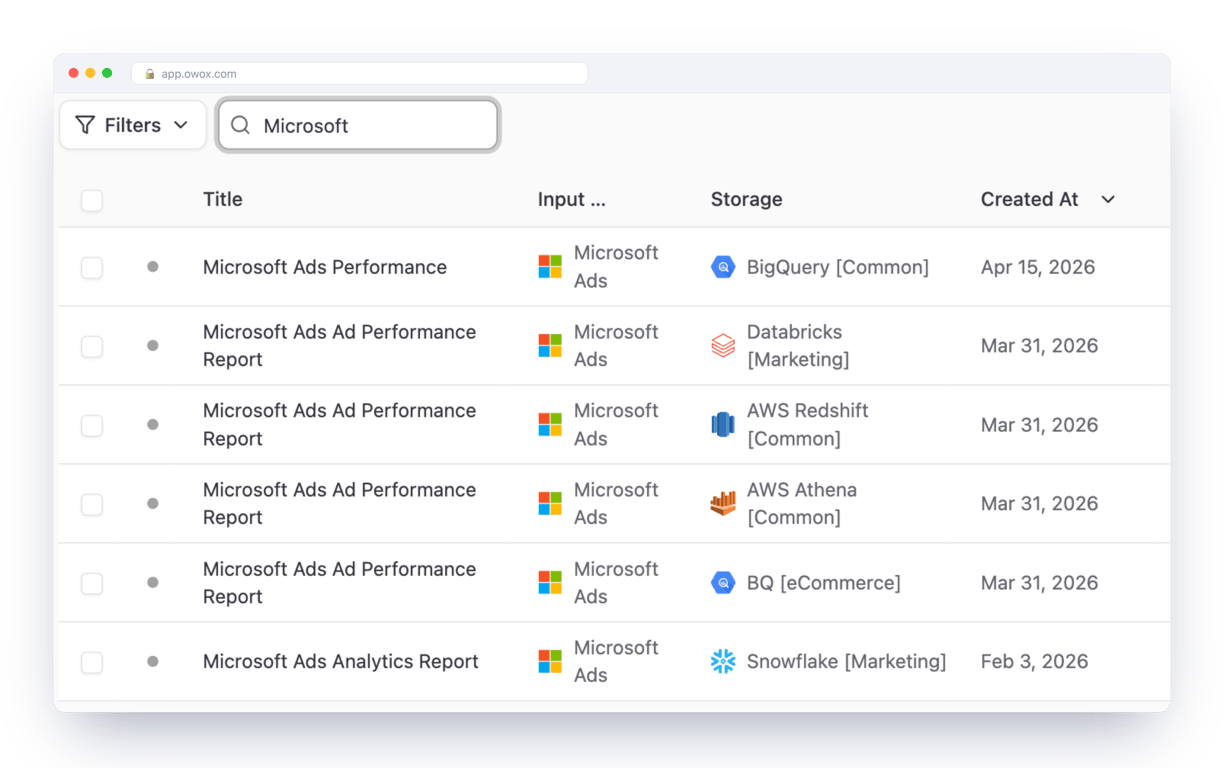
OWOX’s demo e-commerce project shows the alternative. Each ad platform is collected by its own connector data mart, and Microsoft Ads is one of them – the same connector can land in BigQuery, Snowflake, Databricks, Athena or Redshift:
A separate data mart, Unified Ad Spend, then brings the platforms together. The analyst who owns it wrote the SQL: one SELECT per platform, all UNION ALLed to one daily grain with a shared source, medium and campaign naming. Here is its Microsoft Ads block, which maps Microsoft’s own spend, clicks, impressions, conversions and revenue onto the shared columns and labels the source bing:
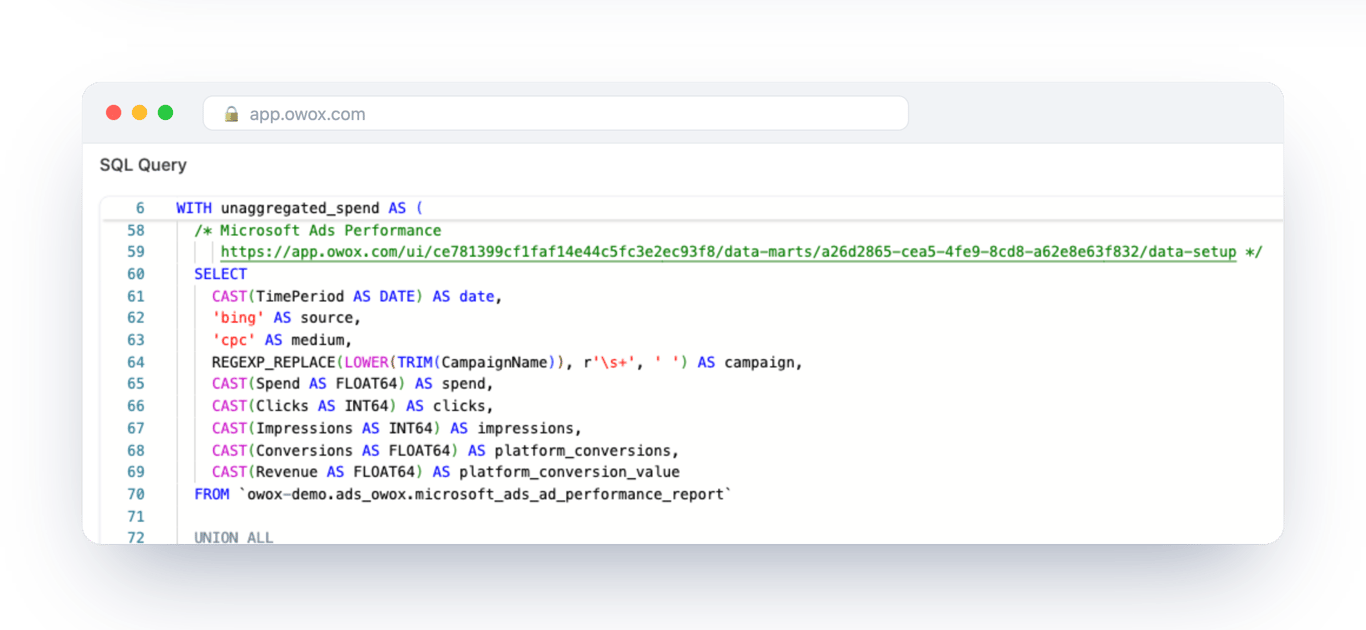
OWOX Data Marts does not model the data for you. It publishes and governs the query the analyst wrote, so everyone reads the same definition.
One number, every place you read it
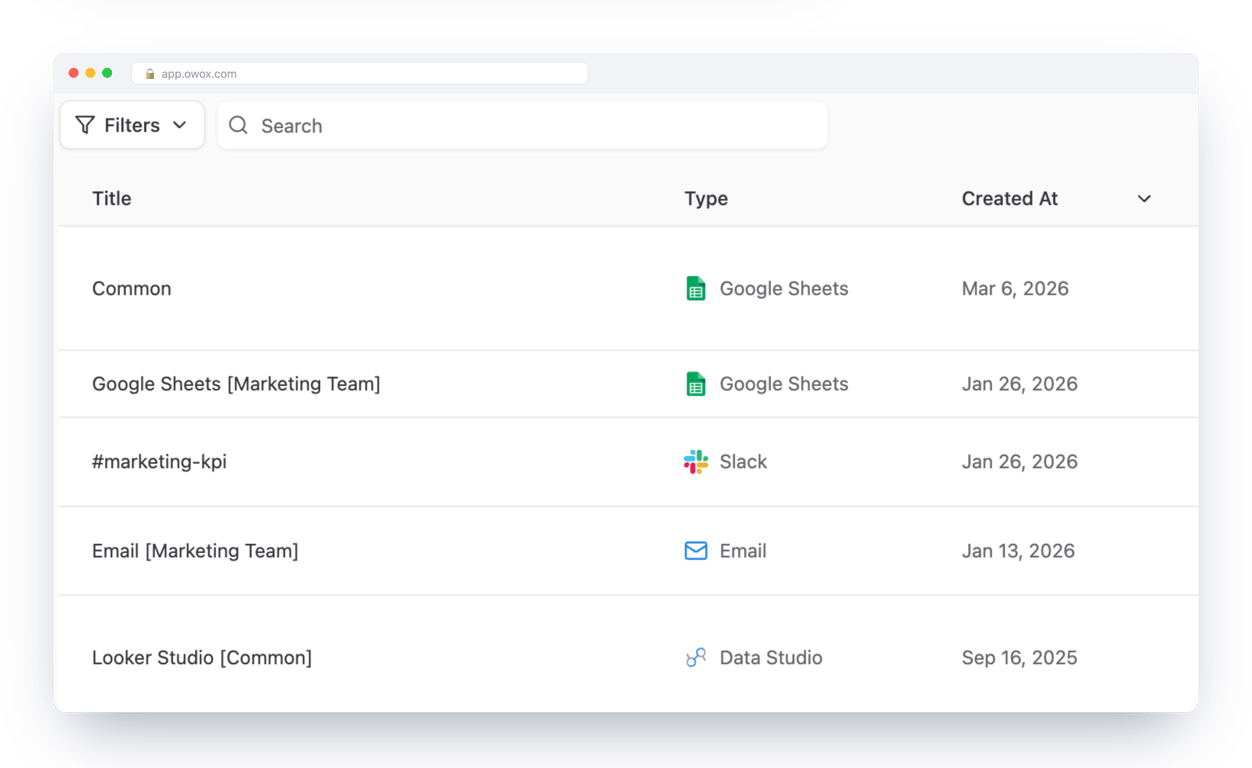
The same data mart can feed a Google Sheets report, a Looker Studio dashboard, a Slack channel or an email, so the number in the sheet is the number in the dashboard. Business users read it without needing data warehouse credentials.
How it works
- A Microsoft Ads data mart of the Connector type loads your ad data into tables in your data warehouse. A manual run backfills history, and a trigger keeps it fresh.
- Google Sheets is connected as a destination. The data mart publishes its data there.
- You read it in Sheets with a report created on the data mart, or by pulling it with the OWOX Data Marts extension inside Google Sheets.
- Or you just ask. Through OWOX MCP you can blend the same data with other Microsoft Ads endpoints, other ad platforms, or your CRM and GA4 data, using the data model.
OWOX Data Marts does not transform your data. It loads, publishes and governs it, and any SQL on top is written by an analyst.
What you need
- A Microsoft Ads account with access to the account you want to load, and its Account ID and Customer ID.
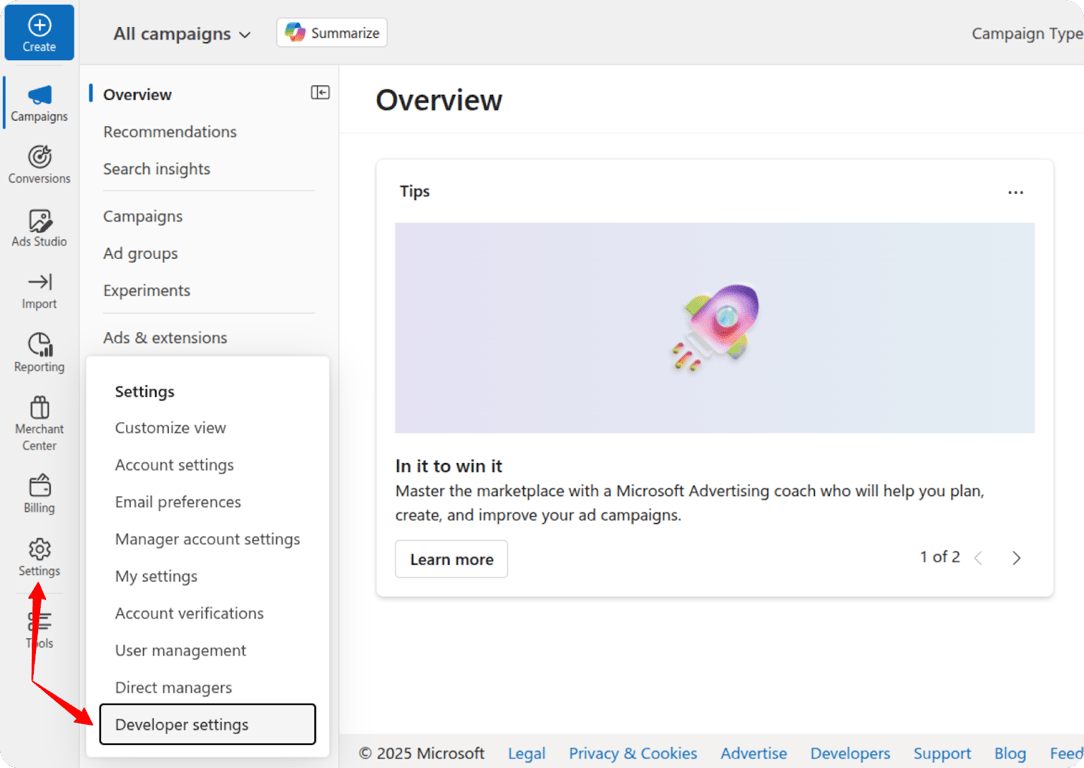
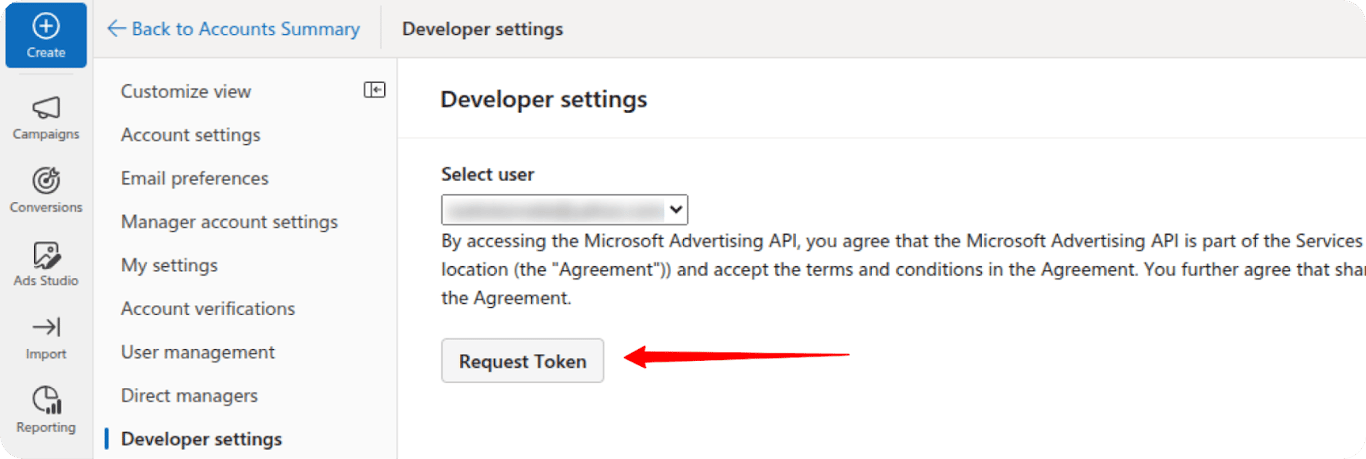
- A Microsoft Ads Developer Token (Settings → Developer Settings → Request Token).
- A data warehouse. OWOX Data Marts supports BigQuery, Snowflake, Databricks, AWS Athena and AWS Redshift. The examples here use BigQuery.
- OWOX Data Marts: OWOX Cloud for the quickest start, or self-managed with Node.js and the OWOX CLI (free and open source).
- A Google account for the Google Sheets report.
Step-by-step: send Microsoft Ads data to Google Sheets
Step-by-step: send Microsoft Ads data to Google Sheets
Seven steps. The first five load your Microsoft Ads data into your data warehouse. The last two bring it into Google Sheets.
Step 1: Start OWOX Data Marts ( ~2 min)
Choose how to run it:
-
OWOX Cloud: sign in or sign up and you are ready for step 2.
-
Self-managed (open source): install Node.js 22.22.0 or later, then run:
npm install -g owox
owox serve
Open
http://localhost:3000and you are in. The OWOX docs cover deployment options beyond a local machine.
Step 2: Connect your data warehouse ( ~3 min)
Open Storages in the left menu and add your data warehouse, for example BigQuery. This is where the Microsoft Ads tables will be created. The BigQuery walkthrough, including the service account, is in the Microsoft Ads → BigQuery guide.
Step 3: Create the Microsoft Ads data mart ( ~5 min)
- Click New Data Mart, give it a title and select the data warehouse from step 2.
- Set the type to Connector and choose Microsoft Ads (the Microsoft Ads data source).
- Connect your Microsoft account. On OWOX Cloud, sign in with Microsoft through OAuth and approve access, so there are no Azure credentials to copy.
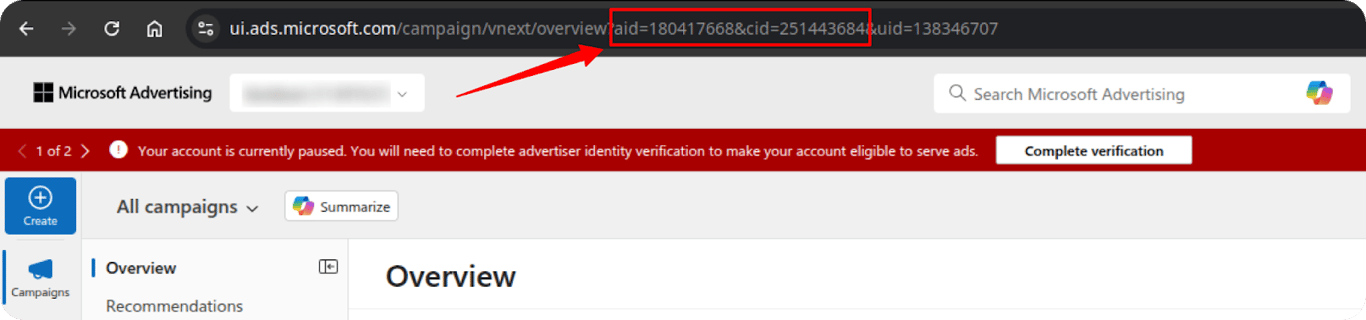
- Add your Account ID and Customer ID. Both are in the URL after you sign in to ads.microsoft.com:
aidis the Account ID andcidis the Customer ID.
- Add your Developer Token: in Microsoft Ads, open Settings → Developer Settings and click Request Token.
If you connect with your own credentials instead, for example on a self-managed install, the connector needs a Client ID, a Client Secret and a Refresh Token from an Azure app, in addition to the IDs and the Developer Token above.
Connect with your own Microsoft credentials
1. Register an app in Microsoft Azure
- Sign in to the Microsoft Azure Portal, search for App registrations and select it.
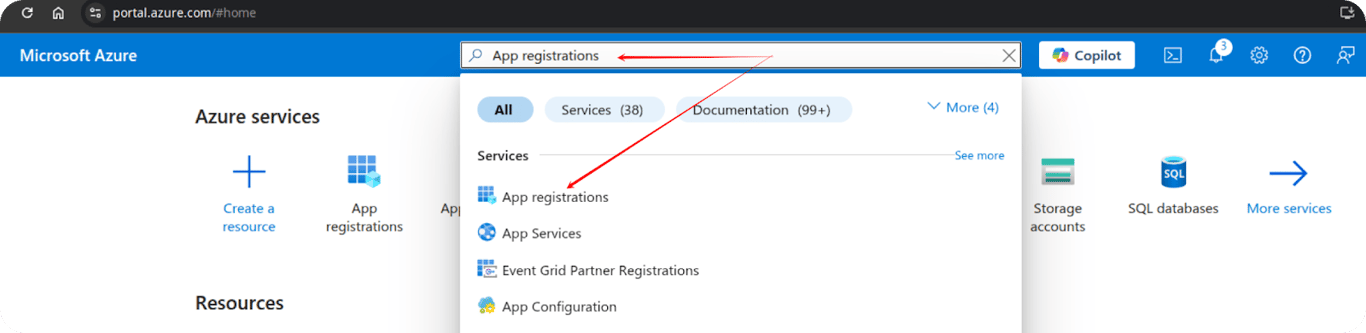
- Click New registration and fill out the form:
- Name: any name for your app, for example OWOX Connector
- Supported account types: Accounts in any organizational directory (Any Microsoft Entra ID tenant – Multitenant) and personal Microsoft accounts
- Redirect URI: platform Web, URI
http://localhost:8080
- Click Register.
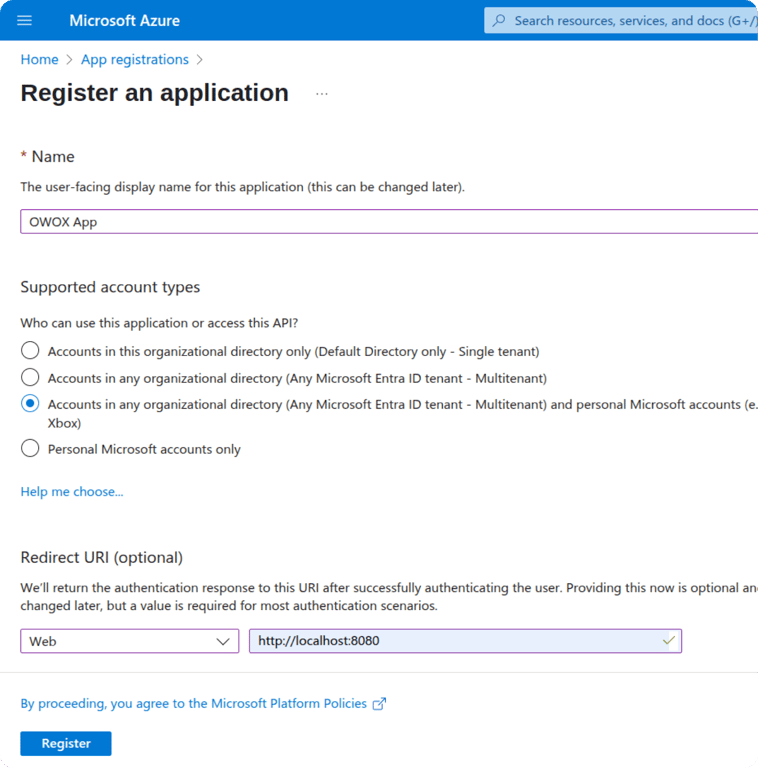
2. Generate a client secret
- In your registered app, go to Client credentials → Certificates & secrets → New client secret.
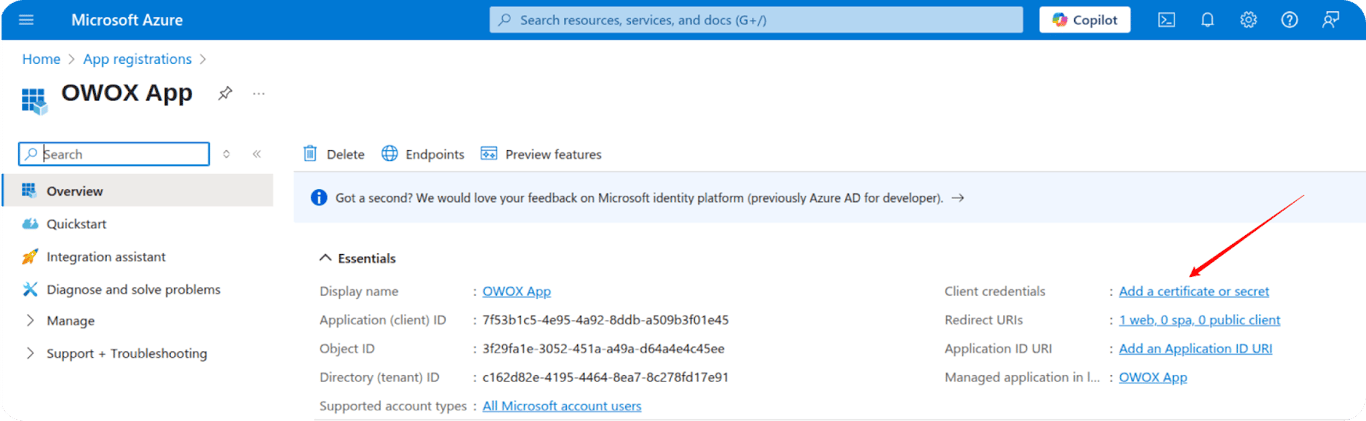
- Give it a description and choose the maximum expiration (730 days), then click Add.
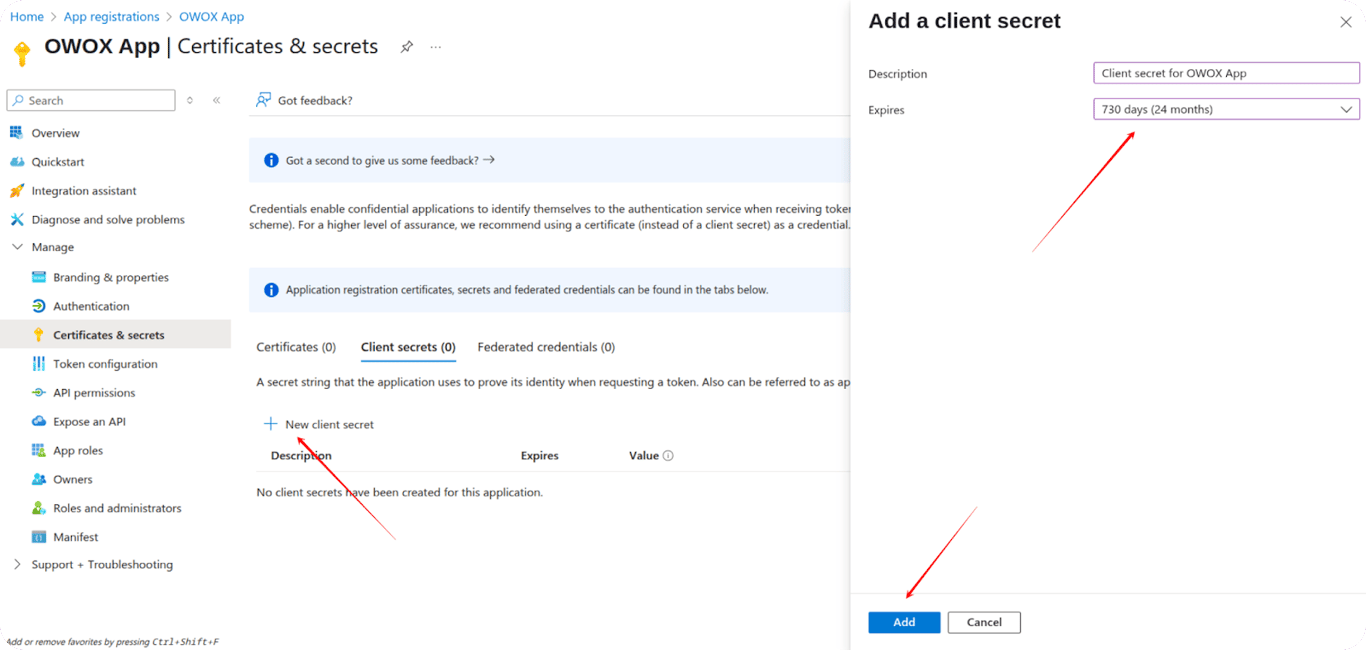
- Copy and save the secret value right away: you cannot retrieve it later.
3. Generate an authorization code
-
Build this URL, replacing
CLIENTIDwith your Client ID. It is one URL, shown here on several lines: join the lines with no spaces, keeping the single space beforeoffline_access. Open it in your browser, sign in and click Accept:https://login.microsoftonline.com /common/oauth2/v2.0/authorize ?client_id=CLIENTID &response_type=code &redirect_uri=http://localhost:8080 &scope=https://ads.microsoft.com /msads.manage offline_access -
You are redirected to a URL like
http://localhost:8080/?code=YOUR_CODE. Copy the value of thecodeparameter. It is short-lived, so use it within a few minutes.
4. Exchange the code for a refresh token
-
Send a POST request to this endpoint (one URL, joined the same way):
https://login.microsoftonline.com /common/oauth2/v2.0/token -
Use these body parameters:
client_id,client_secret,grant_type=authorization_code,code,redirect_uri(the same localhost address) andscope(the same value as in the URL above). -
The response contains the refresh_token. Copy it and store it securely.
Step 4: Choose what to load and backfill your history ( ~3 min)
- Select the endpoint: Microsoft Ads Campaigns, which imports spend, clicks and impressions, or the Ad Performance Report.
- Select the fields you need and set the dataset, or keep the default.
- Optionally switch on Process Short Links in the advanced settings: it resolves short links in the final and destination URLs into parsed URL fields.
- Click Publish Data Mart.
- Click Manual Run and choose Backfill for the first run. Add the start and end dates and click Run. This puts your historical Microsoft Ads data into the data warehouse.
- Open Run History and check for Success.
Step 5: Schedule the refresh ( ~1 min)
- Open the Triggers tab of the data mart and click Add Trigger.
- Choose Connector Run as the trigger type, then set daily, weekly, monthly or interval, plus the time, days and time zone.
- Click Create Trigger. Microsoft Ads data now refreshes on its own.
Step 6: Connect Google Sheets as a destination ( ~2 min)
Open Destinations in the left menu, click New Destination and choose Google Sheets (more on the Google Sheets destination). A destination is where a data mart can deliver its data; the same list also holds Looker Studio, Slack and email.
Step 7: Bring the data into Google Sheets ( ~2 min)
You have two ways to read the data mart in Sheets. Both are part of spreadsheet reporting in OWOX Data Marts.
Option A: a report on the data mart. Reports live on the Destinations tab.
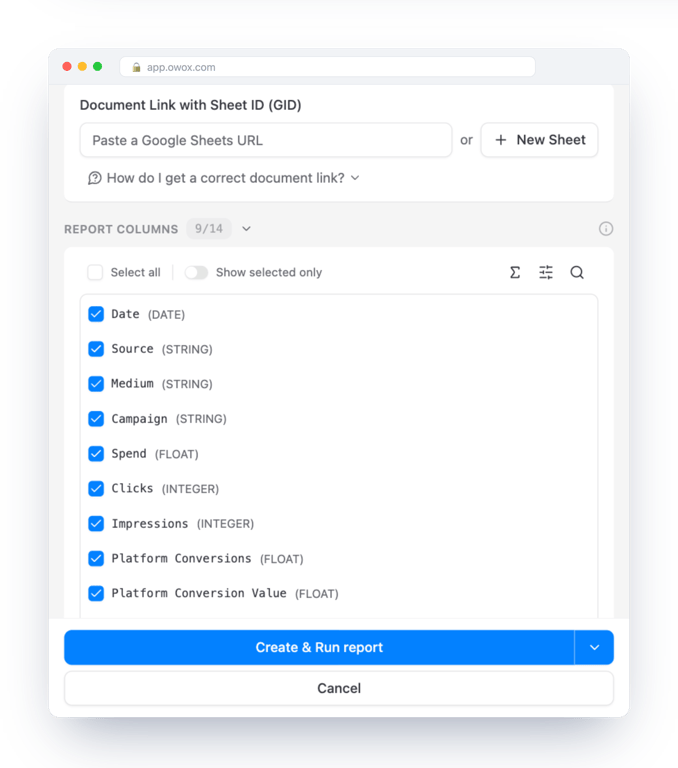
- Open the data mart, go to the Destinations tab and click New Report under your Google Sheets destination.
- Give the report a title and share the Google document with the address the form shows.
- Paste the URL of your Google Sheet, or click New Sheet to create one.
- Choose the report columns you want in the sheet.
- Click Create & Run report.
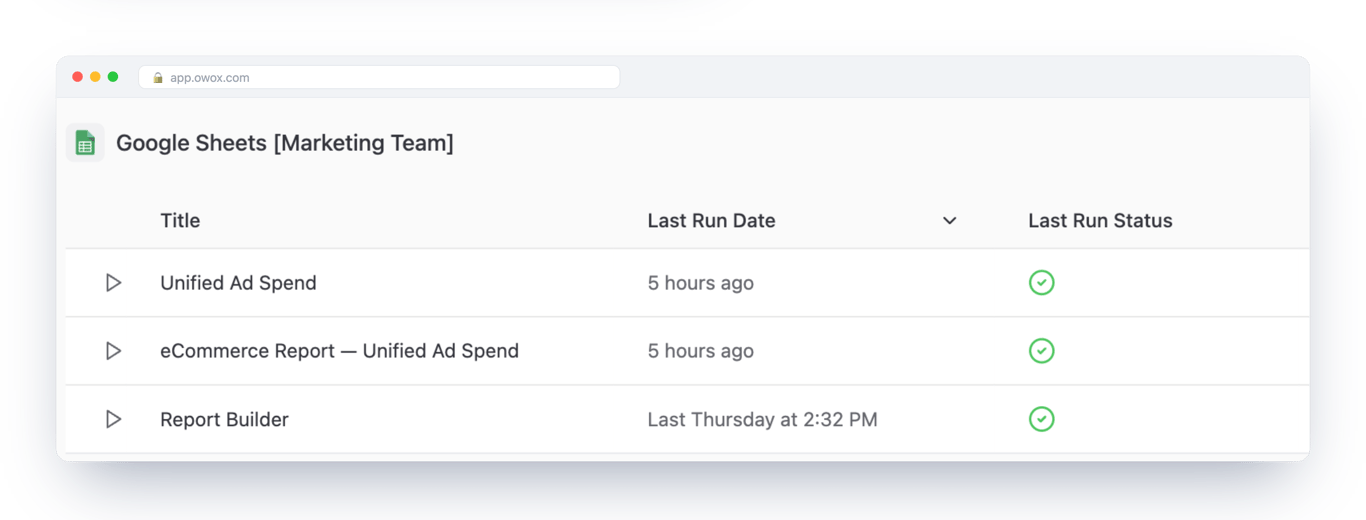
Each report is listed on the Destinations tab with its last run and status. Run it again whenever you need fresh data, or put it on a schedule with a report trigger.
Option B: the OWOX Data Marts extension. Install OWOX Data Marts from the Google Workspace Marketplace, open it inside Google Sheets and pull the data mart from there, without leaving the sheet. If your team works in Excel, there is an OWOX Excel add-in too.
Ask the blended question in plain language
Ask the blended question in plain language
Microsoft Ads data rarely answers a question on its own. With OWOX MCP you can blend it with other Microsoft Ads endpoints, with other ad platforms, or with your CRM data and GA4 data (GA4 through its native BigQuery export), using the data model, and ask for all of it in plain language.
Once ad spend is a governed data mart, nobody has to write the join to ask about it. Connect Claude to OWOX Data Marts with the OWOX Claude connector and a marketer can ask:
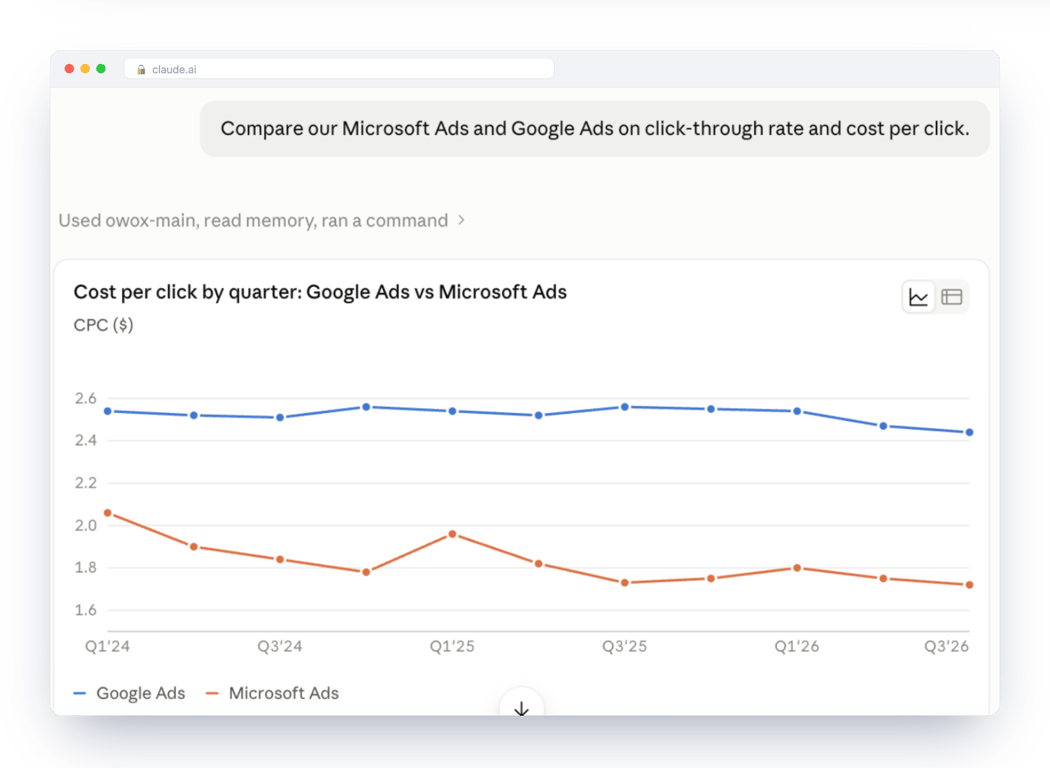
Compare our Microsoft Ads and Google Ads on click-through rate and cost per click.
Claude asks OWOX which data marts are relevant, reads their fields and the joins the analyst defined, and queries the one it picks. Ask it against raw data warehouse tables instead and it has to guess the join.
Here is the answer Claude gave against OWOX’s demo e-commerce project:
| Ungoverned | Against the data model | |
|---|---|---|
| What the model sees | Raw data warehouse tables | The published data marts |
| What it does | Invents the join | Reads the analyst’s join |
| What you get | A plausible number, confidently wrong | The number, and the query behind it |
MCP is the interface here, not the guarantee. The guarantee is the governed data mart behind it, and every question is logged in Run History. For how that works end to end, read governed MCP analytics.
What’s next?
This connector is part of our effort to make data ownership simple, transparent and accessible for everyone.
Here are more resources to explore:
- The Microsoft Ads connector for each data warehouse: BigQuery, Snowflake, Databricks, AWS Athena and AWS Redshift.
- The full data warehouse setup in the Microsoft Ads → BigQuery guide.
- The same route for another platform: Facebook Ads → Google Sheets, LinkedIn Ads → Google Sheets and TikTok Ads → Google Sheets. More free connectors are on the connectors page.
Check out our GitHub repo, leave us a ⭐ star, and let’s build better tools together.
Turn your data into decisions.
Governed data marts give you the clean foundation ML needs to actually work.
- No AI hallucinations
- Analyst-governed definitions
- Every number traces to SQL
Frequently Asked Questions
Which Microsoft Ads data can I load into my data warehouse?
You choose an endpoint in the data mart: Microsoft Ads Campaigns, which imports spend, clicks and impressions, or the Ad Performance Report. You then select the fields you need and, if you like, switch on Process Short Links to resolve short URLs.
How often does Microsoft Ads data refresh in Google Sheets?
You set the schedule with triggers. A Connector Run trigger loads Microsoft Ads data into your data warehouse daily, weekly, monthly or on an interval, at the time and time zone you choose. A Report Run trigger then pushes the data mart to your Google Sheets report on its own schedule, so nobody has to re-run anything by hand.
Where does the imported Microsoft Ads data appear?
First in your data warehouse, in the tables the data mart creates in the dataset you choose. From there it reaches Google Sheets, in the sheet you pick, through a report on the data mart or through the OWOX Data Marts extension.
How do I connect Microsoft Ads (Bing Ads) to OWOX Data Marts?
On OWOX Cloud, sign in with your Microsoft account through OAuth and approve access. You also add your Account ID and Customer ID (the aid and cid values in the Microsoft Ads URL) and a Developer Token from Settings, Developer Settings. If you connect with your own credentials, you also need a Client ID, a Client Secret and a Refresh Token from an Azure app.
Is there a direct Microsoft Ads to Google Sheets connector?
No. The route is Microsoft Ads, then a data warehouse, then Google Sheets: a Microsoft Ads data mart loads your data into the data warehouse, and Google Sheets reads it through a report or the OWOX Data Marts extension.
Is it free to send Microsoft Ads data to Google Sheets with OWOX Data Marts?
Yes. OWOX Data Marts is open source, and the Microsoft Ads connector is included at no extra cost when you run it yourself: no per-connector fees and no trial that expires. You pay only for your own data warehouse compute and storage. OWOX Cloud is the hosted option; see the pricing page for its plans.