

How To Remove Duplicates In Google Sheets Effectively
Learn to remove duplicates in Google Sheets with built-in features, formulas, and conditional formatting. Clean your data efficiently and easily


Are duplicates clouding your data analysis in Google Sheets? Removing duplicates in Google Sheets is crucial for maintaining the integrity and accuracy of your datasets. This guide offers a step-by-step approach on how to remove duplicates in Google Sheets, ensuring your Google Sheets remain fresh and analysis-ready.
Ideal for everyone from spreadsheet enthusiasts to data analysts, and small business owners to freelancers, you will discover the best practices and tools to clean your data effortlessly. By mastering these techniques, you'll ensure your reports are both accurate and easy to interpret, letting you make data-driven decisions with confidence.
Note: This article was originally published in August 2024, and it was completely updated in May 2025 to ensure accuracy and completeness.
Understanding Duplicate Data in Google Sheets
Duplicate data in Google Sheets can significantly disrupt the accuracy and analysis of the entire data set. It often arises from human error, data import issues, or incorrect entries, leading to inefficient decision-making and wasted resources. Common forms of duplicate data include repeated rows or values, each requiring a distinct approach for resolution.
For example, duplicate rows may result from repeated entries, while duplicate values can occur when data is copied and pasted without validation. Identifying the type of duplicate data is the first step in maintaining a clean and accurate dataset, enabling reliable analysis and decision-making.
Why Removing Duplicates Is Crucial for Data Integrity
Removing duplicates in Google Sheets is crucial for maintaining data accuracy and reliability. Duplicates can cause errors, lead to poor decision-making, and create inefficiencies.
By ensuring data is clean and consistent, you can maintain accurate, up-to-date customer information, enhance their experience, and prevent the waste of resources on redundant efforts. When removing duplicates, ensure you select the ‘Data has header row’ option to prevent the header from being considered as a duplicate entry.
While Conditional Formatting can highlight duplicates in Google Sheets, it does not facilitate deleting duplicates. It is important to not only identify but also focus on deleting duplicates to maintain data integrity.
Here are several advantages of deduplicating your customer data:
- Enhanced Customer Experience: Eliminating duplicate records ensures accurate, reliable customer data, leading to more appropriate and timely communications and improving customer interactions.
- Lower Data Storage Costs: Removing duplicates saves database space and makes IT work better.
- Improved Operational Efficiency: Automating the deduplication process minimizes manual data cleaning, saving significant time and resources, which can be redirected to other vital activities.
- Sharper Customer Insights: Clean data helps companies understand customer behaviors and preferences, which helps them develop marketing strategies that increase engagement and conversions.
Removing Duplicate Rows in Google Sheets with the Native Data Cleanup Tool
Google Sheets’ Data Cleanup tool offers a straightforward approach to removing duplicates from your dataset. This built-in tool simplifies the process by allowing you to select your data and access Data Cleanup to eliminate duplicates across specified columns or the entire sheet efficiently. This built-in feature simplifies data management tasks, ensuring accuracy and efficiency in your spreadsheets.
This built-in feature simplifies data management tasks by identifying and removing duplicate values, ensuring your dataset remains accurate and reliable.
How to Use the 'Remove Duplicates' Option in Google Sheets
To efficiently remove duplicates in Google Sheets, select your data range, navigate to Data > Data cleanup, and choose the ‘Remove duplicates’ option.

Google Sheets will detect duplicates across your selected columns and provide feedback on how many duplicates were removed, ensuring transparency in the cleanup process. Simply click remove duplicates, and a summary report will inform you of the number of duplicates removed.
Customize your selections and confirm by clicking “Remove duplicates.”

Immediately after, the duplicate rows are effectively removed.

This process ensures your dataset is cleaned while preserving the first instance of each unique entry, enhancing data integrity and usability for analysis and presentation.
This method is also applicable to larger datasets. A limitation, however, is the need to manually execute this process each time new entries are added.
What if you've added over 50 new entries and are unsure about potential duplicates? In this guide, we provide strategies to automate the detection and elimination of duplicates in your Google Sheets document.
Ways to Eliminate Duplicates in Google Sheets
Besides the native ‘Data Cleanup’ feature for removing duplicates in Google Sheets, consider these alternatives:
- Pivot Tables: Adjust your data view to conceal duplicates.
- Google Sheets Formulas: Utilize formulas to delete duplicate rows.
- Apps Script: Write custom scripts that delete duplicates based on set criteria.
- Google Sheets Add-ons: Explore tools on the Google Workspace Marketplace designed for removing duplicates.
To remove duplicate cells, you can use various methods such as pivot tables, built-in functionality, and Google Sheets add-ons. Each method has pros and cons, including the impact on the original dataset and alternatives that preserve the original data.
Let’s explore scenarios for highlighting and removing duplicates in Google Sheets, along with the most effective solutions.
Removing Duplicates from a Single Column
The UNIQUE function is highly effective in removing duplicates in a single column. This method requires just one formula.
To remove duplicate entries in a single column, the UNIQUE function is highly effective. This method uses a single formula to identify and remove duplicates automatically. The UNIQUE function can also remove duplicates based on analysis of multiple columns in Google Sheets.
Alternatively, you can detect duplicates by employing the COUNTIF function in an adjacent column or by highlighting them with the ‘Conditional Formatting’ feature in Google Sheets. Using a separate column for functions like COUNTIF can help identify and manage duplicates effectively. After identifying the duplicates, you can manually delete them or use the ‘Remove Duplicates’ tool. Refer to the relevant section in this article for detailed guidance.
Removing Duplicates Across Multiple Columns
To remove duplicates from multiple columns in Google Sheets, select all the columns. Then go to the Data menu, choose “Data cleanup,” and select “Remove duplicates.” After choosing the desired columns and confirming, duplicates are automatically removed.
Handling duplicates in two or more columns necessitates a more sophisticated strategy, offering several effective solutions:
- Pivot Table: Eliminates duplicates and displays results in a new sheet.
- UNIQUE Function: Removes duplicates from a complete data range by evaluating all the columns.
- QUERY Function: More complex but highly reliable solution.
- Two-Step Method: Initially, identify duplicates using a unique identifier, then remove them with a complex formula.
We recommend starting with the pivot table method and then exploring the formula-based alternatives for more detailed control.
Removing Duplicates While Keeping Their Position
To remove duplicates without affecting the sequence of your dataset, Conditional Formatting is your best choice.
This process involves two main steps:
- Identifying and Highlighting Duplicates: Use Conditional Formatting to mark duplicate entries visually.
- Manual Removal of Duplicates: Carefully delete duplicates while maintaining their original positions.
This method takes more time, but it allows for more control over the process.
If you know which solution fits your needs, proceed directly to that section. Otherwise, review all options to determine the most suitable approach for your situation.
How to Remove Duplicates Using Pivot Tables
Pivot tables allow you to manipulate and reorganize your dataset without altering the original data. It is crucial to retain the integrity of the original dataset while using pivot tables to remove duplicates. While we won’t change the perspective, we’ll use a pivot table to identify and eliminate duplicates automatically.
Step 1: Create a pivot table
To begin, create a pivot table in your spreadsheet by selecting your dataset and choosing the 'Pivot Table' option from the 'Insert' menu.

If your dataset includes headers, select the ‘Data has header row' option to ensure the headers are not treated as duplicates.
Next, select your data range for analysis and decide where the pivot table should be placed, whether in a new sheet or an existing one.

Once the pivot table is created, configure it using the Pivot Table Editor on the right side of your spreadsheet.
Step 2: Add rows to your pivot table
For our example, we wanted to include all columns from our dataset. To do this, click on 'Add' in the 'Rows' section and select a column.

To make your result look cleaner, ensure the 'Show totals' checkbox is unchecked. Repeat this step for each column you wish to include. Eventually, you'll see a pivot table with duplicates removed.

Step 3: Add values to your pivot table
To identify which entries were duplicated, navigate to the 'Values' section in the Pivot Table Editor and click 'Add.'

Select the columns you want to check for duplicates, and choose COUNTA for the Summarize by option.
This creates an additional column indicating:
- A count of 1 signifies a unique entry.
- A count of 2 or more indicates duplicates.
When you add new entries to your dataset, they will be automatically identified in this column and highlighted in your pivot table.
💡 The Pivot Tables feature is exceptional for summarizing and segmenting data, offering deeper insights. To further enhance your data analysis, explore our guide on Pivot Tables and master advanced techniques.
How to Remove Duplicates in Google Sheets Using Formula-Based Methods
Formula-based methods for removing duplicates in Google Sheets offer flexible and automated solutions. Using functions like UNIQUE, COUNTIF, and others, you can efficiently identify and eliminate duplicate entries, ensuring your data remains clean and accurate without manual intervention.
Additionally, you can use a custom duplicate checking formula to identify and highlight duplicate data in specified ranges. This approach allows for flexibility and customization options, enabling you to adjust the formula for different data sets and display duplicates effectively.
Duplicate Removal with the UNIQUE Function
The UNIQUE function in Google Sheets is a powerful tool for removing duplicates. By applying this function to a range of data, you can generate a new list containing distinct values, automatically filtering out any duplicates and resulting in a table with fewer rows compared to the original data.
Using our example, simply enter the following formula:
=UNIQUE(B3:B12)

This method is especially useful for creating clean data sets from larger, unstructured data sources. Combining with ARRAYFORMULA, UNIQUE function can be applied across multiple rows or columns. Using ARRAYFORMULA with UNIQUE allows users to apply the function across multiple rows or columns simultaneously in Google Sheets.

💡 Removing duplicates is just the first step to organizing your data. To further enhance your ability to handle unique entries, delve into our guide on using the UNIQUE function in Google Sheets. This tool simplifies the identification of distinct data, helping you maintain cleaner, more reliable datasets. Read our detailed guide on the UNIQUE function.

Removing Duplicates Using COUNTIF and Conditional Formatting in Google Sheets
Identifying duplicates in Google Sheets is essential for maintaining data accuracy. However, with this approach, before deleting them, we need to highlight duplicates.
Conditional formatting can format cells based on criteria, such as highlighting duplicates and providing users with clear instructions on utilizing this feature to enhance data visibility and organization.
Some people think that conditional formatting can help. However, it’s a common misconception that it can remove duplicates. In reality, conditional formatting only highlights duplicates, where an actual removal requires manual action using Google Sheets’ ‘Data Cleanup’ feature or some other approaches.
Let’s find out how to quickly and easily pinpoint duplicate entries in your spreadsheets.
Highlighting duplicates in a single column
To highlight duplicates in a single column in Google Sheets, access the 'Conditional Formatting' menu, then set up the duplicate detection formula with the help of COUNTIF function.
If you're dealing with duplicates in just one column, you can easily highlight these repeat entries.
Here's how:
1. Select the data range you suspect contains duplicates. Navigate to Format > Conditional Formatting.

2. In the Conditional Format Rules panel, open the dropdown menu under "Format rules" and choose "Custom formula is."
3. Input a formula to detect duplicates in the "Value or formula" box. For instance, if checking duplicates in cells B3:B12, use the following formula:
=COUNTIF($B$3:$B$12,B3)>1
4. Set up the appearance of duplicates under "Formatting style." By default, duplicates will be highlighted in green. For better visibility, you can consider changing this to a different color. Setting conditional formatting to highlight duplicates improves the readability of data by using high-contrast colors.

Highlighting duplicates across multiple rows or columns
To identify duplicates in several rows or columns, you can extend the approach used for a single column:
1. Follow the initial three steps from the previous instructions. Choose the data range where duplicates might exist by going to Format > Conditional Formatting.
2. In the Conditional Format Rules panel, select "Custom formula is" from the Format rules dropdown menu.
3. Modify the duplicate checking formula to cover multiple rows or columns. For example, to check the entire range from A to Z use the formula below:
=COUNTIF($A:$Z,Indirect(Address(Row(),Column(),)))>1
Tip: To focus on specific rows or columns, adjust the "Apply to range" field to reflect the exact range you wish to scan for duplicates.
4. Customize the appearance of highlighted duplicates under "Formatting style" to make them stand out, and then click 'Done.'
This method allows you to visually identify and manage duplicates across broader areas of your spreadsheet, ensuring data consistency and accuracy.

Manually deleting highlighted duplicates
After using Conditional Formatting to highlight duplicates, whether in a single column or across multiple columns, the next step is to manually remove them:
- Carefully examine the highlighted duplicates to confirm that all duplicate entries have been correctly identified.
- Proceed to manually delete these duplicates to maintain the integrity and accuracy of your data.
This process ensures that you effectively identify and remove duplicate data, keeping your spreadsheet clean and accurate.
Getting Rid of Duplicates Using the QUERY Function
The QUERY function in Google Sheets can effectively remove duplicates while allowing for complex data manipulation. By using SELECT and GROUP BY clauses with aggregation functions like MAX(), you can effectively filter out duplicates and sort your data as needed.
Managing duplicate content across many columns is crucial for maintaining data integrity. Using the QUERY function, you can highlight and manage duplicate entries efficiently.
Let’s say you have duplicates in the employees list with their department and working hours. You can use the QUERY function; you can create a clean copy of the data without duplicates.
Here’s how you can achieve this:
=QUERY(B2:D12, "SELECT B, C, MAX(D) GROUP BY B, C ORDER BY MAX(D) DESC LABEL MAX(D) 'Hours Worked'", 1)

Formula breakdown:
- B2:D12: Specifies the data range that the QUERY function operates.
- SELECT B, C, MAX(D): Selects the employee’s name and department. The MAX(D) identifies the maximum (highest) number of hours worked from column D for each combination of employee and department.
- GROUP BY B, C: Groups the results by 'Employee Name' and 'Department' to ensure that each combination appears only once in the output, effectively removing any duplicate entries within the dataset.
- ORDER BY MAX(D) DESC: Orders the results by the hours worked, descending from highest to lowest number of hours. This ordering provides the most engaged employees at the top of the list.
- LABEL MAX(D) 'Hours Worked': Renames the output column for MAX(D) from its default 'max Hours Worked' to 'Hours Worked' for better clarity and relevance in the final output.
💡 While removing duplicates organizes your data, using the QUERY function can elevate your analysis. Dive into our QUERY function guide to tap into its powerful data manipulation capabilities.

Deduplicate Multiple Columns with Merging Functions
To deduplicate multiple columns in Google Sheets using the merging functions, you need to follow two steps:
- Identifying duplicates in the columns you want to analyze.
- Removing those duplicate entries.
The merging functions operate directly on the active sheet to deduplicate multiple columns, ensuring that the currently selected sheet is processed to eliminate duplicate entries.
Step 1: Find duplicates in your Google Sheet dataset
Let's consider a scenario with a dataset with duplicated employee department data. Our goal is to merge the 'Employee Name' with 'Department' data, and then deduplicate based on a unique identifier in a new column.
To merge data from the 'Employee Name' and 'Department' columns into a single column, let's use the following formula in cell B3:
={"ID";ARRAYFORMULA(CONCAT(C$4:C,D$4:D))}
Let's break it down:
- "ID": This is a header for the new merged column.
- ={"ID";ARRAYFORMULA(CONCAT(C$4:C,D$4:D))} This formula concatenates the values in columns C and D starting from row 4 downwards. CONCAT merges the values, while ARRAYFORMULA ensures the formula applies to the entire column, avoiding the need to drag the formula down manually.

Step 2: Removing Duplicates in Sheets Using Their Distinct IDs
Now, let's proceed to deduplicate the merged data in the new spreadsheet while preserving the order.
Create a new spreadsheet and paste the formula:
={
'6. Deduplicate Multiple Columns with Merging Functions: Step 1'!B3:E3;
SORTN(
FILTER('6. Deduplicate Multiple Columns with Merging Functions: Step 1'!B4:E, LEN('6. Deduplicate Multiple Columns with Merging Functions: Step 1'!B4:B) > 0),
ROWS(FILTER('6. Deduplicate Multiple Columns with Merging Functions: Step 1'!B4:E, LEN('6. Deduplicate Multiple Columns with Merging Functions: Step 1'!B4:B) > 0)),
2,1,true
)
}
Let's explain:
- 'Deduplicate Multiple Columns with Merging Functions'!B3:E3: This line fetches specific header rows from another sheet or range. It typically includes headers to maintain clarity in the resulting dataset.
- FILTER('Deduplicate Multiple Columns with Merging Functions'!B4:E, LEN('Deduplicate Multiple Columns with Merging Functions'!B4:B) > 0): This filters out rows, ensuring we only work with valid data.
- SORTN(..., ROWS(FILTER(...)), 2, 1, true): This function sorts and deduplicates the filtered data.
- ROWS(FILTER(...)): Counts the number of rows in the filtered data to ensure all distinct rows are retained.
- 2, 1, true: Specifies to sort based on the second column (if needed), in ascending order, keeping distinct values.

Follow these steps and use the provided array formulas to efficiently merge and deduplicate data across multiple columns in your Google Sheets.
Using Google Apps Script for Duplicate Removal
An alternative method to manage duplicate data in Google Sheets involves using Apps Script. By creating a script, Google Sheets can automatically identify and remove duplicate entries. Accessing Apps Script through the Extensions menu is crucial for this process.
Navigate to the top menu, click on “Extensions,” and select “Apps Script” from the dropdown menu.

You can copy the below script to help you check for duplicate entries:
function removeDuplicates() {
var sheet = SpreadsheetApp.getActiveSpreadsheet().getActiveSheet();
var data = sheet.getDataRange().getValues();
var newData = [];
var seen = {};
data.forEach(function(row) {
var key = row[0]; // Adjust index for the column you want to check for duplicates
if (!seen[key]) {
seen[key] = true;
newData.push(row);
}
});
sheet.clearContents();
sheet.getRange(1, 1, newData.length, newData[0].length).setValues(newData);
}

Customize your script by replacing [0] with the index column you wish to check for duplicates. Index columns represent unique labels for each row in your spreadsheet. In spreadsheet terms, [0] denotes the first column, [1] the second, and so forth.
For searching duplicates in the “Employee” column, let’s replace [0] with [3].

Once the script is executed, Google will request permission to access and modify your spreadsheet. To proceed, click “Advanced.” Then, click “Unsafe” to access the Apps Script editor, where you’ll see that the duplicate removal function has been executed. The script will eliminate duplicate rows based on the specified column criteria.

Using Data Validation to Prevent Duplicate Entries in Google Sheets
Data validation in Google Sheets can be used to prevent duplicate entries.
Using data validation can help prevent duplicate cells in specific columns, ensuring that each entry is unique and maintaining data integrity.
Here’s how to set it up:
- Highlight the cells where you want to prevent duplicates, then navigate to Data > Data validation.

2. In the Data Validation dialog box from the drop-down menu, select "Custom formula is" and input the formula:
=COUNTIF(B$3:B3, B3)=1
Here's the breakdown:
- B$3:B3: This is the range where the custom formula will be applied.
- B3: The column where entries will appear.
Choose the "Reject input" option under the "On invalid data" section.
Note: In the formula provided, B3 represents the starting cell of the column you wish to monitor.

3. Click the 'Save' button. From now on, if a duplicate entry is attempted in that column, a warning will appear to alert you.

Common Challenges When Removing Duplicates in Google Sheets
Removing duplicates in Google Sheets isn’t always straightforward, especially when working with large datasets or subtle variations in entries. Without the right approach, you risk deleting important information or missing hidden duplicates.
Here are some of the most common challenges:
- Unintended Data Loss – Using the Remove Duplicates tool without carefully selecting the right range may delete unique values.
- Partial Matches Not Detected – Slight differences like extra spaces or inconsistent spelling can prevent duplicates from being identified.
- Duplicate Rows Across Multiple Columns – Duplicates spread over multiple columns are harder to catch without advanced logic.
- Ineffective Manual Scanning – Manually spotting duplicates in large sheets is slow and error-prone.
- No Dynamic Duplicate Checking – The built-in Remove Duplicates tool doesn’t auto-refresh when new data is added.
- Lack of Custom Logic – You can’t apply conditions like “remove only if date is older” using default tools.
Best Practices for Managing Duplicate Data
Managing duplicate data in Google Sheets requires a strategic approach to ensure data accuracy and reliability. Here are some best practices to help you manage duplicate data effectively:
Using various methods to remove duplicate cells is crucial for maintaining the integrity of your dataset. Different approaches can help you address duplicates without compromising the original data.
- Use Conditional Formatting: Conditional formatting is a powerful tool in Google Sheets that allows you to highlight duplicate data. Using a custom duplicate checking formula, you can identify duplicate values and highlight them for easy removal. This visual aid makes it simpler to spot and address duplicates promptly.
- Use the Remove Duplicates Tool: Google Sheets provides a built-in Remove Duplicates tool to remove duplicate rows or values from your dataset. This tool is easy to use and can save you time and effort. Simply select your data range, navigate to Data > Data cleanup, and choose ‘Remove duplicates’ to clean your dataset efficiently.
- Use Formulas: Formulas like UNIQUE, COUNTIF, and ARRAYFORMULA can be used to identify and remove duplicate data. These formulas offer flexible and automated solutions for managing duplicate data. For example, the UNIQUE function can generate a list of distinct values, while COUNTIF can help you count occurrences of specific entries.
- Use Pivot Tables: Pivot tables can be used to identify and remove duplicate data by summarizing data and highlighting duplicate values. By creating a pivot table, you can reorganize your dataset and easily spot duplicates, which can then be addressed accordingly.
- Use Data Validation: Data validation can be used to prevent duplicate entries in Google Sheets. By setting up data validation rules, you can monitor specific columns and prevent duplicate entries. This proactive approach helps maintain data integrity from the point of entry.
- Regularly Clean Your Data: Regularly cleaning your data is essential in maintaining data accuracy and reliability. Use the Remove Duplicates tool or formulas to remove duplicate data and ensure your dataset is clean and consistent. Regular data audits can help you catch and correct duplicates before they impact your analysis.
By following these best practices, you can effectively manage duplicate data in Google Sheets and ensure your dataset is accurate, reliable, and efficient. This strategic approach will help you maintain the integrity of your data, leading to more accurate analysis and better decision-making.
Master Google Sheets with These Functions
Boost your Google Sheets skills with our guides on advanced functions. These tutorials will help you handle complex tasks and analyze data more effectively.
- CONCATENATE Function: Merge text from various cells into one string seamlessly with this function. It's perfect for combining pieces of information without any breaks.
- FILTER Function: Use this to sift through a range and find data that matches specific criteria. It helps you quickly isolate relevant entries in your spreadsheet.
- SEARCH Function: Find where a certain piece of text is located within a larger string, ignoring any case differences. This function is ideal for pinpointing text locations efficiently.
- GOOGLEFINANCE Function: This function fetches real-time financial data from the market, allowing you to populate your sheets with up-to-date stock prices, currency exchange rates, and other financial information.
- MATCH Function: Discover the position of an item in a range with this function. It returns the relative position of an item in a range that matches a specified value.
- IF Function: Make logical comparisons between elements. This function checks whether a condition is true and returns one value if true, and another if false.
- VLOOKUP Function: Search through a column for a key and return the value from a specified cell in the row found. This function is vital for finding specific data within large tables.
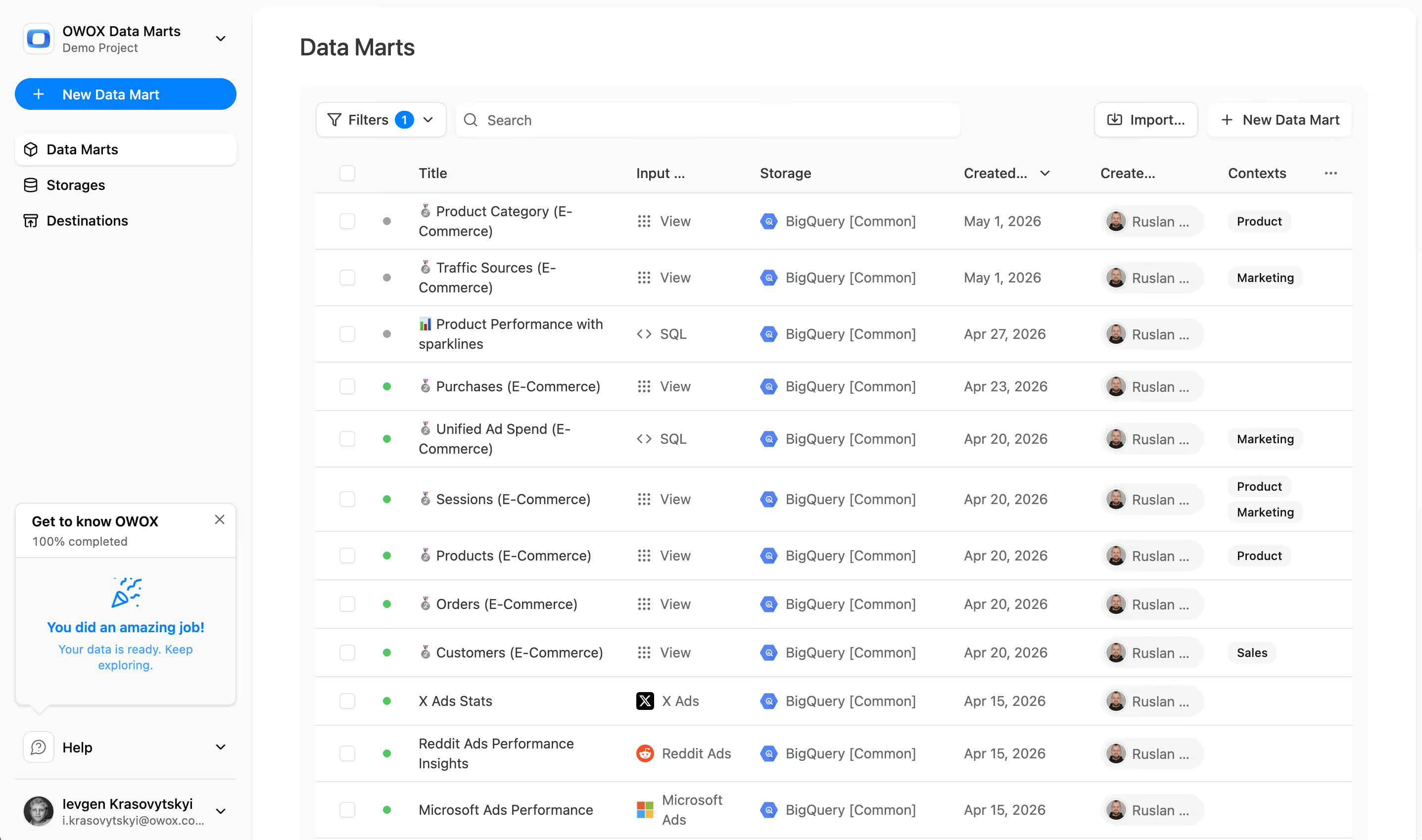
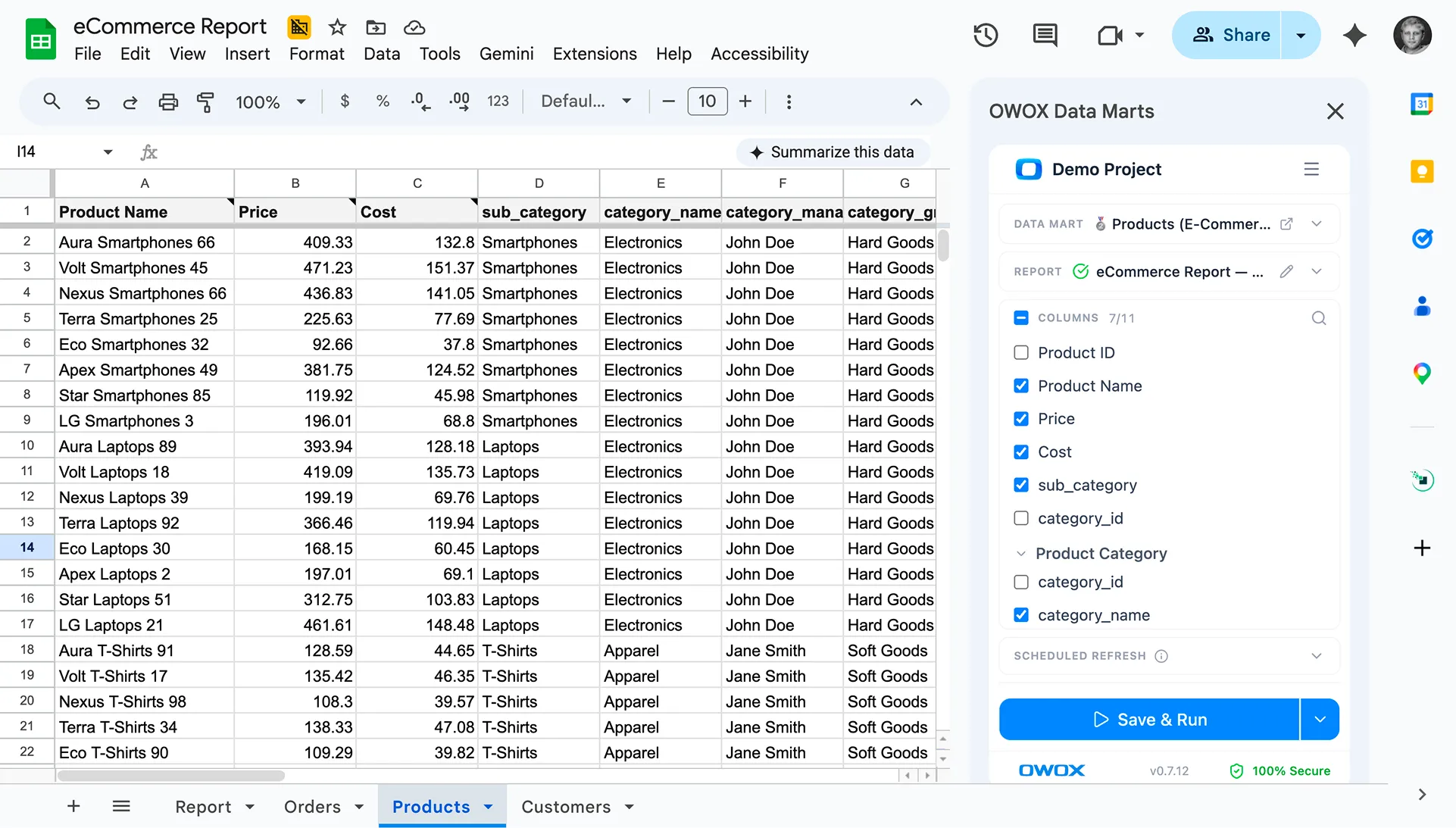
Simplify Your Data Reporting with OWOX: Reports, Charts & Pivots Extension
The OWOX Reports Extension for Google Sheets allows you to import BigQuery data directly into Google Sheets, eliminating the need for manual imports and messy data transfers. Equip yourself with a useful tool to access precise data easily.
Frequently asked questions




"AI by its nature will hallucinate. You need guardrails so you can trust your data."
"We had six or seven different channels and no single source of truth. It was almost impossible"
"We regained time. And time is the one resource that never comes back."