WORKDAY and NETWORKDAYS in Google Sheets: how to count working days
NETWORKDAYS counts the working days between two dates; WORKDAY returns the date a number of working days away. This guide covers both, their INTL versions for custom weekends, how to pass holidays so that they are really excluded, and the errors each function returns.
To count the working days between two dates in Google Sheets, use =NETWORKDAYS(start_date, end_date). It counts Monday to Friday, includes both the start date and the end date, and leaves out any dates you pass as holidays. To go the other way, from a start date and a number of working days to the date they end on, use =WORKDAY(start_date, num_days).
| You need | Formula | Result |
|---|---|---|
| Working days between two dates | =NETWORKDAYS(DATE(2024,7,1), DATE(2024,7,5)) |
5 |
| The same, with a holiday left out | =NETWORKDAYS(DATE(2024,7,1), DATE(2024,7,5), DATE(2024,7,4)) |
4 |
| The date two working days after a start date | =WORKDAY(DATE(2024,6,5), 2) |
June 7, 2024 |
| Working days when the weekend is Friday and Saturday | =NETWORKDAYS.INTL(start_date, end_date, 7) |
Counts Sunday to Thursday |
This guide covers the four functions, the way to pass holidays so that they are really excluded, custom weekends, and the errors you may see.
The four functions at a glance
The four functions at a glance
| Function | Returns | Weekend |
|---|---|---|
| NETWORKDAYS | The number of working days between two dates, both included | Saturday and Sunday |
| NETWORKDAYS.INTL | The same number | Any days you choose |
| WORKDAY | The date a given number of working days after (or before) a start date | Saturday and Sunday |
| WORKDAY.INTL | The same date | Any days you choose |
All four take an optional list of holidays. The two NETWORKDAYS functions answer “how many working days?”, and the two WORKDAY functions answer “which date?”.
How to pass holidays so that they are excluded
How to pass holidays so that they are excluded
The holidays argument has to contain real dates. This is the part that goes wrong most often, because a wrong holiday does not always produce an error: the formula returns a result, and the holiday is still counted as a working day.
| Holiday written as | What happens |
|---|---|
DATE(2024,7,4) |
Works. July 4 is excluded. |
A range of date cells, $C$15:$C$19 |
Works. Every date in the range is excluded. |
A named range, Holidays |
Works, and the formula is easier to read. |
{DATE(2024,7,4), DATE(2024,12,25)} |
Works. Several dates in one array. |
{7/4/2024} |
No error, but the holiday is not excluded. Sheets reads 7/4/2024 as 7 divided by 4 divided by 2024. |
"7/4/2024" in quotes |
Returns #VALUE!. |
With the first week of July 2024 as the period, =NETWORKDAYS(DATE(2024,7,1), DATE(2024,7,5), DATE(2024,7,4)) returns 4, and the same formula with {7/4/2024} returns 5.
For more than one or two holidays, keep the dates in a column and point the formula at that range. The examples below use Independence Day, July 4, 2024, as the holiday.
OWOX Data Marts
See your first report built in real time. 15 minutes.
- Connect your data warehouse
- Pick your metrics
- Get a live Google Sheets report
In the time it takes to write a ticket. Then imagine never writing that ticket again.
Book a DemoWe'll use your actual use case
NETWORKDAYS: working days between two dates
NETWORKDAYS: working days between two dates
NETWORKDAYS counts the working days from a start date to an end date and treats Saturday and Sunday as the weekend.
Syntax of NETWORKDAYS
=NETWORKDAYS(start_date, end_date, [holidays])
- start_date: the first day of the period.
- end_date: the last day of the period.
- holidays (optional): a date, a range or an array of dates to leave out.
Both ends of the period are counted. A period that starts and ends on the same working day returns 1, not 0. If the end date is earlier than the start date, the result is negative.
Example of NETWORKDAYS
The table lists employees, the date each contract starts and the last working day. To count the working days in each contract, with July 4 left out:
=NETWORKDAYS(C3, E3, DATE(2024,7,4))
- C3: the contract date, June 5, 2024.
- E3: the last working day, November 11, 2024.
- DATE(2024,7,4): the holiday to leave out.
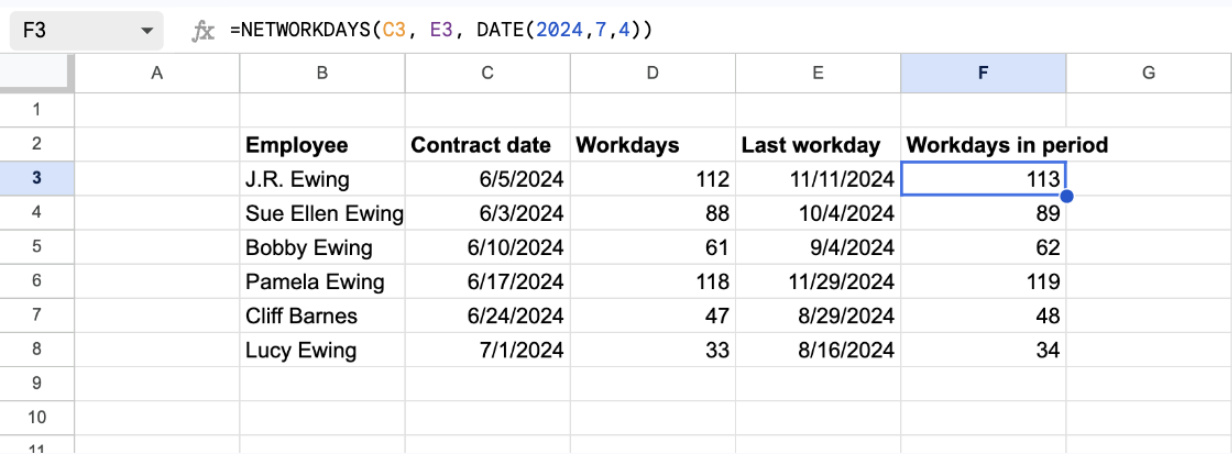
The formula returns 113 for J.R. Ewing. That is one more than the 112 in the Workdays column, because NETWORKDAYS counts the start date as well. If you need the days after the start date only, subtract 1.
NETWORKDAYS with a list of holidays
With the holidays in cells C15:C19, pass the range and lock it with dollar signs so that it stays in place when the formula is copied down:
=NETWORKDAYS(C3, D3, $C$15:$C$19)
- C3: the contract date.
- D3: the last working day (in this table it sits in column D).
- $C$15:$C$19: the holiday dates. Holidays outside the period are ignored, so one list can serve every row.
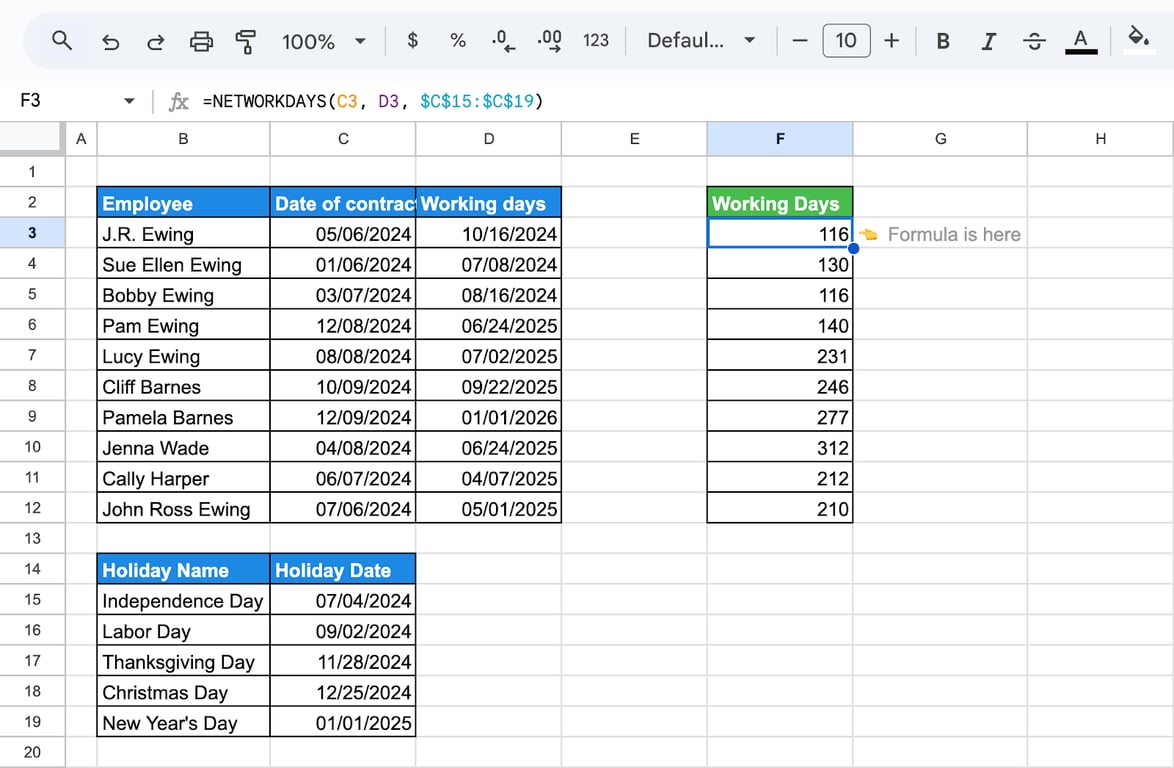
The second row shows the other side of the start-date rule. That contract starts on January 6, 2024, which is a Saturday, so the start date is not a working day and is not counted: the result, 130, has no extra day.
NETWORKDAYS with dates that include a time
NETWORKDAYS looks at the date and ignores the time of day. A shift that starts on Monday at 1:00 PM and ends on Tuesday at 5:30 AM counts as two working days, although it lasts less than 24 hours:
=NETWORKDAYS(C3, D3)
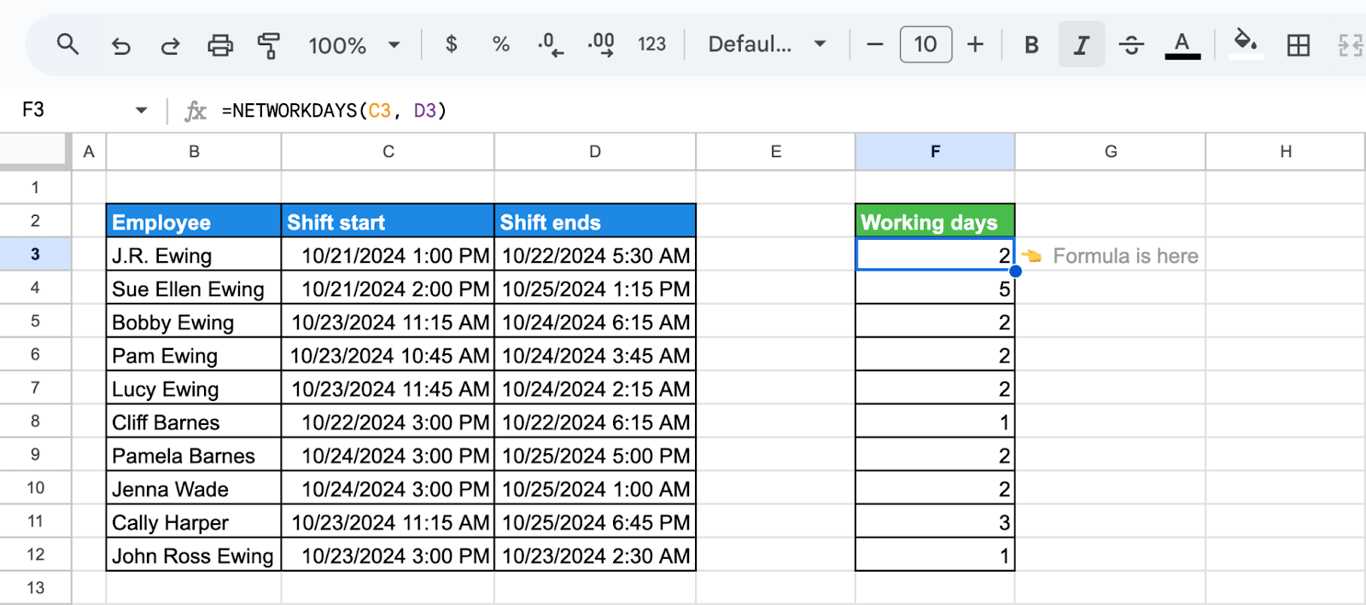
For hours worked, subtract the two timestamps instead; the guide to time functions shows how.
NETWORKDAYS.INTL: working days with a custom weekend
NETWORKDAYS.INTL: working days with a custom weekend
NETWORKDAYS.INTL does the same count, with one more argument that says which days of the week are not worked.
Syntax of NETWORKDAYS.INTL
=NETWORKDAYS.INTL(start_date, end_date, [weekend], [holidays])
- start_date, end_date: the period, both ends included.
- weekend (optional): a number code or a seven-character string. If omitted, Saturday and Sunday.
- holidays (optional): a date, a range or an array of dates to leave out.
Weekend codes
| Code | Weekend | Code | Weekend |
|---|---|---|---|
| 1 (default) | Saturday, Sunday | 11 | Sunday only |
| 2 | Sunday, Monday | 12 | Monday only |
| 3 | Monday, Tuesday | 13 | Tuesday only |
| 4 | Tuesday, Wednesday | 14 | Wednesday only |
| 5 | Wednesday, Thursday | 15 | Thursday only |
| 6 | Thursday, Friday | 16 | Friday only |
| 7 | Friday, Saturday | 17 | Saturday only |
Any other number, including 0, returns #NUM!.
For a schedule that the codes do not cover, pass a string of seven characters in quotes. The characters stand for Monday to Sunday, in that order: 1 is a day off, 0 is a working day.
- “0000011”: Saturday and Sunday off, the same as code 1.
- “1000001”: Monday and Sunday off, the same as code 2.
- “0000111”: Friday, Saturday and Sunday off, a four-day week.
- “0000000”: no days off, every day is counted.
A string of seven ones, “1111111”, leaves no working days and returns #NUM!.
Example with a weekend string
To count the working days of each contract for a team that works Monday to Thursday:
=NETWORKDAYS.INTL(C3, E3, "0000111", DATE(2024,7,4))
- C3, E3: the contract date and the last working day.
- “0000111”: Friday, Saturday and Sunday are days off.
- DATE(2024,7,4): the holiday to leave out.
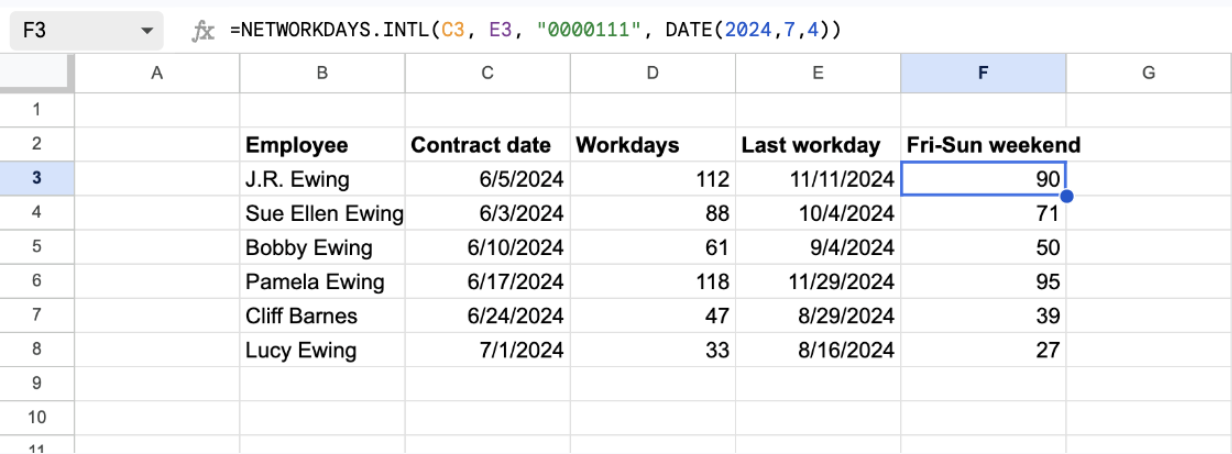
The same period that held 113 working days on a five-day week holds 90 on a four-day week.
Example with a weekend code and a holiday range
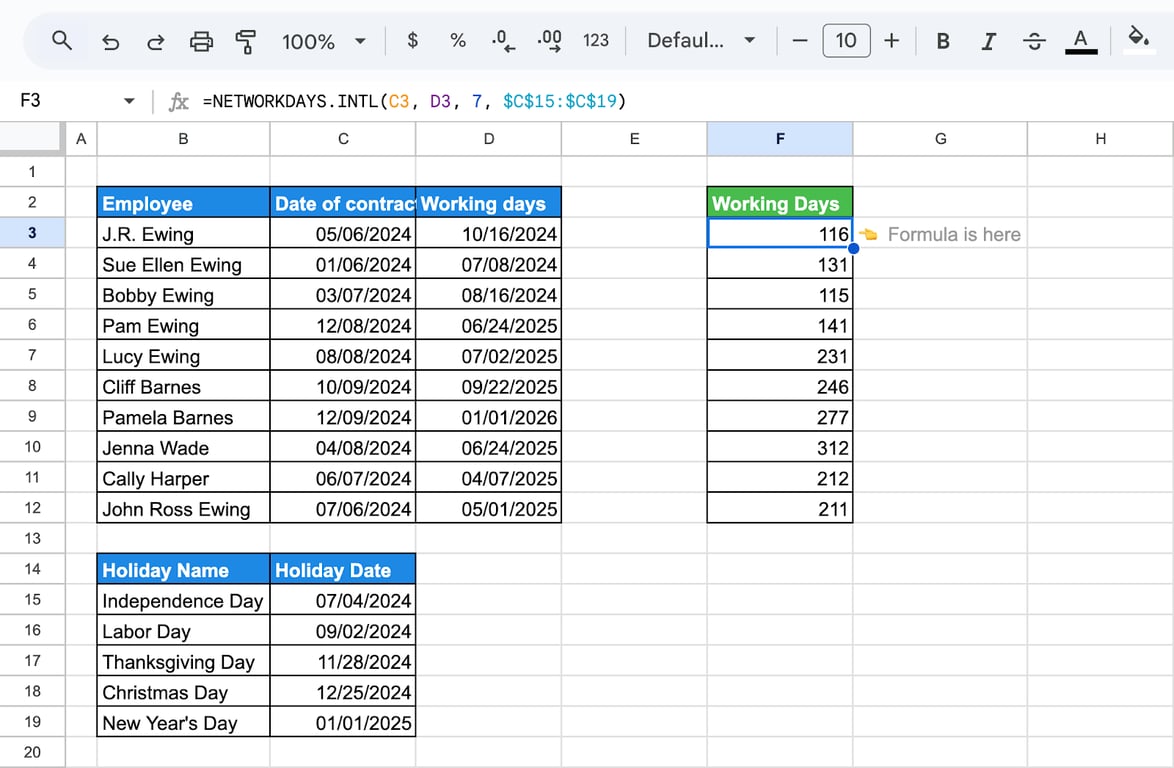
With a Friday and Saturday weekend (code 7) and the holiday list in C15:C19:
=NETWORKDAYS.INTL(C3, D3, 7, $C$15:$C$19)
Example with selected holidays
To leave out only some of the listed holidays, put those cells in an array. Here the weekend is Saturday and Sunday, and Independence Day, Christmas Day and New Year’s Day are excluded:
=NETWORKDAYS.INTL(C3, D3, "0000011", {$C$15, $C$18, $C$19})
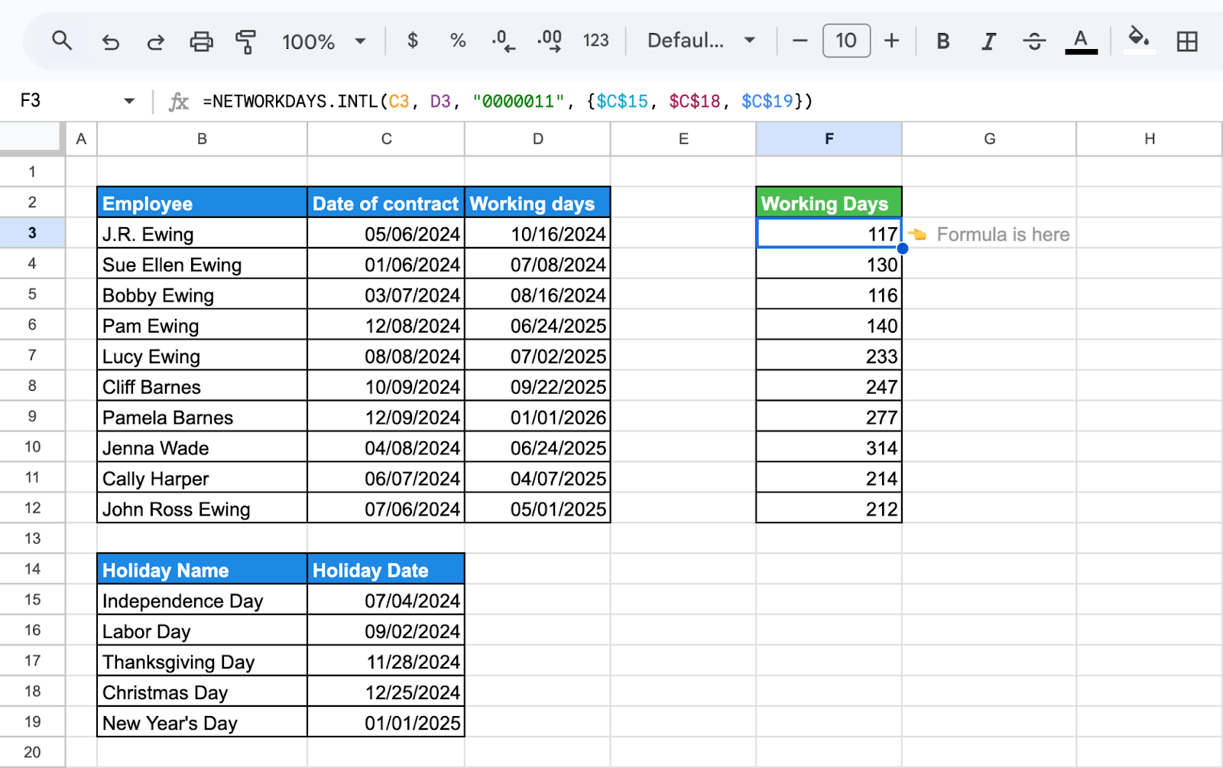
The first row returns 117. With the full holiday range, the NETWORKDAYS example earlier returned 116 for the same contract: Labor Day falls inside it and is not left out here.
WORKDAY: the date a number of working days away
WORKDAY: the date a number of working days away
WORKDAY starts from a date, moves a given number of working days forward or back, and returns the date it lands on. Saturday and Sunday are skipped, and so are the holidays you pass.
Syntax of WORKDAY
=WORKDAY(start_date, num_days, [holidays])
- start_date: the date to count from. It is not counted itself.
- num_days: the number of working days to move. A positive number moves forward, a negative number moves back. Decimals are cut off, so 2.9 is treated as 2.
- holidays (optional): a date, a range or an array of dates to skip.
Example of WORKDAY
To find the last working day of each contract from the contract date and the number of working days:
=WORKDAY(C3, D3, DATE(2024,7,4))
- C3: the contract date, June 5, 2024.
- D3: the number of working days, 112.
- DATE(2024,7,4): the holiday to skip.
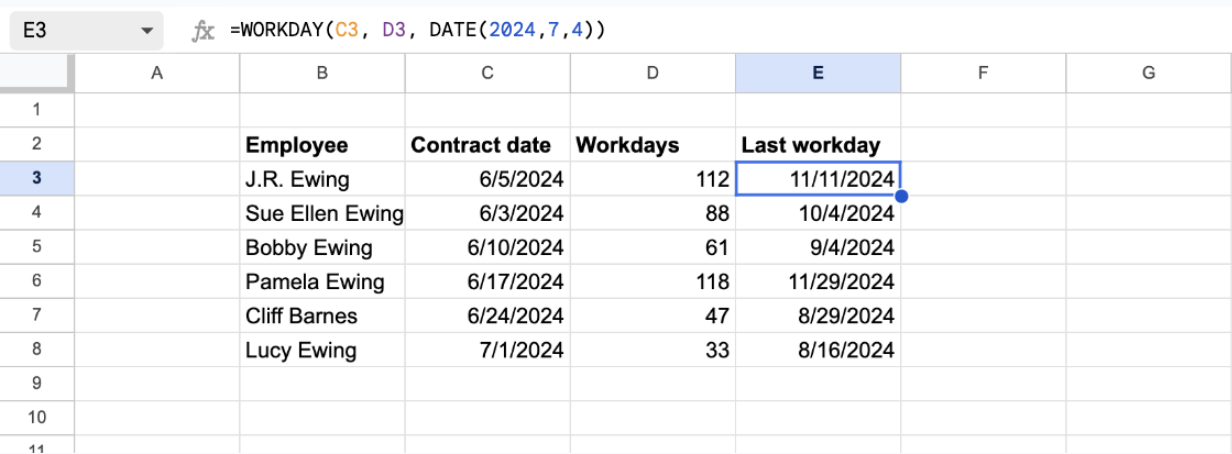
For J.R. Ewing the formula returns November 11, 2024. Without the holiday argument it returns November 8: one working day earlier, because July 4 is then counted as a working day.
Count back from an end date
A negative number of days moves back in time. To get from the last working day to the date the contract started:
=WORKDAY(E3, -D3, DATE(2024,7,4))
- E3: the last working day.
- -D3: the number of working days, with a minus sign.
- DATE(2024,7,4): the holiday to skip.
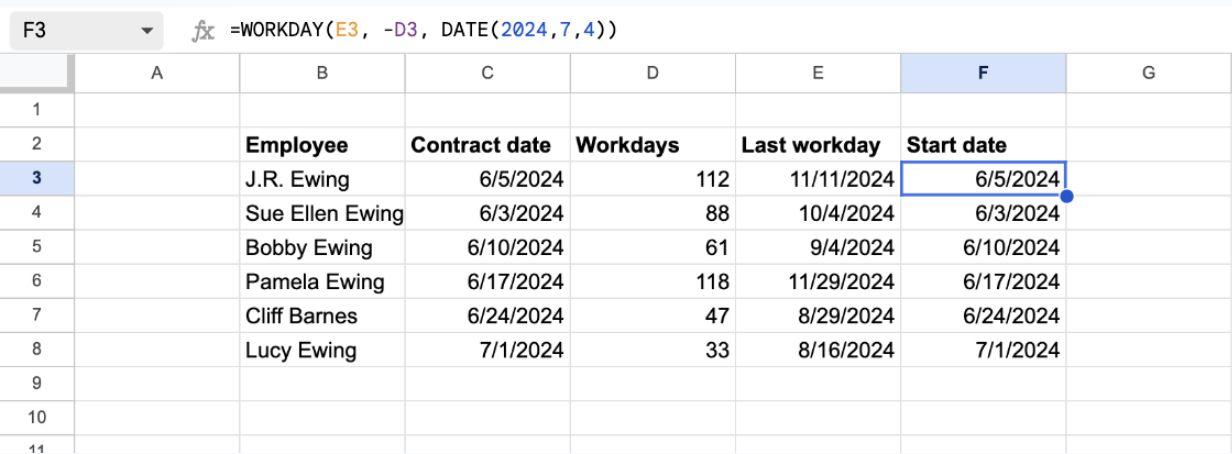
Column F returns the same dates as the Contract date column, which confirms that the two formulas mirror each other.
Get a list of working dates
WORKDAY can also write out a calendar without weekends. Combine it with ROW, which gives a number that grows by one in each row:
=WORKDAY($C$3, ROW(A1)-1, DATE(2024,7,4))
- $C$3: the start date. The dollar signs keep it fixed when the formula is copied down.
- ROW(A1)-1: returns 0 in the first row, 1 in the second, 2 in the third and so on.
- DATE(2024,7,4): the holiday to skip.
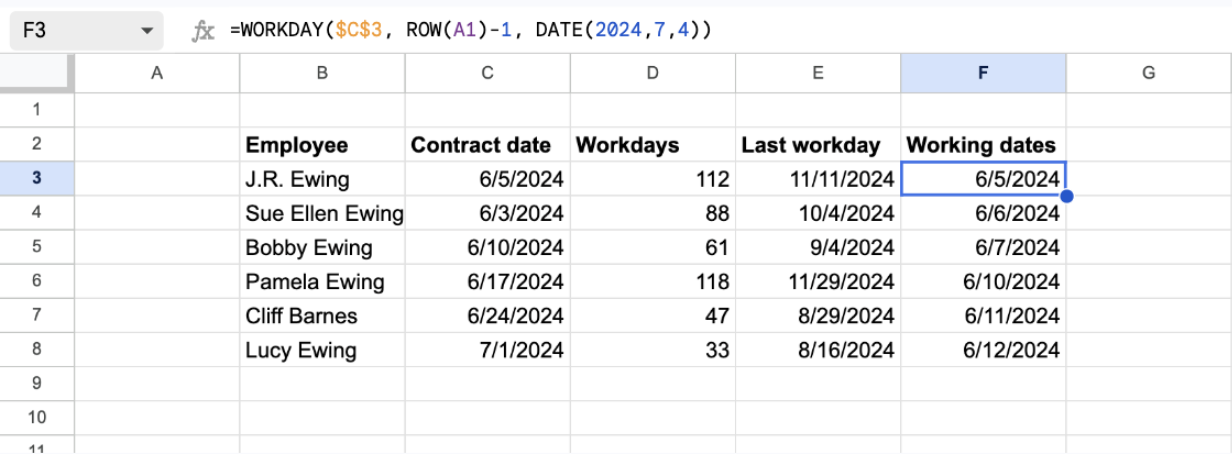
The list starts on June 5, 2024 and jumps from Friday, June 7 to Monday, June 10. Note that with 0 days WORKDAY returns the start date as it is, even when that date is a Saturday or a Sunday, so start the list from a working day.
WORKDAY.INTL: a date with a custom weekend
WORKDAY.INTL: a date with a custom weekend
WORKDAY.INTL works like WORKDAY and takes the same weekend argument as NETWORKDAYS.INTL: one of the number codes from the table above, or a seven-character string.
Syntax of WORKDAY.INTL
=WORKDAY.INTL(start_date, num_days, [weekend], [holidays])
- start_date: the date to count from.
- num_days: the number of working days to move, positive or negative.
- weekend (optional): a number code or a seven-character string. If omitted, Saturday and Sunday.
- holidays (optional): a date, a range or an array of dates to skip.
Example with a Sunday and Monday weekend
For a team that works Tuesday to Saturday, use code 2:
=WORKDAY.INTL(C3, D3, 2, DATE(2024,7,4))
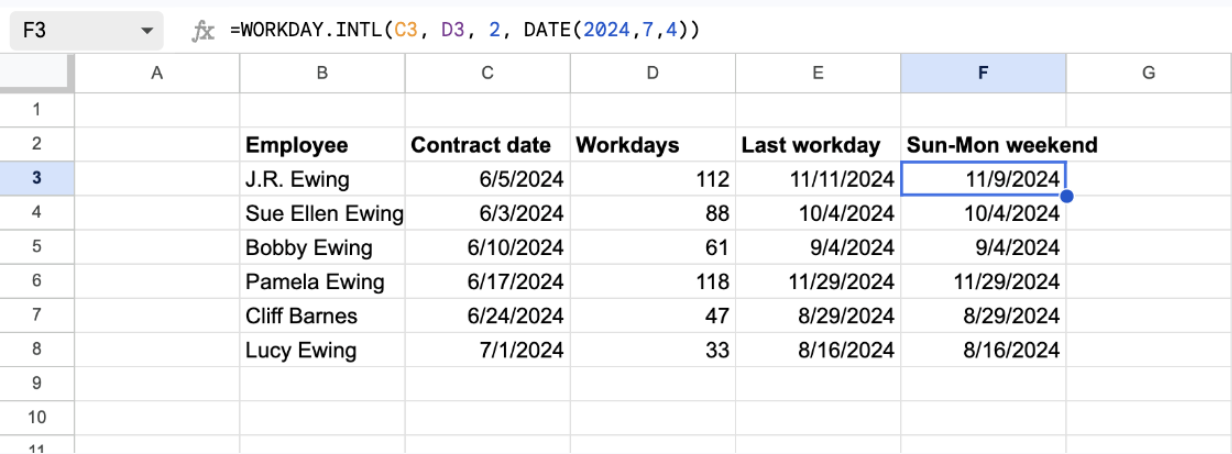
The last working day of J.R. Ewing moves from Monday, November 11 to Saturday, November 9: Saturday is now a working day and Monday is not. The other five dates stay the same, because those contracts end in the middle of the week under either schedule.
Example with the default weekend
Code 1 is the Saturday and Sunday weekend, so this formula returns exactly what WORKDAY returns:
=WORKDAY.INTL(C3, D3, 1, DATE(2024,7,4))
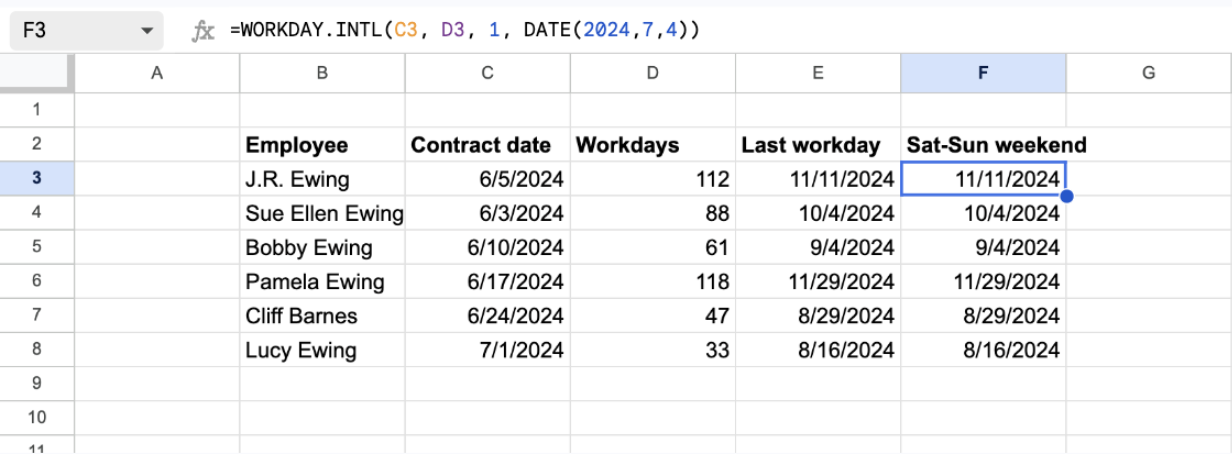
Writing the code is still useful when the weekend sits in a cell and may change later.
Example with a custom weekend and no holidays
The holidays argument can be left out. For a crew that works Sunday, Monday and Tuesday only:
=WORKDAY.INTL(C3, D3, "0011110")
- C3: the contract date, May 6, 2024.
- D3: the number of working days, 115.
- “0011110”: Wednesday, Thursday, Friday and Saturday are days off.
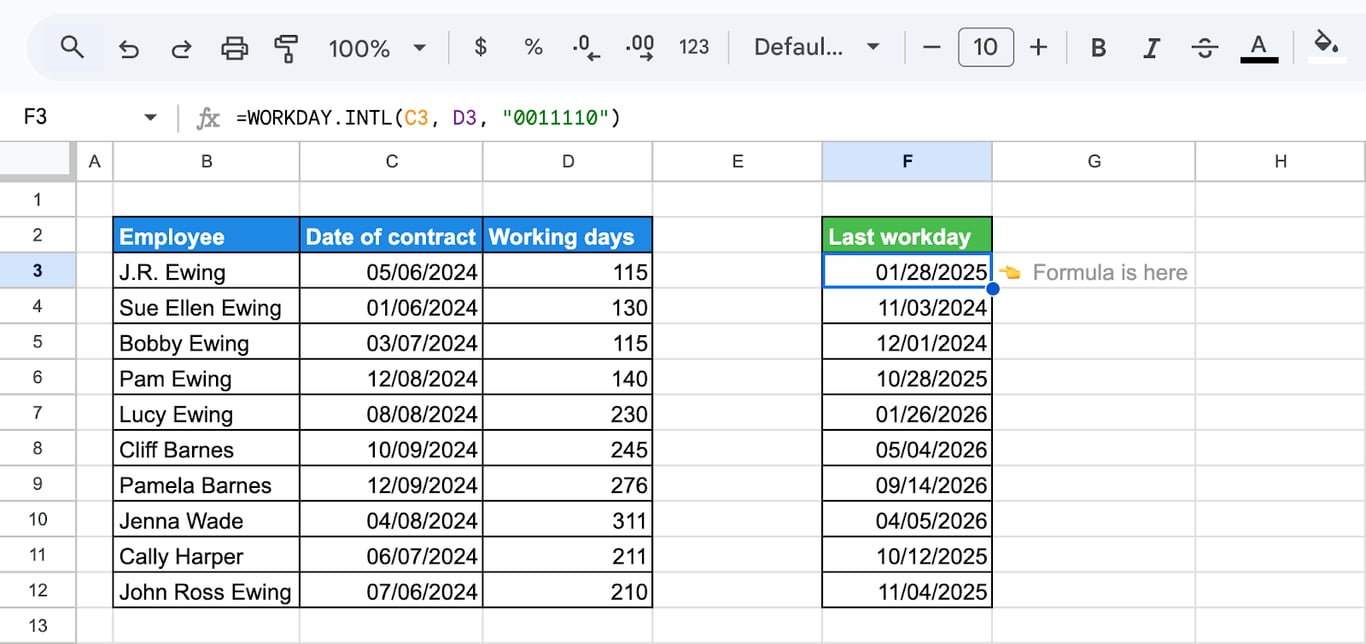
With three working days a week, 115 working days stretch from May 2024 to January 28, 2025.
Example with a named range of holidays
A named range keeps the formula readable and lets you update the holiday list in one place:
=WORKDAY.INTL(C3, D3, 1, Holidays)
- C3: the contract date.
- D3: the number of working days.
- 1: Saturday and Sunday are the weekend.
- Holidays: the named range that holds the holiday dates, here C15:C19.
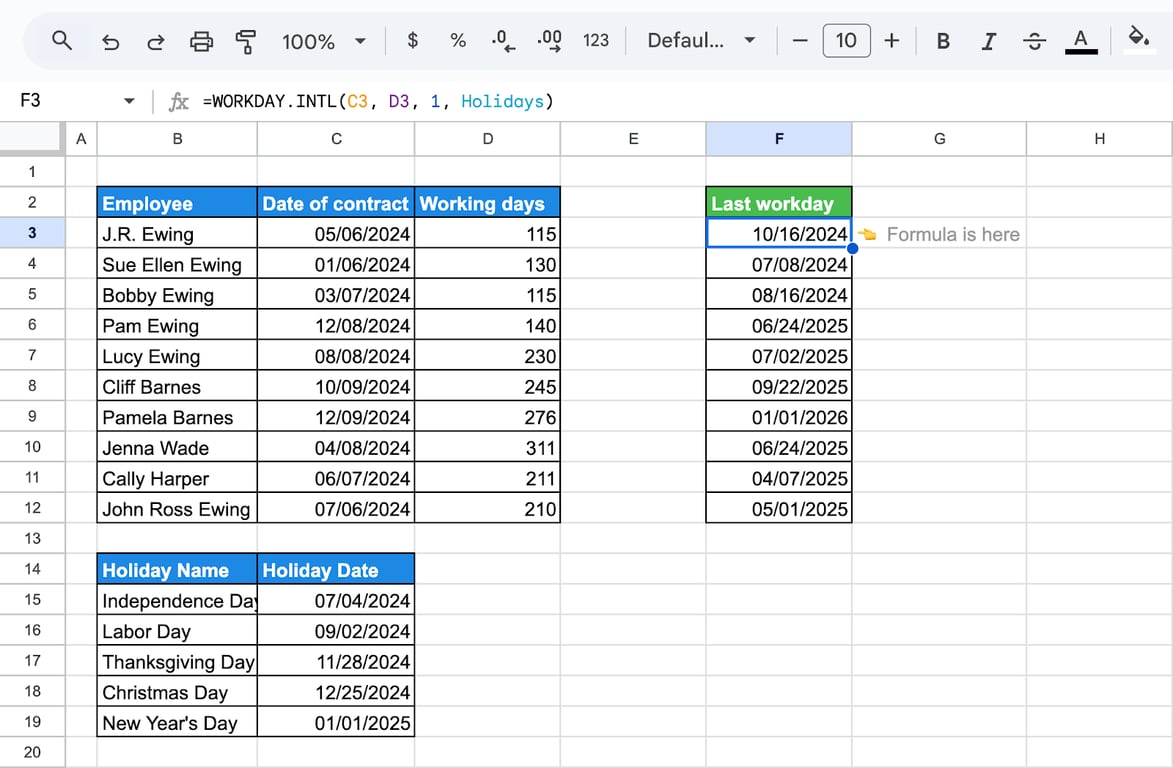
To create the named range:
- Select the cells with the holiday dates.
- Open Data > Named ranges.
- Type a name without spaces, for example Holidays, and click Done.
Errors and wrong results in WORKDAY and NETWORKDAYS
Errors and wrong results in WORKDAY and NETWORKDAYS
The holiday is not excluded
⚠️ Error: The formula returns a result, but it is one day off, and the holiday is still counted as a working day.
✅ Solution: Check how the holiday is written. {7/4/2024} is a division, not a date. Use DATE(2024,7,4) or a range of date cells.
The result is off by one
⚠️ Error: NETWORKDAYS returns one day more than expected, or the two functions do not agree.
✅ Solution: NETWORKDAYS counts both the start date and the end date. WORKDAY does not count the start date. Subtract 1 from NETWORKDAYS when you need the days after the start date.
#VALUE! error
⚠️ Error: A date argument is text that Sheets cannot read as a date, or a holiday is typed as a quoted string.
✅ Solution: Make sure the cells hold real dates: a real date is right-aligned and changes when you change the number format. Build dates with the DATE function, and pass holidays as DATE() values or as a range.
#NUM! error
⚠️ Error: The weekend argument of an INTL function is not a valid code, for example 0 or 8, or the string marks all seven days as days off.
✅ Solution: Use a code from the table (1 to 7, 11 to 17) or a seven-character string with at least one 0.
#NAME? error
⚠️ Error: The function name is misspelled, or the formula uses a named range that does not exist in the file.
✅ Solution: Check the spelling, for example NETWORKDAYS with an S at the end, and open Data > Named ranges to confirm the name.
A number instead of a date
⚠️ Error: WORKDAY returns a number such as 45607.
✅ Solution: That is the date as a serial number. Select the cell and choose Format > Number > Date.
A negative number of days
⚠️ Error: NETWORKDAYS returns a negative number.
✅ Solution: The end date is earlier than the start date. Swap the two arguments.
Related Google Sheets functions
Related Google Sheets functions
Functions that are often used next to WORKDAY and NETWORKDAYS, each with its own guide:
- DAY/DAYS/DAYS360: Extracts the day from a date, calculates the number of calendar days between dates, or computes the difference based on a 360-day calendar.
- WEEKDAY/WEEKNUM: Returns the day of the week or the week number of the year for a date, useful for weekly reporting.
- DATE functions: Build a date from a year, a month and a day, and convert text to dates.
- NOW/TODAY: Provides the current date and time or just the date, for example to count the working days left until a deadline.
- MONTH/EOMONTH: Extracts the month from a date or returns the last day of a month, handy for monthly reports.
- YEAR/YEARFRAC: Extracts the year from a date or returns the fraction of a year between two dates.
- TIME functions: Extract and calculate hours, minutes and seconds.
The formula counts the days, the dates have to come from somewhere
The formula counts the days, the dates have to come from somewhere
NETWORKDAYS is only as good as the two dates it is given. In a team report those dates are rarely typed by hand: the day an order was placed and shipped, a ticket opened and closed, a deal created and won all live in a CRM, a help desk or a data warehouse. When they reach the sheet as a pasted export, some of them arrive as text, and the working-day count turns into #VALUE! for exactly those rows.
The OWOX Data Marts extension for Google Sheets covers that half. A data analyst publishes a data mart (a table or an SQL query in your data warehouse) and makes it available for reports. In Sheets you open the extension, pick the data mart, tick the columns you want and run it. The rows land in a tab, ready for your formulas.
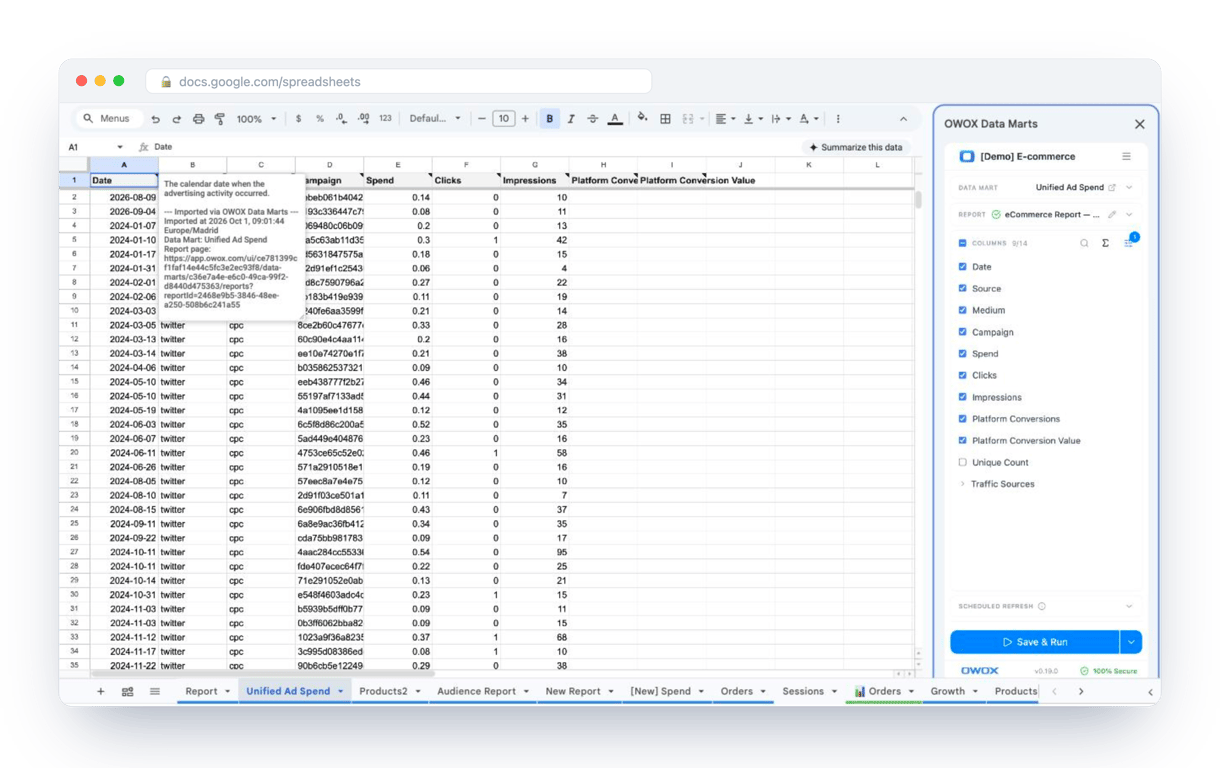
What changes for the person who maintains the sheet:
- Refresh replaces re-export. Refresh current report in the extension menu re-runs the same pull, and a scheduled refresh keeps the tab current without anyone touching it.
- The source is written on the sheet. The header cell of an imported tab carries a note with the data mart it came from, the time of the import and a link to the report.
- No SQL and no warehouse access needed. The analyst decides which data marts and columns are available. You choose from that list.
The extension does not write or change the analyst’s SQL. What the sheet receives is the result of the same query on every refresh, not a new export with new quirks, and the working-day formulas stay where they are. The extension comes with the OWOX Cloud plans of OWOX Data Marts; spreadsheet reporting describes both ways data reaches a sheet.
Turn your data into decisions.
Governed data marts give you the clean foundation ML needs to actually work.
- No AI hallucinations
- Analyst-governed definitions
- Every number traces to SQL
Frequently Asked Questions
Can I calculate the number of workdays between two dates with different weekend patterns?
Yes, by using the NETWORKDAYS.INTL function, you can calculate workdays between two dates with different weekend patterns. This function allows you to customize the weekends using a weekend code, accommodating various workweek structures across different regions or industries.
Why is my WORKDAY formula returning an error?
The most common causes are a date that is stored as text, which returns #VALUE!, and in WORKDAY.INTL a weekend code that does not exist, such as 0 or 8, which returns #NUM!. A holiday typed as {7/4/2024} gives no error but is not excluded, because Sheets reads it as a division; write it as DATE(2024,7,4) or point to a range of date cells.
How do I exclude holidays in WORKDAY and NETWORKDAYS functions?
To exclude holidays, you can use an optional third argument in both WORKDAY and NETWORKDAYS functions. This argument accepts a range of holiday dates, which will be excluded from the calculation, ensuring your results reflect actual working days minus public holidays.
How do I customize weekends using WORKDAY.INTL?
The WORKDAY.INTL function allows you to customize weekends by specifying a weekend code, which determines which days of the week are considered non-working. You can choose standard or non-traditional weekend patterns, making it flexible for different business schedules.
What is the difference between NETWORKDAYS and NETWORKDAYS.INTL?
NETWORKDAYS calculates the number of working days between two dates, excluding weekends and optional holidays. NETWORKDAYS.INTL provides additional flexibility by allowing you to customize which days of the week are considered weekends, making it suitable for non-standard work schedules.
What does the WORKDAY function do in Google Sheets?
The WORKDAY function calculates a future or past date based on a starting date and a specified number of working days. It automatically excludes weekends, and holidays can be excluded by adding an optional argument, helping you efficiently manage project timelines or shift planning.