NOW and TODAY functions in Google Sheets: current date and time, with examples
TODAY returns the current date and NOW returns the current date and time; both update on their own. This guide shows how to use them in calculations: days until a deadline, time elapsed, age, month ends and workdays, and how to control when they update or freeze the value.

=TODAY() returns the current date. =NOW() returns the current date and time. Neither takes an argument, and both update by themselves, so a formula built on them never has to be edited.
| You need | Formula |
|---|---|
| Current date | =TODAY() |
| Current date and time | =NOW() |
| Current time only | =NOW() - TODAY(), formatted as Time |
| Yesterday, or a week ago | =TODAY() - 1, =TODAY() - 7 |
| Days until a date in E3 | =E3 - TODAY() |
| Age in whole years from a birthdate in E3 | =DATEDIF(E3, TODAY(), "Y") |
| A date and time that does not change | Ctrl + Alt + Shift + ; |
NOW function
=NOW()
NOW returns the current date and time as one value. Type the formula with empty parentheses and press Enter.
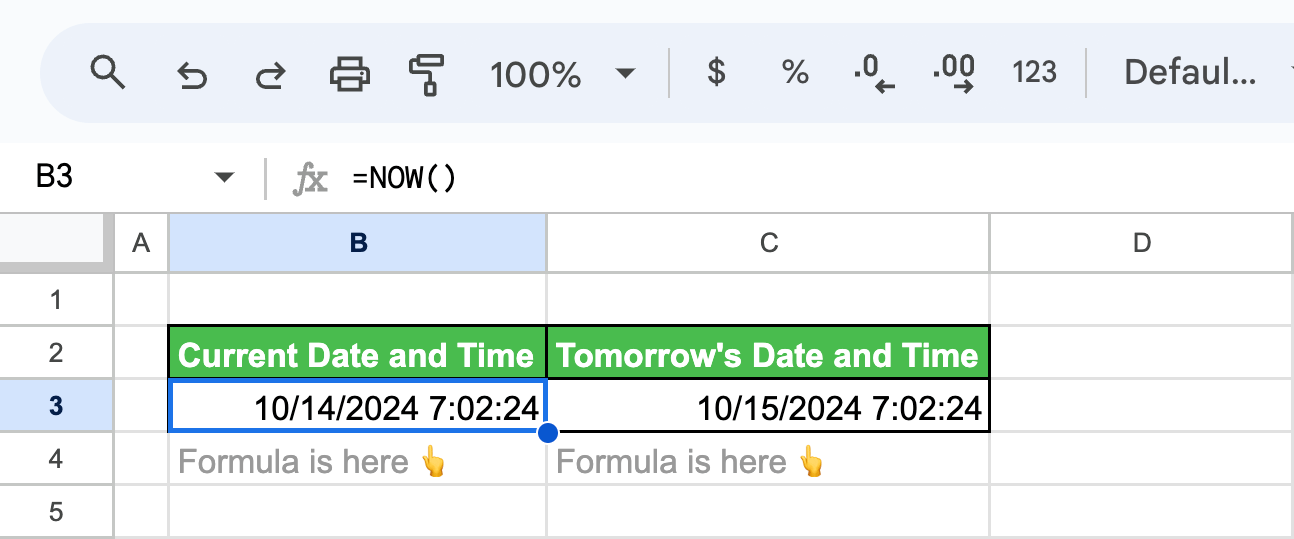
The time comes from the time zone of the spreadsheet, not of your computer; the setting is described at the end of this guide.
Because a day is 1 in Sheets, arithmetic works directly on the result. To get the same time tomorrow, add 1:
=NOW()+1
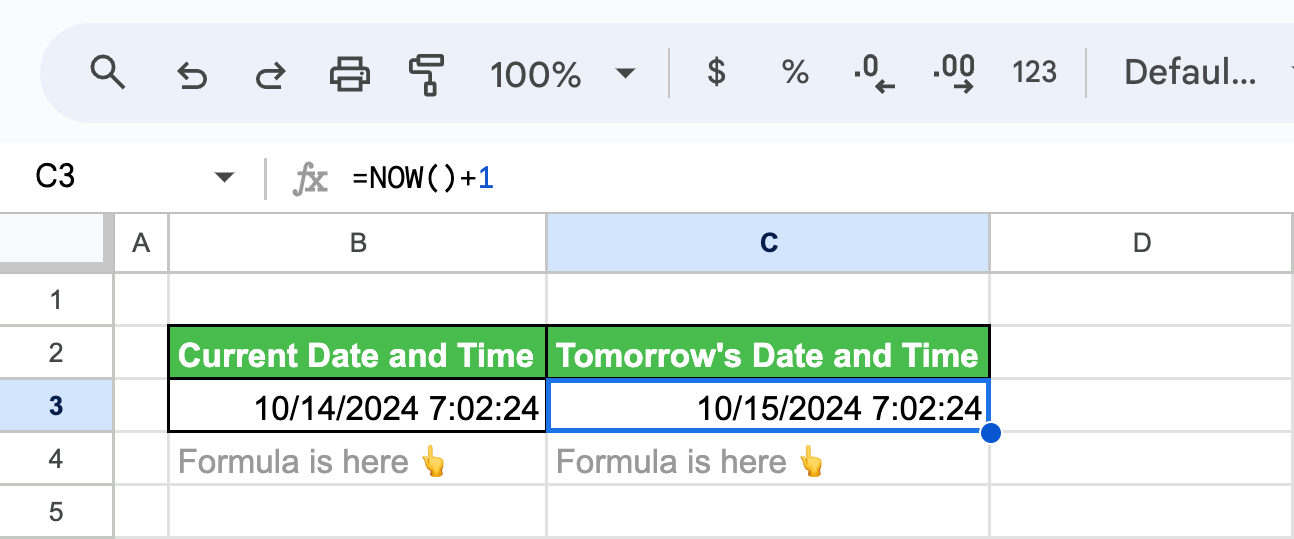
For a number of hours, add a fraction of a day: =NOW() + 3/24 is three hours from now.
TODAY function
=TODAY()
TODAY returns the current date with no time part.
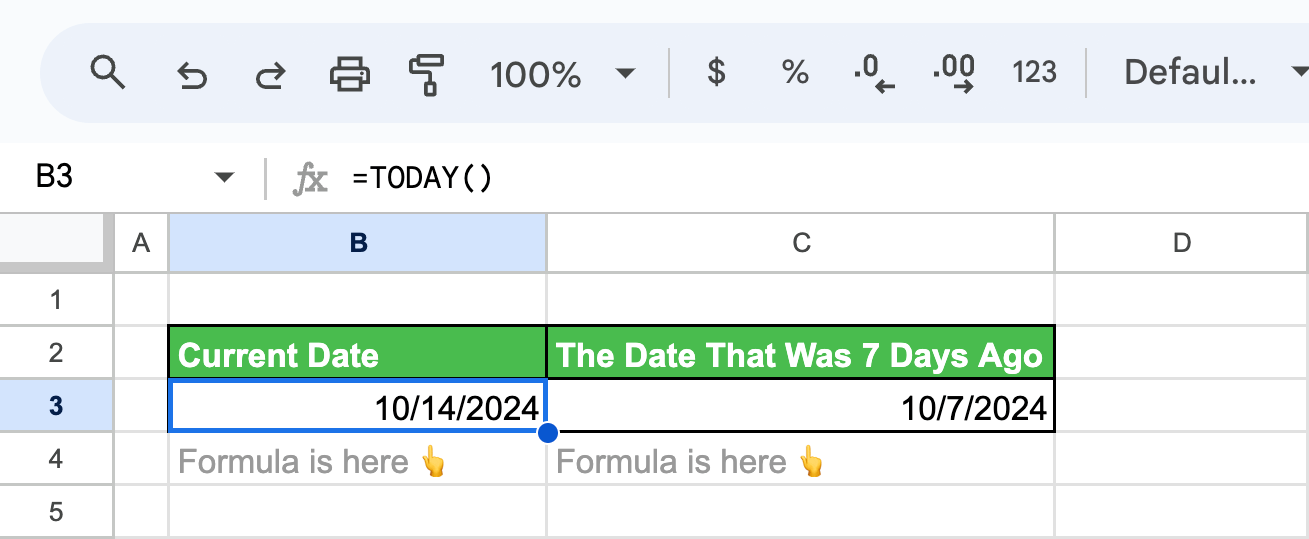
Add or subtract days to move the date:
=TODAY()-7
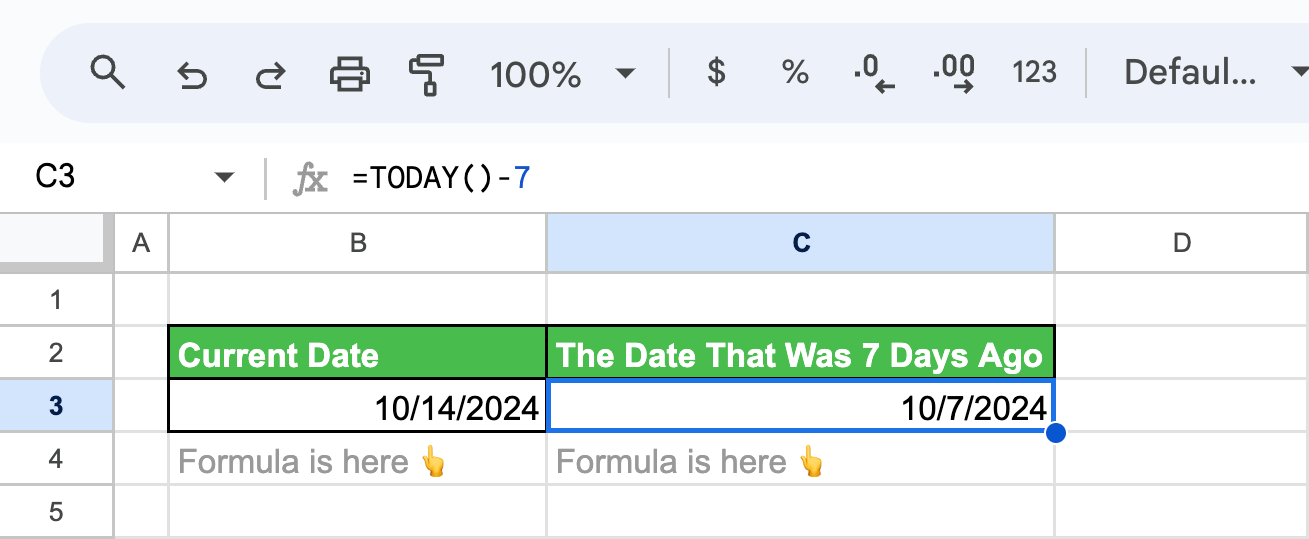
Use TODAY for anything that is counted in whole days. NOW carries a time, and a comparison such as =E3 = NOW() is practically never true.
OWOX Data Marts
See your first report built in real time. 15 minutes.
- Connect your data warehouse
- Pick your metrics
- Get a live Google Sheets report
In the time it takes to write a ticket. Then imagine never writing that ticket again.
Book a DemoWe'll use your actual use case
Calculations with NOW and TODAY
Calculations with NOW and TODAY
Days until a date
Subtract today from the future date. With contract end dates in column E:
=E3 - TODAY()
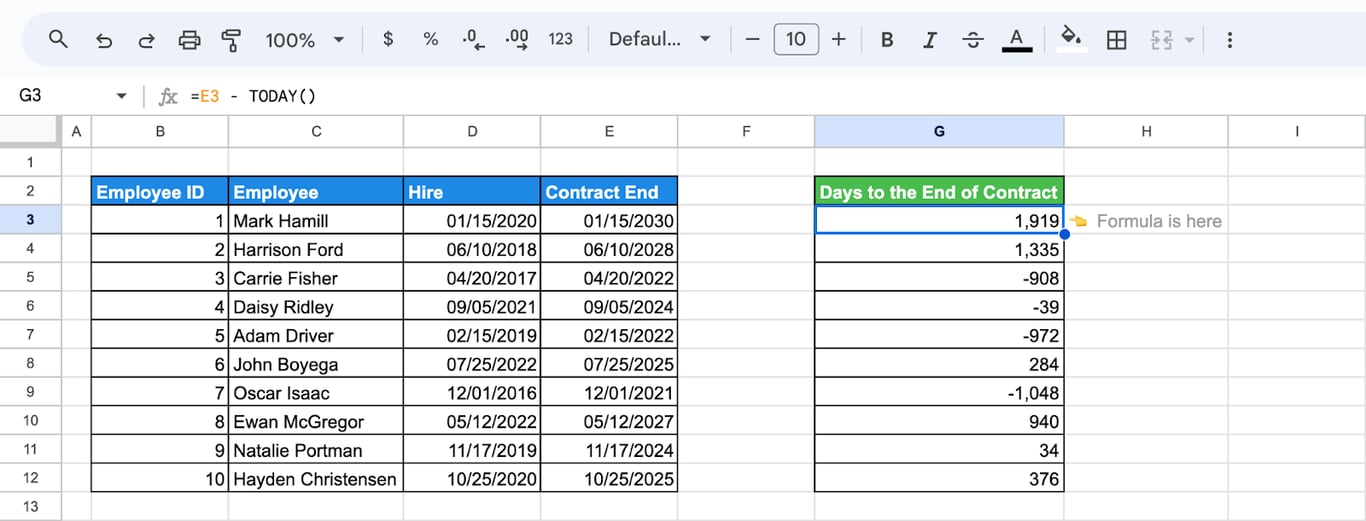
The result is the number of days left. A negative number means that the date has already passed. If the cell shows a date instead of a number, set its format to Format > Number > Number.
Days since a date
Swap the two parts. With the date of the last promotion in column E:
=TODAY() - E3
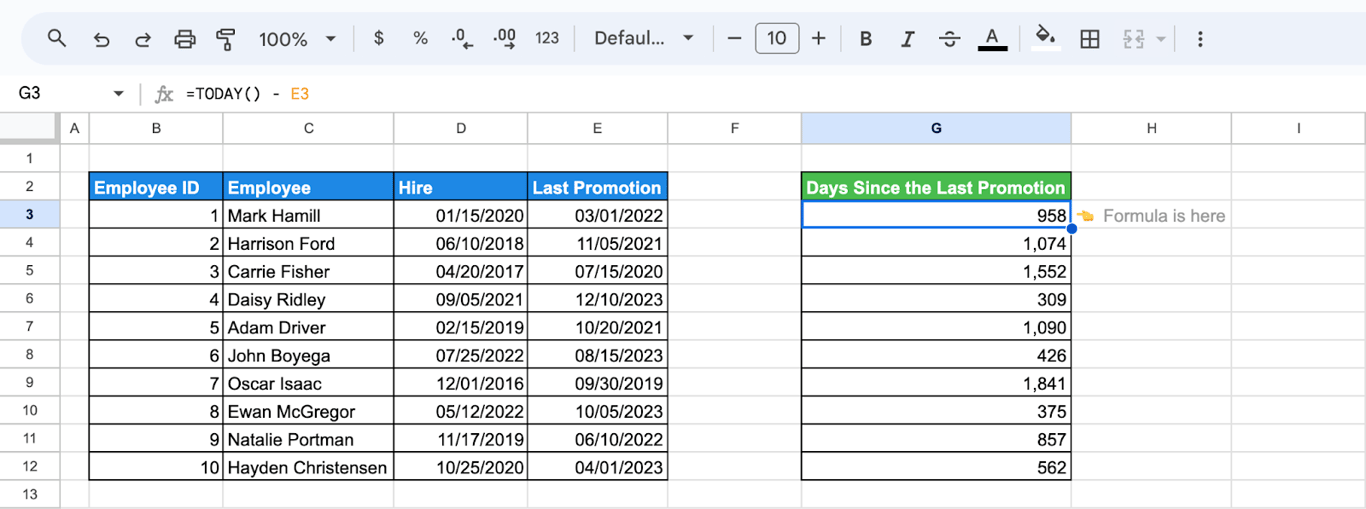
Is the date in the past?
A comparison returns TRUE or FALSE:
=E3 < TODAY()
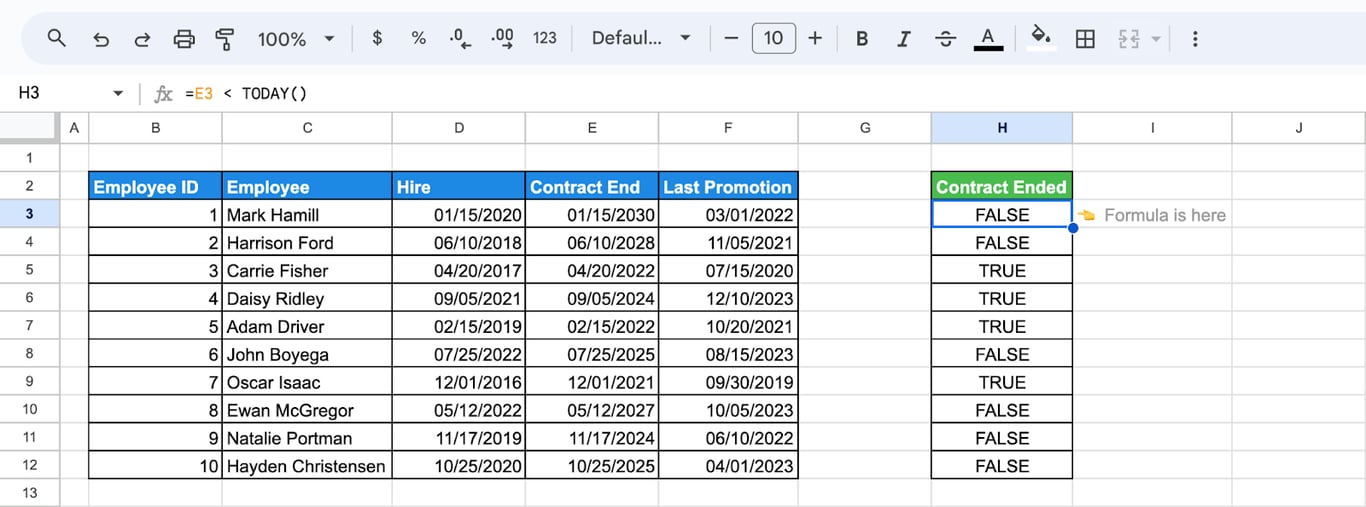
TRUE means that the contract end date is before today. The same expression works as a rule for highlighting: select the rows, open Format > Conditional formatting, choose Custom formula is and enter =$E3 < TODAY() to colour every row with a date in the past.
Time elapsed, in hours
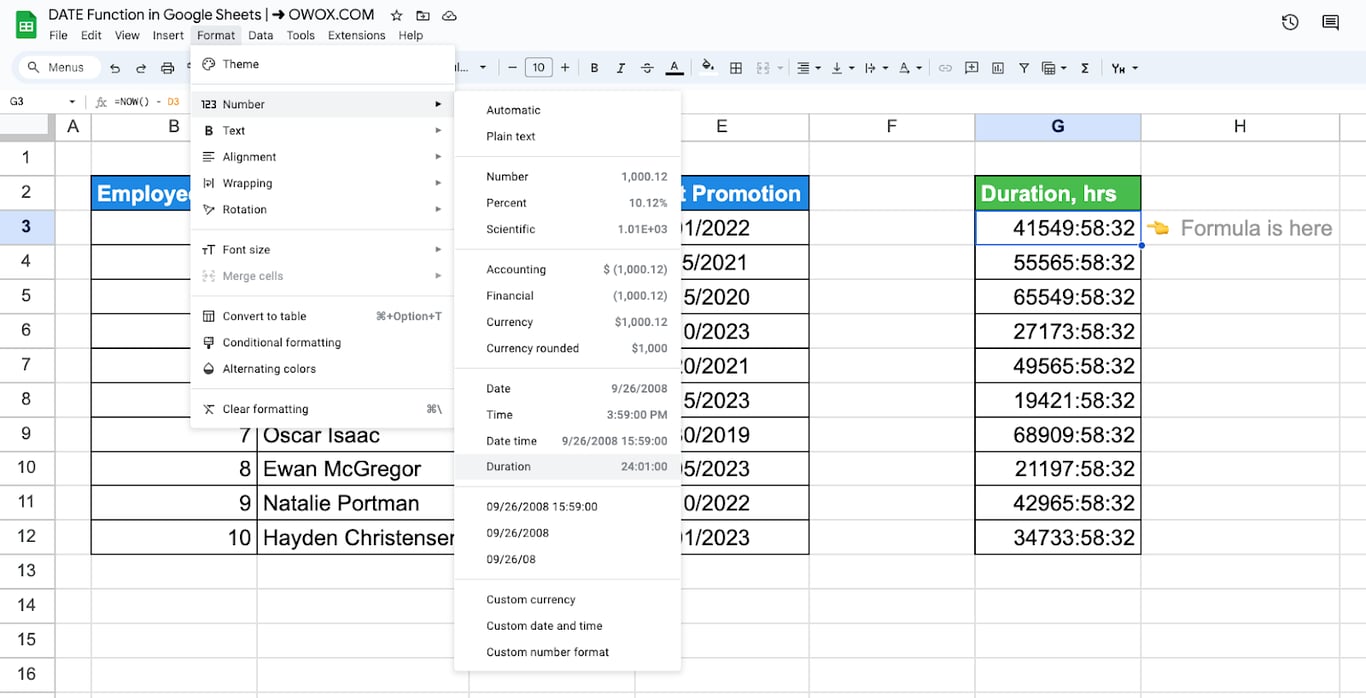
NOW keeps the time of day, so the difference from a past date includes the hours:
=NOW() - D3
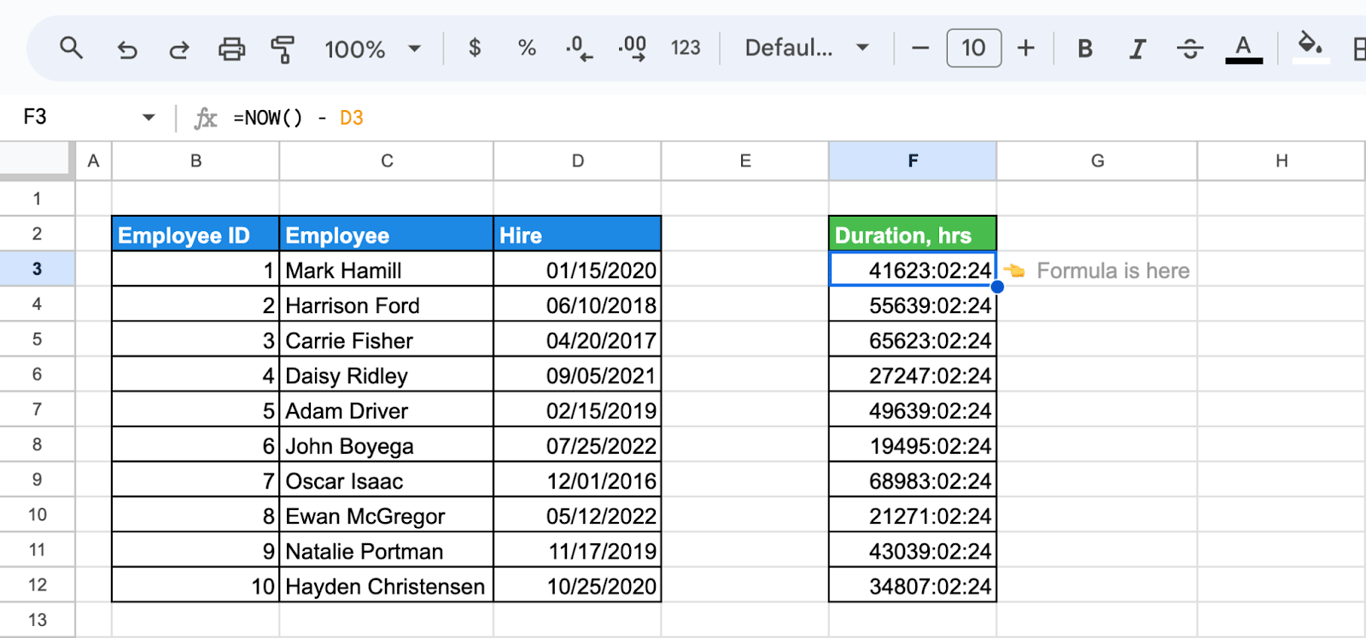
Apply Format > Number > Duration to show the result as elapsed hours, minutes and seconds.
Age in days
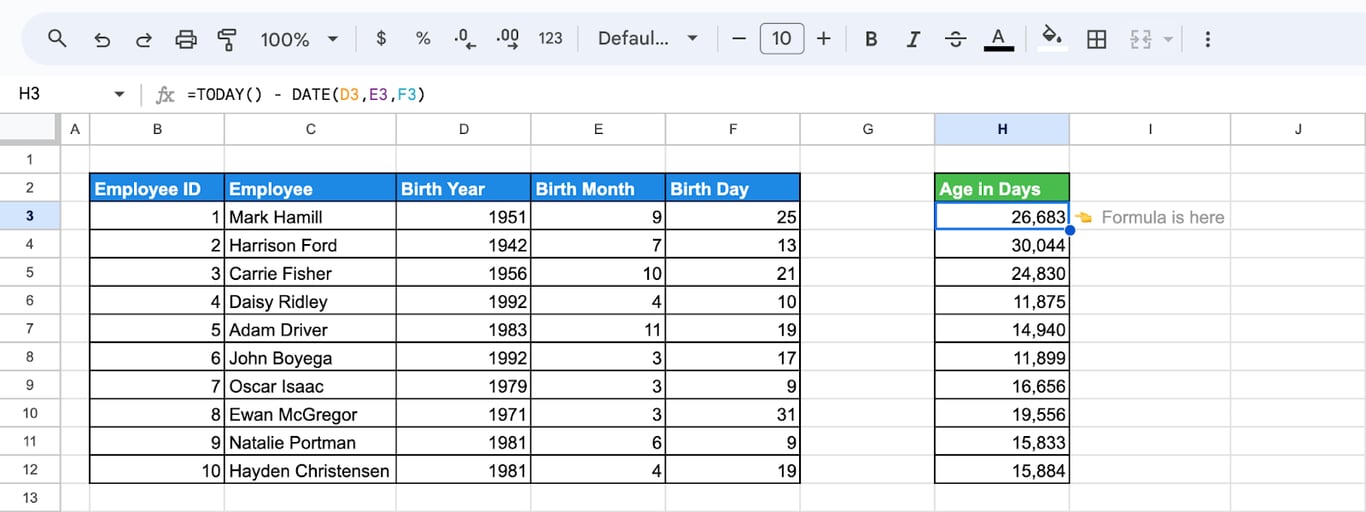
When the year, the month and the day of birth are in separate columns, build the date with the DATE function and subtract it from today:
=TODAY() - DATE(D3, E3, F3)
Age in years
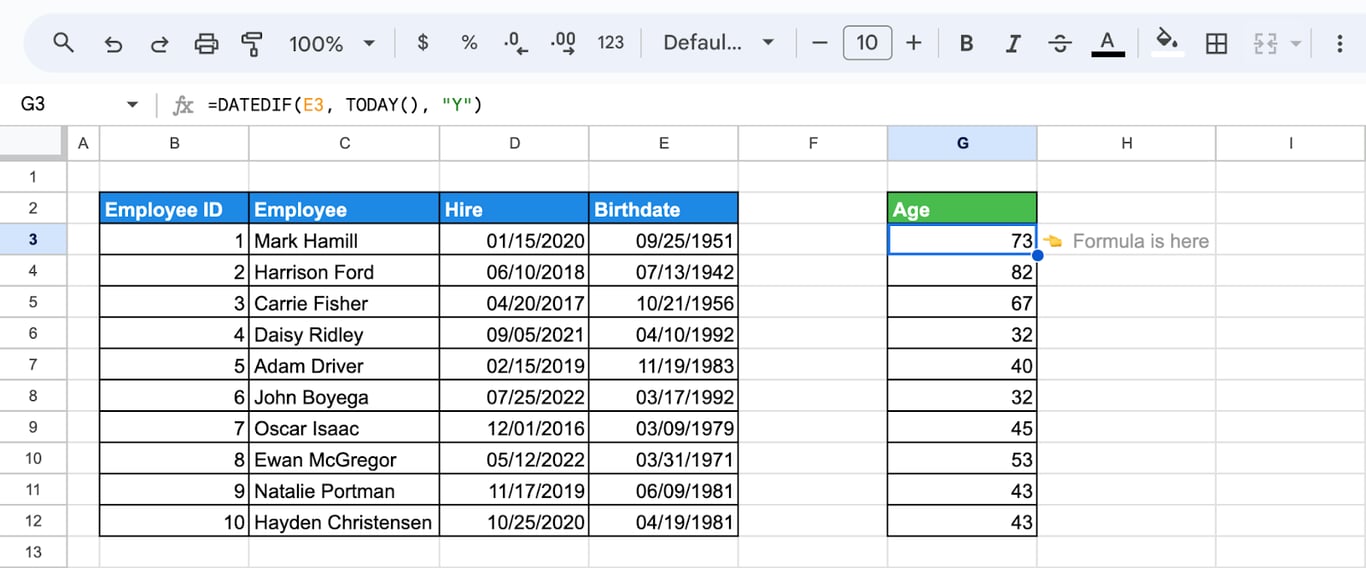
DATEDIF with the unit “Y” returns the number of complete years between two dates:
=DATEDIF(E3, TODAY(), "Y")
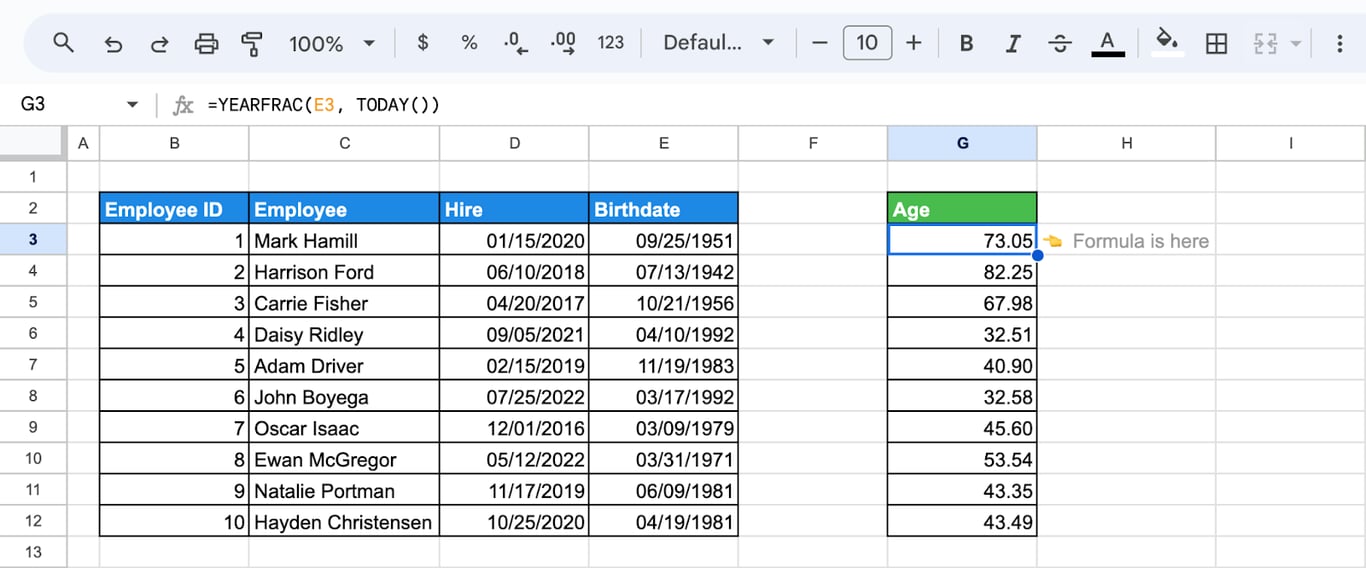
For the age with a fraction, use YEARFRAC:
=YEARFRAC(E3, TODAY())
Last day of the current month
EOMONTH with 0 returns the last day of the month of the date it is given:
=EOMONTH(NOW(), 0)
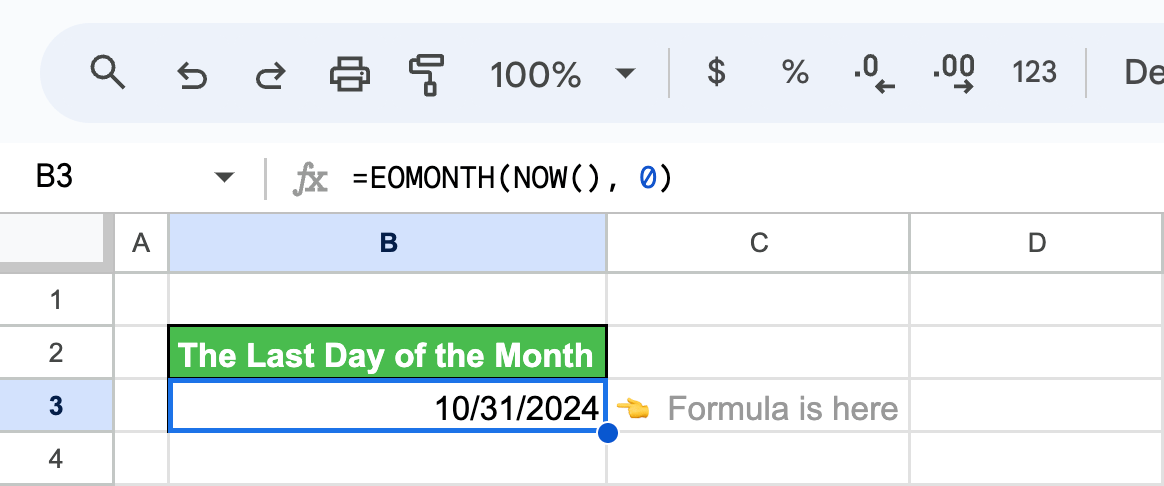
=EOMONTH(TODAY(), 0) returns the same date: EOMONTH ignores the time.
A date some months from now
EDATE moves a date by a number of months:
=EDATE(TODAY(), 3)
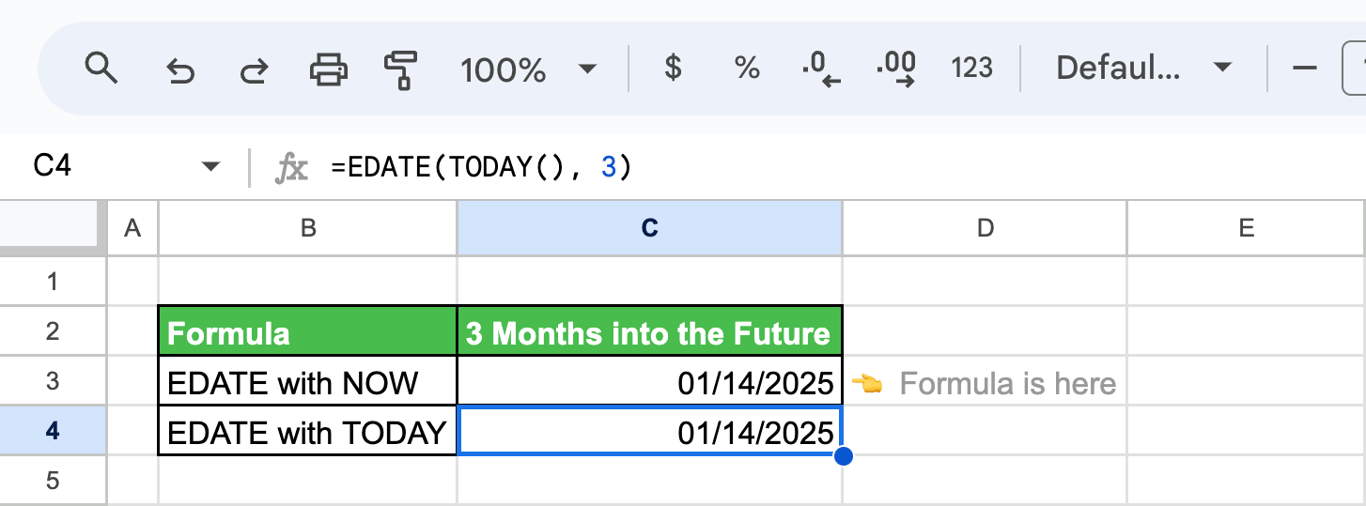
The formula returns the date three months from today. =EDATE(NOW(), 3) gives the same date, because EDATE also works with the date part only. A negative number goes back in time.
A deadline in working days
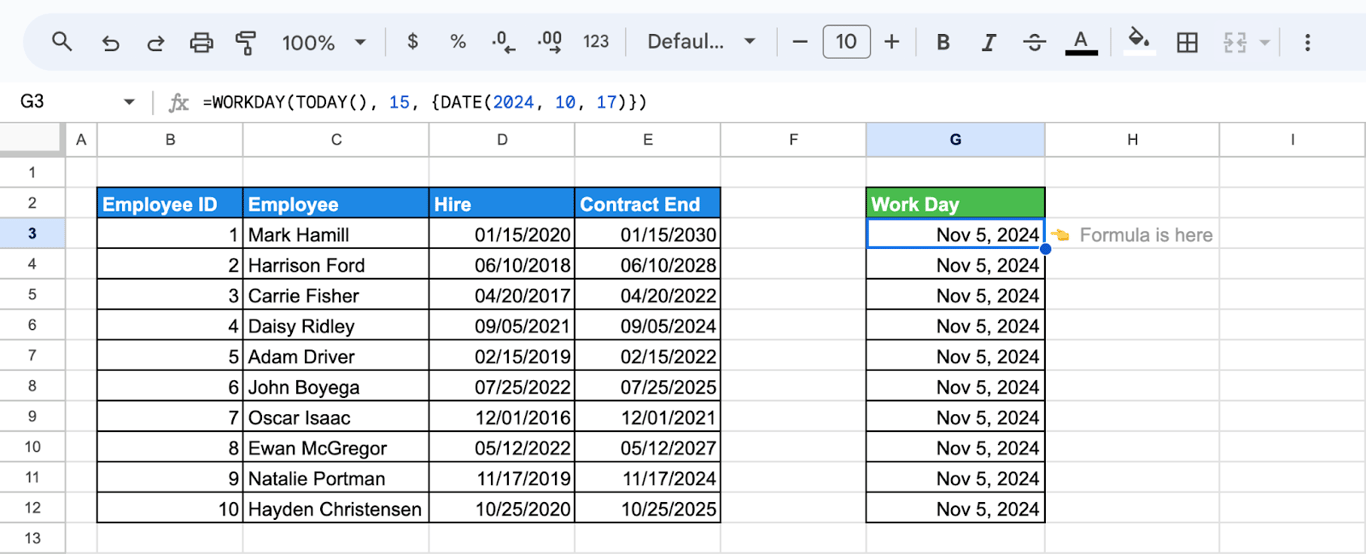
WORKDAY counts forward in working days and skips weekends and the holidays you list:
=WORKDAY(TODAY(), 15, {DATE(2024, 10, 17)})
- TODAY(): the start date.
- 15: the number of working days to add.
- {DATE(2024, 10, 17)}: a day off to skip. Write holidays with DATE or point to a range of dates.
Control when NOW and TODAY update
Control when NOW and TODAY update
Both functions are recalculated whenever something in the spreadsheet changes. To change that, open File > Settings, go to the Calculation tab and choose a Recalculation option: on change, on change and every minute, or on change and every hour. With the “every minute” option a clock built on NOW keeps moving even when nobody edits the sheet.
Freeze the value
A formula cannot stay fixed. To keep the date or time of a moment, replace the formula with its value:
- Paste as a value: copy the cell, then use Edit > Paste special > Values only (Ctrl + Shift + V) on the same cell.
- Type a fixed value from the start: Ctrl + ; inserts the current date, Ctrl + Shift + ; the current time, and Ctrl + Alt + Shift + ; both. On a Mac use Cmd in place of Ctrl, and Option in place of Alt.
Fix the time zone
⚠️ Error: NOW shows a time that is several hours off.
✅ Solution: NOW uses the time zone of the spreadsheet. Open File > Settings.
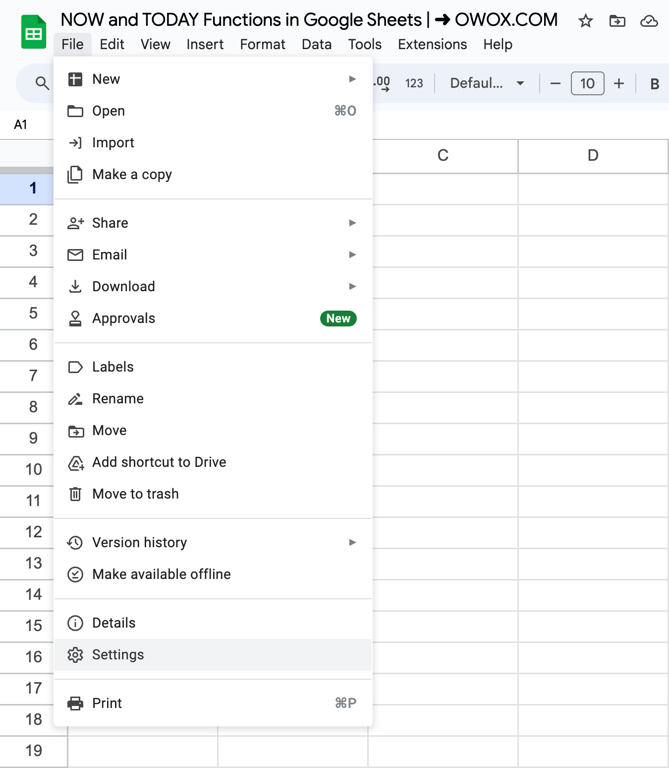
On the General tab, choose the right Time zone and click Save and reload.
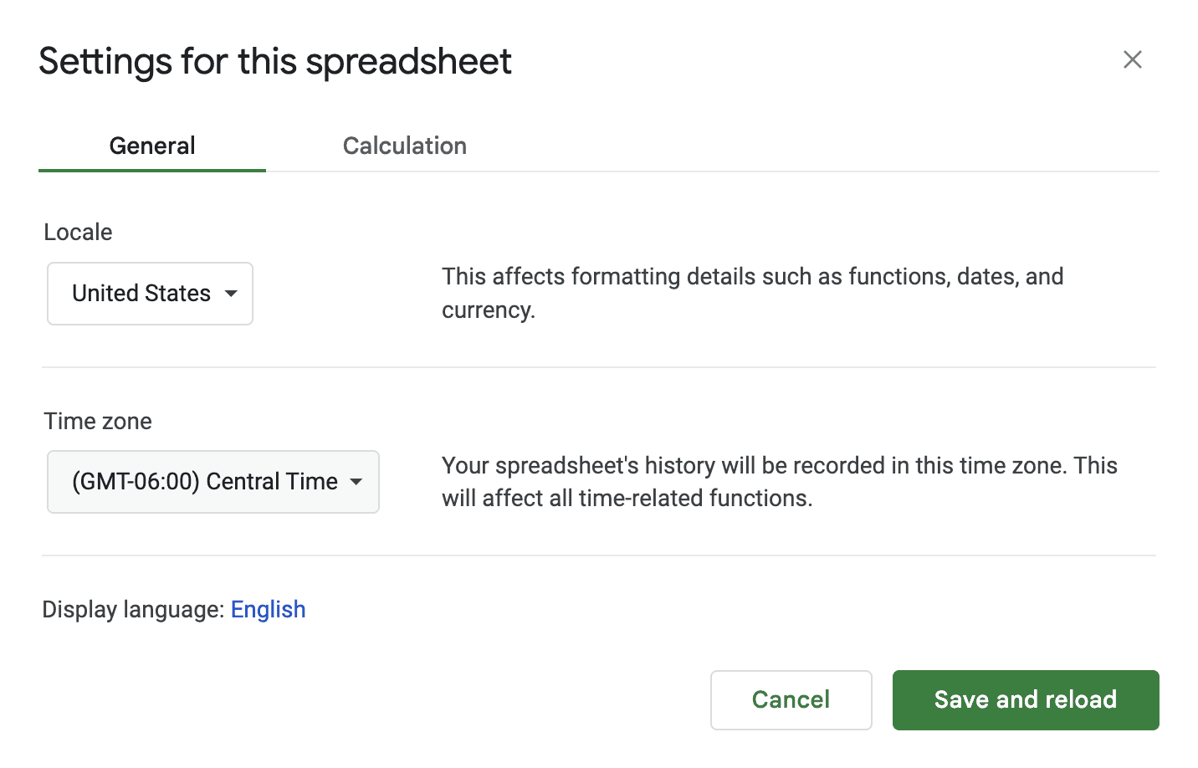
The setting belongs to the file, so everyone who opens the spreadsheet sees the same NOW, wherever they are.
Related Google Sheets functions
Related Google Sheets functions
Functions that are often used next to NOW and TODAY, each with its own guide:
- Dates and times: How Sheets stores dates and times, and how to combine and split them.
- DATE functions: DATE, EDATE, DATEVALUE and DATEDIF.
- TIME functions: Extract and calculate hours, minutes and seconds.
- DAY/DAYS/DAYS360: The day of a date and the number of days between two dates.
- WEEKDAY/WEEKNUM: Returns the day of the week or the week number of the year for a date, useful for weekly reporting.
- QUERY date filtering: Uses TODAY to build a moving date filter in a QUERY.
- TEXT: Converts numbers and dates into text in the format you specify.
- FILTER: Returns the rows that meet a condition, for example dates after today.
A report that knows the date still needs today’s data
A report that knows the date still needs today’s data
TODAY keeps the formulas of a report current: the last 7 days are always the last 7 days. The rows underneath are another matter. If they were pasted in last Monday, the report shows the right dates and old numbers, and nothing on the sheet says so.
The OWOX Data Marts extension for Google Sheets covers that half. A data analyst publishes a data mart (a table or an SQL query in your data warehouse) and makes it available for reports. In Sheets you open the extension, pick the data mart, tick the columns you want and run it. The rows land in a tab, ready for your formulas.
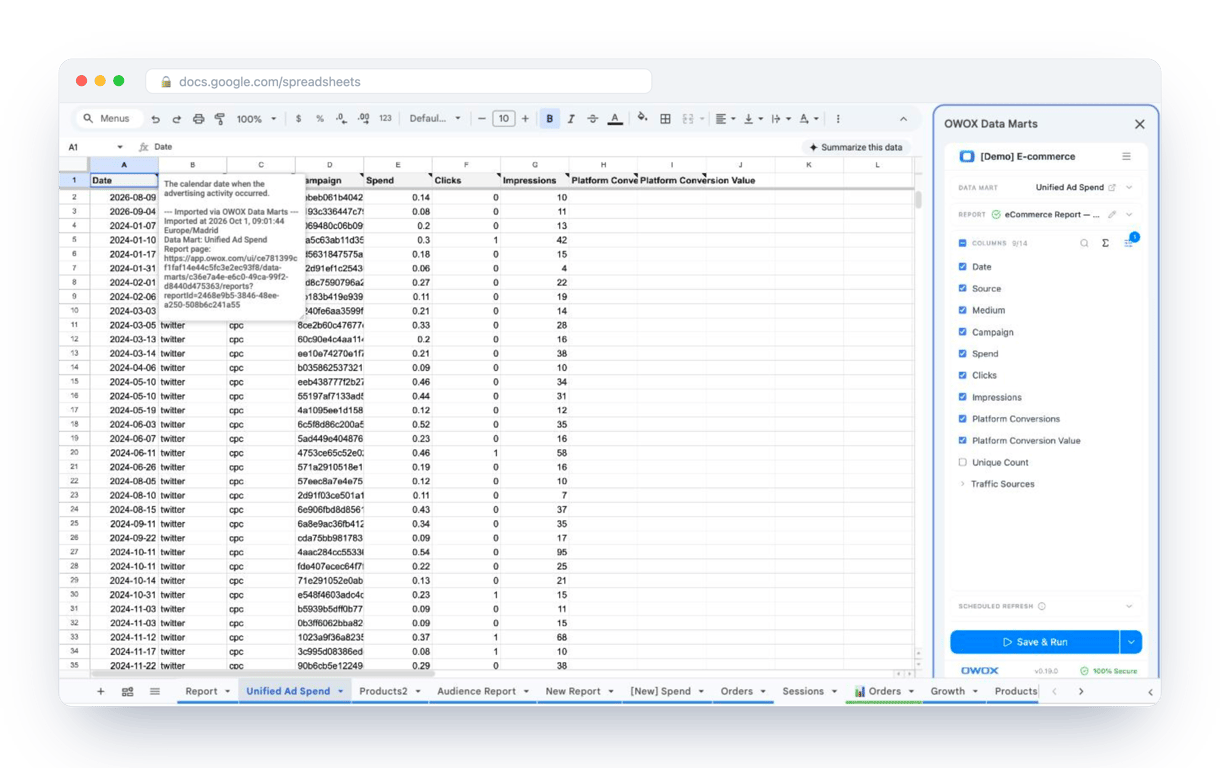
What changes for the person who maintains the sheet:
- Refresh replaces re-export. Refresh current report in the extension menu re-runs the same pull, and a scheduled refresh keeps the tab current without anyone touching it.
- The source is written on the sheet. The header cell of an imported tab carries a note with the data mart it came from, the time of the import and a link to the report.
- No SQL and no warehouse access needed. The analyst decides which data marts and columns are available. You choose from that list.
The extension does not write or change the analyst’s SQL. With a scheduled refresh the rows are as current as the formulas that read them, and the note on the header cell shows when they were last imported. The extension comes with the OWOX Cloud plans of OWOX Data Marts; spreadsheet reporting describes both ways data reaches a sheet.
Turn your data into decisions.
Governed data marts give you the clean foundation ML needs to actually work.
- No AI hallucinations
- Analyst-governed definitions
- Every number traces to SQL
Frequently Asked Questions
How do I calculate six months from today’s date?
You can calculate six months from today’s date using the EDATE function combined with TODAY().The syntax is:=EDATE(TODAY(), 6)This will return the date that is six months after today’s date.
How to use the TODAY function in Google Sheets?
The TODAY() function returns the current date, which updates automatically every day. It’s especially useful for dynamic reports, task deadlines, or calculating how many days remain until a specific event.Syntax:=TODAY()No parameters are required for the TODAY() function. Use it to calculate future or past dates by adding or subtracting days. For example: =TODAY() + 7. This formula gives the date seven days from today. Since the value updates automatically, you won’t need to refresh the sheet manually.
How to stop the NOW function from auto-updating Google Sheets?
Since the NOW() function recalculates automatically, stopping this behavior requires making the value static. There are a couple of ways to do this:Copy and Paste as Values:Select the cell with the NOW() function, press Ctrl + C (Windows) or Cmd + C (Mac).Right-click the same cell and select Paste special > Paste values only.This will paste the current date and time as a static value.Adjust Recalculation Settings:Go to File > Settings > Calculation.Under Recalculation, select On change and every hour or On change only to control how often the function updates.These steps allow you to keep the timestamp generated by NOW() without it updating constantly.
How to use the NOW function in Google Sheets?
Type =NOW() with empty parentheses. It returns the current date and time in the time zone of the spreadsheet and is recalculated whenever the sheet changes, so it is not suitable for recording when something happened. For a fixed timestamp press Ctrl + Alt + Shift + ; or paste the result as a value.
How do I format cells as dates?
To format cells as dates, select the cells you want to format, go to the "Format" menu, select "Number," and then choose "Date" from the list of options. You can also customize the date format under "Custom date and time formats" for more specific needs.