COUNT and COUNTA in Google Sheets: what each one counts, with examples
COUNT counts the cells that hold numbers, dates or times. COUNTA counts every cell that is not empty, including text, errors, spaces and formulas that return an empty string. This guide shows what each function includes, how to count cells with text, and the traps that make a count come out wrong.
COUNT counts the cells that contain numbers, including dates and times. COUNTA counts every cell that is not empty, whatever it holds. For a range with three numbers, two text entries and two empty cells, =COUNT(C3:C9) returns 3 and =COUNTA(C3:C9) returns 5.
| A cell that contains | COUNT | COUNTA |
|---|---|---|
| A number, including 0 | Counted | Counted |
| A date or a time | Counted | Counted |
| Text | Not counted | Counted |
| A number stored as text, such as ’92 | Not counted | Counted |
| TRUE or FALSE | Not counted | Counted |
| An error, such as #DIV/0! | Not counted | Counted |
| A space | Not counted | Counted |
| A formula that returns “” | Not counted | Counted |
| Nothing | Not counted | Not counted |
To count only the cells with text, use =COUNTIF(C3:C9, "?*"). To count the empty ones, use =COUNTBLANK(C3:C9).
Syntax of COUNT and COUNTA
=COUNT(value1, [value2, ...])
=COUNTA(value1, [value2, ...])
- value1: the first range or value to count.
- value2, … (optional): more ranges or values.
Both functions take any number of ranges, separated by commas, and return a single number.
COUNT and COUNTA on the same column
COUNT and COUNTA on the same column
The table lists employees and a score. Some scores are numbers, two are text (Approved and N/A) and two cells are empty.
=COUNT(C3:C9)
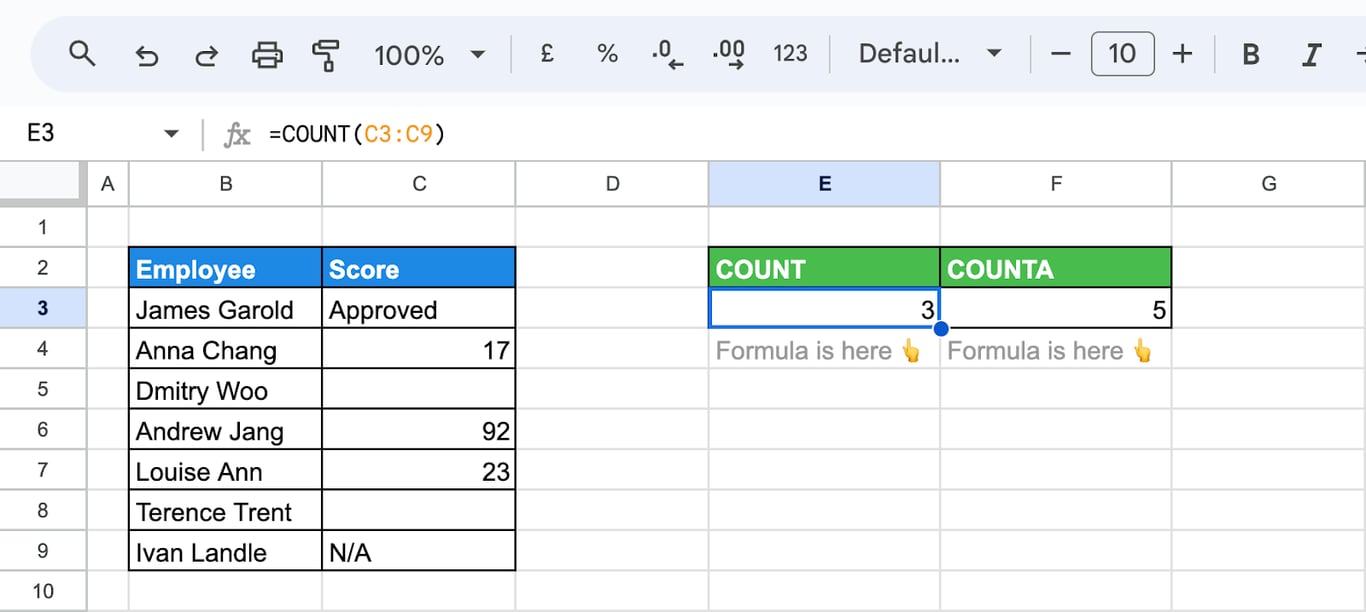
COUNT returns 3: the scores 17, 92 and 23.
=COUNTA(C3:C9)
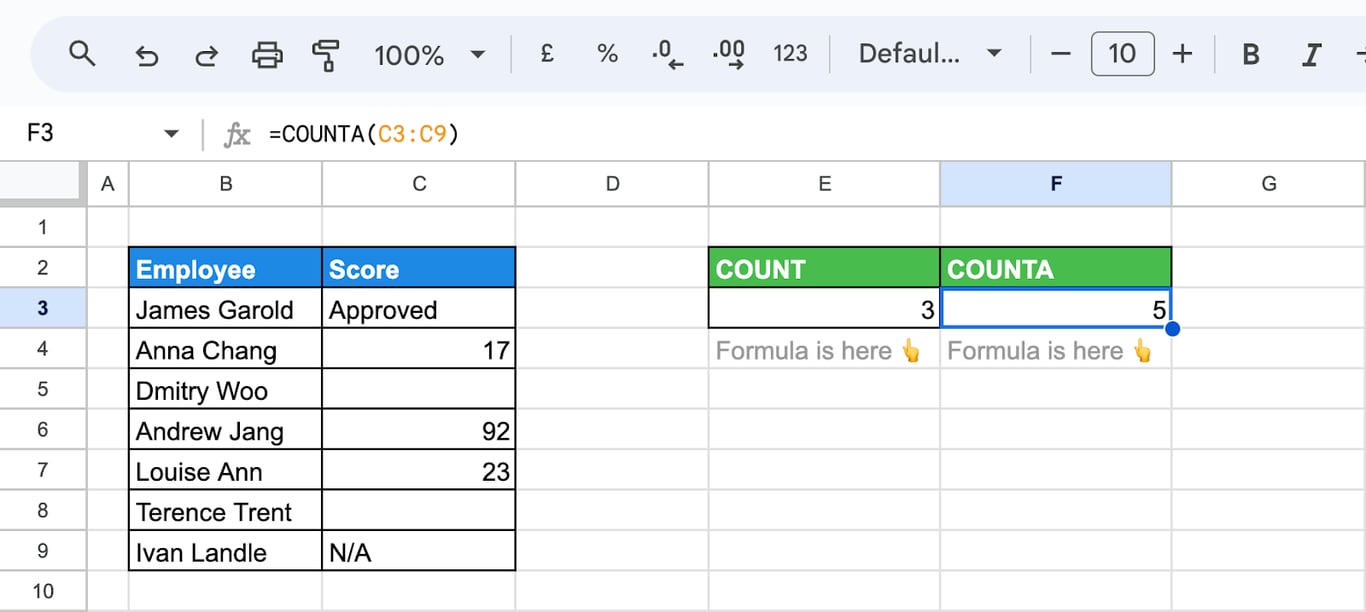
COUNTA returns 5: the three numbers and the two text values. The difference between the two results, =COUNTA(C3:C9) - COUNT(C3:C9), is the number of filled cells that are not numbers, which is a quick way to find entries of the wrong type in a column that should be numeric.
OWOX Data Marts
See your first report built in real time. 15 minutes.
- Connect your data warehouse
- Pick your metrics
- Get a live Google Sheets report
In the time it takes to write a ticket. Then imagine never writing that ticket again.
Book a DemoWe'll use your actual use case
What COUNT counts
Dates and times
A date is stored as a number, so COUNT includes it:
=COUNT(C3:C9)
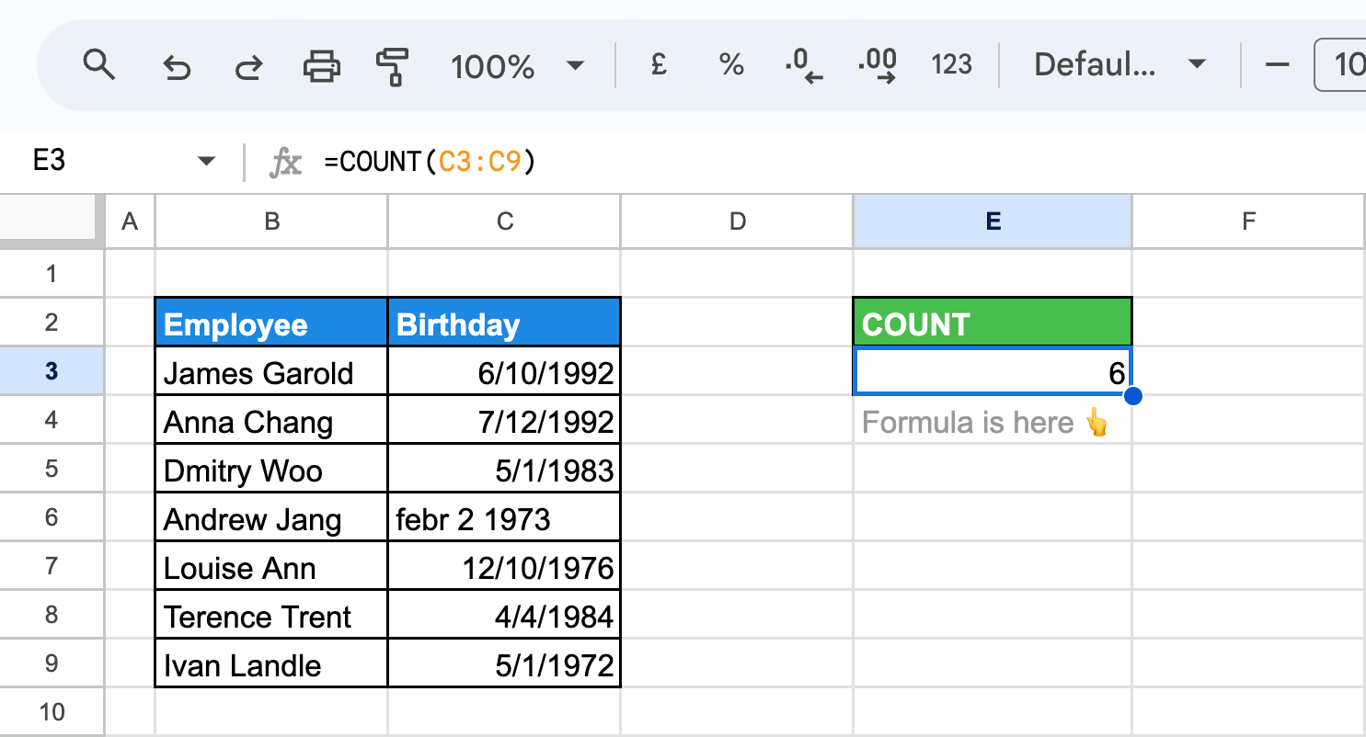
The column has seven entries and COUNT returns 6. The value “febr 2 1973” is not a date that Sheets recognizes; it is text, and COUNT leaves it out. This makes COUNT a simple check for a date column: if the result is lower than the number of rows, some of the dates are text.
TRUE and FALSE
Logical values in cells are not counted. A column of TRUE and FALSE values returns 0 with COUNT. The exception is values typed directly into the formula:
=COUNT(TRUE, TRUE, FALSE, TRUE, TRUE)
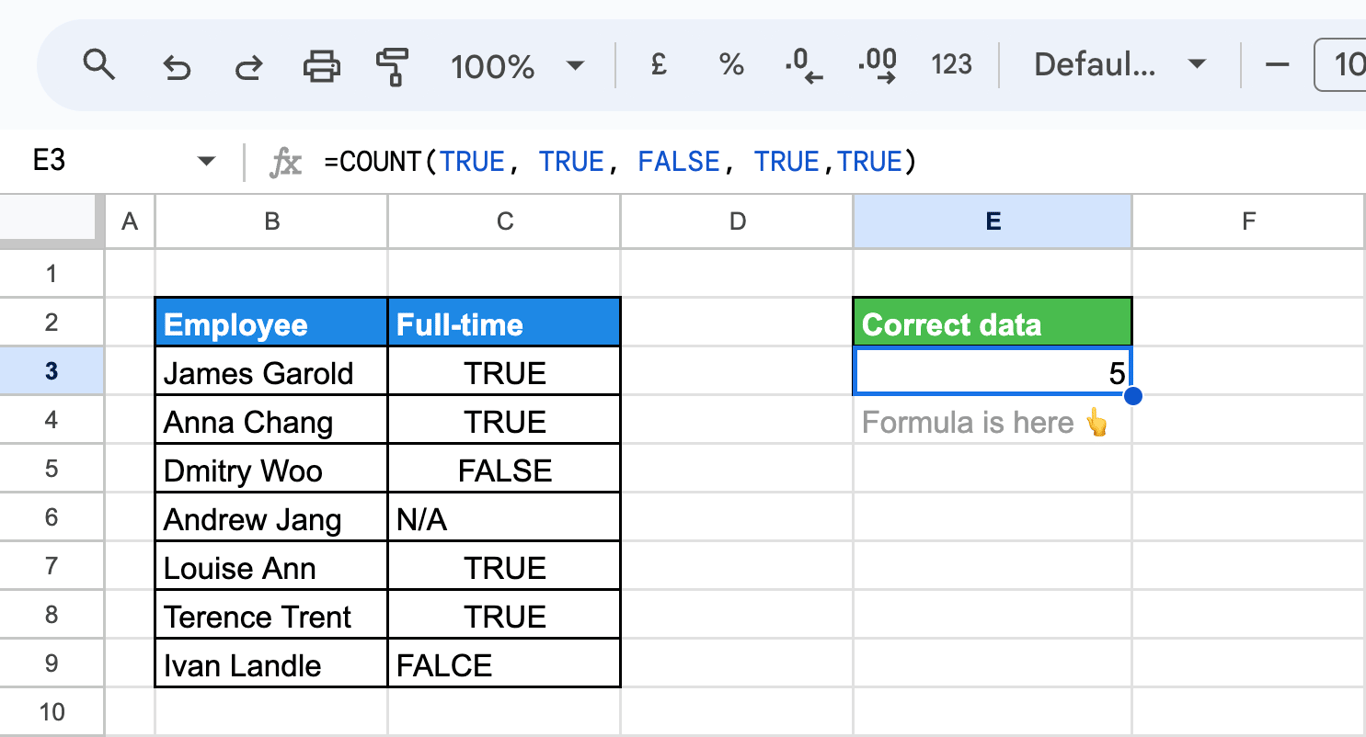
Here COUNT returns 5, because arguments typed into the function are converted to numbers. The same holds for a number in quotes: =COUNT("5", 5) returns 2, although the text ’5 in a cell would not be counted. In practice values come from cells, so the rule to remember is the first one: COUNT ignores TRUE, FALSE and text in a range.
What COUNTA counts
Any type of data
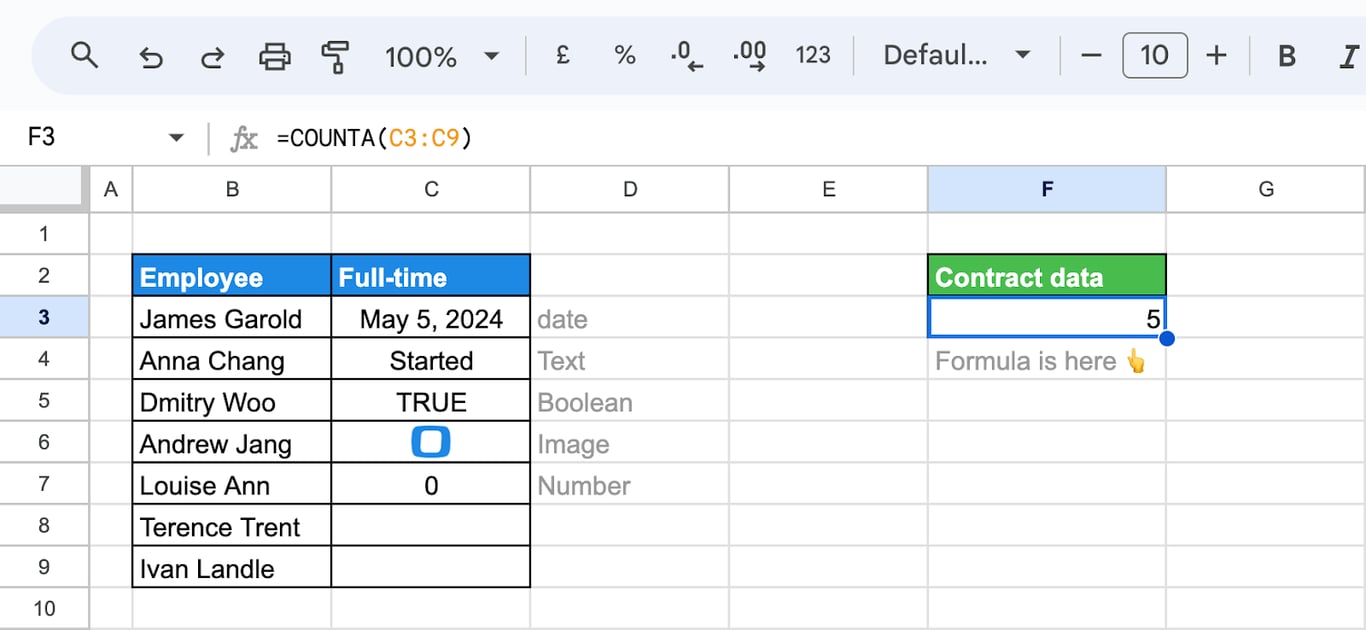
COUNTA does not look at the type. A date, a text, TRUE, an image in a cell and the number 0 each count as one:
=COUNTA(C3:C9)
Cells that only look empty
COUNTA also counts cells that have content you cannot see. A cell with a single space is not empty:
=COUNTA(C3:C9)
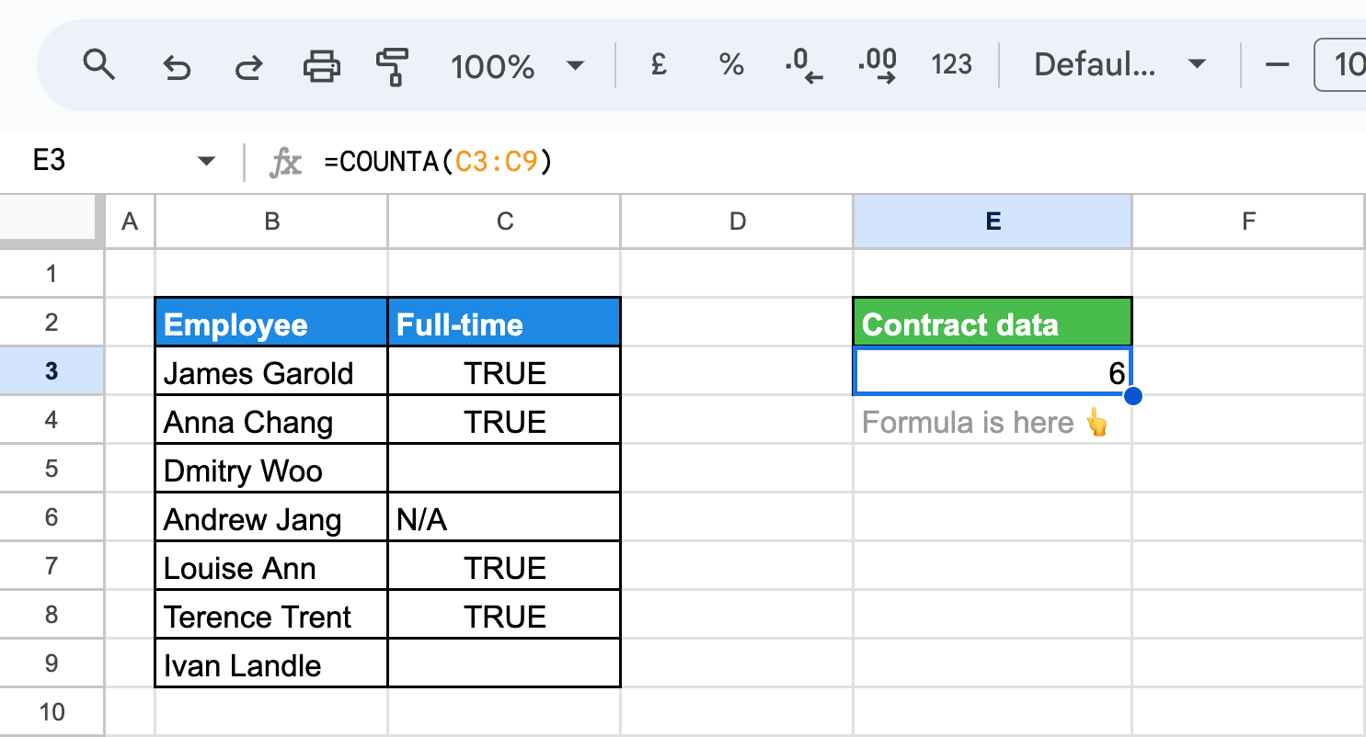
The column shows five values, and COUNTA returns 6, because one cell contains spaces. The same happens with a formula that returns an empty string, such as =IF(A2 > 10, "Yes", ""): the cell looks empty and COUNTA counts it.
To count only the cells that show something, count the ones with at least one character and add the numbers:
=COUNTIF(C3:C9, "?*") + COUNT(C3:C9)
COUNTIF with "?*" counts text of one character or more, so it skips empty strings. It still counts a cell that holds a space; remove those with TRIM or find and delete them.
Several ranges
List the ranges, separated by commas:
=COUNTA(B3:B9, C4:C6)
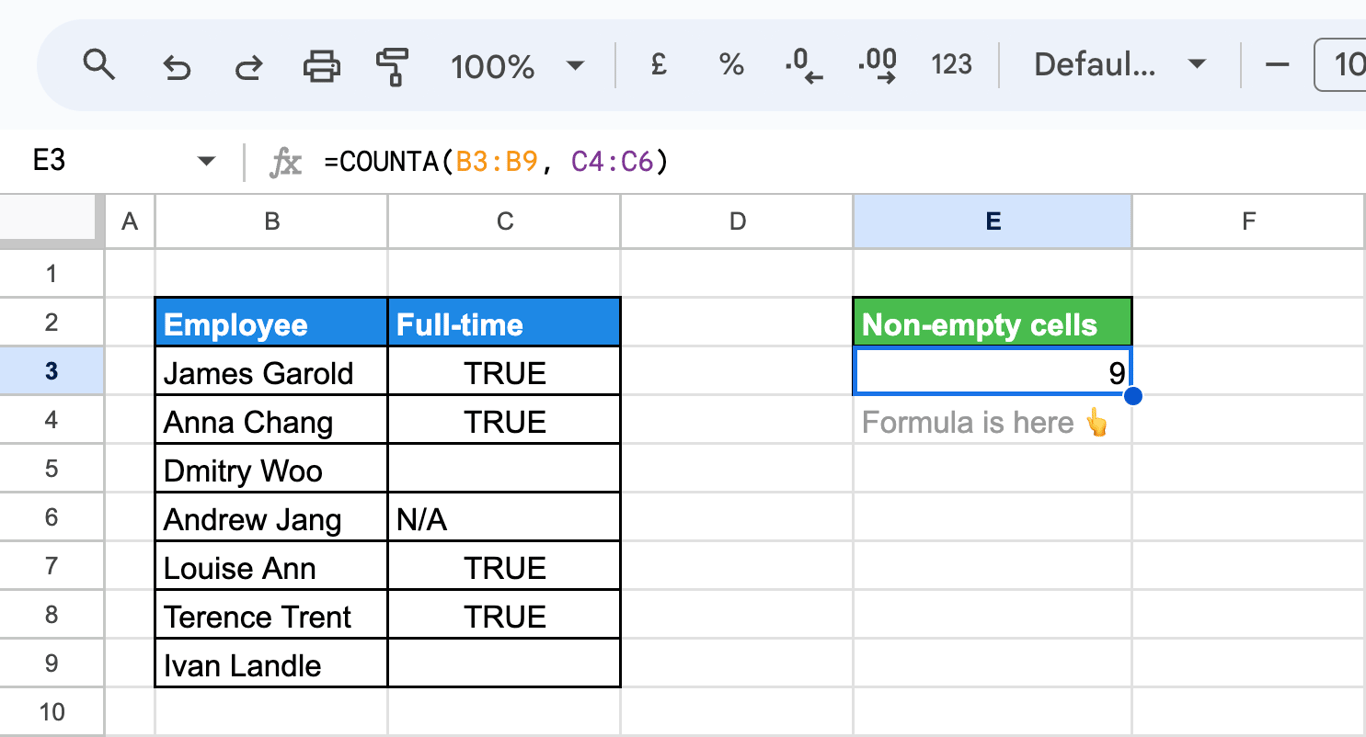
The formula returns 9: seven names in B3:B9 and two filled cells in C4:C6.
Count cells with text
There is no COUNTTEXT function. Two formulas do the job:
=COUNTIF(C3:C9, "?*")counts the cells with text of at least one character.=COUNTA(C3:C9) - COUNT(C3:C9)counts everything that is not a number, which also includes TRUE, FALSE and errors.
For cells that contain a specific text, give COUNTIF the text: =COUNTIF(C3:C9, "Approved"), or =COUNTIF(C3:C9, "*app*") for cells that contain those letters anywhere. The guide to COUNTIF and COUNTIFS covers conditions in detail.
COUNTA with other functions
Count distinct values with UNIQUE
UNIQUE returns each value once, and COUNTA counts the result:
=COUNTA(UNIQUE(C3:C9))
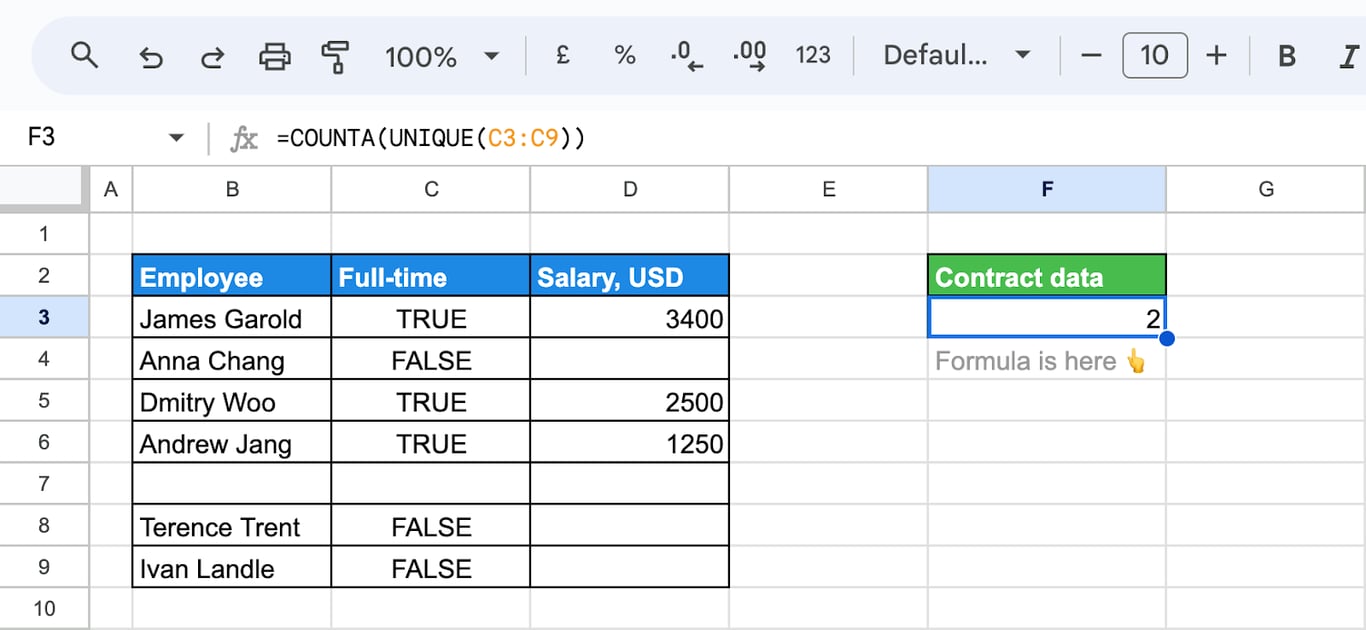
The column contains TRUE, FALSE and an empty cell, and the formula returns 2. =COUNTUNIQUE(C3:C9) gives the same count in one function.
Count the rows that FILTER returns
=COUNTA(FILTER(D3:D9, D3:D9 = "Sales"))
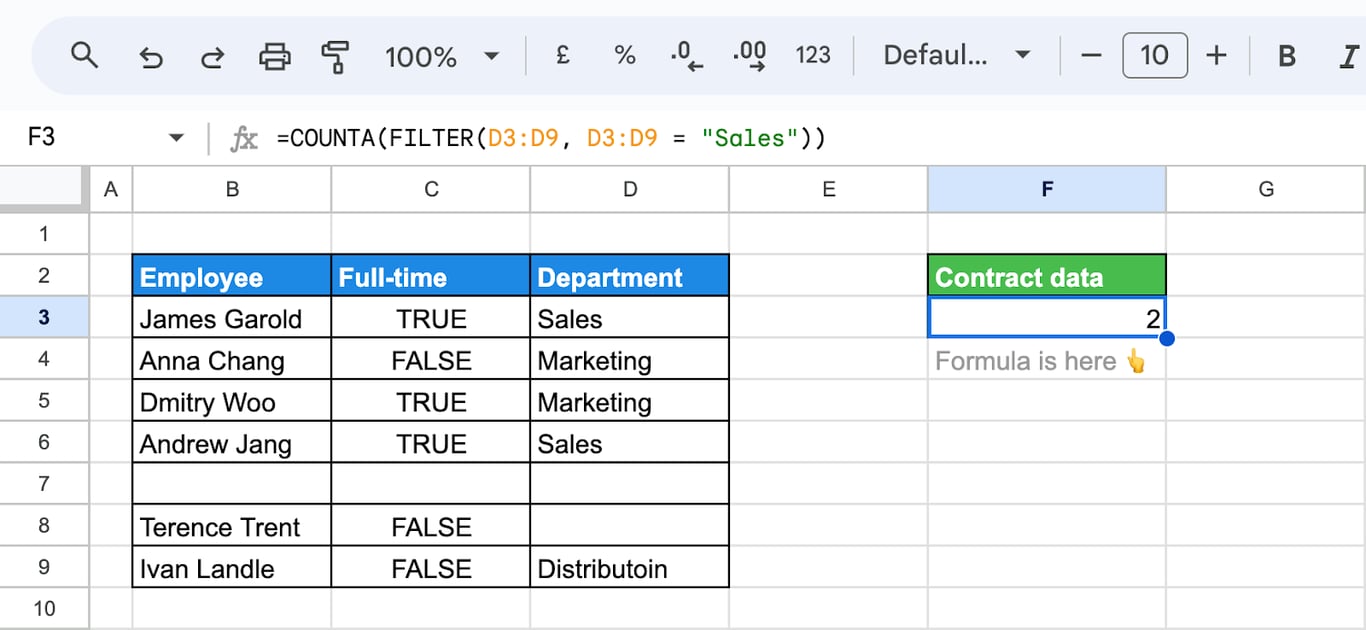
FILTER returns the cells equal to “Sales”, and COUNTA counts them: 2.
This pattern has a trap. When nothing matches, FILTER returns the error #N/A, COUNTA counts that error as one cell, and the result is 1 instead of 0. =COUNTIF(D3:D9, "Sales") returns 0 in that case and is the safer formula for a count by condition.
Count by a condition in another column
To count the filled cells of one column only for the rows that meet a condition in another, use COUNTIFS with "<>", which means “not empty”:
=COUNTIFS(C3:C9, TRUE, D3:D9, "<>")
The formula counts the rows where column C is TRUE and column D is filled.
When the count is wrong
⚠️ Error: COUNT returns fewer cells than expected.
✅ Solution: Some of the numbers or dates are stored as text. They are left-aligned by default. Convert them with VALUE or DATEVALUE, or retype them.
⚠️ Error: COUNTA returns more cells than you can see.
✅ Solution: The range contains spaces or formulas that return “”. Use =COUNTIF(range, "?*") + COUNT(range), or clean the cells.
⚠️ Error: COUNTA returns 1 where 0 was expected.
✅ Solution: The function inside, such as FILTER, returned an error, and COUNTA counted it. Use COUNTIF or COUNTIFS for conditions.
⚠️ Error: COUNT returns 0 for a column of TRUE and FALSE.
✅ Solution: COUNT does not count logical values in cells. Use =COUNTIF(range, TRUE) to count the TRUE values, or COUNTA to count all filled cells.
⚠️ Error: #NAME? instead of a number.
✅ Solution: The function name is misspelled. Neither COUNT nor COUNTA returns an error because of what is in the range: errors in the range are skipped by COUNT and counted by COUNTA.
Related Google Sheets functions
Related Google Sheets functions
Functions that are often used next to COUNT and COUNTA, each with its own guide:
- COUNTIF and COUNTIFS: Count the cells that meet one or several conditions.
- SUM, SUMIF and SUMIFS: Add up values, with or without conditions.
- AVERAGE: The mean of a range, with variants that follow the same counting rules.
- UNIQUE: Returns the distinct values of a range.
- QUERY: Counts by group with select and count() in one formula.
- Pivot tables: Count by category without formulas, with COUNT or COUNTA as the summary.
- RANK: Returns the position of a value within a list of numbers.
- PERCENTILE: Returns the value at a given percentile of a dataset.
A count is only as good as the rows it runs on
A count is only as good as the rows it runs on
The traps above have one thing in common: the formula is right and the data is not. Numbers that arrive as text, cells with stray spaces and half-pasted exports all change a count without producing an error. The smaller the gap between the source system and the sheet, the fewer of these there are.
The OWOX Data Marts extension for Google Sheets covers that half. A data analyst publishes a data mart (a table or an SQL query in your data warehouse) and makes it available for reports. In Sheets you open the extension, pick the data mart, tick the columns you want and run it. The rows land in a tab, ready for your formulas.
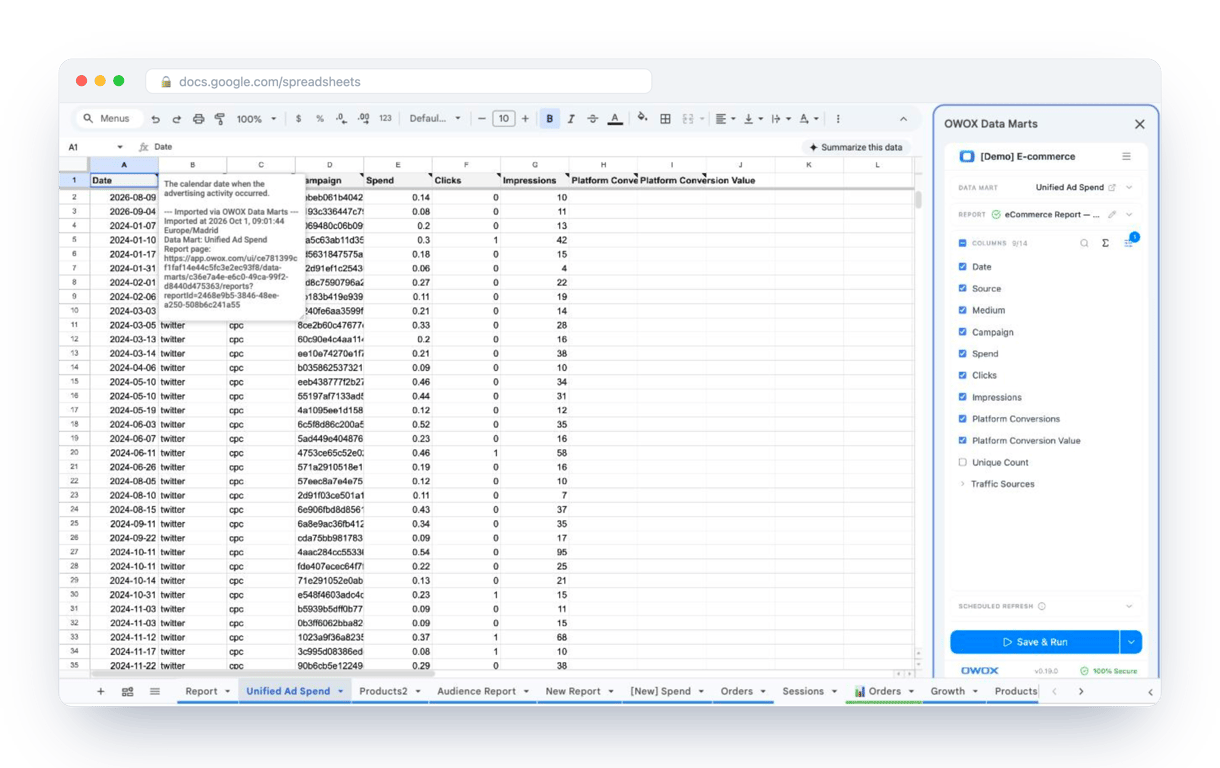
What changes for the person who maintains the sheet:
- Refresh replaces re-export. Refresh current report in the extension menu re-runs the same pull, and a scheduled refresh keeps the tab current without anyone touching it.
- The source is written on the sheet. The header cell of an imported tab carries a note with the data mart it came from, the time of the import and a link to the report.
- No SQL and no warehouse access needed. The analyst decides which data marts and columns are available. You choose from that list.
The extension does not write or change the analyst’s SQL. Types are set there once, and the columns reach the sheet in the same form on every refresh. The extension comes with the OWOX Cloud plans of OWOX Data Marts; spreadsheet reporting describes both ways data reaches a sheet.
Turn your data into decisions.
Governed data marts give you the clean foundation ML needs to actually work.
- No AI hallucinations
- Analyst-governed definitions
- Every number traces to SQL
Frequently Asked Questions
What are some common errors encountered when using the COUNT function?
COUNT itself does not return errors because of the data: it skips text, logical values and error cells in the range. The usual problem is a count that is lower than expected, which means some numbers or dates are stored as text. #NAME? appears only when the function name is misspelled.
How do you count cells with spaces using COUNTA?
COUNTA counts a cell that contains only spaces as filled, because it is not empty: =COUNTA(B1:B10) includes it. The same goes for formulas that return an empty string. To count only cells with visible content, use =COUNTIF(B1:B10, "?*") + COUNT(B1:B10) and remove stray spaces with TRIM.
How can I combine COUNT and COUNTA functions with other functions for better data analysis?
For conditions, use COUNTIF and COUNTIFS: =COUNTIF(D3:D9, "Sales") counts matching cells and returns 0 when there are none. =COUNTA(UNIQUE(C3:C9)) counts distinct values. Be careful with =COUNTA(FILTER(...)): when FILTER finds nothing it returns an error, and COUNTA counts that error as 1.
How do you use the COUNT function to count numbers in Google Sheets?
To use the COUNT function in Google Sheets, select a range containing numeric values. For example, use =COUNT(A1:A10) to count the number of cells with numbers within the range A1 to A10. The function will return the count of these numeric entries.
What is the difference between the COUNT and COUNTA functions in Google Sheets?
COUNT counts only the cells that contain numbers, dates or times. COUNTA counts every cell that is not empty, including text, TRUE and FALSE, errors, spaces and formulas that return an empty string. For the same range, COUNTA minus COUNT is the number of filled cells that are not numbers.