REGEX functions in Google Sheets: REGEXMATCH, REGEXEXTRACT and REGEXREPLACE
Google Sheets has three regular expression functions: REGEXMATCH tests a text against a pattern, REGEXEXTRACT returns the part that matches, and REGEXREPLACE replaces it. This guide covers their syntax, a pattern cheat sheet, examples for matching several words, cleaning and extracting, and the errors each function returns.

Google Sheets has three functions that work with regular expressions, patterns that describe text:
| Function | What it does | Example | Result |
|---|---|---|---|
| REGEXMATCH | Tests whether the text matches the pattern | =REGEXMATCH("order DEMO789", "DEMO") |
TRUE |
| REGEXEXTRACT | Returns the part of the text that matches | =REGEXEXTRACT("user@example.com", "@(.+)$") |
example.com |
| REGEXREPLACE | Replaces the part that matches | =REGEXREPLACE("ID: 4521", "\D", "") |
4521 |
To check a cell for any of several words, separate them with a vertical bar: =REGEXMATCH(A2, "pine|spruce"). Add (?i) at the start of the pattern to ignore case: =REGEXMATCH(A2, "(?i)pine|spruce").
The pattern syntax
A pattern is ordinary text plus characters with a special meaning:
| Pattern | Meaning |
|---|---|
^ |
Start of the text |
$ |
End of the text |
. |
Any single character |
* |
Zero or more of the preceding item |
+ |
One or more of the preceding item |
? |
Zero or one of the preceding item |
a|b |
a or b |
( ) |
A group; in REGEXEXTRACT, the part to return |
[abc] |
Any one of the listed characters |
[^abc] |
Any character except the listed ones |
[1-4], [a-z] |
Any character in the range |
\d, \D |
A digit; anything but a digit |
\s |
A space, tab or line break |
\w |
A letter, a digit or an underscore |
\b |
A word boundary |
{2}, {2,} |
Exactly two; two or more of the preceding item |
\. |
A literal dot; the backslash removes the special meaning of the next character |
(?i) |
At the start of the pattern: ignore case |
Sheets uses the RE2 flavour of regular expressions. Google’s documentation notes that all of RE2 is supported except Unicode character classes (checked in October 2026). In practice the main difference from other flavours is that RE2 has no lookaheads and lookbehinds: a pattern such as a(?=b) returns an error.
Patterns are case-sensitive unless they start with (?i).
REGEXMATCH
=REGEXMATCH(text, regular_expression)
- text: the text or cell to test.
- regular_expression: the pattern, in quotes.
The function returns TRUE when the pattern is found anywhere in the text and FALSE when it is not.
Contains a text
To check whether an email address contains the domain example.com:
=REGEXMATCH(C3, "example\.com")
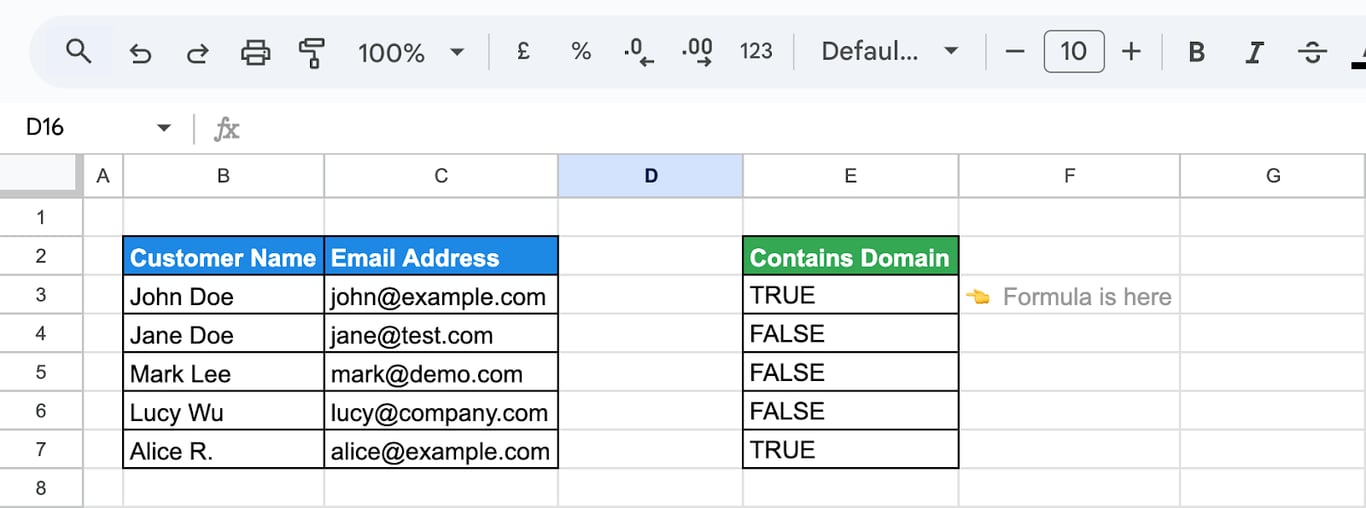
The backslash before the dot makes it a literal dot. Without it, the dot would stand for any character.
Contains any of several words
A vertical bar means “or”:
=REGEXMATCH(C10, "example\.com|test\.com|demo\.com")
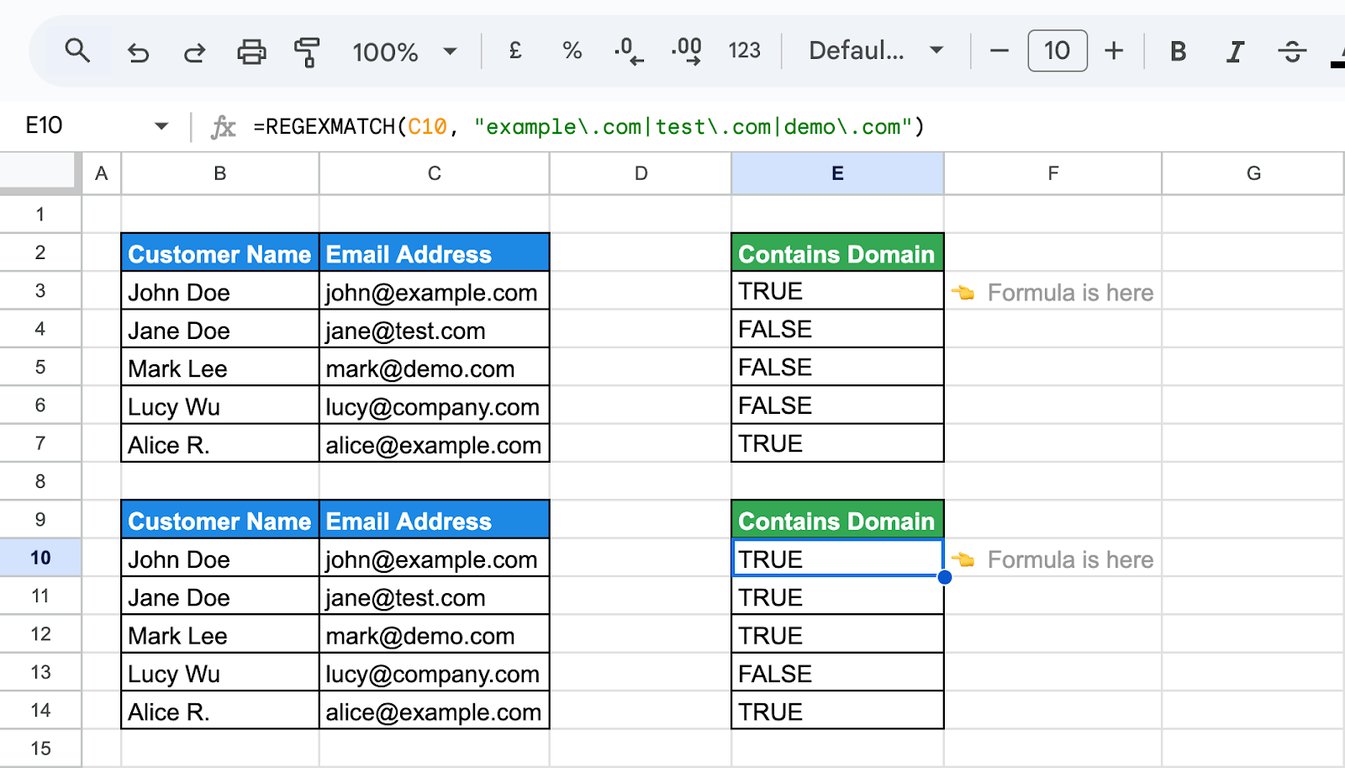
The formula returns TRUE when the address contains any of the three domains. The same works for plain words:
=REGEXMATCH(C3, "Pine|Spruce")
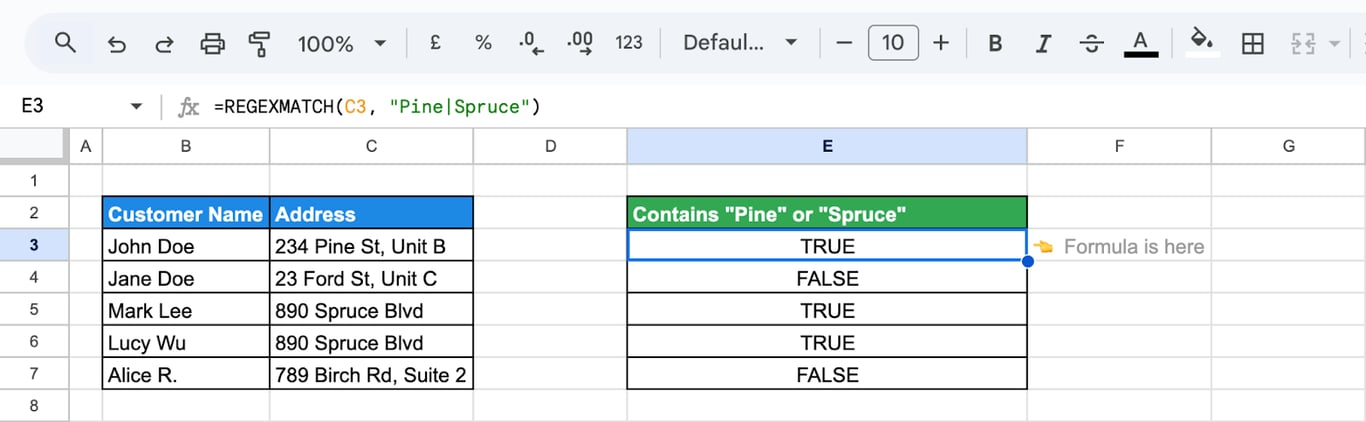
To require all the words instead of any, use one REGEXMATCH per word inside AND: =AND(REGEXMATCH(C3, "Pine"), REGEXMATCH(C3, "Street")).
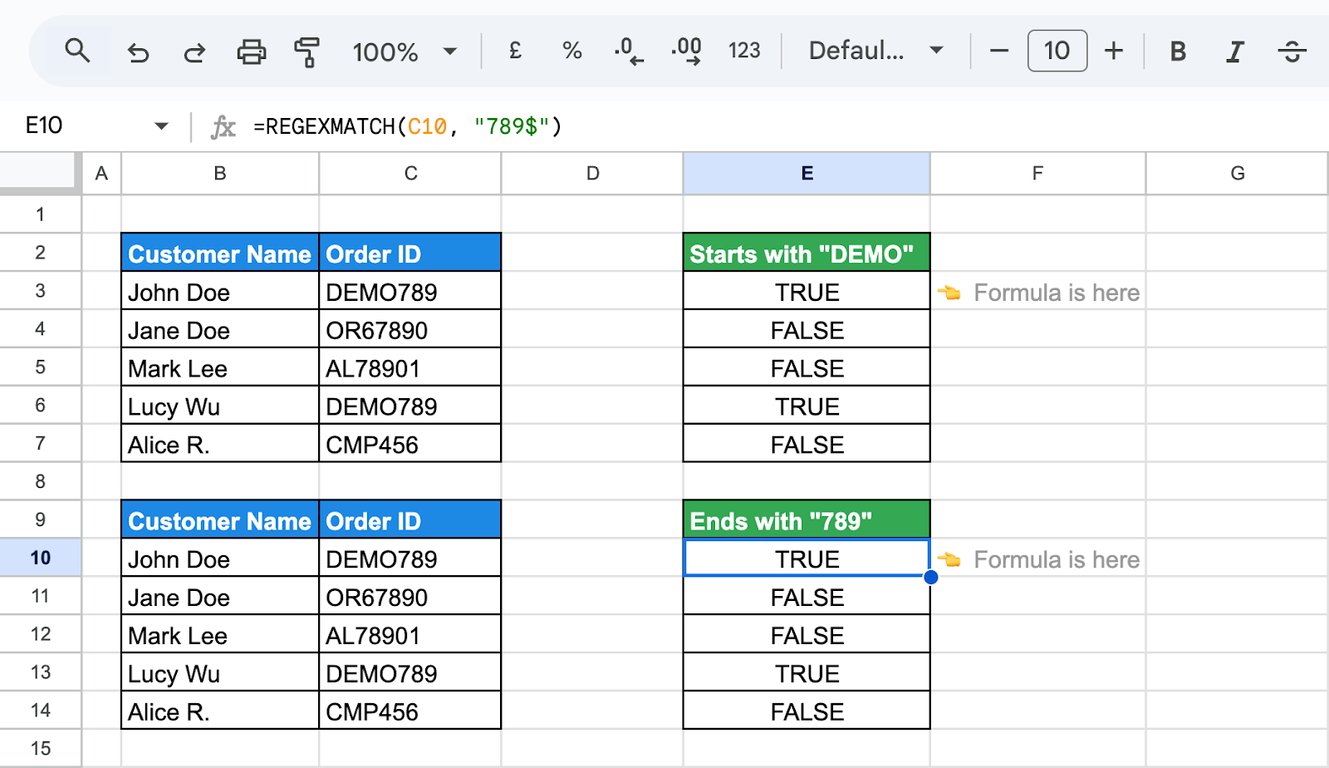
Starts or ends with a text
The caret anchors the pattern to the start of the text:
=REGEXMATCH(C3, "^DEMO")
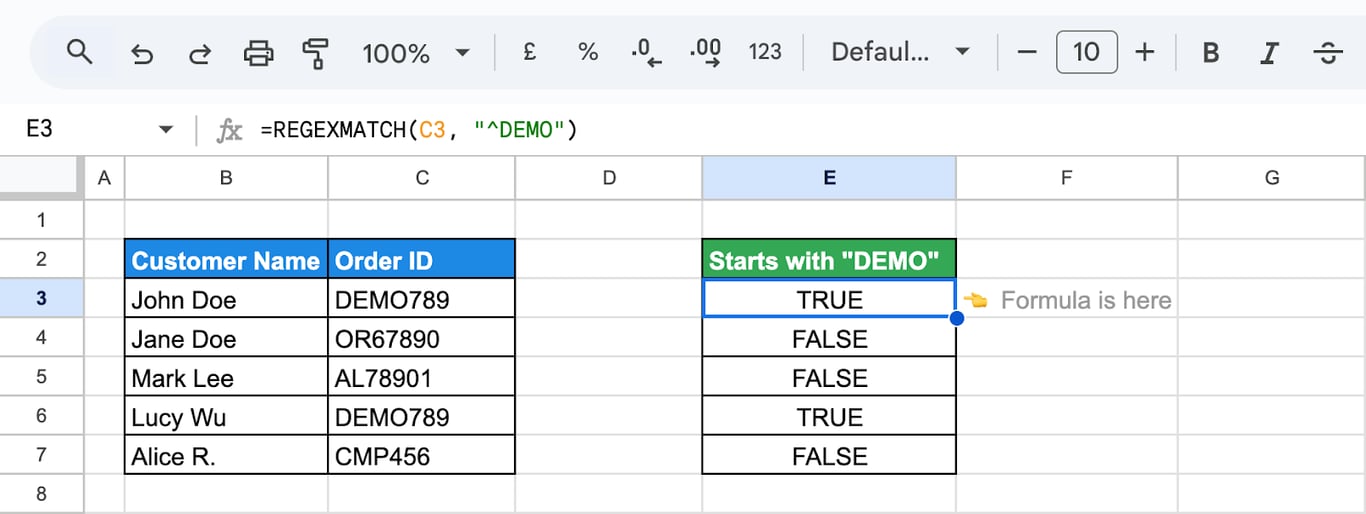
The dollar sign anchors it to the end:
=REGEXMATCH(C11, "789$")
Matches the whole cell
With both anchors, the pattern has to cover the entire text:
=REGEXMATCH(C3, "^DEMO789$")
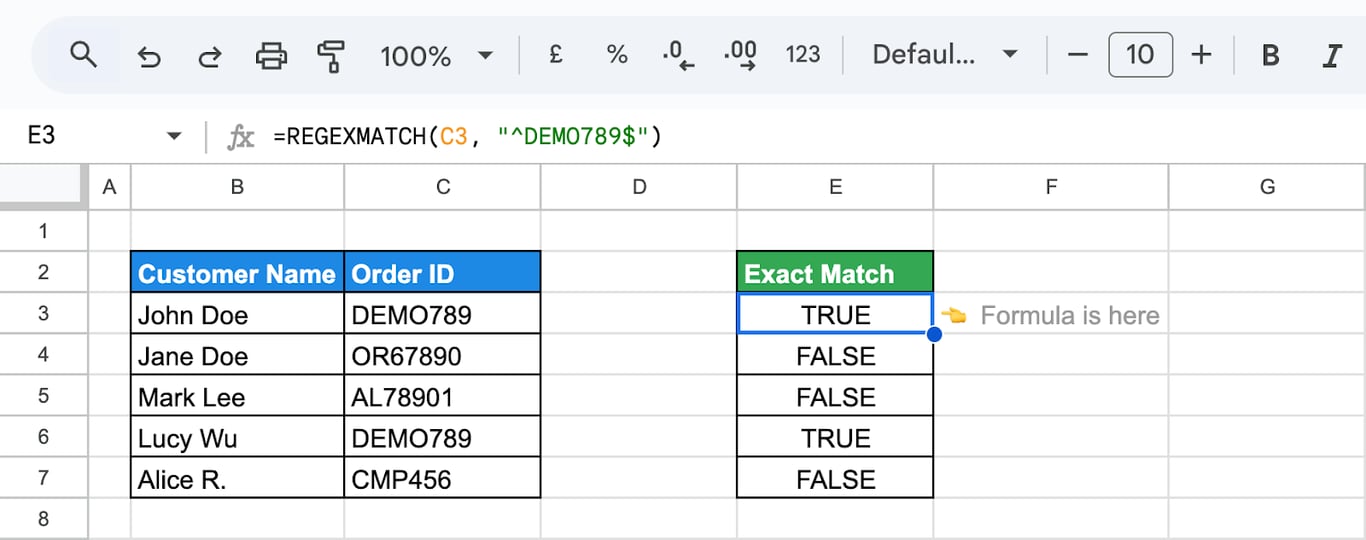
Only “DEMO789” itself returns TRUE; “DEMO7890” and “XDEMO789” do not.
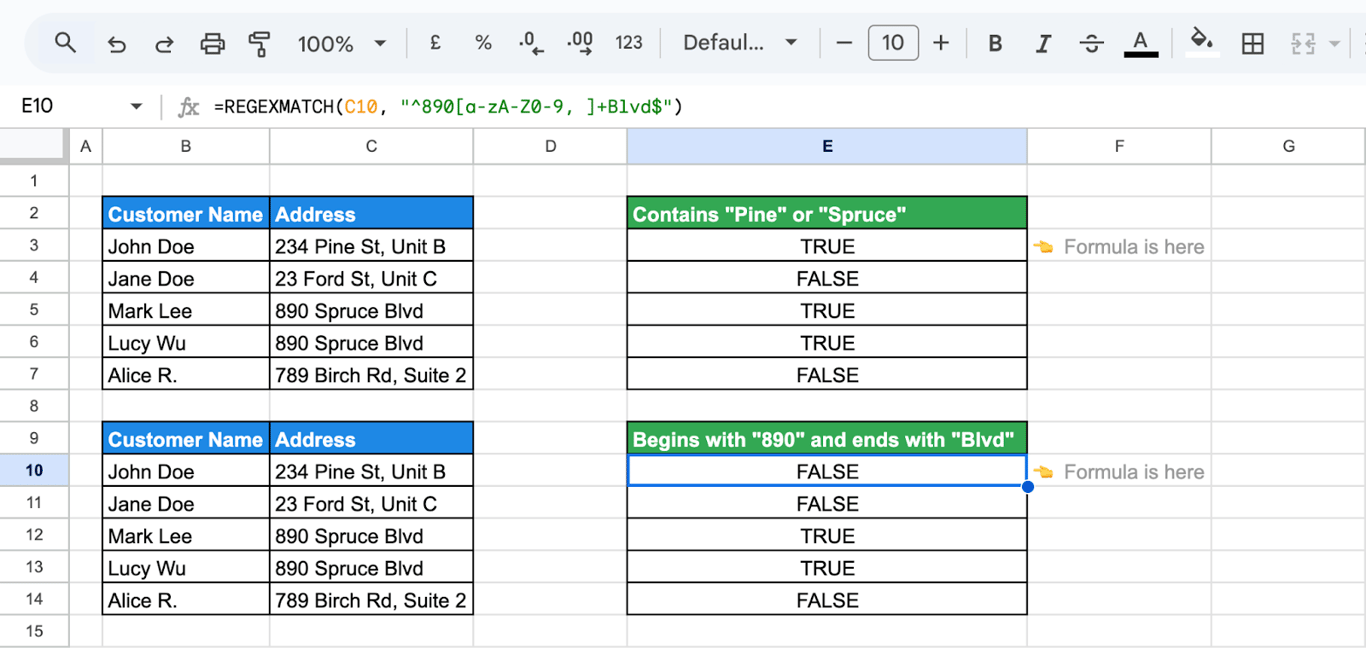
Anchors and character classes can describe a whole structure. This formula tests for an address that starts with 890 and ends with Blvd:
=REGEXMATCH(C10, "^890[a-zA-Z0-9, ]+Blvd$")
- ^890: the text starts with 890.
- [a-zA-Z0-9, ]+: one or more letters, digits, commas or spaces in between.
- Blvd$: the text ends with Blvd.
Contains certain digits
=REGEXMATCH(C3, "[1-4]")
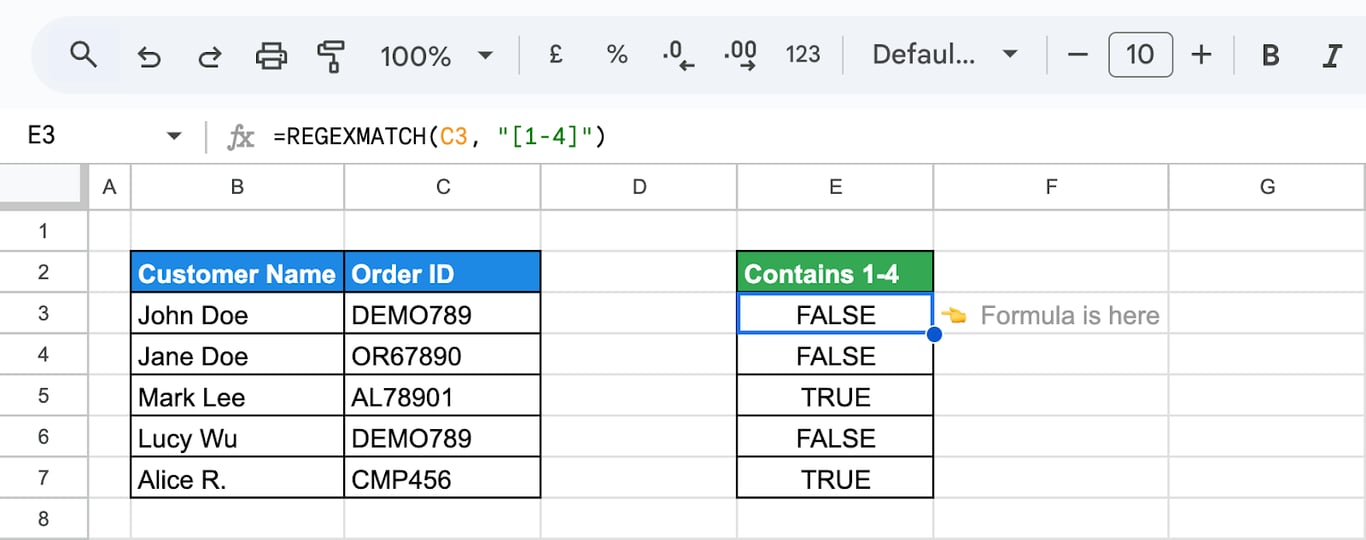
The formula returns TRUE when the ID contains any digit from 1 to 4.
The three functions accept text only. A cell that holds a number or a date returns #VALUE!. Convert the value inside the formula: =REGEXMATCH(TO_TEXT(C3), "[1-4]").
Two conditions on two cells
=AND(REGEXMATCH(C3, "example\.com"), REGEXMATCH(D3, "(?i)high-quality"))
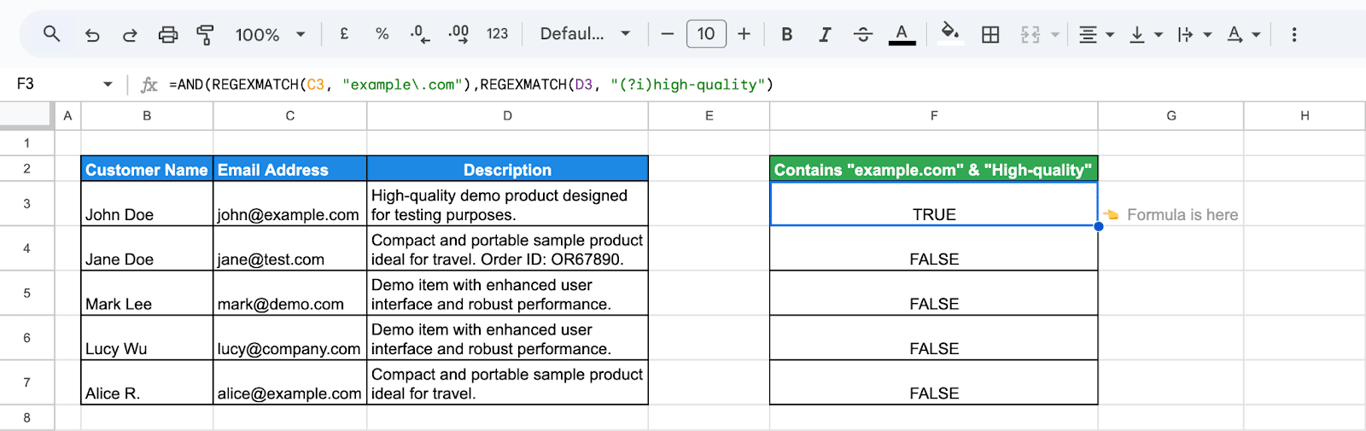
The formula returns TRUE when the email contains example.com and the description contains “high-quality” in any case.
OWOX Data Marts
See your first report built in real time. 15 minutes.
- Connect your data warehouse
- Pick your metrics
- Get a live Google Sheets report
In the time it takes to write a ticket. Then imagine never writing that ticket again.
Book a DemoWe'll use your actual use case
REGEXEXTRACT
=REGEXEXTRACT(text, regular_expression)
The function returns the first part of the text that matches the pattern. If the pattern contains a group in parentheses, it returns only the group.
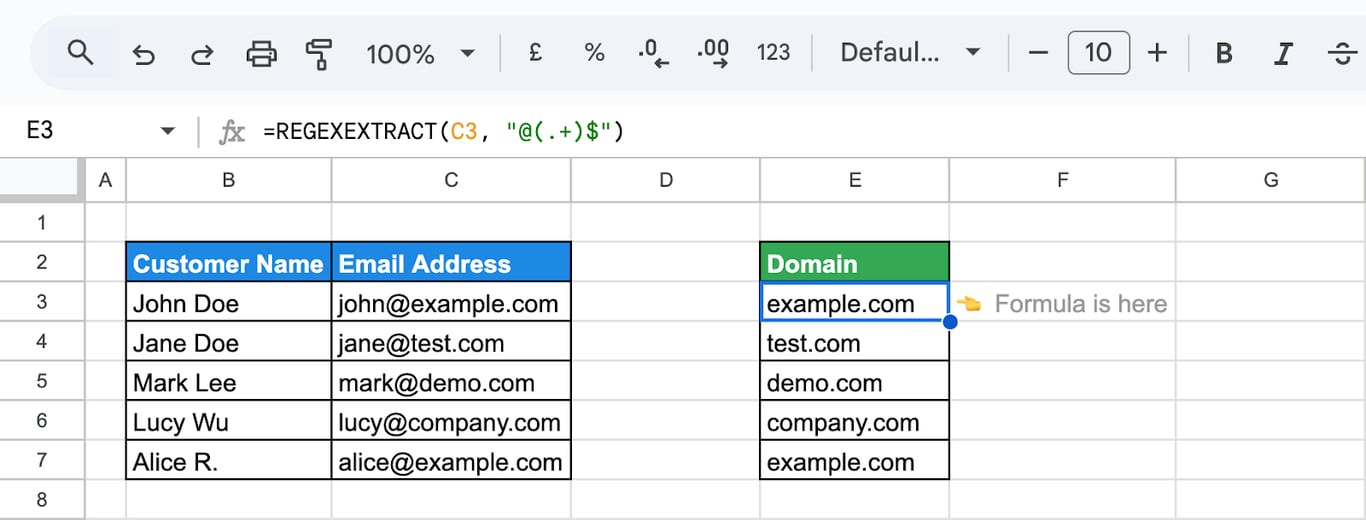
The domain of an email address
=REGEXEXTRACT(C3, "@(.+)$")
- @: the @ sign, which is matched but not returned.
- (.+)$: one or more characters up to the end of the text; the parentheses mark this as the part to return.
The domain of a URL
=REGEXEXTRACT(C3, "www\.([^/]+)")
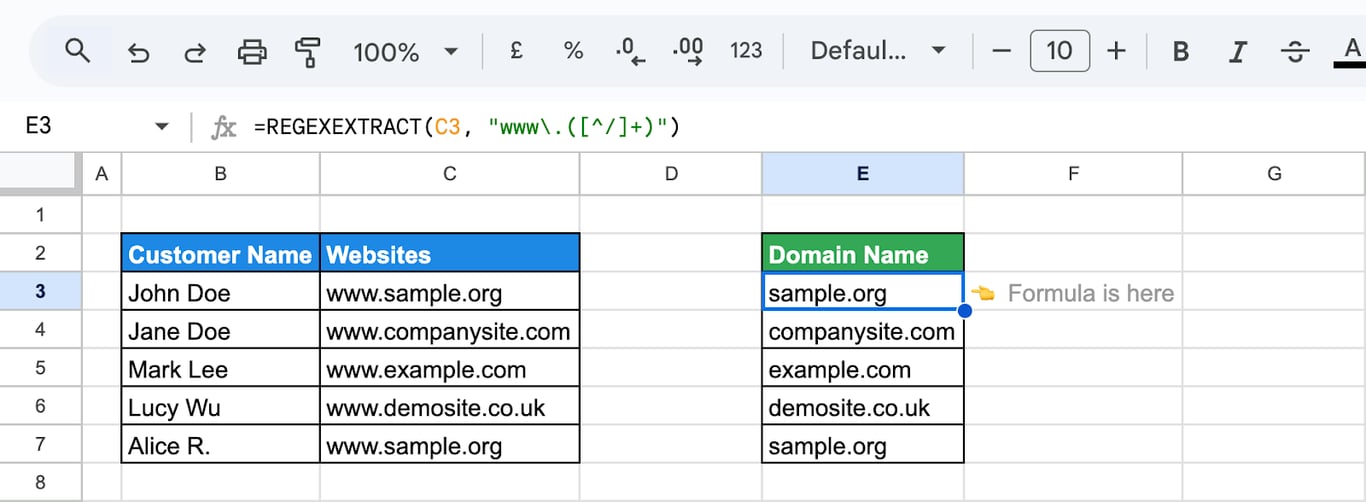
The pattern finds “www.” and returns everything after it up to the next slash.
Parts of a date written as text
=REGEXEXTRACT(C3, "\d{2}/(\d{4})")
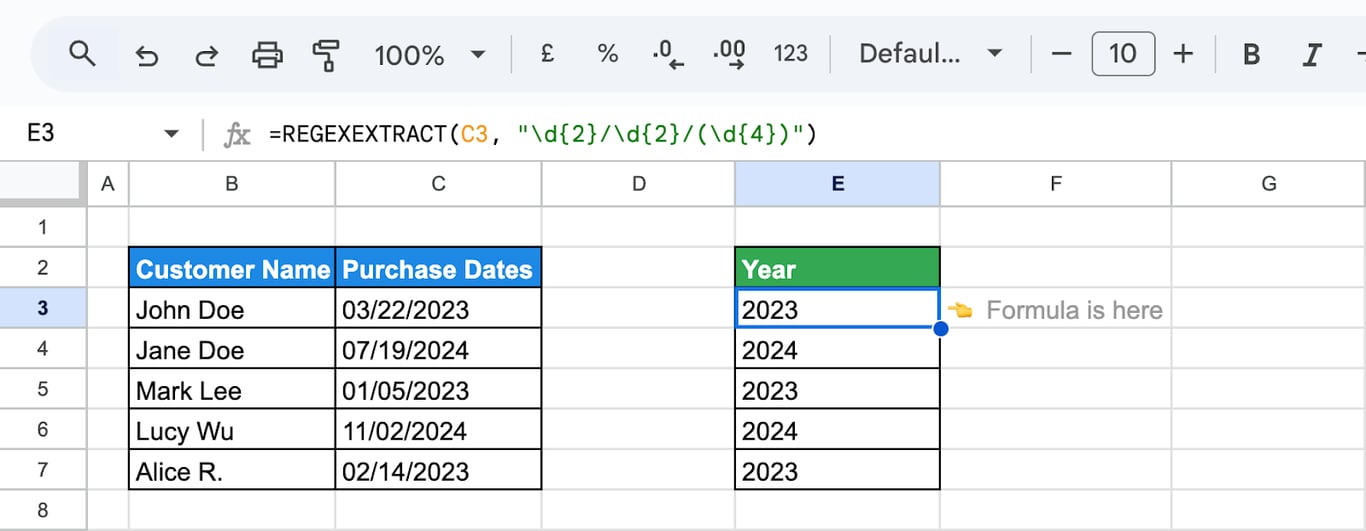
The pattern looks for two digits, a slash and four digits, and returns the four digits, the year. For the month and the year together, extract them separately and join the results:
=REGEXEXTRACT(C10, "(\d{2})") & "/" & REGEXEXTRACT(C10, "\d{2}/\d{2}/(\d{4})")
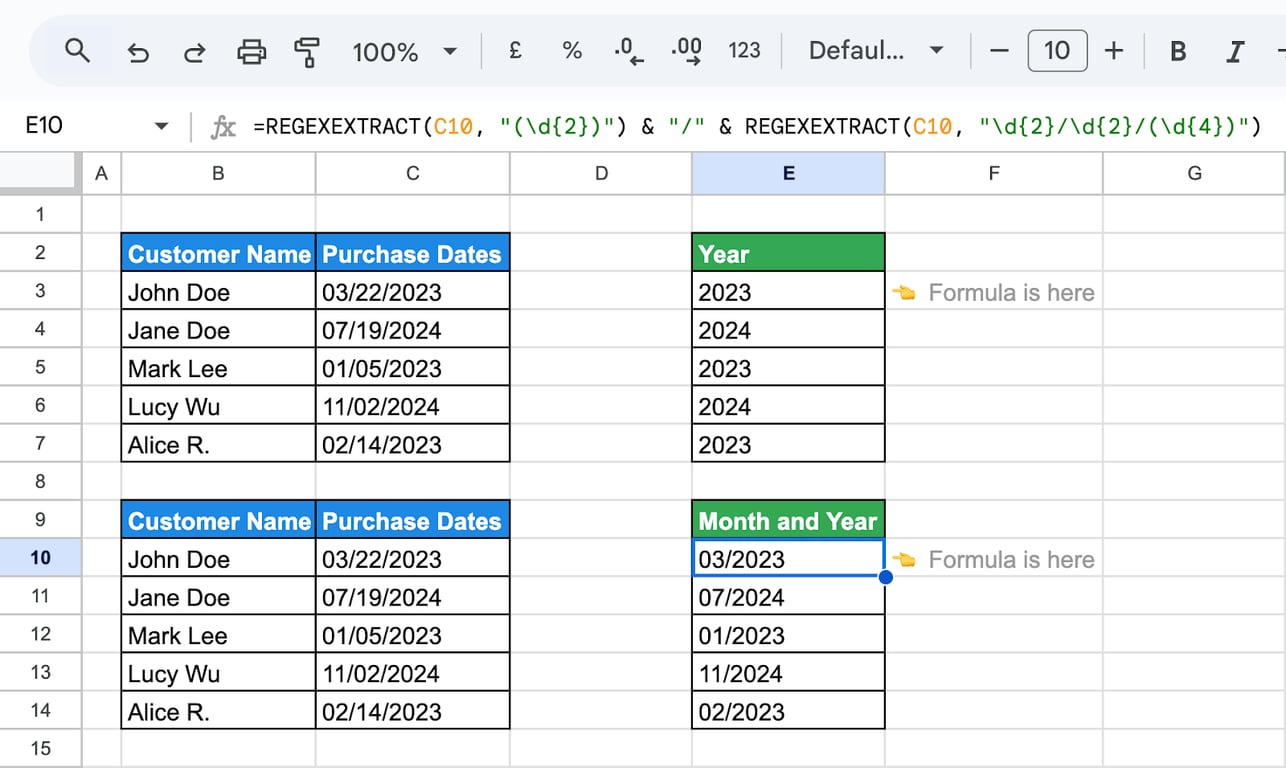
This works for dates stored as text. A real date is a number, and REGEXEXTRACT returns #VALUE! for it; use =TEXT(C3, "mm/yyyy") instead.
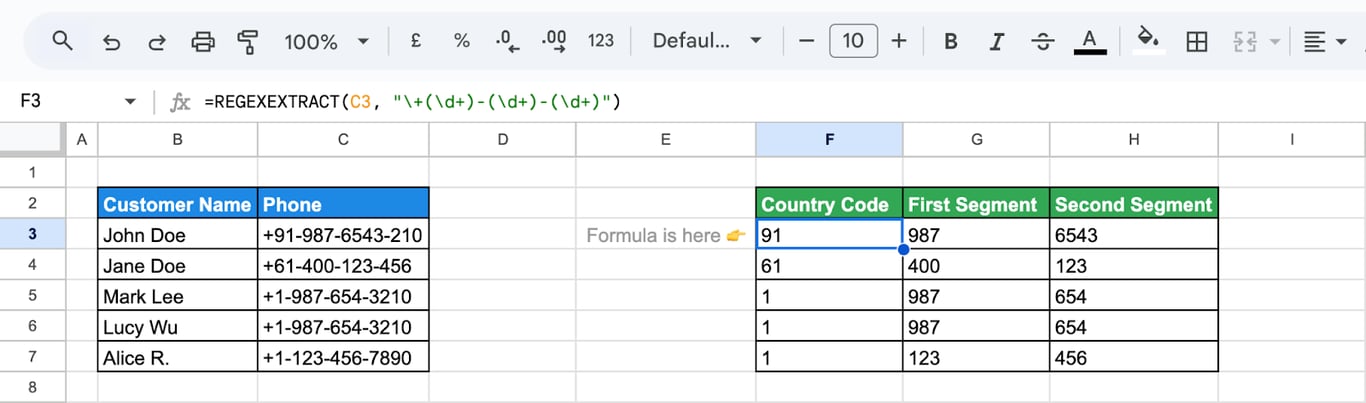
Several parts at once
With several groups, REGEXEXTRACT returns each of them in its own cell, side by side:
=REGEXEXTRACT(C3, "\+(\d+)-(\d+)-(\d+)")
- \+(\d+): a plus sign and the digits after it, the country code.
- -(\d+): a hyphen and the next group of digits, twice.
Skip a part with a non-capturing group
A group that starts with ?: is matched but not returned. To get the digits that follow the country code:
=REGEXEXTRACT(C3, "(?:\+\d+-){1}(\d+)")
- (?:\+\d+-): the plus sign, the country code and the hyphen, matched and skipped.
- (\d+): the next group of digits, returned.
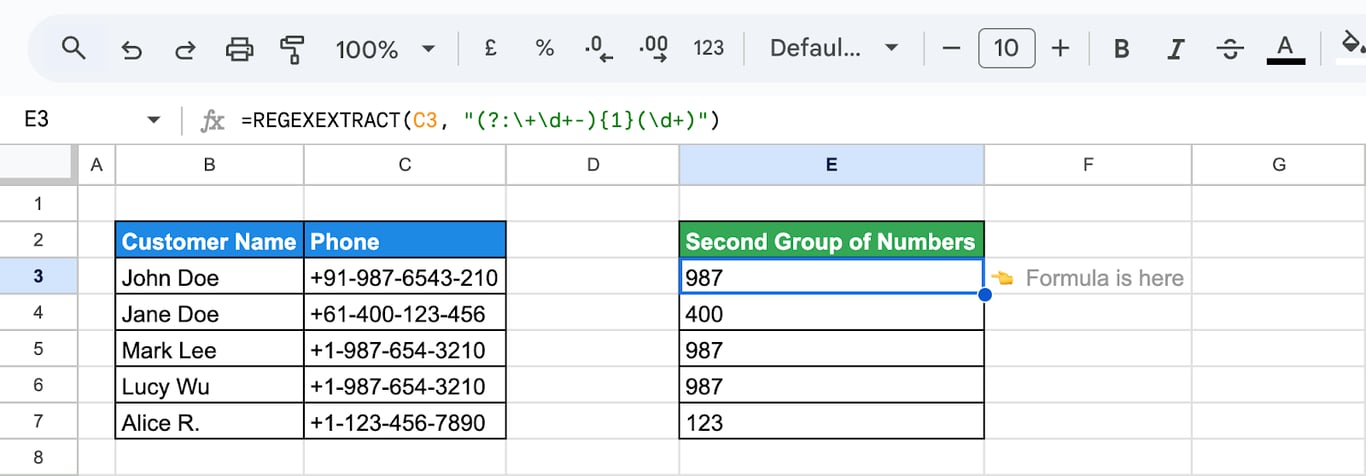
For +91-987-6543-210 the formula returns 987.
REGEXREPLACE
=REGEXREPLACE(text, regular_expression, replacement)
- text: the text or cell to change.
- regular_expression: the pattern to look for.
- replacement: the text to put in its place. Use “” to delete the match.
Every match in the text is replaced, not only the first one.
Replace a text
=REGEXREPLACE(C3, "example\.com", "demo.com")
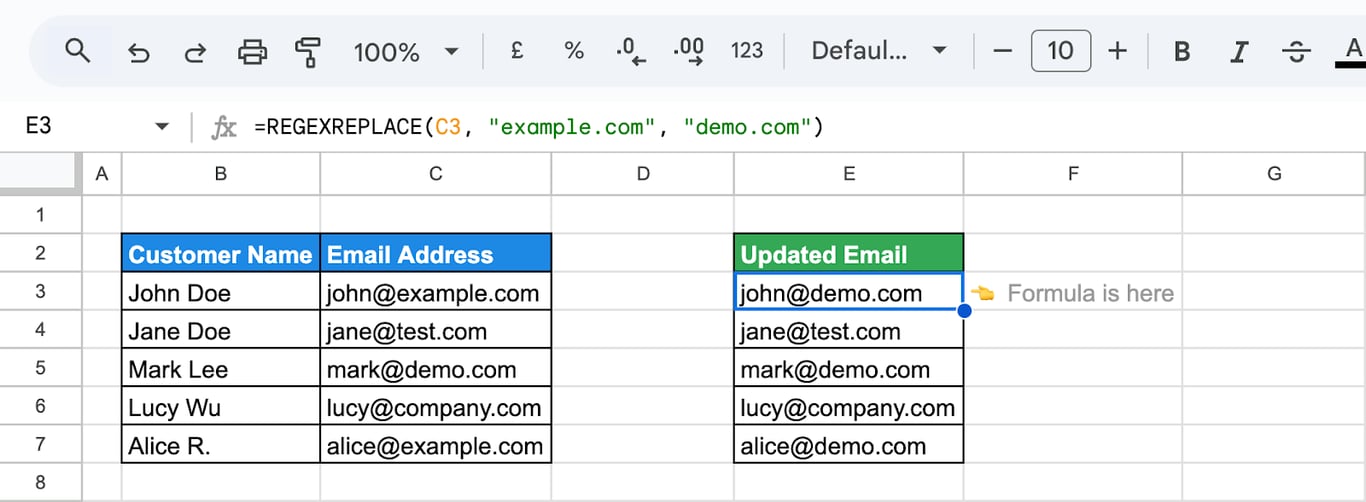
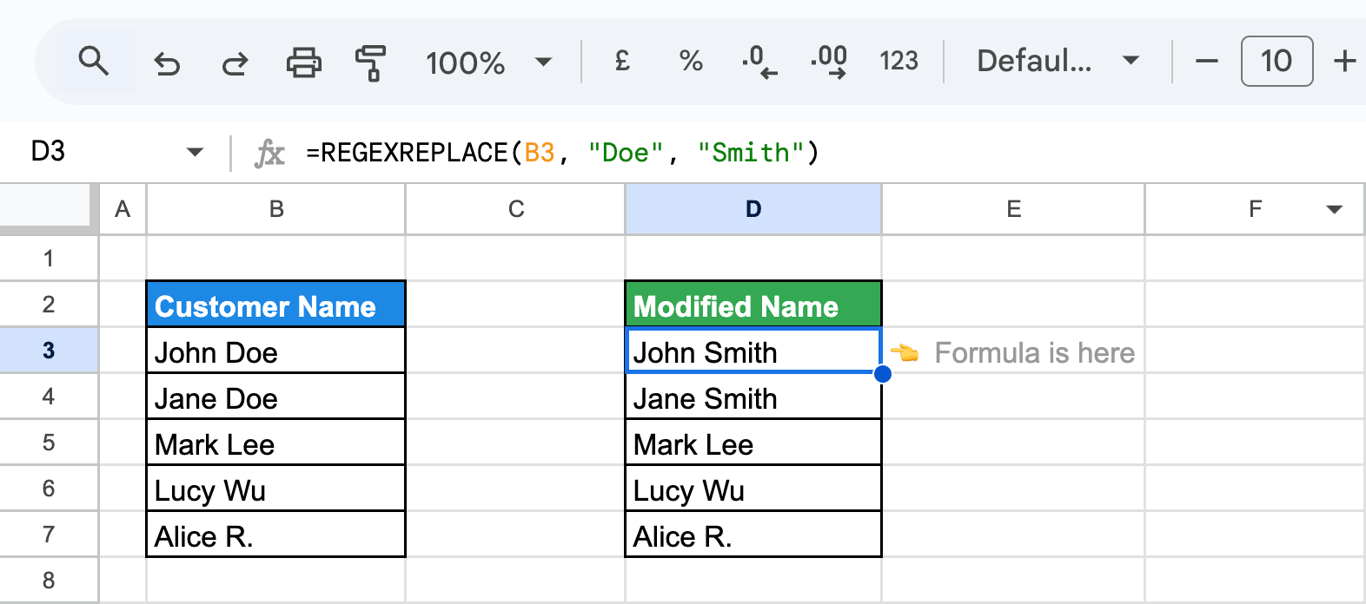
The formula replaces the domain example.com with demo.com. The pattern in the screenshot is written without the backslash; it gives the same result here, but an unescaped dot would also match any other character in that position.
=REGEXREPLACE(B3, "Doe", "Smith")
Remove a part with special characters
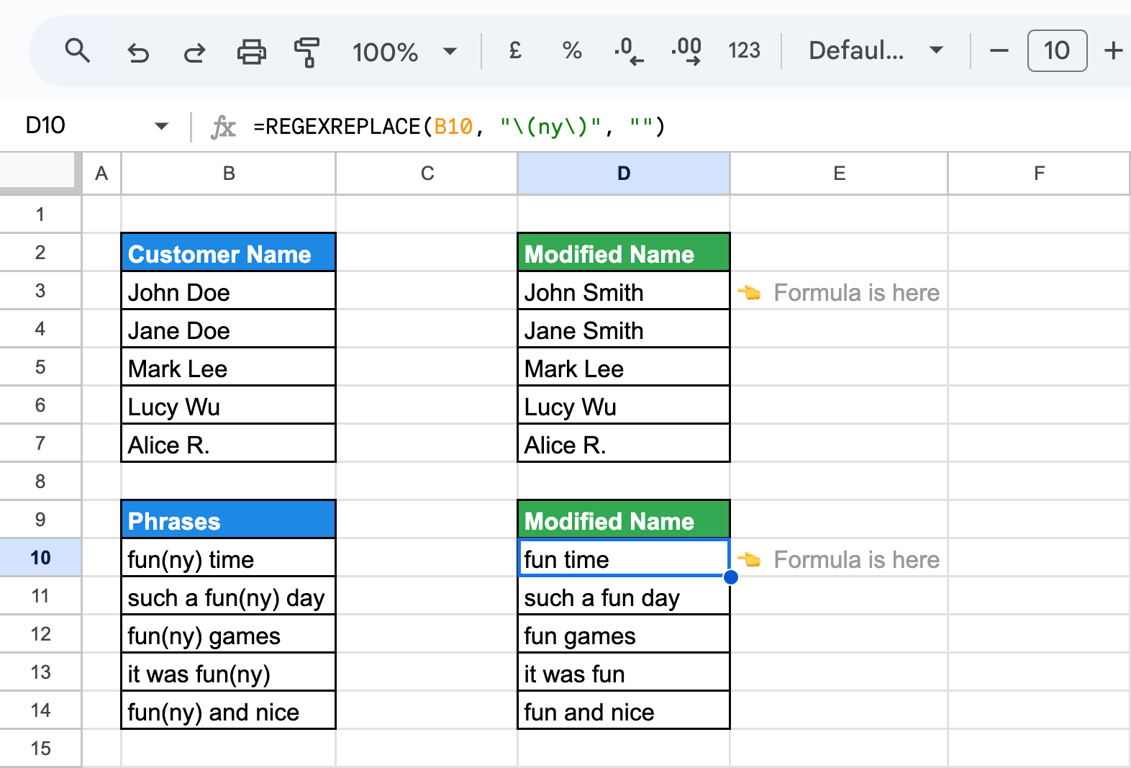
Parentheses are special characters, so they need a backslash to be matched as text. To turn “fun(ny)” into “fun”:
=REGEXREPLACE(B10, "\(ny\)", "")
Collapse extra spaces
=REGEXREPLACE(B3, "\s+", " ")
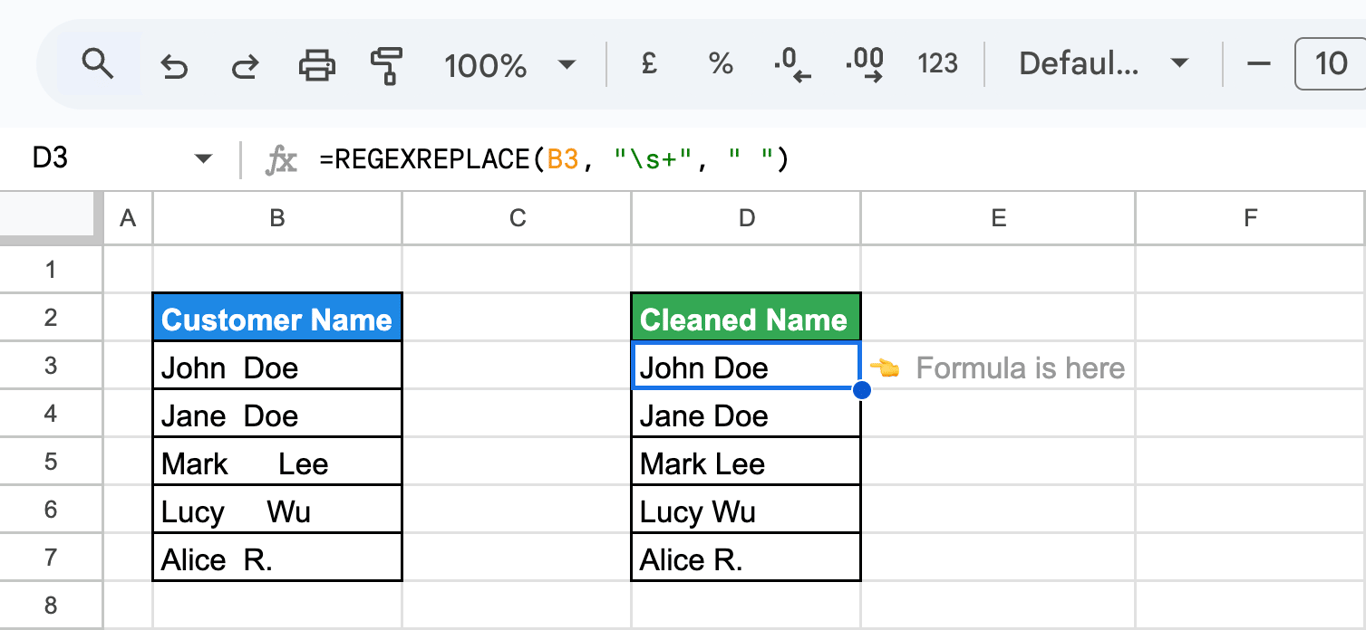
\s+ matches one or more whitespace characters in a row, and each run is replaced with a single space. Spaces at the very start or end of the text become one space too; wrap the result in TRIM to remove them.
Keep only the digits
=REGEXREPLACE(C3, "\D", "")
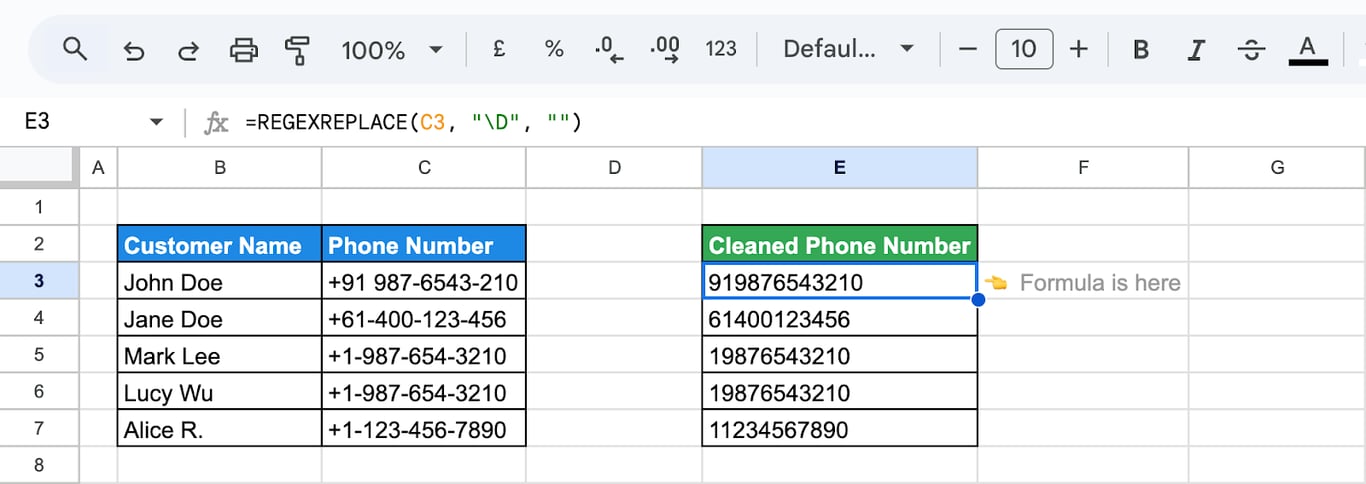
\D matches every character that is not a digit, and replacing them with nothing leaves the digits of a phone number. The result is text; wrap it in VALUE to get a number.
Ignore case
=REGEXREPLACE(C3, "(?i)demo", "XXX")
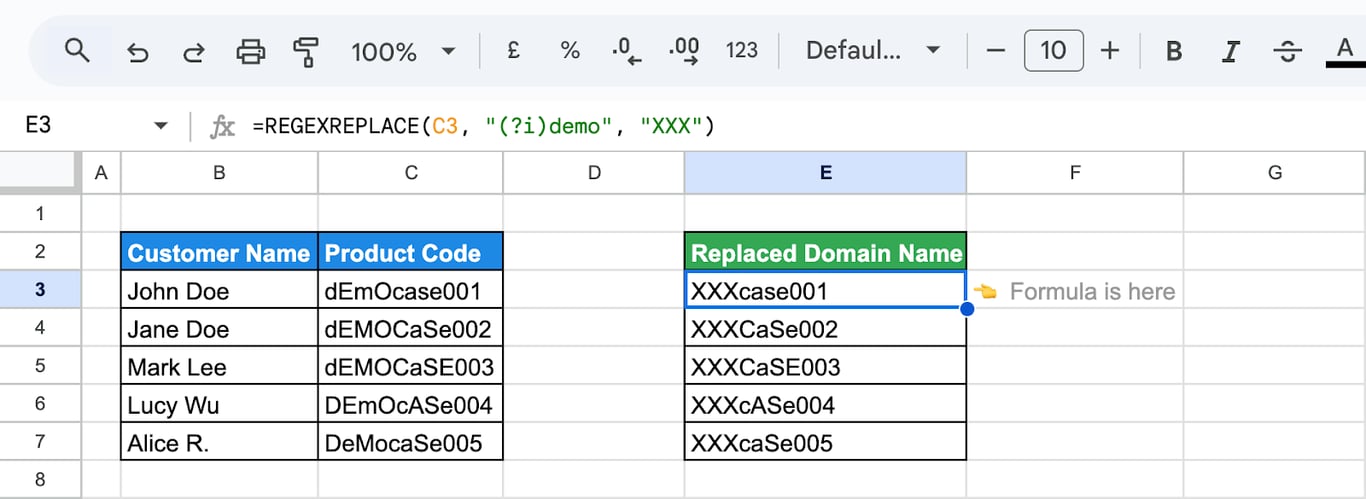
With (?i) the pattern matches demo, DEMO and Demo alike. Without it, only the exact case is replaced.
Replace several values at once
Use the vertical bar to replace different texts with the same replacement: =REGEXREPLACE(C3, "(?i)demo|case", "XXX") turns “DEMO-case-1” into “XXX-XXX-1”. For different replacements, nest the functions, as in the last example of this section.
Mask email addresses
To replace a whole address with a placeholder:
=REGEXREPLACE(C3, "[\w.-]+@[\w.-]{2,}\.[a-z]{2,}", "[email address removed]")
- [\w.-]+: the part before the @ sign.
- @[\w.-]{2,}\.[a-z]{2,}: the @ sign, the domain, a dot and the ending.
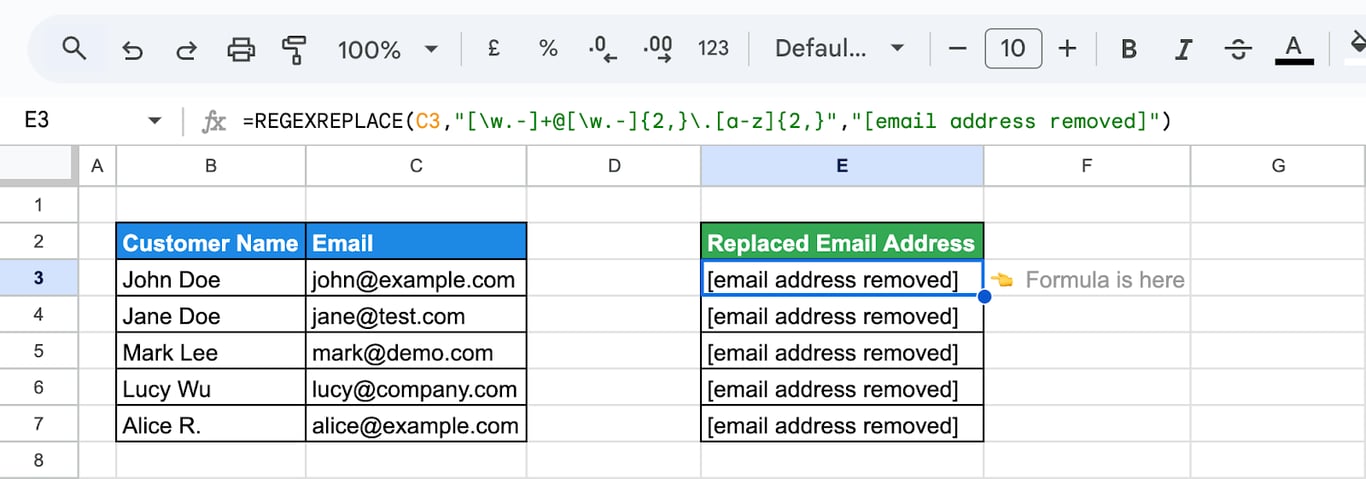
To hide the name and keep the domain, put the domain into a group and refer to it as $1 in the replacement:
=REGEXREPLACE(C10, "[\w.-]+(@[\w.-]{2,}\.[a-z]{2,})", "xxxxxx$1")
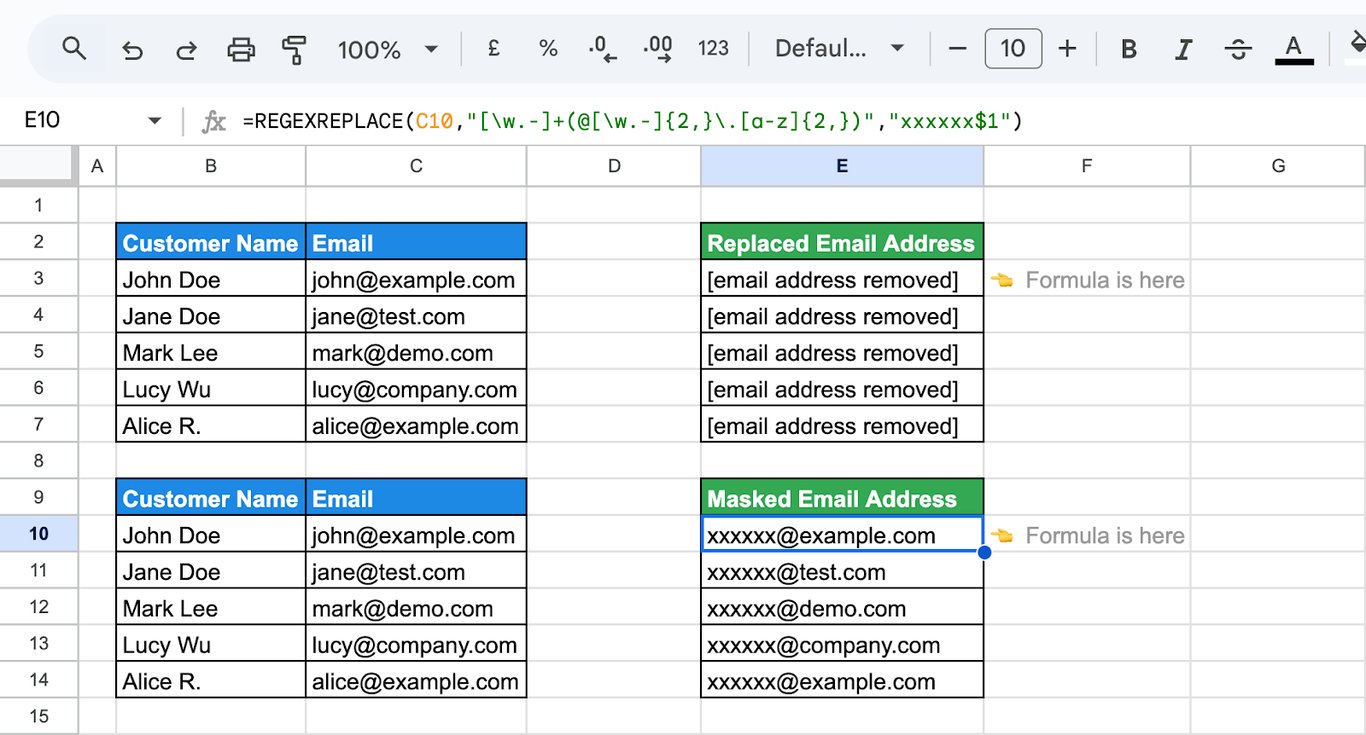
$1 stands for whatever the first group matched, so “xxxxxx” replaces the name and the domain is written back unchanged.
REGEX functions with other functions
REGEX functions with other functions
A whole column with ARRAYFORMULA
=ARRAYFORMULA(REGEXREPLACE(C3:C7, "(?i)case", "XXX"))
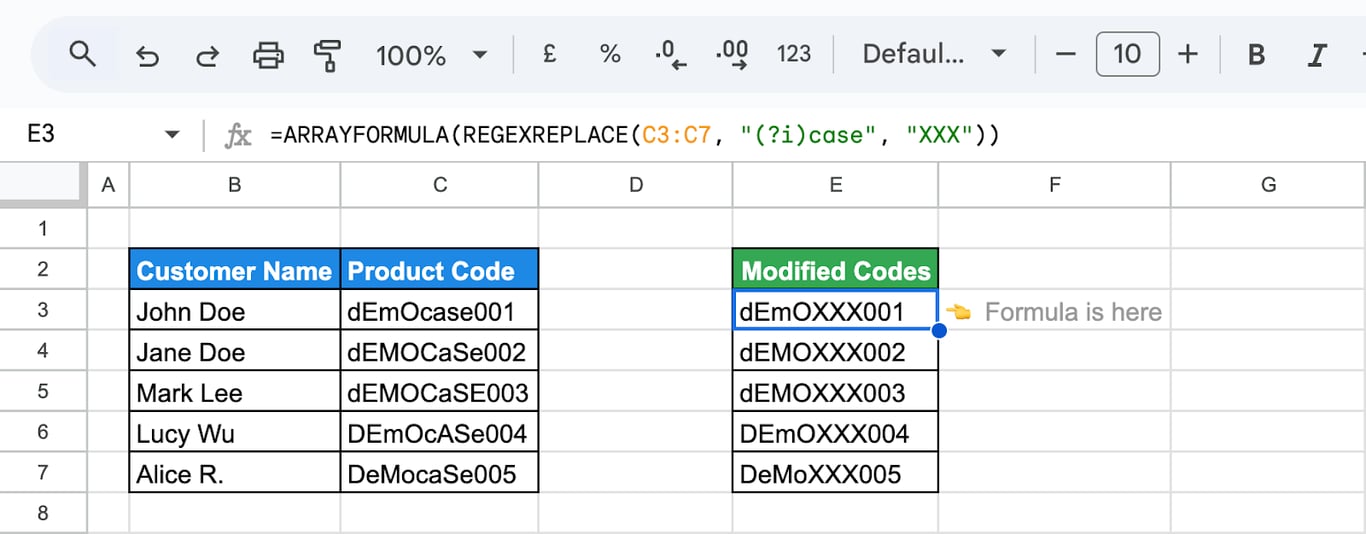
One formula applies the replacement to every cell of the range. More in the guide to ARRAYFORMULA.
Nest two REGEXREPLACE functions to make two different replacements in one pass:
=ARRAYFORMULA(REGEXREPLACE(REGEXREPLACE(C3:C7, "(?i)case", "XXX"), "(?i)demo", "YYY"))
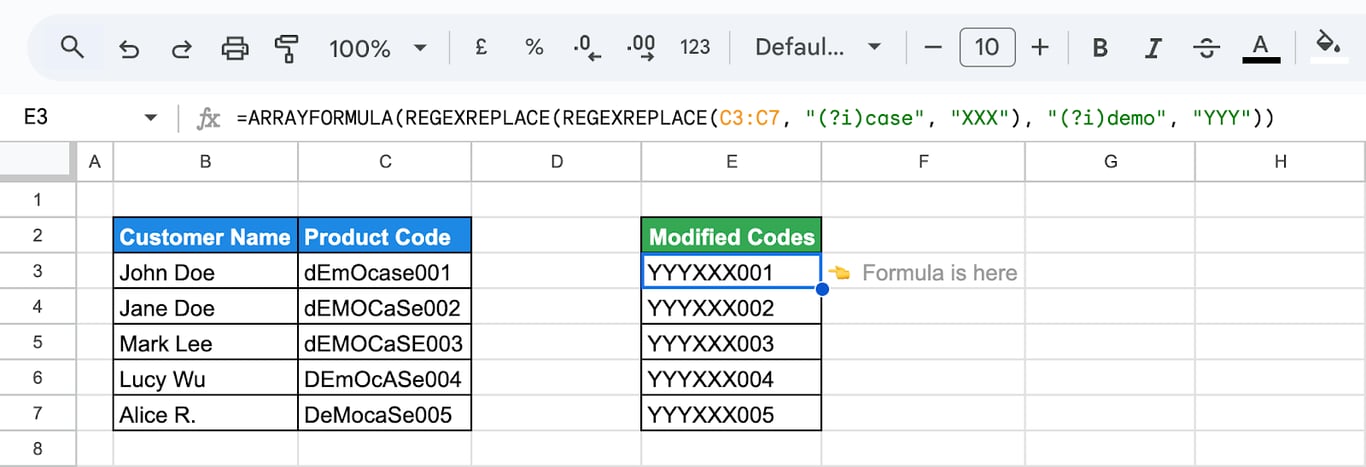
The inner function replaces “case” with XXX, and the outer one replaces “demo” with YYY in the result.
A list of values as the pattern
JOIN can build the “or” pattern from a range of cells:
=ARRAYFORMULA(REGEXMATCH(D3:D7, JOIN("|", C3:C7)))
- JOIN(“|”, C3:C7): the values of C3:C7 with a vertical bar between them.
- REGEXMATCH(D3:D7, …): tests each description against that pattern.
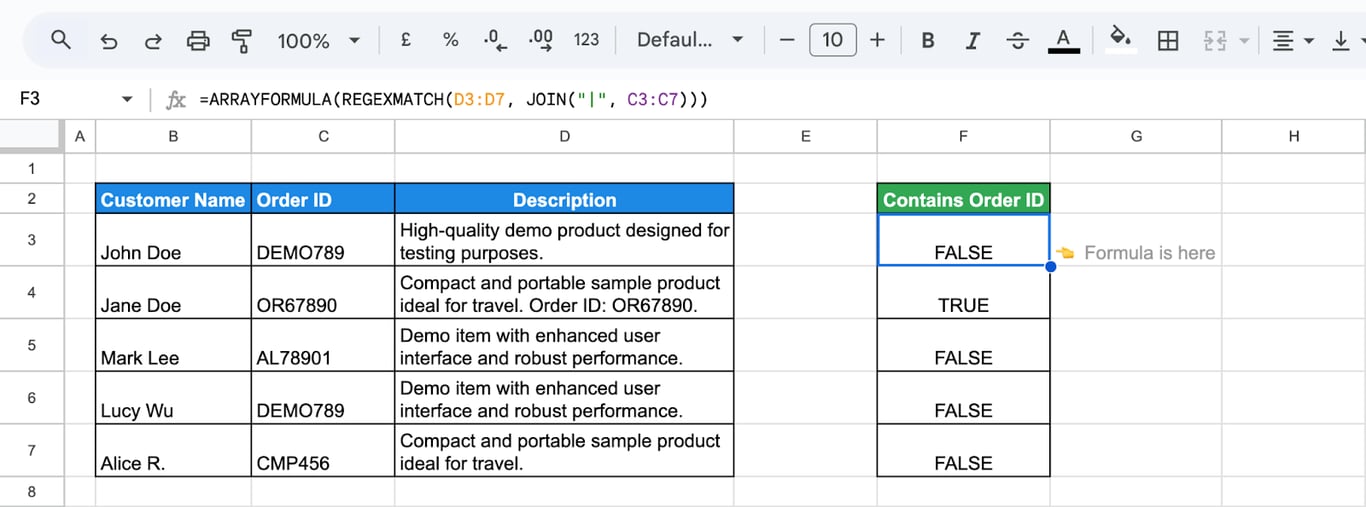
The formula returns TRUE for each description that mentions any of the order IDs in the list.
Filter rows by a pattern
REGEXMATCH works as a condition of FILTER:
=FILTER(B3:C7, REGEXMATCH(B3:B7, "John Doe|Jane Doe"))
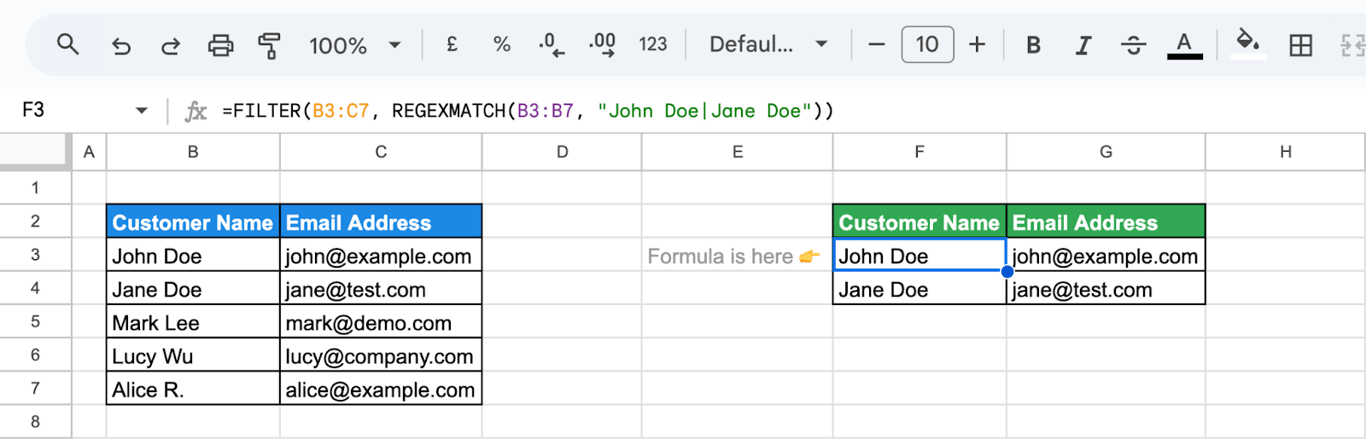
The formula returns the rows whose name contains either of the two names.
Errors in REGEX functions
⚠️ Error: #VALUE! with “expects text values”.
✅ Solution: The first argument is a number or a date. Wrap it in TO_TEXT, or in TEXT with a format.
⚠️ Error: #N/A in REGEXEXTRACT.
✅ Solution: Nothing in the text matches the pattern. Check the pattern, or return something else with IFNA: =IFNA(REGEXEXTRACT(A2, "\d+"), "").
⚠️ Error: #REF! with “is not a valid regular expression”.
✅ Solution: The pattern itself is broken: an unclosed parenthesis or bracket, or a construction RE2 does not support, such as a lookahead.
⚠️ Error: The pattern matches more than it should.
✅ Solution: A special character is used as plain text. A dot matches any character, so “example.com” also matches “exampleXcom”. Put a backslash before ., (, ), +, *, ?, [, ], $ and ^ when you mean the character itself.
⚠️ Error: FALSE where a match was expected.
✅ Solution: Patterns are case-sensitive: “pine” does not match “Pine”. Start the pattern with (?i).
⚠️ Error: A word is matched inside a longer word.
✅ Solution: “apple” also matches “pineapple”. Use word boundaries: \bapple\b.
Related Google Sheets functions
Related Google Sheets functions
Functions that are often used next to the REGEX functions, each with its own guide:
- FIND and SEARCH: The position of a fixed text inside a cell.
- SUBSTITUTE: Replaces one fixed text with another.
- REPLACE: Swaps part of a text string for new text, based on position and length.
- LEFT/RIGHT/MID: Extracts a set number of characters from the start, end or middle of a text string.
- SPLIT: Cuts a text into columns at a delimiter.
- COUNTIF: Counts the number of cells in a range that meet a specific condition.
- QUERY: Filters with
matchesandcontains, the pattern conditions of the query language. - CHAR: Returns the character for a Unicode number, useful for symbols and line breaks.
Patterns clean up text that should not need cleaning
Patterns clean up text that should not need cleaning
Regular expressions in a spreadsheet are mostly repair work: campaign names that encode channel and region in one string, phone numbers typed five different ways, URLs that need to be cut down to a domain. The pattern fixes the copy in the sheet, and the next export arrives just as messy.
The OWOX Data Marts extension for Google Sheets covers that half. A data analyst publishes a data mart (a table or an SQL query in your data warehouse) and makes it available for reports. In Sheets you open the extension, pick the data mart, tick the columns you want and run it. The rows land in a tab, ready for your formulas.
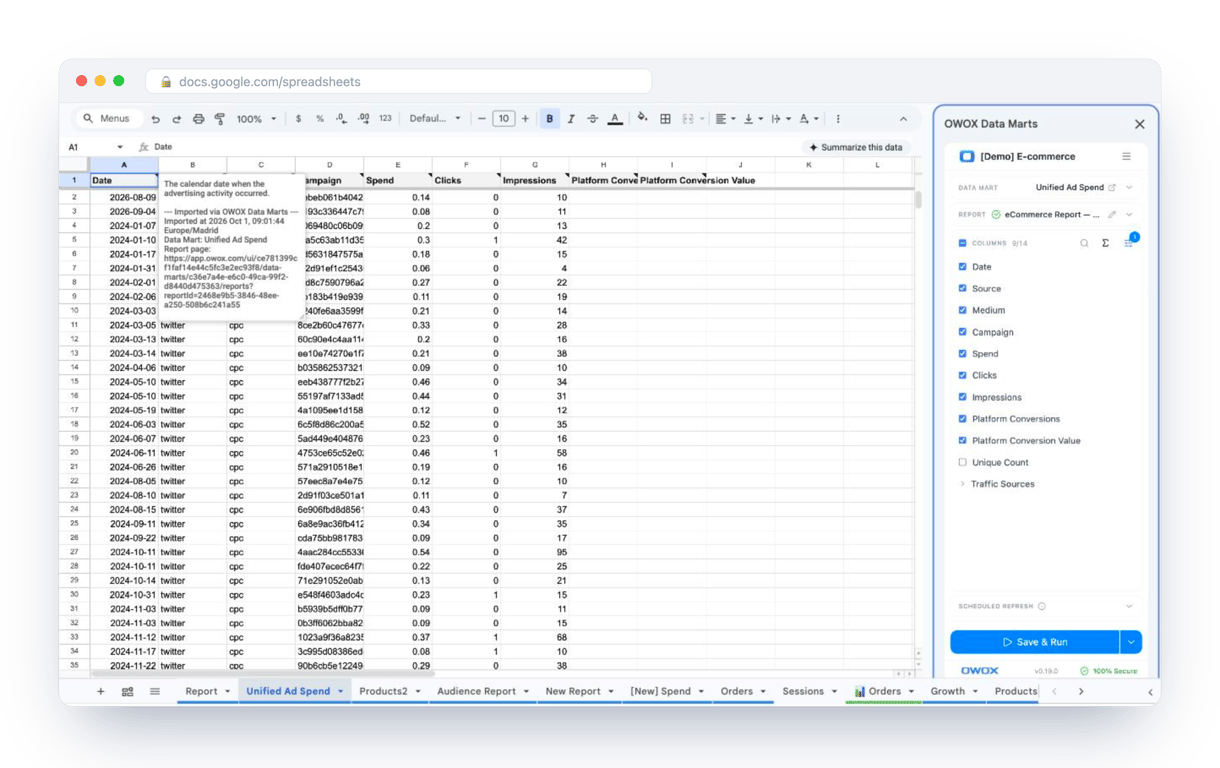
What changes for the person who maintains the sheet:
- Refresh replaces re-export. Refresh current report in the extension menu re-runs the same pull, and a scheduled refresh keeps the tab current without anyone touching it.
- The source is written on the sheet. The header cell of an imported tab carries a note with the data mart it came from, the time of the import and a link to the report.
- No SQL and no warehouse access needed. The analyst decides which data marts and columns are available. You choose from that list.
The extension does not write or change the analyst’s SQL. When the cleaning is done there once, the sheet receives tidy columns on every refresh, and REGEX functions are left for the odd text that only lives in the spreadsheet. The extension comes with the OWOX Cloud plans of OWOX Data Marts; spreadsheet reporting describes both ways data reaches a sheet.
Turn your data into decisions.
Governed data marts give you the clean foundation ML needs to actually work.
- No AI hallucinations
- Analyst-governed definitions
- Every number traces to SQL
Frequently Asked Questions
What best practices should I follow to effectively use REGEX functions in Google Sheets?
Start with simple patterns and build up complexity, test your expressions, and use online tools for debugging. Always back up your data before applying large-scale changes with REGEXREPLACE.
What are the common errors when working with REGEX functions, and how can they be resolved?
REGEXEXTRACT returns #N/A when nothing in the text matches the pattern. All three functions return #VALUE! when the input is a number or a date and not text; wrap it in TO_TEXT. #REF! means the pattern itself is invalid, for example an unclosed parenthesis or a lookahead, which Google Sheets does not support.
How can I prevent truncation issues when using REGEXREPLACE in Google Sheets?
REGEXREPLACE does not shorten the text: it replaces every match and returns the rest unchanged. If the result looks cut off, the pattern matches more than intended, usually because of an unescaped dot or a greedy .+ that runs to the end of the text. Escape special characters and anchor the pattern.
What are some advanced applications of REGEXEXTRACT in Google Sheets?
REGEXEXTRACT can extract specific parts of a string, such as email addresses, domain names from URLs, or date components. It's useful for pulling structured information from unstructured text.
How can I use REGEXMATCH to filter data based on specific criteria?
REGEXMATCH returns TRUE when a cell matches a pattern, so it works as a condition: =FILTER(A2:C, REGEXMATCH(B2:B, "(?i)pine|spruce")) returns the rows whose column B contains either word in any case. For all words instead of any, combine several REGEXMATCH conditions.
What are the basic REGEX functions available in Google Sheets, and how do they work?
The main REGEX functions are REGEXMATCH, REGEXEXTRACT, and REGEXREPLACE. They allow you to search, extract, or replace text in cells using specific patterns defined by regular expressions.