REPLACE function in Google Sheets: syntax and examples
REPLACE swaps a part of a text for another, chosen by its position: where to start and how many characters to take out. This guide shows how to change the beginning, the middle or the end of a text, insert and delete characters, find the position with FIND, and when SUBSTITUTE or REGEXREPLACE is the better choice.

The REPLACE function swaps a part of a text for another text. The part is chosen by position: where it starts and how many characters it has.
=REPLACE("Google Sheets", 8, 6, "Docs")
The formula returns “Google Docs”: six characters, starting from the eighth, are replaced with “Docs”.
REPLACE does not look for a word. If you know what to replace but not where it is, use SUBSTITUTE:
| You know | Use | Example |
|---|---|---|
| The position of the characters | REPLACE |
=REPLACE(A2, 1, 3, "NEW") |
| The text to replace | SUBSTITUTE | =SUBSTITUTE(A2, "OLD", "NEW") |
| A pattern | REGEXREPLACE | =REGEXREPLACE(A2, "\.txt$", ".csv") |
| Nothing has to be calculated, the cells are edited once | Find and replace | Edit > Find and replace |
REPLACE syntax
=REPLACE(text, position, length, new_text)
- text: the text to change, or a cell that holds it.
- position: the number of the first character to replace, counted from 1.
- length: how many characters to replace.
- new_text: the text to put in their place. It can be longer or shorter than the part it replaces.
=REPLACE(B3, 5, 2, "54")
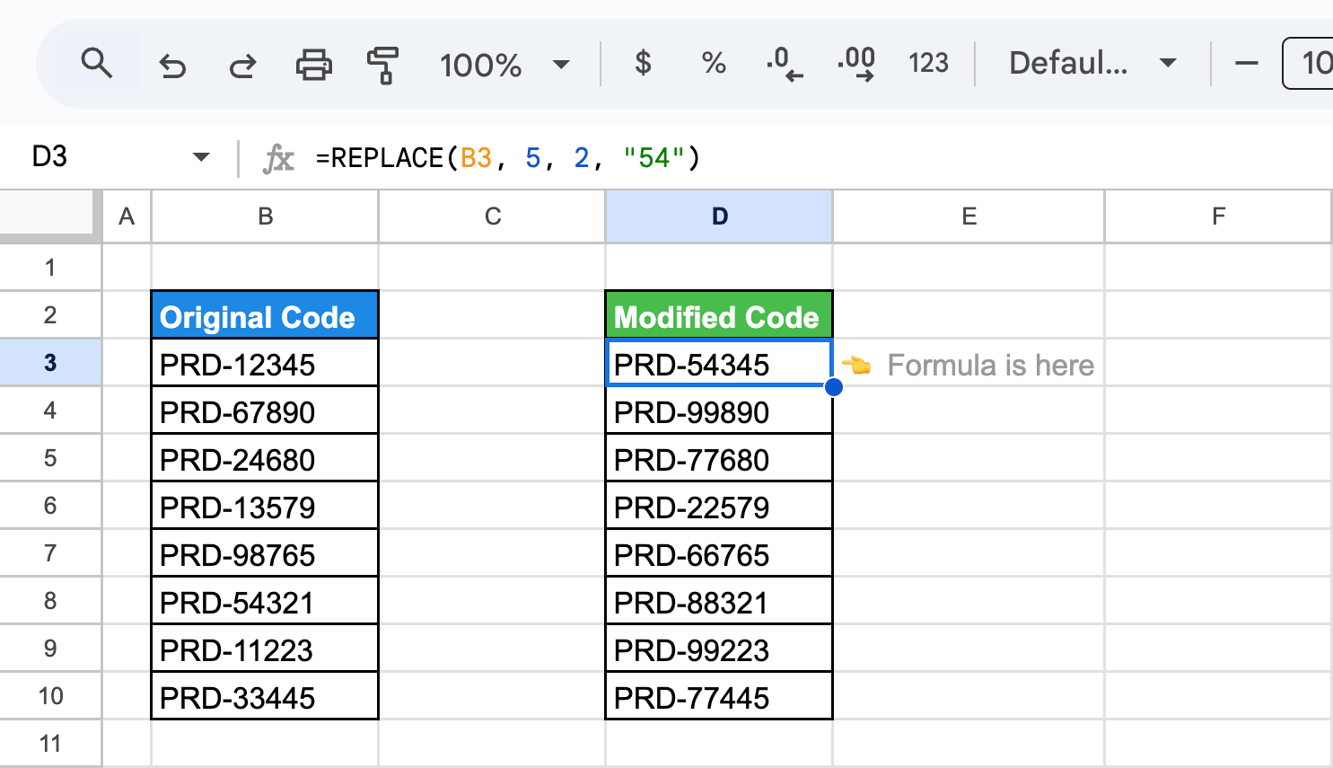
The two characters at positions 5 and 6 are replaced with “54”. The original cell is not changed; the result appears in the cell with the formula.
Three variations follow from the arguments:
| To | Set | Example | Result |
|---|---|---|---|
| Insert without removing anything | length to 0 | =REPLACE("ABC", 2, 0, "-") |
A-BC |
| Delete characters | new_text to "" |
=REPLACE("ABC-123", 4, 1, "") |
ABC123 |
| Replace everything to the end | length to more than is left | =REPLACE("ABC", 2, 10, "x") |
Ax |
Examples of REPLACE
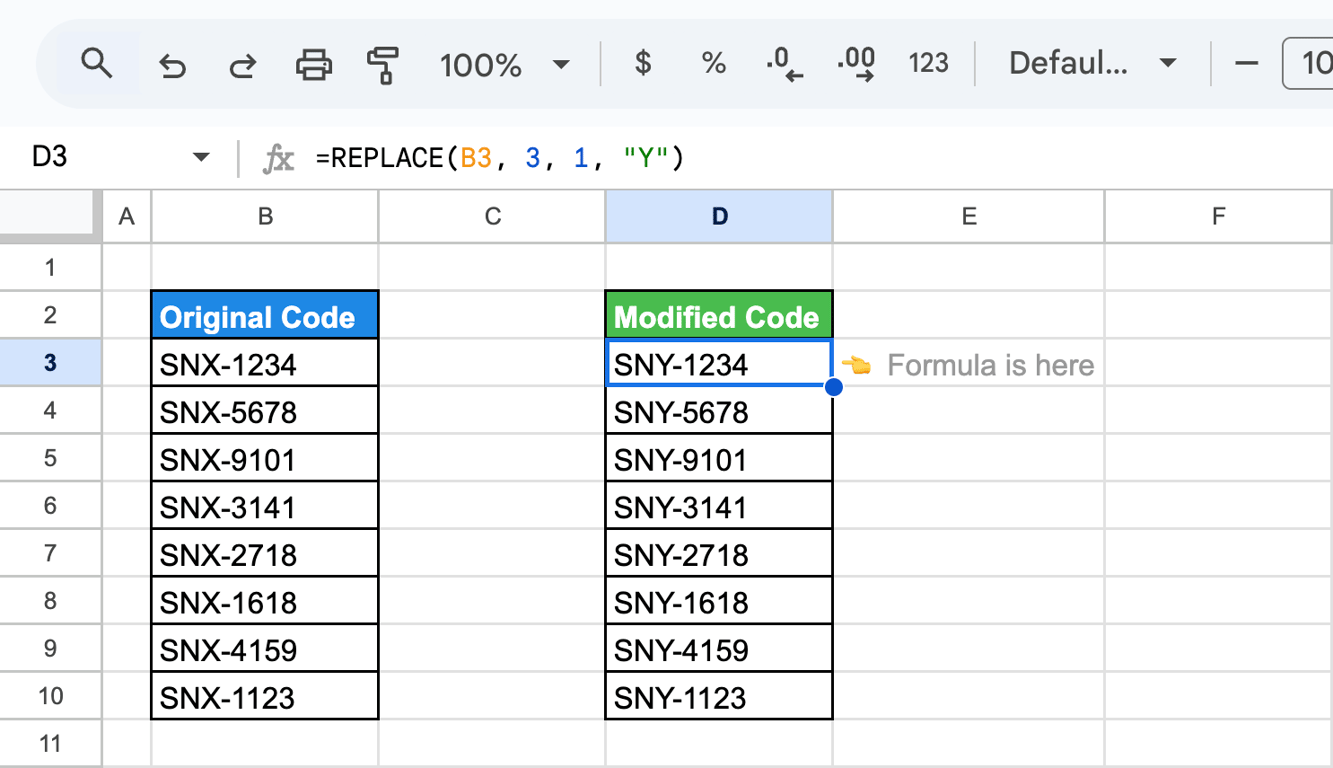
One character
=REPLACE(B3, 3, 1, "Y")
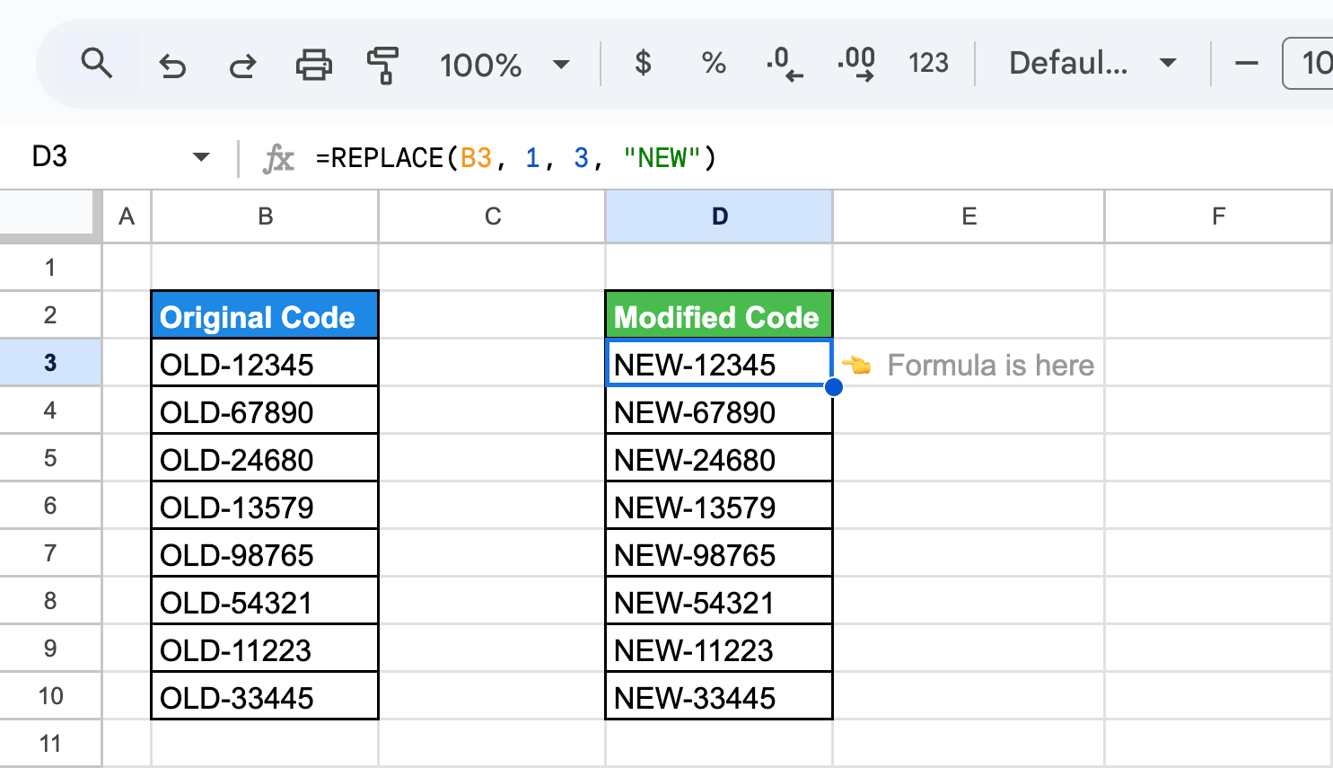
The beginning of a text
=REPLACE(B3, 1, 3, "NEW")
A part in the middle or at the end
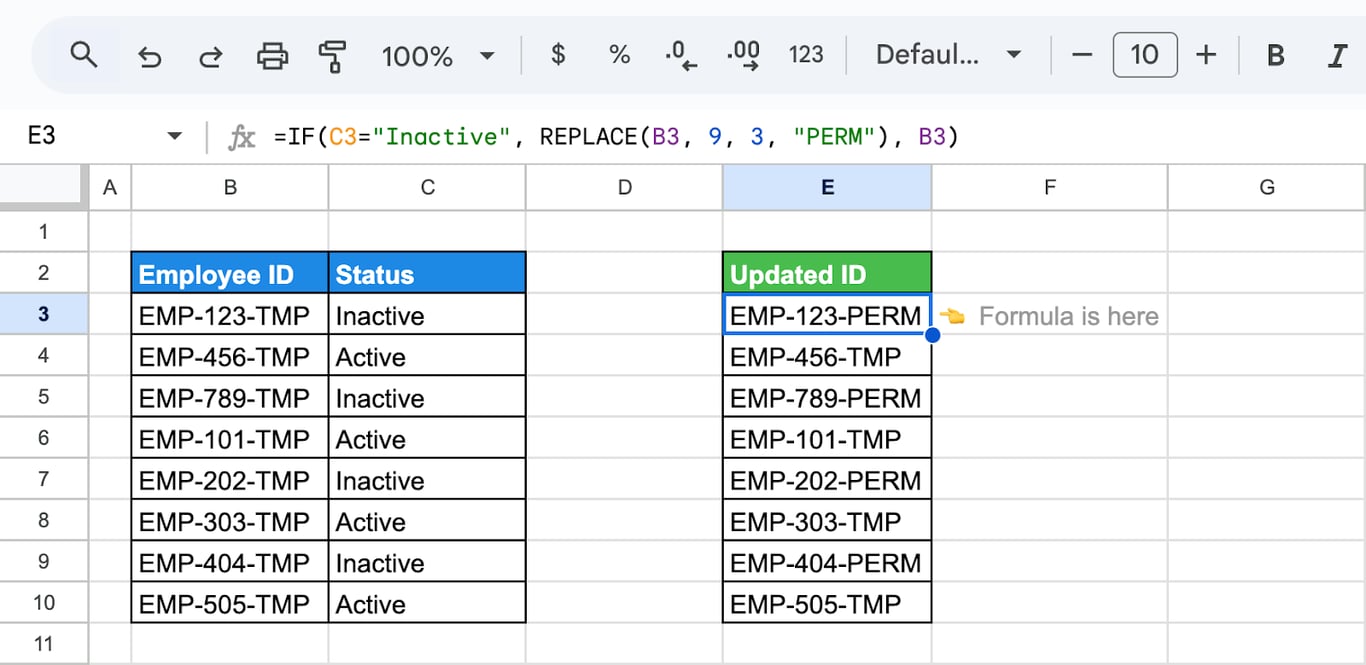
=REPLACE(B3, 9, 3, "CNF")
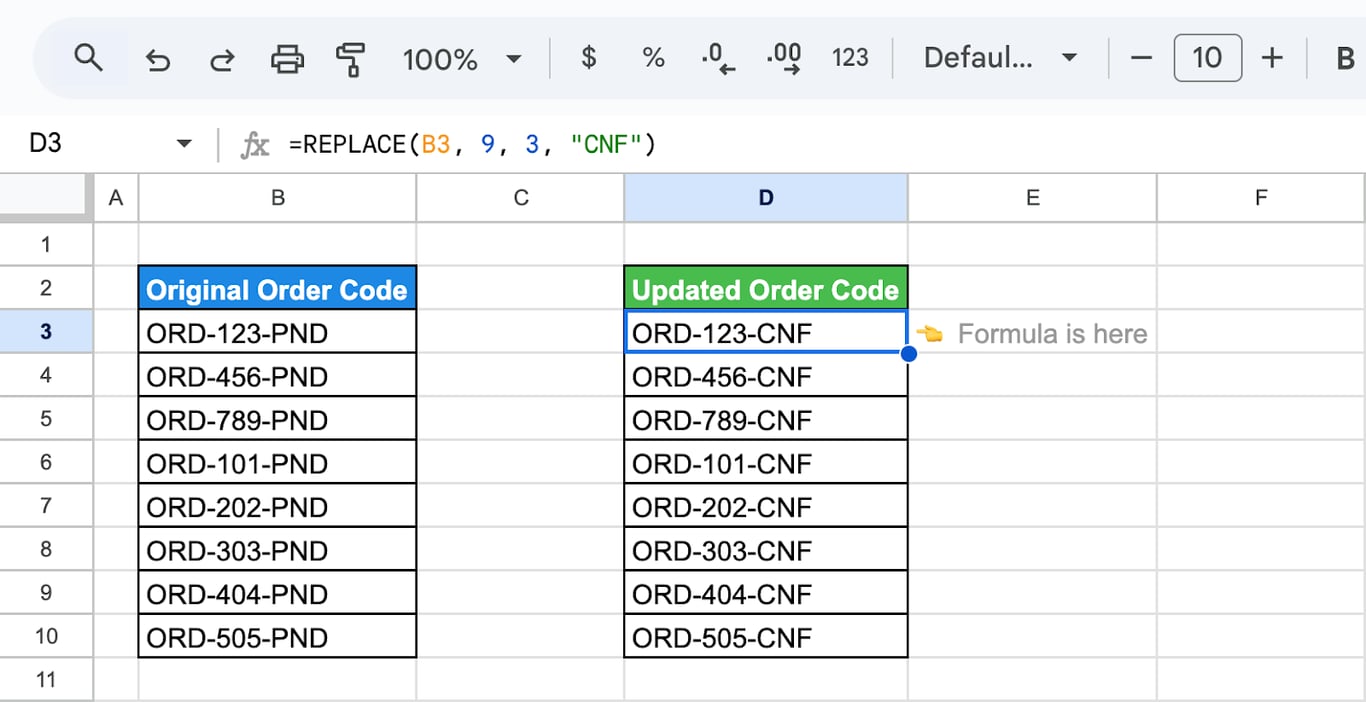
A fixed position works here because every code has the same length. When the lengths differ, calculate the position from the end with LEN.
The end of texts of different length
=REPLACE(B3, LEN(B3) - 3, 4, ".csv")
LEN returns the length of the name, so LEN(B3) - 3 is the position of the dot in “.txt” whatever the length of the file name.
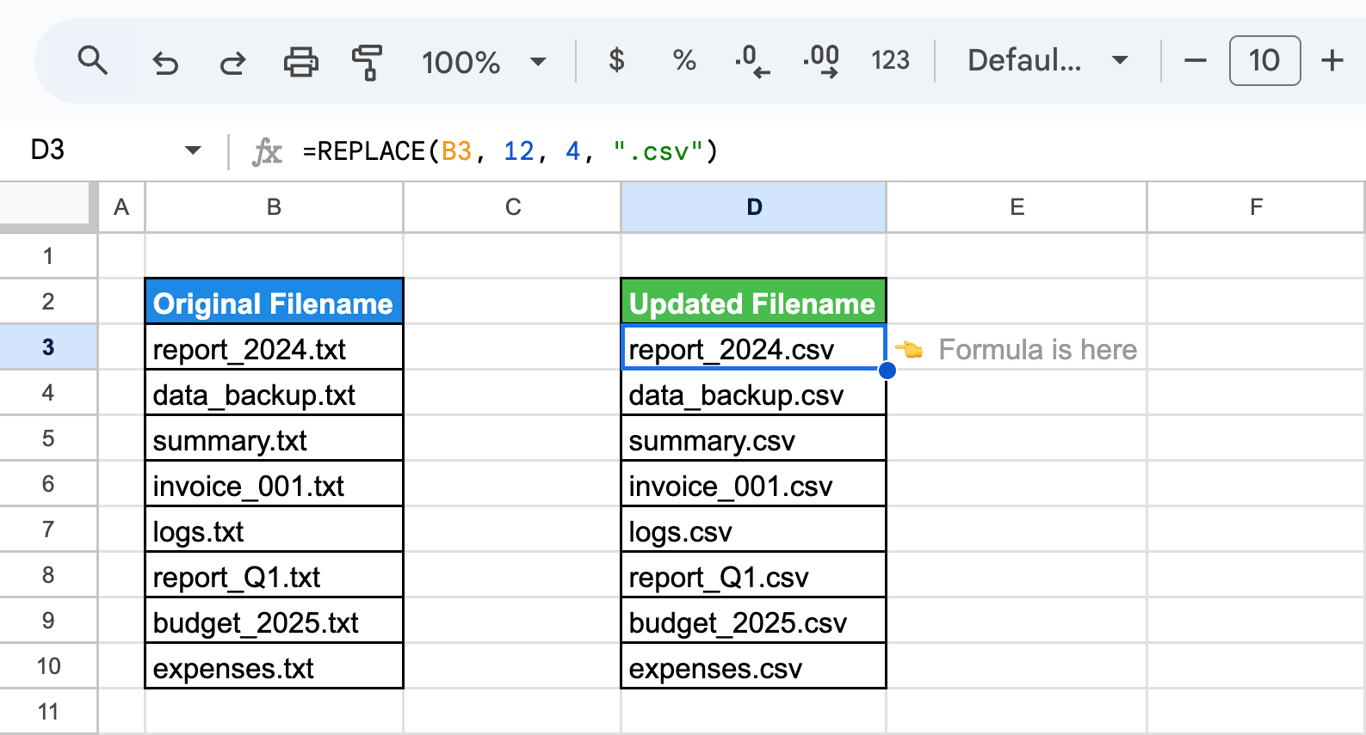
The formula in the screenshot, with the fixed position 12, is right only for the first two names, which have 15 characters. For “summary.txt” it would return “summary.txt.csv”: position 12 is past the end of the text, and REPLACE then adds the new text at the end. Use the LEN version for a column like this one.
Mask part of a value
=REPLACE(A2, 1, 12, REPT("*", 12))
For a 16-digit number the formula returns twelve asterisks and the last four digits. REPT builds the run of asterisks.
OWOX Data Marts
See your first report built in real time. 15 minutes.
- Connect your data warehouse
- Pick your metrics
- Get a live Google Sheets report
In the time it takes to write a ticket. Then imagine never writing that ticket again.
Book a DemoWe'll use your actual use case
REPLACE with other functions
ARRAYFORMULA: a whole column in one formula
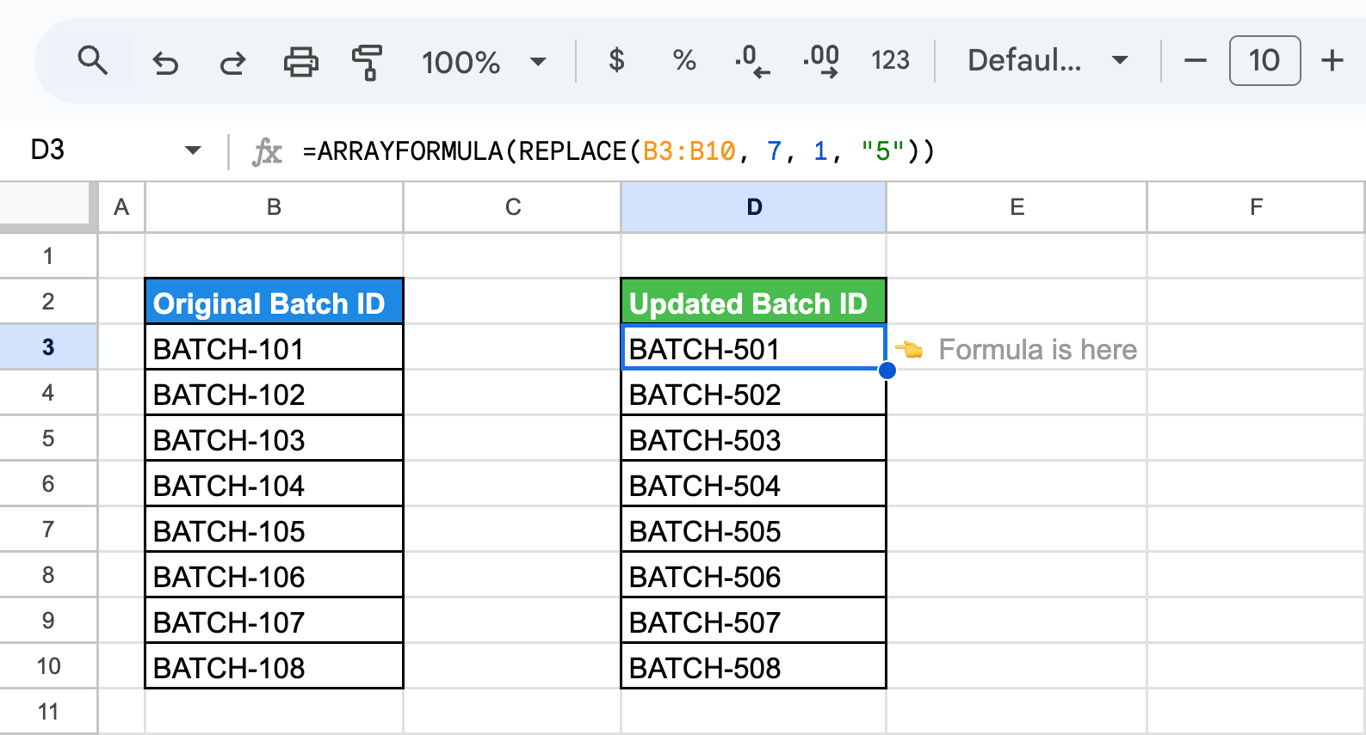
=ARRAYFORMULA(REPLACE(B3:B10, 7, 1, "5"))
FIND: the position of a character
=REPLACE(B3, FIND("X", B3), 1, "Y")
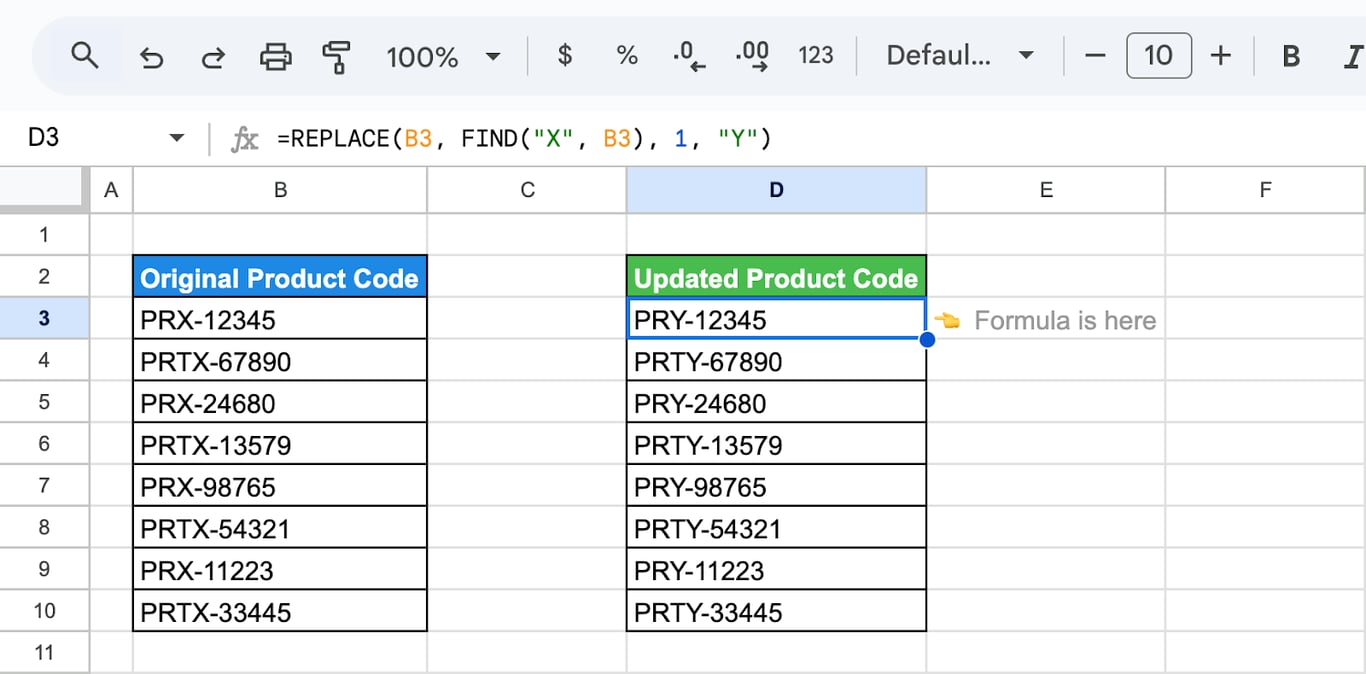
FIND returns the position of the first “X”, so the formula works although the “X” is the third character in some codes and the fourth in others. Only the first “X” is replaced. If a code has no “X”, FIND returns #VALUE! and so does the whole formula; wrap it in IFERROR to keep the original: =IFERROR(REPLACE(B3, FIND("X", B3), 1, "Y"), B3).
IF: replace only in some rows
=IF(C3="Inactive", REPLACE(B3, 9, 3, "PERM"), B3)
CONCATENATE: join first, then replace
=REPLACE(CONCATENATE(B3, "-", C3), 9, 1, "X")
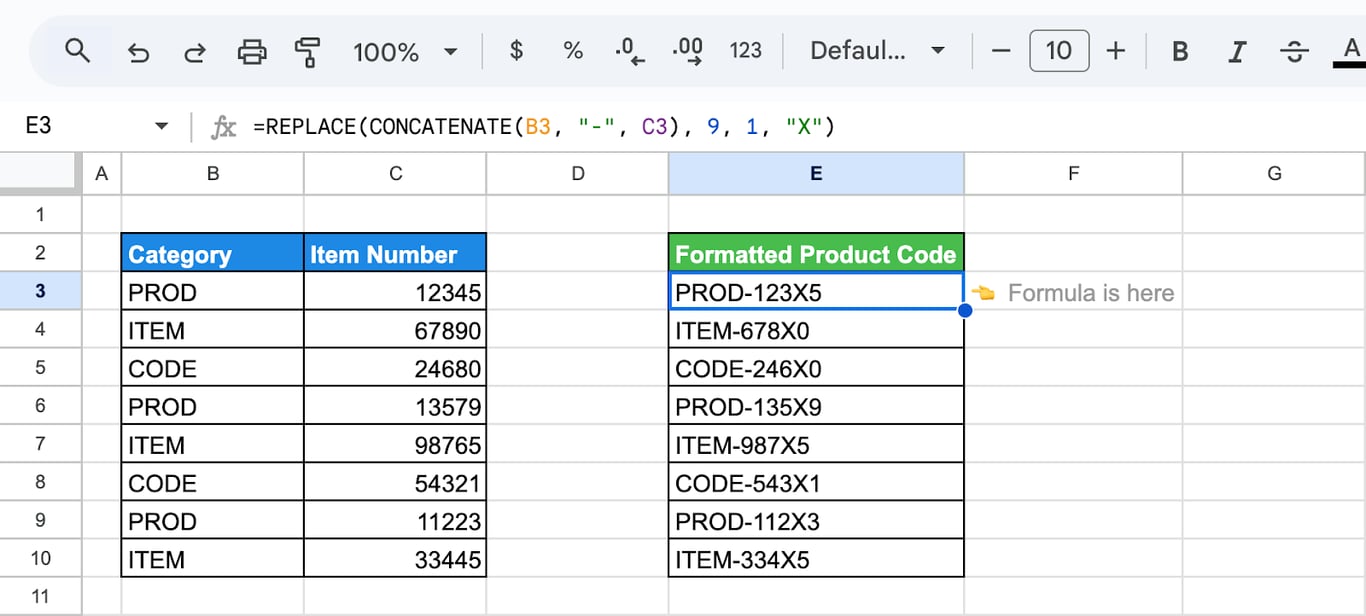
REPLACE works on the result of another formula as well as on a cell. See CONCATENATE and the ampersand.
LOWER: change the case of the result
=LOWER(REPLACE(B3, 6, 3, "XYZ"))
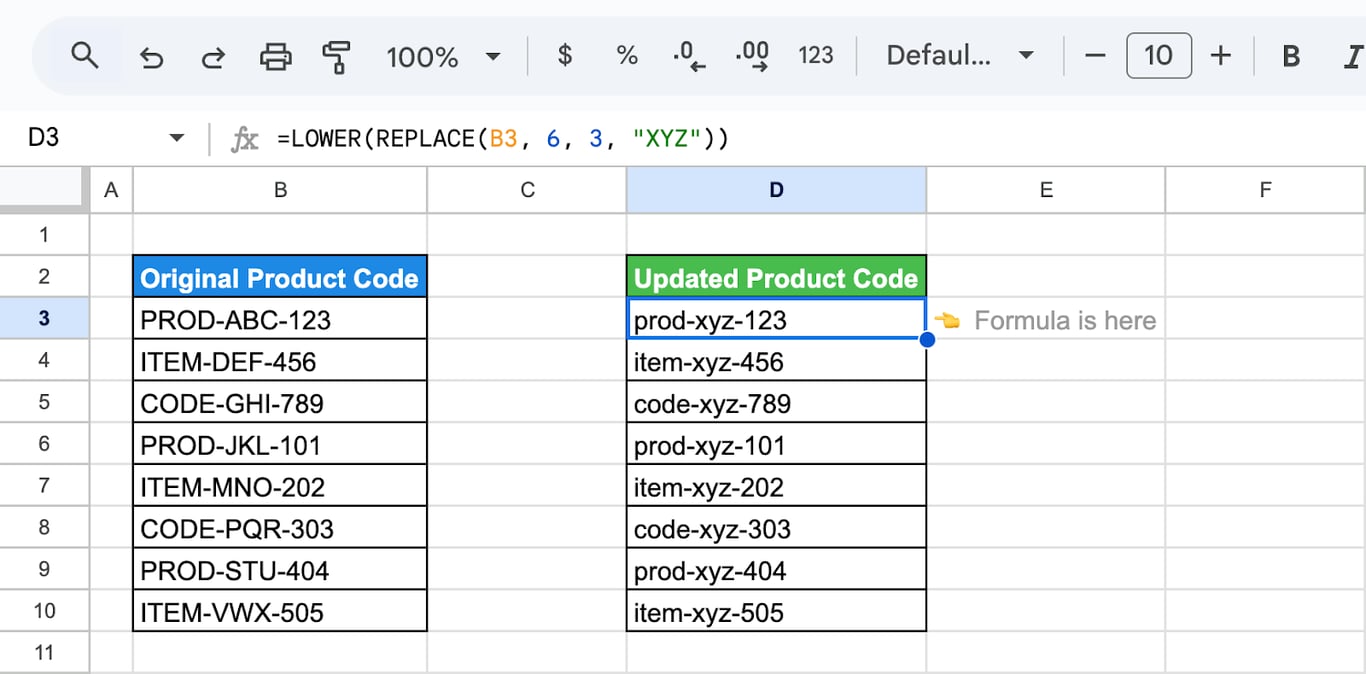
LEN: the length after the change
=LEN(REPLACE(B3, 11, 2, "YYYY"))
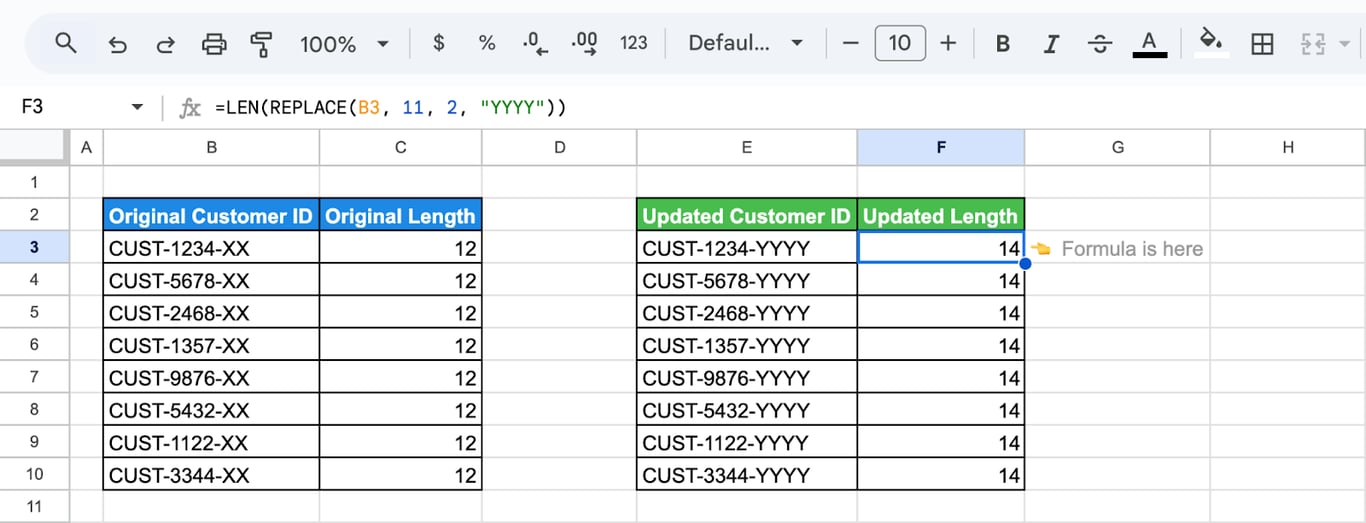
Two characters were replaced with four, so a 12-character ID becomes 14 characters long. A check like this catches IDs that no longer fit a fixed-width format.
When a fixed position goes wrong
When a fixed position goes wrong
=TRIM(REPLACE(B3, 12, 2, ","))
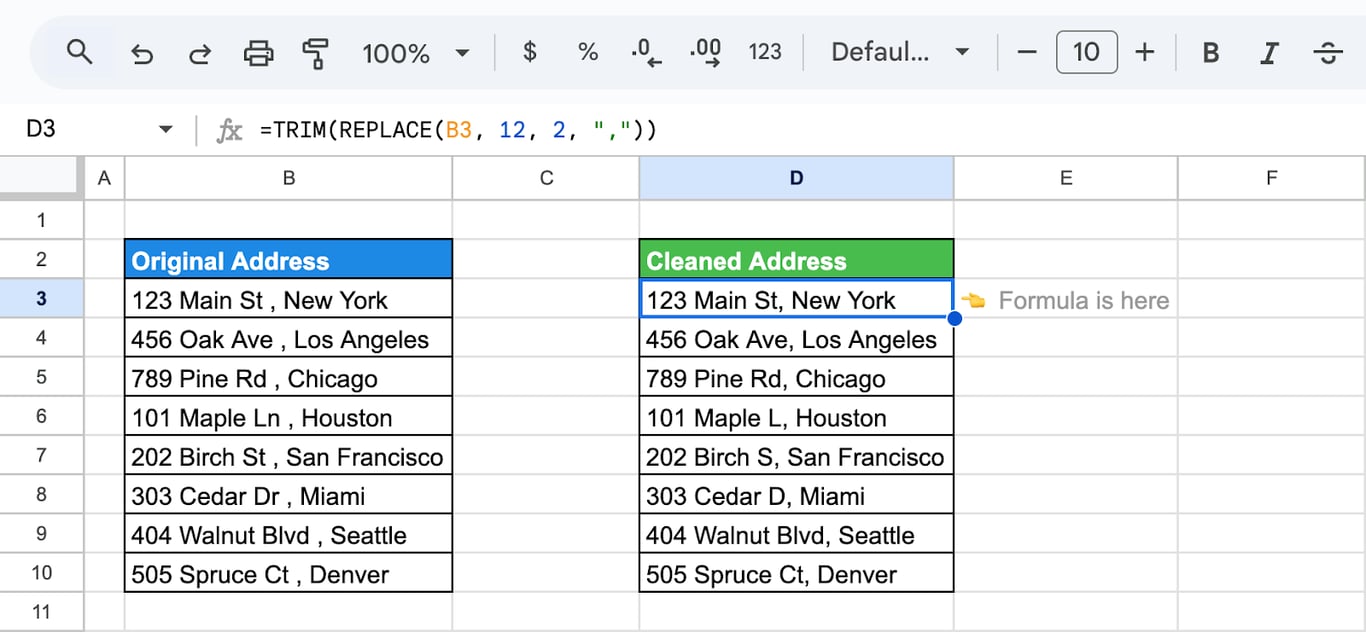
The formula removes the space before the comma in “123 Main St , New York”, where the space and the comma are characters 12 and 13. In the rows where the street name is one character longer, the same formula cuts off the last letter of the street: “101 Maple Ln” becomes “101 Maple L”. The task is defined by the text (” ,” has to become “,”), not by a position, so it is a job for SUBSTITUTE:
=SUBSTITUTE(B3, " ,", ",")
Errors and wrong results
⚠️ Error: #VALUE!
✅ Solution: The position is 0 or negative, the length is negative, or a nested FIND did not find its text. Positions start at 1.
⚠️ Error: #N/A
✅ Solution: An argument is missing. REPLACE needs all four; to delete characters, pass an empty text "" as the last one.
⚠️ Error: The new text is added at the end instead of replacing anything.
✅ Solution: The position is larger than the length of the text. Calculate it with LEN or FIND.
⚠️ Error: The wrong characters are replaced in some rows.
✅ Solution: The texts have different lengths and the position is fixed. Use FIND for the position, or SUBSTITUTE if you know the text to replace.
⚠️ Error: The result cannot be summed.
✅ Solution: REPLACE always returns text, also when it is given a number: =REPLACE(12345, 2, 2, "99") returns the text 19945. Convert it back with VALUE: =VALUE(REPLACE(12345, 2, 2, "99")).
⚠️ Error: Spaces are counted as characters.
✅ Solution: They are characters. Remove stray ones first with TRIM, or the positions will be off by the number of leading spaces.
Related Google Sheets functions
Related Google Sheets functions
- SUBSTITUTE: Replace a text wherever it occurs.
- REGEXREPLACE: Replace by pattern.
- Find and replace: Edit the cells themselves, without a formula.
- FIND and SEARCH: The position of a text inside another.
- LEFT, RIGHT and MID: Extract a part of a text by position.
- LEN: The length of a text.
- TRIM, CLEAN and T: Remove extra spaces.
- TEXT: Format numbers and dates as text.
A fix repeated on every export belongs upstream
A fix repeated on every export belongs upstream
REPLACE is often used to repair values after an export: a prefix that changed, a status suffix, an ID in the wrong format. The formula works, and next week the new export arrives with the same problem and the repair is done again. A correction that is needed on every load belongs where the data is prepared, not in the report.
The OWOX Data Marts extension for Google Sheets covers that half. A data analyst publishes a data mart (a table or an SQL query in your data warehouse) and makes it available for reports. In Sheets you open the extension, pick the data mart, tick the columns you want and run it. The rows land in a tab, ready for your formulas.
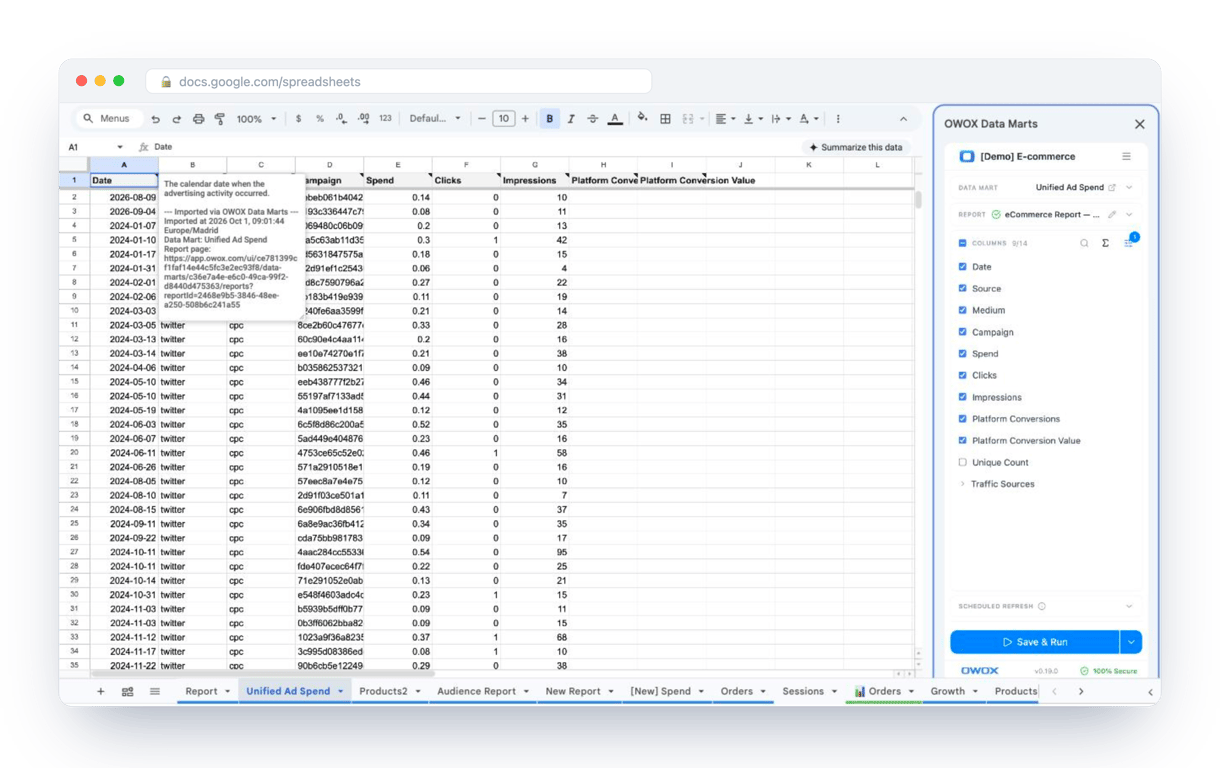
What changes for the person who maintains the sheet:
- Refresh replaces re-export. Refresh current report in the extension menu re-runs the same pull, and a scheduled refresh keeps the tab current without anyone touching it.
- The source is written on the sheet. The header cell of an imported tab carries a note with the data mart it came from, the time of the import and a link to the report.
- No SQL and no warehouse access needed. The analyst decides which data marts and columns are available. You choose from that list.
The extension does not write or change the analyst’s SQL. If the correction is written once in that SQL, the codes arrive in the form the report needs, and REPLACE is left for one-off edits. The extension comes with the OWOX Cloud plans of OWOX Data Marts; spreadsheet reporting describes both ways data reaches a sheet.
Turn your data into decisions.
Governed data marts give you the clean foundation ML needs to actually work.
- No AI hallucinations
- Analyst-governed definitions
- Every number traces to SQL
Frequently Asked Questions
Can I use SUBSTITUTE and REPLACE together in the same formula?
Yes, you can use SUBSTITUTE and REPLACE together for complex text modifications. SUBSTITUTE replaces specific words, while REPLACE modifies text at a set position. For example, =REPLACE(SUBSTITUTE(A1, "old", "new"), 5, 3, "XYZ") first replaces "old" with "new" and then modifies characters at position 5.
Can I replace multiple sections of text in one formula?
No, the REPLACE function modifies only one section of text at a time. To replace multiple sections, nest multiple REPLACE functions or use SUBSTITUTE for multiple word replacements. For example, =REPLACE(REPLACE(A1, 3, 2, "XX"), 7, 2, "YY") updates two different sections.
What’s the difference between REPLACE and SUBSTITUTE in Google Sheets?
The REPLACE function modifies text by replacing characters at a specific position, while SUBSTITUTE replaces all or specific occurrences of a given substring. Use REPLACE for position-based edits (=REPLACE("Google Sheets", 8, 6, "Docs")) and SUBSTITUTE for word replacements (=SUBSTITUTE("Google Sheets", "Sheets", "Docs")).
Can I use REPLACE to modify text dynamically based on cell references?
Yes, the REPLACE function can dynamically modify text using cell references. For example, =REPLACE(A1, B1, C1, D1) replaces text in A1, starting at position B1, for C1 characters, with D1. This allows flexible text updates based on values in other cells.
Can the REPLACE function work with numbers in Google Sheets?
Yes, the REPLACE function works with numbers in Google Sheets, but it treats them as text. If you apply =REPLACE(12345, 2, 2, "99"), it returns "19945" as text. To keep it numeric, use VALUE(REPLACE(A1, 2, 2, "99")) to convert the result back to a number.
How do I use the REPLACE function in Google Sheets?
To use the REPLACE function in Google Sheets, enter =REPLACE(text, position, length, new_text). Specify the text, starting position, number of characters to replace, and the new text. For example, =REPLACE("Google Sheets", 8, 6, "Docs") returns "Google Docs" by replacing "Sheets" with "Docs."
What is the REPLACE function in Google Sheets?
The REPLACE function in Google Sheets allows you to modify text by replacing a specified portion with new characters. It follows the syntax REPLACE(text, position, length, new_text), where you define the starting position, number of characters to replace, and the replacement text. It's useful for structured text updates.