LEN function in Google Sheets: count characters in a cell
LEN returns the number of characters in a text, counting letters, digits, spaces and punctuation. This guide covers the syntax, what LEN counts for numbers and dates, how to check a character limit, count the characters of a whole range, count words or the occurrences of a character, and how LEN works with LEFT, RIGHT, MID and TRIM.
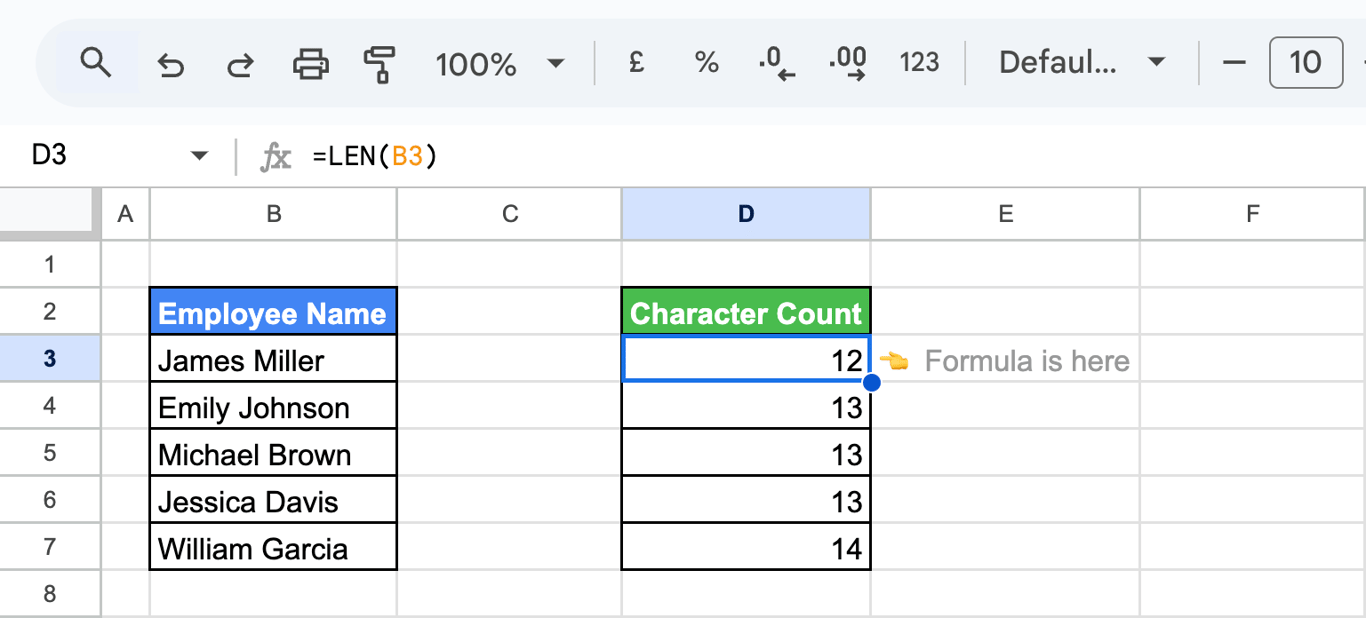
LEN returns the number of characters in a cell:
=LEN(B3)
With “James Miller” in B3 the result is 12: eleven letters and one space. Every character counts, including spaces, punctuation and characters you cannot see.
LEN syntax
=LEN(text)
- text: the text, or the cell that holds it.
=LEN(B3)
What LEN counts
The results below are from our test sheet.
| Formula | Result | Why |
|---|---|---|
=LEN("Hello world") |
11 | The space counts |
=LEN(" a ") |
3 | Leading and trailing spaces count |
=LEN("a" & CHAR(10) & "b") |
3 | A line break is one character |
| An empty cell | 0 | Nothing to count |
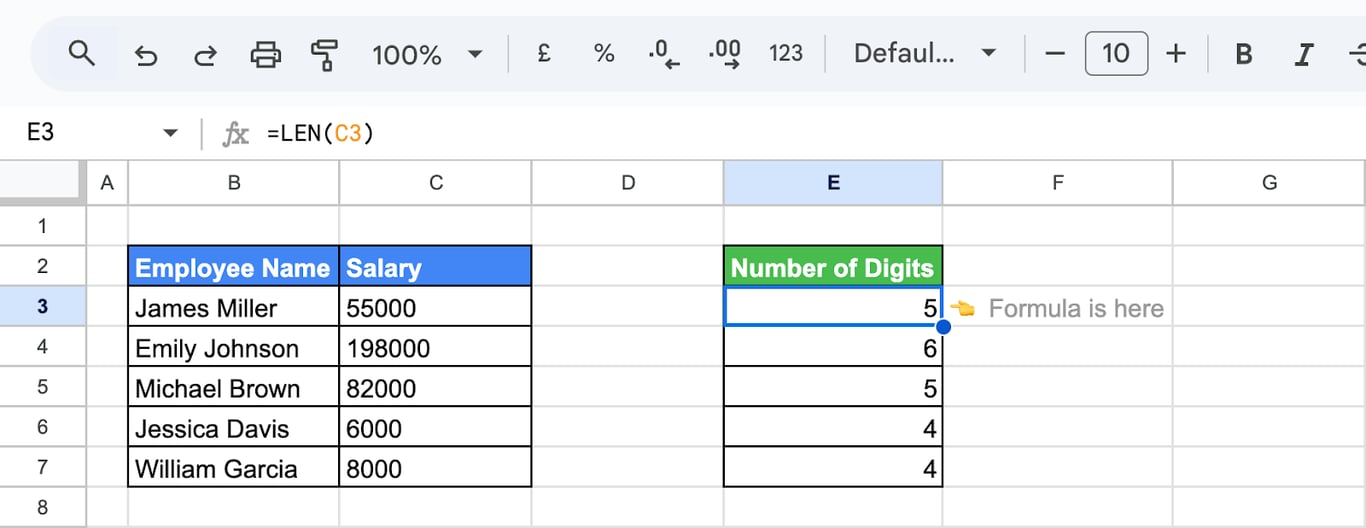
| A cell with the number 1500 | 4 | The digits of the value |
=LEN(1500.50) |
6 | The value is 1500.5; the format is not counted |
=LEN(1/3) |
12 | The value as text, 0.3333333333 |
| A cell with the date 1/5/2023 | 8 | The date as the cell displays it |
=LEN(TRUE) |
4 | The word TRUE |
=LEN("😀") |
2 | Some emoji count as two characters |
Three things to remember from the table:
- For a number, LEN counts the value, not the format. A currency sign, thousands separators and trailing zeros added by formatting are not part of it. To count what is shown, format first:
=LEN(TEXT(D3, "#,##0.00")). - For a date, LEN counted the displayed text in our test, so the result changes with the date format. Use TEXT with an explicit format to get a stable length.
- Invisible characters count. If two cells look the same and LEN differs, one of them has a trailing space, a non-breaking space or a line break. See TRIM and CLEAN.
OWOX Data Marts
See your first report built in real time. 15 minutes.
- Connect your data warehouse
- Pick your metrics
- Get a live Google Sheets report
In the time it takes to write a ticket. Then imagine never writing that ticket again.
Book a DemoWe'll use your actual use case
Check a character limit
Ad headlines, meta titles, SMS texts and product names have length limits. A column with LEN shows the length; a comparison turns it into a check:
=LEN(C3) <= 100
=IF(LEN(C3) > 100, "Too long by " & LEN(C3) - 100, "OK")
The article’s example adds a test that the cell holds text at all:
=AND(LEN(C3) <= 100, ISTEXT(C3))
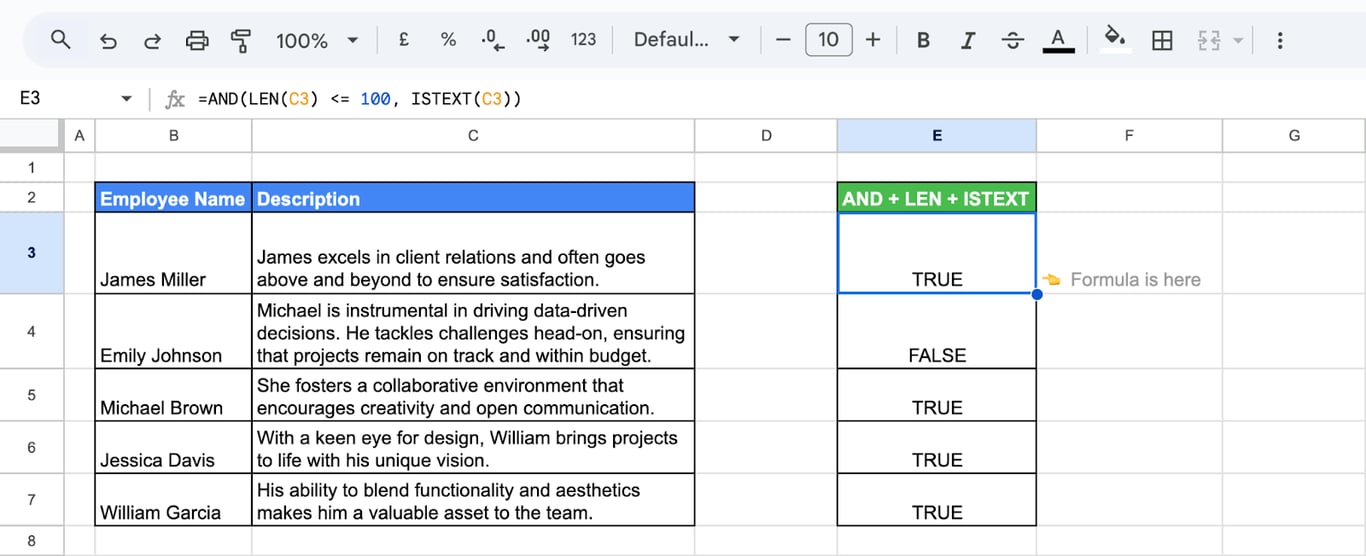
The same comparison works in two other places:
- Conditional formatting. Format > Conditional formatting > Custom formula is
=LEN(C3) > 100colors the cells that are over the limit. - Data validation. A custom formula
=LEN(C3) <= 100rejects longer entries or warns about them. See data validation.
Count the characters of a range
Count the characters of a range
LEN takes one value. Given a range, it returned #VALUE! in our test. For the total number of characters in a range, wrap it in SUMPRODUCT:
=SUMPRODUCT(LEN(B3:B7))
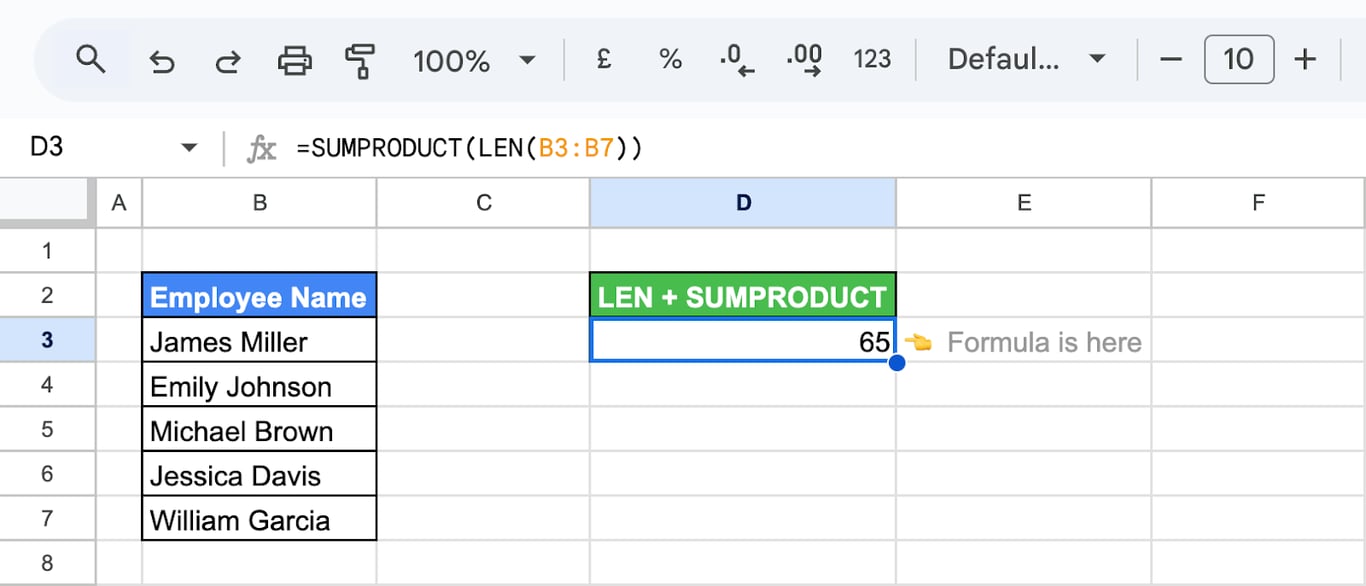
=SUM(ARRAYFORMULA(LEN(B3:B7))) returns the same. For the length of each row from one formula: =ARRAYFORMULA(LEN(B3:B7)). The longest entry of a column: =MAX(ARRAYFORMULA(LEN(B3:B7))).
Count how often a character occurs
Count how often a character occurs
Remove the character with SUBSTITUTE and compare the lengths:
=LEN(C3) - LEN(SUBSTITUTE(C3, "e", ""))
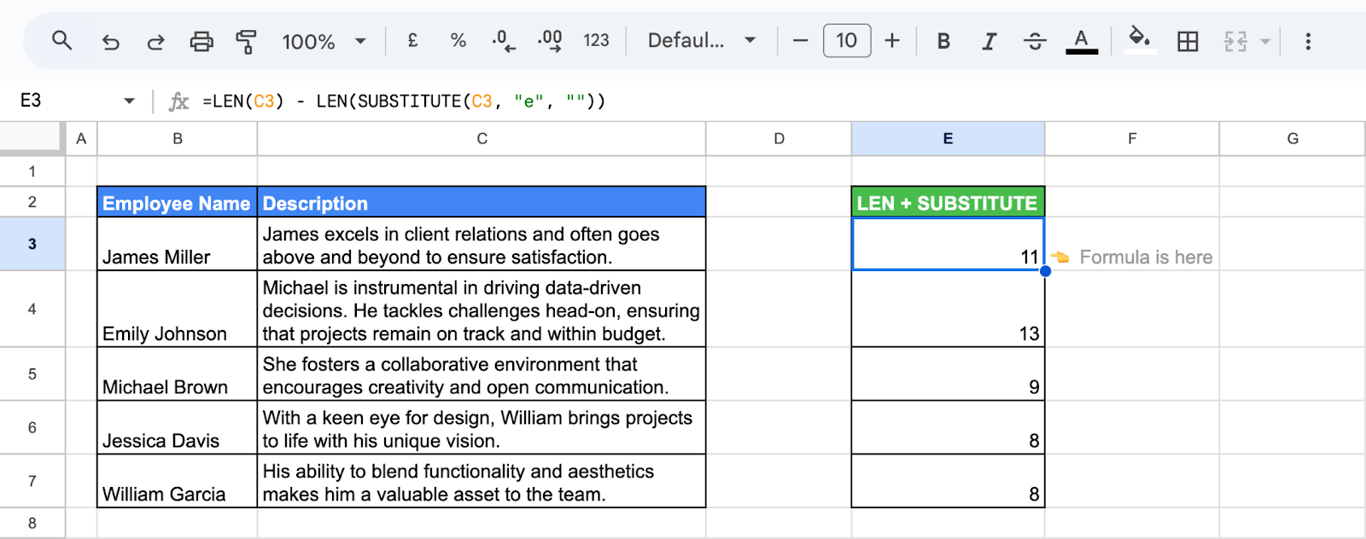
SUBSTITUTE is case-sensitive, so this counts “e” and not “E”. For a text of several characters, divide by its length: =(LEN(C3) - LEN(SUBSTITUTE(C3, "ab", ""))) / LEN("ab").
Count words
Words are separated by spaces, so the number of words is the number of spaces plus one, after TRIM has removed the extra ones:
=LEN(TRIM(C3)) - LEN(SUBSTITUTE(TRIM(C3), " ", "")) + 1
On “a b”, with two spaces in the middle, the formula returned 2. On an empty cell it returns 1, so guard it: =IF(C3 = "", 0, ...).
LEN with other text functions
With TRIM: the length without stray spaces
=LEN(TRIM(C3))
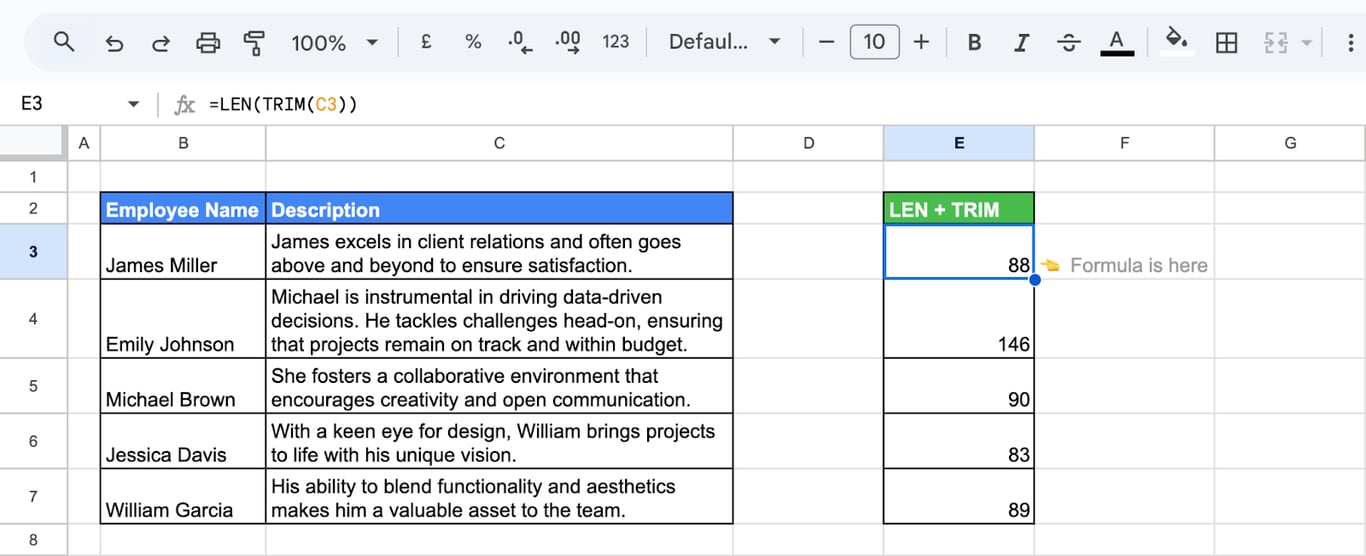
=LEN(C3) - LEN(TRIM(C3)) is a quick test for stray spaces: any result above 0 means the cell has some.
With LEFT, RIGHT and MID: cut a text of changing length
LEN gives the total length, from which a fixed part is subtracted:
=LEFT(C3, LEN(C3) - 3)
returns everything but the last three characters: “EMP456” from “EMP456-JM”.
=RIGHT(C3, LEN(C3) - 7)
returns everything after the first seven characters: “JM”.
=MID(C3, 4, LEN(C3) - 6)
returns the middle, without three characters at each end: “456”.
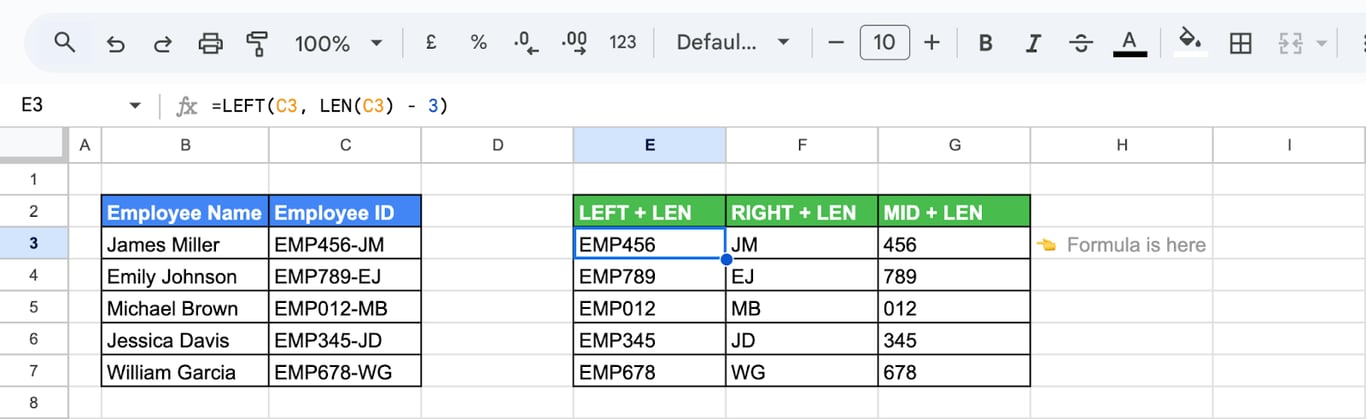
See LEFT, RIGHT and MID.
With IF: act only on filled cells
LEN(cell) > 0 is a test for “not empty” that also treats a formula returning an empty text as empty:
=ARRAYFORMULA(IF((LEN(B3:B7) * LEN(C3:C7)) > 0, B3:B7 & " " & C3:C7, ""))
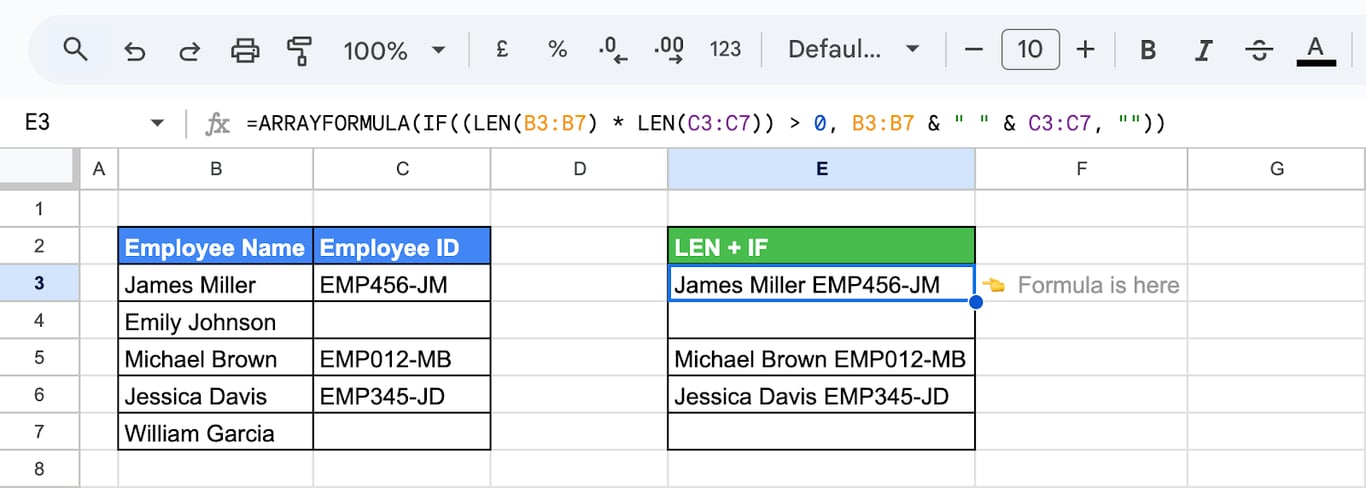
Multiplying the two lengths gives 0 as soon as one of the cells is empty. See array formulas.
Problems and fixes
⚠️ Problem: LEN returns more than the visible characters.
✅ Solution: Spaces at the ends, non-breaking spaces or line breaks. Compare with =LEN(TRIM(CLEAN(C3))).
⚠️ Problem: #VALUE! with a range.
✅ Solution: Wrap LEN in ARRAYFORMULA or SUMPRODUCT.
⚠️ Problem: The length of a number differs from what the cell shows.
✅ Solution: LEN counts the stored value. Use TEXT with the display format.
⚠️ Problem: A cell that looks empty returns 1 or more.
✅ Solution: It contains a space or another invisible character. Clear the cell, or clean the column with TRIM.
⚠️ Problem: A text with emoji is counted as too long.
✅ Solution: Some emoji and symbols count as two characters. Allow for that when checking limits by hand.
Related Google Sheets functions
Related Google Sheets functions
- LEFT, RIGHT and MID: Parts of a text by position.
- TRIM, CLEAN and T: Remove spaces and hidden characters.
- SUBSTITUTE: Replace or remove text.
- FIND and SEARCH: The position of a text inside another.
- TEXT: Numbers and dates as formatted text.
- REPT: Repeat a text, for padding to a fixed length.
Length checks catch problems that started upstream
Length checks catch problems that started upstream
A column of LEN checks usually exists because the text came in untidy: names with trailing spaces, IDs of varying length, titles over a limit. The check finds them in this copy of the data, and the next export brings them back.
The OWOX Data Marts extension for Google Sheets covers that half. A data analyst publishes a data mart (a table or an SQL query in your data warehouse) and makes it available for reports. In Sheets you open the extension, pick the data mart, tick the columns you want and run it. The rows land in a tab, ready for your formulas.
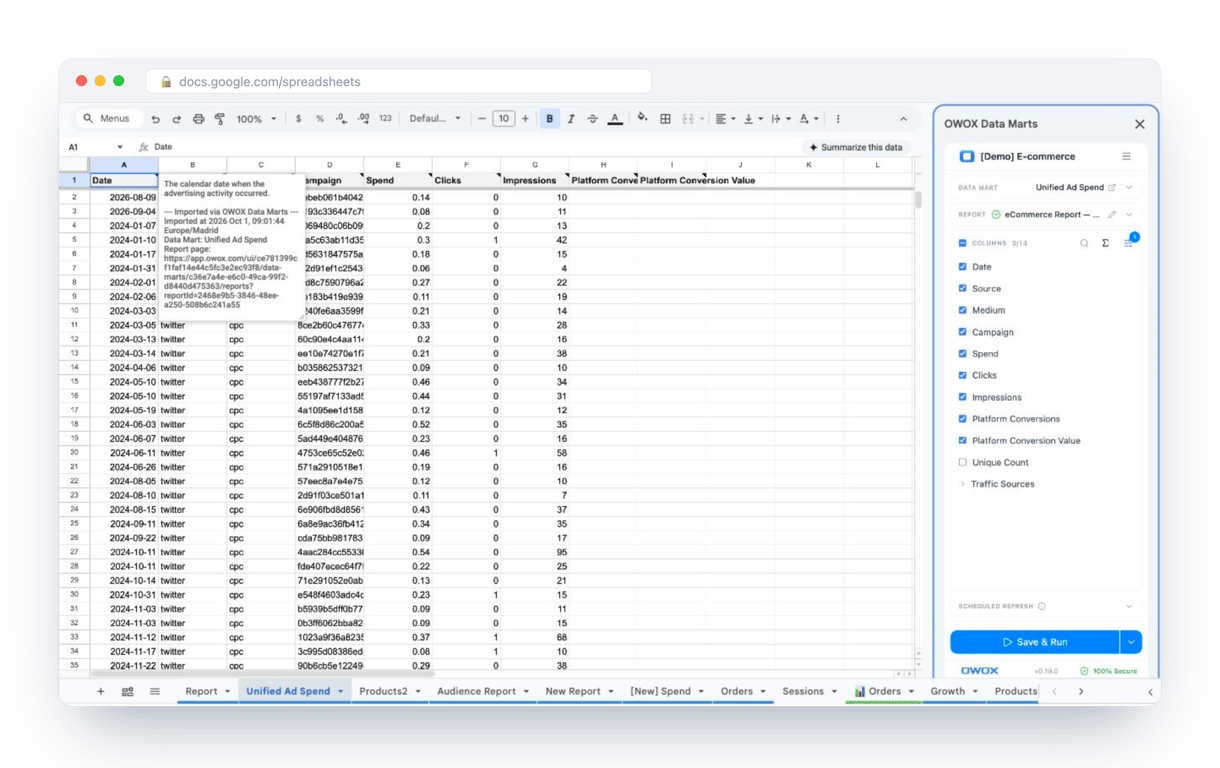
What changes for the person who maintains the sheet:
- Refresh replaces re-export. Refresh current report in the extension menu re-runs the same pull, and a scheduled refresh keeps the tab current without anyone touching it.
- The source is written on the sheet. The header cell of an imported tab carries a note with the data mart it came from, the time of the import and a link to the report.
- No SQL and no warehouse access needed. The analyst decides which data marts and columns are available. You choose from that list.
The extension does not write or change the analyst’s SQL. When IDs and names are normalized once in that SQL, the rows arrive in one shape, and LEN is left for checking what people type into the sheet. The extension comes with the OWOX Cloud plans of OWOX Data Marts; spreadsheet reporting describes both ways data reaches a sheet.
Turn your data into decisions.
Governed data marts give you the clean foundation ML needs to actually work.
- No AI hallucinations
- Analyst-governed definitions
- Every number traces to SQL