How to wrap text in Google Sheets: menu, toolbar, line breaks and fixes
To wrap text in Google Sheets, select the cells and choose Format > Wrapping > Wrap, or use the wrapping button in the toolbar. This guide explains the three options, wrap, overflow and clip, manual line breaks inside a cell, column width and row height, and the reasons wrapped text stays cut off.
To wrap text in Google Sheets, select the cells and choose Format > Wrapping > Wrap. Text that is longer than the column is wide then continues on the next line inside the same cell, and the row grows taller to show all of it.
The same setting is on the toolbar, behind the text wrapping button. It has three options:
| Option | What long text does | Use it for |
|---|---|---|
| Overflow (the default) | Runs over the next cells as long as they are empty; if the next cell has content, the text is cut off at the cell border | Short labels with empty cells beside them |
| Wrap | Continues on new lines inside the cell; the row gets taller | Notes, descriptions, addresses |
| Clip | Is cut off at the cell border, whatever is in the next cell | Tables where every row should keep the same height |
None of the options changes the content of the cell. The full text is always there and shows in the formula bar.
Wrap text from the format menu
Wrap text from the format menu
Step 1: Select the cells, rows or columns to format. To select a whole column, click its letter; for the whole sheet, press Ctrl + A (Cmd + A on a Mac).
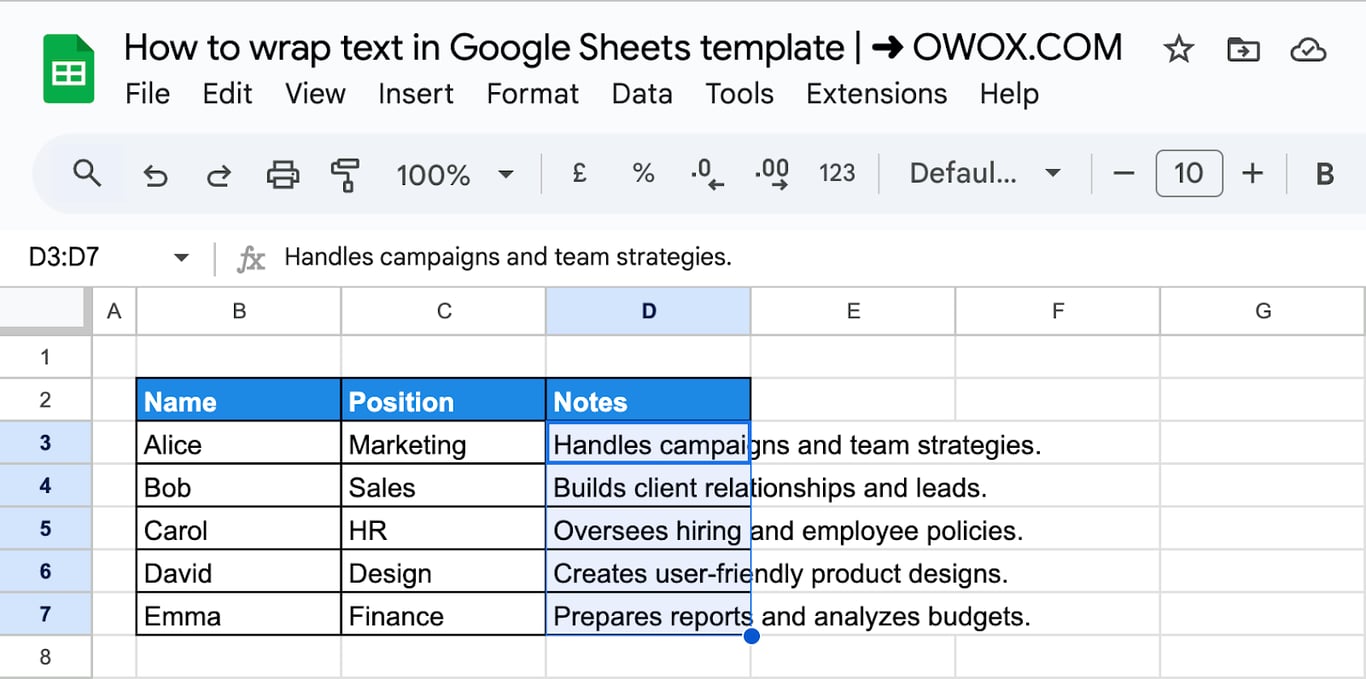
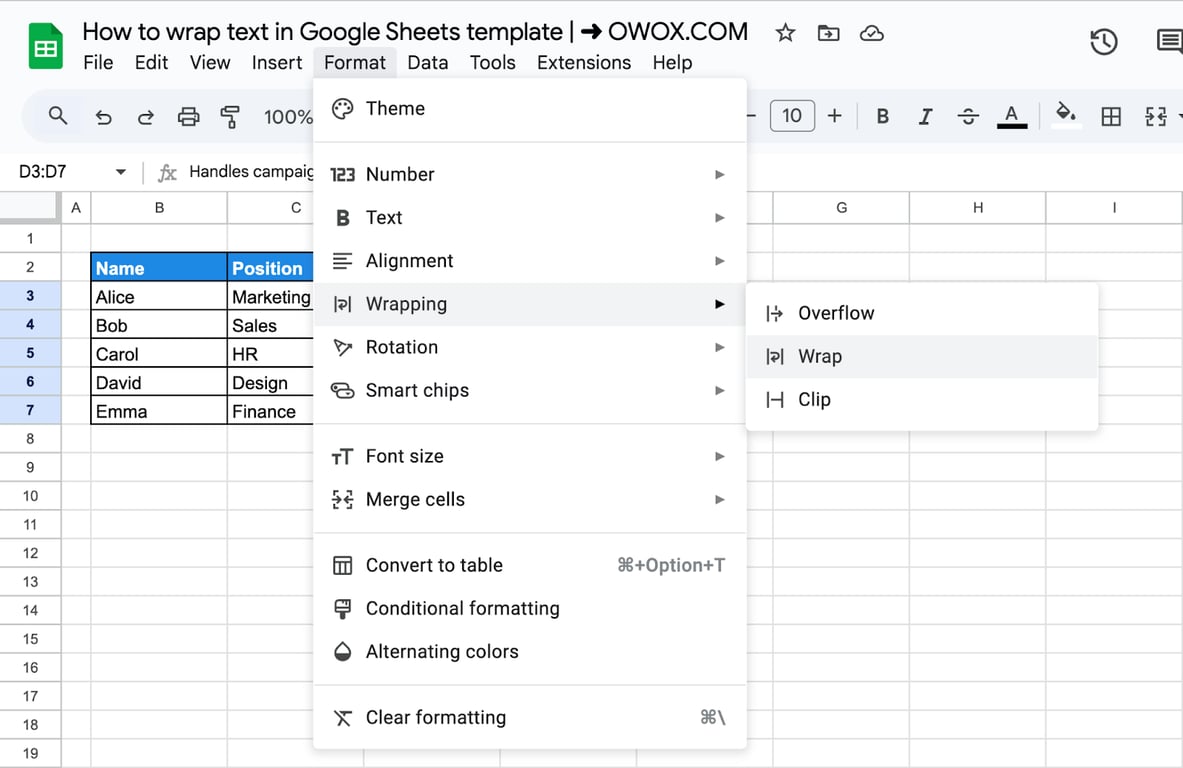
Step 2: Open the Format menu.
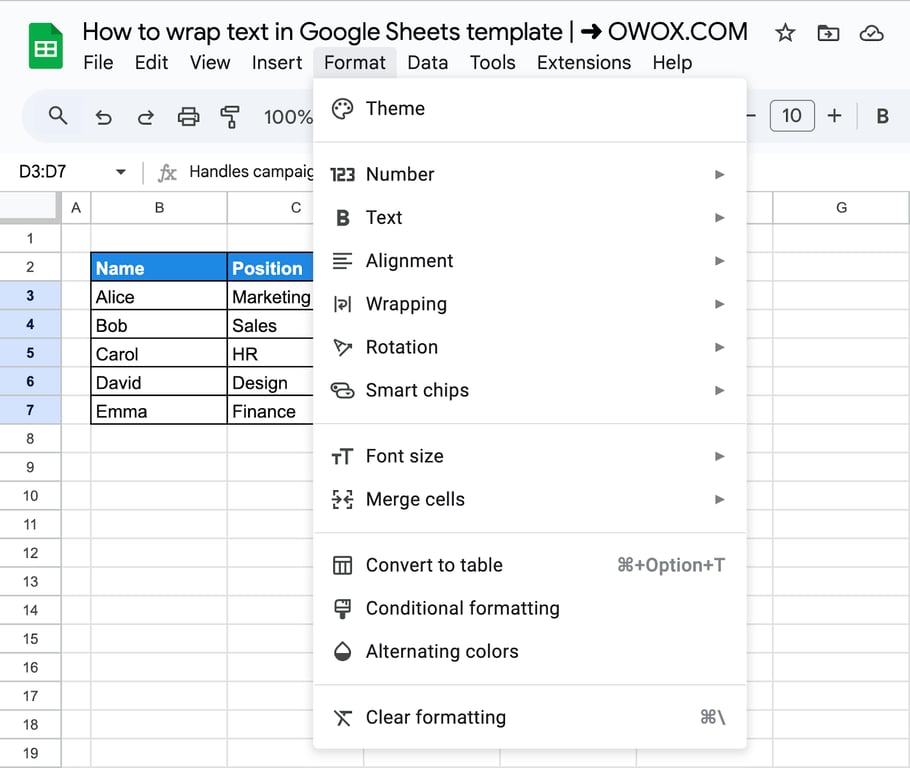
Step 3: Point to Wrapping and choose Wrap.
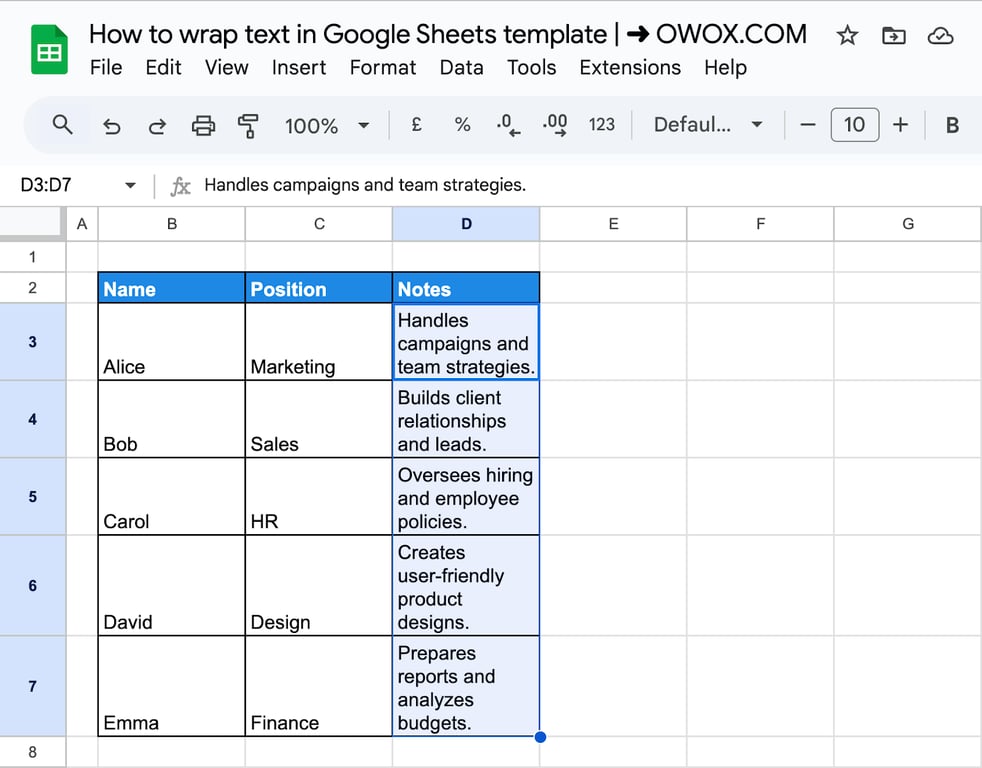
The text now breaks into lines inside each selected cell, and the rows are tall enough to show it.
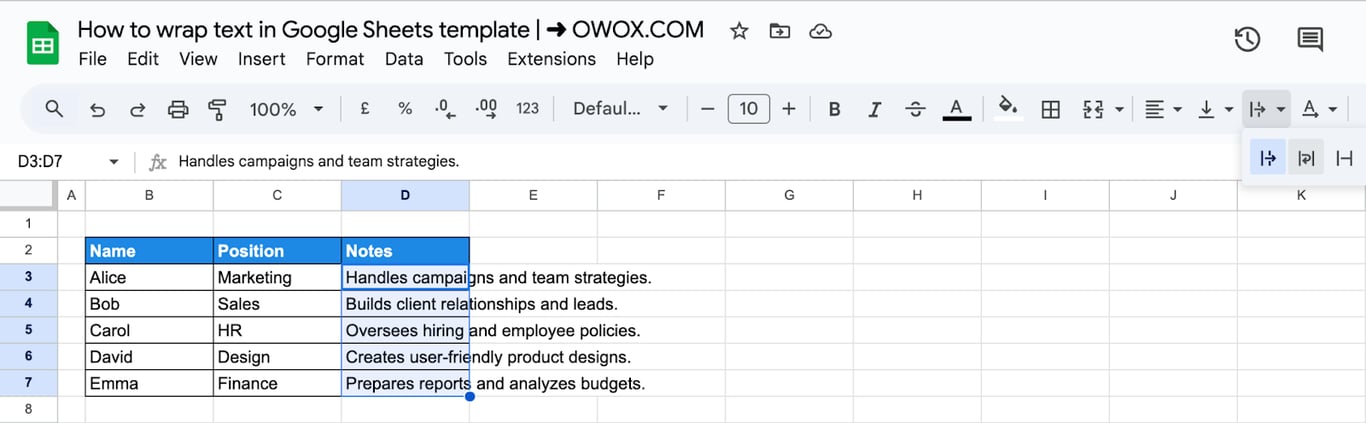
To undo it, choose Overflow or Clip in the same menu.
Wrap text from the toolbar
Step 1: Select the cells and click the text wrapping button in the toolbar. On a narrow window it is under the three-dot menu at the right end of the toolbar.
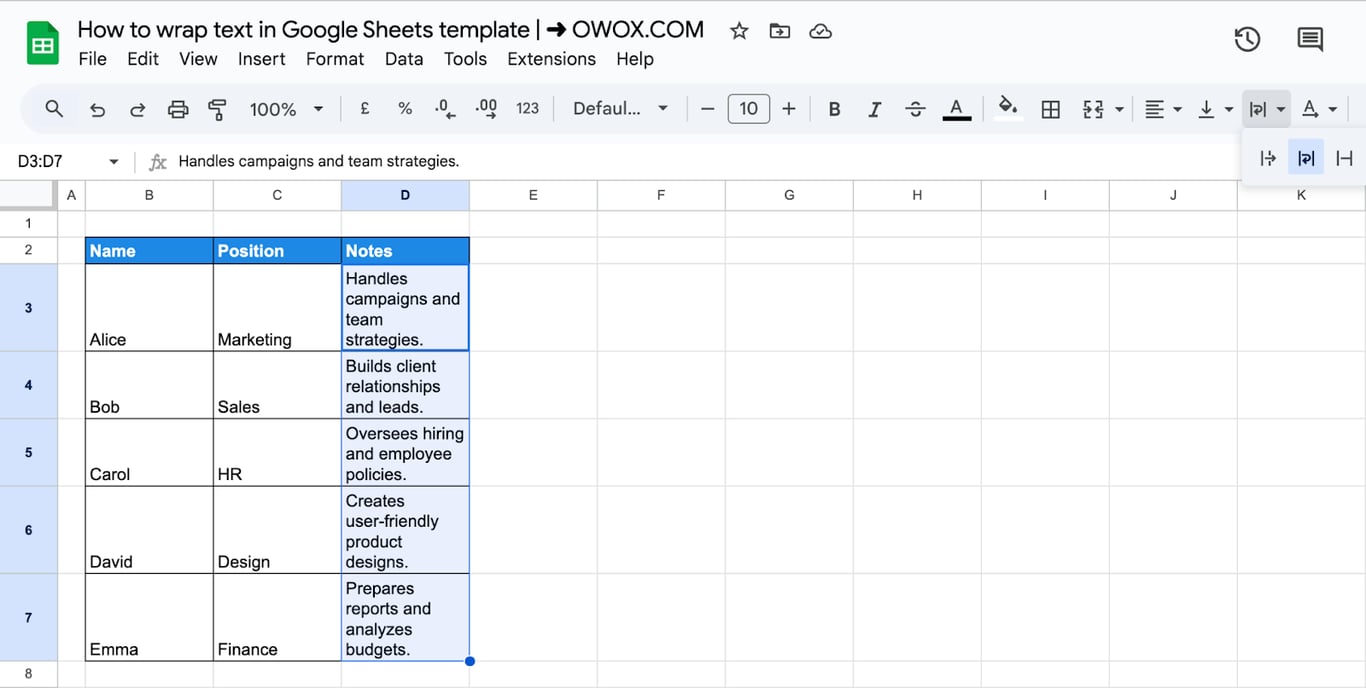
Step 2: Click the middle icon, Wrap.
OWOX Data Marts
See your first report built in real time. 15 minutes.
- Connect your data warehouse
- Pick your metrics
- Get a live Google Sheets report
In the time it takes to write a ticket. Then imagine never writing that ticket again.
Book a DemoWe'll use your actual use case
Break a line where you want
Wrapping breaks the text wherever the column ends. To decide yourself where a new line starts, insert a line break inside the cell.
Step 1: Double-click the cell, or select it and press F2, to edit it.
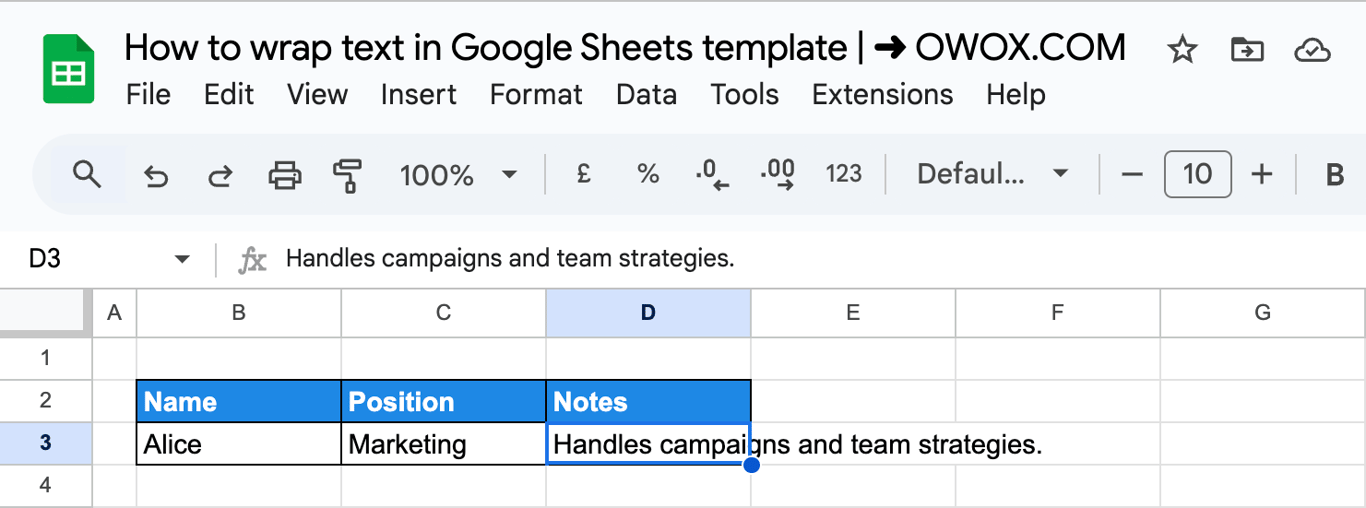
Step 2: Put the cursor where the line should break and press Alt + Enter (Ctrl + Enter also works) on Windows, or Option + Enter (Cmd + Enter) on a Mac.
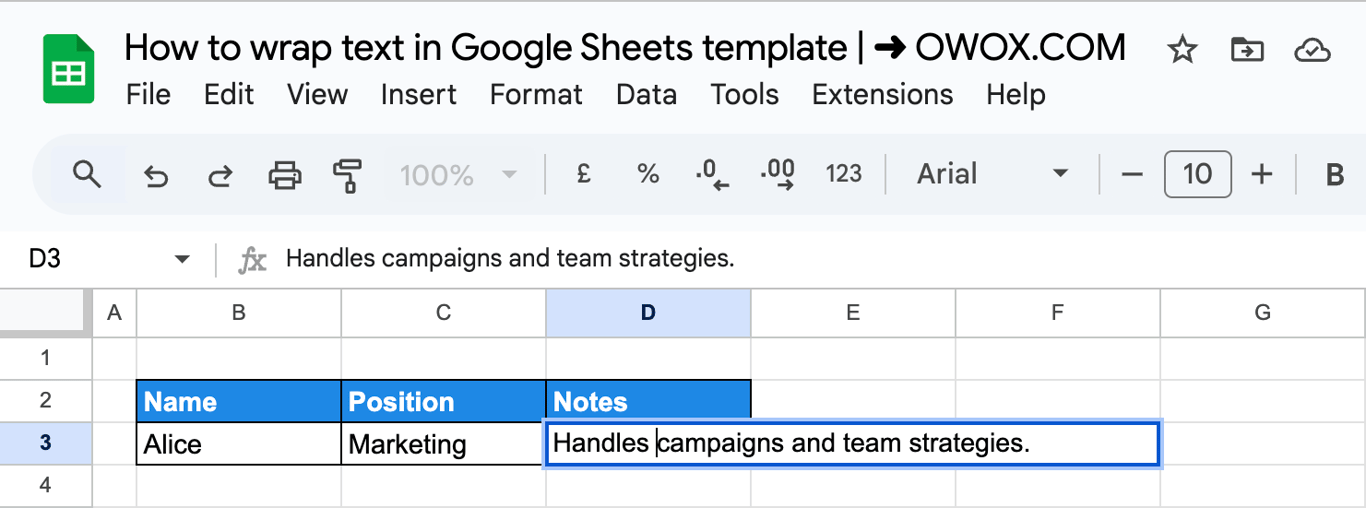
Step 3: Repeat for every break you need and press Enter to finish.
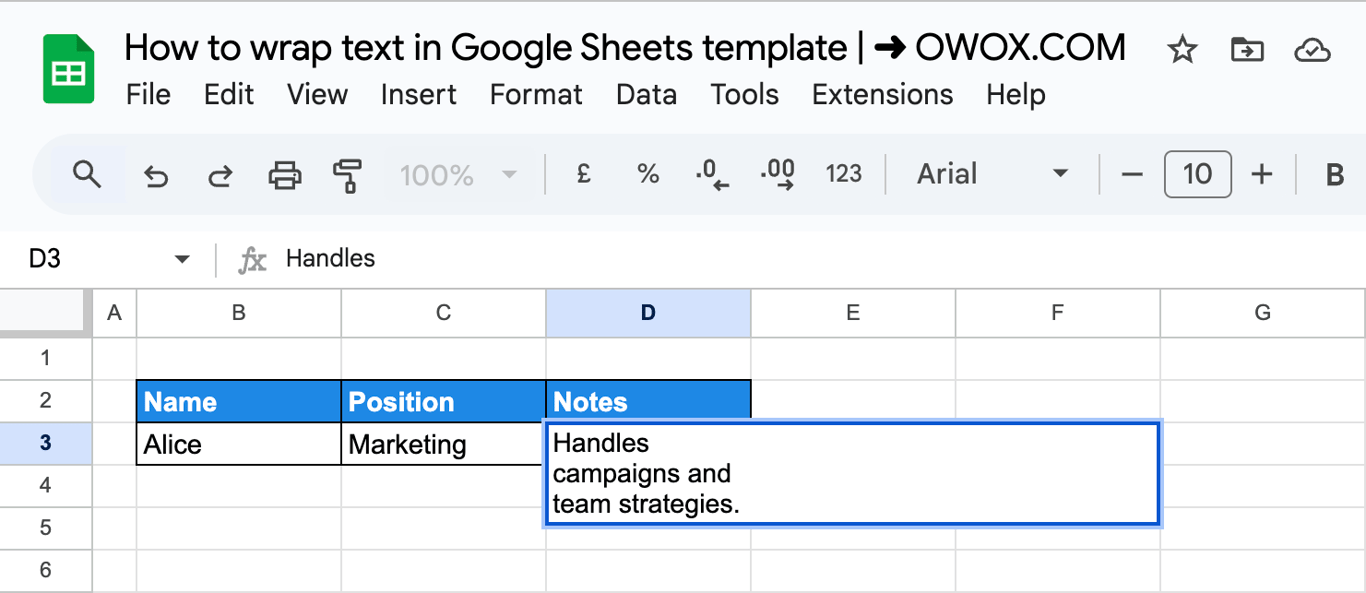
A line break is part of the content, not formatting: it stays where it is when the column gets wider. In a formula, CHAR(10) is the line break: =B3 & CHAR(10) & C3 puts two values on two lines of one cell. Turn wrapping on for that cell, otherwise the result shows on one line.
Column width and row height
Wrapped text follows the width of its column. Drag the border between two column letters to make the column wider or narrower, and the text rearranges itself.
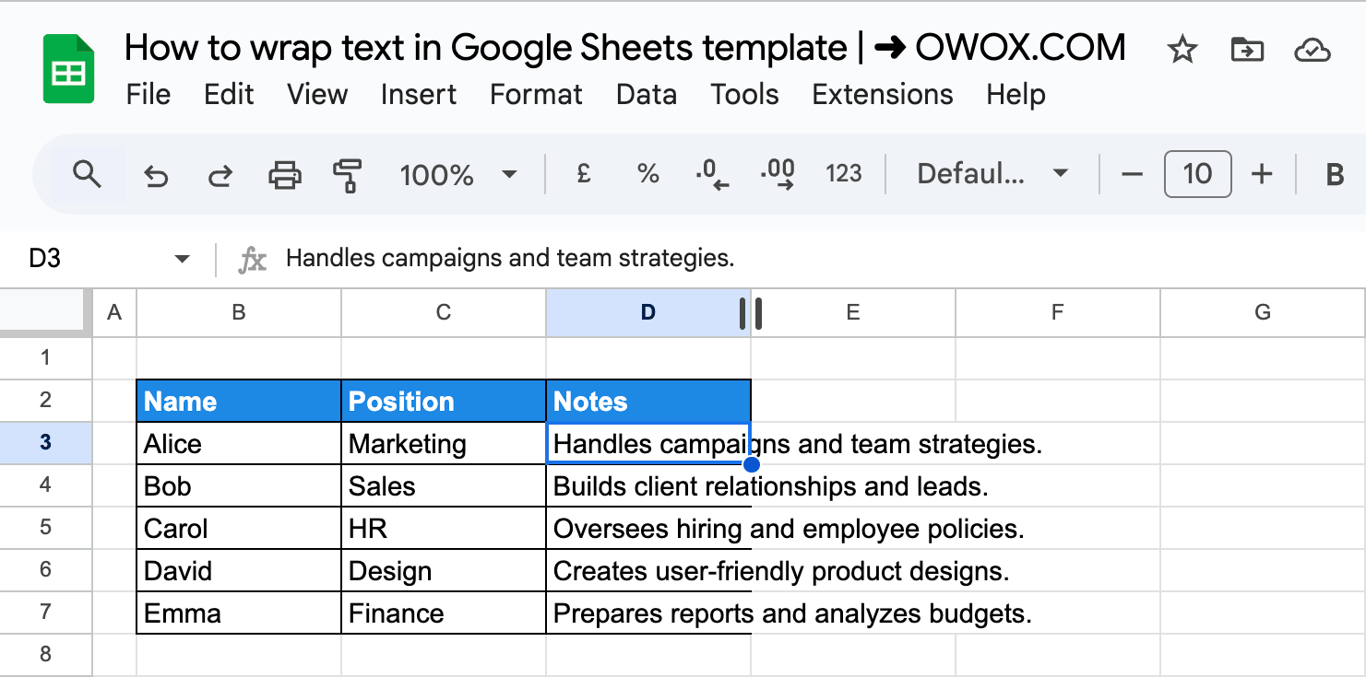
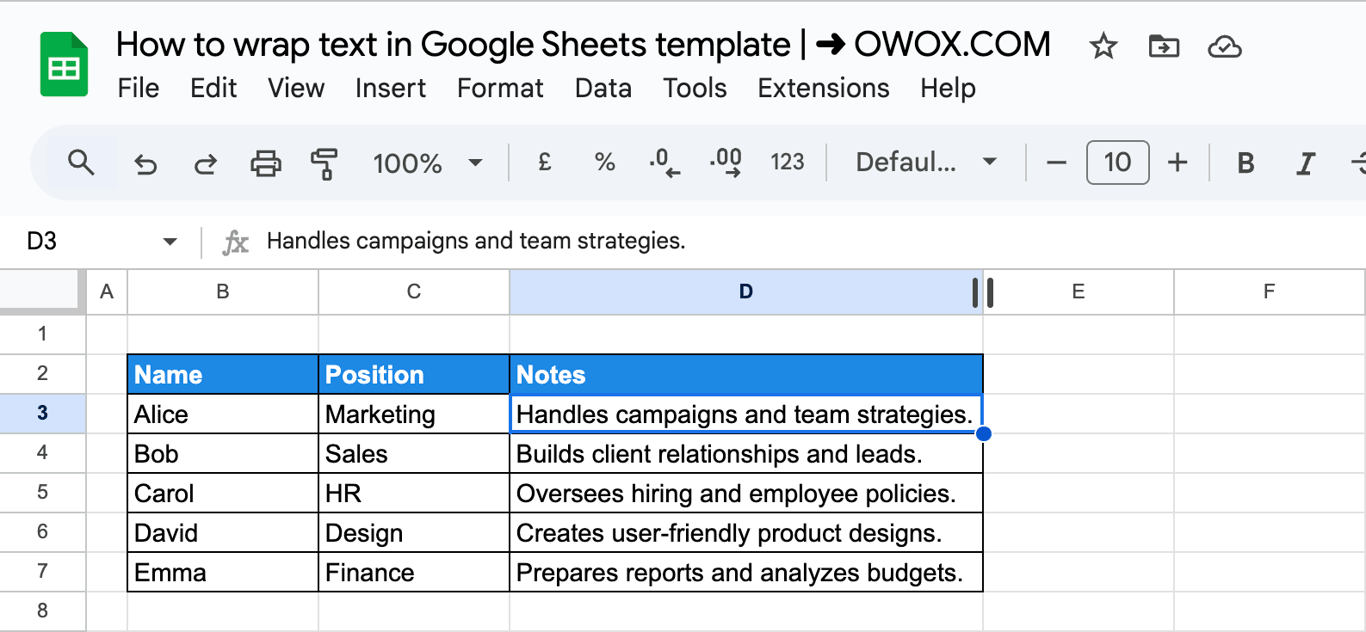
Two shortcuts with the mouse:
- Double-click the border of a column letter to fit the column to its longest entry.
- Right-click a row number, choose Resize row and select Fit to data to let the row height follow the wrapped text again after it has been set by hand.
Why wrapping does not work
⚠️ Issue: Wrap is on, but the text is still cut off at the bottom.
✅ Solution: The row has a fixed height. Once a row has been resized by hand, it no longer grows with its content. Right-click the row number, choose Resize row and select Fit to data.
⚠️ Issue: The text does not break although Wrap is selected.
✅ Solution: Check that the format was applied to this cell: select it and look at the wrapping button in the toolbar. Text copied from another file can bring its own setting, and pasting with Ctrl + Shift + V (values only) keeps the formatting of the destination cell.
⚠️ Issue: A long URL or code breaks in the middle of a word.
✅ Solution: Text without spaces has no natural place to break, so it is cut where the column ends. Make the column wider, or use Clip for such columns.
⚠️ Issue: Wrapped text in merged cells is cut off.
✅ Solution: A row does not adjust its height to merged cells. Set the row height by hand, or avoid merging the cells that hold long text.
⚠️ Issue: Text spills over the next column.
✅ Solution: The cell is set to Overflow and the next cell is empty. Choose Wrap or Clip.
Tips for sheets with long text
Tips for sheets with long text
- Set wrapping per column, not per sheet. Wrap the columns with notes and descriptions, clip the ones with URLs and IDs, and rows stay at a readable height.
- Align wrapped rows to the top. With rows of different heights, Format > Alignment > Top keeps the short entries on the first line.
- Go easy on merged cells. They get in the way of sorting, filters and automatic row heights.
- Split instead of wrapping when one cell holds several values. A list of values in one cell is easier to work with in separate columns; see the guide to splitting cells.
Related Google Sheets functions
Related Google Sheets functions
Functions that help with long text, each with its own guide:
- CHAR: Returns the character for a Unicode number, CHAR(10) for a line break.
- TRIM, CLEAN and T: Remove extra spaces and non-printing characters from text.
- CONCATENATE and the ampersand: Join text from several cells.
- LEFT/RIGHT/MID: Extract part of a text.
- LEN: Counts the characters in a cell.
- REPLACE: Swaps part of a text string for new text, based on position and length.
- UPPER/LOWER/PROPER: Changes text to upper case, lower case or title case.
- Find and replace: Changes text across a sheet in one step.
Formatting survives only if the data underneath stays put
Formatting survives only if the data underneath stays put
Wrapping, column widths and row heights are set on cells, not on the data in them. In a report that is rebuilt from a fresh export every week, the careful formatting is redone every week too, or lost when the new rows are pasted over the old ones.
The OWOX Data Marts extension for Google Sheets covers that half. A data analyst publishes a data mart (a table or an SQL query in your data warehouse) and makes it available for reports. In Sheets you open the extension, pick the data mart, tick the columns you want and run it. The rows land in a tab, ready for your formulas.
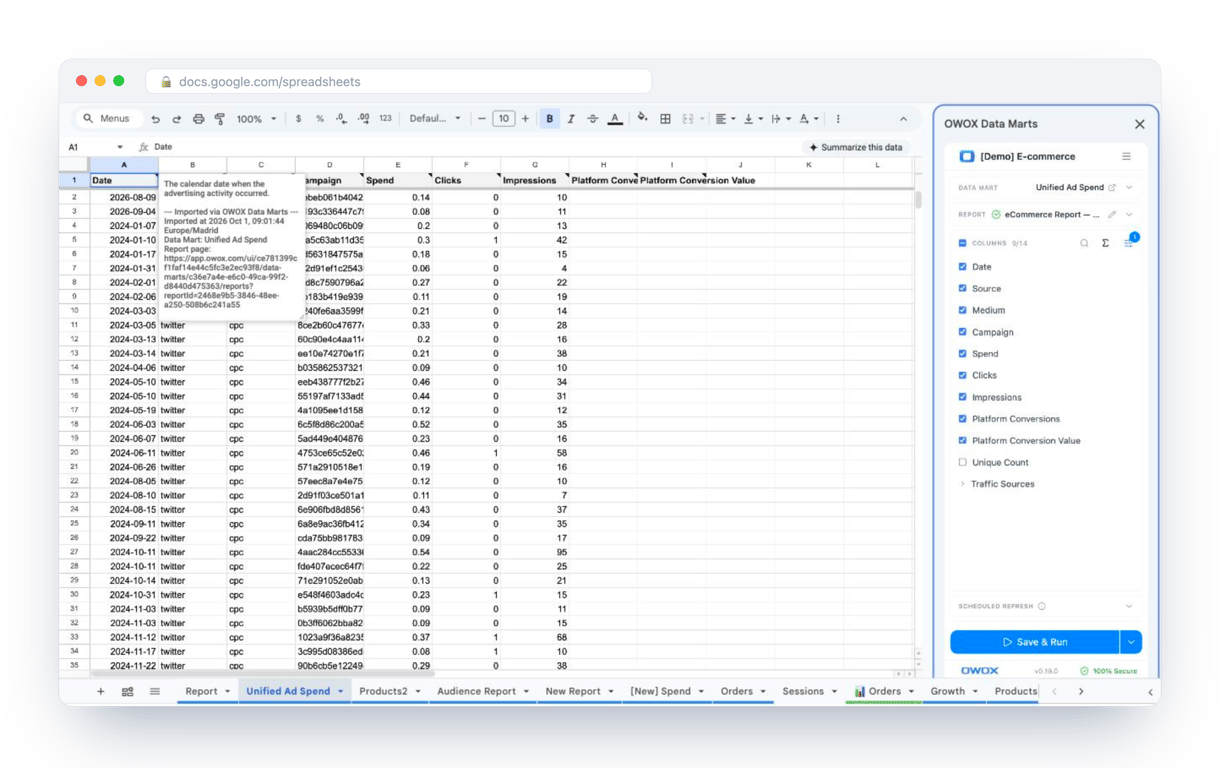
What changes for the person who maintains the sheet:
- Refresh replaces re-export. Refresh current report in the extension menu re-runs the same pull, and a scheduled refresh keeps the tab current without anyone touching it.
- The source is written on the sheet. The header cell of an imported tab carries a note with the data mart it came from, the time of the import and a link to the report.
- No SQL and no warehouse access needed. The analyst decides which data marts and columns are available. You choose from that list.
The extension does not write or change the analyst’s SQL. With a refresh in place of a weekly paste, the report keeps its place in the file, and the sheet does not have to be rebuilt around a new export each time. The extension comes with the OWOX Cloud plans of OWOX Data Marts; spreadsheet reporting describes both ways data reaches a sheet.
Turn your data into decisions.
Governed data marts give you the clean foundation ML needs to actually work.
- No AI hallucinations
- Analyst-governed definitions
- Every number traces to SQL
Frequently Asked Questions
How do I undo text wrapping in Google Sheets?
Select the cells, open Format > Wrapping and choose Overflow or Clip. Overflow lets long text run over empty neighbouring cells; Clip cuts it off at the cell border.
Can I wrap text in merged cells in Google Sheets?
Yes. Select the merged cell and choose Format > Wrapping > Wrap. The row does not adjust its height to merged cells, so set the row height by hand to show all the lines.
How do I wrap text for multiple cells at once?
Select the range, or click a column letter to select the whole column, then choose Format > Wrapping > Wrap. The setting is applied to every selected cell at once.
Is there a shortcut to wrap text in Google Sheets?
The menu can be opened from the keyboard, but there is no single key for the Wrap setting. To break a line at a chosen place inside a cell, edit the cell and press Alt + Enter on Windows or Option + Enter on a Mac.
Why is text wrapping not working in Google Sheets?
The usual cause is a row with a fixed height: after a row is resized by hand it no longer grows with its text. Right-click the row number, choose Resize row and select Fit to data. Merged cells and long strings without spaces, such as URLs, also do not wrap the way ordinary text does.
Can I wrap text automatically in Google Sheets?
Yes. With Format > Wrapping > Wrap applied, the text breaks at the column border by itself and re-flows when the column width changes. No manual line breaks are needed.
How can I enable text wrapping in Google Sheets?
Select the cell or range and choose Format > Wrapping > Wrap, or click the text wrapping button in the toolbar and pick the Wrap icon. The text continues on new lines inside the cell and the row becomes taller.