How to split cells in Google Sheets: Split text to columns and the SPLIT function
Two ways to split a cell in Google Sheets: Data > Split text to columns for a one-off clean-up, and the SPLIT function when the result has to update with the data. Syntax, worked examples, combinations with other functions, and fixes for the errors you will meet.

You can split a cell in Google Sheets in two ways. Data → Split text to columns cuts the text once and leaves plain values behind. The SPLIT function does the same job as a formula, so the result updates whenever the source cell changes.
Both divide the text at a delimiter you choose (a space, a comma, a custom character) and put each piece in its own cell. What Google Sheets cannot do is cut one grid cell into two smaller cells inside the same column. If that is what you are after, you either split the content across neighbouring columns as shown below, or unmerge a cell that was merged earlier.
This guide covers the menu method first, then the SPLIT function: its syntax, worked examples, combinations with other functions, and the errors you are most likely to meet.
When splitting cells is worth doing
When splitting cells is worth doing
Exports rarely arrive in the shape you need. A CRM gives you “Jane Smith” in one column, an order export packs three products into one cell, and a log stores date and time together. Sorting, filtering, lookups and pivot tables all work on one value per cell, so the combined cell has to be taken apart first.
Typical cases:
- Separating first and last names
- Breaking a timestamp into date and time
- Turning a comma-separated list into one column per item
- Pulling the domain out of an email address
Split cells without a formula: Split text to columns
Split cells without a formula: Split text to columns
For a one-off clean-up you do not need a formula. Google Sheets has a built-in Split text to columns command that cuts the selected cells in place.
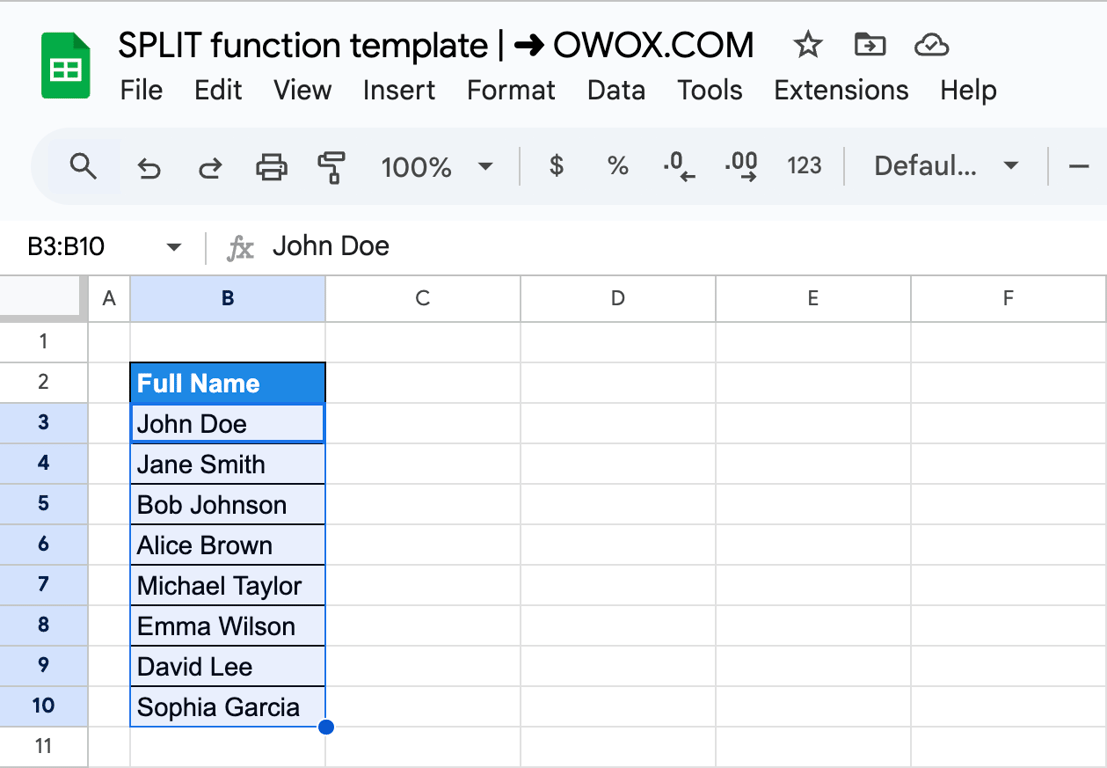
Step 1 – Select the data: Highlight the column or cells containing the text you want to split.
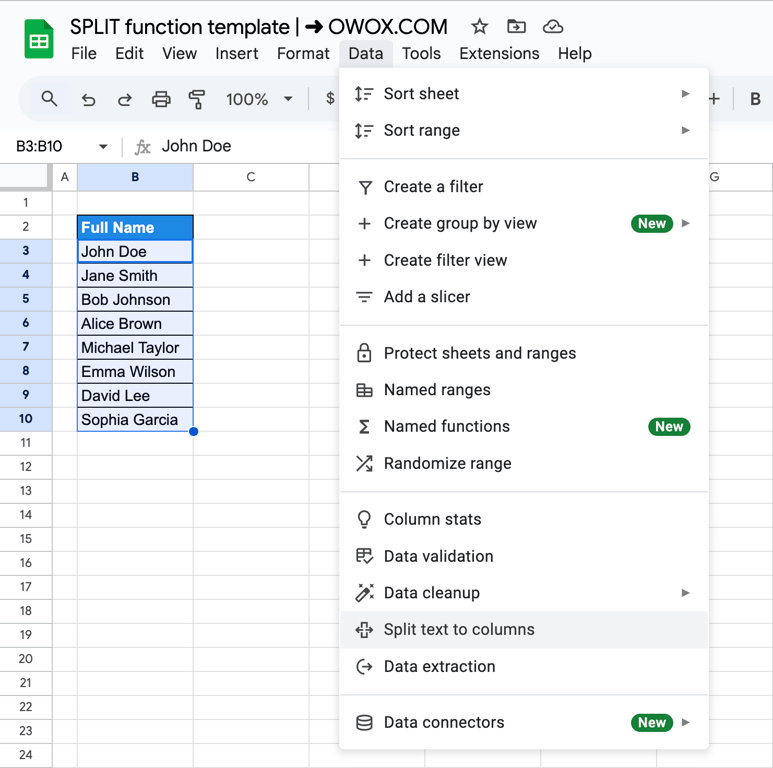
Step 2 – Open the command: Go to the menu bar, click on Data → Split text to columns.
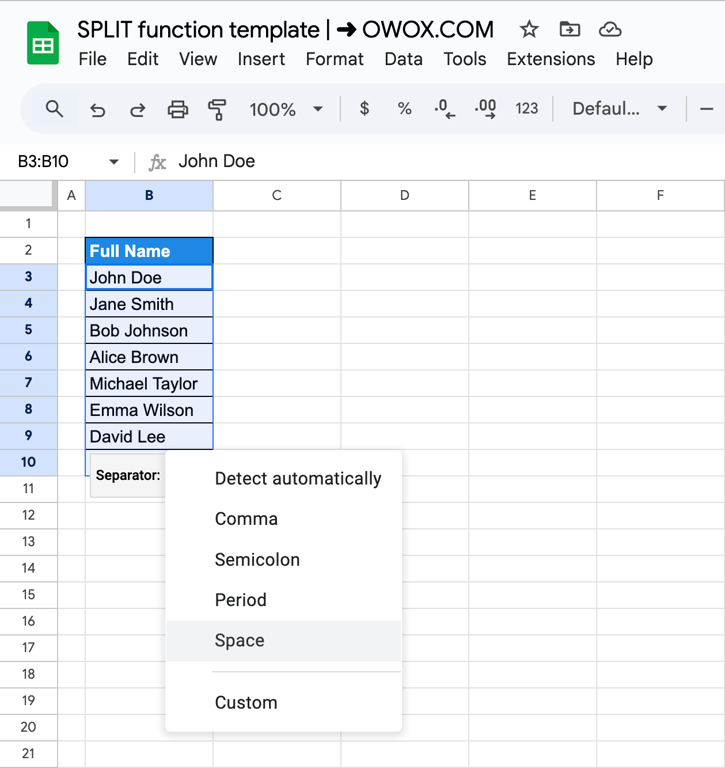
Step 3 – Choose the separator: In the small Separator box that appears under the selection, pick the one that applies to your data: comma, semicolon, period, space, or a custom character. Leave it on Detect automatically if the data is consistent.
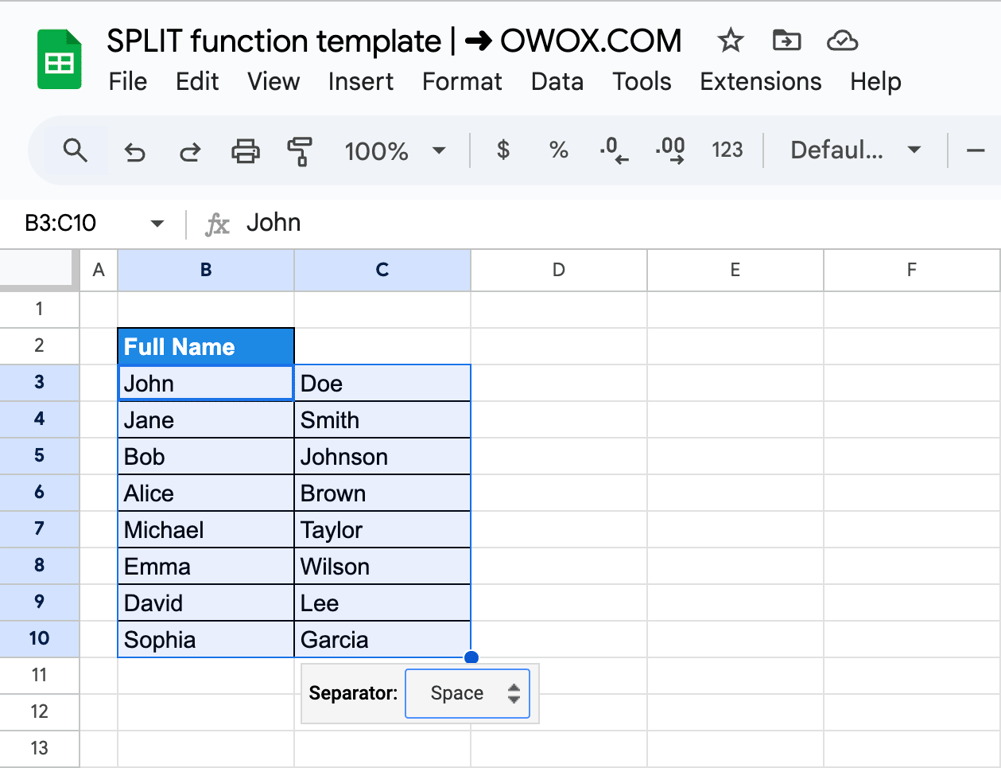
This approach automatically splits the data into adjacent columns, preserving the original formatting while making it easier to work with individual components.
What to know before you use it:
- It is static. The text is cut once. If the source data changes or new rows arrive, you run the command again.
- It overwrites the columns to the right. The pieces are written into the neighbouring cells, so make sure those cells are empty.
- It works on one column at a time. Select cells in a single column; a multi-column selection cannot be split.
Use it for a one-time tidy-up of names, addresses or a pasted CSV. If the sheet is refreshed regularly, use the SPLIT function instead.
OWOX Data Marts
See your first report built in real time. 15 minutes.
- Connect your data warehouse
- Pick your metrics
- Get a live Google Sheets report
In the time it takes to write a ticket. Then imagine never writing that ticket again.
Book a DemoWe'll use your actual use case
The SPLIT function
SPLIT divides the text in a cell at a delimiter and returns each piece in its own cell, to the right of the formula. Because it is a formula, the output follows the source: change the text and the pieces change with it.
Syntax of the SPLIT function
=SPLIT(text, delimiter, [split_by_each], [remove_empty_text])
- text: The text to split, typed in quotes or given as a cell reference.
- delimiter: The character or characters to split at.
- split_by_each (optional, TRUE by default): When TRUE, every character in the delimiter splits on its own, so a delimiter of “, “ splits at each comma and at each space. Set it to FALSE to split only where the whole delimiter appears.
- remove_empty_text (optional, TRUE by default): When TRUE, two delimiters in a row do not produce an empty cell. Set it to FALSE to keep the empty cells, which matters when every row must return the same number of columns.
The third argument is the one that surprises people. =SPLIT("New York, Los Angeles", ", ") returns four cells (New, York, Los, Angeles), because the space is treated as a delimiter too. =SPLIT("New York, Los Angeles", ", ", FALSE) returns the two city names.
Example of the SPLIT function
The basic case is splitting a full name into first and last name:
=SPLIT(B3, " ")
- B3: The cell containing the full name.
- ” “: A space as the delimiter, so the text is cut wherever a space occurs.
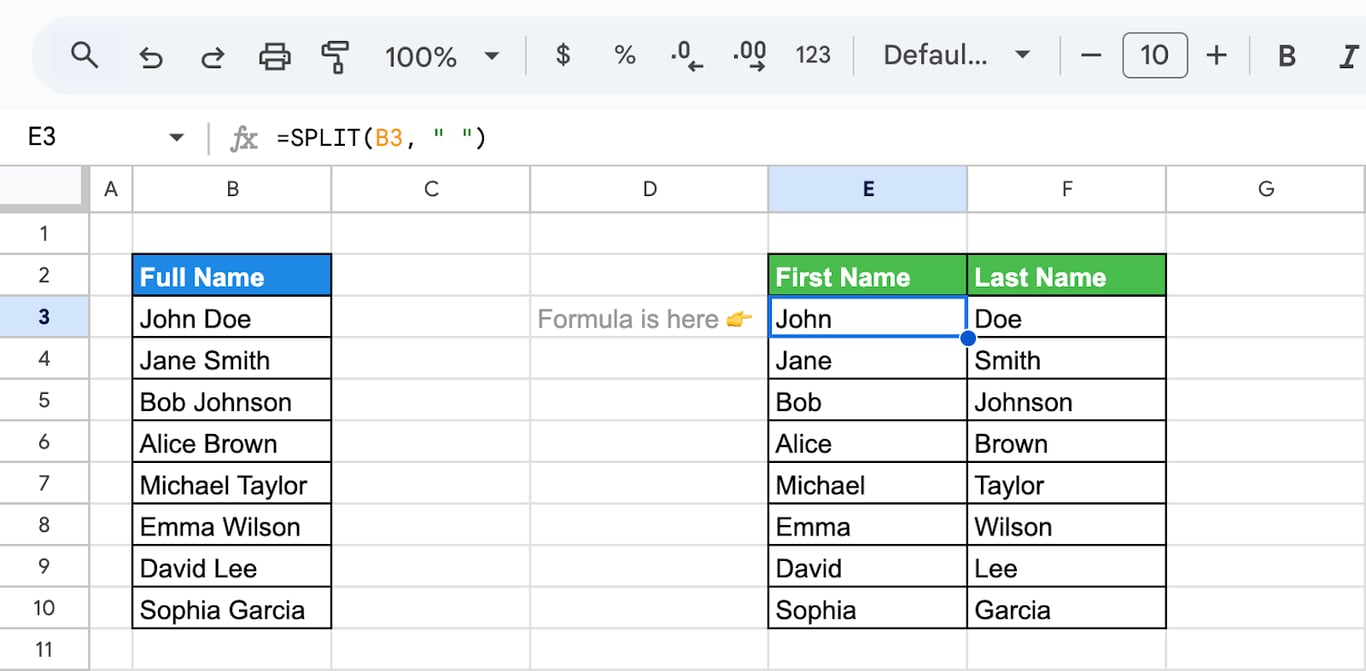
SPLIT puts the first word in the formula cell and the second in the next column. That fits two-part names such as “John Doe”; a middle name produces a third column, so check the longest value before you build on the result.
Use cases of the SPLIT function
Use cases of the SPLIT function
Two delimiters cover most everyday splits: the comma and the space.
Splitting data by comma delimiter
Splitting data by a comma delimiter is one of the most common use cases for the SPLIT function in Google Sheets. It is particularly useful for parsing lists, addresses, or any dataset where values are separated by commas. The SPLIT function identifies the comma as the dividing point and splits the data into separate cells.
The formula will be:
=SPLIT(B3, ",")
Let’s break it down:
- B3: Refers to the cell containing the text to be split.
- “,”: Specifies a comma as the delimiter for splitting the text. Each instance of a comma marks the boundary between separate cells.
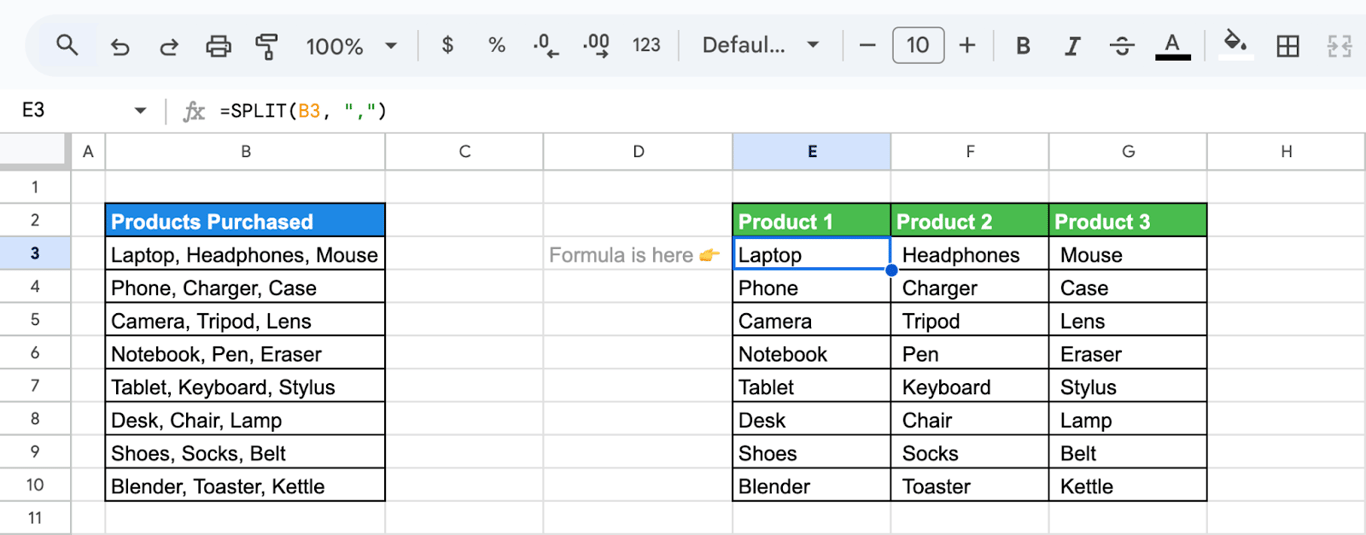
This formula creates a new column for each value between commas, making it easier to work with individual data points. Using the SPLIT function with a comma delimiter makes organizing and analyzing data in Google Sheets more efficient, saving time and effort when dealing with large datasets
Separate date and time values into different columns
In datasets where date and time values are combined into a single cell, separating them into distinct columns can simplify analysis and improve readability.
Using the SPLIT function in Google Sheets, you can easily divide these values based on the space delimiter between the date and time components.
Let’s use the formula:
=SPLIT(B3, " ")
Here’s the breakdown:
- B3: Refers to the cell containing the combined date and time value.
- ” “: Specifies a space as the delimiter, which separates the date and time in most formats.
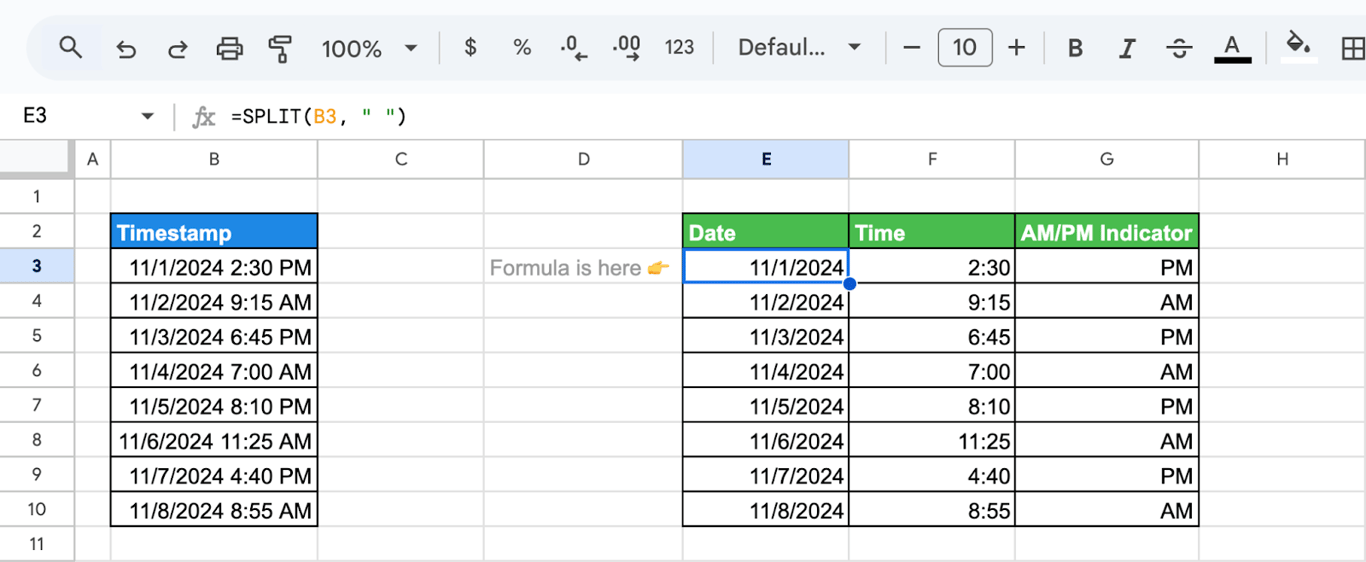
The function places the date in one column and the time in the next, creating clear distinctions for each value. By splitting date and time values into separate columns, you can streamline data processing and create more structured, user-friendly datasets.
Combining SPLIT with other Google Sheets functions
Combining SPLIT with other Google Sheets functions
On its own SPLIT handles one cell. Wrapped in other functions it splits whole columns, returns rows instead of columns, keeps only the pieces you need, or rebuilds the text in a different order.
Split a column with ARRAYFORMULA and SPLIT
The combination of ARRAYFORMULA and SPLIT in Google Sheets allows you to split an entire column of text values into multiple columns dynamically, without dragging the formula down. This method is especially useful when working with large datasets or frequently updated data, as it automates the splitting process.
The formula will be:
=ARRAYFORMULA(SPLIT(B3:B10, ","))
Let’s break it down:
- B3:B10: Refers to the range of cells in the column that contains text values to be split.
- “,”: Specifies the delimiter, in this case, a comma, used to divide the text into parts.
- ARRAYFORMULA: Wraps the SPLIT function to apply it across all rows in the selected column simultaneously.
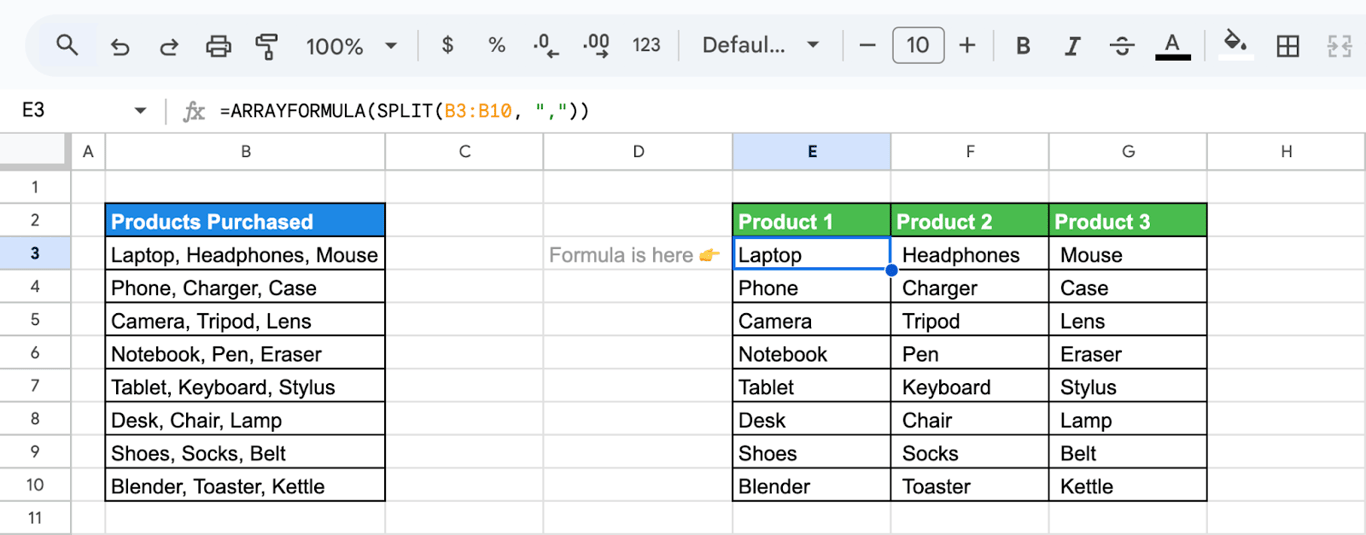
This formula automatically splits all values in the column at once, saving time and eliminating the need for repetitive actions. Using ARRAYFORMULA with SPLIT simplifies workflows, particularly when working with dynamic or growing datasets, making it an essential tool for efficient data management.
Convert split cells into rows using TRANSPOSE function
Using the combination of SPLIT and TRANSPOSE in Google Sheets, you can transform split data from columns into rows. This technique is particularly useful for restructuring data, such as converting names or lists into a vertically aligned format for better readability or processing.
Let’s use the formula:
=TRANSPOSE(SPLIT(B3, " "))
Here’s the breakdown:
- B3: Refers to the cell containing the full name that needs to be split.
- ” “: Specifies the space as the delimiter to separate the first and last names.
- TRANSPOSE: Converts the horizontally split data into vertical rows.
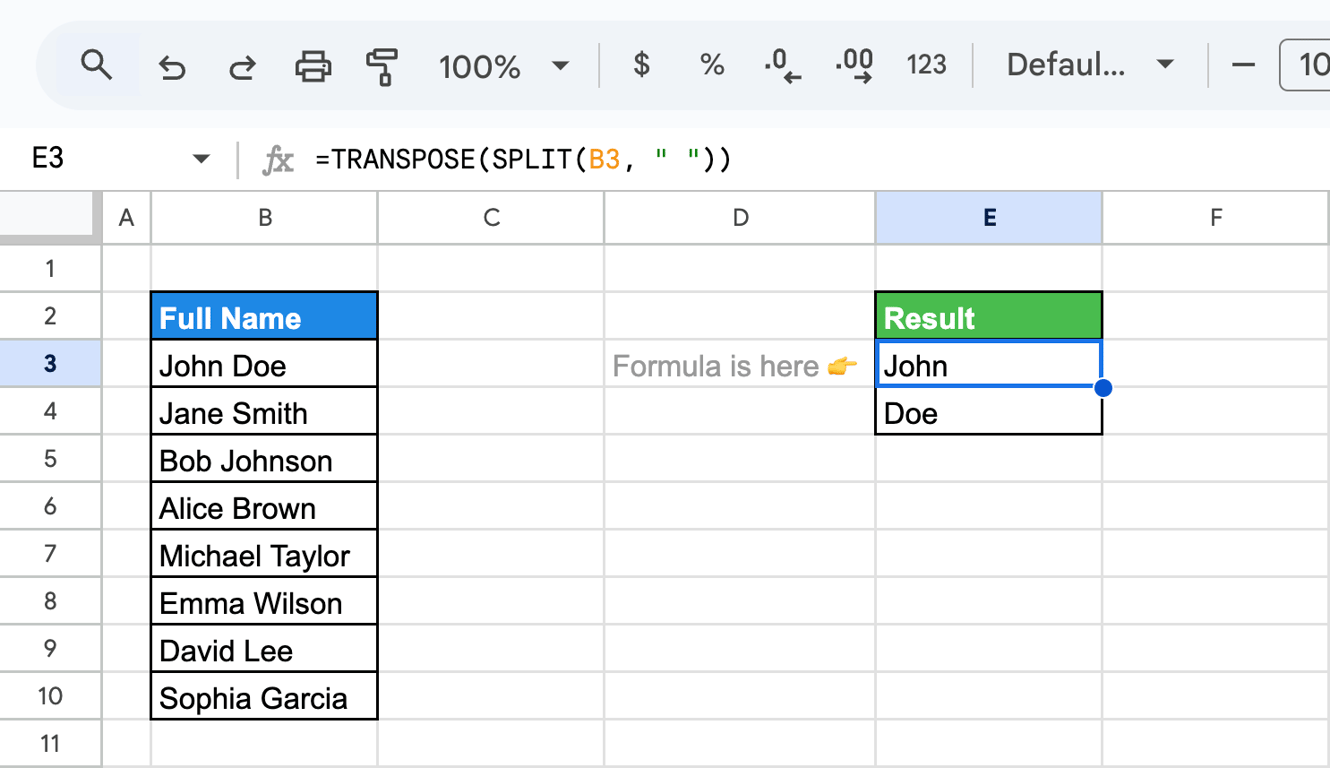
This formula splits the names into individual components (first name and last name) and aligns them vertically, making it easier to view or use in other tasks.
You can also apply the formula to a range of cells using:
=TRANSPOSE(ARRAYFORMULA(SPLIT(B4:B10, " ")))
Here’s the breakdown:
- B4:B10: The range of cells containing text that you want to split into individual words.
- SPLIT(B4:B10, “ “): The function splits the text in each cell of B4:B10 into multiple words using the space (” “) as the delimiter.
- ARRAYFORMULA: Allows the SPLIT function to process the entire range B4:B10 at once, rather than requiring a separate formula for each cell.
- TRANSPOSE: Converts the rows of the resulting array into columns.
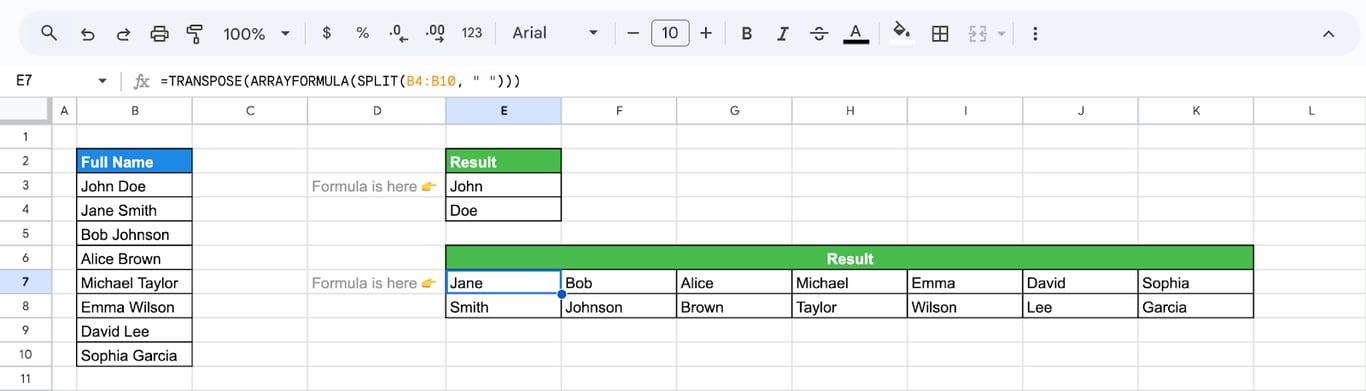
This method makes it easy to structure your data dynamically while maintaining clarity and efficiency.
Split text and remove extra columns with SPLIT and QUERY
The SPLIT and QUERY functions in Google Sheets work together to split text into multiple columns and filter only the ones you need. This is useful when dealing with datasets that contain extra information you want to exclude, making your data cleaner and easier to analyze.
The formula will be:
=QUERY(ARRAYFORMULA(SPLIT(B3:B10, ", ")), "select Col1, Col3", 0)
Let’s break it down:
- SPLIT(B3:B10, “, “): Splits the text in the Products Purchased column by the comma and space delimiter.
- ARRAYFORMULA: Applies the SPLIT function across the range.
- QUERY: Filters the split data to display only specific columns.
- select Col1, Col3: Selects the first and third columns of the split data.
- 0: Indicates that the dataset does not have headers.
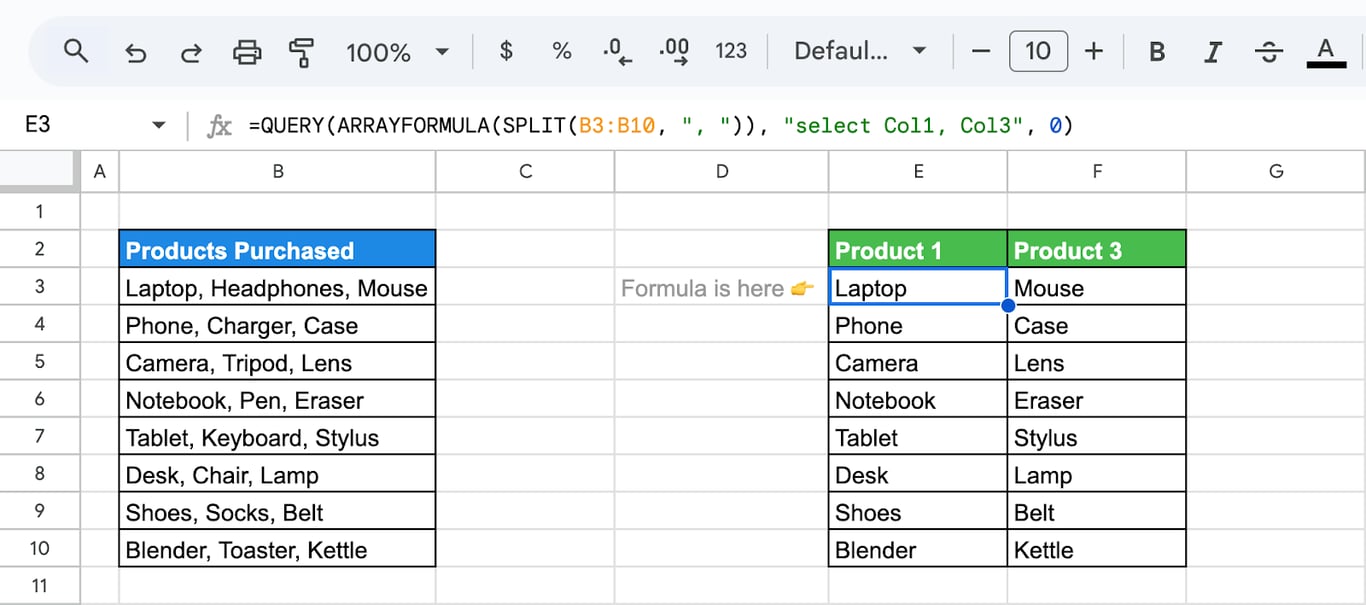
This formula ensures that only the relevant split columns are included in the results, ignoring unnecessary data. Using SPLIT with QUERY allows you to refine large datasets into more usable formats without unnecessary manual effort, making data management faster and more efficient.
Extracting the N-th word with INDEX and SPLIT
When working with text data in Google Sheets, you can extract a specific word (the N-th word) from a sentence or string using the INDEX and SPLIT functions. This approach is highly useful for isolating key details, such as extracting a specific product or location from a list.
Let’s use the formula:
=INDEX(SPLIT(B3, " "), 2)
Here’s the breakdown:
- SPLIT(B3, “ “): Splits the text in cell B3 by spaces, creating an array of individual words.
- INDEX(…, 2): Extracts the second word (or any N-th word) from the split array. Replace 2 with any number to extract the corresponding word.
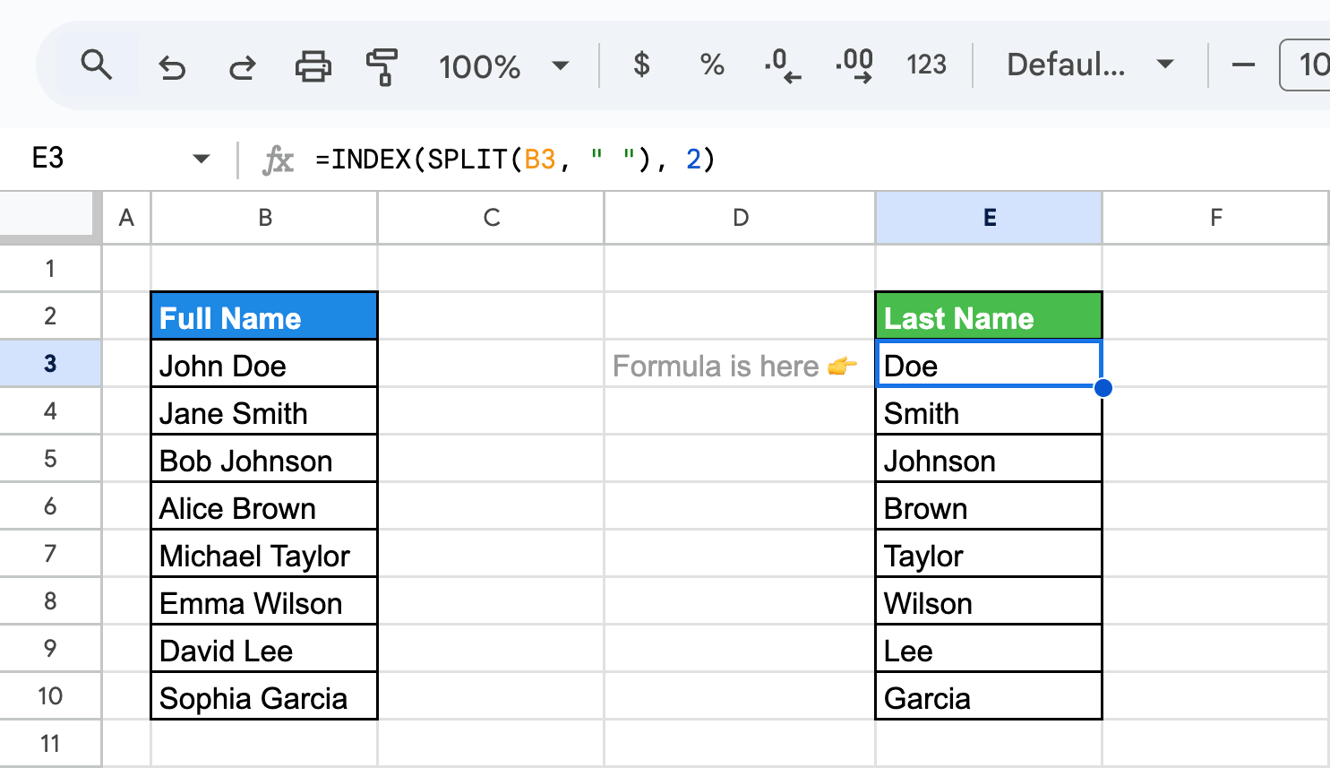
This formula provides a simple and efficient way to isolate a specific part of a text string without manually editing the data. Using INDEX with SPLIT is a flexible way to extract precise data points from text, saving time and effort while working with structured or semi-structured datasets.
💡 INDEX has more uses than picking a word out of a split. See our guide to INDEX and MATCH in Google Sheets for lookups that VLOOKUP cannot do.

Unpivot your data with SPLIT, ARRAYFORMULA and FLATTEN
The combination of SPLIT, ARRAYFORMULA, and FLATTEN functions in Google Sheets enables you to unpivot data, transforming it from a wide, grouped format into a clean vertical format. This technique is especially useful for datasets where multiple columns of related information need to be consolidated into individual rows for further analysis.
The formula will be:
=ARRAYFORMULA(SPLIT(FLATTEN(C2:E2&"🦊"&B3:B10&"🦊"&C3:E10), "🦊"))
Let’s break it down:
- C2:E2: Refers to the headers for the product categories, such as product attributes or types.
- B3:B10: Refers to the identifiers, such as names or unique keys, that will be included in the unpivoted rows.
- C3:E10: Refers to the actual data in the grouped columns that need to be unpivoted.
- &“🦊”: Combines the values from the headers, identifiers, and data with a unique separator (🦊) to ensure accurate splitting.
- FLATTEN: Converts the combined arrays into a single, continuous array.
- SPLIT(…, “🦊”): Splits the flattened array into individual rows and columns, creating a vertical dataset.
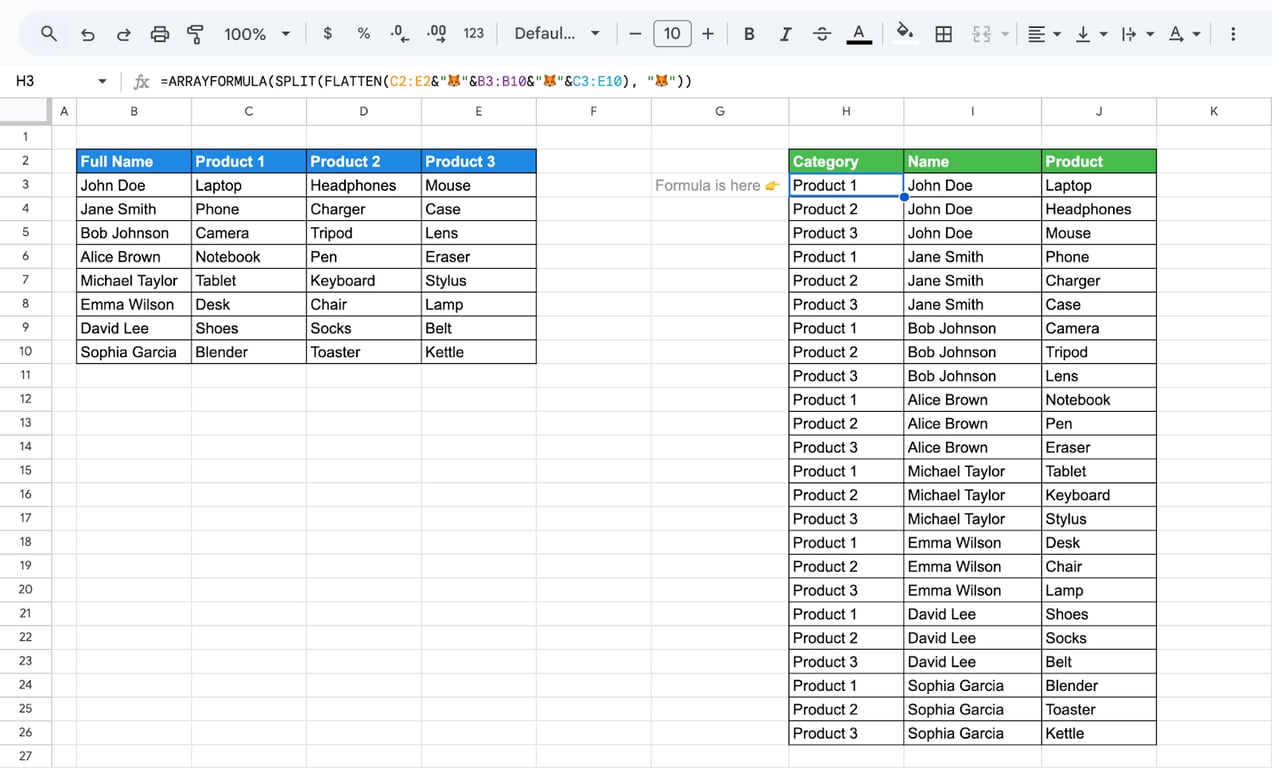
This formula creates a dynamic, unpivoted format while preserving the relationships between data elements. Why this method is useful:
- Data normalization: Transform complex, grouped datasets into a simplified, structured format for analysis.
- Better compatibility: Prepare data for use with pivot tables, BI tools, or database imports.
- Automation: Handle dynamic or frequently updated datasets with ease, reducing manual work.
This method of using SPLIT, ARRAYFORMULA, and FLATTEN ensures an efficient and scalable way to unpivot data, making it more manageable and analysis-ready.
Alphabetize strings using JOIN, SORT, TRANSPOSE and SPLIT
You can alphabetize comma-separated strings in Google Sheets using a combination of SPLIT, SORT, TRANSPOSE, and JOIN functions. This method splits the string into individual components, arranges them in alphabetical order, and combines them back into a single, sorted string. It’s especially useful for organizing product lists, tags, or other grouped text fields.
Let’s use the formula:
=JOIN(", ", SORT(TRANSPOSE(SPLIT(B3, ", "))))
Here’s the breakdown:
- SPLIT(B3, “, “): Splits the text in cell B3 (e.g., products purchased) into separate components based on the comma and space delimiter.
- TRANSPOSE: Converts the horizontally split text into a vertical array, preparing it for sorting.
- SORT: Alphabetically arranges the transposed array.
- JOIN(“, “, …): Combines the sorted text back into a single string, separated by commas and spaces.
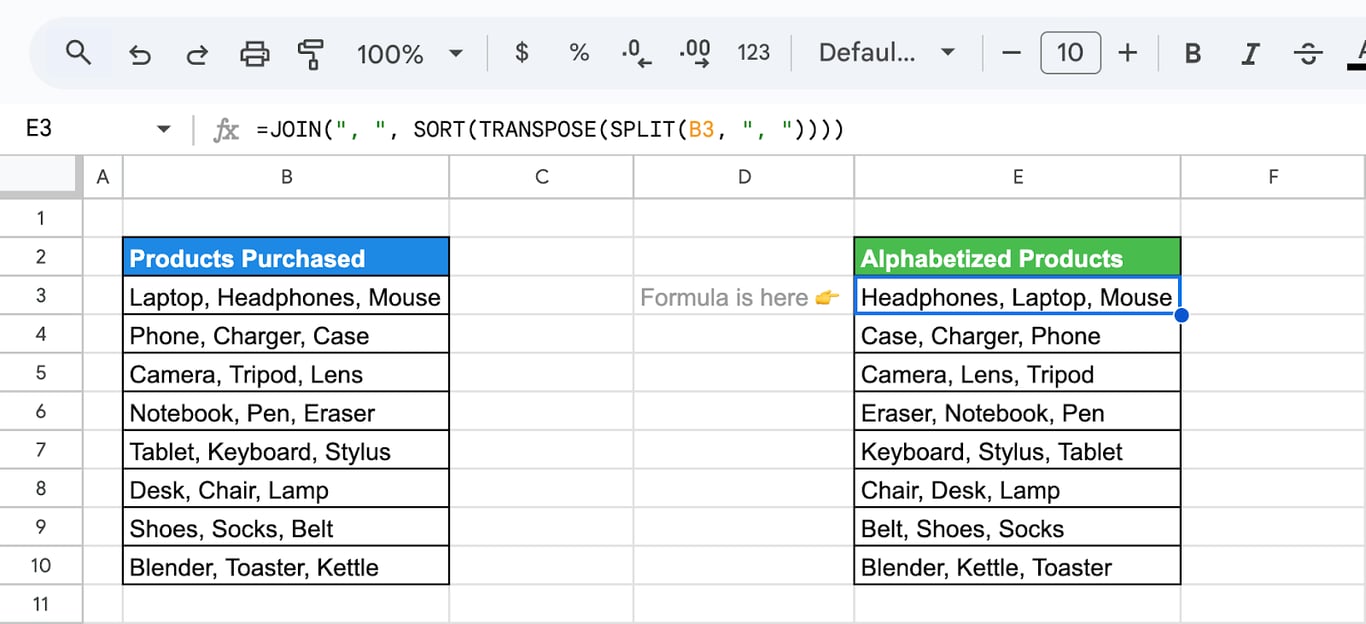
This formula ensures that grouped text data is neatly arranged in alphabetical order. This combination of functions efficiently organizes text strings, making it easier to work with grouped or unsorted data in Google Sheets.
Splitting and combining strings with SPLIT, ARRAYFORMULA, TRIM and JOIN
Using SPLIT, ARRAYFORMULA, TRIM, and JOIN, you can dynamically split text from the Tags column in your dataset, clean extra spaces, and recombine them with an appended phrase or format. This approach is perfect for standardizing or enhancing grouped text fields, such as adding descriptive tags.
The formula will be:
=ARRAYFORMULA(TRIM(JOIN(", ", SPLIT(C3, ", ") & " category")))
Let’s break it down:
- SPLIT(C3, “, “): Splits the text in cell C3 (e.g., tags) into individual components based on the comma and space delimiter.
- & “ category”: Appends the string “ category” to each tag, creating a consistent format.
- TRIM: Removes unnecessary spaces, ensuring clean output.
- ARRAYFORMULA: Applies the process across all split components.
- JOIN(“, “, …): Combines the processed components back into a single string, separated by commas and spaces.
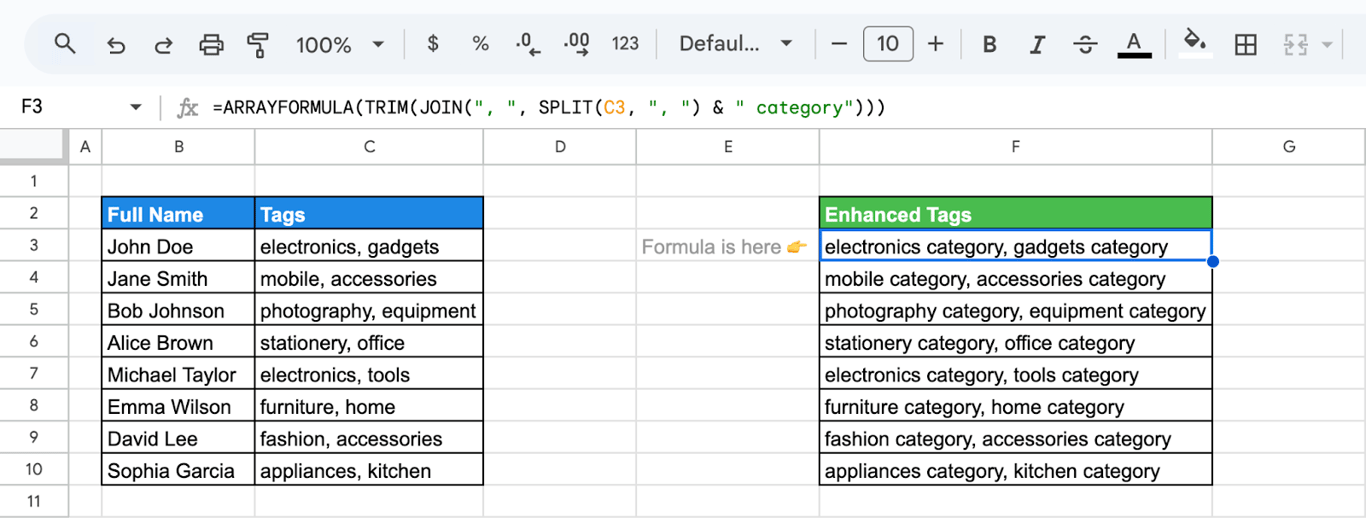
This formula splits, cleans, appends additional details, and recombines the text into a polished format. This approach automates the enhancement and formatting of text fields in your dataset, making it clean, professional, and analysis-ready.
Find unique items using SPLIT, ARRAYFORMULA, QUERY, UNIQUE, TRIM and FLATTEN
Using the combination of SPLIT, ARRAYFORMULA, FLATTEN, TRIM, UNIQUE, and QUERY, you can extract a clean, alphabetized list of unique items from grouped, comma-separated fields in Google Sheets. This method is particularly useful when you want to deduplicate and organize data, such as product lists or tags, from multiple rows.
Let’s use the formula:
=ARRAYFORMULA(QUERY(UNIQUE(TRIM(FLATTEN(SPLIT(C3:C10, ",")))), "where Col1 is not null order by Col1"))
Here’s the breakdown:
- C3:C10: Refers to the Products Purchased column in your dataset containing grouped, comma-separated values.
- SPLIT(C3:C10, “,”): Splits each cell’s contents into individual items based on the comma delimiter.
- FLATTEN: Converts the split results into a single vertical array, combining all rows into one list.
- TRIM: Removes any leading or trailing spaces from each item to ensure clean results.
- UNIQUE: Filters out duplicate items, leaving only distinct values.
- QUERY(…, “where Col1 is not null order by Col1”): Removes blank rows and alphabetizes the unique items.
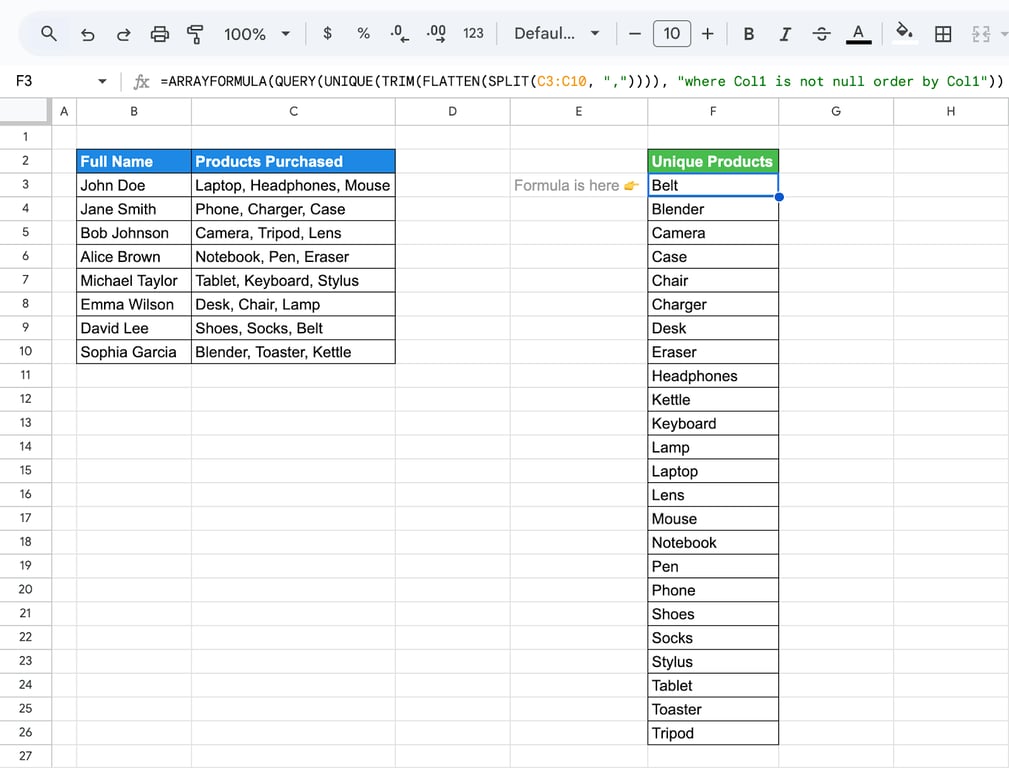
This formula dynamically creates a clean, sorted list of unique items from your grouped data. This formula is ideal for cleaning, organizing, and analyzing large datasets with grouped fields, saving time and improving data clarity.
Common problems with SPLIT and how to fix them
Common problems with SPLIT and how to fix them
Most SPLIT problems come from three causes: the cell does not contain what it appears to contain, the output has nowhere to go, or the delimiter is doing more than you asked.
A date and time will not split
⚠️ Problem: SPLIT returns the value unsplit when the cell holds a date and time (for example 12/31/2024 23:00:00) but is formatted to display only the date. The time is in the value, but not in the text SPLIT sees.
✅ Solution: Format the cells to show both parts with Format → Number → Date time, then split at the space.
Split text to columns does nothing for some cells
⚠️ Problem: The menu command only acts on the cells you selected, and only on one column at a time. Cells outside the selection stay as they were.
✅ Solution: Select the whole range that needs splitting, in a single column, before you choose Data → Split text to columns. For a range that keeps growing, use the SPLIT function with ARRAYFORMULA instead.
#REF! error when using SPLIT
⚠️ Problem: SPLIT returns #REF! when the cells to the right of the formula are not empty. The result needs one cell per piece, and it will not overwrite existing data.
✅ Solution: Clear the cells to the right, or move the formula somewhere with enough empty columns. Hovering over the error shows which cell is in the way.
SPLIT returns more pieces than expected
⚠️ Problem: A delimiter of more than one character, such as “, “, cuts the text at every comma and at every space.
✅ Solution: Add FALSE as the third argument, =SPLIT(B3, ", ", FALSE), so the text is cut only where the full delimiter appears.
Tips for using SPLIT
Delimiters are case-sensitive
SPLIT treats letters in a delimiter as case-sensitive. With “A” as the delimiter it cuts at each uppercase “A” and ignores lowercase “a”. If the case in your data varies, standardize it first with UPPER or LOWER, then split.
Wrap ranges in ARRAYFORMULA
SPLIT works on one cell. Give it a range on its own and it will not split every row. Wrap it in ARRAYFORMULA and one formula covers the whole column, including rows added later:
=ARRAYFORMULA(SPLIT(B3:B, ","))

Keep the pieces you need, not all of them
You rarely need every piece. INDEX(SPLIT(…), n) returns one of them, QUERY keeps selected columns, and TEXTJOIN puts the pieces back together with a different separator. Building these into one formula saves helper columns that someone later deletes by accident.
Related Google Sheets functions
Related Google Sheets functions
Functions that are often used next to SPLIT, each with its own guide:
- IMPORTRANGE: Imports a range of cells from another spreadsheet, so data from several files can be combined in one.
- SEARCH: Locates the position of specific text within a string, useful for identifying patterns or key information in your data.
- COUNTA: Counts non-empty cells in a range, perfect for tracking data entries and monitoring dataset completeness.
- MAX, MIN, MEDIAN: Quickly identify the maximum (MAX), minimum (MIN), or median (MEDIAN) values in a dataset to summarize key metrics.
- ROUND: Rounds numbers to the nearest specified digit, ensuring data is formatted neatly and consistently.
- FILTER: Extracts data that meets specified conditions, allowing for dynamic data analysis based on criteria.
- Wrap text: Keeps long text visible inside a cell by breaking it onto several lines.
- EXACT: Checks whether two text strings match exactly, including case.
- REPLACE: Swaps part of a text string for new text, based on position and length.
The formula fixes the cell, not the source
The formula fixes the cell, not the source
SPLIT tidies text that is already in the sheet. It cannot tell you where that text came from, whether it is today’s export or last month’s, or what was filtered out before someone pasted it in. In most reporting sheets that is the weaker link: the formulas are correct and the data under them is a CSV nobody remembers downloading.
The OWOX Data Marts extension for Google Sheets covers that half. A data analyst publishes a data mart (a table or an SQL query in your data warehouse) and makes it available for reports. In Sheets you open the extension, pick the data mart, tick the columns you want and run it. The rows land in a tab, and SPLIT works on them like on any other range.
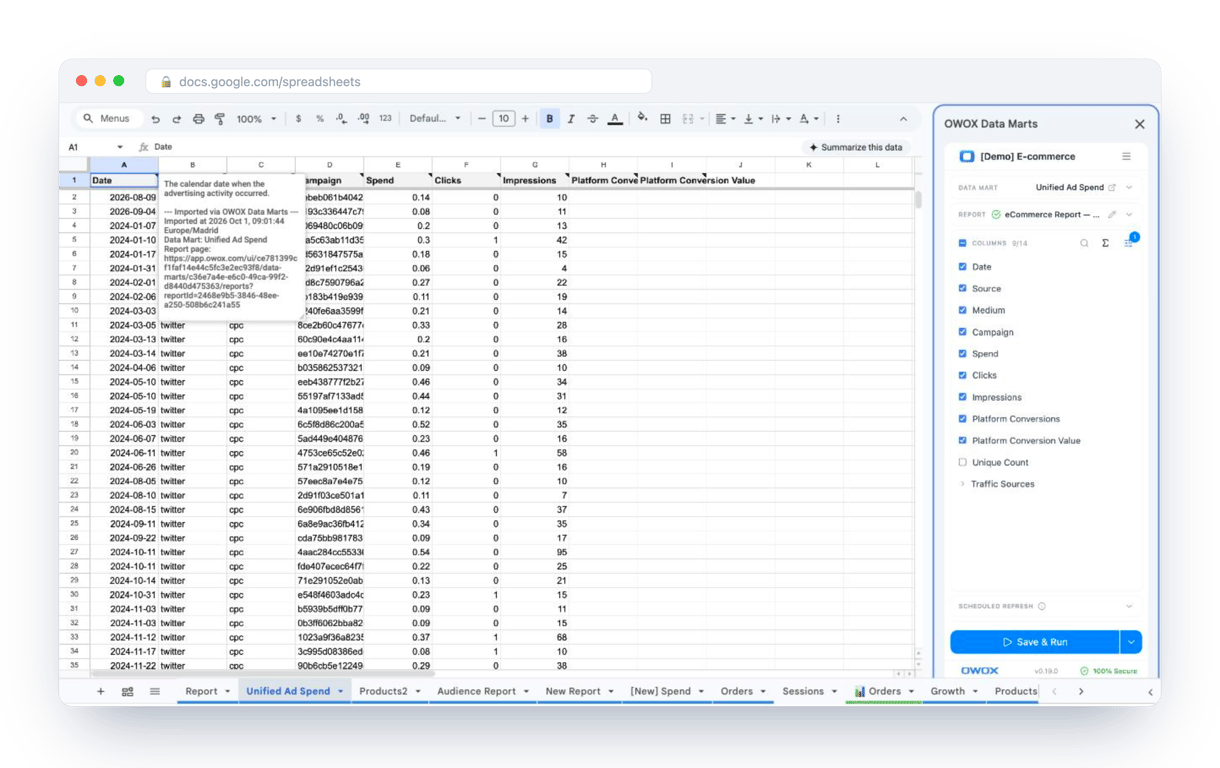
What changes for the person who maintains the sheet:
- Refresh replaces re-export. Refresh current report in the extension menu re-runs the same pull, and a scheduled refresh keeps the tab current without anyone touching it.
- The source is written on the sheet. The header cell of an imported tab carries a note with the data mart it came from, the time of the import and a link to the report.
- No SQL and no warehouse access needed. The analyst decides which data marts and columns are available. You choose from that list.
The extension does not write or change the analyst’s SQL, and it does not replace formulas. A campaign name such as summer_sale|us|video still needs SPLIT to become three columns. You just run it on data you can trace. The extension comes with the OWOX Cloud plans of OWOX Data Marts; spreadsheet reporting describes both ways data reaches a sheet.
Turn your data into decisions.
Governed data marts give you the clean foundation ML needs to actually work.
- No AI hallucinations
- Analyst-governed definitions
- Every number traces to SQL
Frequently Asked Questions
Can the SPLIT function handle blank cells?
Yes, the SPLIT function in Google Sheets can handle blank cells. If the input cell is empty, the function will return an empty cell or cells, depending on the number of delimiters specified. This allows for consistent function behavior even when dealing with incomplete data sets.
How do I handle splitting data with inconsistent delimiters?
To handle splitting data with inconsistent delimiters in Google Sheets, use the SUBSTITUTE function first to standardize the delimiters. Replace various delimiters with a consistent one across your data, then apply the SPLIT function. This ensures accurate and uniform splitting of the text based on the standardized delimiter.
How do I split text into rows instead of columns?
To split text into rows instead of columns in Google Sheets, use the SPLIT function combined with the TRANSPOSE function. First, split the text normally into columns, then apply TRANSPOSE to switch the output from columns to rows. This approach effectively rearranges the data as needed.
Are delimiters in the SPLIT function case-sensitive?
Yes, delimiters in the SPLIT function in Google Sheets are case-sensitive. This means that the function distinguishes between uppercase and lowercase characters when splitting text, so you must specify the exact case of the delimiter to achieve the desired results.
Does the SPLIT function work on numbers?
Yes, the SPLIT function in Google Sheets works on numbers as long as they are treated as text strings. If your numerical data is formatted as text, or if you explicitly convert numbers to text using functions like TEXT, you can use SPLIT to divide these numbers based on specified delimiters.
Can I combine SPLIT with other functions?
Yes, you can combine the SPLIT function with other functions in Google Sheets to enhance data manipulation. For example, integrating SPLIT with functions like TRIM, LOWER, or SUBSTITUTE allows for more complex operations like cleaning up and formatting the split data immediately after separation.
Can I use a cell range as the input for the SPLIT function?
Not on its own. SPLIT takes the text of one cell. To split a whole column with a single formula, wrap it in ARRAYFORMULA, for example =ARRAYFORMULA(SPLIT(B3:B10, ",")). Each row is then split into its own set of columns.
Why do I see a #REF! error when using SPLIT?
The #REF! error occurs when using the SPLIT function in Google Sheets if there isn't enough space in the spreadsheet to display the resulting split data. Ensure there are enough empty cells to the right of your targeted cell to accommodate each piece of split data.
Can I use multiple delimiters with the SPLIT function?
Yes, you can use multiple delimiters with the SPLIT function in Google Sheets. Simply include each delimiter within the quotation marks, separating them without spaces. This allows you to simultaneously split a text string at different points based on multiple criteria.
What is the SPLIT function in Google Sheets?
The SPLIT function in Google Sheets is used to divide text from a single cell into multiple cells based on a specified delimiter. By entering the text string and delimiter into the function, users can efficiently separate and organize data across columns for better analysis and readability.