IMPORTDATA function in Google Sheets: import a CSV or TSV file from a URL
IMPORTDATA loads a CSV or TSV file from a public URL into a Google Sheet and keeps it refreshed. This guide covers the syntax, how to keep only some columns or rows with QUERY, how often the data updates, what the function cannot read, such as files in Google Drive or behind a login, and the errors it returns.
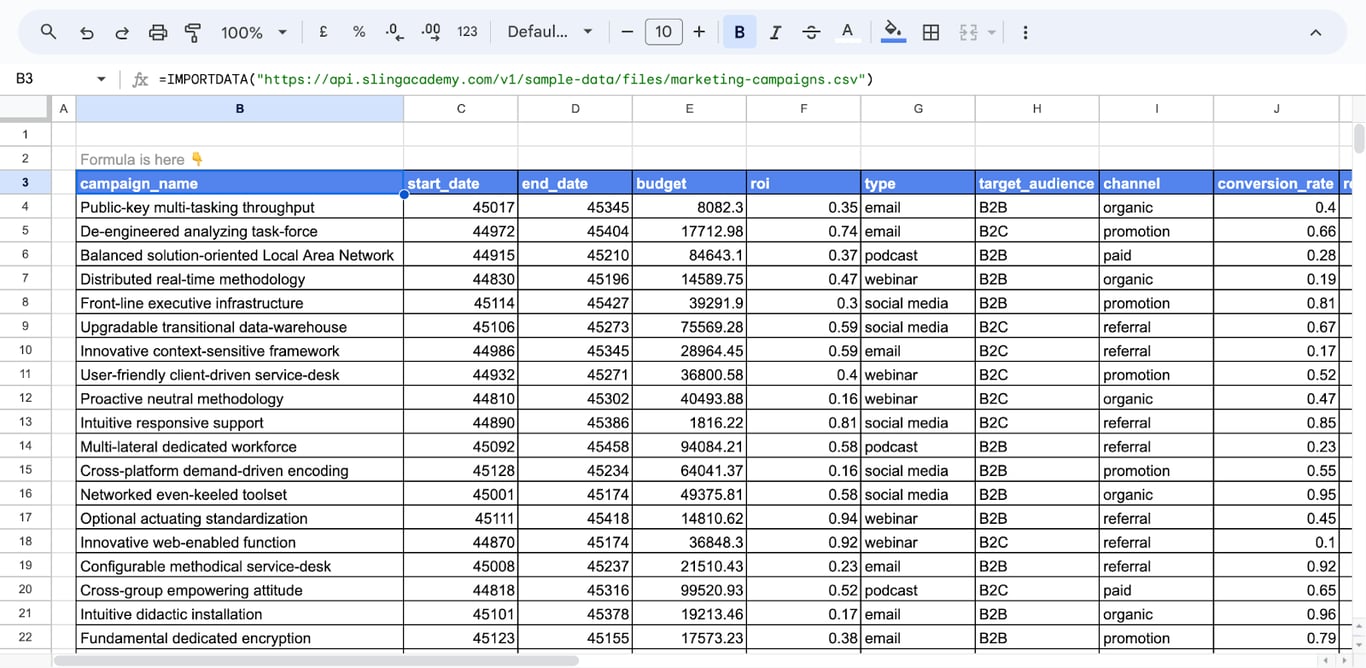
IMPORTDATA loads a CSV or TSV file from a URL into the sheet:
=IMPORTDATA("https://api.slingacademy.com/v1/sample-data/files/marketing-campaigns.csv")
The file is fetched, split into columns and rows, and written from the cell with the formula downwards and to the right.
IMPORTDATA syntax
=IMPORTDATA(url, [delimiter], [locale])
- url: the address of the file, with its protocol (https://). In quotation marks, or a reference to a cell that holds it.
- delimiter: optional. The character that separates the values, for files that use something other than a comma or a tab.
- locale: optional. A language and region code, such as “en_US”, that decides how numbers and dates in the file are read.
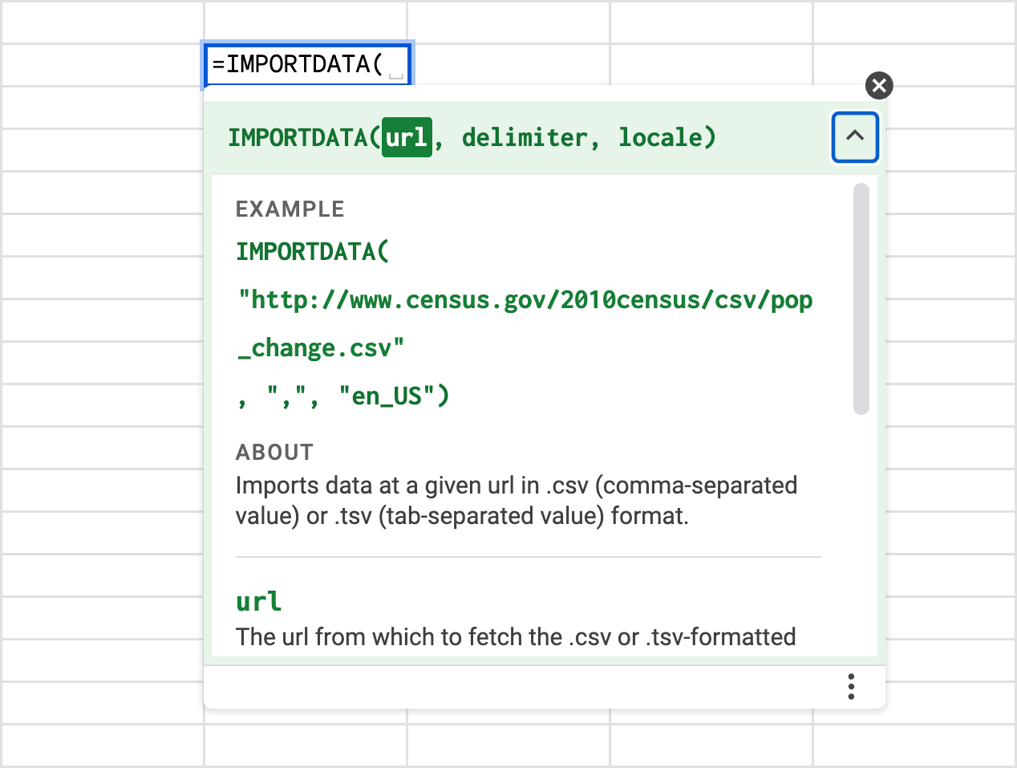
The hint inside Sheets shows the three arguments. Google’s help page for the function documents only the url (checked in October 2026). We tested the other two: with “;” as the delimiter, a comma-separated file of ten columns arrived as one column, and the call with “,” and “en_US” returned all ten. Both arguments work.
With the address in a cell, =IMPORTDATA(A2) makes it easy to switch files.
The first time: allow access
The first time IMPORTXML, IMPORTHTML, IMPORTDATA or IMPORTFEED is used in a file, Sheets shows a warning bar above the grid, “Some formulas are trying to send and receive data from external parties”, and the formula shows #REF! until Allow access is clicked in that bar. We saw exactly this in our test file.
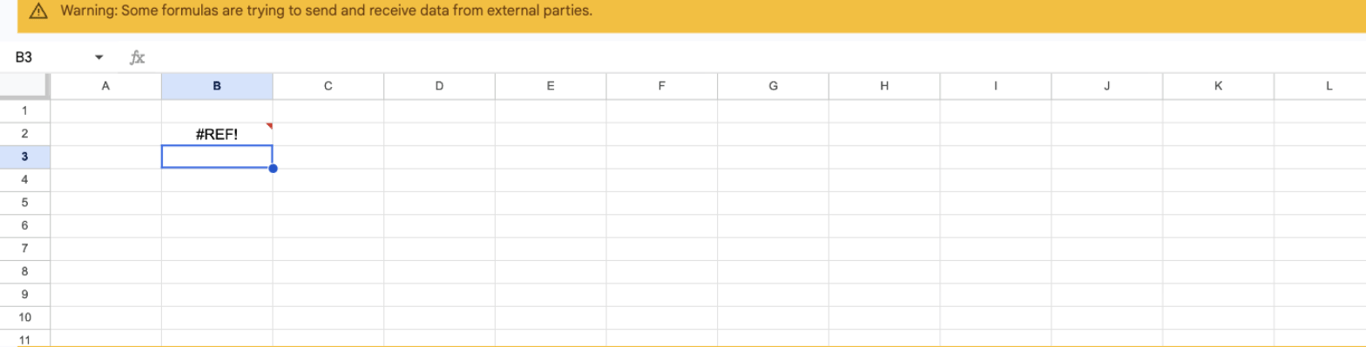
According to Google’s help, the bar appears once per spreadsheet, only an editor of the file can click it, and on a phone it has to be done in a desktop browser.
Keep only some columns or rows
Keep only some columns or rows
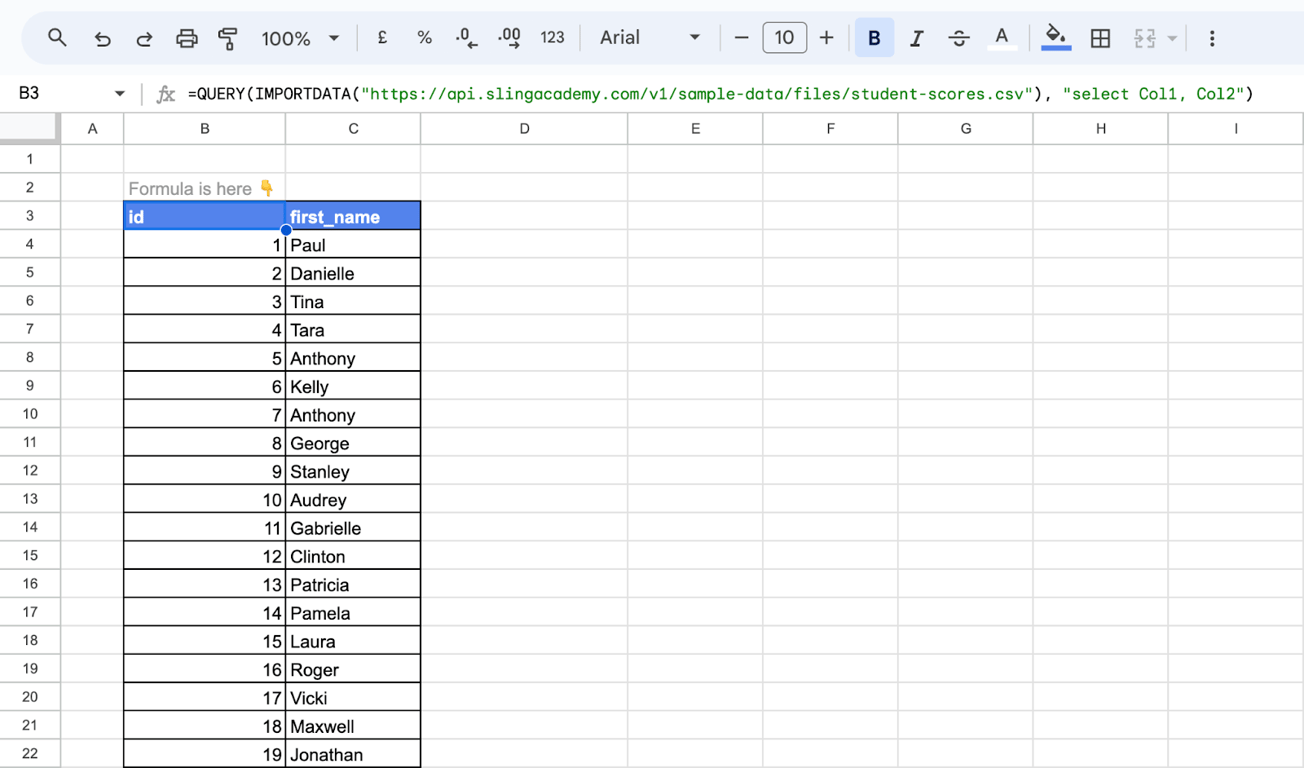
IMPORTDATA returns the whole file. Wrap it in QUERY to keep a part. The result of IMPORTDATA is an array, not a range, so the columns are called Col1, Col2 and so on instead of A, B.
Selected columns
=QUERY(IMPORTDATA("https://api.slingacademy.com/v1/sample-data/files/student-scores.csv"), "select Col1, Col2")
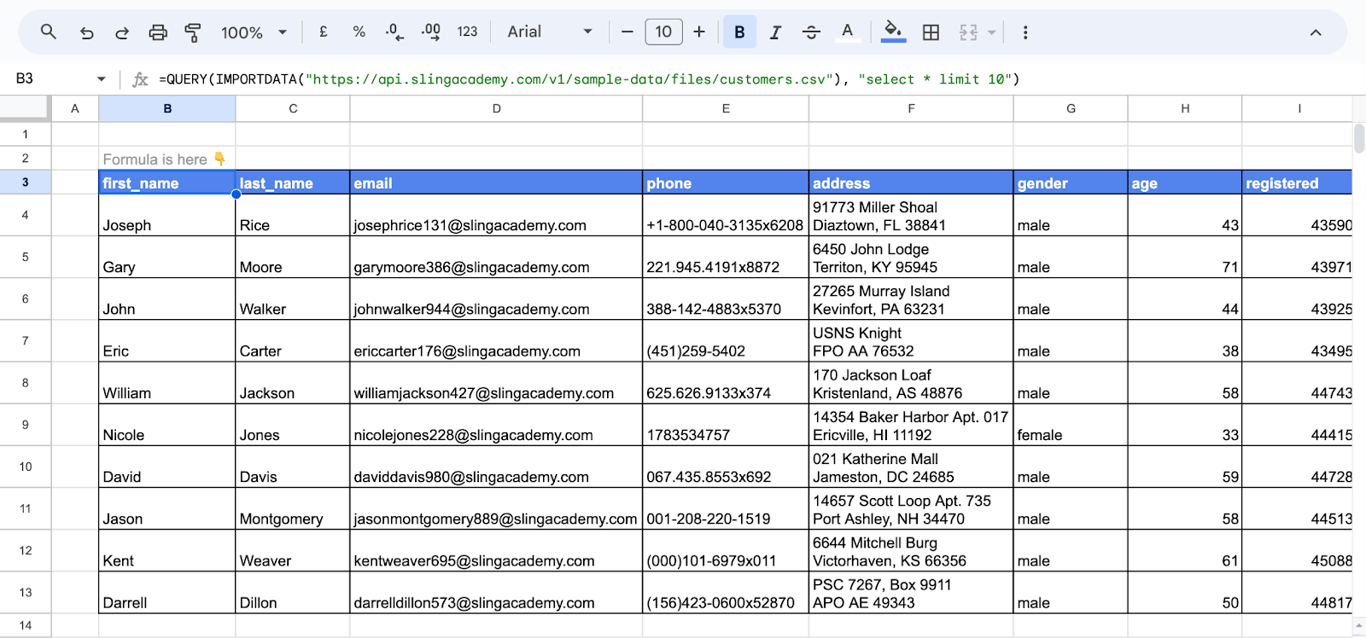
The first rows
=QUERY(IMPORTDATA("https://api.slingacademy.com/v1/sample-data/files/customers.csv"), "select * limit 10")
Rows that meet a condition
With the address of the student scores file in A2:
=QUERY(IMPORTDATA(A2), "select Col1, Col2, Col5 where Col5 = 'female'", 1)
In that file the fifth column is the gender. Text values go in single quotes, numbers without quotes, and the last argument, 1, says that the first row is a header. The other clauses of QUERY, such as order by and group by, work the same way.
One value from the file
INDEX takes a single cell of the imported array by its row and column:
=INDEX(IMPORTDATA(A2), 2, 3)
OWOX Data Marts
See your first report built in real time. 15 minutes.
- Connect your data warehouse
- Pick your metrics
- Get a live Google Sheets report
In the time it takes to write a ticket. Then imagine never writing that ticket again.
Book a DemoWe'll use your actual use case
What arrives in the cells
- Numbers and dates are converted. In the first screenshot of this guide, the start and end dates of the campaigns arrived as serial numbers such as 45017. Select the column and apply Format > Number > Date.
- The result is one block. It belongs to the formula. Typing into any cell of the block makes the formula return #REF!, and the imported cells cannot be edited one by one.
- Formatting is yours. The file carries no fonts or colors; format the cells of the sheet.
To keep a snapshot that no longer changes, copy the block and use Edit > Paste special > Values only in another place.
How often the data refreshes
IMPORTDATA re-reads the file by itself. Google’s help says that IMPORTDATA, IMPORTHTML and IMPORTXML check for updates every hour while the spreadsheet is open. Reloading the page does not trigger a refresh; deleting the formula and entering it again does.
What IMPORTDATA cannot do
- Private files. The request comes from Google’s servers, not from your browser. A URL that needs a login, a cookie or a key sent with the request cannot be read.
- A Google Drive sharing link. A sharing link opens a viewer page, not the file, and the formula returns an error:
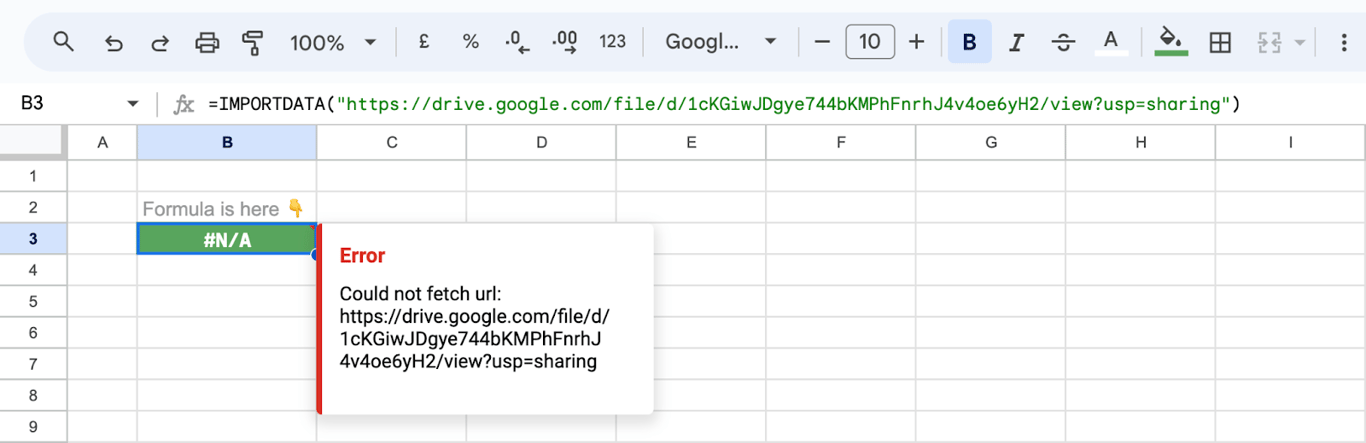
- Other formats. Excel files, JSON and PDFs are not CSV. For a table on a web page use IMPORTHTML, for XML and page elements IMPORTXML.
- Many imports at once. Import requests are throttled per creator of the file; see the errors below.
For data that lives in another Google Sheet, use IMPORTRANGE: it reads the range directly and works with your access rights.
The import functions compared
| Function | Imports |
|---|---|
| IMPORTDATA | A CSV or TSV file from a URL |
| IMPORTRANGE | A range from another Google spreadsheet |
| IMPORTHTML | A table or a list from a web page |
| IMPORTXML | Elements of a page or XML file, chosen by XPath |
| IMPORTFEED | An RSS or Atom feed |
Errors in IMPORTDATA
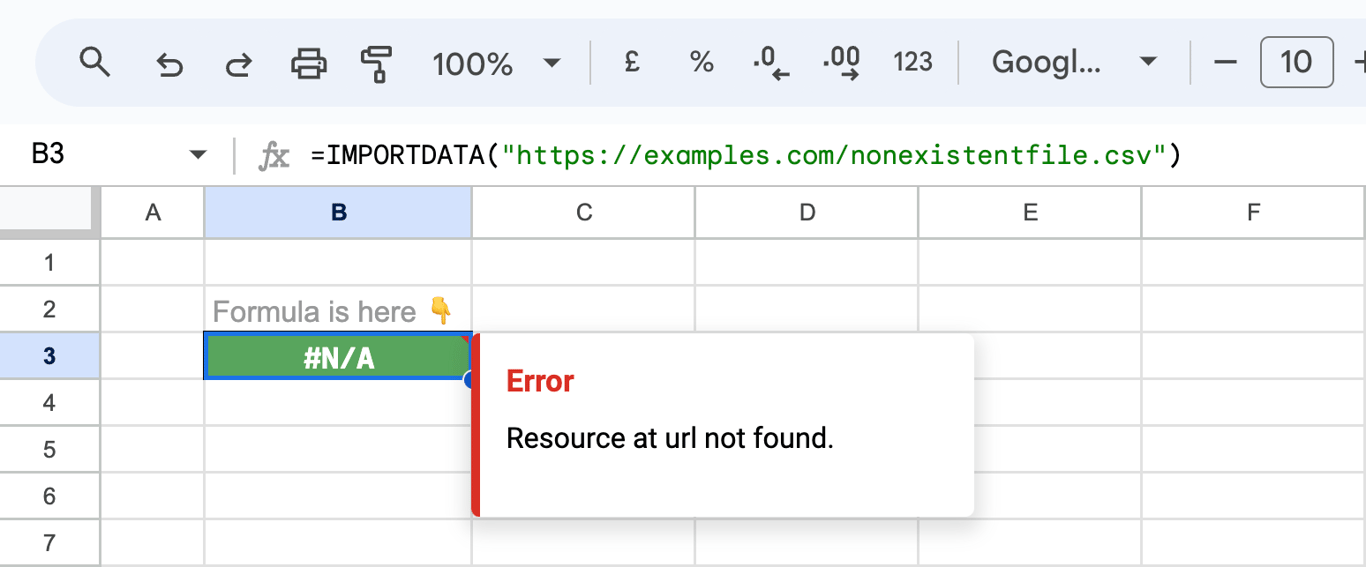
⚠️ Error: #N/A with “Resource at url not found”.
✅ Solution: The address is wrong or the file was moved. Open the URL in a browser: it should download or display the raw file.
⚠️ Error: #N/A with “Could not fetch url”.
✅ Solution: The request did not get through: the address lacks its protocol, the file is private, or the site blocks automated requests.
⚠️ Error: #REF! with “Array result was not expanded”.
✅ Solution: The cells the result needs are not empty. Clear the area below and to the right of the formula.
⚠️ Error: An error right after entering the formula, with a warning bar above the sheet.
✅ Solution: The file has not been allowed to fetch external data yet. Allow access in the warning bar.
⚠️ Problem: Everything arrives in one column.
✅ Solution: The file uses another separator, often a semicolon. Give it as the second argument, =IMPORTDATA(A2, ";"), or split the column with SPLIT.
⚠️ Problem: Numbers arrive as text, or decimals are wrong.
✅ Solution: The file uses another number format than the spreadsheet, for example a decimal comma. Set the locale in the third argument, or change the locale of the spreadsheet under File > Settings.
⚠️ Error: “Loading…” with the note “Loading data may take a while because of the large number of requests”.
✅ Solution: Too many import requests. Google counts them per creator of the file, across all the files that person has open, so the fix is fewer import formulas, not a faster connection. Replace finished results with values.
⚠️ Error: #ERROR! with “This function is not allowed to reference a cell with NOW(), RAND(), RANDARRAY(), or RANDBETWEEN()”.
✅ Solution: An import function cannot depend on a volatile function, directly or through another cell, which rules out the trick of adding NOW() to the address to force a refresh. TODAY is the one exception.
Related guides
- IMPORTRANGE: Data from another spreadsheet.
- IMPORTHTML: Tables and lists from web pages.
- IMPORTXML: Page elements by XPath.
- IMPORTFEED: RSS and Atom feeds.
- QUERY: Filter, sort and group what was imported.
- QUERY with IMPORTRANGE: The same pattern for spreadsheets.
A CSV link is a fragile source for a report
A CSV link is a fragile source for a report
IMPORTDATA works as long as someone keeps a public file at the same address in the same layout. Business data rarely lives in public files: it is in ad platforms, a CRM and a warehouse, behind a login, and exports of it get stale the day they are made. A moved file turns the import into #N/A, and a column added or reordered in the file shifts Col1 and Col2 under your formulas without any error.
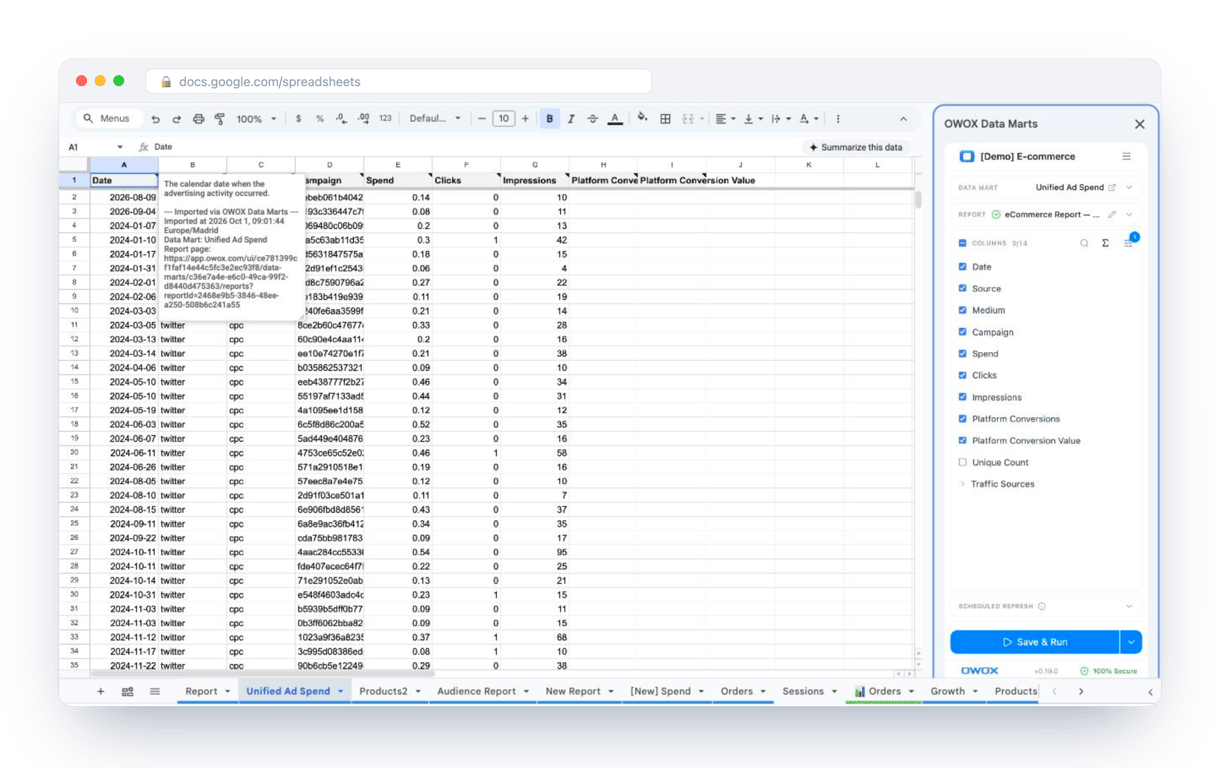
The OWOX Data Marts extension for Google Sheets covers that half. A data analyst publishes a data mart (a table or an SQL query in your data warehouse) and makes it available for reports. In Sheets you open the extension, pick the data mart, tick the columns you want and run it. The rows land in a tab, ready for your formulas.
What changes for the person who maintains the sheet:
- Refresh replaces re-export. Refresh current report in the extension menu re-runs the same pull, and a scheduled refresh keeps the tab current without anyone touching it.
- The source is written on the sheet. The header cell of an imported tab carries a note with the data mart it came from, the time of the import and a link to the report.
- No SQL and no warehouse access needed. The analyst decides which data marts and columns are available. You choose from that list.
The extension does not write or change the analyst’s SQL. IMPORTDATA stays the right tool for what it was made for: a public file that someone else publishes. The extension comes with the OWOX Cloud plans of OWOX Data Marts; spreadsheet reporting describes both ways data reaches a sheet.
Turn your data into decisions.
Governed data marts give you the clean foundation ML needs to actually work.
- No AI hallucinations
- Analyst-governed definitions
- Every number traces to SQL
Frequently Asked Questions
What is the formula for IMPORTDATA?
The formula is =IMPORTDATA(url), where url is the address of a CSV or TSV file in quotation marks or a reference to a cell that holds it. The function hint in Sheets also shows two optional arguments, a delimiter and a locale.
What is the limit of IMPORTDATA in Google Sheets?
Google's help page for IMPORTDATA does not state a fixed number of formulas per spreadsheet. The practical limits are these: the URL has to be public, the file has to be CSV or TSV, a very large file loads slowly or fails, and the data refreshes about once an hour.
How does IMPORTDATA work in Google Sheets?
IMPORTDATA function in Google Sheets grabs data from a specified web URL, importing it directly into your spreadsheet. It's ideal for CSV or TSV file formats, allowing you to easily include external data in your analysis without manual data entry.
What is the difference between IMPORTRANGE and IMPORTDATA in Google Sheets?
IMPORTRANGE allows you to bring data from one Google Sheet into another, while IMPORTDATA is used to import data from a web URL, typically in CSV or TSV format. IMPORTRANGE is for sheet-to-sheet data transfer, and IMPORTDATA fetches data from the web.