JOIN and TEXTJOIN in Google Sheets: join a range into one cell
JOIN and TEXTJOIN merge the values of a range into one text, with a separator between them. TEXTJOIN can skip empty cells and accepts ranges of any shape; JOIN takes single rows or columns only. This guide shows both, with lists built by FILTER, UNIQUE and SORT, line breaks as a separator, and joining row by row.

JOIN and TEXTJOIN merge the values of a range into one text, with a separator of your choice between them:
=JOIN(", ", B3:B10)
=TEXTJOIN(", ", TRUE, B3:B10)
Both return a list such as “Apple, Samsung, Dell”. TEXTJOIN has one more argument, which decides what happens to empty cells, and accepts ranges of any shape.
| JOIN | TEXTJOIN | |
|---|---|---|
| Syntax | JOIN(delimiter, value_or_array1, ...) |
TEXTJOIN(delimiter, ignore_empty, text1, ...) |
| Empty cells | Always included, so separators double up | Skipped when ignore_empty is TRUE |
| A range of several rows and columns | #VALUE! | Joined row by row |
| Several ranges in one formula | Yes | Yes |
In practice TEXTJOIN with TRUE covers everything JOIN does, and it is the one to learn. JOIN remains a shorter spelling for a clean row or column.
JOIN
=JOIN(delimiter, value_or_array1, [value_or_array2, ...])
- delimiter: the text to put between the values. It can be empty,
"". - value_or_array: values, or ranges of a single row or a single column.
=JOIN("/", B3:E3)
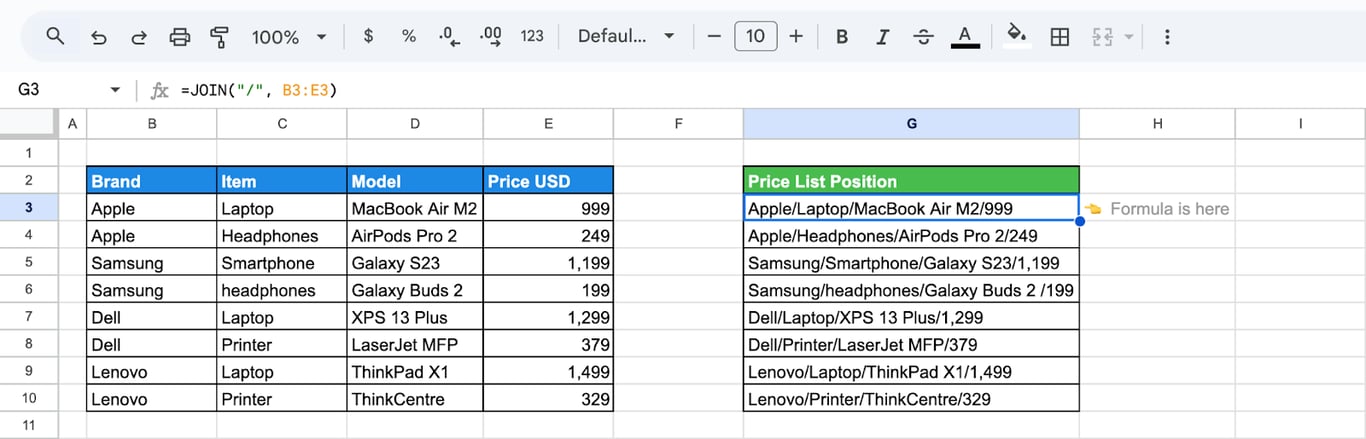
Numbers and dates are joined the way the cells display them, with their thousands separator or date format:
=JOIN("/", E3:F3)
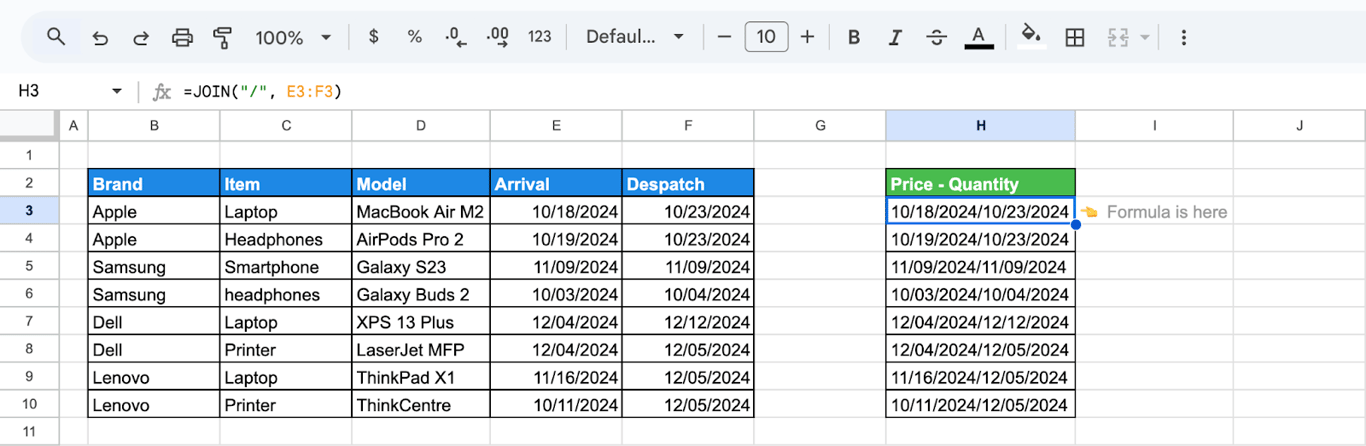
That is a difference from the ampersand: =E3 & "/" & F3 on the same cells returns the underlying serial numbers, such as 45583/45588. More on the ampersand in the guide to CONCATENATE.
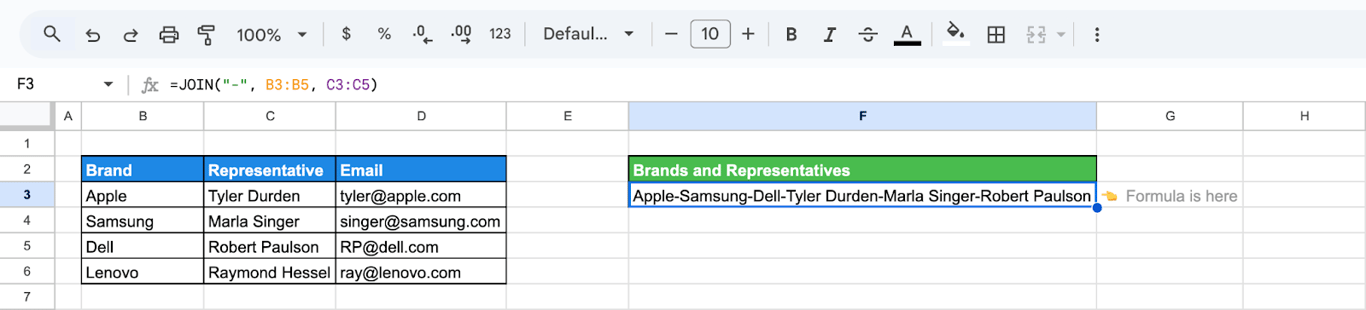
JOIN accepts several ranges, joined one after another:
=JOIN("-", B3:B5, C3:C5)
TEXTJOIN
=TEXTJOIN(delimiter, ignore_empty, text1, [text2, ...])
- delimiter: the text between the values.
- ignore_empty: TRUE to skip empty cells, FALSE to keep them.
- text1, text2, …: values or ranges, of any shape.
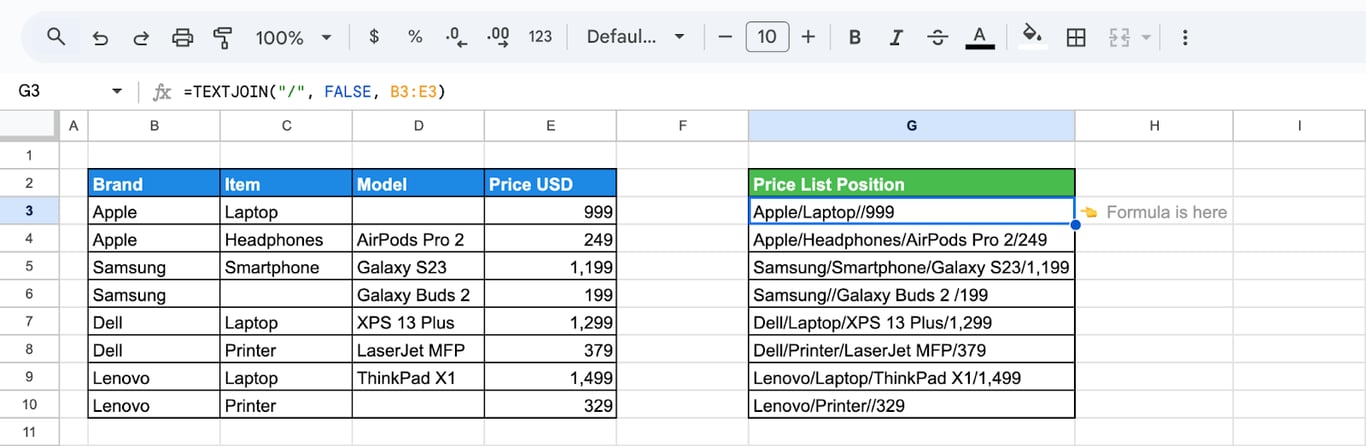
With FALSE, an empty cell leaves two separators in a row:
=TEXTJOIN("/", FALSE, B3:E3)
With TRUE, the gap disappears:
=TEXTJOIN("/", TRUE, C3, B3, D3, E3)
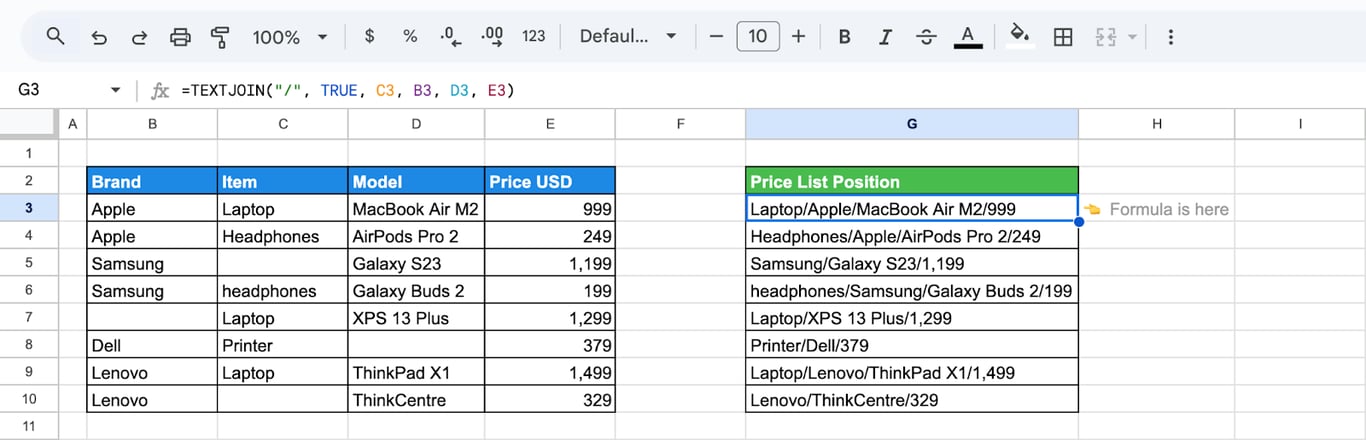
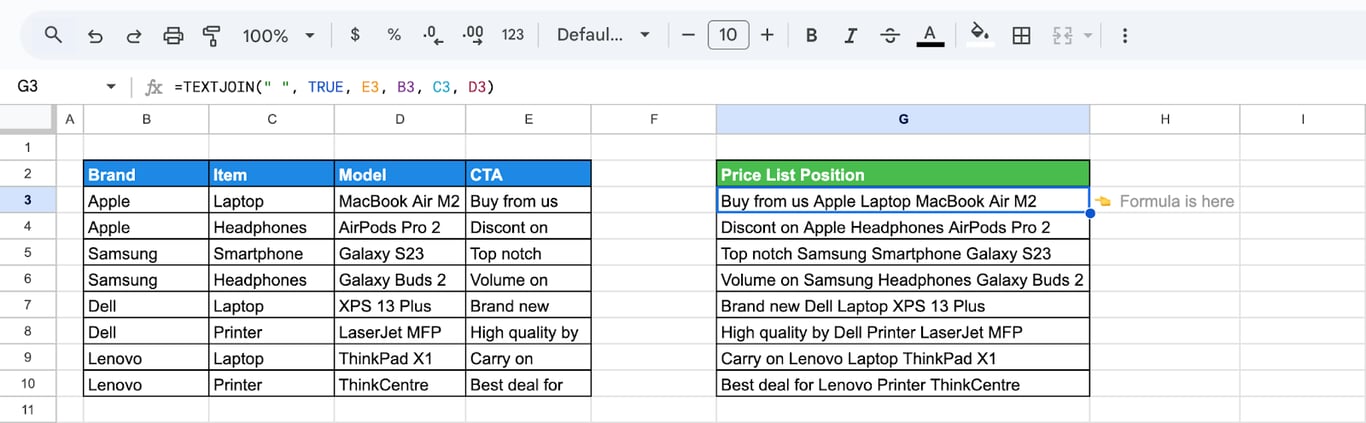
The arguments can be single cells in any order, which lets the formula rearrange the columns as it joins them: here the item comes before the brand.
=TEXTJOIN(" ", TRUE, E3, B3, C3, D3)
OWOX Data Marts
See your first report built in real time. 15 minutes.
- Connect your data warehouse
- Pick your metrics
- Get a live Google Sheets report
In the time it takes to write a ticket. Then imagine never writing that ticket again.
Book a DemoWe'll use your actual use case
A column into a list
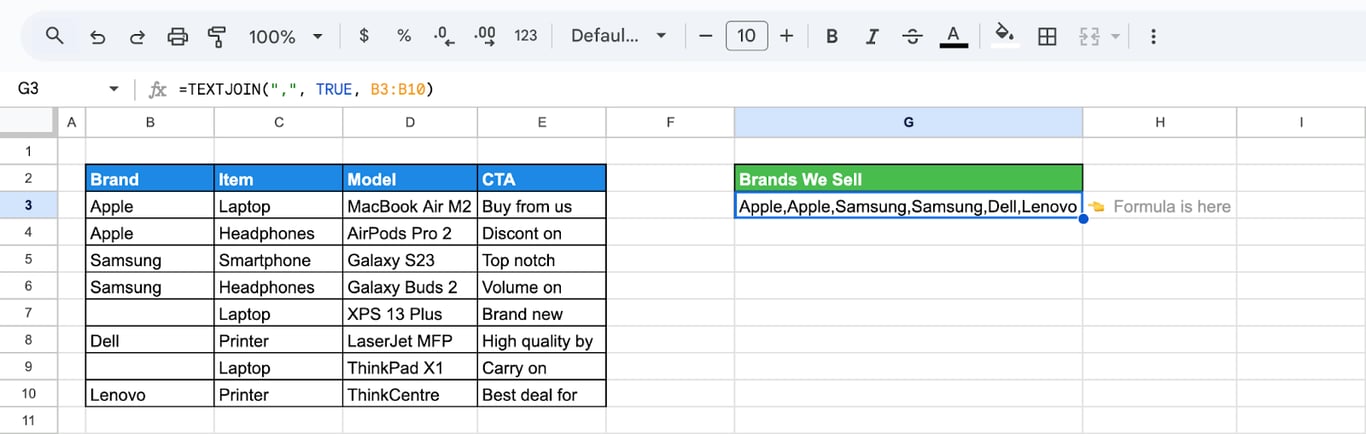
The most common use: a column of values turned into one comma-separated cell, for a filter, an email field or a query.
=TEXTJOIN(",", TRUE, B3:B10)
Without duplicates, sorted
=TEXTJOIN(", ", TRUE, SORT(UNIQUE(B3:B10)))
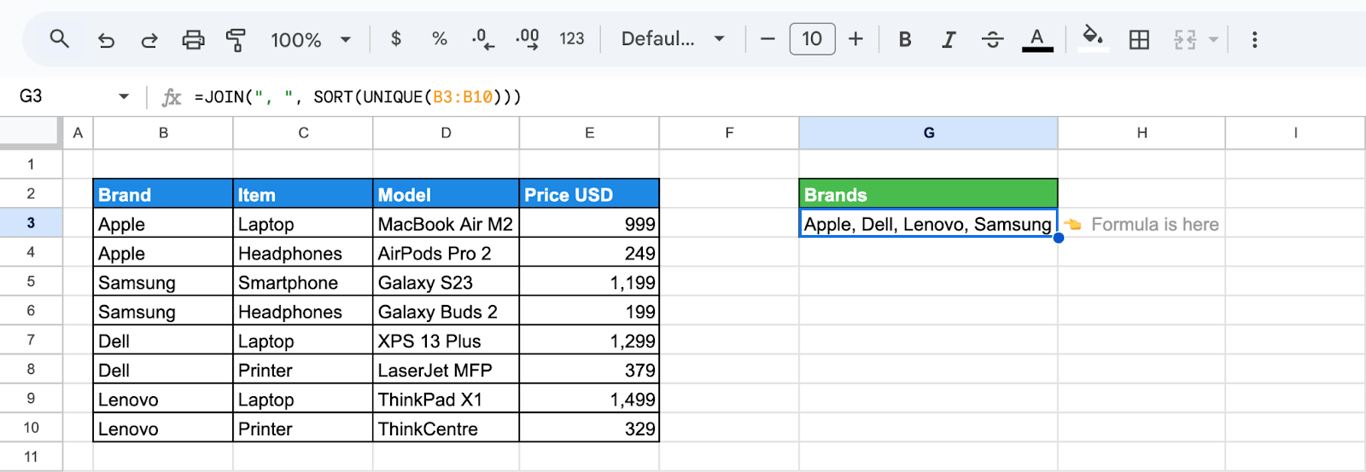
UNIQUE removes the repeats and SORT orders what is left.
Only the rows that meet a condition
=TEXTJOIN(", ", TRUE, FILTER(D3:D10, E3:E10 > 1000))
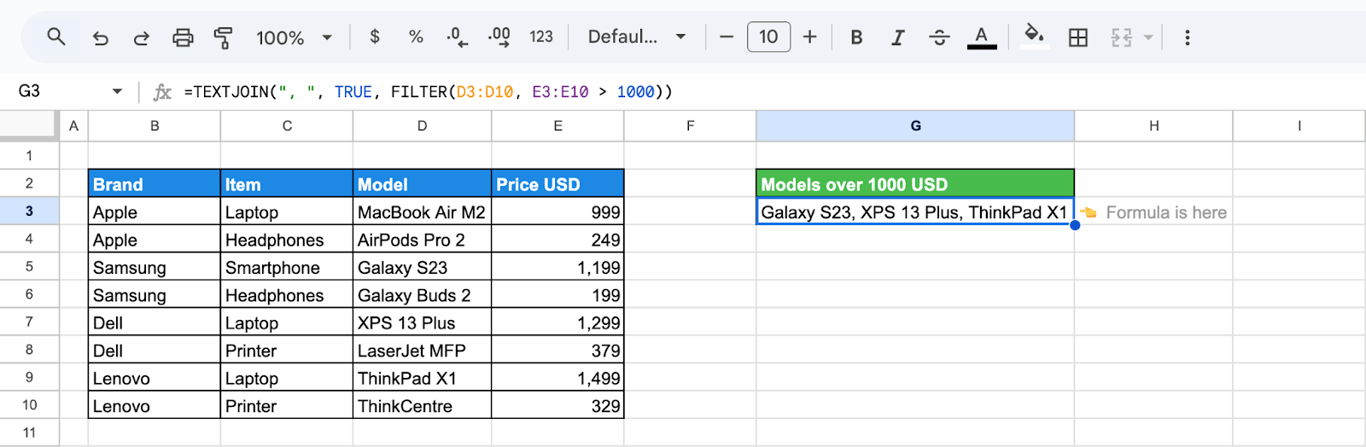
FILTER keeps the models priced above 1000 and TEXTJOIN lists them. When no row matches, FILTER returns #N/A and so does the formula; wrap it in IFNA to show a text: =IFNA(TEXTJOIN(", ", TRUE, FILTER(D3:D10, E3:E10 > 5000)), "none").
Each value with a label
Build the pieces with ampersands inside ARRAYFORMULA, then join them:
=ARRAYFORMULA(JOIN("; ", C3:C4 & " <" & D3:D4 & ">"))
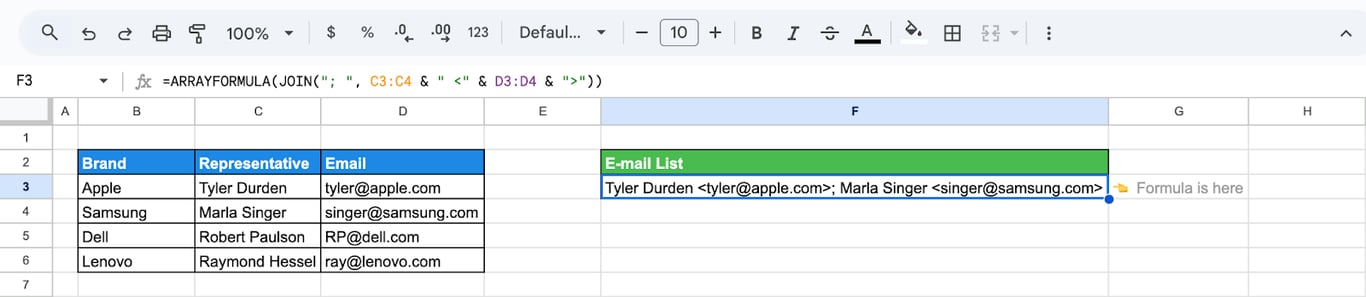
The result can be pasted into the “To” field of an email. If some rows are incomplete, JOIN keeps the empty shells:
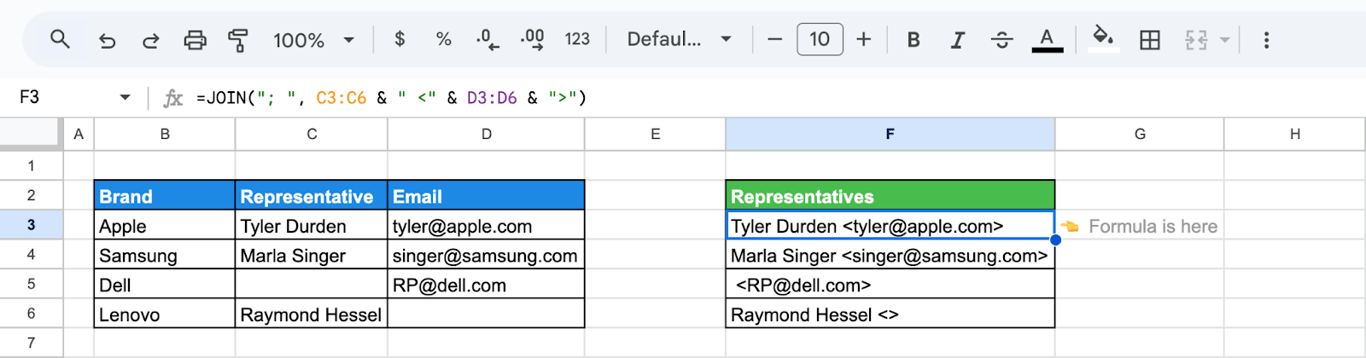
Filter the incomplete rows out before joining: FILTER(C3:C6 & " <" & D3:D6 & ">", C3:C6 <> "", D3:D6 <> "").
A line break as the separator
CHAR(10) is a line break, so the joined values appear one under another inside the cell:
=TEXTJOIN(CHAR(10), TRUE, C3:D3)
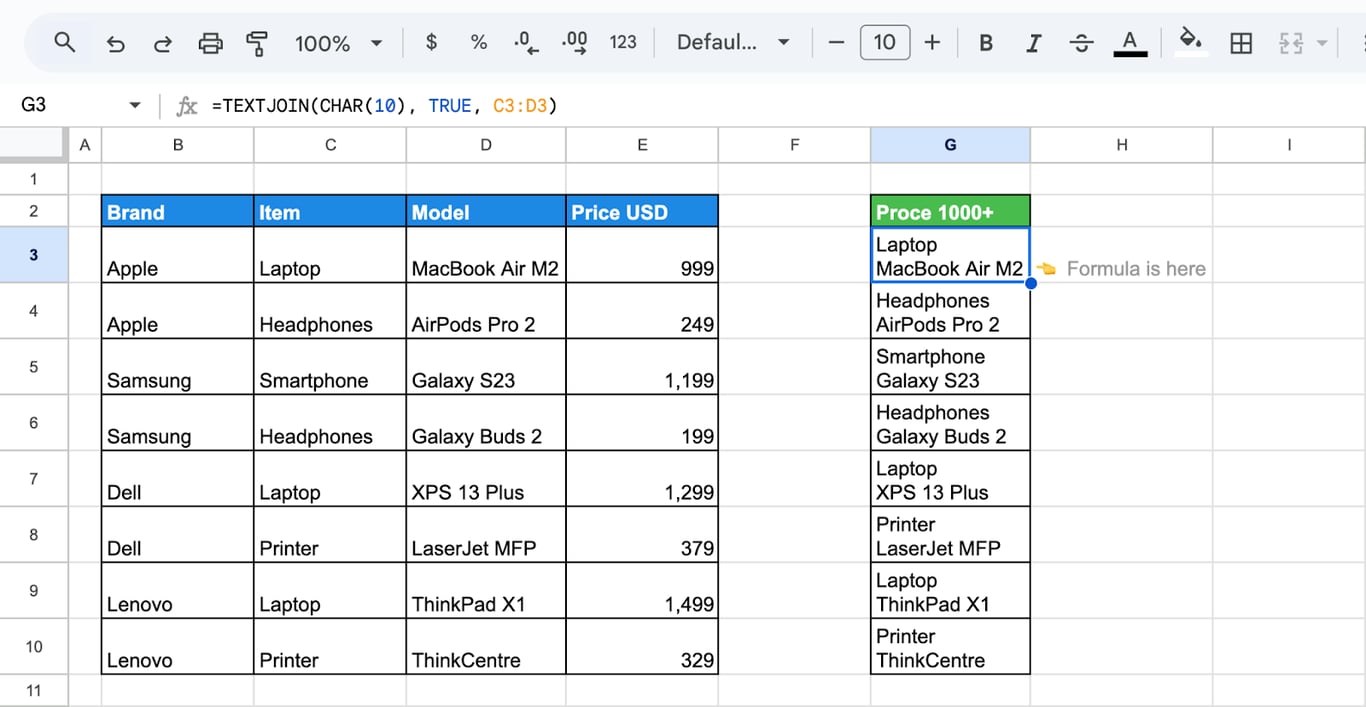
One joined text per row
TEXTJOIN returns a single value, also inside ARRAYFORMULA: given a table, it joins everything into one cell. To get one result for each row from a single formula, apply it row by row with BYROW:
=BYROW(B3:D10, LAMBDA(row, TEXTJOIN(" ", TRUE, row)))
BYROW passes each row of B3:D10 to TEXTJOIN in turn and returns a column of results. The alternative is the plain formula =TEXTJOIN(" ", TRUE, B3:D3) filled down.
Split and join again
SPLIT cuts a text into parts and JOIN puts them back with another separator, which changes the delimiter of a list in one step:
=JOIN(", ", SPLIT(D3, " "))
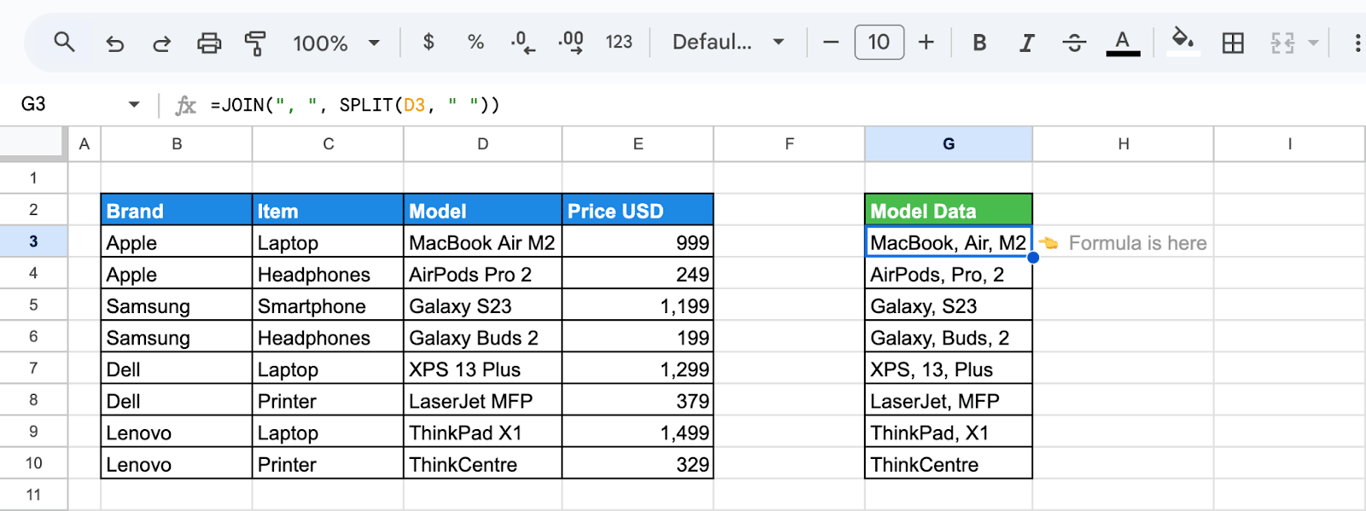
For a plain replacement of one separator with another, SUBSTITUTE is shorter: =SUBSTITUTE(D3, " ", ", ").
Errors and wrong results
⚠️ Error: #VALUE! in JOIN.
✅ Solution: The range has several rows and several columns. JOIN takes a single row or a single column; use TEXTJOIN for a block.
⚠️ Error: #N/A
✅ Solution: A FILTER or a lookup inside the formula found nothing. Wrap the formula in IFNA.
⚠️ Error: Separators with nothing between them: “A, , B”.
✅ Solution: There are empty cells in the range. Use TEXTJOIN with TRUE as the second argument. Cells that hold a space are not empty; clean them with TRIM.
⚠️ Error: A date is joined as a number such as 45583.
✅ Solution: The date was joined with an ampersand, or calculated inside the formula. Format it with TEXT: TEXT(A2, "yyyy-mm-dd").
⚠️ Error: The joined number cannot be used in calculations.
✅ Solution: The result of JOIN and TEXTJOIN is always text.
Related Google Sheets functions
Related Google Sheets functions
- CONCATENATE and the ampersand: Join a few cells.
- How to split cells: The reverse operation.
- FILTER: Choose what goes into the list.
- UNIQUE: Remove repeats before joining.
- CHAR: Line breaks and special characters as separators.
- Array formulas: Build the pieces for a whole range.
- QUERY with CONCATENATE: Joined columns in a query.
A joined list is a report built by hand
A joined list is a report built by hand
TEXTJOIN over FILTER is a small report: “all products above 1000, in one cell”. It is correct for the rows in the range today. When the rows come from an export, the list is as old as the export, and nothing in the cell says so; the next person copies the list into an email as if it were current.
The OWOX Data Marts extension for Google Sheets covers that half. A data analyst publishes a data mart (a table or an SQL query in your data warehouse) and makes it available for reports. In Sheets you open the extension, pick the data mart, tick the columns you want and run it. The rows land in a tab, ready for your formulas.
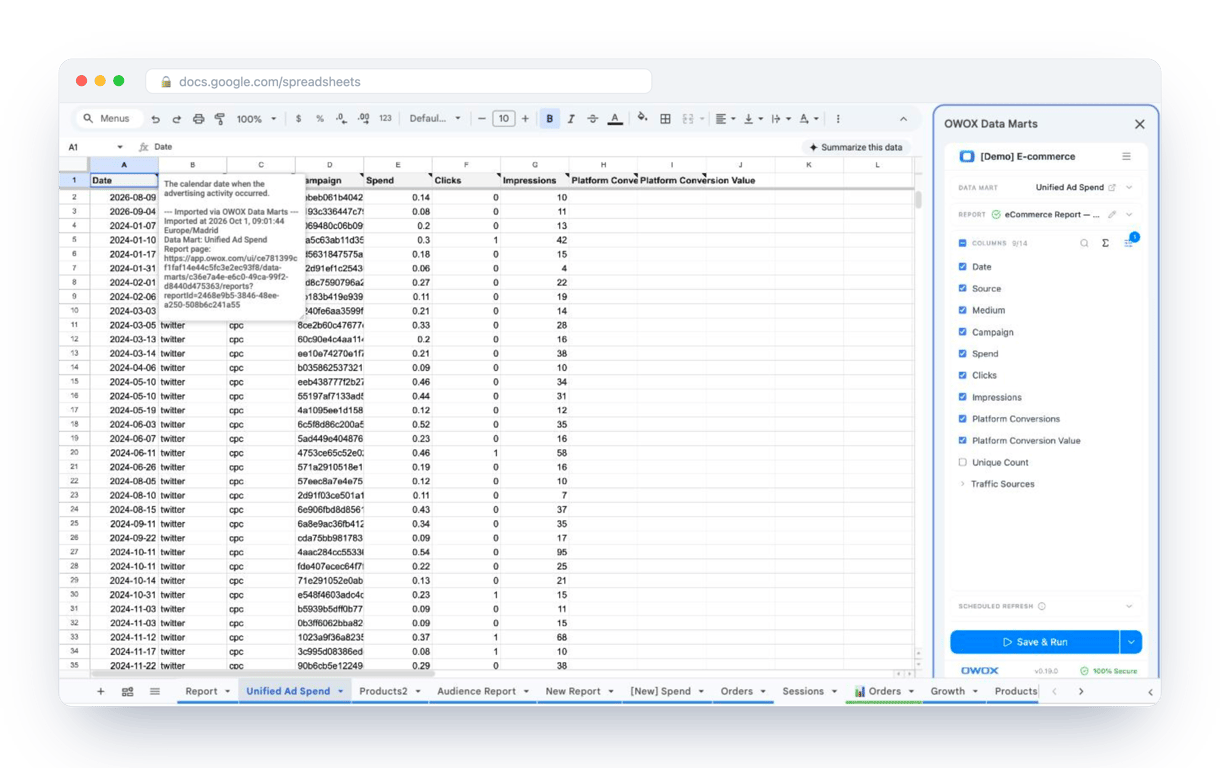
What changes for the person who maintains the sheet:
- Refresh replaces re-export. Refresh current report in the extension menu re-runs the same pull, and a scheduled refresh keeps the tab current without anyone touching it.
- The source is written on the sheet. The header cell of an imported tab carries a note with the data mart it came from, the time of the import and a link to the report.
- No SQL and no warehouse access needed. The analyst decides which data marts and columns are available. You choose from that list.
The extension does not write or change the analyst’s SQL. The lists your formulas build are then drawn from the current rows on every refresh. The extension comes with the OWOX Cloud plans of OWOX Data Marts; spreadsheet reporting describes both ways data reaches a sheet.
Turn your data into decisions.
Governed data marts give you the clean foundation ML needs to actually work.
- No AI hallucinations
- Analyst-governed definitions
- Every number traces to SQL
Frequently Asked Questions
Are there any limitations when using JOIN and TEXTJOIN in formulas?
JOIN accepts only single rows or single columns: a block of several rows and columns returns #VALUE!, while TEXTJOIN joins it row by row. JOIN cannot skip empty cells, so separators double up. Both always return text, both return one value even inside ARRAYFORMULA (use BYROW for one result per row), and the result has to fit into a single cell.
How does TEXTJOIN differ from CONCATENATE in Google Sheets?
TEXTJOIN simplifies concatenation by working with ranges instead of individual cells and offers features like skipping empty cells. CONCATENATE requires manual selection of each cell and doesn’t allow custom delimiters, making TEXTJOIN a more efficient and flexible option for most scenarios.
What delimiters can be used with JOIN and TEXTJOIN?
Both JOIN and TEXTJOIN support any custom delimiter, including commas, spaces, semicolons, or even line breaks using CHAR(10). You can specify the delimiter to suit your needs, ensuring your combined data is formatted for readability or compatibility with other tools.
Can I use JOIN and TEXTJOIN to combine data from multiple ranges?
Yes, both accept several ranges in one formula: JOIN("-", B3:B5, C3:C5) joins the first range and then the second. The difference is the shape of each range: JOIN needs single rows or columns, TEXTJOIN also takes blocks, and only TEXTJOIN can skip the empty cells.
How does the TEXTJOIN function handle empty cells?
The TEXTJOIN function can ignore empty cells if the ignore_empty parameter is set to TRUE. This ensures cleaner, more cohesive results by excluding blanks from the output, making it ideal for working with incomplete datasets or irregularly populated ranges.
What is the purpose of the JOIN function in Google Sheets?
The JOIN function combines values from a single row or column into a single text string, separated by a specified delimiter. It’s useful for creating summaries, formatted lists, or consolidated data outputs, making it an essential tool for organizing and presenting information effectively.