How to remove duplicates in Google Sheets, and prevent them
To remove duplicates in Google Sheets, select the data and click Data > Data cleanup > Remove duplicates, or use the UNIQUE function to get a clean copy and keep the original. This guide also shows how to highlight duplicates with COUNTIF, remove them without shifting cells, keep one row per key, and prevent duplicate entries with data validation.
To remove duplicate rows in Google Sheets:
- Select the data.
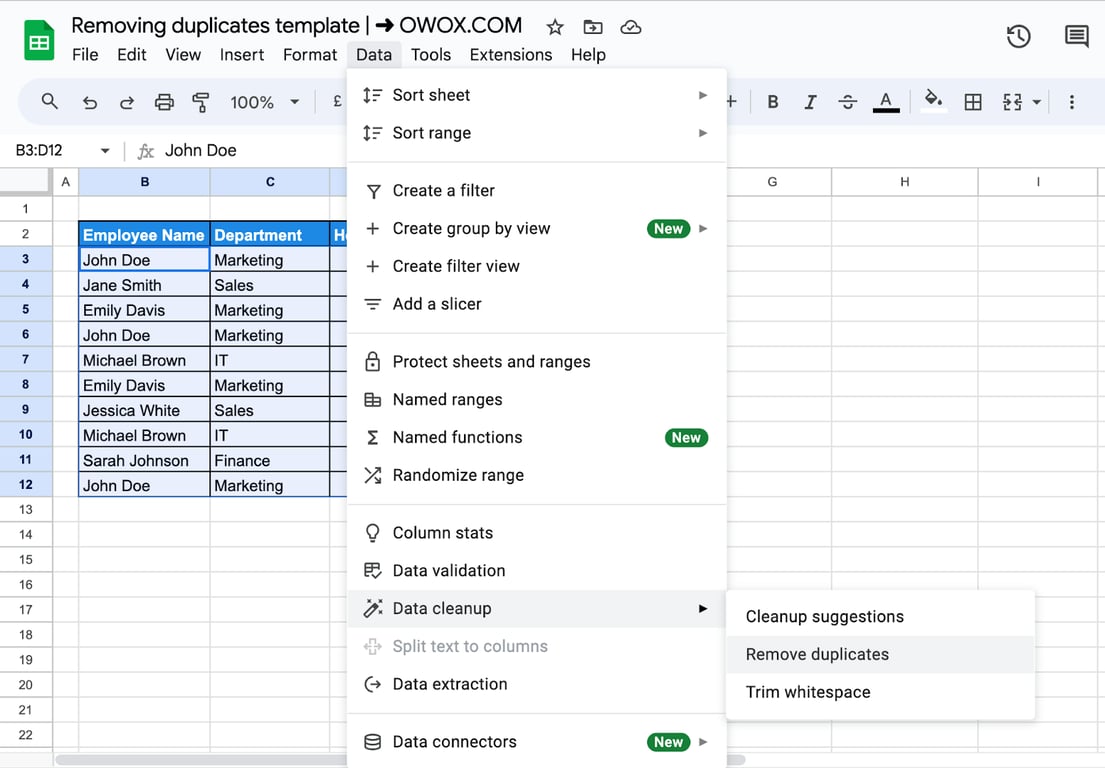
- Click Data > Data cleanup > Remove duplicates.
- Tick Data has header row if it has one, choose the columns to compare and click Remove duplicates.
The tool deletes the repeated rows in place. To keep the original and get a clean copy next to it, use a formula: =UNIQUE(B3:D12).
| You want to | Use |
|---|---|
| Delete repeated rows for good | Data > Data cleanup > Remove duplicates |
| Keep the source and get a list without repeats | =UNIQUE(range) |
| See the duplicates before deciding | Conditional formatting with COUNTIF |
| Remove duplicates without shifting cells | A helper formula that blanks the repeats |
| Keep one row per key, such as the latest or the largest | SORTN or QUERY |
| Stop duplicates from being entered | Data validation with COUNTIF |
Remove duplicates with data cleanup
Remove duplicates with data cleanup
Select the range, here B2:D12 with its header row, and open Data > Data cleanup > Remove duplicates.
The dialog shows how many rows and columns are selected and lists the columns to analyze.
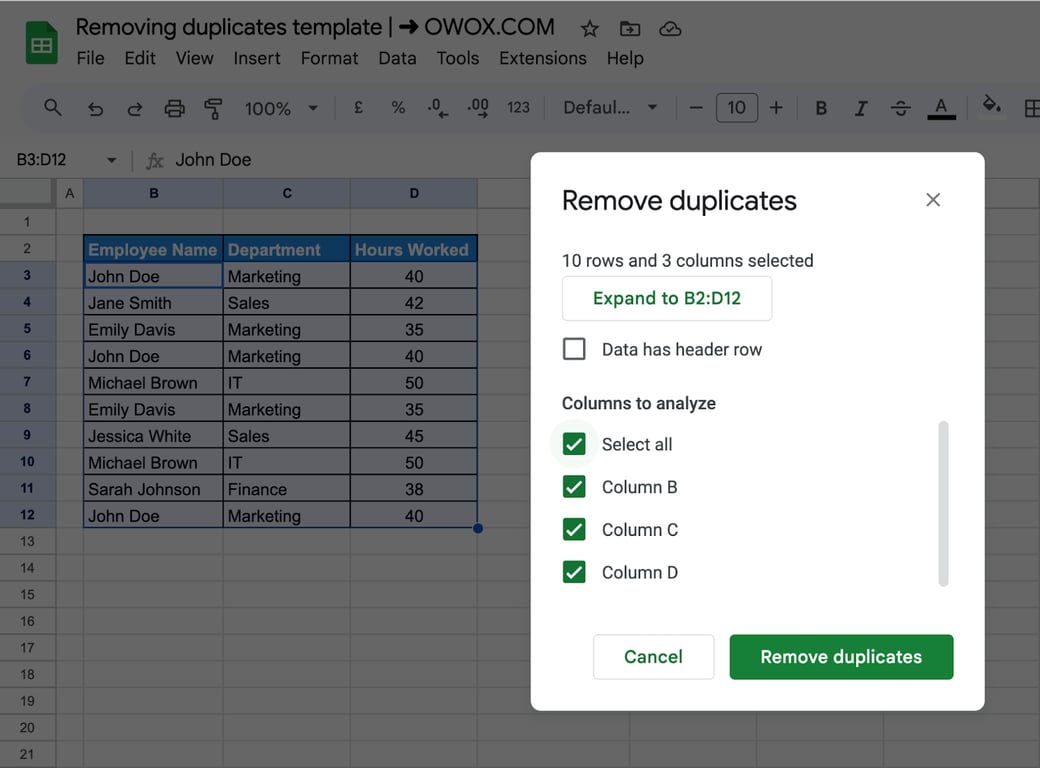
Two settings decide the result:
- Data has header row. Tick it when the first row holds column names, or the header is treated as data.
- Columns to analyze. With all columns ticked, only rows that match in every column are removed. Tick one column, such as an email, and every row that repeats that value is removed, even if the other columns differ. The first occurrence is kept.
Sheets reports what it did:
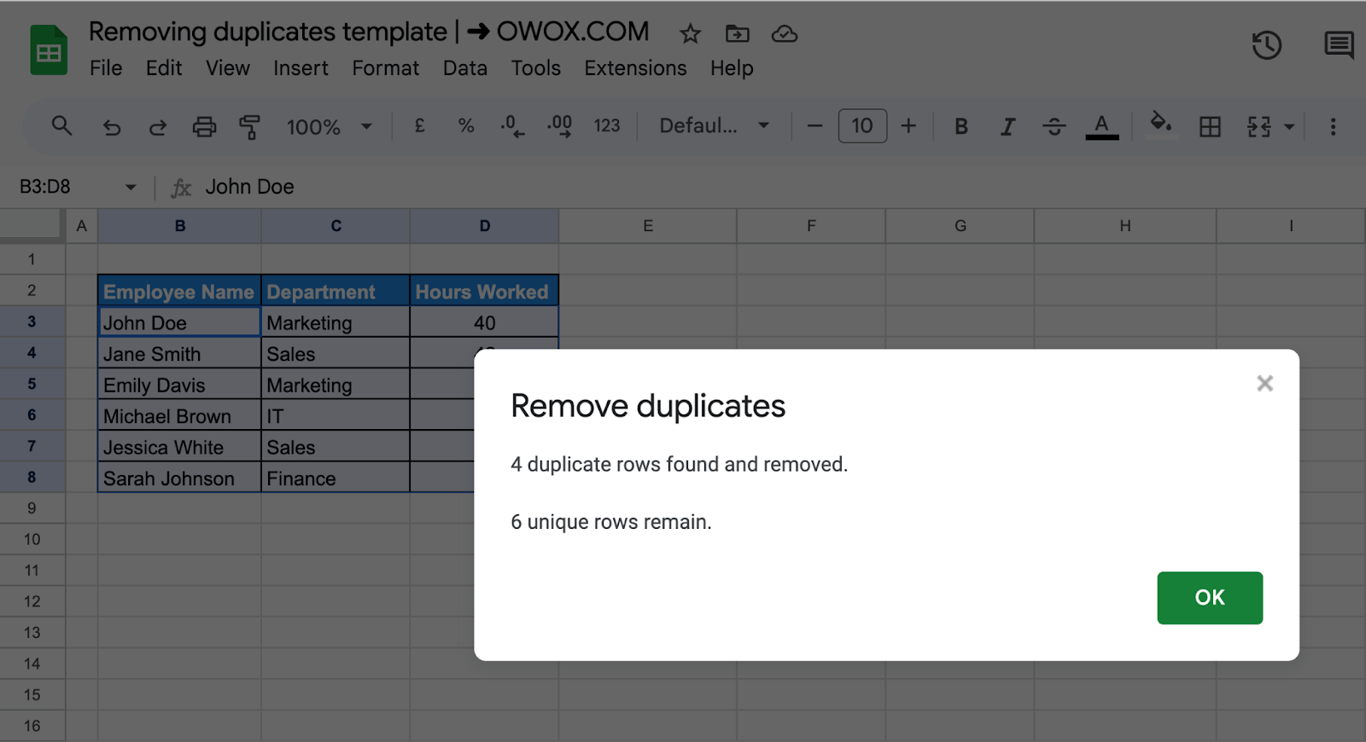
What counts as a duplicate, according to Google’s help: cells with the same value but a different letter case, formatting or formula are duplicates. “ANNA” and “anna” are one value for this tool. A trailing space still makes two values different, so run Data > Data cleanup > Trim whitespace first.
The deletion is done in place and the rows below move up. Undo (Ctrl+Z) brings the rows back while the file is open; after that, use the version history. The tool works on the selected range only, so select the full width of the table, or work on a copy.
UNIQUE: a clean copy by formula
UNIQUE: a clean copy by formula
=UNIQUE(B3:B12)
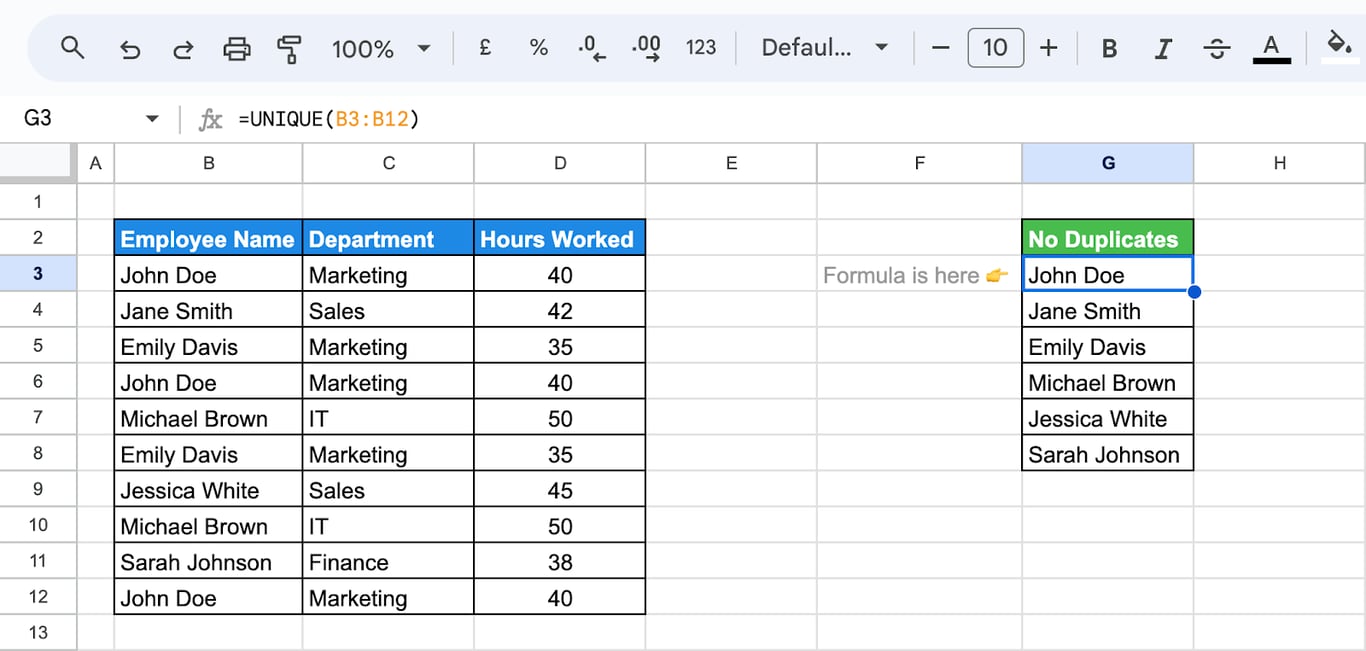
With several columns, UNIQUE compares whole rows:
=UNIQUE(B3:D12)
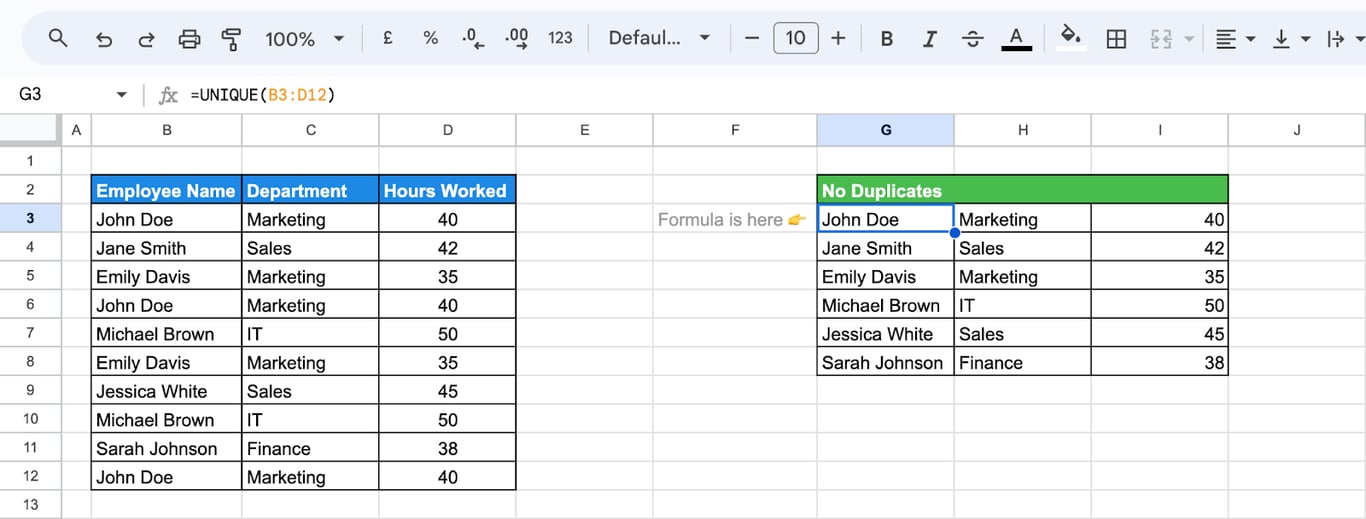
The source stays untouched, and the result updates when the source changes. Two differences from the menu tool:
- UNIQUE is case-sensitive: “ANNA” and “anna” stay two rows. Wrap the range in LOWER inside ARRAYFORMULA to ignore case.
=UNIQUE(range, FALSE, TRUE)returns only the values that occur exactly once, which removes every value that has a duplicate, not just the extra copies.
More in the guide to the UNIQUE function.
OWOX Data Marts
See your first report built in real time. 15 minutes.
- Connect your data warehouse
- Pick your metrics
- Get a live Google Sheets report
In the time it takes to write a ticket. Then imagine never writing that ticket again.
Book a DemoWe'll use your actual use case
Highlight duplicates with COUNTIF
Highlight duplicates with COUNTIF
To look at the duplicates before removing anything, color them.
- Select the column, here B3:B12.
- Click Format > Conditional formatting.
- Under Format cells if, choose Custom formula is and enter:
=COUNTIF($B$3:$B$12, B3)>1
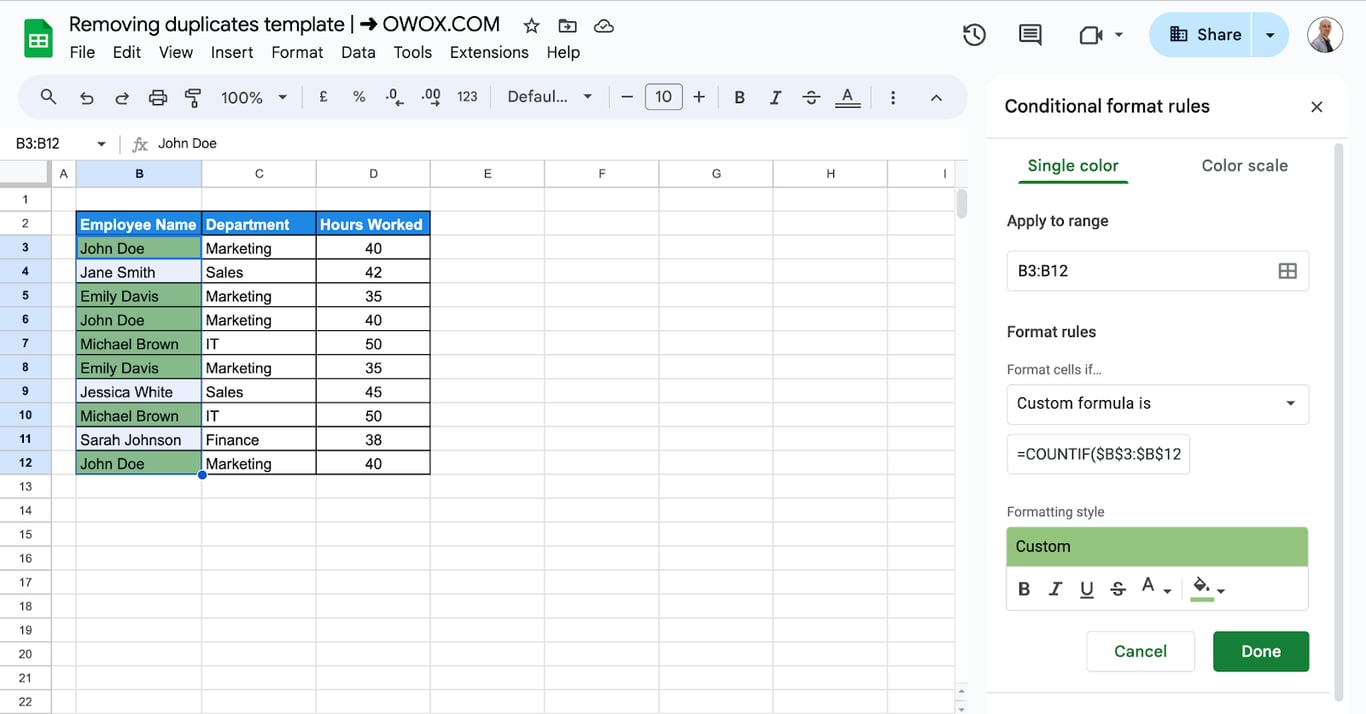
COUNTIF counts how often the value of each cell occurs in the column; more than once means a duplicate. Every occurrence is colored, the first one included.
To color only the repeats and leave the first occurrence clean, let the range grow row by row:
=COUNTIF($B$3:B3, B3)>1
To highlight rows that repeat in all three columns, apply the rule to B3:D12 and count the combination:
=COUNTIFS($B$3:$B$12, $B3, $C$3:$C$12, $C3, $D$3:$D$12, $D3)>1
How many duplicates there are in total:
=COUNTA(B3:B12) - COUNTUNIQUE(B3:B12)
And a list of the values that occur more than once:
=UNIQUE(FILTER(B3:B12, COUNTIF(B3:B12, B3:B12)>1))
Remove duplicates without shifting cells
Remove duplicates without shifting cells
The menu tool moves rows up, which breaks a layout where each row has to stay on its line. A helper column keeps every row in place and leaves the repeats empty:
=IF(COUNTIF(B$3:B3, B3)>1, "", B3)
Enter it next to the first row and fill it down. The first occurrence of a value is shown, later ones become blank cells. For the whole column in one formula:
=ARRAYFORMULA(IF(COUNTIFS(B3:B12, B3:B12, ROW(B3:B12), "<="&ROW(B3:B12))>1, "", B3:B12))
To replace the originals, copy the helper column and paste it over them with Edit > Paste special > Values only.
Keep one row per key
Often the rows are not identical: the same customer appears several times with different dates or amounts, and one row per customer is needed.
The first row for each key
=SORTN(B3:D12, 9^9, 2, 1, TRUE)
SORTN with 2 as its third argument removes duplicates: it returns one row for each value of the sort column, here the first column of the range, and 9^9 simply means “as many rows as there are”. See SORT and SORTN.
The largest value for each key
=QUERY(B2:D12, "SELECT B, C, MAX(D) GROUP BY B, C ORDER BY MAX(D) DESC LABEL MAX(D) 'Hours Worked'", 1)
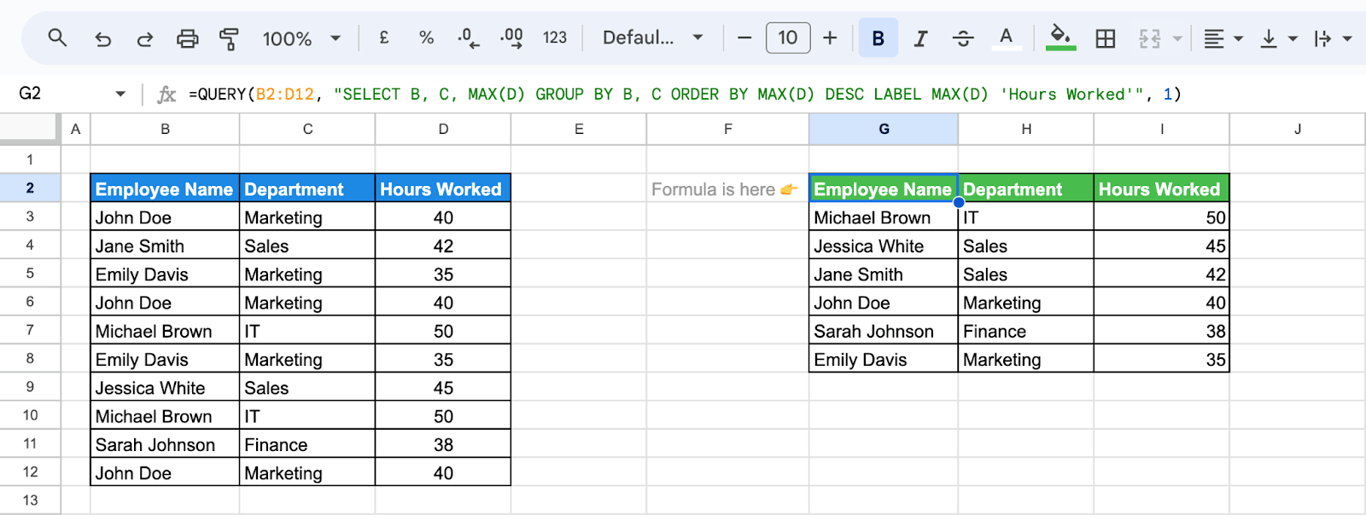
QUERY groups the rows by name and department and keeps the highest number of hours in each group.
A count for each row
A pivot table with every field in Rows lists each different row once, and COUNTA in Values shows how many times it occurred.
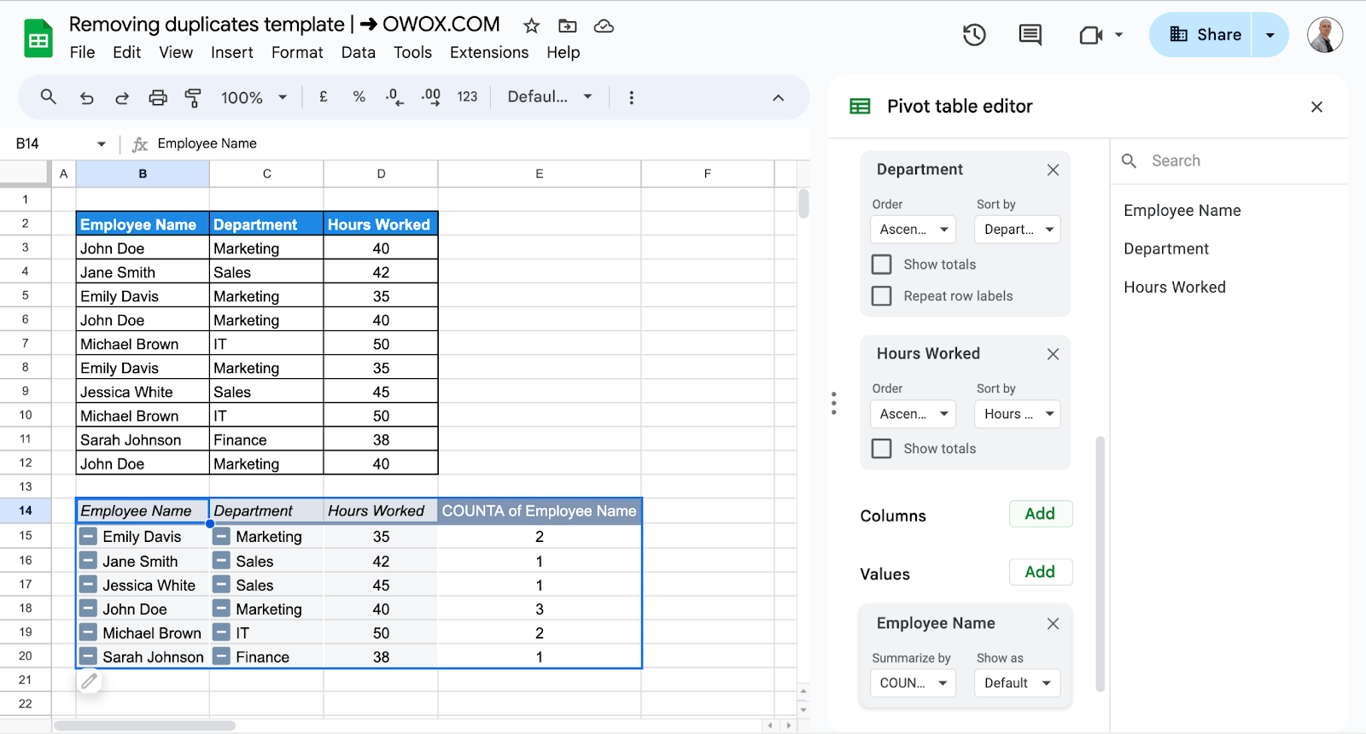
This is a check, not a cleanup: the source is unchanged. See pivot tables.
Prevent duplicate entries in a column
Prevent duplicate entries in a column
Data validation can refuse a value that is already in the column.
- Select the cells, here B3:B12, and click Data > Data validation.
- Add a rule with the criteria Custom formula is:
=COUNTIF(B$3:B3, B3)=1
- Under Advanced options, choose Reject the input.
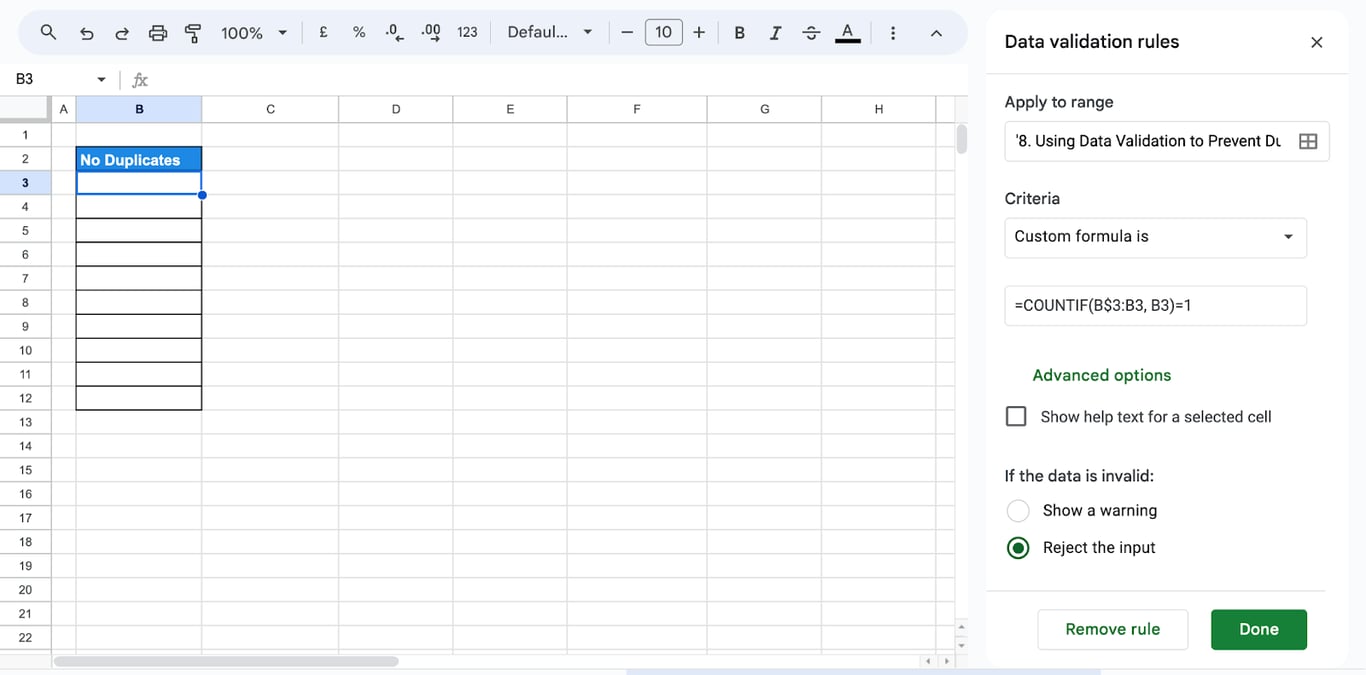
The formula counts the value from the top of the range down to the current row. The first entry passes and a repeat further down is refused when typed. Values that were in the column before the rule was added are flagged:
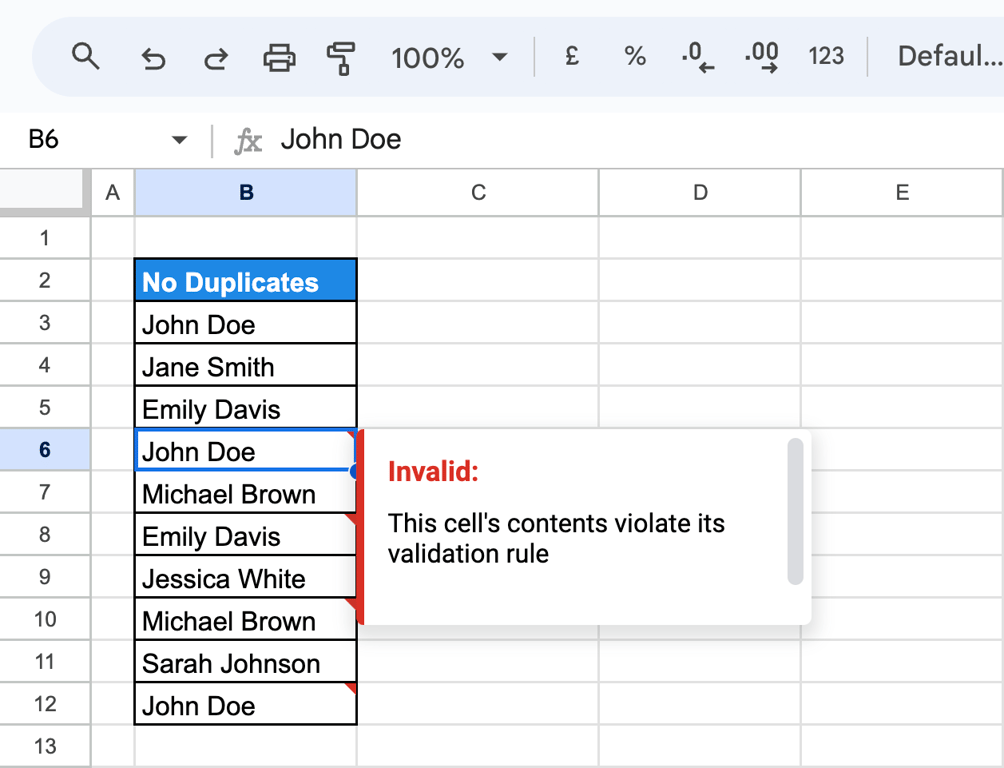
To check against the whole column in both directions, use =COUNTIF($B$3:$B$12, B3)=1. See data validation.
Why duplicates survive
⚠️ Problem: Remove duplicates reports that none were found, but the rows look the same.
✅ Solution: The values differ in something invisible: a trailing space, a non-breaking space from a web page, or a number stored as text in one row. Run Trim whitespace, and compare the lengths with LEN.
⚠️ Problem: UNIQUE keeps rows that the menu tool would remove.
✅ Solution: UNIQUE is case-sensitive and the tool is not. Normalize the case with LOWER.
⚠️ Problem: Too many rows were removed.
✅ Solution: Only some columns were ticked in the dialog, so rows that share one value were treated as duplicates. Undo and tick all the columns that make a row unique.
⚠️ Problem: The header row disappeared or was kept twice.
✅ Solution: Set Data has header row correctly.
⚠️ Problem: UNIQUE returns #REF!.
✅ Solution: The cells where the result should go are not empty. Clear the space below and to the right of the formula.
⚠️ Problem: The duplicates are back next week.
✅ Solution: They come with the data. Add validation where people type, and see the last section for data that is imported.
Related guides
- UNIQUE function: Distinct values and rows.
- QUERY with UNIQUE: Distinct rows from a query.
- COUNTIF and COUNTIFS: Count how often a value occurs.
- SORT and SORTN: Sort and keep the top rows.
- Data validation: Rules for what can be entered.
- TRIM, CLEAN and T: Remove the spaces that hide duplicates.
- Pivot tables: Count rows by any combination of fields.
- How to find and replace: Fix values in bulk.
Duplicates that return with every export
Duplicates that return with every export
Removing duplicates in a sheet cleans this copy of the data. If the rows arrive duplicated, because an export was pasted twice, two exports overlap by a few days, or a join in the source multiplies rows, the cleanup has to be repeated every time, and a report that someone forgot to clean counts the same order twice.
The OWOX Data Marts extension for Google Sheets covers that half. A data analyst publishes a data mart (a table or an SQL query in your data warehouse) and makes it available for reports. In Sheets you open the extension, pick the data mart, tick the columns you want and run it. The rows land in a tab, ready for your formulas.
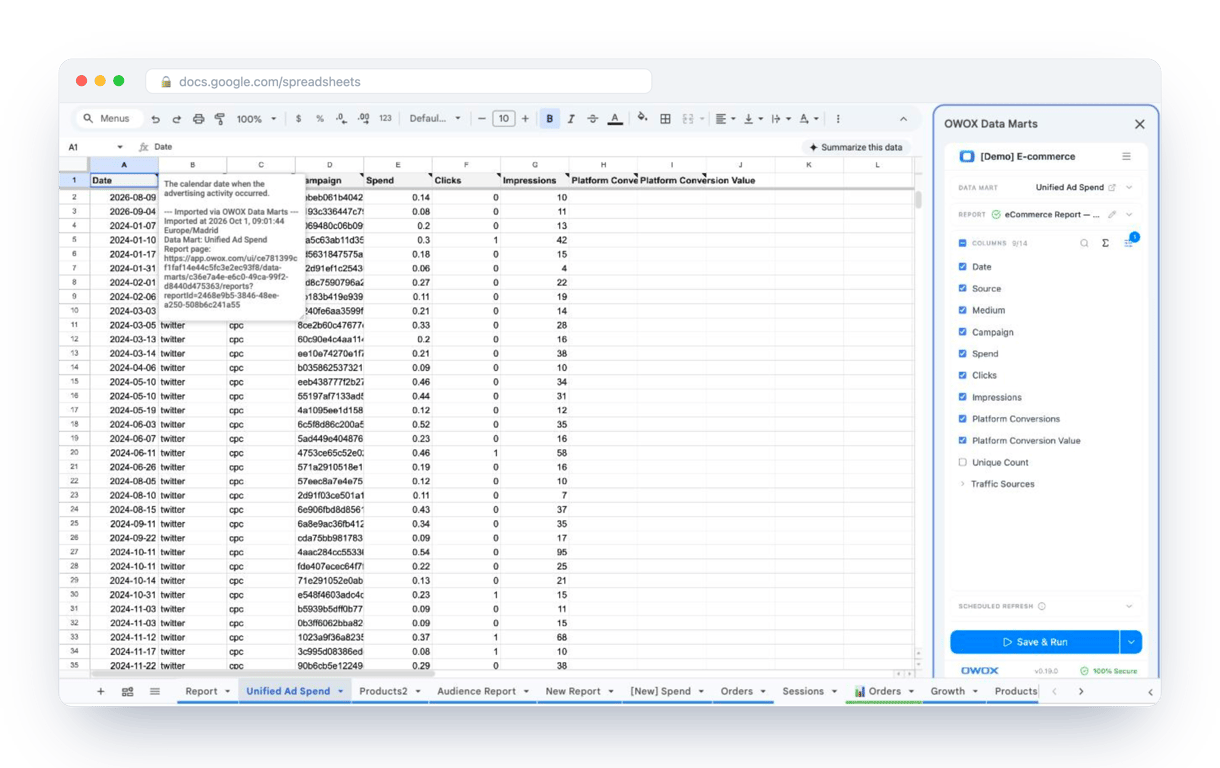
What changes for the person who maintains the sheet:
- Refresh replaces re-export. Refresh current report in the extension menu re-runs the same pull, and a scheduled refresh keeps the tab current without anyone touching it.
- The source is written on the sheet. The header cell of an imported tab carries a note with the data mart it came from, the time of the import and a link to the report.
- No SQL and no warehouse access needed. The analyst decides which data marts and columns are available. You choose from that list.
The extension does not write or change the analyst’s SQL. When the rows are deduplicated once in that SQL, every refresh brings the same clean set, and Remove duplicates goes back to being an occasional tool. The extension comes with the OWOX Cloud plans of OWOX Data Marts; spreadsheet reporting describes both ways data reaches a sheet.
Turn your data into decisions.
Governed data marts give you the clean foundation ML needs to actually work.
- No AI hallucinations
- Analyst-governed definitions
- Every number traces to SQL
Frequently Asked Questions
How do I remove duplicates in Google Sheets script?
In most cases a script is not needed: Data > Data cleanup > Remove duplicates deletes repeated rows, and the UNIQUE function keeps a clean copy that updates by itself. If the cleanup has to run on a schedule, the Range class of Google Apps Script has a removeDuplicates method that does what the menu command does; see Google's Apps Script reference for its options before using it on real data.
How does the UNIQUE function help in removing duplicates?
The UNIQUE function generates a list of unique values from a specified range, automatically filtering out duplicates. Use =UNIQUE(A1:A10) to create a list of unique entries from the range A1, effectively removing duplicates.
How can I highlight duplicates in a single column using Google Sheets?
To highlight duplicates in a single column, use conditional formatting. Select the column, go to "Format" > "Conditional formatting", choose "Custom formula is", and enter =COUNTIF(A:A, A1)>1. Choose a formatting style and apply it.
What method should I use to highlight duplicates across multiple rows or columns?
To highlight duplicates across multiple rows or columns, use an array formula in conditional formatting. For example, select the range, go to "Format" > "Conditional formatting", and enter a formula like =COUNTIF($A$1:$Z$100, A1)>1 to highlight duplicates in the specified range.
How does the built-in tool in Google Sheets help in removing duplicates?
The built-in "Remove duplicates" tool simplifies the process by automatically identifying and removing duplicate rows. Select your data range, go to "Data" > "Data cleanup" > "Remove duplicates", and follow the steps to clean your data.
How to prevent duplicates in Google Sheets?
Prevent duplicates by using data validation. Go to "Data" > "Data validation", select "Custom formula is", and enter a formula like =COUNTIF(A:A, A1)=1. This will restrict entries to unique values.
How do I filter only duplicates in Google Sheets?
To filter only duplicates, you can use a combination of COUNTIF and filter functions. Create a helper column to count occurrences and then filter rows where the count is greater than 1.
What strategies can prevent duplicate entries in Google Sheets?
To prevent duplicate entries, you can use data validation rules to restrict input, implement conditional formatting to highlight duplicates as they are entered, or use scripts to check for duplicates before data is added.
How do I clear duplicates in Google Sheets?
You can clear duplicates in Google Sheets using the built-in "Remove duplicates" tool. Select the range of data, go to "Data" > "Data cleanup" > "Remove duplicates", and follow the prompts to clear duplicates.
Can Google Sheets find duplicates?
Yes, Google Sheets can find duplicates. You can use conditional formatting to highlight duplicates or use functions like COUNTIF to identify them.